UA-4FX - Audio Interface EDIROL - Free user manual and instructions

Find the device manual for free UA-4FX EDIROL in PDF.

📄 72 pages English EN 💬 AI Question
Notice EDIROL UA-4FX - page 2
View the manual : Français FR English EN 日本語 JA
Manual assistant
Powered by ChatGPT
Waiting for your message
Product information

Brand : EDIROL

Model : UA-4FX

Category : Audio Interface

Download the instructions for your Audio Interface in PDF format for free! Find your manual UA-4FX - EDIROL and take your electronic device back in hand. On this page are published all the documents necessary for the use of your device. UA-4FX by EDIROL.

USER MANUAL UA-4FX EDIROL

Roland Corporation Roland Hektroniche UNITED KINGDOM ua. NICARAGUA Zak Electron & Musical HUNGARY As of December 1, 2005 (FDIROL1) 04018190 1SX Æ— To resize thickness, move all items on the front and registration marks to left or right. over EDIROL- ty Roland USB Audio Capture Before using this unit, carefully read the sections entitled: “USING THE UNIT SAFELY” and “IMPORTANT NOTES” (pp. 2- 5). These sections provide important information concerning the proper operation of the unit. Additionally, in order to feel lassured that you have gained a good grasp of every feature provided by your new unit, Owner’s manual should be read in its entirety. The manual should be saved and kept on hand as a convenient reference.
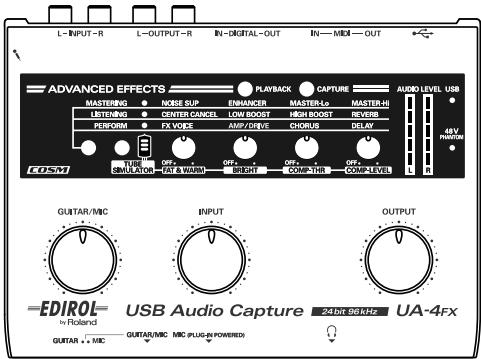
OL USB Audio Capture max UA-4x Copyright © 2005 ROLAND CORPORATION All rights reserved. No part of this publication may be reproduced in any form without the written permission of ROLAND CORPORATION.

INSTRUCTIONS FOR THE PREVENTION OF FIRE, ELECTRIC SHOCK, OR INJURY TO PERSONS About À\ WARNING and /\ CAUTION Notices About the Symbols Used for instructions intended Lo alert Te À symbol alert he user Lo important true the user to the risk of death or severe or warnings:The specific meaning of the symbol is| WARNING | injury should the unit be used| | [determined by the design contained within the improperly. triangle. In the case of the symbol at lef, it is used for| general cautions, warnings, or alerts to danger. Used for instructions intended to alert the user to the risk of injury or material damage should the unit be used proper @ |must not be done is indicated by the design contained improperly. within the circle. In the case of the symbol at left, it A GAUTION |: Mistral damage refers to damage or means that the unit must never be disassembled. The © symbol alerts the user 10 items that must never be carried out (are forbidden). The specific thing that other adverse effects caused with respect to the home and all its animals or pets. cord plug must be unplugged from the outlet The @ symbol alerts the user to things that must be carried out. The specific thing that must be done is furnishings, as well to domestic @ |indicated by the design contained within the circle. In the case of the symbol at left, it means that the power-

Before using this unit, make sure to + Make sure you always have the unit read the instructions below, and the ÂÀ placed so it is level and sure to remain Owner's Manual. Stable. Never place it on stands that could wobble, or on inclined surfaces. modifications on the unit. Do not open or perform any internal © +_ This unit, either alone or in combi- nation with an amplifier and headphones or speakers, may be Do not attempt to repair the unit, or capable of producing sound levels that replace parts within it (except when could cause permanent hearing loss. this manual provides specific instruc- Do not operate for a long period of tions directing you to do so). Refer all time at a high volume level, or at a servicing to your retailer, the nearest level that is uncomfortable. If you Roland Service Center, or an autho- experience any hearing loss or ringing rized Roland distributor, as listed on in the ears, you should immediately the “Information” page. stop using the unit, and consult an nine audiologist. Never use or store the unit in places that are: + Do not allow any objects (e.g., + Subject to temperature extremes SN flammable material, coins, pins); or (eg, direct sunlight in an enclosed liquids of any kind (water, soft drinks, vehicle, near a heating duct, on top of heat-generating equipment); or are Damp (e.g., baths, washrooms, on wet floors); or are Humid; or are Exposed to rain; or are Dusty; or are Subject to high levels of vibration. etc.) to penetrate the unit.

Æ— To resize thickness, move all items on the front dover and registration marks to left or right. For the USA

FEDERAL COMMUNICATIONS COMMISSION

‘This equipment has been tested and found to comply with the limit for a Class B digital device, pursuant to Part 15 of the FCG Rules. These limits are designed to provide reasonable protection against harmful intererence in à residential installation. This equipment generates, uses, and can radiate radio frequency energy and, if not installed and used in accordance with the instructions, may cause harmful interference to radio communications. However, there is no guarantee that interference wi not occur in a particular installation. If this equipment does cause harmtul inerference to radio or television reception, which can be determined by tuming the equipment off and on, the user is encouraged to try to correct the interference by one or more of the following measures: — Rorient or relocate 1he receiving antenna. —_ Increase the separation between the equipment and receiver. — Connect the equipment into an outlet on à circuit different from that to which the receiver is connected. — Consult the dealer or an experienced radio/TV technician {or help. ‘This device complies with Part 15 of he FCC Rules. Operation is subject to the following two conditions: {1) This device may not cause harmtul interference, and {@) This device must accept any interference received, including interlerence that may cause undesired operation. Unauthorized changes or modification 1 this system can void the users authoriy to operate 1his equipment. ‘This equipment requires shielded interface cables in order to meet FCC class B Limit. For Canada NOTICE This Class B digital apparatus meets all requirements of the Canadian Interlerence-Causing Equipment Regulations. AVIS Cet appareil numérique de la classe B respecte toutes les exigences du Règlement sur le matériel brouilleur du Canada. For the USA.

DECLARATION OF CONFORMITY

À\ CAUTION +_Immediately turn the power off, and request servicing by your retailer, the nearest Roland Service Center, or an authorized Roland distributor, as listed on the “Information” page when: +_Ifsmoke or unusual odor occurs + Objects have fallen into, or liquid has been spilled onto the unit; or +_The unit has been exposed to rain (or otherwise has become wet); or +_ The unit does not appear to operate normally or exhibits a marked change in performance. In households with small children, an adult should provide supervision until the child is capable of following all the rules essential for the safe operation of the unit. Protect the unit from strong impact. {Do not drop it!) + DO NOT play a CD-ROM disc on à conventional audio CD player. The resulting sound may be of a level that could cause permanent hearing loss. Damage to speakers or other system components may result.

Try to prevent cords and cables from becoming entangled. Also, all cords and cables should be placed so they are out of the reach of children. Never climb on top of, nor place heavy objects on the unit.

Disconnect all cords coming from external devices before moving the unit. Always turn the phantom power off when connecting any device other than condenser microphones that require phantom power. You risk causing damage if you mistakenly supply phantom power to dynamic microphones, audio playback devices, or other devices that don't require such power. Be sure to check the specifications of any microphone you intend to use by referring to the manual that came with it. (This instrument’ phantom power: 48 V DC, 5 mA Max)

IMPORTANT NOTES In addition to the items listed under “USING THE UNIT SAFELY” on page 2, please read and observe the followin Power Supply Before connecting this unit to other devices, turn off the power to all units. This will help prevent malfunctions and/or damage to speakers or other devices. Placement + Using the unit near power amplifiers (or other equipment containing large power transformers) may induce hum. To alleviate the problem, change the orientation of this unit; or move it farther away from the source of interference. This device may interfere with radio and television reception. Do not use this device in the vicinity of such receivers. Noise may be produced if wireless communi- cations devices, such as cell phones, are operated in the vicinity of this unit. Such noise could oceur when receiving or initiating a call, or while conversing, Should you experience such problems, you should relocate such wireless devices so they are at a greater distance from this unit, or switch them off. Do not expose the unit to direct sunlight, place it near devices that radiate heat, leave it inside an enclosed vehicle, or otherwise subject it to temperature extremes. Excessive heat can deform or discolor the unit. When moved from one location to another where the temperature and/or humidity is very different, water droplets (condensation) may form inside the unit, Damage or malfunction may result if you attempt to use the unit in this condition. Therefore, before using the unit, you must allow it to stand for several hours, until the condensation has completely evaporated. Depending on the material and temperature of the surface on which you place the unit, its rubber feet may discolor or mar the surface. You can place à piece of felt or cloth under the rubber feet to prevent this from happening. If you do so, please make sure that the unit will not slip or move accidentally. Maintenance + For everyday cleaning wipe the unit with a soft, dry cloth or one that has been slightly dampened with water. To remove stubborn dirt, use a cloth impregnated with a mild, non- abrasive detergent. Afterwards, be sure to wipe the unit thoroughly with a soft, dry cloth. Never use benzine, thinners, alcohol or solvents of any kind, to avoid the possibility of discoloration and/or deformation. Repairs and Data + Please be aware that all data contained in the units memory may be lost when the unit is sent for repairs. Important data should always be written down on paper (when possible). During repairs, due care is taken to avoid the loss of data. However, in certain cases (such as when circuitry related to memory itself is out of order), we regret that it may not be possible to restore the data, and Roland assumes no liability concerning such loss of data. Additional Precautions + Please be aware that the contents of memory can be irretrievably lost as a result of a malfunction, or the improper operation of the unit, To protect yourself against the risk of loosing important data, we recommend that you periodically write down important data you have stored in the unit’s memory on paper. Unfortunately, it may be impossible to restore the contents of data that was stored in the units memory once it has been lost. Roland Corporation assumes no liability concerning such loss of data.

Use à reasonable amount of care when using the unit's buttons, sliders, or other controls; and when using its jacks and connectors. Rough handling can lead to malfunctions. When connecting / disconnecting all cables, grasp the connector itself—never pull on the cable. This way you will avoid causing shorts, or damage to the cable’s internal elements. To avoid disturbing your neighbors, try to keep the units volume at reasonable levels. You may prefer to use headphones, so you do not need to be concerned about those around you (especially when it is late at night) When you need to transport the unit, package itin the box (including padding) that it came in, if possible. Otherwise, you will need to use equivalent packaging materials. Use a cable from Roland to make the connection. If using some other make of connection cable, please note the following precautions. + Some connection cables contain resistors. Do not use cables that incorporate resistors for connecting to this unit. The use of such cables can cause the sound level to be extremely low, or impossible to hear. For information on cable specifications, contact the manufacturer of the cable. Before you open the included CD-ROM, you must read the “license agreement.” Opening the CD-ROM will be taken to mean your acceptance of the license agreement. Handling CD-ROMs Avoid touching or scratching the shiny underside (encoded surface) of the disc. Damaged or dirty CD-ROM dises may not be read properly. Keep your dises clean using a commercially available CD cleaner. Copyright + Unauthorized recording, distribution, sale, lending, public performance, broadcasting, or the like, in whole or in part, of a work {musical composition, video, broadcast, public performance, or the like) whose copyright is held by a third party is prohibited by law. + When exchanging audio signals through a digital connection with an external instrument, this unit can perform recording without being subjected to some of the restrictions of the Serial Copy Management System (SCMS). This is because the unit is intended solely for musical production, and is designed not to be subject to restrictions as long as it is used to record works (such as your own compositions) that do not infringe on the copyrights of others. (SCMS is a feature that prohibits second-generation and later copying through a digital connection. It is built into MD recorders and other consumer digital-audio equipment as a copyright-protection feature.) Do not use this unit for purposes that could infringe on a copyright held by a third party. We assume no responsibility whatsoever with regard to any infringements of third-party copyrights arising through your use of this unit. Microsoft and Windows are registered trade- marks of Microsoft Corporation. The screen shots in this document are used in compliance with the guidelines of the Microsoft Corporation. Windows? is known officially as: “Microsoft® Windows® operating system.” Apple, Macintosh, and iTunes are registered trademarks of Apple Computer, Inc. Mac OS is a trademark of Apple Computer, Inc. Pentium is a registered trademark of Intel Cor- poration. OMS is a registered trademark of Opcode Sys- tems, Inc. FreeMIDI is a trademark of Mark of the Uni- corn, Inc. AI product names mentioned in this docu- ment are trademarks or registered trademarks of their respective owners.

Contents Features of the UA-4FX. Connections for various setups. Recording a cassette tape or LP into your computer. Recording sound from your computer onto MD or DAT . nu Recording the digital output from a CD/MD/DAT into your computer 12 Recording a guitar or mic. anne 13 Recording with a phantom-powered condenser mic Recording Internet radio or other computer sound Playing back 5.1 ch surround from your computer Applying effects. Advanced effects (three features). Applying effects … Using effects APPENDIX Driver settings (ADVANCED switch ON)... Driver installation and settings (Mac OS 9) … Giving priority to background services. Driver Signing Options setting...

Features of the UA-4FX … Connections for various setups Applying effects Software installation

l Features of the UA-4FX Awesome 24-bit audio quality, and input/output support for a variety of audio formats in both digital and analog + Capture analog source material (such as records and cassette tapes) into your computer with astounding sound quality. + 44.1 kHz / 48 KHz / 96 kHz 24-bit high-quality sound + Digital (optical) input/output jacks support sampling frequencies of 44.1 KHz / 48 KHz / 96 kHz. You can capture audio signals from CD, MD, or DAT with no loss in quality. Advanced Effect audio processor delivers 24-bit quality effects for recording and playback with simple one-touch operation The vacuum tube amp simulator lets you transform sound from a digital source such as an MP3 file or Internet radio, giving it the fat and warm tone that's characteristic of vacuum tubes. Even analog sources can be captured with the distinctively warm tone of vacuum tubes so you preserve the analog character of the sound. With a simple operation you can remove hiss noise from an analog source, and restore lost tone or presence to make the sound richer and more brilliant. A full range of audio processing for playback is also provided. Clear highs, powerful lows, and deeper reverb for a more spacious sound. The UA-4FX transforms your computer into an AV processor! The Center Cancel effect lets your computer work as à karaoke system! The UA4FX is ideal for recording guitar or vocals. In addition to an audio processor designed for performance, and an FX voice effect that lets you transform the sound into a different vocal character, you can use a variety of effects (such as AMP/ DRIVE) to obtain a range of sounds, from natural-sounding guitar amp distortion to aggressive distortion, as well as chorus and delay, all carefully selected from the BOSS effects processors acclaimed by guitarists everywhere.

Compact size, ideal for desktop use or portability The UA<4FX is USB bus-powered, taking its power supply from the computer. Since there's no need to connect an AC adaptor, if ideal for use with a notebook computer. Powerful impact for game sound playback The UA<4FX is an ideal way to greatly enhance your computer’s audio environment. Support for Dolby Digital 5.1 channel playback You can connect an AV amp and enjoy the dynamic sound of a movie theater.

  • Supported only on Windows XP.
  • 5.1 channel playback requires Intervideo Corporation"s WinDVD Version 5 or later, sold separately.

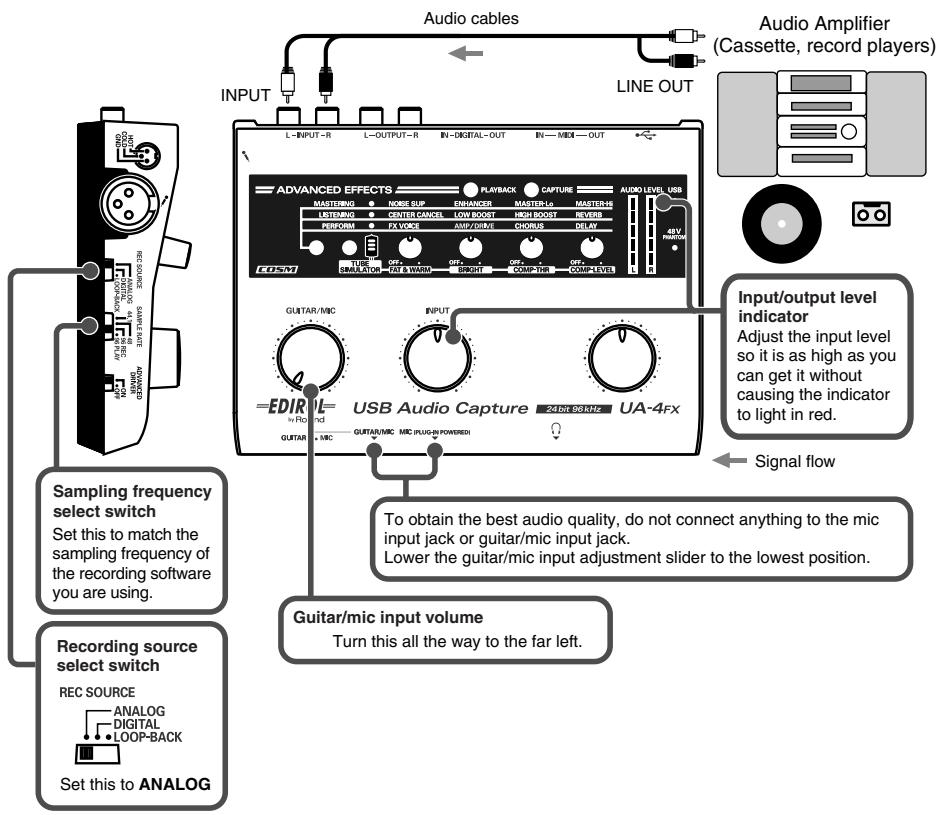
Connections for various setups This chapter explains how you can connect the UA-4FX for various setups. *_ To avoid speaker damage and/or malfunction, you must turn down the volume on all your audio equipment before making connections twoith the UA-4FX. Recording a cassette tape or LP into your computer Here’s how you can record the analog output of an audio device such as a cassette tape or LP (vinyl record) into your computer. Sampling frequency select switch Set this to match the sampling frequency of the recording sofware you are using. Recording source select switch REC SOURCE ‘ANALOG DIGITAL, [too aack Set this to ANALOG © Sampling frequency select s Audio cables Audio Amplifier = (Cassette, record players)

[ml = u = Inputoutput level canne indicator Adjust the input level so itis as high as you can get i without br causing the indicator USB Audio Capture æcœœs Ua-arx | | ightin red 4 Signal flow To obtain the best audio quality, do not connect anything to the mic. input jack or guitar/mic input jack. Lower the guitar/mic input adjustment slider to the lowest position. Guitar/mic input volume ‘Turn this al the way to the far left

Set this to the sampling frequency that is selected in your recording software. After you change the position of the sampling frequency select switch, you will need to disconnect and reconnect the USB cable.

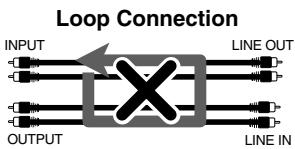
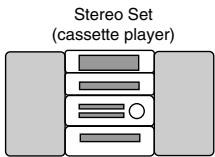
Connections for various setups © Recording source select switch Set this to ANALOG. Turn down the volume of your connected monitor speakers (or similar equipment) before you change the setting of the recording source select switch © Input/output level indicator Use this to adjust the input level. To obtain the best-quality recording, use the input volume knob to adjust the level until itis as high as you can get it without causing the inputoutput level indicator to light in red. Be careful of looped connections : . Stereo Set ua4rx Loop Connection (amet pie)

nr A OUTPUT LNEIN If you connect the UA4FX as shown in the above diagram with another device that passes the input audio back to the output (e.g., a MD/DAT in recording mode), the sound will loop between the UA-4FX and the other device, causing oscillation and producing an unexpected high volume. Be aware that such connections can cause malfunctions or damage your speakers.

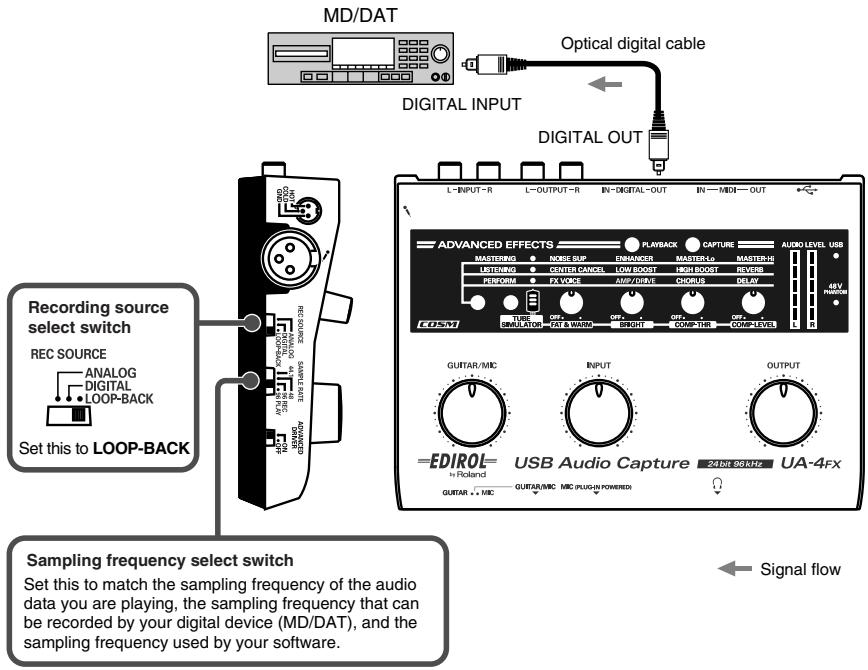
FX_r_e.book 11 K—% 2005#%#11A4R &HA ÆÂ11#30f Connections for various setups Recording sound from your computer onto MD or DAT Here’s how you can record audio data from your computer onto a digital device such as MD or DAT. MD/DAT Optical digital cable DIGITAL INPUT para ar NON Recording source select switch REC SOURCE [ue L.to0P-Back Set this to LOOP-BACK Sampling frequency select switch Signaifow Set this to match the sampling frequency of the audio data you are playing, the sampling frequency that can be recorded by your digital device (MD/DAT), and the sampling frequency used by your software. © Sampling frequency select switch Set this to the sampling frequency of the audio data you are playing and the sampling frequency of your recording software. After you change the position of the sampling frequency select switch, you will need to disconnect and reconnect the USB cable. © Recording source select switch Set this to LOOP-BACK. If this is set to LOOP-BACK, signals will no longer be received from the various analog input jacks. This means that only the sound from your computer will be sent to the digital output connector, so that noise or undesired sound will not be present. Turn down the volume of your connected monitor speakers (or similar equipment) before you change the setting of the recording source select switch

PS F7 Connections for various setups

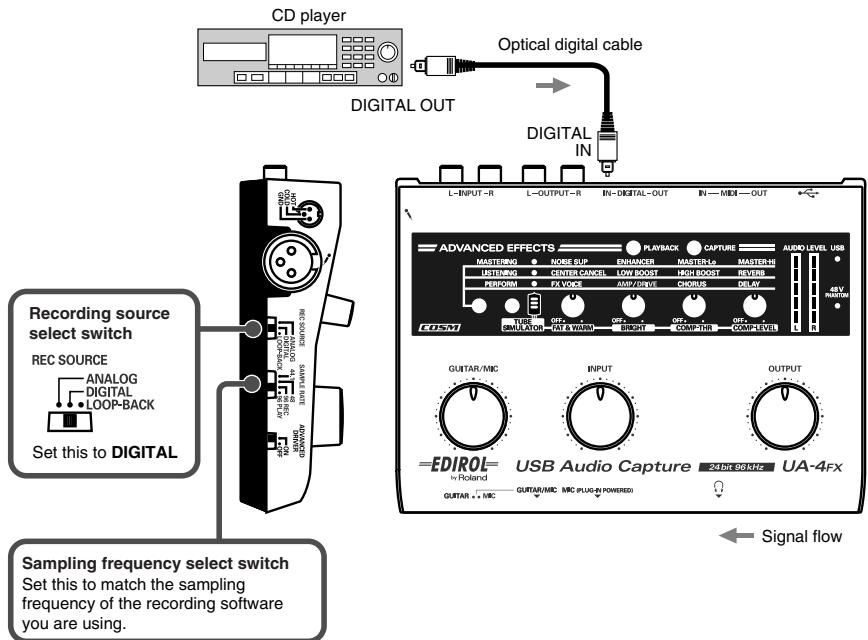
Recording the digital output from a CD/MD/DAT into your computer CD player [| Optical digital cable ESS 00) > DIGITAL OUT 2e) sienne

Recording source select switch REC SOURCE MALO | Lex CE) Set this o DIGITAL 4 —HDIROE USB Audio Capture mem UA-4rx <= Signal flow Sampling frequency select switch Set his to match the sampling PS frequency of the recording software Pt La you are using. | © Sampling frequency select switch Set this to the sampling frequency of your recording software. Normally, you will select 48 kHz or 44.1 KHz for DAT, and 44.1 kHz for MD or CD. For details, refer to the owner's manual for your digital audio device and software. After you change the position of the sampling frequency select switch, you will need to disconnect and reconnect the USB cable. © Recording source select switch Set this to DIGITAL. Turn down the volume of your connected monitor speakers (or similar equipment) before you change the setting of the recording source select switch The UA-4FX complies with SCMS. If the audio data that is input from the digital audio input connector contains copy-prohibit flags (as will be the case if you recorded an MD from a CD), the UA-4FX will not allow this data to be recorded on your computer. (The sound will be output from the line output jacks and headphone jack.) The signal from the line input jacks or mic input jack, the signal from the guitar/mic input jack, and the signal from the digital input connector cannot be mixed and recorded together. If no signal is being received from the digital input connector even though the recording source select switch is set to DIGITAL, the UA-4FX will operate in the same way as when the switch is set to ANALOG

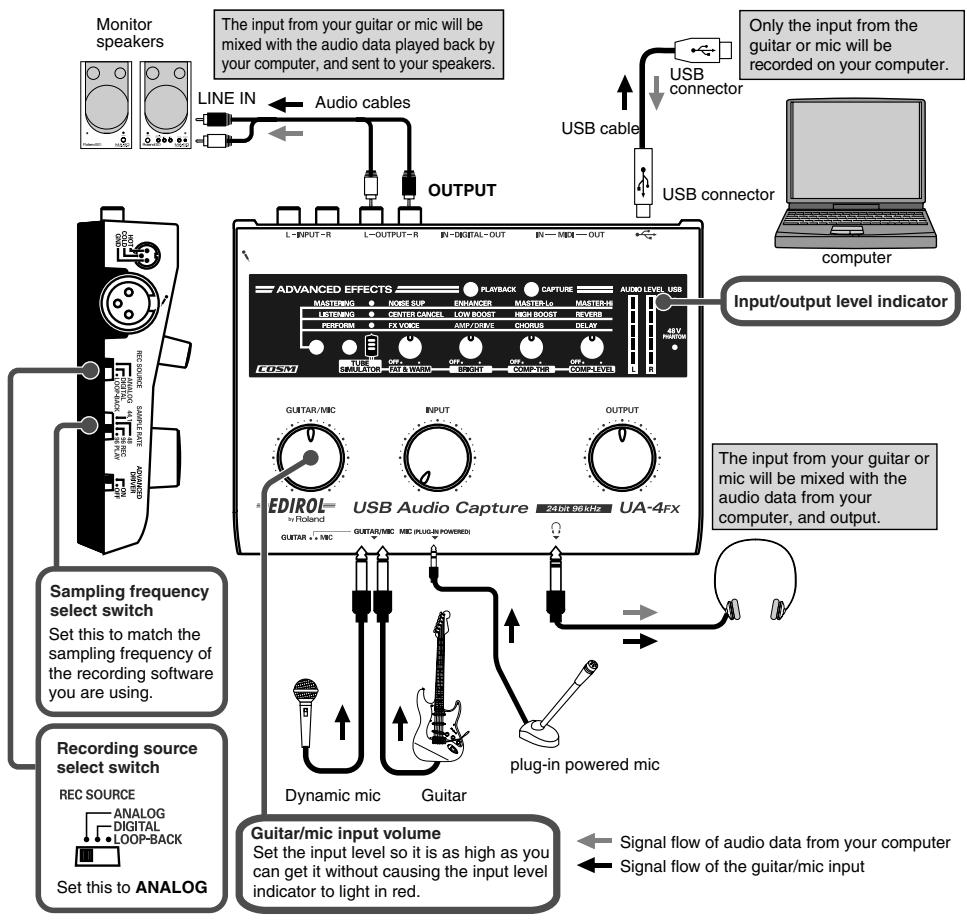
A A o AA ebook 13K—% 2005#11A4H HA F11H#304 / e SP Connections for various setups | Recording a guitar or mic Here’s how you can play your guitar or sing along with audio data played back from your computer, and use your sequencer or other software to record just the sound of the guitar or mic. Monitor “The input from your guitar or mic wil be Oniy the input from the speakers mixed with the audio data played back by guitar or mic will be y [vou compuer, and sentto your speakers. recorded on your computer. Fou UNEIN_@= Audi cables U

computer Inputoutput level indicator ‘The input from your guitar or À d mic will be mixed with the

"M audio data from your À ÉEDIROL- USB Audio Capture mme VA | 2e dae Mona @) ae te meme $ > Sampling frequency select switch ES Set this 0 match ihe sampling frequency of 1e recording software you are using Recording source select switch Plug-in powered mic REC soURcE Dynamic mic Guitar PSS LaLo0P-Back “Guitar/mie input volume 4 Signal flow of audio data from your computer Set he input level so Lis as high as you an get it wihout causing the input level Î = Signal flow of the guitarimic input Set this lo ANALOG indicator to light in red. © Sampling frequency select switch Set this to the sampling frequency that is selected on your recording software. After you change the position of the sampling frequency select switch, you will need to disconnect and reconnect the USB cable.

  • The available frequencies till depend on the software you are using. For details, refer to the owners manual of your application. The available frequencies will also depend on the operating system of your computer.

Connections for various setups © Recording source select switch Set this to ANALOG. Turn down the volume of your connected monitor speakers (or similar equipment) before you change the setting of the recording source select switch. © Input select switch Set this to MIC if you connect a mic, or to GUITAR if you connect a guitar. © Guitar/mic input volume Use this to adjust the input level. If the input/output level indicator is lit red, use this volume control to lower the input level. To obtain the best-quality recording, use this Kknob to adjust the level so it is as high as you can get it without causing the indicator to light. Howling could be produced depending on the location of microphones relative to speakers. This can be remedied by:

1. Changing the orientation of the microphone(s).

2. Relocating microphone(s) at a greater distance from speakers.

3. Lowering volume levels.

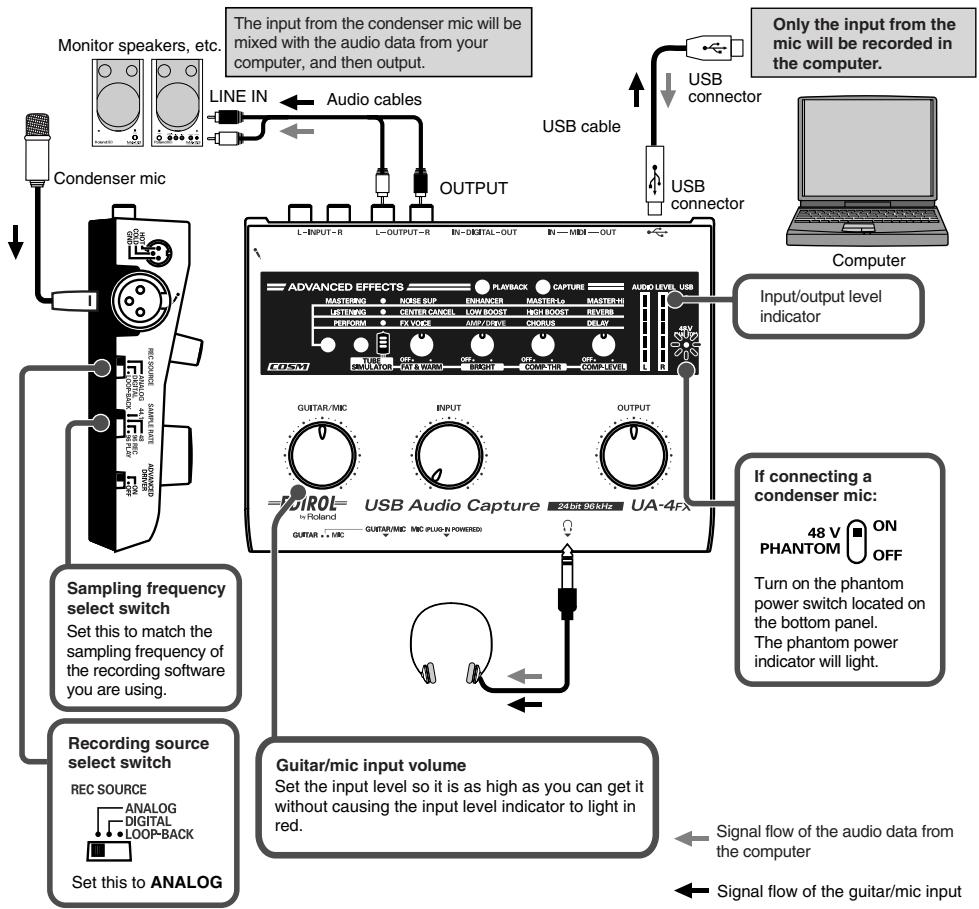
Connections for various setups Recording with a phantom-powered condenser mic The input from the condenser mic wil be Only the input from the Monitor speakers, etc.| mixed with the audio data from your mic will be recorded in ‘computer, and then output. the computer. usB UNEIN = Audio cables connector = USB cable OUTPUT Computer Inputoutput level indicator O QD If connecting a Pot USB Audio Capture ææmme UA-4r) condenser mic: cn ue mp men gr 9 as v (A ON PHANTOM |] orr ‘Tum on the phantom Sampling frequency power switch located on {&) select switch a Set his to matchthe {pe batom panel. samplng frequency of he phantom poner the recording software Iindicator wil gl You Br Recording source slect ue Guitarimie mput volume Re soUReE Setthe mputleuel so ti 8 igh as you can get MLoS Sibout sang Mo mput ve dar IN [rc red Le Sionai tou the audi data tem Femme Set ins 10 ANALOG —<— Signal flow of the guitar/mic input © Sampling frequency select switch Set this to the sampling frequency that is selected in your recording software. After you change the position of the sampling frequency select switch, you will need to disconnect and reconnect the USB cable.

  • The frequencies you can select will depend on the software you're using. For details, refer to the owner's manual of the application you're using. The selectable frequencies will also depend on your operating system. © Recording source select switch Set this to ANALOG. Turn down the volume of your connected monitor speakers (or similar equipment) before you change the setting of the recording source select switch. fs)

d À Connections for various setups

© Phantom power switch Turn ON. The phantom power indicator on the front panel will light. © Guitar/mic input volume Use this to adjust the input level. If the input /output level indicator is lit red, use this volume control to lower the input level. To obtain the best-quality recording, use this Kknob to adjust the level so it is as high as you can get it without causing the indicator to light. Howling could be produced depending on the location of microphones relative to speakers. This can be remedied by:

1. Changing the orientation of the microphone(s).

2. Relocating microphone(s) at a greater distance from speakers.

3. Lowering volume levels.

© Types of mic Most mics are either dynamic mics or condenser mics; either type of mic can be connected to the UA-4FX. The UA-4FX also supports “plug-in powered mics,” which are small monaural condenser mics designed for connection to the mic input of a computer. Only a monaural mic that supports plug-in power may be connected to the mic input jack (plug-in powered mic). Connecting any other type of mic or a conventional stereo mini-type plug to this jack may damage the circuitry.

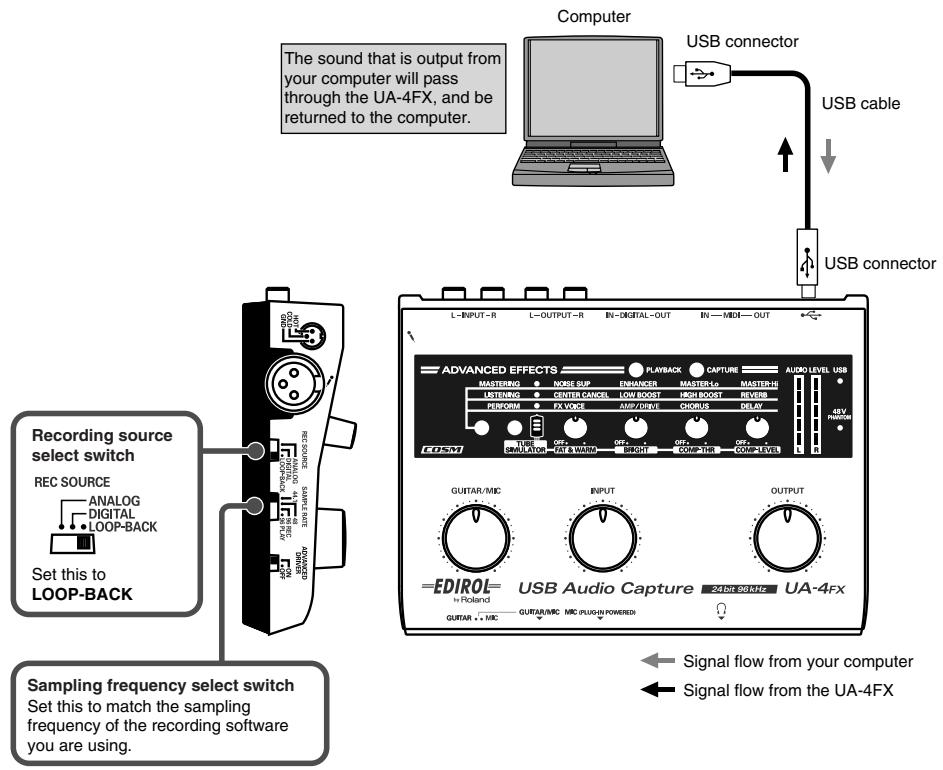
4FX_r_e.book 17 K— 2005#11A4R &#A #ÆA11#309 Connections for various setups Recording Internet radio or other computer sound Here’s how you can use your computer to record Internet radio or other sound from your computer. Computer USB connector Fe sounds upur rom your computer wi pass Mrough Ine UA-AFX, and be US8 cabe Metumed to the computer. USB connector

Recording source select switch REC SOURCE caranme mur anaLos : et ni ù LOUP LACK —EDIROE- USB Audio Capture Æ— Signal flow from your computer Sampling frequency select switch <= Signal flow from the UA-4FX Seti 10 match te sampling frequency of ne recording sofware you ar using © Sampling frequency select switch Set this to the sampling frequency that is selected on your recording software. After you change the position of the sampling frequency select switch, you will need to disconnect and reconnect the USB cable. © Recording source select switch Set this to LOOP-BACK. Turn down the volume of your connected monitor speakers (or similar equipment) before you change the setting of the recording source select switch fes)

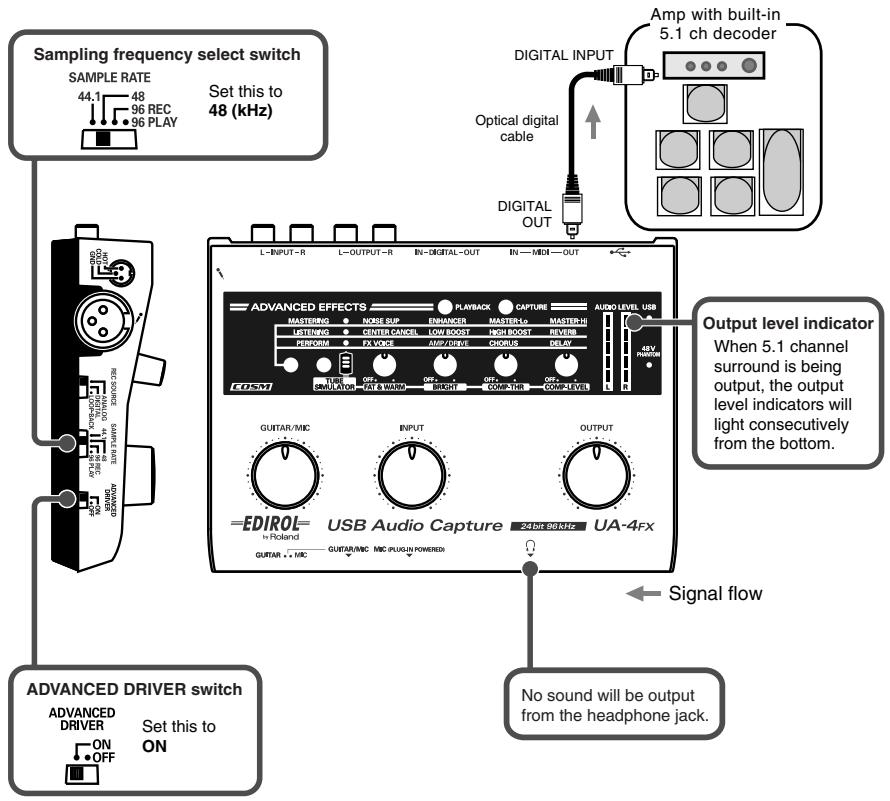
F7 F7 SP Connections for various setups | Playing back 5.1 ch surround from your computer Amp vit butin

Sampling frequency select switch DIGITAL INPUT SAMPLE RATE Eee] MU Setiisto ITcSs 400) onrégus | 4 mi ‘able oiiraL. Ann . Output level indicator Wien 5:1 channel surround 1 being output, te output level inaicators wil coma _ om light consecutively ; from ne bottom AN <- Signal flow 1 @ T ADVANCED DRIVER switch CR from ne heaphone jack [Sn ON The UA-4FX' 5.1 channel digital output can be played back by an amp that has a built-in 5.1 channel decoder. + You cannot record audio signals during 5.1 channel playback. This functionality is available only in Windows. In order to use this in Windows, you will need DVD playback software such as WinDVD. You will need to obtain this separately. For details on settings, refer to the owner's manual for your software.

  • We recommend that you use WinDVD 5 or later.

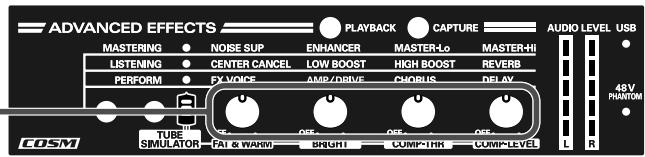
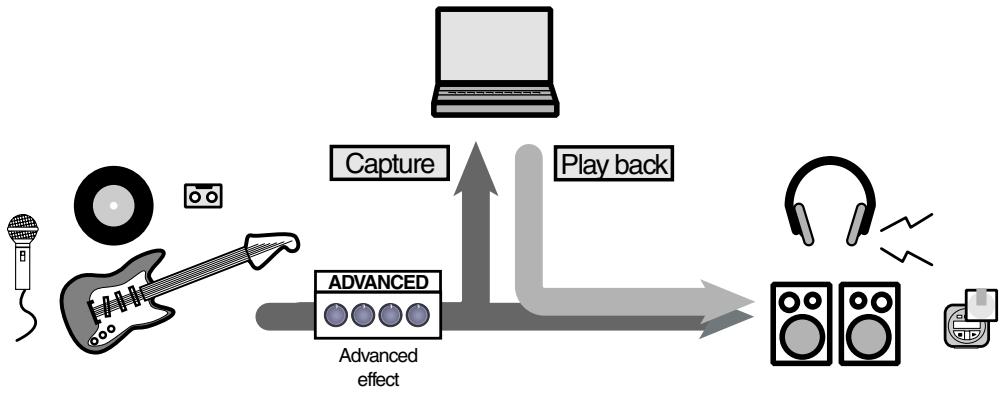
Applying effects The UA4FX's advanced effects provide an easy way to change the character of the sound, and are a great convenience for audio editing. Four types of digital effect are provided, and these can be applied while you play back sound or record from a mic or guitar. You can use the four knobs to easily adjust the character of the effect that is applied to the mic, guitar, or the sound from the line inputs or digital input. Before you continue, make connections and basic settings as described in “Connections for various setups” (p. 9) Advanced effects (three features) Advanced 1 Four ways to use

1. Vacuum tube (TUBE) amp simulator

This is a COSM effect that simulates a vacuum tube amp. IE creates the fat, warm sound that is typical of vacuum tubes.

Old analog sources such as cassette tape will be given new life by digital technology.

@ This setting is ideal for listening, Your computer becomes an AV processor, allowing & 7 you to enjoy karaoke. |

Enjoy powerful guitar sounds, and seven types of narration voice.

AS | | urarx ebook 20R-5 2005#11A4B MA FH11H#80$ & Applying effects Advanced 2 Using the four effect knobs to adjust the sound Applying effects to the recording (capture) or Advanced 3 playback

| da 21K-5 2005#11R4H SE FH11#308% 4. 2 ||® Applying effects Applying effects to the recording effect Applying effects to the playback ! à

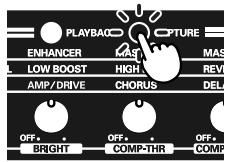
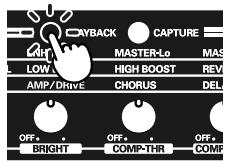
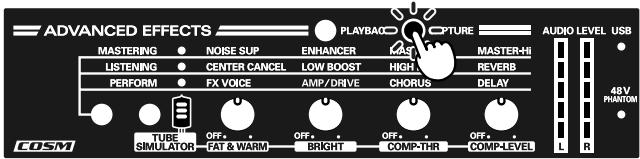
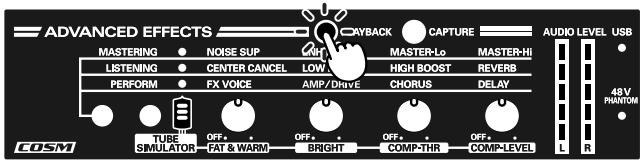
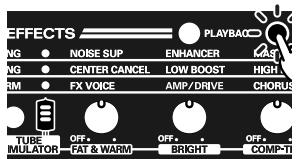
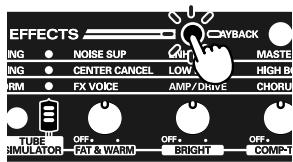
Press the capture button or the playback button. nôte No effect will be applied if neither the capture button or the playback button are turned on (it). You cannot turn both buttons on simultaneously.

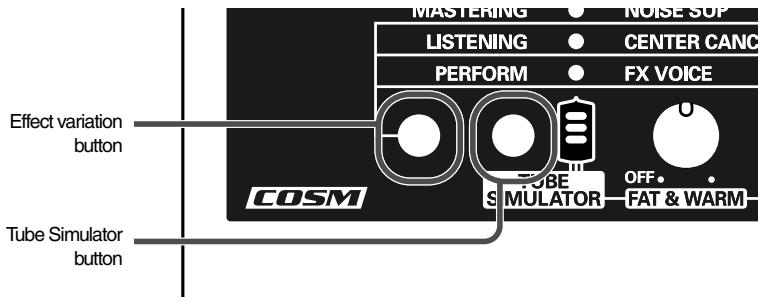
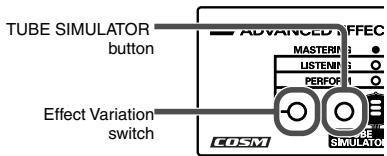
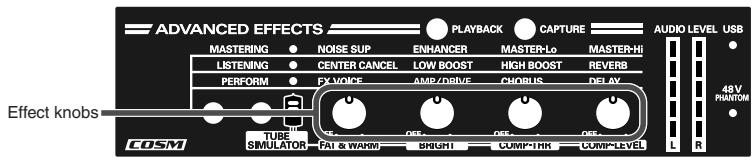
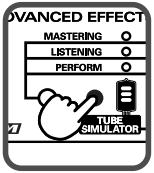
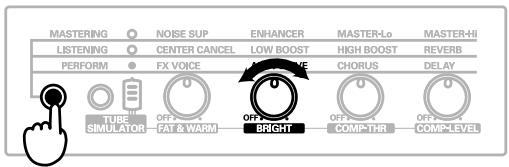
you want to apply effects to the sound being recording, turn on the capture button. 1 jou want to apply effects to the sound being played + none Gi back, turn on the playback button. TUBE SIMULATOR pere eFEG 2 | @) Use the Tube simulator button or Effect oO) variation button to select the desired effect button Ï Effect Variation” O)(o switch Use the effect knobs to adjust the character of the effect. If an effect knob is set to the OFF position, that effect will not be applied. Gradually turn the effect knob toward the right to adjust the setting to your taste. The fat sound produced by the tube simulator will still remain even if the effect knob is turned

2 ADVANCED EFFECTS ==—> @ nur Q rue =— au Effect knobs In some cases, applying the effect too strongly may cause the sound to distort. If this occurs, lower the input level. Alternatively, turn the effect knobs toward the left to reduce the depth of. he effect

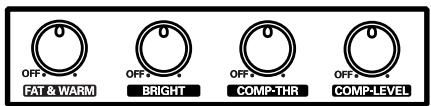
Press ie : ruse SR puton This is a COSM effect that simulates a vacuum tube amp. Isimulates the fat, warm sound that is typical of vacuum tubes 500: GNEUTED Effect Explanation Fatness (FAT & WAR) Simulates the warm, fat sound that is typical of vacuum tubes. Brighiness (BRIGHT) Simulates a clear and bright vacuum tube sound. Specifies the level at which the compressor will begin operat- Compressor depth | ing. (COMP-THR) As you turn this knob toward the right, the compressor will be applied more deeply, producing a thicker sound. & Compressor volume | Adjusts the output level of the compressor oO (COMP-LEVEL) Turning this knob toward the right will raise the level. Ï *_ If you increase an effect (turn the knob forward the right) excessively, the sound may distort. If fhis occurs, you can try lowering the level of the input signal, the volume of the external audio playback device, or the volume of your computer.

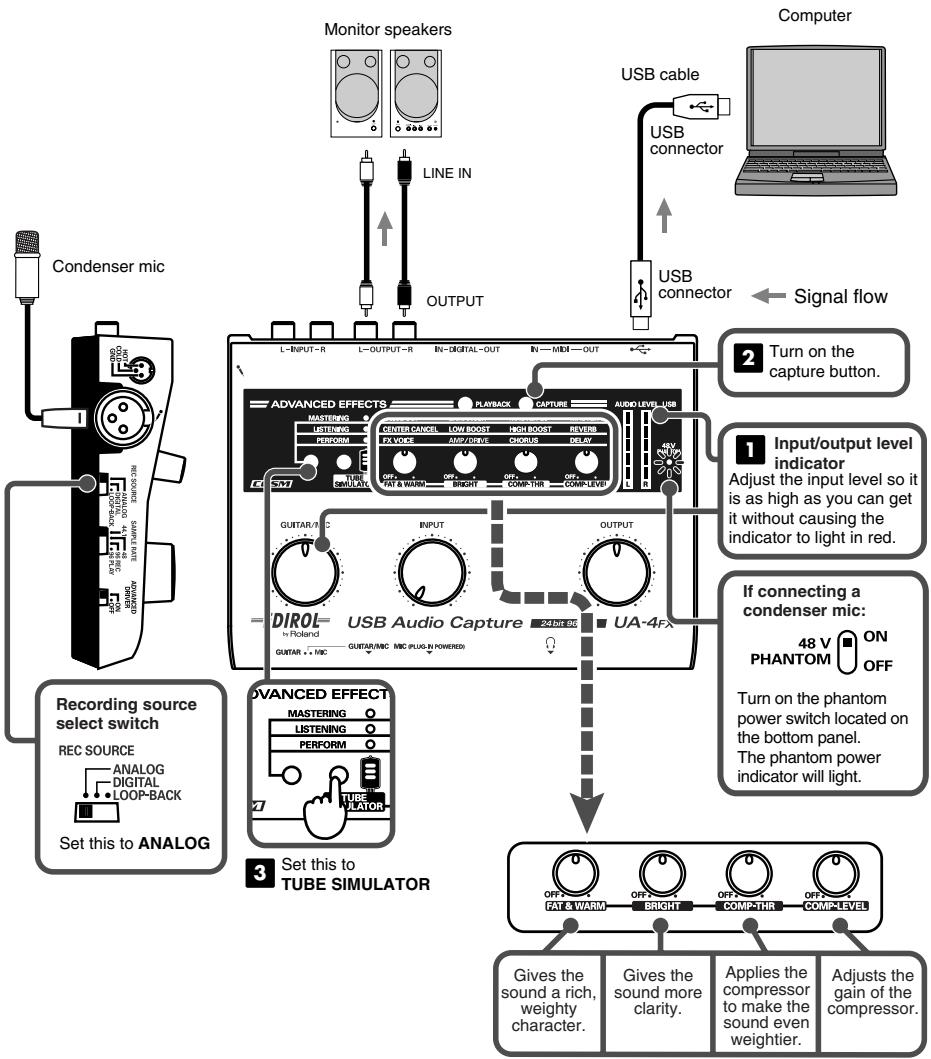
& @ e o UA-AFX_r_e.book 24 K—% 2005#11A4R ÀMA FHI1H#30$ 7 @? ï @? Applying effects Using the tube simulator (1) Here's how you can record a vocal using the rich sound of the vacuum tube mic preamp. Computer Monitor speakers USB cable UNE Gondenser mic Tu on the capture button Inputfoutput level Ÿ indicator AAdjust he Input level so is as high as you can get it without causing 1ne indicator Lo light in red

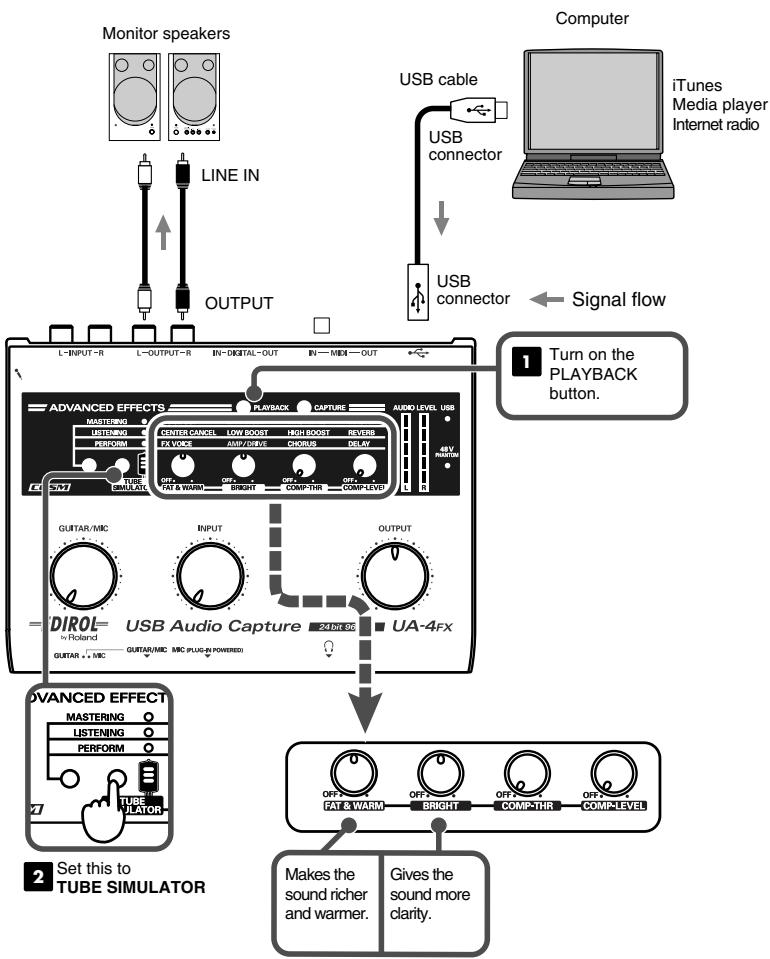
CIE 25N—- 2005Æ11A41 &MA ÆA11H#304% 7 { 4 Applying effects | Using the tube simulator (2) Here's how you can enjoy sound from your computer, enhanced by the warmth of a vacuum tube audio amp. Computer Monitor speakers S| GS USB cable iTunes Media player Intemet radio | Le USE connector duren uss OUTPUT. connector 4 Signal flow QD000 = Tu on he N PLAYBACK buton. {&) d @ Î USB Audio Capture mm u UA-4ex /ANCED EFFECT] rene — 0 Frarom 0 | Set this to ITUBE SIMULATOR

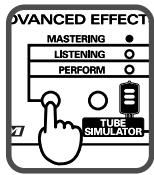
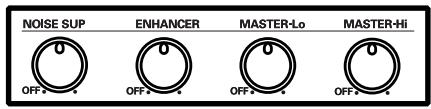
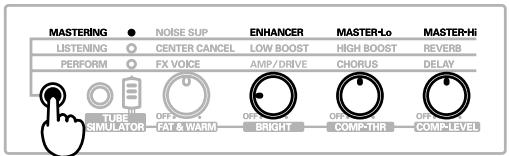
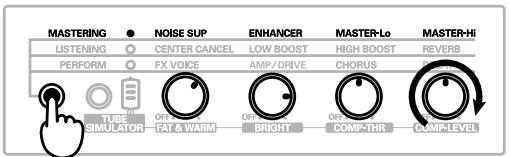
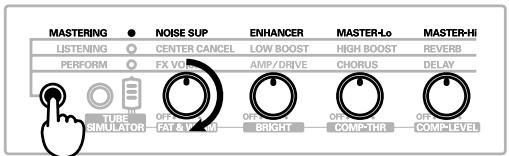
as | da 26% 2005#Æ11A4R ME FMI 1#30$ —#| $ Applying effects Mastering effect (MASTERING) Set this to. LISTENING When capturing audio from a cassette tape or LP (vinyl record), you can use this effect to improve the quality of the audio file that is captured on your computer.

O 000 Effect Explanation This removes low-level sounds or noise that remain in the background during periods of silence, and removes the noise from an analog source. This will make the sound clearer.

  • If this effect is applied to an input signal whose volume is ex- tremely low, you may hear no sound at all. Removing noise (NOISE SUP) Sharpening the This sharpens the sound, boosting the high-frequency range to sound improve the clarit (ENHANCER) P rare the low This suppresses distortion to the low-frequency range (below (MASTER-Lo) 220 Hz), making the sound powerful and solid. Boostng the high range (MASTER-Hi) *_ If you increase an effect (turn the knob towvard the right) excessively, the sound may distort. If his occurs, you can try lowering the level of the input signal, the volume of the external audio playback device, or the volume of your computer. Alternatively, you can turn the effect knob torvard the left to decrense the effect. This suppresses distortion to the high-frequency range (above 2 kHz), making the sound more powerful.

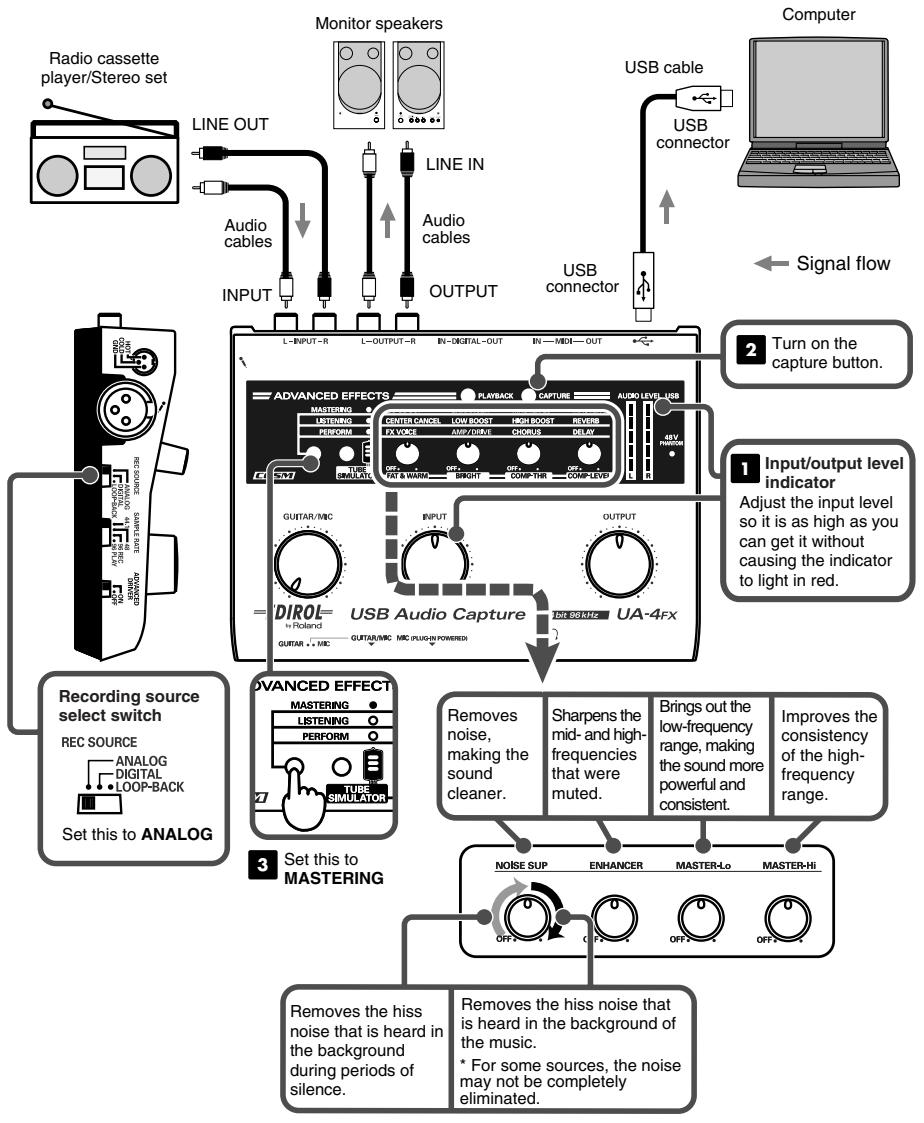
& & e o K®TUAA4FX ebook 27 K—% 2005#11AR4R MA FMI1H304% 7 7 NY Applying effects Using the mastering effect Here's how you can enhance the sound from a cassette tape to make it sound more like a CD before saving it on your computer. Monitor speakers Computer Radio cassetie QIX player/Stereo set USB cable

Audio Audio cables cables uss <- Signal flow INPUT OUTPUT Connector neRmnmi Input/output level indicator Adjust he input level save mer sr So is as high as you can get without causing he indicator À LU ms 10 light in red. À bd -[DIROL- us Audio Capture rene UA-4rx | Recording source select suite Removes — [Snapersne [PS2 Tinproves ne REC SOURCE noise, Imid-andhign-] frequency | consistency range, making makingine_ ['requencies of he high- ANALOG the sound more cs sound Jihatwere ame Ltrequency 2LOOPBACK cleaner. muted power range. consistent. Set this to ANALOG PA 3 EU D à MASTER Le MASTER HE MASTERING Removes Ine hiss noise that a lis heard in the background of the background the music. during peñode of | For some soute, ne noise may not be compieie pence. iminated .

Recording without including extraneous noises from the surroundings MASTERING Sharpening the sound from a mic that lacks clarity MASTERING ? 0000 Making a live sound crisper and cleaner —8— MASTERING

Clarifying the sound of a low-quality MP3 MASTERING e, 9000

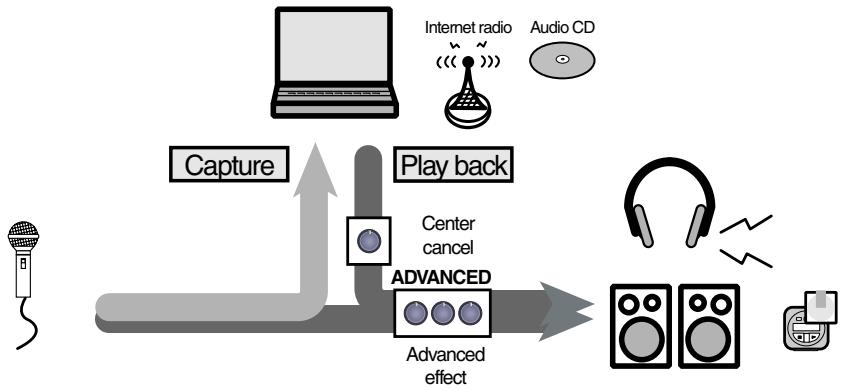
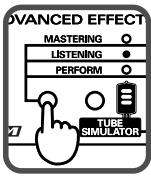
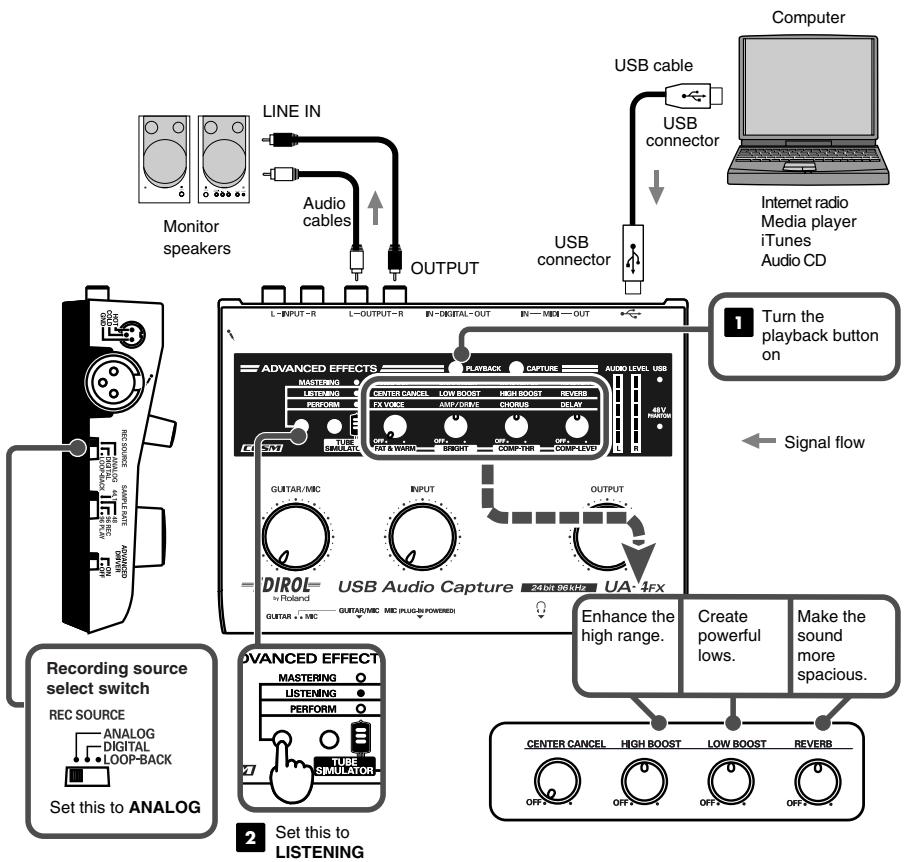
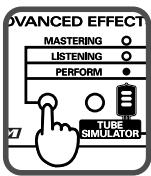
Applying effects Set this to LISTENING g effect (LISTENING) You can apply this effect to the playback of a CD, internet radio, or MP3 to enhance the sound in various ways.

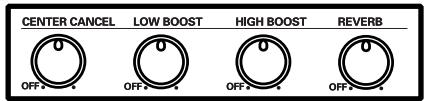
CENTERCANCE LOWBOOST HIGHBOOST — REVERS

O 0 O © Effect Explanation CENTER CANCEL When you inpur a stereo source such as a CD, is lets you eliminate sounds that are located in the center of the stereo image, creating a karaoke version. AS you turn the effect knob from the OFF position toward the right (maximum), a greater portion of the center will be elim- inated.

  • Applying this to a monaural sound may result in your hear- ing no sound at all.
  • If the playback button is on, this center cancel effect will not apply to the input. LOW BOOST Boosts the low range of the sound, adding impact HIGH BOOST Boost the high range of the sound, adding clarity. REVERB Adds reverb to create a more spacious sound. *_ If you increase an effect (turn the knob toward the right) excessively, the sound may distort In this case, try lowering the volume of the application you're using. Also try turning the effect Knob toward the left 10 reduce the depth of the effect.

FA4FX_r_e.book 30 K— 2005#11A4R &H#A Æ11H#30% Applying effects Using the Listening effect Here’s how you can transform your computer into a karaoke system. You can apply effects to the sound from Internet radio, media player or iTunes. USB cable Computer LINE IN rs connecter EE Audio  Monitor cables] Media player USB iTunes speakers OUTPUT connector Audio CD DRE Tum the

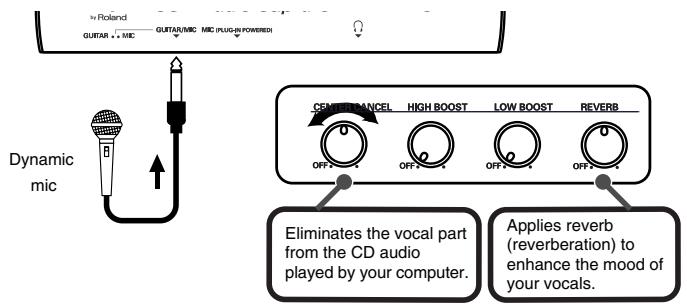
Center canceling will apply only to the sound played back from your computer.

Eliminates the vocal part from the CD audio played by your computer. “Applies reverb {reverberation) to your vocals. enhance the mood of

CIE 31N-2 2005#Æ11A41 &MA ÆH11H#304% / Ï

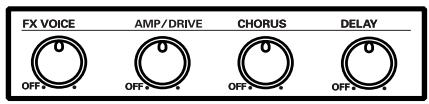
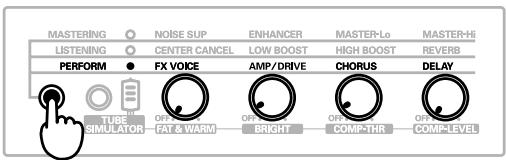
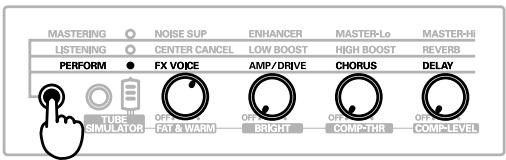
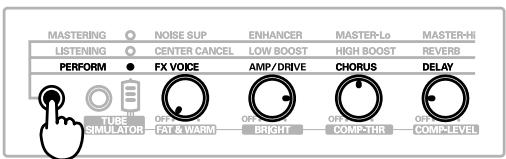
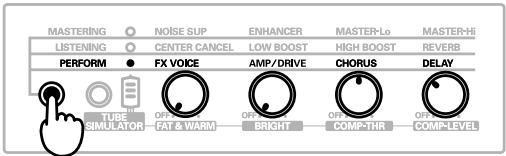
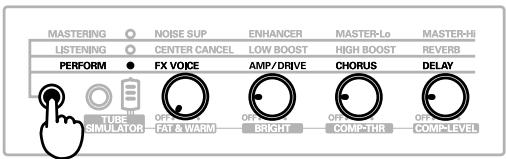
F7 F7 SP Applying effects | Performance effect Set his to PERFORM It is useful to apply this effect when you are recording a mic or guitar. ENT TNT Effect Explanation Modifies the pitch, giving the sound a completely different character FX VOICE As you turn the effect knob from OFF toward the maximum (far right), the pitch will rise. Distorts the sound to create guitar tones ranging from tasteful to ex- treme. AMP/DRIVE Turning the effect knob from OFF toward the center position will pro- duce a mild overdriven sound. Turning the knob from the center to- sward the maximum (far right) will produce more extreme distortion. CHORUS nas depth and spaciousness to the sound, creating a rich sense ofste- Adds repeated delays to give the sound more depth, or produce an DELAY 7 À echo-like effect. À bé * Ifyou increase an effect (turn the knob towvard the right) excessively, the sound may distort. If is Hhis occurs, you can try lowering the level of the input signal, the volume of the external audio playback device, or the volume of your computer. Also try turning the effect knob toward the left to reduce the depth of the effect

  • When you turn on a performance effect, a noise suppressor will be activated to reduce the noise from your guitar or mic. You can adjust the level of the noise suppressor by holding down the effect variation button and turning the AMP/DRIVE knob. Turning the knob toward the left will lower the level.

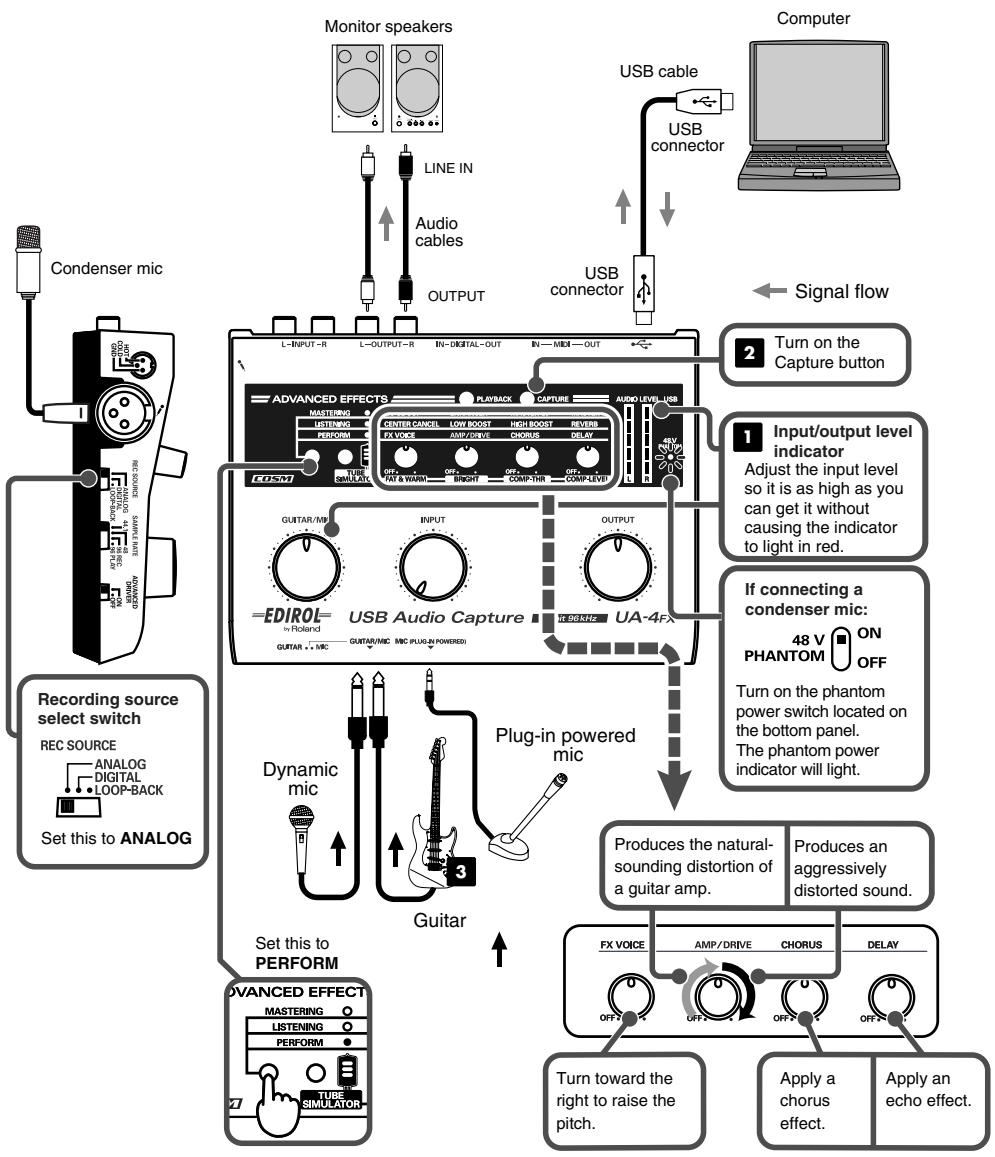
A A <®7UAAFX-r ebook 32-27 2005#11AR4R WA FM11H304 > 7 ï Applying effects Adding variation to your sound Here's how you can apply effects to the sound from your guitar or mic. Monitor speakers Computer USB cable connector Auco t[4 cables Gondenser mic us8 Q @ ovrur connector <- Signal flow Re Tum onthe Capture button

indicator Adjust he input level So its as high as you can get i wilhout causing ie indicator A0 light in red. ( If connecting a PS EDIROL- USB Audio Capture a condenser mic: @) ange érgrmnr 48 v (RON ù PHANTOM (”) orr Recording source DO Drmontepranom Feat antton pouer sh lated on Plug-in powered the botiom panel rec source Fe D À re phanomponer [ES Dynamic indicator wi High. Lstoomsaex mic Le) 8 # Set ihis to ANALOG "4ll4 Produces the natural- |produces an sounding distorion of |'aggressively > à guitar amp. distorted sound. ) Guitar Set his to anne een PERFORM ane 0 O7 /ANCED EFFEC re ] Turn toward the Apply a Apply an right to rase 1he chorus | echo effect pitch efect

| da 33K-% 2005Æ11A4A ME FHT1H30$ 4. 2 Ï Applying effects Examples of effect settings À slightly distorted sound, as if you were speaking through a megaphone PERFORM ê O0 000 Disguises the voice; useful for anonymous interviews PERFORM à renom evo Meyouve eoms oem

A nice setting for clean guitar PERFORM @, O © Ô A nice setting for blues guitar

À A CIE 36N%-> 2005#Æ11A41 &MA ÆH11H#304% / Ï PS F7 Driver settings (ADVANCED switch ON) Adiusting the audio latenc When using the UA-4FX in Advanced mode, you can change the driver settings to adjust the latency of the audio. To adjust the latency, change the Buffer Size in the driver settings dialog box.

Latency is the time delay from tohen an sequencer software plays back audio data until the sound is actually heard from an audio device such as the UA-4FX. As described in “Opening the dedicated driver settings dialog box” (p. 36), open the Driver Settings dialog box.

Adjust the buffer size. The following settings will produce the shortest latency. Windows users: Set “Audio Buffer Size” to the far left (Min). Mac OS X users: Set “Audio Buffer Size” to the far left (Min) Mac OS 9 users: Set “Buffer Size” to the far left (Min). Click [OK] (or in Mac OS X, [Apply]) to close the dialog box Restart the sequencer software that is using the UA-4FX. If you are using a sequencer software that has a function for testing audio devices, get it to perform its tests.

5. Play back audio data on your sequencer software. |

} Ifinterruptions occur in the sound, repeat this procedure, and gradually increase the oO buffer size in step 2 until interruptions no longer occur. Ï Depending on the sequencer software you are using, there may be a buffer size or latency adjustment function among the audio settings of the sequencer software as well. For details, refer to the operation manual for your sequencer software. ff” Opening the dedicated driver settings dialog box D Windows users:

1. Click the Windows Start menu, and from the menu that appears, select Settings

1 Control Panel. (Windows XP: Click the Windows start menu, and from the menu, select Control Panel.) In Control Panel, double-click the “EDIROL UA-4FX” icon. The “Edirol UA-4FX Driver Settings” dialog box will appear. In Windows XP, click “Switch to Classic View” to select Classic View on your computer. If you're not in Classic View, the EDIROL UA-4FX icon won't be shown: In Windows Me, click “View all Control Panel options.” Mac OS X users: Open “System Preferences” and click the “UA-4FX” icon. “Edirol UA-4FX Driver Settings” dialog box will appear. Mac OS 9 users: Open the ASIO Control Panel from the Audio Settings dialog box of your ASIO-compatible software.

  • The name of the Audio Settings dialog box and the procedure for opening the ASIO Control Panel will differ depending on your software. For details, refer to the operation U manual for your software. )

À A CIE 37N-ÿ 2005#Æ11A41 &MA ÆH11H#304% / Ï F7 F7 Driver settings (ADVANCED switch ON) Decreasing the ASIO Buffer Size (Windows) If you're using the UA-4FX from ASIO-compatible software, you’Il be able to reduce the buffer size further. If clicks or pops occur, uncheck this check box. “Adjusting the audio latency” (p. 36) must be performed with this check box unchecked.

1. As described in “Opening the dedicated driver settings dialog box” (p. 36), open the

or (Windows/Mac OS 9) If you're using the UA-4FX in Advanced mode, the UA-4FX's Direct monitor on/off setting can be controlled from your ASIO 2.0 compatible software.

1. Set the Input monitor select switch located on the INPUT ON

bottom panel of the UA-4FX to the AUTO position. MONITOR AUTO

2. As described in“Opening the dedicated driver

settings dialog box” (p. 36), open the “Driver Settings” dialog box (or in Mac OS 9, “ASIO Control Panel”)

3. Make the following settings.

@) Check the “Use ASIO Direct Monitor” check box

4. Click [OK] to close the driver settings dialog box.

*_ Depending on your sequencer soflware, there may also be an ASIO Direct Monitor setting among the audio settings of your sequencer sofkwonre. For details, refer to the operation manual for your sequencer soffware. When using ASIO Direct Monitor, monitoring may switch on/off at unexpected times, depending on the sequencer software settings and on the recording procedure. If this occurs, uncheck the check box in step 3 to disable ASIO Direct Monitor.

F7 F7 Driver settings (ADVANCED switch ON) Deleting the driver (Windows)

1. With the UA-4FX disconnected, start up Windows.

Disconnect all USB cables except for a USB keyboard and USB mouse (if used).

2. Insert the CD-ROM into the CD-ROM drive of your computer.

3. Click the Windows Start button. From the menu that appears, select “Run...”

In the “Run...” dialog box, input the following into the “Open” field, and click [OK]. \dows XP/2000 users: D:\Driver\XP2K\Uninstal.EXE Windows Me/98 users: D:\Driver\Me98\Uninstal.EXE

The drive name D: may be different on your system. Use the drive name for your CD-ROM drive.

4. Follow the on-screen instructions to uninstall the driver.

When you uninstall, both the standard USB audio device driver included with Windows and the dedicated driver will be uninstalled. Deleting the driver (Mac OS X) With the UA-4FX disconnected, start up Macintosh. Disconnect all USB cables except for a USB keyboard and USB mouse (if

2. Exit all currently running software (applications).

Sa If you are using virus checking or similar software, be sure to exit it as well Prepare the CD-ROM. Insert the CD-ROM into the CD-ROM drive of your Macintosh. In the Driver (Mac OS X) folder of the CD-ROM, double-click “UA4FX_Uninstaller.” The display will indicate “This uninstalls EDIROL UA-4FX driver from this Macintosh.”, click [Uninstall]. The display will indicate “Are you sure to uninstall the driver?”, click [OK]

The “Authenticate” dialog box will appear, enter the password and click [OK]. The display will indicate “Uninstllation is completed.”, click [Restart]. Your Macintosh will then restart.

Driver installation and settings (Mac OS 9) nstalling the UA-4FX driver Use either OMS or FreeMIDI as the MIDI driver. The included UA-4FX driver is an add-on module for using the UA-4FX with OMS or FreeMIDI. OMS can be found in the OMS 2.3.8 E folder within the OMS (Mac OS 9) folder of the CD-ROM. If you would like to know more about OMS, refer to OMS_2.3_Mac.pdf which can be found in the same folder. Either OMS or FreeMIDI must be installed in your Macintosh, as appropriate for the sequencer soffware you are using. If you install OMS or FreeMIDI after installing the UA-4FX driver, you must install the UA-4FX driver once again. If a UA-4FX is already connected to your Macintosh when you install the driver, a message like the following will appear when the Macintosh is started up. Perform the steps described below as appropriate for the message that is displayed. If the screen indicates: “Software needed for the USB device “UA-4FX” is not available. Would you like to look for the software on the Internet?” | rc à + click [Cancel]. ? Use the following procedure to install the UA-4FX driver.

1. With the UA-4FX disconnected, start up Macintosh.

  • Disconnect all USB cables except for a USB keyboard and USB mouse (if used).

2. Exit all currently running software (applications).

3. Prepare the CD-ROM.Insert the CD-ROM into the CD-ROM drive.

4. Double-click the UA-4FX Driver-E Installer icon (found in the Driver E (Mac OS 9)

folder of the CD-ROM) to start up the installer.

5. Verify the Install Location, and click [Install].

The installation location will be shown differently depending on your system. Make sure that you have selected the startup disk for the system you are currently using,

6. If a message like the following is displayed,

click [Continue O rnnennemene ee The other currenty running applications will Se one aa exit, and installation will continue. your disks untouchen.

CIE 40N— 2005Æ11A41 &MA ÆA11H#304% 1

F7 F7 SP Driver installation and settings (Mac OS 9) |

7. A dialog box will indicate Installation was successful.

Click [Restart] to restart your Macintosh. Next, you need to make the driver settings. + If you’re using OMS. eu p.40 + If you're using FreeMIDI p.42 If you're using FreeMIDI, proceed to “FreeMIDI settings” (p. 42).

1. Gsserseumm Set the UA-4FX ADVANCE (mode select) switch to the ON position.

2. Gsm Use the USB cable to connect the UA-4FX to your computer.

  • Connect the UA-4FX to a USB connector on the Macintosh itself. Don't connect it to the USB connector of the keyboard.
  • This unit is equipped with a protection circuit. À brief interval (a few seconds) after connecting the USB cable is required before the unit will operate normally.

3. From the CD-ROM, drag the Driver E (Mac OS 9) - OMS Setting folder

& into the Opcode - OMS Applications folder on the hard disk of your PS ia Macintosh to copy it there. OMS Setting |

4. In the Opcode - OMS Applications folder where you installed OMS,

double-click OMS Setup to start it up. OMS Setup

5. If a dialog box like the one shown here appears,

click [Turn It Off]. A confirmation dialog box will A im then appear, so click [OK]. een et *° We recommend that you turn off AppleTalk, by aa ments selecting Chooser from the Apple menu.

From the OMS Setting folder that you copied in step 3, select the UA-4FX file, and click [Open] À screen like the one shown here will appear. QE 20 mem

8. From the Edit menu, select OMS MIDI Setup. EE

In the OMS MIDI Setup dialog box that appears, check Bee Run MIDI in background, and click [OK].

9. From the File menu, choose Make Current Gand nanas rs

If you are unable to select Make Current, it has already been applied, and you may continue to the next step. Dore

10. Verify that MIDI transmission and reception can be performed correctly.

From the Studio menu, choose Test Studio. 11.When you move the mouse cursor near the MIDI Eu ——— EE connector icon, the cursor will change to a À shape. meer Click on the icon for the MIDI connector in the ODBianurmene diagram. Bonne If a sound module is connected to the UA-4FX's MIDI OUT connector, and you hear sound from the sound module, the settings were made correctly.

LS 4 ram 12.Exit OMS Setup. From the File menu, choose [Exit]. Ifthe AppleTalk confirmation dialog box appears, click [OK] to close the dialog box.

2. Grise Use the USB cable to connect the UA-4FX to your Macintosh.

Connect the UA-4FX to a USB connector on the Macintosh itself. Don't connect it to the USB connector of the keyboard. This unit is equipped with a protection circuit. À brief interoal (a few seconds) after connecting the USB cable is required before the unit will operate normally.

3. From the CD-ROM, drag the Driver E (Mac OS 9) - FreeMIDI Setting folder into the

FreeMIDI Applications folder on the hard disk of your Macintosh to copy it there. Open the FreeMIDI Applications folder from the location into which you installed FreeMIDI, and double-click the FreeMIDI Setup icon to start it up. ”’appears, click [FreeMIDI].

When “OMS is installed on this compute!

The first time you start up, use the following procedure.

1. A dialog box saying “Welcome to FreeMIDI!” will appear.

3. The About Quick Setup dialog box will appear.

Click [Cancel]. 7 6. From the File menu, choose Open. If you are unable to select Open, make settings as follows, and return to step 4 to continue the procedure.

7. Select UA-4FX from the FreeMIDI Setting folder you copied in Step 3, and click

[Open]. Verify that MIDI transmission and reception occur correctly. From the MIDI menu, choose Check Connections.

Try mouse cursor will change to the shape of a = _. keyboard. If a sound module is connected to the UA4FX's _ MIDI OUT connector, and you hear sound from the Fi sound module, the settings were made correctly. > 10.Once again choose the MIDI menu command Check Connections to end the test. 11.From the File menu, choose Quit to exit FreeMIDI Setup.

À A CIE 43N—ÿ 2005Æ11A41 &MA ÆFH11H#304% / Ï F7 F7 SP Driver installation and settings (Mac OS 9) | nstalling the ASIO driver You must install the UA-4FX driver even if you're using the UA-4FX only for audi You must install the UA-4FX driver before you install the ASIO driver (p. 39). This section explains how Lo install the ASIO driver so that you can use the UA-4FX with your sequencer software or audio editing software. For details on ASIO driver installation and settings, be sure 10 also read Readme_E.htm located in the Driver E (Mac OS 9) folder of the CD-ROM. ASIO Using the UA-4FX with your ASIO-compatible software will improve the timing precision of the audio, giving you a sophisticated music production environment. The UA-4FX cannot play back audio data from the AN CAUTION Macintosh's sound manager (such as audio CDs and alert sounds). The ASIO driver of the UA-4FX supports the following audio input/output channels. + Audio input 24/16bit 1 stereo ch. (2 monaural chs.) + Audio output | à à © 24/16bit 1 stereo ch. (2 monaural chs.) © If your ASIO-compatible software supports ASIO 2.0 or recording/playback of 24 bit Ï audio data, using the following drivers will provide a higher quality environment ASIO-compatible soflwrare ASIOZ.0- 24 bit Driver to use compatible |_compatible x x DA X ASIO 10 16 x o UAHFX ASIO 1.0 24 bit o x UAHFX ASIO 2.0 16 bit o o UAHFX ASIO 2.0 24 bit Here we will explain how to install the ASIO 1.0 16 bit-compatible driver

1. From the Driver E (Mac OS 9) - ASIO folder of the

CD-ROM copy [UA-4FX ASIO1.0 16bit to the ASIO (mms Drivers folder of the ASIO-compatible software YOU yon pres are using (e.g, Cubase VST, Logic Audio, Digital Performer, Metro, or SPARK LE).

2. Start up your ASIO-compatible software (e.g., Cubase VST, Logic Audio, Digital

Performer, Metro, or SPARK LE).

3. Open the Audio setting dialog box of your ASIO-compatible software, and select

[UA-4FX ASIO1.0 16bit] as the ASIO Device. *_ The Audio setting dialog box will be named differently depending on your sofhvare. For details refer to he manual of your softtvare.

. ee b k d . Giving priority to background services To ensure that audio and MIDI are processed smoothly, make the setting as follows. Windows XP users:

1. From the Windows start menu, choose Control Panel.

3. In “or Pick a Control Panel icon,” click the System icon.

Depending on your system, the System icon may be displayed directly in the Control Panel (Classic view). If so, double-click the System icon.

2. Click the Advanced tab. me

3. Click [Settings] located at the right of the ER CD)

The Performance Options dialog box appears. Ve pa cie men nan Csemx ] Érecnmpnen Drarrenrererers Csemx ] {&s) Cnam vais | (Ernnecas A EE Cons Ï

4. Click the Advanced tab.

5. In Processor Scheduling, choose “Background RE

Giving priority to background services Windows 2000 users:

1. Click the Windows Start button, and from the menu that appears, select Settings |

The Performance Options dialog box will appear. In the Application response field, choose “Background services” and click [OK].

Click [OK] to close the System Properties dialog box.

If you're using Windows XP/2000, you may be unable to install the driver depending on the “Driver Signing Options” setting, Proceed as follows to change this setting.

2. _In“Pick a category,” click “Performance and Maintenance.”

3. In “or pick a Control Panel icon,” click the System icon

Depending on your setup, the System icon may appear directly in the Control Panel (Classic view). If so, double-click the System icon. Windows 2000 users:

1. Click the Windows Start menu, and from the menu that appears, select

Settings | Control Panel

2. In Control Panel, double-click the System icon.

2. Click the Hardware tab, then click [Driver Signing].

The Driver Signing Options dialog box will open.

3. In the Driver Signing Options dialog box, select “lgnore,” then click [OK].

If you were unable to complete the installation because a dialog box regarding the driver signing options appeared while you attempted to install the driver, choose the “Ignore” setting here, and then change the setting back to its previous state when you've finished installing the driver.

4. Click [OK] to close the System Properties dialog box.

| da A7TR-5 2005#11R4H SRE FH11H308% 4. 2 Ï l Standard driver mode (ADVANCED switch OFF) The UA-4FX has two operating modes: advanced mode and standard driver mode. You can use the ADVANCED switch located on the side panel of the UA-4FX to select the desired mode. Normally, you should use Advanced mode, but if you choose the standard driver mode (the ADVANCED switch turned OFF), you’Îl be able to use the UA-4FX simply by plugging it into your computer, without having to install the driver. In this case, the following limitations will apply. The sample rate will be fixed at 44.1 kKHz/16 bit regardless of the setting of the UA-4FX's sample rate select switch. The MIDI IN/OUT connectors are not available when using Standard driver mode. If you change the setting of this switch, you will need to disconnect and then reconnect the USB cable hat connects the ULA-4FX to your computer.

PS F7 Software installation Virtual Sound Canvas DXi Virtual Sound Canvas DXi (VSC DXi) is a software synthesizer that's compatible with DirectX Instrument (DXi). With it, you can easily use a rich array of high-quality Virtual Sound Canvas sounds with your DXi-compatible programs.

  • Only a Windows version of Virtual Sound Canvas DXi is included. Features VSC DXi is compatible with GM2 System, as well as GS Format, a form of music files conforming to specifications for Roland sound modules. VSC DXi is a multitimbral sound module featuring 16 parts, for a maximum of 128 voices. In addition, VSC comes with 902 sounds and 26 drum sets built in, making spectacular ensemble performances possible. Internal reverb, chorus, and delay effects lend greater musical expression to your performances In the VSC Panel, you can easily switch sounds (instruments), adjust volume levels, and change parts in other ways, as well as mute parts. + You can display each part level and monitor the polyphony on the screen, allowing . you to confirm the status of performances and check performance data that you have . & created. $ >

1. Insert the CD-ROM into the CD-ROM drive of your computer.

2. Click the Windows start button. From the menu that appears, select “Run.

3. In the “Run...” dialog box, input the following

into the “Open” field, and click [OK]. Ron DVSC-DXNSetup.exe SERRE. om Pme à

  • The drive name D: may be different on your system. Use the drive name for your CD-ROM drive. Ca

4. The installer will start, and the “Welcome to mi

the InstallShield Wizard for Virtual Sound = Canvas DXi” screen will appear. Click [Next]. Heat ete vas

5. You will be asked whether you consent to the DES

terms of the license agreement. Read the license agreement, and click [Yes] if you agree. If you click [No], the installation will be halted. D =

A dialog box will appear, allowing you to select the installation location. To acceptthe fees suggested location, click [Next] etre ta If you want to change the installation folder, click [Browse] and specify the desired folder.

Verify the current settings of the Confirmation ofinstallation screen. After verifying the settings, click [Next]. If you want to re-specify the installation location, click [Back]

8. When the files have been copied, the InstallShield Wizard Complete screen will appear

Click [Finish]. This completes installation of Virtual Sound Canvas DXi.

PS F7 Software installation For details on operating SONAR LE, refer to the online help for SONAR LE.

Installing Insert the SONAR LE CD-ROM into the CD-ROM drive of your computer. For the installation procedure, refer to the SONAR LE CD-ROM package. Settings You will need to make audio and MIDI device settings. You must make the following settings if you have switched the UA- 4FX's sample rate or have changed the buffer size in the UA-4FX Driver settings dialog box.

1. Power up the UA-4FX, and then start up SONAR.

From SONAR's Options menu, choose Audio to open the Audio Options dialog box. Click the Advanced tab. In the Playback and Recording area, verify that Driver Mode is set to WDM/KS. If you change this setting, click [OK] and restart SONAR. Restart SONAR, and from the Options menu, choose Audio to open the Audio Options dialog box.

Software installation

5. Restart SONAR, and from SONAR's Options menu, choose Audio to open the Audio

Options dialog box. In the General tab, click Wave Profiler. When Wave Profiler is finished, click [Close]. Click the Drivers tab. In the lists of Input Drivers and Output Drivers, click the following devices to highlight them (white characters on blue background), and un-highlight all other devices. Click [OK]. Input devices

era] Bee ve [ra Pt) mg Ca] Restart SONAR, and from SONAR's Options menu, choose Audio to open the Audio Options dialog box. In the General tab, make sure that Playback Timing Master is set to EDIROL UA-4FX, and Record Timing Master is set to EDIROL UA- A4FX. 10.Click the Driver Profiles tab. Select EDIROL UA-4FX (1 in, 1 out) as the setting for “Show Profile for,” and then select “3 bytes” as the setting for “Stream > 16 bit data as.” 11.Click [OK] to close the Audio Options dialog box. Las) Cu ) Sema [A reubex (ù R But na D [2 pe BEn|

SP Software installation 12.From SONAR's Options menu, choose MIDI Devices to open the MIDI Devices dialog box. 13.In the MIDI Devices dialog box, choose the UA-4FX in the Inputs area and the Outputs area, and then click [Move Selected Devices to Top]. MIDI Devices, Click on devices La select or deselect MIDI imputs and eutputs Output Micrasoh MIDI Mapper MPU-AOT 14.Click [OK]. 15.Restart SONAR 16.0pen the Audio Options dialog box once again as described in step 2. Verify that the audio device settings are correct. Insert VSC DXi & In order to assign the output of a SONAR LE MIDI track to the VSC DXi (p. 48), you'll need to perform the following procedure.

1. From SONAR'S Insert menu, choose DXi Synth and then select EDIROL VSC.

Open the Insert DXi Synth Options dialog box. Insert DXiSynth Options Insert DX into priect and Create These Tracks: Open These Windows: [MIDI Source Track [] Synih Property Page Et SynhOupuAudo) CJSsmiBeck Ven [JAI Synth Outputs (Audio) Ask This Every Time

Troubleshooting If you experience problems, read this chapter first/ It contains tips for solving most problems. Problems that occur only on Windows Problems that occur only on Macintosh Driver-related problems Can't install the driver correctly Is the ADVANCED switch set correctly? Set the USB mode select switch appropriately for the USB mode you're using. You attempted to install as described in Read this first! “You must install the driver first” (p. 2), but did not succeed. Install the UA-4FX driver once again as described in Read this first! “You must install the driver first” (p. 2). Also check the Device Manager to see whether “Other device,” “Unknown device,” “?,” “!/" or “x” is shown for any device. If you see such a device, delete it. à ff Does the Device Manager show “Other device,” “Unknown device,” or à @ any device marked with #2,” 1,” or “x”? @ If driver installation did not end successfully, the installed driver may remain in an incomplete state. Install the UA-4FX driver once again as described in Read this first! “You must install the driver first” (p. 2). Is the UA-4FX connected correctly? Make sure that you have used a USB cable to correctly connect the UA-4FX to the USB connector of your computer. Could other applications or resident software (such as an anti-virus program) be running? Installation may not oceur correctly if other programs are running. Be sure to close all other programs before installing. Are you attempting to install from a networked CD-ROM drive? You cannot install from a networked CD-ROM drive. Could the CD-ROM or the lens of your CD-ROM drive be dirty? If the CD-ROM or the lens of your CD-ROM drive are dirty, the installer may not work correctly. Use a commercially available CD cleaner or lens cleaner to clean the CD- ROM and/or lens. Are the power conservation settings of your computer turned off? If power conservation settings are turned on for your computer, disable these settings. (For details on how to disable them, refer to the owner’s manual of your computer.)

Is there enough free space on your hard disk? Delete unneeded files to increase the amount of free space. After deleting the file(s), empty the recycling bin. Is the USB connector enabled on your computer? Refer to the owner's manual for your computer, and verify that the USB connector of your computer is enabled. The driver cannot be installed unless the USB connector is enabled. Does your computer meet the USB specification? Operation may be unstable if you are using a computer that does not electrically meet the USB specification. If so, you may be able to solve the problem by connecting a USB repeater hub that has its own power supply. Can't install/uninstall the driver ‘st Did you log onto Windows as a user with administrative privileges? In order to install/uninstall/reinstall the UA-4FX driver in Windows, you must log onto Windows as a user with administrative privileges, such as Administrator

Can't record or play back audio or MIDI No sound Is the UA-4FX’s Recording source select s: h set to “ANALOG”? When the Recording source select switch is set to “DIGITAL,” the audio signals input to the digital Input connector are output. The computer’ audio data is not output Are the volume controls of the UA-4FX set appropriately? Adjust the output volume and input volume of the UA-4FX. Could the sample rate select switch be set to “96 kHz REC”? If the sample rate select switch is set to “96 kHz REC,” audio data from your computer will not be output. Set this switch to “96 kHz PLAY,” or select a different sample rate. Is your audio playback system (e.g., stereo) connected correctly? Make sure that the UA-4FX's output jacks are correctly connected using audio cables to the input jacks of your audio playback system. Refer to:Read this first! “Basic connections for the UA-4FX” (p. 12) Did you connect/disconnect the USB cable to the UA-4FX while your software was running? Close all software that is using the UA-4FX, and then reconnect the UA-4FX. S4 Could your computer have entered Standby (Suspend) or Sleep mode?

After your computer resumes operation, close all software that is using the UA-4FX, and then reconnect the UA-4FX. Is the driver installed correctly? You'1l need to install a driver in order to play back audio/MIDI data via the UA-4FX. Refer to:Read this first! “You must install the driver first” (p. 2) Are you running numerous software programs? An error message may appear if numerous software programs are running simultaneously. If this occurs, close the software you are not using. In Windows, a program is still running if it remains in the taskbar even after you close its window; close any unneeded software shown in the taskbar. Are your input/output devices connected correctly? In order to play back audio/MIDI using the UA-4FX, you must make the appropriate input/output device settings. For details on making these settings, refer to Read this first! “Driver settings” (Windows p. 6, Macintosh p. 10). Could the UA-4FX have been connected when you started up the computer? Start up the computer with the UA-4FX disconnected, and then connect the UA-4FX. Depending on the type of computer you are using, starting up the computer when the UAFX is already connected may cause operation to be unstable.

SP Troubleshooting A device connected to the input jacks can't be heard through headphones Is the input and output volume set appropriately? Turn the knobs toward the right to adjust the volume. Could the input monitor select switch (located on the bottom of the UA- 4FX) be set to “AUTO”? Either turn the input monitor select switch “ON, or turn on the monitor switch of the application you're using. Could equipment be connected simultaneously to the mic input jack (XLR type, plug-in powered mic) and to the guitar/mic input jack? Connect your equipment only to the jack you're using. Recording produces a silent file Did you specify the correct audio data input source within the operating system? Depending on the software you are using, you may need to specify the UA-4FX as the audio data input source for your computer. Refer to:Read this first! “Driver settings” (Windows p. 6, Macintosh p. 10) | & If you are digitally recording the audio output of your computer: © 1s the recording source select switch set to LOOP-BACK? Ï Set this to LOOP-BACK. Could the sample rate select switch to set to “96 kHz PLAY”? Audio data cannot be recorded if the sample rate select switch is set to “96 kHz PLAY.” Set the switch to “96 KHz REC” or choose a different sample rate.

Can't record from a digital connection If you are capturing audio from a CD or MD into your computer: Is the recording source select switch set to DIGITAL? Set this to DIGITAL. Does the sampling frequency setting in your software match the sampling frequency of the digital device connected to the digital input connector? Set these to the same sampling frequency. You will become unable to record if you switch the sampling frequency (e.g., switch between digital broadcast mode A and mode B) of your digital device while it is still connected to the digital input jack. If you switch the sampling frequency, reconnect the digital cable. You cannot record l data that is of a format not normally used by consumer-use digital audio devices. Data recorded with SCMS flags cannot be recorded digitally. The UA-4FX complies with SCMS, meaning that if data containing SCMS flags (such as an MD that was digitally copied from a commercial music CD) is input via the digital input connector, the UA4FX will not allow you to record this on your computer. (The sound will be output from the line output jacks and the headphone jack.) Can't record/play 24-bit audio data Does your software support 24-bit audio data? You will need to use software that supports 24-bit audio data. Can't record/play MIDI Have you made the correct settings for the MIDI device you're using? In order to record/play MIDI via the UA-4FX, you must install the UA-4FX driver correctly. In addition, you must also make settings in your software to specify the MIDI device you want to use. Refer to:Read this first! “You must install the driver first” (p. 2) Is the ADVANCED switch turned “ON”? You can't record or play back MIDI if the ADVANCED switch is “OFF.”

À A | da S8X—> 2005#11A4A HA ÆFA11#30% /] ||® Troubleshooting | Noise or pops are heard when recording/ playing on your computer Noise is heard during audio playback Pops/clicks occur during audio playback Noise is heard in the recorded sound T4 In Windows, did you make the seing described in “Giving priority to background services”? In order to ensure that audio/MIDI processing occurs smoothly, make the setting described in “Giving priority to background services.” Refer to: “Giving priority to background services” (p.44) "É" In Macintosh, check the Energy Saver settings. In the Mac OS X System Setup, set Energy Saver as follows. Click the Sleep tab. Set “Put the computer to sleep when it is inactive for:” to Never. Set “Put the display to sleep when the computer is inactive for:” to Never. Click the Options tab If there is a Processor Performance setting, set it to Highest.

In Windows, Power Management settings in the Control Panel may cause clicks or pops to occur in the audio playback. The power management properties that appear when you double-click Power Management will differ depending on your computer system. The explanation that follows is for a typical situation, but you should refer to the owner's manual for your computer to verify these settings. Some computers may not have the following items.

1. In the Windows Control Panel, double-click the System icon. The System

Properties dialog box will appear.

2. Click the Hardware tab.

3. Click Device Manager to see the list of devices.

4. From the list, choose Advanced Power Management Support, and click

Properties. The Advanced Power Management Support Properties dialog box will appear. Click the Settings tab, and in Troubleshooting, check the “Don't Poll Power Supply Status” check box. Then click [OK]

7... Restart Windows. Are you using a USB device in addition to the UA-4FX? | &) Try switching off USB audio devices other than the UA-4FX. ? You may be able to solve the problem by adjusting the buffer size in the UA-4FX Driver Settings dialog box. Adjust the buffer size as described in “Adjusting the audio latency” (p. 36).

  • After changing the buffer size, you must restart any software that uses the UA-4FX. If your software has an audio device test function, execute the test function. Are numerous software programs running? Playback may be interrupted if numerous software programs are running at the same time, or when you start up another software program. Close any unneeded software, and try again. If this does not solve the problem, try restarting your computer. Clicks or pops may oceur in the sound if a LAN is operating. Try disabling the LAN in the Device Manager. If this eliminates the clicks or pops, you! may be able to solve the problem by updating your LAN driver or BIOS. Is the sample rate setting in your software the same as the UA-4FX's sample rate select switch setting? Set your software and the UA-4FX to the same sample rate. If you change the sample rate of the UA-FX, you will need to reconnect the UA-4FX in order for the setting to take effect.

Try adding memory. Adding memory will improve the processing capability of your computer. For details on how to add memory, refer to the owner's manual of your computer. Is the UA-4FX connected to a USB hub? Try connecting the UA-4FX directly to the USB connector of your computer itsel. Are you using the included USB cable? You must use the included USB cable when using the UA-4FX. Some commercially available USB cables do not meet the requirements of the USB standard, and this may prevent the UAFX from operating correctly. Sound is distorted Could you be applying effects? Some types of effect may cause the sound to distort if applied too strongly. If this occurs, try lowering the input level using the input volume or the guitar/mic input volume. Alternatively, turn the effect knob toward the left to lessen the effect.

Playback/recording stops midway, and subsequent playback/ recording is not possible While you were using the UA-4FX, could your computer have performed a task with a heavy processing load, such as accessing a CD-ROM drive or network? If a heavy processing load occurs while the UA-4FX is being used, it may not work correctly. In this case, stop playback/recording, and then start playback/recording once again. If you are still unable to play/record correctly, close all software that had been using the UA-4FX, and re-connect the UA-4FX. Digitally recorded sound has distortion, the wrong pitch, or contains noise Is the sample rate setting in your software the same as the sample rate of the digital device connected to the l'input connector? Set your software and the UA-4FX to the same sample rate. If you switch the UA-4FX's sample rate, you must re-connect the UA-4FX. Can't use 5.1 ch surround playback

5.1 surround playback is supported only in Windows XP.

You must use Advanced mode in order to enjoy 5.1 ch surround playback. To do so, you will need to turn the UA-4FX's ADVANCED (mode select) switch ON, and install the driver. Is the sample rate select switch at 48 kHz? Set the sample rate select switch to 48 kHz. Are you using WinDVD 5 or later? Please use WinDVD 5 or a later version. We recommend that you install the most recent update. Have you set the audio input/output destination settings correctly? Specify the UA-4FX as the audio input/output destination. Refer to:Read this first! “Driver settings” (p. 6)

You hear distortion or noise other than the playback sound from your computer The sound is too weak Noise is heard in the sound Has a mic or guitar been left connected? If a mic or guitar is connected to the UA-4FX, disconnect the mic or guitar and turn the input volume all the way toward the left (lowering the input level). Have you connected the grounding terminal? Connecting the chassis of your computer or the grounding terminal of your computer’s AC power cord to an electrical ground may solve the problem. Also, make sure that a device that produces a strong magnetic field, such as a television or microwave oven, is not located nearby. Could numerous audio devices be connected? Noise may occur if numerous audio devices are connected. Do not connect audio devices you are not using. Sound of a device connected to the input jacks is distorted @) Insufficient volume from a device connected to the audio input/output jacks Could the input/output level indicator be lit red? If you're inputting sound via the guitar /mic input jack or the mic input jack (plug-in powered mic or XLR type), use the UA-4FX's GUITAR/MIC input volume control to decrease the input level. If you’re inputting sound via the line input jacks, use the INPUT volume control to decrease the input level. If you're inputting sound via the guitar/mic input jack, you should also check the setting of the input select switch. Noise may be entering via the line inputs or mic inputs. If a MIDI sound module with a USB connector is connected via USB to the same computer as the UA-4FX, and the output of the MIDI sound module is connected to the input jacks of the UA-4FX, noise from the computer may be heard via the MIDI sound module from the UA-4FX. In this case, you can either connect the MIDI sound module and UA4FX in parallel via a self-powered hub, or connect the MIDI sound module in series or via a MIDI. Could two or more audio devices (such as the UA-4FX and a mixer) be connected to your computer? Try connecting only one UA-4FX to your computer. Check whether the noise disappears when only one UA-4FX is connected. In some cases, noise may occur if you connect numerous audio devices to your computer. If so, connect only the UA-4FX to your computer.

b A-4FX_r_e.book 63 — 2005#11A41 HA ÆFA11#30 4 ||® Troubleshooting A substantial amount of noise is present in the guitar sound Does the noise decrease when you turn down the volume of your guitar? If the noise decreases when you turn down the volume of your guitar, the guitar pickup may be affected by noise from your computer or display. Try locating the guitar as far away from the computer as possible. Insufficient volume from your guitar Is the Input select switch set correctly? Set the input impedance select switch to GUITAR. The volume changed when you resumed from Suspend or Hibernation status [“T When Windows 2000 resumes from Suspend or Hibernation, there is a case that the output volume setting is changed due to a problem of Windows. Start up the Mixer application and adjust the USB Audio (Speaker) slider. The volume level of the instrument connected to the line input is too low. Could you be using a connection cable that contains a resistor? Use a connection cable that does not contain a resistor.

À A ce | da G4N—Y 2005Æ11A41 ÀMA ÆFA11H#30$% /] ||® Troubleshooting Can't start the Cubase Are you using the UA-4FX for the first time with Cubase? If you are using the UA-4FX for the first time with Cubase, set the UA-4FX's sample rate select switch to 44.1 kHz. If this switch is not set to 44.1 kHz, it may be impossible to start Cubase.

96.0 kHz 20 Hz to 40 kHz (+1 dB/-2 dB)

48.0 kHz 20 Hz to 22 kHz (+1 dB/-1 dB)

44.1 kHz 20 Hz to 20 kHz (+1 dB/-1 dB)

Center Cancel/High Boost/Low Boost/Reverb

(0 dBu = 0.775 V rms) The explanations in this manual include illustrations that depict sohat should typically be shown by the display. Note, however, that your unit may incorporate a newer, enhanced version of the system (e.g., includes newer sounds), so what you actually see in the display may not always match that appears in the manual. *_ In fe interest of product improvement, the specifications and/or appearance of this unit are subject to change without prior notice.

When the recording source select switch is set to ANALOG

—8— When the recording source select switch is set to LOOP-BACK

INSTRUCTIONS FOR THE PREVENTION OF FIRE, ELECTRIC SHOCK, OR INJURY TO PERSONS About À\ WARNING and /\ CAUTION Notices About the Symbols Used for instructions intended Lo alert Te À symbol alert he user Lo important true the user to the risk of death or severe or warnings:The specific meaning of the symbol is| WARNING | injury should the unit be used| | [determined by the design contained within the improperly. triangle. In the case of the symbol at lef, it is used for| general cautions, warnings, or alerts to danger. Used for instructions intended to alert the user to the risk of injury or material damage should the unit be used proper @ |must not be done is indicated by the design contained improperly. within the circle. In the case of the symbol at left, it A GAUTION |: Mistral damage refers to damage or means that the unit must never be disassembled. The © symbol alerts the user 10 items that must never be carried out (are forbidden). The specific thing that other adverse effects caused with respect to the home and all its animals or pets. cord plug must be unplugged from the outlet The @ symbol alerts the user to things that must be carried out. The specific thing that must be done is furnishings, as well to domestic @ |indicated by the design contained within the circle. In the case of the symbol at left, it means that the power-

Before using this unit, make sure to + Make sure you always have the unit read the instructions below, and the ÂÀ placed so it is level and sure to remain Owner's Manual. Stable. Never place it on stands that could wobble, or on inclined surfaces. modifications on the unit. Do not open or perform any internal © +_ This unit, either alone or in combi- nation with an amplifier and headphones or speakers, may be Do not attempt to repair the unit, or capable of producing sound levels that replace parts within it (except when could cause permanent hearing loss. this manual provides specific instruc- Do not operate for a long period of tions directing you to do so). Refer all time at a high volume level, or at a servicing to your retailer, the nearest level that is uncomfortable. If you Roland Service Center, or an autho- experience any hearing loss or ringing rized Roland distributor, as listed on in the ears, you should immediately the “Information” page. stop using the unit, and consult an nine audiologist. Never use or store the unit in places that are: + Do not allow any objects (e.g., + Subject to temperature extremes SN flammable material, coins, pins); or (eg, direct sunlight in an enclosed liquids of any kind (water, soft drinks, vehicle, near a heating duct, on top of heat-generating equipment); or are Damp (e.g., baths, washrooms, on wet floors); or are Humid; or are Exposed to rain; or are Dusty; or are Subject to high levels of vibration. etc.) to penetrate the unit.

Æ— To resize thickness, move all items on the front dover and registration marks to left or right. For the USA

FEDERAL COMMUNICATIONS COMMISSION

‘This equipment has been tested and found to comply with the limit for a Class B digital device, pursuant to Part 15 of the FCG Rules. These limits are designed to provide reasonable protection against harmful intererence in à residential installation. This equipment generates, uses, and can radiate radio frequency energy and, if not installed and used in accordance with the instructions, may cause harmful interference to radio communications. However, there is no guarantee that interference wi not occur in a particular installation. If this equipment does cause harmtul inerference to radio or television reception, which can be determined by tuming the equipment off and on, the user is encouraged to try to correct the interference by one or more of the following measures: — Rorient or relocate 1he receiving antenna. —_ Increase the separation between the equipment and receiver. — Connect the equipment into an outlet on à circuit different from that to which the receiver is connected. — Consult the dealer or an experienced radio/TV technician {or help. ‘This device complies with Part 15 of he FCC Rules. Operation is subject to the following two conditions: {1) This device may not cause harmtul interference, and {@) This device must accept any interference received, including interlerence that may cause undesired operation. Unauthorized changes or modification 1 this system can void the users authoriy to operate 1his equipment. ‘This equipment requires shielded interface cables in order to meet FCC class B Limit. For Canada NOTICE This Class B digital apparatus meets all requirements of the Canadian Interlerence-Causing Equipment Regulations. AVIS Cet appareil numérique de la classe B respecte toutes les exigences du Règlement sur le matériel brouilleur du Canada. For the USA.

DECLARATION OF CONFORMITY

Roland Corporation Roland Hektroniche UNITED KINGDOM ua. NICARAGUA Zak Electron & Musical HUNGARY As of December 1, 2005 (FDIROL1) 04018190 1SX Æ— To resize thickness, move all items on the front and registration marks to left or right. over EDIROL- ty Roland USB Audio Capture Before using this unit, carefully read the sections entitled: “USING THE UNIT SAFELY” and “IMPORTANT NOTES” (pp. 2- 5). These sections provide important information concerning the proper operation of the unit. Additionally, in order to feel lassured that you have gained a good grasp of every feature provided by your new unit, Owner’s manual should be read in its entirety. The manual should be saved and kept on hand as a convenient reference.

OL USB Audio Capture max UA-4x Copyright © 2005 ROLAND CORPORATION All rights reserved. No part of this publication may be reproduced in any form without the written permission of ROLAND CORPORATION.