
NBG-420N - Wireless Router ZYXEL - Free user manual and instructions
Find the device manual for free NBG-420N ZYXEL in PDF.



| Product Type | Wireless Router |
| Brand | ZYXEL |
| Model | NBG-420N |
| Wi-Fi Standard | IEEE 802.11b/g/n |
| Maximum Wireless Speed | 300 Mbps (theoretical) |
| Number of LAN Ports | 4 Ethernet 10/100 Mbps ports |
| Number of WAN Ports | 1 Ethernet 10/100 Mbps port |
| Frequency | 2.4 GHz |
| Antennas | 2 removable antennas |
| Wireless Security | WPA-PSK, WPA2-PSK, WEP |
| WPS | Yes, physical button and software |
| Firewall | Built-in (SPI, NAT) |
| Bandwidth Management | Yes (traffic type prioritization) |
| Content Filtering | Yes |
| Access Point Mode | Yes, configurable |
| Power Supply | 12 V DC, 1 A power adapter (estimated) |
| Dimensions (L x W x H) | Approximately 15 x 10 x 3 cm |
| Weight | Approximately 200 g |
| Maintenance and Cleaning | Unplug before cleaning, use a soft dry cloth |
| Security Notice | Default administrator password: 1234 (change it) |
| Available Spare Parts | Antennas, Ethernet cable, power adapter |
| Repairability | Limited, spare parts available on order |
Frequently Asked Questions - NBG-420N ZYXEL
User questions about NBG-420N ZYXEL
0 question about this device. Answer the ones you know or ask your own.
Ask a new question about this device
Download the instructions for your Wireless Router in PDF format for free! Find your manual NBG-420N - ZYXEL and take your electronic device back in hand. On this page are published all the documents necessary for the use of your device. NBG-420N by ZYXEL.
USER MANUAL NBG-420N ZYXEL
IP Address http://192.168.1.1
Password 1234
CONTENTS
ENGLISH 2
DEUTSCH 16
ESPANOL 30
FRANÇAIS 44
ITALIANO 58
SVENSKA 72
Overview
The NBG420N is an IEEE 802.11b/g/n wireless broadband router or access point (AP). As a router, the NBG420N directs traffic between your wireless network and another network such as the Internet as shown below, providing services such as content filtering, bandwidth management and a firewall.
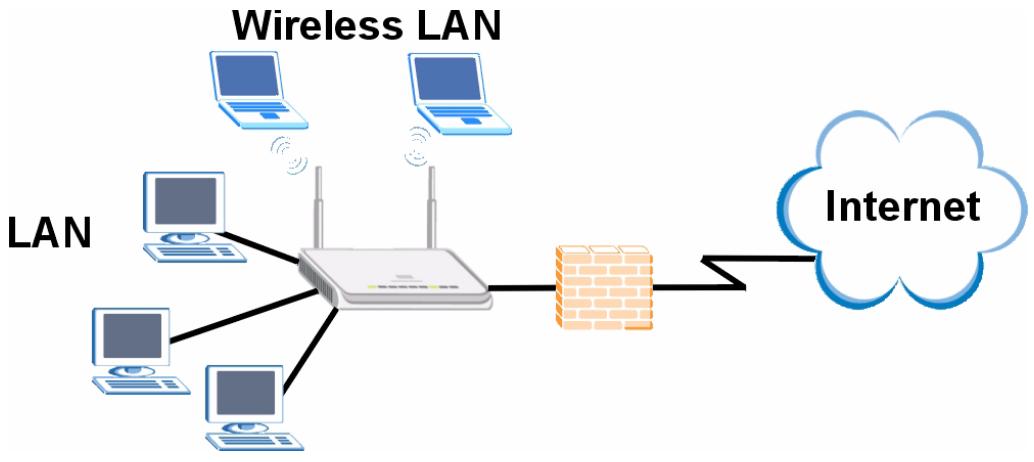
This Quick Start Guide shows you how to do the following with your NBG420N in router mode:
1 Connecting Your Hardware
2 Accessing the Web Configurator
3 Connecting to the Internet with the Wizard
4 Set Up a Wireless Network Manually or with WPS
See your User's Guide on the CD in the package on how to set up the NBG420N as an AP and for more information on all features.
To read the User's Guide insert the CD that came in the box into your CD-ROM drive. A screen should pop up. Navigate to the User's Guide from this screen. If a screen does not pop up, open Windows Explorer (click My Computer), click on the CD-ROM drive (usually drive D:) and navigate to it from there.
1 Hardware Connections
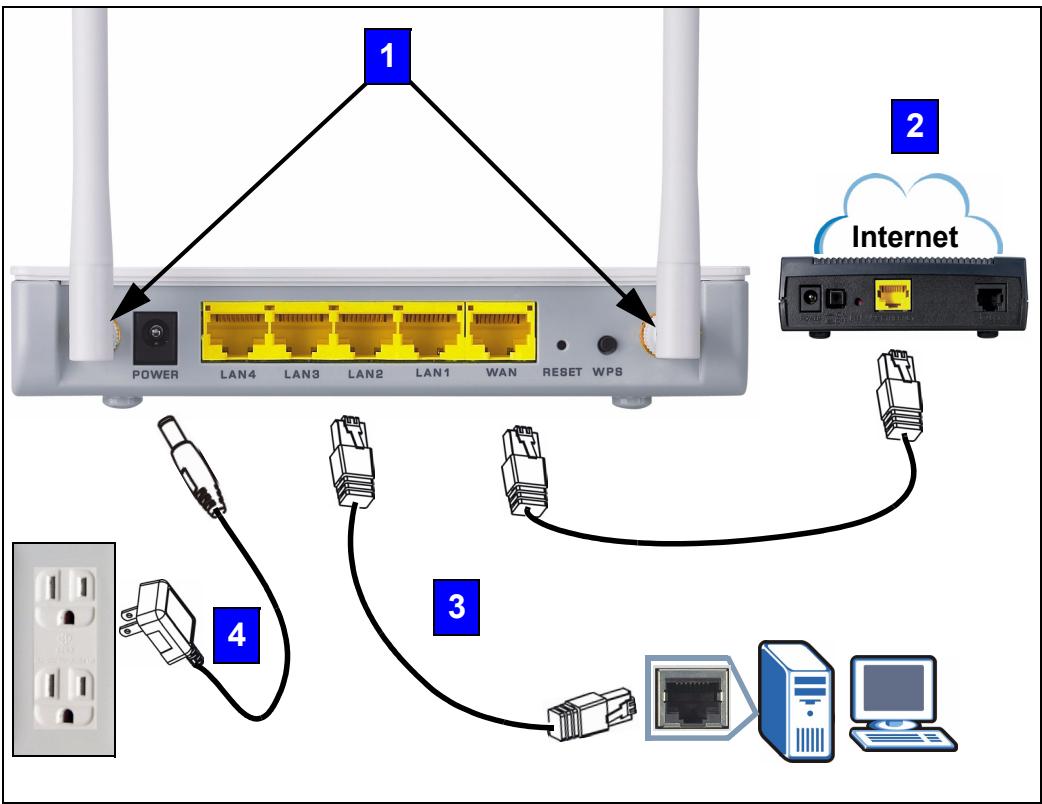
Do the following to make hardware connections for initial setup.
Antennas:
Connect each antenna to an antenna socket, ensuring the antennas are screwed in firmly and angled upwards.
2 WAN
Connect the WAN port on your NBG420N to the Ethernet port on the device with which you are accessing the Internet (for example, a router or modem) using an Ethernet cable.
3 LAN
Connect the Ethernet port on your computer to a LAN port on the NBG420N using the included Ethernet cable.
POWI
Use the power adapter from the package to connect the POWER socket to an appropriate power source.
The LEDs
Look at the LEDs (lights). When you connect the power, the power LED ( ) blinks and stays on once the device is ready.
The LAN ( 1 2 3 4 ) and WAN ( ⌒ ) LEDs turn on if the corresponding connections are properly made.
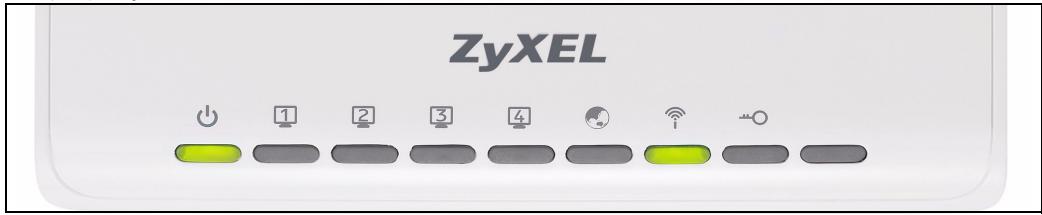

If an LED does not turn on, check your connections. If this doesn't help, disconnect the NBG420N from its power source, wait for a few seconds and turn it back on.
2 Accessing the Web Configurator
Default Login Information
| IP address | http://192.168.1.1 |
| administrator password | 1234 |
1 Launch an Internet browser such as Internet Explorer. Enter "http://192.168.1.1" as shown below.
| View | Favories | Tools | Help |
| → | Search | ||
| Favories | |||
| Media |
2 The Password window displays. Enter the password ("1234" is the default) and click Login.
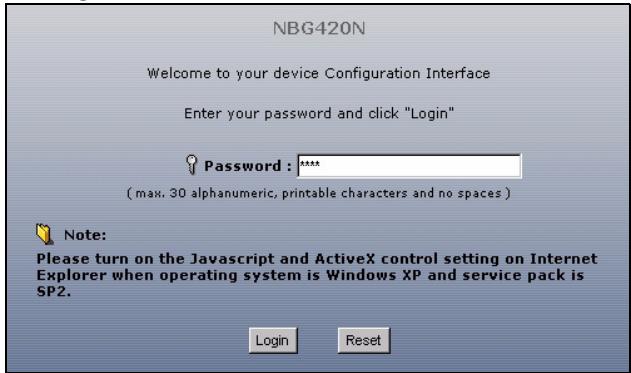

If the login screen does not display, make sure your computer is set to receive an IP address dynamically. If that doesn't help, check your web browser's security settings (see the appendix in the User's Guide for information on both suggestions).
3 Change the password in the screen that follows and click Apply.
4 Click Go to Wizard setup to set up your NBG420N for the first time
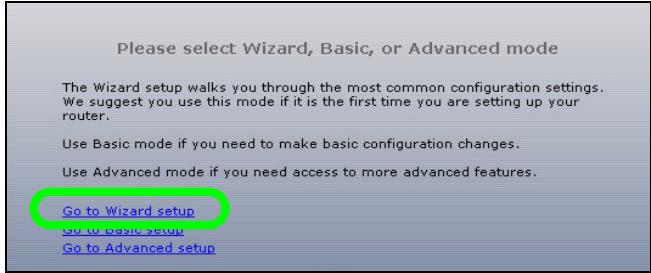
3 Connection Wizard Setup
1 Select a language. Click Next.
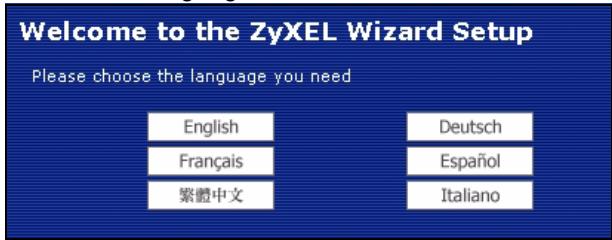
2 Click Next in the following screen to proceed with the Connection Wizard.

Enter the Internet access information exactly as given to you by your ISP in each wizard screen. Click Next to continue or click Back to return to the previous screen. Current screen information will be lost if you click Back.
3.1 System Information
This screen is optional. You can just click Next.
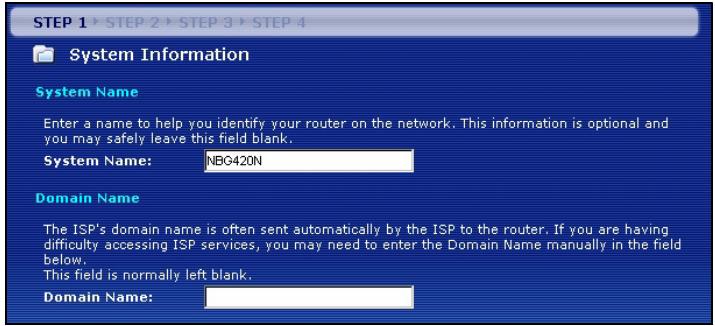
3.2 Wireless LAN
Configure your NBG420N to support a wireless network by following these steps.
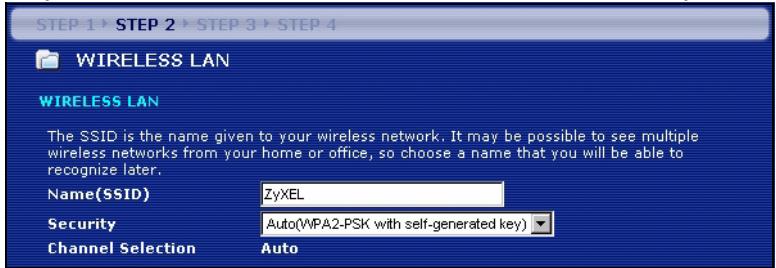
1 Enter a unique Name (SSID) to identify the NBG420N on the wireless LAN.
2 Select Auto to automatically use WPA-PSK which provides a high level of security. See your User's Guide for information on other kinds of security. Click Next.
3 Write down the security key that displays in the pop-up screen. Computers on the wireless network will need this security key to access the NBG420N. The security key is case-sensitive so "ABCD" is not the same as "abcd".
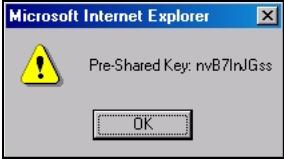

Write down the security key, Name (SSID), Security and Channel Selection for later use as the NBG420N and other devices on your wireless network must use the same settings.
4 Click OK to continue.
3.3 WAN Connection
You may need to wait several minutes while the wizard attempts to detect which WAN connection type (Ethernet, PPP over Ethernet or PPTP) you are using.

Auto detecting WAN
Please wait a moment.
- If the wizard detects your connection type, follow the steps for your connection type as given below.
- If the wizard cannot detect a connection type, you must select your connection type from the drop-down list box in the screen below. If you do not know what connection type to use, check with your Internet Service Provider (ISP).
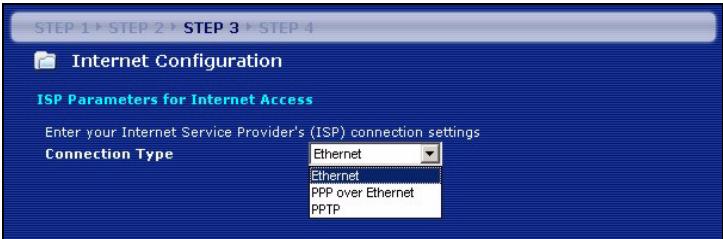

If you were given Internet access settings, type them in the following fields. Otherwise leave the default settings and click Next.
Ethernet Connection
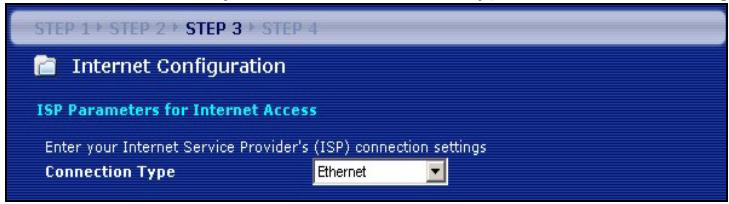
Select Ethernet as your WAN connection type and click Next to go to section 3.4.
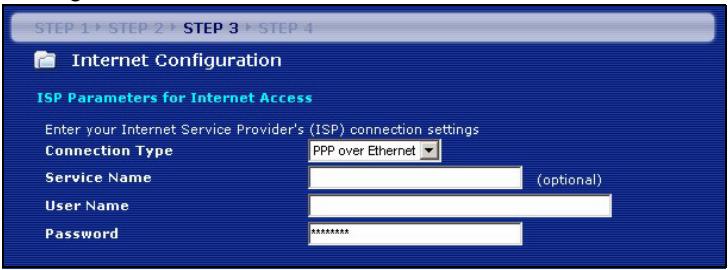
PPP over Ethernet Connection
1 Select PPP over Ethernet as your WAN connection type
2 Type a Service Name (if your ISP gave you one), User Name and Password. Click Next to go to section 3.4.
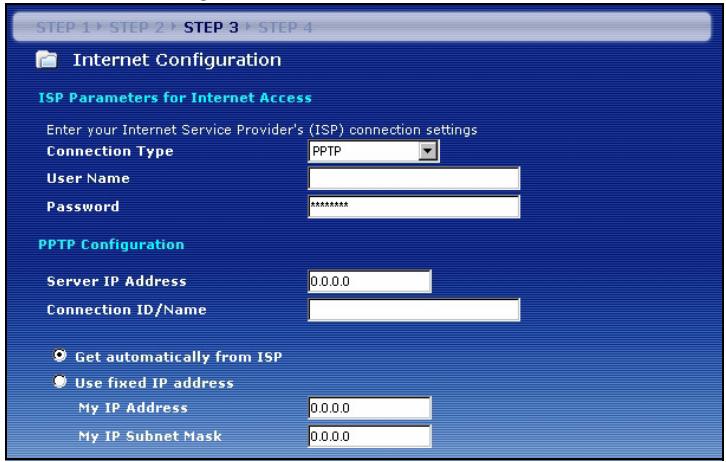
PPTP Connection
1 Select PPTP as your WAN connection type.
2 Type a User Name and Password.
3 Type a PPTP Server IP Address.
4 Type a Connection ID/Name (if provided by your ISP).
5 If your ISP did not assign you a fixed PPTP IP address, select Get automatically from ISP.
6 If your ISP assigned you a fixed PPTP IP address, select Use fixed IP address to give the NBG420N a fixed, unique PPTP IP address and subnet mask.
7 Click Next to go to section 3.4.
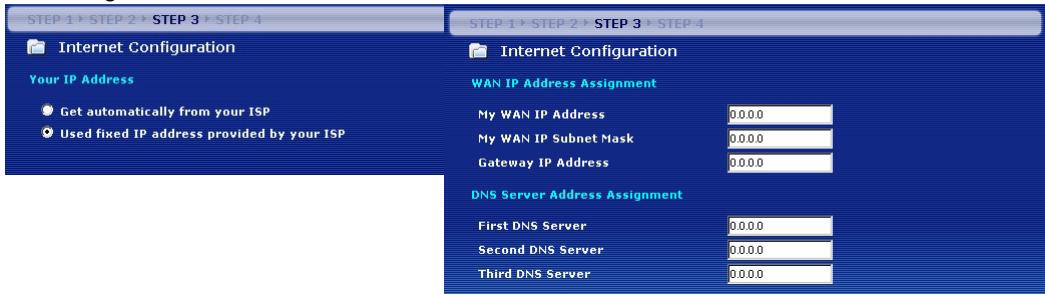
3.4 WAN IP Address
- If your ISP did not assign you a fixed IP address, select Get automatically from your ISP and click Next to go to section 3.5.
- If your ISP gave you a fixed IP address:
1 Select Use fixed IP address provided by your ISP. Click Next.
2 In the next screen type the WAN IP address, WAN IP Subnet Mask and the gateway IP address given by your ISP.
If you were given DNS server settings, type them in the fields. Otherwise leave the default settings and click Next.
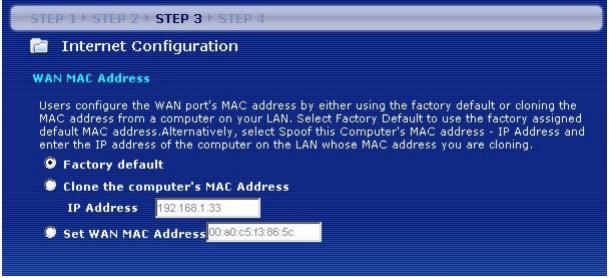
3.5 WAN MAC Address
A MAC address is a number which uniquely identifies a device on any network. Set the WAN port's MAC address by either using your device's factory assigned default MAC address or cloning the MAC address of a computer on your LAN. By default, the NBG420N uses the factory assigned MAC address to identify itself on the WAN.
- Select Factory Default to use the factory-assigned, default MAC address.
- Select Clone the Computer's MAC Address to clone the MAC address from a computer on your LAN. Type the IP address of the computer with the MAC address you are cloning. It is advisable to clone the MAC address from a computer on your LAN even if your ISP does not presently require MAC address authentication.
- Select Set WAN MAC Address if you know the MAC address you want to use.
3.6 Bandwidth Management
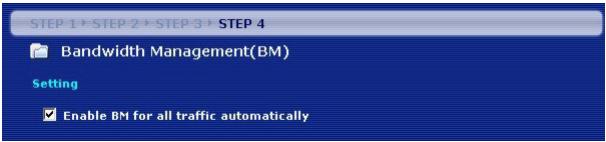
Select Enable BM for all traffic automatically to have the NBG420N prioritize data traffic according to the its use. For example, video streaming may have higher priority than email. Leave unchecked if unsure. Click Next.
3.7 Setup Complete
1 Click Apply to save your changes in the next screen that appears in the wizard.
2 Click Finish in the screen below to complete the wizard setup.
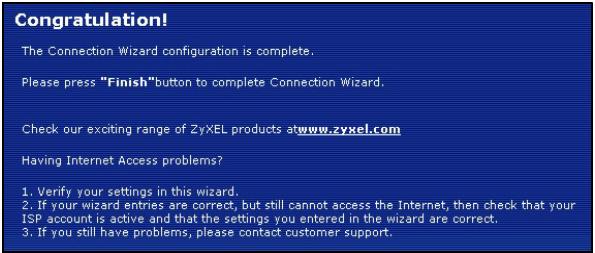
3 Congratulations. Open a web browser, such as Internet Explorer, to visit your favorite website.

If you cannot access the Internet when your computer is connected to one of the NBG420N's LAN ports, check your connections. Then turn the NBG420N off, wait for a few seconds and turn it back on. If this doesn't work run the wizard again, making sure you type the information correctly. Also, if you are using a new Internet account, contact your ISP to make sure it is active. See Troubleshooting in the User's Guide for more suggestions.
4 Set Up a Wireless Network
You can use Wi-Fi Protected Setup (WPS) to add wireless devices to your wireless network. The other wireless devices must also support WPS.
If your wireless devices display the WPS logo as shown, go to section 4.1 to use WPS to set up your wireless network.
If your wireless devices do not display the WPS logo, go to section 4.2 to manually set up a wireless network.
4.1 Set up Your Wireless Network with WPS
Follow these steps to set up your wireless network using WPS.
1 Place a WPS-enabled device within range of the NBG420N.
2 Press the WPS button on both devices. It doesn't matter which button is pressed first. You must press the second button within two minutes of pressing the first one.
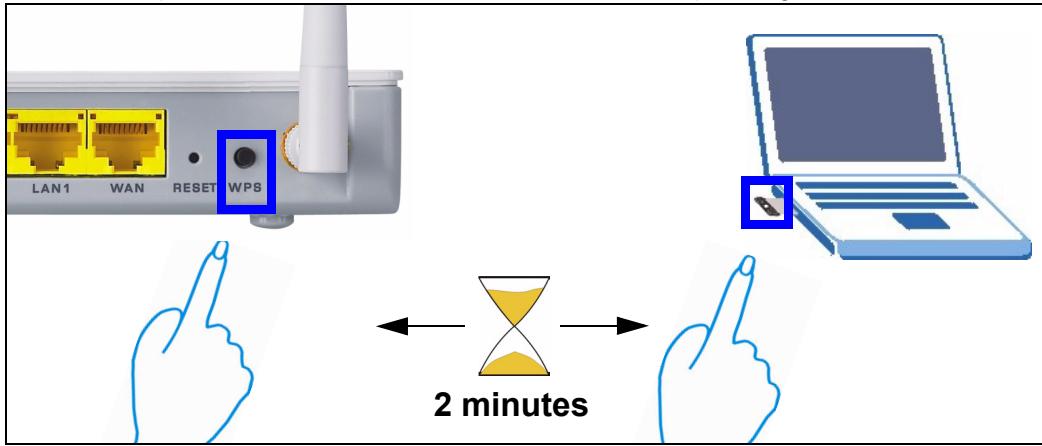

Your NBG420N has a WPS button located on its housing, as well as a WPS button available in the web configurator used to manage the NBG420N. Other WPS-enabled devices should have at least one similar WPS button.
3 The WPS LED ( 0) on the NBG420N blinks for a few seconds, then shines steadily.

4 Check if your devices are connected by trying to connect to the Internet using the device you connected to the NBG420N. If you can do this, then your WPS connection is successful.
5 To add another WPS enabled device to your wireless network, press the WPS buttons on your NBG420N and your next WPS-enabled device.
Congratulations! You are now ready to connect to the Internet wirelessly through your NBG420N.
4.2 Set up a Wireless Network Manually
You can now connect wirelessly to your NBG420N from your computer and access the Internet. You will need the Network Name (SSID) and also the Security Key (Pre-Shared Key) if you set up security in the previous section. The connection procedure is shown here using Windows XP as an example.
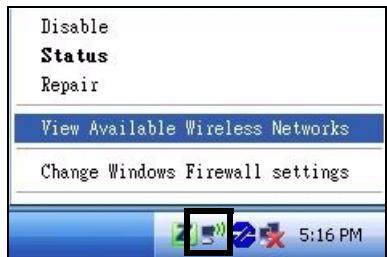
1 Right-click the wireless adapter icon which appears in the bottom right of your computer monitor. Click View Available Wireless Networks.
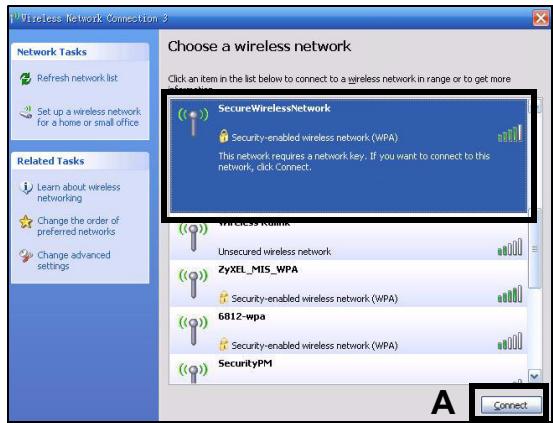
2 Select the SSID name you gave the NBG420N and click Connect (A). The SSID "SecureWirelessNetwork" is given here as an example.
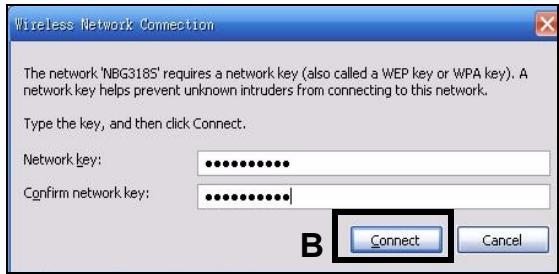
3 If you have set up wireless security, you are prompted to enter a password. Enter the Pre-Shared Key you set up in the previous section and click Connect (B).
4 You may have to wait several minutes while your computer connects to the wireless network.
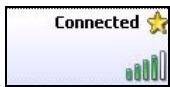
5 You should now be securely connected wirelessly to the NBG420N.
Congratulations! You are now ready to connect to the Internet wirelessly through your NBG420N.

If you cannot connect wirelessly to the NBG420N, check you have selected the correct SSID and entered the correct security key. If that does not work, ensure your network adapter is enabled by clicking on the wireless adapter icon and clicking Enable. See the User's Guide for more suggestions.
Procedure to View a Product's Certification(s)
1 Go to www.zyxel.com.
2 Select your product from the drop-down list box on the ZyXEL home page to go to that product's page.
3 Select the certification you wish to view from this page.
Übersicht
| View | Favories | Tools | Help |
| → | Search | ||
| Favories | |||
| Media |
Please wait a moment.
Welcome to your device Configuration Interface
Enter your password and click "Login"

(max. 30 alphanumeric, printable characters and no spaces)

Please turn on the Javascript and ActiveX control setting on Internet Explorer when operating system is Windows XP and service pack is SP2.
Login
Reset

Please select Wizard, Basic, or Advanced mode
The Wizard setup walks you through the most common configuration settings. We suggest you use this mode if it is the first time you are setting up your router.
Use Basic mode if you need to make basic configuration changes.
Use Advanced mode if you need access to more advanced features.
Go to Wizard setup
GO TO BASIC SETUP
Go to Advanced setup
Exit
Please wait a moment.
Please wait a moment.
Welcome to your device Configuration Interface
Enter your password and click "Login"

(max. 30 alphanumeric, printable characters and no spaces)

Please turn on the Javascript and ActiveX control setting on Internet Explorer when operating system is Windows XP and service pack is SP2.
Login
Reset

Please select Wizard, Basic, or Advanced mode
The Wizard setup walks you through the most common configuration settings. We suggest you use this mode if it is the first time you are setting up your router.
Use Basic mode if you need to make basic configuration changes.
Use Advanced mode if you need access to more advanced features.
Go to Wizard setup
so w basic setup
Go to Advanced setup
Exit
Please wait a moment.
The Connection Wizard configuration is complete.
Please press "Finish" button to complete Connection Wizard.
Check our exciting range of ZyXEL products atwww.zyxel.com
Having Internet Access problems?
- Verify your settings in this wizard
- If your wizard entries are correct, but still cannot access the Internet, then check that your
ISP account is active and that the settings you entered in the wizard are correct. - If you still have problems, please contact customer support.
Welcome to the ZyXEL Wizard Setup
Please choose the language you need
English
Français
繁體中文
Deutsch
Espanol
Italiano
Enter a name to help you identify your router on the network. This information is optional and you may safely leave this field blank.
System Name: NBG420N
Domain Name
The ISP's domain name is often sent automatically by the ISP to the router. If you are having difficulty accessing ISP services, you may need to enter the Domain Name manually in the field below.
This field is normally left blank.
Domain Name:
3.2 Trädlöst LAN
Please wait a moment.
The Connection Wizard configuration is complete.
Please press "Finish" button to complete Connection Wizard.
Check our exciting range of ZyXEL products atwww.zyxel.com
Having Internet Access problems?
- Verify your settings in this wizard.
- If your wizard entries are correct, but still cannot access the Internet, then check that your
ISP account is active and that the settings you entered in the wizard are correct. - If you still have problems, please contact customer support.
- CONTENTS
- Overview
- Hardware Connections
- Antennas:
- WAN
- LAN
- POWI
- The LEDs
- Accessing the Web Configurator
- Connection Wizard Setup
- System Information
- Wireless LAN
- WAN Connection
- Ethernet Connection
- PPP over Ethernet Connection
- PPTP Connection
- Click Next to go to section 3.4.
- WAN IP Address
- WAN MAC Address
- Bandwidth Management
- Setup Complete
- Set Up a Wireless Network
- Set up Your Wireless Network with WPS
- Set up a Wireless Network Manually
- Procedure to View a Product's Certification(s)
- Übersicht
- Welcome to the ZyXEL Wizard Setup
- Trädlöst LAN
Brand : ZYXEL
Model : NBG-420N
Category : Wireless Router