
NWD-271N - Wi-Fi Adapter ZYXEL - Free user manual and instructions
Find the device manual for free NWD-271N ZYXEL in PDF.



| Product Type | USB Wi-Fi Adapter |
| Brand | ZYXEL |
| Model | NWD-271N |
| Wi-Fi Standard | IEEE 802.11b/g/n |
| Interface | USB 2.0 |
| WPS Button | Yes, simplified configuration |
| Indicator LED | Yes, connection indicator |
| Dimensions (approx.) | 7 cm x 2 cm x 1 cm |
| Weight (approx.) | 20 g |
| Power Supply | Via USB port (5V) |
| Included Software | ZyXEL utility and drivers |
| OS Compatibility | Windows XP, Vista, 7, 8, 10 |
| Wireless Security | WEP, WPA, WPA2 |
| Connection Method | WPS or manual |
| Range (estimated) | Up to 30 meters indoors |
| Maintenance | Clean with a soft, dry cloth |
| Operating Temperature | 0°C to 40°C |
| Certifications | Visit www.zyxel.com |
Frequently Asked Questions - NWD-271N ZYXEL
User questions about NWD-271N ZYXEL
0 question about this device. Answer the ones you know or ask your own.
Ask a new question about this device
Download the instructions for your Wi-Fi Adapter in PDF format for free! Find your manual NWD-271N - ZYXEL and take your electronic device back in hand. On this page are published all the documents necessary for the use of your device. NWD-271N by ZYXEL.
USER MANUAL NWD-271N ZYXEL
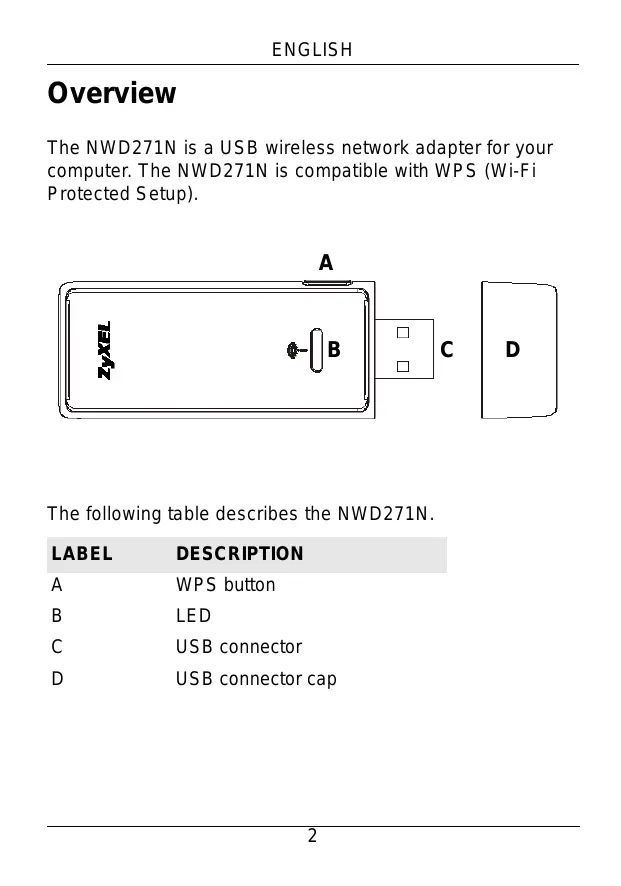
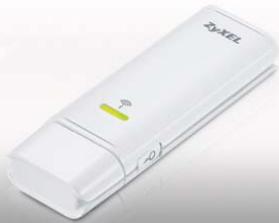
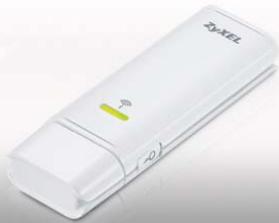
The NWD271N is a USB wireless network adapter for your computer. The NWD271N is compatible with WPS (Wi-Fi Protected Setup).
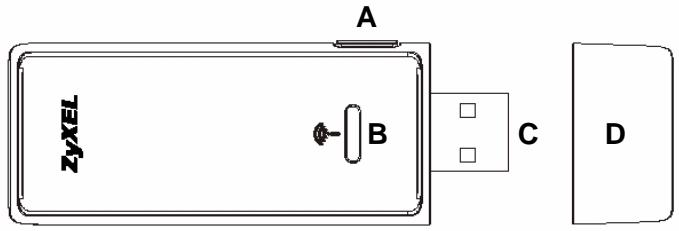
The following table describes the NWD271N.
| LABEL | DESCRIPTION |
| A | WPS button |
| B | LED |
| C | USB connector |
| D | USB connector cap |
1 Install the Software
1 Insert the included CD into the CD-ROM drive on your computer.
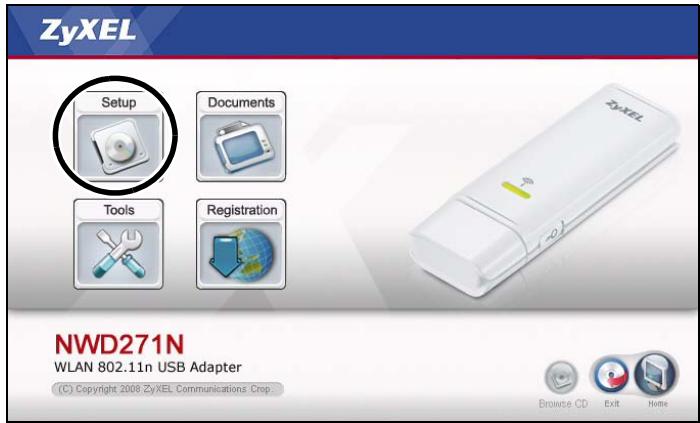
2 When the following screen displays, click Setup to install the ZyXEL utility and driver.
If the screen does not display, locate and double-click autorun.exe on the CD.
3 Follow the on-screen instructions to install both the ZyXEL utility and the device driver. Windows XP and Windows Vista users see the note on page 7 before installing.
4 You will need to restart your computer after installing the ZyXEL utility and driver. Make sure you have saved your work before continuing.
2 Install the Hardware
1 Locate an available USB port on the computer.
2 Remove the protective cap to expose the USB connector. Insert the NWD271N into an available USB port on the computer.
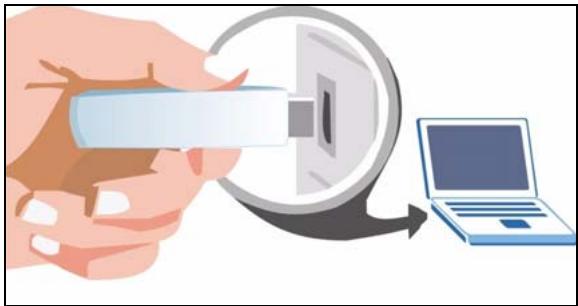
The NWD271N's LED (light) turns on if it is properly inserted.

Never bend, twist or force the NWD271N into the port. If there is not enough space to attach the NWD271N, use the included USB cable.
3 Connect with WPS
To connect wirelessly to an Access Point (AP) with the NWD271N, use the WPS button.
1 Place a WPS-enabled AP within range of the NWD271N.
2 Press the WPS button on both devices for between one and three seconds. It doesn't matter which button is pressed first. You must press the second button within two minutes of pressing the first one.
The LED flashes steadily once they are connected.
4 Connect to a Wireless Network
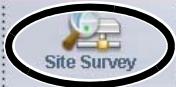
1 Double-click the icon. The ZyXEL utility Link Info screen displays. Click the Site Survey tab.

Link Info

Profile

Adapter
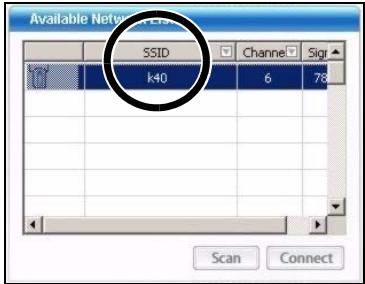
2 The available wireless networks display in the Available Network List. SSID means Service Set Identifier and is the name of the wireless network.
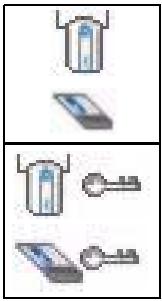
3 If a wireless network has no security, one of the following icons appears next to its entry in the list.
If a wireless network has security, one of the following icons appears next to its entry in the list.
4 Choose the network you want to connect to by clicking on it and clicking Connect.
5 If a network has no security, the Link Info screen displays. Go to step 7.
6 If a network has security, the security settings screen appears. You need to enter security information to connect to the network. Get this information from the network administrator. Be sure to enter the information exactly as it was given to you.
7 To access the Internet, open your Internet browser and enter the

URL of a web site in the address bar. The AP/Router should be connected to the Internet.
If the web site displays correctly, you are successfully connected to the Internet.
Windows WLAN Configuration Tool
This section shows you how to use WZC in Windows XP SP2 or WLAN AutoConfig in Windows Vista to connect to a wireless network without security. See the User's Guide for more information.
Windows XP SP2
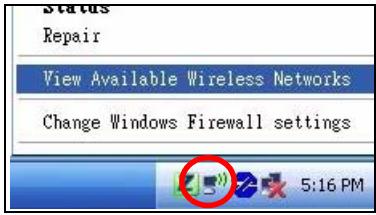
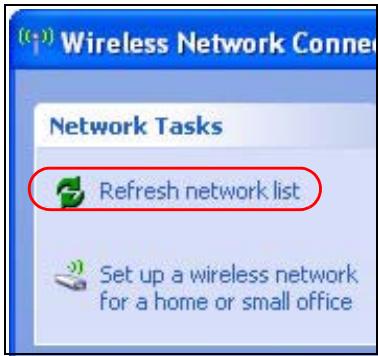
1 Right-click the wireless adapter icon which appears in the bottom right of your computer monitor. Click View Available Wireless Networks to open the Wireless Network Connection screen.
2 Click Refresh network list to reload and search for available wireless devices within transmission range. Select a wireless network in the list and click Connect to join the selected wireless network.
Windows Vista
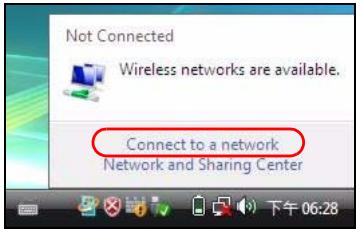
1 Click the wireless network icon for wireless connections in the system tray. Select Connect to a network.
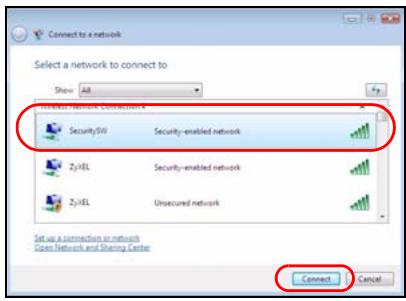
2 Select a wireless network in the list and click Connect to join the selected wireless network.
Procedure to View a Product's Certification(s)
1 Go to www.zyxel.com.
2 Select your product from the drop-down list box on the ZyXEL home page to go to that product's page.
3 Select the certification you wish to view from this page.
Übersicht
(C) Copyright 2008 ZyXEL Communications Crop

Browse CD

Exit

Home
(C) Copyright 2008 ZyXEL Communications Crop.

Browse CD

Exit

Home
Brand : ZYXEL
Model : NWD-271N
Category : Wi-Fi Adapter