
NWD-170N - Wi-Fi Adapter ZYXEL - Free user manual and instructions
Find the device manual for free NWD-170N ZYXEL in PDF.



| Product Type | PCMCIA (CardBus) Wi-Fi Adapter |
| Interface | PCMCIA Type II |
| Wi-Fi Standard | IEEE 802.11b/g |
| Frequency Band | 2.4 GHz |
| Maximum Data Rate | 54 Mbps (802.11g) / 11 Mbps (802.11b) |
| Wireless Security | WEP 64/128-bit, WPA, WPA2 |
| LED Indicators | 1 LED (power/link) |
| Supported Operating Systems | Windows 2000, Windows XP |
| Minimum System Requirements | Pentium II 300 MHz, 128 MB RAM, 20 MB hard disk, CD-ROM drive |
| Power Supply | Via PCMCIA slot (bus) |
| Dimensions (approx.) | 54 x 54 x 5 mm |
| Weight (approx.) | 20 g |
| Package Contents | NWD-170N adapter, installation CD, quick start guide |
| Software Installation | Required before inserting the card; use ZyXEL utility or driver only |
| Maintenance | Clean with a dry cloth; avoid moisture and shocks |
| Safety | Do not bend or force during insertion; follow instructions in the manual |
| Spare parts / repairability | Not applicable (sealed card); if defective, replace the adapter |
Frequently Asked Questions - NWD-170N ZYXEL
User questions about NWD-170N ZYXEL
0 question about this device. Answer the ones you know or ask your own.
Ask a new question about this device
Download the instructions for your Wi-Fi Adapter in PDF format for free! Find your manual NWD-170N - ZYXEL and take your electronic device back in hand. On this page are published all the documents necessary for the use of your device. NWD-170N by ZYXEL.
USER MANUAL NWD-170N ZYXEL
Draft 802.11n Wireless CardBus Card
Quick Start Guide
Version 1.00
Edition 1
10/2006
Table of Contents
ENGLISH 1
DEUTSCH 13
ESPANOL 25
FRANÇAIS 37
ITALIANO 49
PYCCKNI 61
SVENSKA 73
繁體中文 85
Overview
The NWD-170N is a wireless network adapter for your laptop computer. See page 10 for a list of system requirements.
1 Install the Software

Install the software from the CD before you insert the NWD-170N. Do not insert the NWD-170N yet.
If you have already installed Funk Odyssey Client software on the computer, uninstall (remove) it.
1 Remove the NWD-170N if you already inserted it.
2 Insert the included CD into the CD-ROM drive on your computer.
3 When the following screen displays, click Setup to install the ZyXEL utility and driver.
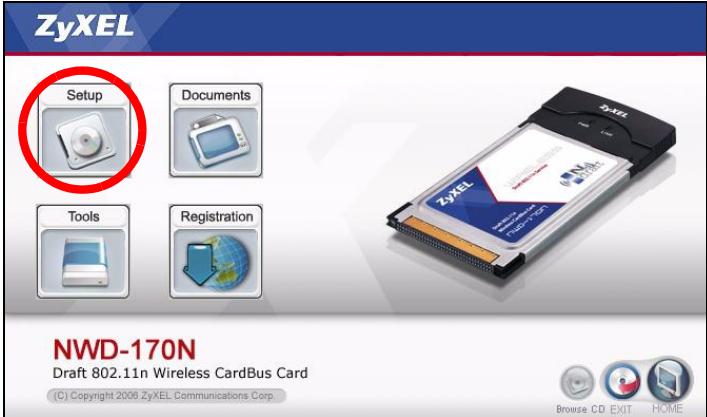

If the screen does not display, locate and double-click autorun.exe on the CD.
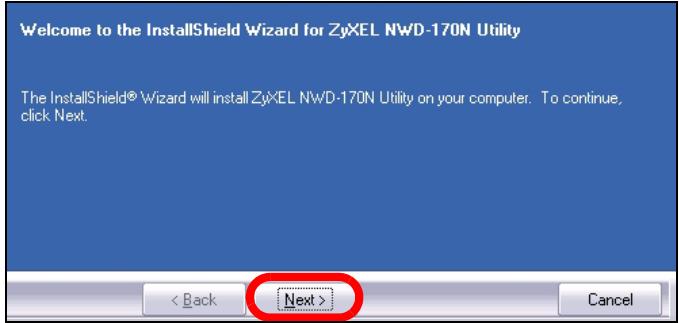
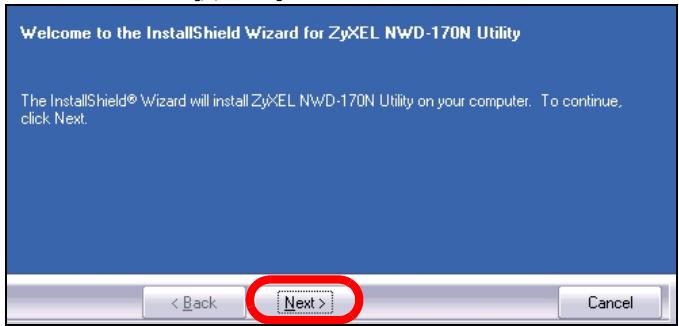
4 When the following screen displays, click Next.
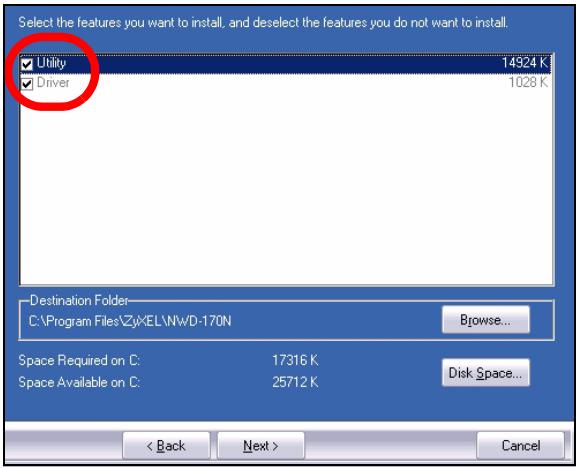
5 Select Driver and Utility to install both the ZyXEL utility and the driver on your computer. If you want to install the driver only and use Wireless Zero Configuration (WZC) with Windows XP, select Driver only (see Note for
Windows XP Users). Click Next to accept the default file location or click Browse to select an alternate folder.
6 Click Install.
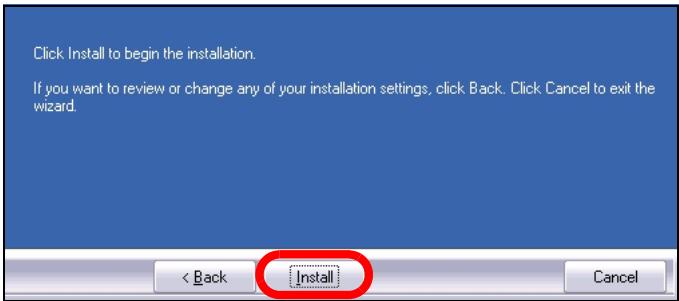

You will need to restart your computer after installing the ZyXEL utility. Make sure you have saved your work before continuing.
7 When the following screen displays, click Finish to exit the installer and restart your computer.
InstallShield Wizard Complete
The InstallShield Wizard has successfully installed ZyXEL NWD-170N Utility. Before you can use the program, you must restart your computer.

Yes, I want to restart my computer now.

No, I will restart my computer later.
Remove any disks from their drives, and then click Finish to complete setup.
<Back
Finish
Cancel
2 Install the Hardware

Do not install the hardware until you have installed the software from the CD.
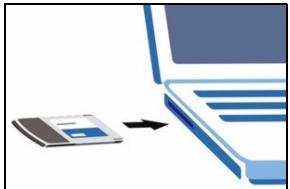
1 Locate an available card slot on your computer.
2 With the pin connectors facing the slot and the side with LEDs facing up, slide the NWD-170N into the slot. The NWD-170N's LEDs (lights) turn on if it is properly inserted.
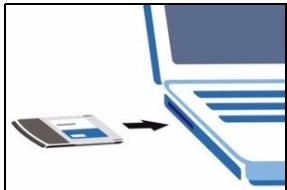

Never bend, twist or force the NWD-170N into the slot.

If the LEDs on the NWD-170N are not on after you have installed the utility and the NWD-170N, remove the NWD-170N and reinsert it.
3 Connect to a Wireless Network
After you install the ZyXEL utility and insert the NWD-170N, an icon appears in the system tray.
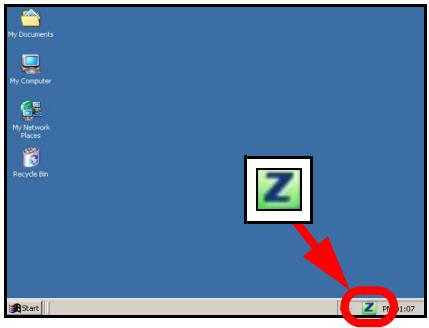

If the Z icon does not display, uninstall and reinstall the ZyXEL utility. See the User's Guide for how to uninstall the utility.
The NWD-170N automatically searches for any available network(s) and connects to a wireless network without security enabled. However, this wireless network may not be connected to the Internet.
If the icon color is red, you are not connected to a wireless network.
If the Z icon color is green you are already connected to a wireless network.
Use the following steps to select and connect to a wireless network.
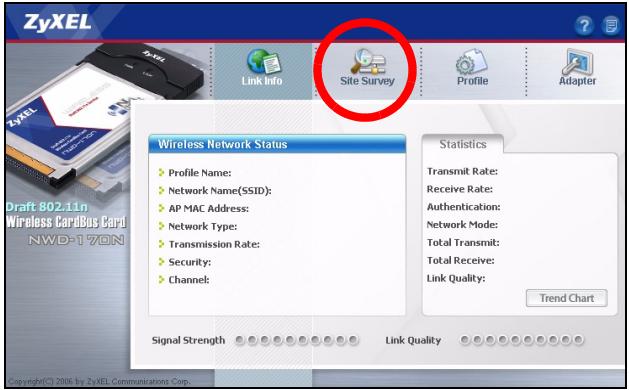
1 Double-click the icon. The ZyXEL utility Link Info screen displays. Click the Site Survey tab.
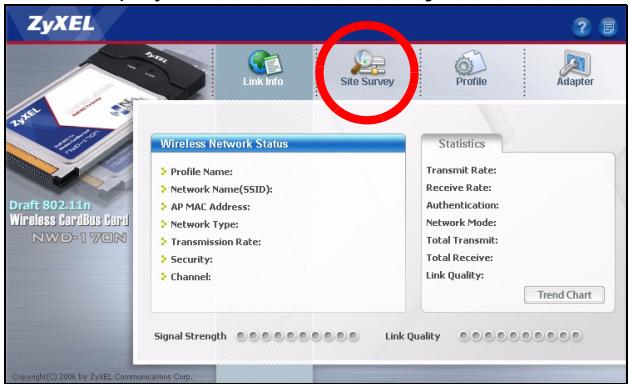
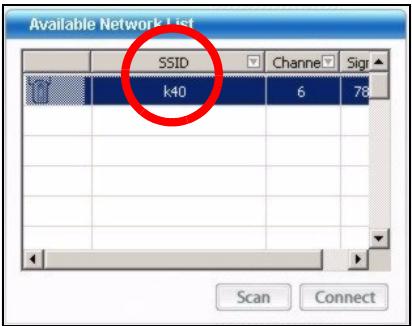
2 The available wireless network(s) displays in the Available Network List.
SSID means Service Set Identity and is the name of the wireless network.
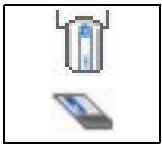
3 If a wireless network has no security, one of the following icons appears next to its entry in the list.
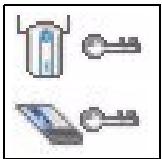
If a wireless network has security, one of the following icons appears next to its entry in the list.
Choose the network you want to connect to and double-click its entry in the list.
4 If a network has no security, the Link Info screen displays. Go to step 6.
5 If a network has security, the security settings screen appears. You need to enter security information to connect to the network. Get this information from the network administrator. Be sure to enter the information exactly as it was given to you.
6 To access the Internet, open your Internet browser and enter the URL of a web site in the address bar. The network should be connected to the Internet.
Address http://www.zyxel.com
If the web site displays correctly, you are successfully connected to the Internet.
3.1 Note for Windows XP Users
If you want to use WZC, either disable the ZyXEL utility (if you already installed it) or just install the driver.
- To disable the ZyXEL utility, right-click the icon and select Use Windows Zero Configuration. To activate the ZyXEL utility again, double-click the icon and click OK.
- To install the driver only, select Driver only.
System Requirements
Before installation, make sure you have a computer with the following:
-
Pentium II 300 MHz or above
-
PCMCIA card slot
- A minimum of 20 Mb available hard disk space
A minimum of 128 Mb RAM - A CD-ROM drive
- Windows 2000 or Windows XP
Important Information
Federal Communications Commission (FCC) Interference Statement
The 802.11g Wireless LAN Adapter has been tested to the FCC exposure requirements (Specific Absorption Rate).
The equipment complies with FCC RF radiation exposure limits set forth for an uncontrolled environment, under 47 CFR 2.1093 paragraph (d) (2).
This Transmitter must not be co-located or operating in conjunction with any other antenna or transmitter.
Refer to the User's Guide for general FCC statements.
Procedure to View a Product's Certification(s)
1 Go to www.zyxel.com
2 Select your product from the drop-down list box on the ZyXEL home page to go to that product's page.
3 Select the certification you wish to view from this page.
Übersicht
The InstallShield Wizard has successfully installed ZyXEL NWD-170N Utility. Before you can use the program, you must restart your computer.

Yes, I want to restart my computer now.

No, I will restart my computer later.
Remove any disks from their drives, and then click Finish to complete setup.
<Back
Finish
Cancel
The InstallShield Wizard has successfully installed ZyXEL NWD-170N Utility. Before you can use the program, you must restart your computer.

Yes, I want to restart my computer now.

No, I will restart my computer later.
Remove any disks from their drives, and then click Finish to complete setup.
<Back
Finish
Cancel
2 Instalar el Hardware

Draft 802.11n Wireless CardBus Card
(C) Copyright 2006 ZyXEL Communications Corp.

Browse CD EXIT


The InstallShield Wizard has successfully installed ZyXEL NWD-170N Utility. Before you can use the program, you must restart your computer.

Yes, I want to restart my computer now.

No, I will restart my computer later.
Remove any disks from their drives, and then click Finish to complete setup.
<Back
Finish
Cancel
Draft 802.11n Wireless CardBus Card
(C) Copyright 2006 ZyXEL Communications Corp.

Browse CD EXIT


HOME

The InstallShield Wizard has successfully installed ZyXEL NWD-170N Utility. Before you can use the program, you must restart your computer.
Yes, I want to restart my computer now.
No, I will restart my computer later.
Remove any disks from their drives, and then click Finish to complete setup.
<Back
Finish
Cancel
Draft 802.11n Wireless CardBus Card
(C) Copyright 2006 ZyXEL Communications Corp.

Browse CD EXIT


HOME

EcnTakoe OKHO He NOBnIOscb, To HauDnte n 3aynCTnte faan autorun.exe.
1 Korda oTo6pa3ntc sIeIyUoIe e OkHO IeJIKNHTe Ha KHonke Next [JaIee].
The InstallShield Wizard has successfully installed ZyXEL NWD-170N Utility. Before you can use the program, you must restart your computer.

Yes, I want to restart my computer now.

No, I will restart my computer later.
Remove any disks from their drives, and then click Finish to complete setup.
<Back
Finish
Cancel
2 yctaHObka o6OpydoBaHnna

He yctaHaBnBaIte o6OpyDoBaHne do yCTaHOBKn IporpaMMHoro o6ecpeHn c CD-DCNCKa.
1 HanDiTe Ha BaWeM KombIyTepe CBo6OHyB pa3BeM.
2 BCTaBbTe NWD-170NВ pa3bem TaK, YTO6bl WbIpbkOBbIpa3bem CMOTpeB CTOPOHy pa3bema,a CBeToIOIObl 6blnHaprabHeBbVBPex.EcnnNWD-170N?IOdkIoueHnpabINbHO,TO ero INdIKaTOpbl3aGoprTa.

HnkOrda He n3r6aITe, He cKpyuBaITe n He npNKpaIbIbaiTe cnly npu yCTaHOBke NWD170N b pa3bem.

EcninHnDnKaTOpbN WND-170N He 3aRopaoTc npocne yCTaHOBKn yCTpoiCTBa n yTuJIInTbI NWD170N,To BbInbTe NWD-170N n CHOba BCTaBbTe erO B pa3beM.
Ecn 3naOKe He OTo6paKaTcra, To
DeHCTaJInpuYe, a 3aTeM 3aHOBO yCTaHOBnTe
yTuNITy. CmOTpIte PyKOBODCTBO NOJb3ObaTeJRA
rJe OINcaHa nPoUeDypa DeEHCTaJIpyuIN
yTuNITbl.
AaanTep NWD-170N abTomatueckn npoBOnt nonck JIOboJIOCTynHc cTeN(ei) nIOdcoeunHraTcK 6ecnpoBOHOcTeN 6e3 BKJIouChnCnCTEmbl 3auNTb. TeM He MeHee, 3Ta 6ecnpoBOHa cTe b MoKeT He ImeT b BixOda B Internet.
Ecnu zBET NOKHN KpaCHbI,3TO 03HaayeT,HTO Bbl He noDkJIIOHeHbK6ecnpoBOdHOc cTeN.
EcInIeBETIKOKHN Z3eJIeHbI,3TO03HaayeT,YTO Bbl yKe NOdkJIIOUeHbIK6ecnpoBOHOH cETN.
ДявьбopaиpoДКЛIOUHeHЯKБeСПОВODHOcTeN BbIOnHnTe cNeDyUOuNE ONEpaCm.
1Двжды Μeнкнite Ha Иконke .ПояВитс оКHo Link Info (Инфомацяо оCBЯЗи)утNiITbI ZyXEL.Дeнкнite Ha 3aknaДcke Site Survey (Обзop сaita).
pa6ooyem cTOne, nInn Haxmnte Pnyck, (Bce) IprorpaMMbl, ZyXEL NWD-170N Wireless Adapter Utility, ZyXEL NWD170N Wireless Adapter Software.
- UTo6bI yCTaHOBnTb TOnbKO dpaBep, Bbl6epnTe nyHKT Driver only (ToNbko dpaBep).
The InstallShield Wizard has successfully installed ZyXEL NWD-170N Utility. Before you can use the program, you must restart your computer.

Yes, I want to restart my computer now.

No, I will restart my computer later.
Remove any disks from their drives, and then click Finish to complete setup.
<Back
Finish
Cancel
2 Installera maskinvaran

The InstallShield Wizard has successfully installed ZyXEL NWD-170N Utility. Before you can use the program, you must restart your computer.
Yes, I want to restart my computer now.
No, I will restart my computer later.
Remove any disks from their drives, and then click Finish to complete setup.
<Back
Finish
Cancel
2 安裝硬體

請先從CD安裝軟體再安裝硬體。
1 在電腦上尋找可用的卡片插槽。
- Draft 802.11n Wireless CardBus Card
- Quick Start Guide
- Overview
- Install the Software
- Click Install.
- InstallShield Wizard Complete
- Install the Hardware
- Connect to a Wireless Network
- Note for Windows XP Users
- System Requirements
- Important Information
- Federal Communications Commission (FCC) Interference Statement
- Procedure to View a Product's Certification(s)
- Übersicht
- Instalar el Hardware
- yctaHObka o6OpydoBaHnna
- Installera maskinvaran
- 安裝硬體
Brand : ZYXEL
Model : NWD-170N
Category : Wi-Fi Adapter