
NWD-170 - Wi-Fi Adapter ZYXEL - Free user manual and instructions
Find the device manual for free NWD-170 ZYXEL in PDF.

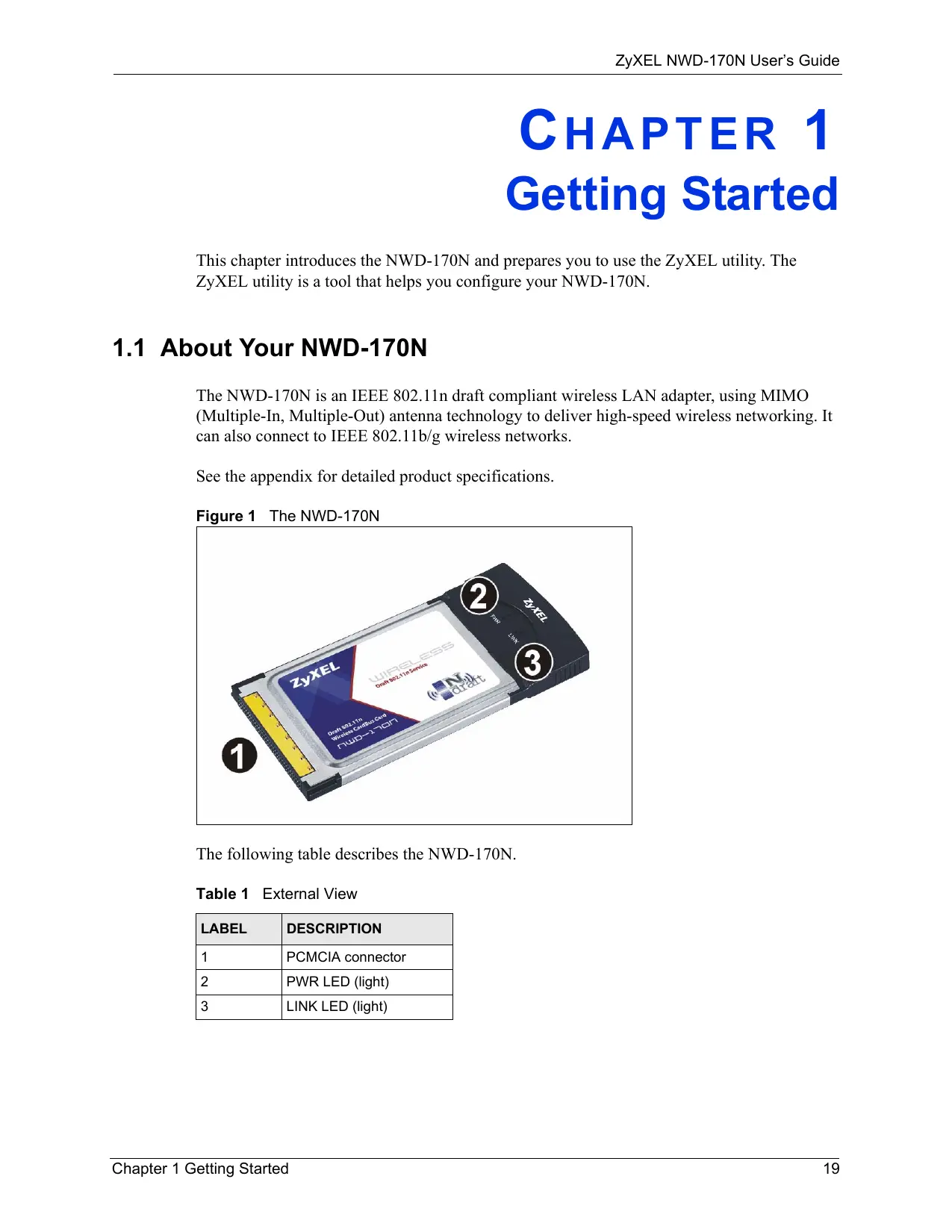

| Product Type | USB Wi-Fi Adapter |
| Brand | ZYXEL |
| Model | NWD-170 |
| Wi-Fi Standard | IEEE 802.11n (Wi-Fi 4) |
| Frequency Band | 2.4 GHz |
| Maximum Data Rate | Up to 150 Mbps |
| Interface | USB 2.0 |
| Wireless Security | WEP, WPA, WPA2 |
| Dimensions | Approx. 25 x 15 x 8 mm |
| Weight | Approx. 10 g |
| Power | Via USB port (5 V) |
| Compatible Operating Systems | Windows, macOS, Linux |
| Antenna | Internal antenna |
| Operating Temperature | 0 °C to 40 °C |
| Operating Humidity | 10% to 90% (non-condensing) |
| Certifications | CE, FCC, IC |
| Maintenance and Cleaning | Unplug before cleaning; use a soft, dry cloth |
| Safety | Do not expose to moisture or extreme temperatures |
| Spare Parts and Repairability | No detachable parts; device not user-repairable |
| General Information | Complies with Canadian NMB-003 standard (Class B) |
Frequently Asked Questions - NWD-170 ZYXEL
User questions about NWD-170 ZYXEL
0 question about this device. Answer the ones you know or ask your own.
Ask a new question about this device
Download the instructions for your Wi-Fi Adapter in PDF format for free! Find your manual NWD-170 - ZYXEL and take your electronic device back in hand. On this page are published all the documents necessary for the use of your device. NWD-170 by ZYXEL.
USER MANUAL NWD-170 ZYXEL
Draft 802.11n Wireless CardBus Card
User's Guide
Version 1.00
Edition 1
9/2006
ZyXEL
Copyright
Copyright © 2006 by ZyXEL Communications Corporation.
The contents of this publication may not be reproduced in any part or as a whole, transcribed, stored in a retrieval system, translated into any language, or transmitted in any form or by any means, electronic, mechanical, magnetic, optical, chemical, photocopying, manual, or otherwise, without the prior written permission of ZyXEL Communications Corporation.
Published by ZyXEL Communications Corporation. All rights reserved.
Disclaimer
ZyXEL does not assume any liability arising out of the application or use of any products, or software described herein. Neither does it convey any license under its patent rights nor the patent rights of others. ZyXEL further reserves the right to make changes in any products described herein without notice. This publication is subject to change without notice.
Trademarks
ZyNOS (ZyXEL Network Operating System) is a registered trademark of ZyXEL Communications, Inc. Other trademarks mentioned in this publication are used for identification purposes only and may be properties of their respective owners.
Certifications
Federal Communications Commission (FCC) Interference Statement
The device complies with Part 15 of FCC rules. Operation is subject to the following two conditions:
- This device may not cause harmful interference.
- This device must accept any interference received, including interference that may cause undesired operations.
This device has been tested and found to comply with the limits for a Class B digital device pursuant to Part 15 of the FCC Rules. These limits are designed to provide reasonable protection against harmful interference in a residential installation. This device generates, uses, and can radiate radio frequency energy, and if not installed and used in accordance with the instructions, may cause harmful interference to radio communications. However, there is no guarantee that interference will not occur in a particular installation.
If this device does cause harmful interference to radio/television reception, which can be determined by turning the device off and on, the user is encouraged to try to correct the interference by one or more of the following measures:
1 Reorient or relocate the receiving antenna.
2 Increase the separation between the equipment and the receiver.
3 Connect the equipment into an outlet on a circuit different from that to which the receiver is connected.
4 Consult the dealer or an experienced radio/TV technician for help.
FCC Radiation Exposure Statement
- This device has been tested to the FCC exposure requirements (Specific Absorption Rate).
- This device complies with the requirements of Health Canada Safety Code 6 for Canada.
- Testing was performed on laptop computers with antennas at 0mm spacing. The maximum SAR value is: 0.26 W/kg . The device must not be collocated with any other antennas or transmitters.
-
This equipment has been SAR-evaluated for use in laptops (notebooks) with side slot configuration.
-
The device complies with FCC RF radiation exposure limits set forth for an uncontrolled environment, under 47 CFR 2.1093 paragraph (d)(2). End users must follow the specific operating instructions for satisfying RF exposure compliance. To maintain compliance with FCC RF exposure compliance requirements, please follow operation instruction as documented in this manual.
- This transmitter must not be co-located or operating in conjunction with any other antenna or transmitter.
- IEEE 802.11b or 802.11g operation of this product in the U.S.A. is firmware-limited to channels 1 through 11.
注意!
依據 低功率電波輻射性電機管理辦法
Changes or modifications not expressly approved by the party responsible for compliance could void the user's authority to operate the equipment.
This device has been designed for the WLAN 2.4 GHz network throughout the EC region and Switzerland, with restrictions in France.
This Class B digital apparatus complies with Canadian ICES-003.
Viewing Certifications
1 Go to http://www.zyxel.com.
2 Select your product on the ZyXEL home page to go to that product's page.
3 Select the certification you wish to view from this page.
SafetyWarnings
For your safety, be sure to read and follow all warning notices and instructions.
- Do NOT use this product near water, for example, in a wet basement or near a swimming pool.
- Do NOT expose your device to dampness, dust or corrosive liquids.
- Do NOT store things on the device.
- Do NOT install, use, or service this device during a thunderstorm. There is a remote risk of electric shock from lightning.
- Connect ONLY suitable accessories to the device.
- ONLY qualified service personnel should service or disassemble this device.
- Do not use the device outside, and make sure all the connections are indoors. There is a remote risk of electric shock from lightning.
- Antenna Warning! This device meets ETSI and FCC certification requirements when using the included antenna(s). Only use the included antenna(s).
This product is recyclable. Dispose of it properly.
ZyXEL Limited Warranty
ZyXEL warrants to the original end user (purchaser) that this product is free from any defects in materials or workmanship for a period of up to two years from the date of purchase. During the warranty period, and upon proof of purchase, should the product have indications of failure due to faulty workmanship and/or materials, ZyXEL will, at its discretion, repair or replace the defective products or components without charge for either parts or labor, and to whatever extent it shall deem necessary to restore the product or components to proper operating condition. Any replacement will consist of a new or re-manufactured functionally equivalent product of equal or higher value, and will be solely at the discretion of ZyXEL. This warranty shall not apply if the product has been modified, misused, tampered with, damaged by an act of God, or subjected to abnormal working conditions.
Note
Repair or replacement, as provided under this warranty, is the exclusive remedy of the purchaser. This warranty is in lieu of all other warranties, express or implied, including any implied warranty of merchantability or fitness for a particular use or purpose. ZyXEL shall in no event be held liable for indirect or consequential damages of any kind to the purchaser.
To obtain the services of this warranty, contact ZyXEL's Service Center for your Return Material Authorization number (RMA). Products must be returned Postage Prepaid. It is recommended that the unit be insured when shipped. Any returned products without proof of purchase or those with an out-dated warranty will be repaired or replaced (at the discretion of ZyXEL) and the customer will be billed for parts and labor. All repaired or replaced products will be shipped by ZyXEL to the corresponding return address, Postage Paid. This warranty gives you specific legal rights, and you may also have other rights that vary from country to country.
Registration
Register your product online to receive e-mail notices of firmware upgrades and information at www.zyxel.com for global products, or at www.us.zyxel.com for North American products.
Customer Support
Please have the following information ready when you contact customer support.
Product model and serial number.
Warranty Information.
- Date that you received your device.
- Brief description of the problem and the steps you took to solve it.
| METHOD LOCATION | SUPPORT E-MAIL | TELEPHONE | WEB SITE | REGULAR MAIL |
| SALES E-MAIL | FAX | FTP SITE | ||
| CORPORATE HEADQUARTERS (WORLDWIDE) | support@zyxel.com.tw | +886-3-578-3942 | www.zyxel.com www.europe.zyxel.com | ZyXEL Communications Corp. 6 Innovation Road II Science Park Hsinchu 300 Taiwan |
| sales@zyxel.com.tw | +886-3-578-2439 | ftp.zyxel.com ftp.europe.zyxel.com | ||
| COSTA RICA | soporte@zyxel.co.cr | +506-2017878 | www.zyxel.co.cr | ZyXEL Costa Rica Plaza Roble Escazú Etapa El Patío, Tercer Piso San José, Costa Rica |
| sales@zyxel.co.cr | +506-2015098 | ftp.zyxel.co.cr | ||
| CZECH REPUBLIC | info@cz.zyxel.com | +420-241-091-350 | www.zyxel.cz | ZyXEL Communications Czech s.r.o. Modranská 621 143 01 Praha 4 - Modrany Ceská Republika |
| info@cz.zyxel.com | +420-241-091-359 | |||
| DENMARK | support@zyxel.dk | +45-39-55-07-00 | www.zyxel.dk | ZyXEL Communications A/S Columbusvej 2860 Soeborg Denmark |
| sales@zyxel.dk | +45-39-55-07-07 | |||
| FINLAND | support@zyxel.fi | +358-9-4780-8411 | www.zyxel.fi | ZyXEL Communications Oy Malminkaari 10 00700 Helsinki Finland |
| sales@zyxel.fi | +358-9-4780 8448 | |||
| FRANCE | info@zyxel.fr | +33-4-72-52-97-97 | www.zyxel.fr | ZyXEL France 1 rue des Vergers Bat. 1 / C 69760 Limonest France |
| +33-4-72-52-19-20 | ||||
| GERMANY | support@zyxel.de | +49-2405-6909-0 | www.zyxel.de | ZyXEL Deutschland GmbH. Adenauerstr. 20/A2 D-52146 Wuerselen Germany |
| sales@zyxel.de | +49-2405-6909-99 | |||
| HUNGARY | support@zyxel.hu | +36-1-3361649 | www.zyxel.hu | ZyXEL Hungary 48, Zoldlomb Str. H-1025, Budapest Hungary |
| info@zyxel.hu | +36-1-3259100 | |||
| KAZAKHSTAN | http://zyxel.kz/support | +7-3272-590-698 | www.zyxel.kz | ZyXEL Kazakhstan 43, Dostyk ave.,Office 414 Dostyk Business Centre 050010, Almaty Republic of Kazakhstan |
| sales@zyxel.kz | +7-3272-590-689 | |||
| NORTH AMERICA | support@zyxel.com | 1-800-255-4101 | www.us.zyxel.com | ZyXEL Communications Inc. 1130 N. Miller St. Anaheim |
| sales@zyxel.com | +1-714-632-0882 | ftp.us.zyxel.com | CA 92806-2001 U.S.A. | |
| NORWAY | support@zyxel.no | +47-22-80-61-80 | www.zyxel.no | ZyXEL Communications A/S Nils Hansens vei 13 0667 Oslo Norway |
| sales@zyxel.no | +47-22-80-61-81 | |||
| POLAND | info@pl.zyxel.com | +48 (22) 333 8250 | www.pl.zyxel.com | ZyXEL Communications ul. Okzei 1A 03-715 Warszawa Poland |
| +48 (22) 333 8251 | ||||
| RUSSIA | http://zyxel.ru/support | +7-095-542-89-29 | www.zyxel.ru | ZyXEL Russia Ostrovityanova 37a Str. Moscow, 117279 Russia |
| sales@zyxel.ru | +7-095-542-89-25 | |||
| SPAIN | support@zyxel.es | +34-902-195-420 | www.zyxel.es | ZyXEL Communications Arte, 21 5thplanta 28033 Madrid Spain |
| sales@zyxel.es | +34-913-005-345 | |||
| SWEDEN | support@zyxel.se | +46-31-744-7700 | www.zyxel.se | ZyXEL Communications A/S Sjöporten 4, 41764 Göteborg Sweden |
| sales@zyxel.se | +46-31-744-7701 | |||
| UKRAINE | support@ua.zyxel.com | +380-44-247-69-78 | www.ua.zyxel.com | ZyXEL Ukraine 13, Pimonenko Str. Kiev, 04050 Ukraine |
| sales@ua.zyxel.com | +380-44-494-49-32 | |||
| UNITED KINGDOM | support@zyxel.co.uk | +44-1344 303044 08707 555779 (UK only) | www.zyxel.co.uk | ZyXEL Communications UK Ltd.,11 The Courtyard, Eastern Road, Bracknell, Berkshire, RG12 2XB, United Kingdom (UK) |
| sales@zyxel.co.uk | +44-1344 303034 | ftp.zyxel.co.uk |
+” is the (prefix) number you enter to make an international telephone call.
Table of Contents
Copyright 3
Certifications 4
SafetyWarnings 6
ZyXEL Limited Warranty 7
Customer Support 8
Table of Contents 11
List of Figures 13
List of Tables 15
Preface 17
Chapter 1
Getting Started 19
1.1 About Your NWD-170N 19
1.2 Application Overview 20
1.2.0.1 Infrastructure 20
1.2.0.2 Ad-Hoc 21
1.3 NWD-170N Hardware and Utility Installation 22
1.3.1 ZyXEL Utility Icon 22
1.4 Configuration Methods 22
1.4.1 Enabling WZC 22
1.4.2 Accessing the ZyXEL Utility 23
Chapter 2 Tutorial 25
2.1 Connecting to a Wireless LAN 25
2.2 Creating and Using a Profile 27
Chapter 3 Wireless LAN Network 31
3.1 Wireless LAN Overview 31
3.2 Wireless LAN Security 32
3.2.1 User Authentication and Encryption 32
3.2.1.1 WEP 32
3.2.1.2 IEEE 802.1x 33
3.2.1.3 WPA and WPA2 33
Chapter 4
Wireless Configuration 35
4.1 ZyXEL Utility Screen Summary 35
4.2 The Link Info Screen 35
4.2.1 Trend Chart 37
4.3 The Site Survey Screen 37
4.3.1 Security Settings 39
4.3.1.1 WEP Encryption 39
4.3.1.2 WPA-PSK/WPA2-PSK 40
4.3.1.3 WPA/WPA2 41
4.3.1.4 IEEE 802.1x 42
4.3.2 Confirm Save Screen 43
4.4 The Profile Screen 44
4.4.1 Adding a New Profile 46
4.5 The Adapter Screen 50
Chapter 5
Maintenance 53
5.1 The About Screen 53
5.2 Uninstalling the ZyXEL Utility 53
5.3 Upgrading the ZyXEL Utility 54
Chapter 6
Troubleshooting 55
6.1 Problems Starting the ZyXEL Utility 55
6.2 Problems with the Link Quality 55
6.3 Problems Communicating With Other Computers 56
Appendix A
Product Specifications 57
Appendix B
Management with Wireless Zero Configuration 59
Appendix C
Wireless Security 71
Appendix D
Setting up Your Computer's IP Address 77
Index 85
List of Figures
Figure 1 The NWD-170N 19
Figure 2 Application: Infrastructure 21
Figure 3 Application: Ad-Hoc 21
Figure 4 ZyXEL Utility: System Tray Icon 22
Figure 5 Enable WZC 23
Figure 6 Infrastructure Network 25
Figure 7 ZyXEL Utility: Site Survey 26
Figure 8 ZyXEL Utility: Security Settings 26
Figure 9 ZyXEL Utility: Confirm Save 27
Figure 10 ZyXEL Utility: Link Info 27
Figure 11 ZyXEL Utility: Profile 28
Figure 12 ZyXEL Utility: Add New Profile 28
Figure 13 ZyXEL Utility: Profile Security 29
Figure 14 ZyXEL Utility: Profile Encryption 29
Figure 15 ZyXEL Utility: Profile Confirm Save 29
Figure 16 ZyXEL Utility: Profile Activate 30
Figure 17 Example of a Wireless Network 31
Figure 18 ZyXEL Utility Menu Summary 35
Figure 19 Link Info 36
Figure 20 Link Info: Trend Chart 37
Figure 21 Site Survey 38
Figure 22 Security Setting: WEP 39
Figure 23 Security Setting: WPA-PSK/WPA2-PSK 40
Figure 24 Security Settings: WPA/WPA2 41
Figure 25 Security Setting: 802.1x 42
Figure 26 Confirm Save Screen 44
Figure 27 Profile 45
Figure 28 Profile: Add a New Profile 46
Figure 29 Profile: Wireless Settings 47
Figure 30 Profile: Wireless Settings 48
Figure 31 Profile: Security Settings 49
Figure 32 Profile: Confirm New Settings 49
Figure 33 Profile: Activate the Profile 50
Figure 34 Adapter 50
Figure 35 About 53
Figure 36 Uninstall: Confirm 54
Figure 37 Uninstall: Finish 54
Figure 38 Windows XP SP2: WZC Not Available 59
Figure 39 Windows XP SP2: System Tray Icon 60
Figure 40 Windows XP SP2: Wireless Network Connection Status 60
Figure 41 Windows XP SP1: Wireless Network Connection Status 61
Figure 42 Windows XP SP2: Wireless Network Connection 61
Figure 43 Windows XP SP1: Wireless Network Connection Properties 62
Figure 44 Windows XP SP2: Wireless Network Connection: WEP or WPA-PSK .. 63
Figure 45 Windows XP SP2: Wireless Network Connection: No Security 63
Figure 46 Windows XP: Wireless (network) properties: Association 64
Figure 47 Windows XP: Wireless (network) properties: Authentication 65
Figure 48 Windows XP: Protected EAP Properties 66
Figure 49 Windows XP: Smart Card or other Certificate Properties 67
Figure 50 Windows XP SP2: Wireless Networks: Preferred Networks 68
Figure 51 Windows XP SP1: Wireless Networks: Preferred Networks 69
Figure 52 WPA-PSK Authentication 75
Figure 53 WPA(2) with RADIUS Application Example 76
Figure 54 Windows 98/Me: Network: Configuration 78
Figure 55 Windows 98/Me: TCP/IP Properties: IP Address 79
Figure 56 Windows 98/Me: TCP/IP Properties: DNS Configuration 80
Figure 57 Windows XP: Start Menu 81
Figure 58 Windows XP: Control Panel 81
Figure 59 Windows XP: Control Panel: Network Connections: Properties 82
Figure 60 Windows XP: Local Area Connection Properties 82
Figure 61 Windows XP: Advanced TCP/IP Settings 83
Figure 62 Windows XP: Internet Protocol (TCP/IP) Properties 84
List of Tables
Table 1 External View 19
Table 2 NWD-170N LEDs 20
Table 3 ZyXEL Utility: System Tray Icon 22
Table 4 ZyXEL Utility Menu Summary 35
Table 5 Link Info 36
Table 6 Link Info: Trend Chart 37
Table 7 Site Survey 38
Table 8 Security Setting: WEP 39
Table 9 Security Setting: WPA-PSK/WPA2-PSK 41
Table 10 Security Setting: WPA/WPA2 41
Table 11 Security Settings: IEEE 802.1x 43
Table 12 Confirm Save Screen 44
Table 13 Profile 45
Table 14 Profile: Add a New Profile 46
Table 15 Profile: Wireless Settings 48
Table 16 Adapter 50
Table 17 About 53
Table 18 Troubleshooting Starting ZyXEL Utility 55
Table 19 Troubleshooting Link Quality 55
Table 20 Troubleshooting Communication Problems 56
Table 21 Product Specifications 57
Table 22 Windows XP SP2: System Tray Icon 60
Table 23 Windows XP SP2: Wireless Network Connection 62
Table 24 Windows XP: Wireless Networks 63
Table 25 Windows XP: Wireless (network) properties: Association 64
Table 26 Windows XP: Wireless (network) properties: Authentication 65
Table 27 Windows XP: Protected EAP Properties 66
Table 28 Windows XP: Smart Card or other Certificate Properties 67
Table 29 Comparison of EAP Authentication Types 73
Table 30 Wireless Security Relational Matrix 76
Preface
Congratulations on your purchase of the NWD-170N Draft 802.11n Wireless CardBus Card. Your NWD-170N plugs into a PCMCIA slot on your computer and allows you to access wireless networks.
Your NWD-170N is easy to install and configure.
About This User's Guide
This manual is designed to guide you through the configuration of your NWD-170N for its various applications.
Related Documentation
- Supporting Disk
Refer to the included CD for support documents.
- Quick Start Guide
The Quick Start Guide is designed to help you get up and running right away. They contain hardware installation/connection information.
ZyXEL Web Site
Please go to http://www.zyxel.com for product news, firmware, updated documents, and other support materials.
User Guide Feedback
Help us help you. E-mail all User's Guide-related comments, questions or suggestions for improvement to techwriters@zyxel.com.tw or send regular mail to The Technical Writing Team, ZyXEL Communications Corp., 6 Innovation Road II, Science-Based Industrial Park, Hsinchu, 300, Taiwan. Thank you.
Syntax Conventions
- "Enter" means for you to type one or more characters. "Select" or "Choose" means for you to use one predefined choice.
- Mouse action sequences are denoted using a right angle bracket (>) . For example, "In Windows, click Start > Settings > Control Panel" means first click the Start button, then point your mouse pointer to Settings and then click Control Panel.
- "e.g.," is a shorthand for "for instance", and "i.e.," means "that is" or "in other words".
- The NWD-170N Draft 802.11n Wireless CardBus Card may be referred to as the NWD-170N in this user's guide.
Graphics Icons Key
| Wireless Access Point | Computer | Notebook Computer |
| Server | Modem or Router | Wireless Signal |
| Internet Cloud | ||
CHAPTER 1 Getting Started
This chapter introduces the NWD-170N and prepares you to use the ZyXEL utility. The ZyXEL utility is a tool that helps you configure your NWD-170N.
1.1 About Your NWD-170N
The NWD-170N is an IEEE 802.11n draft compliant wireless LAN adapter, using MIMO (Multiple-In, Multiple-Out) antenna technology to deliver high-speed wireless networking. It can also connect to IEEE 802.11b/g wireless networks.
See the appendix for detailed product specifications.
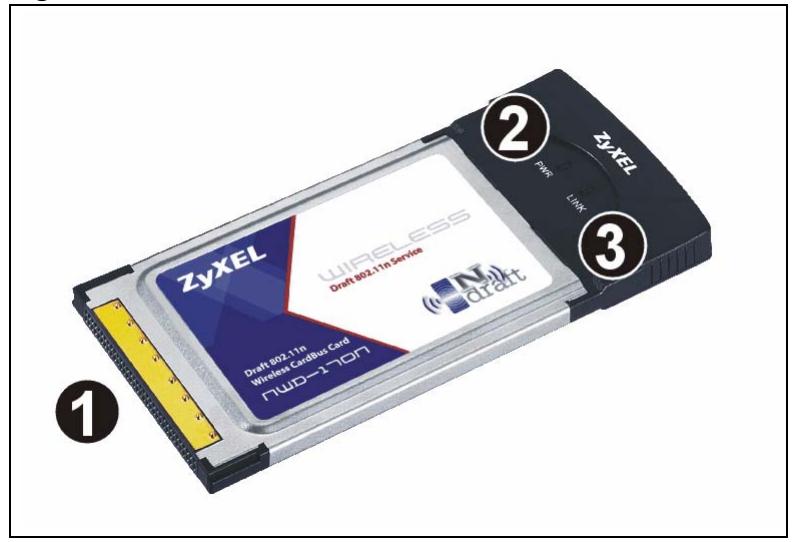
Figure 1 The NWD-170N
The following table describes the NWD-170N.
Table 1 External View
| LABEL | DESCRIPTION |
| 1 | PCMCIA connector |
| 2 | PWR LED (light) |
| 3 | LINK LED (light) |
The following table describes the operation of the PWR and LINK LEDs on the device.
Table 2 NWD-170N LEDs
| STATE | DESCRIPTION |
| The PWR LED is off | The NWD-170N is not receiving power. |
| The PWR LED is blinking | The NWD-170N is receiving power. |
| The PWR and LINK LEDs are blinking alternately. | The NWD-170N is not connected to a wireless network. |
| The PWR and LINK LEDs are blinking simultaneously and regularly. | The NWD-170N is connected to a wireless network. |
| The PWR and LINK LEDs are blinking simultaneously and irregularly. | The NWD-170N is connected to a wireless network and is sending or receiving data. |
1.2 Application Overview
This section describes some network applications for the NWD-170N. You can either set the network type to Infrastructure and connect to an AP or use Ad-Hoc mode and connect to a peer computer (another wireless device in Ad-Hoc mode).
1.2.0.1 Infrastructure
To connect to a network via an access point (AP), set the NWD-170N network type to Infrastructure. Through the AP, you can access the Internet or the wired network behind the AP.
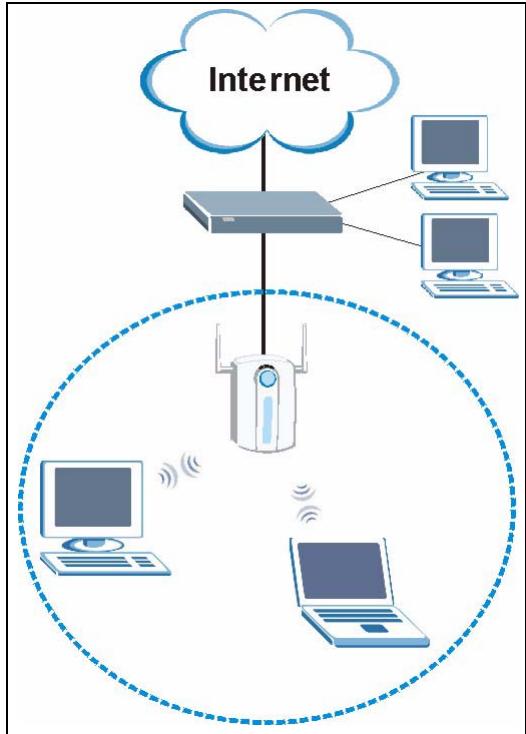
Figure 2 Application: Infrastructure
1.2.0.2 Ad-Hoc
To set up a small independent wireless workgroup without an AP, use Ad-Hoc.
Ad-Hoc does not require an AP or a wired network. Two or more wireless clients communicate directly with each other.
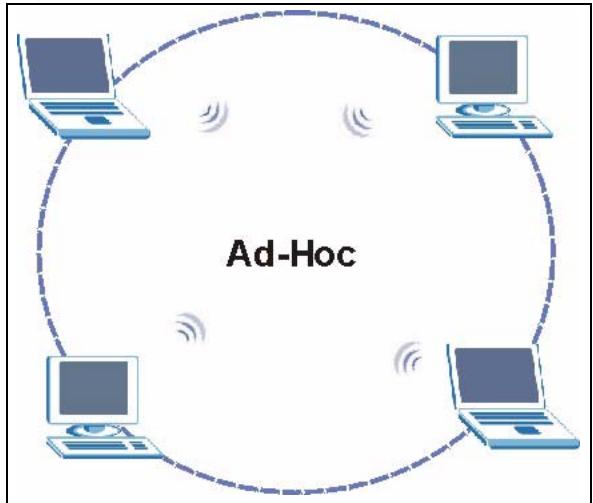
Figure 3 Application: Ad-Hoc
1.3 NWD-170N Hardware and Utility Installation
Follow the instructions in the Quick Start Guide to install the ZyXEL utility and make hardware connections.
1.3.1 ZyXEL Utility Icon
After you install and start the ZyXEL utility, an icon for the ZyXEL utility appears in the system tray.
Note: The ZyXEL utility system tray icon displays only when the NWD-170N is installed properly.
When you use the ZyXEL utility, it automatically disables Wireless Zero Configuration (WZC).
Figure 4 ZyXEL Utility: System Tray Icon
The color of the ZyXEL utility system tray icon indicates the status of the NWD-170N. Refer to the following table for details.
Table 3 ZyXEL Utility: System Tray Icon
| COLOR | DESCRIPTION |
| Red | The NWD-170N is not connected to a wireless network. |
| Green | The NWD-170N is connected to a wireless network. |
1.4 Configuration Methods
To configure your NWD-170N, use one of the following applications:
- Wireless Zero Configuration (WZC) (the Windows XP wireless configuration tool)
ZyXEL Utility
Note: Do NOT use WZC at the same time you use the ZyXEL utility.
1.4.1 Enabling WZC
Note: When you use the ZyXEL utility, it automatically disables WZC.
If you want to use WZC to configure the NWD-170N, you need to disable the ZyXEL utility by right-clicking the utility icon ( ) in the system tray and selecting Use Windows Zero Configuration.
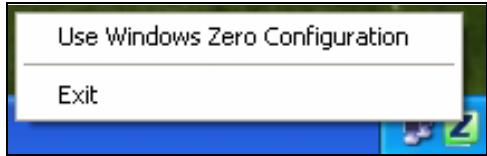
Figure 5 Enable WZC
Refer to the appendices for information on how to use WZC to manage the NWD-170N.
To reactivate the ZyXEL utility, double-click the ( ) icon on your desktop or click Start, (All) Programs, ZyXEL NWD-170N Wireless Adapter Utility, ZyXEL NWD-170N Wireless Adapter Software.
1.4.2 Accessing the ZyXEL Utility
Double-click on the ZyXEL wireless LAN utility icon in the system tray to open the ZyXEL utility.
The ZyXEL utility screens are similar in all Microsoft Windows versions. Screens for Windows XP are shown in this User's Guide.
Note: Click the window.
? icon (located in the top right corner) to display the online help
CHAPTER 2 Tutorial
The following sections show you how to join a wireless network using the ZyXEL utility, as in the following diagrams. The wireless client is labeled C and the access point is labeled AP.
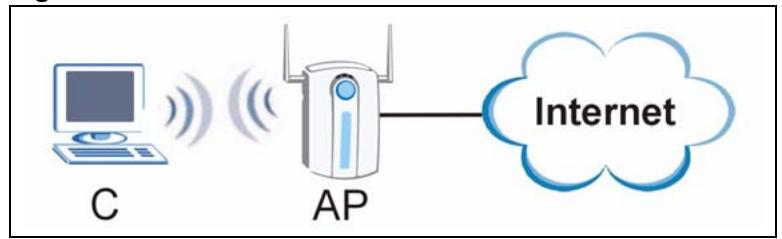
Figure 6 Infrastructure Network
There are three ways to connect the wireless client (the NWD-170N) to a network.
- Configure nothing and leave the wireless client to automatically scan for and connect to any available network that has no wireless security configured.
- Manually connect to a network (see Section 2.1 on page 25).
- Configure a profile to have the wireless client automatically connect to a specific network or peer computer (see Section 2.2 on page 27).
2.1 Connecting to a Wireless LAN
This example illustrates how to manually connect your wireless client to an access point (AP) configured for WPA-PSK security and connected to the Internet. Before you connect to the access point, you must know its Service Set IDentity (SSID) and WPA-PSK pre-shared key. In this example, the AP's SSID is "SSID_Example3" and its pre-shared key is "ThisismyWPA-PSKpre-sharedkey".
After you install the ZyXEL utility and then insert the wireless client, follow the steps below to connect to a network using the Site Survey screen.
1 Open the ZyXEL utility and click the Site Survey tab to open the screen shown next.
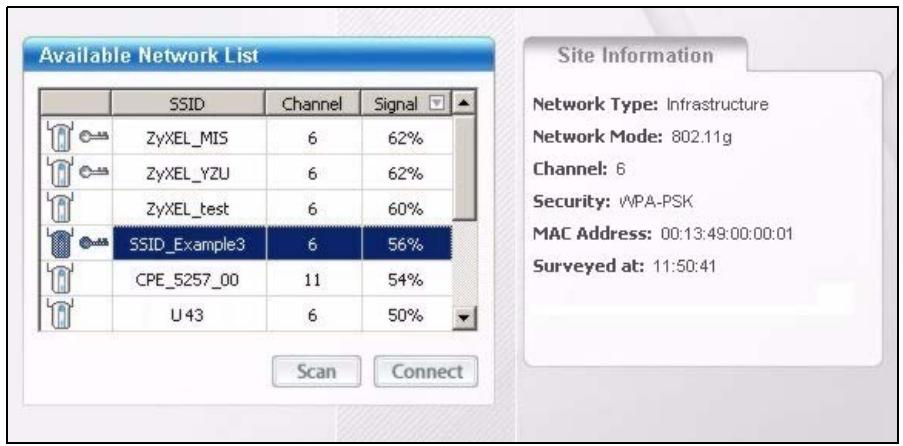
Figure 7 ZyXEL Utility: Site Survey
2 The wireless client automatically searches for available wireless networks. Click Scan if you want to search again. If no entry displays in the Available Network List, that means there is no wireless network available within range. Make sure the AP or peer computer is turned on, or move the wireless client closer to the AP or peer computer. See Table 4.3 on page 37 for detailed field descriptions.
3 To connect to an AP or peer computer, either click an entry in the list and then click Connect or double-click an entry (SSID_Example3 in this example).
4 When you try to connect to an AP with security configured, a window will pop up prompting you to specify the security settings. Enter the pre-shared key and leave the encryption type at the default setting.
Use the Next button to move on to the next screen. You can use the Back button at any time to return to the previous screen, or the Exit button to return to the Site Survey screen.
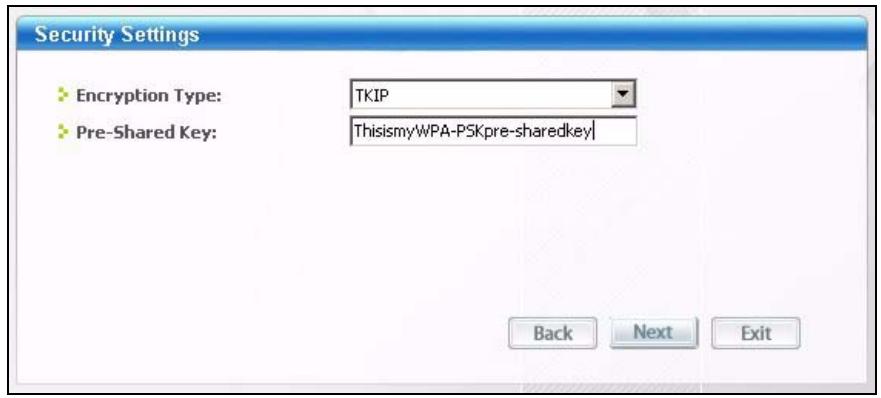
Figure 8 ZyXEL Utility: Security Settings
5 The Confirm Save window appears. Check your settings and click Save to continue.
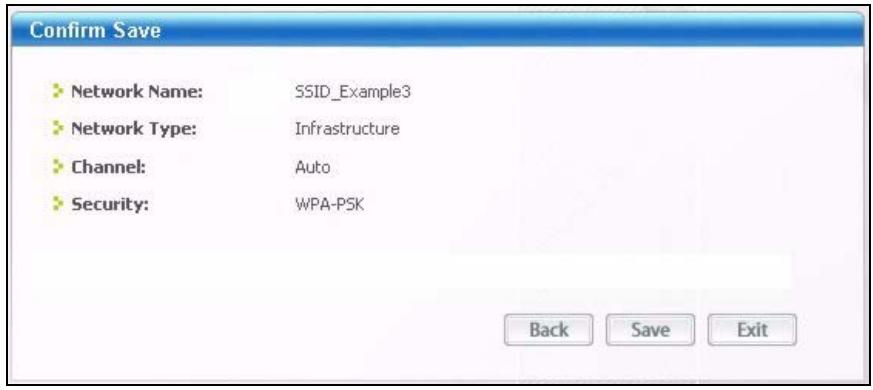
Figure 9 ZyXEL Utility: Confirm Save
6 The ZyXEL utility returns to the Link Info screen while it connects to the wireless network using your settings. When the wireless link is established, the ZyXEL utility icon in the system tray turns green and the Link Info screen displays details of the active connection. Check the network information in the Link Info screen to verify that you have successfully connected to the selected network. If the wireless client is not connected to a network, the fields in this screen remain blank. See Table 4.2 on page 35 for detailed field descriptions.
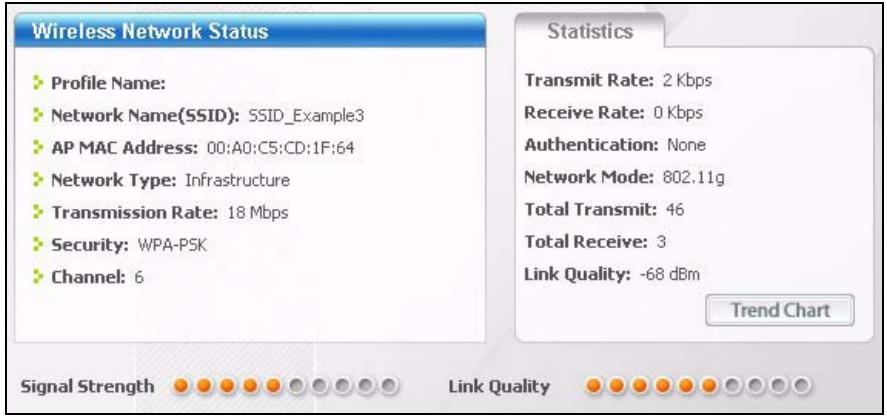
Figure 10 ZyXEL Utility: Link Info
7 Open your Internet browser and enter http://www.zyxel.com or the URL of any other web site in the address bar. If you are able to access the web site, your wireless connection is successfully configured. If you cannot access the web site, check the Troubleshooting section of this User's Guide or contact your network administrator if necessary.
2.2 Creating and Using a Profile
A profile lets you automatically connect to the same wireless network every time you use the ZyXEL utility. You can also configure different profiles for different networks, for example if you connect a notebook computer to wireless networks at home and at work.
This example illustrates how to set up a profile and connect the wireless client to an access point configured for WPA-PSK security. In this example, the AP's SSID is "SSID_Example3" and its pre-shared key is "ThisismyWPA-PSKpre-sharedkey". You have chosen the profile name "PN_Example3".
1 Open the ZyXEL utility and click the Profile tab to open the screen as shown. Click Add to configure a new profile.
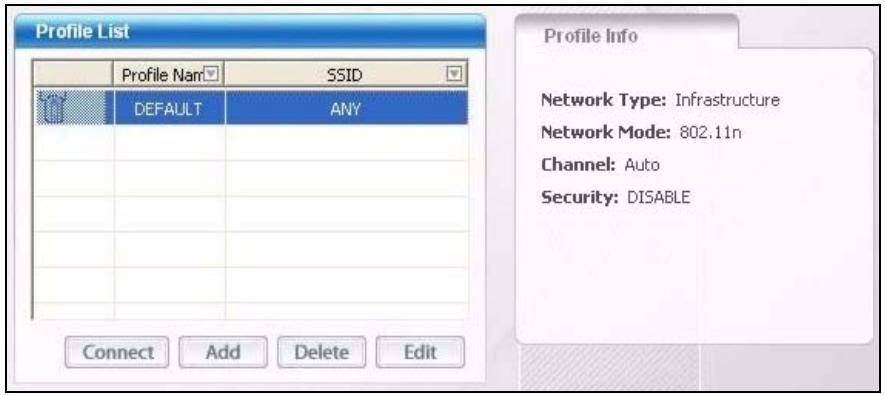
Figure 11 ZyXEL Utility: Profile
2 The Add New Profile screen appears. The wireless client automatically searches for available wireless networks, which are displayed in the Scan Info box. You can also configure your profile for a wireless network that is not in the list.
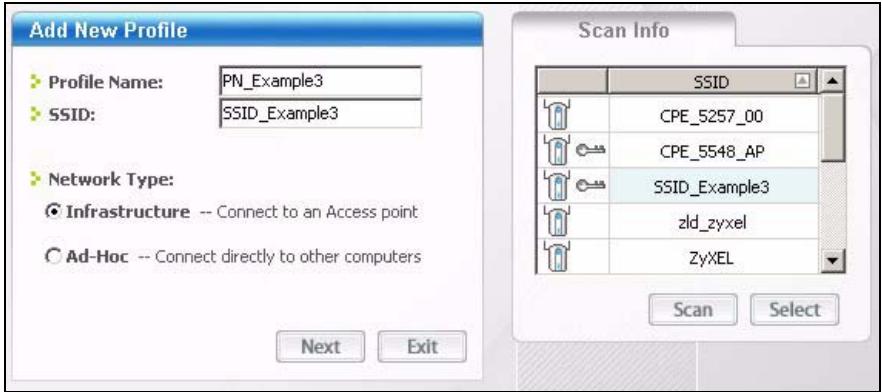
Figure 12 ZyXEL Utility: Add New Profile
3 Give the profile a descriptive name (of up to 32 printable ASCII characters). Select Infrastructure and either manually enter or select the AP's SSID in the Scan Info table and click Select.
4 Choose the same encryption method as the AP to which you want to connect (In this example, WPA-PSK).
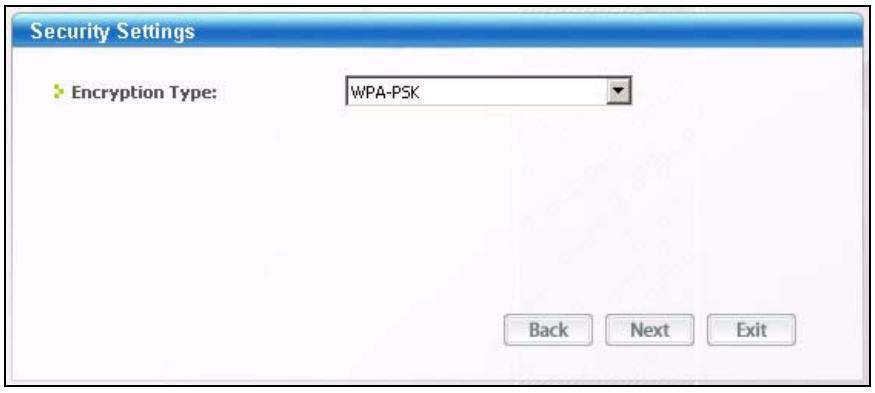
Figure 13 ZyXEL Utility: Profile Security
5 This screen varies depending on the encryption method you selected in the previous screen. In this example, enter the pre-shared key and leave the encryption type at the default setting.

Figure 14 ZyXEL Utility: Profile Encryption
6 Verify the profile settings in the ready-only screen. Click Save to save and go to the next screen.
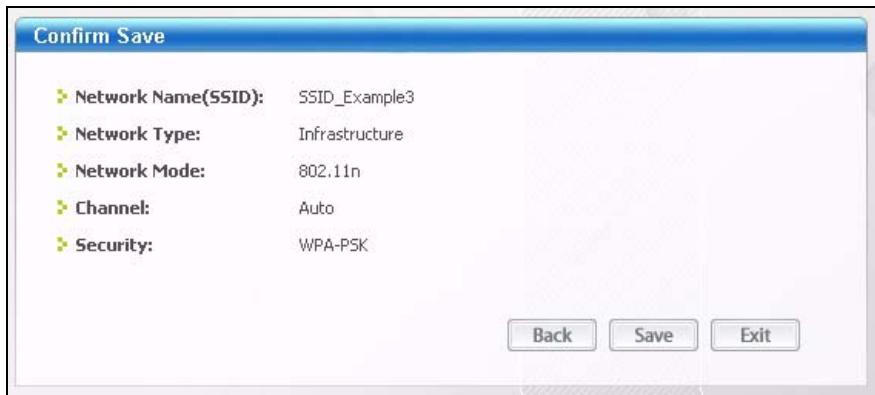
Figure 15 ZyXEL Utility: Profile Confirm Save
7 Click Activate Now to use the new profile immediately. Otherwise, click the Activate Later button to go back to the Profile List screen.
If you clicked Activate Later you can select the profile from the list in the Profile screen and click Connect to activate it.
Note: Only one profile can be activated and used at any given time.
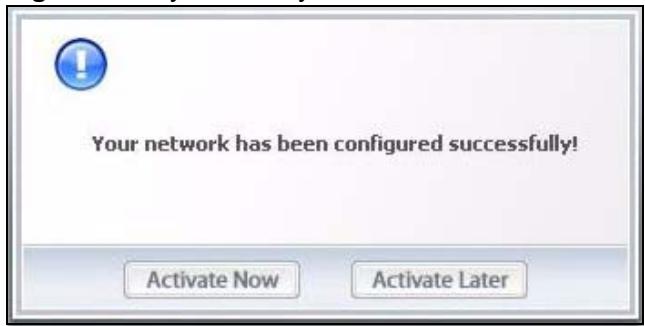
Figure 16 ZyXEL Utility: Profile Activate
8 When you activate the new profile, the ZyXEL utility goes to the Link Info screen while it connects to the AP using your settings. When the wireless link is established, the ZyXEL utility icon in the system tray turns green and the Link Info screen displays details of the active connection.
9 Make sure the selected AP in the active profile is on and connected to the Internet. Open your Internet browser, enter http://www.zyxel.com or the URL of any other web site in the address bar and press ENTER. If you are able to access the web site, your new profile is successfully configured.
10 If you cannot access the Internet, go back to the Profile screen. Select the profile you are using and click Edit. Check the details you entered previously. Also, refer to the Troubleshooting section of this User's Guide or contact your network administrator if necessary.
CHAPTER 3
Wireless LAN Network
This chapter provides background information on wireless LAN networks.
3.1 Wireless LAN Overview
The following figure provides an example of a wireless network with an AP. See Figure 3 on page 21 for an Ad Hoc network example.
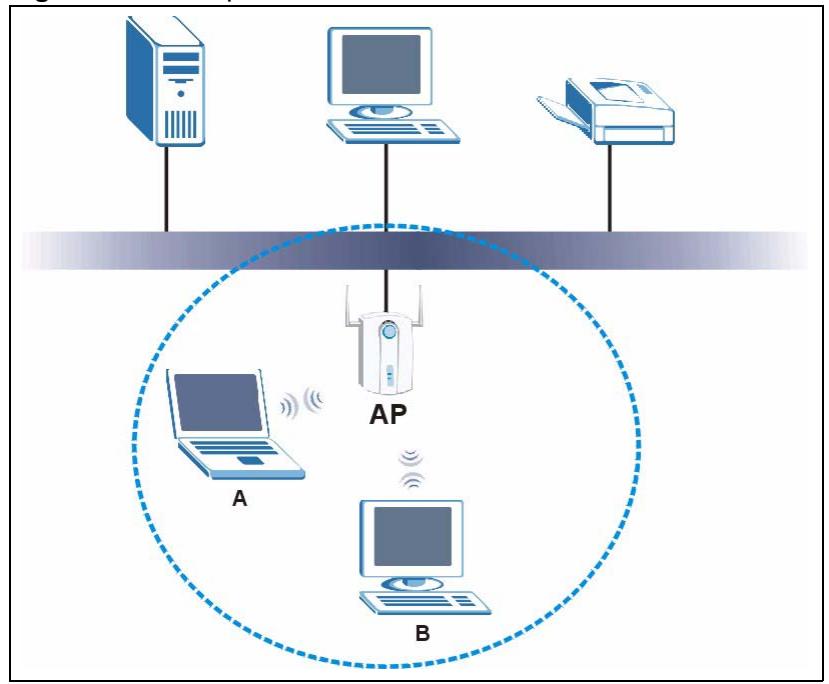
Figure 17 Example of a Wireless Network
The wireless network is the part in the blue circle. In this wireless network, devices A and B are called wireless clients. The wireless clients use the access point (AP) to interact with other devices (such as the printer) or with the Internet
Every wireless network must follow these basic guidelines.
- Every device in the same wireless network must use the same SSID.
The SSID is the name of the wireless network. It stands for Service Set IDentity.
- If two wireless networks overlap, they should use a different channel.
Like radio stations or television channels, each wireless network uses a specific channel, or frequency, to send and receive information.
- Every device in the same wireless network must use security compatible with the AP or peer computer.
Security stops unauthorized devices from using the wireless network. It can also protect the information that is sent in the wireless network.
3.2 Wireless LAN Security
Wireless LAN security is vital to your network to protect wireless communications.
If you do not enable any wireless security on your NWD-170N, the NWD-170N's wireless communications are accessible to any wireless networking device that is in the coverage area.
Note: You can use only WEP encryption if you set the NWD-170N to Ad-hoc mode.
See the appendices for more detailed information about wireless security.
3.2.1 User Authentication and Encryption
You can make every user log in to the wireless network before they can use it. This is called user authentication. However, every wireless client in the wireless network has to support IEEE 802.1x to do this.
Wireless networks can use encryption to protect the information that is sent in the wireless network. Encryption is like a secret code. If you do not know the secret code, you cannot understand the message.
3.2.1.1 WEP
3.2.1.1.1 Data Encryption
WEP (Wired Equivalent Privacy) encryption scrambles all data packets transmitted between the NWD-170N and the AP or other wireless stations to keep network communications private. Both the wireless stations and the access points must use the same WEP key for data encryption and decryption.
There are two ways to create WEP keys in your NWD-170N.
- Automatic WEP key generation based on a “password phrase” called a passphrase. The passphrase is case sensitive. You must use the same passphrase for all WLAN adapters with this feature in the same WLAN.
For WLAN adapters without the passphrase feature, you can still take advantage of this feature by writing down the four automatically generated WEP keys from the Security Settings screen of the ZyXEL utility and entering them manually as the WEP keys in the other WLAN adapter(s).
- Enter the WEP keys manually.
Your NWD-170N allows you to configure up to four 64-bit, 128-bit or 152-bit WEP keys. Only one key is used as the default key at any one time.
3.2.1.1.2 Authentication Type
The IEEE 802.11b/g standard describes a simple authentication method between the wireless stations and AP. Three authentication types are defined: Auto, Open and Shared.
- Open mode is implemented for ease-of-use and when security is not an issue. The wireless station and the AP or peer computer do not share a secret key. Thus the wireless stations can associate with any AP or peer computer and listen to any transmitted data that is not encrypted.
- Shared mode involves a shared secret key to authenticate the wireless station to the AP or peer computer. This requires you to enable the wireless LAN security and use same settings on both the wireless station and the AP or peer computer.
- Auto authentication mode allows the NWD-170N to switch between the open system and shared key modes automatically. Use the auto mode if you do not know the authentication mode of the other wireless stations
3.2.1.2 IEEE 802.1x
The IEEE 802.1x standard outlines enhanced security methods for both the authentication of wireless stations and encryption key management. Authentication can be done using an external RADIUS server.
3.2.1.2.1 EAP Authentication
EAP (Extensible Authentication Protocol) is an authentication protocol that runs on top of the IEEE 802.1x transport mechanism in order to support multiple types of user authentication. By using EAP to interact with an EAP-compatible RADIUS server, an access point helps a wireless station and a RADIUS server perform authentication.
The type of authentication you use depends on the RADIUS server and an intermediary AP(s) that supports IEEE 802.1x. The NWD-170N supports EAP-TLS, EAP-TTLS and EAP-PEAP. Refer to Appendix C on page 71 for descriptions.
For EAP-TLS authentication type, you must first have a wired connection to the network and obtain the certificate(s) from a certificate authority (CA). Certificates (also called digital IDs) can be used to authenticate users and a CA issues certificates and guarantees the identity of each certificate owner.
3.2.1.3 WPA and WPA2
Wi-Fi Protected Access (WPA) is a subset of the IEEE 802.11i standard. WPA2 (IEEE 802.11i) is a wireless security standard that defines stronger encryption, authentication and key management than WPA.
Key differences between WPA(2) and WEP are improved data encryption and user authentication.
Both WPA and WPA2 improve data encryption by using Temporal Key Integrity Protocol (TKIP), Message Integrity Check (MIC) and IEEE 802.1x. WPA and WPA2 use Advanced Encryption Standard (AES) in the Counter mode with Cipher block chaining Message authentication code Protocol (CCMP) to offer stronger encryption than TKIP.
If both an AP and the wireless clients support WPA2 and you have an external RADIUS server, use WPA2 for stronger data encryption. If you don't have an external RADIUS server, you should use WPA2-PSK (WPA2-Pre-Shared Key) that only requires a single (identical) password entered into each access point, wireless gateway and wireless client. As long as the passwords match, a wireless client will be granted access to a WLAN.
If the AP or the wireless clients do not support WPA2, just use WPA or WPA-PSK depending on whether you have an external RADIUS server or not.
Select WEP only when the AP and/or wireless clients do not support WPA or WPA2. WEP is less secure than WPA or WPA2.
CHAPTER 4
Wireless Configuration
This chapter shows you how to configure your NWD-170N.
4.1 ZyXEL Utility Screen Summary
This section describes the ZyXEL utility screens.

Figure 18 ZyXEL Utility Menu Summary
The following table describes the menus.
Table 4 ZyXEL Utility Menu Summary
| TAB | DESCRIPTION |
| Link Info | Use this screen to see your current connection status, configuration and data rate statistics. |
| Site Survey | Use this screen to • scan for a wireless network • configure wireless security (if activated on the selected network). • connect to a wireless network. |
| Profile | Use this screen to add, delete, edit or activate a profile with a set of wireless and security settings. |
| Adapter | Use this screen to configure preamble type and enable power saving. |
4.2 The Link Info Screen
When the ZyXEL utility starts, the Link Info screen displays, showing the current configuration and connection status of your NWD-170N.
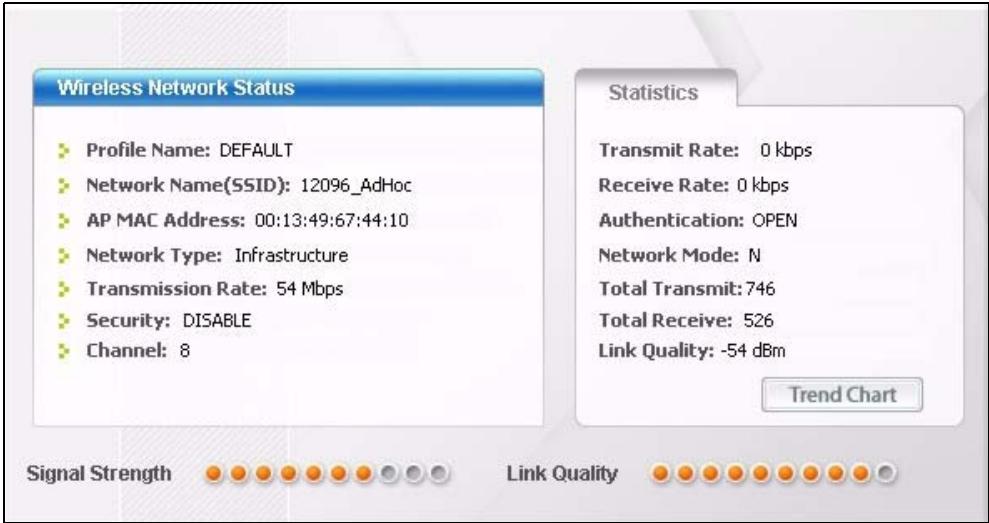
Figure 19 Link Info
The following table describes the labels in this screen.
Table 5 Link Info
| LABEL | DESCRIPTION |
| Wireless Network Status | |
| Profile Name | This is the name of the profile you are currently using. |
| Network Name (SSID) | TheSSID identifies the wireless network to which a wireless station is associated. This field displays the name of the wireless device to which the NWD-170N is associated. |
| AP MAC Address | This field displays the MAC address of the AP or peer computer to which the NWD-170N is associated. |
| Network Type | This field displays the network type (Infrastructure or Ad-Hoc) of the wireless network. |
| Transmission Rate | This field displays the current transmission rate of the NWD-170N in megabits per second (Mbps). |
| Security | This field displays whether data encryption is activated (WEP (WEP or 802.1x), TKIP (WPA/WPA-PSK/WPA2/WPA2-PSK), AES (WPA/WPA-PSK/WPA2/WPA2-PSK)) or inactive (DISABLE). |
| Channel | This field displays the radio channel the NWD-170N is currently using. |
| Statistics | |
| Transmit Rate | This field displays the current data transmission rate in kilobits per second (Kbps). |
| Receive Rate | This field displays the current data receiving rate in kilobits per second (Kbps). |
| Authentication | This field displays the authentication method of the NWD-170N. |
| Network Mode | This field displays the wireless standard (802.11b, 802.11g or 802.11n) of the AP or peer computer. |
| Total Transmit | This field displays the total number of data frames transmitted. |
| Total Receive | This field displays the total number of data frames received. |
| Link Quality | This field displays the signal strength of the NWD-170N. |
| Trend Chart | Click this button to display the real-time statistics of the data rate in kilobits per second (Kbps). |
| Signal Strength | The status bar shows the strength of the signal. The signal strength mainly depends on the antenna output power and the distance between your NWD-170N and the AP or peer computer. |
| Link Quality | The status bar shows the quality of wireless connection. This refers to the percentage of packets transmitted successfully. If there are too many wireless stations in a wireless network, collisions may occur which could result in a loss of messages even though you have high signal strength. |
4.2.1 Trend Chart
Click Trend Chart in the Link Info screen to display a screen as shown below. Use this screen to view real-time data traffic statistics.
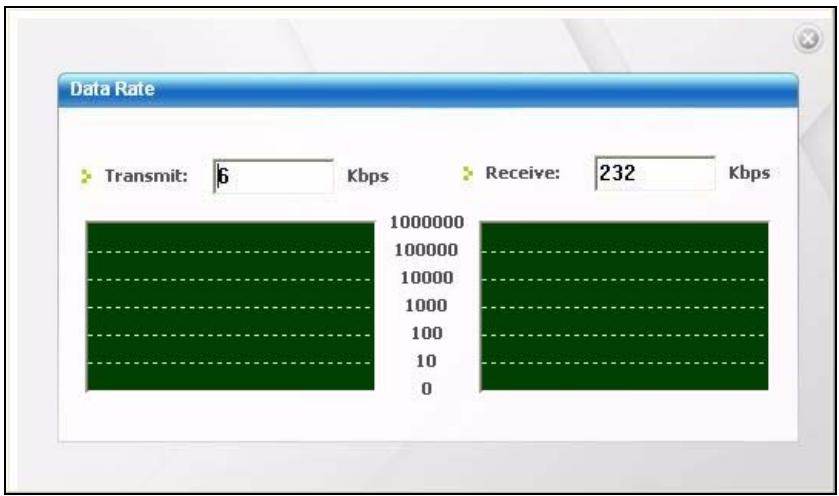
Figure 20 Link Info: Trend Chart
The following table describes the labels in this screen.
Table 6 Link Info: Trend Chart
| LABEL | DESCRIPTION |
| Transmit | This field displays the current data transmission rate in kilobits per second (Kbps). |
| Receive | This field displays the current data receiving rate in kilobits per second (Kbps). |
4.3 The Site Survey Screen
Use the Site Survey screen to scan for and connect to a wireless network automatically.
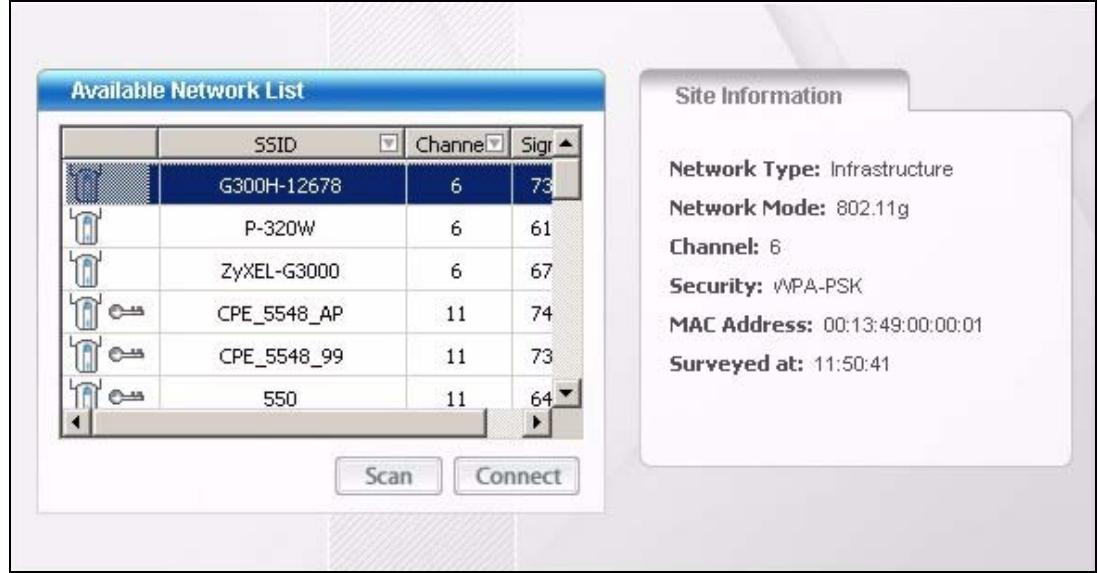
Figure 21 Site Survey
The following table describes the labels in this screen.
Table 7 Site Survey
| LABEL | DESCRIPTION |
| Available Network List | Click a column heading to sort the entries. |
| or | denotes that the wireless device is in infrastructure mode and the wireless security is activated. |
| denotes that the wireless device is in infrastructure mode but the wireless security is deactivated. | |
| denotes that the wireless device is in Ad-Hoc mode and the wireless security is activated. | |
| denotes that the wireless device is in Ad-Hoc mode but the wireless security is deactivated. | |
| SSID | This field displays theSSID (Service Set Identifier) of each wireless device. |
| Channel | This field displays the channel number used by each wireless device. |
| Signal | This field displays the signal strength of each wireless device. |
| Scan | Click Scan to search for available wireless devices within transmission range. |
| Connect | Click Connect to associate to the selected wireless device. |
| Site Information | Click an entry in the Available Network List table to display the information of the selected wireless device. |
| Network Type | This field displays the network type (Infrastructure or Ad Hoc) of the wireless device. |
| Network Mode | This field displays the wireless standard (802.11b, 802.11g or 802.11n) used by the selected wireless device. |
| Channel | This field displays the channel number used by each wireless device. |
| Security | This field shows whether data encryption is activated (WEP, WPA, WPA-PSK, WPA2, WPA2-PSK or 802.1x) or inactive (DISABLE). |
| MAC address | This field displays the MAC address of the wireless device. |
| Surveyed at | This field displays the time when the wireless device was scanned. |
4.3.1 Security Settings
When you configure the NWD-170N to connect to a network with wireless security activated and the security settings are disabled on the NWD-170N, the screen varies according to the encryption method used by the selected network.
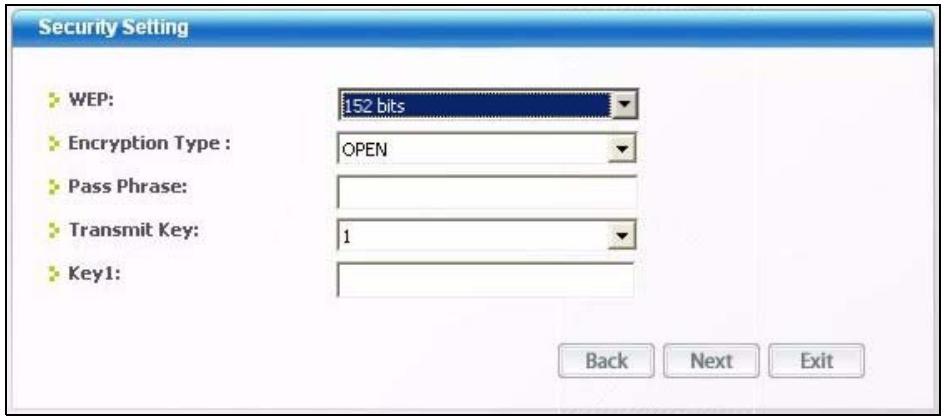
Figure 22 Security Setting: WEP
The following table describes the labels in this screen.
Table 8 Security Setting: WEP
| LABEL | DESCRIPTION |
| Security Settings | |
| WEP | Select 64 Bits, 128 Bits or 152 Bits to activate WEP encryption and then fill in the related fields. |
| Encryption Type | Select an authentication method. Choices are Open, Shared and Auto Switch. Refer to Section 3.2.1.1.2 on page 33 for more information. |
| Pass Phrase | Enter a passphrase of up to 63 case-sensitive printable characters. As you enter the passphrase, the NWD-170N automatically generates four different WEP keys and displays it in the key field below. Refer to Section 3.2.1.1.1 on page 32 for more information. |
| Transmit Key | Select a default WEP key to use for data encryption. The key displays in the field below. |
| Key x (where x is a number between 1 and 4) | Select this option if you want to manually enter the WEP keys. Enter the WEP key in the field provided.If you select 64 Bits in the WEP field.Enter either 10 hexadecimal digits in the range of "A-F", "a-f" and "0-9" (for example, 11AA22BB33) for HEX key type.orEnter 5 ASCII characters (case sensitive) ranging from "a-z", "A-Z" and "0-9" (for example, MyKey) for ASCII key type.If you select 128 Bits in the WEP field.Enter either 26 hexadecimal digits in the range of "A-F", "a-f" and "0-9" (for example, 00112233445566778899AABBCC) for HEX key type orEnter 13 ASCII characters (case sensitive) ranging from "a-z", "A-Z" and "0-9" (for example, MyKey12345678) for ASCII key type.If you select 152 Bits in the WEP field.Enter either 32 hexadecimal digits in the range of "A-F", "a-f" and "0-9" (for example, 00112233445566778899AABBCCDDEEFF) for HEX key type orEnter 16 ASCII characters (case sensitive) ranging from "a-z", "A-Z" and "0-9" (for example, MyKey12345678901) for ASCII key type.Note: The values for the WEP keys must be set up exactly the same on all wireless devices in the same wireless LAN.ASCII WEP keys are case sensitive. |
| Back | Click Back to go to the Site Survey screen to select and connect to another network. |
| Next | Click Next to confirm your selections and advance to the Confirm Save screen.Refer to Section 4.3.2 on page 43. |
| Exit | Click Exit to return to the Site Survey screen without saving. |
4.3.1.2 WPA-PSK/WPA2-PSK
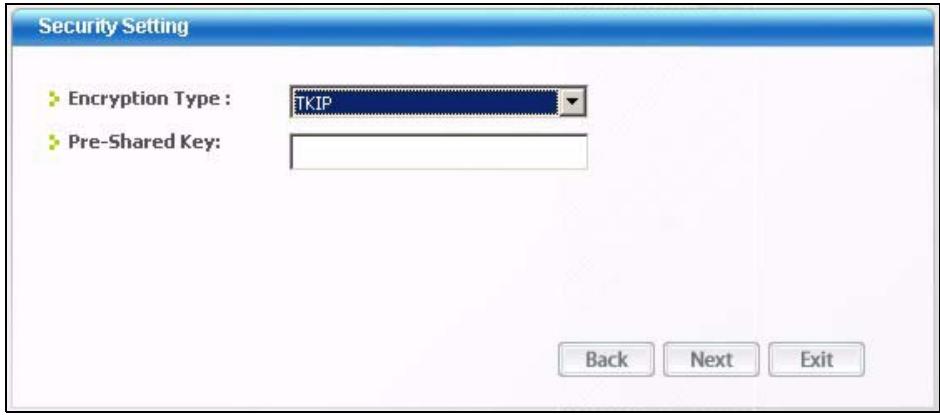
Figure 23 Security Setting: WPA-PSK/WPA2-PSK
The following table describes the labels in this screen.
Table 9 Security Setting: WPA-PSK/WPA2-PSK
| LABEL | DESCRIPTION |
| Encryption Type | The encryption mechanisms used for WPA/WPA2 and WPA-PSK/WPA2-PSK are the same. The only difference between the two is that WPA-PSK/WPA2-PSK uses a simple common password, instead of user-specific credentials. Select the encryption type (TKIP or AES) for data encryption. Refer to Section 3.2.1.3 on page 33 for more information. |
| Pre-Shared Key | Type a pre-shared key (same as the AP or peer device) of between 8 and 63 case-sensitive ASCII characters (including spaces and symbols) or 64 hexadecimal characters. |
| Back | Click Back to go to the Site Survey screen to select and connect to another network. |
| Next | Click Next to confirm your selections and advance to the Confirm Save screen. Refer to Section 4.3.2 on page 43. |
| Exit | Click Exit to return to the Site Survey screen without saving. |
4.3.1.3 WPA/WPA2
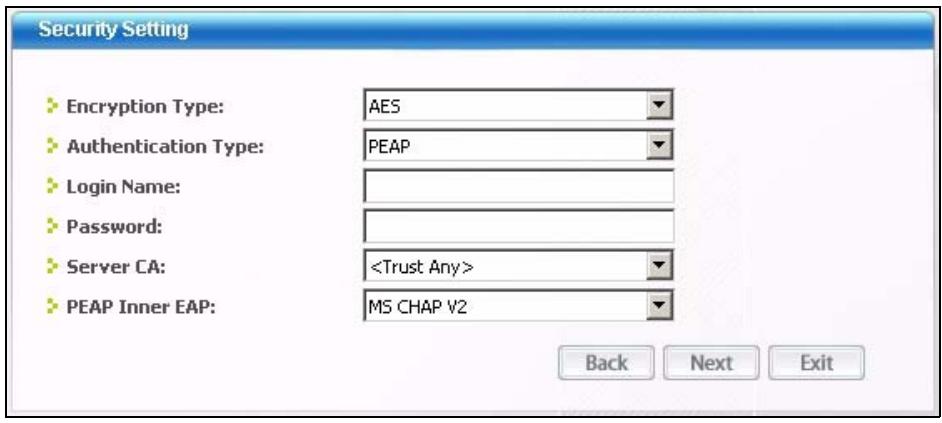
Figure 24 Security Settings: WPA/WPA2
The following table describes the labels in this screen.
Table 10 Security Setting: WPA/WPA2
| LABEL | DESCRIPTION |
| Encryption Type | The encryption mechanisms used for WPA/WPA2 and WPA-PSK/WPA2-PSK are the same. The only difference between the two is that WPA-PSK/WPA2-PSK uses a simple common password, instead of user-specific credentials. Select the encryption type (TKIP or AES) for data encryption. Refer to Section 3.2.1.3 on page 33 for more information. |
| Authentication Type | The type of authentication you use depends on the RADIUS server or AP. Select an authentication method from the drop down list. Options are TLS, TTLS and PEAP. |
| Login Name | Enter a user name. This is the user name that you or an administrator set up on a RADIUS server. |
Table 10 Security Setting: WPA/WPA2
| LABEL | DESCRIPTION |
| Password | This field is not available when you select TLS in the Authentication Type field. Enter the password associated with the user name above. |
| Certificate | This field is only available when you select TLS in the Authentication Type field. Click Browse to select a certificate. Note: You must first have a wired connection to a network and obtain the certificate(s) from a certificate authority (CA). Consult your network administrator for more information. |
| Server CA | Select a certificate authority (CA) that you trust and accept any certificates signed by the CA. Otherwise, select Trust Any to accept certificates from any CA. |
| PEAP Inner EAP | This field is only available when you select PEAP in the Authentication Type field. The PEAP method used by the RADIUS server or AP for client authentication is MS CHAP v2. |
| Back | Click Back to go to the Site Survey screen to select and connect to another network. |
| Next | Click Next to confirm your selections and advance to the Confirm Save screen. Refer to Section 4.3.2 on page 43. |
| Exit | Click Exit to return to the Site Survey screen without saving. |
4.3.1.4 IEEE 802.1x
Configure IEEE 802.1x security with various authentication methods in this screen.
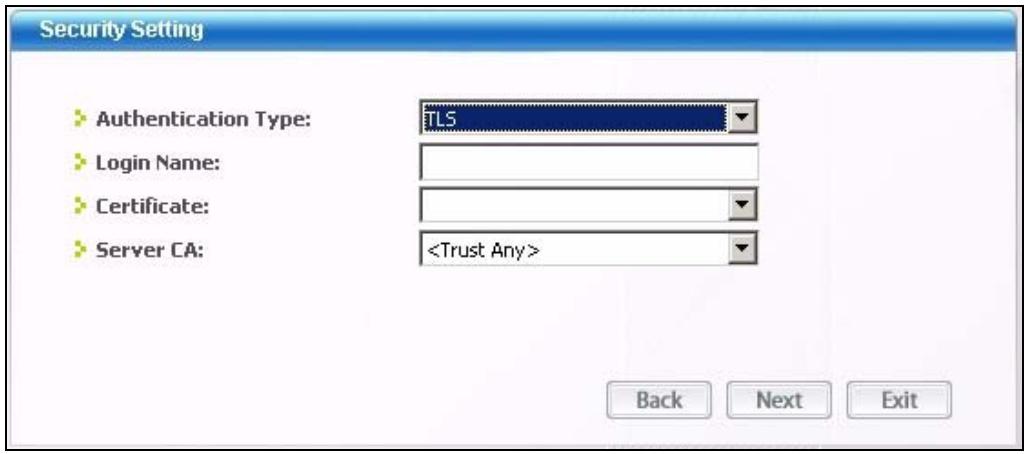
Figure 25 Security Setting: 802.1x
The following table describes the labels in this screen.
Table 11 Security Settings: IEEE 802.1x
| LABEL | DESCRIPTION |
| Authentication Type | The type of authentication you use depends on the RADIUS server or AP. Select an authentication method from the drop down list. Options are TLS, TTLS and PEAP. |
| Login Name | Enter a user name. This is the user name that you or an administrator set up on a RADIUS server. |
| Password | This field is not available when you select TLS in the Authentication Type field. Enter the password associated with the user name above. |
| Certificate | This field is only available when you select TLS in the Authentication Type field. Click Browse to select a certificate. Note: You must first have a wired connection to a network and obtain the certificate(s) from a certificate authority (CA). Consult your network administrator for more information. |
| Server CA | Select a certificate authority (CA) that you trust and accept any certificates signed by the CA. Otherwise, select Trust Any to accept certificates from any CA. |
| PEAP Inner EAP | This field is only available when you select PEAP in the Authentication Type field. The PEAP method used by the RADIUS server or AP for client authentication is MS CHAP v2. |
| Back | Click Back to go to the Site Survey screen to select and connect to another network. |
| Next | Click Next to confirm your selections and advance to the Confirm Save screen. Refer to Section 4.3.2 on page 43. |
| Exit | Click Exit to return to the Site Survey screen without saving. |
4.3.2 Confirm Save Screen
Use this screen to confirm and save the security settings.
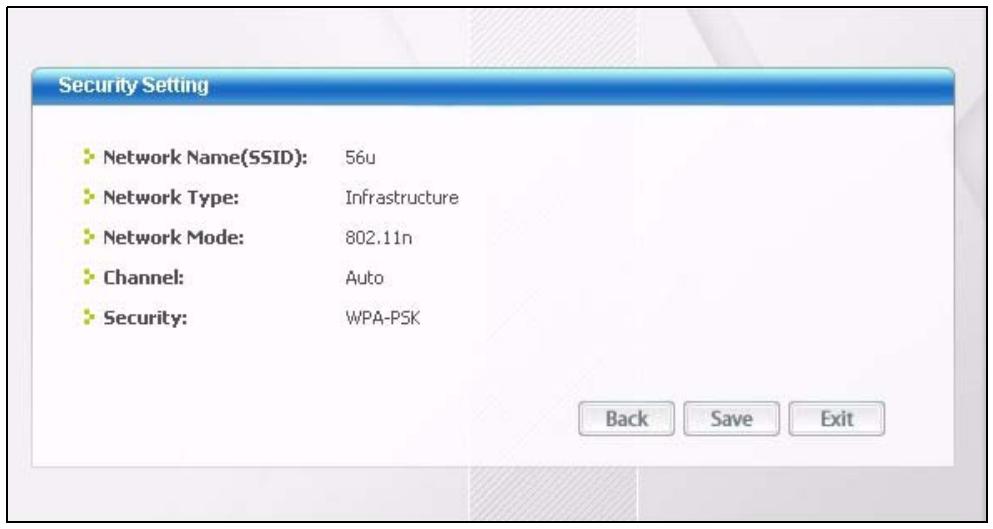
Figure 26 Confirm Save Screen
The following table describes the labels in this screen.
Table 12 Confirm Save Screen
| LABEL | DESCRIPTION |
| Security Setting | |
| Network Name(SSID) | This field displays the SSID previously entered. |
| Network Type | This field displays the network type (Infrastructure or Ad-Hoc) of the wireless device. |
| Network Mode | This field displays the wireless standard (802.11b, 802.11g or 802.11n) used by the selected wireless device. |
| Channel | This field displays the channel number used by the profile. |
| Security | This field shows whether data encryption is activated (WEP, WPA, WPA-PSK, WPA2, WPA2-PSK, 802.1x) or inactive (DISABLE). |
| Back | Click Back to return to the previous screen. |
| Save | Click Save to save the changes back to the NWD-170N and display the Link Info screen. |
| Exit | Click Exit to discard changes and return to the Site Survey screen. |
4.4 The Profile Screen
A profile is a set of wireless parameters that you need to connect to a wireless network. With a profile activated, each time you start the NWD-170N, it automatically scans for the specific SSID and joins that network with the pre-defined wireless security settings. If the specified network is not available, the NWD-170N cannot connect to a network.
If you do not configure and activate a profile, each time you start the NWD-170N, the NWD-170N uses the default profile to connect to any available network that has no security enabled.
The default profile is a profile that allows you to connect to any SSID that has no security enabled.
Click the Profile tab in the ZyXEL utility program to display the Profile screen as shown next.
The profile function allows you to save the wireless network settings in this screen, or use one of the pre-configured network profiles.
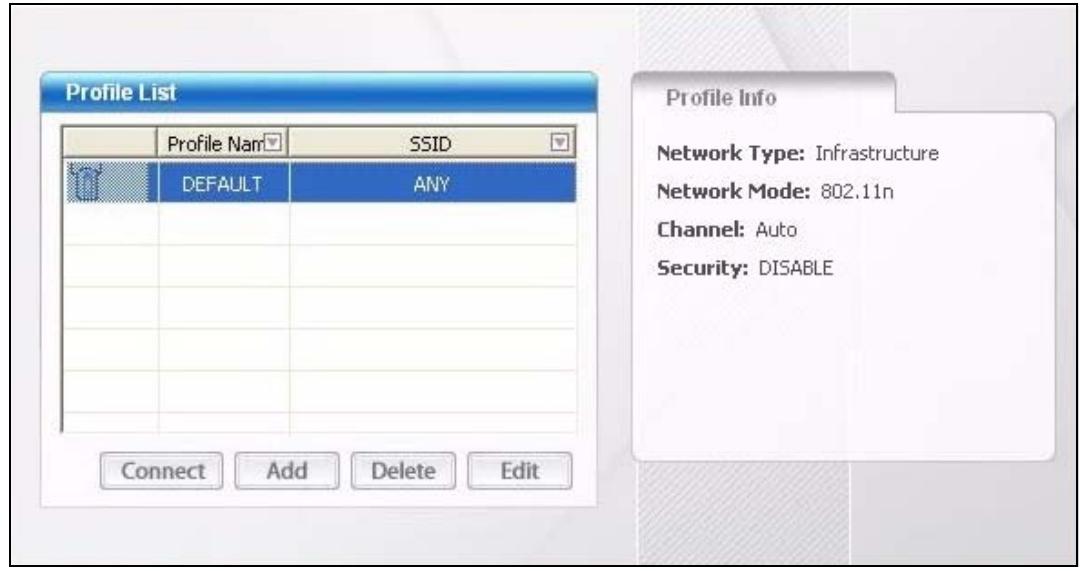
Figure 27 Profile
The following table describes the labels in this screen.
Table 13 Profile
| LABEL | DESCRIPTION |
| Profile List | Click a column heading to sort the entries. |
| or | denotes that the wireless device is in infrastructure mode and the wireless security is activated. |
| denotes that the wireless device is in infrastructure mode but the wireless security is deactivated. | |
| denotes that the wireless device is in Ad-Hoc mode and the wireless security is activated. | |
| denotes that the wireless device is in Ad-Hoc mode but the wireless security is deactivated. | |
| Profile Name | This is the name of the pre-configured profile. |
| SSID | This is theSSID of the wireless network to which the selected profile associate. |
| Connect | To use and activate a previously saved network profile, select a pre-configured profile name in the table and click Connect. |
| Add | To add a new profile into the table, click Add. |
| Delete | To delete an existing wireless network configuration, select a profile in the table and click Delete. |
| Edit | To edit an existing wireless network configuration, select a profile in the table and click Edit. |
| Profile Info | The following fields display detailed information of the selected profile in the Profile List table. |
| Network Type | This field displays the network type (Infrastructure or Ad-Hoc) of the profile. |
| Network Mode | This field displays the wireless standard (802.11b, 802.11g or 802.11n) used by the selected wireless device. |
| Channel | This field displays the channel number used by the profile. |
| Security | This field shows whether data encryption is activated (WEP, WPA, WPA-PSK, WPA2, WPA2-PSK or 802.1x) or inactive (DISABLE). |
| Transfer Rate | This field displays the transmission speed of the selected profile in megabits per second (Mbps). |
4.4.1 Adding a New Profile
Follow the steps below to add a new profile.
1 Click Add in the Profile screen. An Add New Profile screen displays as shown next. Click Next to continue.
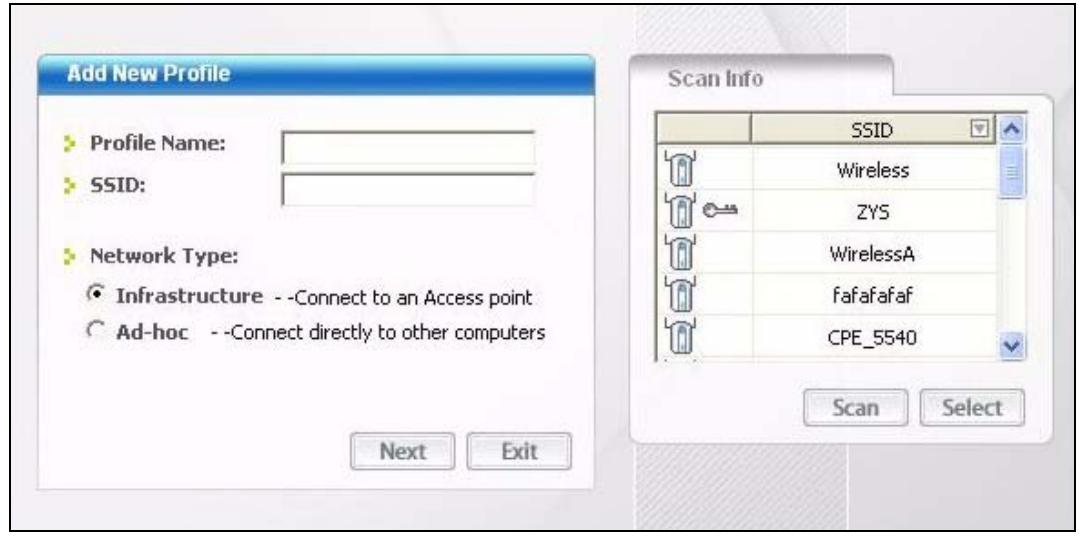
Figure 28 Profile: Add a New Profile
The following table describes the labels in this screen.
Table 14 Profile: Add a New Profile
| LABEL | DESCRIPTION |
| Add New Profile | |
| Profile Name | Enter a descriptive name in this field. |
| SSID | Select an available wireless device in the Scan Info table and click Select, or enter the SSID of the wireless device to which you want to associate in this field manually. Otherwise, enter Any to have the NWD-170N associate to any AP or roam between any infrastructure wireless networks. |
| Network Type | Select Infrastructure to associate to an AP. Select Ad-Hoc to associate to a peer computer. |
| Next | Click Next to go to the next screen. |
| Exit | Click Exit to go back to the previous screen without saving. |
| Scan Info | This table displays the information of the available wireless networks within the transmission range. |
| or | denotes that the wireless device is in infrastructure mode and the wireless security is activated. |
| denotes that the wireless device is in infrastructure mode but the wireless security is deactivated. | |
| denotes that the wireless device is in Ad-Hoc mode and the wireless security is activated. | |
| denotes that the wireless device is in Ad-Hoc mode but the wireless security is deactivated. | |
| SSID | This field displays theSSID (Service Set Identifier) of each AP or peer device. |
| Scan | Click Scan to search for available wireless devices within transmission range. |
| Select | Select an available wireless device in the table and click Select to add it to this profile. Whenever you activate this profile, the NWD-170N associates to the selected wireless network only. |
2 If you select the Infrastructure network type in the previous screen, skip to step 3. If you select the Ad-Hoc network type in the previous screen, a screen displays as follows. Select a channel number and click Next to continue.
Note: To associate to an ad-hoc network, you must use the same channel as the peer computer.
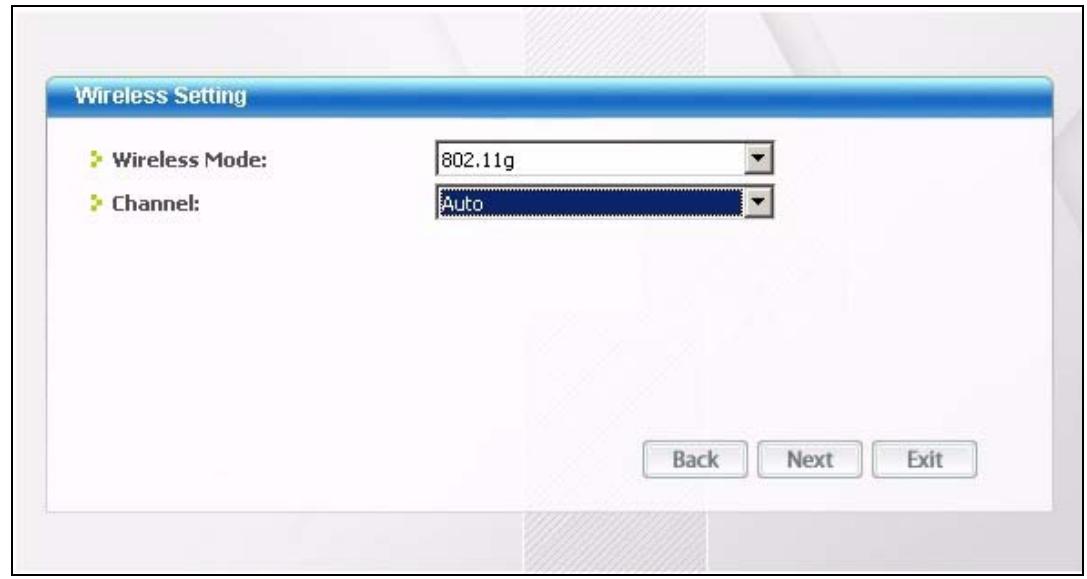
Figure 29 Profile: Wireless Settings
The following table describes the labels in this screen.
Table 15 Profile: Wireless Settings
| LABEL | DESCRIPTION |
| Wireless Settings | |
| Wireless Mode | This is the wireless standard the NWD-170N uses. In Ad-Hoc mode, you can use only 802.11g. |
| Channel | Select a channel number from the drop-down list box. To associate to an ad-hoc network, you must use the same channel as the peer computer. |
3 If you selected Infrastructure network type in the first screen, select WEP, WPA, WPA2, WPA-PSK, WPA2-PSK or 802.1x from the drop-down list box to enable data encryption. If you selected Ad-Hoc network type in the first screen, you can use only WEP encryption method. Otherwise, select DISABLE to allow the NWD-170N to communicate with the access points or other peer wireless computers without any data encryption, and skip to step 5.
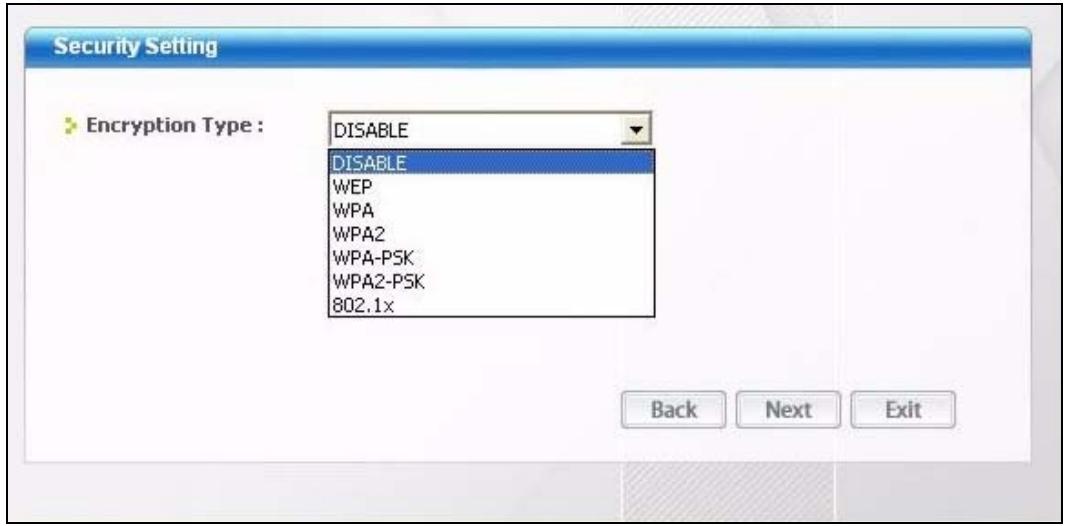
Figure 30 Profile: Wireless Settings
4 The screen varies depending on the encryption method you select in the previous screen. The settings must be exactly the same on the APs or other peer wireless computers as they are on the NWD-170N. Refer to Section 4.3.1 on page 39 for detailed information on wireless security configuration.
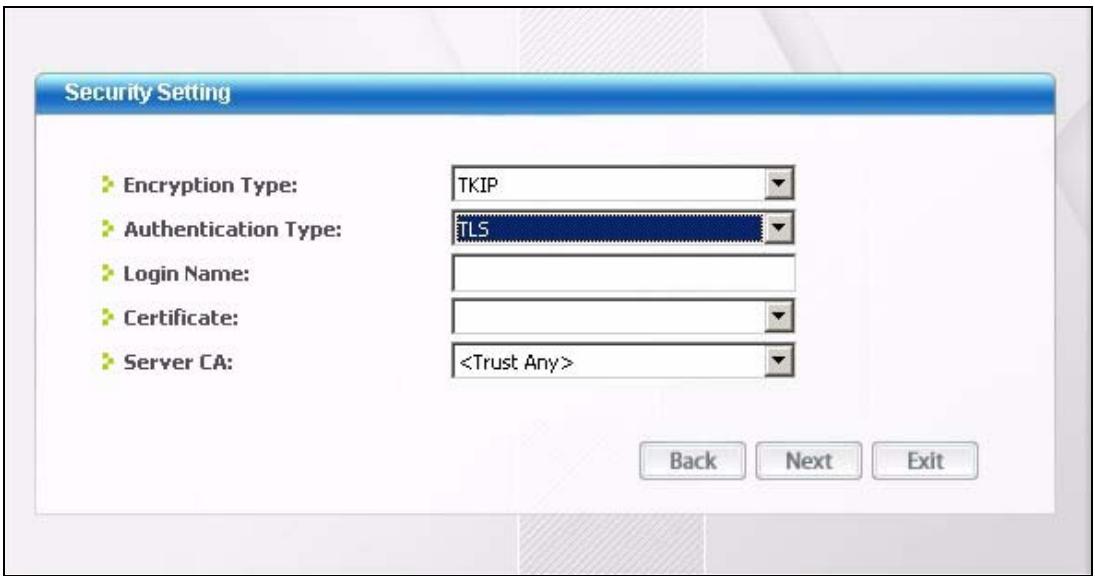
Figure 31 Profile: Security Settings
5 This read-only screen shows a summary of the new profile settings. Verify that the settings are correct. Click Save to save and go to the next screen. Click Back to return to the previous screen. Otherwise, click Exit to go back to the Profile screen without saving.
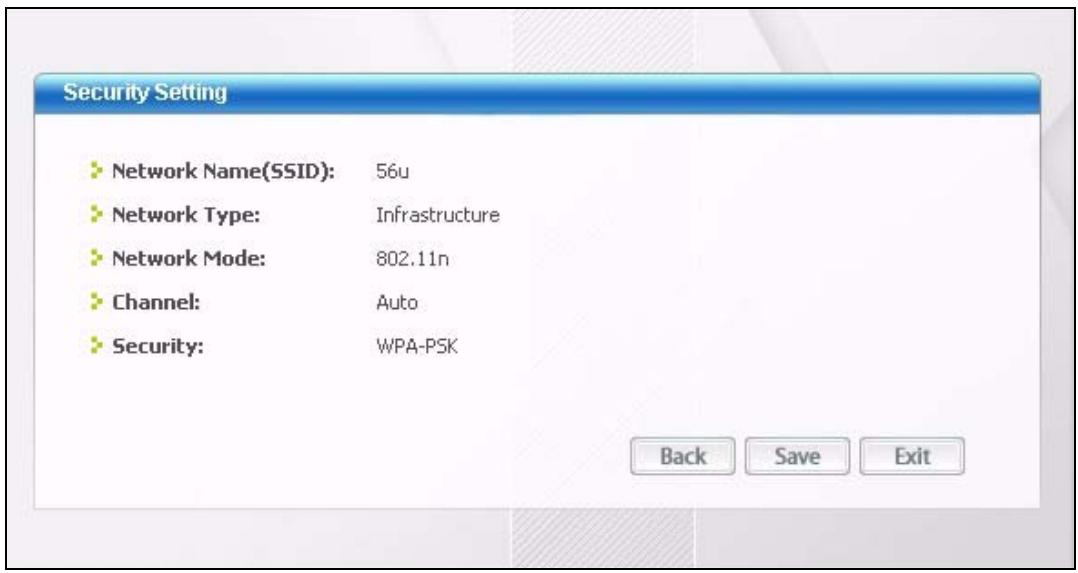
Figure 32 Profile: Confirm New Settings
6 To use this network profile, click the Activate Now button. Otherwise, click the Activate Later button. You can activate only one profile at a time.
Note: Once you activate a profile, the ZyXEL utility will use that profile the next time it is started.
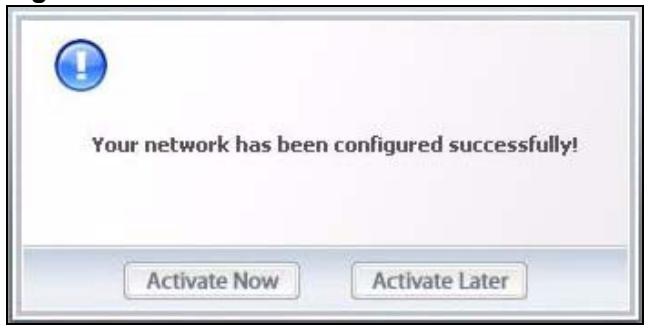
Figure 33 Profile: Activate the Profile
4.5 The Adapter Screen
To set the other advanced features on the NWD-170N, click the Adapter tab.
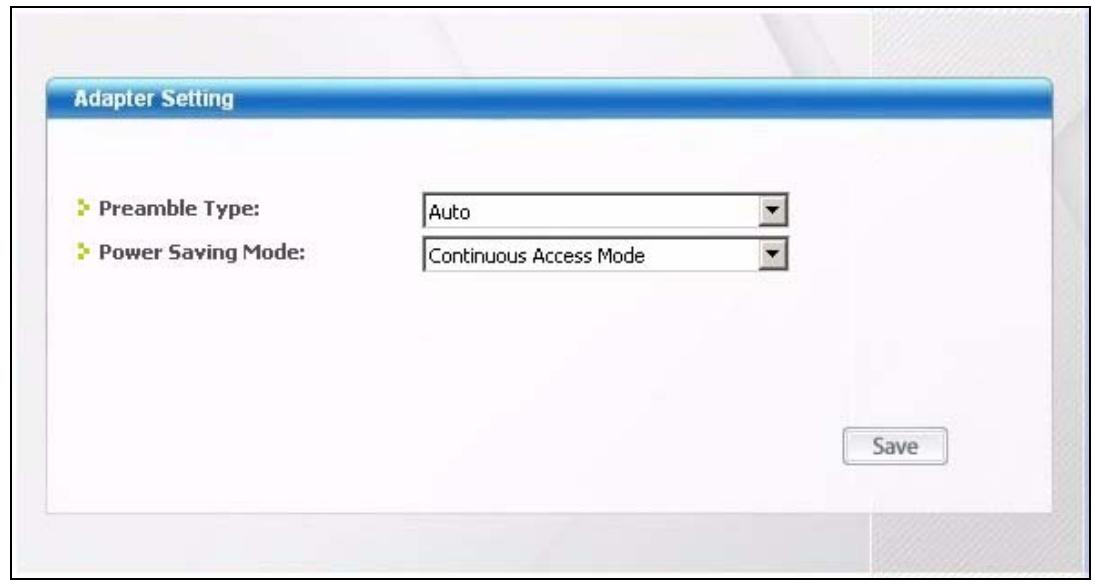
Figure 34 Adapter
The following table describes the labels in this screen.
Table 16 Adapter
| LABEL | DESCRIPTION |
| Adapter Setting | |
| Preamble Type | Preamble is used to signal that data is coming to the receiver. Select the preamble type that the AP uses. Short preamble increases performance as less time sending preamble means more time for sending data. All IEEE 802.11b/g compliant wireless adapters support Long preamble, but not all support short preamble. Select Auto to have the NWD-170N automatically use short preamble when the access point supports it; otherwise the NWD-170N uses long preamble. Note: The NWD-170N and the access point MUST use the same preamble mode in order to communicate. |
| Power Saving Mode | Select Maximum Power Save or Fast Power Save to save power (especially for notebook computers). This forces the NWD-170N to go to sleep mode when it is not transmitting data. When you select Continuous Access Mode, the NWD-170N will never go to sleep mode. |
| Save | Click Save to save the changes to the NWD-170N and return to the Link Info screen. |
CHAPTER 5 Maintenance
This chapter describes how to uninstall or upgrade the ZyXEL utility.
5.1 The About Screen
The About screen displays driver and utility version numbers of the NWD-170N. To display the screen as shown below, click the about ( ) button.
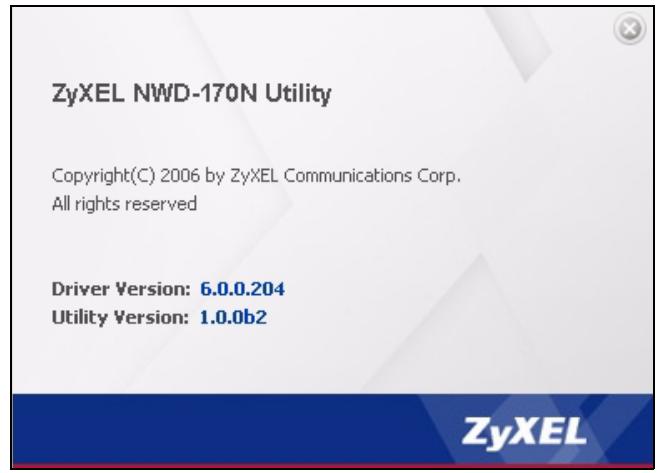
Figure 35 About
The following table describes the read-only fields in this screen.
Table 17 About
| LABEL | DESCRIPTION |
| Driver Version | This field displays the version number of the NWD-170N driver. |
| Utility Version | This field displays the version number of the ZyXEL utility. |
5.2 Uninstalling the ZyXEL Utility
Follow the steps below to remove (or uninstall) the ZyXEL utility from your computer.
Note: Before you uninstall the ZyXEL utility, take note of your current wireless configurations.
1 Click Start, (All) Programs, ZyXEL NWD-170N Utility, Uninstall ZyXEL NWD-170N Wireless CardBus Card Utility.
2 When prompted, click OK or Yes to remove the driver and the utility software.
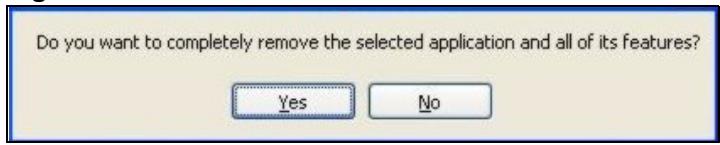
Figure 36 Uninstall: Confirm
3 Click Finish to complete uninstalling the software and restart the computer when prompted.
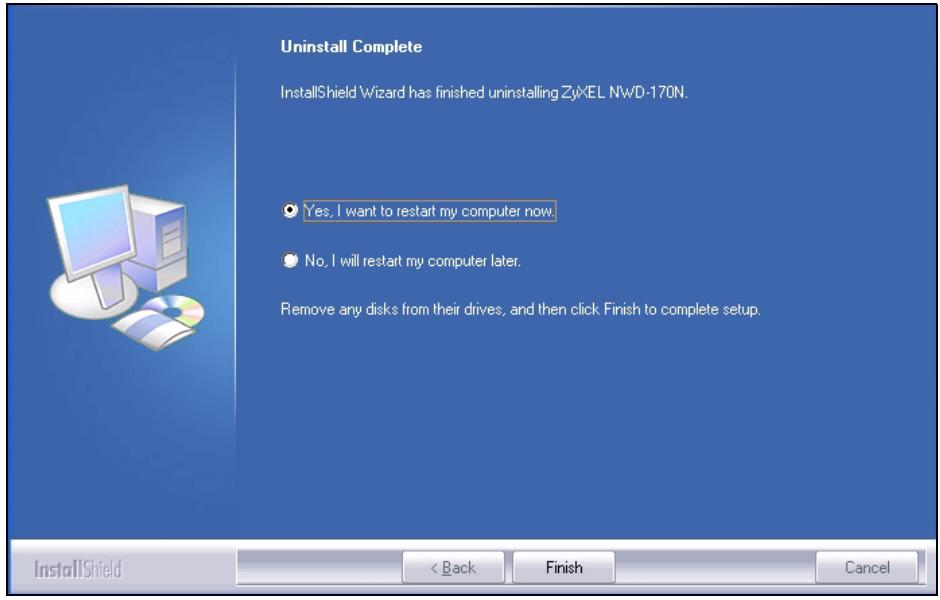
Figure 37 Uninstall: Finish
5.3 Upgrading the ZyXEL Utility
Note: Before you uninstall the ZyXEL utility, take note of your current wireless configurations.
To perform the upgrade, follow the steps below.
1 Download the latest version of the utility from the ZyXEL web site and save the file on your computer.
2 Follow the steps in Section 5.2 on page 53 to remove the current ZyXEL utility from your computer.
3 Restart your computer when prompted.
4 Disconnect the NWD-170N from your computer.
5 Double-click on the setup program for the new utility to start the ZyXEL utility installation.
6 Insert the NWD-170N and check the version numbers in the About screen to make sure the new utility is installed properly.
CHAPTER 6
Troubleshooting
This chapter covers potential problems and the possible remedies. After each problem description, some instructions are provided to help you to diagnose and to solve the problem.
6.1 Problems Starting the ZyXEL Utility
Table 18 Troubleshooting Starting ZyXEL Utility
| PROBLEM | CORRECTIVE ACTION |
| Cannot start the ZyXEL Wireless LAN utility | Make sure the NWD-170N is properly inserted and the LEDs are on. Refer to the Quick Start Guide for the LED descriptions. Use the Device Manager to check for possible hardware conflicts. Click Start, Settings, Control Panel, System, Hardware and Device Manager. Verify the status of the NWD-170N under Network Adapter. (Steps may vary depending on the version of Windows). Install the NWD-170N in another computer. If the error persists, you may have a hardware problem. In this case, you should contact your local vendor. |
| The ZyXEL utility icon does not display. | If you have installed the Funk Odyssey Client software on the computer, uninstall (remove) both the Funk Odyssey Client software and ZyXEL utility, and then install the ZyXEL utility again after restarting the computer. |
6.2 Problems with the Link Quality
Table 19 Troubleshooting Link Quality
| PROBLEM | CORRECTIVE ACTION |
| The link quality and/or signal strength is poor. | Search and connect to another AP with a better link quality using the Site Survey screen. Move your computer closer to the AP or the peer computer(s) within the transmission range. There may be too much radio interference (for example microwave or another AP using the same channel) around your wireless network. Lower the output power of each AP. Make sure there are not too many wireless stations connected to a wireless network. |
6.3 Problems Communicating With Other Computers
Table 20 Troubleshooting Communication Problems
| PROBLEM | CORRECTIVE ACTION |
| The computer with the NWD-170N installed cannot communicate with the other computer(s). | In Infrastructure Mode ·Make sure that the AP and the associated computers are turned on and working properly. ·Make sure the NWD-170N computer and the associated AP use the same SSID. ·Change the AP and the associated wireless clients to use another radio channel if interference is high. ·Make sure that the computer and the AP share the same security option and key. Verify the settings in the Profile Security Setting screen. ·If you are using WPA(2) or WPA(2)-PSK security, try changing your encryption type from TKIP to AES or vice versa. In Ad-Hoc (IBSS) Mode ·Verify that the peer computer(s) is turned on. ·Make sure the NWD-170N computer and the peer computer(s) are using the same SSID and channel. ·Make sure that the computer and the peer computer(s) share the same security settings. ·Change the wireless clients to use another radio channel if interference is high. |
APPENDIX A
Product Specifications
Table 21 Product Specifications
| PHYSICAL AND ENVIRONMENTAL | |
| Product Name | NWD-170N Draft 802.11n Wireless CardBus Card |
| Interface | Cardbus 32-bit |
| Standards | IEEE 802.11b IEEE 802.11g IEEE 802.11n (draft) |
| Network Architecture | Infrastructure |
| Operating Temperature | 0 ~ 50 degrees Centigrade |
| Storage Temperature | -30 ~ 60 degrees Centigrade |
| Operating Humidity | 20 ~ 95% (non-condensing) |
| Storage Humidity | 20 ~ 95% (non-condensing) |
| Power | TX power consumption: < 690 mA RX power consumption: < 600 mA |
| Voltage | 3.3 V |
| Weight | 40 g |
| Dimension | (W) 115 mm × (D) 53 mm × (H) 6 mm |
| RADIO SPECIFICATIONS | |
| Media Access Protocol | IEEE 802.11 |
| Frequency | Industrial Scientific Medical Band 2.4 ~ 2.4835 GHz (IEEE 802.11b/g) |
| Operating Channels | North American and Taiwan: 11 Europe: 13 |
| Data Rate | IEEE 802.11b: 11Mbps with automatic fallback to 5.5, 2, 1 Mbps IEEE 802.11g: 54Mbps with automatic fallback to 48, 36, 24, 18, 12, 9, 6 Mbps IEEE 802.11n (draft): up to 300 Mbps |
| Modulation | IEEE 802.11b: CCK (11 and 5.5 Mbps), DQPSK (2 Mbps) and DBPSK (1 Mbps) IEEE 802.11g: OFDM with BPSK, QPSK and 16/64-QAM sub-Carrier modulations |
| Average Output Power | Tolerance: +/- 1.5 dBm IEEE 802.11b: 18 dBm at 11 Mbps IEEE 802.11g: 15 dBm at 54 Mbps IEEE 802.11n (draft): 14 dBm at HT20 & HT40 |
| RX Sensitivity | Tolerance: +/- 1 dBm IEEE 802.11b: -84 dBm at 11 Mbps IEEE 802.11g: -72 dBm at 54 Mbps IEEE 802.11n (draft): -70 dBm at HT40 |
| SOFTWARE SPECIFICATIONS | |
| Device Drivers | Windows 2000, Windows XP |
| Security | 64/128/152-bit WEP WPA/WPA-PSK/WPA2/WPA2-PSK IEEE 802.1x |
| Roaming | IEEE 802.11b/g/n (draft) compliant |
APPENDIX B
Management with Wireless Zero Configuration
This appendix shows you how to manage your NWD-170N using the Windows XP wireless zero configuration tool.
Be sure you have the Windows XP service pack 2 installed on your computer. Otherwise, you should at least have the Windows XP service pack 1 already on your computer and download the support patch for WPA from the Microsoft web site.
Windows XP SP2 screen shots are shown unless otherwise specified. Click the help icon (in most screens, move the cursor to the item that you want the information about and click to view the help.
Activating Wireless Zero Configuration
Make sure the Use Windows to configure my wireless network settings check box is selected in the Wireless Network Connection Properties screen. Refer to Appendix C on page 71.
If you see the following screen, refer to article 871122 on the Microsoft web site for information on starting WZC.
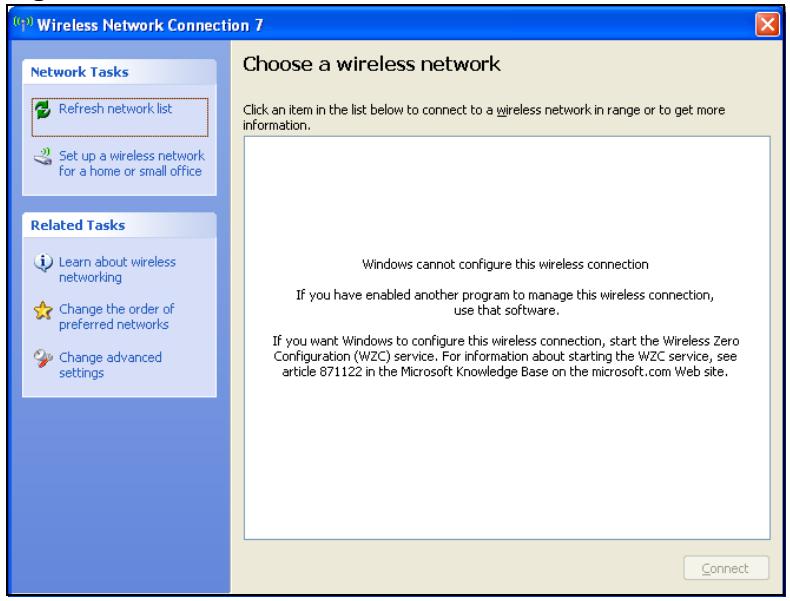
Figure 38 Windows XP SP2: WZC Not Available
Connecting to a Wireless Network
1 Double-click the network icon for wireless connections in the system tray to open the Wireless Network Connection Status screen.
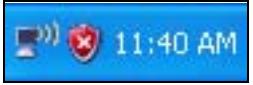
Figure 39 Windows XP SP2: System Tray Icon
The type of the wireless network icon in Windows XP SP2 indicates the status of the NWD-170N. Refer to the following table for details.
Table 22 Windows XP SP2: System Tray Icon
| ICON | DESCRIPTION |
| The NWD-170N is connected to a wireless network. | |
| The NWD-170N is in the process of connecting to a wireless network. | |
| The connection to a wireless network is limited because the network did not assign a network address to the computer. | |
| The NWD-170N is not connected to a wireless network. |
2 Windows XP SP2: In the Wireless Network Connection Status screen, click View Wireless Networks to open the Wireless Network Connection screen.
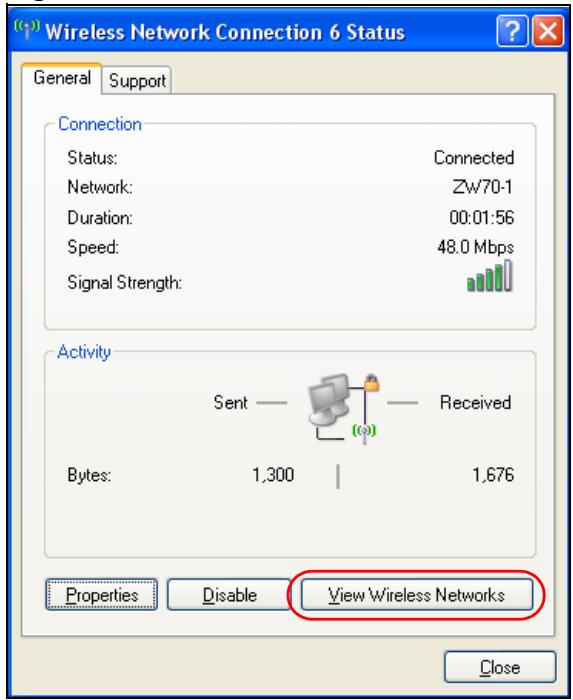
Figure 40 Windows XP SP2: Wireless Network Connection Status
Windows XP SP1: In the Wireless Network Connection Status screen, click Properties and the Wireless Networks tab to open the Wireless Network Connection Properties screen.
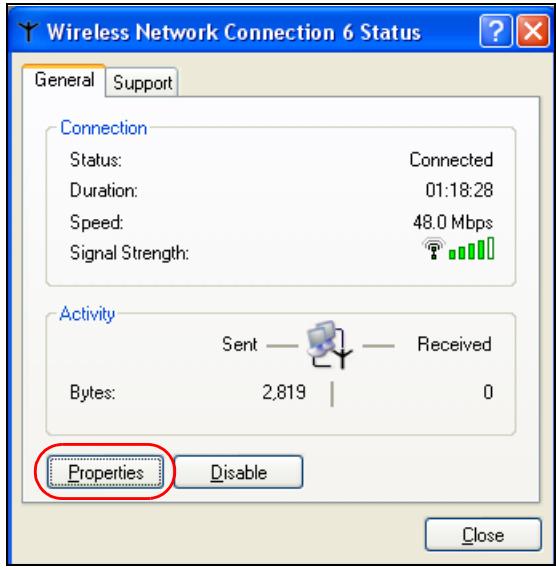
Figure 41 Windows XP SP1: Wireless Network Connection Status
3 Windows XP SP2: Click Refresh network list to reload and search for available wireless devices within transmission range. Select a wireless network in the list and click Connect to join the selected wireless network.
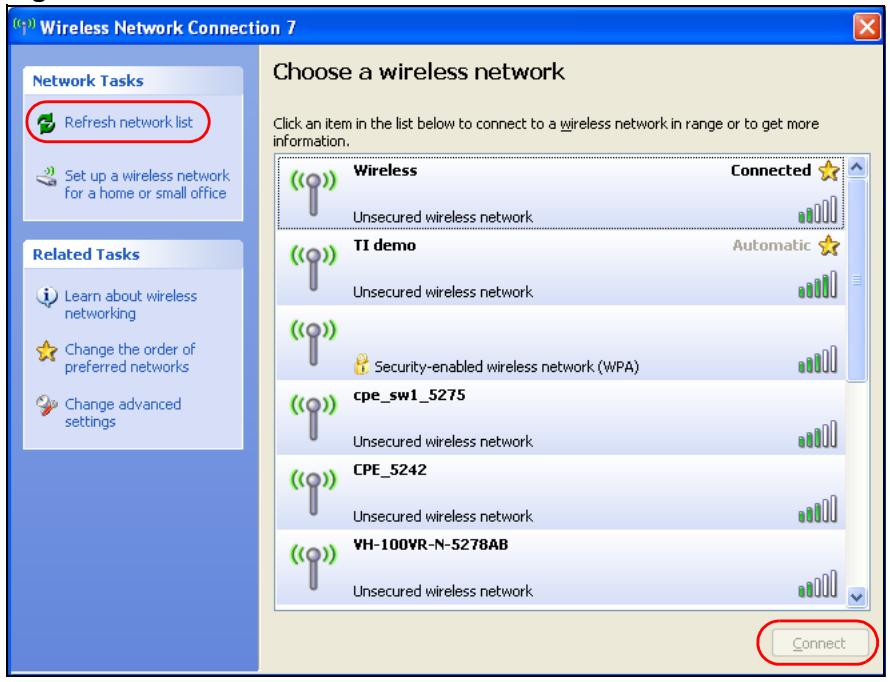
Figure 42 Windows XP SP2: Wireless Network Connection
The following table describes the icons in the wireless network list.
Table 23 Windows XP SP2: Wireless Network Connection
| ICON | DESCRIPTION |
| This denotes that wireless security is activated for the wireless network. | |
| This denotes that this wireless network is your preferred network. Ordering your preferred networks is important because the NWD-170N tries to associate to the preferred network first in the order that you specify. Refer to the section on ordering the preferred networks for detailed information. | |
| This denotes the signal strength of the wireless network. Move your cursor to the icon to see details on the signal strength. |
Windows XP SP1: Click Refresh to reload and search for available wireless devices within transmission range. Select a wireless network in the Available networks list, click Configure and set the related fields to the same security settings as the associated AP to add the selected network into the Preferred networks table. Click OK to join the selected wireless network. Refer to the section on security settings (discussed later) for more information.
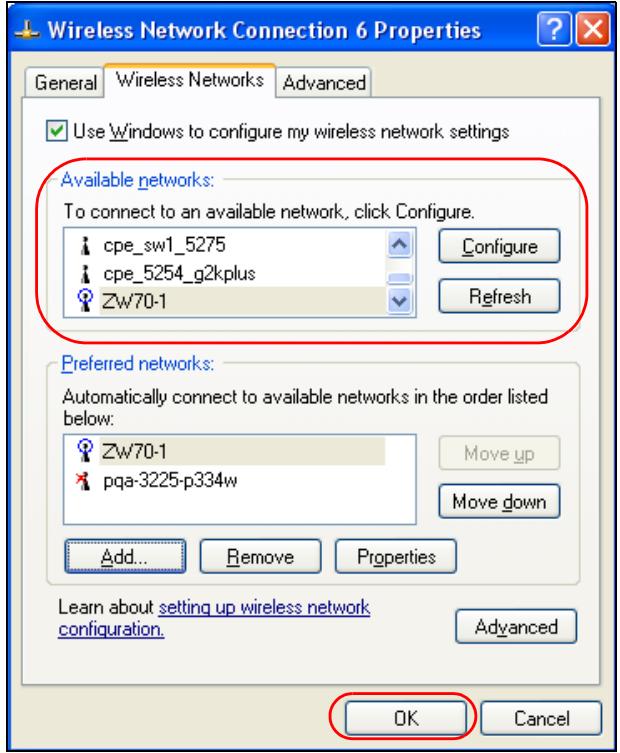
Figure 43 Windows XP SP1: Wireless Network Connection Properties
4.4. Windows XP SP2: If the wireless security is activated for the selected wireless network, the Wireless Network Connection screen displays. You must set the related fields in the Wireless Network Connection screen to the same security settings as the associated AP and click Connect. Refer to the section about security settings for more information. Otherwise click Cancel and connect to another wireless network without data encryption.
If there is no security activated for the selected wireless network, a warning screen appears. Click Connect Anyway if wireless security is not your concern.
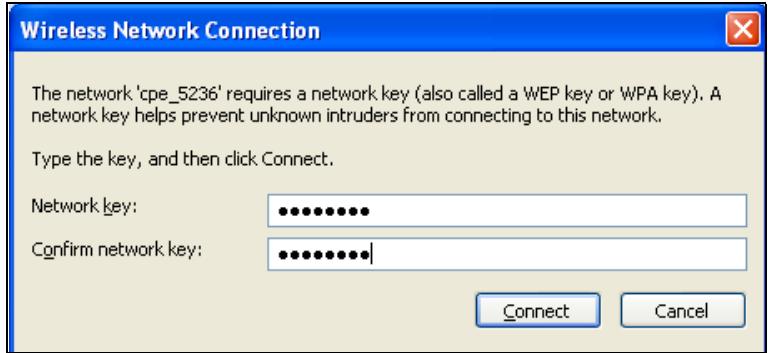
Figure 44 Windows XP SP2: Wireless Network Connection: WEP or WPA-PSK
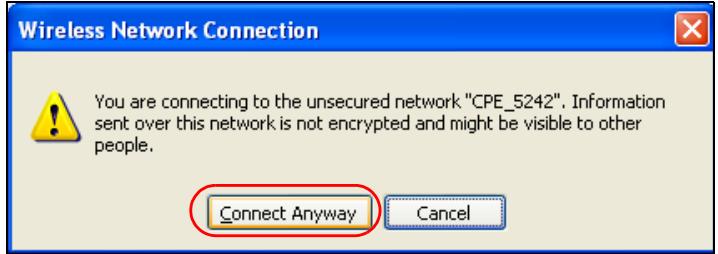
Figure 45 Windows XP SP2: Wireless Network Connection: No Security
5 Verify that you have successfully connected to the selected network and check the connection status in the wireless network list or the connection icon in the Preferred networks or Available networks list.
The following table describes the connection icons.
Table 24 Windows XP: Wireless Networks
| ICON | DESCRIPTION |
| i | This denotes the wireless network is an available wireless network. |
| P | This denotes the NWD-170N is associated to the wireless network. |
| X | This denotes the wireless network is not available. |
Security Settings
When you configure the NWD-170N to connect to a secure network but the security settings are not yet enabled on the NWD-170N, you will see different screens according to the authentication and encryption methods used by the selected network.
Association
Select a network in the Preferred networks list and click Properties to view or configure security.
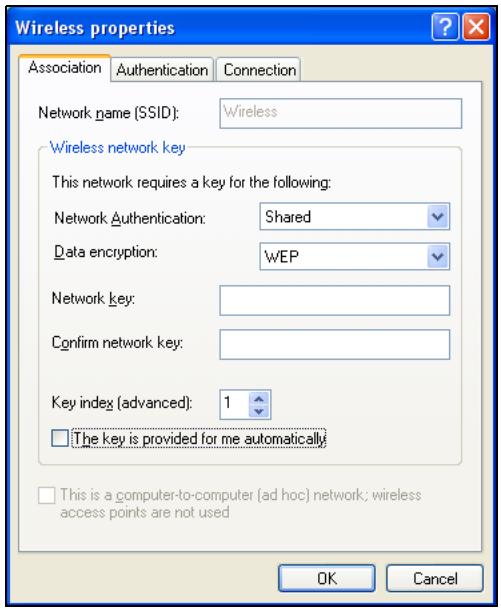
Figure 46 Windows XP: Wireless (network) properties: Association
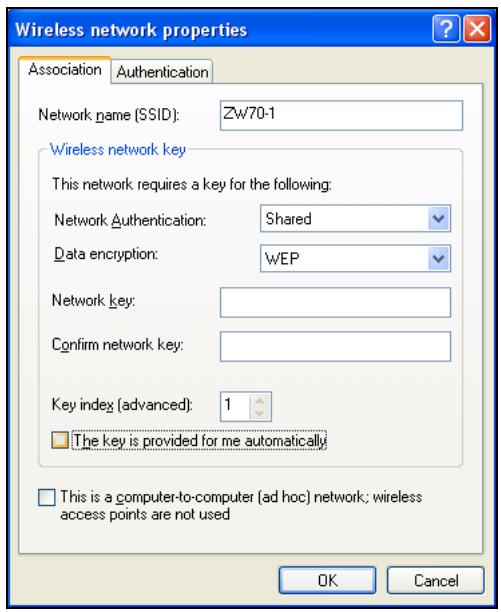
The following table describes the labels in this screen.
Table 25 Windows XP: Wireless (network) properties: Association
| LABEL | DESCRIPTION |
| Network name(SSID) | This field displays the SSID (Service Set Identifier) of each wireless network. |
| NetworkAuthentication | This field automatically shows the authentication method (Share, Open, WPA or WPA-PSK) used by the selected network. |
| Data Encryption | This field automatically shows the encryption type (TKIP, WEP or Disable) used by the selected network. |
| Network Key | Enter the pre-shared key or WEP key.The values for the keys must be set up exactly the same on all wireless devices in the same wireless LAN. |
| Confirm networkkey | Enter the key again for confirmation. |
| Key index(advanced) | Select a default WEP key to use for data encryption.This field is available only when the network use WEP encryption method and the The key is provided for me automatically check box is not selected. |
| The key isprovided for meautomatically | If this check box is selected, the wireless AP assigns the NWD-170N a key. |
| This isacomputer-to-computer (ad hoc)network; wirelessaccess points arenot used | If this check box is selected, you are connecting to another computer directly. |
| OK | Click OK to save your changes. |
| Cancel | Click Cancel to leave this screen without saving any changes you may have made. |
Authentication
Click the Authentication tab in the Wireless (network) properties screen to display the screen shown next. The fields on this screen are grayed out when the network is in Ad-Hoc mode or data encryption is disabled.
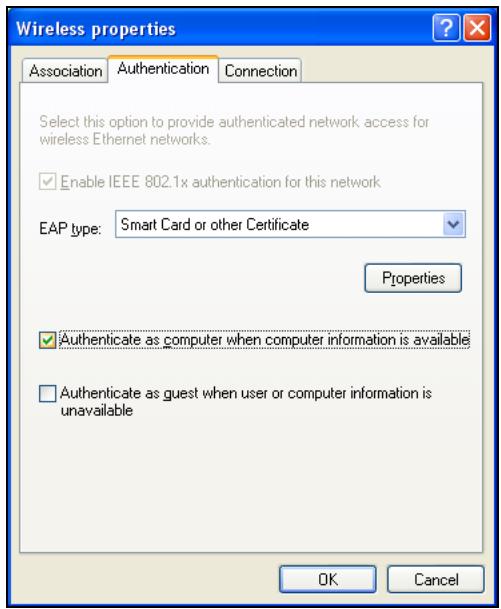
Figure 47 Windows XP: Wireless (network) properties: Authentication
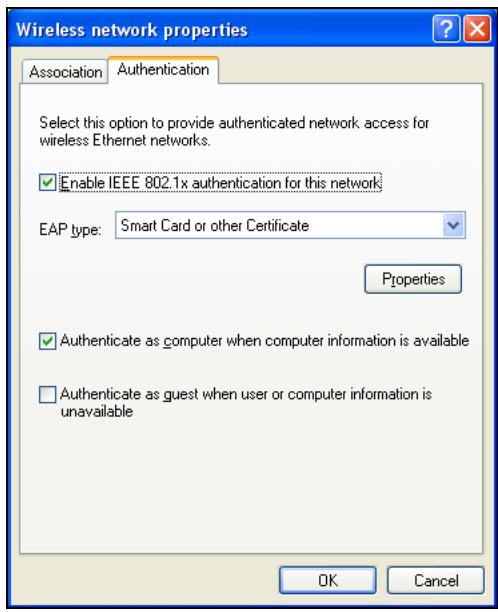
The following table describes the labels in this screen.
Table 26 Windows XP: Wireless (network) properties: Authentication
| LABEL | DESCRIPTION |
| Enable IEEE 802.1x authentication for this network | This field displays whether the IEEE 802.1x authentication is active.If the network authentication is set to Open in the previous screen, you can choose to disable or enable this feature. |
| EAP Type | Select the type of EAP authentication. Options are Protected EAP (PEAP) and Smart Card or other Certificate. |
| Properties | Click this button to open the properties screen and configure certificates. The screen varies depending on what you select in the EAP type field. |
| Authentication as computer when computer information is available | Select this check box to have the computer send its information to the network for authentication when a user is not logged on. |
| Authentication as guest when user or computer information is unavailable | Select this check box to have the computer access to the network as a guest when a user is not logged on or computer information is not available. |
| OK | Click OK to save your changes. |
| Cancel | Click Cancel to leave this screen without saving any changes you may have made. |
Authentication Properties
Select an EAP authentication type in the Wireless (network) properties: Authentication screen and click the Properties button to display the following screen.
Protected EAP Properties
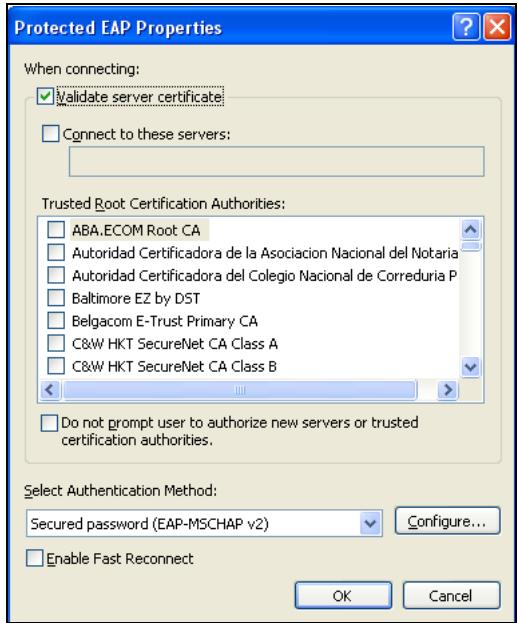
Figure 48 Windows XP: Protected EAP Properties
The following table describes the labels in this screen.
Table 27 Windows XP: Protected EAP Properties
| LABEL | DESCRIPTION |
| Validate server certificate | Select the check box to verify the certificate of the authentication server. |
| Connect to these servers | Select the check box and specify a domain in the field below to have your computer connect to a server which resides only within this domain. |
| Trusted Root Certification Authorities: | Select a trusted certification authority from the list below.Note: You must first have a wired connection to a network and obtain the certificate(s) from a certificate authority (CA). Consult your network administrator for more information. |
| Do not prompt user to authorize new server or trusted certification authorities. | Select this check box to verify a new authentication server or trusted CA without prompting.This field is available only if you installed the Windows XP server pack 2. |
| Select Authentication Method: | Select an authentication method from the drop-down list box and click Configure to do settings. |
Table 27 Windows XP: Protected EAP Properties
| LABEL | DESCRIPTION |
| Enable Fast Reconnect | Select the check box to automatically reconnect to the network (without re-authentication) if the wireless connection goes down. |
| OK | Click OK to save your changes. |
| Cancel | Click Cancel to leave this screen without saving any changes you may have made. |
Smart Card or other Certificate Properties
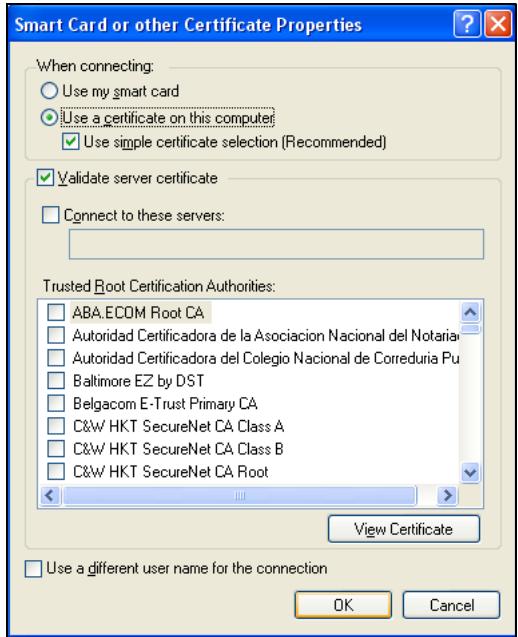
Figure 49 Windows XP: Smart Card or other Certificate Properties
The following table describes the labels in this screen.
Table 28 Windows XP: Smart Card or other Certificate Properties
| LABEL | DESCRIPTION |
| Use my smart card | Select this check box to use the smart card for authentication. |
| Use a certificate on this computer | Select this check box to use a certificate on your computer for authentication. |
| Validate server certificate | Select the check box to check the certificate of the authentication server. |
| Connect to these servers | Select the check box and specify a domain in the field below to have your computer connect to a server which resides only within this domain. |
| Trusted Root Certification Authorities: | Select a trusted certification authority from the list below.Note: You must first have a wired connection to a network and obtain the certificate(s) from a certificate authority (CA). Consult your network administrator for more information. |
| View Certificate | Click this button if you want to verify the selected certificate. |
Table 28 Windows XP: Smart Card or other Certificate Properties
| LABEL | DESCRIPTION |
| Use a different user name for the connection: | Select the check box to use a different user name when the user name in the smart card or certificate is not the same as the user name in the domain that you are logged on to. |
| OK | Click OK to save your changes. |
| Cancel | Click Cancel to leave this screen without saving any changes you may have made. |
Ordering the Preferred Networks
Follow the steps below to manage your preferred networks.
1 Windows XP SP2: Click Change the order of preferred networks in the Wireless Network Connection screen (see Figure 42 on page 61). The screen displays as shown.
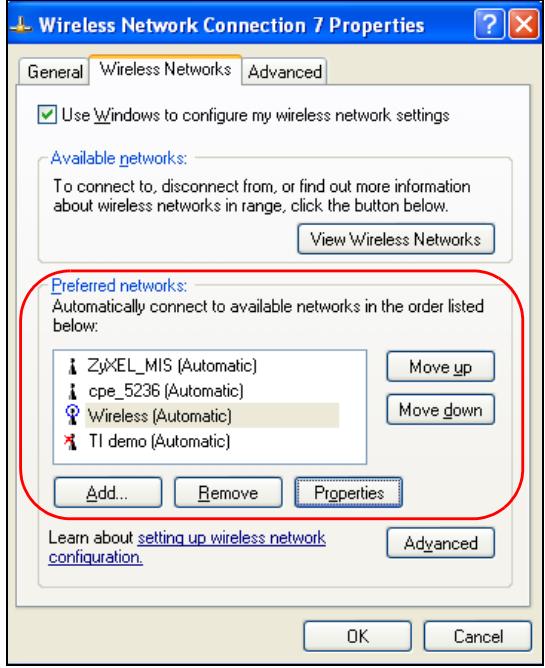
Figure 50 Windows XP SP2: Wireless Networks: Preferred Networks
Windows XP SP1: In the Wireless Network Connection Status screen, click Properties and the Wireless Networks tab to open the screen as shown.
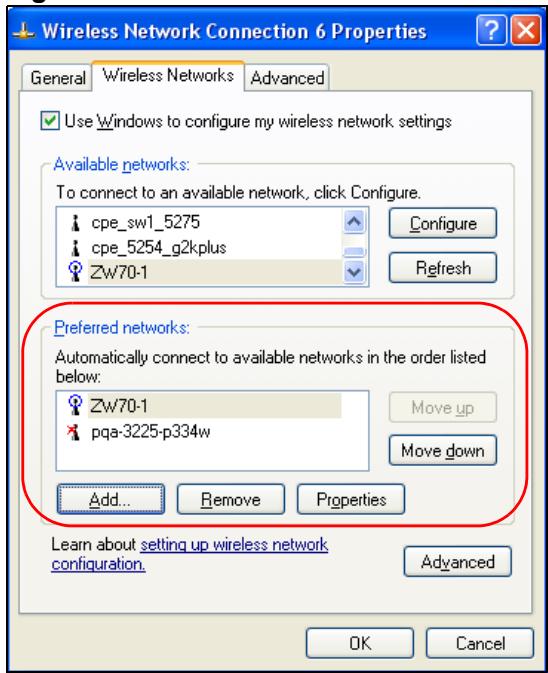
Figure 51 Windows XP SP1: Wireless Networks: Preferred Networks
2 Whenever the NWD-170N tries to connect to a new network, the new network is added in the Preferred networks table automatically. Select a network and click Move up or Move down to change it's order, click Remove to delete it or click Properties to view the security, authentication or connection information of the selected network. Click Add to add a preferred network into the list manually.
APPENDIX C
Wireless Security
Types of EAP Authentication
This section discusses some popular authentication types: EAP-MD5, EAP-TLS, EAP-TTLS, PEAP and LEAP. Your wireless LAN device may not support all authentication types.
EAP (Extensible Authentication Protocol) is an authentication protocol that runs on top of the IEEE 802.1x transport mechanism in order to support multiple types of user authentication. By using EAP to interact with an EAP-compatible RADIUS server, an access point helps a wireless station and a RADIUS server perform authentication.
The type of authentication you use depends on the RADIUS server and an intermediary AP(s) that supports IEEE 802.1x.
For EAP-TLS authentication type, you must first have a wired connection to the network and obtain the certificate(s) from a certificate authority (CA). A certificate (also called digital IDs) can be used to authenticate users and a CA issues certificates and guarantees the identity of each certificate owner.
EAP-MD5 (Message-Digest Algorithm 5)
MD5 authentication is the simplest one-way authentication method. The authentication server sends a challenge to the wireless station. The wireless station 'proves' that it knows the password by encrypting the password with the challenge and sends back the information. Password is not sent in plain text.
However, MD5 authentication has some weaknesses. Since the authentication server needs to get the plaintext passwords, the passwords must be stored. Thus someone other than the authentication server may access the password file. In addition, it is possible to impersonate an authentication server as MD5 authentication method does not perform mutual authentication. Finally, MD5 authentication method does not support data encryption with dynamic session key. You must configure WEP encryption keys for data encryption.
EAP-TLS (Transport Layer Security)
With EAP-TLS, digital certifications are needed by both the server and the wireless stations for mutual authentication. The server presents a certificate to the client. After validating the identity of the server, the client sends a different certificate to the server. The exchange of certificates is done in the open before a secured tunnel is created. This makes user identity vulnerable to passive attacks. A digital certificate is an electronic ID card that authenticates the sender's identity. However, to implement EAP-TLS, you need a Certificate Authority (CA) to handle certificates, which imposes a management overhead.
EAP-TTLS (Tunneled Transport Layer Service)
EAP-TTLS is an extension of the EAP-TLS authentication that uses certificates for only the server-side authentications to establish a secure connection. Client authentication is then done by sending username and password through the secure connection, thus client identity is protected. For client authentication, EAP-TTLS supports EAP methods and legacy authentication methods such as PAP, CHAP, MS-CHAP and MS-CHAP v2.
PEAP (Protected EAP)
Like EAP-TTLS, server-side certificate authentication is used to establish a secure connection, then use simple username and password methods through the secured connection to authenticate the clients, thus hiding client identity. However, PEAP only supports EAP methods, such as EAP-MD5, EAP-MSCHAPv2 and EAP-GTC (EAP-Generic Token Card), for client authentication. EAP-GTC is implemented only by Cisco.
LEAP
LEAP (Lightweight Extensible Authentication Protocol) is a Cisco implementation of IEEE 802.1x.
Dynamic WEP Key Exchange
The AP maps a unique key that is generated with the RADIUS server. This key expires when the wireless connection times out, disconnects or reauthentication times out. A new WEP key is generated each time reauthentication is performed.
If this feature is enabled, it is not necessary to configure a default encryption key in the Wireless screen. You may still configure and store keys here, but they will not be used while Dynamic WEP is enabled.
Note: EAP-MD5 cannot be used with Dynamic WEP Key Exchange
For added security, certificate-based authentications (EAP-TLS, EAP-TTLS and PEAP) use dynamic keys for data encryption. They are often deployed in corporate environments, but for public deployment, a simple user name and password pair is more practical. The following table is a comparison of the features of authentication types.
Table 29 Comparison of EAP Authentication Types
| EAP-MD5 | EAP-TLS | EAP-TTLS | PEAP | LEAP | |
| Mutual Authentication | No | Yes | Yes | Yes | Yes |
| Certificate – Client | No | Yes | Optional | Optional | No |
| Certificate – Server | No | Yes | Yes | Yes | No |
| Dynamic Key Exchange | No | Yes | Yes | Yes | Yes |
| Credential Integrity | None | Strong | Strong | Strong | Moderate |
| Deployment Difficulty | Easy | Hard | Moderate | Moderate | Moderate |
| Client Identity Protection | No | No | Yes | Yes | No |
WPA and WPA2
Wi-Fi Protected Access (WPA) is a subset of the IEEE 802.11i standard. WPA2 (IEEE 802.11i) is a wireless security standard that defines stronger encryption, authentication and key management than WPA.
Key differences between WPA(2) and WEP are improved data encryption and user authentication.
If both an AP and the wireless clients support WPA2 and you have an external RADIUS server, use WPA2 for stronger data encryption. If you don't have an external RADIUS server, you should use WPA2-PSK (WPA2-Pre-Shared Key) that only requires a single (identical) password entered into each access point, wireless gateway and wireless client. As long as the passwords match, a wireless client will be granted access to a WLAN.
If the AP or the wireless clients do not support WPA2, just use WPA or WPA-PSK depending on whether you have an external RADIUS server or not.
Select WEP only when the AP and/or wireless clients do not support WPA or WPA2. WEP is less secure than WPA or WPA2.
Encryption
Both WPA and WPA2 improve data encryption by using Temporal Key Integrity Protocol (TKIP), Message Integrity Check (MIC) and IEEE 802.1x. WPA and WPA2 use Advanced Encryption Standard (AES) in the Counter mode with Cipher block chaining Message authentication code Protocol (CCMP) to offer stronger encryption than TKIP.
TKIP uses 128-bit keys that are dynamically generated and distributed by the authentication server. AES (Advanced Encryption Standard) is a block cipher that uses a 256-bit mathematical algorithm called Rijndael. They both include a per-packet key mixing function, a Message Integrity Check (MIC) named Michael, an extended initialization vector (IV) with sequencing rules, and a re-keying mechanism.
WPA and WPA2 regularly change and rotate the encryption keys so that the same encryption key is never used twice.
The RADIUS server distributes a Pairwise Master Key (PMK) key to the AP that then sets up a key hierarchy and management system, using the PMK to dynamically generate unique data encryption keys to encrypt every data packet that is wirelessly communicated between the AP and the wireless stations. This all happens in the background automatically.
The Message Integrity Check (MIC) is designed to prevent an attacker from capturing data packets, altering them and resending them. The MIC provides a strong mathematical function in which the receiver and the transmitter each compute and then compare the MIC. If they do not match, it is assumed that the data has been tampered with and the packet is dropped.
By generating unique data encryption keys for every data packet and by creating an integrity checking mechanism (MIC), with TKIP and AES it is more difficult to decrypt data on a Wi-Fi network than WEP and difficult for an intruder to break into the network.
The encryption mechanisms used for WPA(2) and WPA(2)-PSK are the same. The only difference between the two is that WPA(2)-PSK uses a simple common password, instead of user-specific credentials. The common-password approach makes WPA(2)-PSK susceptible to brute-force password-guessing attacks but it's still an improvement over WEP as it employs a consistent, single, alphanumeric password to derive a PMK which is used to generate unique temporal encryption keys. This prevent all wireless devices sharing the same encryption keys. (a weakness of WEP)
User Authentication
WPA and WPA2 apply IEEE 802.1x and Extensible Authentication Protocol (EAP) to authenticate wireless stations using an external RADIUS database. WPA2 reduces the number of key exchange messages from six to four (CCMP 4-way handshake) and shortens the time required to connect to a network. Other WPA2 authentication features that are different from WPA include key caching and pre-authentication. These two features are optional and may not be supported in all wireless devices.
Key caching allows a wireless client to store the PMK it derived through a successful authentication with an AP. The wireless client uses the PMK when it tries to connect to the same AP and does not need to go with the authentication process again.
Pre-authentication enables fast roaming by allowing the wireless client (already connecting to an AP) to perform IEEE 802.1x authentication with another AP before connecting to it.
WPA(2)-PSK Application Example
A WPA(2)s-PSK application looks as follows.
1 First enter identical passwords into the AP and all wireless clients. The Pre-Shared Key (PSK) must consist of between 8 and 63 ASCII characters or 64 hexadecimal characters (including spaces and symbols).
2 The AP checks each client's password and (only) allows it to join the network if it matches its password.
3 The AP and wireless clients use the pre-shared key to generate a common PMK.
4 The AP and wireless clients use the TKIP or AES encryption process to encrypt data exchanged between them.
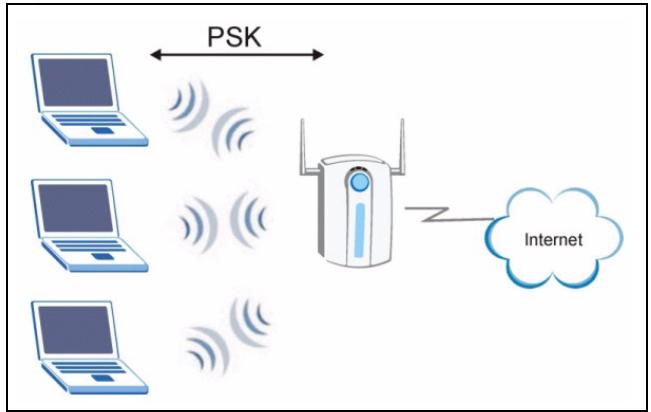
Figure 52 WPA-PSK Authentication
WPA(2) with RADIUS Application Example
You need the IP address of the RADIUS server, its port number (default is 1812), and the RADIUS shared secret. A WPA(2) application example with an external RADIUS server looks as follows. "A" is the RADIUS server. "DS" is the distribution system.
1 The AP passes the wireless client's authentication request to the RADIUS server.
2 The RADIUS server then checks the user's identification against its database and grants or denies network access accordingly.
3 The RADIUS server distributes a Pairwise Master Key (PMK) key to the AP that then sets up a key hierarchy and management system, using the pair-wise key to dynamically generate unique data encryption keys to encrypt every data packet that is wirelessly communicated between the AP and the wireless clients.
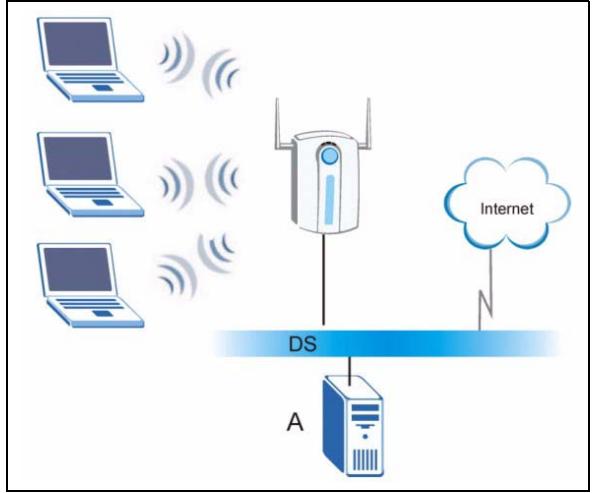
Figure 53 WPA(2) with RADIUS Application Example
Security Parameters Summary
Refer to this table to see what other security parameters you should configure for each Authentication Method/ key management protocol type. MAC address filters are not dependent on how you configure these security features.
Table 30 Wireless Security Relational Matrix
| AUTHENTICATION METHOD/ KEYMANAGEMENT PROTOCOL | ENCRYPTIONMETHOD | ENTERMANUAL KEY | IEEE 802.1X |
| Open | None | No | Disable |
| Enable without Dynamic WEP Key | |||
| Open | WEP | No | Enable with Dynamic WEP Key |
| Yes | Enable without Dynamic WEP Key | ||
| Yes | Disable | ||
| Shared | WEP | No | Enable with Dynamic WEP Key |
| Yes | Enable without Dynamic WEP Key | ||
| Yes | Disable | ||
| WPA | TKIP/AES | No | Enable |
| WPA-PSK | TKIP/AES | Yes | Disable |
| WPA2 | TKIP/AES | No | Enable |
| WPA2-PSK | TKIP/AES | Yes | Disable |
APPENDIX D Setting up Your Computer's IP Address
All computers must have a 10M or 100M Ethernet adapter card and TCP/IP installed.
Windows 98/Me/2000/XP and later operating systems and all versions of UNIX/LINUX include the software components you need to install and use TCP/IP on your computer. Windows 3.1 requires the purchase of a third-party TCP/IP application package.
TCP/IP should already be installed on computers using Windows 2000 and XP.
After the appropriate TCP/IP components are installed, configure the TCP/IP settings in order to "communicate" with your network.
Windows 98/Me
Click Start, Settings, Control Panel and double-click the Network icon to open the Network window
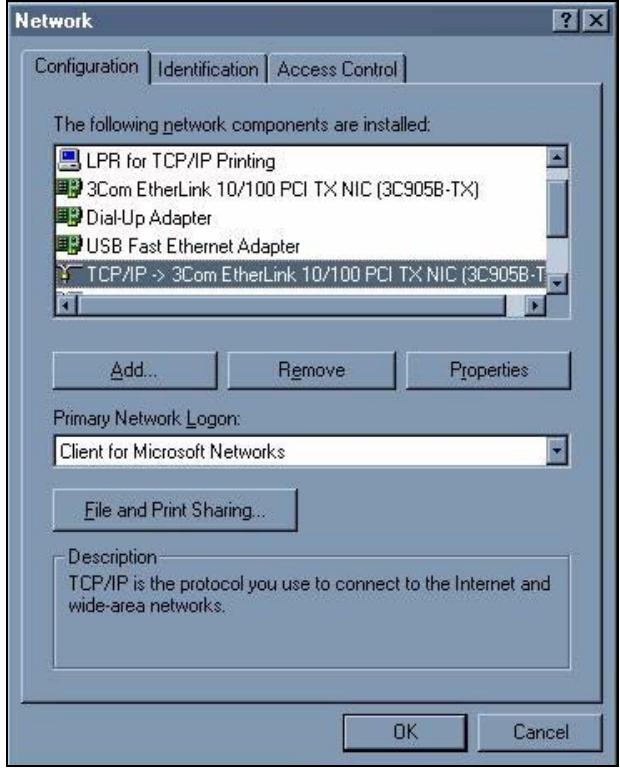
Figure 54 Windows 98/Me: Network: Configuration
Installing Components
The Network window Configuration tab displays a list of installed components. You need a network adapter, the TCP/IP protocol and Client for Microsoft Networks.
If you need the adapter:
1 In the Network window, click Add.
2 Select Adapter and then click Add.
3 Select the manufacturer and model of your network adapter and then click OK.
If you need TCP/IP:
1 In the Network window, click Add.
2 Select Protocol and then click Add.
3 Select Microsoft from the list of manufacturers.
4 Select TCP/IP from the list of network protocols and then click OK.
If you need Client for Microsoft Networks:
1 Click Add.
2 Select Client and then click Add.
3 Select Microsoft from the list of manufacturers.
4 Select Client for Microsoft Networks from the list of network clients and then click OK.
5 Restart your computer so the changes you made take effect.
Configuring
1 In the Network window Configuration tab, select your network adapter's TCP/IP entry and click Properties
2 Click the IP Address tab.
- If your IP address is dynamic, select Obtain an IP address automatically.
- If you have a static IP address, select Specify an IP address and type your information into the IP Address and Subnet Mask fields.
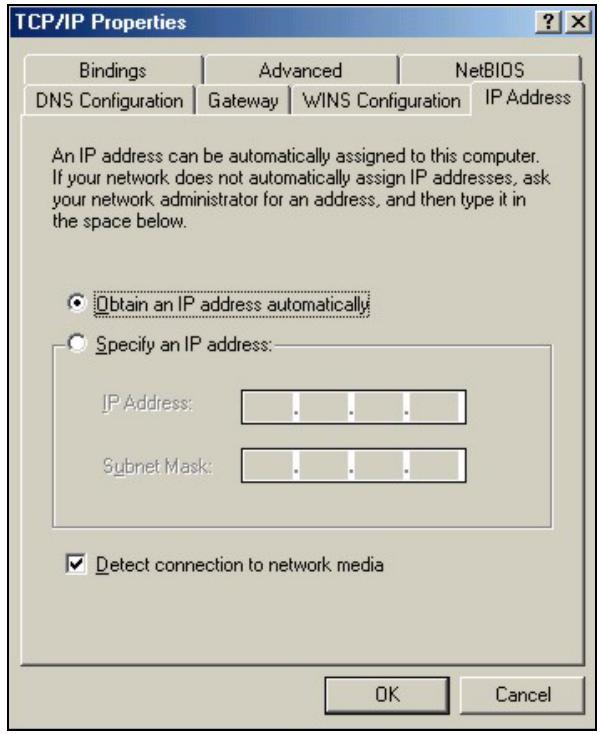
Figure 55 Windows 98/Me: TCP/IP Properties: IP Address
3 Click the DNS Configuration tab.
If you do not know your DNS information, select Disable DNS.
- If you know your DNS information, select Enable DNS and type the information in the fields below (you may not need to fill them all in).
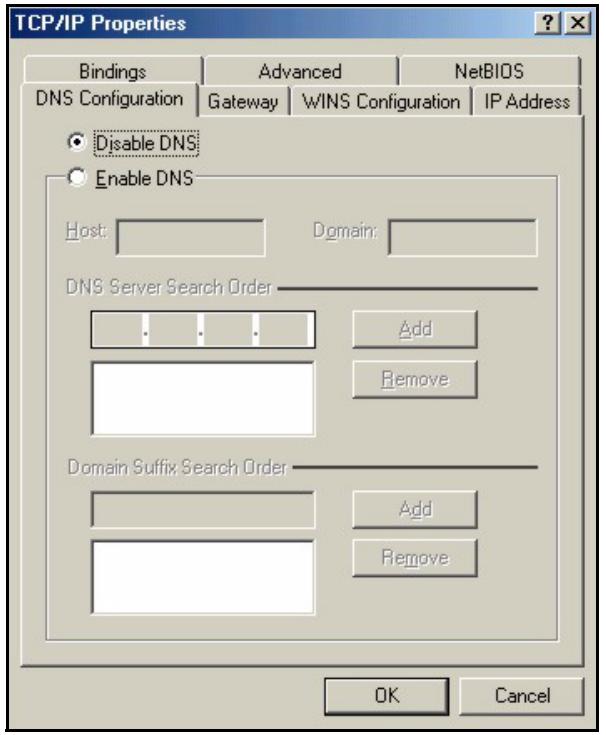
Figure 56 Windows 98/Me: TCP/IP Properties: DNS Configuration
4 Click the Gateway tab.
- If you do not know your gateway's IP address, remove previously installed gateways.
- If you have a gateway IP address, type it in the New gateway field and click Add.
5 Click OK to save and close the TCP/IP Properties window.
6 Click OK to close the Network window. Insert the Windows CD if prompted.
7 Restart your computer when prompted.
Verifying Settings
1 Click Start and then Run.
2 In the Run window, type "winipcfg" and then click OK to open the IP Configuration window.
3 Select your network adapter. You should see your computer's IP address, subnet mask and default gateway.
Windows 2000/XP
1 For Windows XP, click start, Control Panel. In Windows 2000, click Start, Settings, Control Panel.
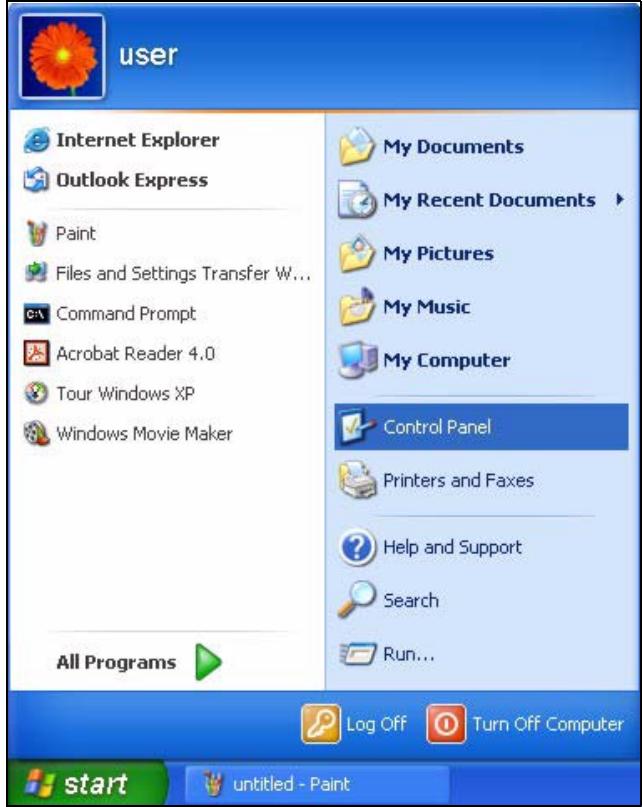
Figure 57 Windows XP: Start Menu
2 For Windows XP, click Network Connections. For Windows 2000, click Network and Dial-up Connections.
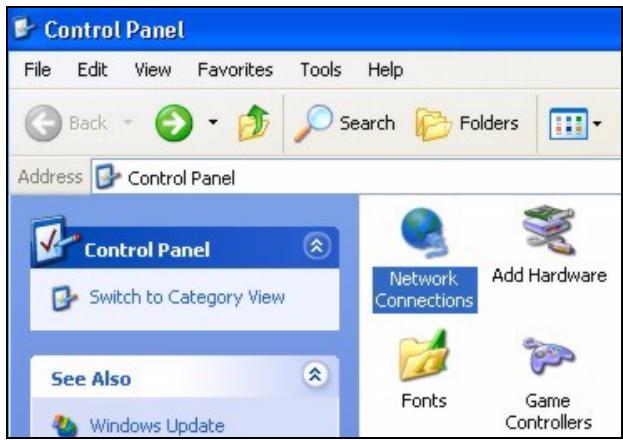
Figure 58 Windows XP: Control Panel
3 Right-click Local Area Connection and then click Properties.
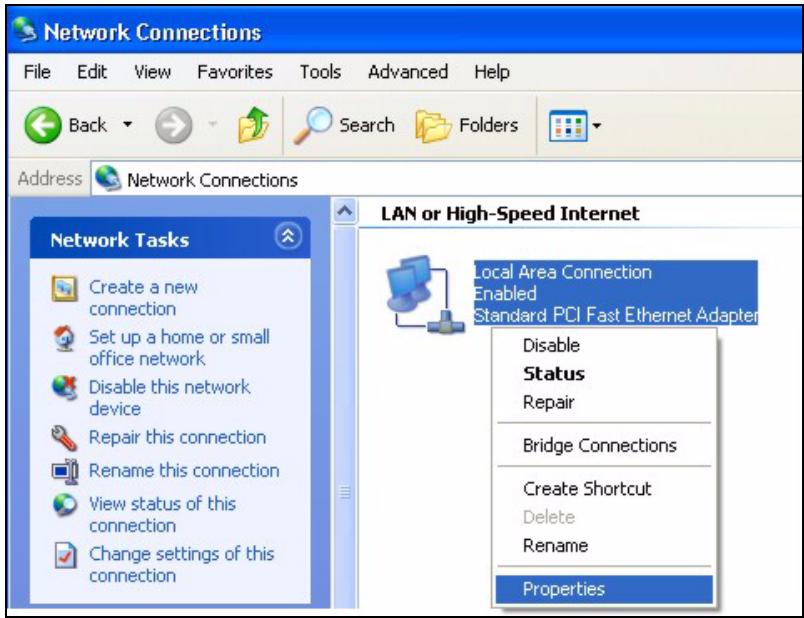
Figure 59 Windows XP: Control Panel: Network Connections: Properties
4 Select Internet Protocol (TCP/IP) (under the General tab in Win XP) and click Properties.
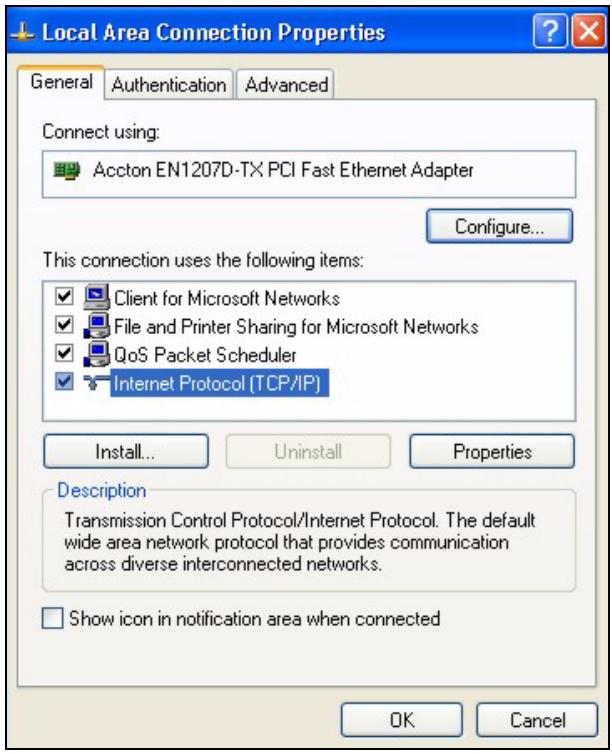
Figure 60 Windows XP: Local Area Connection Properties
5 The Internet Protocol TCP/IP Properties window opens (the General tab in Windows XP).
If you have a dynamic IP address click Obtain an IP address automatically.
- If you have a static IP address click Use the following IP Address and fill in the IP address, Subnet mask, and Default gateway fields. Click Advanced.
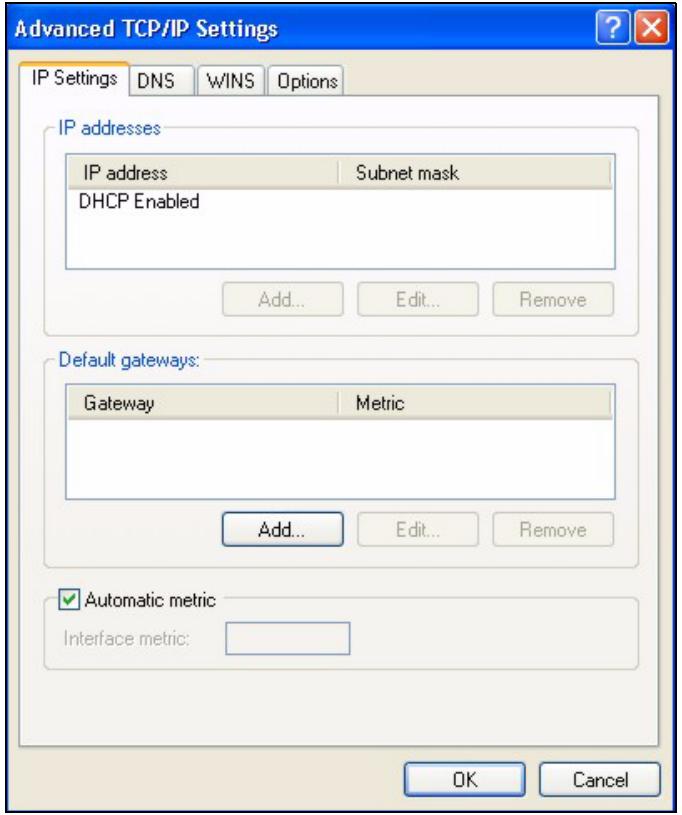
Figure 61 Windows XP: Advanced TCP/IP Settings
6 If you do not know your gateway's IP address, remove any previously installed gateways in the IP Settings tab and click OK.
Do one or more of the following if you want to configure additional IP addresses:
In the IP Settings tab, in IP addresses, click Add.
- In TCP/IP Address, type an IP address in IP address and a subnet mask in Subnet mask, and then click Add.
- Repeat the above two steps for each IP address you want to add.
- Configure additional default gateways in the IP Settings tab by clicking Add in Default gateways.
- In TCP/IP Gateway Address, type the IP address of the default gateway in Gateway. To manually configure a default metric (the number of transmission hops), clear the Automatic metric check box and type a metric in Metric.
- Click Add.
- Repeat the previous three steps for each default gateway you want to add.
- Click OK when finished.
7 In the Internet Protocol TCP/IP Properties window (the General tab in Windows XP):
- Click Obtain DNS server address automatically if you do not know your DNS server IP address(es).
- If you know your DNS server IP address(es), click Use the following DNS server addresses, and type them in the Preferred DNS server and Alternate DNS server fields.
If you have previously configured DNS servers, click Advanced and then the DNS tab to order them.
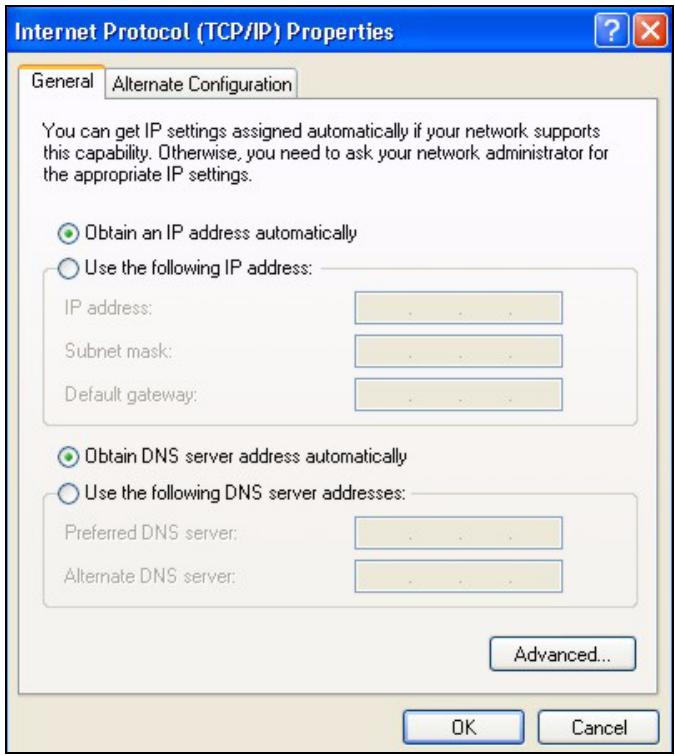
Figure 62 Windows XP: Internet Protocol (TCP/IP) Properties
8 Click OK to close the Internet Protocol (TCP/IP) Properties window.
9 Click OK to close the Local Area Connection Properties window.
10Restart your computer (if prompted).
Verifying Settings
1 Click Start, All Programs, Accessories and then Command Prompt.
2 In the Command Prompt window, type "ipconfig" and then press [ENTER]. You can also open Network Connections, right-click a network connection, click Status and then click the Support tab.
Index
A
About 53
About your ZyXEL AG-220 19
Access point (AP) 31
Access point. See also AP.
ACT LED 20
Activating a profile 49
Adapter 50
Ad-Hoc 21, 47
Advanced Encryption Standard 34, 73
Advanced settings 50
AP
See also access point.
AP MAC address 36
Authentication 36
Authentication type 33, 41
auto 33
open system 33
shared key 33
Auto authentication 33
Automatic connection 37
Automatic network scan 25, 44
Connection status 35
contact information 8
Continuous access mode 51
copyright 3
Creating a new profile 46
Current configuration 35
Current connection status 35
customer support 8
D
Data encryption 38
Data rate 57
Digital ID 33
Dimensions 57
disclaimer 3
Download 54
Driver version 53
Dynamic WEP Key Exchange 72
B
Band 57
C
CCMP 34
Certificate Authority (CA) 33, 72
certifications 4
notices 5
viewing 5
Channel 31, 36, 38, 47, 57
Configuration method 22
important note 22
Wireless Zero Configuration (WZC) 22
Configuration methods
ZyXEL utility 22
Configuration status 35
E
EAP (Extensible Authentication Protocol) 33
EAP authentication 33, 71
EAP-PEAP 33
EAP-TLS 33
EAP-TTLS 33
Encryption 73
Encryption type 33, 39, 41
Environmental specifications 57
F
Fast power save 51
FCC interference statement 4
Frequency 31, 57
G
Getting started 19
Graphics icons key 18
H
Hardware connections 22
Help 23
Humidity 57
1
IEEE 802.1x33,42
Industrial Scientific Medical Band 57
Infrastructure 20
Initialization vector (IV) 74
Installation 22
Interface 57
Internet access 20
IP address
setup 77
L
LEDs 20
lights 20
Link information 35
LINK LED 20
Link quality 36, 37
M
Manual network connection 25
Maximum power save 51
Message Integrity Check (MIC) 34, 73
Modulation 57
N
Network mode 36
Network name 36
Network overlap 31
Network scan 44
Network type 36, 38
0
Online help 23
Output power 57
P
Packet collisions 37
Pairwise Master Key (PMK) 74
Passphrase 32, 39
Password phrase 32
Peer computer 20, 47
Physical specifications 57
Power consumption 57
Power saving mode 51
Preamble 50
product registration 7
Product specifications 57
Profile 36, 45
activation 49
add new 46
configure 25, 27
default 44
delete 45
edit 45
information 46
new 45, 46
Q
Quick Start Guide 17, 22, 55
R
Radio interference 55
Radio specifications 57
RADIUS 33, 34
RADIUS server 74
Real-time data traffic statistics 37
Receive rate 36
registration
product 7
Related Documentation 17
s
safety warnings 6
Save power 51
Scan 37
Scan Info 47
Search 37
Security 32, 36, 58
data encryption 32
parameters 76
Sensitivity 58
Service Set Identity (SSID) 25, 31
Signal strength 37, 38
Site information 38
Site survey 37
scan 38
security settings 39
Sleep mode 51
SSID 25, 31, 36, 38, 56
Statistics 36
Support CD 17
Syntax conventions 17
System tray 22
T
Temperature 57
Temporal Key Integrity Protocol (TKIP) 34, 73
Total receive 36
Total transmit 36
trademarks 3
Transmission rate 36, 46
Transmit key 39
Transmit rate 36
Trend chart 37
Troubleshooting 55
link quality 55
network communication 56
starting the ZyXEL Utility 55
U
Uninstalling the ZyXEL Utility 53
Upgrading the ZyXEL Utility
important step 54
Upgrading ZyXEL Utility 54
User authentication 32, 74
Utility installation 22
Utility version 53
V
Voltage 57
W
warranty 7
note 7
Weight 57
WEP 32, 39
automatic setup 32
manual setup 32, 40
passphrase 32, 39
WEP (Wired Equivalent Privacy) 32
WEP Encryption 39
WEP key generation 32
Wi-Fi Protected Access 33, 73
Windows XP 22
Wireless client 31
Wireless LAN
introduction 31
security 32
Wireless LAN (WLAN) 31
Wireless network 31
Wireless security 71
Wireless standard 36, 57
Wireless station mode
adapter 50
security settings 39
site survey 37
trend chart 37
WLAN
Security parameters 76
WPA 33, 41, 73
WPA233,41,73
WPA2-Pre-Shared Key 34, 73
WPA2-PSK 34, 40, 73
WPA-PSK 34, 40, 73
WZC (Wireless Zero Configuration) 22
Z
ZyXEL Utility 22
accessing 23
driver version number 53
exiting 22
help 23
reactivating 23
status 22
system tray icon 22
upgrading 54
version number 53
- User's Guide
- Copyright
- Disclaimer
- Trademarks
- Certifications
- Federal Communications Commission (FCC) Interference Statement
- FCC Radiation Exposure Statement
- 注意!
- Viewing Certifications
- SafetyWarnings
- ZyXEL Limited Warranty
- Note
- Registration
- Customer Support
- Table of Contents
- Chapter 4
- Wireless Configuration 35
- Chapter 5
- Maintenance 53
- Chapter 6
- Troubleshooting 55
- Appendix A
- Product Specifications 57
- Appendix B
- Management with Wireless Zero Configuration 59
- Appendix C
- Wireless Security 71
- Appendix D
- Setting up Your Computer's IP Address 77
- Index 85
- List of Figures
- List of Tables
- Preface
- About This User's Guide
- Related Documentation
- User Guide Feedback
- Syntax Conventions
- Graphics Icons Key
- CHAPTER 1 Getting Started
- About Your NWD-170N
- Application Overview
- Infrastructure
- Ad-Hoc
- NWD-170N Hardware and Utility Installation
- ZyXEL Utility Icon
- Configuration Methods
- Enabling WZC
- Accessing the ZyXEL Utility
- CHAPTER 2 Tutorial
- Connecting to a Wireless LAN
- Creating and Using a Profile
- CHAPTER 3
- Wireless LAN Network
- Wireless LAN Overview
- Wireless LAN Security
- User Authentication and Encryption
- WEP
- Data Encryption
- Authentication Type
- IEEE 802.1x
- EAP Authentication
- WPA and WPA2
- Wireless Configuration
- ZyXEL Utility Screen Summary
- The Link Info Screen
- Trend Chart
- The Site Survey Screen
- Security Settings
- WPA-PSK/WPA2-PSK
- WPA/WPA2
- IEEE 802.1x
- Confirm Save Screen
- The Profile Screen
- Adding a New Profile
- The Adapter Screen
- CHAPTER 5 Maintenance
- The About Screen
- Uninstalling the ZyXEL Utility
- Upgrading the ZyXEL Utility
- Troubleshooting
- Problems Starting the ZyXEL Utility
- Problems with the Link Quality
- Problems Communicating With Other Computers
- Product Specifications
- Management with Wireless Zero Configuration
- Activating Wireless Zero Configuration
- Connecting to a Wireless Network
- Security Settings
- Association
- Authentication
- Authentication Properties
- Protected EAP Properties
- Smart Card or other Certificate Properties
- Ordering the Preferred Networks
- Wireless Security
- Types of EAP Authentication
- EAP-MD5 (Message-Digest Algorithm 5)
- EAP-TLS (Transport Layer Security)
- EAP-TTLS (Tunneled Transport Layer Service)
- PEAP (Protected EAP)
- LEAP
- Dynamic WEP Key Exchange
- WPA and WPA2
- Encryption
- User Authentication
- WPA(2)-PSK Application Example
- WPA(2) with RADIUS Application Example
- Security Parameters Summary
- APPENDIX D Setting up Your Computer's IP Address
- Windows 98/Me
- Installing Components
- Configuring
- Verifying Settings
- Windows 2000/XP
- Index
- A
- D
- B
- C
- E
- F
- G
- H
- 1
- L
- M
- N
- 0
- P
- Q
- R
- s
- T
- U
- V
- W
- Z
Brand : ZYXEL
Model : NWD-170
Category : Wi-Fi Adapter