
NWD-370N - Wi-Fi Adapter ZYXEL - Free user manual and instructions
Find the device manual for free NWD-370N ZYXEL in PDF.



| Product Type | Internal PCI Wi-Fi Adapter |
| Brand | ZyXEL |
| Model | NWD-370N |
| Interface | 32-bit PCI (v2.2) |
| Wireless Standards | IEEE 802.11b/g/n |
| Frequency Bands | 2.4 GHz |
| Maximum Data Rate | Up to 300 Mbps |
| Security | WEP, WPA, WPA2 |
| Supported Operating Systems | Windows 2000, Windows XP |
| Recommended Processor | Pentium II 300 MHz or higher |
| Minimum RAM | 128 MB |
| Required Disk Space | 20 MB |
| CD-ROM Drive | Required for installation |
| Approximate Dimensions | 120 x 80 x 20 mm |
| Approximate Weight | 50 g |
| Power Supply | Via PCI bus (5 V) |
| LED Indicators | Connection indicator (green/red) |
| Antennas | 2 external detachable antennas |
| Included Software | ZyXEL utility, drivers |
| Main Functions | Wireless connection, network management, security |
| Installation | Install software before inserting the card |
| Maintenance and Cleaning | Unplug the computer, clean with a dry cloth |
| Safety | Disconnect from power before any intervention |
| Spare parts and repairability | Not applicable, product not user-serviceable |
| General Information | Wireless network adapter for desktop computer |
Frequently Asked Questions - NWD-370N ZYXEL
User questions about NWD-370N ZYXEL
0 question about this device. Answer the ones you know or ask your own.
Ask a new question about this device
Download the instructions for your Wi-Fi Adapter in PDF format for free! Find your manual NWD-370N - ZYXEL and take your electronic device back in hand. On this page are published all the documents necessary for the use of your device. NWD-370N by ZYXEL.
USER MANUAL NWD-370N ZYXEL
The NWD-370N is a wireless network adapter for your desktop computer. See page 12 for a list of system requirements.
1 Install the Software

Install the software from the CD before you insert the NWD-370N. Do not insert the NWD-370N yet.
If you have already installed Funk Odyssey Client software on the computer, uninstall (remove) it.
1 Remove the NWD-370N if you already inserted it.
2 Insert the included CD into the CD-ROM drive on your computer.
3 When the following screen displays, click Setup to install the ZyXEL utility and driver.
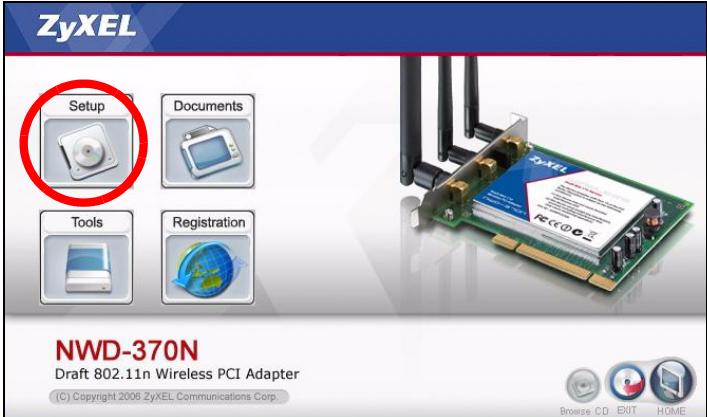

If the screen does not display, locate and double-click autorun.exe on the CD.
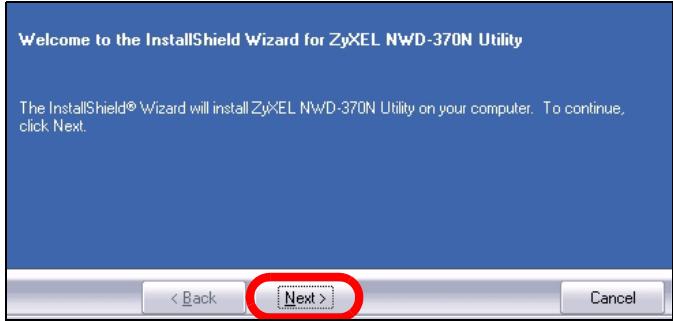
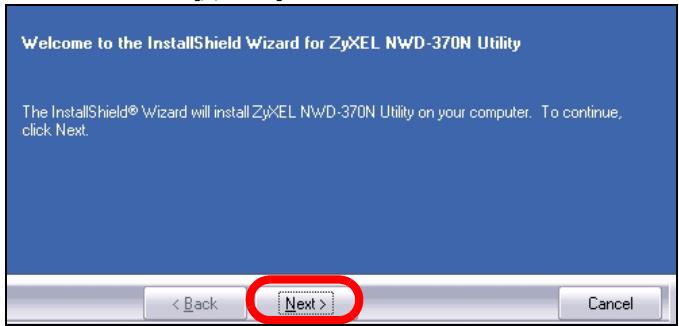
4 When the following screen displays, click Next.
5 Select Driver and Utility to install both the ZyXEL utility and the driver on your computer. If you want to install the driver only and use Wireless Zero Configuration (WZC) with Windows XP, select Driver only (see Note for
Windows XP Users). Click Next to accept the default file location or click Browse to select an alternate folder.
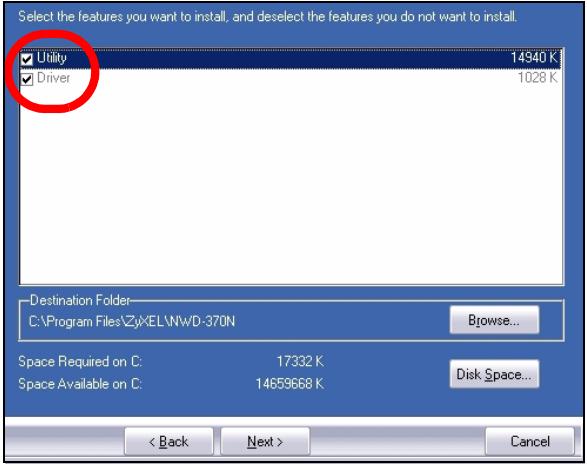
6 Click Install.
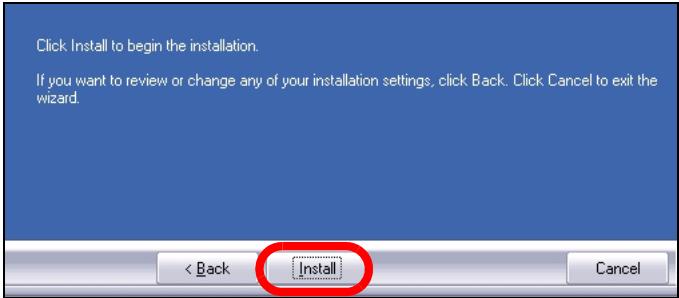

You will need to restart your computer after installing the ZyXEL utility. Make sure you have saved your work before continuing.
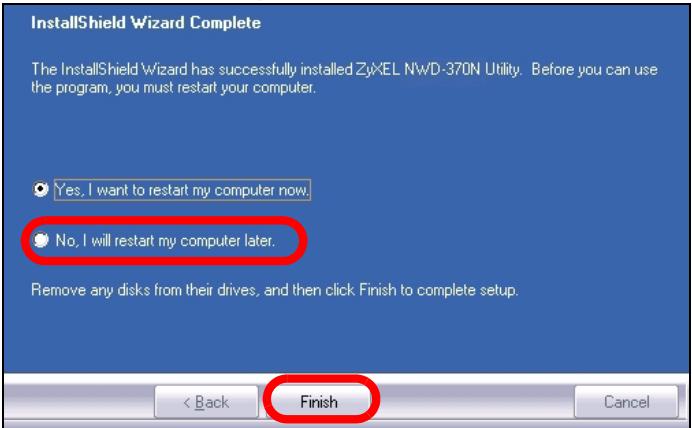
7 When the following screen displays, select No, I will restart my computer later. You will turn your computer off in order to install the hardware.
Click Finish to complete the software installation.
2 Install the Hardware

Do not install the hardware until you have installed the software from the CD.
1 Save your work and close all applications.
2 Turn off the computer and any peripheral device(s), such as a printer.
3 Unplug the computer from the power source.
4 Ground yourself by wearing an anti-static wrist strap if you have one or touching a grounded metal object. Remove the computer cover, and then remove the NWD-370N from its packaging.
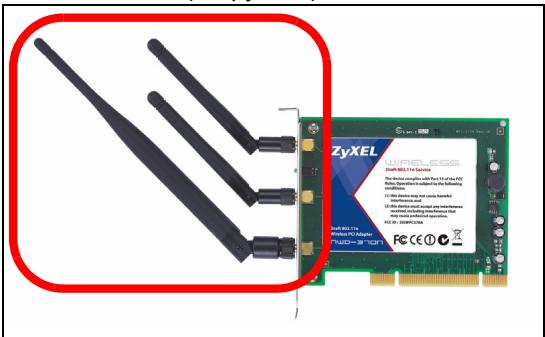
5 If the antennas are attached to the NWD-370N, remove (unscrew) them.
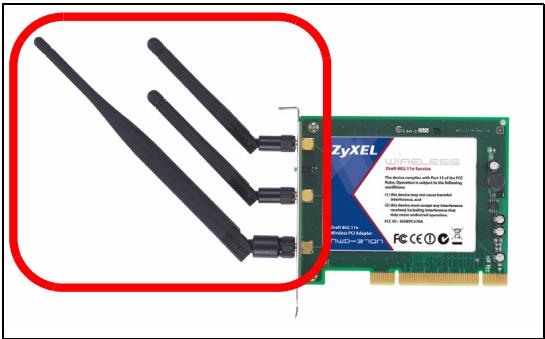
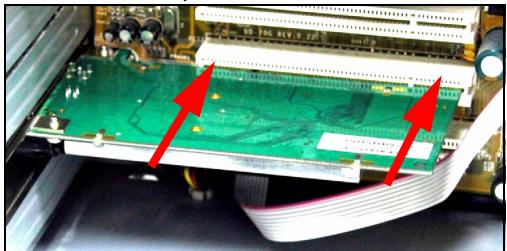
6 Insert the NWD-370N into an available PCI slot. Make sure the NWD-370N's contacts are fully seated in the PCI slot.
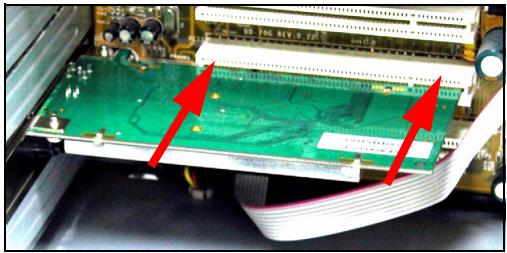
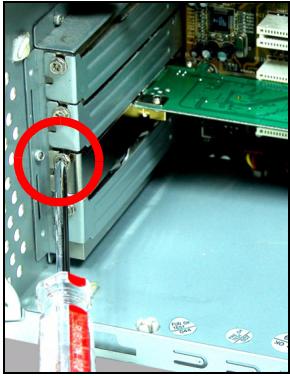
7 Secure the NWD-370N to the computer with a bracket screw.
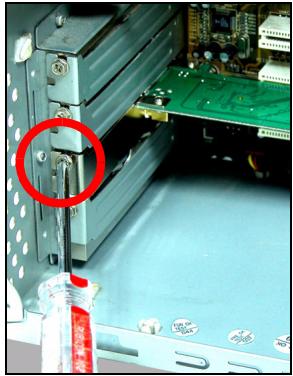
8 Attach (screw) the antennas onto the NWD-370N.
9 Point the antennas up.
10 Replace the computer cover.
11 Turn on your computer.
The NWD-370N's LEDs (lights) turn on if it is properly inserted.

If the NWD-370N's LEDs are not on after you have installed the software and the NWD-370N, make sure the NWD-370N is properly inserted.
3 Connect to a Wireless Network
After you install the ZyXEL utility and insert the NWD-370N, an icon appears in the system tray.
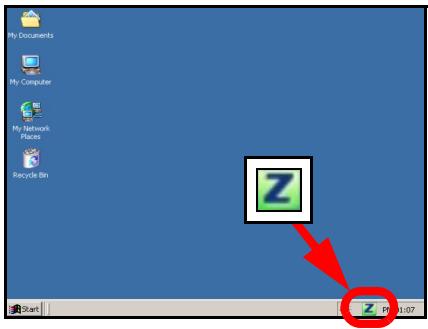

If the icon does not display, uninstall and reinstall the ZyXEL utility. See the User's Guide for how to uninstall the utility.
The NWD-370N automatically searches for any available network(s) and connects to a wireless network without security enabled. However, this wireless network may not be connected to the Internet.
If the icon color is red, you are not connected to a wireless network.
If the Z icon color is green you are already connected to a wireless network.
Use the following steps to select and connect to a wireless network.
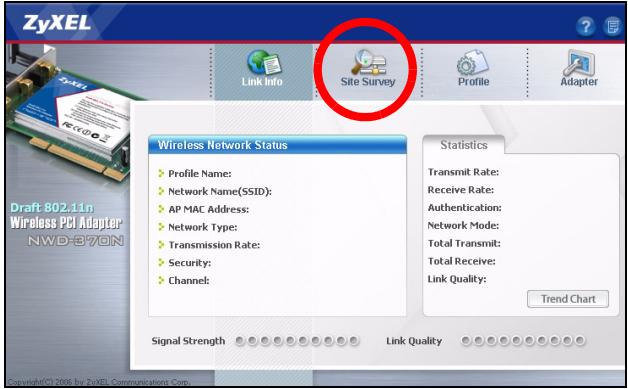
1 Double-click the icon. The ZyXEL utility Link Info screen displays. Click the Site Survey tab.
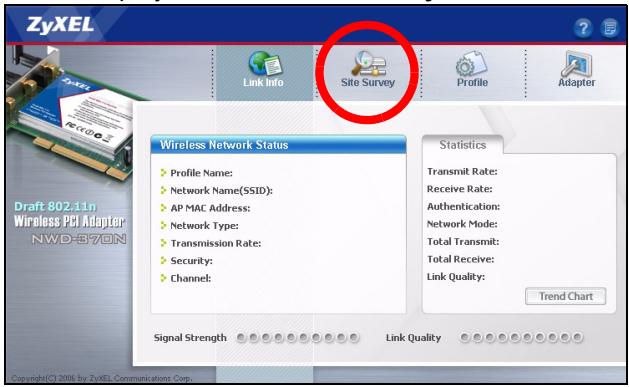
2 The available wireless network(s) displays in the Available Network List.
SSID means Service Set Identity and is the name of the wireless network.
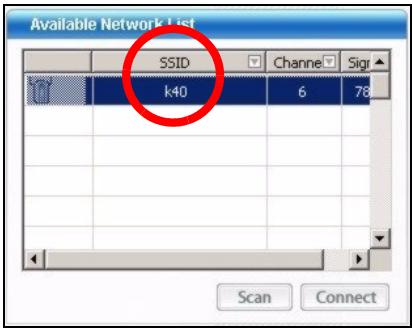
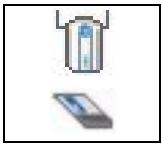
3 If a wireless network has no security, one of the following icons appears next to its entry in the list.
If a wireless network has security, one of the following icons appears next to its entry in the list.
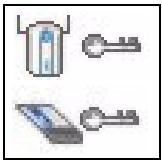
Choose the network you want to connect to and double-click its entry in the list.
4 If a network has no security, the Link Info screen displays. Go to step 6.
5 If a network has security, the security settings screen appears. You need to enter security information to connect to the network. Get this information from the network administrator. Be sure to enter the information exactly as it was given to you.
6 To access the Internet, open your Internet browser and enter the URL of a web site in the address bar. The network should be connected to the Internet.

If the web site displays correctly, you are successfully connected to the Internet.
3.1 Note for Windows XP Users
If you want to use WZC, either disable the ZyXEL utility (if you already installed it) or just install the driver.
- To disable the ZyXEL utility, right-click the icon and select Use Windows Zero Configuration. To activate the ZyXEL utility again, double-click the icon and click OK.
To install the driver only, select Driver only.
System Requirements
Before installation, make sure you have a computer with the following:
- Pentium II 300 MHz or above
A 32-bit (v2.2) PCI slot - A minimum of 20 Mb available hard disk space
A minimum of 128 Mb RAM - A CD-ROM drive
- Windows 2000 or Windows XP
Important Information
Federal Communications Commission (FCC) Interference Statement
The 802.11g Wireless LAN Adapter has been tested to the FCC exposure requirements (Specific Absorption Rate).
The equipment complies with FCC RF radiation exposure limits set forth for an uncontrolled environment, under 47 CFR 2.1093 paragraph (d) (2).
This Transmitter must not be co-located or operating in conjunction with any other antenna or transmitter.
Refer to the User's Guide for general FCC statements.
Procedure to View a Product's Certification(s)
1 Go to www.zyxel.com
2 Select your product from the drop-down list box on the ZyXEL home page to go to that product's page.
3 Select the certification you wish to view from this page.
Übersicht
The InstallShield Wizard has successfully installed ZyXEL NWD-170N Utility. Before you can use the program, you must restart your computer.

Yes, I want to restart my computer now.

No, I will restart my computer later.
Remove any disks from their drives, and then click Finish to complete setup.
<Back
Finish
Cancel
The InstallShield Wizard has successfully installed ZyXEL NWD-370N Utility. Before you can use the program, you must restart your computer.

Yes, I want to restart my computer now.

No, I will restart my computer later.
Remove any disks from their drives, and then click Finish to complete setup.
<Back
Finish
Cancel
2 Instalar el Hardware

The InstallShield Wizard has successfully installed Zx-EL NWD-370N Utility. Before you can use the program, you must restart your computer.

Yes, I want to restart my computer now.

No, I will restart my computer later.
Remove any disks from their drives, and then click Finish to complete setup.
<Back
Finish
Cancel
Draft 802.11n Wireless CardBus Card
(C) Copyright 2006 ZyXEL Communications Corp.

Browse CD EXIT


HOME

The InstallShield Wizard has successfully installed ZyEL NWD-370N Utility. Before you can use the program, you must restart your computer.

Yes, I want to restart my computer now.

No, I will restart my computer later.
Remove any disks from their drives, and then click Finish to complete setup.
<Back
Finish
Cancel
(C) Copyright 2008 ZyXEL Communications Corp.


Browse CD EXIT HOME

EcnTakoe OKHO He NOBnIOscb, To NaInte n 3aynCTnte faan autorun.exe.
1 Korda oTo6pa3ntc sIeIyUoIe e OkHO IeJIKNHTe Ha KhoNke Next [JaIee].
The InstallShield Wizard has successfully installed ZyEL NWD-370N Utility. Before you can use the program, you must restart your computer.

Yes, I want to restart my computer now.

No, I will restart my computer later.
Remove any disks from their drives, and then click Finish to complete setup.
<Back
Finish
Cancel
2 yctaHObka o6OpydoBaHnna

He yctaHaBnBaIte o6OpyObaHne do ycTaHOBKn IporpaMMHoro o6ecneueHnca CD- DnCKa.
1 Ipeep nepe3arpy3kO coxpaHnTe BaUy pa60Tu n 3aKpoTBe BCE OTKpbItbIe npOrpaMMbl.
2 BbiklIOHTe KOMIbIOTep n BCE nepnΦepnHbIe yCTpOncTba (HaNPmEp, npntep).
3 OTKJIIOHTe KOMNbIOTep OT cETn NITaHna.
4 3a3eMЛnte ce68, oOeB 6pacNET dЯн 3aUNTbI OT CTaTNUeCKOTO 3JIeKTPnueCTBa, IJI IN pPINKOCHNTecb K 3a3eMJIeHHOMy MeTALINuECKOMy O6beKTy. ChIMNTE KpbIshky npOceCCOPHOrO 6IOKa KOMNbIOTepa, 3aTeM pacNaKyIte NWD-170N.
5 Ecnn K NWD-170N nodkJIOUeHa aHTeHHa, To ee Heo6xOdImo ChrTb (OTKpyTnTb).
6 Bctabte NWD-170N b doctynnb nopt PCI ha KOMpbIoTepe. Y6eintecb, yTO KOHTaKtbl NWD-170N NOHOCtbBOoJINBpa3bemPCI.
7 3aKpeNITe NWD-170N BHyTpN KOMNbIOTepa BnHTOM Ha KPOHSTeHHe.
8 3akpennte (pnpkpynte) aHTehhbl Ha NWD-170N.
9 HanpaBbTe aHTeHHbI BBepx.
10 YctaHOBInTe Ha MeCTO KpbIshky IpoueccopHoro 6Ioka.
11 BkIIOUHTe KombIoTeP.
EcnN NWD-170N nodknuehen npabunbHo,TO erO INDkaTOpbl 3aogpTaC.

EcnHnDnKaTOpbN WND-170N He BkJIouaETcnaocne yCTaHOBKn npoRpaMMHOrO oBeCneueHn NWD-170N,To npoBepbTe npaBnIbHoCtbnOdknUoyehn NWD-170N.
Ecn 3naOKe He OTo6paKaTaC8a, To
DeHCTaJIpyTe, a 3aTeM 3aHOBO yCTaHOBnTe
yTNIrTu. CmOTpIte PyKOBoDcTBo NOJb3ObaTeNra
rJe OINcaHa IpoUeDypa DeHNCTaJIpyu
yTNIITbl.
AaanTep NWD-170N aBtOMaTnueeCK nPBOoNT nONc JIObO bocTyHOn cTeN(ei) nIOdCOeDInHReTcK 6ecnpoBDHO CTeN 6e3 BKJIouChEnra CSCTEmbl 3aUHTb. TeM He MeHee, 3Ta 6ecnpoBDHa cTe b MoKeT He ImMeT b BbIXOa B Internet.
Ecni zBET IOKHN KpaChbI, 3TO O3HaayeT, YTO Bbl He noDkJIIOHeHbIK 6ecnpoBOdHOc CETN.
EcnIzBETIKOKHn 3eNeHbI,3TO03HaayeT,HTO Bbl yKe NOdkJIIOUeHbIK6ecnpOBoHDHOcTN.
Дя Вьбopaи ПОДКЛЮЧЕнЯ K Бecпровдно сети ВьINONHITe CLEdYUOUINE ONEpaцИ.
1Двжды ΜеКнITE Ha ИКOHke .ПОЯВИСТСОКHO Link Info (Инфомацяо оCBЯЗи)утлNTы ZYXEL.ЦeКнITE Ha 3aklaJaKe Site Survey (Обзор сaita).
pa6ooyem cTOne, nIi NaXMMTe Npck, (Bce) IprorpaMMbl, ZyXEL NWD-170N Wireless Adapter Utility, ZyXEL NWD170N Wireless Adapter Software.
- UTo6bI yCTaHOBnTB TOnbKO dpaBep, Bbl6epnTe pyHKT Driver only (TOnbKO dpaBep).
The InstallShield Wizard has successfully installed ZjXEL NWD-370N Utility. Before you can use the program, you must restart your computer.

Yes, I want to restart my computer now.

No, I will restart my computer later.
Remove any disks from their drives, and then click Finish to complete setup.
<Back
Finish
Cancel
2 Installera maskinvaran

(C) Copyright 2006 ZyXEL Communications Corp.


Browse CD EXIT HOME

The InstallShield Wizard has successfully installed ZyxEL NWD-370N Utility. Before you can use the program, you must restart your computer.

Yes, I want to restart my computer now.

No. I will restart my computer later.
Remove any disks from their drives, and then click Finish to complete setup.
<Back
Finish
Cancel
2 安裝硬體

請先從CD安裝軟體再安裝硬體。
- Install the Software
- Click Install.
- Install the Hardware
- Connect to a Wireless Network
- Note for Windows XP Users
- System Requirements
- Important Information
- Federal Communications Commission (FCC) Interference Statement
- Procedure to View a Product's Certification(s)
- Übersicht
- Instalar el Hardware
- yctaHObka o6OpydoBaHnna
- Installera maskinvaran
- 安裝硬體
Brand : ZYXEL
Model : NWD-370N
Category : Wi-Fi Adapter