
1394 - External hard drive SEAGATE - Free user manual and instructions
Find the device manual for free 1394 SEAGATE in PDF.



| Brand | SEAGATE |
| Model | 1394 |
| Product Type | External Hard Drive |
| Interface | FireWire (IEEE 1394) |
| Power Supply | AC-DC power adapter supplied |
| Compatible Operating Systems | Windows 98SE, ME, 2000, XP; Mac OS 8.6, 9.x, OS X |
| Main Functions | External data storage, backup, file transfer via FireWire |
| Usage Precautions | Do not open, shake, disconnect during transfer, place liquids or stack more than three units |
| Warranty | 1 year (parts and labor) |
| Technical Support | Europe: +353 1 204 1111 (English, French, German); United States: 1-800-2MAXTOR |
| Number of Manual Pages | 92 pages |
| Available Languages | French, English, German, Spanish, etc. |
Frequently Asked Questions - 1394 SEAGATE
User questions about 1394 SEAGATE
0 question about this device. Answer the ones you know or ask your own.
Ask a new question about this device
Download the instructions for your External hard drive in PDF format for free! Find your manual 1394 - SEAGATE and take your electronic device back in hand. On this page are published all the documents necessary for the use of your device. 1394 by SEAGATE.
USER MANUAL 1394 SEAGATE
Multilingual Installation Guide
English, Dansk, Nederlands, Francais, Suomi, Deutsch, Italiano, Português, Espanol
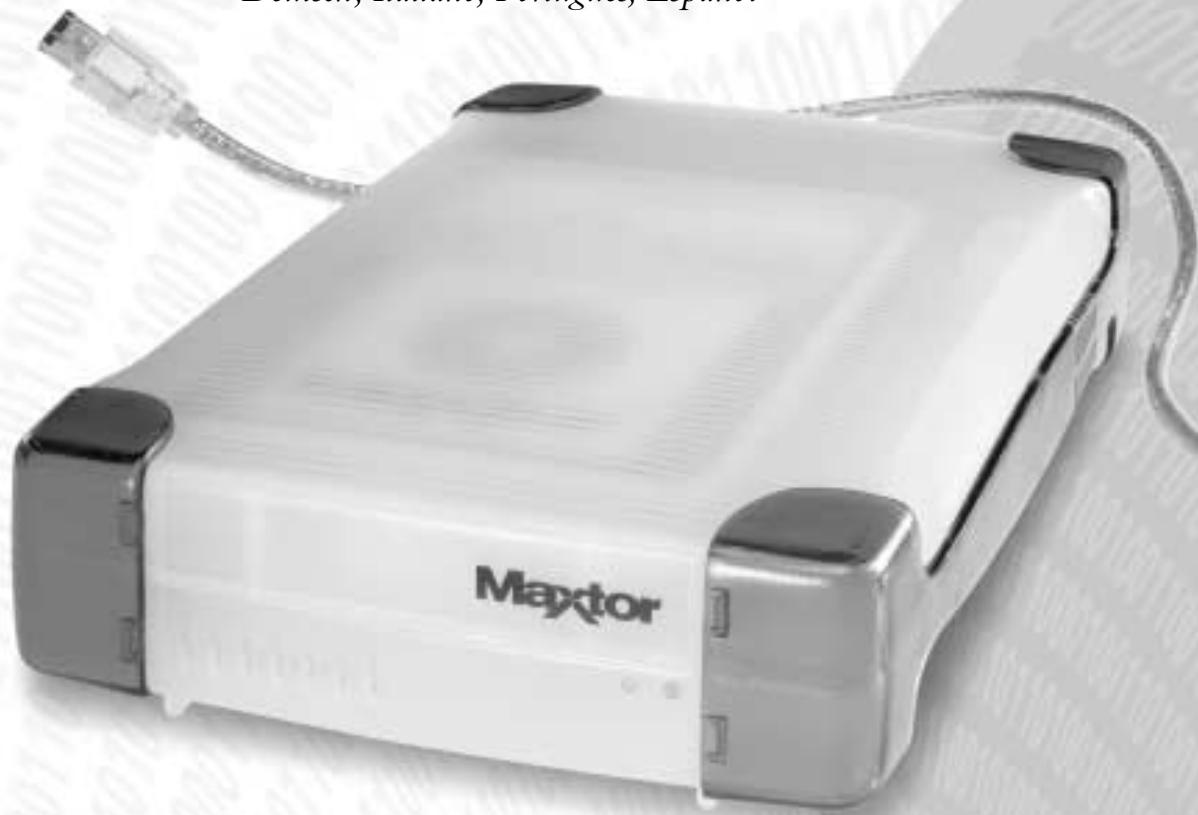
1 Pre Installation
Thank You
Thank you for selecting a Maxtor Personal Storage product. Please follow these instructions to take full advantage of its features.
Handling Precautions
If these handling precautions are not followed, damage to the Personal Storage product may result - which may void your product warranty. Please see the Warranty section for additional information.
- DO NOT open the product. Opening the product will void the warranty.
- DO NOT bump, jar or drop this device as it may result in loss of data.
- DO NOT stack this product more than three units high.
- DO NOT set or operate the product on its side without an approved cradle from Maxtor. It may fall over and damage the internal hard drive.
- DO NOT disconnect any cables or power while copying files without properly unplugging or unmounting the device via your operating system - as this can result in data loss and possible damage to the internal hard drive.
- DO NOT set any liquids or drinks on the product - as they will damage the internal electronics.
- NOT intended as a portable product.
Hardware and Operating System Requirements for Macintosh
- Power PC with on-board FireWire ports (iMac DV, G3 or higher)
Full version of Mac OS 8.6 or higher - Apple FireWire extension 2.3.3 or higher
- At least 32MB of RAM
An Internet connection
2 Kit Components
The Maxtor Personal Storage product comes complete with the components shown here. Please familiarise yourself with each of these items prior to installation.
Personal Storage
Power Adapter
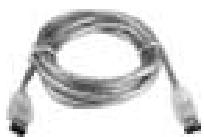
1394 Cable
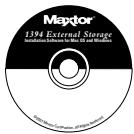
CD-ROM
3 Hardware Installation
Urgent Notice for 160GB Products
The 160GB Personal Storage product cannot be used to transport data between Windows-based PC's and Macintosh computer systems. Do not connect it to a Mac running OS X if the personal storage product has previously been installed on a PC. Connecting the product to a Mac running OS X after it has been used on a PC will result immediately in lost data.
To use Maxtor Personal Storage products with 160GB capacity or higher on your Macintosh running OS X, you must first reformat the drive. The Mac OS Disk Utility will guide you through the process.
REFORMATTING THE DRIVE WILL DESTROY DATA STORED ON THAT DRIVE
Additional Note
The 160GB Maxtor Personal Storage model is not supported as a boot drive for Macintosh systems.
Personal Storage Installation
To connect your new Maxtor Personal Storage product to your computer, please follow these simple steps. If these steps are not performed in order, your product may not function properly.
Power Cord Connections
- Ensure that your computer is on and running one of the required operating systems.
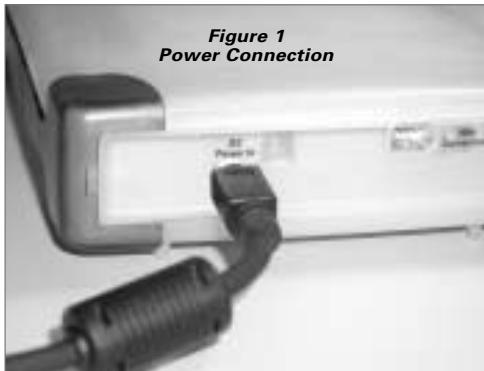
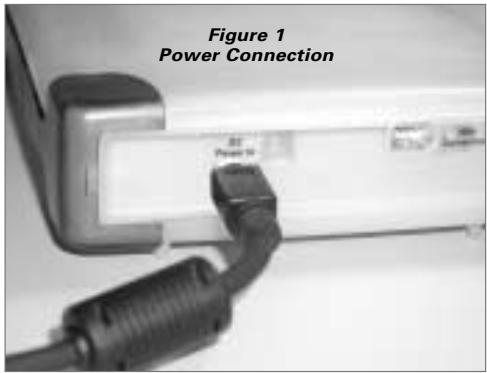
- Plug the four-pin male connector with the flat side facing up into the back of the product's DC power-in connector (Figure 1).
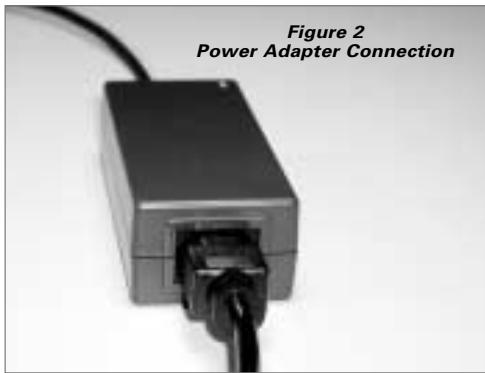
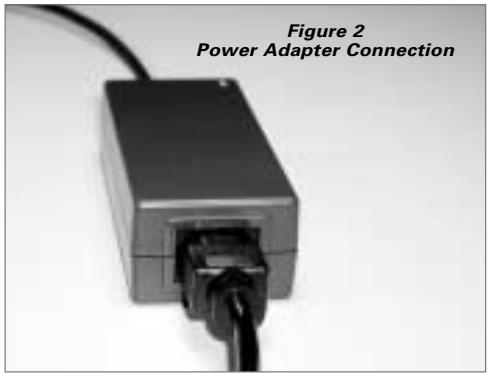
- Connect the female end of the electric cord into the power adapter (Figure 2).
- Plug the male connector from the power adapter into power outlet.
1394 Data Cable Connections
- Plug one end of the translucent 1394 cable into any available 1394 port on your computer.
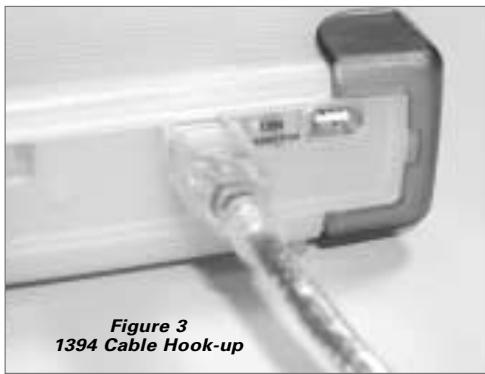
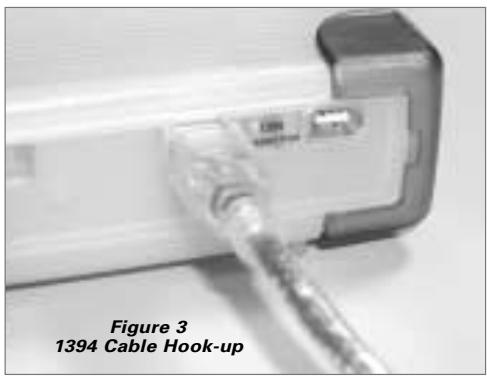
- Plug the other end of the translucent 1394 cable into either of the 1394 connections on the product (Figure 3).
4 Macintosh Software Setup
Note: Software setup does not apply to Mac OS X.
- Please close all open programs before you begin the software installation.
- Check your system's FireWire version. Go to the Apple icon, open the Apple System Profiler program and click on the Devices and Volumes tab. See sample screen:
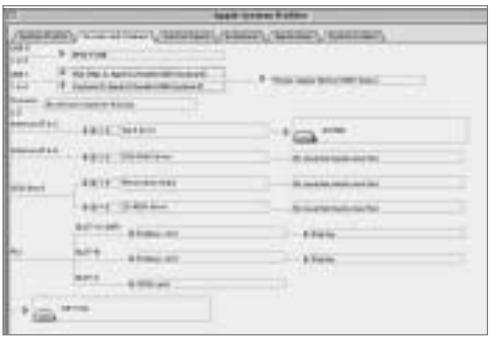
Note: You will need Apple FireWire extension 2.3.3 or higher.
- Insert the Maxtor Personal Storage CD into your CD-ROM drive. The following window will appear:
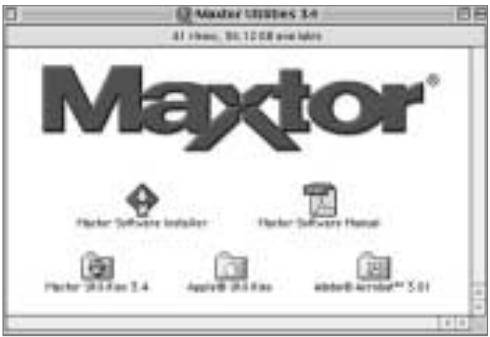
- Double-click on the Maxtor Software Installer icon. The license agreement screen will display. Click I Agree.
- In the save dialog box, click Save to create a folder on your desktop called Maxtor 1394 Storage.
- Restart your system.
Note: Once your system restarts, you will see a PC-DOS drive. This is your new Maxtor Firewire storage. You can either use it "as is" or use the Maxtor utility to re-initialise the drive (recommended).
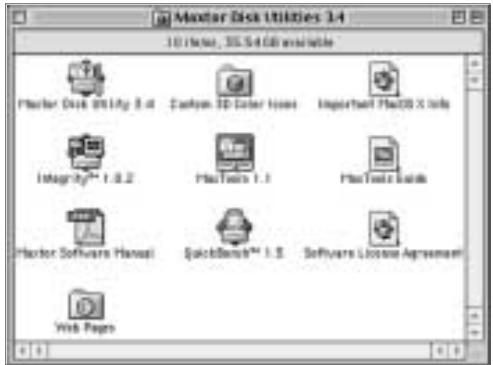
- Double click on the Maxtor Software icon on your desktop. You will see the following window:
5 Operating Tips
Disconnecting the Product
While in the Finder, drag the drive icon to theTrash. Then you may disconnect the Personal Storage product.
Re-attaching the Product
To re-attach the Personal Storage product, simply re-insert the 1394 cable into the product and your computer. Make sure the product is getting power.
Spin down Power Management
If you want to spin down your Personal Storage product...
and your operating system is: try this first:
| Mac OS X | From the Apple Menu go to System Preferences and select Energy Saver. |
| Mac OS 9.x | From the Apple Menu go to Control Panels and select Energy Saver. |
| Mac OS 8.6 | From the Apple Menu go to Control Panels and select Energy Saver. |
MaxTools Power Management
For more information about Maxtor's power management utility, MaxTools, visit our website at: www.maxtor.com.
6 Product Registration
Take advantage of the benefits!
By registering your new Personal Storage product, you'll have the option to receive product updates, special offers, and important information about other data storage solutions from Maxtor.
Simply point your web browser to: www.maxtor.com - go to the product registration page, and complete the short questionnaire.
Product Warranty
Maxtor's warranty obligations are limited to the terms set forth: Maxtor warrants only to the original consumer purchaser that new Maxtor Personal Storage products will be free from defects in material and workmanship for 1 year from the date of original purchase. Indigita has warranted to Maxtor that the Personal Storage Installation Software materially conforms to the specifications. Any other software product which may be distributed herewith are "AS IS" and without any warranty.
For a replacement Personal Storage product, the warranty on the replacement device is the remainder of the warranty on the original device or 90 days, whichever is longer. If you discover a defect, Maxtor will, at its option, repair or replace the product at no charge to you, provided you return it during the warranty period, with transportation charges prepaid, to Maxtor in Ireland, Singapore or the USA.
Personal Storage products must be properly packaged in Maxtor packaging or Maxtor approved packaging to obtain warranty service. Before returning a Maxtor product, please contact Maxtor at: +353 1 204 1111 (in Europe) or 1-800-2MAXTOR (in U.S.) to obtain a Return Material Authorization (RMA) number. A copy of the receipt or a bill of sale bearing the appropriate Maxtor serial number and model number may be required for warranty service. The warranty applies only to the Maxtor products that can be identified by the Maxtor trademark, trade name, serial number or logo affixed to them. Maxtor does not warrant any product that is not manufactured by, for or with permission from Maxtor.
This warranty is not applicable to: Abnormal wear and tear; Abuse, unreasonable use, mistreatment, or neglect; Damage caused during installation of the Product; Damage caused by the equipment or system with which the product is used; Damage caused by modification or repair not made or authorized by Maxtor; Product whose Maxtor Serial Number has been removed or defaced; Damage caused by liquids in the product case; Damage to the products' interface or power connectors; Damage caused by use of non-Maxtor packaging; Damage caused by improper or improperly used packaging; Products that are determined to be stolen.
THIS WARRANTY AND REMEDIES SET FORTH ABOVE ARE EXCLUSIVE AND IN LIEU OF ALL OTHERS, WHETHER ORAL OR WRITTEN, EXPRESSED OR IMPLIED. MAXTOR SPECIFICALLY DISCLAIMS ANY AND ALL IMPLIED WARRANTYINGS, INCLUDING, WITHOUT LIMITATION, WARRANTYES OF MERCHANTABILITY AND FITNESS FOR A PARTICULAR PURPOSE AND AGAINST INFRINGEMENT. additionally, maxtor does not warrant that the personal storage installation software distributed in the Personal storage kit will meet your requirements noR the performance or results that the operation of the program will be uninterrupted or error free. No Maxtor dealer, agent or employee is authorized to make any modification, extension or addition to this warranty.
MAXTOR IS NOT RESPONSIBLE FOR SPECIAL, INCIDENTAL, INDIRECT OR CONSEQUENTIAL DAMAGES RESULTING FROM ANY BREACH OF WARRANTY, OR UNDER ANY OTHER LEGAL THEORY, INCLUDING BUT NOT LIMITED TO LOSS OF DATA, LOSS OF PROFITS, DOWNTIME, GOODWILL, DAMAGE OR REPLACEMENT OF EQUIPMENT AND PROPERTY, AND ANY COSTS OF RECOVERING, PROGRAMMING OR REPRODUCING ANY PROGRAM OR DATA STORED IN OR USED WITH MAXTOR DISK DRIVES OR MAXTOR PERSONAL STORAGE PRODUCTS CONTAINING MAXTOR DISK DRIVES or any software product distributed therewith.
Some states/jurisdictions do not allow the exclusion or limitation of incidental or consequential damages or exclusions of implied warranties, so the above limitations or exclusions may not apply to you. This warranty gives you specific legal rights, and you may also have other rights that vary from jurisdiction to jurisdiction.
Maxtor may make changes or improvements in the product(s) described in this publication at any time and without notice. This product tested to comply with FCC standards for home or office use.
Copyright © 2002 Maxtor Corporation. All rights reserved. Printed in Holland, 1/02.
Maxtor® is a registered trademark of Maxtor Corporation. Other brands or products are trademarks or registered trademarks of their respective holders.
Contacting Maxtor
European Technical Assistance and Customer Support
Technical assistance and customer support is available from 8.30am to 5pm (GMT) Monday to Thursday and from 8.30am to 4pm (GMT) Friday.
| Multilingual Support: | English, French and German |
| Telephone: | +353 1 204 1111 (all countries) |
| 08 25 31 43 22 (in France) | |
| 01801 62 98 67 (in Germany) |
E-mail: www.maxtor.com
Fax: +353 1 286 1419
Maxtor on the Internet
Home Page: http://www.maxtor.com
MaxFax Service
Use a touch-tone phone to order technical documents from our 24 hour automated fax retrieval system.
Telephone: +353 1 204 1122
US & Canada Technical Assistance and Customer Support
1-800-262-9867 Product Support and Customer Service Agents are available from 6 a.m. to 6 p.m. (mountain time) Monday - Friday.
Maxtor on the Internet
Homepage: http://www.maxtor.com
Maxtor via E-mail
Customer Service E-mail: www.maxtor.com
Maxtor Outside the U.S. and Canada
Customer Support: 303-678-2015
MaxInfo: 303-678-2015, press 1
MaxFax: 303-678-2618
Australia & Asia-Pacific
Language Support: English
Vox: +61-2-9369-3662
Fax: +61-2-9369-2082
MaxFax: +61-2-9369-4733
BBS: +61-2-9369-4293
Asia-Pacific Technical Assistance
Tech Assistance Email page
http://www.maxtor.com/contactUs/emailmta.html
Customer Service Email page
http://www.maxtor.com/contactUs/emailcs.html
1 Klargøring
Tak
Tak, fordu valgte et Maxtor Personal Storage-produkt. Folg vegledingen for at udnytte alle Produkts faciliteter.
Forholdsgreglervedhandtering
3 Installation of hardware
Installation of Personal Storage
4 Installation at Macintosh
Bemark! Installationen gelder-ilke Mac OS X.
6 Productregistration
Assistance technique Asie-Pacific
Australia e Asia Pacifico
Thank you for selecting a Maxtor Personal Storage product. Please follow these instructions to take full advantage of its features.
Handling Precautions
If these handling precautions are not followed, damage to the Personal Storage product may result - which may void your product warranty. Please see the Warranty section for additional information.
- DO NOT open the product. Opening the product will void the warranty.
- DO NOT bump, jar or drop this device as it may result in loss of data.
- DO NOT stack this product more than three units high.
- DO NOT set or operate the product on its side without an approved cradle from Maxtor. It may fall over and damage the internal hard drive.
- DO NOT disconnect any cables or power while copying files without properly unplugging or unmounting the device via your operating system - as this can result in data loss and possible damage to the internal hard drive.
- DO NOT set any liquids or drinks on the product - as they will damage the internal electronics.
- NOT intended as a portable product.
Hardware and Operating System Requirements for Windows PC
- Pentium II-class or higher
- At least 32MB of RAM
- An IEEE 1394 (iLINK, FireWire) interface connection on your system
An Internet connection - Windows 98 Second Edition, Windows Millennium Edition, Windows 2000 or Windows XP
2 Kit Components
The Maxtor Personal Storage product comes complete with the components shown here. Please familiarise yourself with each of these items prior to installation.
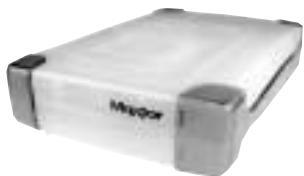
Personal Storage
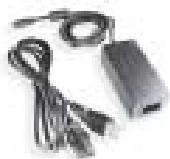
Power Adapter
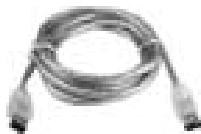
1394 Cable

CD-ROM
3 Hardware Installation
Personal Storage Installation
To connect your new Maxtor Personal Storage product to your computer, please follow these simple steps. If these steps are not performed in order, your product may not function properly.
Power Cord Connections
- Ensure that your computer is on and running one of the required operating systems.
- Plug the four-pin male connector with the flat side facing up into the back of the product's DC power-in connector (Figure 1).
- Connect the female end of the electric cord into the power adapter (Figure 2).
- Plug the male connector from the power adapter into power outlet.
1394 Data Cable Connections
- Plug one end of the translucent 1394 cable into any available 1394 port on your computer.
- Plug the other end of the translucent 1394 cable into either of the 1394 connections on the product (Figure 3).
4 Windows Software Setup
Maxtor has configured your new Personal Storage product into a single FAT 32 partition.
Windows 98SE Users
Windows 98 SE users will be prompted to insert the Windows 98SE CD-ROM when the product starts up.
You will see 4 Version Conflict dialog boxes: Click YES and keep the existing files. DO NOT CANCEL, or the drivers will not load properly. The dialog boxes will only display the first time you install the product and may only show up with the Retail version of Windows 98SE.
If you restart your system and it does not recognize your new Personal Storage product, you may need a driver update from Microsoft. See the instructions below for downloading the Critical Updates for Windows 98SE.
Personal Storage Product
If you do not see the icon (right) in the icon tray of your start bar located on the right side, you need to obtain the Critical Updates from Microsoft.

1394 PCI Adapter Card
If you are using another brand of 1394 card or computer with an integrated 1394 interface and have the Microsoft Critical Updates, you will need to obtain the 1394 drivers from the manufacturer of that card or system.
To obtain the Microsoft Critical Updates:
- Click on the START button located on your toolbar.
- Select the Windows Updates option. (This will launch your browser to the appropriate URL for your Operating System in the language that you are using.)
- Click on the Product Updates option. (This option will examine your system and prompt you to download the necessary updates.)
If you're still experiencing trouble after running Critical Updates, Microsoft recommends that you download the Windows 98SE 1394 Storage Supplement from www.microsoft.com.
5 Operating Tips
Disconnecting the Product
Right click on the Windows Unplug or Eject Hardware icon in your system icon tray located at the bottom right corner of your screen.

Reattaching the Product
To reattach the Personal Storage product, simply re-insert the 1394 cable into the product and your computer. Make sure the product is getting power.
Spin down Power Management
If you want to spin down your Personal Storage product...
and your
| operating system is: | try this first: |
| Windows XP | Click on Start. Go to Settings. Go to Control Panel. Select Power Options. |
| Windows 2000 | Click on Start. Go to Settings. Go to Control Panel. Select Power Options. |
| Windows Millennium Edition | Spinning down external hard drives not supported by operating system. |
| Windows 98 Second Edition | Spinning down external hard drives not supported by operating system. |
MaxTools Power Management
For more information about Maxtor's power management utility, MaxTools, visit our website at: www.maxtor.com.
5 Operating Tips continued
Notes on using the Maxtor Personal Storage products with capacities of 160GB or higher with the Windows Operating System
| Windows 98SE | Windows ME | Windows 2000, XP | |
| File System: FAT32, NTFS | FAT32 operates properly with partition up to 160GB | FAT32 operates properly with partition up to 160GB | FAT32 and NTFS operates properly with partition up to 160GB |
| FDISK, FORMAT | FDISK and FORMAT - two known bugs, see Notes 1 and 2 | FDISK and FORMAT - two known bugs, see Note 1 | NTFS operates properly with partition up to 160GB Cannot format partition >32GB in FAT32 |
| Defrag and ScanDisk | Defrag and ScanDisk limited to partition <127GB, see Note 3 | Operates properly with partition up to 160GB | Operates properly with partition up to 160GB |
Note 1: On disks larger than 64GB (Windows 98SE), both the FDISK and FORMAT utilities perform their functions properly, but they display an incorrect disk size on the screen. A similar problem has been observed with Windows ME at larger disk sizes (starting somewhere above 80GB). Further information is available on Microsoft's support web site at:
http://support.microsoft.com/support/kb/articles/Q263/0/44.ASP
http://support.microsoft.com/support/kb/articles/Q263/0/45.ASP
Note 2: The FDISK utility may not run properly after an external disk drive has been disconnected and reconnected. It is recommended the user reboot the computer before running FDISK.
Note 3: Neither the ScanDisk nor Defrag utilities will operate on drive partitions larger than 127GB. Further information is available on Microsoft's support web site at:
http://support.microsoft.com/support/kb/articles/Q184/0/06.ASP
Third party utilities, including Norton System Works 2000 and 2002, can be used to replace the functionality of the ScanDisk and Defrag utilities.
6 Product Registration
Take advantage of the benefits!
By registering your new Personal Storage product, you'll have the option to receive product updates, special offers, and important information about other data storage solutions from Maxtor.
Simply point your web browser to: www.maxtor.com - go to the product registration page, and complete the short questionnaire.
Product Warranty
Maxtor's warranty obligations are limited to the terms set forth: Maxtor warrants only to the original consumer purchaser that new Maxtor Personal Storage products will be free from defects in material and workmanship for 1 year from the date of original purchase. Indigita has warranted to Maxtor that the Personal Storage Installation Software materially conforms to the specifications. Any other software product which may be distributed herewith as "AS IS" and without any warranty.
For a replacement Personal Storage product, the warranty on the replacement device is the remainder of the warranty on the original device or 90 days, whichever is longer. If you discover a defect, Maxtor will, at its option, repair or replace the product at no charge to you, provided you return it during the warranty period, with transportation charges prepaid, to Maxtor in Ireland, Singapore or the USA.
Personal Storage products must be properly packaged in Maxtor packaging or Maxtor approved packaging to obtain warranty service. Before returning a Maxtor product, please contact Maxtor at: +353 1 204 1111 (in Europe) or 1-800-2MAXTOR (in U.S.) to obtain a Return Material Authorization (RMA) number. A copy of the receipt or a bill of sale bearing the appropriate Maxtor serial number and model number may be required for warranty service. The warranty applies only to the Maxtor products that can be identified by the Maxtor trademark, trade name, serial number or logo affixed to them. Maxtor does not warrant any product that is not manufactured by, for or with permission from Maxtor.
This warranty is not applicable to: Abnormal wear and tear; Abuse, unreasonable use, mistreatment, or neglect; Damage caused during installation of the Product; Damage caused by the equipment or system with which the product is used; Damage caused by modification or repair not made or authorized by Maxtor; Product whose Maxtor Serial Number has been removed or defaced; Damage caused by liquids in the product case; Damage to the products' interface or power connectors; Damage caused by use of non-Maxtor packaging; Damage caused by improper or improperly used packaging; Products that are determined to be stolen.
THIS WARRANTY AND REMEDIES SET FORTH ABOVE ARE EXCLUSIVE AND IN LIEU OF ALL OTHERS, WHETHER ORAL OR WRITTEN, EXPRESSED OR IMPLIED MAXTOR SPECIFICALLY DISCLAIMS ANY AND ALL IMPLIED WARRANTY, INCLUDING, WITHOUT LIMITATION, WARRANTY OF MERCHANTABILITY AND FITNESS FOR A PARTICULAR PURPOSE AND AGAINST INFRINGEMENT. additionally, maxtor does not warrant that the personal storage installation software distributed in the Personal storage kit will meet your requirements noR the performance or results that the operation of the program will be uninterrupted or error free. No Maxtor dealer, agent or employee is authorized to make any modification, extension or addition to this warranty.
MAXTOR IS NOT RESPONSIBLE FOR SPECIAL, INCIDENTAL, INDIRECT OR CONSEQUENTIAL DAMAGES RESULTING FROM ANY BREACH OF WARRANTY, OR UNDER ANY OTHER LEGAL THEORY, INCLUDING BUT NOT LIMITED TO LOSS OF DATA, LOSS OF PROFITS, DOWNTIME, GOODWILL, DAMAGE OR REPLACEMENT OF EQUIPMENT AND PROPERTY, AND ANY COSTS OF RECOVERING, PROGRAMMING OR REPRODUCING ANY PROGRAM OR DATA STORED IN OR USED WITH MAXTOR DISK DRIVES OR MAXTOR PERSONAL STORAGE PRODUCTS CONTAINING MAXTOR DISK DRIVES or any software product distributed therewith.
Some states/jurisdictions do not allow the exclusion or limitation of incidental or consequential damages or exclusions of implied warranties, so the above limitations or exclusions may not apply to you. This warranty gives you specific legal rights, and you may also have other rights that vary from jurisdiction to jurisdiction.
Maxtor may make changes or improvements in the product(s) described in this publication at any time and without notice. This product tested to comply with FCC standards for home or office use.
Copyright © 2002 Maxtor Corporation. All rights reserved. Printed in Holland, 1/02. Maxtor is a registered trademark of Maxtor Corporation. Other brands or products are trademarks or registered trademarks of their respective holders.
Contacting Maxtor
European Technical Assistance and Customer Support
Technical assistance and customer support is available from 8.30am to 5pm (GMT) Monday to Thursday and from 8.30am to 4pm (GMT) Friday.
| Multilingual Support: | English, French and German |
| Telephone: | +353 1 204 1111 (all countries) |
| 08 25 31 43 22 (in France) | |
| 01801 62 98 67 (in Germany) | |
| E-mail: | www.maxtor.com |
| Fax: | +353 1 286 1419 |
Maxtor on the Internet
Home Page: http://www.maxtor.com
MaxFax Service
Use a touch-tone phone to order technical documents from our 24 hour automated fax retrieval system.
Telephone: +353 1 204 1122
US & Canada Technical Assistance and Customer Support
1-800-262-9867 Product Support and Customer Service Agents are available from 6 a.m. to 6 p.m. (mountain time) Monday - Friday.
Maxtor on the Internet
Homepage: http://www.maxtor.com
Maxtor via E-mail
Customer Service E-mail: www.maxtor.com
Maxtor Outside the U.S. and Canada
Customer Support: 303-678-2015
MaxInfo: 303-678-2015, press 1
MaxFax: 303-678-2618
Australia & Asia-Pacific
| Language Support: | English |
| Vox: | +61-2-9369-3662 |
| Fax: | +61-2-9369-2082 |
| MaxFax®: | +61-2-9369-4733 |
| BBS: | +61-2-9369-4293 |
Asia-Pacific Technical Assistance
Tech Assistance Email page
http://www.maxtor.com/contactUs/emailmta.html
Customer Service Email page
http://www.maxtor.com/contactUs/emailcs.html
page intentionally blank
1 Klargøring
Tak
3 Installation of hardware
Installation of Personal Storage
Folg den enkle vegjedning nedenfor for at slutte det nye Maxtor Personal Storage-productt til computeren.
4 Installation at Windows-software
Maxtor leverer det nye Personal Storage-produkt med én stor FAT 32-partition.
page intentionally blank
6 Productregistration
page intentionally blank
1 Pré-installation
Merci
Assistance technique Asie-Pacific
page intentionally blank
1 Ennen asentamista
Kiitos
page intentionally blank
1 Vorder Installation
Vielen Dank.
page intentionally blank
Mediating the registration of new products in the storage sector is a key to ensure that the storage system can be used effectively. The storage system should be able to provide information about the current and future production needs, as well as the current and future production plans.
Australia e Asia Pacifico
page intentionally blank
1 Pré-Instalacao
Obrigado
page intentionally blank
page intentionally blank


- MULTILINGUAL INSTALLATION GUIDE
- 1 PRE INSTALLATION
- THANK YOU
- HANDLING PRECAUTIONS
- HARDWARE AND OPERATING SYSTEM REQUIREMENTS FOR MACINTOSH
- 2 KIT COMPONENTS
- 3 HARDWARE INSTALLATION
- URGENT NOTICE FOR 160GB PRODUCTS
- REFORMATTING THE DRIVE WILL DESTROY DATA STORED ON THAT DRIVE
- ADDITIONAL NOTE
- PERSONAL STORAGE INSTALLATION
- POWER CORD CONNECTIONS
- 1394 DATA CABLE CONNECTIONS
- 4 MACINTOSH SOFTWARE SETUP
- 5 OPERATING TIPS
- DISCONNECTING THE PRODUCT
- RE-ATTACHING THE PRODUCT
- SPIN DOWN POWER MANAGEMENT
- MAXTOOLS POWER MANAGEMENT
- 6 PRODUCT REGISTRATION
- TAKE ADVANTAGE OF THE BENEFITS
- PRODUCT WARRANTY
- CONTACTING MAXTOR
- EUROPEAN TECHNICAL ASSISTANCE AND CUSTOMER SUPPORT
- MAXTOR ON THE INTERNET
- MAXFAX SERVICE
- US & CANADA TECHNICAL ASSISTANCE AND CUSTOMER SUPPORT
- MAXTOR VIA E-MAIL
- MAXTOR OUTSIDE THE U.S. AND CANADA
- AUSTRALIA & ASIA-PACIFIC
- ASIA-PACIFIC TECHNICAL ASSISTANCE
- TECH ASSISTANCE EMAIL PAGE
- CUSTOMER SERVICE EMAIL PAGE
- 1 KLARGØRING
- TAK
- FORHOLDSGREGLERVEDHANDTERING
- 3 INSTALLATION OF HARDWARE
- INSTALLATION OF PERSONAL STORAGE
- 4 INSTALLATION AT MACINTOSH
- 6 PRODUCTREGISTRATION
- ASSISTANCE TECHNIQUE ASIE-PACIFIC
- AUSTRALIA E ASIA PACIFICO
- HARDWARE AND OPERATING SYSTEM REQUIREMENTS FOR WINDOWS PC
- 4 WINDOWS SOFTWARE SETUP
- WINDOWS 98SE USERS
- PERSONAL STORAGE PRODUCT
- 1394 PCI ADAPTER CARD
- REATTACHING THE PRODUCT
- 5 OPERATING TIPS CONTINUED
- 4 INSTALLATION AT WINDOWS-SOFTWARE
- 1 PRÉ-INSTALLATION
- MERCI
- 1 ENNEN ASENTAMISTA
- KIITOS
- 1 VORDER INSTALLATION
- VIELEN DANK
- 1 PRÉ-INSTALACAO
- OBRIGADO
Brand : SEAGATE
Model : 1394
Category : External hard drive