
UR 2300 - Remote control VIVANCO - Free user manual and instructions
Find the device manual for free UR 2300 VIVANCO in PDF.



| Product type | Universal infrared remote control |
| Brand | VIVANCO |
| Model | UR 2300 |
| Compatible devices | TV, Satellite/Decoder, DVD/Blu-ray player |
| Number of keys | About 40 |
| Infrared range | 8 to 10 meters |
| Operating frequency | 38 kHz (standard) |
| Power supply | 3 AAA (R03) alkaline batteries 1.5 V |
| Battery life | Variable depending on use |
| Backlight | Yes, switchable via Power and CH/SKIP keys |
| Dimensions (L x W x H) | ~210 x 48 x 25 mm |
| Weight (with batteries) | ~150 g |
| Material | ABS plastic |
| Care and cleaning | Clean with a soft, dry cloth. Do not use solvents. |
| Safety | Do not expose to moisture or excessive heat. Keep out of reach of children. |
| Warranty | 2 years (free replacement in case of defect) |
| Repairability | Not user-repairable. Only batteries are replaceable. |
| Spare parts | Not available separately |
| General information | Not compatible with devices operating at 400 kHz. Code programming or auto search. |
Frequently Asked Questions - UR 2300 VIVANCO
User questions about UR 2300 VIVANCO
0 question about this device. Answer the ones you know or ask your own.
Ask a new question about this device
Download the instructions for your Remote control in PDF format for free! Find your manual UR 2300 - VIVANCO and take your electronic device back in hand. On this page are published all the documents necessary for the use of your device. UR 2300 by VIVANCO.
USER MANUAL UR 2300 VIVANCO
Inserting the batteries
Open the battery compartment on the underside of the remote.. Then insert 3 AAA batteries. Make sure that the polarity is correct: the "+" and "-" markings on the batteries and in the compartment must match.
- To check functionality, press any button. If
everything is correct, light will be visible when a button is pressed.
Adapting to Appliances
In order to control your appliances you must adapt or set the remote control to them. There are three ways of doing so:
Direct control code entry
Example: Setting to control a Philips television set:
1 The attached list gives, for example, the Philips Code 0099.
| Philharmonic | 0035 | |||
| Philips | 0001 | 0005 | 0014 | 0027 |
| 0097 | 0099 | 0142 | 0143 | |
| Phocus | 0138 | 0232 | 0234 |
-Please make sure you have selected the code from correct list for television sets (TV).
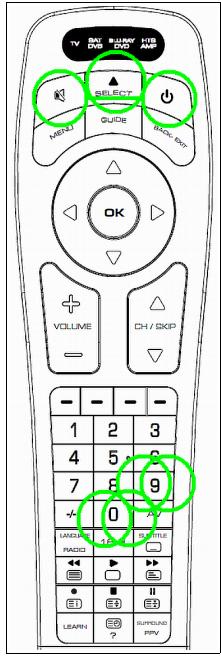
2 Press (power) button and then (mute) button simultaneously until a device lamp (LED) lights constantly.
3 Press SELECT button as often until e.g. TV led is on.
- If you don't press SELECT the led indicates the device to be set.
4 Then press number buttons (e.g. 0 0 9 9) in sequence.
5 Once the numbers have been entered the lamp goes out and the remote control is ready to control your appli
ance.
6 Finally, test the control code setting by trying to control, in this example, your television set. If it does not work at all or not correctly try a different code from the list or the code search (see below).
7 To set the remote control for other appliances, proceed in the same way. Instead of the TV appliance select another device e.g.
SAT/DVB (SAT, DECODER), DVD/BLU RAY or HTS/AMP(UR 2400 only).
- You terminate the mode by pressing button or by code input interruption of more than 10 seconds.
- If lamp flashes twice code was not accepted and code input can be started again.
Code search
If the brand of your appliance is not in the list or none of the codes given fits, we recommend a code search.
Manual and Automatic code search
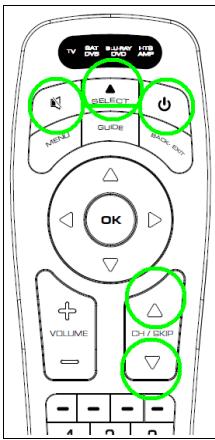
or CH/SKIP▼ button about any 1 second so often until the appliance, e.g. your TV reacts by power off.
1 Switch on the appliance to be controlled. Program is running.
2 Press (power) button and then (mute) button simultaneously until a device lamp (LED) lights constantly.
3 Press SELECT button as often until e.g. TV led is on.
4 Then point the remote control at the appliance to be controlled.
5 Press the CH/SKIP
- You can invert search direction by changing from button to and vice versa.
- If your appliance has switched itself off, you must switch it on again, e.g. on the appliance or with the original remote control, to continue searching.
- When your appliance reacts you can also try out other buttons, except or or OK, without interrupting the search. If some buttons do not work properly, simply continue searching by pressing or again.
6 Enable and disable Automatic code search: Press and hold or button until device lamp (LED) turns off. Then one power on/off command per code is send out, one after the other and device led is flashing. Switch to Manual Code Search again by pressing any button, except OK.
7 When your appliance reacts correctly, press (or OK) button, for end of searching and saving of found code. The lamp (LED) goes out.
- The last code entered remains stored. The search stops after approx. 30 seconds of inactivity or at end of code list.
Code identification
You can read off the 4-digit codes you have set at any time:
1 Press SELECT button as often until e.g. TV led is on.
2 Press U (power) button and then 1, 2, 3 or 4 button simultaneously depending on the part
of the code you want to read off. For example, if you press U + 1 and the set code is e.g. 1234, the lamp blinks once after U + 1 is pressed to indicate that the thousands figure is 1. All you have to do is to count. The hundreds figure is indicated after pressing U + 2 , e.g. it blinks 2 times for the 2 in 1234. The tens figure is indicated after U + 3 is pressed, e.g. it blinks 3 times for the 3 in 1234. The unit figure is indicated after U + 4 is pressed, e.g. it blinks 4 times for the 4 in 1234.
- There will be no flash in case of 0 indication..
Learning of Missing Control Functions (UR 2400 only)
The LEARN function is used to supplement the preprogrammed codes. The standard code may provide most of functions needed, but you may miss some button functions. Or you didn't find any functioning preprogrammed code for a device. You can capture upto 206 button function codes, max. 40 per device. The last captured function will overwrite the previous. learnt.
1 For learning of button codes you must use a functioning original remote controller. Please use fresh batteries for both remote controls.
2 Please point the original remote control transmitter LED towards the receiver LED of UR 2400 (placed on top, same as transmitter LED). Distance of LEDs between both remotes shall be approximately 1 - 2cm and must be in straight line of sight.
- Sometimes you have to move the remotes a
bit too and fro while learning, in order to find right positions.
3 Press the LEARN button for about 3 seconds until the LED (lamp) turns on.
4 Press SELECT button to select to be controlled device as often until TVLED is on.
5 Press and release the target button on the UR 2400, that you want to learn (reprogram) (e.g. POWER), the LED starts flashing.
6 Press and hold the source button on the original remote control (e.g. POWER) until the LED on your UR 2400 remote control stops flashing and changes to on again. That indicates that a new function code, e.g. POWER, has been learnt.
7 Repeat steps 5 to 6 for capturing more button functions.
8 Press and release LEARN button for exit of learning mode.
- The controller will exit the learning mode automatically after about 10 seconds of inactivity.
Memory full indication: If the memory is full, the LED flashes 2 times and then a programmed button can be overwritten.
Reset/deletion of a single learnt button function
1 Press LEARN button and then 1 button simultaneously until a device lamp (LED) lights constantly.
2 Press SELECT button to select device, which belongs to the to be deleted button function as often until e.g. TVLED is on.
3 Press the button of which the captured function shall be deleted, e.g. 3, briefly. The LED will flash once and the learnt button function is deleted.
4 Press and release LEARN button for exit of deletion mode.
Reset/deletion of all learnt button functions for a device
1 Press SELECT button to select device, of which all learnt button codes shall be deleted, as often until requested device LED e.g. TV is on.
2 Press LEARN button and then 3 button simultaneously until device lamp (LED) goes out. Then release buttons. LED will flash twice. All learnt button functions of selected device will be deleted.
Assigning volume and mute button exclusively to one appliance (punch through)
1 Press O (power) button and then VOLUME+ button simultaneously until device lamp (LED) lights constantly.
2 Press SELECT button to select the device, which always shall be used for volume control, as often until requested device LED, e.g. TV, is on.
3 Press OK (or) button
Disable volume and mute button punch through function
1 Press 心 (power) button and then VOLUMEbutton simultaneously until device lamp (LED)
lights constantly.
2 Press 0 button and punch through will be disabled
Program Macros (Home Cinema Application)
(UR 2400 only)
You can program up to 5 sequences, called macros, of up to 16 control commands each to be output on pressing on one single button.
1 Press LEARN button and then (power) button simultaneously until a device lamp (LED) lights constantly.
2 Press SELECT button to select the device mode on which you like to set a macro button, e.g. until TVLED is on.
3 Press any button except LEARN and SELECT, e.g. RED, which you like to operate a macro sequence. LED flashes twice and then stays on.
4 Program the macro sequence, e.g. "All Devices Off", by pressing buttons SELECT TV, (power), SELECT SAT/DVB, (power), SELECT BLURAY/DVD, (power), SELECT HTS/AMP, (power).
- When memory is full LED flashes twice and macro input is terminated.
5 Press LEARN button to save macro and terminate input mode.
6 Test macro by pressing the selected macro button, e.g. RED. Then all devices shall be switched off one after another.
- You can program up to 4 further macro sequences.
Delete Macros
1 Press LEARN button and then (power) button simultaneously until a device lamp (LED) lights constantly.
2 Press SELECT button to select the device mode on which you like to delete a macro button, e.g. until TVLED is on.
3 Press the button which operates the to be deleted macro, e.g. RED, for about 3 seconds until LED flashes twice.
4 Press LEARN button to save macro and terminate input mode.
Backlight
1 Press O (power) button and then CH/SKIP▼ button simultaneously until device lamp (LED) flashes twice and light is switched off.
2 Press O (power) button and then CH/SKIP▲ button simultaneously until device lamp (LED) flashes twice and light is switched on.
Operation
You operate your universal remote control basically in exactly the same way as if you were using the original remote control., As the symbols on a universal remote control could differ from those on the original remote controls, you may have to try out all the buttons in order to find the right functions.
Specifications
Batteries: 3 x AAA batteries, R03, UM4
Range: max. 7 m
Not for 400 kHz equipment
2-year works guarantee
Should your remote control cease to work within 2 years of purchasing, you will receive a free replacement from Vivanco. Exceptions: missing codes, deliberate destruction and normal wear and tear of the housing and buttons.
Specifications techniques
Piles: 3 piles rondes, R03, UM4, AAA
Portee: max. 7 m
Anular a funcão Punch through
Ha obpaTHoI CTOpOHe npi6opa, OTKpoIe KpbIshKy OTcEka DnI 6batapeek, BCTaBbTe TpN 6batapeiKn Tnna AAA. CoBNIODaIte nonpHocTb.
-ДЯ npoeepku paobomocnoc6hocmu, haxmume IIObyo KhoIky. JAmna Muahem, ecnu ycmpoucme BO uCnpaHo.
Hacmpouka npu6opoe
YtobIy npabTb BaHIMn np6opamN, HeoXOIMO HacTpOnTb NytD nCTaHcNOHHOrO ynpabHeH. Dn 3TOr OMeHOTc3 BO3MOxHOCTn:
HenocpedcmeHHbI 80d ynpaaJouezo koda
Ipumep: Hacmpouka ducmaunuohnozo ynpaenehura meeneuzopa fupmbi Philips:
1.Из пинохеню почнь Вьберпг,Нар., Кд 0099 Дя Philips.
- PtoKnyIcTa, y6eIntecb B TOM, YTO Bbl BblpaII KOD IaTne TeneBn3opa (TV).
2. OndHOBpeMeHHo HaxMnTe KhoNkY BKn./BbIKN. N KhoNkY OTKJIooHeHn 3ByKa n ydepXnBaIte INx HaKaTbIMn, NOKA He 3aROpNTcCBeToNDnD Bb6paHHoro yCTpoiCTBa.
3. HaximaiTe KhoIky SELECT Do tex nop, noka He 3arOpNTcBETOIOH HyxHoro
yctpoictba (Ha np., TV).
- Ecnu He haxamb KhoNky SELECT (Bb6op), mo 6ydem 6bpaHO om6paxaemoe Ha daHHbI MOMehm ycmpoUcmeo
- Посце 3TOrO, НжмITE посядоватьно
цфробье Кноги (Hapr., 0099).
5.Посlete Ввда сифп,лamноча nогаchetи yctpoiCTBO nICTaHCUOHORO ynpabNeHnroTOROBOKynpablenIO BaAMm npnbopom. - B 3aknIOHe npOBepbTe HacTpoEHbI ynpabJIHOUoi KOD, HAp., TEM, YTO Bbl nonpOBye TynpABNtB BaUNM TeNEBn3OpOM. EcInn 3To He fYNKUHOHpyET nIN fYNKUHOHpyET HENpaBnBHo, TO nonpOByTe nCNOB3OBaTb CNeDyUoU KoD n3 nepeuHry nNN nonCK KOa (CM. HIXe).
- TTo6bI HAcTpOHTb BaU nYbT ДИCTAHQUHNOHOrO UnpaBNeHЯ Дугпe PnIb6Opbl, NOBTOpHTE BblSeONuCAHHyO npoUeUpy. TolbKO BmecTo KHOJIKN TV HaxMnTe KHOJNK Y SELECT SAT/DVB (SAT, DECODER), DVD/BLU RAY mnn HTS/AMP (TOnbKO UR 2400).
- Ppepkammb 80d koda moKHO, HaxaHa
KHOIky OTKNIOUeHn 3Byka coomeemcmeyoumy munny npubopa, unu cdeaaay3y60nee, yem Ha 10 cekyhd.
- lamnoka muhem 2 pa3a, ecnu Bby eeeu HnnpabunbHk oD. Iocne 3mo2o eod koda MOxHO noemopmb.
Nouck Koda
EcnI Mapka npnbopa He yka3aHa B nepeHe
IIN HN OINH N3 yka3aHHbIX KOIOB He NOxOaNT, TO peKoMeHdyETcR IONC KOA.
Pyhou u aemomamuuecku nouck koda
- BkIIOHHTe, noXaIyIcTa, ynpabJIeMbI npi6Op. IporpAmMa BbIOnHЯETcI.
- OndHOBpemHeHo HaxMMTe KONky BKn./BbIKN. IN KONky OTKIIIOeHnI 3Byka N ydePknBaIte INx HaxatbIMn, POKa He 3aROpITcB CBeToNDoD BbIbpaHHoro yCTpoIcTBA.
- Haximai Te KhoIky SELECT Do tex np, noka He 3arOpNTcBcTeOJIOd HxHoro yctpoCTBa (HaNP., TV).
- 3aTeM HnPaBbTe nIbT DnCTaHcUHOrO ynpabHeHa ynpabIeMbI np6Op.
- Heckonbko pa3, cnHTepBaIOM npImepHO B OndHy cekyHny, HaxMITE KhoNkY CH/SKIP ▲ nInn CH/SKIP▼, noka yCTpoiCTBO (Hanp., TeNeBu3Op) He bblKnIOHTcra.
-BbMoKeme U3MeHumb HnpaenHeue nocka,UCNoB3yra KOnku A u▼.
- Ecnu npubop ebiknoucnc, mo Bam Heo6xodmo, eknoumbe 0e0 KhoNko Ha camom npubope, unu npu nOmoU opuaunbHoo nplbma ducmauonHOo ynpaeneHua.
- Ecnu ycmpoucmeo peaaupyem, mo Bbl Moxeme nonbimambcu ucnb3oeamb dpyeue KhONku, KpOME , unu OK, He ebixodur u3 pexuma noucka. Ecnu hekomopbie KhONku He bydym fynkuohupoambnadnexaum o6pa3om, npocmo npodonkaume nouck c NOMOUBKHOHOK A U V
6.BkHouHeNIE BbIKHouHeNIE ABTomTuYeCKOro
NONCKaKOda:HakMNTeUydepKINBaTe KHOJky
A NIO DO Tex NOp, NOKa He NOraCHET
CBToDnOD.B 3TOM Cnyuae NpblT
DInCTAHUONHO ynpabNeHnI
NocLeDoBAtelbNOpePaet NO KoYcRHaJIbI
BKNUOHeN I BbIKHouEnH,N CBeTOINOd
yCTpoiCTBa Miraet. Ppi HaxatNI JIOBOI
KNOHKn, KpOME n OK, NpblT DInCTAHUONHO
ynpaBnEHn CHOBA nepeKlHuOaEtC R pexIM
pyHoro nonCKa KOda.
7. Ecnn Baun npn6op pearnpuyet npabunbHO, to nakmnte npn6opHyo KhoNky (nIN OK) n npekpatnte TakIM o6pa3om nonck. lamnoqka rachet.
- Ppubnuzumelbno uepe3 30 ceK. 6e3deucmeur nouck nppepbiaemcra.
Hdehmufukaua koda
Bbl MoKTe B IIOOe BpeMa CHTaTb yctaHOJIeHbIe YeTbIpex3HaUHbIe KObl:
- HauKImaIte KhoNky SELECT Do tex nop, noka He 3arOpntcBcTeOAnIOy cTpoiCTBa, kOJ KOtOporo BbXoTIe CUnTaTb (Hanp., TV).
- Haxmte a 3aTeM 1, 2, 3 mnn 4 - b 3aBnCMoCTn OTTO, kaoi 3HaK KOda XOTnTE cHTaTb. HanpImep, ecn Bbl haxan +1, a KOD yctahOBJen Ha 1234, CBeToNDIO MmHET OIN pa3. 3To 03Haayet, YTO nepBaI zuFpa KOA - 1. TaKIM o6pa3OM, Bam Heo6xOIMO IuMb HabNDoTa 3a MrrAHHMa CBeToNDoA. Ppi Haxatm +2 BblDaETcB TOpar zuFpa KOA. B daHHOM cnyae CBeToNDIO Mmraet 2* paa (KOd
1234).Pn Haxatn ^+ 3BbIaetcTpeTbIuΦpa KOA.B DaHHom clyuae CBeToNDoM Mnaer T* paa (KoD 1234).Pn Haxatn ^+ 4 BbIaertc NocneJra YnΦpa, t.e. CBeToNDoM Mnaer T* paa (KoD 1234).
-Длгомобрахенянлcaemoduон He Muaem.
Konupoeaue opuzuHaNbHbIX KhoNOK dna obyeHua/pehenmua Heocmaouux fynkuu ynpaeJeHua (TolboKo UR 2400)
Функция LEARN cnyknt kakdoonHneke 3anporpaMMPOBaHHbIM ynpaBnIOUcIM KODAM. B60lbshnHCTBe cnyaeb npeDbaprTeIbHO UCTAHOBLeHbIe KObl MOyT ynpaBJIaTb NOOTB CBEcM FyHKUmaM, HO HeKOTOpbIe N3 HIX OTCYtCTByHT. IINJ Xe, BbI He NaIIN Hn OdHOrO FyHKUOnHpyUoIero KOA.C ΦyHKUnei ObyeHnA, BbI MoXeTe nepeHЯTb C opINHaNbHbIx dInCTaHUnOHbIX ynpaBJIeHm Do 206 KhoNoCHbX KOMaHd, MaKcMym 40 KOMaHd Ha ODN INp6Op. KaJdbI HOBOBbUYeHHbIKHOJOK KOD CTnpaETKOD, KOTOpbI bbl BbIyueHDo TORO
1.Дпя nepeHoca ynpaBlyIouxkOIOB, Bam notpE6byETc npaBHO pa6OtaOuI npnHaJIbHbI pyIbT nCTaHcNIOHOrO ynpaBLeHnI. POKaIyIcTa, nCpOJIb3yIte B 6oONX IyD pONHOCTbI O 3apJKeHNbIe 6aTapeKIn.
2. Oba npbTa DnCTaHIOHHO ynpaBHeHnnoXnTe Ha cTOn TaKIM o6pa3OM, YTObIuHpKaPacHbI DnOJ nepeDaU (LED)OpunHaNbHoro npbTa ynpaBHeHn
HEnocpeDCTBHeHNO NOKa3bIbAIN B HnpaBneHn CBeToDiOda (LED) nylTa ynpaBneHnur UR 2400. OH haxoDntcB B BepxHeu qactn ycTpoiCTBa. PacctoHme Mekdy o6oUMN CBeToDiOamn LED B npramm 3pnteHbOM KOtakTe DoJXHo CoCTabTb npImepHo 1-2 CM.
-Дян haxoxdeHn npaunbHou no3uuu obyeHn oboux nyIbmoe ducmauonHO2O ynpaenHn moXem nompeboeaBc HecKoIbKO pa3 u3MeHumb ux nonoxHeue.
- HaxmTe KhoNkU LEARN u ydePknBaIte ee hakatoi (np6n. 3 ceKynbl), noka He 3aRopntc cBeTOnIOd.
- HaximMaTe KhoNky SELECT, noka He 3aRopntc CBetoDnOd HxKHO yCTpOJCTBa (Haip., TV).
- Kopotko haxmnte kHONky nyIbTa UR 2400 (Hanp.BkN./BbIkn.),ДЯ KOTopoJ xOTnTe nepeHrTbФyHKUIO opRHaJIbHOrO nIbTa ynpabNeHnCBeToDnOd HauHnaeT MraTb.
6.HakimaiTe KhoNky opinHaJIbHoro nIbTa ynpaBHeHn, fyHKUm KOTOpO DoJXHa 6bItb nepeHa (Hanp., POWER) Do tex nop, noka CBToOnoD npbTa UR 2400 He nepeJeTn3 pexkMa MIRAHn B pexkM ropeHn. 3To O3Haaet, YTO KHONOuHn FyHKUm (B DaHHOM clyuee BkN./BbIK.) 6blJa nepeHa.
7.Дляпераши дугх коночьх Функш noBOTOPHTe onepaunu 5 n6. - Дязавершени поцурь обуени Коротко нахмITE коніку LEARN.
- Pylbym ynpaenHu UR 2400 3aepwaem
npoueypy aBmomamueecku nocne 10 cekyhd 6e3deucmbura.
- Pammb 3anonHeHa: Ecnu ece docmynhble
yueku nammu KhoNOK 3aHnmbi, ceemoduod
nybma UR 2400 muaaem oea pa3a. Iocne
3mo2o 603MOxHO nepenpoapammuoaeHue
pahee 3anpoapammuoaeHHbx KhoNOK.
YdaenHe KhoNoHou yHkuu
- OndHOBpeMeHHo HaxkMaJTe KJIaBnIu I LEARN u 1 do Tex nop, noka He 3aROpNTc CBeToNDIOyCTPOINCTBa.
- Haximamte KnaBnuy SELECT do Tex nop, noka He 3arOpNTcBEToIDNoH yxHoro yctpoCTBa (HaNP., TV).
- Kopotko Haxmte KnaBnUy,ФункиIO KOtopoI Heo6xOIMO ydaNtB (Hanp., 3). CBeToIIOJ OINH pa3 MInraeT IДЯ NOITBepKdEHH TO, QTO 3aNPorpaMMIpOBaHHaФункИЯ уdaJIeHa.
4.ДЯЗавершени поцурь удаленянскмпе Клавиш LEARN.
YdaJIeHue ecex KOnuPoEAHHbIX (3aInpoapMaMUpoEAHHbIX) KHONOHTbIX fynHKuU ycmpoucmea
- Haximai Te KhoNky SELECT Do tex nop, noka He 3arOpNTcBcTeOJIOH HxHOrO yctpoCTBa (Hanp. TV).
- OndHbpeMeHHo HaxMnTe KhONKn LEARN n 3 u YdepkNBAte Nx HaxKaTbIMn Do Tex nop, noka He noracHet CBeTOnIOd yCTpoiCTBa. Iocne 3TOrO OTnycTME KhoNKn. CBeToIOd DbaXkbI Mrraet dnnnoTbePckDeHnry ydaenHna.
3KCKIIOUHoe npucOeHue odHomy ycmpoUcmey fynkuu apomkocmu u omKnIOUeHua 38ya (Punch through)
- OndobpeMeHHo HaxMITE KHOJI BkI./B bIKN. IVOLUME uYdePknBaIte INx HaxaTbIMn Do Tex nop, noka He 3arOpITcBcTeODIOyCTpOJCTBa.
2.C NOMOJIbIO KHOJKN SELECT BbIbepnTe yCTPOJCTBO, KOtOpoe BCEJa XOTNTe IcN0JIb3OBA TbДЯ peRyIINpOBaHn 3Byka (HaIp.,TV).
3.ДЯ NOДТВЕРЖDEHЯ BБIBOPa HAXMNTe KHOKNy (nINn OK).
OtmehaФункии Punch through
- OndobpeMeHNO hakmnte KhoNkBkN./B bIKN. IVOLUME n ydepxnBaIte nx HauKaTbIMn Do tex np, noka He 3aropntc CBeToNDIOyctpOJCTBa.2. Yo6bl OTMeHNb FyhKcNHO Punch Through, hakmTe KhoNky 0.
MaKpOKOMaHObI (fYHKUaJ DAOMaUHeZO KUHO) (TOnbKO dIy UR 2400)
Bb Mojeme 3anpoapammuopeamb do 5aemomamuueckux KHOHObhIX nocneoaeamnbHocmei (MaKpOKOMaH) c MaKcumym 16-0 KHONoCHIMU KOAmHaMu KaXdA. Nocne npoaammuoeaHua ece 3mu KOMaHbIb 6yDym bIdaebambcn no Haxamuo ODHou eduHcmeeHHOu KHOnku.
- Haxmnte KhONky LEARN, a 3a TeM Bk./BbIKn., 3aOpeNc CBeToNDoYcTpoiCTBa.
- HaximMaTe KhoNky SELECT do tex nop,
noka He 3aropntc CBeToND yCTpoNCTBa, K KOtOpOMy DOJIxHa OTHOCHTbcr MaKpOKOMaHda (Haip., TV).
- Haxmte IIObyo KhoNky, He IcNoIb3yEmyo DnI ynpabNeHnY cTpOyCTBOM (Kpome LEARN IN SELECT): HanPnIMep, KhoNky Kpachoro Cbeta. 3Ta KhoNka 6yDet NcNoJIb30BaTbCBy DnI BKNIOUeHnMAkPOkOMaHdbI. CBeToNDIO DBAxDbMIHTN OCTaHETcBO BKIOUeHHom COCTOHNII.
- YTo6bI BBeCTn MaKpOKOMaHdy, HAnpIMeP
«Bce yCtpoiCTBa BbIKN»., NocJeDoBAteIbHO
HaXmTe KHOKN SELECT TV, (BKn./Bbl
kn.), SELECT SAT/DVB,
(BKn./BbIKl.),SELECT BLURAY/DVD,
(BKn./BbIKl.), SELECT HTS/AMP,
(BKn./BbIKl.).
-Посlete залонненияnamru cemoduoddeaxkdbi Muaaem u Ha 3mom eedMUKpOKOMaHbI 3aeepwaemc.
5.ДЯЗавершени ВВОда MaKpOKOMaHDbI NaKMITE KHOПКУ LEARN.
6. Tect: yTo6bI npOBepNT DeiCtBne MaKpOKOMaHdbl, pnBbIbpaHOM TBnpiHmNke HAKMITE KHOKNy KpaCHOrO cBeta. Bce YcTpoCTBa DOJIKHbI NocJeDoBaTeIbHO BByKlnOHTbcr.
- Bы можete 3апограммюват до пяту Марковоман.
YdaJIeHue MaKpOKoMaHd
- Haxmte KhONky LEARN, a 3a TEM BKn./BbIKn., yTo6bl 3arOpEnc CBeTOnIO
yctpoinCTBa.
- Hachimai Te KhoNky SELECT do tex nop, noka He3arOpNTc CBeToDIOd yCTpoiCTBa, K KOtOpOMy OTHOCHTc ydaJIeMaM MaKpOKoMaHnda (HaNP., TV).
- HaxmTe KhONky HUxHoi MaKpOKOMaHDbI (HaNP., KpacHOrO zBeTa) u ydepXnBaJte ee HaxaToB TeHeHne 3 CeKyHd, Poka DbaXkbI He MInrHcET CBeTODIO.
4.Дязавершени удалени МаррокомандынжмITE KHONKIу LEARN.
Iodceemka KhoNOK
- OndHOBpeMeHHo HaxMnte KHOJKN BKn./B bIKJI. IN CH/SKIPN ydepXnBaIte Nx HaxKaTbIMN, POKa DBaJXDbI He MInHET CBToOnIOd. POnCBetKa KHOJOK OTKIIouaTeC.
- OndHOBpeMeHHo HaxMnte KhoNkBKn./B BbKJI. IN CH/SKIPA n ydepXnBaIte NxHaxaTbIMn, NOKa DbaXdbI He MUNHTCBETOIOID. IOncBETKa KHOJOK BKNIOUaETCA.
YnpaenHeue
Bby ynpabJnre Ta BAsmnpbOpamn TAK JKe, KaK Bam 3TO 3NaKOMO C BAsnx opunHnAbhBbIX yctpoCTB DnCTaunHOHHORO ynpabNeHn. Ta KAK CnMBoIy HNHBepCaJIbHORO NjIbTa DnCTaunHOHHOrO ynpabNeHn OTnuaHOTcR O T CnMBoNob BamxopunHaJIbHbIX yctpoCTB DnCTaunHOHHOrO ynpabNeHn BO3MOXHo, YTO DnIhaXoJdHnФyHKuHn Bam notpe6yeTcN cnpobBaTb BCE KHONK.
TexHuyeckue daHHbIe
Batape: 3 batapei Tnna AAA R03, UM4 PaDnyc DeiCTBnY: MACK. 7 M He nCpONb3yETcI dI pynp6OpOB 400 KtU.
3a0dckaa zapaHmua 2 zoDa
EcIn B TeueHne 2 letnocne nokynkn BaW yHnBepcaIbHbI pyIbT DnCTaHcIOHHO ynpAIBeHn BbldeT n3 cTPO,TO,B TAKOM cnUyae,Bbl nOlyuHte OT fOpMbVivanco 6ecpNaTHyU 3aMeHy. NckluoHeHn: OTCYCTByUOUIKe KObl, yMbIJIeHHOe pa3pyuHne HOpMaJIbHbI n3HOC Kopnyca n KHOJOK.
(GR) O\nyieC\chi$ npnO
Tooetnon µ natapiw
AvoicTe To KaTaki Tns UToDoxnTwv MItatapiw OTO Tiow Hepoc TNS OuaKeun, TIEOTa Elaouata Eaapwo CtpoC Ta KAtu KAI TOITOeTeI OTE TIG 3 aAlkaike Mikpo-MtATAPies. PnoaeTe Tc Evoeiei diataqns Twv TIOwotwS avypavopovTAtiMnTATAPies KAI OTNV UToDoxnTwv MTatapiw (+=) .Tia va LEyEETe NTV LEitoupYia Tapakaloume TEOTe EVa NAnKtpo.H LuXvia avaboBnvei,Ev n LEitoupyia evai EvrAxi.
PpOaPouynooukeuEs
PpokeiEvou va mtOpEite va eEyxete Tc ouOkeuEs OaC PPETe va puthetaiote Kataaannla to tNLeXepiotnpio yia Tc ekaoTote OuaKeuEs. Ia auto UTTAPXOUV 3 duvatotnte:
Ateu3eiae 1ioaayyn kwikou
Akupwon λ ioupyiaç Punch through
- PiéGTTo Tnλntpo (On/Off) KAI tauToxpo-va To Tnλntpo VOLUME εως Οtou avápei n λuxvia (LED) σοκεuωv.
- Плесу то плктоо 0 пос akupyоги Tns λeI-toupyiac Punch Through.
MaKpoEvToIeS (AeIoupyia OIKaKo KIVn- maToypaPou) (moV oTo UR 2400)
Mtnopeire va opiae EwS kai 5 autouates akoalouthei nnktpwv (aakpoevtoles) ews kai 16 evtolcs nnktpwv oKaTemu,oi tnoies EkTeauvtai diaoxikae nTv niean evocovabikou nKtpou.
- Inserting the batteries
- Adapting to Appliances
- Direct control code entry
- Example: Setting to control a Philips television set:
- Code search
- Manual and Automatic code search
- Code identification
- Learning of Missing Control Functions (UR 2400 only)
- Reset/deletion of a single learnt button function
- Reset/deletion of all learnt button functions for a device
- Assigning volume and mute button exclusively to one appliance (punch through)
- Disable volume and mute button punch through function
- Program Macros (Home Cinema Application)
- Delete Macros
- Backlight
- Operation
- Specifications
- 2-year works guarantee
- Specifications techniques
- Anular a funcão Punch through
- Hacmpouka npu6opoe
- HenocpedcmeHHbI 80d ynpaaJouezo koda
- Ipumep: Hacmpouka ducmaunuohnozo ynpaenehura meeneuzopa fupmbi Philips:
- Nouck Koda
- Pyhou u aemomamuuecku nouck koda
- Hdehmufukaua koda
- Konupoeaue opuzuHaNbHbIX KhoNOK dna obyeHua/pehenmua Heocmaouux fynkuu ynpaeJeHua (TolboKo UR 2400)
- YdaenHe KhoNoHou yHkuu
- YdaJIeHue ecex KOnuPoEAHHbIX (3aInpoapMaMUpoEAHHbIX) KHONOHTbIX fynHKuU ycmpoucmea
- 3KCKIIOUHoe npucOeHue odHomy ycmpoUcmey fynkuu apomkocmu u omKnIOUeHua 38ya (Punch through)
- MaKpOKOMaHObI (fYHKUaJ DAOMaUHeZO KUHO) (TOnbKO dIy UR 2400)
- YdaJIeHue MaKpOKoMaHd
- Iodceemka KhoNOK
- YnpaenHeue
- TexHuyeckue daHHbIe
- 3a0dckaa zapaHmua 2 zoDa
- (GR) O\nyieC\chi$ npnO
- Tooetnon µ natapiw
- PpOaPouynooukeuEs
- Ateu3eiae 1ioaayyn kwikou
- Akupwon λ ioupyiaç Punch through
- MaKpoEvToIeS (AeIoupyia OIKaKo KIVn- maToypaPou) (moV oTo UR 2400)
Brand : VIVANCO
Model : UR 2300
Category : Remote control