
CONFERENCE - Conference phone PARROT - Free user manual and instructions
Find the device manual for free CONFERENCE PARROT in PDF.

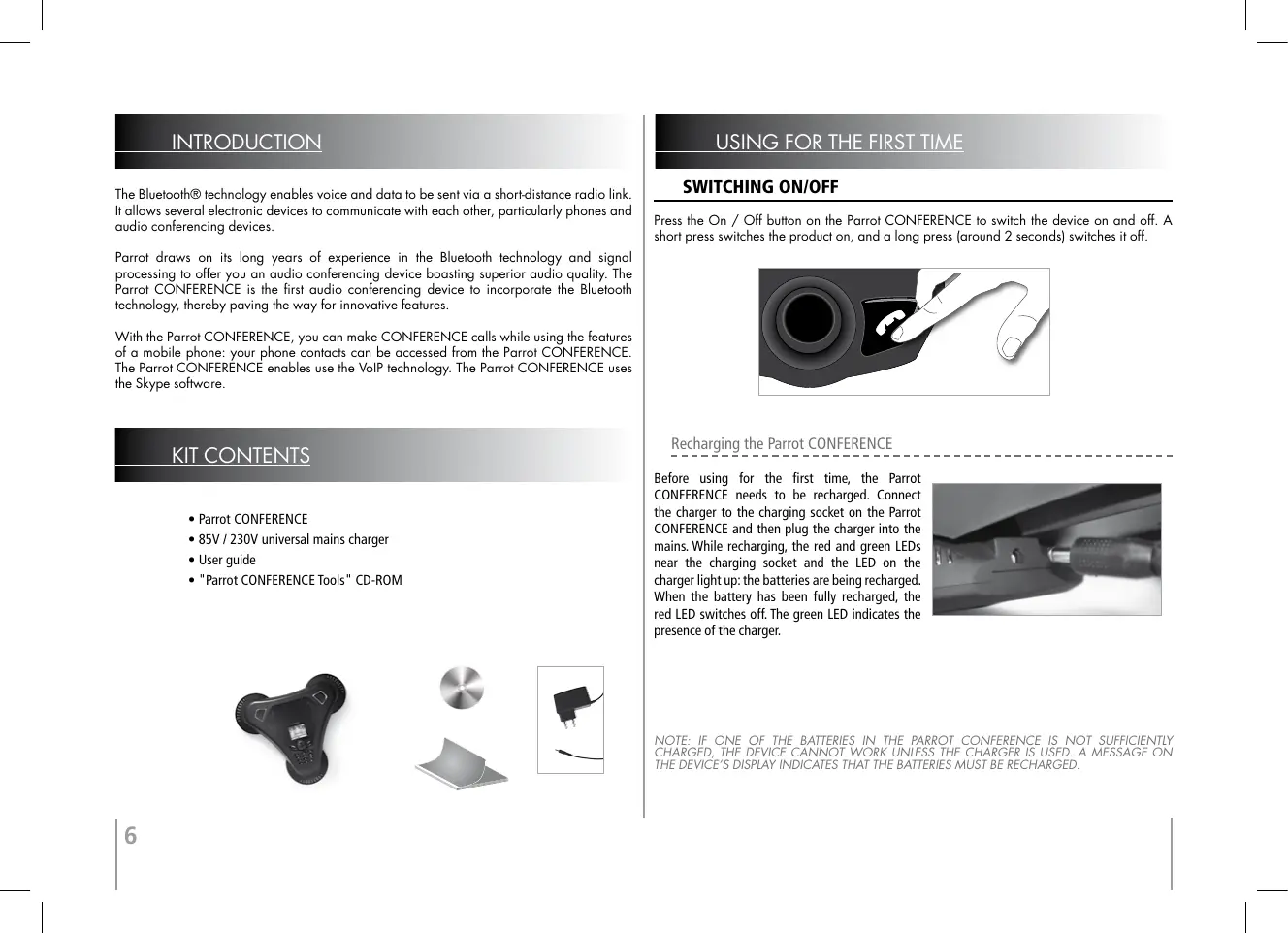


| Brand | PARROT |
| Model | CONFERENCE |
| Product Type | Bluetooth conference phone with VoIP (Skype) function |
| Dimensions | 277 × 255 × 55 mm |
| Weight | 641 g |
| Power Supply | Ni-Mh 2000 mAh battery, mains charger 15 V DC / 0.5 A |
| Standby Time | 15 days |
| Talk Time | 10 hours |
| Charging Time | 3 to 4 hours |
| Bluetooth | Version 1.2, maximum range 10 meters |
| Supported Bluetooth Profiles | Handsfree Profile 1.0 and 1.5, Headset Profile 1.1, Object Push Profile 1.1 |
| Maximum Number of Pairings | 50 phones |
| Directory Capacity | Up to 6000 contacts (1000 per phone) |
| Main Functions | Bluetooth conference calls, VoIP (Skype), public and private directory, call waiting, private mode, microphone mute, DTMF sending, redial, contact synchronization |
| Display | Display with brightness, zoom and color settings |
| Care and Cleaning | Clean with a dry cloth, do not use liquids |
| Safety | Do not expose to water or moisture, do not block vents, indoor use only |
| Spare Parts and Repairability | Mains charger included, software update via Bluetooth possible, technical support via www.parrot.com |
| General Information | Conference phone designed for meetings, microphones integrated in the bases, speakers for group listening |
Frequently Asked Questions - CONFERENCE PARROT
User questions about CONFERENCE PARROT
0 question about this device. Answer the ones you know or ask your own.
Ask a new question about this device
Download the instructions for your Conference phone in PDF format for free! Find your manual CONFERENCE - PARROT and take your electronic device back in hand. On this page are published all the documents necessary for the use of your device. CONFERENCE by PARROT.
USER MANUAL CONFERENCE PARROT
IMPORTANT SAFETY INSTRUCTIONS

- This apparatus shall not be exposed to dripping or splashing and no object filled with liquid, such as vases, shall be placed on the apparatus.
- The AC/DC adaptor which provides disconnection from mains supply shall remain readily operable. Unplug this apparatus when unused for long periods of time.
- Read these instructions
- Keep these instructions
- Heed all warnings
- Follow all instructions
- Do not use this apparatus near water
- Clean only with dry cloth
- Do not block any ventilation openings. Install in accordance with the manufacturer's instructions.
- Do not install near any heat as radiators. Heat registers, stoves or other apparatus (including amplifiers) that produce heat.
- Do not defeat the safety purpose of the polarized or grounding type plug. A polarized plug has two blades with one wider than the other. A grounding type plug has two blades and a third grounding prong. The wide blade or the third prong are provided for your safety. If the provided plug does not fit into your outlet, consult an electrician for replacement of the obsolete outlet.
- Protect the power cord from being walked on or pinched particularly at plugs, convenience receptacles, and the point where they exit from the apparatus.
- Only use attachments/accessories specified by the manufacturer
- Unplug this apparatus during lightning storms or when unused for long periods of time.
- Refer all servicing to qualified service personnel. Servicing is required when the apparatus has been damaged in any way, such as power supply cord or AC/DC adaptor is damaged, liquid has been spilled or objects have fallen into the apparatus, the apparatus has been spilled or objects have fallen into the apparatus, the apparatus has been exposed to rain or moisture, does not operate normally, or has been dropped.
- WARNING: To reduce the risk of fire or electric shock, do not expose this apparatus to rain or moisture. This apparatus is designed for indoor use only.
CONTENTS
IMPORTANT SAFETY INSTRUCTIONS. P 4
INTRODUCTION P6
KIT CONTENTS P6
USING FOR THE FIRST TIME SWITCHING ON/OFF P 6 RECHARGING THE PARROT CONFERENCE P 6 DESCRIPTION OF THE PARROT CONFERENCE P 7
FEATURES USING A BLUETOOTH PHONE P7 INSTALLING THE PARROT CONFERENCE P7 MENU STRUCTURE P7
CONFIGURING THE PARROT CONFERENCE P8
DESCRIPTION AND USE OF THE FEATURES P9
MANAGING PHONEBOOKS AND CONTACTS P1
CONNECTING TO THE FIXED TELEPHONE NETWORK P1
INSTALLING THE PHONE BASE. P1
SWITCHING ON THE BLUETOOTH PHONE BASE P1
MENU STRUCTURE P1
CONFIGURING THE PARROT CONFERENCE P 1
DESCRIPTION AND USE OF THE FEATURES P 1
USING THE VOIP FEATURE P1 INSTALLING THE PARROT CONFERENCE P1
MENUSTRUCTURE P1
CONFIGURING THE PARROT CONFERENCE P1
DESCRIPTION AND USE OF THE FEATURES 176 MANAGING PHONEBOOKS AND CONTACTS 178
UPDATING P1 HOTLINE P1
TECHNICAL SPECIFICATIONS P1
NOTES P1
GENERAL INFORMATION P1
INTRODUCTION
The Bluetooth® technology enables voice and data to be sent via a short-distance radio link. It allows several electronic devices to communicate with each other, particularly phones and audio conferencing devices.
Parrot draws on its long years of experience in the Bluetooth technology and signal processing to offer you an audio conferencing device boasting superior audio quality. The Parrot CONFERENCE is the first audio conferencing device to incorporate the Bluetooth technology, thereby paving the way for innovative features.
With the Parrot CONFERENCE, you can make CONFERENCE calls while using the features of a mobile phone: your phone contacts can be accessed from the Parrot CONFERENCE. The Parrot CONFERENCE enables use the VoIP technology. The Parrot CONFERENCE uses the Skype software.
KIT CONTENTS
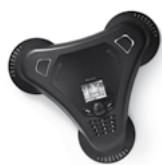
- Parrot CONFERENCE
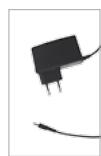
- 85V / 230V universal mains charger
- User guide
- "Parrot CONFERENCE Tools" CD-ROM

USING FOR THE FIRST TIME
SWITCHING ON/OFF
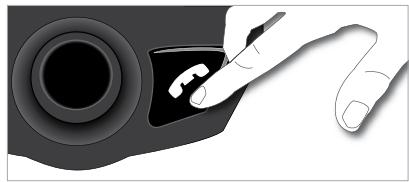
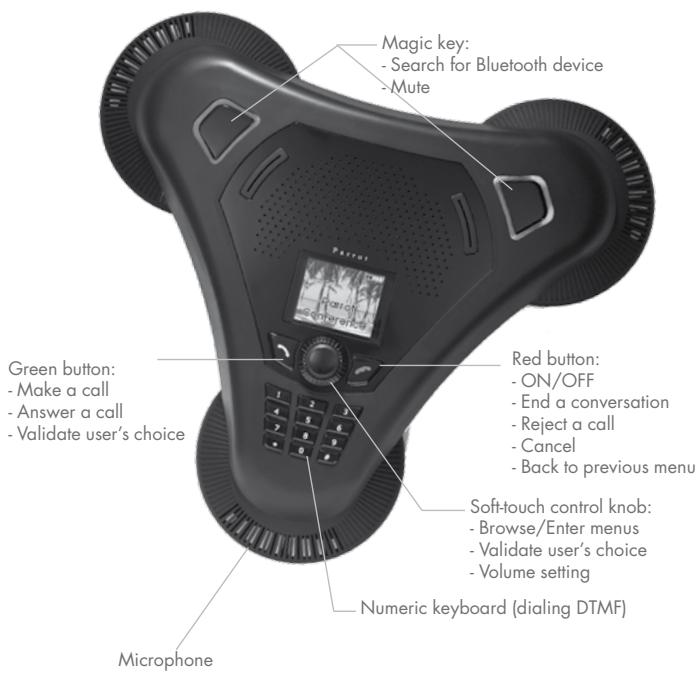
Press the On / Off button on the Parrot CONFERENCE to switch the device on and off. A short press switches the product on, and a long press (around 2 seconds) switches it off.
Recharging the Parrot CONFERENCE
Before using for the first time, the Parrot CONFERENCE needs to be recharged. Connect the charger to the charging socket on the Parrot CONFERENCE and then plug the charger into the mains. While recharging, the red and green LEDs near the charging socket and the LED on the charger light up: the batteries are being recharged. When the battery has been fully recharged, the red LED switches off. The green LED indicates the presence of the charger.
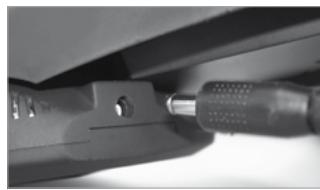
NOTE: IF ONE OF THE BATTERIES IN THE PARROT CONFERENCE IS NOT SUFFICIENTLY CHARGED, THE DEVICE CANNOT WORK UNLESS THE CHARGER IS USED. AMESSAGE ON THE DEVICE'S DISPLAY INDICATES THAT THE BATTERIES MUST BE RECHARGED.
FEATURES
USING A BLUETOOTH PHONE
Installing the Parrot CONFERENCE
Simply place the Parrot CONFERENCE on a flat surface. Users need to be sitting or standing around the device, so that everyone can take part in the CONFERENCE call: the internal microphones are located in the device's bases.
Menu Structure
-
Scrolling through the menus:
-
Turn the central scroll wheel to access the menus.
The kit displays the Public phonebook menu. - Browse through the menus by turning the wheel and confirm with the green button or by pressing the scroll wheel.
- To exit the menu, press the hang up button or wait a few seconds.
A short press takes you back to the previous menu.
A long press takes you back to the welcome screen.
- Menu structure :
After connecting the Parrot CONFERENCE with a Bluetooth phone, the following menus are available.
- Public phonebook: this menu contains the contacts that are available to all Parrot CONFERENCE users. You must first send the contacts from a phone or your private phonebook to the Parrot CONFERENCE (refer to the section entitled «Managing Phonebooks and Contacts»).
- Private phonebook: this menu contains the contacts on your Bluetooth phone when connected to the Parrot CONFERENCE; other users do not have access to this phonebook. You must first send the contacts from your Bluetooth phone to the Parrot CONFERENCE. Refer to the section entitled «Managing Phonebooks and Contacts»
- Calls: lists the calls made, received and missed during your user session (the list is deleted when the session is ended).
-
Devices (detected): displays the list of paired devices (greyed out if missing) as well as the list of Bluetooth devices detected nearby. Selecting a paired device starts the connection phase for that device. Selecting an unpaired device starts the pairing procedure. The «More devices» option is used to perform an additional search for Bluetooth devices.
-
Settings: this menu provides access to several submenus.
-
Contacts management: this submenu is used to manage the public and private phonebooks on your device. For further information, refer to the section entitled «Managing Phonebooks and Contacts».
- Paired device: lists the Bluetooth devices paired with your Parrot CONFERENCE. By selecting one of these phones, you can manually connect or disconnect it from your device. You can also delete it from your device's memory.
- Pair devices: this submenu takes you to a special pairing mode. For further information, refer to the section entitled «Configuring the Parrot CONFERENCE».
- Language: select the language.
- Display: this submenu allows you to adjust the backlight, the phonebook zoom, the menu colour and the welcome screen of the Parrot CONFERENCE.
- Sound: this menu lets you adjust the call volume and select a pre-recorded ringtone.
- Restore default value: reconfigures the Parrot CONFERENCE with its factory settings (but does not delete the list of paired devices, nor the public and private phonebooks).
- Software update: enable this option before updating via Bluetooth (www.parrot.com, Download section). Doing so will increase the number of devices compatible with your Parrot CONFERENCE.
- Information: this menu provides information on the software built into the Parrot CONFERENCE. It also lets you change the name displayed by the Parrot CONFERENCE when searching for devices (allocation of a number).
The Parrot CONFERENCE allows you to manage several calls. This menu is only available when a call is in progress on the device. Simply press the scroll wheel to call up the «MultiParti Call» menu. This menu gives you the following possibilities:
- Switch call: changes the active call with the call initially on hold.
- Hangup held call: ends all calls on hold.
- Dial new call: allows you to make a new call.
- Private phonebook: provides access to all the contacts in the private phonebook.
- Public phonebook: provides access to all the contacts in the public phonebook.
NOTE : THE USE OF THIS FEATURE DEPENDS ON YOUR PHONE AND YOUR OPERATOR. REFER TO THE SUPPORT HEADING ON
Configuring the Parrot CONFERENCE
Prior to using your Parrot CONFERENCE with your phone for the very first time, you must initially pair the two devices. This procedure allows both devices to exchange information in order to configure a Bluetooth connection.
PAIRING YOUR PHONE WITH THE PARROT CONFERENCE:
Using the magic keys:
- Ensure that the Bluetooth feature on your phone is enabled (refer to your phone's user guide or visit the Support heading on our website at www.parrot.com).
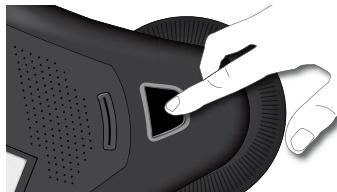
- Press one of the magic keys on the Parrot CONFERENCE.
- The Parrot CONFERENCE displays the list of nearby Bluetooth devices that can be connected. If your device is not available, select the «More devices» option on the Parrot CONFERENCE.
- Select your phone and then confirm.
- Select the pairing mode corresponding to your phone's model. If your phone's model is not displayed, select the «Default» option.
- A PIN code is then displayed on the Parrot CONFERENCE screen.
- On your Bluetooth phone, enter the PIN code displayed on the Parrot CONFERENCE
screen.
Using the Devices menu:
- Ensure that the Bluetooth feature on your phone is enabled (refer to your phone's user guide or visit the Support heading on our website at www.parrot.com).
- Turn the scroll wheel until the «Devices» menu is displayed and then select it.
- The Parrot CONFERENCE displays the list of nearby Bluetooth devices that can be connected. If your device is not available, select the «More devices» option on the Parrot CONFERENCE.
- Select your phone and then confirm.
-
Select the pairing mode corresponding to your phone's model. If your phone's model is not displayed, select the «Default» option.
-
A PIN code is then displayed on the Parrot CONFERENCE screen.
- On your Bluetooth phone, enter the PIN code displayed on the Parrot CONFERENCE screen.
Once paired, both devices connect automatically. The Parrot CONFERENCE will update its screen by informing you that a connection has been established between both devices.
NOTE:
YOU CAN ALSO PAIR WITH THE PARROT CONFERENCE DIRECTLY FROM YOUR PHONE. SIMPLY SELECT YOUR PHONE'S MODEL IN THE «PAIR DEVICE». SUBMENU OF THE « SETTINGS», MENU AND THEN SEARCH FOR PERIPHERALS USING YOUR PHONE (REFER TO YOUR PHONE'S USER GUIDE OR VISIT THE SUPPORT HEADING ON OUR WEBSITE AT www.parrot.com).
Description and Use of the Features
-
Making a call manually from the phone
-
Dial the number using the phone's keypad and start the call.
-
The call is automatically sent to the speakers of the Parrot CONFERENCE. Otherwise, press the green button on the Parrot CONFERENCE.
-
Dialling manually on the Parrot CONFERENCE
-
Dial the phone number on the numeric keypad of the Parrot CONFERENCE.
-
Making a call from the phonebooks on the Parrot CONFERENCE
-
Turn the scroll wheel until the Public phonebook or Private phonebook menu is displayed.
- Select the phonebook containing the contact that you wish to call and then confirm.
- Place the cursor on a contact by turning the scroll wheel.
- Press the scroll wheel or the green button to select the contact.
- If your contact has several phone numbers, select the appropriate phone number using the scroll wheel.
- Press the scroll wheel or the green button to start the call.
- The call is sent to the speakers of the Parrot CONFERENCE.
Receiving a call
- A ringtone is sounded to indicate an incoming call. The LEDs of the magic keys flash quickly on the Parrot CONFERENCE. If the caller's name has been recorded, it will be displayed on the device's screen.
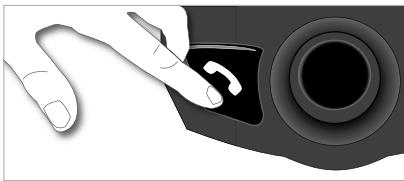
- Press the green button on the device to answer the call. The call is sent to the speakers of the Parrot CONFERENCE.
-
Ending a call
-
To end a call, press the hang up button on the Parrot CONFERENCE.
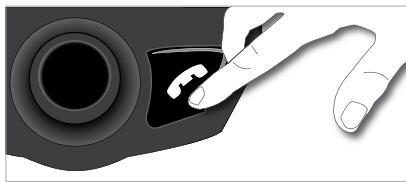
- Redial function
- Hold down the green key on the device for two seconds to radial the last number dialled.
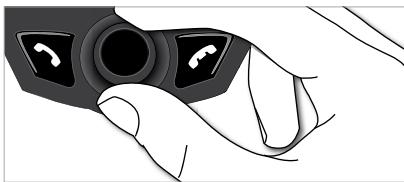
- Adjusting the volume
- During a call, turn the scroll wheel on the Parrot CONFERENCE. The volume setting is saved for subsequent calls.
-
Changing to discreet mode
-
During a call, if you want to continue the conversation on your phone (private conversation), press the green button on the Parrot CONFERENCE. The call is transferred to the phone.
-
If you want to switch back to the Parrot CONFERENCE, press the green button again.
-
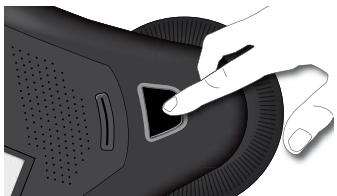
Microphone mute
-
During a call, if you do not want the person on the other end of the line to hear you, quickly press one of the magic keys on the Parrot CONFERENCE. Press the button again to cancel the mute.
-
Sending DTMF
-
During a call, you can send DTMF (Dual-Tone Multi-Frequency) for touch-tone dialling. This feature can be used for managing your voicemail, for example.
- Simply select a number on the numeric keypad of the Parrot CONFERENCE.
- Repeat this sequence for sending other DTMF.
Clearing the memory
- You can pair up to 50 devices.
- If you attempt to pair an additional device, the device displays «memory full». You must delete a device paired with the Parrot CONFERENCE.
- Select a paired device in the «Paired devices» submenu of the «Settings» menu and then confirm.
- Select the «Delete» option: the device will be deleted from the memory of the Parrot CONFERENCE.
NOTE : THE USE OF CERTAIN FEATURES (REDIAL, DISCREET MODE, DTMF, CALLER IDJ) DEPENDS EXCLUSIVELY ON YOUR PHONE. REFER TO THE SUPPORT HEADING ON OUR WEBSITE AT www.parrot.com FOR FURTHER INFORMATION.
Managing Phonebooks and Contacts
The Parrot CONFERENCE allows you to use two types of phonebook: a public phonebook and a private phonebook. The public phonebook lets you provide all users with a shared set of contacts. The private phonebook will only contain the contacts of the user connected to the Parrot CONFERENCE. Phonebooks and contacts are managed via the «Contacts management» submenu of the «Settings» menu.
Each phonebook features the following options:
- Phonebook management: this menu gives you access to all the contacts in a phonebook. After selecting the contact, you can access the following submenus:
- Copy to public phonebook (private phonebook only): copies the selected contact to the public phonebook.
- Display the photo: displays the photo associated with the selected contact.
- Associate photo: prepares the Parrot CONFERENCE to receive a photo from your phone by Bluetooth (refer to your phone's user guide or visit the Support heading on our website at www.parrot.com).
- Delete the photo: deletes the photo associated with the selected contact.
- Delete contact: deletes the selected contact.
-
Prefix: configures your phone numbers for international calls.
-
Delete all contacts: deletes the entire contents of the phonebook.
- Receive contacts: prepares the Parrot CONFERENCE to receive a contact from your phone by Bluetooth.
- Phonebook synchro (private phonebook only): automatically synchronises the user's phonebook.
- Sort order: sorts the contacts by first name or surname.
- Allow #31#: this option hides your identity when making a call from the Parrot CONFERENCE.
NOTE: THE «COPY TO PUBLIC PHONEBOOK» AND THE «PHONEBOOK SYNCHRO» OPTIONS ARE ONLY AVAILABLE FOR THE PRIVATE PHONEBOOK.
NOTE: THE USE OF CERTAIN FEATURES (SEND CONTACTS AND PHOTOS BY BLUETOOTH, AUTOMATIC CONTACT SYNCHRONISATION, CONTACT SORT ORDER) DEPENDS EXCLUSIVELY ON YOUR PHONE (SUPPORT OF THE HANDS-FREE OR HEADSET PROFILE), REFER TO THE SUPPORT HEADING ON OUR WEBSITE AT www.parrorot.com FOR FURTHER INFORMATION.
SENDING CONTACTS
To access your contacts directly on the Parrot CONFERENCE, you must first send the contacts by Bluetooth from your Bluetooth phone.
- Manually sending contacts to the private and public phonebooks
- Go to the «Settings» menu.
- Select the «Contacts management» submenu and confirm.
- Select the private or public phonebook.
- Select the «Receive contacts» option and confirm.
- The Parrot CONFERENCE and the phone disconnect - the device is now ready to receive contacts.
- On your phone, select the contacts and send them by Bluetooth to the Parrot CONFERENCE (refer to your phone's user guide or visit the Support heading on our website at www.parrorot.com).
- Automatically sending contacts to the private phonebook
- Go to the «Settings» menu.
- Press the scroll wheel or the green button, select the «Contacts management» submenu and confirm.
- Select «Private phonebook» and confirm.
- Select the «Phonebook synchro» option and confirm.
- The contacts are automatically sent from your phone to the private phonebook on the Parrot CONFERENCE by Bluetooth (refer to your phone's user guide or visit the Support heading on our website at www.parrot.com).
NOTE: THE FEATURE FOR AUTOMATICALLY SENDING CONTACTS IS ONLY AVAILABLE FOR THE PRIVATE PHONEBOOK.
NOTE: THE USE OF CERTAIN FEATURES (SEND CONTACTS BY BLUETOOTH, AUTOMATIC CONTACT SYNCHRONISATION) DEPENDS EXCLUSIVELY ON YOUR PHONE (SUPPORT OF THE HANDS-FREE OR HEADSET PROFILE). REFER TO THE SUPPORT HEADING ON OUR WEBSITE AT www.parrot.com FOR FURTHER INFORMATION.
CONNECTING TO THE FIXED TELEPHONE NETWORK
Installing the Phone Base
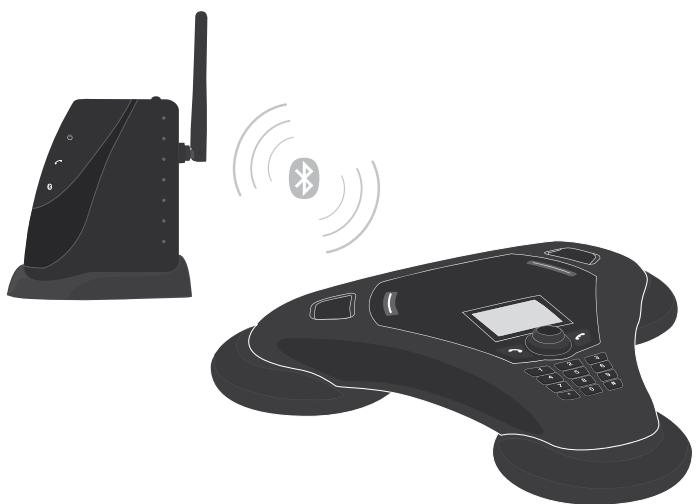
Connect the RJ11 cable to the EXT socket on the Parrot PHONE BASE and plug the other end of the cable into a phone socket. Similarly, you can connect a wired phone by plugging your phone's cable into the LINE socket on the Parrot PHONE BASE.
Switching on the Bluetooth Phone Base
Connect the charger to the Bluetooth phone base and then plug it into the mains. The orange and blue LEDs light up and then switch off, and the green LED stays on.
Menu Structure
- Scrolling through the menus: :
- Turn the central scroll wheel to access the menus. The kit displays the «Public phonebook» menu.
- Browse through the menus by turning the wheel and confirm with the green button or by pressing the scroll wheel.
- To exit the menu, press the red button or wait a few seconds.
- Menu structure :
When using the Parrot CONFERENCE with the Parrot PHONE BASE, the following menus are available.
- Public phonebook: this menu contains the contacts that are available to all Parrot CONFERENCE users. You must first send the contacts to the Parrot CONFERENCE by Bluetooth (refer to the section entitled «Managing Phonebooks and Contacts» in the «Using a Bluetooth Phone» chapter).
Devices (detected): displays the list of devices paired with the Parrot CONFERENCE (greyed out if missing) as well as the list of Bluetooth devices detected nearby. Refer to the section entitled «Configuring the Parrot CONFERENCE» to configure a Bluetooth connection between your Parrot CONFERENCE and your Bluetooth phone base. -
Settings: this menu provides access to several submenus
-
Contacts management: this submenu is used to manage the public phonebook on your device. For further information, refer to the section entitled «Managing Phonebooks and Contacts» in the «Using a Bluetooth Phone» chapter.
- Paired devices: this menu displays the list of Bluetooth devices paired with your Parrot CONFERENCE. By selecting your Bluetooth phone base, you can manually connect or disconnect it. You can also delete it from your device's memory.
- Pair device: this submenu allows you to select a specific pairing menu in order to configure the Bluetooth connection between your Parrot CONFERENCE and your phone base.
- Language: select the language.
- Display: this submenu allows you to adjust the backlight, the phonebook zoom, the menu colour and the welcome screen of the Parrot CONFERENCE.
- Sound: this submenu lets you adjust the call volume and select one of the pre-recorded ringtones.
-
Restore default value: reconfigures the Parrot CONFERENCE with its factory settings (but does not delete the list of paired devices, nor the public and private phonebooks).
-
Software update (by Bluetooth): enable this option before updating via Bluetooth (www.parroct.com, Download section). Doing so will increase the number of devices compatible with your Parrot CONFERENCE.
- Information: this submenu provides information on the software built into the Parrot CONFERENCE.
Configuring the Parrot CONFERENCE
Prior to using your Parrot CONFERENCE with the Parrot PHONE BASE for the very first time, you must initially pair the two devices. This procedure allows both devices to exchange information in order to configure a Bluetooth connection. If you have not paired the devices, the orange and blue LEDs on the phone base flash.
JUMELAGE DE LA BASE DE TÉLÉPHONE AVEC LE PARROT CONFERENCE:
Hold down the «Mode» button on the phone base for five seconds and then release.
- Press one of the magic keys on the Parrot CONFERENCE.
- The list of Bluetooth devices that are used and can be used with the Parrot CONFERENCE is displayed.
- Select your Parrot PHONE BASE in the list. If it has not been detected, select the «More devices» option at the bottom of the list. Once your Parrot PHONE BASE has been detected, select it.
-A new menu appears; select the «Default» option.
The Parrot CONFERENCE will update its screen by informing you that a connection has been established between both devices. Once paired, both devices connect automatically.
Description and Use of the Features
- Making a call from your phone base :
- Connect to the phone base from the Parrot CONFERENCE. To do so, press one of the magic keys and select your Parrot PHONE BASE.
- A new menu appears; select the «Default» option.
- The Parrot CONFERENCE will update its screen by informing you that a connection has been established between both devices. This procedure is only required the first time after pairing both devices.
- Dialling manually on the Parrot CONFERENCE
- Dial the phone number on the numeric keypad of the Parrot CONFERENCE
- Making a call from the phonebook on the Parrot CONFERENCE
Turn the central scroll wheel until the «Public phonebook» menu is displayed.
- Select the contact that you wish to call and then confirm.
- If your contact has several phone numbers, select the appropriate phone number using the scroll wheel.
- Press the scroll wheel or the green button on the Parrot CONFERENCE to start the call.
- The call is sent to the speakers of the Parrot CONFERENCE.
Caution: at the end of a call, the connection is cut between the Parrot CONFERENCE and the phone base.
Receiving a call
When a call is received on the phone base, if the base is not connected, it automatically tries to connect with the Parrot CONFERENCE. Once the Parrot PHONE BASE and Parrot CONFERENCE are connected:
An incoming call is indicated by a ringtone and the LEDs of the magic keys flashing quickly on the Parrot CONFERENCE. If the caller's name has been recorded, it will be displayed on the device's screen.
- Press the green button on the device to answer the call. The call is sent to the speakers of the Parrot CONFERENCE.
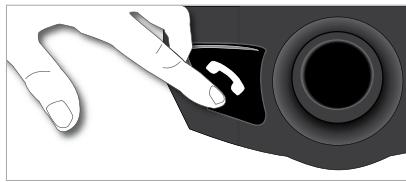
- Ending a call
- To end a call, press the hang up button on the Parrot CONFERENCE.
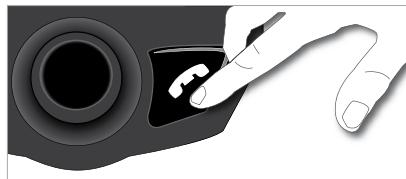
Caution: at the end of a call, the phone base disconnects from the Parrot CONFERENCE.
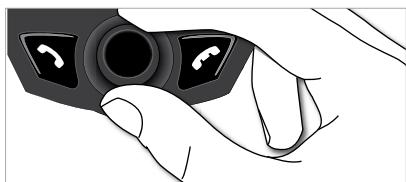
- Adjusting the volume
- During a call, turn the scroll wheel on the Parrot CONFERENCE. The volume setting is saved for subsequent calls.
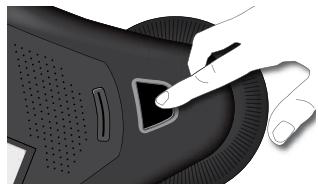
- Microphone mute
- During a call, if you do not want the person on the other end of the line to hear you, quickly press one of the magic keys on the Parrot CONFERENCE. Press the button again to cancel the mute.
- Sending DTMFs
- During a call, you can send DTMFs (Dual-Tone Multi-Frequency) for touch-tone dialling. This feature can be used for managing your voicemail, for example.
- Simply select a number on the numeric keypad of the Parrot CONFERENCE.
- Repeat this sequence for sending other DTMFs.
Clearing the memory
- You can pair up to 50 devices.
- If you attempt to pair an additional device, the kit displays «memory full». You must delete a device paired with the Parrot CONFERENCE.
- Select a paired device in the «Paired devices» submenu of the «Settings» menu and then confirm.
- Select the «Delete» option: the device will be deleted from the memory of the Parrot CONFERENCE as well as the associated private phonebook.
NOTE : THE USE OF CERTAIN FEATURES (REDIAL, DISCREET MODE, DTMF, CALLER IDJ) DEPENDS EXCLUSIVELY ON YOUR PHONE. REFER TO THE SUPPORT HEADING ON OUR WEBSITE AT www.parroto.com FOR FURTHER INFORMATION.
USING THE VOIP FEATURE
Installing the Parrot CONFERENCE
Simply place the Parrot Conference on a flat surface. Users must be sitting or standing around the device as close as possible to the internal microphones. The internal microphones are located in the device's bases.
Ensure that the Parrot Dongle is correctly installed on your computer. Simply install the «Bluetooth Software» and the dongle driver. The installation procedure starts automatically when the Parrot Dongle CD-ROM is inserted. Refer to the Parrot Dongle user guide.
You must also install the "Parrot CONFERENCE Software" PC application on your computer. This application can be found on the «Parrot CONFERENCE Tools» CD-ROM accompanying the Parrot CONFERENCE.
Your VoIP application must be started before you connect the computer to the Parrot CONFERENCE. The Parrot CONFERENCE supports the Skype software. Only this VoIP software is supported.
Menu Structure
- Scrolling through the menus:
- Turn the central scroll wheel to browse through the menus. The kit displays the «Public phonebook» menu.
- Browse through the menus by turning the wheel and confirm with the green button or by pressing the scroll wheel.
- To exit the menu, press the hang up button or wait a few seconds.
- Menu structure:
When using the Parrot CONFERENCE for the VoIP feature, the following menus are available.
- Public phonebook: this menu contains the contacts available to all Parrot CONFERENCE users when the phonebook contains at least one contact. You must first
send the contacts to the Parrot CONFERENCE by Bluetooth. Refer to the section entitled «Managing Phonebooks and Contacts».
- VoIP phonebook: this menu automatically takes you to the VoIP contacts on the Parrot CONFERENCE. The contacts in this phonebook are managed exclusively via your VoIP application.
- Calls: lists the calls made, received and missed during your VoIP user session. During each new session, this menu is reset.
Devices: displays the list of Bluetooth devices that can be used and are already used with the device. After selecting your computer by its name, the «Default» option lets you pair the Parrot CONFERENCE with your computer. -
Settings: this menu provides access to several submenus.
-
VoIP: User status: this menu lets you change your user status on the VoIP application via the Parrot CONFERENCE.
- Contacts management: this submenu is used to manage the public phonebook on your device. For further information, refer to the section entitled «Managing Phonebooks and Contacts».
- Paired devices: lists the Bluetooth devices paired with your Parrot CONFERENCE. By selecting your computer, you can manually connect or disconnect it from your device. You can also delete it from your device's memory.
- Pair device: this submenu lets you select the «Default» option so that you can pair the Parrot CONFERENCE with your computer in anticipation of using VolP. For further information, refer to the section entitled «Configuring the Parrot CONFERENCE».
- Language: select the language.
- Display: this menu allows you to adjust the backlight, the screen resolution, the menu colour and the welcome screen of the Parrot CONFERENCE.
- Sound: this submenu lets you adjust the call volume and select one of the prerecorded ringtones.
- Restore default value: reconfigures the Parrot CONFERENCE with its factory settings.
- Software update: enable this option before updating via Bluetooth (www.parrot.com, Download section). Doing so will increase the number of devices compatible with your Parrot CONFERENCE.
- Information: this submenu provides information on the software built into the Parrot CONFERENCE.
NOTE: THE VOIP PHONEBOOK AND THE « VOIP: USER STATUS» MENU ARE ONLY AVAILABLE IF A SESSION WITH YOUR VOIP SOFTWARE IS ACTIVE (MEANING THAT THE PARROT CONFERENCE IS CONNECTED TO THE “PARROT CONFERENCE SOFTWARE” PC APPLICATION AND A VOIP SOFTWARE SESSION IS OPEN WITH ANY USER STATUS).
Configuring the Parrot CONFERENCE
Prior to using your Parrot CONFERENCE with the VoIP function for the very first time, you must initially pair your device with your computer. This procedure allows both devices to exchange information in order to configure a Bluetooth connection.
PAIRING YOUR COMPUTER WITH THE PARROT CONFERENCE:
From your computer:
- Turn the scroll wheel on the Parrot CONFERENCE to the right.
- Select the «Settings» menu and confirm.
- Select the VoIP submenu of the "Pair device" menu and confirm.
A PIN code is then displayed on the Parrot CONFERENCE screen.
On your computer, run the "Parrot CONFERENCE Software" application. - The "Parrot CONFERENCE Software" application searches for Bluetooth devices.
- Select «CONFERENCE» in the drop-down list.
- Click on the «Connect» button in the "Parrot CONFERENCE Software" application.
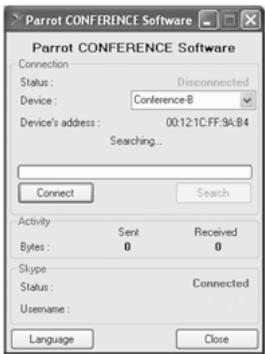
-A window is displayed on your computer.
- Enter the code displayed on the screen of the Parrot CONFERENCE.
- On your computer, windows are displayed to prompt you to use the HFP and SPP services of your Parrot CONFERENCE; click on Yes.
- On the Parrot CONFERENCE :
- Check on your computer that the "Parrot CONFERENCE Software" application is running.
- On the Parrot CONFERENCE, turn the scroll wheel until the «Devices» menu is
displayed, and then select it or press one of the magic buttons directly.
- The Parrot CONFERENCE displays the list of nearby Bluetooth devices that can be connected. If your computer's name is not available, select the «More devices» option on the Parrot CONFERENCE.
- Select your computer's name and then confirm.
- Select the VoIP option.
- A PIN code is then displayed on the Parrot CONFERENCE screen.
- A window is displayed on your computer.
- Enter the code displayed on the screen of the Parrot CONFERENCE.
- On your computer, windows are displayed to prompt you to use the HFP and SPP services of your Parrot CONFERENCE; click on Yes.
Once paired, both devices connect automatically. The Parrot CONFERENCE will update its screen by informing you that a connection has been established between both devices
Description and Use of the Features
- Making a call from the VoIP phonebook on the Parrot CONFERENCE
- Turn the central scroll wheel until the VoIP menu is displayed and then confirm.
- Place the cursor on a contact by turning the scroll wheel.
- Press the scroll wheel or the green button to select the contact.
- Press the green button to start the call.
- The call is sent to the speakers of the Parrot CONFERENCE.
NOTE : A CONTACT IN THE VOIP PHONEBOOK (DEPENDING ON THE INFORMATION AVAILABLE) CAN BE IDENTIFIED BY THE FOLLOWING DETAILS: STATUS, NAME,-login OR PHONE NUMBER.
- Making a call from the public phonebook on the Parrot CONFERENCE
- Turn the central scroll wheel until the «Public phonebook» menu is displayed and then confirm.
- Place the cursor on a contact by turning the scroll wheel.
- Press the scroll wheel or the green button to select the contact.
- If your contact has several phone numbers, select the appropriate phone number using the scroll wheel.
- Press the green button to start the call.
- The call is sent to the speakers of the Parrot CONFERENCE.
NOTE: ONLY PHONE NUMBERS IN THE PUBLIC PHONEBOOK BEGINNING WITH + OR «00» CAN BE CALLED WHEN USING THE VOIP FEATURE.
- Making a call from the call records on the Parrot CONFERENCE
- Click on the central scroll wheel and turn it until the «Calls» menu, and then confirm.
- Select a category from the call records: «Dialled calls», «Missed calls», «Received calls» and confirm.
- Select a call and confirm.
- The call is sent to the speakers of the Parrot CONFERENCE.
NOTE: A CALL FROM THE CALL RECORDS CONTAINS A STATUS, NAME OR PHONE NUMBER. NOTE: IF YOU ARE USING THE NUMERIC KEYPAD OF THE PARROT CONFERENCE TO DIAL A PHONE NUMBER, A LONG PRESS OF THE 0 KEY WILL ENABLE YOU TO DIAL THE + SIGN.
Receiving a call
- An incoming call is indicated by a ringtone and the LEDs of the magic keys flashing quickly on the Parrot CONFERENCE
- Press the green button on the device to answer the call. The call is sent to the speakers of the Parrot CONFERENCE.
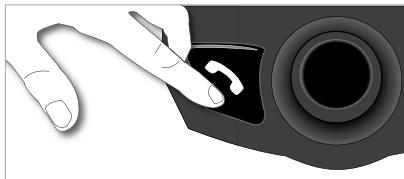
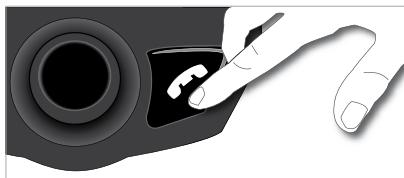
Ending a cal
- To end a call, press the hang up button on the Parrot CONFERENCE.
- Adjusting the volume
- During a call, turn the scroll wheel on the Parrot CONFERENCE.
The volume setting is saved for subsequent calls
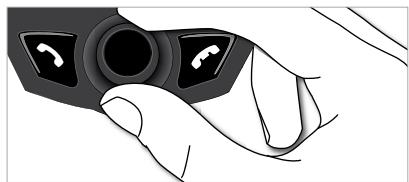
- Microphone mute
- During a call, if you do not want the person on the other end of the line to hear you, quickly press one of the magic keys on the Parrot CONFERENCE.
Press the button again to cancel the mute.
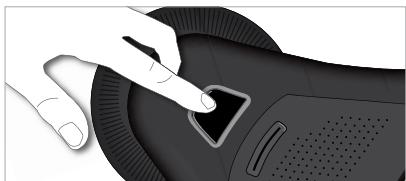
Ending a VoIP session on the Parrot CONFERENCE
On the computer:
- To end a VoIP session, click on the «Disconnect» button in the "Parrot CONFERENCE Software" application.
On the Parrot CONFERENCE :
There are two different ways to stop using the VolP feature:
- In the «Devices» menu, select your computer's name and press the scroll wheel.
- In the «Settings» menu, go to the «Paired devices» submenu, select your computer's name and press the scroll wheel. Finally, to stop using the VoIP feature, choose the «Disconnect» option or the «Delete» option, which additionally cancels the pairing.
Managing Phonebooks and Contacts
The Parrot CONFERENCE allows you to use two types of phonebook: a public phonebook and a VoIP phonebook. The public phonebook lets you provide all users with a shared set of contacts. The VoIP phonebook contains the contacts in your VoIP application.
NOTE: THE CONTACTS IN THE VOIP PHONEBOOK ARE MANAGED EXCLUSIVELY VIA YOUR VOIP APPLICATION. THE VOIP PHONEBOOK ON THE PARROT CONFERENCE WILL AUTOMATICALLY BE UPDATED.
Phonebooks and contacts are managed via the «Contacts management» submenu of the «Settings» menu.
Each phonebook features the following options:
- Phonebook management: this menu gives you access to all the contacts in the public phonebook. After selecting the contact, you can access the following submenus:
- Display the photo: displays the photo associated with the selected contact.
- Delete the photo: deletes the photo associated with the selected contact.
- Delete all contacts: deletes the entire contents of the phonebook.
- Receive contacts: prepares the Parrot CONFERENCE to receive a contact from your phone by Bluetooth.
- Sort order: sorts the contacts by first name or surname.
UPDATING
You can update the software version of your Parrot CONFERENCE by Bluetooth. Simply enable this mode before updating.
The update is performed by Bluetooth from a computer equipped with Bluetooth. Updating provides access to new features and improves compatibility with an even wider range of phones.
Visit our website to download the latest software version: www.parrot.com
HOTLINE
Our hotline is at your disposal to provide you with any assistance required. You can contact the hotline by email or telephone. Open from Monday to Friday between 9 am and 6 pm (GMT+1).
Italy: [+39] 02 86 39 14 63
Spain: [+34] 902 404 202
UK: [+44] 0870 112 5872
Germany: [+49] 0900 172 77 68
USA: [+1] (877) 9 PARROT (toll-free)
China: [+86] 2164601944
Hong Kong: [+852] 2736 1169
France: 0148036069
Europe: [+33] 1 48 03 60 69 (languages spoken: English, French, Spanish and German).
Visit our website at www.parrot.com to download the latest software version.
TECHNICAL SPECIFICATIONS
- Bluetooth
Bluetooth 1.2 qualified
Hands-free profile 1.0 and 1.5
Headset profile 1.1
Object Push Profile 1.1
Phone Book Access Profile
Synchronization Profile
Maximum range: around 10m
Pairing of up to 50 phones
1 000 contacts per phone
Up to 6000 contacts in total
Mechanics
Dimensions: 277× 255× 55mm
Weight: 641 g
- Electronics
2000mAh Ni-Mh Battery
Standby Time: 15 days
Talk Time: 10hr
Rearching Time:3-4h
Charger 15V DC / 0.5A
- Signal processing
Echo cancellation
- Echo cancellation
FCC
Bluetooth
CE
Environment qualified
NOTES
PARROT CONFERENCE
NOTICE D'UTILISATION
GUIDE D'UTILISATEUR
FRANÇAIS
CONSIGNES DE SECURITÉ
CONNEXION AU RESEAU TELEPHONIQUE FIXE P 27
INSTALLATION DE LA BASE TELEPHONE P 27
MISE SOUS TENSION DE LA BASE TELEPHONE BLUETOOTH P 27
ARBORESCENCE DES MENUS. P 28
CONFIGURATION DU PARROT CONFERENCE P 28
DESCRIPTION ET UTILISATION DES FONCTIONNALITÉS P 29
UTILISATION DE LA FONCTION VOIP. P 30
INSTALLATION DU PARROT CONFERENCE P 30
ARBORESCENCE DES MENUS. P 30
CONFIGURATION DU PARROT CONFERENCE P 31
DESCRIPTION ET UTILISATION DES FONCTIONNALITÉS P 32
GESTION DES REPERTOIRES TELLEPHONIQUES ET DES CONTACTS P 33
MISE A JOUR P 34
HOTLINE P34
SPécIFICATIONS TECHNIQUE P 34
NOTES P34
INFORMATIONS GENERALES P117
INTRODUCTION
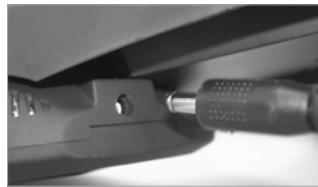
Charger le Parrot CONFERENCE
- Coupure microphone
Phone Book Access Profile
Synchronization Profile
Phone Book Access Profile
Synchronization Profile
Alcance maximo:anos 10m
- Invio di DTMF (Dual-Tone Multi-Frequency)
Phone Book Access Profile
Synchronization Profile
Hold down the «Mode» button on the phone base for five seconds and then release.
Qualification Bluetooth 1.2
Profil HFP 1.0 und 1.5 (Handsfree Profile)
Profil HSP 1.1 (Headset Profile)
Profil OPP 1.1 (Object Push Profile)
Profil PBAP (Phone Book Access Profile)
Profil SNYC (Synchronization Profile)
Utilizing as teclas magicas:
- No Parrot CONFERENCE:
No Parrot CONFERENCE:
FCC Compliance Statement (FCC ID: RKXPAMOS)
This device complies with part 15 of the FCC rules. Operation is subject to the following two conditions:
- this device may not cause harmful interference, and
- this device must accept any interference received, including interference that may cause undesired operation.
Note: The manufacturer is not responsible for any radio or tv interference caused by unauthorized modifications to this equipment. Such modifications could void the user's authority to operate the equipment.
Declaration of Conformity
We, Parrot S.A. of 174 quai de Jemmapes, 75010 Paris, France, declare under our sole responsibility that our product, the Parrot CONFERENCE to which this declaration relates is in conformity with appropriate standards EN300328, EN301489-1, EN60950 following the provision of Radio Equipment and Telecommunication Equipment directive (1999/5/EC R&TTE), and requirements covering EMC directive 89/336/EEC and Low Voltage directive 73/23/EEC.
Bluetooth
The Bluetooth® word mark and logos are owned by the Bluetooth® SIG, Inc. and any use of such marks by Parrot S.A. is under license. Other trademarks and trade names are those of their respective owners.
Correct Disposal of This Product (Waste Electrical & Electronic Equipment)
(Applicable in the European Union and other European countries with separate collection systems). This marking shown on the product or its literature, indicates that it should not be disposed with other household wastes at the end of its working life. To prevent possible harm to the environment or human health from uncontrolled waste disposal, please sepa
rate this from other types of wastes and recycle it responsibly to promote the sustainable reuse of material resources. Household users should contact either the retailer where they purchased this product, or their local government office, for details of where and how they can take this item for environ, mentally safe recycling. Business users should contract their supplier and the terms and conditions of the purchase contract. This product should not be mixed with other commercial wastes for disposal.
GENERAL INFORMATION
Copyrights
Copyright © 2004 Parrot. All rights reserved. The total or even partial reproduction, transmission or storage of this guide in any form or by any process whatsoever (electronic, mechanical, photocopy, recording or otherwise) is strictly prohibited without prior consent from Parrot.
Registered trademarks
All the names and trademarks mentioned in this document are copyright-protected and are the property of their respective owners.
Modifications
The explanations and specifications in this guide are given for information purposes only and may be modified without prior notice. They are deemed to be correct at time of going to press. The utmost care has been taken when writing this guide, as part of the aim to provide you with accurate information. However, Parrot shall not be held responsible for any consequences arising from any errors or omissions in the guide, nor for any damage or accidental loss of data resulting directly or indirectly from the use of the information herein. Parrot reserves the right to amend or improve the product design or user guide without any restrictions and without any obligation to notify users.
As part of our ongoing concern to upgrade and improve our products, the product that you have purchased may differ slightly from the model described in this guide. If so, a later version of this guide might be available in electronic format at Parrot's website at www.parrot.com.


Parrot
Parrot S.A. - 174, quai de Jemmapes - 75010 Paris - France
Fax +33 148030666/Phone+33148036060
http://www.parrot.biz

P1030431AC
C E
Bluetooth

FCC ID: RKXPAMOS