
RKI8400 - Car stereo PARROT - Free user manual and instructions
Find the device manual for free RKI8400 PARROT in PDF.

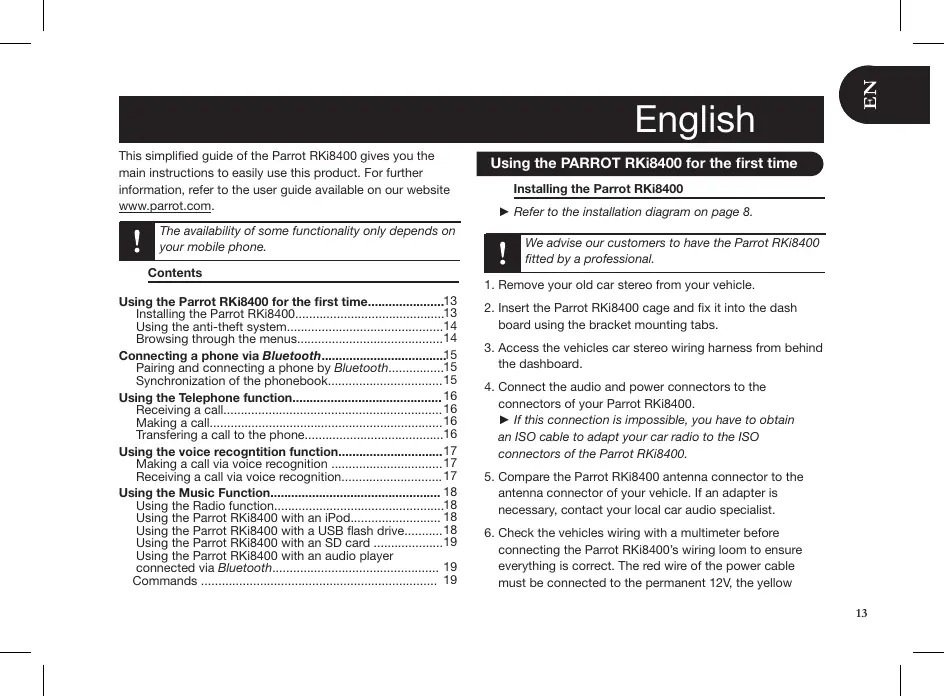


| Brand | PARROT |
| Model | RKI8400 |
| Product type | Car radio |
| Power supply | 12 V DC (vehicle battery) |
| Dimensions (W x H x D) | 188 x 58 x 165 mm (approx.) |
| Weight | 0.5 kg (approx.) |
| Main functions | Bluetooth hands-free, audio streaming, USB input, auxiliary input (3.5 mm), FM/AM tuner |
| Screen | Backlit LCD, monochrome |
| Connectivity | Bluetooth 2.1+EDR, HFP, A2DP, AVRCP profiles |
| Output power | 4 x 50 W max (speaker output) |
| Inputs | USB (MP3 playback), 3.5 mm jack, radio antenna |
| Outputs | 4 speaker channels, subwoofer output (pre-out) |
| Installation | Single DIN recessed mount, mounting kit included |
| Maintenance and cleaning | Clean with a soft dry cloth. Do not use solvents or abrasive products. |
| Safety | Disconnect the battery before any electrical work. Respect polarity. |
| Spare parts and repairability | Contact PARROT after-sales service or an authorized dealer. |
| General information | User manual available for free download on notice-facile.com. Model intended for the European market. |
Frequently Asked Questions - RKI8400 PARROT
User questions about RKI8400 PARROT
0 question about this device. Answer the ones you know or ask your own.
Ask a new question about this device
Download the instructions for your Car stereo in PDF format for free! Find your manual RKI8400 - PARROT and take your electronic device back in hand. On this page are published all the documents necessary for the use of your device. RKI8400 by PARROT.
USER MANUAL RKI8400 PARROT
Technical Specification. p.41
General Information. p.45
A
D

F

E
B
G
C
H
A
Warning : The Parrot RKi8400 includes NdFeB magnets which can damage objects sensitive to magnetic fields (pacemakers, credit cards, mechanical clocks...). To avoid these effects, keep the front panel in its case and keep a safe distance between the front panel and all objects that can be damaged by magnetism.
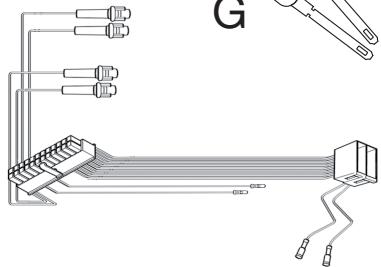
A - Right rear speaker + (purple)
B - Right rear speaker - (purple black)
C - Right front speaker + (grey)
D - Right front speaker - (grey black)
E - Left front speaker + (white)
F - Left front speaker - (white black)
G - Left rear speaker + (green)
H - Left rear speaker - (green black)
I-Tel.Mute (pink)
J - Ignition key +12 V (yellow)
K-AMP/ANT Remote (blue)
L-Battery ^+ (red)
M - Ground Lead (black)
1 - Autoanténa
2 - Pripojeni UNIKA adaptru
3 - Dvojity mikrofon
4-Pojistka 15A
5-Konektor
6 - Prípadny externí zesilovač
7 - ISO konektory
8 - Zamenné konketry (baterie/ zapalovani)
A - Pravy zadni reproduktor + (fialovy)
B - Pravy zadni reproductive (fialovo- Cherny)
C - Pravy prédi reproduktor + (sedy)
D - Pravy předniroduktor - (Sedo-cerny black)
E-Levy predni reproduktor ^+ (bily)
F-Levy pfedni reproductor - (bilo-cerny)
Make sure you do not cut the cables while sliding the car stereo support.
Ujistete se, ze pri instalaci drzaku autoradia nepreresite kabely.
This simplified guide of the Parrot RKi8400 gives you the main instructions to easily use this product. For further information, refer to the user guide available on our website www.parrot.com.
The availability of some functionality only depends on your mobile phone.
Contents
Using the Parrot RKi8400 for the first time. 13
Installing the Parrot RKi8400. 13
Using the anti-theft system 14
Browsing through the menus. 14
Connecting a phone via Bluetooth. 15
Pairing and connecting a phone by Bluetooth. 15
Synchronization of the phonebook. 15
Using the Telephone function. 16
Receiving a call. 16
Making a call. 16
Transfering a call to the phone. 16
Using the voice recognition function. 17
Making a call via voice recognition 17
Receiving a call via voice recognition 17
Using the Music Function 18
Using the Radio function. 18
Using the Parrot RKi8400 with an iPod 18
Using the Parrot RKi8400 with a USB flash drive. 18
Using the Parrot RKi8400 with an SD card 19
Using the Parrot RKi8400 with an audio player connected via Bluetooth. 19
Commands 19
Using the PARROT RKi8400 for the first time
Installing the Parrot RKi8400
Refer to the installation diagram on page 8.
We advise our customers to have the Parrot RKi8400 fitted by a professional.
-
Remove your old car stereo from your vehicle.
-
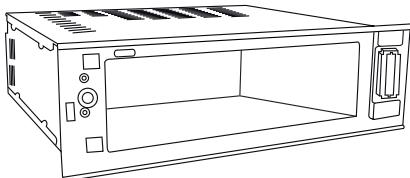
Insert the Parrot RKi8400 cage and fix it into the dash
board using the bracket mounting tabs.
- Access the vehicles car stereo wiring harness from behind
the dashboard.
- Connect the audio and power connectors to the
connectors of your Parrot RKi8400.
If this connection is impossible, you have to obtain
an ISO cable to adapt your car radio to the ISO
connectors of the Parrot RKi8400.
- Compare the Parrot RKi8400 antenna connector to the
antenna connector of your vehicle. If an adapter is
necessary, contact your local car audio specialist.
- Check the vehicles wiring with a multimeter before
connecting the Parrot RKi8400's wiring loom to ensure
everything is correct. The red wire of the power cable
must be connected to the permanent 12V, the yellow
wire to the 12V ignition and the black wire to the ground. If correct the Parrot RKi8400 will display 'Goodbye' when the vehicles ignition is switched off.
- If it is the case, you can skip to step 7.
- If it is not the case, You may need to switch the location of the yellow and red wires. This can be done simply by reversing both terminal spade tags located on the Parrot wiring.

Do not connect the yellow wire to the permanent 12V, otherwise you will cause the vehicle battery to discharge.
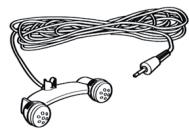
- Mount the microphone between the driver side visor and the rear view mirror. The microphone must be aimed at the driver.
- Slide the car stereo into the Parrot RKi8400 cage and attach the faceplate.
Using the anti-theft system
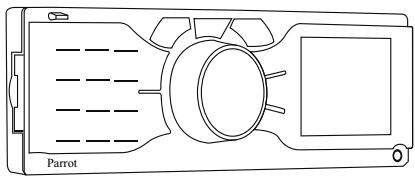
To avoid any risk of theft, do not forget to remove the faceplate of your Parrot RKi8400 when you leave your vehicle. Without this front, the Parrot RKi8400 cannot be used.
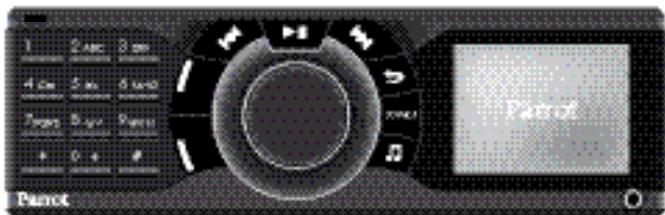
- To remove the faceplate, press the eject button in the top left.
- To replace the faceplate, put it on the right side of the car stereo. Once the faceplate and the car stereo
magnets get in touch, press the left side.

Always make sure the Parrot RKi8400 is switched off before removing the faceplate.
Browsing through the menus
- Press the jog wheel to access the main menu.
- Browse through the menus by turning the jog wheel and confirm by pressing the jog wheel.
- Press the button to go back to previous menu. Press the red button to get to the main menu.
While playing a song, press the button to get to the menus. While navigating through the menus, press the Play button to get to the Now Playing screen.
Selecting the language
- Press the jog wheel and select Settings > Language.
- Select your language and press the jog wheel to confirm.
Connecting a phone via Bluetooth
Pairing and connecting a phone by Bluetooth
- To add a new phone for the first time the two devices will need to be paired, this process is only required once for each phone. To pair a phone for the first time:
- Make sure the Parrot RKi8400 is set so that it is visible by all Bluetooth® devices. To do so, press the jog wheel and select Settings > Bluetooth > Visibility. The Parrot RKi8400 is visible by default.
- Press the jog wheel and select Settings > Pair with...
If your mobile phone's model appears in the list, select it and confirm.
If your mobile phone model doesn't appear in the list, select the Other phones option.
- From your phone, search for Bluetooth devices. Refer to your phone user guide for more information.
- Select «Parrot RKi8400» in the list.
You are prompted to enter a PIN code.
- Enter «0 0 0 0» on your phone.
«Pairing successful» is displayed on the screen of the Parrot RKi8400.
Once your phone is paired to the Parrot RKi8400, the connection between both devices will be automatically established each time you enter your vehicle.
Some phones may require you to set the Parrot FKi8400 as a trusted device.
-
You can pair up to 10 devices with the Parrot RKi8400. If you attempt to pair an 11th phone, you will get the "Memory full" message. You must then delete a phone from the paired devices list. To do so:
-
Press the jog wheel and select Settings > Bluetooth > Paired devices.
- Select the phone you want to delete from the list.
- Select Delete.
Synchronization of the phonebook
- With most Bluetooth phones, the phonebook will be automatically synchronized in the Parrot RKi8400 memory.
Only contacts stored in the phone memory will be memorized. If your contacts are stored in the SIM card memory, transfer them into the phone memory.
- If your phone doesn't support automatic synchronization, you can also use the Object Push function of your phone to send contacts from your mobile to the Parrot RKi8400 via Bluetooth. To do so, press the jog wheel and select Telephone > Receive contacts. Refer to your phones' user guide for more information about sending contacts via Object Push.
Using the telephone function
Receiving a call
- Receiving a call is possible whatever source is selected.
- An incoming call is indicated by a ringtone.

The name of the caller is announced and displayed if his details are stored in the phonebook of the phone connected to the Parrot RKi8400.
- Press the green button to accept this call. Then, press the red button to end the call.
- Press the red button to reject this call.
Making a call
To access the telephone function, press the source button repeatedly to select Telephone or press the red button.
-
If the contact you want to call is in the phonebook of the Parrot RKi8400:
-
Press the jog wheel to enter the main menu and select Phonebook.
-
Select the contact you wish to call from the phone book within the RKi8400
-
If the contact you want to call is not in the phonebook of the Parrot RKi8400, stop your vehicle in an appropriate place, then:
-
Press the source button repeatedly to select Telephone.
- Dial your contact phone number using your phone or the numerical pad of the Parrot RKi8400.
-
Press the green button.
-
To redial the last dialled number, hold down the green button of the Parrot RKi8400 for two seconds.
-
The Parrot RKi8400 allows you to assign a key of the numerical pad to one of your contact. To do so:
-
Press the jog wheel and select Telephone > Speed dialing.
- Select the key using the jog wheel.
- Select the contact to which you want to assign the selected key.
- Press the green button to confirm.
You can now call this contact by holding down the selected key for 2 seconds to make the call.
Transfering a call to the phone
- During a call, if you want to continue the conversation on your phone (private conversation), press the green button of the Parrot RKi8400.
The call is transferred to the phone.
- If you want to switch back to the Parrot RKi8400, press the green button again.
Using the voice recognition function
The Parrot RKi8400 voice recognition function is available whatever source is selected.
Making a call via voice recognition
You can make a call using voice recognition directly after automatic synchronization or Object Push process. The Parrot RKi8400 will automatically recognize the contact you wish to call.
- Press the green button to launch the voice recognition feature.
The Parrot RKi8400 asks you the name of the contact you want to call.
- Say the name of the contact and the type of number if there are several numbers associated to this contact (ex : Home, Work, Cellphone...).
The call is automatically launched if the voice tag is correctly understood.
> If it is not the case, the system asks for a confirmation.

You can make a call via voice recognition using several combinations of keywords. For example, « call 'Bob' » or simply « 'Bob' ». You can also associate the type of number you want to call: « call 'Bob' at home», « 'Bob' home», etc.
The call is initiated.
Receiving a call via voice recognition
To receive a call via voice recognition, magic words must be activated. Magic words are activated by default.
While receiving a call:
- Say «Accept» to answer the call
-
Say «Reject» to refuse the call.
-
To activate / deactivate the magic words:
-
Press the jog wheel and select Telephone > Voice Commands > Magic words.
- Press the jog wheel to activate/deactivate the magic words.
Using the music function
Using the Radio Function
- Press the source button repeatedly to select the Tuner source.
- Press briefly the buttons to change manually the radio station. Hold down the buttons to tune to the next available radio station.
- To assign a station to a key on the numerical pad, select the frequency and hold down the key for 2 seconds.
-
The station is then assigned to the selected key.
-
To select the station, press the corresponding key briefly.
Using the Parrot RKi8400 with an iPod / iPhone

Make sure your iPod is updated before using it with the Parrot RKi8400.
- Use the iPod connector to connect your iPod / iPhone to the Parrot RKi8400 then press the SOURCE button repeatedly to select the iPod source.
- If you are using the Parrot RKi8400 with the iPod Mini, iPod Photo, iPod 3G and iPod Shuffle, then connect your iPod to the Parrot RKi8400 using the Jack cable.
Using the Parrot RKi8400 with a USB flash drive

If your Parrot RKi8400 is connected to an iPod / iPhone and a USB flash drive, the iPod / iPhone has priority: you can only browse through your iPod / iPhone content.
- Connect the USB flash drive using the USB cable.
- Press the source button repeatedly to select the USB source.
-
Press the jog wheel to access the content of the selected source.
-
If the tags of your audio files are correctly defined or if the device connected to the Parrot RKi8400 is an iPod, select one of these classification features: playlist, artist, album, songs, genres and years, and press the jog wheel.
- If the tags of your audio files are not defined:
a. Select Browse by directory and use the jog wheel to browse through the content of your audio player.
b. Press the jog wheel to play the selected music file.

Album cover display: if no picture is included in the tags of your audio files (MP3 ID3v2), you can add a picture in.jpg format in the corresponding folder. The picture size needs to be less than 1Mb
Using the Parrot RKi8400 with an SD card

Switch off your Parrot RKi8400 before inserting or removing an SD card.
- Insert the SD card into the appropriate slot.
- Press the SOURCE button repeatedly to select the SD source.
Using the Parrot RKi8400 with an audio player connected via Bluetooth
- The streaming audio feature lets you play the music tracks recorded on your Bluetooth audio player over the vehicle's speakers. Your mobile phone must support the Bluetooth® A2DP profile.
- If you are using a Bluetooth audio player for the 1st time, you have to pair both devices.
Refer to the Pairing and connecting a phone via Bluetooth section.
If both devices are already paired :
-
Press the jog wheel and select Settings > Bluetooth
Paired devices.
-
Choose an audio player and press the jog wheel.
- Select Play Bluetooth audio.
- Get back to main menu and select Audio Bluetooth.
- Start playing a song on your audio player.
Using the Parrot RKi8400 with an analogue audio player
- Connect your audio player to the Parrot RKi8400 using the Jack connector.
- Press the source button repeatedly to select the Line in source.
- Start playing a song on your audio player.
Commands
| Buttons | Functions |
| Adjust the volume | |
| Pause / resume playback | |
| Access to the audio effects menu | |
| Short press: Get to previous / next track * Long press: Fast rewind / forward * |
- Unavailable for analogue audio players
Česky
Pno3BvUHT 3ByKOB0 CNrHaN, INHΦoPmPyOuSi O hauane npouceca roIocoboro paCnO3habaHna.
2.ПОНЗЕСТЕКЛЮЧЕBOEССОВ«Call»,а3aTeM-IMЯ KOHTAKTA,CKOTOpbIMHUYKHO CBA3aTbCRA.
Bb3OB DAHHORO KOHTaTc HINUIMpyETcA abOMATMueCKn,ecnI rONOCOBAR KOMAHJa 6blJa COOTBETCTBYOUIM Opbazm NOHrTa. B npotNBHom Cnyae yctpoCTBO «hands-free» BbIACT CoobSeHne 06 OTKAE3.

Y eac cmb 803MOXHOcMb 6bIIOJIHMB 6bI3O6bl
nocpeCmOM paoJUHbIX coeMaHui KNOOeBix
cnoE. Hanpumper, « call Dimitri», unu nopmo « Dimitri » Bbl makxe MOxeme ceraamb c 3mum mun Homepoe KOHMkma: « call Dimitri at home» unu « Paul home »
a. Bb6epTe Browse by directory.
b. McnoIb3yIe KoneCnIO JIaIbIbOpa I 3aYcKa BOCpON3BeHInMy 3bIkaJIbHorO 4aJna.

Nudukaumomobpaexehua anb6oma:ecnu meau euaux ayudoopaunoe he codepkam uo6paexehui, MOKHO doobaemubu o6paexehue e fopmame.jpg e coomeemcmayouyio nanky.
IcnoJIb3OBAHne Parrot RKi8400 c kapToS SD

BbIkuHme Parrot RKi8400 neped ecmaKo uUu 3eNeueHem Kapmbi SD.
- Bctabte Kapry SD b pazbem cneba ha nepednei napanii.
- HaxMMTe KONIKy Source, YTObblbipb SD.
IcnoJIb3OBAHnE Parrot RKi8400 c aydnonponrnpbIbATEm Bluetooth
-Функцяnotokoboroaydno(StreamingAudio)noabonietnporprbvatbpe3dHnAmMknAByTOMObnIyMbskalbHeOpTBkB,zaanCahnbHaaydnoiporprbbateneBluetooth.PoPrpbrBateldoJolckennoedepkmbatbpnpfihbA2DP.
EcnBblncblye aynmnonpbrbatebn bnepbble, chyna hkyho cnaprrbco rP carrot RKi400.
- Ecn npoirpbBaTeIb yXe cnapen C Parrot RKi8400 :
- HAZMITE HA KOLESCIKO N BUIBepHTe Settings > Bluetooth > Paired devices.
2.Бибеничу устрийстwo CBСИСКЕ И нахмITE на konOLESEKO. - BbIepeTe Play Bluetooth audio.
-
BepHNTecB TnabHoe MeHIO n HaxMITE Audio Bluetooth.
-
3aynctte BocnpnizBedeHne Otpbivka Ha aydunopnnpribatene.
IcnoJIb3OBAHne Parrot RKi8400 c anaIorOBbIM aydnoIponrpblBaTelem
Prrot RKi8400 nO3BONReT npocnyuINBaTB faaIbI, npo13eHNbIe C ayDIOPOINrBbIaTeN, HecOBMeCTIMORo C Bluetooth nHe OcaJIeHnHO BbIXoDM USB (npimep : CD-npOIRpbIaTeN).
Without prejudice of legal warranty, Parrot products are warranted during 1 year from the date of purchase for defects in materials and workmanship, provided that no deterioration to the product has been made, and upon presentation of proof of purchase (date of purchase, location of sale and product serial number) to the retailer. Warranty does not cover: upgrading of the software items of the Parrot products with Bluetooth® cell phones for compatibility purpose, data recovery, deterioration of the external aspect due to normal use of the product, any damage caused by accident, misuse, misapplication, or non-Parrot products. Parrot is not responsible for storage, loss or damaged to data during transit or repair.
Any product wrongfully declared to be defective will be returned to sender and inspection, process and carriage costs will be invoiced to him.
Due to the technical nature of this product, we advise you to ask your garage mechanic to take care of the installation. Parrot shall not be held responsible of any dysfunction caused by an installation which does not follow the instructions provided in this user guide or an incorrect installation.
Correct disposal of This Product (Waste Electrical & Electronic Equipment)
(Applicable in the European Union and other European countries with separate collection systems).
This marking shown on the product or its literature, indicates that it should not be disposed with other household wastes at the end of its working life. To prevent possible harm to the environment or human health from uncontrolled waste disposal, please separate this from other types of wastes and recycle it responsibly to promote the sustainable reuse of material resources.
Household users should contact either the retailer where they purchased this product, or their local government office, for details of where and how they can take this item for environmentally safe recycling. Business users should contract their supplier and the terms and conditions of the purchase contract. This product should not be mixed with other commercial wastes for disposal.
Modifications
The explanations and specifications in this guide are given for information purposes only and may be modified without prior notice. They are deemed to be correct at time of going to press. The utmost care has been taken when writing this guide, as part of the aim to provide you with accurate information. However, Parrot shall not be held responsible for any consequences arising from any errors or omissions in the guide, nor for any damage
or accidental loss of data resulting directly or indirectly from the use of the information herein. Parrot reserves the right to amend or improve the product design or user guide without any restrictions and without any obligation to notify users. As part of our ongoing concern to upgrade and improve our products, the product that you have purchased may differ slightly from the model described in this guide. If so, a later version of this guide might be available in electronic format at Parrot's website at www.parrot.com.
FCC Compliance Statement
This device complies with part 15 of the FCC rules. Operation is subject to the following two conditions:
(1). this device may not cause harmful interference, and
(2). this device must accept any interference received, including interference that may cause undesired operation.
Note: The manufacturer is not responsible for any radio or tv interference caused by unauthorized modifications to this equipment. Such modifications could void the user's authority to operate the equipment.
Declaration of Conformity
We, Parrot S.A. 174 quai de Jemmapes, 75010 Paris, France, declare under our sole responsibility that our product, the Parrot RKi8400 to which this declaration relates is in conformity with appropriate standards EN 60950-1 (2001), EN 50371 (2002), EN 300328 (2004) and EN 301 489-17 (2002) following the provision of Radio Equipment and Telecommunication Equipment directive 1999/5/EC R&TTE and 2004/104/CE Automotive directive amended by the 2006/28/CE directive. Identification N. 394 149 496 R.C.S. PARIS - Parrot S.A.
Protection and personal safety
Carefully read the user guide and follow the indicated procedure when setting up the device. Do not dismantle or open the device and do not touch the electronic components or the drivers. Do not attempt to dismantle or modify either of the speakers. Never introduce any metal object to avoid the risks of electric shocks, fire, short circuits or dangerous emissions. If your device shows signs of faulty operation, call the approved Parrot technical support centre or an approved retailer. Never leave the Parrot Rk8400 exposed to rain or chemical products; do not place them in a damp area or where they are likely to be splashed with water. Never place your device on a recipient containing any type of liquid, which might seep inside the device. Doing so will reduce the risks of electric shocks, short circuits, fire and injury.
Copyrights
Copyright © 2009 Parrot. All rights reserved. The total or even partial
reproduction, transmission or storage of this guide in any form or by any process whatsoever (electronic, mechanical, photocopy, recording or otherwise) is strictly prohibited without prior consent from Parrot.
Licences
The Bluetooth® word mark and logos are owned by the Bluetooth SIG, Inc. and any use of such marks by Parrot S.A. is under license.
Bluetooth QDID :
B014410, B012423, B012424
iPhone is a trademark of Apple Inc. iPod is a trademark of Apple Inc, registered in the US and others countries. "Made for iPod" means that an electronic accessory has been designed to connect specifically to iPod and has been certified by the developer to meet Apple performance standards. "Works with iPhone" means that an electronic accessory has been designed to connect specifically to iPhone and has been certified by the developer to meet Apple performance
standards.
This product is protected by certain intellectual property rights of Microsoft. Use or distribution of such technology outside of this product is prohibited without a license from Microsoft."
Windows Media and the Windows logo are trademarks or registered trademarks of Microsoft Corporation in the United States and/or other countries
MPEG LAYER-3 audio coding technology licensed from Fraunhauser IIS and Thomson.
Other trademarks and trade names are those of their respective owners.
Compatibility problems
Some special edition cars can be released with some differences from the original model. This could cause some compatibility problems with the interfaces.
Our company is not responsible of compatibility problems caused by new equipment or devices updated by the car manufacturer without advise.
Obecné informace
Záruka
Our hotline is at your disposal from Monday to Friday between 9 am and 6 pm (GMT + 1) - Hot-line@parrot.com
Haly:+390259901597
Spain: [+34] 902 404 202
UK:448444722360
Germany. 09001727768
USA+1)8779 Parrot (foll moe)
China:[+86]75582093307
Hong Kong [4852] 2796 1169
France:0148036069
Europe: [+33] 148036069 (Spanish languages : French, English and Spanish)








Parrot
move wireless
Parrot S.A. - 174, quai de Jemmapes - 75010 Paris - France
Fax +33 1 48 03 06 66 / Phone +33 1 48 03 60 60
www.parrot.com

- TERMS & CONDITIONS: www.PARROT.COM (GAGNEZ DES PRODUITS SANS FIL PARROT)

- A
- Contents
- Using the PARROT RKi8400 for the first time
- Installing the Parrot RKi8400
- Using the anti-theft system
- Browsing through the menus
- Selecting the language
- Connecting a phone via Bluetooth
- Pairing and connecting a phone by Bluetooth
- Synchronization of the phonebook
- Using the telephone function
- Receiving a call
- Making a call
- Transfering a call to the phone
- Using the voice recognition function
- Making a call via voice recognition
- Receiving a call via voice recognition
- Using the music function
- Using the Radio Function
- Using the Parrot RKi8400 with an iPod / iPhone
- Using the Parrot RKi8400 with a USB flash drive
- Using the Parrot RKi8400 with an SD card
- Using the Parrot RKi8400 with an audio player connected via Bluetooth
- Using the Parrot RKi8400 with an analogue audio player
- Commands
- Česky
- IcnoJIb3OBAHne Parrot RKi8400 c kapToS SD
- IcnoJIb3OBAHnE Parrot RKi8400 c aydnonponrnpbIbATEm Bluetooth
- IcnoJIb3OBAHne Parrot RKi8400 c anaIorOBbIM aydnoIponrpblBaTelem
- Modifications
- FCC Compliance Statement
- Declaration of Conformity
- Protection and personal safety
- Copyrights
- Licences
- Compatibility problems
- Obecné informace
- Záruka
Brand : PARROT
Model : RKI8400
Category : Car stereo