
LOGOS 664B - Printer OLIVETTI - Free user manual and instructions
Find the device manual for free LOGOS 664B OLIVETTI in PDF.



| Product type | Desk printing calculator |
| Brand | OLIVETTI |
| Model | LOGOS 664B |
| Dimensions | 320 × 210 × 50 mm |
| Weight | 1.4 kg |
| Power supply | Mains (230 V ~ 50 Hz) |
| Power consumption | Not specified |
| Display | VFD (Vacuum Fluorescent Display), 14 characters |
| Printer | Drum, 3.5 lines/second |
| Ribbon | L-5M R/B (accessory code 80406) |
| Paper | Roll width 57.5 ± 0.5 mm, diameter 50 mm (code 81120) |
| Calculation capacity | 14 digits (input and result) |
| Main functions | 4 operations, memory, Grand total, tax, exchange rate, margin, percentage, square root, euro conversion |
| Operating temperature | 0 °C to 40 °C |
| Care and cleaning | Wipe with a dry cloth; do not use alcohol or liquids |
| Safety | Do not cover when powered on; unplug in case of malfunction; accessible outlet |
| Spare parts | Ribbon (80406), paper roll (81120) |
| Repairability | Ribbon and paper replacement possible by user |
Frequently Asked Questions - LOGOS 664B OLIVETTI
User questions about LOGOS 664B OLIVETTI
0 question about this device. Answer the ones you know or ask your own.
Ask a new question about this device
Download the instructions for your Printer in PDF format for free! Find your manual LOGOS 664B - OLIVETTI and take your electronic device back in hand. On this page are published all the documents necessary for the use of your device. LOGOS 664B by OLIVETTI.
USER MANUAL LOGOS 664B OLIVETTI
PUBLICATION ISSUED BY:
Olivetti S.p.A.
Via Jervis, 77 - 10015 Ivrea (TO)
Italy
Copyright © 2007, Olivetti
All rights reserved
The manufacturer reserves the right to make changes to the product described in this manual at any time and without notice.
The compliance of this product to quality standards is certified by the mark affixed on the product itself.
CE
AVVERTENZE - PRECAUTIONS - AVERTISSEMENTS - HINWEISE - ADVERTENCIAS - ADVERTÉNCIAS - WAARSCHUWINGEN
Before plugging in the AC cord and switching on the calculator, check that the voltage shown on the rating label at the bottom corresponds with the local voltage.
The calculator must not be covered when turned on, as this will cause it to overheat.
Do not use organic solutions such as alcohol to clean the casing.
Do not use or leave the calculator in direct sun light. Locations subject to rapid temperature changes, high humidity or dirt should also be avoided.
The electrical power outlet should be near the equipment and within easy reach.
Powering on and Printing
The main ON-OFF switch is on the rear of the machine.
Printing is controlled using the selector switch at the top left of the keyboard (NP - P).
WARNING: The plug should be removed from the electrical outlet if any abnormal situations occur.
Transport safety device removal
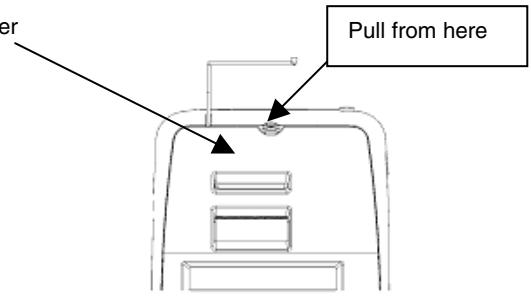
Before plugging in the AC cord and switching on the calculator, check that the voltage indicated on the rating label on the bottom corresponds with the local voltage, and remove the ribbon-cushion placed over the ribbon spool.
Ribbon cushion is located under the printer cover.
Replacing the ribbon spool
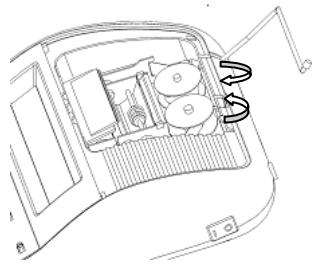
- Remove the printer cover
- Move the spool holder to remove both spools.
- Insert the new spools, making sure that the black side of the ribbon is face up, that the ribbon is threaded through the ribbon guide, and that it winds in the right direction.
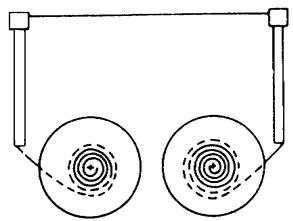
Correct
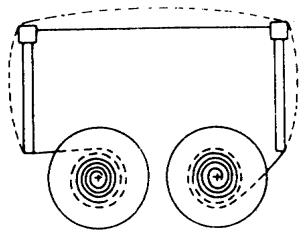
Incorrect
Loading paper
- Plug in the calculator and turn it on.
- Cut, or tear evenly, the end of the paper roll to get a straight, even edge to feed in properly under the print head.
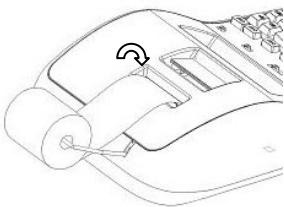
- Holding the paper roll in one hand, feed the paper from the bottom of the roll, inserting it into the paper slot at the back of the calculator.
- Press the paper feed key until the paper is taken up and advances through the printer.
- Insert the paper roll between the pair of paper holders.
Keyboard Description
| 1 | NP P | Printer selection switch |
| NP | Printer is activated only when [-] or [#/D] key is pressed. | |
| P | Printer is activated as long as calculator is turned on. | |
| 2 | 0 5 9 | Rounding selector |
| 0 | Absolute round down. | |
| 5 | Final result is rounded up if the 1st digit not to be printed is 5 or more, and rounded down if the 1st digit not to be printed is 4 or less. | |
| 9 | Absolute round up. | |
| 3 | A 0 2 3 4 F | Decimal Point selector |
| A | Add mode. The decimal point is automatically placed before the last two digits in addition and subtraction. | |
| 0,2,3,4 | For multiplication and division, the decimal point insertion depends on the result of calculation. | |
| For addition and subtraction, the decimal point is inserted in all entries. For all results, the number is rounded to the last decimal place preceding that designated. For example, a number at the 3rd decimal place is rounded to the 2nd place. | ||
| F | Automatic floating point for numerically accurate computing. Decimal point is entered at the desired position, and automatically shifted to the right for integers less than 14 digits. | |
| 4 | • GT | Grand Total switch |
| • | Calculation without Grand Total. | |
| GT | Any total made with [*] key is automatically accumulated in memory. The GT totalizer can be recalled by pressing the [M*] key. | |
| 5 | • IC | Item Count switch |
| • | Calculation without Item Count | |
| IC | Item Count. Number of entries using keys [+], [-], [M±] and [M≡] will be counted. The counter is incremented for [+] and [M±], and decremented for [-] and [M≡]. Result is printed on the left when [◇], [∗], [M◇] or [M*] keys are used. | |
| 6 | [↑] | Paper feed key |
| Advances the paper roll. | ||
| 7 | [COST] | Cost key |
| Used to enter Cost factor in a Cross Profit Margin calculation. | ||
| 8 | [SELL] | Sell key |
| Used to enter Selling price in a Cross Profit Margin calculation. | ||
| 9 | [MARGIN] | Margin key |
| Used to enter desired Margin in a Cross Profit Margin calculation. |
10 [TAX +] Tax plus key
Calculates an amount including VAT with Tax rate preset by [RATE] key.
11 [TAX -] Tax minus key
Calculates an amount excluding VAT with Tax rate preset by [RATE] key.
12 [RATE] Rate key
Used to enter Tax rate or Currency Exchange rate.
13 [EURO] Euro currency
Converts the displayed value to Euro currency.
14 [LOCAL] Local currency
Converts the displayed value to Local currency.
15 [-] Square root key
Calculates the square root of the contents of the display.
16 [GT] Grand Total key
Prints and clears the Grand Total memory.
17 [%] Percentage key
Completes percent calculation when [x] or [÷] key is used.
18 [=] equals key
Completes multiplication, division, delta percent or mark-up.
19 [Δ] Delta percent key
Automatically compares any two amounts, calculating and printing the percent difference.
20 [+] Division key
To divide, enter the number to be divided (dividend) and press the [÷] key; then enter the second number (divisor) and press the [=] key or other keys necessary to obtain result. If the key is pressed repeatedly, the calculator performs sequential division calculations.
21 [X] Multiplication key
To multiply, enter the first number (multiplicand) and press the [x] key; then enter the second number (multiplier) and press the [=] key or other keys necessary to obtain result. If the key is pressed repeatedly, the calculator performs sequential multiplication calculations.
22 [C/CE] Clear / Clear entry key
Pressed once, clears a live entry.
Pressed twice, clears the accumulator and calculation status excluding the memory.
23 [+ / - ] Sign change key
Reverses the sign on the display.
24 [→] Right shift key
Deletes right most character of a live entry.
25 [0]-[9], [00], Numeric keys & Decimal point
Any numeral over 14 digits will be ineffective. If a decimal point key is used more than once in a numeral, the first decimal point is considered as effective.
26 [-]
Minus key
Subtracts an amount from the accumulator.
To subtract the same amount more than once (repeat subtraction), enter the amount once and press this key as many times as necessary. If this key is pressed immediately after the [%] key, it acts as a percent reduction key.
27 [+]
Plus key
Adds an amount to the accumulator.
To add the same amount more than once (repeat addition), enter the amount once and press this key as many times as necessary. If this key is pressed immediately after the [%] key, it acts as a percent increase key.
28 [/D]
Non-add / Date key
Prints an identifier for an entry, e.g. an invoice number, followed by “#” on left hand side of the paper roll.
29 [0]
Subtotal key
Gives intermediate result of addition and subtraction.
Prints but does not clear the accumulator.
30 [*]
Total key
Gives total result of addition or subtraction.
Cleared total accumulator.
If the GT switch is selected, the result is automatically accumulated in GT memory.
31 [M*]
Memory Total key
Prints and clears the memory.
32 [M]
Memory Subtotal key
Prints but does not clear the memory.
33 [M=]
Memory Minus key
Subtracts an amount from memory.
If there is a live calculation pending, completes the calculation and subtracts the amount from memory.
34 [M±]
Memory Plus key
Adds an amount to memory.
If there is a live calculation pending, completes the calculation and accumulates the result in memory.
Technical Specifications
Type: Desktop Adding Machine/Calculator, Electronic Print/Display
Basic Operations: Addition/subtraction (with subtotal and total) and multiplication/division
Capacity: Input and result - 14 digits
Decimal System: Floating (F), Add mode (A), Fixed (0,2,3,4)
Functions: 4 rules, successive calculation, memory calculation, grand total calculation, constant calculation, tax calculation, currency exchange calculation, delta percent calculation, cost-sell margin calculation.
Printer: Character cylinder selection type.
Printing speed: 3.5 lines/second.
Ink Ribbon Cartridge L-5M R/B
Ribbon cartridge ordering code: 80406
Paper width: Width 57.5± 0.5 mm x diameter 50 mm Paper roll ordering code: 81120
Display: 14-digit VFD
Operating Temperature: 0^ 40^
Dimensions: 320 × 210 × 50 ~mm
Weight: 1.4 Kg
9 [MARGIN] Touche Marge
Touche Addition mémoire
4 GT Selector total general
4 GT Selector do total geral
- Cálculo sem total geral.
(Vacuum Fluorescent Display—Display fluorescent no váquo)
Temperatura de configuraciono: 0^ 40^
Dimensoes: 320 × 210 × 50 ~mm
Peso: 1,4 Kg
17 [%] Toets percentage
| Print P | Rounding 0 | Decimal 2 | GT ● | IC ● | ||
| Calculation | Enter | Display | Paper | |||
| [C/CE] | (Blinking) | 0. | 0. C | |||
| Preset TAX = 18.6% | [RATE] | (Press & hold until display blinks) | 0. | |||
| 18.6 | [TAX+] | 18.6 | 18.6 R% | |||
| Print TAX rate | [RATE] [TAX+] | 18.6 | 18.6 R% | |||
CALCOLO TASSO - TAX CALCULATION - CALCUL DU TAUX - SATZ-BERECHNUNG - CÁLCULO DE TASACION - CÁLCULO DA TAXA - BTW-BEREKENING
| Print P | Rounding 0 | Decimal 2 | GT · | IC · | ||
| Calculation | Enter | Display | Paper | |||
| Price without tax = 300 | 300 [TAX+] | 355.80 | 300.00 | |||
| 18.6 % | ||||||
| Price with tax = ? | 55.80 Δ T | |||||
| 355.80 | ||||||
| Price with tax = 355.80 | 355.80 [TAX-] | 300.00 | 355.80 | |||
| 18.6 % | ||||||
| Price without tax = ? | 55.80 Δ T | |||||
| 300.00 | ||||||
CALCOLO DELLA PERCENTUALE - PERCENTAGE CALCULATION - CALCUL DU POURCENTAGE - PROZENTSATZ-BERECHNUNG - CÁLCULO DEL PORCENTAJE - CÁLCULO DA PERCENTAGEM - PERCENTAGEBEREKENING
| Print P | Rounding 5 | Decimal 2 | GT ● | IC ● | |||
| Calculation | Enter | Display | Paper | ||||
| 1279 = 100% | 1279 | [X] | 1,279.00 | ||||
| ? = 12% | 12 | [%] | 153.48 | ||||
| 1,279.00 | x | ||||||
| 12.00 | % | ||||||
| 153.48 | * | ||||||
CALCOLO DELL'ADDIZIONE E DELLO SCONTO - ADD-ON AND DISCOUNT CALCULATION - POURCENTAGE DE MAJORATION ET POURCENTAGE DE REMISE - ZUSCHLAG- UND RABATTBERECHNUNG - CÁLCULO DE LA ADICÍN Y DELDESCUENTO - CÁLCULO DA ADIÇÃO E DO DESCONTO - BEREKENING VAN TOESLAG EN KORTING
| Print P | Rounding 5 | Decimal 2 | GT · | IC · | |||
| Calculation | Enter | Display | Paper | ||||
| 180 + 15% - 3% = ? | 180 | [X] | 180.00 | 180.00 x 15.00 % | |||
| 15 | [%] | 27.00 | 27.00 * | ||||
| [+] | 207.00 | 207.00 +% | |||||
| [X] | 207.00 | 207.00 x 3.00 % | |||||
| 3 | [%] | 6.21 | 6.21 * 200.79 -% | ||||
| [-] | 200.79 | ||||||
PERCENTUALE DELLA COSTANTE - PERCENTAGE OF CONSTANT - POURCENTAGE DE CONSTANTE - KONSTANTENPROZENTSATZ - PORCENTAJE DE LA CONSTANTE - PERCENTAGEM DA CONSTANTE - PERCENTAGE VAN DE CONSTANTE
| Print P | Rounding 5 | Decimal 2 | GT ● | IC ● | |||
| Calculation | Enter | Display | Paper | ||||
| 120 = 100% ? = 25% | 120 | [X] | 120.00 | 120.00 | x | ||
| 25 | [%] | 30.00 | 25.00 | % | |||
| 30.00 | * | ||||||
| ? = 33% | 33 | [%] | 39.60 | 33.00 | % | ||
| 39.60 | * | ||||||
TOTALE GENERALE DEL TOTALIZZATORE - GRAND TOTAL MEMORY - GRAND TOTAL DU TOTALISEUR - ENDSUMME TOTALISATOR - TOTAL GENERAL DEL TOTALIZADOR - TOTAL GERAL DO TOTALIZADOR - GROOTTOTAAL VAN DE TOTALISATOR
| Print P | Rounding 5 | Decimal 2 | GT GT | IC IC | |||
| Calculation | Enter | Display | Paper | ||||
| 13.20 9.55 | [C/CE] | 0. | |||||
| 8.30 7.36 | 13.2 | [+] | 13.20 | 0. | C | ||
| + 2.95 18.33 | 8.3 | [+] | 21.50 | 13.20 | + | ||
| 24.45 +35.24 =T? | 2.95 | [+] | 24.45 | 8.30 | + | ||
| [*] | II | 24.45 | 2.95 | + | |||
| 003 | |||||||
| 24.45 | T+ | ||||||
| 9.55 | [+] | II | 9.55 | ||||
| 7.36 | [+] | II | 16.91 | ||||
| 18.33 | [+] | II | 35.24 | 9.55 | + | ||
| [*] | II | 35.24 | 7.36 | + | |||
| 18.33 | + | ||||||
| 003 | |||||||
| 35.24 | T+ | ||||||
| [GT] | 59.69 | 002 | |||||
| 59.69 | GT | ||||||
CALCOLO DELLA PERCENTUALE DELTA - DELTA PERCENT CALCULATION - CALCUL DE LA VARIATION EN POURCENTAGE - BERECHNUNG DER DELTA-QUOTE - CALCULO DEL PORCENTAJE DELTA - CALCULO DA PERCENTAGEM DELTA - BEREKENING VAN PERCENTAGEVERSCHIL
| Print P | Rounding 5 | Decimal 2 | GT • | IC • | |||
| Calculation | Enter | Display | Paper | ||||
| 2001: 15987 | 11435 | [Δ] | 11,435.00 | 11,435.00 | Δ | ||
| 1999: 11435 (=100%) | 15987 | [%] | 39.81 | 15,987.00 | = | ||
| Δ% = ? | 4,552.00 | Δ* | |||||
| 39.81 | Δ% | ||||||
CALCOLI CON MEMORIA - MEMORY CALCULATION - CALCULS AVEC MEMOIRE - RECHNUNGEN IM SPEICHER - CALCULO COM MEMORIA - CÁLCULOS COM MEMÓRIA - GEHEUGENBEREKENING
| Print P | Rounding 5 | Decimal F | GT • | IC • | ||
| Calculation | Enter | Display | Paper | |||
| [C/CE] | 0. | 0. | C | |||
| 100 + 200 = ? | 100 | [+] | 100. | 100. | + | |
| 900 - 500 = ? | 200 | [+] | 300. | 200. | + | |
| 20 x 7 = ? | [*] | 300. | 300. | T | ||
| 12 x 5 = ? | ||||||
| Total | ? | [M±] | 300. | 300. | M+ | |
| 900 | [+] | 900. | 900. | + | ||
| 500 | [-] | 400. | 500. | - | ||
| [*] | 400. | 400. | T | |||
| [M±] | 400. | 400. | M+ | |||
| 20 | [X] | 20. | 20. | x | ||
| 7 | [=] | 140. | 7. | = | ||
| 140. | * | |||||
| [M±] | 140. | 140. | M+ | |||
| 12 | [X] | 12. | 12. | x | ||
| 5 | [M±] | 60. | 5. | = | ||
| [M♀] | 900. | 900. | M+ | |||
| [M*] | 900. | 900. | MS | |||
| [C/CE] | 0. | 0. | C | |||
There are 13 Euro currency rates available in memory, the default value is preset to 1.
To select a position in which to set the rate you desire:
- Press and hold the [RATE] key until the "RATE" symbol blinks on the display.
- Press the [EURO] key; on the display appears "r-01 1."
- Press the ([+] key to move on to the next rate.
- Press the [-] key to move back to previous rate.
- Enter the required rate and press the [EURO] key.
The current rate is now set.
- If you want to return the Euro Currency and TAX rates to their default rate, switch OFF the machine, then holding down [C/CE] and [+] switch it ON again. "r-CC" appears on the display and the default rate is reset.
| Print P | Rounding 5 | Decimal 2 | GT • | IC • | ||
| Calculation | Enter | Display | Paper | |||
| Set Currency rate 1.08 in r-02 | [RATE] (Press & hold 3 sec.) | (Blinking) | 0. | |||
| [EURO] [+] | (Blinking) (Blinking) | r-01 1. | ||||
| 1.08 | [EURO] | r-02 1. | ||||
| 2500+4000+1500 = Total Euro currency? | 2500 4000 1500 | [+] | 2,500.00 | 2,500.00 | + | |
| [+] | 6,500.00 | 4,000.00 | + | |||
| [+] | 8,000.00 | 1,500.00 | + | |||
| [*] | 8,000.00 | 8,000.00 | T | |||
| [EURO] | 7,407.41 | 8,000.00 | ÷ | |||
| 1.08 | K= | |||||
| 7,407.41 | K* | |||||
| 2500+4000+1500 = Total Local currency? | 2500 4000 1500 | [+] | 2,500.00 | 2,500.00 | + | |
| [+] | 6,500.00 | 4,000.00 | + | |||
| [+] | 8,000.00 | 1,500.00 | + | |||
| [*] | 8,000.00 | 8,000.00 | T | |||
| [LOCAL] | 8,640.00 | 8,000.00 | x | |||
| 1.08 | K= | |||||
| 8,640.00 | * | |||||
- PUBLICATION ISSUED BY:
- AVVERTENZE - PRECAUTIONS - AVERTISSEMENTS - HINWEISE - ADVERTENCIAS - ADVERTÉNCIAS - WAARSCHUWINGEN
- Powering on and Printing
- Transport safety device removal
- Replacing the ribbon spool
- Loading paper
- Keyboard Description
- Minus key
- Plus key
- Non-add / Date key
- Subtotal key
- Total key
- Memory Total key
- Memory Subtotal key
- Memory Minus key
- Memory Plus key
- Technical Specifications
- Touche Addition mémoire
Brand : OLIVETTI
Model : LOGOS 664B
Category : Printer