
PURE-FI ANYWHERE - Bluetooth speaker LOGITECH - Free user manual and instructions
Find the device manual for free PURE-FI ANYWHERE LOGITECH in PDF.
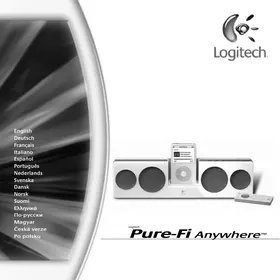



| Brand | LOGITECH |
| Model | Pure-Fi Anywhere |
| Product Type | Portable Bluetooth Speaker |
| Category | Bluetooth Speaker |
| Power | Rechargeable lithium-ion battery (100-240V AC adapter) |
| Battery Life | Approximately 10 hours |
| Audio Technology | Stereo XL (sound field expansion) |
| Connectivity | Bluetooth, iPod dock, auxiliary input (3.5 mm jack) |
| Controls | Includes wireless remote (iPod navigation, volume, playback) |
| Included Accessories | Universal dock adapters, international AC adapter, carrying case |
| iPod Compatibility | iPod mini, 4G, 5G, nano, video, nano aluminum (see manual for adapters) |
| Cleaning | Dry cloth only |
| Safety Precautions | Do not expose to water or moisture; keep 15 cm clearance for ventilation |
| Battery | Non-removable lithium-ion, limited lifespan, mandatory recycling |
| Warranty | 2 years (Logitech limited warranty) |
| Dimensions | Approximately 25 cm x 12 cm x 8 cm (estimated) |
| Weight | Approximately 0.8 kg (estimated) |
Frequently Asked Questions - PURE-FI ANYWHERE LOGITECH
User questions about PURE-FI ANYWHERE LOGITECH
0 question about this device. Answer the ones you know or ask your own.
Ask a new question about this device
Download the instructions for your Bluetooth speaker in PDF format for free! Find your manual PURE-FI ANYWHERE - LOGITECH and take your electronic device back in hand. On this page are published all the documents necessary for the use of your device. PURE-FI ANYWHERE by LOGITECH.
USER MANUAL PURE-FI ANYWHERE LOGITECH
IMPORTANT SAFETY INSTRUCTIONS
CAUTION
ELECTRIC SHOCK HAZARD
- Read these instructions.
- Keep these instructions. Heed all warnings.
- Follow all instructions.
- Do not use this apparatus near water. Clean only with dry cloth.
- Do not block any ventilation openings. Install in accordance with the manufacturer's instructions.
- Do not push objects into apparatus vents or slots because fire or electric shock hazards could result.
- Maintain a minimum distance of at least 6 inches around apparatus for sufficient ventilation.
- Ventilation should not be impeded by covering the ventilation openings with items, such as newspapers, table clothes, curtains, etc.
- No naked (open) flame sources, such as lighted candles, should be placed on or near the apparatus.
- Place apparatus in a stable location so it will not fall causing product damage or bodily harm.
- Do not install near any heat sources such as radiators, heat registers, stoves, or other apparatus (including amplifiers) that produce heat.
- Operate the apparatus only from a low level audio line output.
- Protect the power cord from being walked on or pinched particularly at plugs, convenience receptacles, and the point where they exit from the apparatus. Only use attachments/accessories specified by the manufacturer.
- Unplug this apparatus during lightning storms or when unused for long periods of time. Refer all servicing to qualified service personnel. Servicing is required when the apparatus has been damaged in any way, such as power-supply cord or plug is damaged, liquid has been spilled or objects have fallen into the apparatus, the apparatus has been exposed to rain or moisture, does not operate normally, or has been dropped.
- The apparatus shall be disconnected from the mains by placing the power/standby switch in the standby position and unplugging the power cord of the apparatus from the AC mains receptacle.
- The socket-outlet shall be installed near the equipment and shall be easily accessible.
WARNING:
TO REDUCE THE RISK OF FIRE OR ELECTRIC SHOCK, DO NOT EXPOSE THIS APPARATUS TO RAIN OR MOISTURE.

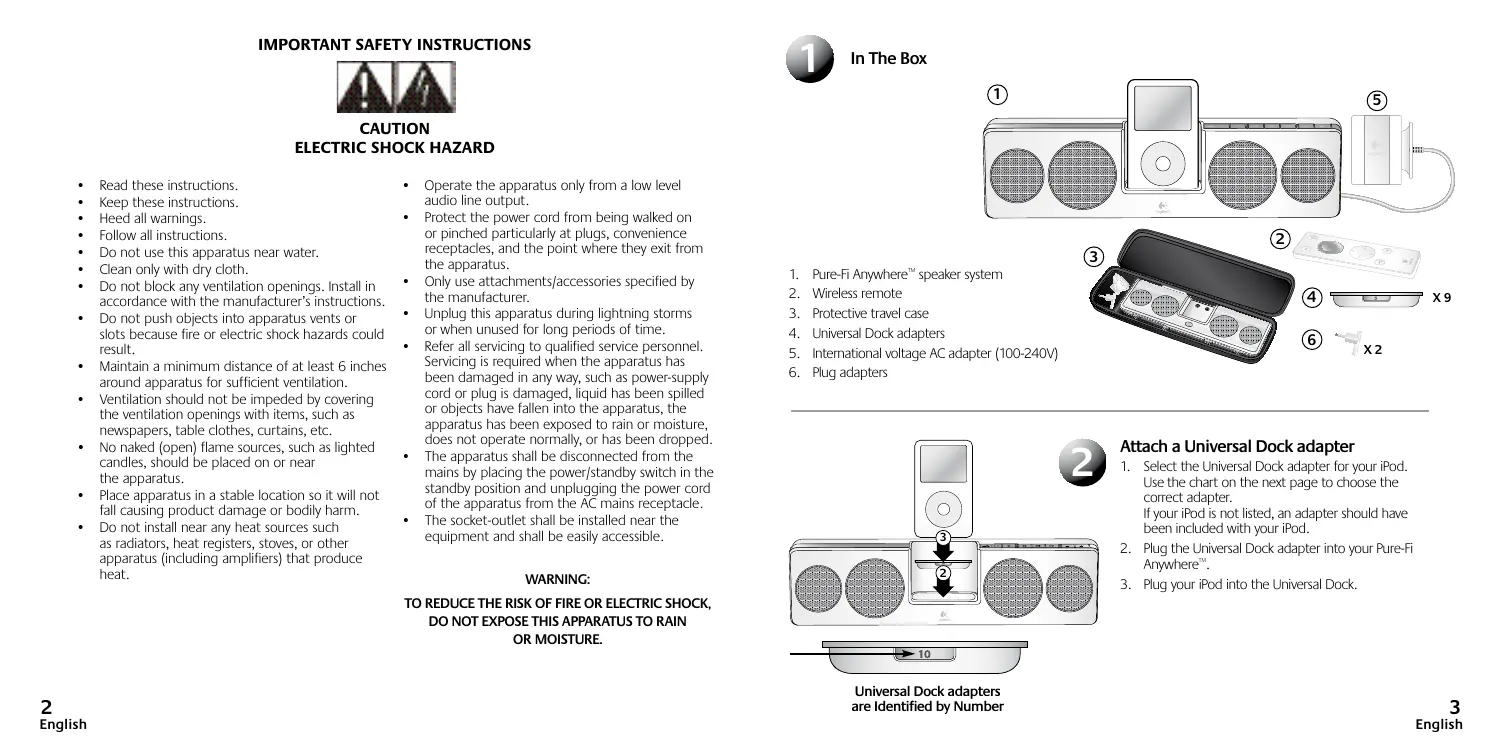
In The Box
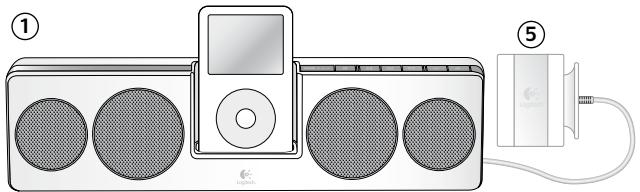
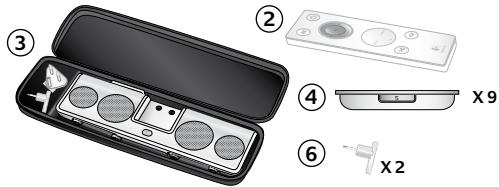
- Pure-Fi Anywhere™ speaker system
- Wireless remote
- Protective travel case
- Universal Dock adapters
- International voltage AC adapter (100-240V)
- Plug adapters
Universal Dock adapters are identified by number.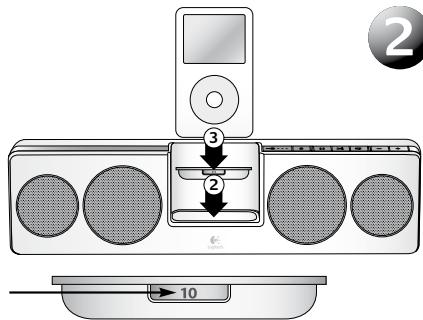
Attach a Universal Dock adapter.
- Select the Universal Dock adapter for your iPod. Use the chart on the next page to choose the correct adapter. If your iPod is not listed, an adapter should have been included with your iPod.
- Plug the Universal Dock adapter into your Pure-Fi Anywhere™.
- Plug your iPod into the Universal Dock.
| iPod mini | iPod (4th Gen.) | iPod with color display | iPod nano | iPod with video | iPod nano (aluminium) |
| 3 4GB, 6GB | 4 20GB, U2 | 6 20GB, 30GB, U2 | 8 1GB, 2GB, 4GB | 9 30GB | 11 2GB, 4GB, 8GB |
| 5 40GB | 7 40GB, 60GB | 10 60GB, 80GB |

Charging Your Speakers
Your Pure-Fi Anywhere™ speakers include an internal rechargeable battery. It must be charged before you
can use it for the first time. The battery will last approximately 10 hours on a single charge.
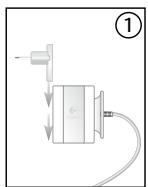
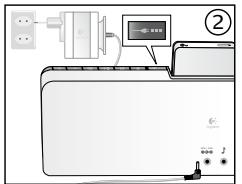
- Attach the appropriate plug to the AC adapter.
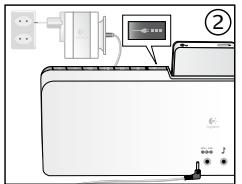
- To charge your speakers, connect the AC adapter to your speakers, then to an electrical outlet. The AC power LED lights up when the speakers are connected to AC power.
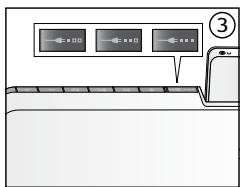
- The battery level LEDs will blink green while the speakers are charging. When all LEDs are solid, the battery is fully charged.
- When running on battery power, a red battery level LED indicates that the battery needs to be recharged.
The Pure-Fi Anywhere™ speakers use a non-removable lithium-ion rechargeable battery. This battery has a limited number of charge cycles and cannot be replaced. See "Battery Disposal" instructions for further information.

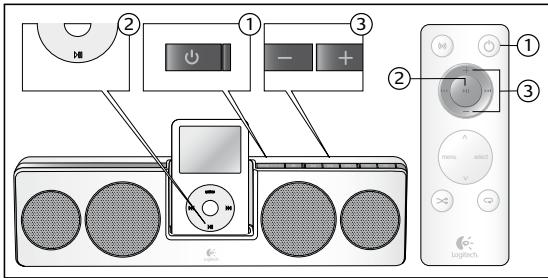
Listening to Music
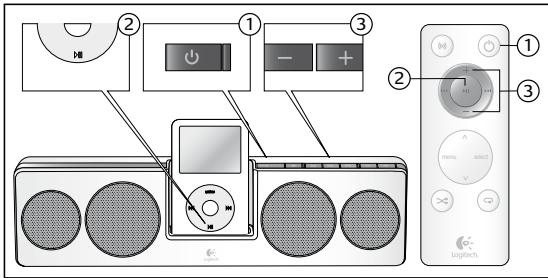
- Turn your Pure-Fi Anywhere™ speakers on by pressing the power button.
- Press Play on your iPod.
- Use the volume buttons to adjust the volume level.
Note: You can also use the included wireless remote to turn the speakers on and off, adjust the volume, and select tracks.

Troubleshooting
My iPod is in the Dock and playing, but I can't hear any music.
- Make sure that the speakers are turned on (if the power symbol LED is green, then the speakers are on). Try adjusting the volume level on the speakers. Use the volume buttons.
- Download the latest version of iTunes (available at apple.com) and upgrade your iPod to the latest iPod firmware.
There isn't a Universal Dock adapter for my iPod.
- If you have a newer iPod, a Universal Dock adapter for your iPod should have been included with your iPod when you purchased it.
- If you have a 1st, 2nd, or 3rd generation iPod, you need to use the Aux input connector on the back of the speakers. To do so, you will need to purchase a separate cable to connect your iPod to the Aux input. (1st / 2nd generation iPod do not have a dock connector. 3rd generation ipod are not supported by the speakers' Universal Dock.)
The remote isn't working.
- Point the remote directly at the speakers.
- Make sure the remote sensor isn't being blocked. (It is located below the iPod.) Try using a fresh battery in the remote.
- The speakers may be in a battery saving mode. Push the power button on the speakers to wake the speakers up.
For the most up-to-date troubleshooting information, visit www.logitech.com.

Getting the Most Out of Your Speakers
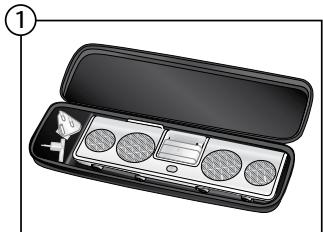
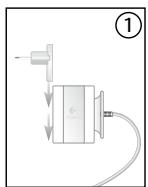
- Using the travel case
When using the travel case, remove the plug adapter from the AC adapter and place it in the travel case. The AC adapter is designed to fit into the iPod dock. To avoid damaging the iPod connector, insert the AC adapter as shown - with the cable at the top.
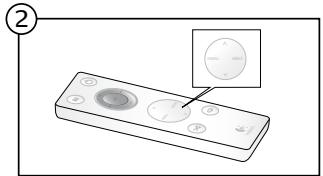
- Navigating the iPod menus
The remote control includes buttons to navigate the menus on the iPod. The arrow keys are used to scroll through the menu. The 'menu' key goes to the previous menu, and the 'select' key goes to the next menu.
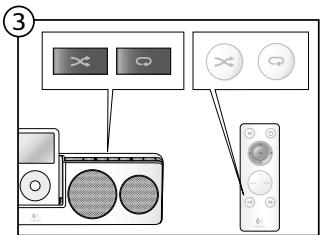
- Adjusting shuffle and repeat
Both the speakers and the remote include buttons to adjust the shuffle and repeat states on the iPod.
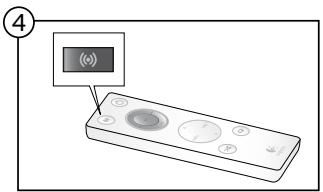
- Stereo XL
Pure-Fi Anywhere™ includes a proprietary "Stereo XL" feature that dramatically widens the sound field. To turn Stereo XL on and off, use the button on the remote.

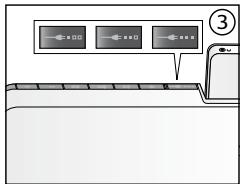
End-of-life Battery Disposal Instructions
This device uses a Lithium-ion battery that should last the lifetime of the device. If you suspect your battery may be dead, try charging it. If the battery does not recharge, please contact Logitech Customer Support for repair information. The Logitech Pure-Fi Anywhere™ portable speakers for iPod do not have
a user-serviceable battery. Please do NOT attempt to change the battery yourself. If the battery has died and you do not want Logitech to replace your battery, you should follow the disposal instructions below. Consult local laws and regulations for proper battery disposal in your region. If there are no local regulations concerning battery disposal, please dispose of the device in a waste bin for electronic devices.
Caution: The battery used in this device may present a risk of fire, explosion or chemical burn if mistreated.
Do not expose battery to heat above 60°C (140°F), or incinerate. Do not use or charge the battery if it appears to be leaking, discolored, deformed, or in any way abnormal. Do not leave your battery discharged or unused for extended periods of time. When batteries are misused, they may explode or leak, causing burns and personal injury. If your battery leaks, use normal precaution and discard the battery immediately.
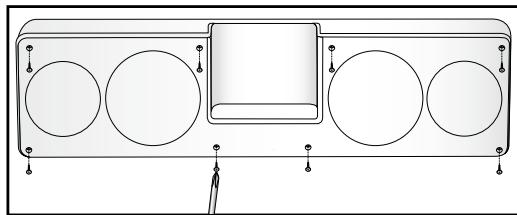
Recycling Information for Lithium-ion Battery: Battery Removal Caution: Use safety goggles when disassembling your Pure-Fi Anywhere™
- Pry off front cover.
- Use Philips screwdriver to remove 8 screws as shown.
- Pull speakers apart.
- Disconnect battery connector.
- Use Philips screwdriver to remove 2 screws as shown.
- Do not place in trash. Dispose of battery according to local battery recycling laws.


Logitech Hardware Product Limited Warranty
Logitech warrants that your Logitech hardware product shall be free from defects in material and workmanship for two (2) years, beginning from the date of purchase. Except where prohibited by applicable law, this warranty is nontransferable and is limited to the original purchaser. This warranty gives you specific legal rights, and you may also have other rights that vary under local laws.
Remedies
Logitech's entire liability and your exclusive remedy for any breach of warranty shall be, at Logitech's option, (1) to repair or replace the hardware, or (2) to refund the price paid, provided that the hardware is returned to the point of purchase or such other place as Logitech may direct with a copy of the sales receipt or dated itemized receipt. Shipping and handling charges may apply except where prohibited by applicable law. Logitech may, at its option, use new or refurbished or used parts in good working condition to repair or replace any hardware product. Any replacement hardware product will be warranted for the remainder of the original warranty period or thirty (30) days, whichever is longer or for any additional period of time that may be applicable in your jurisdiction.
This warranty does not cover problems or damage resulting from (1) accident, abuse, misapplication, or any unauthorized repair, modification or disassembly; (2) improper operation or maintenance, usage not in accordance with product instructions or connection to improper voltage supply; or (3) use of consumables, such as replacement batteries, not supplied by Logitech except where such restriction is prohibited by applicable law.
How to Obtain Warranty Support
Before submitting a warranty claim, we recommend you visit the support section at www.logitech.com for technical assistance. Valid warranty claims are generally processed through the point of purchase during the first thirty (30) days after purchase; however, this period of time may vary depending on where you purchased your product - please check with Logitech or the retailer where you purchased your product for details. Warranty claims that cannot be processed through the point of purchase and any other product related questions should be addressed directly to Logitech. The addresses and customer service contact information for Logitech can be found in the documentation accompanying your product and on the web at www.logitech.com/contactus.
Limitation of Liability
LOGITECH SHALL NOT BE LIABLE FOR ANY SPECIAL, INDIRECT, INCIDENTAL OR CONSEQUENTIAL DAMAGES WHATSOEVER, INCLUDING BUT NOT LIMITED TO LOSS OF PROFITS, REVENUE OR DATA (WHETHER DIRECT OR INDIRECT) OR COMMERCIAL LOSS FOR BREACH OF ANY EXPRESS OR IMPLIED WARRANTY ON YOUR PRODUCT EVEN IF LOGITECH HAS BEEN ADVISED OF THE POSSIBILITY OF SUCH DAMAGES. Some jurisdictions do not allow the exclusion or limitation of special, indirect, incidental or consequential damages, so the above limitation or exclusion may not apply to you.
Duration of Implied Warranties
EXCEPT TO THE EXTENT PROHIBITED BY APPLICABLE LAW, ANY IMPLIED WARRANTY OR CONDITION OF MERCHANTABILITY OR FITNESS FOR A PARTICULAR PURPOSE ON THIS HARDWARE PRODUCT IS LIMITED IN DURATION TO THE DURATION OF THE APPLICABLE LIMITED WARRANTY PERIOD FOR YOUR PRODUCT. Some jurisdictions do not allow limitations on how long an implied warranty lasts, so the above limitation may not apply to you.
National Statutory Rights
Consumers have legal rights under applicable national legislation governing the sale of consumer goods. Such rights are not affected by the warranties in this Limited Warranty.
No Other Warranties
No Logitech dealer, agent, or employee is authorized to make any modification, extension, or addition to this warranty.
Logitech Address
Logitech Europe S.A., Z.I. Moulin du Choc D, 1122 Romanel/Morges, Switzerland
© 2007 Logitech. All rights reserved. Logitech, the Logitech logo, and other Logitech marks are owned by Logitech and may be registered. All other trademarks are the property of their respective owners. iPod is a trademark of Apple, Inc., registered in U.S. and other countries.
| iPod mini | iPod (4th Gen.) | iPod with color display | iPod nano | iPod with video | iPod nano (aluminio) |
| 3 4GB, 6GB | 4 20GB, U2 | 6 20GB, 30GB, U2 | 8 1GB, 2GB, 4GB | 9 30GB | 11 2GB, 4GB, 8GB |
| 5 40GB | 7 40GB, 60GB | 10 60GB, 80GB |

Rechargeable battery. Before
Before first use, the battery must be charged. A full charge of the battery provides approximately 10 hours of operation.
- Connect the charger to the power outlet.
- To charge the speakers, connect the AC adapter.
Connect the speakers, and then to the AC power outlet. When connecting the speakers to the AC power mains, the indicators showing the mains connection will light up.
- The charge level indicators will blink green during charging of the speakers. When all indicators are lit continuously, it means the battery is fully charged.
- If, when powered from the batteries, the charge level indicator lights red, it means the battery needs to be recharged.
The Pure-Fi Anywhere speakers use a built-in rechargeable battery. This battery has a limited number of recharge cycles and cannot be replaced. For additional information, see the section on battery care.

- Turn on the Pure-Fi Anywhere speakers by pressing the power button.
- Press the play button on your iPod.
- Use the volume buttons to adjust the volume level.
Note.
When turning off the speakers, the volume and bass settings are also
You can also use the included wireless remote control.

Troubleshooting
The speakers are turned on, but no sound is heard.
Playback is active, but no music is heard.
Make sure the speakers are turned on (if the power indicator lights green, the speakers are on). Check the volume level on the speakers and on the connected device. Use the volume buttons to increase the volume. Update to the latest version of iTunes (available at apple.com) and update the firmware of your iPod to the latest version.
The universal base device is missing.
- The new models of the iPod base universal device must be included in the iPod delivery kit.
For the first, second, and third generation iPods, use the included dock connector (dock) on the back of the columns. This requires a separate cable for connecting the iPod to the dock connector (dock). (On the first and second generation iPods, the dock connector is absent. Third generation iPods are not affected by the universal base device for speakers.)
The remote control does not work.
- Point the remote directly at the speakers. Make sure the remote sensor is not covered. (It is located on the top surface of the iPod.) Press any button on the remote. The speakers may be in power-saving mode. Press the buttons on the speakers to exit this mode.
For information on troubleshooting, visit the website www.logitech.com.

Use your speakers efficiently
Legal rights
Logitech's liability and your exclusive remedy under this warranty are limited, at Logitech's option, to (1) repair or replacement of the product, or (2) return of the price paid for the product, at the retailer or an authorized service center, with a copy of the receipt. This warranty does not apply to ...
This warranty does not apply to (a) consumable parts, such as batteries, unless damage has occurred due to a defect in materials or workmanship; (b) cosmetic damage, including but not limited to scratches, dents, and broken plastic on ports; (c) damage caused by use with non-Logitech products; (d) damage caused by accident, abuse, misuse, flood, fire, earthquake, or other external causes; (e) damage caused by operating the product outside the permitted or intended uses described by Logitech; (f) damage caused by service performed by anyone who is not a representative of Logitech or an authorized service provider; or (g) a product or part that has been modified to alter functionality or capability without the written permission of Logitech.
Ways to obtain warranty service
Please keep this manual for future reference and for maintenance. We recommend that you read the support and warranty section to understand the technical support. Warranty and maintenance are usually provided through the dealer where the product was purchased, i.e., within 30 (thirty) days of the product purchase. However, this period may vary depending on the country where you purchased the product. Please confirm this information with the dealer or the product manufacturer. Warranty claims that cannot be processed through the retail channel, as well as any other questions related to the product, should be directed directly to the address and contact information of Logitech provided in the documentation included with the product, and on the website www.logitech.com/contactus.
Limitation of Liability
To the maximum extent permitted by applicable law, Logitech shall not be liable for any special, indirect, incidental, or consequential damages, including but not limited to loss of profits, loss of data, or loss of goodwill, arising out of or in connection with the use or performance of the product, even if Logitech has been advised of the possibility of such damages. In no event shall Logitech's total liability exceed the amount paid for the product.
Duration of Implied Warranties
Except as expressly provided in this warranty, to the extent permitted by applicable law, any implied warranties, including any implied warranty of merchantability or fitness for a particular purpose, are limited in duration to the duration of this warranty. Some jurisdictions do not allow limitations on how long an implied warranty lasts, so the above limitation may not apply to you.
National Laws and Rights
This warranty gives you specific legal rights, and you may also have other rights that vary from state to state or country to country. The warranty terms herein do not affect any statutory rights you may have under applicable national laws.
No Other Warranties
No employee, agent, or representative of Logitech is authorized to make any modification, extension, or addition to this warranty, except as expressly stated herein.
Logitech Address
Logitech Europe S.A., Z.I. Moulin du Choc D, 1122 Romanel/Morges, Switzerland
© Logitech, 2007. All rights reserved. Logitech, the Logitech logo, and other Logitech marks are owned by Logitech and may be registered. All other trademarks are the property of their respective owners.
The iPod is a trademark of Apple Computer, Inc., registered in the U.S. and other countries.
FONTOS BIZTONSÁGINFORMÁCÍK
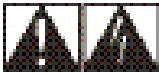
FIGYELEM: ÁRAMÜTÉSVESZÉLY!
- IMPORTANT SAFETY INSTRUCTIONS
- CAUTION
- ELECTRIC SHOCK HAZARD
- WARNING
- IN THE BOX
- ATTACH A UNIVERSAL DOCK ADAPTER
- CHARGING YOUR SPEAKERS
- LISTENING TO MUSIC
- TROUBLESHOOTING
- MY IPOD IS IN THE DOCK AND PLAYING, BUT I CAN'T HEAR ANY MUSIC
- THERE ISN'T A UNIVERSAL DOCK ADAPTER FOR MY IPOD
- THE REMOTE ISN'T WORKING
- GETTING THE MOST OUT OF YOUR SPEAKERS
- END-OF-LIFE BATTERY DISPOSAL INSTRUCTIONS
- RECYCLING INFORMATION FOR LITHIUM-ION BATTERY: BATTERY REMOVAL CAUTION: USE SAFETY GOGGLES WHEN DISASSEMBLING YOUR PURE-FI ANYWHERE™
- LOGITECH HARDWARE PRODUCT LIMITED WARRANTY
- REMEDIES
- HOW TO OBTAIN WARRANTY SUPPORT
- LIMITATION OF LIABILITY
- DURATION OF IMPLIED WARRANTIES
- NATIONAL STATUTORY RIGHTS
- NO OTHER WARRANTIES
- LOGITECH ADDRESS
- THE SPEAKERS ARE TURNED ON, BUT NO SOUND IS HEARD
- THE UNIVERSAL BASE DEVICE IS MISSING
- THE REMOTE CONTROL DOES NOT WORK
- USE YOUR SPEAKERS EFFICIENTLY
- LEGAL RIGHTS
- WAYS TO OBTAIN WARRANTY SERVICE
- NATIONAL LAWS AND RIGHTS
- FONTOS BIZTONSÁGINFORMÁCÍK
- FIGYELEM: ÁRAMÜTÉSVESZÉLY
Brand : LOGITECH
Model : PURE-FI ANYWHERE
Category : Bluetooth speaker