
FabricSkin Keyboard Folio - Keyboard LOGITECH - Free user manual and instructions
Find the device manual for free FabricSkin Keyboard Folio LOGITECH in PDF.


| Product type | Folio keyboard for tablet |
| Brand | Logitech |
| Model | FabricSkin Keyboard Folio |
| Dimensions (approx.) | 250 x 185 x 10 mm |
| Weight | Approximately 400 g |
| Power supply | Rechargeable lithium-ion battery, USB-C port |
| Battery life | Up to 3 months per charge (typical use) |
| Connectivity | Bluetooth 5.1 |
| Main features | Integrated screen protector, adjustable stand, backlit keys |
| Compatibility | iPad Air / Pro (recent models) |
| Materials | Fabric, reinforced plastic |
| Care and cleaning | Clean with a soft, dry cloth. Avoid water and liquid cleaners. |
| Safety | Use on a stable surface. Avoid shocks and humidity. |
| Spare parts and repairability | Battery not user-replaceable. No spare parts available. |
| Warranty | 2 years (depending on region) |
| Box contents | Folio keyboard, USB-C cable, documentation |
Frequently Asked Questions - FabricSkin Keyboard Folio LOGITECH
User questions about FabricSkin Keyboard Folio LOGITECH
0 question about this device. Answer the ones you know or ask your own.
Ask a new question about this device
Download the instructions for your Keyboard in PDF format for free! Find your manual FabricSkin Keyboard Folio - LOGITECH and take your electronic device back in hand. On this page are published all the documents necessary for the use of your device. FabricSkin Keyboard Folio by LOGITECH.
USER MANUAL FabricSkin Keyboard Folio LOGITECH
Setup Guide
Contents
English 3
German 12
French 21
Italian 30
Spanish 39
Portuguese 48
Dutch 57
Swedish 66
Danish 75
Norwegian 84
Finnish 93
Greek 102
In Russian 111
Hungarian 120
Czech version 129
In Polish 138
Estonian 147
Latvian 156
Lithuanian 165
Croatian 174
Serbian 183
Slovenian 192
Slovak 201
Romanian 210
Bulgarian 219
Ukrainian 228
Turkish 237
Arabic 247
www.logitech.com/support
255
Know your product
Setting up the keyboard folio
Getting started
- Open the keyboard folio, make sure the edge of your iPad is aligned with the iPad holder and push down:

- Move the keyboard folio into the typing position:

The keyboard turns on automatically.
Establishing connection with your iPad
The keyboard folio links to your iPad via a Bluetooth connection. The first time you use the keyboard folio, you must pair it with your iPad.
The status light blinks blue to indicate that the keyboard is discoverable, ready for pairing with your iPad.

The first time you use the keyboard it remains discoverable for 15 minutes.
If the status light turns red, charge the battery. For more information, see "Charging the keyboard battery."
To pair your keyboard folio with your iPad:
- On your iPad:
- Make sure your iPad's Bluetooth feature is on. Select Settings > Bluetooth > On.
- Select "FabricSkin Keyboard Folio i5" from the Devices menu.
- If your iPad requests a PIN, enter it using the folio keyboard (not on your iPad). When successful connection is made, the status light turns solid blue for a short time, and then turns off.
Connecting to another iPad
- Move the keyboard folio into the typing position.
- Make sure your iPad's Bluetooth feature is on. Select Settings > Bluetooth > On.
- Press the Bluetooth Connect button:
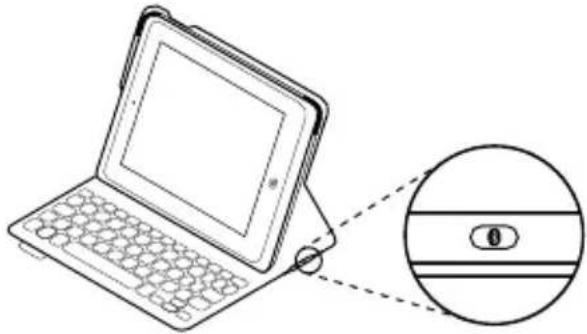
The keyboard is discoverable for 3 minutes.
- Select "FabricSkin Keyboard Folio i5" on your iPad's Devices menu.
- If your iPad requests a PIN, enter it using the folio keyboard (not on your iPad). When successful connection is made, the status light turns solid blue for a short time, and then turns off.
Using the keyboard folio
Two viewing positions
The keyboard folio provides two viewing positions—one for typing and another for browsing.
To type, move the iPad holder into the typing position, aligning it with the built-in magnet to secure it. Turn on the keyboard:

To browse, place the iPad holder in the browsing position, remembering to switch off the keyboard to conserve battery power:

If you don't use the keyboard for a while in the typing position, it enters sleep mode automatically. Pressing any key wakes it. Closing the keyboard folio powers off your iPad.
Detaching your iPad
To detach your iPad from the folio, bend back one of the iPad holder corners:

Your iPad is then released:
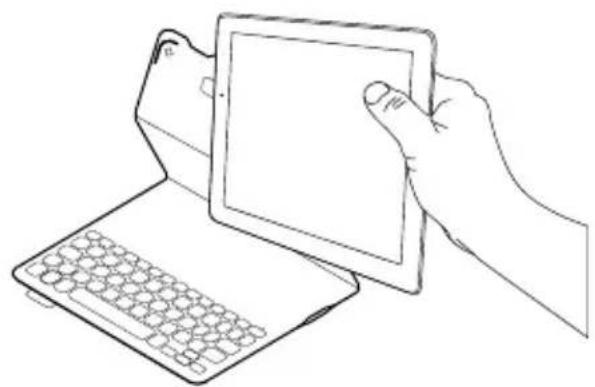
Storing your iPad for travel
- Insert your iPad in the iPad holder.
- Close the keyboard folio:

Cleaning your folio
Wipe your FabricSkin Keyboard folio with a wet cloth. DO NOT use solvent.
Status light indicators
Your keyboard folio's status light provides information about the battery power and Bluetooth connection:

| Light Description | |
| Blinking green The battery is charging. | |
| Solid green The battery is fully charged (100%). | |
| Red Battery power is low (less than 10%). Recharge the battery. | |
| Blinking blue Fast: The keyboard is in discovery mode, ready for pairing.Slow: The keyboard is trying to reconnect to your iPad. | |
| Solid blue Bluetooth pairing or reconnection is successful. | |
Function keys

Home = iPad Home screen

Fn + 1 = Lock screen
Locks or unlocks the iPad screen

Fn + 2 = Siri
Use your voice to send messages, make calls, schedule meetings, and more

Fn + 3 = Search
Launches the iPad search function

Fn + 4 = Switch language
Switches the keyboard language

Fn + 5 = Virtual keyboard
Shows/hides the virtual keyboard

Fn + 7 = Previous track

Fn + 8 = Play/Pause

Fn + 9 = Next track
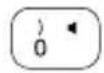
Fn + O = Mute

Fn + dash = Volume down
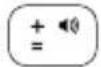
Fn + plus = Volume up

Fn + X = Cut

Fn + C = Copy

Fn + V = Paste

Fn + Left cursor = Select left
Selects text on the left, word by word

Fn + Right cursor = Select right
Selects text on the right, word by word

Fn + Spacebar =
Switch applications
Note: To select a function key, press and hold the Fn key, and then press the key indicated above.
Charging the keyboard battery

If the battery status light is red, the keyboard folio battery needs to be charged.
- Plug one end of the micro-USB cable into the charging port, and the other end into a USB port on your computer.
Alternatively, you can use a 5V USB charger, such as the one provided with your iPad, as long as the power output rating is at least 500mA.
The status light blinks green as the battery charges.
- Charge the battery until the battery status light turns solid green.
Battery information
- A fully charged battery provides about three months of use when the keyboard is used about two hours a day.
- Charge the battery if the status light turns red briefly after the keyboard turns on.
- When not in use, turn off the keyboard to conserve battery power.
- The keyboard enters sleep mode automatically if not used for a while in the typing position. Press any key to wake it.
Battery disposal at product end of life
- Pry off the top cover of the keyboard with a screwdriver:

- Detach the battery from the circuit board and remove the battery:

- Dispose of your product and its battery according to local laws.

Visit Product Central
There's more information and support online for your product. Take a moment to visit Product Central to learn more about your new keyboard folio.
www.logitech.com/support/fabricskin-keyboard-folio-i5
Browse online articles for setup help, usage tips, and information about additional features.
Connect with other users in our Community Forums to get advice, ask questions, and share solutions.
Find a wide selection of content including:
- Tutorials
- Troubleshooting
- Support community • Online documentation
- Warranty information
- Spare parts (when available)
Troubleshooting
The keyboard does not work
- Press any key to wake the keyboard from sleep mode.
- Move the iPad holder into typing position. The keyboard folio does not work if the iPad holder is incorrectly placed.
- Recharge the internal battery. For more information, see “Charging the keyboard battery.”
- Re-establish the Bluetooth connection between the keyboard and your iPad.
- Verify that Bluetooth is turned on in your iPad's settings (Settings > Bluetooth > On).
- Choose "FabricSkin Keyboard Folio i5" from the Devices menu on your iPad. The status light turns solid blue when Bluetooth connection is established.
What do you think?
Thank you for purchasing our product. Please take a minute to tell us what you think of it.
www.logitech.com/ithink

Cleaning the Folio
www.logitech.com/support/fabricskin-keyboard-folio-i5
www.logitech.com/ithink

Setting up the Keyboard Folio case
Cleaning the case
Fn + 8 = Play/Pause

Fn + plus = Volume +

Fn + X = Mute

Fn + C = Copy

Fn + V = Paste

www.logitech.com/support/fabricskin-keyboard-folio-i5
www.logitech.com/ithink

Cleaning your Folio
www.logitech.com/support/fabricskin-keyboard-folio-i5
www.logitech.com/ithink

www.logitech.com/support/fabricskin-keyboard-folio-i5
www.logitech.com/ithink

Cleaning your Folio
www.logitech.com/support/fabricskin-keyboard-folio-i5
www.logitech.com/ithink
Getting to know your product
Setting up the Keyboard Folio
Getting started
- Place the Keyboard Folio in typing mode:

Cleaning your folio
www.logitech.com/support/fabricskin-keyboard-folio-i5
www.logitech.com/ithink
Product overview
www.logitech.com/support/fabricskin-keyboard-folio-i5
www.logitech.com/ithink

The keyboard can be paired for 3 minutes.
www.logitech.com/support/fabricskin-keyboard-folio-i5
www.logitech.com/ithink
The keyboard turns on automatically.
Connecting to your iPad
Using the Keyboard Folio
Cleaning the cover
Wipe the FabricSkin Keyboard Folio with a damp cloth. DO NOT USE solvents.
Status lights
If the battery status light is red, the Keyboard Folio battery needs to be charged.
- Insert the micro-USB cable into the charging port, and the other end into the USB port on your computer.
- Dispose of the product and battery in accordance with local regulations.

www.logitech.com/support/fabricskin-keyboard-folio-i5
www.logitech.com/ithink
Register your product

www.logitech.com/support/fabricskin-keyboard-folio-i5
www.logitech.com/ithink
www.logitech.com/support/fabricskin-keyboard-folio-i5
www.logitech.com/ithink

www.logitech.com/support/fabricskin-keyboard-folio-i5
www.logitech.com/ithink
www.logitech.com/support/fabricskin-keyboard-folio-i5
www.logitech.com/ithink
Product description

www.logitech.com/support/fabricskin-keyboard-folio-i5
www.logitech.com/ithink
Getting to know your device

Cleaning the case
www.logitech.com/support/fabricskin-keyboard-folio-i5
www.logitech.com/ithink
Getting to know your device

- Set the keyboard folio to typing position:

Open the iPad to the correct angle:

Cleaning the case
www.logitech.com/support/fabricskin-keyboard-folio-i5
www.logitech.com/ithink
Getting to know your device


- Disconnect the battery from the circuit board and remove the battery.

www.logitech.com/support/fabricskin-keyboard-folio-i5
www.logitech.com/ithink

Preparing your iPad for travel
Cleaning the folio
www.logitech.com/support/fabricskin-keyboard-folio-i5
www.logitech.com/ithink
Get to know your device
- iPad holder
- Protective cover
- Function keys
- Keyboard
- Bluetooth® and battery status light
- Reset button
- Micro USB charging port
- Bluetooth pairing button
- Micro USB charging cable
- Product documentation


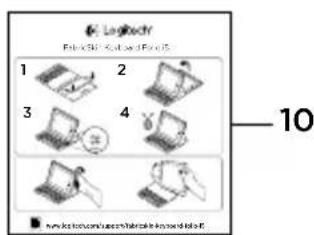
Setting up the keyboard folio
Getting started
- Place the keyboard folio in typing position:

On first use, the keyboard remains visible for 15 minutes.
If the status light turns red, charge the battery. For more information, see "Charging the keyboard battery".
To pair the keyboard on the folio with your iPad:
- On your iPad:
- Make sure Bluetooth is turned on. Go to Settings > Bluetooth > On.
- In the Devices list, select "FabricSkin Keyboard Folio i5".
- If your iPad asks for a PIN, enter it using the keyboard on the folio (not on the iPad).
The keyboard is visible for 3 minutes.
- In the Devices list on your iPad, select "FabricSkin Keyboard Folio i5".
- If your iPad asks for a PIN, enter it using the keyboard on the folio (not on the iPad).
The iPad then detaches:

Storing the iPad while traveling
- Insert the iPad into the iPad holder.
- Close the protective cover with keyboard:

| Svjetlo Opis | |
| Trepće zeleno Baterija se puni. | |
| Svijetli zeleno Baterija je potpuno napunjena (100%). | |
| Crveno Baterija je gotovo prazna (manje od 10%). Napunite bateriju. | |
| Trepće plavo Brzo: Tipkovnica je u načinu rada za otkrivanje i spremna je za uparivanje.Sporo: Tipkovnica se pokušava ponovno povezati s uređajem iPad. | |
| Plavo Bluetooth uparivanje ili ponovno povezivanje uspjelo je. | |
Function keys

Home = Displays the iPad home screen

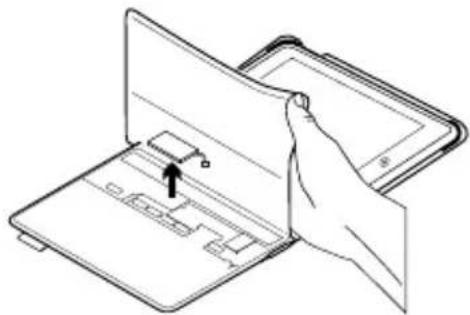
- Disconnect the battery from the circuit board and remove it:
www.logitech.com/support/fabricskin-keyboard-folio-i5
www.logitech.com/ithink

- iPad holder
- Protective case
- Function keys
- Keyboard
- Bluetooth® and battery status lights
- Reset button
- Micro-USB charging port
- Bluetooth connection button
- Micro-USB charging cable
- Product documentation
Setting up the keyboard with case
First steps
- Open the keyboard with case, align the edge of the iPad device with the iPad holder and press the device down:

- Place the keyboard with case in the typing position:

When you use the keyboard for the first time, it remains visible for 15 minutes.
If the status light turns red, charge the battery. For more information, see "Charging the keyboard battery".
To pair the keyboard with case with the iPad device:
- On the iPad device, do the following:
- Make sure Bluetooth is turned on on the iPad device. Select Settings > Bluetooth > On.
- Select "FabricSkin Keyboard Folio i5" from the "Devices" menu.
- If the iPad asks for a PIN, enter it using the folio keyboard (not the iPad). Once the connection is successfully established, the status light will stay solid blue for a while, then turn off.
The keyboard is visible for 3 minutes.
- In the "Devices" menu on the iPad, select "FabricSkin Keyboard Folio i5".
- If the iPad asks for a PIN, enter it using the folio keyboard (not the iPad). Once the connection is successfully established, the status light stays solid blue for a while, then turns off.
If you want to view, set the iPad holder to the viewing position and remember to turn off the keyboard to save battery:

If you don't use the keyboard for a while while it's in the typing position, it automatically goes to sleep. The keyboard wakes up when you press any key.
This will free up the iPad:

Preparing the iPad for travel
- Place the iPad in the iPad holder.
- Close the keyboard with the folio:

Cleaning the folio
Clean the FabricSkin Keyboard folio with a damp cloth. Do NOT use thinner.
Indicators - status lights
The status light on the keyboard folio provides information about battery power and Bluetooth connection:

| Lampica Opis | |
| Treperi zeleno Baterija se | puni. |
| Neprekidno zeleno Baterija | je napunjena u potpunosti (100%). |
| Crvena Baterija je pri kraju | (manje od 10%). Napunite bateriju. |
| Treperi plavo Brzo: Tastatura je vidljiva, spremna za uparivanje.Sporo: Tastatura pokušava da se ponovo poveže sa iPad uređajem. | |
| Neprekidno plavo Bluetooth uparivanje ili ponovno povezivanje je uspešno izvršeno. | |
Function keys

If the battery status light is red, it means the keyboard folio battery needs to be charged.
- Connect one end of the micro-USB cable to the charging port and the other end to a USB port on your computer.
Additionally, you can use a 5V USB charger, such as the one that comes with the iPad, provided the power output is at least 500 mA.
The status light blinks green while the battery is charging.
- Charge the battery until the green battery status light stops blinking.
Battery information
- Dispose of the product and battery in accordance with local laws.

Visit the product hub
There you will find additional information and online support for your product.
Take the time to visit the product hub to learn more about your new folio keyboard.
www.logitech.com/support/fabricskin-keyboard-folio-i5
Product overview

Setting up the keyboard folio
Introduction
- Open the keyboard folio, align the edge of the iPad with the iPad holder, and push down:

- Move the keyboard folio into the text entry position:

The keyboard turns on automatically.
For browsing, place the iPad holder in the browsing position and turn off the keyboard to save power:

To release the iPad:

Cleaning the case
Clean the FabricSkin Keyboard folio with a damp cloth. Do NOT use solvents.
If the battery status light is red, you need to charge the keyboard folio battery.
www.logitech.com/support/fabricskin-keyboard-folio-i5
Product contents

Setting up the Keyboard Folio device
Getting started
The keyboard turns on automatically.
Connecting to the iPad
Storing the iPad while traveling
- Place the iPad into the holder.
- Close the Keyboard Folio:

Cleaning the folio device
Wipe the FabricSkin Keyboard folio with a damp cloth. DO NOT use solvents.
Status indicators
The status indicator on your keyboard folio provides information about battery status and Bluetooth connection:

If the battery status indicator lights up red, the device battery needs to be recharged.
- Dispose of the product and battery in accordance with local regulations.

www.logitech.com/support/fabricskin-keyboard-folio-i5
www.logitech.com/ithink

Installing the keyboard folio cover
Basics
The keyboard turns on automatically.
www.logitech.com/support/fabricskin-keyboard-folio-i5
www.logitech.com/ithink

Cleaning the Folio
www.logitech.com/support/fabricskin-keyboard-folio-i5
www.logitech.com/ithink

Wiping the cover
www.logitech.com/support/fabricskin-keyboard-folio-i5
www.logitech.com/ithink
Get to know your product

www.logitech.com/support/fabricskin-keyboard-folio-i5
www.logitech.com/ithink

Writing: 2 free

- On iPad device
Cleaning the case
www.logitech.com/support/fabricskin-keyboard-folio-i5
1: Keyboard
- Battery

Battery information
www.logitech.com/ithink
www.logitech.com/support/fabricskin-keyboard-folio-i5

Belgium/Belgique Dutch: +32-(0)2 200 64 44; French: +32-(0)2 200 64 40
Czech Republic +420 239 000 335
© 2013 Logitech. All rights reserved. Logitech, the Logitech logo, and other Logitech marks are owned by Logitech and may be registered. Apple and iPad are trademarks of Apple Inc., registered in the U.S. and other countries. All other trademarks are the property of their respective owners. Logitech assumes no responsibility for any errors that may appear in this manual. Information contained herein is subject to change without notice.
621-000182.004





- CONTENTS
- SETTING UP THE KEYBOARD FOLIO
- GETTING STARTED
- ESTABLISHING CONNECTION WITH YOUR IPAD
- CONNECTING TO ANOTHER IPAD
- USING THE KEYBOARD FOLIO
- TWO VIEWING POSITIONS
- DETACHING YOUR IPAD
- STORING YOUR IPAD FOR TRAVEL
- CLEANING YOUR FOLIO
- STATUS LIGHT INDICATORS
- FUNCTION KEYS
- CHARGING THE KEYBOARD BATTERY
- BATTERY INFORMATION
- BATTERY DISPOSAL AT PRODUCT END OF LIFE
- VISIT PRODUCT CENTRAL
- WWW.LOGITECH.COM/SUPPORT/FABRICSKIN-KEYBOARD-FOLIO-I
- TROUBLESHOOTING
- THE KEYBOARD DOES NOT WORK
- WHAT DO YOU THINK
- CLEANING THE FOLIO
- SETTING UP THE KEYBOARD FOLIO CASE
- CLEANING THE CASE
- CONNECTING TO YOUR IPAD
- CLEANING THE COVER
- STATUS LIGHTS
- GETTING TO KNOW YOUR DEVICE
- PREPARING YOUR IPAD FOR TRAVEL
- STORING THE IPAD WHILE TRAVELING
- SETTING UP THE KEYBOARD WITH CASE
- FIRST STEPS
- PREPARING THE IPAD FOR TRAVEL
- INDICATORS - STATUS LIGHTS
- VISIT THE PRODUCT HUB
- INTRODUCTION
- SETTING UP THE KEYBOARD FOLIO DEVICE
- CONNECTING TO THE IPAD
- CLEANING THE FOLIO DEVICE
- STATUS INDICATORS
- INSTALLING THE KEYBOARD FOLIO COVER
- BASICS
- WIPING THE COVER
Brand : LOGITECH
Model : FabricSkin Keyboard Folio
Category : Keyboard