
G Pro X TKL Rapid - Keyboard LOGITECH - Free user manual and instructions
Find the device manual for free G Pro X TKL Rapid LOGITECH in PDF.
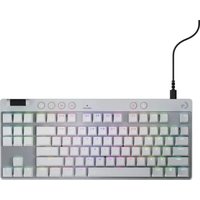


| Product Type | Tenkeyless gaming keyboard |
| Brand | Logitech |
| Model | G Pro X TKL Rapid |
| Dimensions (L x W x H) | 362 x 154 x 34 mm |
| Weight | 850 g |
| Power Supply | USB-C, detachable 1.8 m cable |
| Switch Type | GX analog optical switches (linear, tactile, or clicky) |
| Key Features | Rapid Trigger, RGB backlighting, double-shot PBT keycaps, G HUB software, onboard memory |
| Backlighting | Per-key RGB, customizable via G HUB |
| Anti-ghosting | N-key rollover, 1000 Hz polling rate |
| Keycap Material | Double-shot PBT, wear-resistant |
| Connectivity | Wired USB-C |
| Compatible Operating Systems | Windows 10/11, macOS (partial) |
| Configuration Software | Logitech G HUB (free download) |
| Maintenance and Cleaning | Unplug the keyboard, use a slightly damp microfiber cloth and compressed air for crevices |
| Safety | Do not expose to water or liquids; do not open the case; avoid extreme temperatures |
| Spare Parts and Repairability | PBT keycap set sold separately; replaceable USB-C cable; repair by Logitech authorized center |
| Warranty | 2 years (depending on country) |
| Box Contents | G Pro X TKL Rapid keyboard, USB-C cable, quick start guide, Logitech G stickers |
Frequently Asked Questions - G Pro X TKL Rapid LOGITECH
User questions about G Pro X TKL Rapid LOGITECH
0 question about this device. Answer the ones you know or ask your own.
Ask a new question about this device
Download the instructions for your Keyboard in PDF format for free! Find your manual G Pro X TKL Rapid - LOGITECH and take your electronic device back in hand. On this page are published all the documents necessary for the use of your device. G Pro X TKL Rapid by LOGITECH.
USER MANUAL G Pro X TKL Rapid LOGITECH
Magnetic Analog Gaming Keyboard
SETUP GUIDE | GUIDE D'INSTALLATION


logitech

ENGLISH 3
FRANÇAIS. 10
ESPAÑOL 17
PORTUGUÊS .....24


SETUP INSTRUCTIONS
1 Remove keyboard and USB cable from package.

2 Insert the USB-C cable into the port at the front of the keyboard.

3 Connect the cable your PC.
4 Download and install G HUB software to your PC/MAC for the best gaming experience (G HUB has onboarding story for features). Go to logitechG.com/ghub
logitechG.com/ghub
PRO X TKL RAPID ships with three onboard profiles pre-configured with different analog actuation point and Rapid Trigger settings. These can be selected by holding the FN key and selecting F2 (Profile 1), F3 (Profile 2), or F4 (Profile 3).
| Selection | LED color | Actuation Point | Rapid Trigger |
 | 17020 | T 1.0 mm ON | UNITED |
 | CHARG | T 1.0 mm OFF | UNITED |
 | DCNTT | T 2.0 mm ON | DC200 |
PRO X TKL RAPID also features a Customizable Analog Profile that can be selected by holding the FN key and pressing F5. It can be configured on-the-fly with no software required. Follow the below instructions to modify the actuation point for all keys in the Customizable Analog Profile.
Quick Actuation Point Adjustment
1 Activate the customizable analog profile.

2 Enter actuation point adjustment mode.

3 Use arrow keys to increase or decrease the actuation point. You can also directly select the value you want by pressing the appropriate number (e.g. "4" for 1.5mm).

Press any alphabet key to test the current actuation setting. The number keys will light up from left to right to indicate how much pressure is needed to fully actuate a key.

4 Exit and save changes to the customizable analog profile.

Exit without saving changes to the customizable analog profile.

To configure individual keys, or to configure actuation point values in steps of 0.1 mm, download and use G HUB software (www.logitechg.com/ghub)
As with actuation point, Rapid Trigger can be configured in the Customizable Analog Profile with no software required. Follow the instructions below to configure Rapid Trigger for all keys on the keyboard.
Quick Rapid Trigger Adjustment
1 Activate the customizable analog profile.

2 Enter Rapid Trigger adjustment mode.

3 Press F7 to enable Rapid Trigger ON/OFF.

4 Use arrow keys to increase or decrease the sensitivity of Rapid Trigger. You can also directly select the value you want by pressing the appropriate number (e.g. "2" for 0.3mm).
Press any alphabet key to test the current sensitivity setting. When pressed and released, the key's light turns blue when actuated and magenta when it resets.


5 Exit and save changes to the customizable analog profile.
Exit without saving changes to the customizable analog profile.


To configure individual keys, or to configure Rapid Trigger values in steps of 0.1mm, download and use G HUB software (www.logitechg.com/ghub)
Media Controls
PRO X TKL RAPID includes media controls. Skip back, play/pause, skip forward and mute key, with a volume roller that controls your device volume.

Game Mode
Pressing the Game Mode button blocks the Windows and Context Menu keys when pressed. Additional keys can be blocked using G HUB software.
Game Mode Lock (FN+Game Mode), locks the Game Mode button and prevents Game Mode from being turned on or off.

Brightness
Adjust lighting brightness by pressing the brightness button.

ONBOARD LIGHTING EFFECTS
The keyboard has 8 different lighting effects stored in its onboard memory. You can select and modify these by pressing the Brightness button and these keys:
Brightness + 1 = Rainbow > right
Brightness + 2 = Rainbow > left
Brightness + 3 = Rainbow center out
Brightness + 4 = Rainbow ^ up
Brightness + 5 = Color cycle
Brightness + 6 = Keystroke ripple
Brightness + 7 = Breathing cyan
Brightness + 8 = Custom lighting effect
Brightness + 9 = Custom lighting effect
Brightness + 0 = Solid cyan
Brightness + - = Animation slower
Brightness + = = Animation faster
G HUB lighting controls will override these settings.
QUESTIONS?
logitechG.com/support/PROXTKLRAPID
INSTRUCTIONS D'INSTALLATION
Mode Jeu
Modo de juego
Modo de jogo
©2024 Logitech, Logitech, Logitech G and the Logitech and Logitech G logos are trademarks or registered trademarks of Logitech Europe S.A. and/or its affiliates in the U.S. and other countries. All other trademarks are the property of their respective owners. Logitech assumes no responsibility for any errors that may appear in this manual. Information contained herein is subject to change without notice.
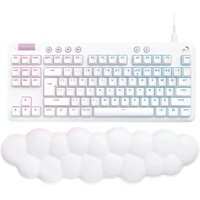


Brand : LOGITECH
Model : G Pro X TKL Rapid
Category : Keyboard