
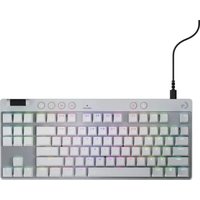
MK620 - Keyboard LOGITECH - Free user manual and instructions
Find the device manual for free MK620 LOGITECH in PDF.


| Product type | Wireless keyboard |
| Brand | Logitech |
| Model | MK620 |
| Dimensions (L x W x H) | 445 x 145 x 24 mm |
| Weight | 500 g (with batteries) |
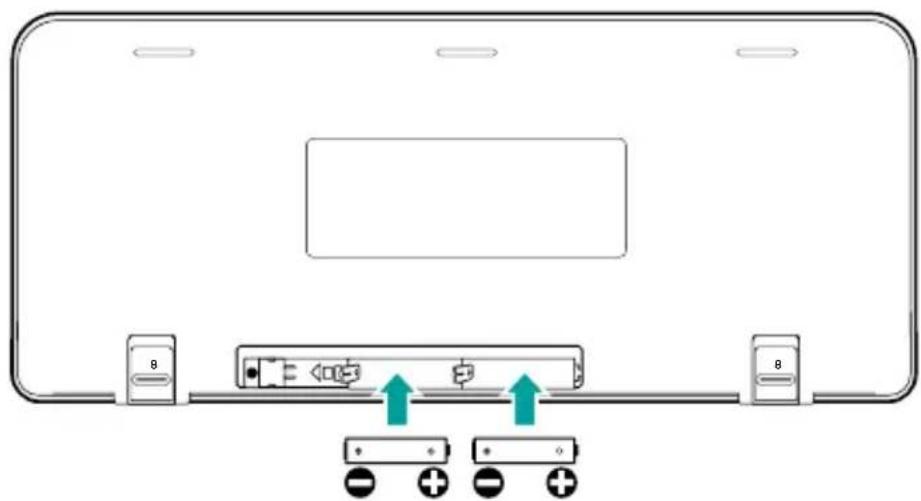
| Power source | 2 AAA batteries |
| Battery life | Up to 24 months |
| Wireless range | 10 meters |
| Connection type | RF 2.4 GHz with USB receiver |
| Main features | Multimedia keys, numeric keypad, function keys |
| Compatibility | Windows, macOS, Chrome OS |
| Material | ABS plastic |
| Care and cleaning | Clean with a soft, dry cloth. Do not use abrasive products. |
| Safety | Do not expose to moisture, extreme temperatures, or direct sunlight. |
| Spare parts and repairability | Not user-repairable. For recycling, contact an authorized center. |
| General information | Indoor use only. Follow the instructions in the manual. |
Frequently Asked Questions - MK620 LOGITECH
User questions about MK620 LOGITECH
0 question about this device. Answer the ones you know or ask your own.
Ask a new question about this device
Download the instructions for your Keyboard in PDF format for free! Find your manual MK620 - LOGITECH and take your electronic device back in hand. On this page are published all the documents necessary for the use of your device. MK620 by LOGITECH.
USER MANUAL MK620 LOGITECH
Getting started with
Logitech® Wireless Combo MK620

Contents
| English | What's in the box, 3 Setup, 4 | Features and troubleshooting, 10 |
| Deutsch | Inhalt, 19 Einrichtung, 20 | Funktionen und Fehlerbehebung, 26 |
| Français | Contenu du coffret 35 Configuration 36 | Fonctions et dépannage 42 |
| Nederlands | Inhoud van de doos, 51 Installatie, 52 | Functies en probleemoplossing, 58 |
| Svenska | Paketet innehåller, 67 Installation, 68 | Funktioner och felsökning, 74 |
| Dansk | Kassens indhold, 83 Installation, 84 | Funktioner og problemløsning, 90 |
| Norsk | Dette finner du i esken, 99 Oppsett, 100 | Funksjoner og feilsøking, 106 |
| Suomi | Pakkauksen sisältö, 115 Asennus, 116 | Toiminnot ja vianmääritys, 122 |

www.logitech.com/support/mk620

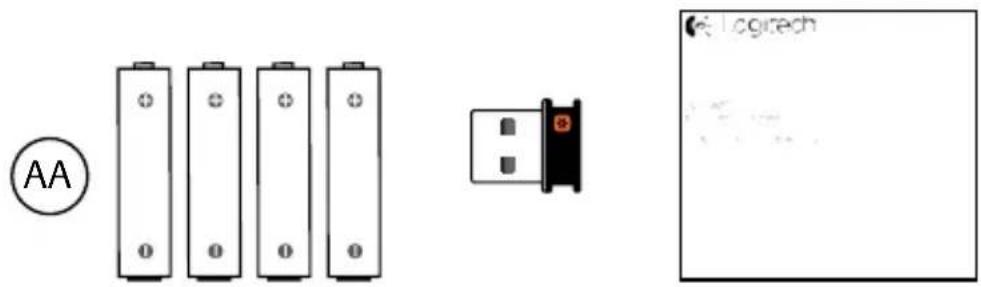
What's in the box


Set-up
1
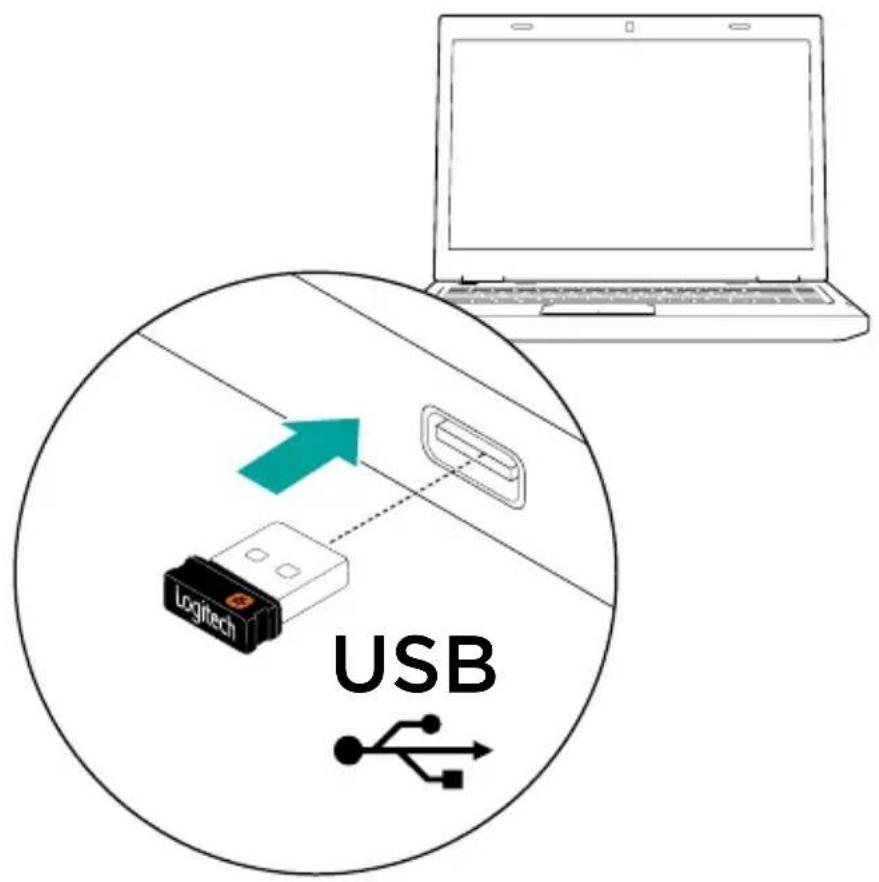
4 English
2
i

ii

iii
iv
6 English
3
i

ii
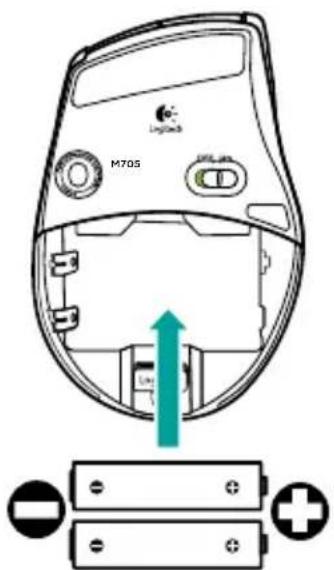
iii
iv
8 English

Your keyboard and mouse are now ready for use. You can download the Logitech SetPoint™ Software if you want to customize your keyboard keys and mouse buttons. www.logitech.com/downloads
Keyboard features: F-key usage

User-friendly enhanced F-keys let you launch applications easily. To use the enhanced functions (yellow icons), first press and hold the F-key; second, press the F-key you want to use.
Tip: In the software (SetPoint) settings, you can invert the FN mode if you prefer to access directly the enhanced functions without having to press the FN key.

Keyboard features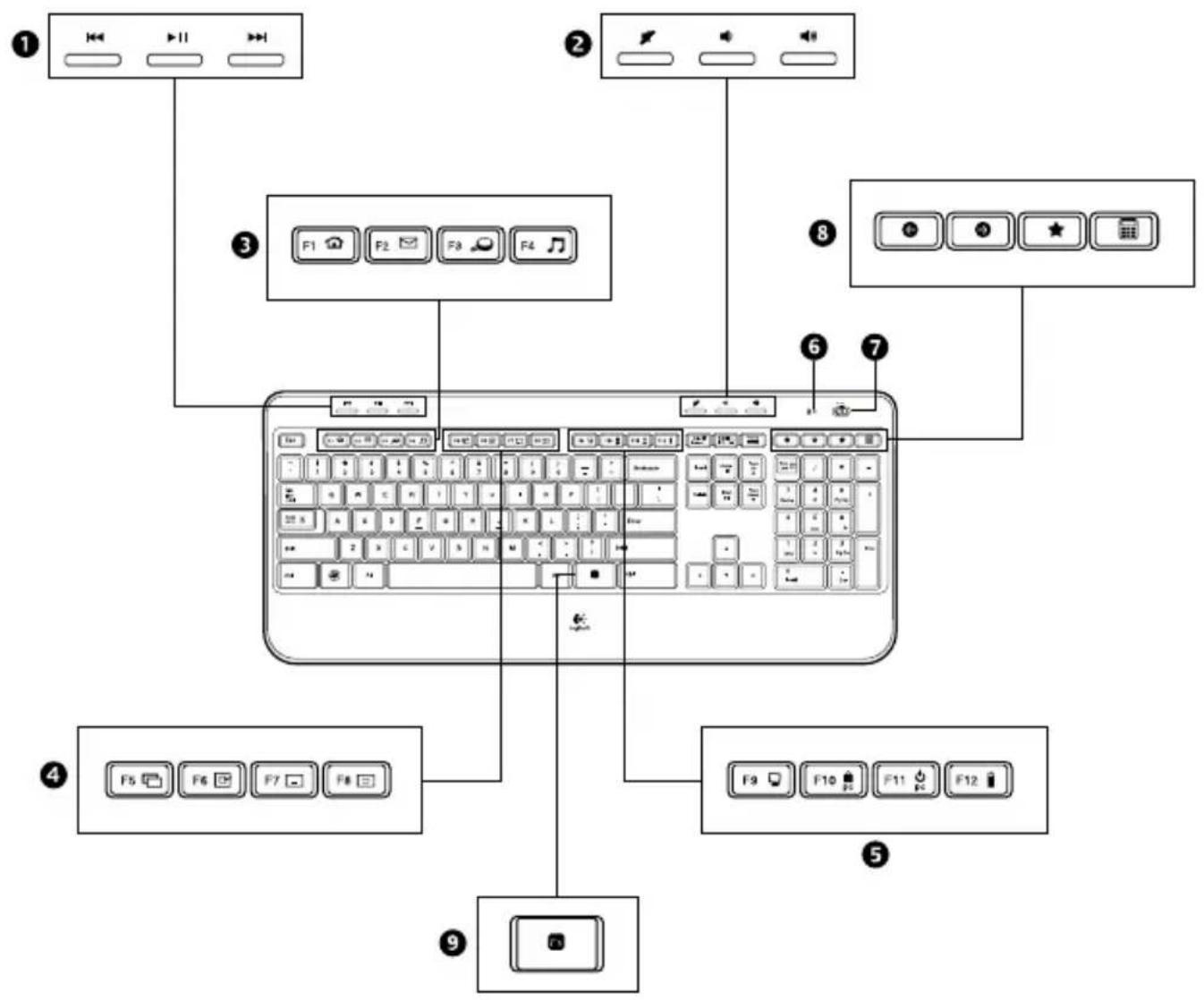
Keyboard features
- Multimedia navigation
- Volume adjustment
- Application zone
FN + F1 Launches Internet browser FN + F2 Launches e-mail application FN + F3 Launches Windows Search* FN + F4 Launches media player
- Windows view controls
FN + F5 Flip + FN + F6 Shows Desktop FN + F7 Minimizes window FN + F8 Restores minimized windows
- Convenience zone
FN + F9 My Computer FN + F10 Locks PC FN + F11 Puts PC in standby mode FN + F12 Keyboard battery status check
- Battery status indicator
- Keyboard power switch
- Internet navigation
- Internet back & forward navigation
- Internet favorites
- Launches calculator
Mouse features
Mouse features
- Scroll Wheel – Press for middle button; tilts for side-to-side scrolling.*
- Scroll Wheel Mode Shift Button - Press to shift between hyper-fast (free-spinning) and precision (click-to-click) scrolling.
- Back and Forward Buttons* - Press to flip between web pages.
- Application Switch* - Press rubber grip to switch between applications.
- Battery Indicator Light - Turns red when a couple weeks of battery life remain.
- On/Off Button - Slide to turn mouse on and off.
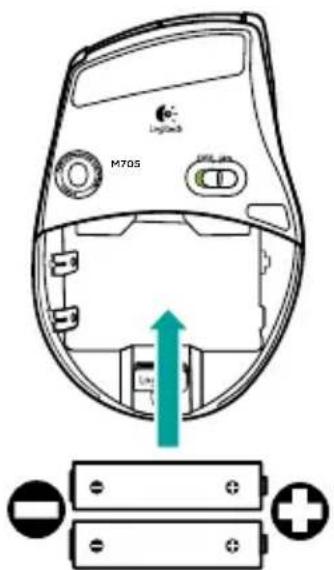
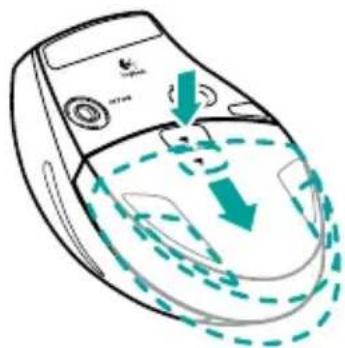
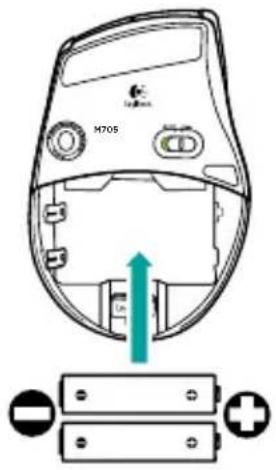
- Battery Door Release – Press where indicated and slide door off mouse. Reduce weight by installing a single battery.
- Laser engine - Delivers smooth, responsive, and precise cursor control.
- Slots - Use to remove worn mouse feet.
- Receiver storage.
* Application Switcher and side-to-side scrolling require Logitech software (SetPoint). Depending on your operating system, the back, forward, and middle buttons may also require Logitech software.
Battery management
Your keyboard and mouse have up to three years of battery life.*
Battery sleep mode
Did you know that your keyboard and mouse go into sleep mode after you stop using them for a few minutes? This feature helps limit battery usage and eliminates the need to keep switching your devices on and off. Both your keyboard and mouse are up and running immediately once you begin using them again.
How to check the battery level for the keyboard
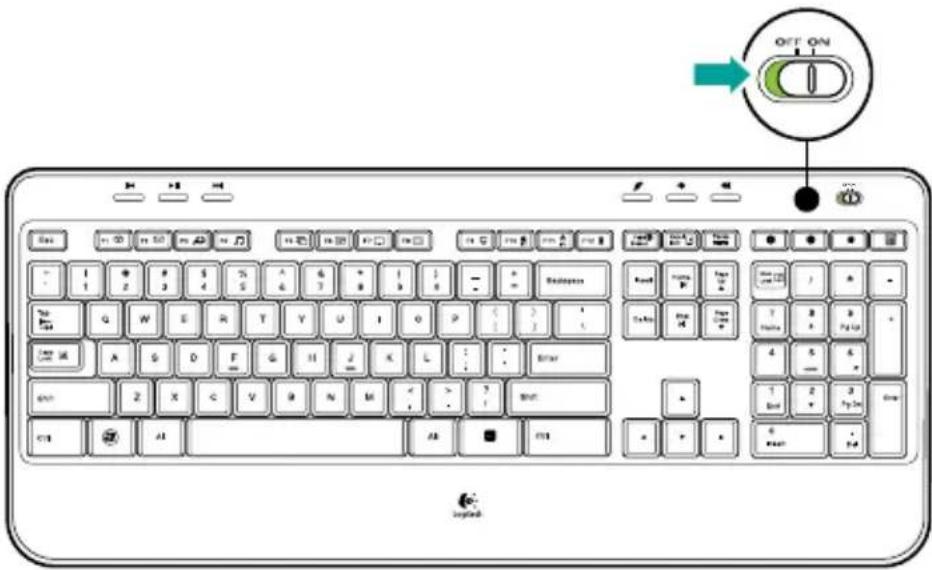
Press and hold the FN key, then press the F12 key: If the LED glows green, the batteries are good. If the LED blinks red, the battery level is low and you should consider changing batteries. You can also turn the keyboard off then back on using the On/Off switch on top of the keyboard.

How to check the battery level for the mouse
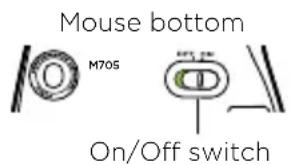
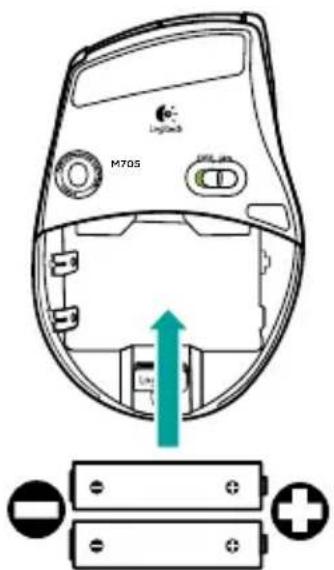
Turn the mouse off then back on using the On/Off switch on the mouse bottom. If the LED on top of the mouse glows green for 10 seconds, the batteries are good. If the LED blinks red, the battery level is low and you should consider changing batteries.

* Battery life varies with usage and computing conditions. Heavy usage usually results in shorter battery life.
![graph TD A["Laptop"] --> B["USB Device"] C["Mouse"] --> B B --> D["Keyboard"] E["Mouse"] --> D D --> F["Switch"] style B fill:#f9f,stroke:#333 style D fill:#ccf,stroke:#333](/content/2026/06/1280254/images/b5f523e8e234978179610a532eb3bba5602e1e0c418f6e226c2fc00866bac6eb.jpg)
Plug it. Forget it. Add to it.
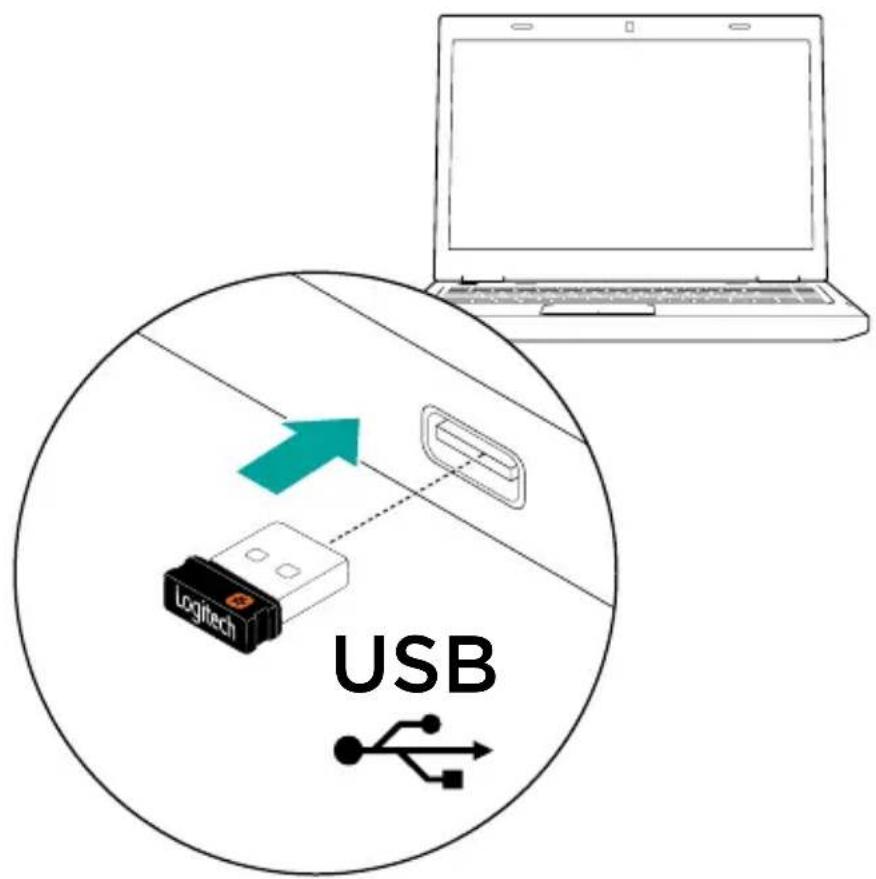
You've got a Logitech® Unifying receiver. Now add a compatible wireless keyboard or mouse that uses the same receiver. It's easy. Just start the Logitech® Unifying software* and follow the onscreen instructions. For more information and to download the software, visit www.logitech.com/unifying
Troubleshooting
Keyboard and mouse are not working
√ Check the USB connection. Also, try changing USB ports. √ Move closer? Try moving the keyboard and mouse closer to the Unifying receiver. √ Check battery installation. Also check the battery power of each device. (See Battery management for more information.)


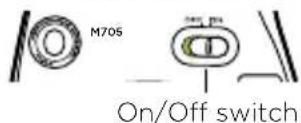
On the mouse bottom, slide the On/Off switch right to turn on the mouse. The Battery LED on the mouse top case should light green for 10 seconds. (See Battery management for more information.)
Mouse bottom
Troubleshooting
Are you experiencing slow or jerky cursor movement? Try the mouse on a different surface (e.g., deep, dark surfaces may affect how the cursor moves on the computer screen).
√ Is the keyboard turned on? Slide the keyboard Off/On switch to the On position, as shown in the image below. The keyboard Status icons should light up.
√ Re-establish the connection. Use the Unifying software to reset the connection between the keyboard/mouse and Unifying receiver. Refer to the Unifying section in this guide for more information (p. 16).
Visit www.logitech.com/comfort for more information about using your product, and for ergonomics.

Contents


Setup
1
2
i

ii

iii
iv
22 German
3
i
ii


iii
iv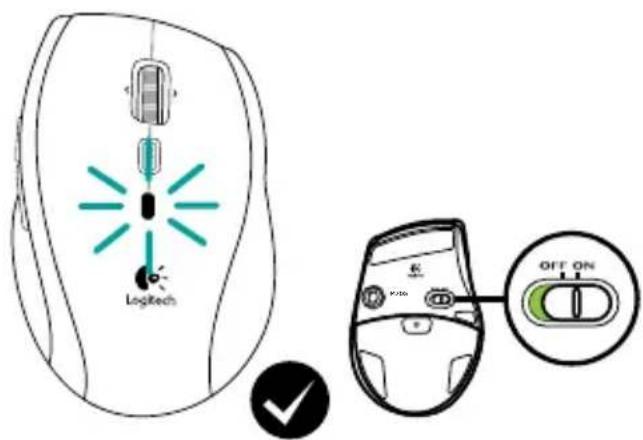

Keyboard functions

ii

iii
iv
3
i
ii


iii
iv

www.logitech.com/downloads


ii

iii
iv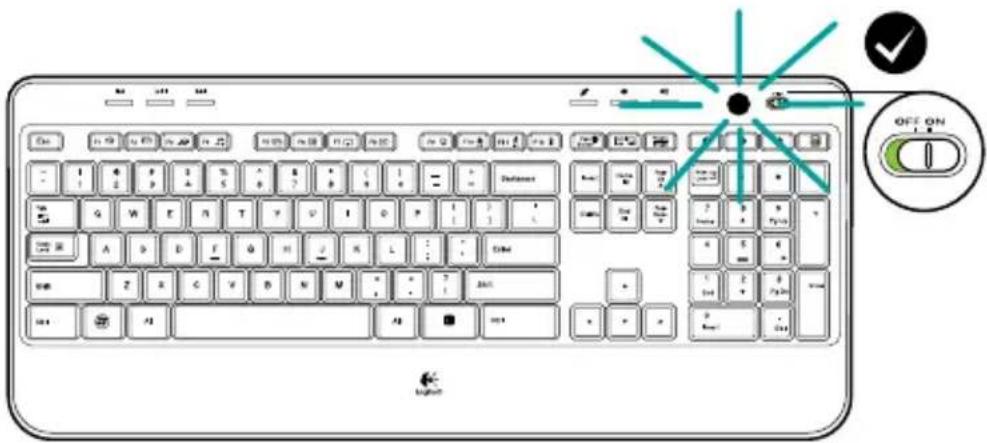
3
i
ii

iii
iv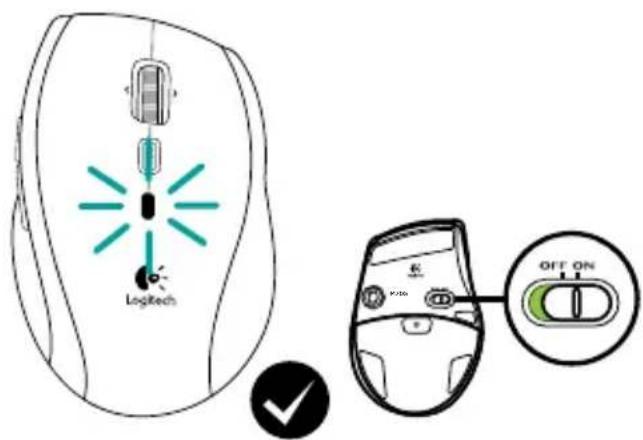

www.logitech.com/downloads
Keyboard functions

ii

iii
iv
3
i
ii

iii
iv
72 Swedish

www.logitech.com/downloads
Keyboard functions
- Multimedia navigation
- Volume controls
- Program zone
FN + F1 starts the web browser. FN + F2 starts the email program. FN + F3 starts Windows Search*. FN + F4 starts the media player.
- Windows display controls
ii
iii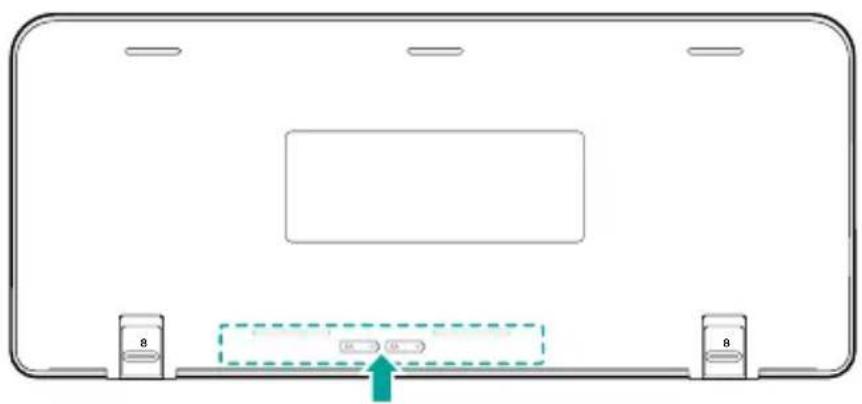
iv
3
i
ii


iii
iv

www.logitech.com/downloads

ii

iii
iv
3
i
ii


iii
iv

The keyboard and mouse are now ready for use. You can download the Logitech™ SetPoint™ software if you want to customize the keyboard keys and mouse buttons.
www.logitech.com/downloads
Keyboard functions
- Multimedia navigation
- Adjust the volume
- Programs
FN + F1: Starts the browser FN + F2: Opens the email program FN + F3: Starts Windows Search* FN + F4: Opens the media player

ii

iii
iv
3
i
ii

iii
iv

www.logitech.com/downloads

© 2014 Logitech. All rights reserved. Logitech, the Logitech logo, and other Logitech marks are owned by Logitech and may be registered. All other trademarks are the property of their respective owners. Logitech assumes no responsibility for any errors that may appear in this manual. Information contained herein is subject to change without notice.
621-000432.004

- WHAT'S IN THE BOX
- SET-UP
- I
- II
- ENGLISH
- KEYBOARD FEATURES: F-KEY USAGE
- KEYBOARD FEATURES
- MOUSE FEATURES
- BATTERY MANAGEMENT
- BATTERY SLEEP MODE
- HOW TO CHECK THE BATTERY LEVEL FOR THE KEYBOARD
- HOW TO CHECK THE BATTERY LEVEL FOR THE MOUSE
- PLUG IT. FORGET IT. ADD TO IT
- TROUBLESHOOTING
- KEYBOARD AND MOUSE ARE NOT WORKING
- CONTENTS
- SETUP
- KEYBOARD FUNCTIONS
Brand : LOGITECH
Model : MK620
Category : Keyboard