
E5776 - Wi-Fi Access Point HUAWEI - Free user manual and instructions
Find the device manual for free E5776 HUAWEI in PDF.


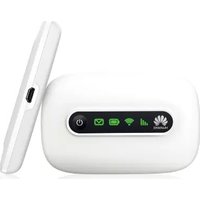
| Product type | Mobile Wi-Fi hotspot |
| Brand | Huawei |
| Model | E5776 |
| Dimensions | 99 x 60 x 14 mm |
| Weight | 105 g |
| Power supply | Li-Ion battery 3000 mAh |
| Battery life | Up to 10 hours of active use |
| Connectivity | Wi-Fi 802.11 b/g/n, up to 10 users |
| Mobile network | 4G LTE, 3G, 2G |
| Main functions | Internet connection sharing, OLED screen, management via Huawei HiLink app |
| Maintenance and cleaning | Wipe with a soft, dry cloth |
| Security | Password lock, WPA/WPA2 encryption |
| Spare parts and repairability | Removable battery, other repairs reserved for authorized service |
| General information | Certifications CE, FCC |
Frequently Asked Questions - E5776 HUAWEI
User questions about E5776 HUAWEI
0 question about this device. Answer the ones you know or ask your own.
Ask a new question about this device
Download the instructions for your Wi-Fi Access Point in PDF format for free! Find your manual E5776 - HUAWEI and take your electronic device back in hand. On this page are published all the documents necessary for the use of your device. E5776 by HUAWEI.
USER MANUAL E5776 HUAWEI
Quick Start
Thank you for purchasing the Mobile WiFi. This Mobile WiFi brings you a high speed wireless network connection.
This document will help you understand your Mobile WiFi so you can start using it right away. Please read this document carefully before using your Mobile WiFi.
For detailed information about the functions and configurations of the Mobile WiFi, refer to the online help on the web management page that comes with the Mobile WiFi.
For detailed instructions for logging in to the web management page, refer to "Logging In to the Web Management Page" on page 16.
Getting to Know Your Mobile WiFi
Note:
The Mobile WiFi function descriptions and illustrations in this document are for your reference only. The product you have purchased may vary.
Application Scenarios
Wi-Fi devices (such as smartphones, tablet computers, and game consoles) or computers can all access the Internet through Mobile WiFi. The specific connection procedure depends on the operating system of the Wi-Fi device or computer. Establish a connection according to your device's specific instructions.
To access the Internet through a USB port connection, install the driver according to the instructions.
Scenario 1: Connecting multiple devices through Wi-Fi

natural_image
Illustration of a mobile device with wireless signal icons, including a laptop, tablet, and smartphone (no text or symbols)Scenario 2: Connecting a single device through USB

natural_image
Line drawing of a desktop computer with an attached device and connected to a tower (no text or symbols)Scenario 3: Connecting multiple devices through Wi-Fi and USB simultaneously

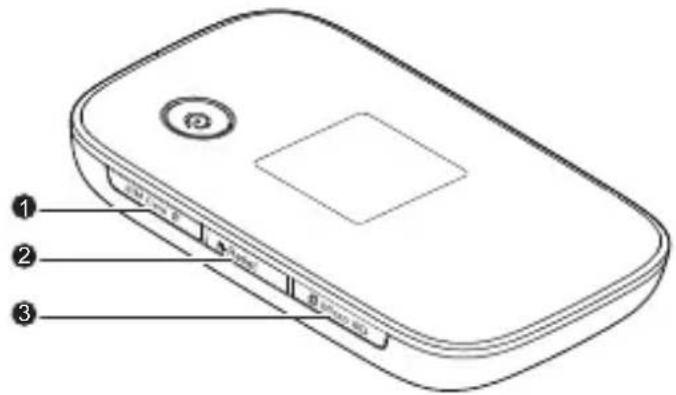
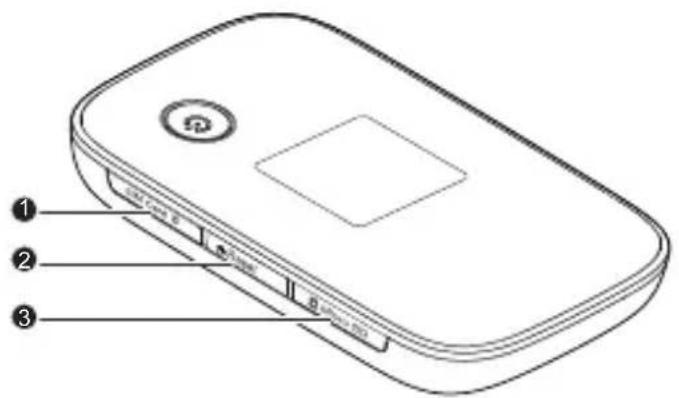
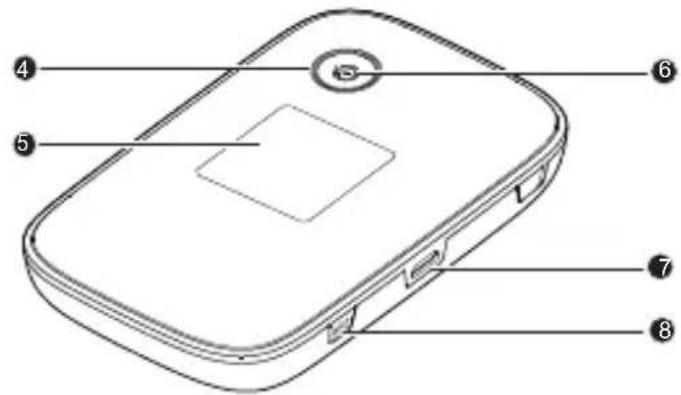
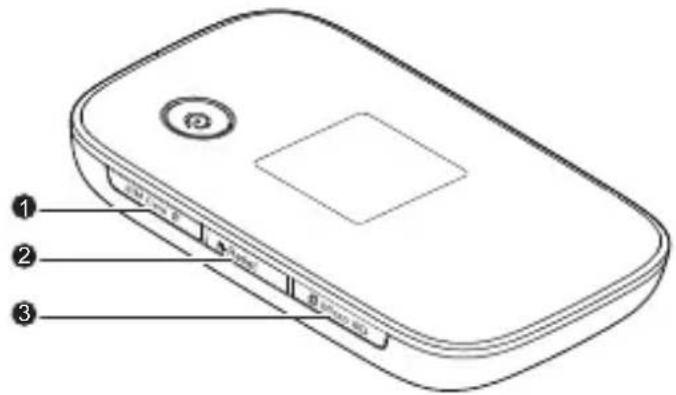
Appearance

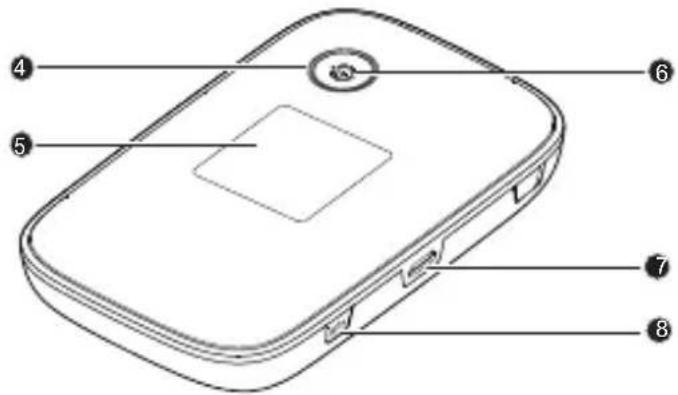
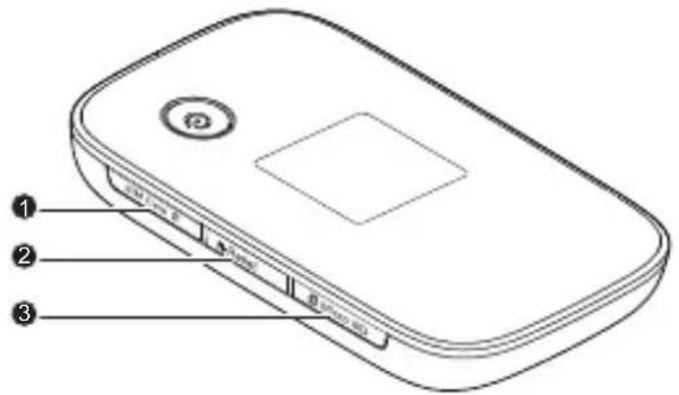
1 SIM card slot
② Reset button
③ microSD card slot
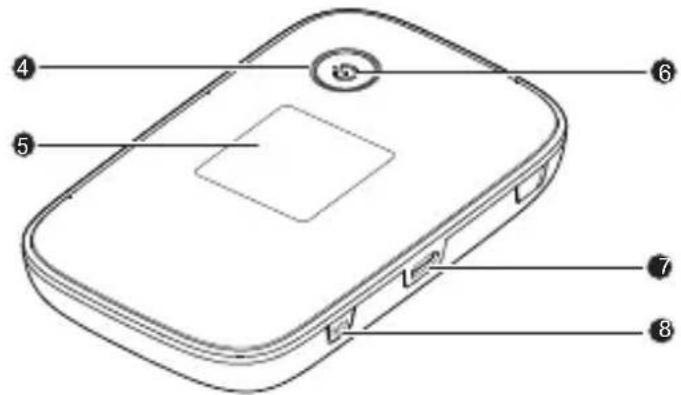
4 Power button
5 Screen
⑥ Power indicator
7 Micro USB port
8 WPS button
Screen

flowchart
graph TD
    A["1"] --> B["3G"]
    C["2"] --> B
    D["3"] --> B
    E["4"] --> F["Wi-Fi"]
    G["5"] --> F
    H["6"] --> I["I/O"]
    J["7"] --> K["0B 00:00"]
① Signal strength
Signal strength from weak to strong.
② Network type
- 2G/3G/4G: Connected to a 2G/3G/LTE network.
• R: Data roaming turned on.
③ Wi-Fi
- Wi-Fi turned on.
• Number of connected Wi-Fi devices.
④ Battery
Battery level from low to high.
⑤ SMS
- New messages.
• Number of new messages.
⑥ Network connection status
Internet connection is set up.
⑦ Traffic statistics
• Data traffic information.
- Connection time.
Note:
Data traffic information is for your reference only. For more accurate data traffic information, please consult your service provider.
SSID and Wireless Network Encryption Key
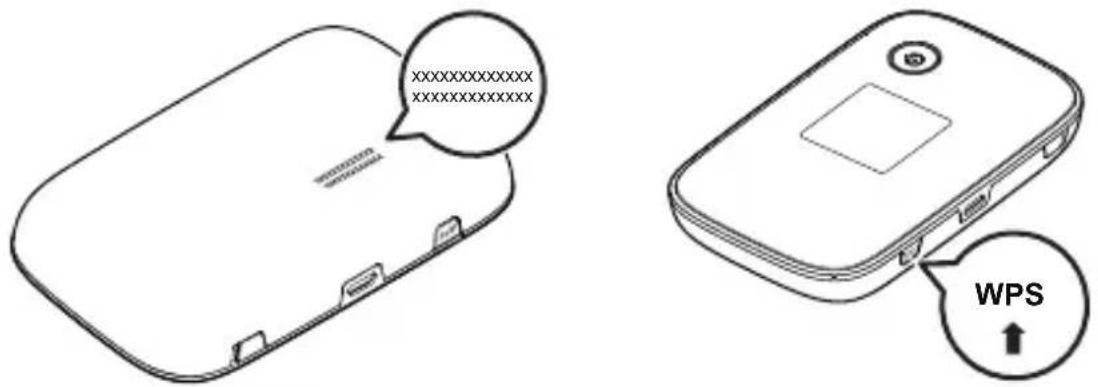
When a Wi-Fi device establishes a connection to the Mobile WiFi for the first time, you may need to enter the default Service Set Identifier (SSID) and wireless network encryption key. These are printed on the Mobile WiFi. It is recommended that you can log in to the web management page and change your SSID and wireless network encryption key.
In addition, press the WPS button twice to view the current SSID and wireless network encryption key on the screen.
Getting Started
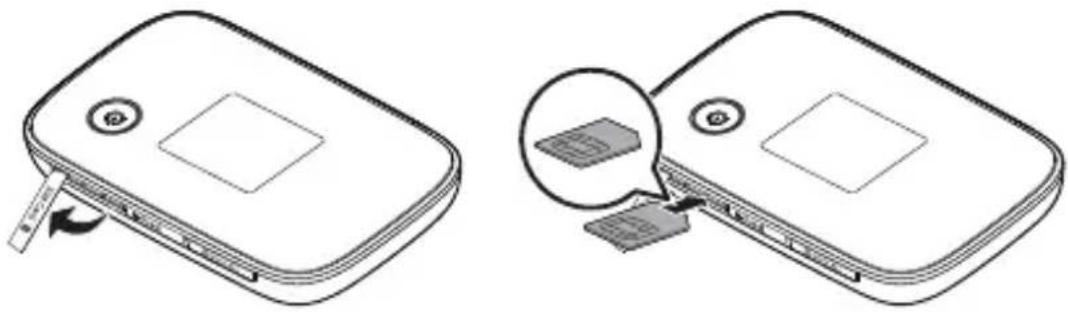
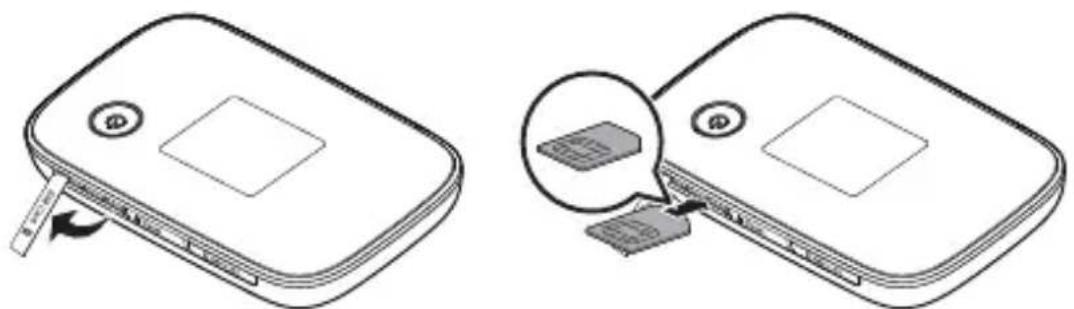
Installing a SIM Card
Caution:
Use a standard SIM card compatible with the Mobile WiFi, otherwise you will damage your Mobile WiFi.
Install the SIM card according to the illustration.


natural_image
Two technical line drawings of a device with a clip, showing front and side views (no text or symbols)Note:
- When removing the SIM card, open the tab and gently press the SIM card in, then
release. The card will automatically pop out.
- Do not remove the SIM card when it is in use. Doing so will affect the performance of your Mobile WiFi and data stored on the SIM card may be lost.
Installing the microSD Card
Install the microSD card according to the illustration.

natural_image
Two technical line drawings of a device with a close-up view showing internal components (no text or symbols)Note:
- The microSD card is an optional accessory. If no microSD card is included in the package, please purchase one separately.
- When removing the microSD card, open the tab and gently press the microSD card in, then release. The card will automatically pop out.
- Do not remove the microSD card when it is in use. Doing so will affect the performance of your Mobile WiFi and data stored on the microSD card may be lost
Charging the Battery
If the battery has not been used for an extended period of time, recharge it before use.
Method 1: Use the power adapter to charge the device
Note:
- Only use chargers compatible with the Mobile WiFi and provided by a designated manufacturer. Use of an incompatible charger or one from an unknown manufacturer may cause the Mobile WiFi to malfunction, fail, or could even cause a fire. Such use voids all warranties, whether expressed or implied,

natural_image
Line drawing of a device with a cable and plug, connected to an electrical outlet (no text or symbols)on the product.
- The power adapter is an optional accessory. If it is not included in the package, you may contact an authorized dealer to buy an adapter compatible with the Mobile WiFi.
- The Mobile WiFi's power adapter model is HW-050200X3W. X represents U, E, B, A, or J, depending on your region. For details about the specific adapter model, contact an authorized dealer.
Method 2: Charge the device through a computer connection
Use the data cable provided with your device to connect the Mobile WiFi to the computer.

natural_image
Line drawing of a device connected to a computer via cable (no text or symbols)Connecting to the Internet via Wi-Fi
The Mobile WiFi's management parameters have been preset according to your operator's requirements. You can quickly connect to the Internet by following these steps:
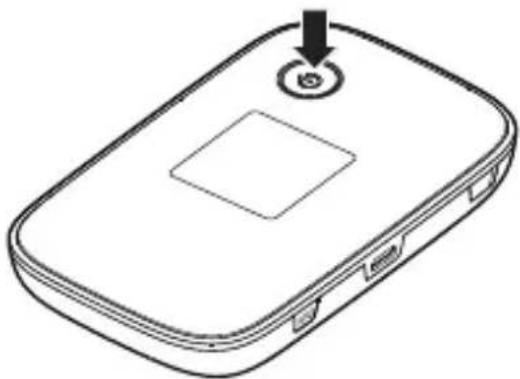
Step 1: Turn on the Mobile WiFi
Press and hold the ⏻ button until the screen lights up, indicating that the Mobile WiFi is turned on.
Note:
- Press and hold the ⏻ button to turn off the Mobile WiFi.
- If your Mobile WiFi malfunctions or cannot be properly powered off, press and hold the ⏻ button for at least 10 seconds to forcibly power off your Mobile WiFi.
natural_image
Line drawing of a device casing with a button and square vent, no text or symbols presentStep 2: Establish a Wi-Fi connection (using a computer running the Windows XP operating system as an example)
- Ensure that the Mobile WiFi's Wi-Fi function is on.
- Select Start > Control Panel > Network Connections > Wireless Network Connection.
Note:
Before establishing a Wi-Fi connection, ensure that the computer is equipped with a wireless network adapter. If the computer indicates a wireless network connection, the wireless network adapter can be used. Otherwise, verify that your wireless network adapter is working properly.
-
Click View available wireless networks to view a list of available wireless networks.
-
Select the wireless network connection with the Mobile WiFi's SSID and click Connect.
Note:
- If the wireless network connection is encrypted, enter the correct wireless network encryption key.
- Press the WPS button twice to view the current SSID and wireless network encryption
key on the screen.
- Wait a moment for the wireless network connection icon to appear in the system tray in the lower right corner of the computer screen. The wireless network connection is then established.
Step 3: Connect to the Internet
If data is transmitted, the Mobile WiFi will automatically connect to the Internet. If data is not transmitted for a period of time, the Mobile WiFi will automatically disconnect from the network connection.
Note:
You can log in to the web management page and enable or disable the automatic dialing while roaming function. If this function is turned off, when the Mobile WiFi enters a roaming network, it will automatically disconnect from the Internet connection that has already been established. You will need to manually establish this network connection again.
Logging In to the Web Management Page
- Make sure the connection between the Mobile WiFi and the Wi-Fi device or computer is working normally.
- Open the browser, and enter http://192.168.1.1 in the address box.
- Enter the user name and password to log in to the web management page.
Note:
- The default user name is admin.
- The default password is admin.
Daily Use
Battery Saving Mode
If the Mobile WiFi has been inactive for some time, the Mobile WiFi enters the standby mode, in which the power indicator blinks slowly and the display screen turns off. Pressing any button causes the display screen to light up.
When the Mobile WiFi is being powered only by the battery, you can choose to enable or disable the automatic Wi-Fi turnoff function. If this function is enabled and if no Wi-Fi devices access the Mobile WiFi for a period of time, the Wi-Fi turns off automatically. You can press any button to turn the Wi-Fi on again.
Verifying the PIN
If the PIN verification function is enabled, log in to the web management page and enter the correct PIN according to the instructions. PIN/PUK codes are supplied by your operator along with the SIM card. For details, please consult your operator.
Establishing a WPS Connection
If the Wi-Fi device to be connected to the Mobile WiFi supports WPS, the wireless network encryption key is generated automatically and there is no need to enter it manually. The steps for WPS connection are as follows:
- Turn on the Mobile WiFi.
- Turn on the Wi-Fi device to be connected to the Mobile WiFi.
- Activate the Mobile WiFi's WPS.

Note:
Press and hold the WPS button to activate Mobile WiFi's WPS.
- Activate the Wi-Fi device's WPS.
Note:
For specific instructions for the Wi-Fi device, refer to the device's user manual.
Restoring to Factory Settings
If you forget some configuration parameters, you can restore the Mobile WiFi to its factory settings and then configure the Mobile WiFi again.
Press and hold the Reset button until the display screen turns off. The Mobile WiFi is then restored to its factory settings.
Note:

After you carry out this operation, the Mobile
WiFi's personal configuration parameters will all be deleted. All configurations on the web management page will be restored to the factory settings.
Example 1: Connecting to a Game Console (for example, PSP) through Wi-Fi
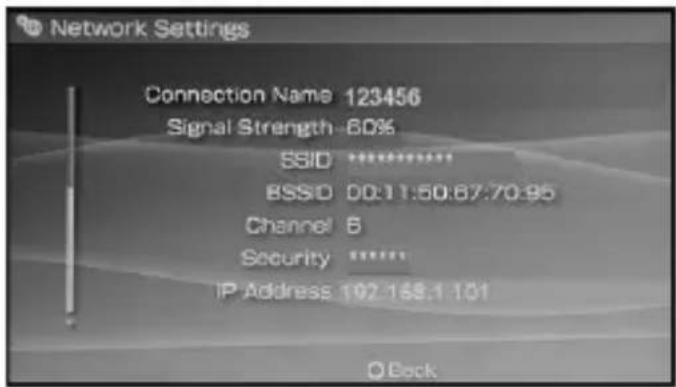
- On the PSP, turn on the WLAN.
- Choose Settings > Network Settings.
- Select Infrastructure Mode.
- Select New Connection, and enter the connection name.
- Select Scan to search for wireless networks. A list of access points will be displayed on the screen.
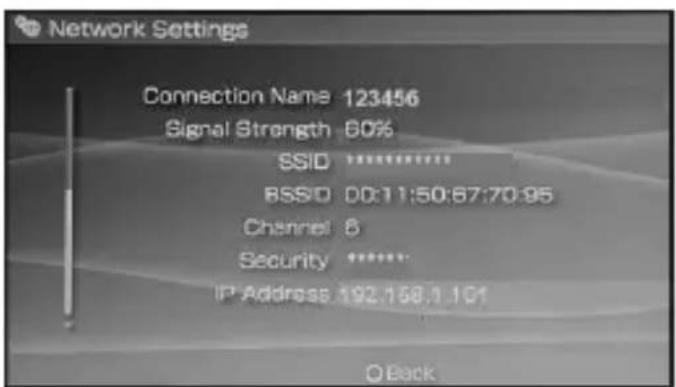
- Select the access point with the Mobile WiFi's SSID, and press the ▶ button on the PSP. Confirm the SSID, and enter the correct wireless network encryption key.
- Press the ▶ button to proceed to the next step, and then press the X button to
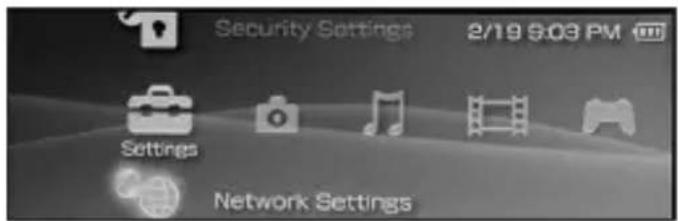

save settings.
- Select Test Connection to test whether the network connection is successful.
- You can now open the browser and access the network.


Example 2: Connecting to a Tablet Computer (for example, iPad) through Wi-Fi
- Touch Settings > WLAN to turn on WLAN.
- The tablet computer automatically searches for wireless connections and displays a list of access points.
- Select the access point with the Mobile WiFi's SSID.
- If required, enter the correct wireless network encryption key, and tap Join. (The lock icon indicates that the encryption key is required to connect to this wireless network.)

Note:
Wi-Fi devices, such as an iPhone, iPod touch, PS3 and NDSi, can all access the Internet through the Mobile WiFi. For specific operations, refer to the Wi-Fi device's user manual.
Tips
When the Mobile WiFi is in use for an extended period of time, it will become warm and may overheat. Should this happen, the Mobile WiFi will automatically close the network connection and turn off to protect itself from damage. If this occurs, place the Mobile WiFi in a well ventilated space to allow the heat to dissipate, then turn it on and continue to use it as normal.
If you are unable to use the Mobile WiFi as normal, try the following:
- Consult the online help on the web management page.
- Restart the Mobile WiFi.
- Restore the Mobile WiFi to the factory settings.
- Consult your operator.
Démarrage rapide
natural_image
Illustration of a mobile device with wireless signal waves from multiple devices (no text or symbols)natural_image
Line drawing of a desktop computer with an attached device and connected to a tower (no text or symbols)Aspect

Prise en main

natural_image
Two technical illustrations of a device with a close-up view showing a component being inserted (no text or symbols present)Remarque :
natural_image
Two technical line drawings of a device with labeled ports and arrows indicating movement (no text or symbols)Remarque :
natural_image
Line drawing of a device with a cable and plug, connected to an electrical outlet (no text or symbols)natural_image
Line drawing of a device connected to a computer via cable (no text or symbols)natural_image
Line drawing of a rectangular electronic device with a circular button and a square center, no text or symbols present.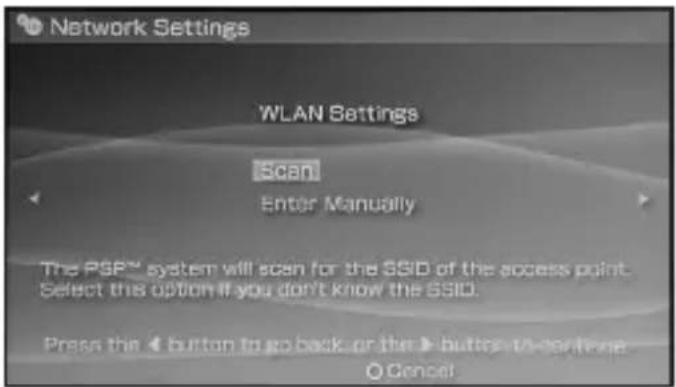

Remarque :
Übersicht
Erste Schritte
natural_image
Two technical line drawings of a device with a scroll, showing a close-up and disassembly process (no text or symbols)Hinweis:
natural_image
Line drawing of a device with a USB cable and a switch, no text or symbols present
natural_image
Line drawing of a device with a magnified inset showing a small component (no text or symbols)Hinweis:
natural_image
Line drawing of a portable electronic device with a cable and power outlet, no text or symbols presentnatural_image
Line drawing of a device with an attached cable and connected to a desktop computer (no text or symbols)natural_image
Line drawing of a device casing with a button and square vent, no text or symbols present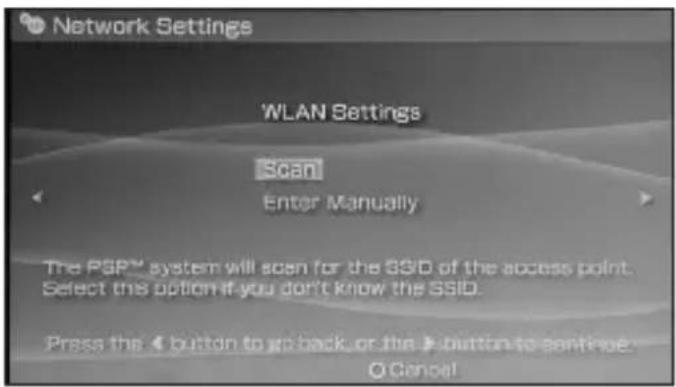
Hinweis:
natural_image
Illustration of a mobile device with wireless signal waves from multiple devices (no text or symbols)natural_image
Line drawing of a desktop computer with an attached device and connected to a tower (no text or symbols)Aspetto


natural_image
Two technical illustrations of a device with a scroll, showing a close-up of the scroll being inserted (no text or symbols present)Nota:
natural_image
Two technical line drawings of a device with labeled ports and connectors, showing internal components (no text or symbols)Nota:
natural_image
Line drawing of a device with a cable and plug, connected to an electrical outlet (no text or symbols)natural_image
Line drawing of a desktop computer with an attached device and connected to a tower (no text or symbols)Connessione a Internet via Wi-Fi
natural_image
Line drawing of a device with a button labeled 'B' and an arrow pointing to it (no text or symbols beyond the label)wireless.

Nota:
Uiterlijk

Internetverbinding is ingesteld.
Aan de slag
natural_image
Two technical line drawings of a device with a USB cable and a magnified inset showing a close-up of a component (no text or symbols)Opmerking:
natural_image
Line drawing of a mobile phone with cable and power outlet, no text or symbols presentOpmerking:
natural_image
Line drawing of a computer setup with a device and connected to a desktop computer (no text or symbols)natural_image
Line drawing of a rectangular electronic device with a circular button and a square center, no text or symbols present.

Opmerking:
Aspecto


Introdução
natural_image
Two technical line drawings of a device with a scroll, showing a close-up and disassembly process (no text or symbols)Nota:
natural_image
Two technical line drawings of a device with a close-up view showing a magnified inset of a component (no text or symbols present)Nota:
natural_image
Line drawing of a portable electronic device with a cable and a separate power outlet (no text or symbols)natural_image
Line drawing of a device connected to a computer via cable (no text or symbols)Ligar à Internet via WiFi
natural_image
Line drawing of a rectangular electronic device with a circular button and a square slot on the side (no text or symbols)
Nota:
Aspecto

Introducción
natural_image
Two technical line drawings of a device with a clip, showing internal components and a magnified inset (no text or symbols)Nota:
natural_image
Line drawing of a portable electronic device with a cable and a separate electrical outlet (no text or symbols)natural_image
Line drawing of a device connected to a computer via cable (no text or symbols)Conectarse a Internet por Wi-Fi
natural_image
Line drawing of a device casing with a button labeled '5' and an arrow pointing to it (no text or symbols beyond the label)

Nota:
is a trademark of ETSI.



- Quick Start
- Thank you for purchasing the Mobile WiFi. This Mobile WiFi brings you a high speed wireless network connection.
- Getting to Know Your Mobile WiFi
- Note:
- Application Scenarios
- Screen
- ① Signal strength
- ② Network type
- ③ Wi-Fi
- SSID and Wireless Network Encryption Key
- Getting Started
- Installing a SIM Card
- Caution:
- Installing the microSD Card
- Charging the Battery
- Method 2: Charge the device through a computer connection
- Connecting to the Internet via Wi-Fi
- Step 1: Turn on the Mobile WiFi
- Step 2: Establish a Wi-Fi connection (using a computer running the Windows XP operating system as an example)
- Step 3: Connect to the Internet
- Logging In to the Web Management Page
- Daily Use
- Battery Saving Mode
- Verifying the PIN
- Establishing a WPS Connection
- Restoring to Factory Settings
- Example 1: Connecting to a Game Console (for example, PSP) through Wi-Fi
- Example 2: Connecting to a Tablet Computer (for example, iPad) through Wi-Fi
- Tips
- Démarrage rapide
- Prise en main
- Remarque :
- Erste Schritte
- Hinweis:
- Nota:
- Connessione a Internet via Wi-Fi
- Aan de slag
- Opmerking:
- Introdução
- Ligar à Internet via WiFi
- Introducción
- Conectarse a Internet por Wi-Fi
- passwords...
Brand : HUAWEI
Model : E5776
Category : Wi-Fi Access Point