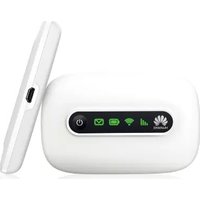
E5331 - Wi-Fi Access Point HUAWEI - Free user manual and instructions
Find the device manual for free E5331 HUAWEI in PDF.


| Product Type | Mobile Wi-Fi / Wi-Fi Access Point |
| Brand | Huawei |
| Model | E5331 |
| Interface | Micro USB Type B (charging and data) |
| Wi-Fi Standard | IEEE 802.11b/g/n (2.4 GHz) |
| Maximum Wi-Fi Connections | Up to 10 devices |
| Battery Type | Rechargeable lithium battery |
| Charging Methods | AC charger or PC via USB cable |
| Power Button | Yes (press and hold to power on/off) |
| Indicator Lights | Signal (green/orange/red), Wi-Fi (green), Battery (green/red), SMS (green) |
| Default SSID and Key | Printed on inside of back cover and keepsake card |
| Web Management | Access via http://3.home or http://192.168.1.1; default password: admin |
| Network Support | 3G/4G mobile networks (SIM card required) |
| Security | WEP, WPA/WPA2; PIN code protection; WLAN MAC filter |
| Power Saving Mode | Automatic standby; optional auto Wi-Fi off |
| Restore Factory Defaults | Press and hold RESET button until indicators off |
| Operating Environment | Well-ventilated area to avoid overheating |
| Maintenance | Keep dry; clean with soft cloth; use only specified charger |
Frequently Asked Questions - E5331 HUAWEI
User questions about E5331 HUAWEI
0 question about this device. Answer the ones you know or ask your own.
Ask a new question about this device
Download the instructions for your Wi-Fi Access Point in PDF format for free! Find your manual E5331 - HUAWEI and take your electronic device back in hand. On this page are published all the documents necessary for the use of your device. E5331 by HUAWEI.
USER MANUAL E5331 HUAWEI
Thank you for choosing HUAWEI E5331 Mobile Wi-Fi
This guide briefly describes the functions of the E5331 Mobile Wi-Fi.
Copyright © Huawei Technologies Co., Ltd. 2012. All rights reserved.
THIS DOCUMENT IS FOR INFORMATION PURPOSE ONLY, AND DOES NOT CONSTITUTE ANY KIND OF WARRANTIES.
Getting to Know the HUAWEI E5331 Mobile Wi-Fi
Connection Scenarios
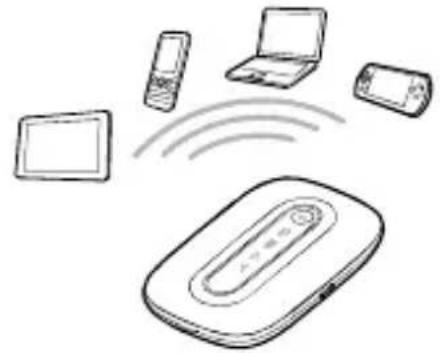
A Wi-Fi device or computer can be connected to the Internet through the Mobile Wi-Fi. The actual connection procedure depends on the operating system of the Wi-Fi device or computer. The connection scenarios illustrated here are for your reference.
Scenario 1: Multi-device access via Wi-Fi
natural_image
Illustration of connected devices including a remote, laptop, and rectangular device with signal waves (no text or symbols)Scenario 2: One-device access via USB

natural_image
Diagram showing a device connected to a computer via cable, no text or symbols present2
Scenario 3: Multi-device access via Wi-Fi and USB at the same time

flowchart
graph TD
    A["Desktop Computer"] -->|USB Cable| B["Remote Device"]
    C["Mobile Phone"] -->|Wireless Signal| D["Radio Receiver"]
    E["Smartphone"] -->|Wireless Signal| D
    F["Computer"] -->|USB Cable| G["Desktop Computer"]
Appearance
| No. | Item |
| 1 Signal indicator | |
| 2 | Wi-Fi indicator |
| 3 Battery indicator | |
| 4 SMS indicator | |
| 5 | Power button |
| 6 USB port(Micro USB Type B) | |
| 7 Strap hole | |
Note:
Wi-Fi: Wireless fidelity

Indicator
| Indicator | Status | Color | Description |
| Signal on | green The signal is strong. | ||
| orange The signal is weak. | |||
| red | There is no signal, the SIM card does not exist, or the PIN code is not verified. | ||
| Wi-Fi | on green Wi-Fi is enabled. | ||
| off | / | Wi-Fi is disabled. | |
| Battery on | green | on The battery level is normal. | |
| blinking The battery is charging. | |||
| red on | The battery level is low. | ||
| SMS | on | green | on There are unread messages. |
| blinking The inbox is full. | |||
| off / | There is no unread message. | ||
Caution: If no operation is performed on the Mobile WiFi within a preset period, only the battery indicator displays. The status of the battery indicator is as follows:
| Indicator | Status | Color | Description | |
| Battery on | green | Slowly blinking | The battery level is normal. | |
| red | Slowly blinking | The battery level is low. | ||
SSID and Wireless Network key
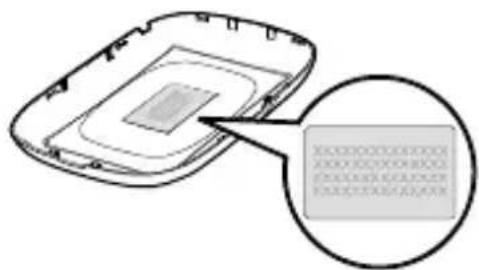
To connect a Wi-Fi device to your Mobile Wi-Fi, an SSID and a wireless network key are required. The SSID and wireless network key label can be found on the inside of the back cover and on the keepsake card that came with the Mobile Wi-Fi.
natural_image
Diagram of a mobile phone casing with a magnified inset showing internal components (no text or symbols)Before You Start
Installing the SIM Card and the Battery
Caution: Do not use any SIM card that is not standard or is incompatible with the Mobile WiFi. Otherwise, the Mobile WiFi may be damaged.
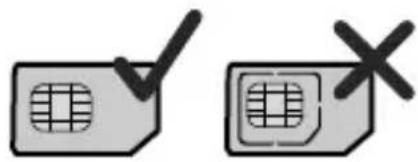
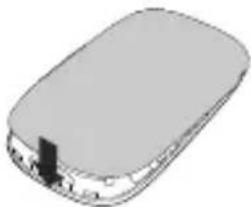
Insert the SIM card in the card slot. Be sure that the SIM card is facing in the right direction, as shown in figure 2, and then slide the SIM card into the slot.
1

natural_image
3D rendering of a rectangular electronic device with a black arrow pointing to its side (no text or symbols visible)2

3

4
natural_image
3D rendered illustration of a rounded rectangular object with a black bookmark symbol on the side (no text or symbols)Charging the Battery
Note: If the battery has not been used for a long time, it must be charged first.
Method 1: Using the charger
Caution:
- Only use chargers compatible with the Mobile WiFi and provided by a designated manufacturer. Use of an incompatible charger or one from an unknown manufacturer may cause the Mobile WiFi to malfunction, fail, or could even cause a fire. Such use voids all warranties, whether expressed or implied, on the product.
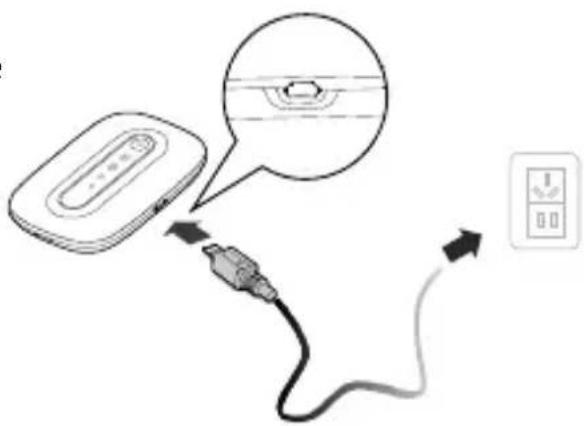
Method 2: Connecting to a PC for charging
Connect the Mobile WiFi to a PC using a compatible data cable.

flowchart
graph TD
    A["Remote Device"] -->|USB Cable| B["Desktop Computer"]
Accessing the Internet via Wi-Fi Connection
Note: By default, management parameters are preset on the Mobile WiFi according to the requirements of the service provider. Follow the steps below to quickly access the Internet. For the details about how to set management parameters, see help on the web management page.
Step1: Power on the Mobile WiFi
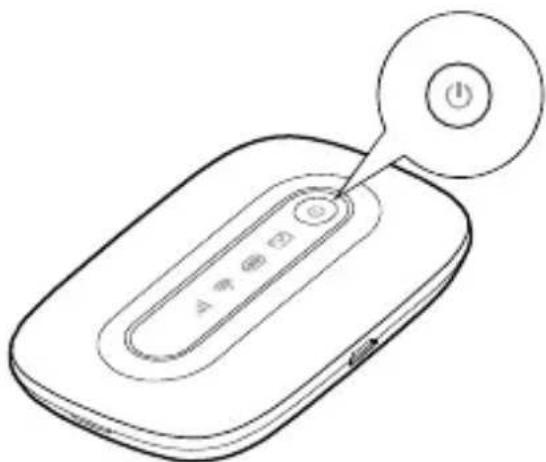
Press and hold Ⓞ until the indicators display. The Mobile WiFi is powered on.
Note:
- In order to access to the network successfully, make sure the signal indicator and the Wi-Fi indicator are on green.
- Press and hold ⚙ to power off the Mobile WiFi.
Step2: Establish a Wi-Fi Connection (Take a computer with WindowsXP operating system as an example)
- Make sure that the Wi-Fi function of the Mobile Wi-Fi and the computer is enabled.
- Select Start > Control Panel > Network Connections > Wireless Network Connection.
Note: To set up a Wi-Fi connection, the PC must have a wireless network adapter installed. If Wireless Network Connection is displayed, a wireless network adapter is available. Otherwise, check to make sure you have a wireless network adapter installed.
- Click View available wireless networks to display a list of wireless networks available.
- Select a network indicated by the SSID of the Mobile WiFi, find the default SSID and wireless network key on the back cover of the Mobile WiFi, and then click Connect.
Note:
- If the encryption parameter is already set for the Mobile WiFi, the Wireless Network Connection dialogbox is displayed. Enter the wireless network key in the dialog box.
- Wait until the wireless connection icon is displayed in the status area in the lower right corner of the PC screen.
Step3: Access the Internet
After you establish a Wi-Fi connection successfully, you can access the Internet using the following modes.
| Mode | Operations |
| Auto | After the Mobile WiFi is powered on, it will connect to the Internet automatically. If there is no data transmission over a period of time, the Mobile WiFi automatically terminates the Internet connection. |
| Manual | Launch the web management page and follow the prompts to connect to or disconnect from the network. |
Note:
- Launch the web management page to select the mode for accessing the Internet.
- You can choose whether to enable the Mobile WiFi to connect to the Internet automatically even while you are roaming. If this function is disabled, the Mobile WiFi automatically disconnects from the Internet while you are roaming. To access the Internet, set up a connection manually.
Accessing the Web Management Page
- Make sure that the connection between the Mobile WiFi and the client is a proper one.
- Start the Internet browser and enter http://3.home or http://192.168.1.1 in the address bar.
- Enter the password and log in to the web management page.
Note: The default password is admin.
Daily Use
Power Saving Mode
If no operation is performed on the Mobile WiFi within a preset period, it will go to the standby mode. In this mode, the battery indicator blinks slowly in green, and the other indicators are off.
If the Mobile WiFi is powered by the battery only, choose whether to enable the Mobile WiFi to turn off Wi-Fi automatically. If this function is enabled and no Wi-Fi devices access the Mobile WiFi for a preset period, the Mobile WiFi turns off Wi-Fi automatically. You can press any key to turn on Wi-Fi again.
Validating the PIN Code
If PIN code protection is enabled, log in to the web management page and follow the prompts to enter the correct PIN code. Both PIN and PUK are delivered with the SIM card. For details, consult your service provider.
Restoring Factory Defaults
If you forget the changes you have made to some parameters, you may restore factory defaults and reconfigure the Mobile WiFi. To restore the factory defaults, press and hold the RESET button until all the indicators are off. All factory default settings are successfully restored.
Note: Restoring factory defaults deletes all personal configuration settings and restores all web-based management settings and parameters to their default values.

Example 1: Wi-Fi Connection to Game Machine (Sony PSP)
- Turn on the PSP WLAN switch.
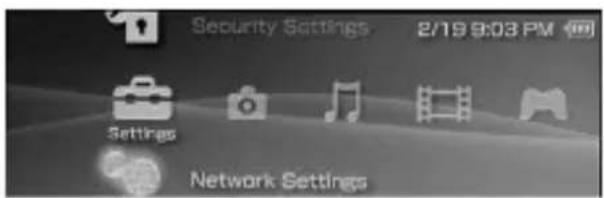
- Select Settings > Network Settings.
- Select Infrastructure Mode to connect to your local Wi-Fi access point.
- Select New Connection to specify an easy to remember connection name.
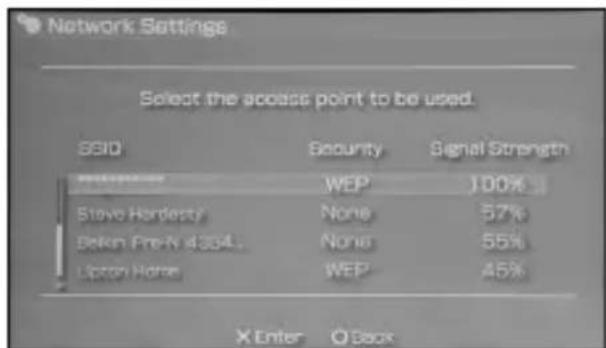
- Select Scan to detect all networks within range. The access point list is displayed.
- Select a network indicated by the SSID of the Mobile WiFi. First press the ▶ button of your game machine to confirm the SSID and then press it again to input the wireless network key.
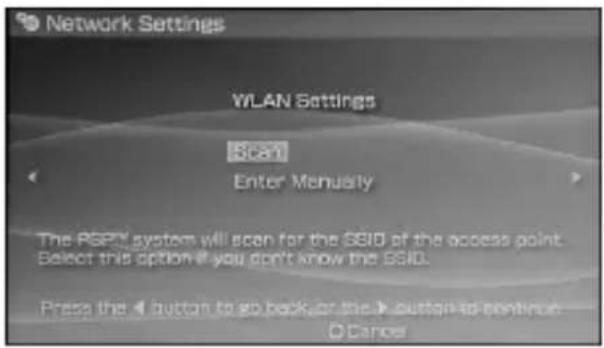
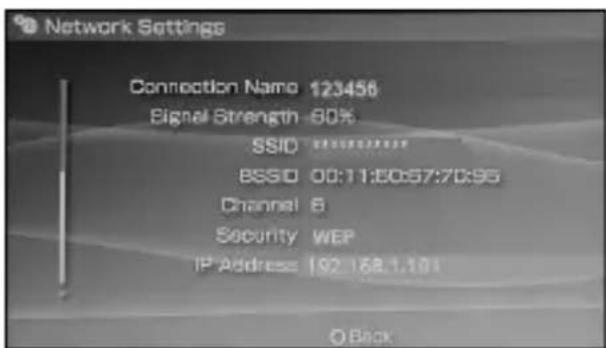
• SSID: The Wi-Fi name of the Mobile WiFi.
- WEP: The wireless network key of the Mobile WiFi.
- The default SSID and wireless network key label are affixed to the Mobile WiFi.
- Press the ▶ button of your game machine to continue, and then press the X button to save the settings.
- Select Test Connection to check the connection.
- Go to Internet Browser.
Example 2: Wi-Fi Connection to a Smart Phone (iPhone)
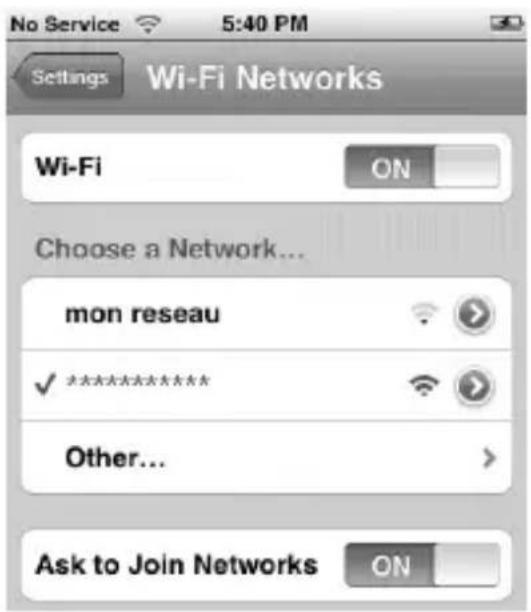
- Select Settings > Wi-Fi, and then turn on Wi-Fi.
- Automatically detect the networks in range and display the access point list.
- Select a network indicated by the SSID of the Mobile WiFi.
- If necessary, enter a password and tap Join. (Networks requiring a password appear with a lock icon.)
Note: Some Wi-Fi clients such as iTouch, PS3 and NDSi can also access the Internet via the Mobile WiFi. For details, see the user guides of the Wi-Fi clients.
Tips
Place your Mobile Wi-Fi where you get the strongest signal. The more windows a room has, the better the signal and upstairs will generally get a better signal. You can then be online wherever you like nearby.
If the Mobile WiFi is placed in an environment with poor ventilation, it may overheat after extended use. When the Mobile WiFi overheats, it will switch off and disconnect from the network automatically to protect itself. If this happens, place the Mobile WiFi in a well-ventilated location, then restart the Mobile WiFi.
If you are experiencing difficulties using the Mobile WiFi, try the following:
- See help on the web management page.
- Restart the Mobile WiFi.
- Restore the factory defaults.
- Contact your service provider.
Frequently Asked Questions (FAQ)
What can I do if the Client cannot access the Internet?
-
Check and ensure that the Client is connected to the Mobile Wi-Fi properly.
-
Check the power status to ensure that the Mobile Wi-Fi is powered on.
-
Check the signal strength to ensure that the area is covered by the network.
-
Check that the network mode is correct. For details about network modes, see Mobile Network Settings on the management page.
-
You must configure the correct peer-peer protocol (PPP) user name and PPP password when you access the Internet through the Mobile Wi-Fi. Check whether the user name and the password are correct, and see Profile Management on the management page for details.
-
If the DHCP server is disabled and the Client obtains the IP address dynamically, the device cannot access the Internet either. In this case, you need to change the mode to manually assign an IP address. See DHCP Settings on the management page.
-
Check that the network adapter of your Client runs properly.
- If the problem still persists, please consult you network operator.
What can I do if the Client cannot access the WLAN?
- If there are interferences or shields near the Mobile Wi-Fi, you can adjust the position of the Mobile Wi-Fi.
- Check and record the following settings of your Client and your Mobile Wi-Fi: SSID, WEP type, and key. The SSID of the Client must be ANY or the same as that of the Mobile Wi-Fi. The WEP type and key of the Client must be the same as that of the Mobile Wi-Fi. Otherwise, you need to change the settings.
- Check whether the WLAN MAC filter function is enabled on the Mobile Wi-Fi. If the function is enabled, ensure that all relevant parameters are set correctly. See WLAN MAC Filter on the web management page for more information.
What can I do if I forgot the default IP address of the management page?
Restore the factory defaults and enter http://192.168.1.1 in the address bar.
Version: V100R001_01 Part Number: 31010JKE
22


- Getting to Know the HUAWEI E5331 Mobile Wi-Fi
- Connection Scenarios
- Note:
- SSID and Wireless Network key
- Before You Start
- Charging the Battery
- Caution:
- Accessing the Internet via Wi-Fi Connection
- Step1: Power on the Mobile WiFi
- Step2: Establish a Wi-Fi Connection (Take a computer with WindowsXP operating system as an example)
- Step3: Access the Internet
- Accessing the Web Management Page
- Daily Use
- Power Saving Mode
- Validating the PIN Code
- Restoring Factory Defaults
- Example 1: Wi-Fi Connection to Game Machine (Sony PSP)
- Example 2: Wi-Fi Connection to a Smart Phone (iPhone)
- Tips
- Frequently Asked Questions (FAQ)
- What can I do if the Client cannot access the WLAN?
Brand : HUAWEI
Model : E5331
Category : Wi-Fi Access Point