
CHARGEUR 50 DIAPOSITIVES SF-210 - Slide charger NIKON - Free user manual and instructions
Find the device manual for free CHARGEUR 50 DIAPOSITIVES SF-210 NIKON in PDF.


User questions about CHARGEUR 50 DIAPOSITIVES SF-210 NIKON
0 question about this device. Answer the ones you know or ask your own.
Ask a new question about this device
Download the instructions for your Slide charger in PDF format for free! Find your manual CHARGEUR 50 DIAPOSITIVES SF-210 - NIKON and take your electronic device back in hand. On this page are published all the documents necessary for the use of your device. CHARGEUR 50 DIAPOSITIVES SF-210 by NIKON.
USER MANUAL CHARGEUR 50 DIAPOSITIVES SF-210 NIKON
This use of the supercoolscans 5000 ED 4000 ED.
使用てい的イストにて
- Overview 4
- Parts and Accessories 5
- Installation 6
- Using the SF-210 8
5.Maintenance 16 - Specifications 17
Cautions
- The reproduction of this manual in whole or in part is prohibited save in cases in which Nikon's prior permission has been obtained.
- The information contained in this manual is subject to change without notice.
- Nikon has made every effort to produce a perfect manual, but should you find any mistakes, we would be grateful if you would kindly let us know. The address of Nikon's representative in your area is provided separately.
- Nikon is not liable for damages resulting from the use of this product.
To make it easier to find the information you need, the following symbols and conventions are used:

This icon marks warnings, information that should be read before using this Nikon product to prevent serious injury or death.

This icon marks cautions, information that should be read before using the product to prevent damage to the device.

This icon marks notes, information that should be read before using the product.
Trademark Information
All trade-names mentioned in this manual are the trademarks or registered trademarks of their respective holders.
Illustrations
The illustrations in this manual show the SUPER COOLSCAN 5000 ED.
Federal Communications Commission (FCC) Radio Frequency Interference Statement
This equipment has been tested and found to comply with the limits for a Class B digital device, pursuant to Part 15 of the FCC Rules. These limits are designed to provide reasonable protection against harmful interference in a residential installation. This equipment generates, uses, and can radiate radio frequency energy and, if not installed and used in accordance with the instructions, may cause harmful interference to radio communications. However, there is no guarantee that interference will not occur in a particular installation. If this equipment does cause harmful interference to radio or television reception, which can be determined by turning the equipment off and on, the user is encouraged to try to correct the interference by one or more of the following measures:
- Reorient or relocate the receiving antenna.
- Increase the separation between the equipment and receiver.
- Connect the equipment into an outlet on a circuit different from that to which the receiver is connected.
- Consult the dealer or an experienced radio/television technician for help.
CAUTIONS
Modifications
The FCC requires the user to be notified that any changes or modifications made to this device that are not expressly approved by Nikon Corporation may void the user's authority to operate the equipment.
Notice for customers in Canada
CAUTION
This class B digital apparatus meets all requirements of the Canadian Interference Causing Equipment Regulations.
ATTENTION
Notice concerning prohibition of copying or reproduction
Note that simply being in possession of material which has been copied or reproduced by means of a scanner may be punishable by law.
- Items prohibited by law from being copied or reproduced
Do not copy or reproduce paper money, coins, securities, government bonds, or local government bonds, even if such copies or reproductions are stamped "Sample".
The copying or reproduction of paper money, coins, or securities which are circulated in a foreign country is prohibited.
Unless the prior permission of the government has been obtained, the copying or reproduction of unused postage stamps or post cards issued by the government is prohibited.
The copying or reproduction of stamps issued by the government and certified documents stipulated by law is prohibited.
- Cautions on certain copies and reproductions
The government has issued cautions on copies or reproductions of securities issued by private companies (shares, bills, checks, gift certificates, etc.), commuter passes, or coupon tickets, except when a minimum of necessary copies are to be provided for business use by a company. Also, do not copy or reproduce passports issued by the government, licenses issued by public agencies and private groups, ID cards, and tickets, such as passes and meal coupons. - Comply with copyright notices
The copying or reproduction of copyrighted creative works such as books, music, paintings, woodcut prints, maps, drawings, movies, and photographs is governed by national and international copyright laws. Do not use this product for the purpose of making illegal copies or to infringe copyright laws.
1. Overview
Thank you for your purchase of an SF-210 slide feeder for 5000 ED (SUPER COOLSCAN 5000 ED) and 4000 ED (SUPER COOLSCAN 4000 ED) Nikon film scanners (these models of scanner are referred to below as "the scanner"). The SF-210, which can hold up to fifty mounts 1.5mm in thickness, automates the scanning of consecutive 35mm slides. Like the other adapters for the 5000 ED, the SF-210 can be inserted while the scanner is on and connected to a computer.
This manual describes the procedures for unpacking, setting up, and connecting the feeder to your scanner. The next chapter, "Parts and Accessories," details the contents of the package and the parts of the feeder. This is followed by "Installation," which describes how to connect the feeder to the scanner. In "Using the SF-210," the procedures for loading and removing slides are explained. The final chapter, "Maintenance," gives instructions on how to care for and transport the feeder. Please read all instructions thoroughly to ensure that you can get the most from your SF-210. Information on scanning slides may be found in the User's Manual and Nikon Scan Reference Manual provided with the scanner.
We hope that you find this manual helpful.
2. Parts and Accessories
This chapter lists the items packaged with your slide feeder and identifies the parts of the SF-210.
2.1 Package Contents
Purchasers of the SF-210 should find that the package contains all the items listed below.
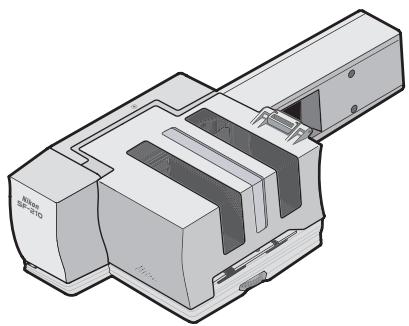
SF-210 slide feeder
Reference manual (this manual)

Feed-mechanism attachment for rounded slide mounts
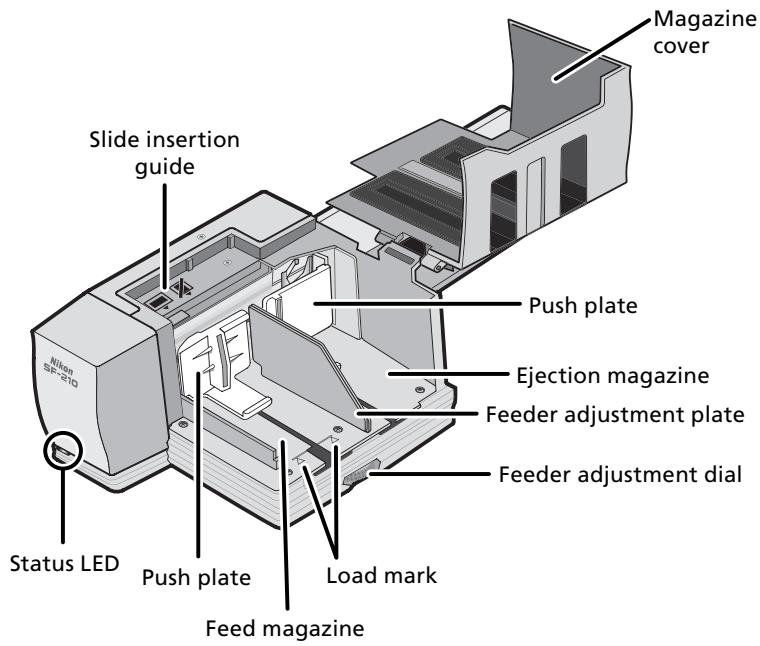
2.2 Parts of the SF-210
3. Installation
Before installing the SF-210, make sure that your scanner is set up in a suitable location, as described in the documentation provided with the scanner. The SF-210 should not be used where:
- the temperature exceeds 35^ C( 95^ F) or falls below 10^ C( 50^ F)
- it would be subject to condensation or drastic changes in temperature
the humidity is less than 20% or exceeds 60% - it would be exposed to direct or reflected sunlight
- it might be subject to vibration or strong physical shocks
there is a lot of dust - it would be exposed to radio interference from other electronic devices
- it would be exposed to water vapor (e.g., from a humidifier)
- it would be exposed to smoke

Warning: Failure to observe the above precautions could result in fire or in scanner malfunction.
When using the SF-210, install the scanner as shown below. There must be sufficient space around the scanner to allow the magazine cover to open and to ensure adequate ventilation. There should be at least 15cm ( 6'' ) of space above the unit and 10cm ( 4'' ) open to the rear. Space requirements when the SF-210 is attached are illustrated below.
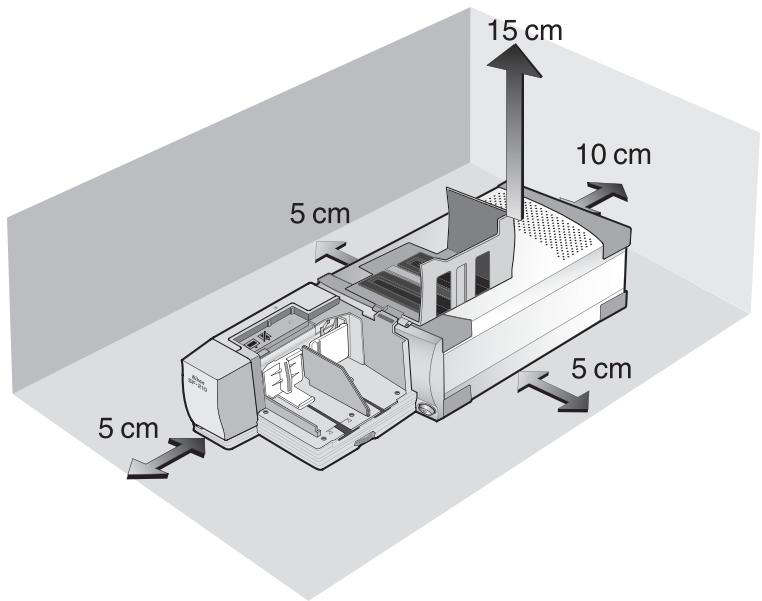
The SF-210 can be mounted on the scanner whether the scanner is off or on and connected to a computer. If the scanner is on, before mounting the feeder check that the status LED is glowing steadily. The SF-210 should NOT be inserted or removed while the status LED is blinking.
Install the scanner as shown below, with the side vents uppermost. Slide the SF-210 into the scanner's adapter slot, stopping when the feeder contacts the back of the slot. The feeder should be oriented as shown below when inserted. Push the feeder until the connector on the rear of the feeder is seated securely in the socket at the back of the slot. The feeder is properly inserted if the status LED on the front of the feeder lights when the scanner is turned on. If the scanner is on when the feeder is inserted, the feeder's status LED will blink to indicate that the feeder has been inserted correctly. In all other respects, the feeder LED functions in the same way as the scanner status LED.
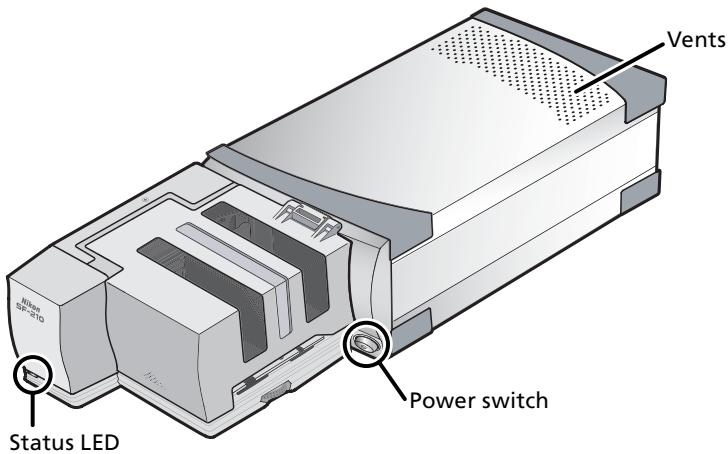
If the feed mechanism for the SF-210 is not in the initial position when the scanner is turned on, you will need to wait a few seconds for the feed mechanism to return to initial position before inserting slides.

Cautions
- Do not place the scanner upright when inserting, removing, or using the SF-210.
- Wait until the status LED glows steadily or the scanner is off before inserting or removing the SF-210. Do not attempt to remove or insert the feeder while the scanner is operating.
- When the SF-210 is inserted with the power on, or the scanner turned on after the feeder has been inserted with the power off, the feed mechanism will return to the initial position. While this operation is in progress, the status LED on the front of the feeder will blink. Do not perform any operations while the LED is blinking.
- If the feeder does not slide in smoothly, remove it from the adapter slot and try again. Do not use force.
4. Using the SF-210
This chapter describes how to load the SF-210, how to remove slides, and how to deal with jams.
4.1 Loading the feeder
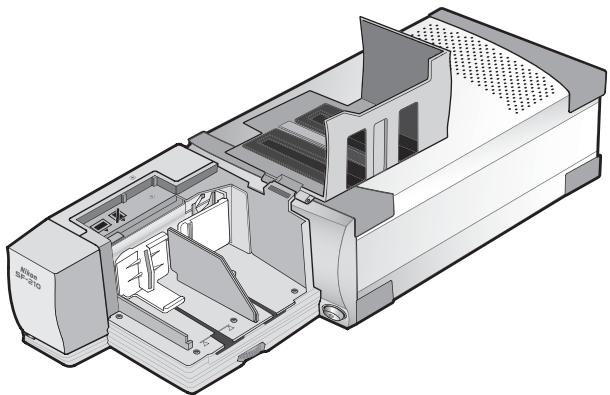
Slides to be scanned are inserted in the feed magazine. To load the magazine, open the magazine cover, pull back the feed push-plate to the end of its grove, and hook it in the notch so that it does not spring back to its original position. Place the slides in the magazine with the long end of the aperture up and the emulsion surface facing the push plate (the images in the slides should be reversed when viewed from the magazine side). Scanning will be considerably simplified if the slides are all inserted in the same orientation.
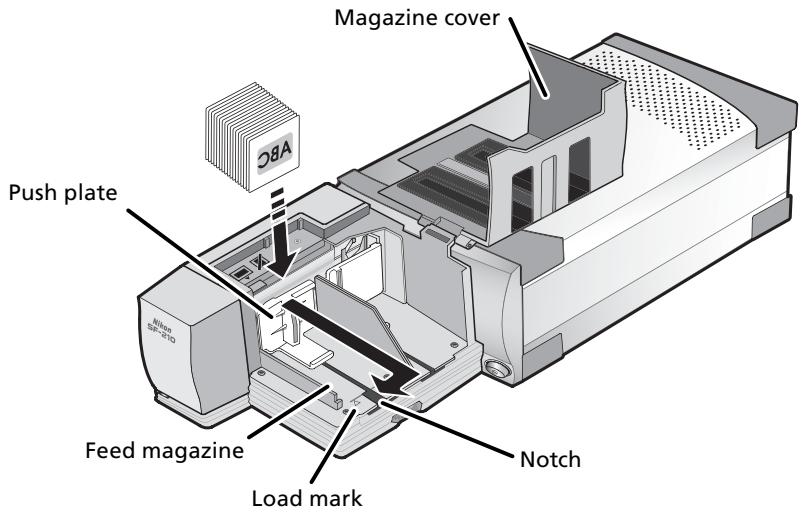
Slides can be loaded into the feed magazine up to the load mark. Do not attempt to fill the magazine past this point. Once the feed magazine is loaded, release the push plate from the notch and slide it back until rests against the slides.
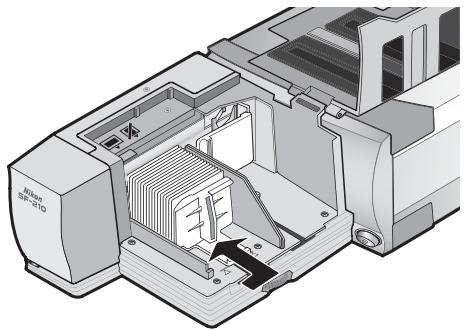
Close the magazine cover. You are now ready to begin scanning. For details on automatic consecutive scanning of multiple slides, refer to the User's Manual and Nikon Scan Reference Manual provided with the scanner.
In most cases (for example, when scanning slides with mounts of different thicknesses), the slide feeder works best with the slide feed slot fully open.
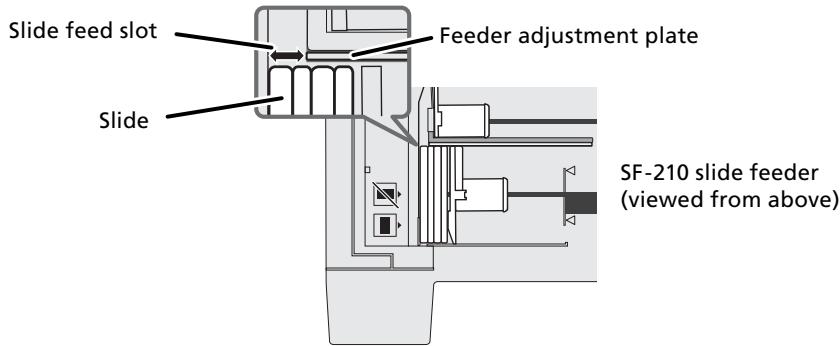
The width of the slide feed slot is controlled by the feeder adjustment dial.
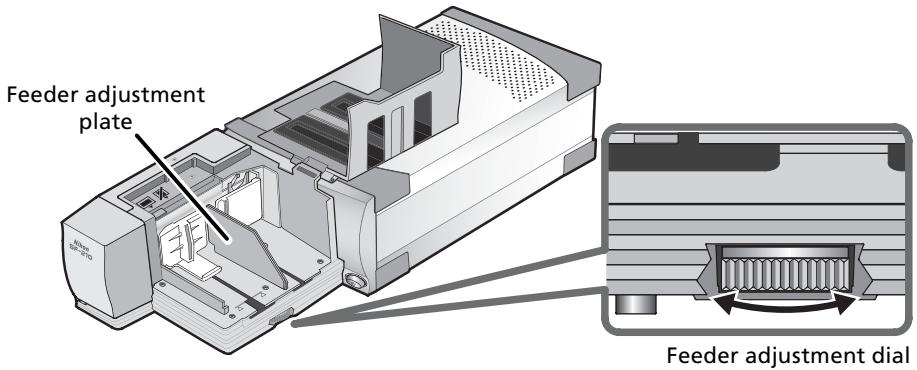

Scanning Slides of the Same Thickness
If the mounts are all the same thickness, the slide feed slot should be about one-and-a-half times the thickness of the slide mount (see illustration below). This will help prevent the feeder from jamming or feeding several slides at once
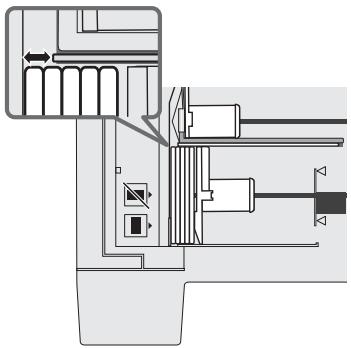
SF-210 slide feeder (viewed from above)
- The SF-210 does not function equally well with all types of slide mount. Use 35-mm slides with mounts 1.0 - 3.2 ~mm thick and 49 - 50.8 ~mm wide. Other slides could cause the feeder to jam.
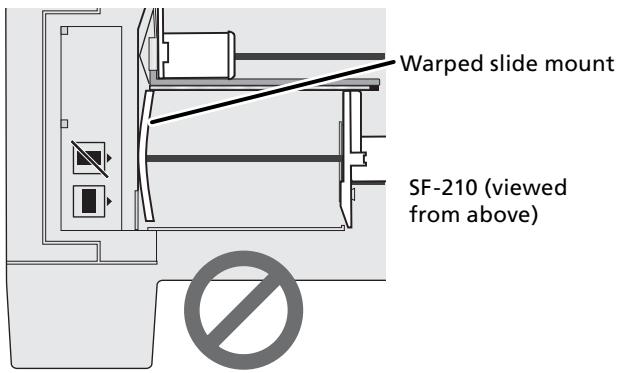
- Slides with mounts that are heavily warped can cause the feeder to jam.
- Do not use mounts with peeling or burred edges, mounts to which seals or labels have been affixed, or mounts with uneven surfaces. Failure to observe this precaution could cause the feeder to jam.
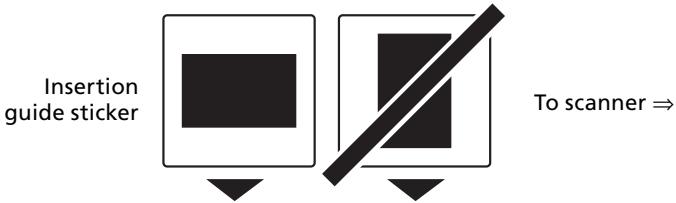
- Do not load slides into the feeder with the longer side of the aperture facing the scanner, as this could damage the film or slide mount or cause the feeder to jam. Insert slides as shown by the insertion guide sticker next to the feed magazine.
- Do not load slides in the feed magazine past the load mark, as this may cause the feeder to jam.
- Do not move the scanner while scanning is in progress.
- Remove scanned slides from the ejection magazine before the magazine is full. Continuing scanning when there is no room left in the ejection magazine could jam the feeder.
- Do not remove the feeder while scanning is in progress.
-
Before turning the scanner off or removing the feeder, make sure that all slides have been removed from the magazine and that the last slide to be fed has been ejected.
-
The following mounts have been tested and approved for use in the SF-210:
FUJICHROME 1.4-1.5mm, plastic or square cardboard KODACHROME mounts the same shape as FUJICHROME mounts, plastic or square cardboard EKTACHROME mounts the same shape as FUJICHROME mounts, Ektachrome PROCESS, GEPE 2 mm, GEPE 3 mm, AGFA CS, AGFA reflecta CS, hama fix, Kaiser USA, REVUE
- The following mounts can be used only in restricted orientations:
| Mount | Cautions |
| WESS | Insert with the photograph facing the push plate. Slides can be inserted in either orientation if the feed mechanism attachment is used. |
| hama DSR | Insert with the photograph facing the push plate. |
- The following mounts are known to cause jams:
| Mount | Notes | ||
| Kodachrome/ Ektachrome Cardboard mounts 1.1 mm thick with rounded corners | PLASTIMOUNTS | Pakon | Burred or peeling mounts and mounts with uneven or irregular surfaces can cause the feeder to jam. To help prevent the feeder from jamming or feeding several slides at once, open the slide feed slot to about one- and-a-half times the thickness of the slide mounts. |
4.2 Removing slides
Slides will be sent to the ejection magazine after scanning. To remove slides from the ejection magazine, pull back the push plate and remove the slides. Slides must be removed before the ejection magazine fills up.
4.3 Using the Feed-Mechanism Attachment
Thick mounts (over 2mm thick) with rounded edges may not feed properly when used with the SF-210. A removable plastic part is provided for attachment to the feed mechanism, enabling the scanner to feed such slides. A special attachment utility program, provided with the Nikon Scan software that came with your scanner, is required both when attaching this part to and removing it from the feed mechanism.
To attach the feed-mechanism attachment, the scanner must be connected to the computer. Both the scanner and computer must be on and Nikon Scan must not be running. After inserting the SF-210 into the scanner as described above, open the folder to which you installed Nikon Scan and then double-click the FDUtility icon (Windows) or double-click the Attachment Utility icon in the Utility sub folder (Macintosh). The attachment utility will start.
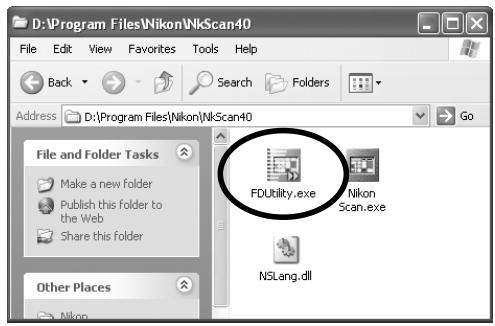
Windows
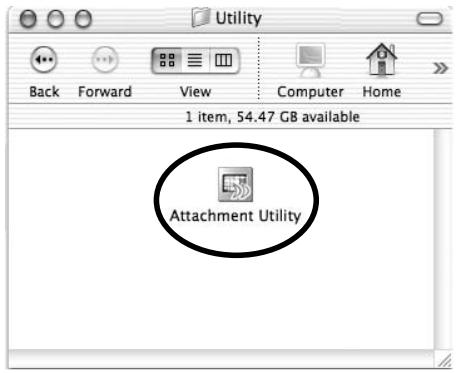
Macintosh
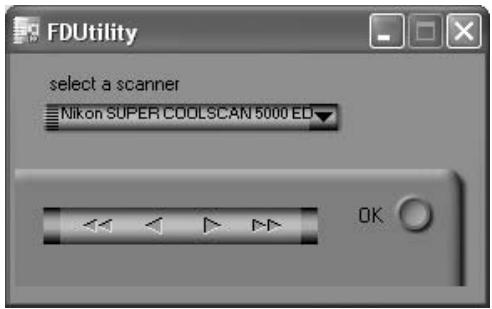
The "attachment utility" (FDUtility) window will appear on the desktop. If more than one scanner is attached to your computer and powered on, select the scanner to which the SF-210 is attached from the select a scanner pop-up menu.
Nikon Scan does not support simultaneous connection of more than one scanner.
Open the SF-210's magazine cover, pull back the feed push-plate to the end of its grove, and hook it in the notch so that it does not spring back to its original position.
Click the double right-arrow button in the "attachment utility" (FDUtility) to move the feed mechanism to where it is fully visible. If you move the feed mechanism too far, click the left-arrow button to move it back. The single-arrow buttons can be used for fine adjustments. Once the feed mechanism is visible, insert the pegs on the attachment into the holes in the feed mechanism.
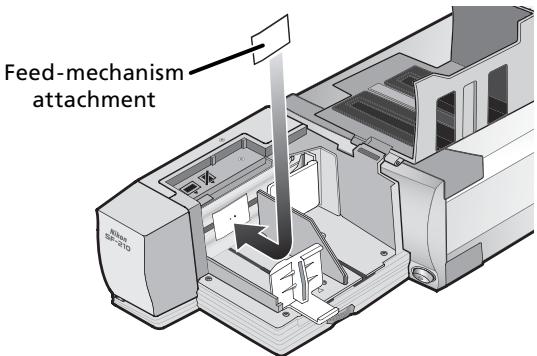
Click the OK button in the "attachment utility" (FDUtility) window to return the feed mechanism to its initial position. You are now ready to begin scanning.

Caution
Be sure that the attachment is securely in place. If the attachment is loose, slides may not feed properly and damage to the SF-210 could result.
When using the feed-mechanism attachment to scan slides with mounts of the same thickness, open the slide feed slot to leave a gap about one-and-a-half times the thickness of the slide mounts. If the slide feed slot is too narrow, the attachment may catch on the feeder adjustment plate, causing feed errors.
4.4 Removing attachment
When scanning slides with flat mounts or slides less than 2mm thick, you will need to remove the attachment. Use the attachment utility as described above to move the feed mechanism into the magazine, then remove the attachment and click OK to return the feed mechanism to its initial position.
4.5 What to do if the feeder jams
If a jam occurs, open the magazine cover and remove the slides remaining in the feed and eject magazines. Pull back the feed push-plate and hook it in the notch so that it does not spring back to its original position.
The method for resolving a jam depends on the position of the feed mechanism when the jam occurred. If the jammed slide is visible in the magazine and the feed mechanism has returned to its housing in the front of the unit, the jammed slide can be removed with your fingers. If the feed mechanism has locked while feeding a slide, you will need to exit Nikon Scan and use the attachment utility to resolve the jam (the attachment utility is a special program for the SF-210 distributed with the Nikon Scan software that came with your scanner).
To start the attachment utility, open the folder to which you installed Nikon Scan and then double-click the FDUntity icon (Windows) or double-click the Attachment Utility icon in the Utility sub folder (Macintosh).
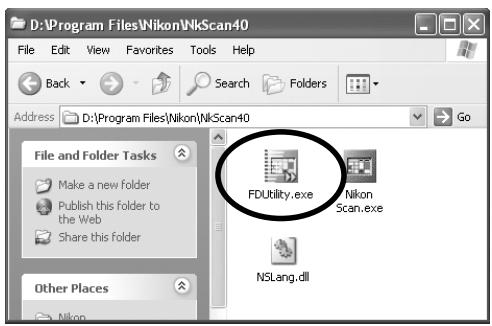
Windows
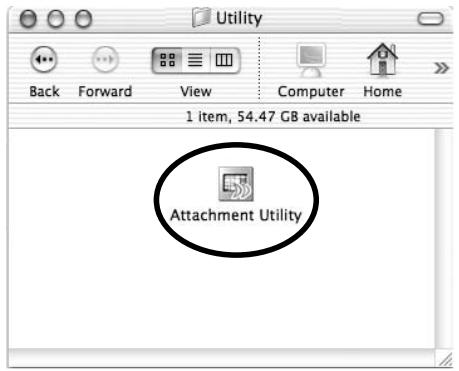
Macintosh
The "attachment utility" (FDUtility) window will appear on the desktop. If more than one scanner is attached to your computer and powered on, select the scanner to which the SF-210 is attached from the select a scanner pop-up menu.
Nikon Scan does not support simultaneous connection of more than one scanner.
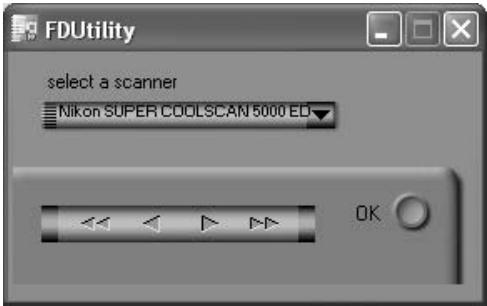
If the feed mechanism has locked while pushing a slide, click the double left-arrow button in the "attachment utility" (FDUtility) window to move the feed mechanism back to its housing, then remove the jammed slide with your fingers. If two or more slides have jammed so that they overlap, remove the slide on the magazine side first. If the mount has caught at the entrance to the ejection magazine while being ejected from the feeder, click the right arrow button to move the feed mechanism out of the way, then push the slide back gently back towards the scanner to clear the jam. Using the left-arrow button, return the feed mechanism to its housing (if this does not clear the jam, you will need to take the feeder to a Nikon service center for repairs).
5. Maintenance
This chapter describes how to clean, store, and transport the SF-210.
5.1 Cleaning
Before cleaning the feeder, remove it from the scanner. The exterior of the feeder is made of plastic, and should not be cleaned with volatile cleaners such as alcohol or paint thinner. Use a blower to blow off dust or wipe the surface with a dry cloth. If this is not sufficient to remove all dirt, clean with a cloth that has been slightly dampened with a neutral detergent or liquid soap.

Warning: Do not use water or a volatile liquid such as alcohol, benzine, or thinner. Should any of these liquids enter the feeder, fire or electric shock could result. Volatile chemicals could also stain the plastic exterior of the feeder.
5.2 Storage
When you do not plan to use the feeder for an extended period of time, remove it from the scanner. Store in a dry, well-ventilated environment where the temperature is between -10^ (14^) and +50^ (+122^) and the humidity less than 60% . Do not store the feeder where it would be subject to sudden temperature changes or condensation.
5.3 Transport
When transporting the scanner, remove the feeder from the scanner and pack it in the original packing material.
6. Specifications
| Film: | 35 mm slide mounts (1.0–3.2 mm thick, 49–50.8 mm wide) |
| Maximum number of slides: | Approx. 50 slides (assumes mounts 1.5 mm thick) |
| Housing space: | Approx. 78.5 mm |
| Operating mode: | Scanner (SUPER COOLSCAN 5000 ED / SUPER COOLSCAN 4000 ED) installed on its base, SF-210 connected directly to connector at rear of scanner adapter slot |
| Feed mechanism: | Automatic with built-in motor |
| Feed/eject time: | Feed: approx. 6 seconds per slide |
| (reference) | Eject: approx. 6 seconds per slide |
| Dimensions: | 142 mm (W) × 325 mm (D) × 85 mm (H) (5.63" × 12.78" × 3.37") |
| Weight: | Approx. 820 g (1 lb. 13 oz.) |
| Power supply: | 5 VDC, 0.7 A or less, supplied from scanner |
| Operating environment: | Temperature +10°C to +35°C Humidity 20% to 60% (no condensation) |
Diamagazin SF-210
Inhalt
Wichtige Hinweise 2
Federal Communications Commission (FCC) Radio Frequency Interference Statement
This class B digital apparatus meets all requirements of the Canadian Interference Causing Equipment Regulations.