
POWERbot SR10M703HWG - Robot vacuum SAMSUNG - Free user manual and instructions
Find the device manual for free POWERbot SR10M703HWG SAMSUNG in PDF.


| Product Type | Robot Vacuum |
| Brand | Samsung |
| Model | POWERbot SR10M703HWG |
| Dimensions (W x D x H) | 340 x 340 x 90 mm |
| Weight | 2.8 kg |
| Dustbin Capacity | 0.3 L |
| Battery Type | Lithium-ion |
| Battery Voltage | 21.6 V |
| Battery Capacity | 2600 mAh |
| Runtime | Up to 90 minutes |
| Charging Time | Approximately 3 hours |
| Connectivity | Wi-Fi (2.4 GHz) |
| Smart Home Platform | Samsung SmartThings |
| Cleaning System | CycloneForce |
| Suction Power | 120 Pa |
| Navigation Sensor | FullView Sensor™ with Visionary Mapping |
| Motor Type | Digital Inverter Motor |
| Filter Type | Washable fine dust filter |
| Auto Recharge | Yes |
| Remote Control | Included (IR remote) |
| Sound Level | 60 dB |
| Warranty | 1 year |
| Accessories Included | Charging dock, power adapter, remote control, cleaning tool |
Frequently Asked Questions - POWERbot SR10M703HWG SAMSUNG
User questions about POWERbot SR10M703HWG SAMSUNG
0 question about this device. Answer the ones you know or ask your own.
Ask a new question about this device
Download the instructions for your Robot vacuum in PDF format for free! Find your manual POWERbot SR10M703HWG - SAMSUNG and take your electronic device back in hand. On this page are published all the documents necessary for the use of your device. POWERbot SR10M703HWG by SAMSUNG.
USER MANUAL POWERbot SR10M703HWG SAMSUNG
SR1*M70****, SR2*M70**** Series
- Before operating this unit, please read the instructions carefully.
- For indoor use only.
natural_image
Black-and-white photo of a modern lounge chair with white leather backrest and metallic arms, featuring headphones placed on the backrest (no text or symbols visible)SAMSUNG
1
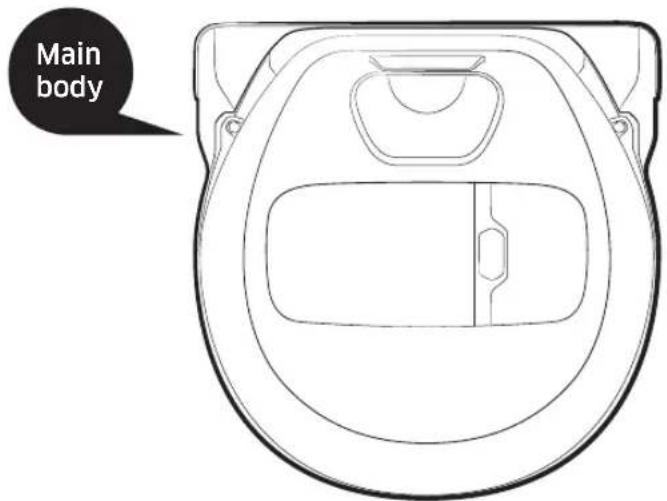
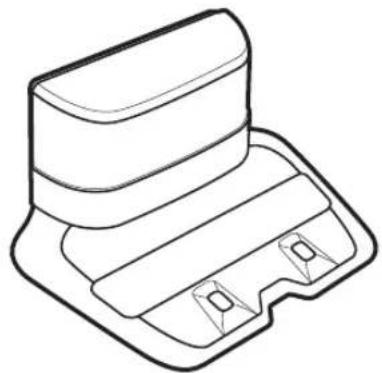
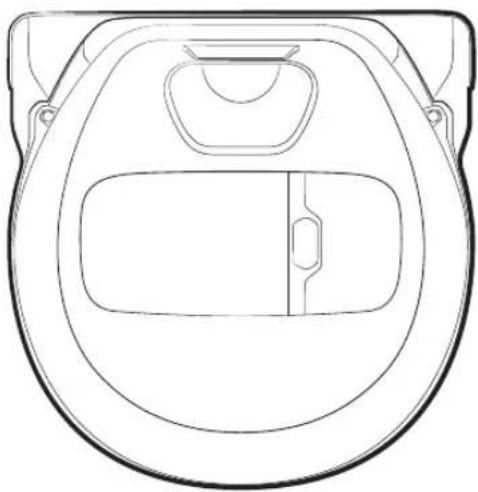
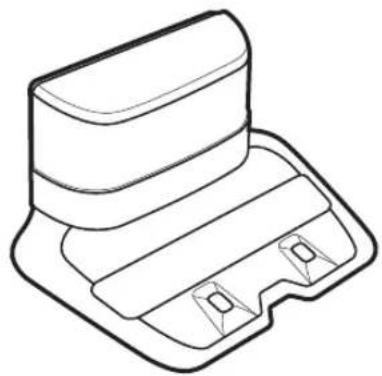
Parts list

natural_image
Line drawing of a mechanical component or housing with no text or symbols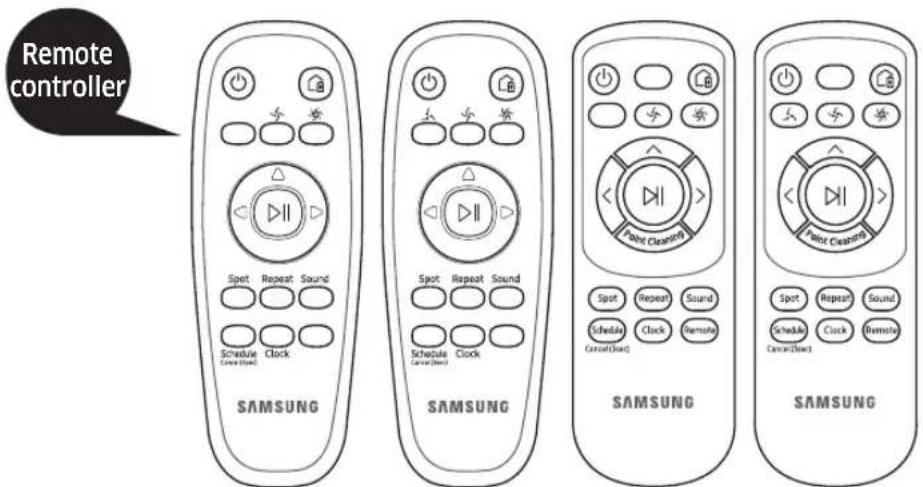
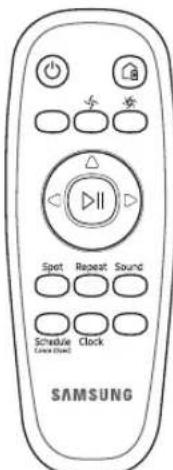
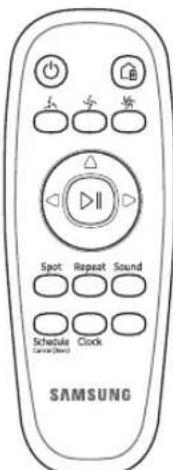
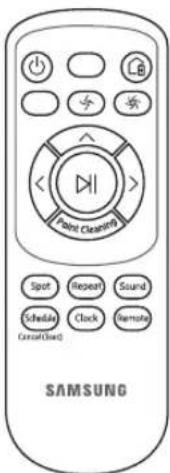
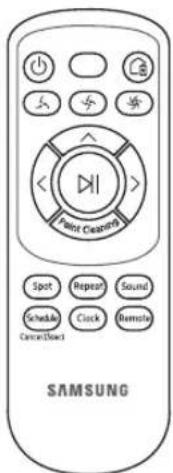
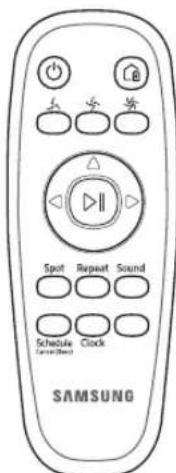
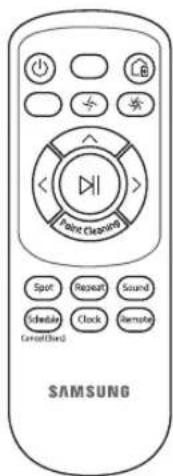
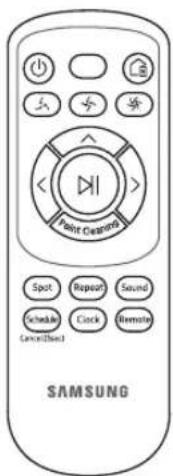
[A Type] [B Type] [C Type] [D Type]
* (Not included with SR1*M701*** Series)

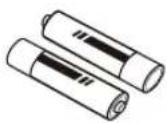
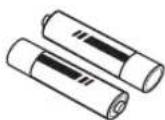
Batteries (AAA type) (Optional)
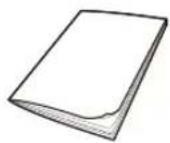
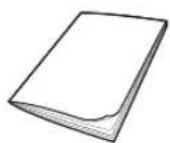
Quick reference guide
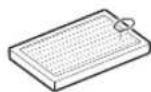
Spare filter (Optional)
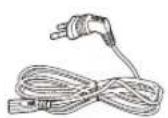
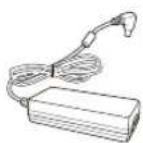
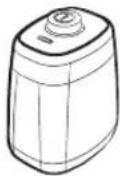
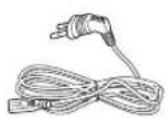
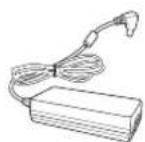
Power cord Battery Charger Virtual guard
(Optional)
* Accessories may differ depending on the models.
2-1
Safety information
- Before operating the appliance, please read this manual thoroughly and retain it for your reference.
- Because these following operating instructions cover various models, the characteristics of your vacuum cleaner may differ slightly from those described in this manual.
Caution/Warning symbols used

WARNING
Indicates that a danger of death or serious injury exists.

CAUTION
Indicates that a risk of personal injury or material damage exists.
Other symbols used

NOTE
Indicates that the following text contains additional important information.
- For information on Samsung's environmental commitments and product specific regulatory obligations e.g. REACH (WEEE, Batteries) visit: samsung.com/uk/aboutsamsung/samsungelectronics/corporatecitizenship/data_corner.html
Important safety instructions
When using an electrical appliance, basic precautions should be observed, including the following:
Read all instrucrions before using your robot vacuum cleaner.
Unplug the charger / docking station from outlet when not in use and before conducting maintenance.

WARNING
To reduce the risk of fire, electric shock, or injury:
General
- Use only as described in this manual.
- Do not operate POWERbot or the charger / docking station if it has been damaged in any way.
- If the vacuum cleaner is not working as it should, has been dropped, damaged, left outdoors, or dropped in water, return it to a customer care center.
- Do not handle the charger / docking station or POWERbot with wet hands.
- Use only on dry, indoor surfaces.
- This appliance can be used by children aged from 8 years and above and persons with reduced physical, sensory or mental capabilities or lack of experience and knowledge if they have been given supervision or instruction concerning use of the appliance in a safe way and understand the hazards involved. Children shall not play with the appliance. Cleaning and user maintenance shall not be made by children without supervision.
- If the supply cord is damaged, it must be replaced by the manufacturer or its service agent or a similarly qualified person in order to avoid a hazard.
2-2
Safety information
Charger / Docking station
- Do not modify the polarized plug to fit a non-polarized outlet or extension cord.
- Do not use outdoors or on wet surfaces.
- Unplug the charger / docking station from the outlet when not in use and before servicing.
- Use only the charger / docking station supplied by the manufacturer to recharge.
- Do not use with a damaged cord or plug or a loose power outlet.
- Do not pull or carry by the cord, use the cord as a handle, close the door on the cord, or pull the cord around sharp edges or corners. Keep the cord away from heated surfaces.
- Do not use extension cords or outlets with inadequate current carrying capacity.
- Do not unplug by pulling on the cord. To unplug, grasp the plug, not the cord.
- Do not mutilate or incinerate batteries as they will explode at high temperatures.
- Do not attempt to open the charger / docking station. Repairs should only be carried out by a qualified customer care center.
- Do not expose the charger / docking station to high temperatures or allow moisture or humidity of any kind to come into contact with the charger / docking station.
- Do not charge the non-rechargeable batteries with charger.
• COMMISSION REGULATION (EU) 2019/1782
Ecodesign requirements for external power supplies : www.samsung.com/global/ecodesign_component
POWERbot
- Do not pick up hard or sharp objects such as glass, nails, screws, coins, and etc.
- Do not use without a filter in place. When servicing the unit, never put fingers or other objects into the fan chamber in case the unit accidentally turns on.
- Do not put any objects into openings. Do not use with any openings blocked; keep openings free of dust, lint, hair, and anything that may reduce air flow.
- Do not pick up toxic materials (chlorine bleach, ammonia, drain cleaner, etc.).
- Do not pick up anything that is burning or smoking, such as cigarettes, matches, or hot ashes.
- Do not use to pick up flammable or combustible liquids such as gasoline or use in areas where they may be present. Also do not use in:
- Locations with candles or desk lamps on the floor.
- Locations with unattended fires (fire or embers).
- Locations with distilled alcohol, thinner, ashtrays with burning cigarettes, etc.
- Do not use POWERbot in an enclosed space filled with vapours given off by oil based paint, paint thinner, moth proofing substances, flammable dust, or other explosive or toxic vapours.
- Leaks from battery cells can occur under extreme usage or temperature conditions. If the liquid gets on skin, wash quickly with water. If the liquid gets into the eyes, flush them immediately with clean water for a minimum of 10 minutes. Seek medical attention.

WARNING
Power related
- Please prevent any risk of electric shock or fire.
- Do not damage the power cord.
- Do not pull the power cord too hard or touch the power plug with wet hands.
- Do not use a power source other than 100-240 V\~ and also do not use a multi outlet to supply power to number of devices at the same time. (Do not leave the cord carelessly on the floor.)
- Do not use a damaged power plug, power cord or loose power outlet.
- Clean dust or any foreign matters on the pin and contact part of the power plug.
- There is a risk of electric shock or malfunction.
Before use
- Do not use POWERbot near a heater or combustible materials.
- Do not use powerbot near fire or flame such as a movable heater, a candlelight, a desk lamp, a fireplace etc. or in a place where combustible materials such as gasoline, alcohol, thinner etc. exist.
- Make sure there are no dangerous objects around the POWERbot's cleaning area to prevent collision and unplug any electric heaters or fans.
- The POWERbot is intended for household use therefore do not use it in an attic, basement, storage, industrial building, out of indoor space, places with moisture (such as bathroom, laundry), on the table or shelves.
- The POWERbot can be damaged or malfunction.
- Be sure POWERbot does not pass through or touch any kind of liquids.
- The POWERbot can be severely damaged and it may contaminate other areas if the wheels pass through liquid.
- Do not spill any liquids on the docking station.
- There is a risk of fire or electric shock.
- Do not use the charger / docking station for anything other than its intended purpose.
- There is a risk of fire or severe damage to the docking station.
• Always keep the cliff sensor clean for your safety.
In use
- If any abnormal sounds, smells or smoke come from POWERbot, immediately shut off the emergency switch at the bottom of POWERbot and contact a service center.
Cleaning and maintenance
- When power cord is damaged, contact a service center to get it replaced by certified repairman.
- There is a risk of fire or electric shock.
- Please check with a Samsung Electronics service center when exchanging batteries.
- Using batteries from other products can cause malfunction.
2-4
Safety information

CAUTION
Before use
- Insert the dustbin before using POWERbot.
-
Be careful with the followings for proper automatic recharging.
-
Always turn on the power of the docking station.
- Install the docking station where the POWERbot can find it easily.
-
Do not leave any object in front of the docking station.
-
When installing the docking station, do not leave the cord carelessly on the floor since POWERbot may get tangled by it.
- Do not use POWERbot on black colored floors.
- The POWERbot may not be able to operate normally.
- Do not pick up POWERbot by the dustbin holder.
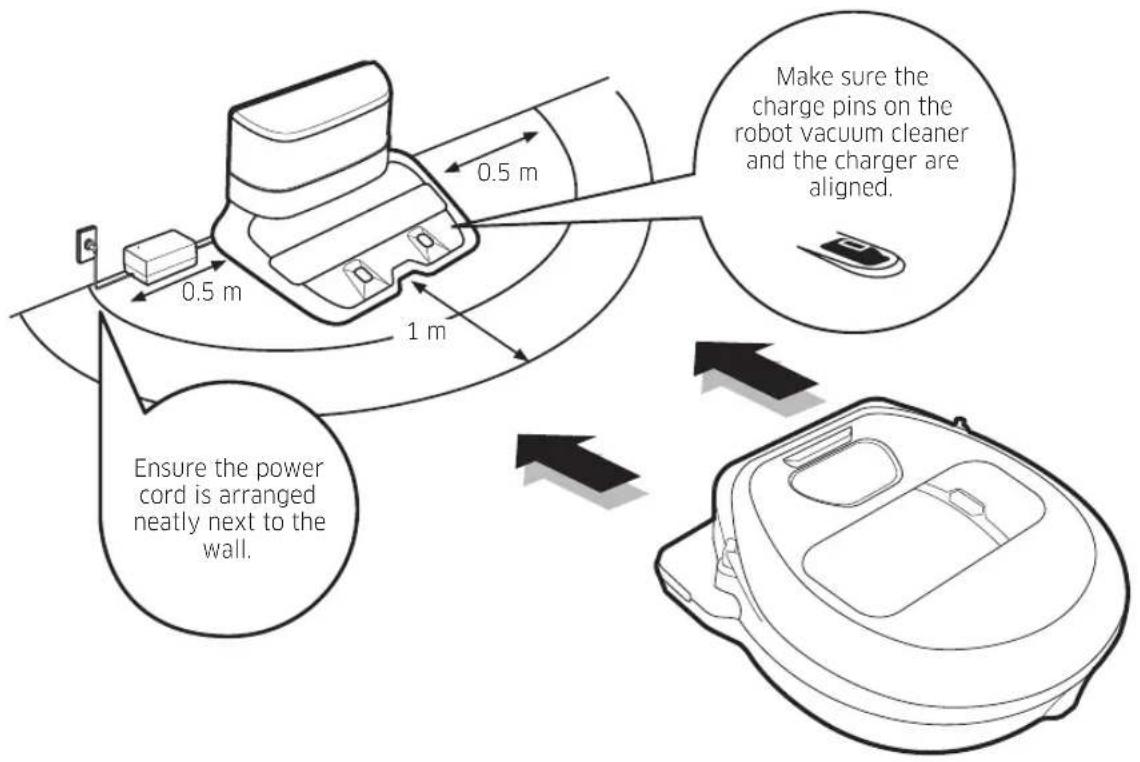
- Do not place any objects within 0.5 m to both sides and 1 m to the front of the docking station.
- Make sure the docking station's charging contact is not damaged or have any foreign matters on it.
- Do not install the docking station in an area with a dark floor.
- If the floor around the docking station is dark, recharging is hindered.
- Move any obstacles that may disturb POWERbot's movement (such as children's indoor swing or slides) before cleaning.
- Do not use the POWERbot in a place which is narrower than the turning radius (0.5 m or less) of the POWERbot.
- If a brush or brush cover is not assembled correctly, scratches may occur on the floor, or product malfunction may occur.
- Before operating the POWERbot, remove the objects which could break such as a frame, mirror, and porcelain items so that the POWERbot works without interruption.
In use
- Using POWERbot on thick carpet may damage both POWERbot and the carpet.
- The POWERbot cannot pass over carpet that is thicker than 1 cm.
- Do not use POWERbot on tables or other high surfaces.
- There is a risk of damage if it falls.
- The POWERbot may bump into chair, desk legs therefore move them away for faster and efficient cleaning.
- When POWERbot is operating, do not lift it up or carry it to another area.
- Do not hold by driving wheels of POWERbot when carrying it to another area.
- Do not put any objects on top of POWERbot since it may cause malfunction.
- Remove any large papers or plastic bags immediately when using POWERbot since they may block the intake.
- Do not aim the red pointer directly at people or animals.
- Do not lie down around the POWERBOT that is running.
- Your hair may be caught in the brush, resulting in physical injury.
Cleaning and maintenance
- Prevent any damage to POWERbot by complying the followings.
- Do not clean POWERbot by spraying water directly onto it or use benzene, thinner, acetone or alcohol to clean it.
- Do not disassemble or repair POWERbot. This should only be done by a certified repairman.
• Always keep the obstacle sensor and cliff sensor clean. - If foreign matter accumulates, sensors may malfunction.
3
Charging

When the product is purchased, the battery is not charged, so charging must initially be done manually.
How to turn on the emergency switch
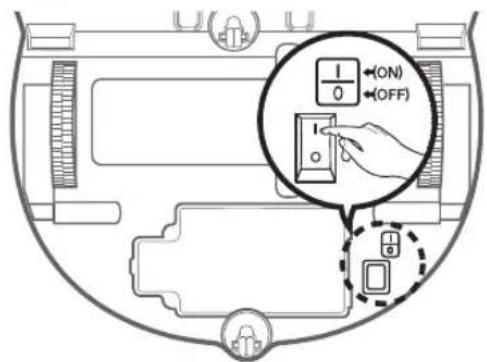
Hold the robot vacuum cleaner and turn on the emergency switch without pressing any buttons.
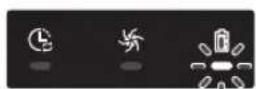
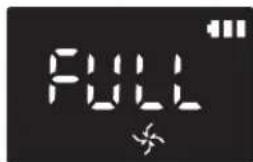
Check the charging status.
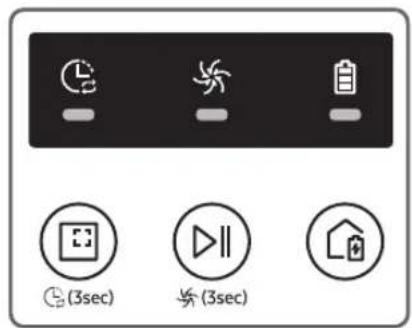
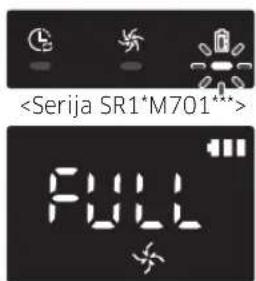
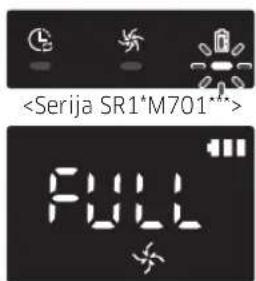
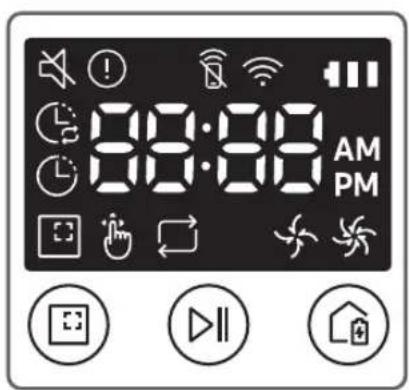
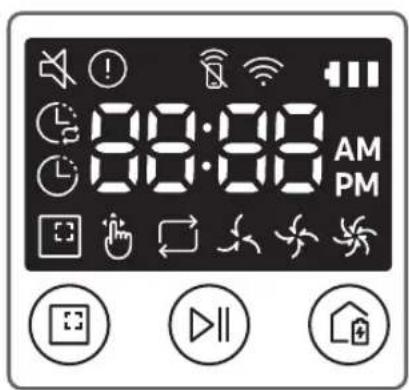
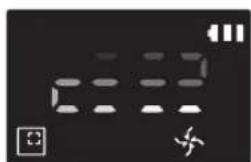
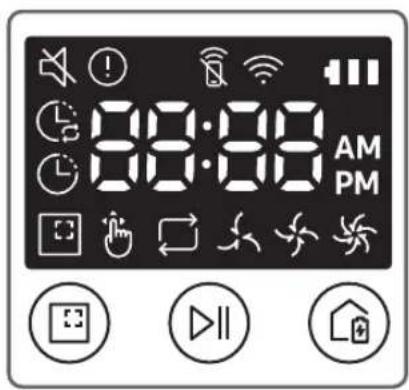
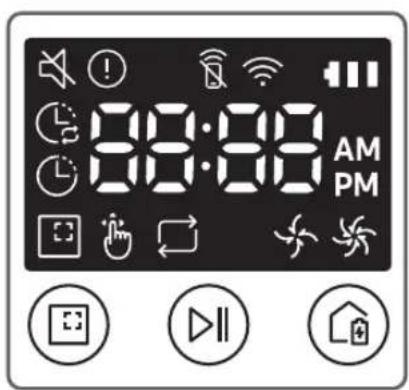
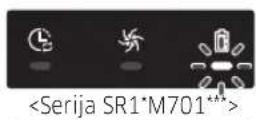
For SR1*M701*** Series, The battery indicator blinks at 1 sec. intervals during charging and the indicator will remain in ON status when fully charged.
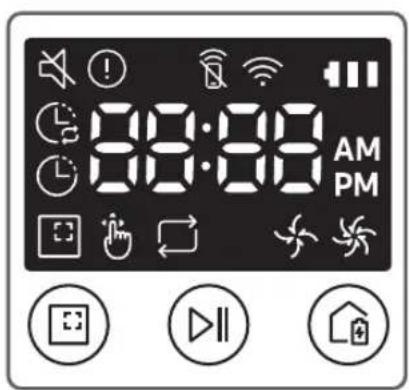
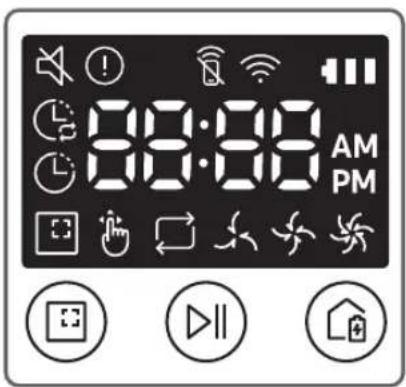
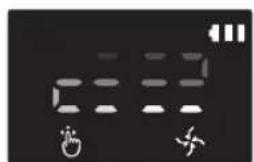
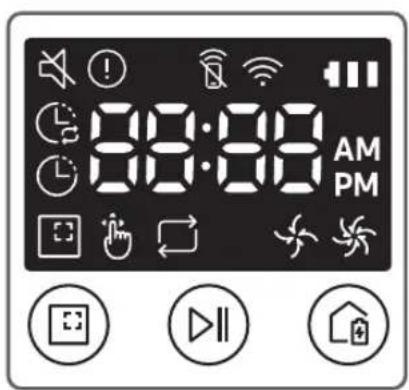
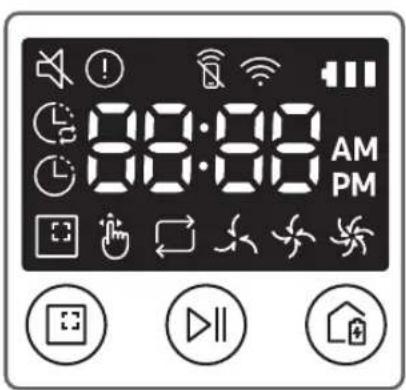
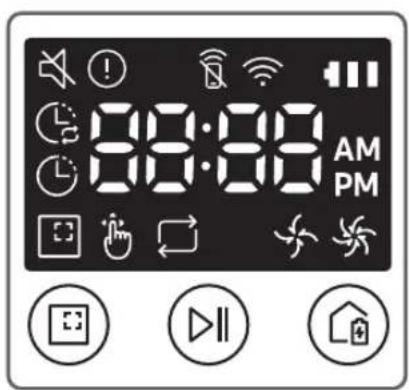
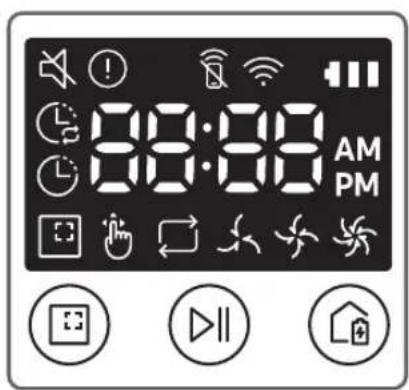
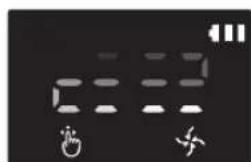
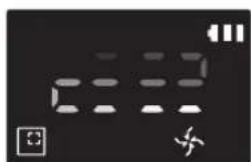
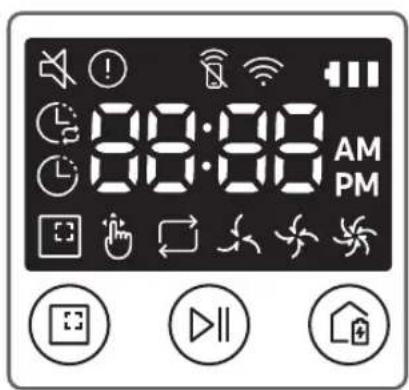
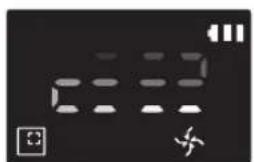
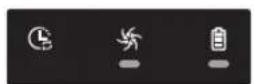
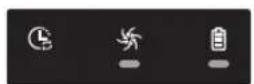
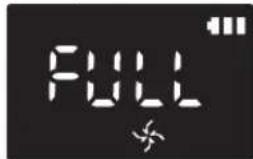
For SR1*M702*** / SR1*M703*** / SR2*M70**** Series, "will turn on according to charging progress and "FULL" will turn on when charging is complete.

Please install the docking station in a place where the floor is level and wall is straight.
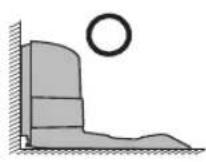
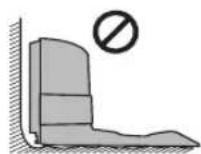
Install the charger where the robot vacuum cleaner can easily find it.
※ Install with the grain of wood floors.
4-1
Using the robot vacuum cleaner
Starting Auto clean mode
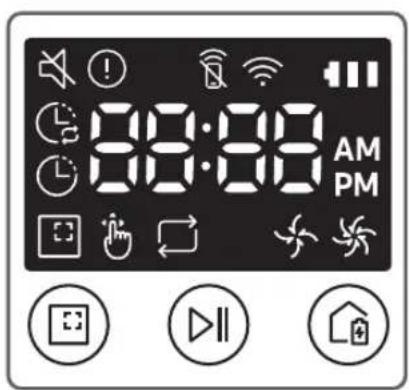
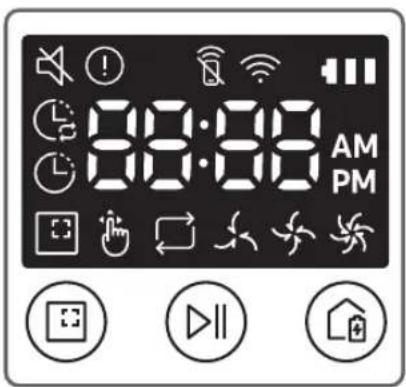
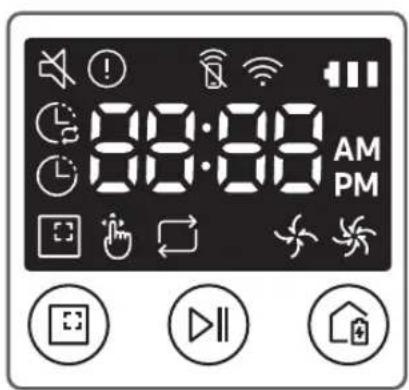
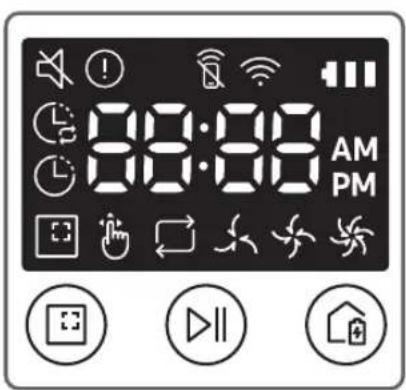
The POWERbot moves and automatically cleans the set areas only once. * SR1*M701*** series : cleans repeatedly until the battery is depleted.

Stop cleaning: Press and release the 📋 button
Starting Spot clean mode
Press and release this button. The POWERbot cleans a localized area intensely.

Recharging
You can command POWERbot to recharge at the docking station automatically while it is cleaning by pressing this button.

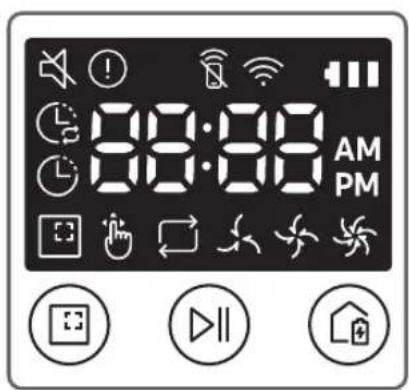
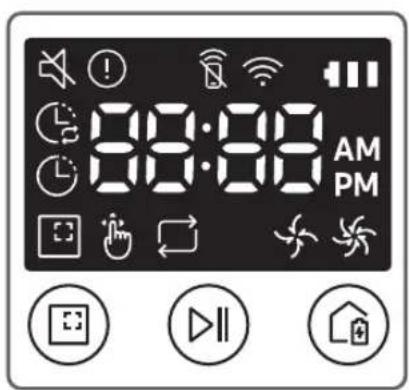
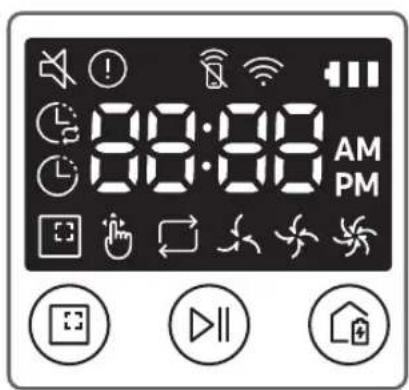
Auto Clean Spot Clean Repeat clean


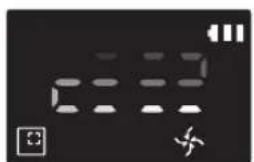
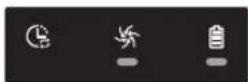
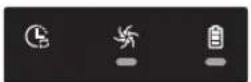
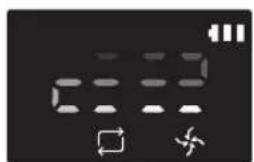
Press the [A,B type □], [C,D type □ on the remote controller first and then press the [Start/Stop

Manual Clean
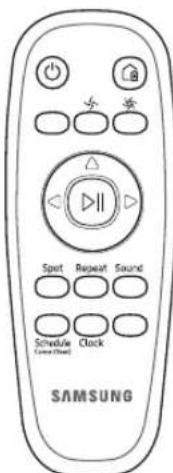
Manual clean mode can be selected by the direction control buttons of the remote controller.
natural_image
Digital display screen with icons for finger, lock, and alarm (no readable text or symbols)4-2
Using the robot vacuum cleaner
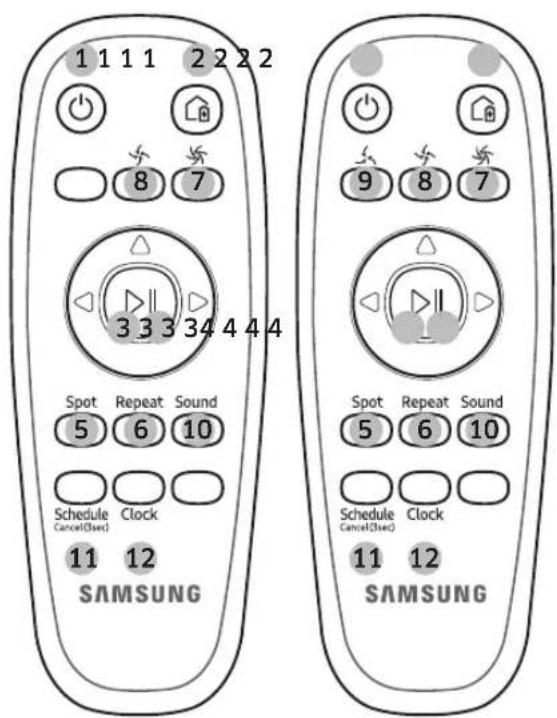
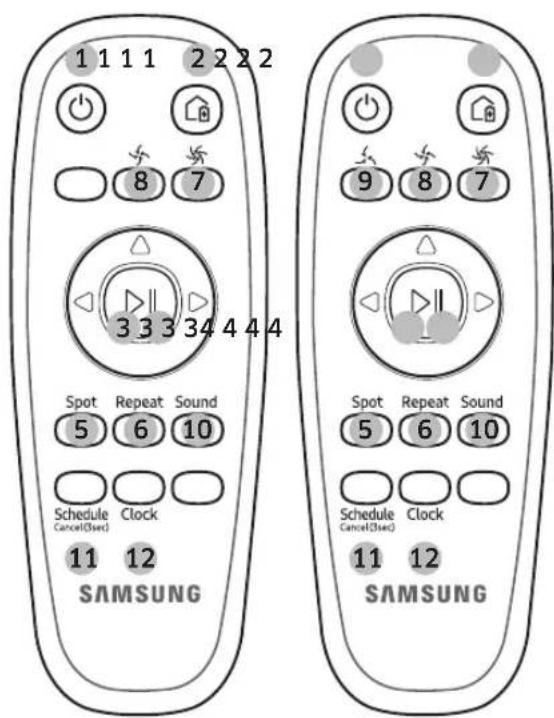
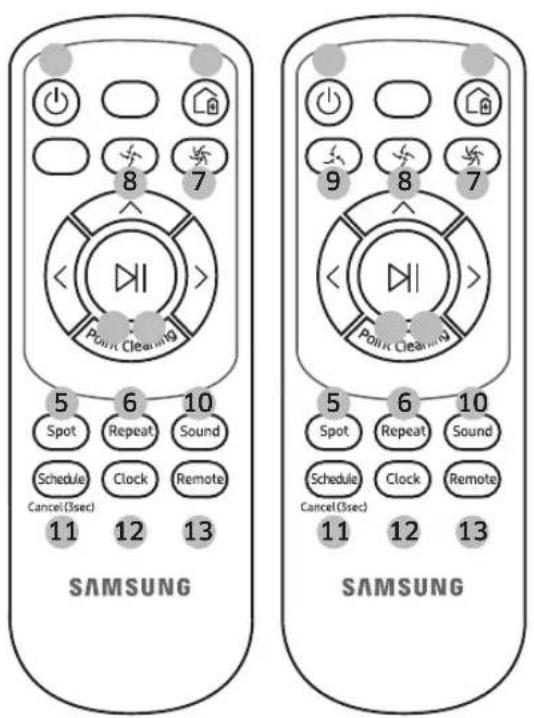
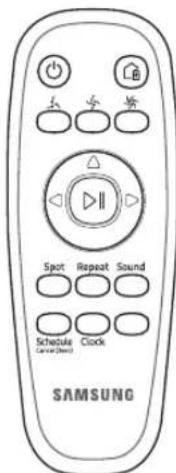
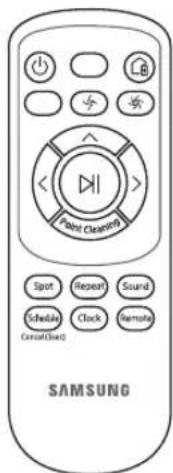
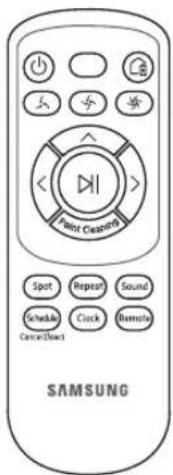
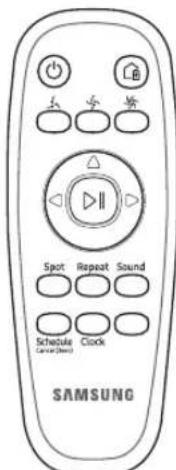
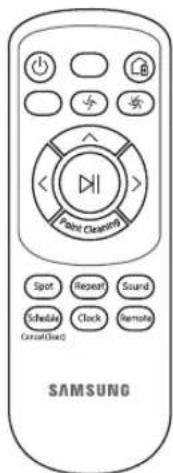
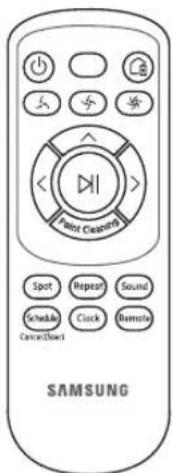
[A Type] [B Type] [C Type] [D Type]
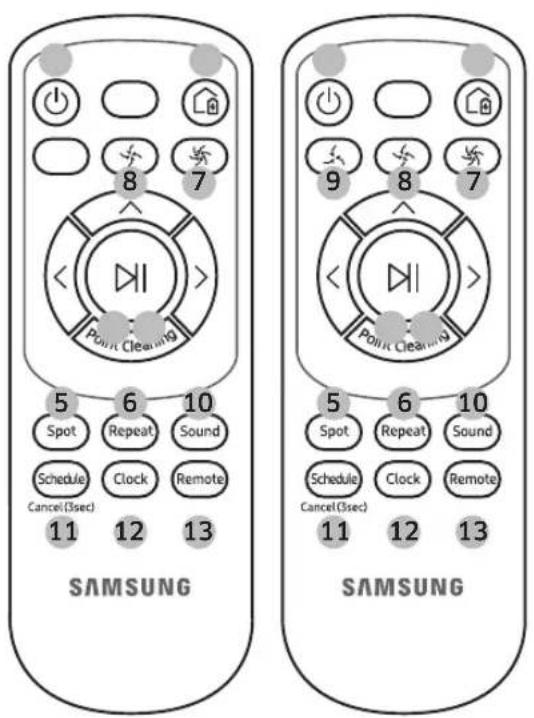
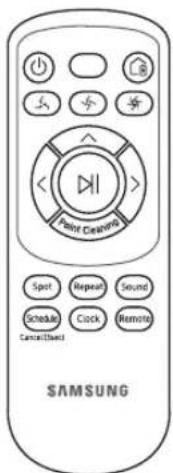
8. Normal mode
Select to clean with moderate suction power
1. Power
Turn POWERbot's power on/off
2. Recharging
Select to recharge POWERbot at the docking station automatically
3. Start/Stop
Select to start or stop cleaning process
4. Auto clean
Select to clean all set areas only once and then automatically return to the docking station.
5. Spot clean
Select to clean a localized area intensely
6. Repeat clean
Select to clean repeatedly until the battery becomes very low with indicator blinking
7. Turbo mode
Select to clean with the strongest suction power
9. Quiet mode
Select to clean with lower operation noise
10. Sound
Each time you press this button, Sound Effects → Mute is selected in this sequence
11. Schedule / Cancel(3sec)
Refer to page 10
12. Clock
Refer to page 10
13. Remote control
Select to turn Wi-Fi function on or off
* SR10M701**5 series only : Star wars(Mute function is not available.)
5-1
Setting time/schedule
Only Auto clean mode can be scheduled.
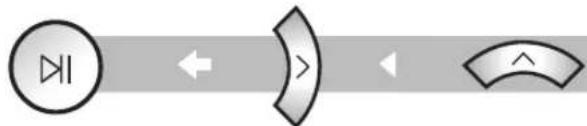
Setting the time
You must set the current time before using the One-time/daily schedule.
[A Type, B Type]

flowchart
graph LR
    A["Clock"] --> B["△"]
    B --> C["▶"]
    C --> D["▶"]
    D --> E["△"]
    E --> F["▶"]
    F --> G["▶"]
Start setting Select "Hour" Select "Minute"

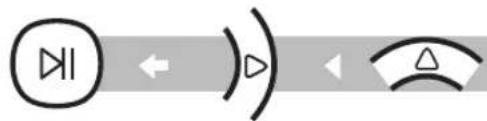
Skip to previous, next setting
Setting complete
Select "AM/PM"
[C Type, D Type]

flowchart
graph LR
    A["Clock"] --> B{A}
    B --> C[">"]
    C --> D{A}
    D --> E[">"]
Start setting Select "Hour" Select "Minute"

Skip to previous, next setting
flowchart
graph LR
    A["bow"] --> B["arrow"]
    B --> C[">"]
    C --> D["arrow"]
    D --> E["^"]
Setting complete
Select "AM/PM"
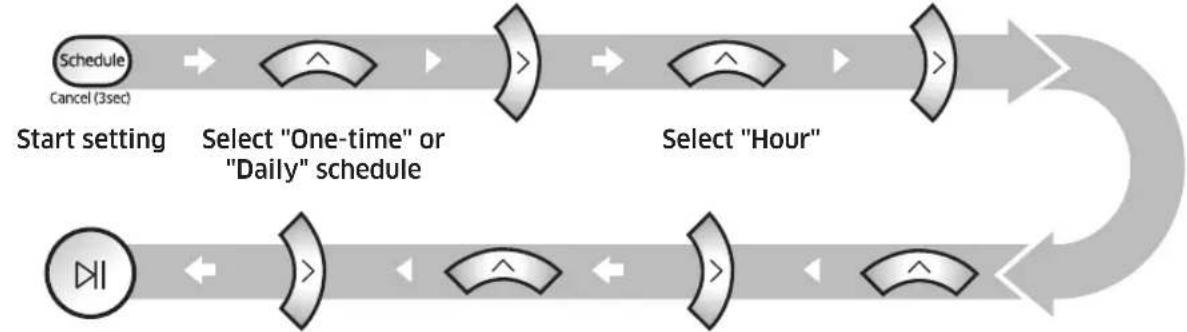
Setting the schedule
Setting/cancelling the schedule can only be done while POWERbot is docked on the docking station.
[A Type, B Type]

flowchart
graph LR
    A["Schedule"] --> B{Decision}
    B --> C["△"]
    B --> D["→"]
    C --> E{Decision}
    E --> F{△}
    E --> G["→"]
    F --> H{Decision}
    H --> I["△"]
    H --> J["→"]
    I --> K{Decision}
    K --> L["△"]
    K --> M["→"]
Schedule Cancel (3sec) Start setting
Select "One-time" or "Daily" schedule
Select "Hour"

Setting complete Select "AM/PM" Select "Minute"

Skip to previous, next setting
5-2
Setting time/schedule
Only Auto clean mode can be scheduled.
[C Type, D Type]
flowchart
graph LR
    A["Schedule\nCancel (3sec)"] --> B["Start setting"]
    B --> C["Select "One-time" or "Daily" schedule"]
    C --> D["Select "Hour""]
    D --> E["End"]
    F["Button"] --> G["Start setting"]
    G --> H["Select "One-time" or "Daily" schedule"]
    H --> I["Select "Hour""]
    I --> J["End"]
Setting complete Select "AM/PM" Select "Minute"

Skip to previous, next setting
Cancelling during setup

Setting will be canceled automatically when there's no input for 7 seconds
Cancelling One-time/Daily schedule
| When both One-time/ Daily schedule are set | [XSYG] Cancel(Use) →  or or  → →   | ||||
 → →  or or  → →  or a or a  | |||||
| Press for 3 sec. Select the schedule Cancel complete | |||||
| When either One-time or Daily schedule is set | Schedule Cancel(Use) or Schedule Cancel(Use) Press for 3 sec. | ||||
[SR10M701\*\*\* series]
For the models which do not include a remote controller, schedule setting is available as below. Setting/cancelling the schedule can only be done while POWERbot is docked on the docking station.
![SAMSUNG POWERbot SR10M703HWG - [SR10M701\*\*\* series] - 1](/content/2026/05/936311/images/f5c0df3dc8971c3978505af51844b1d26f09bfc10566107e8fe22f4b35bc2807.jpg)
Press for 3 sec.
![SAMSUNG POWERbot SR10M703HWG - [SR10M701\*\*\* series] - 2](/content/2026/05/936311/images/1fec25032e7bda0f2a3ae70ba42b8d648614c6d35aa00a4a941377826cdc507e.jpg)
![SAMSUNG POWERbot SR10M703HWG - [SR10M701\*\*\* series] - 3](/content/2026/05/936311/images/66ec85e3734f3746bc271bddb135dc06e79d4ba03652834119bd96f51e159d34.jpg)
When the schedule LED is turned on, Daily schedule is set.
Cancelling daily schedule
| When a daily schedule is set | ![SAMSUNG POWERbot SR10M703HWG - [SR10M701\*\*\* series] - 4](/content/2026/05/936311/images/44b9476a831c4e20339ba26a905bb72346f897773a57e7ebb5bb6189079d50d9.jpg) Press for 3 sec. Press for 3 sec. |
6-1
Cleaning and maintaining
You must turn off the emergency switch before cleaning POWERbot.
Dustbin
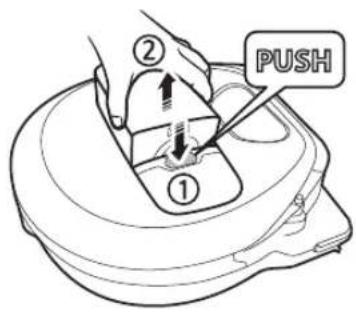
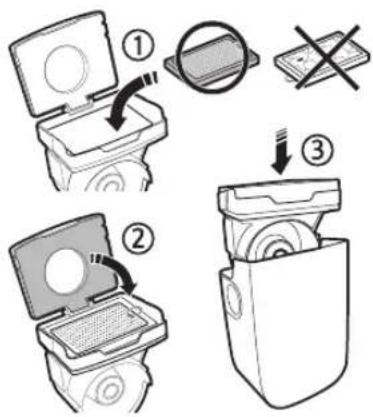
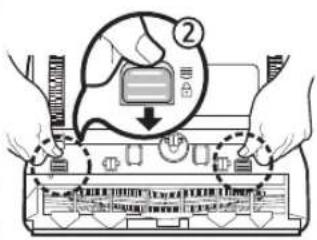
1 Press the button to remove the dustbin
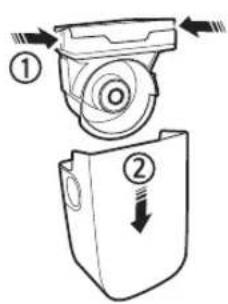
2 Remove the dustbin cover
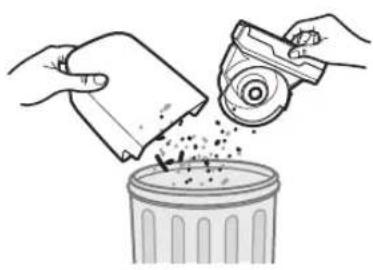
natural_image
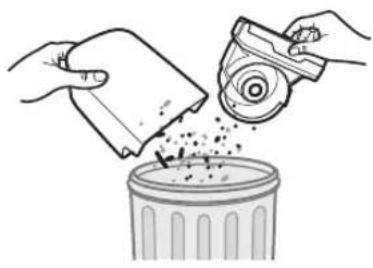
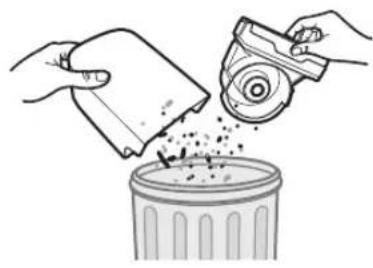
Illustration of hands pouring liquid into a trash bin with a spray can (no text or symbols)3 Remove dust in the dustbin and cyclone unit
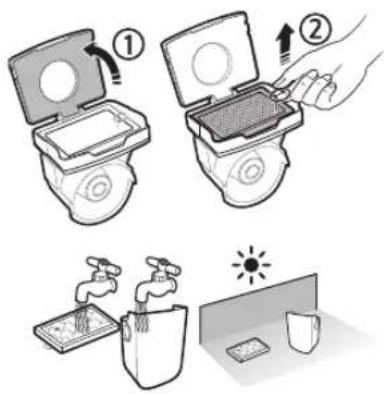
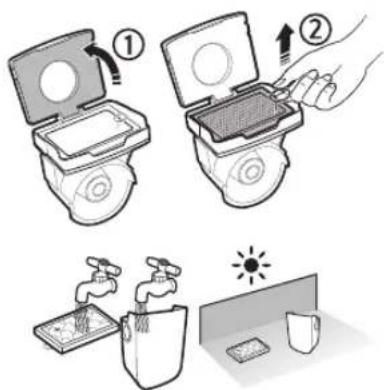
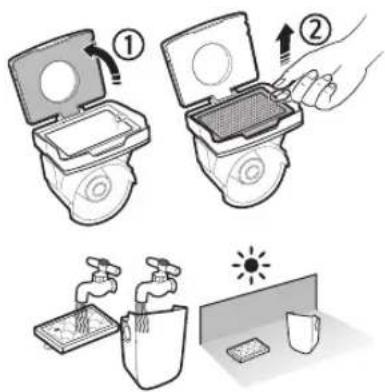
4 Detach the cyclone unit from the dustbin cover, and then wash the dustbin and the filter
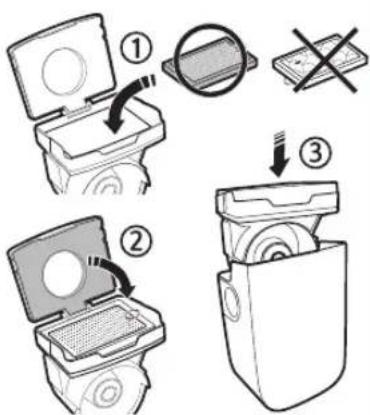
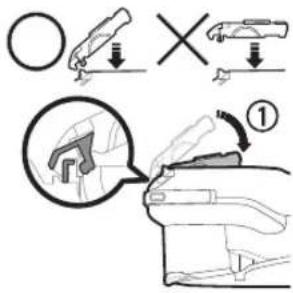
5 Reassemble the dustbin
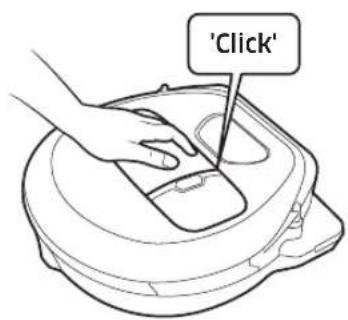
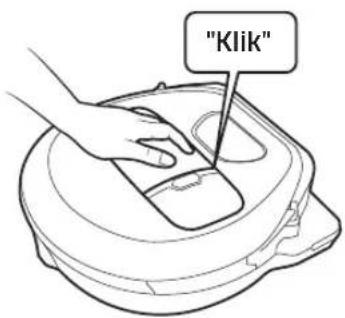
6 Reinsert the dustbin into the main body until it clicks
6-2
Cleaning and maintaining
You must turn off the emergency switch before cleaning POWERbot.
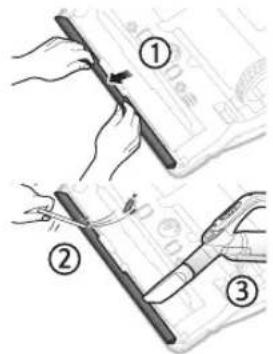
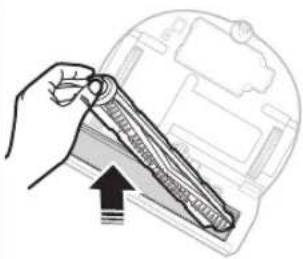
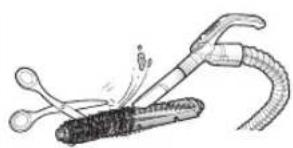
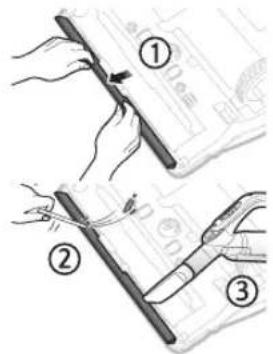
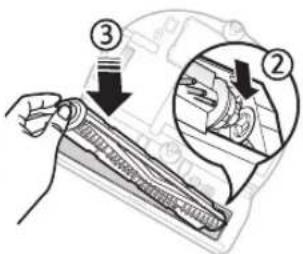
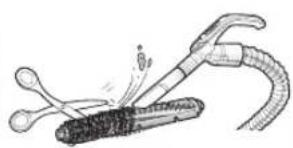
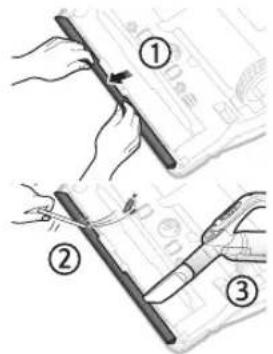
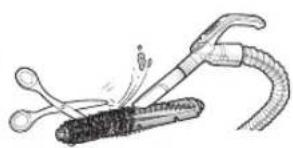
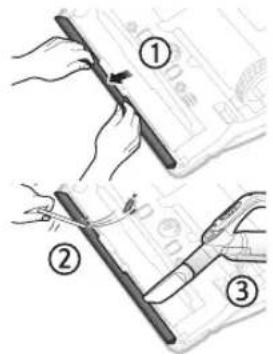
Brush and Auto shutter tool
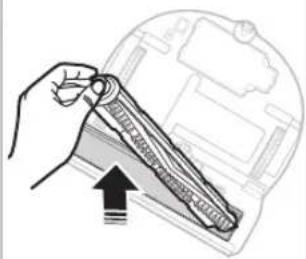
Brush design may differ depending on the model. Do not clean the brush with water.
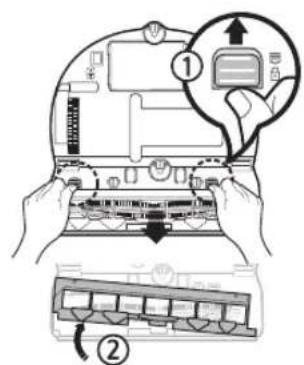
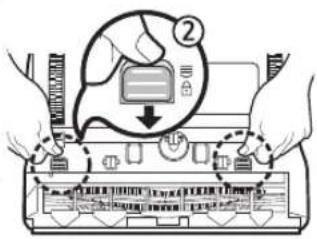
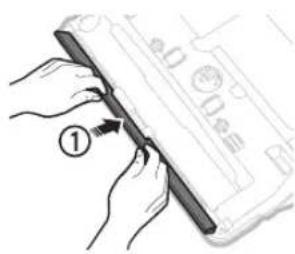
1 Remove the brush cover
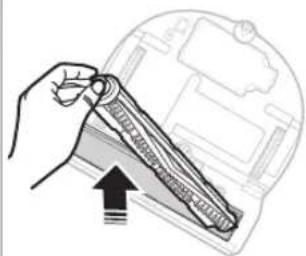
natural_image
Illustration of a hand holding a tool over a device component, with no visible text or symbols.2 Remove the brush
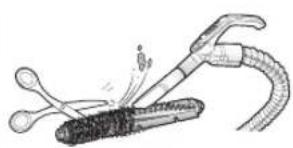
natural_image
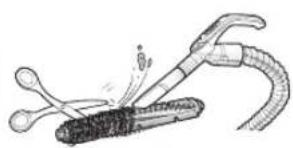
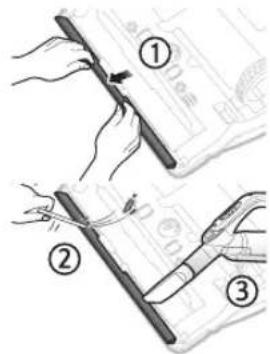
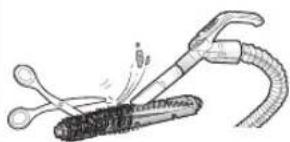
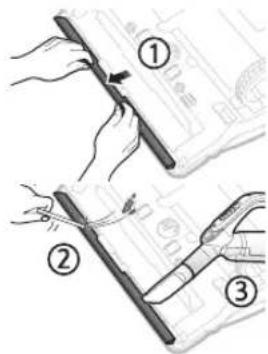
Illustration of a welding torch and tool interacting with a welded joint (no text or symbols)3 Clean the brush
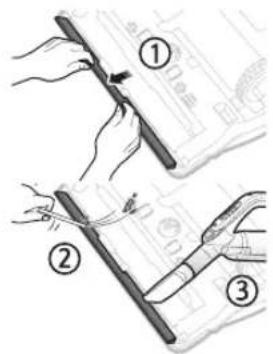
4 Clean the auto shutter tool
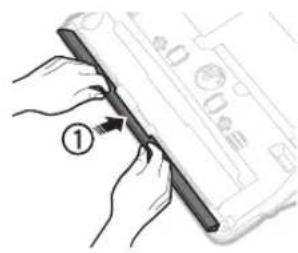
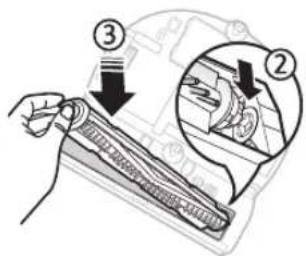
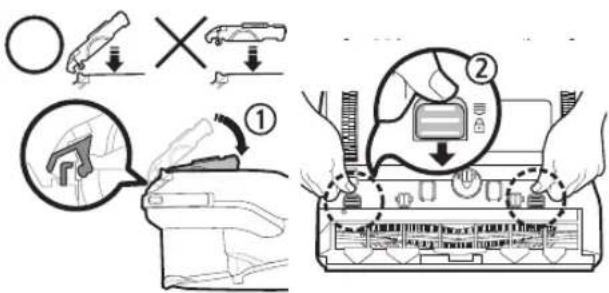
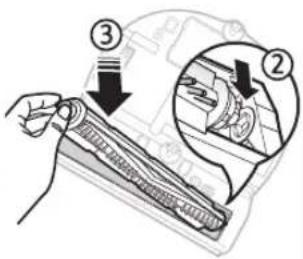
5 Reassemble the brush
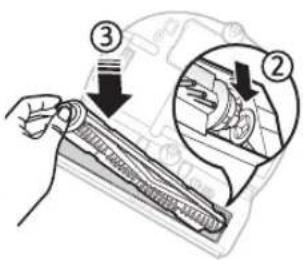
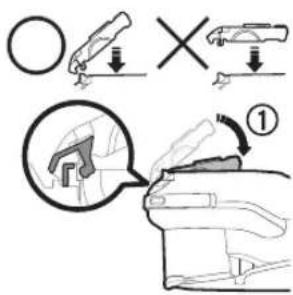
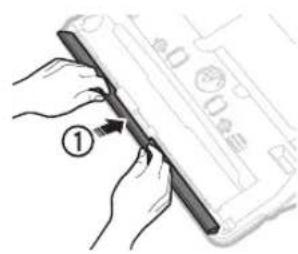
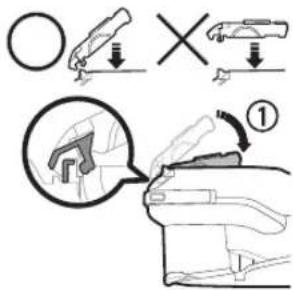
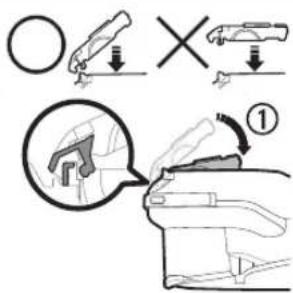
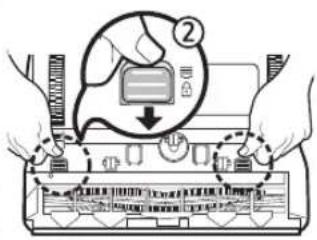
6 Reassemble the brush cover
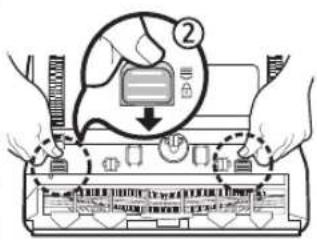
* If a brush or brush cover is not assembled correctly after the maintenance work, scratches may occur on the floor, or product malfunction may occur. Therefore, assemble them correctly by referring to the cleaning and maintaining section of a user manual.
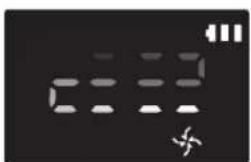
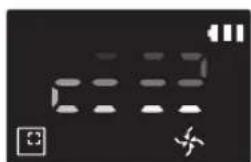
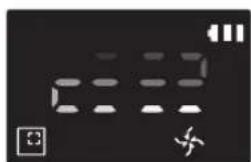
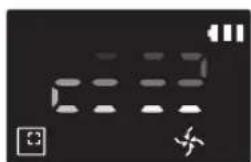
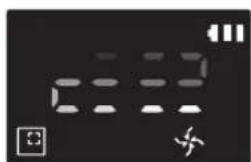
Information codes
[SR1\*M701\*\*\* series]
* Refer to the user manual for steps to take for each information code on the display panel.
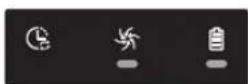
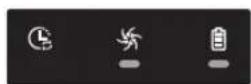
Information codes animation
![SAMSUNG POWERbot SR10M703HWG - [SR1\*M701\*\*\* series] - 1](/content/2026/05/936311/images/c513e342190c847c10ede1954324e1d4de863ffbd6561f94c4c9bc8b96a8db89.jpg)
flowchart
graph LR
    A["Input Device 1"] --> B["Processing Unit"]
    B --> C["Output Module"]
    C --> D["Feedback Loop"]
    D --> A
[SR1*M702***, SR1*M703***, SR2*M70**** series]
* Refer to the user manual for steps to take for each Information code with Ⓕ mark on the display panel.
![SAMSUNG POWERbot SR10M703HWG - [SR1\*M701\*\*\* series] - 2](/content/2026/05/936311/images/35fb215d62e77f914a11a502d3bff7e6ef160531c5da76159f53fed0786ead19.jpg)
![SAMSUNG POWERbot SR10M703HWG - [SR1\*M701\*\*\* series] - 3](/content/2026/05/936311/images/ddbeada841f38ab840c8a022b34cbe403296ba71af7470d9c564689bb9c8c1b0.jpg)
![SAMSUNG POWERbot SR10M703HWG - [SR1\*M701\*\*\* series] - 4](/content/2026/05/936311/images/0c192a0888e376502535b8fa978f8eb7be1a688a9b74cde7fabb978e66f259ef.jpg)
![SAMSUNG POWERbot SR10M703HWG - [SR1\*M701\*\*\* series] - 5](/content/2026/05/936311/images/fd1b327182265bd2c0044f9c3247c0a5ae643857ff2574b4f2bcdad1898766cd.jpg)
![SAMSUNG POWERbot SR10M703HWG - [SR1\*M701\*\*\* series] - 6](/content/2026/05/936311/images/be5ce9b6f93957b941f95499630f2672598acd1a4b8ca38f15b58c7fdde4518b.jpg)
![SAMSUNG POWERbot SR10M703HWG - [SR1\*M701\*\*\* series] - 7](/content/2026/05/936311/images/85e722efe3237adfd6d05189f90ed9d965f7edf99136619c0d1de4da2cc9473f.jpg)
![SAMSUNG POWERbot SR10M703HWG - [SR1\*M701\*\*\* series] - 8](/content/2026/05/936311/images/a428c0a3cafbcbd98efbdbae68de06930a66848b763c11838cdb584e35f10349.jpg)
![SAMSUNG POWERbot SR10M703HWG - [SR1\*M701\*\*\* series] - 9](/content/2026/05/936311/images/fb9b4567a33a9ac23da5168a8df4c58030d88f7742af645fa5ab280da1589c31.jpg)
7
SmartThings App
The SmartThings App is only compatible with models that have a Wi-Fi function.
Downloading the SmartThings App
▶ Download and install the SmartThings app from the markets (Google Play Store, Apple App Store, or Samsung Galaxy Apps). To find the app, use the keyword "SmartThings".

Note
▶ SmartThings is incompatible with tablets and some mobile devices.
- Android 6.0 or later (at least 2GB of RAM) is recommended.
▶ iPad and some mobile devices may not be supported.
- iOS 10.0 or later / iPhone 6 or later is supported.
- Visit Play Store or App Store to see if your mobile device is compatible with SmartThings.
▶ The supported features are subject to change without any prior notice.
Setting up a Samsung account
▶ You must sign in to a Samsung account before using the SmartThings app.
▶ To set up a Samsung account, you can follow the directions provided by the SmartThings app.
▶ Or, if you have a Samsung smartphone, you can add your Samsung account in the setting app of your smartphone. Then, it will automatically sign in to your Samsung account.

Note
▶ If you cannot complete the product registration, please take the following steps.
- Try the registration procedure again as you have directed by the pop-up messages.
- Confirm that the UPnP option of your wireless router is active, and then try the registration procedure again.
- Confirm that your wireless router is operating in wireless mode, and then try the registration procedure again.
- If you have two or more POWERbots, turn off the other POWERbots, and then try to register your POWERbot again.
- If there is any other wireless router that has the same SSID as your wireless router, the registration might be failed.
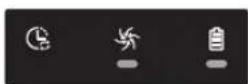
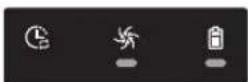
▶ Remote control and Wi-Fi indicator
| On | Remote control is blocked. (The remote controller can still be allowed.) | 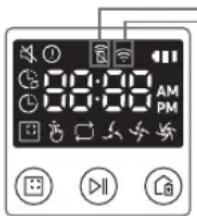 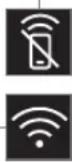 | |
| Off | Remote control is allowed. | ||
| On | The POWERbot is connected to the wireless router. | ||
| Off | The POWERbot is trying to connect the wireless router. |
POWERbot
Brzi referentni vodič
Serije SR1*M70****, SR2*M70****
natural_image
Black-and-white photo of a modern lounge chair with white leather backrest and metallic arms, featuring headphones placed on the backrest (no text or symbols visible)SAMSUNG
1
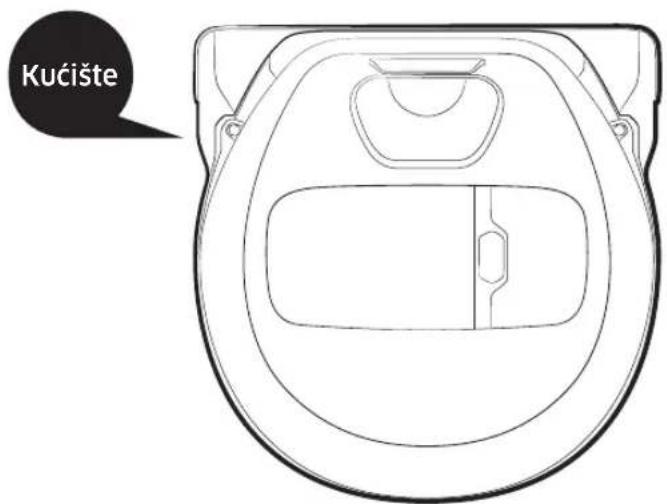
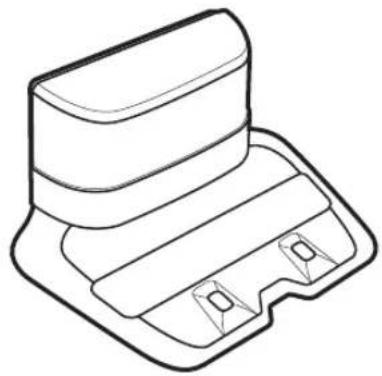
Lista delova

natural_image
Line drawing of a mechanical component with a flat top and rectangular base (no text or symbols)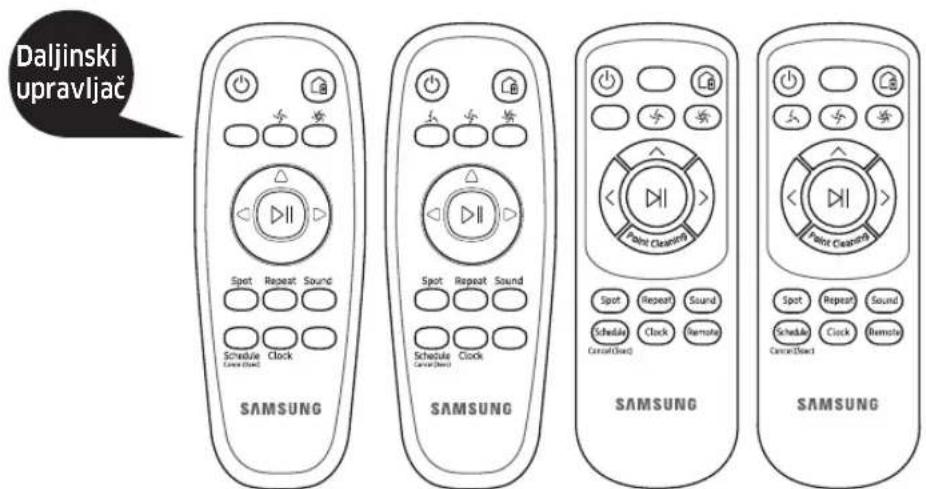
Pridržite robot usisivač i uključite prekidač za hitne slučajeve, bez pritiskanja druge dugmadi.
Proverite status punjenja.
Na uređajima serije SR1*M701***, indikator baterije treperi u intervalima od 1 sekunde tokom punjenja, a svetli kada se usisivač u potpunosti napuni. Na uređajima serija SR1*M702*** / SR1*M703*** / SR2*M70****, „## ## će se uključiti u skladu sa napretkom punjenja, a poruka „FULL“ će se prikazati kada se punjenje završi.
Aktiviranje režima automatskog čišćenja
natural_image
Digital display screen with 24-hour format and a small star symbol (no readable text or numbers)

natural_image
Black and white abstract pattern with no discernible text, symbols, or structured content.
Najpre pritisnite
[tip A,B 1, [tip C,D ] Repeat na daljinskom upravljaču, a zatim pritisnite [Pokretanje/Zaustavljanje

Ručno čišćenje
4-2
Korišćenje robot usisivača
[Tip A] [Tip B] [Tip C] [Tip D]
8. Normalan režim
Pritisnite ovo dugme da biste čišćenje obavili sa umerenom usisnom snagom
1. Napajanje
2 Skinite poklopac posude za prašinu
natural_image
Illustration of hands pouring granular material into a trash bin (no text or symbols)3 Istresite prašinu iz posude za prašinu iz ciklonskog filtera
4 Skinite ciklonski filter sa poklopca posude za prašinu i isperite posudu za prašinu i filter
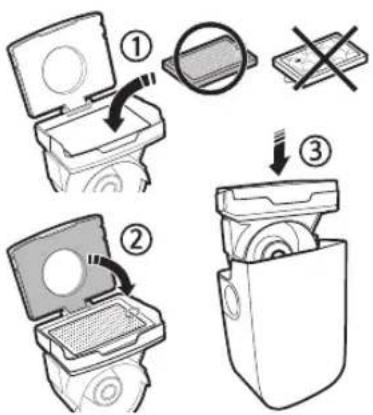
5 Ponovo sklopite posudu za prašinu
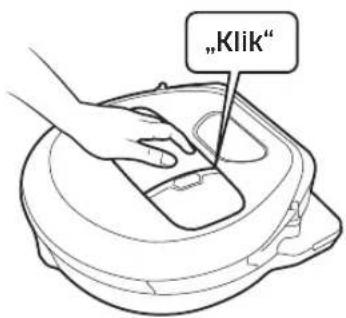
6 Vratite posudu za prašinu u kućište usisivača tako da škljocne
6-2
1 Skinite poklopac četke
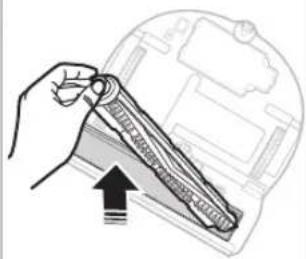
natural_image
Illustration of a hand holding a tool interacting with a device, showing internal components and a downward arrow (no text or symbols)2 Skinite četku
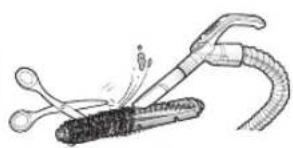
natural_image
Illustration of a welding torch welding a material, showing sparks and motion (no text or symbols)3 Očistite četku
4 Očistite uređaj za automatsko zatvaranje
5 Vratite četku
6 Vratite poklopac četke
natural_image
Black-and-white photo of a modern lounge chair with leather backrest and metallic armrests, no visible text or symbols.SAMSUNG
1
Popis dijelova

natural_image
Line drawing of a mechanical component or housing with no text or symbols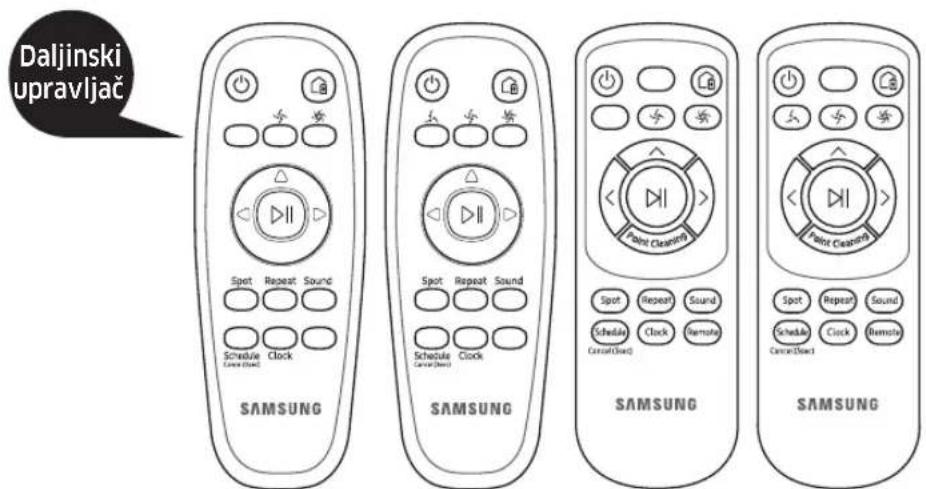
Držite robot usisivač i uključite sigurnosni prekidač, ali nemojte pritisnuti nijedan gumb.
Serije
Provjerite status punjenja.
Za seriju SR1*M701***, indikator baterije treperi u intervalima od 1 sekunde tijekom punjenja te će indikator ostati u statusu UKLJUČENO kada je baterija potpuno napunjena. Za serije SR1*M702*** / SR1*M703*** / SR2*M70****, "____" će se uključiti u skladu s napretkom postupka punjenja, a oznaka „FULL“ će se uključiti kad se punjenje završi.
Serija
Pokretanje automatskog načina čišćenja
Usisivač POWERbot automatski se kreće i čisti postavljena područja samo jednom. * Serija SR1*M701***: uzastopno čisti dok se baterija ne isprazni.

Zaustavi čišćenje: Pritisnite i otpustite gumb
natural_image
Digital display screen showing 24-hour format with no visible text or symbols on screenSerije

natural_image
Digital display screen with abstract white patterns and a small icon (no readable text or symbols)Serije
natural_image
Digital display screen with icons for hand, phone, and fan (no readable text or symbols)Serije
Serija
Serija
4-2
11. Raspored / Odustani (3 s)
2 Uklonite poklopac spremnika za prašinu
natural_image
Illustration of hands pouring granular material into a trash bin (no text or symbols)3 Uklonite prašinu iz spremnika za prašinu i jedinice centrifugalnog odvajača
4 Odvojite jedinicu osovine s poklopca posude za prašinu te potom operite posudu za prašinu i filtar
1 Uklonite poklopac četke
natural_image
Illustration of a hand holding a tool interacting with a device, showing internal components and a downward arrow (no text or symbols)2 Uklonite četku
natural_image
Illustration of a welding torch welding a material (no text or symbols present)3 Očistite četku
4 Očistite automatsku zaklopku
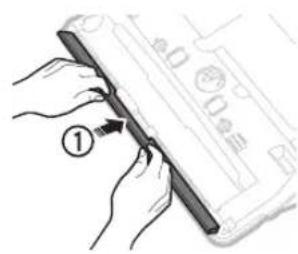
5 Vratite četku
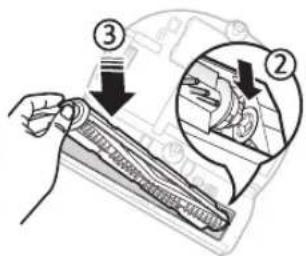
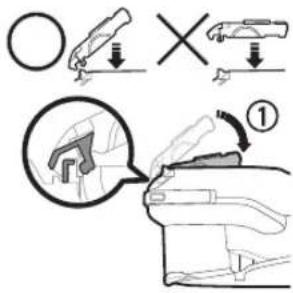
6 Vratite poklopac četke
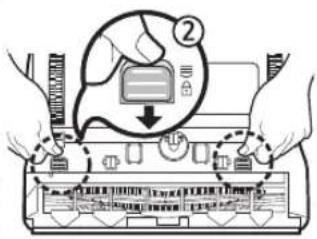
natural_image
Black-and-white photo of a modern lounge chair with white leather backrest and metallic arms, featuring headphones placed on the backrest (no text or symbols visible)SAMSUNG
1
Листа со делови
natural_image
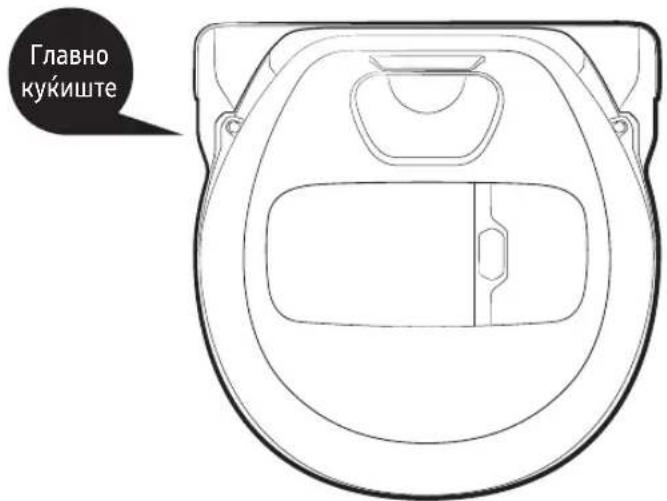
Line drawing of a mechanical component or housing with no text or symbols![Далечински управувач Spot Repeat Sound Schedule Clock SAMSUNG Spot Repeat Sound Schedule Clock SAMSUNG Spot Repeat Sound Schedule Clock SAMSUNG Spot Repeat Sound Schedule Clock SAMSUNG Spot Repeat Sound Schedule Clock SAMSUNG [SIN A] [TIN B] [TIN C] [TIN D]](/content/2026/05/936311/images/0b17315899e0c2230137c521a860c51a2f1759aa14949908303974ccfbb2181e.jpg)
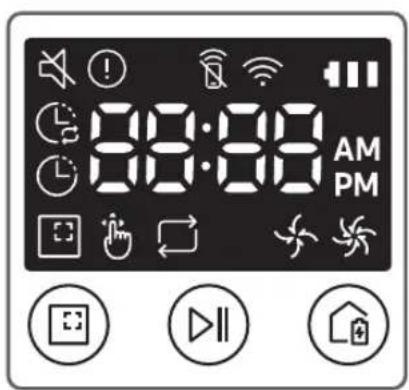
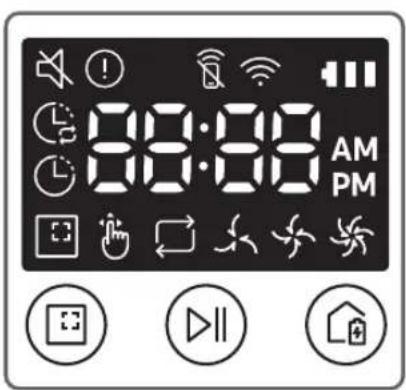
<Серија SR1*M701***> <Серии SR1*M702*** / SR1*M703***>
natural_image
Digital display screen showing 24-hour format with no visible text or symbols on screen<Серии SR1*M702*** / SR1*M703*** / SR2*M70****>
natural_image
Black and white abstract pattern with no discernible text, symbols, or structured content<Серии SR1*M702*** / SR1*M703*** / SR2*M70****>
<Серии SR1*M702*** / SR1*M703*** / SR2*M70****>
4-2
flowchart
graph LR
    A["Start"] --> B["Downward Arrow"]
    B --> C["Curved Arrow"]
    C --> D["Upward Arrow"]
natural_image
Illustration of hands pouring granular material into a trash bin (no text or symbols)natural_image
Illustration of a hand holding a tool over a device component, with an arrow indicating direction (no text or symbols present)natural_image
Illustration of a welding torch tool interacting with a welded joint (no text or symbols present)
[Серии SR1*M702***, SR1*M703***, SR2*M70****]
natural_image
Black-and-white photo of a modern lounge chair with leather backrest and metallic armrests, no visible text or symbols.SAMSUNG
1
Lista e pjesëve

natural_image
Line drawing of a mechanical component or housing with no text or symbols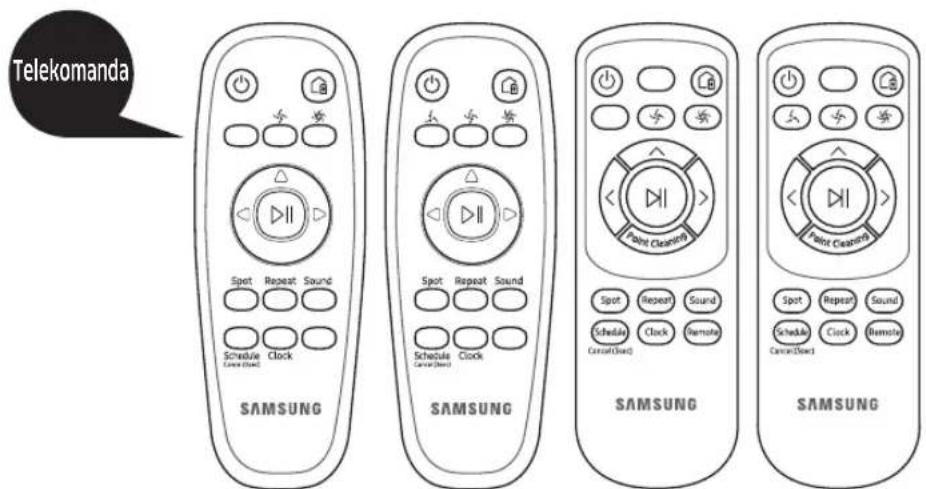
natural_image
Digital display screen with abstract white patterns on dark background (no readable text or symbols)
natural_image
Black and white abstract pattern with no discernible text, symbols, or structured contentShtypni [O, pēr tipat A, B], [Repeat, pēr tipat C, D] nē telekomandē dhe pastaj shtypni [Fillo/Ndalo ▶II
Pastrimi manual
natural_image
Pure electrical circuit lines without any symbols
4-2
flowchart
graph LR
    A["bow"] --> B[">"]
    B --> C["^"]
natural_image
Illustration of hands pouring granular material into a trash bin (no text or symbols)5 Rimontoni koshin e pluhurit
1 Hiqni kapakun e furçës
natural_image
Illustration of a hand holding a tool over a device component, with an arrow indicating direction (no text or symbols present)2 Hiqni furçën
natural_image
Illustration of a welding torch welding a metal component (no text or symbols)3 Pastroni furçën
5 Rimontoni furçën
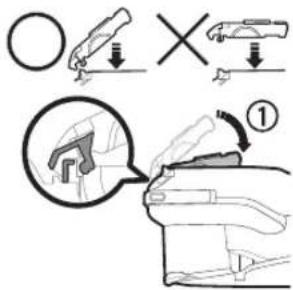
6 Rimontoni kapakun e furçës
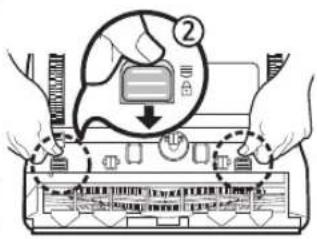
[Seritë SR1*M702***, SR1*M703***, SR2*M70****]
natural_image
Black-and-white photo of a modern lounge chair with white leather backrest and metallic arms, featuring headphones placed on the backrest (no text or symbols visible)SAMSUNG
1
Listă de piese
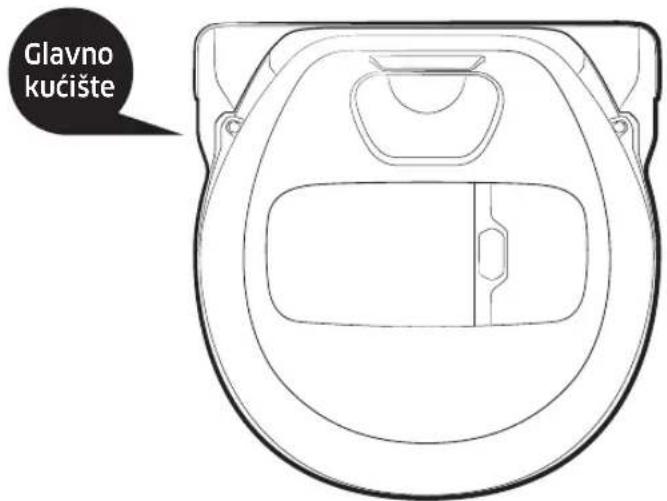
Corp principal
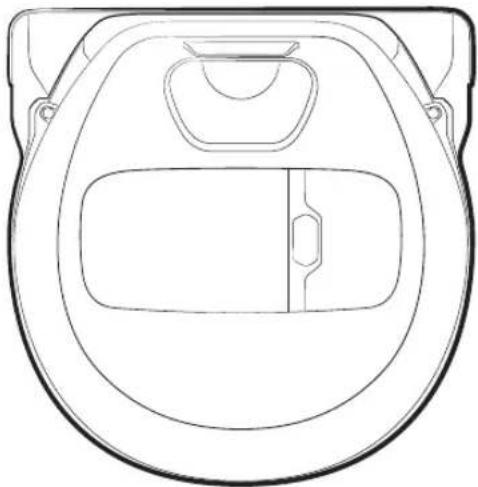
natural_image
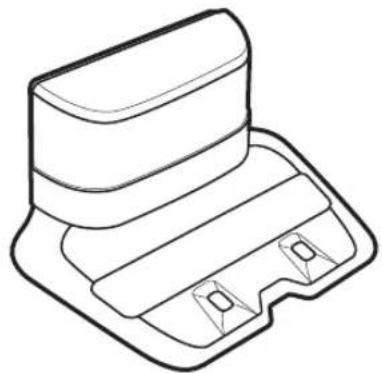
Line drawing of a robotic vacuum cleaner head (no text or symbols)Stație de andocare
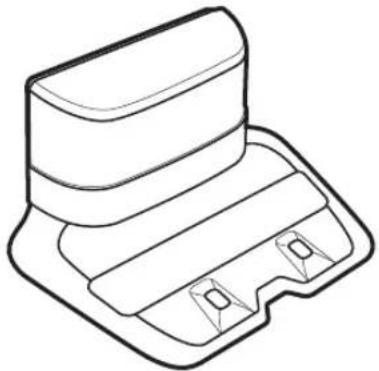
natural_image
Line drawing of a mechanical component or housing with no text or symbolsTelecomandă
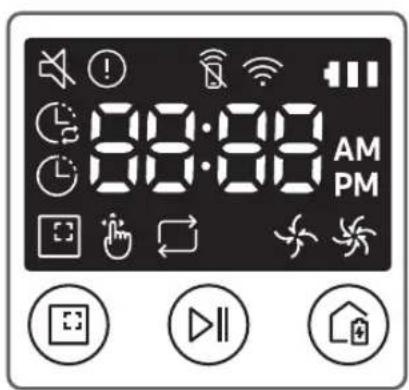
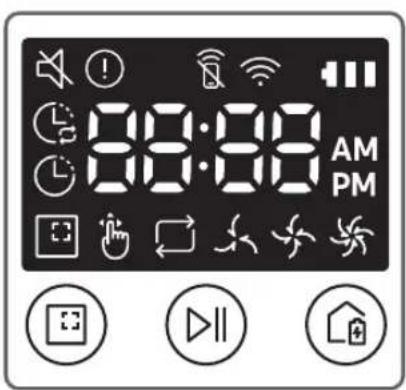
natural_image
Digital display screen with abstract white patterns on dark background (no readable text or symbols)
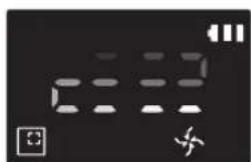
natural_image
Digital display screen with abstract white shapes on black background, no readable text or symbolsCurățarea manuală
natural_image
Pure electrical circuit lines without any symbols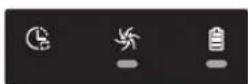
4-2
natural_image
Illustration of hands pouring granular material into a trash bin (no text or symbols)natural_image
Illustration of a hand holding a tool over a device component, with an arrow indicating motion (no text or symbols present)2 Îndepărtati peria
natural_image
Illustration of a welding torch and tool interacting with a welded joint (no text or symbols)3 Curățați peria
5 Asamblati la loc peria
[Seria SR1\*M702\*\*\*, SR1\*M703\*\*\*, SR2\*M70\*\*\*\*]
natural_image
Black-and-white photo of a modern lounge chair with white leather backrest and metallic arms, featuring headphones placed on the backrest (no text or symbols visible)SAMSUNG
1
Списък на частите
Основен корпус
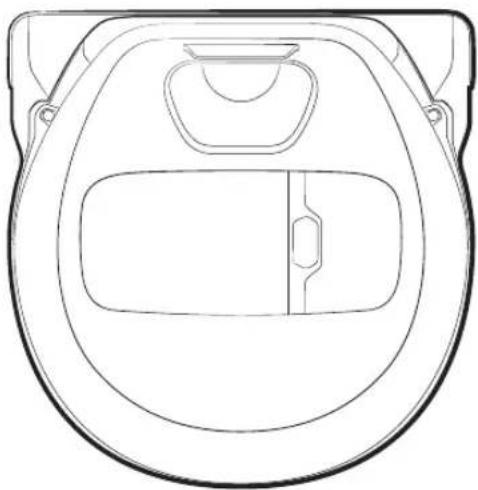
natural_image
Line drawing of a robotic vacuum cleaner head (no text or symbols)natural_image
Line drawing of a vehicle rear cover with two side compartments (no text or symbols)Дистанционен контролер
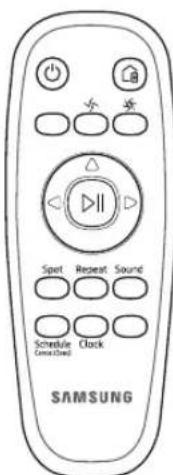
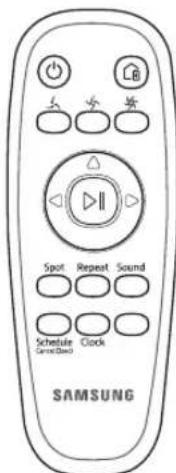
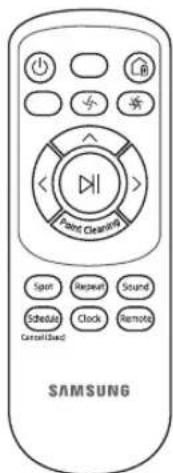
[Tun A] [Tun B] [Tun C] [Tun D]
<Серия SR1*M701***> <Серия SR1*M702*** / SR1*M703***>
<Серия SR2*M70****>
natural_image
Digital display screen with abstract white patterns on dark background (no readable text or symbols)<Серия SR1*M702*** / SR1*M703*** / SR2*M70****>
<Серия SR1*M701***>
Точково почистване

natural_image
Black and white abstract pattern with no discernible text, symbols, or structured content.<Серия SR1*M702*** / SR1*M703*** / SR2*M70****>
<Серия SR1*M701***>
<Серия SR1*M702*** / SR1*M703*** / SR2*M70****>
Ръчно почистване
natural_image
Digital display screen with icons for touch, mouse, and alarm (no readable text or symbols)<Серия SR1*M702*** / SR1*M703*** / SR2*M70****>
4-2
flowchart
graph LR
    A["bow"] --> B[">"]
    B --> C["^"]
natural_image
Illustration of hands using a spray gun to remove debris from a trash bin (no text or symbols)natural_image
Illustration of a hand holding a tool inside a vehicle hood, with an arrow indicating force or movement (no text or symbols present)2 ИЗВагеме чемкама
natural_image
Illustration of a welding torch tool interacting with a welded joint (no text or symbols)3 Почистеме чемкама
natural_image
Black-and-white photo of a modern lounge chair with white leather backrest and metallic arms, featuring headphones placed on the backrest (no text or symbols visible)SAMSUNG
1
Λίστα εξαρτημάτων
natural_image
Line drawing of a mechanical component or housing with no text or symbols
natural_image
Dark background with a grid of small white rectangular shapes and a small white symbol at the bottom right (no readable text or symbols)<Σειρά SR1*M702*** / SR1*M703*** / SR2*M70****>

natural_image
Digital display screen with abstract white shapes on black background, no readable text or symbols<Σειρά SR1*M702*** / SR1*M703*** / SR2*M70****>
<Σειρά SR1*M701***>
<Σειρά SR1*M701***>
<Σειρά SR1*M702*** / SR1*M703*** / SR2*M70****>
natural_image
Digital display screen with icons for finger, lock, and alarm (no readable text or symbols)<Σειρά SR1*M702*** / SR1*M703*** / SR2*M70****>
4-2
flowchart
graph LR
    A["bow"] --> B["double arrow"]
    B --> C["curved arrow"]
natural_image
Illustration of hands pouring granular material into a trash bin (no text or symbols)natural_image
Illustration of a hand holding a tool interacting with a device inside a container (no text or symbols visible)natural_image
Illustration of a welding torch tool interacting with a welded joint (no text or symbols present)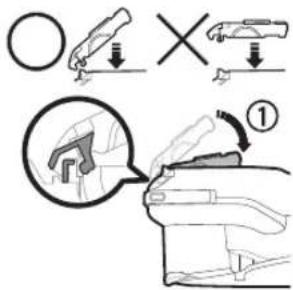
natural_image
Black-and-white photo of a modern lounge chair with white leather backrest and metallic arms, featuring headphones placed on the backrest (no text or symbols visible)SAMSUNG
1
Alkatrészek listája
Készülékház
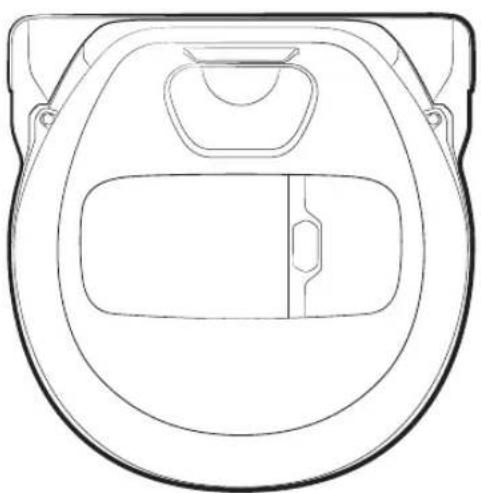
natural_image
Line drawing of a robotic vacuum cleaner (no text or symbols)Töltőállomás
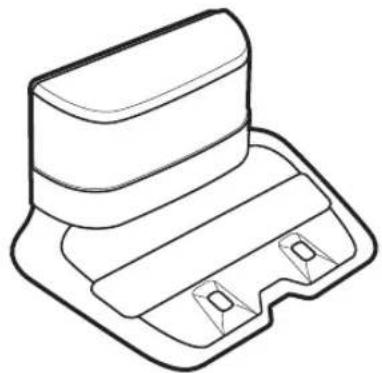
natural_image
Line drawing of a mechanical component or housing with no text or symbolsTávirányító
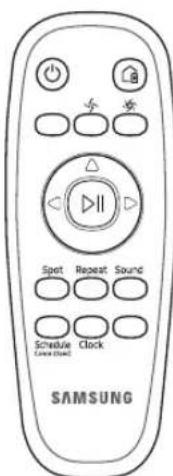
natural_image
Dark background with abstract white shapes and a small symbol (no readable text or symbols)
natural_image
Pure electrical circuit lines without any symbols
natural_image
Pure graphical icons for camera, hand, and star symbols without any text or labels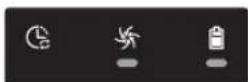
4-2
flowchart
graph LR
    A["->"] --> B["->"]
    B --> C["^"]
natural_image
Illustration of hands pouring granular material into a trash bin (no text or symbols)natural_image
Illustration of a hand holding a tool interacting with a device, showing internal components and a black arrow indicating direction (no text or symbols present)natural_image
Illustration of a welding torch and tool interacting with a dark material (no text or symbols)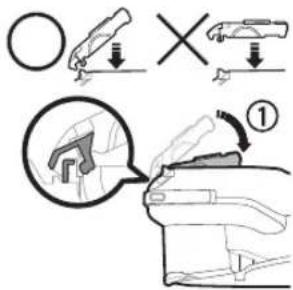
natural_image
Black-and-white photo of a modern lounge chair with white leather backrest and metallic armrests, no visible text or symbols.SAMSUNG
1
Seznam součástí
Vysavač
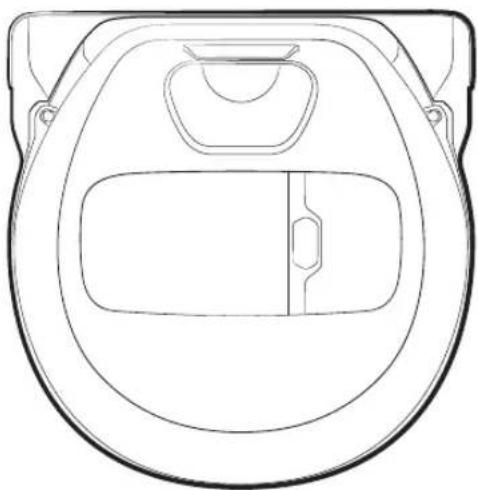
natural_image
Line drawing of a robotic vacuum cleaner head (no text or symbols)Dokovací stanice
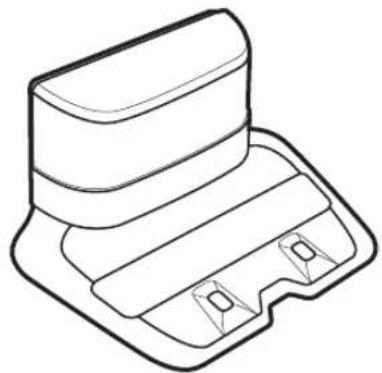
natural_image
Line drawing of a mechanical component or housing with no text or symbolsDálkový
ovladač
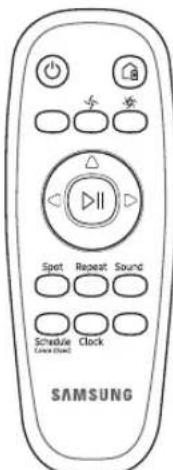
natural_image
Digital display screen with abstract white patterns on dark background (no readable text or symbols)<Řada SR1*M702*** / SR1*M703*** / SR2*M70****>

natural_image
Digital display screen with abstract white patterns and a small icon, no readable text or symbols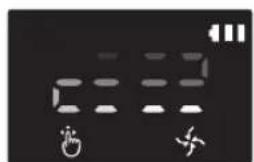
natural_image
Digital display screen with icons for touch, alarm, and stop (no readable text or symbols)
<Řada SR1*M701***>
<Řada SR1*M701***>
4-2
natural_image
Illustration of hands pouring granular material into a trash bin (no text or symbols)natural_image
Illustration of a hand holding a tool interacting with a device inside a container (no text or symbols visible)2 Vyjměte kartáč
natural_image
Illustration of a welding torch tool interacting with a welded joint (no text or symbols present)3 Vyčistěte kartáč
[Řada SR1*M702***, SR1*M703***, SR2*M70****]
natural_image
Black-and-white photo of a modern lounge chair with white leather backrest and metallic arms, featuring headphones placed on the backrest (no text or symbols visible)SAMSUNG
1
Zoznam súčastí
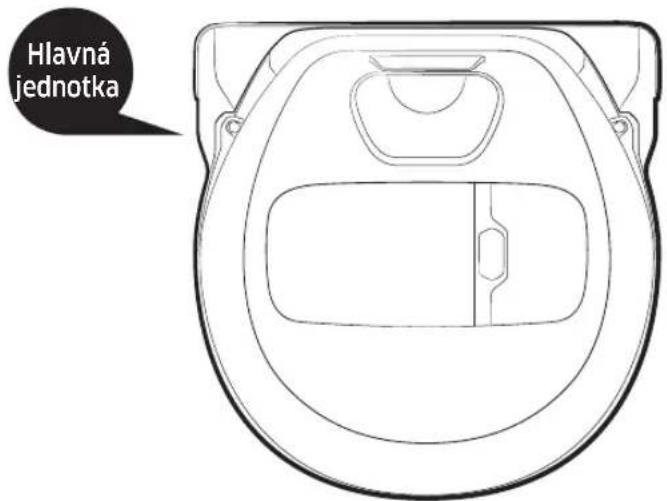

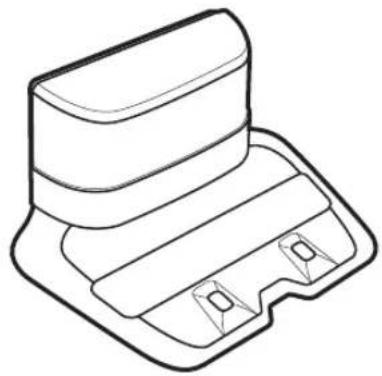
natural_image
Line drawing of a mechanical component with a flat top and rectangular base (no text or symbols)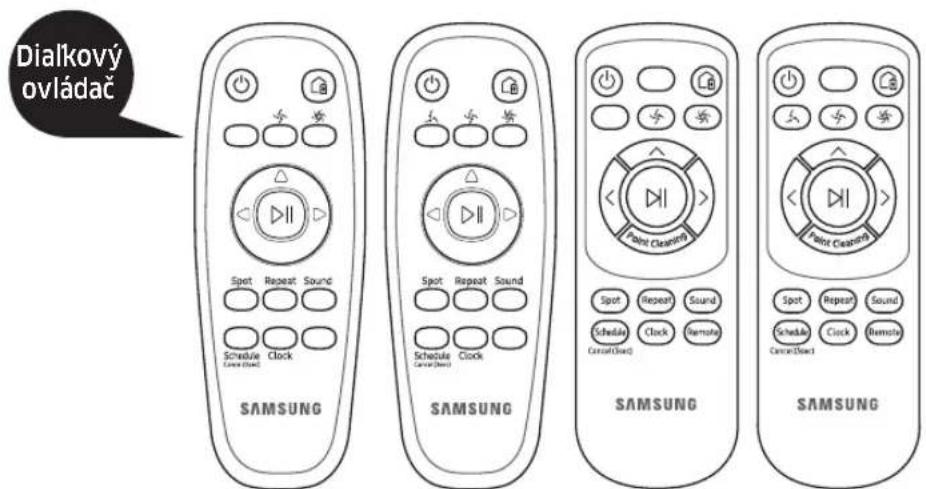
[Typ A] [Typ B] [Typ C] [Typ D]
* (pri sérii SR1*M701*** sa nedodáva)
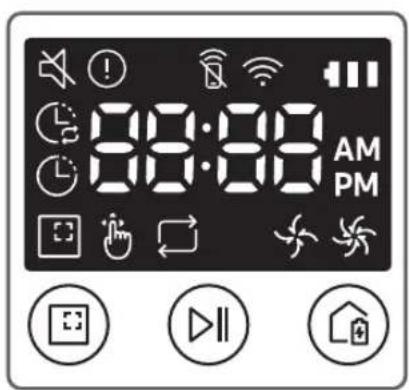
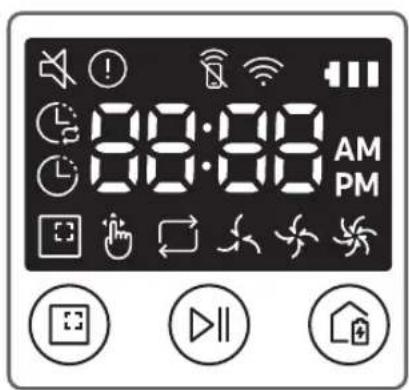
natural_image
Digital display screen with abstract white patterns and a small icon (no readable text or symbols)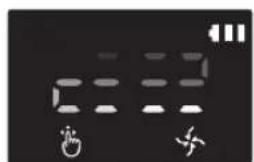
natural_image
Digital display screen with icons for touch, mouse, and alarm (no readable text or symbols)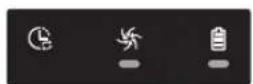
4-2
[Séria SR10M701\*\*\*]
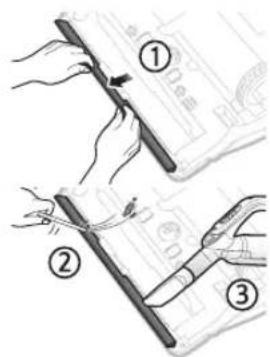
2 Odstráňte kryt nádoby na prach
![SAMSUNG POWERbot SR10M703HWG - [Séria SR10M701\*\*\*] - 1](/content/2026/05/936311/images/a47ce3510f152bf098392582b0147590eeb650e2fc06cc9decfaccb65600d73c.jpg)
natural_image
Illustration of hands pouring granular material into a trash bin (no text or symbols)1 Vyberte kryt kefy
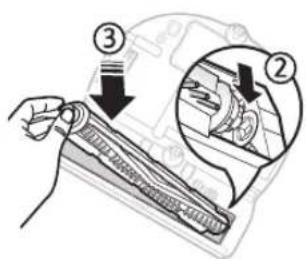
![SAMSUNG POWERbot SR10M703HWG - [Séria SR10M701\*\*\*] - 2](/content/2026/05/936311/images/7ddea4c1fe3f055d29bb59460414c1a8ff35b07c2c745384a9e091b4632d327e.jpg)
natural_image
Illustration of a hand holding a tool interacting with a device, showing internal components and a downward arrow (no text or symbols)2 Vyberte kefu
![SAMSUNG POWERbot SR10M703HWG - [Séria SR10M701\*\*\*] - 3](/content/2026/05/936311/images/f614ceb4042af03c42665a45b53b00d7339f0af66e3c6fc59298900ae3caa5d5.jpg)
natural_image
Illustration of a welding torch and tool interacting with a curved tool (no text or symbols)3 Očistite kefu
5 Vložte kefu spät
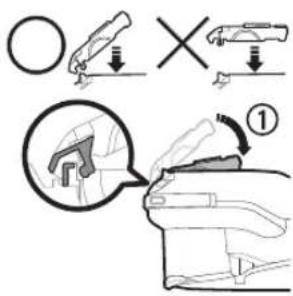
6 Znova nasadte kryt kefy
natural_image
Black-and-white photo of a modern lounge chair with leather backrest and metallic armrests, no visible text or symbolsSAMSUNG
1
Wykaz części
Obudowa
natural_image
Line drawing of a robotic vacuum cleaner (no text or symbols)Stacja dokowania
natural_image
Line drawing of a vehicle rear bumper with no text or symbolsPilot
[Typ A] [Typ B] [Typ C] [Typ D]
* (brak w zestawie z serii SR1*M701***)
Części podstawowe
natural_image
Digital display showing 32.5V input with a small symbol below (no readable text or numbers)
natural_image
Digital display screen with abstract white shapes on dark background, no readable text or symbols
Naciśnij przycisk
natural_image
Digital display screen with icons for hand, lock, and fan (no readable text or symbols)4-2
natural_image
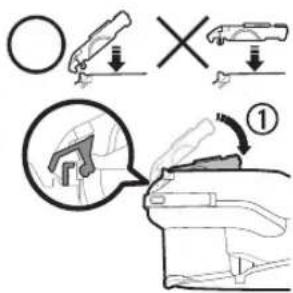
Illustration of hands pouring liquid into a trash bin with a spray can (no text or symbols)natural_image
Illustration of a hand holding a zipper over a device component (no text or symbols visible)2 Wyjmij szczotkę
natural_image
Illustration of a welding torch and tool interacting with a welded joint (no text or symbols)3 Wyczyść szczotkę
natural_image
Black-and-white photo of a modern lounge chair with white leather backrest and metallic chair frame, featuring a pair of headphones placed on the backrest (no text or symbols visible)SAMSUNG
1
Seznam delov
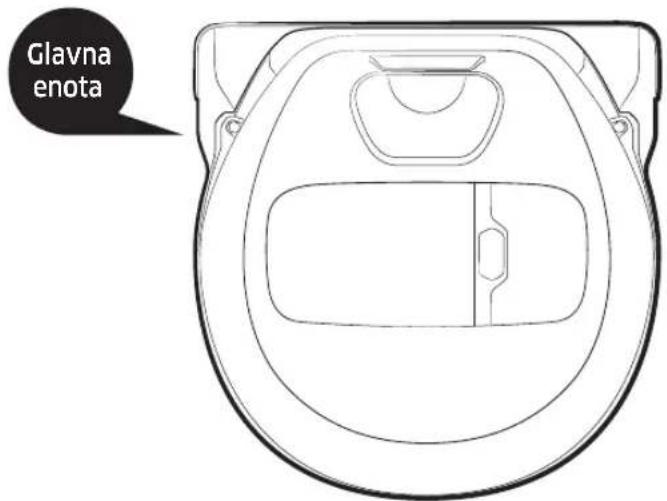

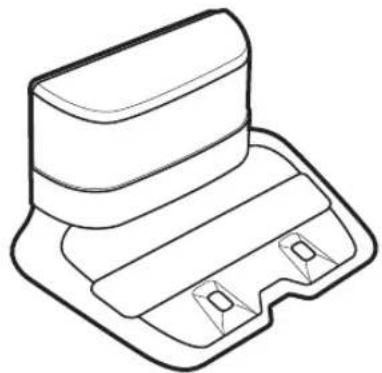
natural_image
Line drawing of a mechanical component or housing with no text or symbols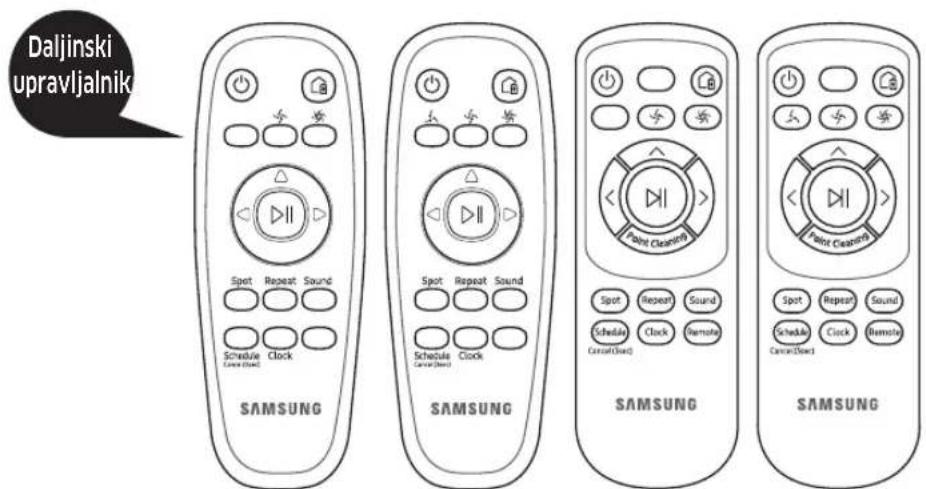
[Tip A] [Tip B] [Tip C] [Tip D]
* (Ni priložena pri seriji SR1*M701***)
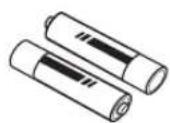
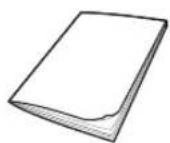
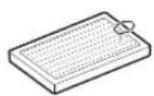
Kratki priročnik Dodatni filter (izbirno)
Bateriji
(tip AAA) (izbirno)
Primate robotski sesalnik in vklopite stikalo za izklop v sili. Ne pritiskajte gumbov.
Preverite stanje polnjenja.
Pri seriji SR1*M701*** indikator baterije utripa na 1 sekundo med polnjenjem in neprekinjeno sveti, ko je napolnjen do konca.
Vklop načina samodejnega sesanja
natural_image
Digital display screen with abstract white patterns on dark background (no readable text or symbols)
natural_image
Black and white abstract pattern with no discernible text, symbols, or structured content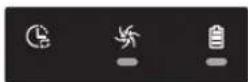
Najprej pritisnite
Ročno sesanje
4-2
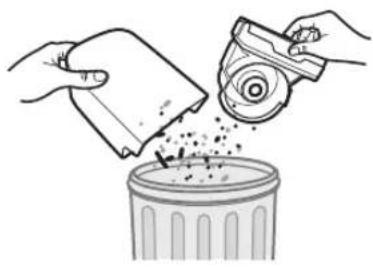
2 Odstranite pokrov posode za prah.
natural_image
Illustration of hands pouring granular material into a trash bin (no text or symbols)3 Odstranite prah iz posode za prah in ciklonske enote.
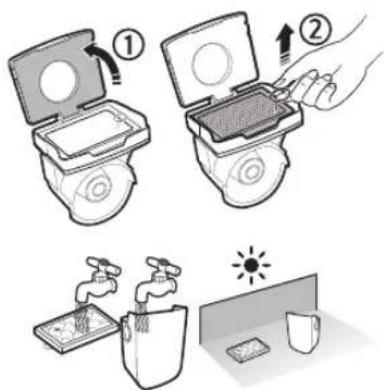
4 Odstranite ciklonsko enoto s pokrova posode za prah, nato sperite posodo za prah in filter.
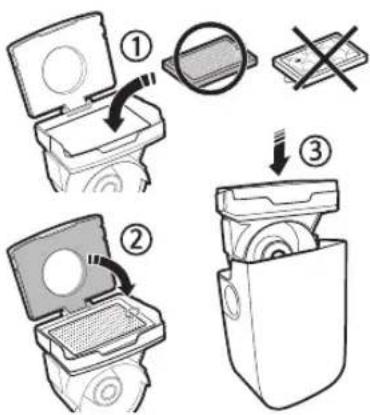
5 Posodo za prah namestite nazaj.
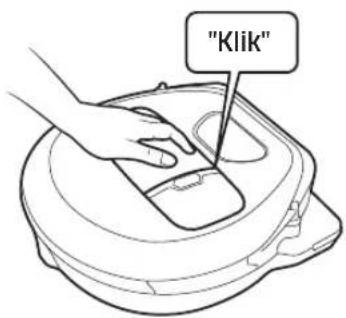
1 Odstranite pokrov krtače.
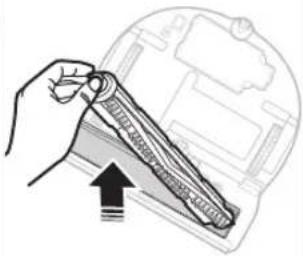
natural_image
Illustration of a hand holding a tool interacting with a device inside a container (no text or symbols visible)2 Odstranite krtačo.
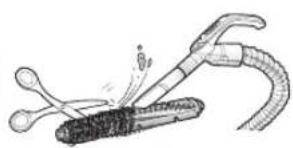
natural_image
Illustration of a welding torch tool interacting with a welded joint (no text or symbols present)3 Očistite krtačo.
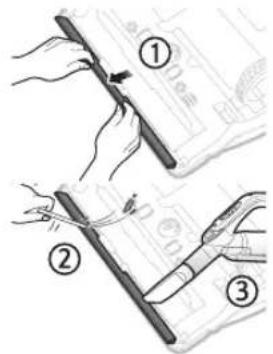
4 Očistite samodejni zaklopec.
5 Krtačo namestite nazaj.
6 Pokrov krtače namestite nazaj.
- 1
- Parts list
- 2-1
- Safety information
- Caution/Warning symbols used
- WARNING
- CAUTION
- Other symbols used
- NOTE
- Important safety instructions
- Read all instrucrions before using your robot vacuum cleaner.
- General
- 2-2
- Charger / Docking station
- POWERbot
- Power related
- Before use
- In use
- Cleaning and maintenance
- 2-4
- 3
- Charging
- Check the charging status.
- Please install the docking station in a place where the floor is level and wall is straight.
- 4-1
- Using the robot vacuum cleaner
- Starting Auto clean mode
- Starting Spot clean mode
- Recharging
- Auto Clean Spot Clean Repeat clean
- Manual Clean
- 4-2
- Normal mode
- Power
- Recharging
- Start/Stop
- Auto clean
- Spot clean
- Repeat clean
- Turbo mode
- Quiet mode
- Sound
- Schedule / Cancel(3sec)
- Clock
- Remote control
- 5-1
- Setting time/schedule
- Setting the time
- Setting the schedule
- 5-2
- Cancelling during setup
- [SR10M701\*\*\* series]
- 6-1
- Cleaning and maintaining
- Dustbin
- 6-2
- Brush and Auto shutter tool
- Information codes
- [SR1\*M701\*\*\* series]
- 7
- SmartThings App
- Downloading the SmartThings App
- Setting up a Samsung account
- Brzi referentni vodič
- Lista delova
- Proverite status punjenja.
- Aktiviranje režima automatskog čišćenja
- Ručno čišćenje
- Korišćenje robot usisivača
- Normalan režim
- Napajanje
- Popis dijelova
- Provjerite status punjenja.
- Pokretanje automatskog načina čišćenja
- Raspored / Odustani (3 s)
- Листа со делови
- Lista e pjesëve
- Pastrimi manual
- Listă de piese
- Curățarea manuală
- [Seria SR1\*M702\*\*\*, SR1\*M703\*\*\*, SR2\*M70\*\*\*\*]
- Списък на частите
- Точково почистване
- Ръчно почистване
- Λίστα εξαρτημάτων
- Alkatrészek listája
- Seznam součástí
- Zoznam súčastí
- [Séria SR10M701\*\*\*]
- Wykaz części
- Seznam delov
- Preverite stanje polnjenja.
- Vklop načina samodejnega sesanja
- Ročno sesanje
Brand : SAMSUNG
Model : POWERbot SR10M703HWG
Category : Robot vacuum