7 HOME TABLET - Tablet ARCHOS - Free user manual and instructions
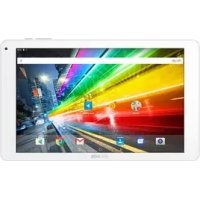
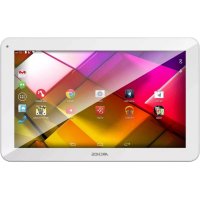
Find the device manual for free 7 HOME TABLET ARCHOS in PDF.


| Brand | ARCHOS |
| Model | 7 HOME TABLET |
| Product type | Touchscreen tablet |
| Operating system | Android |
| Screen | Capacitive touchscreen |
| Power supply | Rechargeable battery, charges via mains adapter (red light = charging, yellow = charged) |
| Connectivity | WiFi 802.11 b/g/n |
| Expandable storage | Yes, via Micro-SD card reader |
| Ports | USB (OTG host via optional adapter), 3.5 mm headphone jack, power connector |
| Audio | Built-in speakers, headphone jack |
| Buttons | Power/Sleep/Lock (slide), Reset (rear hole) |
| Included accessories | USB cable, mains adapter, kickstand |
| Main functions | Media player (video, audio, photo), web browsing, email, Android applications |
| Setup assistant | Yes, on first start-up |
| Customization | Extensible home screen, widgets, wallpapers, add/remove shortcuts |
| Standby and lock | Sleep mode (suspend) and physical lock to prevent accidental touches |
| File transfer | Via USB cable (mount mode) or Windows Media Player |
Frequently Asked Questions - 7 HOME TABLET ARCHOS
User questions about 7 HOME TABLET ARCHOS
0 question about this device. Answer the ones you know or ask your own.
Ask a new question about this device
Download the instructions for your Tablet in PDF format for free! Find your manual 7 HOME TABLET - ARCHOS and take your electronic device back in hand. On this page are published all the documents necessary for the use of your device. 7 HOME TABLET by ARCHOS.
USER MANUAL 7 HOME TABLET ARCHOS
On the web at www.archos.com/register
Thank you for choosing this ARCHOS product. We hope that you will enjoy using it and that it will give you satisfaction for many years to come. Once you unpack your ARCHOS product, we recommend that you take a few minutes to register it (www.archos.com/register). This will allow you to get access to ARCHOS technical support (www.archos.com/support).

NEED HELP?

On our Website: See the Frequently Asked Questions section on www.archos.com/faq

Contact our Technical Support Team: Visit www.archos.com/support for e-mail support. U.S. & Canada: Call 877-300-8879 (toll free). Europe: please register your product before contacting Technical Support (see Register your Product).
Version 2.0 - P/N: 108446 V2
As we are often updating and improving our products, your device's software may have a slightly different appearance or modified functionality than presented in this Quick Start Guide.
1
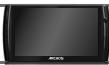
DESCRIPTION OF THE DEVICE
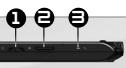
1 Power/Lock: slide left and hold to switch on/off. Slide right to lock the device's touchscreen.
When you slide left and hold, a window appears with a list of options (when the product is on). Tap on "Power Off" to fully shut down your ARCHOS. Tap on "Suspend" to put the device in standby (and allow a quick start up when you next tap the screen). While the device is in suspend mode, slide right to lock the device with its screen off. This can be useful if your ARCHOS is in your backpack, for example, and you do not want to wake it up by touching the screen by accident.
2 Micro-SD card reader
Charging indicator: Red light: battery charging / Yellow: battery charged.
4 Loudspeakers
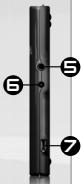
5 Headphone jack
5 Power connector: to connect the supplied power cable.
USB port: to connect your ARCHOS to your computer, using the included USB cable. You can also connect a keyboard, a mouse or a mass storage USB device (for example a USB stick), using the optional USB host adapter available at www.archos.com
Leg stand: pull it out, and it will allow your ARCHOS to stand by itself on a flat, stable surface.
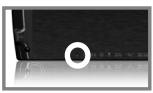
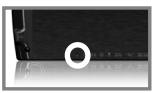
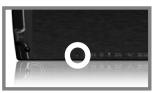
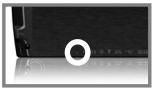
Hardware Reset: In the event that your ARCHOS freezes operation, you can press the "pinhole reset" button, located on the back the device, by using a sharp object such as a toothpick.

natural_image
Front view of a black ARCHOS tablet device with no visible text or symbols on its body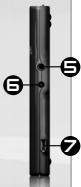
8
GO!
STARTING UP

Before using your ARCHOS for the first time, completely charge the battery!
0
Charging the Battery
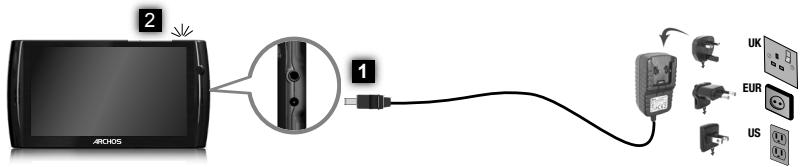
1 Connect the supplied power cable to the ARCHOS Power connector and to a wall outlet.
2 The ARCHOS device will turn on and start charging. The Power indicator light is red while the battery is charging. It will turn yellow when the battery is fully charged.
text_image
ARCHOS 2 1 UK EUR US
Installation Wizard
The first time you start up your ARCHOS, the installation wizard will bring you through a few screens to help you set up the principal settings: Language, country, time, etc.

THE ARCHOS INTERFACE
Your ARCHOS device is equipped with a touchscreen. Most screen areas will react when you tap on them with your finger.
Home Screen
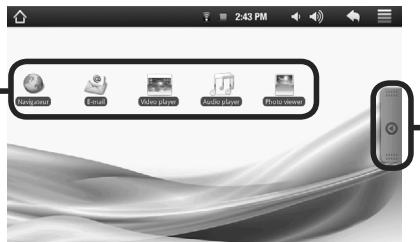
These are the default Android™ shortcuts (Web Browser, EMail, etc.). Tap on an icon to open the corresponding application. You can customize the Home screen by adding/removing shortcuts and widgets, changing the wallpaper, etc. See next page.
text_image
2:43 PM Navigant Email Video player Audio player Photo viewerApplications Tab
Tap on this icon to reveal all the Android™ applications installed on your ARCHOS (games, various tools, etc.). You can copy them onto the Home screen. You can get more Android™ applications from the AppsLib which can be found on the Home screen.
Top bar of the Interface (varies according to the screen you are in)

flowchart
graph LR
    A["Return to the Home screen"] --> B["Notification icons: drag the top bar downwards to reveal the notification messages (if any)."]
    B --> C["2:43 PM"]
    C --> D["Status icons: (WiFi connection status, battery level, etc.)"]
    D --> E["Return to the previous screen"]
    F["Time"] --> C
    G["Volume -/+"] --> C
    H["Menu: gives menu options according to the current screen."] --> C

CUSTOMIZING YOUR PRODUCT
The extended Home screen
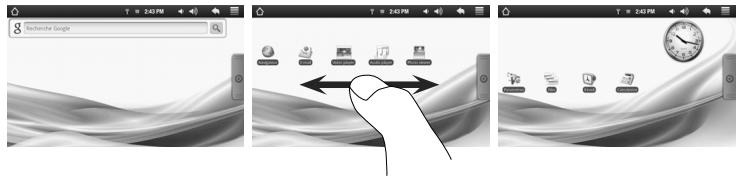
Slide your finger horizontally on the screen to go to the left or right side of the extended Home screen.
text_image
8 Rohmacher Google T @ 24PM T @ 24PM T @ 24PM T @ 24PMCustomizing the Home screen items
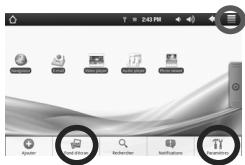
- To add a Home screen item (shortcuts, widgets, etc.), hold your finger on the screen at an empty location, then choose from the list. You can also tap on the Menu icon and select Add + , at the bottom of the screen.
- To move a Home screen item, hold your finger onto it until it gets larger, then drag it to the desired location, and release your finger.
- To remove a Home screen item, hold your finger onto it, drag it onto the recycle bin (while you're holding an item, the Applications tab, on the right side of the screen, turns into a recycle bin) and release your finger.

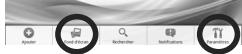
Changing the wallpaper: From the Home screen, tap on the Menu icon 📄. A list of options appears at the bottom of the screen. Tap on Wallpaper 📋 then choose from the list.
text_image
2:43 PM Send to Send to Send to Send to
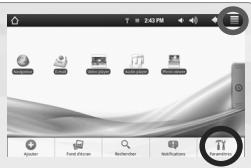
Changing the Settings: From the Home screen, tap on the Menu icon 📄, tap on Settings and choose a category: Wireless controls, Sound & display, Date & time, etc.

CONNECTING TO THE INTERNET

First of all, you need to configure a WiFi network. For this procedure to work, you need to be in a WiFi zone that will allow you to connect to it. Every time the ARCHOS is in range of a network that you have already configured once, it will attempt to make a connection.
To configure a new WiFi network, go on the Home screen, tap on the Menu icon, then select Settings.
2 In the Settings screen, select Wireless controls.
3 If the WiFi is off, tap on the Wi-Fi line to turn it on. Then select Wi-Fi settings. The ARCHOS will scan for available WiFi networks and display them at the bottom of the screen.
4 Tap on the network you want to connect to, enter the required network information* and then tap on Connect. Your ARCHOS will now attempt to establish a connection to that WiFi hot spot with the network parameters you entered.
text_image
T 2:43 PM Access Test Files Navigator Networks Access
* For free access WiFi points, there is no need to enter any special information. For secured networks, you will need either a key (a series of numbers and/or letters) of the type WEP, WPA, or WPA2. Check with the person who manages the WiFi network to obtain the exact connection parameters required.

PLAYING MULTIMEDIA FILES
text_image
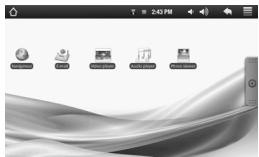
Screenshot of a desktop application interface with icons for file operations and system settings1 From the Home screen, tap on the video, audio or photo application.
2 The ARCHOS will display a list of files or folders corresponding to the selected category.
3 Tap on an item to start playing it.

Only in Video and Photo modes: to display/hide the on-screen controls, tap anywhere on the screen.

Video
To pause or resume a video, tap on the icon 📄/▶ (bottom of screen). To go to any particular point in the video, slide the progression bar to the desired point.

Music
To play the next or previous song, tap on the icons ◀◀/▶▶ Use the icons 🎯/▶ and the progression bar as in the video player screen (see above).

Photo
To start or pause a slide show, tap on the icon 📄 / ▶. To view the next or previous photo, tap on the icons 🕒 / ▶.

TRANSFERRING MEDIA TO YOUR ARCHOS
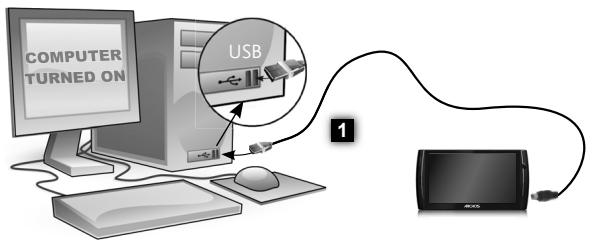
1 Connect the supplied USB cable to the ARCHOS and to a running computer.
2 The ARCHOS will turn on and ask you if you want to connect it. Tap on "Mount" to connect it. Within a few seconds the ARCHOS will appear as an icon on your computer.
3 You can transfer your media files to the ARCHOS either by copy/pasting them into the respective folders using Windows® Explorer (or the Finder on a Mac®), or by using Windows Media® Player. Open Windows Media Player® and then use the Sync tab to synchronize your music, videos, and photos onto your ARCHOS. See Windows Media Player®'s Help to learn more about this.
Once all your file transfers are finished, close Windows® Explorer and any other program that may have read or written to the ARCHOS. Click on the 'safely remove' icon in the system tray, next to the clock. You can now unplug the USB cable.
text_image
COMPUTER TURNED ON USB 1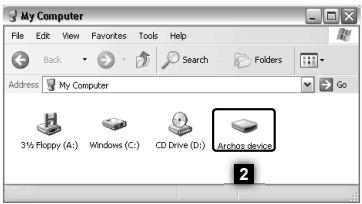
text_image
My Computer File Edit View Favorites Tools Help Back Search Folders Address My Computer 3% Floppy (A:) Windows (C:) CD Drive (D:) Archtop device 2
ENREGISTREZ VOTRE PRODUIT !
→ Sur Internet : www.archos.com/register
FRANÇAIS
natural_image
Front view of a black ARCHOS tablet device with two buttons and a flat base (no visible text or symbols on the device body)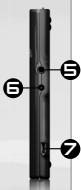
8
GO!
PREMIÈRE UTILISATION

text_image
2:43 PM Navigant Email Video player Audio player Photo viewerOnglet Applications
text_image
8 Rohminder Design T = 24PM T = 24PM T = 24PM T = 24PMFRANÇAIS
text_image
T = 2:43 PMtext_image
My Computer File Edit View Favorites Tools Help Back Search Folders Address My Computer 3% Floppy (A:) Windows (C:) CD Drive (D:) Archtop device 2
REGISTRIEREN SIE IHR PRODUKT!
natural_image
Front view of a black ARCHOS tablet device with two buttons and display screen (no readable text or symbols beyond branding)8

GO!
STARTEN

text_image
2:43 PM Navigation Entire Video player Audio player Photo viewerApplications Tab
ANPASSEN IHRES PRODUKTES
text_image
T = 240PM T = 240PM T = 240PM T = 240PM T = 240PM T = 240PM T = 240PM T = 240PM T = 240PM T = 240PM T = 240PM T = 240PM T = 240PM T = 18:30 T = 18:30 T = 18:30 T = 18:30 T = 18:30 T = 18:30 T = 18:30 T = 18:30 T = 18:30 T = 18:30 T = 18:30 T = 18:30text_image
T 2:43 PM Send to Home Send to Settings
text_image
T = 2:43 PMtext_image
My Computer File Edit View Favorites Tools Help Back Search Folders Address My Computer 3% Floppy (A:) Windows (C:) CD Drive (D:) Archtop device 2
natural_image
Front view of a black ARCHOS tablet device with two side buttons (no visible text or symbols on the device body)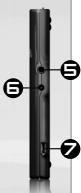
8
text_image
2:43 PM Navigation Edit Audio Player Audio Player Photo viewertext_image
8 T @ 24PM T @ 24PM T @ 24PM T @ 24PM T @ 24PM T @ 24PM T @ 24PM T @ 24PM T @ 24PM T @ 24PM T @ 24PM T @ 24PM T @ 24PM T @ 24PM T @ 24PM Hand icontext_image
2:43 PM Apache Send to Settings Instructions Parameters
text_image
T 2:43 PM Access Find Options Navigator Notifications Access

text_image
Screenshot of a desktop application interface with icons for file operations and system settingstext_image
My Computer File Edit View Favorites Tools Help Back Search Folders Address My Computer 3% Floppy (A:) Windows (C:) CD Drive (D:) Archtop device 232

natural_image
Front view of a black ARCHOS tablet device with two buttons and a flat base (no visible text or symbols on the device body)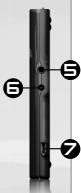
8
GO!
AVVIO

text_image
Newspaper Email Video Player Audio Player Photo viewertext_image
2:43 PM Apache Send to Send to Send to
text_image
T = 2:43 PMtext_image
My Computer File Edit View Favorites Tools Help Back Search Folders Address My Computer 3% Floppy (A:) Windows (C:) CD Drive (D:) Archtop device 2
UW PRODUCT REGISTREREN
natural_image
Front view of a black ARCHOS tablet device with no visible text or symbols on its body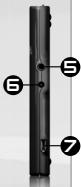
8
NEDER-LANDS
42
GO! OPSTARTEN

text_image
NetApp Email Video Player Audio Player Photo viewerTabblad Applicaties
PERSONALISEER UW PRODUCT
text_image
Screenshot of a desktop application interface with icons for file operations and system settingstext_image
My Computer File Edit View Favorites Tools Help Back Search Folders Address My Computer 3% Floppy (A:) Windows (C:) CD Drive (D:) Archtop device 248