
StrongPhone H1 - Mobile Phone Evolveo - Free user manual and instructions
Find the device manual for free StrongPhone H1 Evolveo in PDF.


| Product Type | Rugged Mobile Phone |
| Brand | Evolveo |
| Model | StrongPhone H1 |
| Dimensions (H x W x D) | Approx. 160 x 80 x 15 mm |
| Weight | Approx. 250 g |
| Battery Capacity | 4000 mAh (typical) |
| Power Supply | Rechargeable Li-Ion battery, USB-C charging |
| Display | 5.5-inch IPS LCD, 720x1440 pixels |
| Processor | Quad-core 1.3 GHz |
| Operating System | Android (likely 10 or later) |
| Memory & Storage | 2 GB RAM, 16 GB internal storage, microSD support |
| Camera Rear | 8 MP with flash |
| Camera Front | 2 MP |
| Connectivity | 4G LTE, Wi-Fi 802.11 b/g/n, Bluetooth 4.2, GPS, USB-C |
| Water & Dust Resistance | IP68 certified (1.5 m depth, 30 min) |
| Drop Resistance | Up to 1.5 m onto concrete |
| Main Functions | Calls, SMS, internet, camera, media player, FM radio, flashlight, SOS button |
| Care & Cleaning | Wipe with a soft dry cloth; avoid harsh chemicals; keep ports dry |
| Safety Precautions | Do not disassemble, expose to extreme heat, or use while charging in wet conditions |
| Spare Parts & Repairability | Battery and screen replaceable by authorized service; parts available from Evolveo |
| General Information | User manual available for download in multiple languages; 168 pages |
Frequently Asked Questions - StrongPhone H1 Evolveo
User questions about StrongPhone H1 Evolveo
0 question about this device. Answer the ones you know or ask your own.
Ask a new question about this device
Download the instructions for your Mobile Phone in PDF format for free! Find your manual StrongPhone H1 - Evolveo and take your electronic device back in hand. On this page are published all the documents necessary for the use of your device. StrongPhone H1 by Evolveo.
USER MANUAL StrongPhone H1 Evolveo
OBSAH BALENÍ
OBSAH BALENIA
- Before putting this product into operation, please read this entire user manual carefully through to the end, even if you are familiar with the use of a similar type of product in the past.
- Keep this user manual for future reference - it is an integral part of the product and may contain important instructions on commissioning, operation and care of the product.
- Make sure that other people who will be using this appliance read this user manual.
- If you give, donate or sell this appliance to others, please give them this user manual together with this product and remind them to read it.
- During the warranty period, we recommend keeping the original packaging of the product - this will protect the appliance in the best possible way during transport.
THE MOST UP-TO-DATE VERSION OF THE USER MANUAL
Due to the ongoing innovation of EVOLVEO products and changes in legislation, you can always find the most up-to-date version of this user manual on the website www.evolveo.com or by simply scanning the QR code shown below with your mobile phone:

PACKAGING CONTENT
- StrongPhone H1
- Handsfree headset
- Rechargeable adapter
- Mini screwdriver
- User manual
- Quick User Guide
SPECIFICATIONS
• Supported bands: GSM 850/900/1800/1900
- RAM: 32 MB
- ROM: 32 MB
• Degree of coverage: IP68
- Display: 2.8" IPS
- Camera: 2 Mpx
- Display resolution: 240 × 320 px
- Charging port: USB type C
- Battery capacity: 5 000 mAh
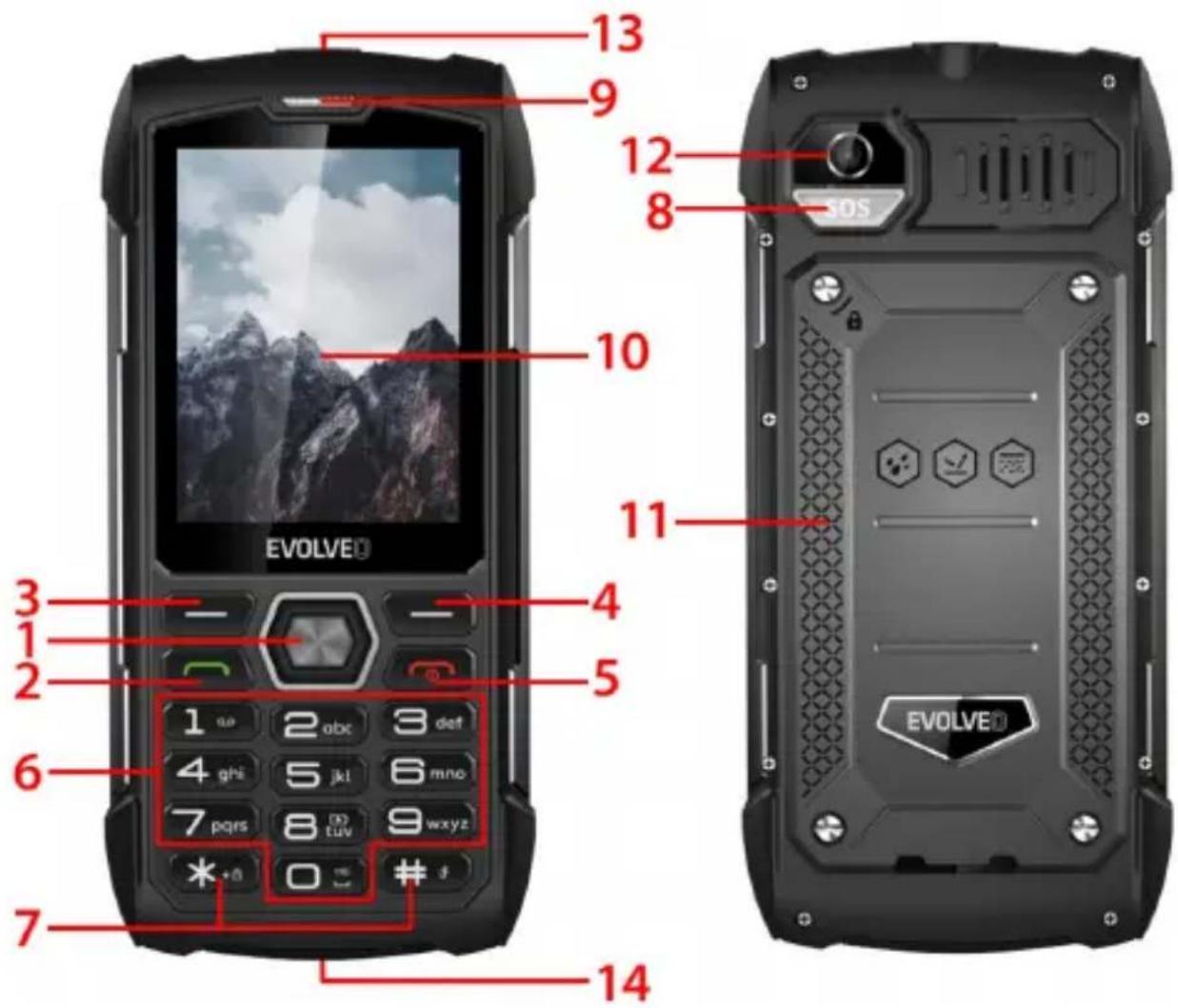
DESCRIPTION OF INDIVIDUAL PARTS
| Button name | Description of the key |
| 1 Navigation button | - From the standby interface, you can access the main menu.- Answer the call |
| 2 Call button | - Making or receiving a call.- Press the call button in standby mode to view the full call log. |
| 3 Left function button | - Enter the main menu. |
| 4 Right function button | - End an active call or reject a call.- Press the back button in standby mode to display the phone book. |
| 5 End call button | - End an active call or reject a call.- Press and hold this button to switch your mobile phone on/off.- Exit any interface to standby mode. |
| 6 Buttons 0~9 | - Entering numbers or characters when editing text.• Powerbank (8).- Flashlight (0).- Press and hold the * button to enter +, P, W.- Press the * button to insert a space when editing a message, except in number entry mode.- Press 1 to enter common symbols when editing text, except in number entry mode. |
| 7 # button / * button | 1. Press the # key to change the input mode when editing text.2. Press and hold # to switch to silent mode.1. Press the * key to display the symbol window in text input mode.2. LFT + * Screen lock. |
| 8 SOS button | 1. Press and hold the button to trigger the SOS function and automatically dial the emergency contact's phone number. |
| 9 Earpiece10 Display | / hole in the top cutout near the display/ |
| 11 Battery cover | / |
| 12 Camera13 Flashlight | // in the middle at the top of the phone |
| 14 Porty 3.5 mmJack / USB-A /USB-C | / in the middle at the bottom of the phone |
DESCRIPTION OF ICONS
| Icon | Description | |
 | GSM signal strength | |
 | User profiles | |
 | Missed call | |
 | New report | |
 | Power indicator | |
 | Alarm | |
 | Bluetooth | |
PUTTING YOUR PHONE INTO SERVICE
Switching your phone on/off
- Press and hold the End Call button to switch the phone on. Your phone automatically searches for a network
- When the phone is on, hold down the end key to switch the phone off.
Removing and installing the battery
The included Li-ion battery with the phone can be used out of the box. For the first three uses, fully drain the power and fully recharge it so that the new battery works well.
Installing the battery
- Insert the battery into the battery compartment, keeping in mind that the metal end of the battery should be inserted first
- Replace the rear cover
Removing the battery
- Remove the rear cover
- Place your finger on the side finger grip, then lift the battery out of the finger grip to remove it
To insert a SIM card
- Switch off your phone and disconnect other external power
- Remove the back cover and remove the phone battery
- Insert the SIM card into the SIM card slot in your phone
MAKING OR RECEIVING A CALL
Making a call
- Enter your phone number
- Press the call button to make a call
- Press the end of call button or the right function key to end the call
Receiving calls
- Press the call button to answer the call
- Press the end of call button or the right function key to end or reject the call
BASIC FUNCTIONS
PHONE BOOK
Menu → Phonebook
Your mobile phone has 2 tel. lists: SIM card and mobile phone. 500 phone numbers can be stored on your mobile phone. The capacity of the SIM card depends on its type.
Options for making adjustments and actions
- Add a new contact: enter the contact's name, phone number and email
- View contact: if it is a phone number, you can view information about the current contact
- Send text messages: send text messages to the current contact
- Call: call the current contact
- Edit: edit items of the current contact
- Delete contact: delete the current record
- Copy contacts: copy from SIM1/SIM2 to the mobile phone and from the mobile phone to SIM1/SIM2.
- Add a contact to the blacklist: contacts that are blacklisted will not be allowed to dial your phone number
- Mark multiple entries: multiple contacts can be marked
- Phonebook settings: Preferred contact storage, Speed dial (8 contacts)
Extra contacts (phone number and emergency number settings), Memory status, Copy contacts, Move contacts, Delete all contacts
MESSAGES
Menu → Messages
-
Write message: this menu allows you to create SMS messages. you can enter the content you want to send to a specified number
-
Inbox: select Inbox to view the messages you have received
[Show]: check received SMS messages
[Reply]: reply to the sender via text message.
[Call sender]: to call back the sender
[Forward]: forward the original or modified message to other selected or specified contacts
[Delete]: delete the current message
[Delete All]: delete all messages in the mailbox
[Save to phonebook]: to save a number in the phonebook
3. Outgoing messages: view unsent messages
4. Drafts: view saved drafts (broken down reports)
5. Messages sent: View sent messages
6. SMS settings: setting up message configuration and displaying information about the message box memory
[SIM1]: edit SIM1 configuration
[SIM2]: edit SIM2 configuration
[Memory status]: check the memory status of SMS messages
[Text message counter]: used to track the number of text messages sent or received
[Save sent message]: options for saving sent SMS messages
[Preferred storage]: Choosing a storage location.
CALLS
Menu → Calls
Call History and Call Settings.
CALL HISTORY
- Missed calls: view missed calls
- Dialled calls: view the calls that have been dialled
- Received calls: view received calls
[Show]: show current record
[Call]: call to the current number (record)
[Send text message]: send text messages to the current record
[Save to phonebook]: to save a phone number in the phonebook
[Add to blacklist]: add the current number to the blacklist
[Edit before call]: edit the contact of the current record
[Delete]: option to delete the current record
-
All calls: view all calls
-
Delete call records: you can delete call records
CALL SETTINGS
-
SIM1/SIM2 call settings: call forwarding, call waiting and other features can be set in the menu
-
Advanced settings
[Blacklist]: insert blacklist number.
[Answer Mode]: select the call answer mode, you can select "any button" or "auto answer when in headset mode.
SETTINGS
Menu → Settings
Setting up basic phone functions.
1. PROFILES
[General]: you can adjust the alert type, ring type, ring tones, ring volume, message tone and message volume, or set the button volume and voice call reminder
[Silent]: when this profile is active, the audio alerts for incoming calls, SMS messages and key tones will be switched off
[Meeting]: when this profile is active, the incoming call notification will change from ringing to vibrating to avoid interrupting a normal meeting
[Outdoors]: turning this profile on will make your phone sound louder so you don't miss important information
[Headset]: when you plug in your headset, your phone will automatically go into headset mode, unplugging the headset will return you to the original restored mode
2. SIM CARD SETTINGS
Enable Dual SIM, Enable SIM1 only, Enable SIM2 only
3. PHONE SETTINGS
[Time and date]: Set the time and date
[Language]: Select the language of your phone
[Language of writing]: Set the default text input method
[Display]: Wallpaper, Auto lock screen, Display on animation, Display off animation, Show date and time
[Dedicated Keys]: set keyboard shortcuts using the up, down, left and right directional buttons on your phone.
[Flight mode]: select flight mode, cut all communication
[Miscellaneous settings]: set the phone's brightness and backlight time
[Device lock]: enable this feature to choose to close the screen by pressing the end of call button.
4. NETWORK SETTINGS
Select the network settings for SIM1 or SIM2
5. SECURITY SETTINGS
[SIM1 or SIM2 security]: activate or deactivate SIM1 or SIM2 lock
[Phone security]: Phone lock, Change password
6. CONNECT
[Bluetooth]: turn Bluetooth on or off, visibility, find nearby devices, set Bluetooth name, set storage address.
7. FACTORY RESET
By entering the password, reset the system to factory settings (the default password is "1234").
AUDIO PLAYER
Menu → Audio Player
The audio player can play MP3 files and the like, allowing you to listen to audio files through a headset or speaker.
[Play]: play music
[Refresh list]: update track entries
[Settings]: play music from your phone or memory card, set automatic updates, repeat a song, random play, play in the background, display lyrics
MULTIMEDIA
Menu → Multimedia
1. PHOTOS
Enter the camera
[Switch to VCR]: use this menu to switch to the VCR
[Photos]: preview pictures taken and stored in your phone
[Camera Settings]: set shutter sound, exposure, white balance, shooting delay, etc.
[Image Settings]: set image size and quality
Effect Settings]: setting special effects for photos
[Storage]: use this menu to set the location for storing photos
[Restore Default Settings]: restore the camera to its default settings
2. IMAGE VIEWER
View or edit photos stored in an album
[Display]: display selected images
[Send]: you can send images via Bluetooth
[Use as]: use the image as the phone wallpaper, or when turning the display on/off
[Rename]: rename the image
[Delete]: used to delete an image
[Storage]: select a location to store the image
[Image info]: you can view information about the image
3. VIDEO RECORDING
[Camcorder Settings]: set camcorder parameters
[Video Settings]: set parameters for video
[Storage]: set whether to save the video clip: Choose where to save the video clips.
[Restore Default Settings]: restore the camera's default settings
4. VIDEO PLAYER
[Play]: plays the selected video file
[Send]: send to another mobile phone via Bluetooth
[Rename]: change the name of a file or folder
[Delete]: delete file
[Save]: select the path to save the video file for mobile phones/memory card.
5. SOUND RECORDING
[New entry]: Start recording.
[List (view records)]: In the list you can play, rename, delete, send the selected record
[Settings]: set the location and file format for saving the recordings
6. FM RADIO
[Channel List]: set the channel list and frequency
[Manual entry]: enter frequency manually
[Auto Search]: select "yes" and then automatically search for channels
[Settings]: activate or deactivate the background and speaker
[Recording]: activate or deactivate recording
[File list]: select audio file
ORGANIZER
Menu → organizer
This menu contains functions for everyday use.
[Calendar]: the calendar helps you find out what day of the week it is and check the current date
[E-book reader]: display text documents
[Alarm clock]: You can set 5 alarm times. For each of them, you can set the alarm status, set the alarm time and alarm tone
[Flashlight]: control switching the flashlight on or off
[SOS]: hold down the SOS button to start the SOS function and automatically dial the phone number of the emergency contact
[Powerbank]: when enabled, you can connect USB and power other devices
[Calculator]: mobile phone supports arithmetic operations
FILE MANAGER
Menu → File Manager
In this menu, you can manage and assign multiple folders by transferring, copying and moving files stored in these folders.
[Open]: expand the selected folder
[Formatting]: File System Formatting Note: You will lose all the information in the file system.
SERVICES
Menu → Services
In this menu you can manage SIM Toolkit and other
MAINTENANCE INSTRUCTIONS
Clean the device with a soft, lint-free cloth. Do not use detergents or solvents to clean the equipment.
Use only the original charging adapter for charging.
The warranty does NOT cover:
- Installing firmware other than the one originally installed on the EVOLVEO phone.
- Electrical or mechanical damage to your phone caused by improper use (e.g. cracked display, cracked front or back cover, damaged USB power connector, SIM card slot, microSDHC card slot, headphone input, etc.)
- Damage to the speaker and headphones caused by metal particles.
- Damage from natural influences such as fire, water, static electricity, high temperature.
- Failures caused by normal wear and tear.
- Damage caused by repairs carried out by an unqualified person
- Your phone's firmware, if it needs updating due to changes in mobile network parameters.
- Mobile network failures
- The battery if it does not retain its original capacity after 6 months or more (the battery capacity warranty is 6 months).
- Intentional damage.
WARRANTY AND POST-WARRANTY SERVICE
Repairs and servicing can only be carried out at an authorized service point for EVOLVEO products (more at www.evolveo.com), otherwise you may damage your mobile phone and lose your warranty.

Disposal: The crossed-out container symbol on the product, in the accompanying documentation or on the packaging means that in EU countries, all electrical and electronic equipment, batteries and accumulators must be disposed of separately at the end of their useful life as separated waste. Do not dispose of these products in unsorted municipal waste.

DECLARATION OF CONFORMITY
The company Abacus Electric, s.r.o. hereby declares that the EVOLVEO StrongPhone H1 meets the requirements of the standards and regulations that are relevant for this type of device.
The full text of the Declaration of Conformity can be found at http://ftp.evolveo.com/ce/
Importer / Manufacturer
Abacus Electric, s.r.o.
Planá 2, 370 01, Czech Republic
Made in China
Copyright © Abacus Electric, s.r.o.
www.evolveo.com
www.facebook.com/EvolveoCZ
All rights reserved. The appearance and technical specifications of the product are subject to change without notice.
Tartalomjegyzék
BEVEZETÉS....55
A FELHASZNÁLÓI KÉZIKÖNYV LEGFRISSEBB VERZIÓJA 55
CSOMAGOLÁSI TARTALOM 56
SPECIFIKÁCIÓK....56
AZ EGYES ALKATRÉSZEK LEÍRÁSA 57
AZ IKONOK LEÍRÁSA 59
A TELEFON ÜZEMBE HELYEZÉSE 59
ALAPVETŐ FUNKCIÓK....61
CSOMAGOLÁSI TARTALOM
Copyright © Abacus Electric, s.r.o.
www.evolveo.com
www.facebook.com/EvolveoCZ
CONTINUTUL AMBALAJULUI
Copyright © Abacus Electric, s.r.o.
www.evolveo.com
www.facebook.com/EvolveoCZ
VERPACKUNGSINHALT
GARANTIE UND NACHGARANTIESERVICE
Copyright © Abacus Electric, s.r.o.
www.evolveo.com
www.facebook.com/EvolveoCZ
CONTENUTO DELL'IMBALLAGGIO
Menu → Gestione file
Copyright © Abacus Electric, s.r.o.
www.evolveo.com
www.facebook.com/EvolveoCZ
Copyright © Abacus Electric, s.r.o.
www.evolveo.com
www.facebook.com/EvolveoCZ
ΔΙΑΧΕΙΡΙΣΤΗΣ ΑΡΧΕΙΩΝ

- OBSAH BALENÍ
- OBSAH BALENIA
- THE MOST UP-TO-DATE VERSION OF THE USER MANUAL
- PACKAGING CONTENT
- SPECIFICATIONS
- PUTTING YOUR PHONE INTO SERVICE
- Switching your phone on/off
- Removing and installing the battery
- Installing the battery
- Removing the battery
- To insert a SIM card
- MAKING OR RECEIVING A CALL
- Making a call
- Receiving calls
- BASIC FUNCTIONS
- PHONE BOOK
- Options for making adjustments and actions
- MESSAGES
- CALLS
- CALL HISTORY
- CALL SETTINGS
- SETTINGS
- PROFILES
- SIM CARD SETTINGS
- PHONE SETTINGS
- NETWORK SETTINGS
- SECURITY SETTINGS
- CONNECT
- FACTORY RESET
- AUDIO PLAYER
- MULTIMEDIA
- PHOTOS
- IMAGE VIEWER
- VIDEO RECORDING
- VIDEO PLAYER
- SOUND RECORDING
- FM RADIO
- ORGANIZER
- FILE MANAGER
- SERVICES
- MAINTENANCE INSTRUCTIONS
- The warranty does NOT cover:
- WARRANTY AND POST-WARRANTY SERVICE
- DECLARATION OF CONFORMITY
- Tartalomjegyzék
- CSOMAGOLÁSI TARTALOM
- CONTINUTUL AMBALAJULUI
- VERPACKUNGSINHALT
- GARANTIE UND NACHGARANTIESERVICE
- CONTENUTO DELL'IMBALLAGGIO
- ΔΙΑΧΕΙΡΙΣΤΗΣ ΑΡΧΕΙΩΝ
Brand : Evolveo
Model : StrongPhone H1
Category : Mobile Phone