
MP 107 - Mp3 player HYUNDAI - Free user manual and instructions
Find the device manual for free MP 107 HYUNDAI in PDF.


| Product Type | MP3 Player |
| Brand | Hyundai |
| Model | MP 107 |
| Dimensions | 87 mm × 29 mm × 12.4 mm |
| Weight | 35 g (net) |
| Display | Double color LCD with 7 backlight colors |
| Supported Audio Formats | MP3, WMA, WAV, WMV, ASF |
| Storage Capacity | 128 MB to 4 GB (Flash memory) |
| USB Connection | High speed USB 2.0 (Read 1000 KB/s, Write 800 KB/s) |
| FM Radio Frequency | 76-96 MHz / 87-108 MHz |
| Recording Format | WAV (32 kbps) / ACT (8 kbps) |
| Audio Output | 10 mW + 10 mW (16 Ω) |
| Frequency Response | 20 Hz - 20 kHz |
| Signal-to-Noise Ratio | ≥85 dB |
| Distortion | <0.05% |
| Power Supply | Built-in rechargeable battery |
| Equalizer Modes | Natural, Rock, Pop, Classic, Soft, Jazz, Super Bass (7 modes) |
| Play Modes | Normal, Repeat One, Folder, Repeat Folder, Repeat All, Random, Intro |
| Special Functions | A-B repeat, playback speed control, follow read, lyric display (LRC) |
| Supported Languages | English, Czech, Slovak, Polish, and more |
| Accessories Included | Earphone, USB cable, CD, user manual |
| Cleaning Instructions | Use a damp cloth; do not use alcohol |
| Safety Warnings | Keep away from water, dust, high temperature, strong magnetic fields |
Frequently Asked Questions - MP 107 HYUNDAI
User questions about MP 107 HYUNDAI
0 question about this device. Answer the ones you know or ask your own.
Ask a new question about this device
Download the instructions for your Mp3 player in PDF format for free! Find your manual MP 107 - HYUNDAI and take your electronic device back in hand. On this page are published all the documents necessary for the use of your device. MP 107 by HYUNDAI.
USER MANUAL MP 107 HYUNDAI
NÁVOD K POUŽITÍ NÁVOD NA POUŽITIE INSTRUKCJA OBSŁUGI INSTRUCTION MANUAL
MP3 PŘEHRÁVAČ
MP3 PREHRÁVAČ
ODTWARZACZ MP3
MP3 PLAYER
FUNKCE
natural_image
Illustration of a cord with earbuds and a loop, no text or symbols present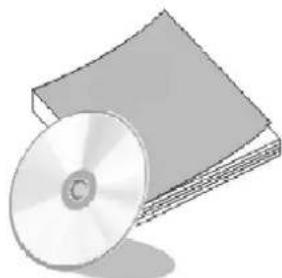
natural_image
Illustration of a CD or DVD next to a stack of books (no text or symbols visible)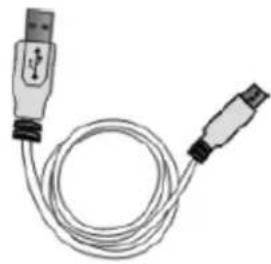
natural_image
Illustration of two USB connectors with a coiled cable (no text or symbols)Vzhled a tlačitka
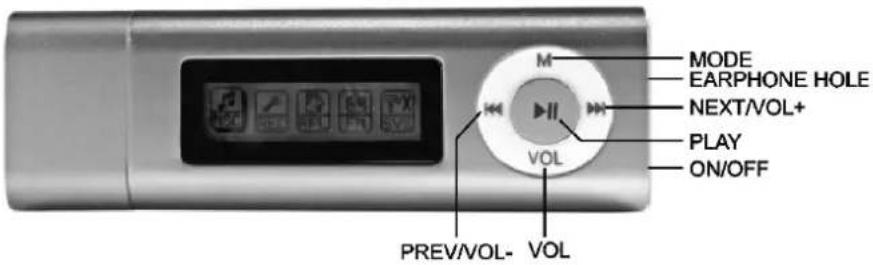
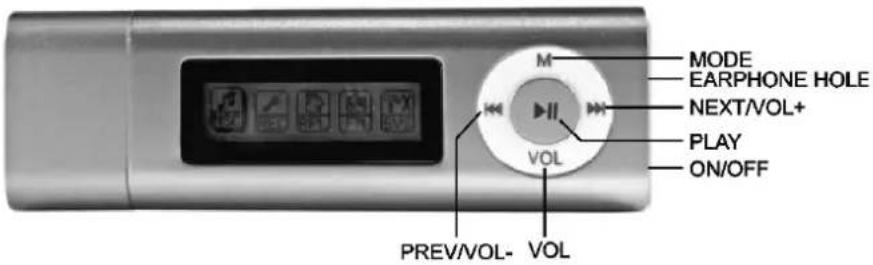
Mode...... Režim
Earphone hole...... vstup pro sluchátka
natural_image
Symbol of a trash bin with no text or numbers presentnatural_image
Illustration of a cord with earplugs and a coiled cable (no text or symbols)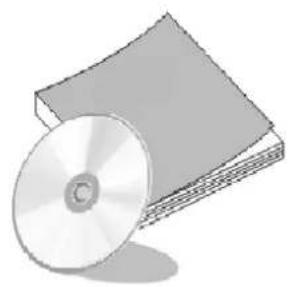
natural_image
Illustration of a CD or DVD next to a stack of books (no text or symbols visible)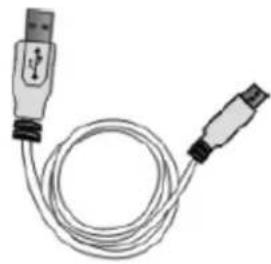
natural_image
Illustration of a USB cable with two connectors (no text or symbols)Vzhl'ad a tlačidlá
Mode ...... Režim
Earphone hole ...... vstup pre slúchadlá
Nastavenie hlasitosti
natural_image
Symbol of a trash bin with no text or numbers presentnatural_image
Illustration of a cord with earphones and a coiled cable (no text or symbols)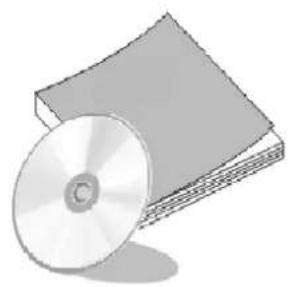
natural_image
Illustration of a CD or DVD next to a stack of books (no text or symbols visible)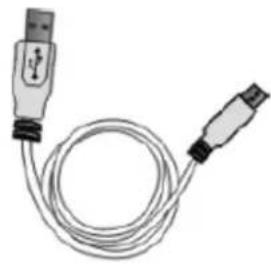
natural_image
Illustration of a USB cable with two connectors (no text or symbols)Wygląd i przyciski
Mode...... Tryb
Follow read function
natural_image
Symbol of a trash bin with no text or numbers present- Sleek appearance & comfortable feel
• Supports MP3, WMA & WAV formats - Removable electronic hard disk
No need management program, can operate the files directory in the “removable disk” through “My Computer”
- Record/Repeat
It can store WAV and ACT voice files through MIC record, and choose single repeat and full repeat, make it real digital repeat function
- 7 EQ Modes
Natural, Rock, Pop, Classic, Soft, Jazz, Super Bass
• LCD with 7 different backlights
- Multi play mode
Normal, loop once, play folder, loop all, random play, intro play.
- Auto Power Off
- Notice
Congratulations on purchasing your new MP3 Player. Please read the manual before using the mp3 player, the manual will teach you how to operate this product correctly.
TABLE OF CONTENTS
- Standard accessory ....39
- Appearance and buttons 39
- LCD Display 39
- Power 39
- Basic function ....40
- Volume Adjustment ....41
- Power on/off ....41
- Button operation ....41
- Key function definition ....41
- Key movement definition ....41
- Playing music ....41
- EQ mode 41
- Display lyric synchronously ....41
- Record mode ....42
- Play recording ....42
- System setting 43
- File reading ....44
- Other settings ....44
- Delete file ....44
- Loop mode ....45
- Play speed 45
- Repeat mode 45
- A-B repeat ....45
• How to use FM radio ....46 - How to use USB 46
- FAQ 47
- Notice Item for usage ....47
- Technology and specification ....48
OVERVIEW
Standard accessory
Please check if the box of your "digital music player" has accessories as follows:
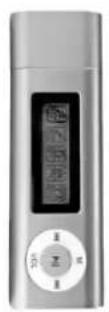
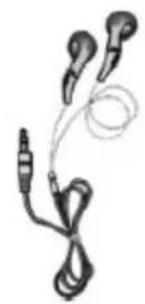
Digital music playr Earphone User's manual USB cable
natural_image
Illustration of a medical or electronic device with three earbuds and a coiled cable (no text or symbols)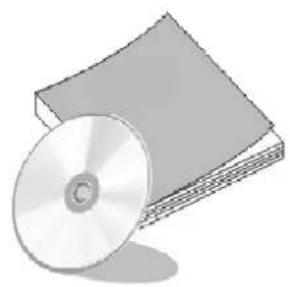
natural_image
Illustration of a CD or DVD next to a stack of books (no text or symbols visible)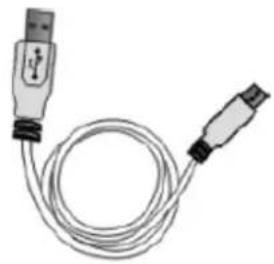
natural_image
Illustration of a USB cable with two connectors (no text or symbols)Appearance and buttons
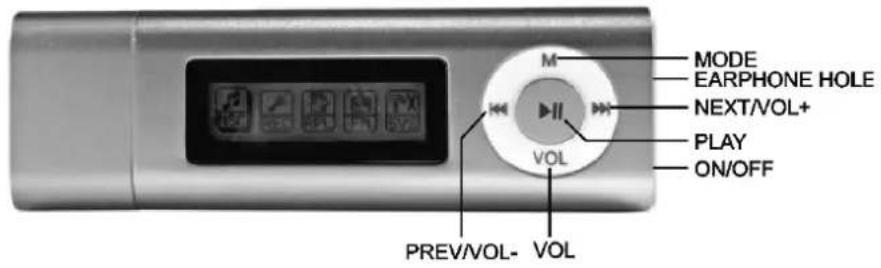
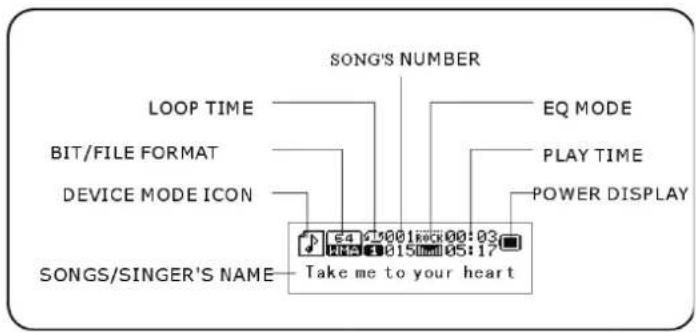
LCD Display
Power
The usable time depends on volume magnitude, playing files and button operation.
The player can, also conserve battery life by activating the "auto off" feature in settings. The unit has an indicator with 4 statuses for showing amount of battery left.
Power indicator:
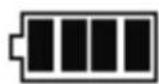
Full
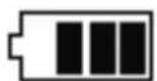
Some be used
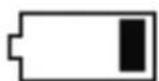
A little
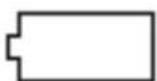
empty
BASIC FUNCTIONS
- Enter into menu
By pressing the MODE button you can enter the different menus, from main menu, to sub menu while playing a music file.
- Browse operation
While music is playing by pressing either the fast backward or forward you will be able to skip to the next or previous song.
- Enter into different function mode
From main menu you can enter into different function modes.
Main menu: press the MODE button for around 5 sec to enter
Main menu
Music mode
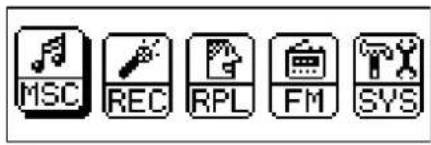
Record mode
Play mode
FM mode
System mode
Tel book
E-book
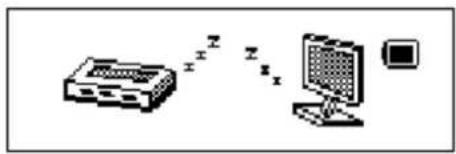
USB mode while connected to the PC:
Volume adjustment
Press VOL then: Short press "▶" button to decrease volume.
Short press “◀” button to increase volume.
Power on/off
In the power off status, long press ▶ button to power on.
In the power on status, long press ▶ button to power off.
-
Button operation
• Key function definition -
Button: ON/OFF/PLAY/ PAUSE
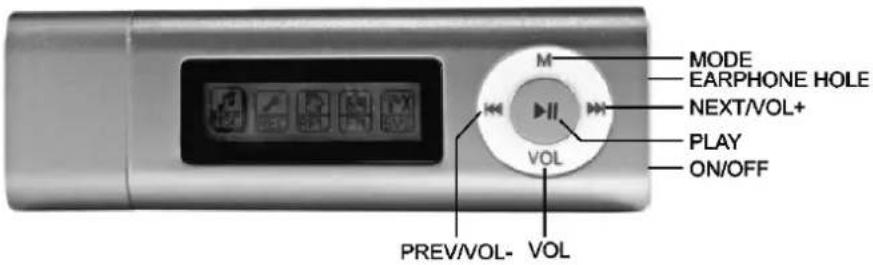
- "MODE" or "M": enter into main menu
- "VOL": enter into volume adjustment interface.
- “▶”: next item, fast forward, VOL+, fast increase.
- “◀”: last item, fast backward, VOL-, fast decrease.
- "USB": USB port.
- "ON/OFF": Power button.
- "Earphone hole": earphone standard hole.
Key movement definition
Press button includes short press, long press, hold or single press.
Short press: press the button once.
Long press: press and hold button for at least 2 seconds.
Single press: effect last until let go.
Hold: holding the button down, have effect while holding. Such as "fast forward, fast backward".
PLAYING MUSIC
- Insert the earphone into Headphone socket.
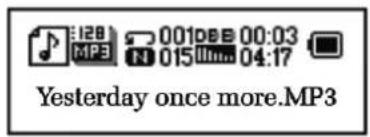
- Long press the "PLAY" button to turn on and enter into "music mode". Then short press "PLAY" button to start playing.
- Select music mode: “◀” select the previous “▶” select the next music
- Volume control: Press VOL to enter into volume interface. Press "or " to adjust volume.
EQ mode
- In music mode
- Short press MODE to enter into submenu.
- Press ▶to select "EQ mode" menu.
- Short press MODE to enter into "EQ mode" choosing menu.
- Kinds of EQ: NOR, Rock, Pop, Classical, Soft, Jazz, DBB
- Press ▶to choose, short press MODE to confirm.
Display lyric synchronously
The player support “*.LRC” file, Display lyric synchronously
• How to use lyric file
Keep the lyric file's name same as song's name.
• How to know if lyric is available
If the song matched with lyric, the picture “☐”, which in top left cover of music mode will change into “☐”.
- Lyric found.
- Long press MODE to enter into lyric interface
- Lyric displaying
- Short press MODE to back to music mode
- Browse lyric manually: Short press volume button can browse lyric.
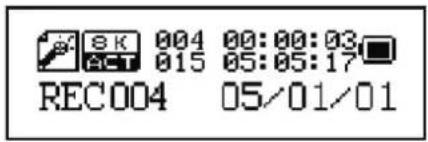
Record mode
- In main menu
- Press "◀" or "▶" to select record mode.
- Click mode key to enter the record state.
- Short press "PLAY" begin to record
-
Other operation is same as the "long record", only need to press PLAY
-
The recorded voice be stored in current folder which set in "Record stop submenu/main folder"
- If display “full space” on the screen, indicate that there is no room to record new record file. Please delete other file to release space.
- If display “full folder”, indicate that there is 99 files. Please change to another folder.
- During recording, only use the "▶" button.
Select record mode
- Ensure you are in stop mode.
- Short press MODE to enter into record submenu.
- Press ➤ to choose "record mode" submenu. Short press MENU to enter into this item:
Fine record Wav format, good quality
Long record act format, common quality
Fine voice control Wave format, voice control record, have no voice will pause to record.
Long voice record act format, voice control record, have no voice will pause to record.
-
Short press ➤ to choose proper record mode, and short press MODE to confirm.
-
Press ▶ begin to record
-
Long press ▶ to stop and save record
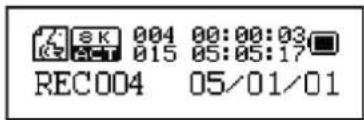
Play recording
- Enter into main menu.
- Press ➤ to select voice mode.
- Click mode key to enter the voice state.
- Click ▶key to play recording, and click ▶again to pause.
-
Choose recorded files.
: choose last record file
▶ : choose next record file -
Control volume: Short press VOL to enter into volume interface. Short press “◀” or “▶” to increase or decrease volume
SYSTEM SETTING
How to enter
- Enter into main menu
- Press "▶" to choose "system setting"
- Short press MODE to enter into "system setting" Simple description of parameter item
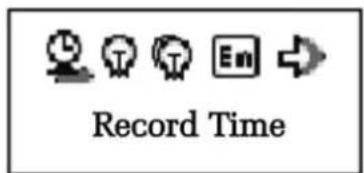
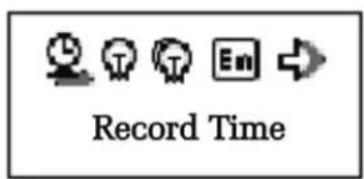
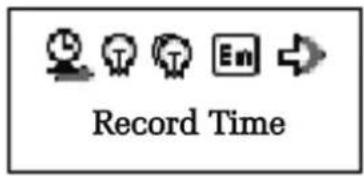
Record time: set the date and time of record files when storing recorded voice.
Backlight time: the time of keep backlight on before turning off after period of inactivity.
Backlight colour: Colour setting when the backlight is on.
Language selection: set different language.
Power off set: set a countdown timer (minutes), the unit will automatically turn off when the timer gets to zero.
Repeat set: set working status of repeating.
Contrasts adjust: set the contrast for the display.
Storage status: check memory status.
Exit: exit this interface.
DETAILED EXPLANATION
"Record time" setting
- System set interface
- Short press MODE to enter into record time interface
- Short press “+”, start to set from year, year begin to flash.
- Press "▶" to adjust larger figure (:" ▶ is contrast)
- After finish adjusting, press MODE to confirm exit
"Backlight time" set
- System set interface
- Press ➤ to choose "backlight time"
- Short press MODE to enter into backlight time interface
- Press ▶ or ▶ to adjust the time
- After finish adjusting, press MODE to confirm exit.
"Backlight mode" setting
The method of operating refer to "backlight time" setting
"Language option" setting
The method of operating refer to "voice effect mode" setting
"Turn off" setting
The method of operating refer to "voice effect mode" setting
Notice: “save battery mode” indicate: can set the time like this(unit: second), in stop status, begin to count from haven’t any button operation, turn off automatically when the time come to save battery; the figure 0 indicate this function is off
"Repeat" setting
The method of operating refer to "voice effect mode" setting
Notice:
"Manual mode" indicate that A-B repeat can't cut sentence automatically. Only setting by person to do it.
“Automatic mode” indicate that A-B can cut sentence automatically. (apply for English recite having no music)
"Contrast adjustment "
The method of operating refer to "backlight time" setting
"Online mode "
The method of operating refers to “voice effect mode” setting. Some operate system (pre Windows 2k SP4) cannot support one USB with two disk. Therefore, use “different space” function, need to choose which disk to use currently. That is “single common disk” or “single encrypt disk”. So that can display the disk chosen after connect with the computer.
"Storage status"
The figure here indicates disk's overall capability. Per centum indicates that the space ratio has been used.
" Firmware version "
Can see the player's current firmware version.
FILE READING
- Enter into main menu, press or to choose "file reading".
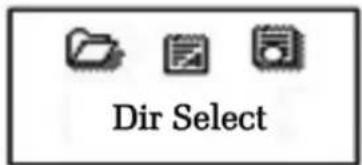
- Short press M enter into submenu:
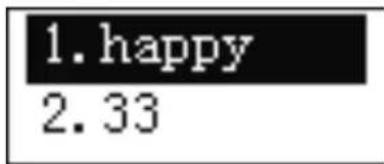
- Press or to choose the file which you will read, short press begin to play file's content.
Notice: While playing files, when status is set to "manual play", press or no change files. When status is set to "automatic play", the unit will change to next file automatically.
OTHER SETTINGS
Delete file (submenu)
In music mode, play mode and FM mode the user may delete a corresponding file.
- In stop interface
- Short press MODE button to enter into submenu.
- Press "◀" lub "▶" to choose "single file" or "all file" in menu.
- Short press MODE to enter into delete interface.
- Press ▶to change "NO" into "YES".
- Press MODE to confirm and begin to delete.
Loop mode (play submenu)
While playing music or recording files, the user can choose different play modes (such as repeat, folder)
In the first item of play submenu is “play mode”. When choice is confirmed, unit will play according to the rules set.
Repeat
Normal: Automatically play next file when current file has finished, until all files has been played.
Repeat One: Repeat the current file.
Folder: Play all music in the current folder.
Repeat Folder: Repeat all music in the current folder.
Repeat All: Repeat all music file in the device.
SHUFFLE
Random: Randomly play files in the current folder.
INTRO
Intro: play the first 10 seconds of all music of current folder.
Play speed
The unit can play MP3 files at different speeds faster or slower, but this function does not affect voice recorded files.
- Playing music
- Short press MODE to enter into play submenu
- Press ➤ to choose "play speed" menu item
- Short press MODE to enter into "play speed" to choose menu
- Press to accelerate play speed, press to slow down the speed
Notice: when setting "play speed" this will affect all file until it is turned off.
Repeat mode (play submenu)
Through play submenu to enter.
- A-B repeat
- Play music or play recorded sound.
- Short press MODE to enter into "repeat mode" Repeat mode: repeat picture "A" flash, waiting for confirming start point "A"
- Press to make sure start port "A" Repeat picture "B" flash, waiting for confirming start point "B"
- Press to make sure start port "B"
- Follow read function (play record does not have this function)
- A-B section in repeat status.
- Short press to enter into follow read mode
- When repeat picture change into follow read picture, can begin to take down user's voice, the time length is A-B repeat time.
- After the time come, play the original voice again. Then can press to enter into this function.
Contrast function (play record have not this function)
-
After enter into contrast function, repeat picture is play original voice at the moment.
-
After played original voice, picture changed into play user's follow read voice.
- Repeat times (play submenu)
-
Choose "repeat times" setting interface.
-
Short press M button to enter into adjust interface, press "◀" lub "▶" to adjust times.
- After adjusting, press M to confirm and exit.
Repeat interval (play submenu)
The method of operating refers to "EQ mode" setting.
The interval time length (unit: second) between current play and last play depend on repeat interval.
HOW TO USE FM RADIO
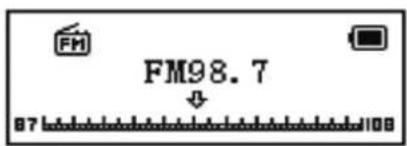
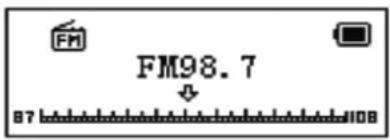
FM mode menu
- In main menu, press “◀” or “▶” to choose FM mode, short press MENU to enter.
- In FM mode, you can short press MENU to enter into FM mode menu.
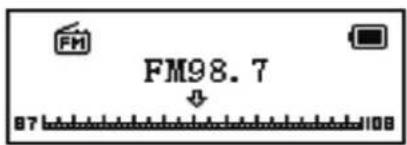
Automatic search
In FM mode menu, press “◀” or “▶” for 2 seconds, to search forwardly or backwardly, and stop in relative frequency. If you need to save, short press MENU to enter into FM mode submenu to choose “save the channel”. Short press MENU can store this channel orderly. If need to search channel continuously, can press “◀” or “▶” again. If during searching want to stop, can short press ◀” or “▶” to stop searching.
Fine adjusting
Press ▶button: backward
Press ◀button: forward
Manual search
You can short press to search last channel, press to search next channel.
Listening to radio
If there is more than one channel be saved, can short press ▶ to listen to next channel. If no channel are saved then the unit can be listened in either automatic or manual search mode.
Control volume
Short press VOL to enter into volume adjust interface, press to decrease volume, press no increase volume.
How to use USB
The unit supports Windows 2000 and above (does not need drivers), Mac OS 10.3 and above, Linux Red Hat 8.0 and above.
The player can be played without battery. In "waiting status", short press MODE to exit main menu. Then choose working mode to enter.
The player supports suspend mode
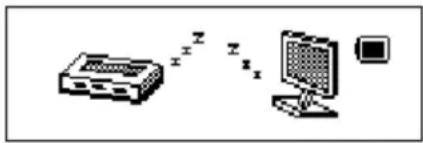
After connecting with PC, player has three display modes:
1. Waiting status
2. Data downloading
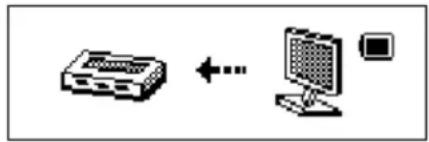
flowchart
graph LR
    A["Input"] <--> B["Output"]
3. Data uploading
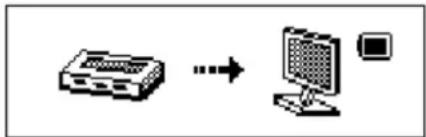
flowchart
graph LR
    A["Input"] --> B["Output"]
    style A fill:#f9f,stroke:#333
    style B fill:#ccf,stroke:#333
FAQ
| Cannot power on Check | the battery, if it has been fully charged. |
| Be sure to turn on the device. | |
| No sounds could be heard | Adjust the volume, check the connection of the earphone and be sure the earphone can work properly |
| Be sure the MP3 file can work | |
| Screen display improperly | Please select the right language according to the song |
| Cannot download music properly | Check the USB connection |
| Be sure you have install the drivers | |
| Check the space of your device |
NOTICE ITEM FOR USAGE
Safety and usage
- Please don't use and store MP3 in dusty, wet, high temperature, strong magnetic environment. Please pay more attention when using MP3 in pool, bathroom and kitchen.
- When go out with MP3, especially when doing sports, such as running, please fix MP3 firmly on your body in case off unit falling off from high place or crashed by heavy objects.
- Don't use alcohol to clean MP3, to clean the unit, please use a damp cloth.
- When use USB cable to connect computer with MP3, please insert in correct direction.
- After MP3 player has been connected to the computer, please do not move the USB cable around, else it might affect the operation of the MP3.
- Before Removing MP3 from computer make sure it is "safely removed from system" first.
- When recording, the background noise shouldn't be too loud else the recorded sound will not sound as good.
Earphone
- Walk safely: When crossing the road, please put down earphone in case accident happen.
- Avoid playing music at high volume, this can lead to lose of hearing over time.
• Technology and Specification
| Size 87mm×29mm×12.4mm | |
| Weight (netto): 35g | |
| Screen Display Double color display | |
| Connection PC High speed USB | 2.0 (Read 1000KB, Write 800KB) |
| Flash Memory Flash Memory 128MB-4GB* | |
| FM frequency range 76MHz – 96MHz / 87MHz – 108MHz | |
| Frequency response 20Hz~20KHz | |
| Power Sampling rate:8KHz | |
| Record Próbkowanie: 8KHz | |
| Record format: WAV(32k bps);ACT(8K bps) | |
| Record time: 35 hours(ACT,128M Flash) | |
| MP3WMAWMVASF | Earphone maximum output: (L) 10mW+ (R) 10mW (320hm) |
| MP3 Bit rate: 8k bps 320k bps | |
| WMA,WMV,ASF Bit rate: 5k bps 384k bps | |
| Frequency reaction: 20Hz to 20KHz | |
| Noise rate: 85dB | |
| Distortion: <0.05% | |
| Music form MP1, MP2, MP3, WMA, WMV, ASF, WAV | |
| Using temperature -5°C---40°C | |
| Language display English, Czech, Slovak, Polish and so on | |
| Support operate system Windows SE / ME / 2K / XP, Mac OS 10, Linux 2.4.2 | |
| Accessory User's manual, earphone, CD, USB cable | |
Some of the listed capacity is used for formatting and other functions, and thus is not available for data storage.
WARNING:
Do not use this product near water, in wet areas to avoid fire or injury of electric current. Always turn off the product when you don't use it or before a revision. There aren't any parts in this appliance which are reparable by consumer. Always appeal to a qualified authorized service. The product is under a dangerous tention.
Disposal of used electrical & electronic equipment
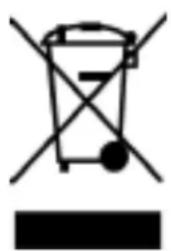
natural_image
Symbol of a trash bin with crossed lines indicating no waste, and a solid black rectangle below (no text or labels)The meaning of the symbol on the product, its accesory or packaging indicates that this product shall not be treated as household waste. Please, dispose of this equipment at your applicable collection point for the recycling of electrical & electronic equipments waste. In the European Union and Other European countries which there are separate collection systems for used electrical and electronic product. By ensuring the correct disposal of this product, you will help prevent potentially hazardous to the environment and to human health, which could otherwise be caused by unsuitable waste
handling of this product. The recycling of materials will help conserve natural resources. Please do not therefore dispose of your old electrical and electronic equipment with your household waste. For more detailed information about recycling of this product, please contact your local city office, your household waste disposal service or the shop where you purchased the product.


- FUNKCE
- Nastavenie hlasitosti
- Follow read function
- TABLE OF CONTENTS
- OVERVIEW
- Standard accessory
- Power
- BASIC FUNCTIONS
- Volume adjustment
- Power on/off
- Key movement definition
- PLAYING MUSIC
- EQ mode
- Display lyric synchronously
- Record mode
- Select record mode
- Play recording
- SYSTEM SETTING
- How to enter
- DETAILED EXPLANATION
- "Record time" setting
- "Backlight time" set
- "Backlight mode" setting
- "Language option" setting
- "Turn off" setting
- "Repeat" setting
- Notice:
- "Contrast adjustment "
- "Online mode "
- "Storage status"
- " Firmware version "
- FILE READING
- OTHER SETTINGS
- Delete file (submenu)
- Loop mode (play submenu)
- Repeat
- SHUFFLE
- INTRO
- Play speed
- Repeat mode (play submenu)
- - A-B repeat
- Repeat interval (play submenu)
- HOW TO USE FM RADIO
- FM mode menu
- Automatic search
- Fine adjusting
- Manual search
- Listening to radio
- Control volume
- How to use USB
- After connecting with PC, player has three display modes:
- Waiting status
- Data downloading
- Data uploading
- NOTICE ITEM FOR USAGE
- Safety and usage
- Earphone
- WARNING:
- Disposal of used electrical & electronic equipment
Brand : HYUNDAI
Model : MP 107
Category : Mp3 player