
MPC 501 FM - Mp3 player HYUNDAI - Free user manual and instructions
Find the device manual for free MPC 501 FM HYUNDAI in PDF.


| Product Type | Portable MP3 Player |
| Brand | Hyundai |
| Model | MPC 501 FM |
| Category | MP3 Player |
| Dimensions (approx.) | 50 x 80 x 10 mm |
| Weight (approx.) | 50 g |
| Battery Type | Built-in Li-Ion rechargeable |
| Battery Capacity | 200 mAh |
| Charging Interface | USB 2.0 |
| Internal Storage | 2 GB flash memory |
| Expandable Storage | microSD card slot (up to 8 GB) |
| Display | OLED, 128 x 64 pixels |
| Supported Audio Formats | MP3, WMA, WAV |
| FM Radio | Yes, with 20 presets |
| Recording | Voice and FM recording |
| Playback Modes | Normal, Repeat, Shuffle, Intro |
| Equalizer | 5 presets (Normal, Pop, Rock, Jazz, Classic) |
| Connectivity | USB 2.0, 3.5 mm earphone jack |
| Accessories Included | USB cable, earphones, user manual |
| Cleaning | Wipe with a soft, dry cloth |
| Safety | Keep away from water and extreme temperatures |
| Repair | Not user-serviceable; contact support |
| Warranty | 1 year limited |
Frequently Asked Questions - MPC 501 FM HYUNDAI
User questions about MPC 501 FM HYUNDAI
0 question about this device. Answer the ones you know or ask your own.
Ask a new question about this device
Download the instructions for your Mp3 player in PDF format for free! Find your manual MPC 501 FM - HYUNDAI and take your electronic device back in hand. On this page are published all the documents necessary for the use of your device. MPC 501 FM by HYUNDAI.
USER MANUAL MPC 501 FM HYUNDAI
natural_image
Black and white app icon showing a musical note and sound waves (no text or symbols)natural_image
Desktop interface with a clapperboard icon and icons for music, audio, and video (no text or symbols)natural_image
Desktop interface with microphone icon and icons for music, documents, video, and photo (no text or symbols on main elements)natural_image
Icon set with a radio receiver and music note icons, no text or symbols presentnatural_image
Desktop interface with icon set, no visible text or symbolsTEXT (ELEKTRONICKÁ KNIHA)

natural_image
Icon set with a white open book icon on a black background, accompanied by icons for documents, images, books, gear, and files (no text or symbols)natural_image
Desktop interface with icons for music, gear, and books (no readable text or symbols)natural_image
Desktop interface with gear icons and icons (no readable text or symbols)natural_image
Desktop interface with musical note icon and icons (no text or symbols)natural_image
Desktop interface with a clapperboard icon and icons for music, video, and audio (no text or symbols on the main elements)natural_image
Desktop interface with microphone icon and icons for music, documents, video, and image (no text or symbols on icons)natural_image
Icon set with a radio and document icon, no text or symbols presentnatural_image
Desktop interface with icon set, no visible text or symbolsTEXT (ELEKTRONICKÁ KNIHA)

natural_image
Icon set with stylized open book and document symbols on a dark background (no text or labels)1) V hlavnej ponuke vyberte možnost' "Text".
natural_image
Icon set with a stylized card and gear symbol, displayed in a desktop application window (no text or symbols)natural_image
Desktop interface with gear icons and icons (no readable text or symbols)natural_image
Desktop interface with musical note icon and icons (no text or symbols)natural_image
Desktop interface with a clapperboard icon and icons for music, audio, and video (no text or symbols)natural_image
Desktop interface with microphone icon and icons for music, documents, video, and photo (no text or symbols on icons)natural_image
Desktop interface with icon set to a radio and monitor, no text or symbols visiblenatural_image
Desktop interface with icon set, no visible text or symbolsnatural_image
Icon set with a stylized open book and icons for books, gear, and documents (no text or symbols)natural_image
Icon set with a stylized card and gear symbol, displayed on a dark background with icons below (no text or symbols)natural_image
Desktop interface with gear icons and icons (no readable text or symbols)IMPORTANT: Please read before using and retain for future reference.
IMPORTANT NOTES
INTRODUCTION
• Thank you for buying our product.
- Please read through these operating instructions, so you will know how to operate your equipment properly. After you finished reading the instructions manual, put it away in a safe place for future reference.
PRECAUTIONS
- Do not put the player in areas with high temperature, humidity or dust, especially not in the car with the windows closed in summer.
- Do not knock or hit the player, especially the screen in order to avoid TFT being damaged or displaying content abnormally.
• Select suitable volume, turn down or stop using when you feel a tingle in ears. - Battery service lift may vary from different usage conditions, manufacturer and manufacturing time.
- Do not disconnect the player abruptly during the formatting or uploading and downloading, otherwise, it will cause a program error.
• We will not be held responsible for any obligation for any memory loss caused by product damage, repair or other reasons. Please operate correctly as per the manual. - The player can be charged whether the device is on or off by connecting it to a running PC's USB port.
- Do not dismantle the player personally or use alcohol, thinner or benzene to clean the surface of the player.
• Do not use the player in the electronics-prohibited area, such as in the plane.
• Do not use the player when driving or walking in order to avoid traffic accidents.
FEATURES
1.8 inch 65K full-color TFT display (160X128 pixel)
Music function: MP3 - WMA - WAV, excellent sound
Video function: AMV (All video should be converted to AMV formats by AMV Converter Tool firstly.)
FM Radio support
Picture function: JPEG, BMP
Voice recorder support: WAV
TXT-book format E-book function
Micro- SD Support
USB2.0 High-speed
PLAYER DESCRIPTION
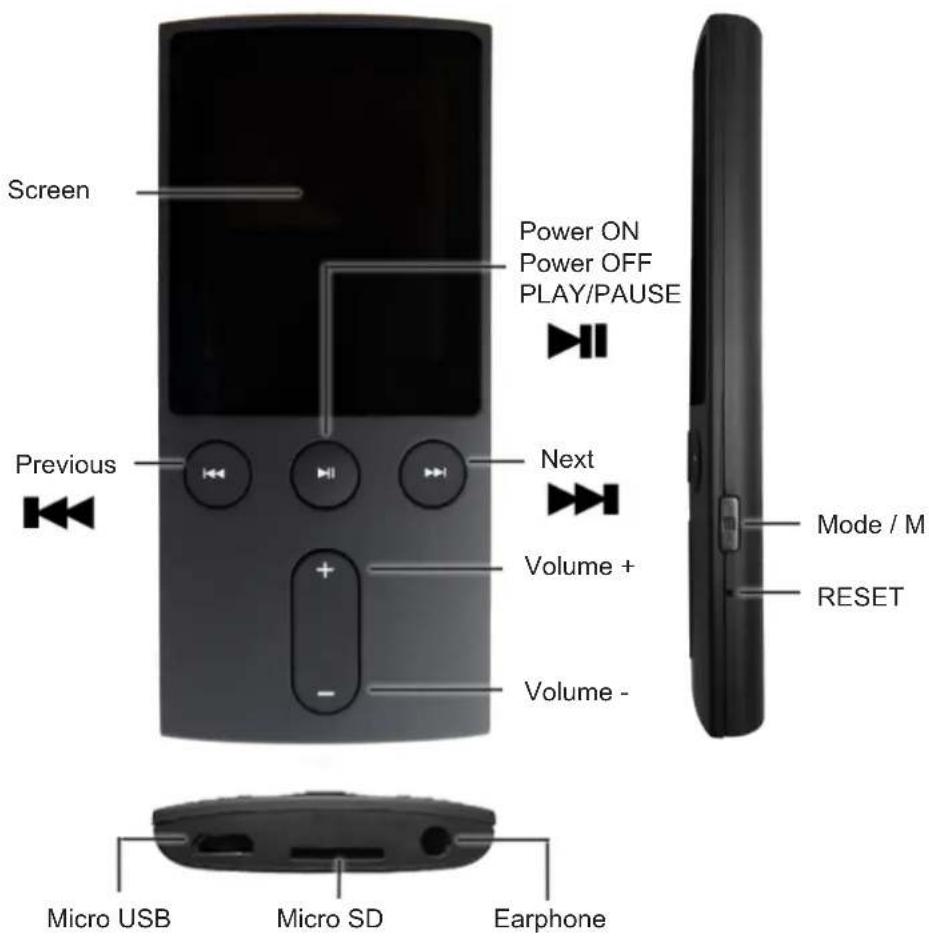
Player ON/OFF
- Long press "▶"hey to power ON the player
- Long press "▶" key to power OFF the player
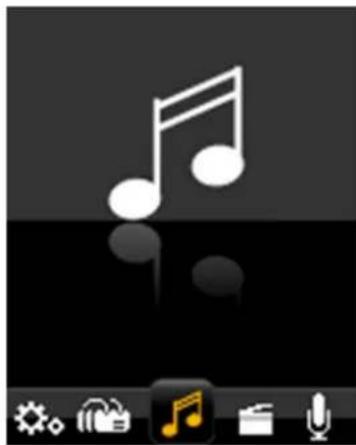
MUSIC
natural_image
Desktop interface with musical note icon and icons (no text or symbols)1) Choose "Music" option on the main menu
Press "▶ enter into Playing Music Mode.
2) Press "→" to play the previous or next song. If press these button and hold, the function will be fast forward or fast backward;
3) Press "▶" pause/play music.
4) Press "Volume +" or "Volume -" increase or decrease volume.
5) Browse and Select / Delete Music: In "music playback mode", when music is pausing, short press "Menu" key. Then Music files operation mode will be shown. You can select the memory from "Local folder" or "Card folder" which you would like to browse, or delete files.
6) Music Setup: In "music playback mode", when music is playing, short press "Menu" key. Then enter into music setting. You can choose Repeat, Equalizer you want.
7) Press "M" to back on one level or sub menu, Long press return the main menu.
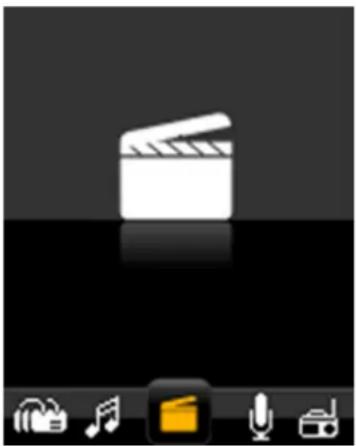
MOVIE
natural_image
Desktop interface with a clapperboard icon and icons for music, audio, and video (no text or symbols)1) Choose "Video" option on the main menu Press "▶" enter into Playing Video Mode.
2) Press "→" to play the previous or next Video. If press these button and hold, the function will be fast forward or fast backward;
3) Press "th pause/play Video.
4) Press "Volume +" or " Volume -" increase or decrease volume
5) Press "M" to back on one level or sub menu
6) Browse and Select / Delete movie: In "video playback mode", short press "Menu" key, then video files operation mode will be shown. You can select the memory from "Local folder" or "Card folder" which you would like to browse, or delete files.
7) Long press "M" return the main menu.
!!! Video format :AMV(PIX 160*120)
(All of video files should be converted to AMV formats by AMV Converter Tool firstly.)
RECORD

natural_image
Desktop interface with microphone icon and icons for music, radio, documents, and video (no text or symbols on icons)1) Choose "Record" option on the main menu, Press "→" to enter recording mode.
2) Press "▶" to start the recording or pause the recording.
3) Long Press "M" to Save the recording file.
4) Recording files Playback: Enter into "RECORD" - "VOICE" folder under Menu "Music" submenu or "Browser". Select the recording file and paly.
5) Record Setup: In "Record mode", short press "Menu" key, then Local folder or Card folder and REC type will be shown. Once you enter into Local folder or Card folder and exit, the recording files will be save in the folder you exit. You can setup recording quality in REC type folder.
6) Long press "M" return the main menu.
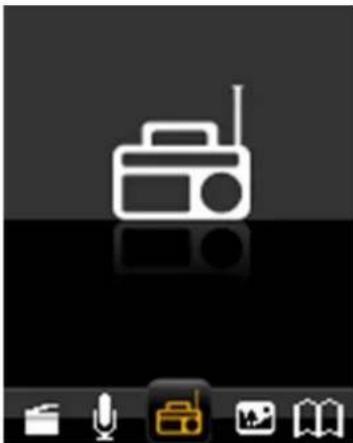
RADIO
natural_image
Desktop interface with icon set to a radio and keyboard, no text or symbols visible1) Choose "FM" option on the main menu, Press "▶" enter into FM Radio Mode
2) Press "Kto start the channel search in 100 KHz interval upwards or downwards.
3) Press "M" to enter sub menu. FM submenu includes the setup options: Save, Record, Delete, Delete all, Auto Search, Normal band and Japan band. For auto search, when scan complete, press "▶▶▶" select / browse through the saved channels.
4) Press "Volume +" or " Volume -" increase or decrease volume
5) Long press "M" to return the main menu.
!!! In Radio mode, the earphone is used as antenna, so please keeping the earphone is connected well.
PICTURE
natural_image
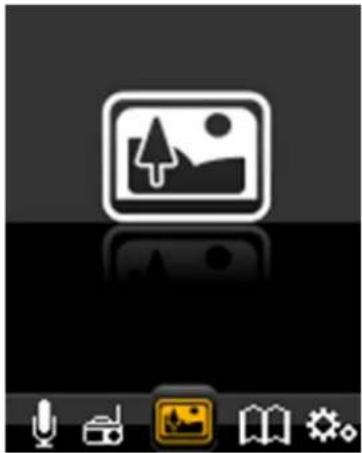
Desktop interface with icon set, no visible text or symbols1) Choose "Picture" option on the main menu Press "▶" to enter Playing picture Mode.
2) Press "◀" to Choose picture.
3) Press "to select picture.
4) Press "◀" to play the previous or next picture.
5) Press "M" to enter sub menu. Then select the memory from "Local folder" or "Card folder" which you would like to browse, or delete files and Playback set.
6) Long press "M" return the main menu.
TEXT (E-BOOK)

natural_image
Desktop icon with open book symbol and icons for books, gear, and cloud (no text or symbols)1) Choose "Text" option on the main menu, Press "▶" enter Text Mode
2) Press "◀" to ▶° lose text file.
3) Press "▶" to select text file.
4) Press "◀" to ▶roll through large text files.
5) In the Text View mode, Press "Menu" key to display the E-book submenu. Then select the memory from "Local folder" or "Card folder" which you would like to browse, or delete files and Playback set.
6) Select, delete and add Bookmark:
When you are reading a text file, you can bookmark locations. There are a total of sixteen bookmarks available to users. Press "Menu" to E-book submenu. Then you can select, delete and add bookmark.
7) Long press "M" return the main menu.
BROWSER
natural_image
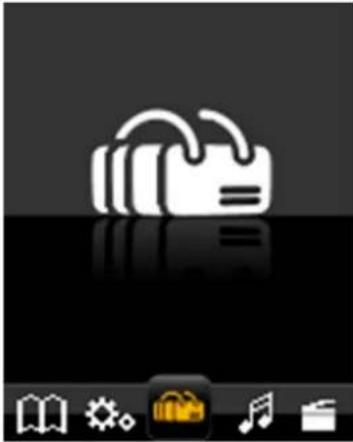
Desktop interface with icons for books, gear, music, and documents (no readable text or symbols)1) Choose "Browser" option on the main menu, Press " Enter into Browser Mode.
2) Press "the" select "Local folder" or "Card folder" flies option (Insert TF Card Case)
3) Press "▶" enter it.
4) Press "M" to back on one level, Long press return the main menu.
!!! Browser is a resources manager that can help you to know all files in MP3 player for convenient management. You can select the music, movie file to enjoy it directly.
SETTING
natural_image
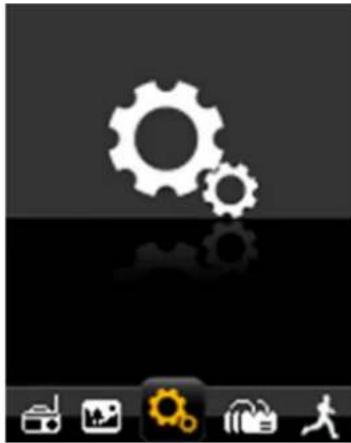
Desktop interface with gear icons and icons (no readable text or symbols)1) Select "Settings" in the main menu using the "◀◀" keyboard and then press " " to enter the settings mode.
2) Press "1" the select option, Press " " to enter.
3) Press "M" to back on one level, Long press return the main menu.
Charging the Battery
Battery is full on 3.7 V. As time goes on, capacity indication will monish. Indicator shows blank when battery almost ran out. You should charge your battery at that time. Connect the USB cable to the USB slot on your PC; It takes about 2 hours for the player with fully charge.
SPECIFICATIONS
| Dimensions 90 x 42 x 9,4 mm | |
| TFT colored display | 1.8 inch TFT; 65 K real color display, Resolution: 160 x 128 pixel |
| TF card reader Support up to 32 GB | |
| Data speed High-speed USB2.0 | |
| Audio format | MP3: 8K bps – 320K bpsWMA: 32K bps – 320K bpsVoice recorded format: WAV |
| Video format The video file should be converted to AMV format | |
| FM Radio 87,5 - 108 MHz | |
| S/N 85 dB | |
| Max. output power of earphone 10 mW + | 10 mW |
| Flash memory 4 GB / 8 GB | |
| Power supply 3,7 V Li-ion battery | |
| Playback time of battery Music: about 15 hours | |
| Working temperature 5 °C to 40 °C | |
| Operating system WINSE/ME/2K/XP/VISTA | |
| Weight 30 g | |
WE RESERVE THE RIGHT TO CHANGE TECHNICAL SPECIFICATIONS.
Guarantee of 24 months does not apply to decrease in the accumulator's effective capacity caused by its use or age. Effective capacity gradually decreases depending on the method of use of the accumulator.


TO AVOID DANGER OF SUFFOCATION, KEEP THIS PLASTIC BAG AWAY FROM BABIES AND CHILDREN. DO NOT USE THIS BAG IN CRIBS, BEDS, CARRIAGES OR PLAYPENS. THIS BAG IS NOT A TOY.
Disposal of old Electrical & Electronic Equipment (Applicable in the European Union and other European countries with separate collection systems).

This symbol on the product or on its packaging indicates that this product shall not be treated as household waste. Instead it shall be handed over to the applicable collection point for the recycling of electrical and electronic equipment. By ensuring this product is disposed of correctly, you will help prevent potential negative consequences for the environment and human health, which could otherwise be
caused by inappropriate waste handling of this product. The recycling of materials will help to conserve natural resources. For more detailed information about recycling of this product, please contact your local Civic Office, your household waste disposal service or the shop where you purchased the product.
ETA Inc. hereby declares that the product MPC501FM is in compliance with requirements and other relevant provisions of the directive 2014/53/EU. The complete EU Declaration of Conformity can be found at http://www.hyundai-electronics.cz/declaration_of_conformity
natural_image
Desktop interface with musical note icon and icons (no text or symbols on main elements)natural_image
Desktop interface with a clapperboard icon and icons for music, audio, and video (no text or symbols)natural_image
Desktop interface with microphone icon and icons for music, radio, and video (no text or symbols)natural_image
Icon set with a radio and document icon, no text or symbols presentnatural_image
Desktop interface with icon set, no visible text or symbolsnatural_image
Icon set with a stylized open book and folder symbols, no readable text or labelsnatural_image
Desktop interface with icons for music, gear, lock, and music note (no text or symbols)natural_image
Desktop interface with gear icons and icons (no readable text or symbols)Licensed by Hyundai Corporation, Korea