Quadpen P 2002 - Tablet Pentagram - Free user manual and instructions
Find the device manual for free Quadpen P 2002 Pentagram in PDF.


| Product Type | Graphics Tablet |
| Brand | Pentagram |
| Model | Quadpen P 2002 |
| Tablet Dimensions (W x D x H) | 200 x 196 x 6 mm |
| Active Area | 127 x 95 mm |
| Weight (approx.) | 300 g (estimated) |
| Reading Height | 6 mm |
| Pressure Sensitivity Levels | 1024 |
| Accuracy | 0.254 mm |
| Resolution | 2540 lpi |
| Interface | USB |
| Power Supply (Pen) | 1 x AAAA battery (1.5V) |
| Operating Systems Supported | Windows 98/Me/2000/XP, MacOS 9.x/10.x |
| Included Accessories | Cordless pen, pen holder, USB cable, 2 CD-ROMs, battery |
| Main Functions | Drawing, handwriting, navigation, pressure-sensitive input, absolute/relative tracking, customizable buttons |
| Pen Buttons | Tip click, barrel button (programmable) |
| Tracking Modes | Absolute (tablet) and relative (mouse) modes |
| Configuration | Via Control Panel tablet icon (Windows) or system preferences (Mac) |
| Maintenance | Clean with a soft dry cloth; avoid liquids and abrasives |
| Safety | Use only specified battery; keep away from water and excessive heat |
| Spare Parts / Repairability | Pen and battery are replaceable; no user-serviceable parts inside tablet |
Frequently Asked Questions - Quadpen P 2002 Pentagram
User questions about Quadpen P 2002 Pentagram
0 question about this device. Answer the ones you know or ask your own.
Ask a new question about this device
Download the instructions for your Tablet in PDF format for free! Find your manual Quadpen P 2002 - Pentagram and take your electronic device back in hand. On this page are published all the documents necessary for the use of your device. Quadpen P 2002 by Pentagram.
USER MANUAL Quadpen P 2002 Pentagram
NOTE! Any information and technical data are subject to change without prior notification and/or indication in this manual.
© 2005 PENTAGRAM
All rights reserved; copying and reproduction is strictly forbidden.

Tablet Installation and User's Manual
EN
natural_image
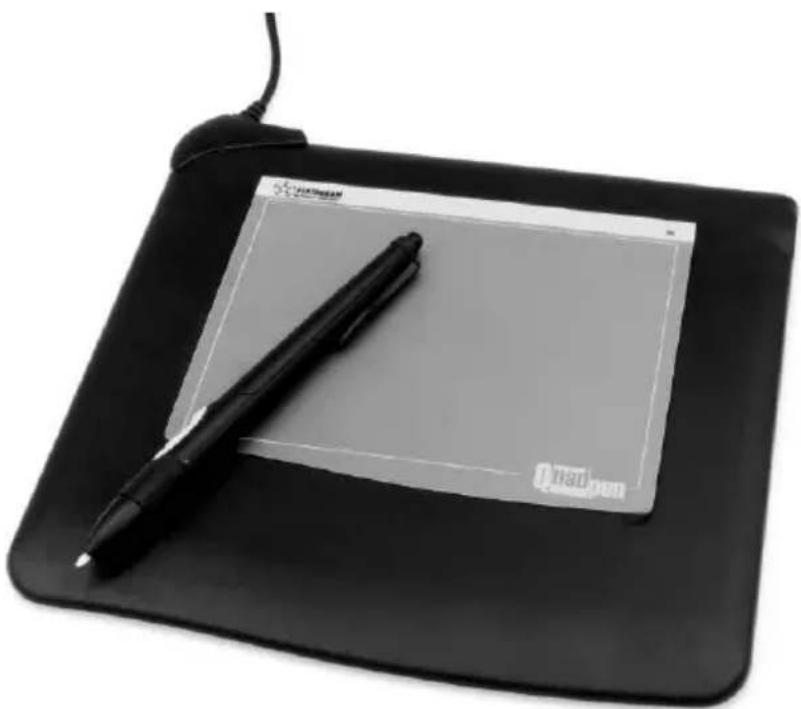
Black digital drawing tablet with a black pen resting on it, no visible text or symbols on the device surface.PENTAGRAM Quadpen USB
Overview
Thank you for purchasing PENTAGRAM QuadPen Tablet, a graphics device for your computer. PENTAGRAM QuadPen tablet will provide you with opportunities, which are not supported by a regular mouse. Marketed as designer's tools for use in CAD/CAM applications, PENTAGRAM tablets are also perfect for home use, thanks to their reasonable price and high versatility.
Box Contents
PENTAGRAM Quadpen Tablet
Cordless Pen
Pen holder
1 LR-01 type battery (AAAA)
USB Cord
2 CD-ROM's with drivers and utilities
User's Manual
Information about Your Tablet
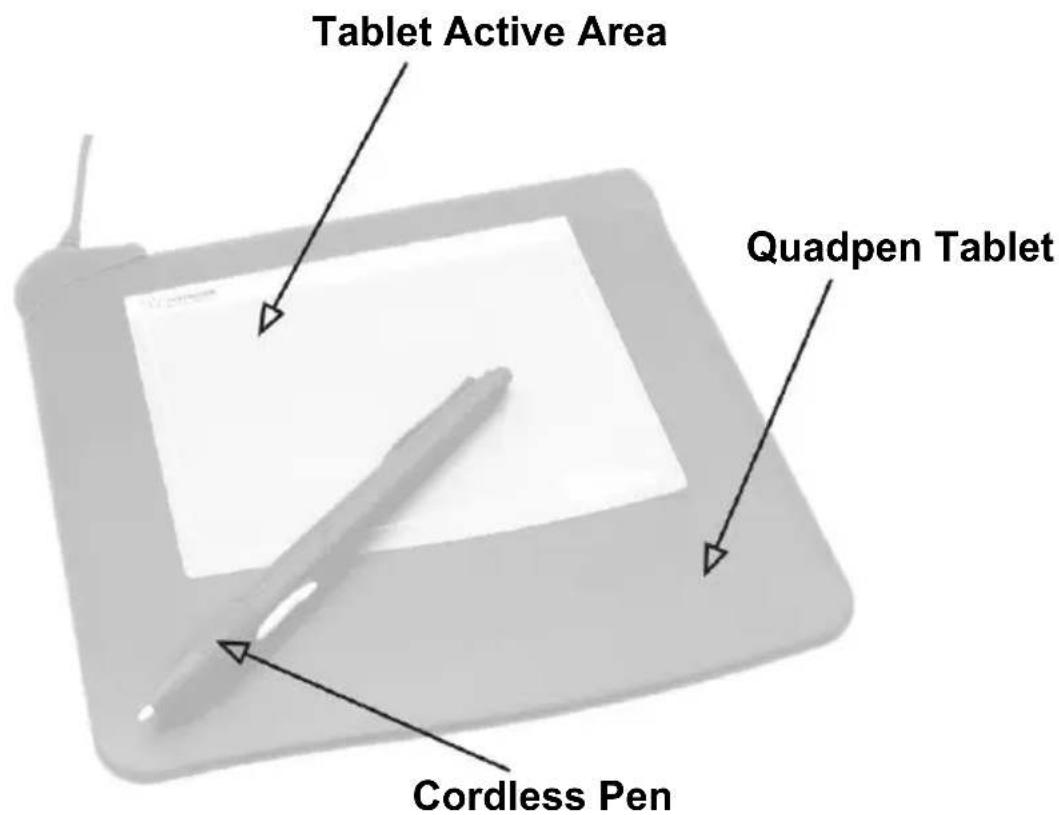
Preparing Tablet
Battery
Unscrew the end cap of the pen. Slide off the pen clip and cover. Insert the battery (1.5 volt, size AAAA) with the minus (-) side of the battery facing toward the pen tip. Replace the pen cover and clip. Crew the end cap.
Connecting to Computer
Your new pen can be used alone or together with another pointing device such as a mouse or trackball. Actually you do not need a mouse at all because the pen does everything a mouse can do and even more.
Tablet Installation
Windows 98/Me/2000/XP
- Turn on your computer and start Windows.
-
Plug the USB connector of the tablet into an USB port. The LED on the tablet will light. If the LED does not light, this USB port may not be available. For Windows 98, if prompted to search for the driver for USB Human Interface Device, follow the prompts to search for and install the driver for the USB human interface device. If prompted to insert the Windows CD, insert the Windows CD into your CD-ROM drive and click OK. If prompted for the HIDCLASS.SYS file, type the location for the Windows CAB files (e.g., D:\WIN98) and click OK.
-
Insert the tablet CD into your CD-ROM drive. The setup menu of the tablet should automatically display. If the setup menu does not display, double-click the Setup icon on the tablet CD. Click "install graphics tablet" to begin installation
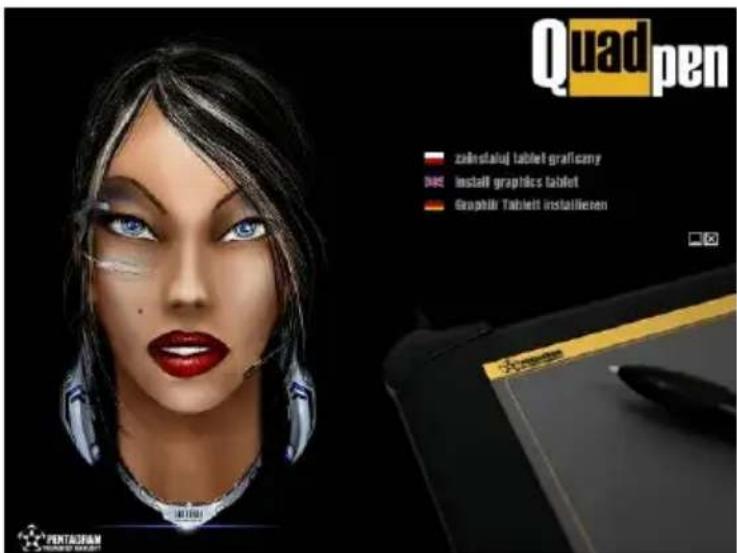
- Click „Finish”.
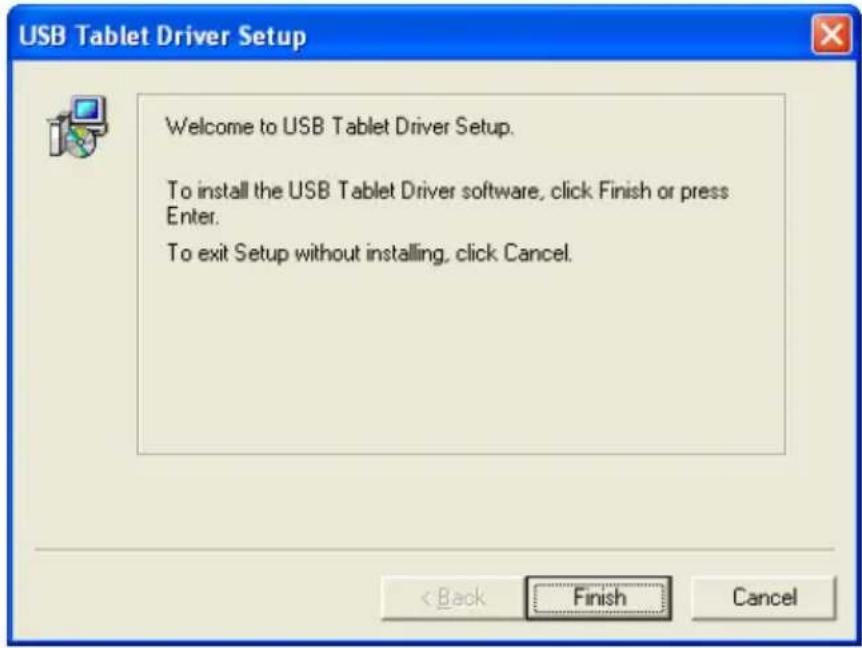
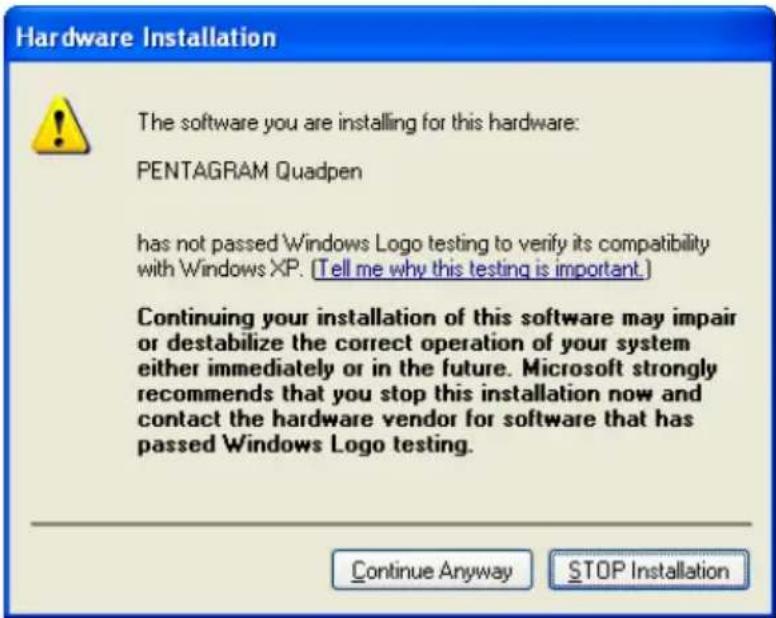
- In Windows XP additionally you must click "Continue Anyway" in window below.
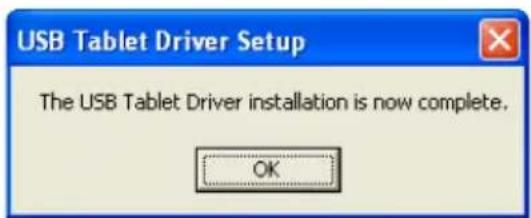
- Installation is finished. Click „OK”.
Tablet is ready to work.
Configuration
You can configure tablet through „Tablet” icon in Control Panel. Double-click this icon to enter tablet configuration.
„Info” Tab
In this tab you can find basic information about Tablet and driver.
„Buttons" Tab
In this tab you can change the button functions of the pen.
Button Label – tablet button to edit
Action – chosen button action
Use Defaults – restores actions to the default settings
„Tracking" Tab
Tracking Mode - The absolute mode (tablet positioning) performs more efficiently than the relative mode (mouse positioning) does.
Sensitivity – tracking speed of the screen pointer for relative mode.
Track Entire Tablet – sets active area within the rectangle on the pad.
Set Region Size – In the Set Region Size dialog box, press a button in the first corner of the new tracking area and then drag the cursor to the second corner of the new tracking area which you wish to use.
Preserve Aspect Ratio – select this option if you want to adjust the new tracking area to retain the shape of your screen.
„Response“ Tab
Speed - a slower Speed setting can make double-clicking easier with pen tip.
Area – a slower Speed or a larger Area setting can make double-clicking easier with pen tip. A larger Area setting of Double-click may affect the beginning of strokes when drawing. You also can use the barrel button for double-clicking.
Use Defaults – restores the options to the default settings.
„Tip Feel“ Tab
Click Pressure – adjust the amount of pressure needed to click with the pen tip or to draw non pressure-sensitive lines.
Pressure Sensitivity – adjust the tip feeling when drawing pressure sensitive lines with the pen tip. When drawing pressure sensitive lines, a softer Pressure Sensitivity setting can produce a larger pressure value (such as thicker lines or denser color) with less force you exert upon the pen.
Pressure Test – lets you experiment with the pressure sensitive pen to see the effect of your adjustment. Press hard for thick lines and press gently for thin lines.
Click Test – you can test the Click Pressure adjustment.
Clear Test Area – clears Pressure Test area.
Use Defaults – restore the options to the default settings.
Additional Information
Specification
| Tablet Size 200x196x6 mm | |
| Active Area 127x95 mm | |
| Reading Height 6 mm | |
| Pressure Sensitivity Levels 1024 | |
| Accuracy | 0,254 mm |
| Interface | port USB |
| Resolution | 2540 lpi |
| Drivers Windows 98/Me/2000/XP, MacOS 9.x/10.x | |
Minimal Requirements
PC with Windows 98/Me/2000/XP
iMac, G3, PowerMac or PowerBook with MacOS 9.x/10.x
32 MB RAM
Free USB port
Compatibility
PENTAGRAM Quadpen should work with any software working under Windows 98/Me/2000/XP or MacOS 9.x/10.x.
You can find manual for Mac computers on CD.
natural_image
Black digital drawing tablet with a black pen resting on it, no visible text or symbols on the device surface.Grafiktablett PENTAGRAM Quadpen USB
Einführung
natural_image
Black digital drawing tablet with a black pen resting on it, no visible text or symbols on the device surface.PENTAGRAM Quadpen USB
Вступление
natural_image
Black digital drawing tablet with a stylus resting on it, no visible text or symbols on the device surface.PENTAGRAM Quadpen USB
Wstep
natural_image
Black digital drawing tablet with a stylus resting on it, no visible text or symbols on the device surface.PENTAGRAM Quadpen USB
Úvod
natural_image
Black digital drawing tablet with a black pen resting on it, no visible text or symbols on the device surface.PENTAGRAM Quadpen USB
Úvod
- Tablet Installation and User's Manual
- Overview
- Box Contents
- Information about Your Tablet
- Preparing Tablet
- Battery
- Connecting to Computer
- Tablet Installation
- Windows 98/Me/2000/XP
- Configuration
- „Info” Tab
- „Buttons" Tab
- „Tracking" Tab
- „Response“ Tab
- „Tip Feel“ Tab
- Additional Information
- Minimal Requirements
- Compatibility
- Grafiktablett PENTAGRAM Quadpen USB
- Einführung
- Вступление
- PENTAGRAM Quadpen USB
- Wstep
- Úvod
Brand : Pentagram
Model : Quadpen P 2002
Category : Tablet