TAB 7.0 - P 5331 - Tablet Pentagram - Free user manual and instructions
Find the device manual for free TAB 7.0 - P 5331 Pentagram in PDF.


| Brand | Pentagram |
| Model | TAB 7.0 - P 5331 |
| Category | Tablet |
| Display Size | 7.0 inches |
| Display Resolution | 1024 x 600 pixels |
| Operating System | Android (likely version 8.1 or 9.0) |
| Processor | Quad-core 1.3 GHz |
| RAM | 1 GB |
| Internal Storage | 8 GB |
| Expandable Storage | microSD up to 32 GB |
| Cameras | Front 0.3 MP, Rear 2.0 MP |
| Connectivity | Wi-Fi 802.11 b/g/n, Bluetooth 4.0 |
| Ports | Micro USB 2.0, 3.5 mm headphone jack |
| Sensors | Accelerometer |
| Battery Capacity | 3000 mAh (estimation) |
| Power Input | 5V / 2A via Micro USB |
| Dimensions (W x H x D) | 191 x 111 x 10.5 mm (approx) |
| Weight | 295 g (approx) |
| Body Material | Plastic |
| Safety Features | Use only approved charger; avoid water exposure; do not disassemble |
| Maintenance | Clean with a soft, dry cloth; keep away from extreme temperatures |
Frequently Asked Questions - TAB 7.0 - P 5331 Pentagram
User questions about TAB 7.0 - P 5331 Pentagram
0 question about this device. Answer the ones you know or ask your own.
Ask a new question about this device
Download the instructions for your Tablet in PDF format for free! Find your manual TAB 7.0 - P 5331 - Pentagram and take your electronic device back in hand. On this page are published all the documents necessary for the use of your device. TAB 7.0 - P 5331 by Pentagram.
USER MANUAL TAB 7.0 - P 5331 Pentagram
PENTAGRAM TAB 7.0 [P 5331]
natural_image
Abstract geometric pattern with yellow and white triangular shapes inside a hexagon (no text or symbols)PENTAGRAM THE PERFECT SIMPLICITY
natural_image
Abstract geometric pattern with a yellow diamond shape and white triangular segments (no text or symbols)2
Spis treści
WAŻNE INFORMACJE....4
ŚRODKI OSTROŻNOŚCI....4
INFORMACJA DOT. ZUŻYTEGO SPRZĘTU ELEKTRONICZNEGO......4
WPROWADZENIE....5
ZAWARTOŚĆ PUDEŁKA....5
MINIMALNE WYMAGANIA SYSTEMOWE......5
PRZYGOTOWANIE DO PRACY....6
WYGLĄD URZĄDZENIA....6
KARTA PAMIĘCI....7
ŁADOWANIE AKUMULATORA....8
PODŁĄCZANIE DO KOMPUTERA....8
AKTUALIZACJA FIRMWARE....8
OBSŁUGA URZĄDZENIA....9
ZAINSTALOWANE APLIKACJE....10
POŁĄCZENIE Z SIECIĄ BEZPRZEWODOWA....11
MODEMY 3G USB....11
ROZWIAZYWANIE PROBLEMÓW....12
SPECYFIKACJA....13
PENTAGRAM TAB 7.0 [P 5331]
Ważne informacje
Środki ostrożności
natural_image
Symbol of a trash bin with crossed lines indicating no waste or discharge (no text or labels)Copyright ©2012 PENTAGRAM
natural_image
Exploded view diagram of a tablet device showing front, back, and side views with numbered labels (no text or symbols on the device itself)natural_image
Abstract geometric pattern with yellow triangles and a pentagon (no text or symbols)Quick Guide
EN
EN
PENTAGRAM TAB 7.0 [P 5331]
The latest versions of manual, drivers and applications are available on www.pentagram.eu
PENTAGRAM TAB 7.0 [P 5331]
EN

natural_image
Abstract geometric pattern with a yellow star-like shape inside a square frame (no text or symbols)2
Table of contents
IMPORTANT INFORMATION......4
SAFETY PRECAUTIONS......4
INFORMATION CONCERNING WASTE ELECTRONIC EQUIPMENT......4
INTRODUCTION....5
BOX CONTENTS....5
MINIMUM SYSTEM REQUIREMENTS....5
PREPARATION FOR WORK....6
THE APPEARANCE OF THE DEVICE....6
MEMORY CARD....7
BATTERY CHARGING....8
CONNECTING TO THE COMPUTER......8
FIRMWARE UPGRADE......8
DEVICE OPERATION....9
INSTALLED APPLICATIONS....10
CONNECTION TO WIRELESS NETWORK....11
3G USB MODEMS 11
TROUBLESHOOTING....12
SPECIFICATIONS....13
PENTAGRAM TAB 7.0 [P 5331]
Important information
Safety precautions
- Do not use or store the device or it's accessories in dusty places, where the humidity is high or in extreme temperatures. This may lead to their damage not covered by warranty.
- Do not operate the device with wet hands to avoid the risk of device damage or electric shock.
- Do not clean the device with chemicals, such as benzine or detergents - always clean the device with a soft, dry cloth.
- Disconnect the device from the computer or another power source prior to cleaning.
- Do not modify or fix the device yourself in any way, it might void the guarantee.
- Do not drop or shake the device. Mechanical damage caused by means other than normal usage are not covered by warranty.
- Do not disconnect the device from the computer when transferring data. They might get irrecoverably lost.
- Files and data stored in the device memory and on the memory card are prone to damage like any other files. For this reason, if necessary, make the backup copies of those files and data.
- PENTAGRAM cannot be held responsible for any data loss.
Information concerning waste electronic equipment
EN
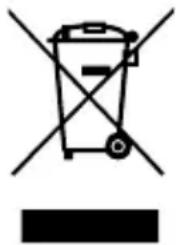
The markings on the device and in the attached documentation indicate that it cannot be disposed of along with unsegregated general black bag waste when withdrawn from use. The device must be recycled or processed in another way to recover reusable materials and neutralize hazardous components.
The users should contact recycling/recovery authorities to determine how the device is to be disposed of in an environment-friendly manner.
natural_image
Symbol of a trash bin with crossed lines indicating no waste, and a solid black rectangle below (no text or labels)NOTE: All information and technical data is subject to change without previous notice and/or indication in this manual.
Copyright ©2012 PENTAGRAM
All rights reserved; copying and reproduction is strictly forbidden.
Introduction
Thank you for purchasing PENTAGRAM TAB 7.0 [P 5331]. The tablet is equipped with Android™ 4.0.3 operating system, which allows you to download applications and use the Internet the same way as using a computer. It also features a video player, music player, photo viewer, ebook reader and many more.
Box Contents
- PENTAGRAM TAB 7.0 [P 5331]
- USB cable
- AC and car charger
- Earphones
- USB adapter
- Micro-fiber cloth
- Carrying pouch
- Quick guide
- Warranty card
Minimum system requirements
These requirements are only important when connecting the device to a computer.
• A PC with an available USB port
- Operating system: Windows Me / 2000 / XP / Vista / 7
PENTAGRAM TAB 7.0 [P 5331]
Preparation for work
The appearance of the device
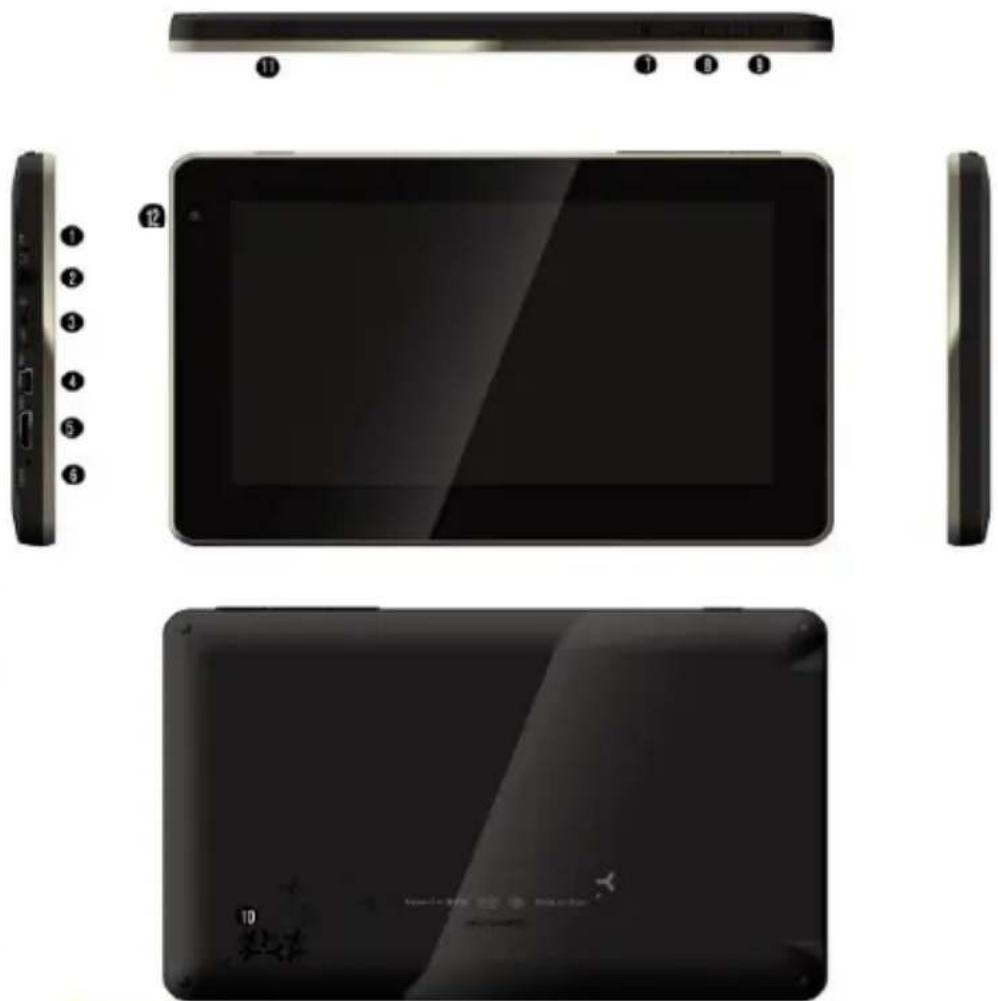
- Microphone.
- Headphones socket - when connected, the headphones are used instead of the built-in speaker.
- Card slot microSD / microSDHC.
- MicroUSB socket USB On-The-Go - allows to connect an external drive, 3G modem, keyboard, and even a computer mouse.
- HDMI - to connect the optional HDMI cable in order to use HD TV as a monitor of the tablet. HDMI cable is not included.
- RESET button - use this for emergency restart.
- HOME button - return directly to the main screen from anywhere in the interface.
- MENU button - displays the options available for the current screen.
- BACK button - return to the previous screen at any time.
- Speaker - if no headphones are connected to the device, all the sounds will be played through the built-in speaker.
- Power button - to turn on or off the device, press and hold this button for approx. 4 seconds.
- Press the button to enter the device in sleep mode and lock the screen. In this mode, the machine is still working only screen of the device is turned off.
- Press the button and drag the "padlock" on the left to unlock the screen.
- Camera QVGA.
Memory Card
Insert the memory card into the device in such a way so that when looking at the screen, the card connectors are not visible.
To remove the card from the device, press the card so that it gently slides out, and then pull it out. Prior to removing the card, make sure that all the applications using it (such as the media player, the navigation application) have been closed and that no files are being transferred from/to the card. Some navigation applications use the memory card for storing the configuration and map files. If you remove such a card, it may cause the application to operate improperly, and in extreme cases even the necessity to reinstall the application. NOTE! Removing the card when device is in use can cause damage or loss of data, application crash or it can even freeze the device.
PENTAGRAM TAB 7.0 [P 5331]
Battery charging
Before you start to operate the device, it is recommended to charge and discharge the battery several times so that it reaches its full performance and service life.
In the top right corner of the main menu there is an icon representing the battery charge. When the icon is filled with bars, it means the battery is fully charged. If the icon is empty, the battery is very low and you have to charge it as quickly as possible. The battery will start charging automatically after connecting the device to the AC charger or the car charger, plugged in the appropriate socket. During charging, you can operate the device as normal. The light on the side panel is an additional battery charge indicator – it is red during charging and becomes green when the charging is complete.
To charge the battery, either:
- connect the device to a computer using the USB cable, or
- connect the device to the car cigarette lighter socket using the car charger included.
Connecting to the computer
NOTES:
• To install applications and store your own files you can use either a memory card and flash memory.
- When the data are being transferred, do not disconnect the device from the computer to prevent the possible damage or loss of data.
EN
The device works with the following operating systems: Windows Me / 2000 / XP / Vista / 7.
After connecting the operating device to the computer via a USB cable to the device, select USB Connection and Enable USB stick. The device will be detected by the computer as a portable hard disk and will be visible in Windows Explorer.
Firmware upgrade
If necessary, you can upgrade the device firmware to a newer version. The latest firmware is available for download at www.pentagram.eu. The downloaded new firmware archive contains detailed information on preparing and performing the upgrade.
Device operation
PENTAGRAM TAB 7.0 [P 5331] device has a touchscreen that needs to be operated using your finger or a stylus, capacitive (not included).
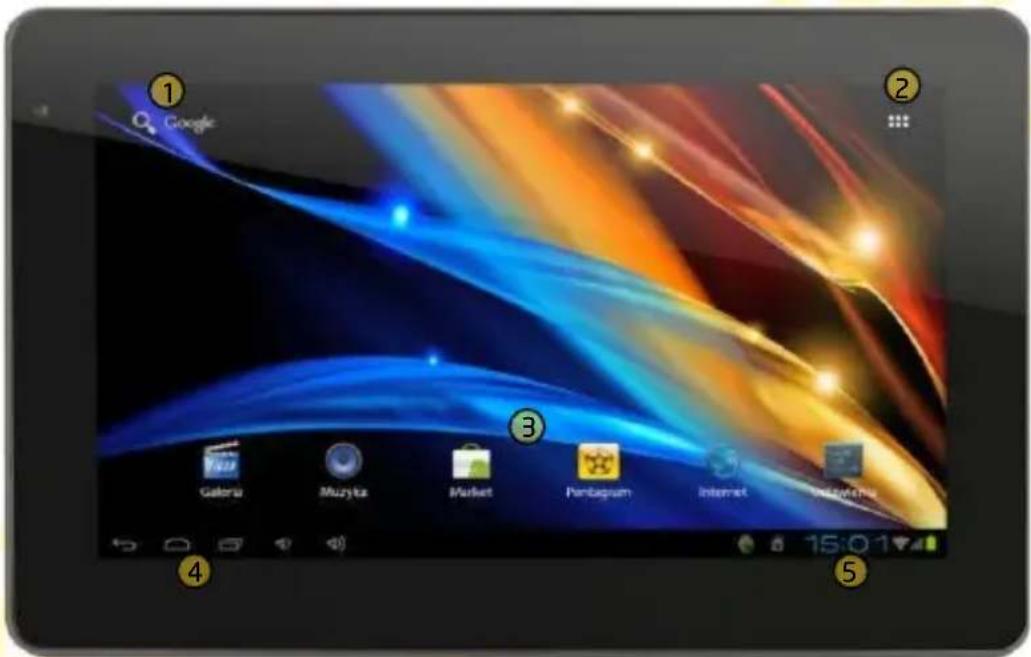
Android ^™ interface has five screens. To go to the panels located on the left or right side of the main screen, slide your finger horizontally across the screen. For each of the five screens, you can place shortcuts, bookmarks and widgets.
EN
① The standard pre-installed widget to search the contents of the device and the Internet with Google search (access to the Internet must first be established via wireless WiFi or 3G).
Widget - a small application which is permanently running in the background.
② Press the button to display all installed applications and widgets on the device. Selected application can be started by clicking on it. Pressing and holding your finger on the icon allows you to create a shortcut on one of the main screens.
PENTAGRAM TAB 7.0 [P 5331]
3 Shortcuts of applications installed on the device. Press and hold your finger on the selected icon, allowing you to change its location or remove the shortcut (application will not be completely removed, uninstalled).
④ the navigation menu available on every screen.
Click the icon to return to the previous screen at any time. Click the icon to return directly to the main screen from any location in the interface (previously opened applications will all be running in the background). Click the icon to view last used applications. Press one of the icons to adjust the volume.
Depending on application the following icon gives access to additional features / settings for the screen or applications.
⑤ Panel informs about the status of the battery, WiFi connection, current time, etc. The panel also displays the current information about system and notification such as an incoming email message.
Installed applications
Press the button to view the applications and widgets installed on the device.
- application to take pictures and view photos - application to view files in the memory card and microSD / SDHC card - application to play movie from flash memory or the microSD / SDHC card - application to view web pages - calendar - calculator
PENTAGRAM TAB 7.0 [P 5331]
![Pentagram TAB 7.0 - P 5331 - PENTAGRAM TAB 7.0 [P 5331] - 1](/content/2026/05/1129129/images/af726e1d6de79d4dab3c8d152e5ad0b9c8d316bc29ad22e6154480d221cb9f70.jpg)
- Android Market - application used to download / purchase software for Android OS (requires Internet connection)
![Pentagram TAB 7.0 - P 5331 - PENTAGRAM TAB 7.0 [P 5331] - 2](/content/2026/05/1129129/images/fb00f13d8e02dfe9f4d631602acdbfde0f8bd2ff56a7771dd53697200efa053d.jpg)
- application to play music from flash memory or the microSD / SDHC card
![Pentagram TAB 7.0 - P 5331 - PENTAGRAM TAB 7.0 [P 5331] - 3](/content/2026/05/1129129/images/96feb53a0e240319a439caca92e0fb88df50cf493a2bb2262af98640390d7b76.jpg)
- application to view files downloaded from the Internet
![Pentagram TAB 7.0 - P 5331 - PENTAGRAM TAB 7.0 [P 5331] - 4](/content/2026/05/1129129/images/70d2186bd7303a6d7d3eac52f4ef13f20f19af58711d3e5cee541f3d8f781b8d.jpg)
- application to operate e-mail account (requires Internet connection)
![Pentagram TAB 7.0 - P 5331 - PENTAGRAM TAB 7.0 [P 5331] - 5](/content/2026/05/1129129/images/ac045b96186de11e38574674b95748b4de064ebb433a439d506525d3586ac0d5.jpg)
- application to search the contents of the device and the Internet using Google
![Pentagram TAB 7.0 - P 5331 - PENTAGRAM TAB 7.0 [P 5331] - 6](/content/2026/05/1129129/images/2921bcaa092b61f6d33a19a57cf78abbf5ee167fc942d6b2e6b94cf992fc0424.jpg)
- access to advanced device settings
![Pentagram TAB 7.0 - P 5331 - PENTAGRAM TAB 7.0 [P 5331] - 7](/content/2026/05/1129129/images/89f9ceb7b4f8e225dcef5f2cccd76a4491ebced04864041a4c20bdfaa2d7b1fe.jpg)
- displays the clock on the screen, also can configure the alarm
![Pentagram TAB 7.0 - P 5331 - PENTAGRAM TAB 7.0 [P 5331] - 8](/content/2026/05/1129129/images/acbcfe11653ea1d33d75220f76bcd323ac0aae8361d91f1cebfc7ab35c19e7fc.jpg)
- voice Recorder
![Pentagram TAB 7.0 - P 5331 - PENTAGRAM TAB 7.0 [P 5331] - 9](/content/2026/05/1129129/images/415a7a5c2b2d4d7e08f3b1e39faccf0b702323084a36ec275640f386df79cc62.jpg)
- link to website www.pentagram.pl
Connection to wireless network
Press the icon, and then go to Settings. In the menu on the left (first) turn on Wifi, and find on the right side wireless network that you can connect to. Tap on the chosen network and enter the password if the network is secured.
Please note: It is strongly recommended to turn the WiFi off if you are not using the network. This will prolong the battery working time.
3G USB Modems
The device supports 3G USB modems for data transmission. The list of compatible modems can be found at www.pentagram.pl. If a compatible model is connected, it will be automatically installed.
PENTAGRAM TAB 7.0 [P 5331]
Troubleshooting
If you experience problems with the device, use the tips below. The current list of problems and solutions can be found at www.pentagram.eu/support . If the problem persists, contact Technical Support.
| Symptoms Probable cause How to fix | ||
| Problems with turning on. B | Battery low. Charge the battery. | |
| Problems with inserting the memory card. | You insert the memory card in an incorrect way. | Read the Memory card section to find information on inserting the memory card. |
| Screen does not react to taps. | Device has frozen. Turn off and on the device with the switch. If that does not help, press the RESET button on the side of the device. | |
| Problems with connecting to the computer. | USB cable connected improperly. Connect the USB cable properly. | |
EN
Specifications*
| System parameters | |
| RAM 1 GB | |
| NAND flash 8 GB | |
| Card slot microSD up to 2 GB / microSDHC up to 16 GB | |
| Operating System Android version 4.0.3, with Android Market | |
| Basic parameters | |
| Display Capacitive widescreen 7.0" 5-point mulitouch | |
| Resolution 800 x 480 | |
| Processor Allwinner Tech A10 1.0 GHz | ** |
| GPU Mali-400 MP (OpenVG 1.1, OpenGL ES 2.0) | |
| Network Wifi 802.11 b/g/n, 3G USB modems support | |
| Battery type Built-in lithium-polymer 3900mAh | |
| Sound Built-in mini speaker | |
| Earphones 3,5mm stereo mini-jack | |
| Multimedia | |
| Audio MP3, WMA, OGG, APE, FLAC, WAV | |
| Video*** | to 2160P (2 x FullHD czyli 3840 × 2160) and subtitles |
| Image | JPG, BMP, PNG |
| Text (ebook) | PDF, TXT, EPUB, HTM depending on the application |
| Working time | audio 30h - screen off, vol. 50%, EQ off, WiFi off, 3G off |
| video 8h - brightness 50%, vol. 50%, EQ off, WiFi off, 3G off | |
| internet 6h - brightness 50%, 3G off | |
| games 5h - brightness 50%, vol. 50%, WiFi off, 3G off | |
| General info | |
| Size | 185*120*12(mm) |
| Weight | 345g (with built-in battery) |
| Working temp. | from 0°C to +40°C |
| Storage temp. | from 10°C to +40°C |
PENTAGRAM TAB 7.0 [P 5331]
EN