Virtuoso P 2005 - Tablet Pentagram - Free user manual and instructions
Find the device manual for free Virtuoso P 2005 Pentagram in PDF.


| Product Type | Graphics Tablet |
| Brand | Pentagram |
| Model | Virtuoso P 2005 |
| Active Area | 203.2 x 152.4 mm (8 x 6 in) |
| Dimensions | 350 x 275 x 11.5 mm (13.8 x 10.8 x 0.45 in) |
| Pressure Levels | 1024 |
| Resolution | 5080 lpi |
| Accuracy | 0.1 mm (0.004 in) |
| Maximum Pen Distance | 7 mm (0.3 in) |
| Refresh Rate | 220 pps |
| Connection | USB (bus-powered) |
| Pen Type | Cordless, pressure-sensitive, no batteries required |
| Supported Operating Systems | Windows 2000/XP/Vista, Mac OS 10.4 or later |
| Power Supply | USB powered; pen recharges automatically while working |
| Package Contents | Tablet, Cordless Pen, Pen Holder, Driver CD, Manual |
| Safety | Do not use near CRT monitors; do not place on metal surfaces |
| Maintenance | Keep tablet clean; replace pen nib when worn |
| Repairability | Pen nib replaceable; professional service recommended for other repairs |
| General Information | Designed for graphic artists and CAD/CAM designers; suitable for consumer use |
Frequently Asked Questions - Virtuoso P 2005 Pentagram
User questions about Virtuoso P 2005 Pentagram
0 question about this device. Answer the ones you know or ask your own.
Ask a new question about this device
Download the instructions for your Tablet in PDF format for free! Find your manual Virtuoso P 2005 - Pentagram and take your electronic device back in hand. On this page are published all the documents necessary for the use of your device. Virtuoso P 2005 by Pentagram.
USER MANUAL Virtuoso P 2005 Pentagram
NOTE! All information and technical data are subject to change without previous notice and/or indication of such changes in this manual.
Copyright © 2008 PENTAGRAM
All rights reserved, duplication and copying forbidden.

Copyright © 2008 PENTAGRAM
Copyright © 2008 PENTAGRAM
Copyright © 2008 PENTAGRAM
Copyright © 2008 PENTAGRAM
Copyright © 2008 PENTAGRAM
- Due to a CRT monitor's electromagnetic radiation, do not use the drawing tablet too close to a CRT monitor.
- Do not put the tablet on a metal surface, such as iron or aluminum alloys.
Package contents
• PENTAGRAM Virtuoso P 2005 tablet
- Cordless pen
- Pen holder
- Driver CD
• Installation and operating manual
Introduction
Thank you for purchasing the Pentagram Virtuoso P 2005 tablet, a graphics add-on for your PC. Virtuoso gives you the freedom to do much more than by using a mouse. Originally, the tablet was designed for professional graphics artists and CAD/CAM designers, but the affordable and powerful Pentagram products are also ideal for consumer use.
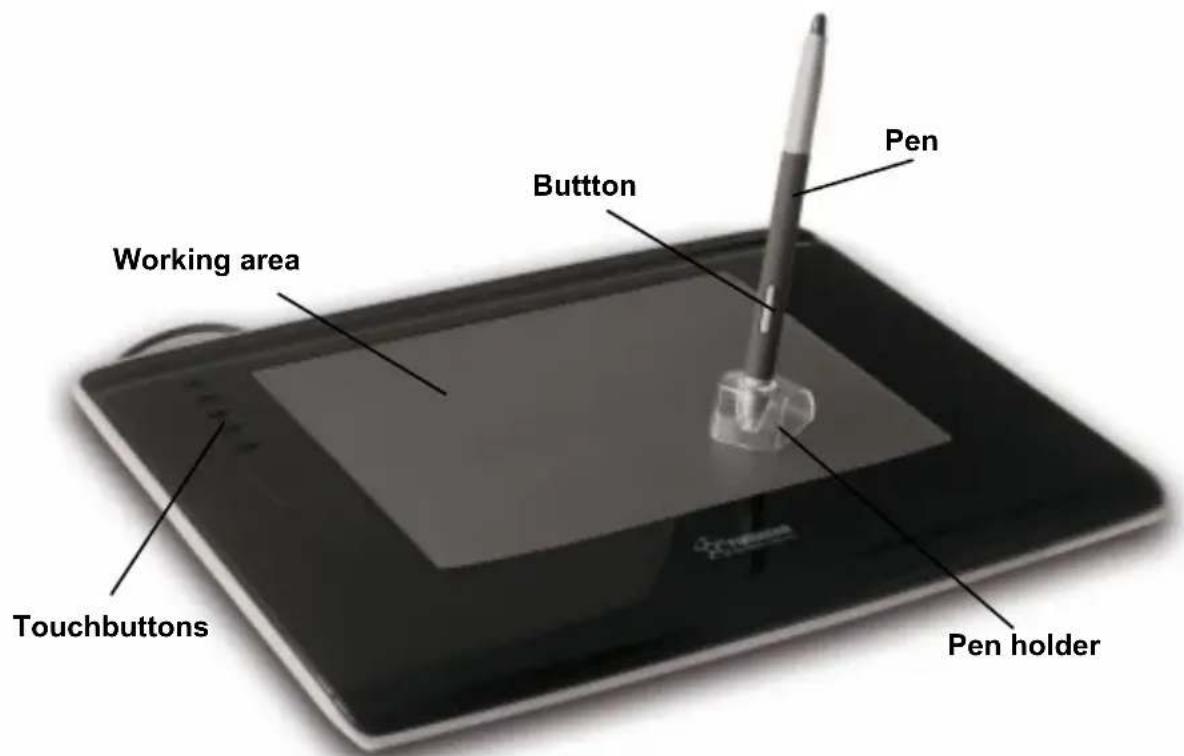
Tablet
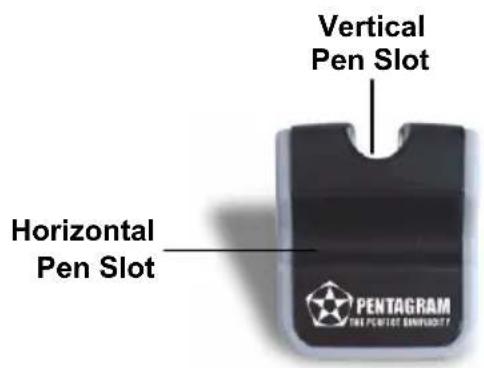
Pen holder
TOP
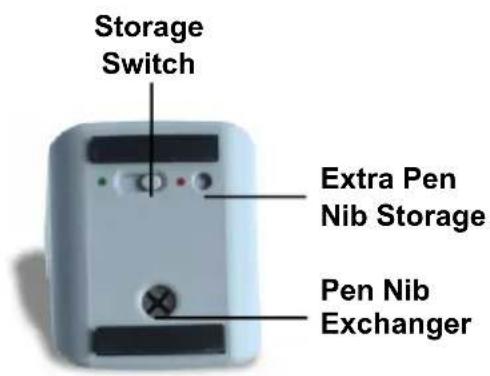
BOTTOM
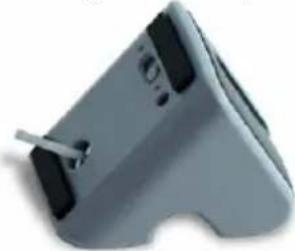
Exchange Pen Nib
- Slide the Storage Switch toward green dot to open Pen Nib Storage.
- Pick new pen nib from Pen Nib Storage.
- Slide the switch toward red dot to close the Pen Nib Storage.
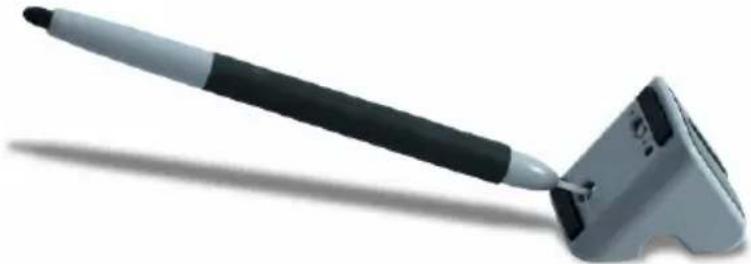
- Insert the old nib to Pen Nib Exchanger, hold tight and pull the pen out of the pen nib exchanger.
natural_image
Illustration of a handheld electronic device with a black handle and metallic body, no visible text or symbols.- After pulling the pen out of the exchanger, the old pen nib stayed in Pen Nib Exchanger.
natural_image
Exterior view of a modern office building (no signage)- Insert a new pen nib into the pen.
If pen doesn't work correctly after pen nib exchange, remove pen nib and insert it once again.
Setting up the tablet Installing the tablet
- Do not connect the tablet to the PC.
- Launch Windows and then place the software CD in the CD-ROM drive.
- The setup wizard will be launched automatically (In Windows Vista if prompted, click Run: Autorun.exe). If the CD-ROM autorun feature is disabled, run Autorun.exe in the CD's root directory.
- Click Install Driver. In Windows Vista, a User Account Control prompt will appear. Click Continue (If installation is performed by user without administrative privileges, entering username and password of administrator account may be required) to begin installation.
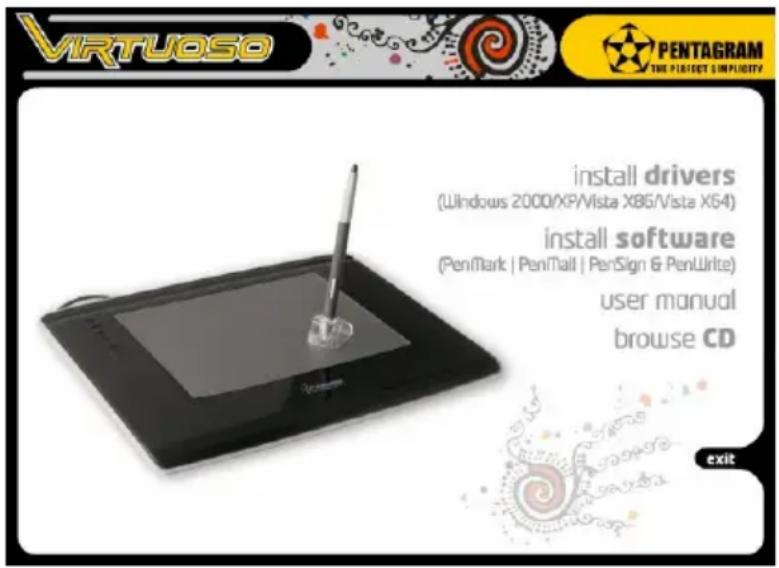
- Select your language and click Next.
- When the next setup wizard window appears, click Next.
- Accept the terms and conditions of the license agreement by clicking Yes.
- The driver will now be installed. When prompted to restart the computer, select Yes, I want to restart my computer now and click OK.
- After the system restarts, connect the tablet to the PC by plugging the USB cable into an appropriate port on the PC.
- The device will be detected, and driver software will be installed automatically. The tablet icon will appear in the system tray on the taskbar to indicate that the device is present in the system. The tablet is now ready to use.
Connecting the tablet to the PC and power supply
The tablet can be connected to an available USB port, and does not require additional power supply in order to operate correctly. When attached to an USB port, the unit draws power directly from the PC, and the pen recharges automatically while working with the tablet.
Configuring the tablet and pen
Note: The tablet menu configuration described below applies to Windows 2000/XP/Vista. The actual menus may be different in other operating systems.
Pen
- While drawing, the pen must be kept 7 mm (0.3 in) or less from the tablet surface.
- To use the tablet efficiently, hold the pen so that you have easy access to button located on it.
- One slight touch of the pen on the tablet has the same effect as a single left-click of the mouse.
- Two immediate clicks on the tablet has the same effect as a double left-click of the mouse.
Tablet
To access the tablet configuration menu, double-click the Windows Control Panel icon, or right-click the system tray icon and then left-click Options.
The tablet menu will appear, with the following buttons at the bottom of the window:
Save: Click to exit the menu and save your changes.
Cancel: Click to exit the menu without saving your changes.
Show the option icon on the taskbar: Select this box to make the tablet menu icon appear on the taskbar.
Disable right key: Select this box to disable pen button.
Disable pressure: Select this box to disable pen pressure.
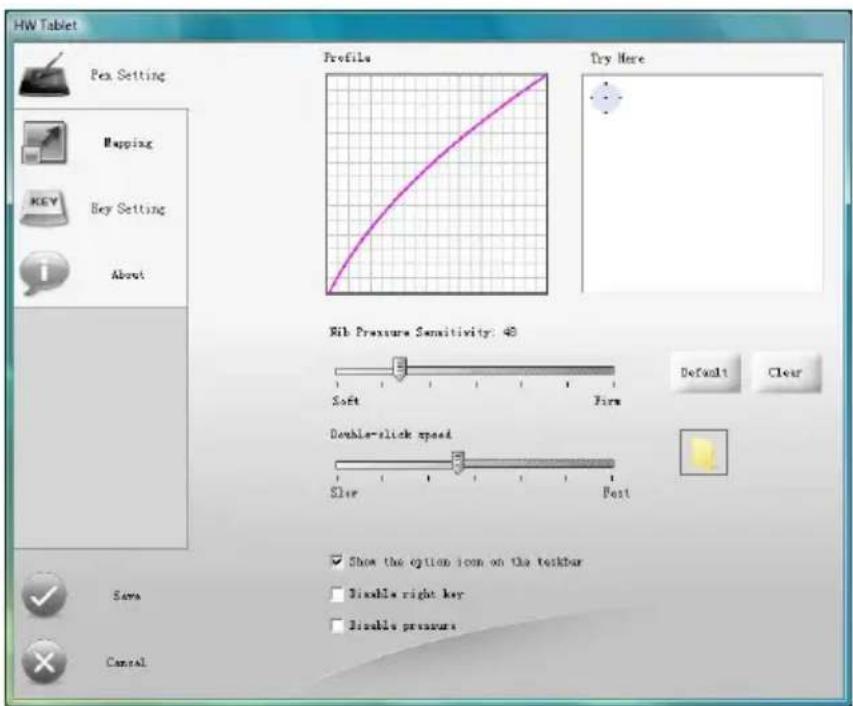
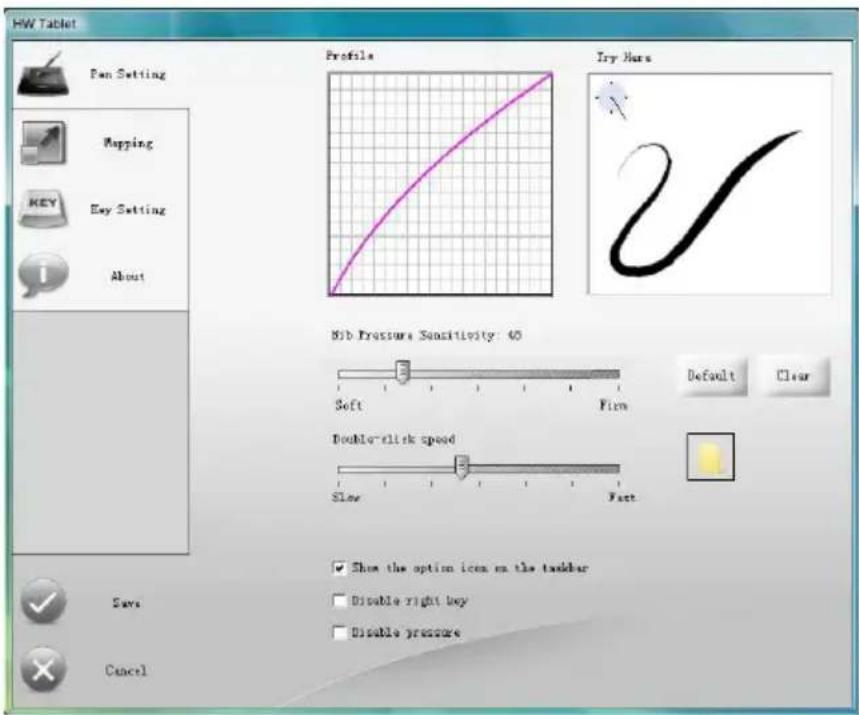
Pen Setting menu
Nib Pressure Sensitivity: Use this slider to adjust the rate of pen pressure changes between 0 (Soft) and 200 (Firm). By decreasing the value, you can increase line width more quickly. The pressure-to-width ratio is shown in the Profile graph. The optimum value to ensure smooth transition between line widths is 100.
Try Here: Use this box to test your settings.
Clear: Click to clear the contents of the Try Here box.
Default: Click to restore factory defaults.
Double-click speed: Use this slider to set the double-click speed for pen button. Available values range from 0 (Slow) to 900 (Fast). The higher the value, the shorter the interval between the first and second click must be for the function to work. Use the folder icon next to the slider to test the setting by opening it and closing it alternately.
Mapping menu
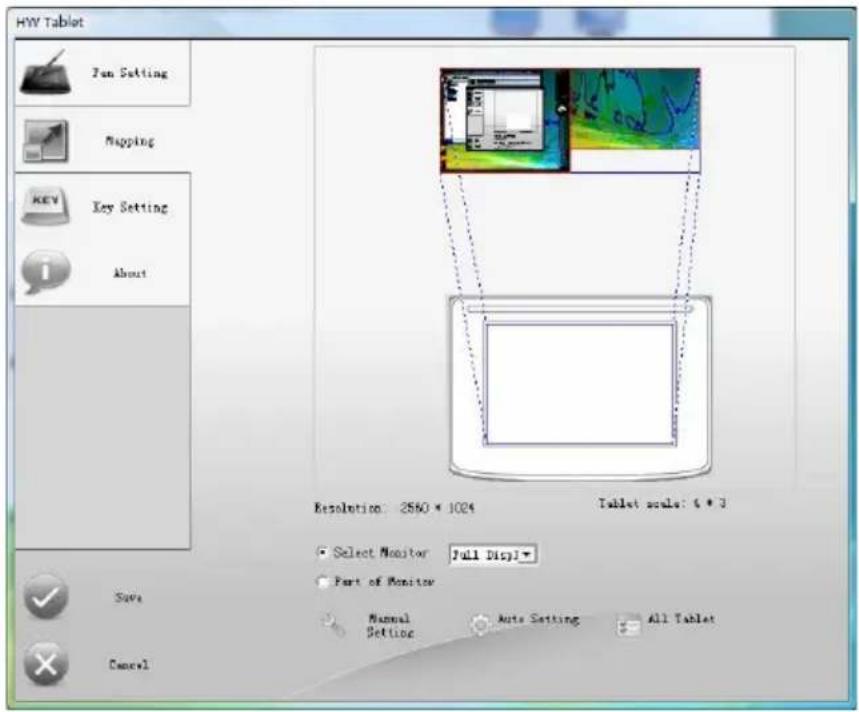
The tools available in this menu can be used to set the size of the tablet's active area and screen coverage. Tablet and display thumbnails are provided to make it easier for the user to adjust these settings, with both areas shown using solid blue lines.
Select Monitor: Select this option if you want the tablet to cover the entire screen area of the display.
Part of Monitor: Select this option to adjust the space on the display to be covered by the tablet. When you select this option, a crosshair will appear. Use the crosshair to set a diagonal on the basis of which the appropriate area will be determined. Left-click to set the beginning of the diagonal, and then click again to set the end point. The software will define the desired area automatically.
Manual Setting: Use this option to draw the active area using the pen on the tablet thumbnail.
Auto Setting: Use this option to set the active area size automatically with whole active area of the tablet. This option is only available if Select Monitor is enabled.
All Tablet: Use this option to set the working area to the entire tablet automatically. This option is only available if Select Monitor is enabled.
Key Setting menu
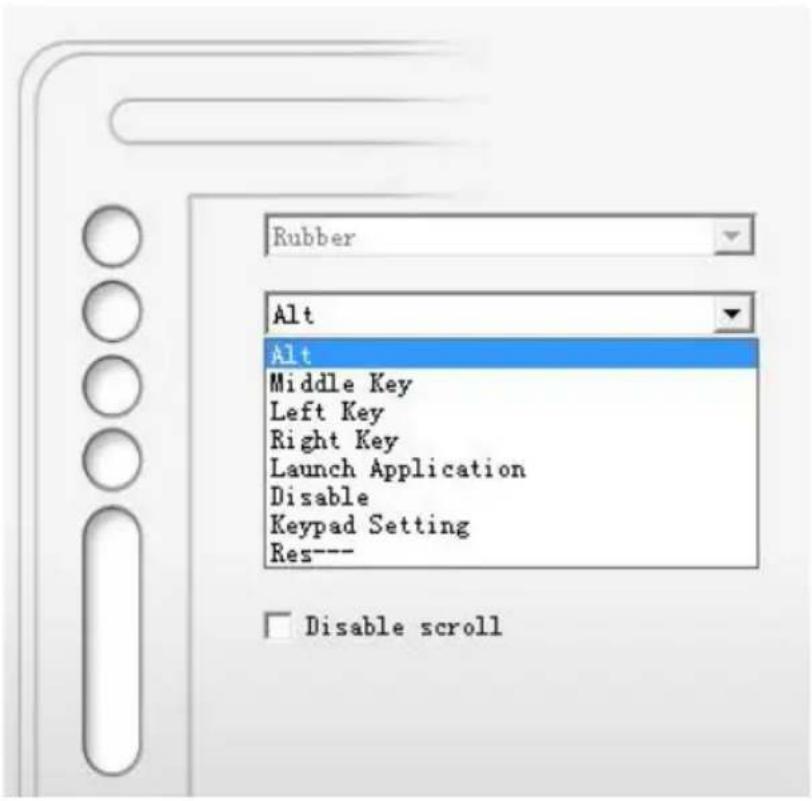
Use this menu to define the operation of touch buttons and touch scrollbar on the left hand side of the tablet. The first button is preset as Rubber. When you configure the key function, there are two ways to define it. One is choosing the options from the drop-down menu for each key and another way is defined by pressing the keyboard of your computer.
- Alt – Alt key emulation.
• Middle Key – Middle mouse button emulation. - Left Key – Left mouse button emulation.
• Right Key – Right mouse button emulation. - Launch Application (select any application to be launched after the button is tapped)
- Disable – Disable this key.
- Keypad Setting
- Res ---
Disable scroll: Select this option to disable the touch scrollbar.
Note: The functions assigned may not work correctly with certain programs.
About menu
This menu shows manufacturer information.
Specifications
| Pen Cordless, no batteries required, pressure sensitive | |
| Dimensions 350 x 275 x 11.5 mm (13.8 x 10.8 x 0.45 in) | |
| Active area 203.2 x 152.4 mm (8 x 6 in) | |
| Maximum pen distance 7 mm (0 3 in) | |
| Pressure levels 1024 | |
| Accuracy 0.1 mm (0.004 in) | |
| Conection USB port | |
| Refresh rate 220 pps | |
| Resolution | 5080 lpi |
| Supported operating systems W | Windows 2000/XP/Vista, Mac OS 10.4 or later |
Note: All technical specifications are subject to change without notice.

Bedienungsanleitung
Grafiktablett PENTAGRAM Virtuoso P 2005

PENTAGRAM
THE PERFECT SIMPLICITY
natural_image
Illustration of a handheld electronic device with a black handle and metallic body, no visible text or symbols.natural_image
Close-up of a gray electronic device with a stylus, showing no visible text or symbols.Pen Setting Menü
Mapping Menü
Key Setting Menü
natural_image
Close-up of a handheld tool with black and gray bands, possibly a pen or stylus, attached to a metallic bracket (no text or symbols visible)natural_image
Close-up of a gray electronic device with a stylus, no visible text or symbolsМеню Pen Setting (Настройки Пера)
natural_image
Close-up of a handheld electronic device with black and gray body, possibly a power shaver or tool, against white background (no text or symbols visible)natural_image
Close-up of a gray electronic device with a black handle and indicator lights (no visible text or symbols)Menu Pen Setting
Menu Mapping
Menu Key Setting
natural_image
Close-up of a handheld electronic device with a black handle and metallic body, no visible text or symbols.natural_image
Close-up of a gray electronic device with a stylus, showing no visible text or symbols.Menu Pen Setting
Menu Mapping
Menu Key Setting
natural_image
Illustration of a handheld tool with black and gray body, no visible text or symbolsnatural_image
Close-up of a gray electronic device with a black handle and indicator lights (no visible text or symbols)Pen Setting menü
Mapping menü
Key Setting menü
- Copyright © 2008 PENTAGRAM
- Package contents
- Introduction
- Pen holder
- Exchange Pen Nib
- Setting up the tablet Installing the tablet
- Connecting the tablet to the PC and power supply
- Configuring the tablet and pen
- Pen
- Tablet
- Pen Setting menu
- Mapping menu
- Key Setting menu
- - Res ---
- About menu
- Bedienungsanleitung
- Grafiktablett PENTAGRAM Virtuoso P 2005
- Pen Setting Menü
- Mapping Menü
- Key Setting Menü
- Меню Pen Setting (Настройки Пера)
- Menu Pen Setting
- Menu Mapping
- Menu Key Setting
Brand : Pentagram
Model : Virtuoso P 2005
Category : Tablet