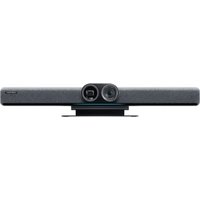
Connect - Video conferencing system INSTA360 - Free user manual and instructions
Find the device manual for free Connect INSTA360 in PDF.


| Product Type | Video conferencing system |
| Brand | Insta360 |
| Model | Connect |
| Box contents | Insta360 Connect with desk stand, 2 x 1.8m HDMI cables, 1.8m USB-C to C cable, power adapter, remote control |
| Optional accessories | Insta360 Touch Panel, wall mount, TV mount |
| Operating modes | BYOD, Speaker, Whiteboard, Private |
| Connectivity | HDMI (x2), USB-C, Ethernet, Bluetooth, Wi-Fi |
| Privacy switch | Yes, private mode disables camera and microphone |
| Remote control | Touch navigation, zoom, speaker tracking, whiteboard, call management |
| Power supply | Power adapter included |
| Angle adjustment | Yes, via desk stand |
| Mounting | Desk stand included, optional TV and wall mount |
| Firmware update | Yes, via System Settings menu |
| Available languages | French, English, German, Spanish, Italian, Japanese, Portuguese, Russian, Chinese, etc. |
| Dimensions | Not provided |
Frequently Asked Questions - Connect INSTA360
User questions about Connect INSTA360
0 question about this device. Answer the ones you know or ask your own.
Ask a new question about this device
Download the instructions for your Video conferencing system in PDF format for free! Find your manual Connect - INSTA360 and take your electronic device back in hand. On this page are published all the documents necessary for the use of your device. Connect by INSTA360.
USER MANUAL Connect INSTA360
https://www.insta360.com/guide/connect
Contents
QuickStart Guide
快速入门指南
Kurzanleitung 14
Guia de inicio=rápido 21
Guide de démarrage rapide 28
Guida Rapida per I'utilizzo 35
Guia de inicio=rápido 42
KpaTkoe pyKOBoDCTBO noIb3OBaTeJIa 49
KvIckstata-1bgaivd 56
LokssTahId. 63
操作指南 70
EN In the Box

1xInsta360 Connect (with Desk Stand)
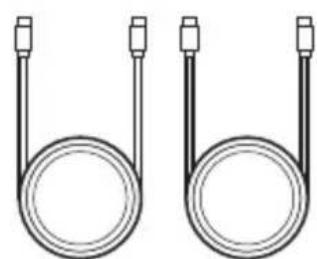
Optional Accessories
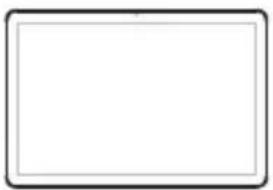
Insta360 Touch Panel
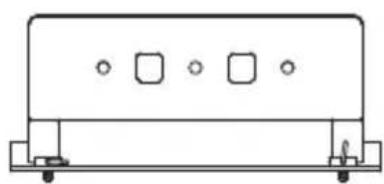
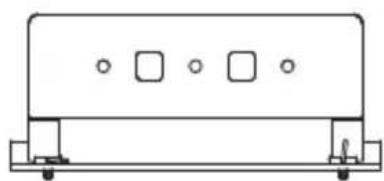
Wall Mount TV Mount
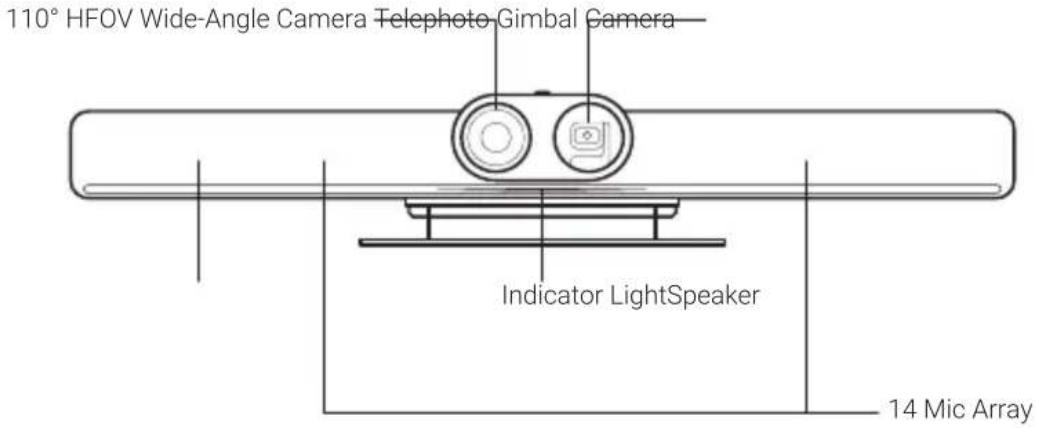
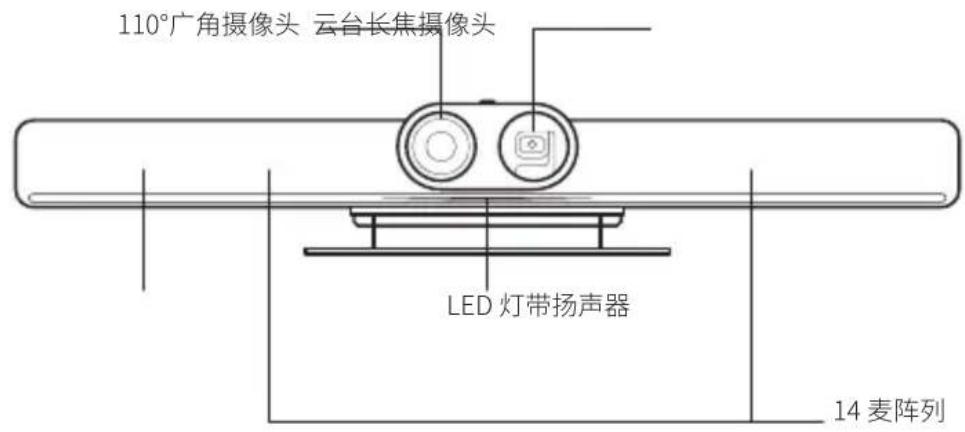
Product Appearance
Front
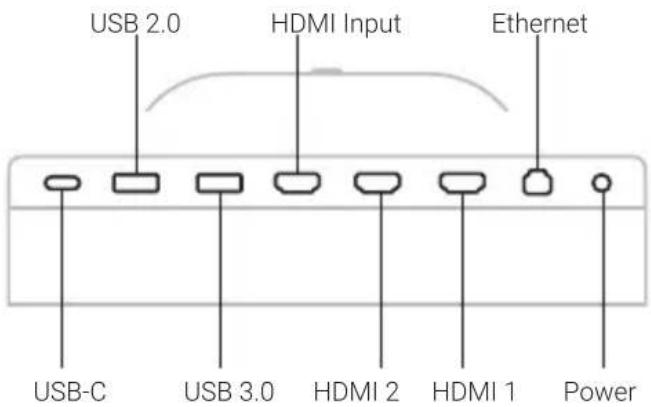
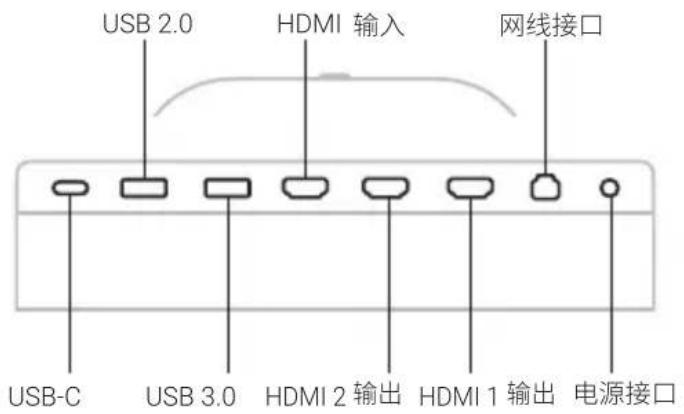
Back
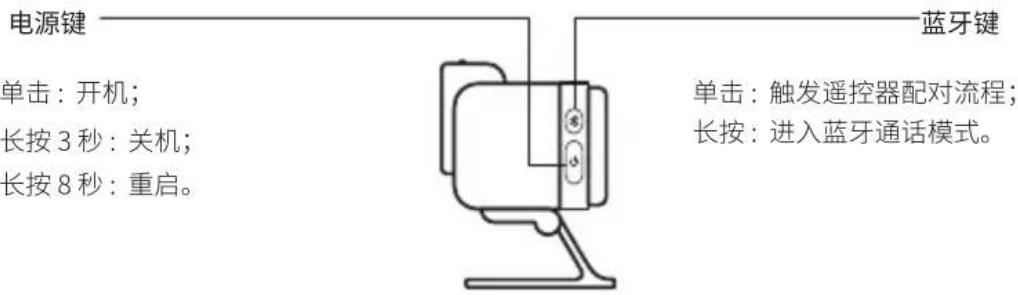
Side
Power Button
Press once: Power on
Long press for 3 seconds: Power off
Long press for 8 seconds: Restart
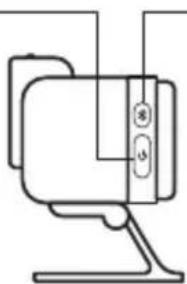
Bluetooth Button
Press once: Pair Remote Control
Long press: Speakerphone Mode
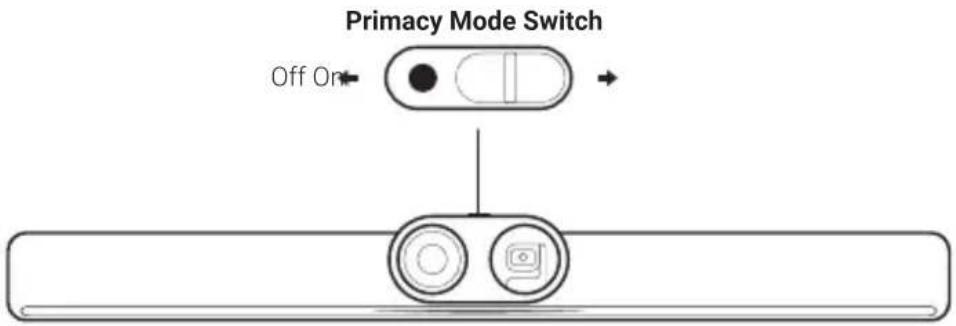
- Turn On: Slide the switch to the right to turn Privacy Mode on. The red indication mark should be visible. This conceals the wide-angle lens, faces the gimbal camera down, and mutes the microphone.
Note: When Privacy Mode is on, neither the Remote Control nor the Touch Panel can turn on insta360 Connect's video or audio. - Turn Off: Slide the switch to the left to turn Privacy Mode off. The red indication mark should be invisible. The camera and microphone will be on and ready for use.
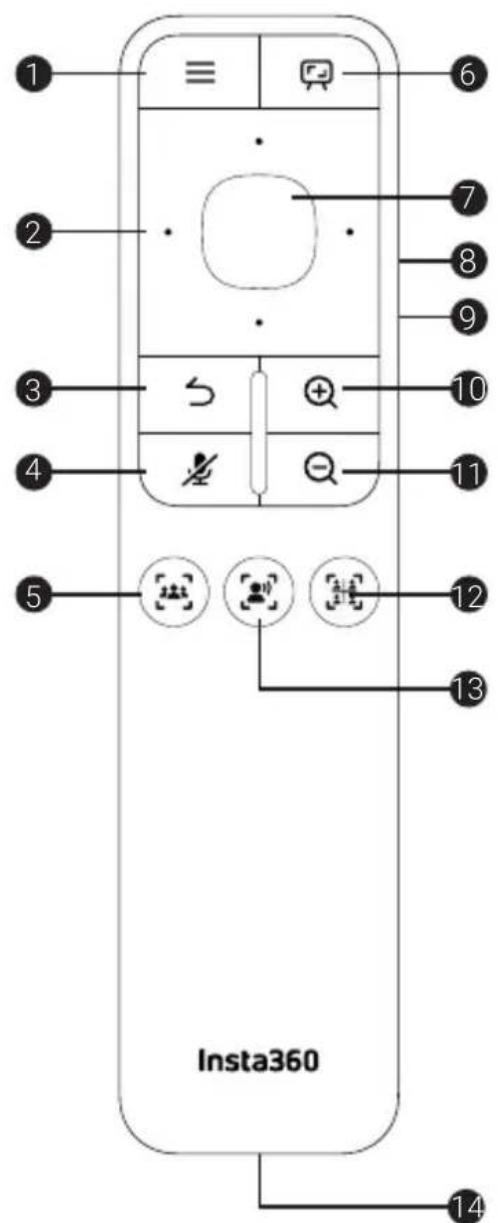
Remote Control
| 1 Menu |
| 2 Touch Navigation |
| 3 Back |
| 4 Mute |
| 5 Group Framing |
| 6 Whiteboard Mode |
| 7 OK |
| 8 Volume Up |
| 9 Volume Down |
| 10 Zoom In |
| 11 Zoom Out |
| 12 Gallery Mode |
| 13 Speaker Tracking |
| 14 USB-C Port |
Installation
1. Desk Stand
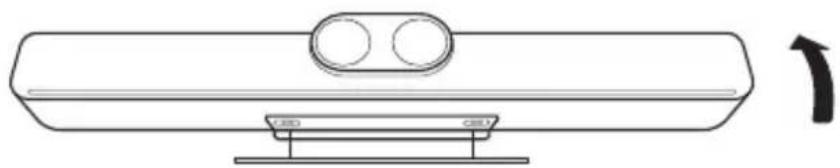
Use the included Desk Stand to place Insta360 Connect on a desk below the screen or TV. The desk should be at least 80cm (31.5in) high. You can adjust the angle of Insta360 Connect using the Desk Stand.
Install / Uninstall
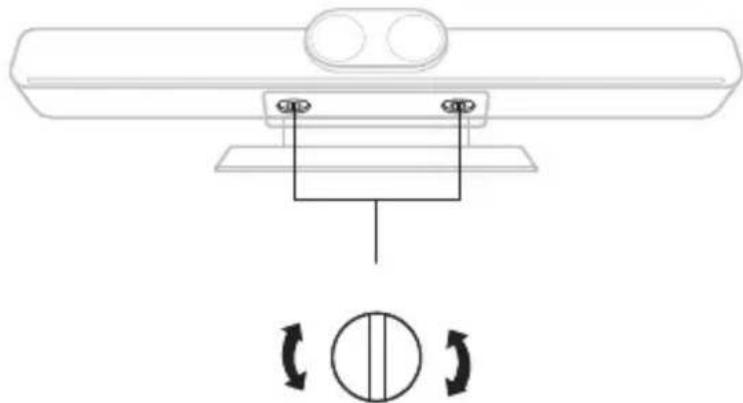
Turn screw clockwise to tighten.
Turn screw counterclockwise to loosen.

Adjust Angle
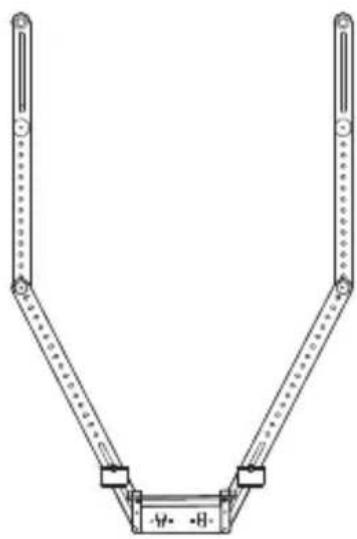
2. TV Mount and Wall Mount (Sold separately)
Use the TV Mount to mount Insta360 Connect onto a TV, or the Wall Mount to mount it onto a wall.
Connecting
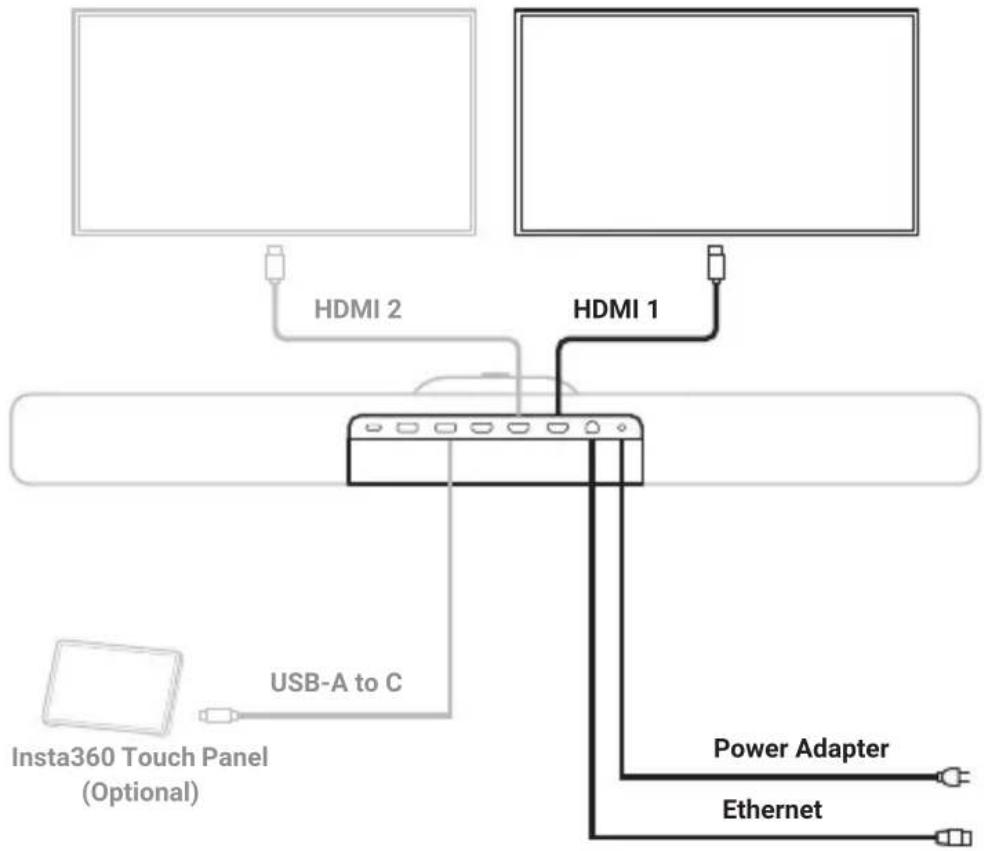
1. TV / Monitor
Dual screens: Connect the main screen to the HDMI 1 Port and the secondary screen to the HDMI 2 Port.
Single screen: It's recommended to connect the screen to the HDMI 1 Port.
2. Ethernet
Insta360 Connect supports both wired and wireless networks. Wired networks are recommended. Go to Settings > Network > Wireless Network to configure a wireless network.
3. Remote Control
Power on Insta360 Connect and select the Remote Control. A pairing screen will appear. Long press the Menu Button and Whiteboard Button on the Remote Control simultaneously to pair and connect.
4. Insta360 Touch Panel (Sold separately)
Connect the Touch Panel to Insta360 Connect via USB-A to C Cable. Please refer to the Touch Panel's user manual for more connection options.
BYOD Mode and Speakerphone Mode
Insta360 Connect powers on automatically the first time it is plugged in. You can pair it with the Remote Control or the Touch Panel (sold separately). After successfully pairing, it proceeds to the initial setup screen, where you select the language, country andtimezone, configure network settings, and review the user agreement before entering BYOD Mode. You can also skip the initial setup and go directly to BYOD Mode.
- BYOD Mode
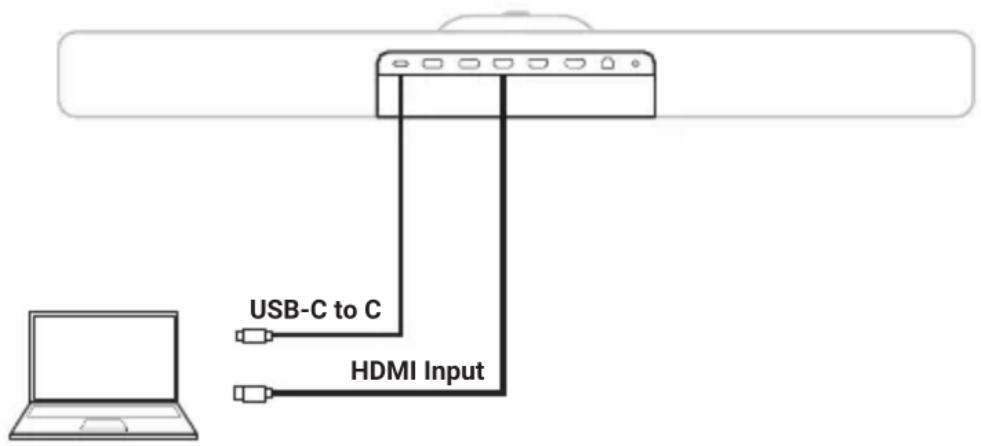
Enter BYOD Mode
- After the initial setup, Insta360 Connect defaults to BYOD Mode.
- In BYOD Mode, connect a USB-C to C Cable to your computer and select Insta360 Connect's microphone, speaker, and camera to use them during a meeting. Connect an HDMI Cable to your computer to mirror your screen to the display.
Exit BYOD Mode
Disconnect the USB-C to C Cable from the computer.
- Speakerphone Mode
Enter Speakerphone Mode
- Before a meeting, open the shortcut sidebar by pressing the Menu Button on the Touch Panel or Remote Control and select Speakerphone Mode. Alternatively, long press the Bluetooth Button on Insta360 Connect for 3 seconds.
- Enable Bluetooth on your smartphone, tablet, or computer and select the device named "Connect-XXXX" to pair. A pairing code will appear on the device. Confirm it to pair and connect with Insta360 Connect. You can then use the microphone and speaker on Insta360 Connect.
Exit Speakerphone Mode
Disable Bluetooth on your smartphone, tablet, or computer to exit Speakerphone Mode.
Whiteboard Mode
Before a meeting, open the shortcut sidebar by pressing the Menu Button on the Touch Panel or Remote Control. Go to Settings > Whiteboard Settings and set up the whiteboard. You can quickly enter Whiteboard Mode from the shortcut sidebar or press the Whiteboard Button on the Remote Control during the meeting. Insta360 Connect will automatically recognize and display the whiteboard.
Note: Please ensure the whiteboard is within 20ft (6m) of Insta360 Connect.
Firmware Update
Open the shortcut sidebar by pressing the Menu Button on the Touch Panel or Remote Control. Go to Settings System > Check Update to check if the firmware is up to date. If it is not the latest firmware version, choose Update.
Note: If you are unable to access the server due to a firewall or other issues, please contact your network administrator.
CN 包装清单

Insta360 Connect(带桌面支架)
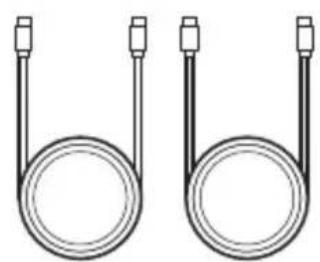
1.8米HDMI线*2
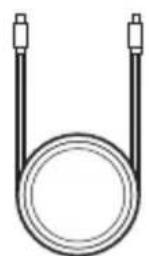
1.8米USBC-C线
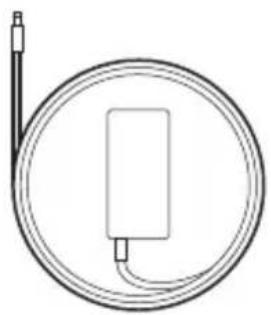
电源适配器
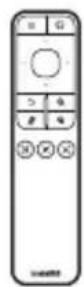
遥控器
可选配件
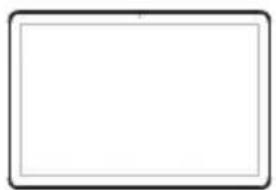
Insta360会控平板
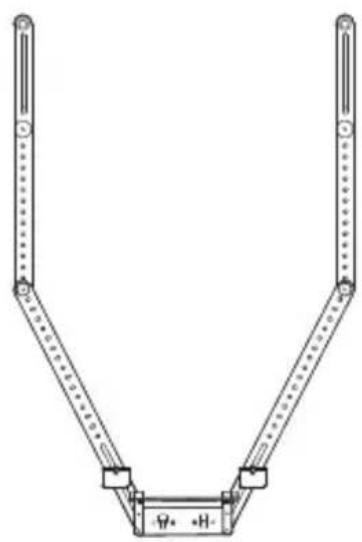
上墙支架电视支架
产品外观
正面
背面
侧面

隐私拨动开关

ADD: 11th Floor, Building 2, Jinlitong Financial Center, Bao'an District,
Shenzhen, Guangdong, China
WEB: www.insta360.com
TEL:400-833-4360 +18006920360
EMAIL:service@insta360.com
Insta360GmbH


- Contents
- EN In the Box
- Optional Accessories
- Product Appearance
- Front
- Back
- Side
- Power Button
- Bluetooth Button
- Installation
- Desk Stand
- TV Mount and Wall Mount (Sold separately)
- Connecting
- TV / Monitor
- Ethernet
- Remote Control
- Insta360 Touch Panel (Sold separately)
- BYOD Mode and Speakerphone Mode
- - BYOD Mode
- Enter BYOD Mode
- Exit BYOD Mode
- - Speakerphone Mode
- Enter Speakerphone Mode
- Exit Speakerphone Mode
- Whiteboard Mode
- Firmware Update
- CN 包装清单
- 可选配件
- 产品外观
Brand : INSTA360
Model : Connect
Category : Video conferencing system