SPY-C - Remote control toy LOGICOM - Free user manual and instructions
Find the device manual for free SPY-C LOGICOM in PDF.



User questions about SPY-C LOGICOM
0 question about this device. Answer the ones you know or ask your own.
Ask a new question about this device
Download the instructions for your Remote control toy in PDF format for free! Find your manual SPY-C - LOGICOM and take your electronic device back in hand. On this page are published all the documents necessary for the use of your device. SPY-C by LOGICOM.
USER MANUAL SPY-C LOGICOM
natural_image
White and black robotic vehicle with red sensor lights, displayed against a solid orange background (no text or symbols visible)*[Spaï-si]
LOGICOM®
ROBOTICS
Français
natural_image
Simple line drawing of a curved object with an arrow, no text or symbols presentnatural_image
Symbol of a trash bin crossed with no text or labels, accompanied by a black rectangular block below (no text or symbols present)natural_image
Line drawing of a tracked robotic vehicle with motion arrows indicating rotational flow (no text or symbols)7 - Démarrage
natural_image
Line drawing of a smartphone displaying a wireless signal icon with concentric waves (no text or symbols)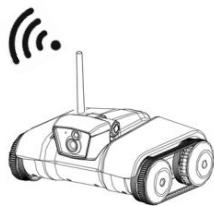
natural_image
Illustration of a tracked robot with wireless signal icon above (no text or symbols)4- Lancez l'application Spy-C Tank :

8.1 - Interface 27
8.2 - Movements....28
8.3 - Gravity Mode 29
8.4 - Tilting the Camera....29
8.5 - Taking a Picture....29
8.6 - Recording a Video 29
8.7 - Saving and Playing Back a Route....30
8.8 - Night Vision ....31
8.9 - Enabling the Speaker....31
8.10 - Enabling the Remote Speakers 31
8.11 - Battery Level Indicator 32
8.12 - Zoom 32
8.13 - Indicator Status....32
9 - Reset 32
10 - Care and Maintenance....33
11-FAQ....33
12 - Legal Notice 34
CE
Declaration of Conformity
We, LOGICOM Robotics, 55 rue de Lisbonne, 75008 PARIS, France,
hereby declare that the Spy-C Tank conforms to the applicable essential requirements, particularly those of EU Directive 1999/5/EC and EU Directive 2001/95/EC, in application of the following European standards:
- EN 300 328-1 V1.7.1 "Electromagnetic compatibility and radio spectrum matters (ERM); Broadband transmission systems; Data transmission equipment operating in the 2.4 GHz ISM band and using spread spectrum modulation techniques; Part 1: Technical characteristics and test conditions"
- EN 301 489-1 V1.9.2: "Electromagnetic compatibility and radio spectrum matters (ERM); Electromagnetic compatibility (EMC) standard for radio equipment and services; Part 1: Common technical requirements"
- EN 301 489-17 V2.1.1: “Electromagnetic compatibility (EMC) standard for radio equipment; Part 17: Specific conditions for broadband data transmission services”
- EN 62311:2008: “Assessment of electronic and electrical equipment related to human exposure restrictions for electromagnetic fields (0 Hz - 300 GHz)”
- EN 71-1:2011 "Safety of toys – Part 1: Mechanical and physical properties"
- EN 71-2:2011 "Safety of toys – Part 2: Flammability"
- EN 71-3/A1 September 2000: "Safety of toys – Part 3: Specification for migration of certain elements"
- EN 62115/A2 December 2011: "Electric toys – Safety"
- EN 60825-1 :1994+A11 :1996+A2 :2001+A1 :2002
- WEEE directive 2002/96/EC
- CADMIUM CONTENT 91/338/EEC&EU NO494/2011
This conformity extends to any product for which it is given and is used is accordance with the instructions provided in this user guide.
Any unauthorized modification of the product voids this declaration of conformity.
Paris, July 1, 2012
Bernard Bessis
President

natural_image
Simple line drawing of a curved object with an arrow, no text or symbols present1 - Precautions

- Read these instructions carefully, and keep them in a safe place for future reference.
- WARNING This product is not a toy. It is intended for people of ages 14 and older.
- WARNING This product may contain small parts that may present a choking hazard. Keep out of reach of children.
- Keep the device away from the face. Keep fingers away from the wheels when the Spy-C Tank is in motion.
- WARNING Use the Spy-C Tank beyond the reach of children and away from pets and property.
- Ensure that the Spy-C Tank is unobstructed and has no fragile items to cross.
- The Spy-C Tank is recommended for indoor use only.
- The Spy-C Tank is not waterproof. Do not spray or pour liquid on it, and do not immerse it in liquid.
- Do not stand on the Spy-C Tank. It is not designed to support a person's weight.
- Respect the privacy of others when using the Spy-C Tank.
- The performance of your Spy-C Tank may be affected when the battery level is low.
- Nearby Wi-Fi™ equipment can cause interference on the connection between the Spy-C Tank and your smartphone or your tablet computer.
- Do not place your device near an electromagnetic source (television, speakers, etc.), which can cause disruptions.
2 - Battery Precautions
- Align the polarities of the batteries. (See markings inside the battery compartment.)
- Do not dispose of batteries in a fire or trash can. Ask your dealer for information on how to recycle the batteries properly.
-
Do not leave batteries where a child or pet can play with them or swallow them. If ingested, seek medical attention immediately.
-
Do not open the batteries. The electrolyte they contain is corrosive and may cause burns to the hands, skin, and eyes.
• Use only new AA 1.5V batteries. - Do not mix old and new batteries, different types of batteries, or rechargeable batteries of different capacities.
• Non-rechargeable batteries should not be recharged. - Rechargeable batteries should be removed from the Spy-C Tank before being charged.
- Rechargeable batteries should be recharged only under adult supervision.
- Old batteries should be removed from the Spy-C Tank.
- The power terminals should not be short circuited.
- If the device will not be used for an extended period of time, please remove the batteries from the compartment.

natural_image
Symbol of a trash bin crossed out by two diagonal lines, with a solid black rectangle below (no text or labels)This logo indicates that this is electrical or electronic equipment containing hazardous substances that may have an These products should therefore be treated as waste under EU Directive 2002/96/EC, of January 27, 2003, on electrical and electronic equipment waste. They should not be disposed of with unsorted municipal waste and instead should be returned to a waste drop-off company or through a community collection or recovery program.
3 - Epilepsy Warning
Please read before using this game or allowing your children to use it.
Some people are susceptible to epileptic seizures or loss of consciousness when exposed to certain flashing lights or light patterns in everyday life. Such people may have a seizure while watching television images or playing certain video games. This may happen even if the person has no medical history of epilepsy or has never had any epileptic seizures.
If you or anyone in your family has ever had symptoms related to epilepsy (seizures or loss of consciousness) when exposed to flashing lights, consult your doctor prior to playing.
We advise that parents should monitor the use of video games by their children. If you or your child experience any of the following symptoms: dizziness, blurred vision, eye or muscle twitches, loss of consciousness, disorientation, any involuntary movement or convulsion, while playing a video game, discontinue use IMMEDIATELY and consult your doctor.
Precautions to take during use of any video game:
- Avoid using your tablet or smartphone if you are tired or have not had much sleep.
• Make sure that the room in which you are using the device is well lit. - Rest for 10-15 minutes per hour during use.
4 - Technical Specifications
| Dimensions | Length: 260mmWidth: 200mmHeight with antenna: 187mm |
| Weight | 1.1 kg |
| Power | Six AA (1.5V) batteries, not included |
| Battery Life | Up to 1 hr 15 min (when in use)Up to 9 hrs (standby) |
| Compatibility | Apple^TM : iOS^TM 5.0 and later Android^TM : Android^TM 2.2 and later(CPU: 800 MHz and RAM: 512 MB) |
| Wi-Fi^TM | Range: 20 m indoors when unobstructed and 60 m in open areaStandards: 802.11 b/g/n |
| Pan and Tilt Camera | Maximum angle: 45° |
| Video Format | Apple^TM : MOV Android^TM : AVI |
| Video Resolution | 320 x 240 pixels |
| Image Format | JPEG |
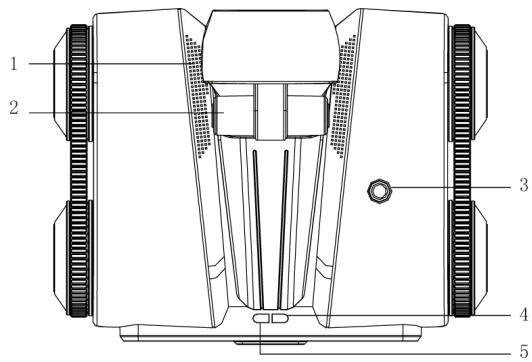
5 - Diagrams
text_image
1 2 3 4 5- Speakers
- Camera's axis of
rotation
- Wi-Fi ^TM antenna
- Battery level indicator
- Spy-C Tank Wi-Fi™
connection indicator
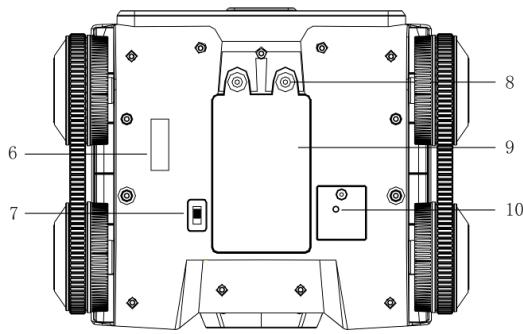
text_image
6 7 8 9 10- Spy-C Tank Wi-Fi™ (SSID) label
- Spy-C Tank on/off switch
- Battery compartment opening screw
- Battery compartment
- Reset button
text_image
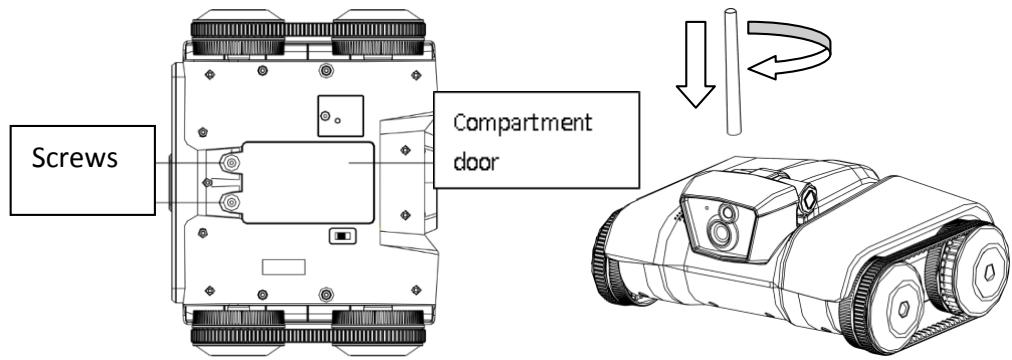
Screws Compartment door6 - Setting Up the Spy-C Tank
1) Download the "Spy-C Tank" application through the App Store™ or
Play Store™.

Note: There is currently a version for Android ^™ 2.2/2.3 and another version for Android ^™ 3.0 and later. Use the descriptions of the two applications on the Play Store ^™ to select the correction version for your Android ^™ . To determine the correct version of your smartphone or tablet, refer to its manual.
2) Use a flathead screwdriver to remove the battery compartment cover on the device.
3) Insert six AA 1.5V batteries, correctly aligning the polarities.
4) Close and screw in the cover.
5) Install the antenna on the Spy-C Tank:
7 - Getting Started
- Turn on your Spy-C Tank using the on/off switch on the bottom of the device (see Diagrams).
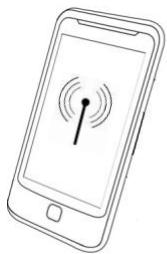
- Enable Wi-Fi™ in the settings menu of your smartphone or tablet. (All smartphones or tablets work differently. Refer to its manual for details.)
- Select the Wi-Fi™ name for your Spy-C Tank in the list of available Wi-Fi™ signals.
Note: This name, which begins with SPY-C_, appears on a sticker on the bottom
of your device. (See Diagrams.)
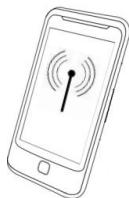
natural_image
Line drawing of a smartphone displaying a wireless signal icon with concentric waves (no text or symbols)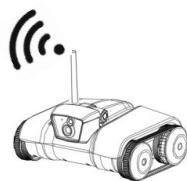
natural_image
Illustration of a tracked robot with wireless signal icon above (no text or symbols)- Launch the Spy-C Tank application:

- You can now begin using the Spy-C Tank interface. Repeat the steps above for each Spy-C Tank connection.
8 - Smartphone or Tablet Controls
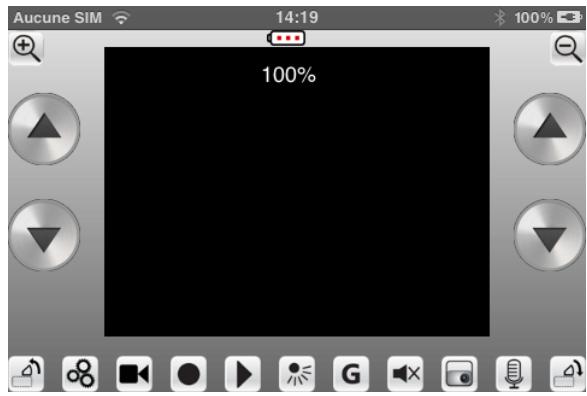
8.1 - Interface
The following table lists the controls available through the Spy-C Tank
application:
text_image
Aucune SIM 14:19 100% 100%| Buttons | Actions | |
 | Arrow buttons | |
 | Moves camera up and down | |
 | Connection information page (iOSTM only) | |
 | Records a video | |
 | Saves a route | |
 | Plays back a saved route | |
 | Night vision | |
| G | Gravity mode | |
 | Enables/disables remote microphone | |
 | Takes a picture | |
 | Enables your smartphone's microphone | |
 | Indicates the battery level | |
 | Zooms in (% displays on the screen) | |
 | Zooms out (% displays on the screen) | |
8.2 - Movements
You have multiple options for moving the Spy-C Tank:
| Buttons | Actions | |
 | Move forward | |
 | Turn right while moving forward | |
 | Turn left while moving forward | |
 | Move back | |
 | Turn left while moving back | |
 | Turn right while moving back | |
 | Rotate left | |
 | Rotate right | |
8.3 - Gravity Mode
You can control the movement of your Spy-C Tank by tilting your smartphone or tablet.
To enable this mode, put your smartphone or tablet in a horizontal position.
Next, press the G button. The arrow buttons disappear, and you can now move your Spy-C Tank by tilting your smartphone or tablet. For example, to move it forward, tilt your smartphone or tablet forward. To make it turn, tilt your smartphone or tablet to the side you wish to go.
Note: The application sets the neutral position (at which your Spy-C Tank will remain idle) when you press the G button. To do this, place your smartphone or tablet on a flat surface to fully engage neutral position.
8.4 - Tilting the Camera
You can optionally tilt the camera at a 45^ angle.
To do this, move the camera up using the button and move it down using the button.
Note: Audio transmission is disabled when the camera is tilted. When you exit the Spy-C Tank application, the camera returns to its original position.
8.5 - Taking a Picture
To take a picture with the Spy-C Tank, press the button. The captured image is saved to the photo folder on your smartphone or tablet.
8.6 - Recording a Video
- To record a video, press the 📄 button. The device immediately begins recording.
-
To stop recording, press the button again.
-
On your Apple™ smartphone or tablet, the video saves to your video folder.
- On your Android™ smartphone or tablet, the video saves to the root of your smartphone or tablet's internal memory.
Note: The video saves in MOV format on iOS™ and in AVI format on Android™. Note 2: When recording, the sound becomes disabled when the Spy-C Tank is in motion.
Note 3: To play videos on Android ^™ that were recorded by the Spy-C Tank, we recommend using the "VPlayer Video Player" app, available for free on Google Play.
8.7 - Saving and Playing Back a Route
The Spy-C Tank can save a 60-second route, during which you can take pictures and record videos. The route can then be repeated continuously (for as long as your batteries last).
- Press the ● button to begin saving a route.
- Move using the arrow keys in order to track your route. As you record, you can take pictures using the button or record a video using the button. These controls will be saved and repeated when the route is played back.
- Press the button to stop saving the route. After 60 seconds, the route automatically stops recording.
- Play back the saved route by pressing the ▶ button. Press the button again to continuously play back the route.
Note: You can stop playback and resume control at any time by pressing the arrow buttons or by tilting your smartphone or tablet (if the Spy-C Tank is in gravity mode).
Note 2: If you want to save a new route, the new route will overwrite the previously saved route.
8.8 - Night Vision
Your Spy-C Tank is equipped with a night vision feature, which is especially useful in areas with poor lighting and in total darkness.
To use this feature, press the button.
Note: When this mode is enabled, videos are recorded in black and white.
8.9 - Enabling the Speaker
To enable the speaker, press the button, which turns on the audio return.
For Apple ^™ products, a bar appears over the button. Slide the cursor to increase or decrease the sound volume.
For Android ^™ products, use the volume control buttons on the device itself to select the desired sound level.
Note: When the Spy-C Tank is in motion and when the camera is tilted, no audio playback is possible.
8.10 - Enabling the Remote Speakers
The remote speakers allow you to communicate with the area around your Spy-C Tank.
- Press and hold down the 📂 button to enable the Spy-C Tank's speakers.
- Speak clearly into the microphone of your smartphone or tablet.
- When you release the 📂 button, the Spy-C Tank's speakers become disabled.
Note: The microphone and speakers work exactly like a walkie-talkie. In other words, when the microphone is in use, the speakers are disabled, and vice versa.
8.11 - Battery Level Indicator
This indicator tells you the current battery level. The table below shows the various levels available:
| Status | Meaning | |
 | Battery level indicator | |
 | Battery level at 100% | |
 | Battery level at 75% | |
 | Battery level at 50% | |
 | Battery level at 25% | |
| Replace batteries | ||
8.12 - Zoom
To zoom in, press the + button.
To zoom out, press the button.
The zoom level is shown in % at the top of your control screen.
8.13 - Indicator Status
The table below summarizes the indicator status messages:
| Color | Status | Meaning |
| Green (see Diagrams, item #4) | Steady(30 sec) | Powered on, Spy-C Tank initializing |
| Red Green (see Diagrams, item #5) | Steady | Acceptable battery level for normal use of the Spy-C Tank |
| Flashing | Low battery | |
| Blue Green (see Diagrams, item #4) | Steady | The Spy-C Tank is connected, and the application is open. |
| Flashing | The Spy-C Tank is ready to be connected. |
9 - Reset
To reset your Spy-C Tank to original factory settings, press the Reset button, located on the underside of your Spy-C Tank, for seven (7) seconds using a fine tip or a paperclip (see Diagrams section).
10 - Care and Maintenance
To clean your Spy-C Tank, power it off and wipe it down using a soft, dry cloth.
Make sure that there is no hair, dust, or other particles that could fit into the wheels or in the camera's movement mechanism, which could cause the device to stop working properly.
11 - FAQ
| Why does the flashing blue indicator take a long time to appear when powering on the Spy-C Tank? | The Spy-C Tank takes about 30 seconds to initialize, after which the flashing blue light appears. |
| Why is the video transmission quality so poor? | - The Spy-C Tank is at its maximum range.- The Spy-C Tank's battery level is low. Check the battery level using the application, and change it if necessary.- The antenna is not installed correctly.- The area where the Spy-C Tank is located may be overloaded with Wi-FiTM networks. |
| Why is video recording in black and white? | Make sure that the night vision mode is disabled. |
| Can I operate multiple Spy-C Tanks in the same area? | Yes, you can have multiple Spy-C Tanks in the same area. Each has a unique SSID that differentiates it from others. |
| Can I use the Spy-C Tank outdoors? | The Spy-C Tank is recommended for indoor use only.It is not waterproof against weather or humidity. |
| What happens if I receive a call when I am on the Spy-C Tank control screen? | The application automatically stops so that you can answer your call. To resume control of your Spy-C Tank, simply restart the Spy-C Tank application. |
| Why can't I connect to my Spy-C Tank? | Make sure that you have:- Installed the Spy-C Tank |
| application- Correctly installed the antenna- Turned on your Spy-C Tank using the on/off switch on its bottom- Enabled Wi-FiTM on your smartphone or tablet- Selected the correct SSID for the Spy-C Tank you want to control- The Spy-C Tank in range of the Wi-FiTM signal- Sufficient battery level | |
| Why is it that, when my Spy-C Tank is moving, I cannot hear sound coming from its microphone? | To avoid retransmitting the sound of the motor when the Spy-C Tank is in motion, the remote microphone shuts off and turns back on when the Spy-C Tank stops. |
| Why do I get feedback on my smartphone or tablet? | Your smartphone or tablet is too close to your Spy-C Tank. Move farther away or lower the sound volume on your smartphone or tablet. |
| Why does my Spy-C Tank drift to the right/left? | The Spy-C Tank is designed to operate like a tank, with separate navigational controls for the left and right wheels. Perhaps there is less traction with the ground on one side, which can cause the device to driver to the right or left. |
12 - Legal Notice
If you experience any problems, please call LOGICOM Robotics technical support at:
LOGICOM Robotics
www.logicomrobotics.com
55 rue de Lisbonne
75008 Paris, FRANCE
The LOGICOM Robotics provider warranty is valid for normal use of the product, as described as part of the instructions.
This warranty excludes damage due to a cause that is external to the device.
Specifically, the warranty does not apply if the device is damaged as a result of a drop or fall, an operating error, a connection that does not comply with these instructions, lightening, a surge, or inadequate protection against heat, humidity, or freezing temperatures.
The warranty is applicable only in mainland France.
The legal warranty for hidden defects applies in compliance with Articles 1641 et seq. of the French Civil Code.
TMv3
Deutsch
natural_image
Simple line drawing of a curved object with an arrow, no text or symbols presentnatural_image
Symbol of a trash bin crossed with no text or numbers, representing waste sorting or disposal (no text present)natural_image
Line drawing of a tracked robot with motion arrows indicating rotational motion (no text or symbols)natural_image
Illustration of a smartphone and a wireless router with signal waves (no text or symbols)Presidente v Director General

natural_image
Simple line drawing of a curved object with an arrow, no text or symbols presentnatural_image
Symbol of a trash bin crossed with no text or labels, accompanied by a black rectangle below (no text or symbols present)natural_image
Line drawing of a tracked robot with directional arrows indicating motion (no text or symbols)natural_image
Line drawing of a smartphone displaying a wireless signal icon with concentric waves (no text or symbols)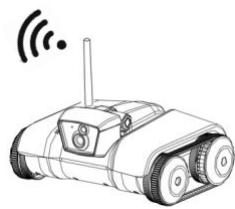
natural_image
Illustration of a tracked robot with wireless signal icon above (no text or symbols)Nós, LOGICOM Robotics, 55 rue de Lisbonne, 75008 PARIS, France.
natural_image
Simple line drawing of a curved object with an arrow, no text or symbols presentnatural_image
Symbol of a trash bin crossed with no visible text or labelsnatural_image
Line drawing of a tracked robot with a cylindrical component and directional arrows indicating motion (no text or symbols)4) Volte a fechar a tampa e o parafuso.
5) Instale a antenna na Spy-C Tank:
natural_image
Line drawing of a smartphone with wireless signal icon (no text or symbols)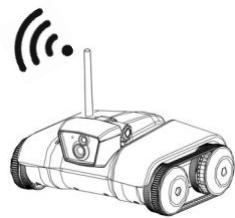
natural_image
Line drawing of a tracked robot with wireless signal icon above (no text or symbols)7 - Arranque
natural_image
Simple line drawing of a curved object with an arrow, no text or symbols presentnatural_image
Symbol of a trash bin crossed with no text or numbers, representing waste sorting or disposal (no text present)
natural_image
Line drawing of a tracked robot with motion arrows indicating rotational flow (no text or symbols)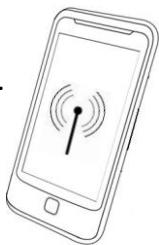
natural_image
Line drawing of a smartphone displaying wireless signal waves (no text or symbols)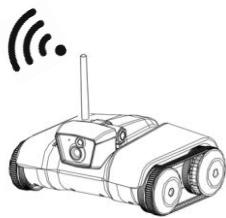
natural_image
Illustration of a tracked robot with wireless signal icon above (no text or symbols)natural_image
Simple line drawing of a curved object with an arrow, no text or symbols presentnatural_image
Symbol of a trash bin crossed with no visible text or labelsnatural_image
Technical line drawing of a tracked robotic vehicle with no visible text or symbolsnatural_image
Line drawing of a smartphone displaying a wireless signal icon with concentric waves (no text or symbols)