
Le Posh 280 - Smartphone LOGICOM - Free user manual and instructions
Find the device manual for free Le Posh 280 LOGICOM in PDF.


| Product type | Smartphone |
| Brand | Logicom |
| Model | Le Posh 280 |
| Display size | 5.5 inches |
| Display type | IPS LCD |
| Resolution | 480 x 854 pixels |
| Processor | Quad-core 1.3 GHz |
| RAM | 1 GB |
| Internal storage | 16 GB |
| Expandable storage | microSD up to 32 GB |
| Battery capacity | 2000 mAh (removable) |
| Operating system | Android 8.1 Go Edition |
| Rear camera | 5 MP |
| Front camera | 2 MP |
| SIM type | Dual SIM (Mini-SIM) |
| Connectivity | Wi-Fi 802.11 b/g/n, Bluetooth 4.0, GPS |
| Dimensions | 152 x 76 x 9 mm |
| Weight | 170 g |
| Charging port | microUSB |
| Charger output | 5V / 1A |
| Security | Pattern, PIN, password |
| Maintenance | Clean with soft dry cloth |
| Spare parts availability | Battery, charger, USB cable |
| Repair service | Authorized service center |
Frequently Asked Questions - Le Posh 280 LOGICOM
User questions about Le Posh 280 LOGICOM
0 question about this device. Answer the ones you know or ask your own.
Ask a new question about this device
Download the instructions for your Smartphone in PDF format for free! Find your manual Le Posh 280 - LOGICOM and take your electronic device back in hand. On this page are published all the documents necessary for the use of your device. Le Posh 280 by LOGICOM.
USER MANUAL Le Posh 280 LOGICOM
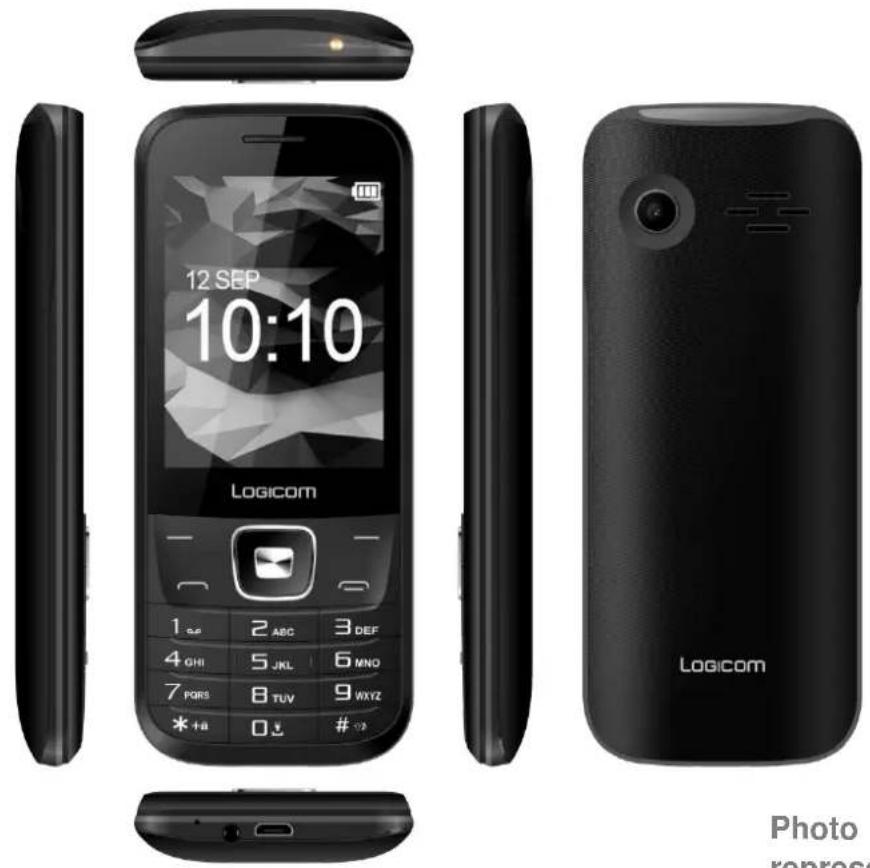
Photo
representative only
User Guide Mobile phone GSM/BT/FM Le Posh 280
* Please find the latest versions of our user manual on our website http://www.logicom-europe.com in PDF format
Introduction
Thank you for choosing this digital mobile phone with color screen. Read this manual in order to fully understand and use your GSM mobile phone. You will appreciate its features and just how easy it is to use.
The mobile phone with color screen is designed for a GSM network environment. This is a dual-Sim Stand-by phone, but it is impossible to use the second SIM card when a call is in progress with the first SIM card. In addition to the traditional call functions, the phone also offers many functions, each as practical as the others: contacts, messages, camcorder, games, Bluetooth, an alarm, a calculator, the date and time, etc. This phone is the ideal accessory for your professional as well as leisure activities. As such, all of its functions meet your needs.
The color screen phone complies with the mobile telephone requirements and is certified by the competent authorities.
The company reserves the right to modify the content of this manual without notice.
Please read before using
Safety and care information
- Read these instructions carefully.
- Keep these instructions.
- Follow all these instructions.
- Heed the warnings.
- Clean only with a soft cloth (dry or slightly damp).
- Do not attempt to disassemble the device; it would no longer be covered by the warranty.
- Do not bring sharp objects directly into contact with the surface and do not spray any cleaning product directly onto the screen.
- Do not exert excessive pressure on the screen and do not put objects on it. This could damage the screen.
- Use the spare parts specified by the manufacturer.
- After any service or repair carried out on this product, ask the technician to perform a safety check.
• Use only the spare parts/accessories specified by the manufacturer.
- Refer to a qualified person for any repairs. Repair is required if the device is damaged in some manner or other, if the power cord or plug is damaged, if liquid has been spilled or objects have fallen on the device, or if the device has been exposed to rain or moisture, or has been dropped.
- Do not expose the device to direct sunlight or other source of extreme heat or cold.
- Respect the privacy of others when using your Smartphone.
- Keep the device away from all metal objects (coins, keys, etc.).
- Do not leave near a magnetic field as this could cause data to be lost or could damage the device.
- Do not drop the device.
- Do not expose the device to shocks, friction or impact.
- In order to prevent data loss, remember to make a (computer or paper) back-up of information saved on the device.
- To prevent interference, do not use the device near other electronic devices, a pacemaker or medical equipment.
- Operating temperature: 0-40°C.
- Keep out of the reach of the children and young children, this product may contain small parts, which represents a dangerous suffocation.
- This product is not a toy and requires adult supervision
NOTE: In order to reduce any risk of fire or electric shock:
- Do not expose this device to rain or moisture.
- Do not expose the product to water droplets or to splashes and do not place any object filled with liquid, such as a vase, on the device.
- Do not use the product near flammable or explosive materials.
- The power plug is used to disconnect the device and must always be easily accessible.
- In order to completely disconnect the device from the electricity supply, the power plug must be disconnected from the power outlet.
- Do not attempt to override the safety features of the polarised plug or the earth connection. A polarised plug has two pins, one of which is wider than the other. A plug with an earth connection has two flat pins and a third round pin for the earth connection. The widest pin and the third pin constitute the important safety features designed to protect you. If you cannot manage to fully insert the plug into the wall outlet, contact your electrician to replace the obsolete wall socket.
- Disconnect this device during electrical storms or when not in use for an extended period.
- Switch off the device in places presenting risk of explosion and when travelling by plane.
- Do not touch the power cord with wet hands and do not pull on the charger to disconnect it.
- The power cord must be placed so that it will not be stepped on or crushed particularly at the outlet, where it is plugged in or where it is connected to the device.
- Do not overload the power outlet. Use the power supply only as indicated.
- Do not install this device near heat sources such as electric hobs, cookers or others (including amplifiers).
- Dispose of the battery properly.
Package contents
- 1 x Phone
- 1 x Charger - Model: GLY-B05050L / 5.0V / 500mA - Produced by Shenzhen Guangliyuan Electronic Co., LTD. (NO.2 B2 Building, No.62 Industrial avenue, Fuchengao Industrial zone, Pinghu Street, Longgang District, Shenzhen, China)
- 1 x Earphone
- 1 x User guide
NOTE: The packaging materials, such as the adhesive tape, plastic film, string and labels, are not part of this product.
Installing SIM card and memory card
1. SIM card
First, insert a valid SIM card into your phone before using it. The SIM card is supplied by the network operator.
All of the information pertaining to the network connection is saved in the chip of the SIM card, such as the contacts, phone numbers and SMS for contacts in the directory. You can extract the SIM card from your phone and insert it into any other mobile phone (new mobile phones automatically read SIM cards).
In order to prevent losing or damaging the information saved on the SIM card, do not touch the metal contacts, and keep the card away from any source of electricity or magnetic field. If the SIM card is damaged, you cannot use the telephone in a normal manner.
Recommendation: Make sure the telephone is turned off before removing the SIM card from it. A SIM card cannot be inserted or removed when the phone is connected to an external power supply. There is a risk of damage to the SIM card and the phone.
2. Inserting and removing the SIM card
The metal contact surface of the SIM card can be scratched easily. Remove the SIM card from its support carefully before installing it.
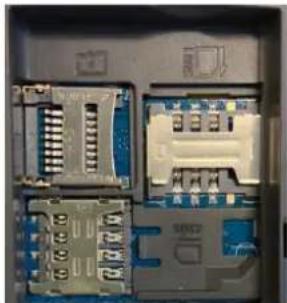
- Turn off the phone; remove the back cover, battery or any other external power supply.
natural_image
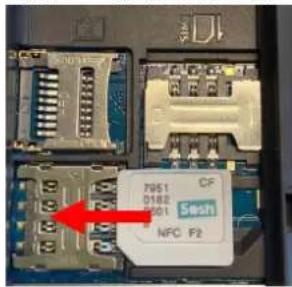
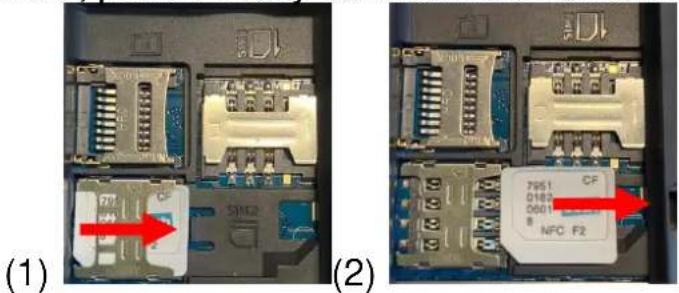
Interior view of an electronic device showing internal components like connectors, chips, and a blue connector (no visible text or symbols)- Insert the normal side (without angled edge) of the SIM card into the cavity provided for this purpose, with the metal contacts facing downwards. Insert the second SIM car in the same way.
text_image
F051 D162 F051 CF Sosin NFC F2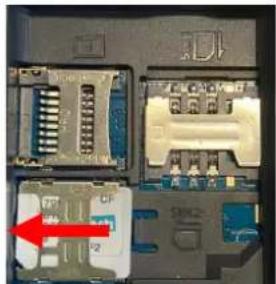
natural_image
Close-up of a computer motherboard showing ports, connectors, and a red arrow pointing to a component (no readable text or symbols)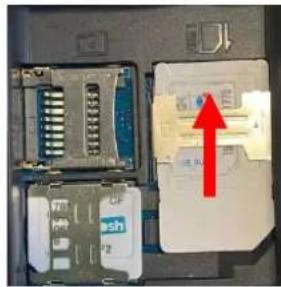
text_image
Photo of an electronic device with labeled components and a red arrow pointing to a component, showing readable text and symbols.(1)
- To remove the SIM card, pull it directly outwards and remove it completely.
text_image
(1) (2)Recommendation: This manual does not provide any additional information on inserting the second SIM card. Refer to the general instructions for inserting a SIM card. If you insert only one SIM card, some of the options on the menu will not be available.
3. Memory card
Insert the card into the memory card reader following the steps below
■ Remove the back cover from the phone, and then remove the battery.
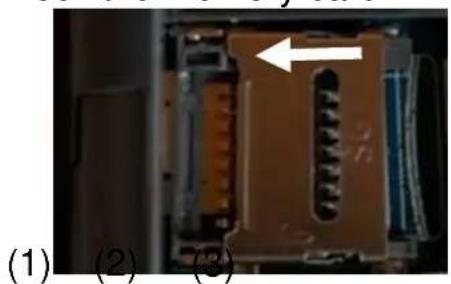
■ Push the metal clip in the direction of the arrow shown in photo (1) to raise it up
■ Insert the memory card into the slot provided, with the metal contacts facing downwards, refer to photo (2)
■ Close the metal clip and drag it in the direction of the arrow shown in photo (3) to lock the memory card
natural_image
Close-up of a mechanical component with internal channels and a white arrow indicating direction (no text or symbols)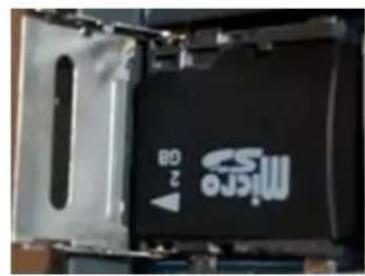
text_image
Migro 2 GB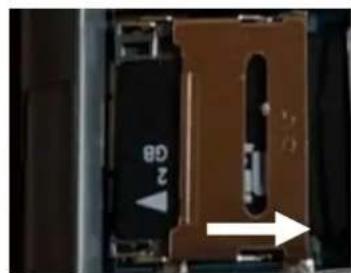
natural_image
Close-up of a mechanical component with a brown panel and directional arrow, no visible text or symbolsTip: If the memory card does not work, check that it is inserted correctly and also check the metal contact points. You can also try to format the memory card. You shouldn't have to close the metal clip with a lot of strength.
Installation and charge of battery
Installing the battery
- Remove the back cover from the phone.
- Place the end of the battery that has the metal contacts against the battery connector.
• Gently push the battery down and press on the other end of it to snap it in.
CAUTION: Risk of explosion if battery is replaced by an incorrect type.
Model: BL-5C / Batterie rechargeable Li-ion (3.7V) / 1000mAh
To replace the battery, please enquire with the after-sales service of your dealer.
Dispose of used batteries according to the instructions.
Charging the battery:
- To charge the battery, connect the USB cable (supplied) to the USB port of your Feature phone and the other end to the mains adaptor (supplied). Then connect the mains adaptor to a power outlet.
- The battery charge icon illuminates during charging and indicates the charge status.
- When the battery is fully charged, you can disconnect the USB cable from the device then from the power outlet.
IMPORTANT:
- The Feature phone is only recharged via its USB port.
- Ensure your Feature phone is fully discharged before charging it for the first time.
- The battery must be charged for at least 5 to 8 hours when first charged.
- After a long period without use, It should be necessary to do many cycles of charging / discharging to obtain maximum power capacity
Note: You can use the device when it is being charged. In this case, the battery may take longer to charge fully.

Safety information for charging the battery:
- To recharge the battery, only use the mains adaptor supplied with your device. Do not use any other power supply or electrical device.
- The power outlet to which the device is connected must be near the equipment and must always be easily accessible.
- Always wait at least 5 seconds after switching off the device before restarting it. Switching the device off and then back on again immediately may damage the electrical circuits.
- Do not disassemble, open or shred the battery contents. Do not dispose of batteries in fire or water. Do not charge the battery if the room temperature exceeds 45^ C. Keep the battery in a clean and dry place. Avoid leaving the battery under sunlight.
- Do not short circuit the battery. Do not keep the battery in a place where it can be shorted by other metal objects.
- Keep the battery away from children, in case of swallowed, consult a doctor immediately. In case of battery leak, take care to not allow the liquid come in contact with skin or eyes, if this case happens, wash thoroughly with water and consult a doctor.
- For all repairs or to replace the battery, consult a qualified technician.
- The lifetime of the battery depends largely on how you use it. Do not expose the battery to temperatures less than 0^ C or greater than 60^ C. Its performance may be altered.
- Significant electromagnetic interference or electrostatic discharge may cause malfunction or loss of data. If the device is not working properly, restart the Smartphone or unplug the mains adaptor from the power outlet then plug it in again.
- Remove when it's possible the battery when the Smartphone is not used during a long period.
- Dispose of the battery and the Smartphone separately. Do not put the battery in the household waste, for further information about recycling of the battery,
contact your municipality, your local waste or the store where you purchased the product.
Security password
- PIN code
The PIN code (Personal Identification Number) is used to prevent illegal use of your SIM card. Generally, PIN code and SIM card are provided together. If you input the PIN code incorrectly three times in succession, input the PUK code to unlock the SIM card. Contact your network operator for more information.
- PIN 2 code:
Input your PIN 2 code to use certain services such as a service call. If you input the PIN2 code incorrectly three times in succession, input the PUK2 code to unlock the SIM card. Contact your network operator for more information.
- PUK code
To change the locked PIN code, input the PUK (Personal Unlock Key) code. Usually PUK2 code and SIM card are provided together. Otherwise, contact your network operator. If you enter an incorrect PUK code ten times in succession, the SIM card can no longer be used. Please contact your network operator to purchase a new card. The PUK code cannot be changed. If you lose the code, contact your service provider.
- PUK2 code
When you change the locked PIN2 code, input the PUK2 code. If you enter an incorrect PUK2 code ten times in succession, the functions that require the PIN2 code will not be able to be used. Please contact your network operator to purchase a new card. The PUK2 code cannot be changed. If you lose the code, contact your service provider.
Main menu
To Lock/Unlock the keyboard, press the menu key (1) then the star key (2).
To Turn on/Turn off the phone, press the On/Off key (3) for a long time.

text_image
1 → key (3) 1 ABC 3 DEF 4 GHI 5 JKL 6 MNO 7 PQRS 8 TUV 9 WXYZ * +B 0 #1. Message
1.1. Write message
Compose a new message, insert a number and other
1.2. Inbox
All messages received are saved in this inbox.
1.3. Outbox
Outbox holds the messages that failed to be sent.
1.4. Drafts
This function allows you to retrieve the SMS that you have saved.
1.5. Sentbox
This function allows you to save all of the messages that have been sent successfully.
1.6. Broadcast messages
1.7. Voice mail server
2. Phonebook
You can save a phone number in the memory of the phone or in the SIM cards.
New: Create a new contact
SMS: Send a message to the contact
Call: Call the contact
Delete: Delete the selected contact
➢ Delete multiple: Delete several selected contacts
Delete all
Delete phone
Copy/Move
▶ Add to blacklist
Import/Export: Move the contacts between the phone and the SIM card
➢ Send vCard: Send the contact by SMS or BT
▶ Advanced settings
3. Call Center
This function allows you to view the recent call journal and to change the call settings.
3.1. Missed calls: See the number of the missed calls
3.2. Dialed Calls: See the recent list of various dialed calls
3.3. Received calls: See the recent list of various received calls
3.4. Rejected call: See the recent list of various rejected calls
3.5. Delete all: Delete all the records
3.6. Call timers: View the duration of the last call, dialed and received calls
3.7. Call setting
Dual SIM: Activate SIM1 only / SIM2 only / Dual-SIM mode
➢ Call divert: Set the message sending for the 2 SIM card
Call waiting
Call barring
▶ Blacklist
4. Alarm
Alarm settings
5. Camera
Press the center button to take pictures.
6. Multimedia
6.1. Video recording
▶ View video directory
DC mode
Effect
Settings
6.2. Video player
| Button | Function |
| Left and right directional buttons | Press once to go to the previous or next titlePress continuously to rewind or fast forward in the title |
| Button up | Press to increase the volume |
| Button down | Press to decrease the volume |
| Central Button | Press to play/pause the title |
6.3. Audio player
| Button | Function |
| Left and right directional buttons | Press once to go to the previous or next titlePress continuously to rewind or fast forward in the title |
| Button up | Press to increase the volume |
| Button down | Press to decrease the volume |
| Central Button | Press to play/pause the title |
6.4. Images viewer: Allows you to view the photos
6.5. FM Radio
➢ Auto search and save: Automatically searches for and saves channels
➢ Channel list: Select, delete and edit saved stations
▶ Save: Save the working channel
➢ Manual search: Allows you to search and save stations by frequency
▶ Close speaker
➢ Background play: Allows you to go back to the main interface and continue listening to the radio
Record: Allows you to save the sound
Timing record
Record file list
Storage
Help
6.6. Sound recorder:
This function allows you to record and listen to your audio recordings. Interrupted recordings are automatically saved and can be found in the list of files.
7. File manager
8. Fun
User profiles allow you to define the operation of your phone when a call or message is received and to configure the sound for keys, among other things. You can customize these profiles or keep their default configuration according to your needs. Select and customize the profiles adequately according to the situation. The various modes available are Normal, Silent, Meeting, and Outdoor.
10. Settings
Time and date: Configure the date and time of the device, as well as how they
are displayed
Language settings: Configuring the language of the device and preferred text input method
Shortcut settings
Power saving mode
Restore factory settings: This function allows you to restore factory-set settings. The default password for setting reinitialisation is "0000"
10.2. Display
Wallpaper setting: Define a picture as the default wallpaper
▶ Idle display settings
Contrast
Backlight
▶ Keypad backlight time
10.3. Security
PIN: Activate/deactivate or change the PIN code. If PIN code verification is activated, you must input your PIN code each time the phone is started.
Modify PIN 2: Activate/deactivate or change the PIN code 2
➢ Phone lock: lock the phone with a password. The phone's initial password is 0000
Modify privacy password
▶ Privacy
Auto keypad lock
Lock screen by end-key
10.4. Connection
Network accounts
GPRS Service
Data connection setting
▶ Network selection
11. Organizer
▶ Calendar: Displays the full date
➢ Calculator: Allows the phone to be used for simple calculations
World clock
Ebook
Flashlight: Turn on or turn off the electrical torch
Bluetooth: Check ‘Bluetooth’ and ‘Bluetooth visibility’ to activate the Bluetooth function, then search for the compatible Bluetooth equipment in ‘Paired device’, finally connect the equipment by choosing Pair.
Tip: When you don't use the Bluetooth function, be sure to turn it off by unchecking "Bluetooth" in this menu.
- Calendar: Displays the full date and events
Recycling
natural_image
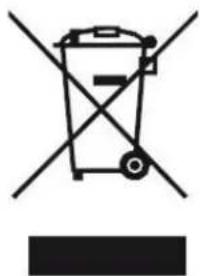
Symbol of a trash bin crossed out by two diagonal lines, with no text or labels present.The symbol shown here and on the product means that the product is classed as Electrical or Electronic Equipment and should not be disposed with other household or commercial waste at the end of its working life.
The Waste Electrical and Electronic Equipment (WEEE) Directive (2012/19/EU) has been put in place to recycle products using best available recovery and recycling techniques to minimise the impact on the environment, treat any hazardous substances and avoid the
increasing landfill.
Product disposal instructions for residential users:
If you no longer use the device, remove and dispose of the battery, as well as the device, in compliance with the local recycling procedures. For more information please contact your local authority or the retailer where the product was purchased.
Product disposal instructions for business users:
Business users should contact their suppliers and check the terms and conditions of the purchase contract and ensure that this product is not mixed with other commercial waste for disposal.
Warning on using the phone while driving
In France, in accordance with Article R412-6-1 of the French highway code, drivers are not permitted to use hand-held phones whilst the vehicle is moving.
The penalty for non-compliance with this article is a fine and point penalty on your driving licence.
It is also forbidden to wear any system such as earphones, pedestrian kits, headsets, headphones, susceptible to limit the attention or the hearing of the drivers.
NOTE: this legislation applies only in France. During trips abroad, please refer to the legislation in place in your country of origin before travelling.
Listening safety
- Before using the pedestrian kit, check that the volume is not set to maximum to prevent hearing loss.
- The high volume settings are intended for individuals with reduced hearing capacity and not for those with normal hearing.
- Do not use the pedestrian kit while driving.
- Adjust the volume so that you can hear the sounds around you.
- Listening at high volumes can damage your hearing and lead to hearing impairment (deafness, ringing ears, tinnitus and hyperacusis). In order to prevent these risks it is recommended not to use the device at full volume; use must not exceed one hour per day.
- This product complies with EN62368-1:2014 in accordance with the order of 25 July 2013 implementing Article L. 5232-1 of the French public health code concerning portable audio players.
- Do not use pre-amplified or amplified models of headphones or earphones (i.e. with individual volume control and/or self-powered by batteries), as they do not ensure adherence to the maximum volume.
- To prevent possible hearing damage, do not listen at high volume levels for long periods.
Electromagnetic waves safety information (SAR)
Your device is designed to not exceed the radio wave limits recommended by the European authorities. These limits include safety margins to ensure the protection of all persons regardless of their age or health.
The value of the SAR is determined on the basis of the highest level of radio frequencies emitted during laboratory tests.
The actual value of the SAR during use of the phone is lower than this level.
The value of the SAR of the phone can vary according to the following factors: how far/close the phone is to a relay antenna, use of accessories and others.
The maximum SAR level of your device is given in the following table:
| Position | Connectivity | SAR value |
| Head | GSM 900 / DCS 1800 | 0.591 W/kg |
| Tronc (Distance de séparation de 0 mm) | GSM900/DCS1800 | 1.760 W/kg |
| Membres (Distance de séparation de 0 mm) | GSM900/DCS1800 | 1.760 W/kg |
NOTE: The SAR value may vary, depending on national reporting and testing requirements and the network band.
NOTE:
- Do not use your mobile phone in certain locations such as aircraft, hospitals, service stations and professional garages or while driving a vehicle. The electromagnetic waves from the mobile phone can disrupt the performance of electronic devices used in these locations.
We recommend that you switch off your phone or switch it to flight mode in these locations to avoid interference. - If you use an electronic implant (pacemaker, insulin pump, neurostimulation, etc.). Maintain a distance of 15 cm between the mobile phone and your electronic implant.
- When using an earphone, pregnant women should keep the phone away from their abdomen and teenagers should keep the phone away from their lower abdomen.
- As with any radio electric product, we advise you to use your device wisely, especially when used by children and adolescents. You can do this by avoiding night calls and / or by limiting the frequency and duration of calls.
Advice to reduce the level of exposure to radiation:
- Please use your mobile phone where reception is good to reduce the quantity of radiation received (avoid using in an underground car park or when travelling (train or car)).
- A reception icon indicates the quality of reception on your phone. A 4-bar display means that reception is good.
- In order to limit exposure to radiation, we recommend using an earphone kit.
- In order to limit the detrimental consequences of prolonged exposure to radiation, we recommend that adolescents keep the phone away from their lower abdomen, and that pregnant women keep the phone away from their abdomen.
- Be sure to disable the Bluetooth function when you don't it.
Epilepsy warning
Please read before using a video game or allowing your children to use one. Some people are susceptible to epileptic seizures or loss of consciousness when exposed to certain flashing lights or light patterns in everyday life. Such people may have a seizure while watching television images or playing certain video games. This may happen even if the person has no medical history of epilepsy or has never had any epileptic seizures. If you or anyone in your family has ever had symptoms related to epilepsy (seizures or loss of consciousness) when exposed to flashing lights, consult your doctor prior to playing. We advise that parents should monitor the use of video games by their children. If you or your child has the following symptoms while playing a video game, discontinue use IMMEDIATELY and consult your doctor: dizziness, blurred vision, eye or muscle twitches, loss of consciousness, disorientation, any involuntary movement or convulsion.
Precautions to take during use of any video game:
- Do not sit too close to the screen. Sit a good distance away from the television screen, as far away as the length of the cable allows.
- Preferably play the game on a small television screen. Avoid playing if you are tired or have not had much sleep.
• Make sure that the room in which you are playing is well lit.
• Rest for ten to fifteen minutes per hour while playing a video game.
Technical information's :
| Technologies | Frequency range | Transmit power |
| 2G | GSM900 – DCS 1800 | Max 2W / Max 1W |
| Bluetooth | 2402MHz ~ 2480MHz | 1.42mW PIRE (e.i.r.p)1.55 dBm EIRP |
| FM receiver | 87.5 – 108MHz | N/A (Only Receiver) |
Information of charger:
| Manufacturer's name and address | Shenzhen Guangliyuan Electronic Co.,LTD. (NO.2 B2 Building, No.62 Industrial avenue, Fuchengao Industrial zone, Pinghu Street, Longgang District, Shenzhen, China |
| Model identifier | GLY-B05050L |
| Input voltage | 100-240V |
| Input AC frequency | 50-60Hz |
| Output voltage | 5V |
| Output current | 0.5A |
| Output power | 2.5W |
| Average active efficiency | 68.6% |
| No-load power consumption | 0.05W |
Signages

Conformity to European directives (CE)
Conformity to Waste Electrical and Electronic Equipment
(WEEE ou W3E) Directive 2012/19/EU product recycling guideline. Indicates that the device should not be thrown in the trash and must be recycled according to local laws.

Product compliant with the IEC 60417-5957; indoors use
only.

Adaptator with double insulation electrical protection which require a security ground connection.
Simplified EU declaration of conformity:
CE
Hereby, LOGICOMSA – 55 rue de Lisbonne – 75008 PARIS, declare that the radio equipment type feature phones BT/GSM/FM model Le Posh 280 (version REV.B) is in compliance with Directive 2014/53/UE.
The full text of the EU declaration of conformity is available at the following internet address: https://www.logicom-europe.com/ce-doc
V3_TL
The warranty scope of application
If you encounter any problems:
A contact form and complete FAQ are available on our website:
www.logicom-europe.com
If none of these platforms does solve your problem, contact your retailer.
The LOGICOM supplier warranty is valid for normal use of the device as defined in the instructions.
This warranty excludes damage caused by external circumstances.
Specifically, the warranty does not apply if the device is damaged as a result of a bump or drop, an operating error, a connection that does not comply with these instructions, lightning, a surge, or inadequate protection against heat, humidity, or freezing temperatures.
The warranty is applicable only in metropolitan France.
- The warranty does not cover user manuals or applications, settings, content or data of any kind.
- The warranty does not cover normal usury of the product. (Screens, batteries and camera)
- The warranty does not cover damage to the product due to misuse, including in particular those caused by objects, a pressure drop.
- The warranty does not cover any use of the label with the precautions outlined in the manual.
- The warranty does not cover defects caused to the product with another product connected or used with an accessory or software not provided by British Telecom.
- The warranty does not cover any damage to the battery.
- The warranty does not cover the product or its accessories if it has been disassembled or modified in any way.
- The warranty does not cover any unidentifiable product by serial number or (s) number (s) IMEI. If its elements have been removed, altered or defaced, the warranty does not apply.
- The warranty does not cover damage done to the product caused by exposure to moisture, conditions that extreme heat or cold, corrosion, oxidation, with any liquid whatsoever.
- The warranty does not cover any damage to (s) player (s) or SIM MicroSD reader.
The legal warranty for hidden defects applies in compliance with Articles 1641 et seq. of the French Civil Code.
Made in PRC
© 2020 Logicom SA.