ZX2-D2 - Video camera Vevor - Free user manual and instructions
Find the device manual for free ZX2-D2 Vevor in PDF.


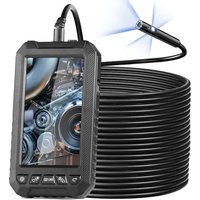
| Product Type | Portable high-definition directional endoscope (rotating endoscope) |
| Brand | Vevor |
| Model | ZX2-D2 |
| Display Screen | 5 inches (diagonal) |
| Lens Diameter | 6.4 mm |
| Snake Tube Length | 1.5 m |
| Lens Pixels | 2 million |
| Effective Focal Distance | 3 to 8 cm |
| Light Source | Adjustable built-in bright LED |
| Camera Rotation Angle | ≥ 180° in both directions |
| Main Functions | Real-time video inspection, photo taking, video recording (with TF card), brightness adjustment, directional orientation via wheel |
| Power Supply | Built-in rechargeable battery, charges via 5V 1A, battery life approximately 4 hours |
| Maintenance and Cleaning | Keep clean, avoid sun exposure and contact with corrosive liquids |
| Safety | Do not use as a medical device; maximum camera temperature: 85°C; do not twist or pull the tube; keep out of reach of children |
| Spare Parts and Repairability | Contact Vevor technical support for assistance |
| General Information | Compliant with FCC Part 15; WEEE directive 2012/19/EU; manufacturer: Shanghaimuxinmuyeyouxiangongsi, Shanghai, China |
Frequently Asked Questions - ZX2-D2 Vevor
User questions about ZX2-D2 Vevor
0 question about this device. Answer the ones you know or ask your own.
Ask a new question about this device
Download the instructions for your Video camera in PDF format for free! Find your manual ZX2-D2 - Vevor and take your electronic device back in hand. On this page are published all the documents necessary for the use of your device. ZX2-D2 by Vevor.
USER MANUAL ZX2-D2 Vevor
Technical Support and E-Warranty Certificate www.vevor.com/support
Steering Endoscope
Model: ZX2-D2
We continue to be committed to provide you tools with competitive p "Save Half", "Half Price" or any other similar expressions used by us represents an estimate of savings you might benefit from buying cert tools with us compared to the major top brands and doses not nece mean to cover all categories of tools offered by us. You are kindly re to verify carefully when you are placing an order with us if you are saving half in comparison with the top major brands.
VEVOR®
TOUGH TOOLS, HALF PRICE
Steering Endoscope
Instruction Manual
natural_image
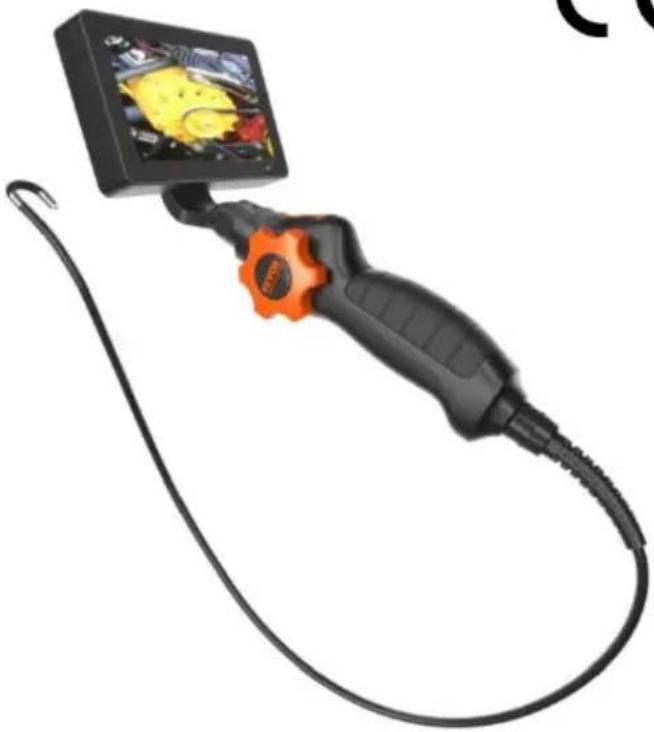
Close-up of a black endoscopic device with orange handle and cable, no visible text or symbols

NEED HELP? CONTACT US!
Have product questions? Need technical support? Please feel free to
us: Technical Support and E-Warranty Certificate
www.vevor.com/support
This is the original instruction, please read all manual instructions carefully being operating. VEVOR reserves a clear interpretation of our user manual. The app the product shall be subject to the product you received. Please forgive us that inform you again if there are any technology or software updates on our pro
PRODUCT DESCRIPTION
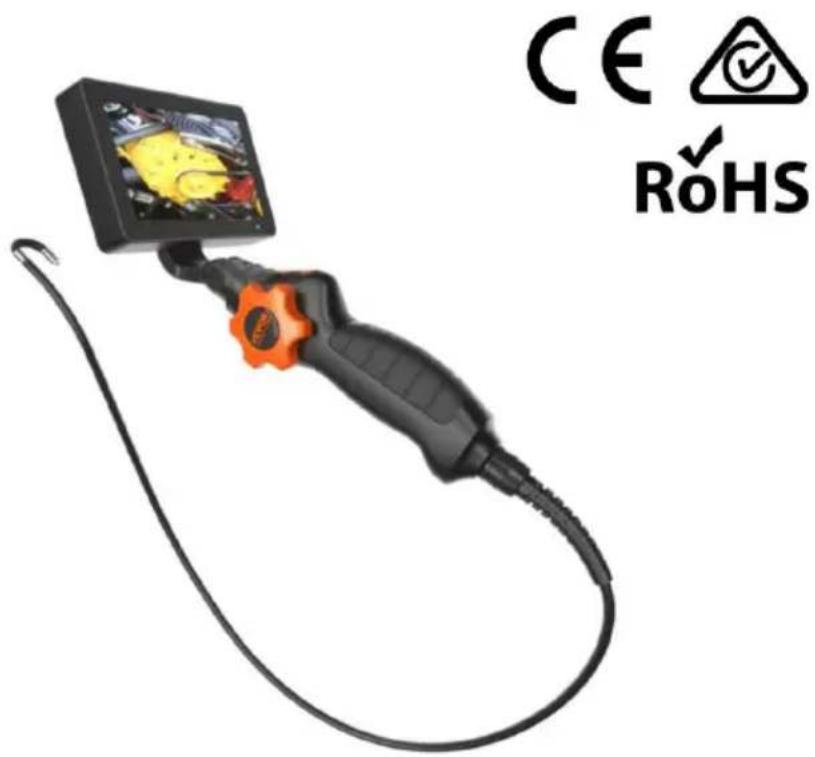
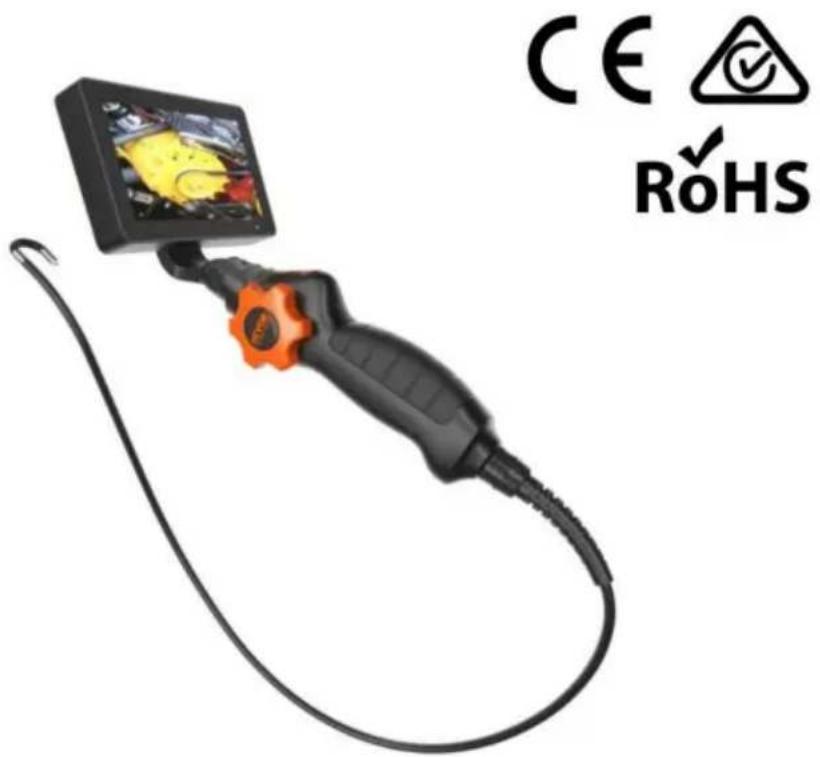
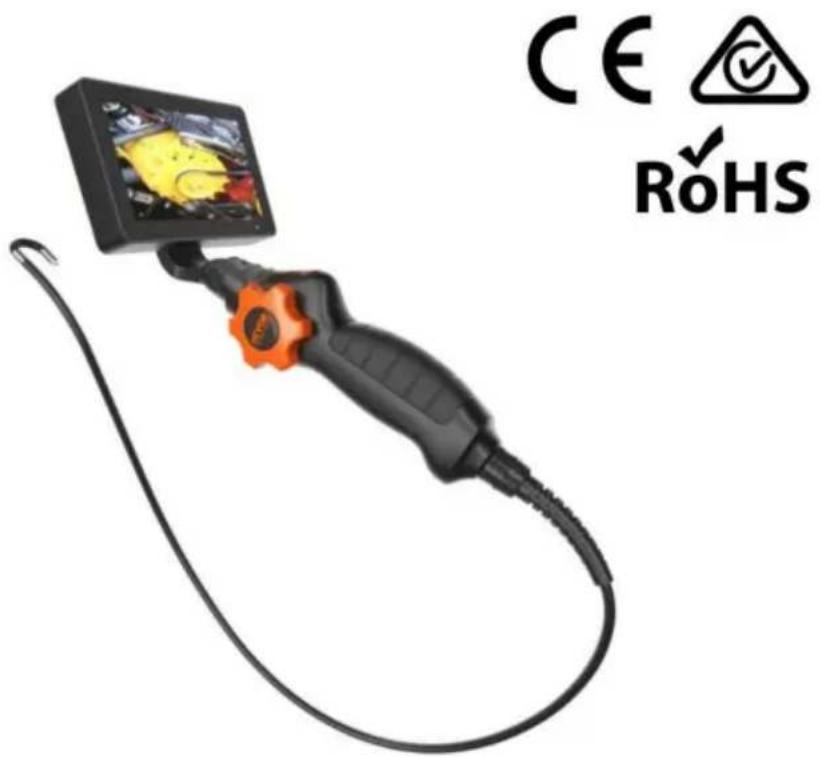
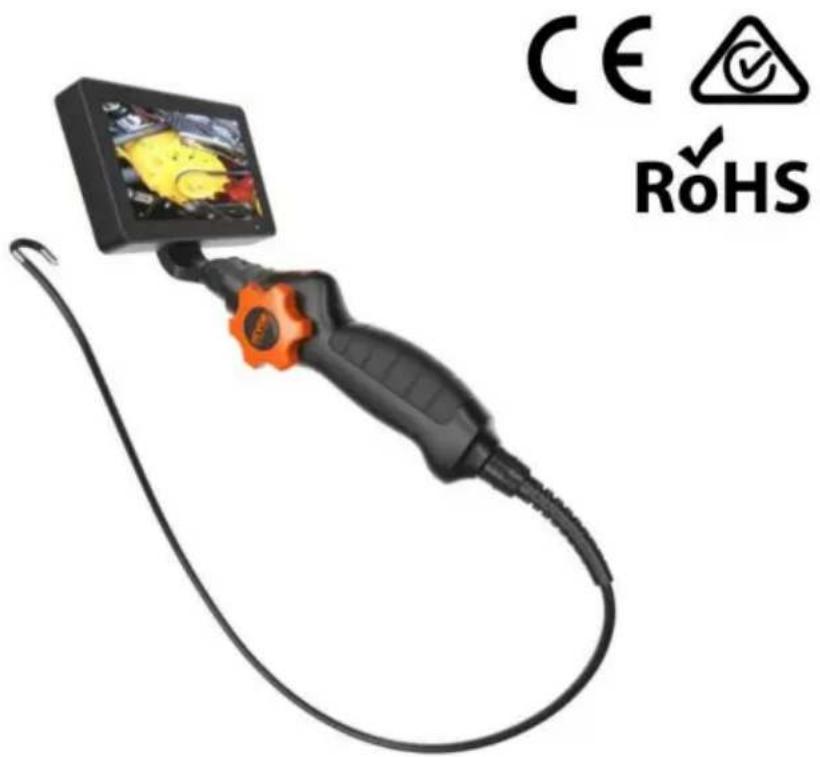
This product is a handheld high-definition detection endoscope, which can be displayed on the screen in real time through the front camera image.
The products are widely used in the fields of auto repair inspection, pipeline inspection,
Warm reminder:
- It cannot be used as a medical device
- The camera of this product cannot be used in a high temperature environment. There will be a buzzer alarm when the temperature is higher than 85 °C.
Please remove the camera from the high temperature environment when giving alarm.
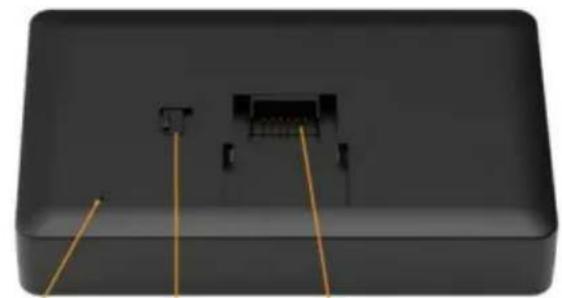
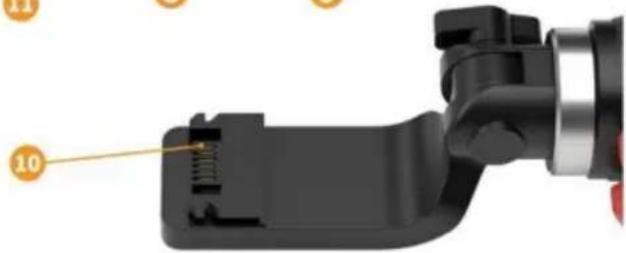
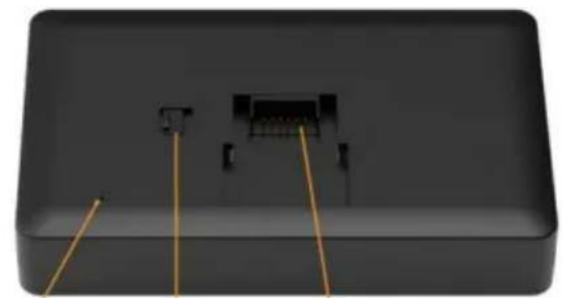
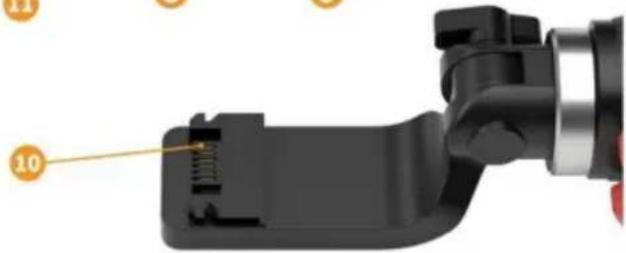
PRODUCT INTRODUCTION
(There are different colors, and the products are subject to the physical object received)
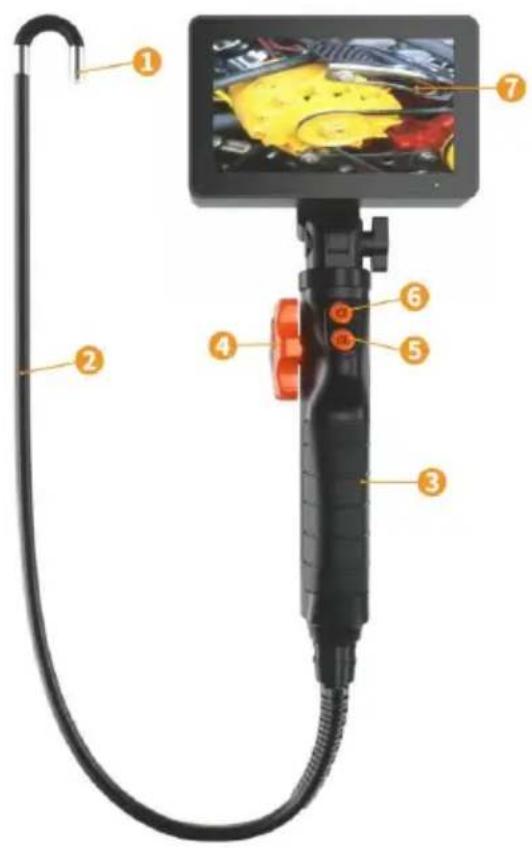
1 Camera
② SnakeTube
③ Handle Body
4 Steering Wheel
5 Camera Key
6 Light Key
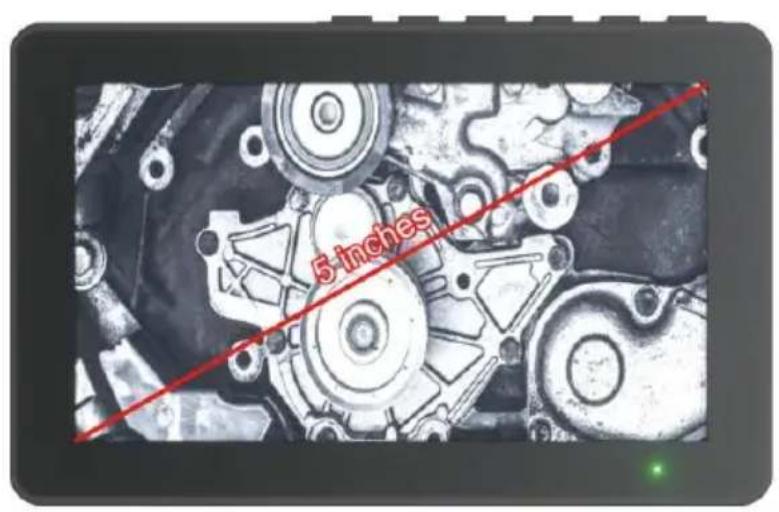
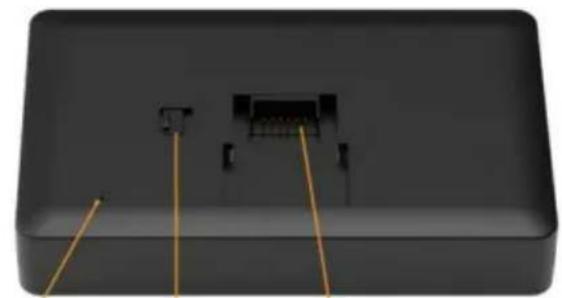
⑦ Display Screen
8 Lock Catch
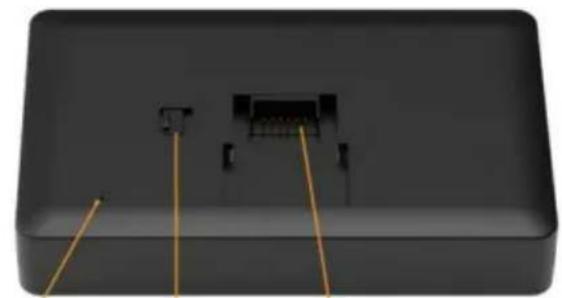
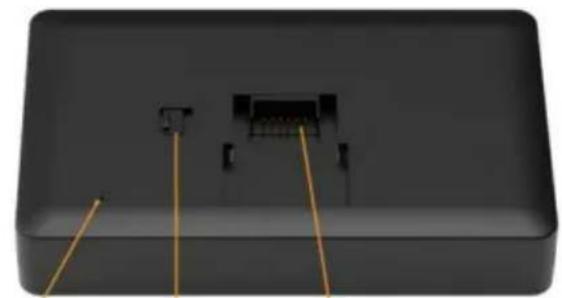
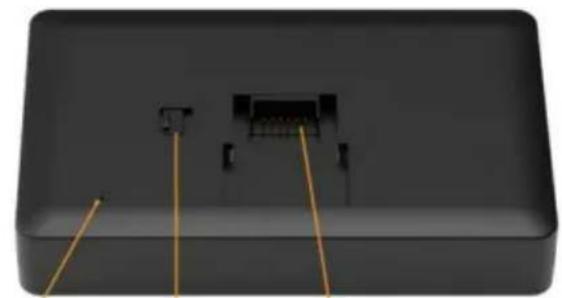
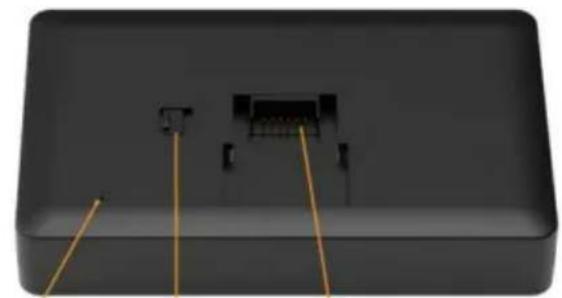
9 Display screen connection base
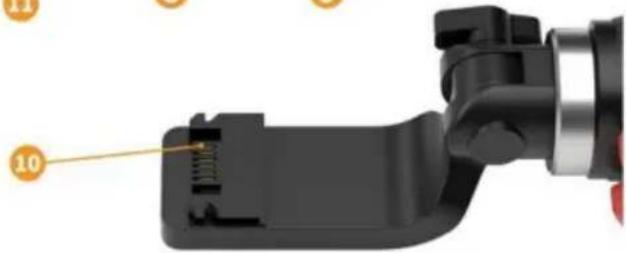
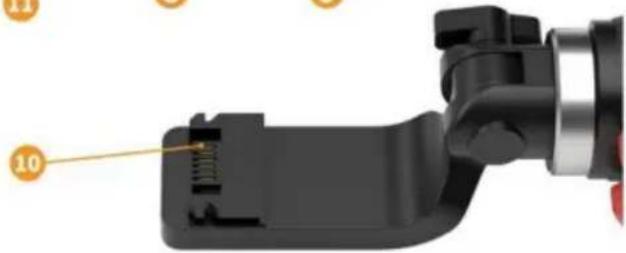
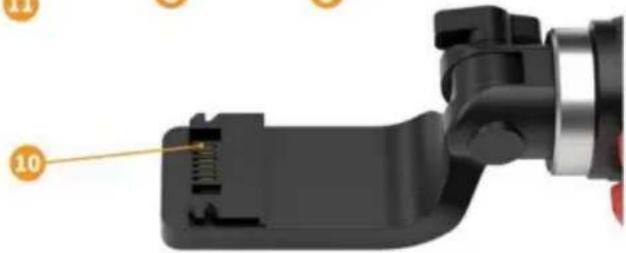
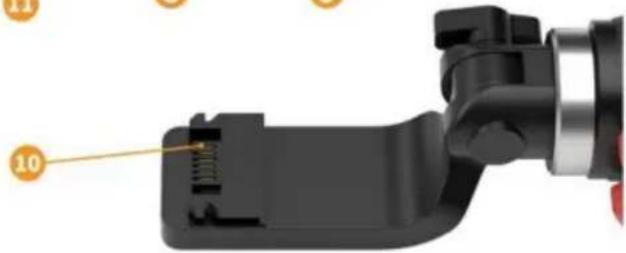
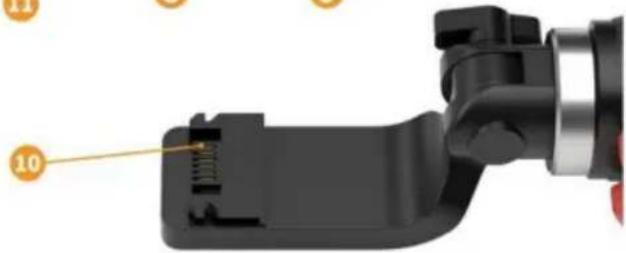
10 Handle connection base
Reset hole
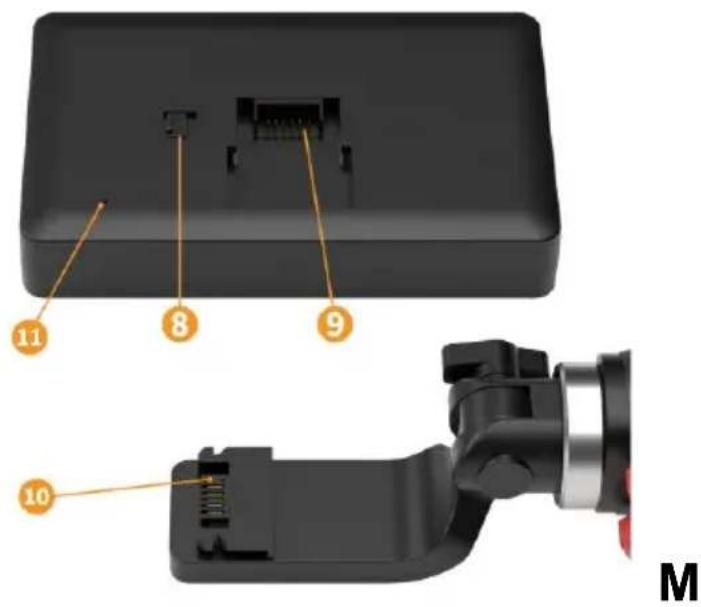
Removal and installation of display screen
Installation method: Move the latch on the back of the display to the right a connect the handle to the display
Removal method: Move the latch on the back of the display to the right and the display out of the handle
DISPLAY OPERATION INSTRUCTIONS

natural_image
User interface toolbar with control buttons and icons (no text or symbols visible)Key Operation Instructions
| ON/OFF | Press and hold for 2 seconds to turn on, and then press and hold for 2.5 seconds to turn off | |
| OK | OK key | Under the setting menu, as the confirmation key, short press the freeze frame screen to lock the screen, and then short press to exit the freeze frame to enter the real-time screen |
 | Menu key | Short press to enter the main menuShort press to exit the main menu |
| - | - key | Short press to zoom out X8. X6. X4. X2. X1Under the setting menu, select Up |
 | 180-degree flip key | Press and hold the left button of the screen for 180-degree flip |
| + | + key | Short press to enlarge X1. X2. X4. X6. X8Under the setting menu, select Down |
 | 180-degree flip key | Press and hold the right button of the screen for 180-degree flip |
 | Preview key | short press to enter photo preview, video playback,and then long press to delete photos, videos, and delete (delete current and all)short press to exit |
 | Photo key | Short press to take a picture |
 | Video key | Long press video |
In the process of use, if the picture is stuck and the machine cannot be sh use the card reader to align with the reset hole on the back of the display press once, and then retest
No TF card is inserted, can only observe normally, can not take photos/video (Delivered without TF card)
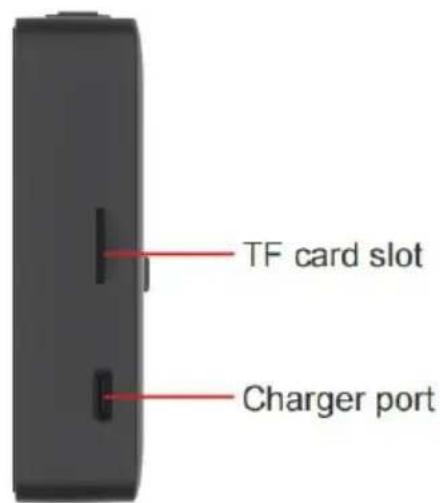
Charging prompt: when charging, the charging indicator light will be red, and fully charged, the charging indicator light will be green
Warm reminder: Charge the display before use
DESCRIPTION OF KEYS AT THE HANDLE BODY
- Photo key: short press to take photos/long press to record
- Light key: press briefly to adjust camera brightness
- Steering wheel: turn left and right to adjust the camera direction
PRODUCT PARAMETERS
Lens diameter: 6.4mm
Snake tube length: 1.5M
Lens pixel: 2 Million
Effective focal length: 3-8CM
Lens light source: built-in bright LED
Rotation angle: ≥ 180^ in both directions
Display screen: 5 inches
Endurance: about 4 hours
Charging voltage: 5V 1A
MATTERS NEEDING ATTENTION
- Do not use brute force during installation and removal
- The effective focal length of the camera is 3-8cm. Please view the image this range
- This product cannot be used for medical and human body testing
- Please keep this product out of the reach of children to avoid unnecessary damage and property loss
- Please keep the product clean and avoid exposure to sunlight and direct CO₂ with corrosive liquids
- Pull out the coil after confirming that the steering wheel returns to the mid-position. It is strictly forbidden to turn the steering wheel violently
- Do not twist or pull the bending body at the front of the coil
- Please handle with care. Do not bend the snake tube excessively. The ber limit of the snake tube is one circle
TROUBLESHOOTING
Tips: Charge before use
| Problem | Solution |
| Unable to start | 1. Check whether the battery is charged |
| 2. Check whether the power on key is normal | |
| 3. Check whether the charging is normal | |
| Unable to read card | 1. Check whether the memory card format is correct (only FAT32 file format is supported) |
| 2. Remove the TF card and re insert it | |
| 3. Re insert the memory card after formatting it on the computer | |
| Device panic | Reset: reset by inserting the reset key |
| Image blur | 1. Check whether the observation distance is within the focus range |
| 2. Clean the lens with dust-free cloth | |
| 3. In case of water ingress into the lens, please place it in a ventilated and dry place to dry | |
| Other issues | Please consult the supplier |
FCC statement:

This device complies with Part 15 of the FCC Rules. Operation subject to the following two conditions:
(1) This device may not cause harmful interference, and (2) this device must accept any interference received, including
interference that may cause undesired operation.
Disposal information:
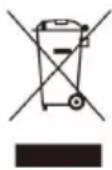
This product is subject to the provision of European Directive 2012/19/EU. The symbol showing a wheelie bin crossed through indicates that the product requires separate refuse collection in the European Union. This applies to the product and all accessories
marked with this symbol. Products marked as such may not be discarded with normal domestic waste, but must be taken to a collection point for recycling electrical and electronic devices.
Manufacturer: Shanghaimuxinmuyeyouxiangongsi
Address: Shuangchenglu 803nong11hao1602A-1609shi, baoshanqu, shanghai 200000 CN.
Imported to AUS: SIHAO PTY LTD. 1 ROKEVA STREETEASTWOOD NSW 2122 Australia
Imported to USA: Sanven Technology Ltd. Suite 250, 9166 Anaheim Place, Rancho Cucamonga, CA 91730
| UK | REP |
YH CONSULTING LIMITED.
C/O YH Consulting Limited Office 147,
Centurion House, London Road,
Staines-upon-Thames, Surrey, TW18 4AX
| EC | REP |
E-CrossStu GmbH
Mainzer Landstr.69,
60329 Frankfurt am Main.
VEVOR®
TOUGH TOOLS, HALF PRICE
Drehbares Endoskop
NEED HELP? CONTACT US!
Technical Support and E-Warranty Certificate www.vevor.com/suppo
natural_image
User interface toolbar with control buttons and icons (no text or symbols visible)Imported to AUS: SIHAO PTY LTD. 1 ROKEVA STREETEASTWOOD NSW 2122 Australia
Imported to USA: Sanven Technology Ltd. Suite 250, 9166 Anaheim Place, Rancho Cucamonga, CA 91730
| UK | REP |
YH CONSULTING LIMITED.
C/O YH Consulting Limited Office 147,
Centurion House, London Road,
Staines-upon-Thames, Surrey, TW18 4AX
| EC | REP |
E-CrossStu GmbH
Mainzer Landstr.69,
60329 Frankfurt am Main.
VEVOR®
TOUGH TOOLS, HALF PRICE
Technical Support and E-Warranty Certificate
www.vevor.com/support
VEVOR®
TOUGH TOOLS, HALF PRICE
natural_image
Close-up of a black endoscopic cable with an orange handle and a small screen displaying a yellow object (no visible text or symbols)

BESOIN D'AIDE? CONTACTEZ-NOUS!
www.vevor.com/support
① Camera
② SnakeTube
3 Handle Body
4 Steering Wheel
5 Camera Key
6 Light Key
⑦ Display Screen
8 Lock Catch
9 Display screen connection base
10 Handle connection base
11 Reset hole
natural_image
3D rendering of a black rectangular electronic device with internal components and gold connectors (no text or symbols visible)1.1 8 9
natural_image
Close-up of a black mechanical component with a metallic handle and internal structure, no visible text or symbolsM.

natural_image
Close-up of a black rectangular electronic device control panel with six function buttons (OK, Save, Cancel, Add, Export, Print) on the right side. | ON/OFF | Press and hold for 2 seconds to turn on, and then press and hold for 2.5 seconds to turn off |
| OK | OK key | Under the setting menu, as the confirmation key, short press the freeze frame screen to lock the screen, and then short press to exit the freeze frame to enter the real-time screen |
| [4SG5] | Menu key | Short press to enter the main menuShort press to exit the main menu |
| — | —key | Short press to zoom out X8. X6. X4. X2. X1Under the setting menu, select Up |
 | 180-degree flip key | Press and hold the left button of the screen for 180-degree flip |
 | +key | Short press to enlarge X1. X2. X4. X6. X8Under the setting menu, select Down |
| [6GZZ] | 180-degree flip key | Press and hold the right button of the screen for 180-degree flip |
 | Preview key | short press to enter photo preview, video playback, and then long press to delete photos, videos, and delete (delete current and all)short press to exit |
 | Photo key | Short press to take a picture |
 | Video key | Long press video |
PARAMÈTRES DU PRODUIT
| Problem | Solution |
| Unable to start | 1. Check whether the battery is charged |
| 2. Check whether the power on key is normal | |
| 3. Check whether the charging is normal | |
| Unable to read card | 1. Check whether the memory card format is correct (only FAT32 file format is supported) |
| 2. Remove the TF card and re insert it | |
| 3. Re insert the memory card after formatting it on the computer | |
| Device panic | Reset: reset by inserting the reset key |
| Image blur | 1. Check whether the observation distance is within the focus range |
| 2. Clean the lens with dust-free cloth | |
| 3. In case of water ingress into the lens, please place it in a ventilated and dry place to dry | |
| Other issues | Please consult the supplier |
Déclaration FCC :

C/O YH Consulting Limited Bureau 147,
Centurion House, London Road,
Staines-upon-Thames, Surrey, TW18 4AX
E-CrossStu GmbH
Mainzer Landstr.69,
natural_image
User interface toolbar with control buttons (OK, Save, Cancel, Add, Export) and icons, no readable text or symbols beyond standard UI elements.PARAMÈTRES DU PRODUIT
C/O YH Consulting Limited Bureau 147,
Centurion House, London Road,
Staines-upon-Thames, Surrey, TW18 4AX
E-CrossStu GmbH
Mainzer Landstr.69,
natural_image
Close-up of a black endoscopic device with orange handle and cable, no visible text or symbols
① Camera
② SnakeTube
3 Handle Body
4 Steering Wheel
5 Camera Key
6 Light Key
⑦ Display Screen
8 Lock Catch
9 Display screen connection base
10 Handle connection base
11 Reset hole
natural_image
3D rendering of a black rectangular electronic device with internal components and gold connectors (no text or symbols visible)1.1 8 9
natural_image
Close-up of a black mechanical component with a metallic handle and internal structure, no visible text or symbolsM

natural_image
Close-up of a black rectangular electronic control panel with six function buttons (OK, Save, Cancel, Add, Export, Print) on the right side (no text or symbols beyond standard icons) | ON/OFF | Press and hold for 2 seconds to turn on, and then press and hold for 2.5 seconds to turn off |
| OK | OK key | Under the setting menu, as the confirmation key, short press the freeze frame screen to lock the screen, and then short press to exit the freeze frame to enter the real-time screen |
 | Menu key | Short press to enter the main menuShort press to exit the main menu |
| — | —key | Short press to zoom out X8. X6. X4. X2. X1Under the setting menu, select Up |
| 180-degree flip key | Press and hold the left button of the screen for 180-degree flip |
| +key | Short press to enlarge X1. X2. X4. X6. X8Under the setting menu, select Down |
 | 180-degree flip key | Press and hold the right button of the screen for 180-degree flip |
| Preview key | short press to enter photo preview, video playback, and then long press to delete photos, videos, and delete (delete current and all)short press to exit |
| Photo key | Short press to take a picture |
| Video key | Long press video |
| Problem | Solution |
| Unable to start | 1. Check whether the battery is charged |
| 2. Check whether the power on key is normal | |
| 3. Check whether the charging is normal | |
| Unable to read card | 1. Check whether the memory card format is correct (only FAT32 file format is supported) |
| 2. Remove the TF card and re insert it | |
| 3. Re insert the memory card after formatting it on the computer | |
| Device panic | Reset: reset by inserting the reset key |
| Image blur | 1. Check whether the observation distance is within the focus range |
| 2. Clean the lens with dust-free cloth | |
| 3. In case of water ingress into the lens, please place it in a ventilated and dry place to dry | |
| Other issues | Please consult the supplier |
FCC-Erklärung:

C/O YH Consulting Limited Office 147,
Centurion House, London Road,
Staines-upon-Thames, Surrey, TW18 4AX
C/O YH Consulting Limited Office 147,
Centurion House, London Road,
Staines-upon-Thames, Surrey, TW18 4AX
www.vevor.com/support
VEVOR®
TOUGH TOOLS, HALF PRICE
natural_image
Close-up of a black and orange endoscope with a small display screen, no visible text or symbols.

HO BISOGNO DI AIUTO? CONTATTACI!
www.vevor.com/support
① Camera
② SnakeTube
3 Handle Body
4 Steering Wheel
5 Camera Key
6 Light Key
⑦ Display Screen
8 Lock Catch
9 Display screen connection base
10 Handle connection base
11 Reset hole
natural_image
3D rendering of a black rectangular electronic device with internal components and gold connectors (no text or symbols visible)1.1 8 9
natural_image
Close-up of a black mechanical component with a metallic handle and internal structure, no visible text or symbolsM

natural_image
Close-up of a black rectangular electronic device control panel with six function buttons (OK, Save, Cancel, Add, Export, Print) on the right side.| ON/OFF | Press and hold for 2 seconds to turn on, and then press and hold for 2.5 seconds to turn off | |
| OK | OK key | Under the setting menu, as the confirmation key, short press the freeze frame screen to lock the screen, and then short press to exit the freeze frame to enter the real-time screen |
| [25c6] | Menu key | Short press to enter the main menuShort press to exit the main menu |
| — | —key | Short press to zoom out X8. X6. X4. X2. X1Under the setting menu, select Up |
 | 180-degree flip key | Press and hold the left button of the screen for 180-degree flip |
 | +key | Short press to enlarge X1. X2. X4. X6. X8Under the setting menu, select Down |
 | 180-degree flip key | Press and hold the right button of the screen for 180-degree flip |
| _YCX5] | Preview key | short press to enter photo preview, video playback,and then long press to delete photos, videos, and delete (delete current and all)short press to exit |
| _YD42] | Photo key | Short press to take a picture |
| _A6KH] | Video key | Long press video |
| Problem | Solution |
| Unable to start | 1. Check whether the battery is charged |
| 2. Check whether the power on key is normal | |
| 3. Check whether the charging is normal | |
| Unable to read card | 1. Check whether the memory card format is correct (only FAT32 file format is supported) |
| 2. Remove the TF card and re insert it | |
| 3. Re insert the memory card after formatting it on the computer | |
| Device panic | Reset: reset by inserting the reset key |
| Image blur | 1. Check whether the observation distance is within the focus range |
| 2. Clean the lens with dust-free cloth | |
| 3. In case of water ingress into the lens, please place it in a ventilated and dry place to dry | |
| Other issues | Please consult the supplier |
Dichiarazione FCC:

Importato in AUS: SIHAO PTY LTD. 1 ROKEVA STREETEASTWOOD NSW 2122Australia
C/O YH Consulting Limited Office 147,
Centurion House, London Road,
Staines-upon-Thames, Surrey, TW18 4AX
| REP.CE |
E-CrossStu GmbH
Mainzer Landstr.69,
Importato in AUS: SIHAO PTY LTD. 1 ROKEVA STREETEASTWOOD NSW 2122Australia
C/O YH Consulting Limited Office 147,
Centurion House, London Road,
Staines-upon-Thames, Surrey, TW18 4AX
| REP.CE |
E-CrossStu GmbH
Mainzer Landstr.69,
natural_image
Close-up of a black endoscopic device with orange handle and cable, no visible text or symbols
① Camera
② SnakeTube
3 Handle Body
4 Steering Wheel
5 Camera Key
6 Light Key
⑦ Display Screen
8 Lock Catch
9 Display screen connection base
10 Handle connection base
11 Reset hole
natural_image
3D rendering of a black rectangular electronic device with internal components and gold connectors (no text or symbols visible)1.1 8 9
natural_image
Close-up of a black mechanical component with a metallic handle and internal structure, no visible text or symbolsMETRO

natural_image
Close-up of a black rectangular electronic device control panel with six function buttons (OK, Save, Cancel, Add, Export, Print) on the right side. | ON/OFF | Press and hold for 2 seconds to turn on, and then press and hold for 2.5 seconds to turn off |
| OK | OK key | Under the setting menu, as the confirmation key, short press the freeze frame screen to lock the screen, and then short press to exit the freeze frame to enter the real-time screen |
| Menu key | Short press to enter the main menuShort press to exit the main menu |
| — | —key | Short press to zoom out X8. X6. X4. X2. X1Under the setting menu, select Up |
| 180-degree flip key | Press and hold the left button of the screen for 180-degree flip |
| +key | Short press to enlarge X1. X2. X4. X6. X8Under the setting menu, select Down |
| 180-degree flip key | Press and hold the right button of the screen for 180-degree flip |
| Preview key | short press to enter photo preview, video playback, and then long press to delete photos, videos, and delete (delete current and all)short press to exit |
 | Photo key | Short press to take a picture |
 | Video key | Long press video |
| Problem | Solution |
| Unable to start | 1. Check whether the battery is charged |
| 2. Check whether the power on key is normal | |
| 3. Check whether the charging is normal | |
| Unable to read card | 1. Check whether the memory card format is correct (only FAT32 file format is supported) |
| 2. Remove the TF card and re insert it | |
| 3. Re insert the memory card after formatting it on the computer | |
| Device panic | Reset: reset by inserting the reset key |
| Image blur | 1. Check whether the observation distance is within the focus range |
| 2. Clean the lens with dust-free cloth | |
| 3. In case of water ingress into the lens, please place it in a ventilated and dry place to dry | |
| Other issues | Please consult the supplier |
Centurion House, London Road,
Staines-upon-Thames, Surrey, TW18 4AX
E-CrossStu GmbH
Mainzer Landstr.69,
1 Kamera
② Schlangenrohr
3 Handgriff Gehäuse
4 Lenkrad
5 Foto-Taste
6 Licht Taste
Centurion House, London Road,
Staines-upon-Thames, Surrey, TW18 4AX
E-CrossStu GmbH
Mainzer Landstr.69,
natural_image
Close-up of a black endoscopic device with orange handle and cable, no visible text or symbols

POTRZEBUJE POMOCY? SKONTAKTUJ SIĘ Z NAMI!
1 Camera
② SnakeTube
3 Handle Body
4 Steering Wheel
5 Camera Key
6 Light Key
⑦ Display Screen
8 Lock Catch
9 Display screen connection base
10 Handle connection base
11 Reset hole
natural_image
3D rendering of a black rectangular electronic device with internal components and gold connectors (no text or symbols visible)1.1 8 9
natural_image
Close-up of a black mechanical component with a metallic handle and internal structure, no visible text or symbolsM

natural_image
Close-up of a black rectangular electronic device control panel with six function buttons (OK, Save, Cancel, Add, Export, Print) on the right side.| ON/OFF | Press and hold for 2 seconds to turn on, and then press and hold for 2.5 seconds to turn off | |
| OK | OK key | Under the setting menu, as the confirmation key, short press the freeze frame screen to lock the screen, and then short press to exit the freeze frame to enter the real-time screen |
 | Menu key | Short press to enter the main menuShort press to exit the main menu |
| — | —key | Short press to zoom out X8. X6. X4. X2. X1Under the setting menu, select Up |
| 180-degree flip key | Press and hold the left button of the screen for 180-degree flip |
| +key | Short press to enlarge X1. X2. X4. X6. X8Under the setting menu, select Down |
| 180-degree flip key | Press and hold the right button of the screen for 180-degree flip |
 | Preview key | short press to enter photo preview, video playback, and then long press to delete photos, videos, and delete (delete current and all)short press to exit |
 | Photo key | Short press to take a picture |
 | Video key | Long press video |
| Problem | Solution |
| Unable to start | 1. Check whether the battery is charged |
| 2. Check whether the power on key is normal | |
| 3. Check whether the charging is normal | |
| Unable to read card | 1. Check whether the memory card format is correct (only FAT32 file format is supported) |
| 2. Remove the TF card and re insert it | |
| 3. Re insert the memory card after formatting it on the computer | |
| Device panic | Reset: reset by inserting the reset key |
| Image blur | 1. Check whether the observation distance is within the focus range |
| 2. Clean the lens with dust-free cloth | |
| 3. In case of water ingress into the lens, please place it in a ventilated and dry place to dry | |
| Other issues | Please consult the supplier |
Oświadczenie FCC:

C/O YH Consulting Limited Office 147,
Centurion House, London Road,
Staines-upon-Thames, Surrey, TW18 4AX
| REPREZENT KE |
E-CrossStu GmbH
Mainzer Landstr.69,
60329 Frankfurt nad Menem.
VEVOR®
TOUGH TOOLS, HALF PRICE
Obrotowy endoskop
POTRZEBUJE POMOCY? SKONTAKTUJ SIĘ Z NAMI!
1 Kamera
② Schlangenrohr
3 Handgriff Gehäuse
4 Lenkrad
5 Foto-Taste
6 Licht Taste
C/O YH Consulting Limited Office 147,
Centurion House, London Road,
Staines-upon-Thames, Surrey, TW18 4AX
| REPREZENT KE |
E-CrossStu GmbH
Mainzer Landstr.69,
60329 Frankfurt nad Menem.
VEVOR®
TOUGH TOOLS, HALF PRICE
www.vevor.com/support
VEVOR®
TOUGH TOOLS, HALF PRICE
Technische ondersteuning en e-garantiecertificaat www.vevor.com/support
Stuurendoscoop
Model: ZX2-D2
natural_image
Close-up of a black endoscopic device with orange handle and cable, no visible text or symbols
HULP NODIG? NEEM CONTACT MET ONS OP!
PRODUCT BESCHRIJVING
1 Camera
② SnakeTube
3 Handle Body
4 Steering Wheel
5 Camera Key
6 Light Key
⑦ Display Screen
8 Lock Catch
9 Display screen connection base
10 Handle connection base
11 Reset hole
natural_image
3D rendering of a black rectangular electronic device with internal components and gold connectors (no text or symbols visible)1.1 8 9
natural_image
Close-up of a black mechanical component with a metallic handle and internal structure, no visible text or symbolsM

natural_image
Close-up of a black rectangular electronic control panel with six function buttons (OK, Save, Cancel, Add, Export, Print) on the right side (no readable text or symbols beyond standard icons) | ON/OFF | Press and hold for 2 seconds to turn on, and then press and hold for 2.5 seconds to turn off |
| OK | OK key | Under the setting menu, as the confirmation key, short press the freeze frame screen to lock the screen, and then short press to exit the freeze frame to enter the real-time screen |
| Menu key | Short press to enter the main menuShort press to exit the main menu |
| — | —key | Short press to zoom out X8. X6. X4. X2. X1Under the setting menu, select Up |
 | 180-degree flip key | Press and hold the left button of the screen for 180-degree flip |
 | +key | Short press to enlarge X1. X2. X4. X6. X8Under the setting menu, select Down |
| 180-degree flip key | Press and hold the right button of the screen for 180-degree flip |
 | Preview key | short press to enter photo preview, video playback, and then long press to delete photos, videos, and delete (delete current and all)short press to exit |
 | Photo key | Short press to take a picture |
 | Video key | Long press video |
| Problem | Solution |
| Unable to start | 1. Check whether the battery is charged |
| 2. Check whether the power on key is normal | |
| 3. Check whether the charging is normal | |
| Unable to read card | 1. Check whether the memory card format is correct (only FAT32 file format is supported) |
| 2. Remove the TF card and re insert it | |
| 3. Re insert the memory card after formatting it on the computer | |
| Device panic | Reset: reset by inserting the reset key |
| Image blur | 1. Check whether the observation distance is within the focus range |
| 2. Clean the lens with dust-free cloth | |
| 3. In case of water ingress into the lens, please place it in a ventilated and dry place to dry | |
| Other issues | Please consult the supplier |
FCC-verklaring:

C/O YH Consulting Limited Office 147,
Centurion House, London Road,
Staines-upon-Thames, Surrey, TW18 4AX
E-CrossStu GmbH
Mainzer Landstr.69,
60329 Frankfurt am Main.
VEVOR®
TOUGH TOOLS, HALF PRICE
Draaibare endoscoop
HULP NODIG? NEEM CONTACT MET ONS OP!
C/O YH Consulting Limited Office 147,
Centurion House, London Road,
Staines-upon-Thames, Surrey, TW18 4AX
E-CrossStu GmbH
Mainzer Landstr.69,
60329 Frankfurt am Main.
VEVOR®
TOUGH TOOLS, HALF PRICE
Technische ondersteuning en e-garantiecertificaat www.vevor.com/support
VEVOR®
TOUGH TOOLS, HALF PRICE
natural_image
Close-up of a black endoscopic device with orange handle and cable, no visible text or symbols
BEHÖVS HJÄLP? KONTAKTA OSS!
www.vevor.com/support
PRODUKT INTRODUKTION
① Camera
② SnakeTube
3 Handle Body
4 Steering Wheel
5 Camera Key
6 Light Key
⑦ Display Screen
8 Lock Catch
9 Display screen connection base
10 Handle connection base
11 Reset hole
natural_image
3D rendering of a black rectangular electronic device with internal components and gold connectors (no text or symbols visible)1.1 8 9
natural_image
Close-up of a black mechanical component with a metallic handle and internal structure, no visible text or symbolsM

natural_image
Close-up of a black rectangular electronic device control panel with six function buttons (OK, Save, Cancel, Add, Export, Print) on the right side.| ON/OFF | Press and hold for 2 seconds to turn on, and then press and hold for 2.5 seconds to turn off | |
| OK | OK key | Under the setting menu, as the confirmation key, short press the freeze frame screen to lock the screen, and then short press to exit the freeze frame to enter the real-time screen |
| Menu key | Short press to enter the main menuShort press to exit the main menu |
| — | —key | Short press to zoom out X8. X6. X4. X2. X1Under the setting menu, select Up |
| 180-degree flip key | Press and hold the left button of the screen for 180-degree flip |
| +key | Short press to enlarge X1. X2. X4. X6. X8Under the setting menu, select Down |
| 180-degree flip key | Press and hold the right button of the screen for 180-degree flip |
| Preview key | short press to enter photo preview, video playback,and then long press to delete photos, videos, and delete (delete current and all)short press to exit |
| Photo key | Short press to take a picture |
| Video key | Long press video |
| Problem | Solution |
| Unable to start | 1. Check whether the battery is charged |
| 2. Check whether the power on key is normal | |
| 3. Check whether the charging is normal | |
| Unable to read card | 1. Check whether the memory card format is correct (only FAT32 file format is supported) |
| 2. Remove the TF card and re insert it | |
| 3. Re insert the memory card after formatting it on the computer | |
| Device panic | Reset: reset by inserting the reset key |
| Image blur | 1. Check whether the observation distance is within the focus range |
| 2. Clean the lens with dust-free cloth | |
| 3. In case of water ingress into the lens, please place it in a ventilated and dry place to dry | |
| Other issues | Please consult the supplier |
FCC uttalande:

C/O YH Consulting Limited Office 147,
Centurion House, London Road,
Staines-upon-Thames, Surrey, TW18 4AX
| EC | REP |
E-CrossStu GmbH
Mainzer Landstr.69,
60329 Frankfurt am Main.
VEVOR®
TOUGH TOOLS, HALF PRICE
Roterbart endoskop
BEHÖVS HJÄLP? KONTAKTA OSS!
C/O YH Consulting Limited Office 147,
Centurion House, London Road,
Staines-upon-Thames, Surrey, TW18 4AX
| EC | REP |
E-CrossStu GmbH
Mainzer Landstr.69,
60329 Frankfurt am Main.
VEVOR®
TOUGH TOOLS, HALF PRICE
www.vevor.com/support