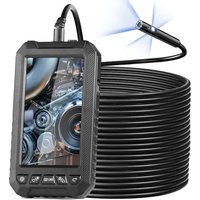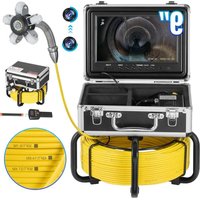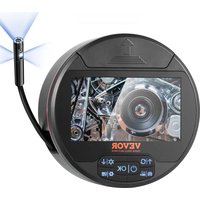
SC12 - Video camera Vevor - Free user manual and instructions
Find the device manual for free SC12 Vevor in PDF.


| Product Type | LCD Digital Endoscope |
| Brand | Vevor |
| Model | SC12 |
| Lens Diameter | 8.0 mm |
| Lens Resolution | 1.0 MP |
| Cable Length | 5 m |
| Viewing Angle | 68° |
| Focal Distance (Front Lens) | 3 – 8 cm |
| Focal Distance (Lens B) | 2 – 6 cm |
| Focal Distance (Lens C) | 1.5 – 3 cm |
| Waterproof Rating | IP67 (probe only) |
| Screen | 4.3-inch Color Screen |
| Main Functions | Photo, video, dual head, brightness adjustment, real-time viewing |
| Power Supply | Rechargeable battery via Type-C port |
| Storage | TF Card (not included) |
| Maintenance and Cleaning | Wipe the lens with a clean cloth; store in a dry place |
| Safety | Not for medical examinations; keep out of reach of children; avoid exposure to sunlight and corrosive liquids |
| Spare Parts and Repairability | Interchangeable threaded accessories; contact after-sales service |
| General Information | Compliant with FCC standards; disposal according to WEEE Directive 2012/19/EU |
Frequently Asked Questions - SC12 Vevor
User questions about SC12 Vevor
0 question about this device. Answer the ones you know or ask your own.
Ask a new question about this device
Download the instructions for your Video camera in PDF format for free! Find your manual SC12 - Vevor and take your electronic device back in hand. On this page are published all the documents necessary for the use of your device. SC12 by Vevor.
USER MANUAL SC12 Vevor
Technical Support and E-Warranty Certificate www.vevor.com/support
LCD Digital Endoscope
Model: SC12
We continue to be committed to provide you tools with competitive "Save Half", "Half Price" or any other similar expressions used by us represents an estimate of savings you might benefit from buying certain tools with us compared to the major top brands and doses not necessarily mean to cover all categories of tools offered by us. You are kindly not required to verify carefully when you are placing an order with us if you are not saving half in comparison with the top major brands.
LCD Digital Endoscope
Instruction Manual
NEED HELP? CONTACT US!
Have product questions? Need technical support? Please feel free to e
us: Technical Support and E-Warranty Certificate
www.vevor.com/support
This is the original instruction, please read all manual instruction carefully before operating. VEVOR reserves a clear interpretation user manual. The appearance of the product shall be subject to product you received. Please forgive us that we won't inform you there are any technology or software updates on our product.
PRODUCT DESCRIPTION
This product is a handheld high-definition detection endoscope, which can be displayed on the screen in real time through the front camera image.
The products are widely used in the fields of auto repair inspection, pipeline inspection
PRODUCT INTRODUCTION
(There are different colors, and the products are subject to the physical object received)
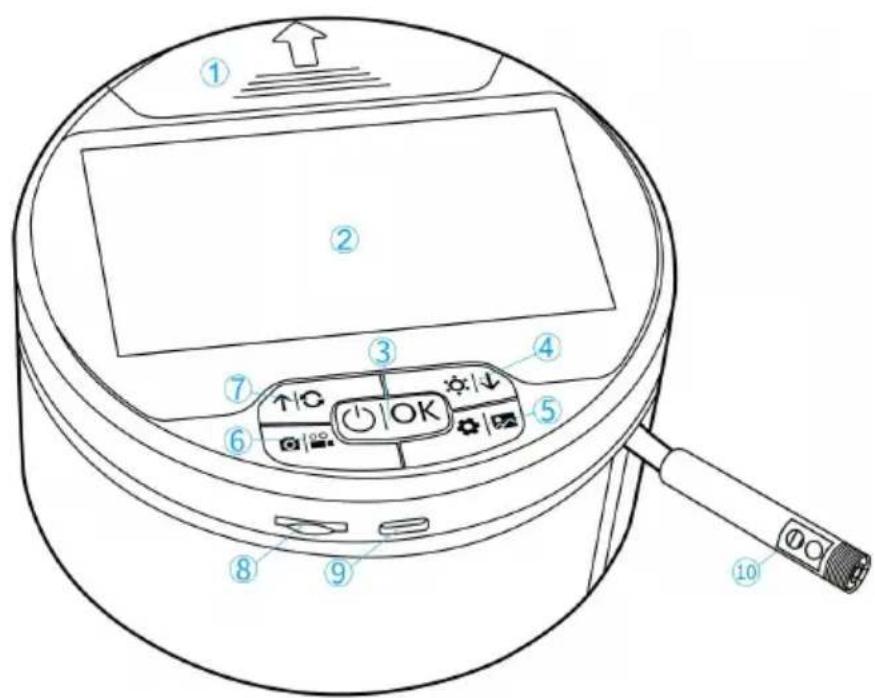
- Spare parts storage tank
A. In the direction of the arrow, open the fitting slot, remove the fitting then cover it
-
Hd 4.3 "display
-
On-off/Confirm key
A. Press and hold to turn on/off
B. Short press freeze screen, under the Settings menus as the confirm key
- Light adjustment/Down button
A. Tap to adjust the camera light,3,2,1,0
B. Select Down under the Playback and Settings menu
- Menu Settings/Preview key
A. Tap to enter the Settings menu, then tap to exit the Settings me
B. Press and hold to enter photo preview and video playback, press hold again to enter Delete the current picture or video, and press an again to exit playback
- Photo/Video button
A. Short press to take a photo/Long press to record a video
7. Switch/Up key
A. Short press to switch the double header (it does not work when the double header is not connected) and select Up under the Playback a Settings menu
8. TF card slot
9. Type-c charging port
- Hd camera
No TF card is inserted, can only observe normally can not take photos (factory without TF card)Before using; please format the TF card before using it
Charging tips: When charging, the switch is red light, fully charged, s off
Tip: Before use, fully charge
Step1: Long press to turn on
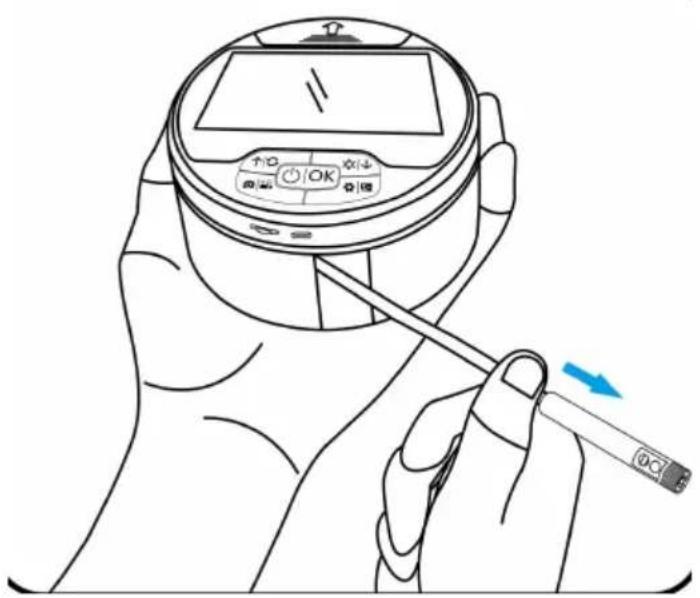
Step 2: Pull out the cable
Hold the lower shell and pullout the cable by following this arrow direction Nnot pinch the camera part when pull out the cable , If the cable is stuck, Icable and pull it out again
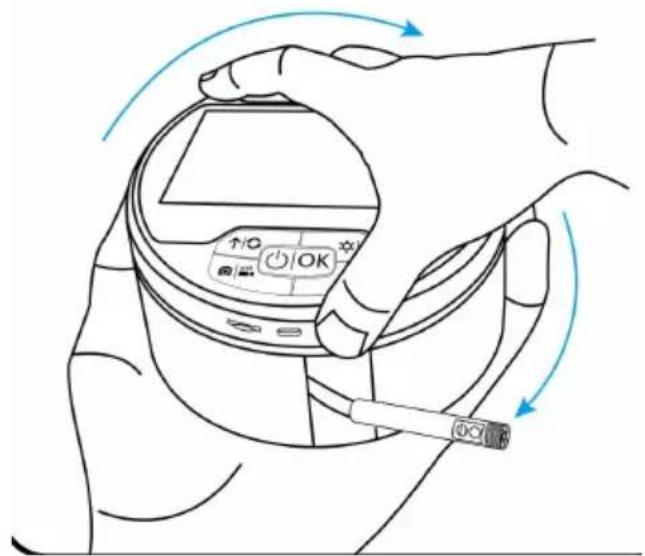
Step3:Retract the cable
Hold the lower shell&rotate the upper shell clockwise to retract the cable. Please keep the camera outside
Installationofaccessories
This product has many models, different accessories, the specific to the actual standard
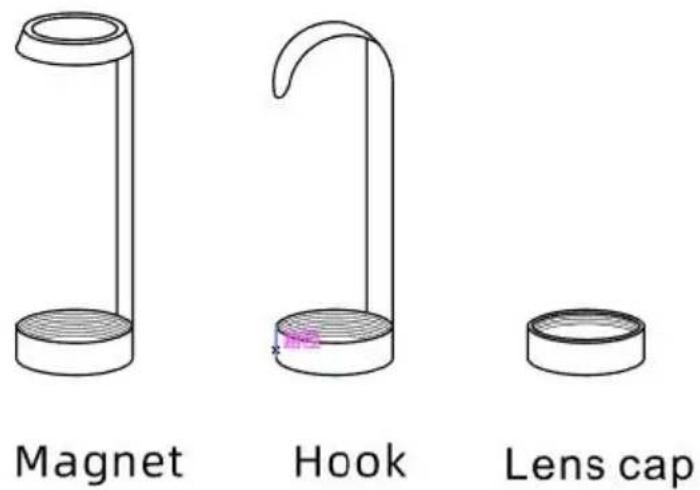
Threaded Accessories Installation for Threaded Accessories

Step1: Align the thread position of the Camera Step 2: Gentlyighten the accessories
Otheraccessories
Lens protection---Cable Clips Buckle


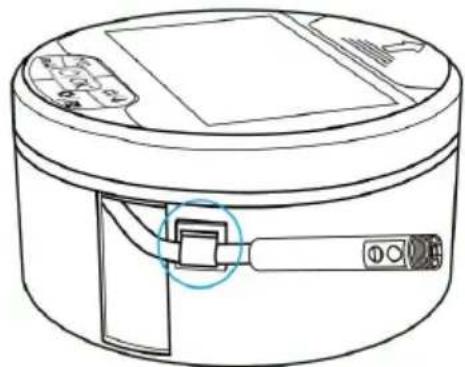
How to use the clips buckle--see Figure 12 Note: This accessory is for reference only and cannot be considered after-sales issue.
Troubleshooting
- Image blurring
A. If the lens into the water and stained with dirt, wipe clean with a clean then put it in a dry place to dry.
B. Wipe the display with a clean cloth / if the display has been attached to protective film, you can tear off the protective film.
C. Lens effective focal length range 3-8cm
D. Insufficient power, timely charging
- No photos/videos
A. Check whether aTF card is inserted
B. format the card before use
C. Replace other TF cards and test again
3. In case ofother problems,please contact the supplier.
Parameters
Lens diameter: 8.0mm Lens pixe: 1.0MP
Wire length: 5 m Viewing angle: 68 degrees
Focus: front lens 3-8 cm.B lens 2-6 cm. C lens1.5-3 cm
Waterproof: IP67(only for Lens)
Display screen: 4.3 inch color screen
MATTERS NEEDING ATTENTION
- The effective focal length of the camera is 3-8cm. Please view the image this range
- This product cannot be used for medical and human body testing
- Please keep this product out of the reach of children to avoid unnecessary damage and property loss
- Please keep the product clean and avoid exposure to sunlight and direct contact with corrosive liquids
- Pull out the coil after confirming that the steering wheel returns to the midposition. It is strictly forbidden to turn the steering wheel violently
- Please handle with care. Do not bend the snake tube excessively. The be
TROUBLESHOOTING
Tips: Charge before use
| Problem | Solution |
| Unable to start | 1. Check whether the battery is charged |
| 2. Check whether the power on key is normal | |
| 3. Check whether the charging is normal | |
| Unable to read card | 1. Check whether the memory card format is correct (only FAT32 file format is supported) |
| 2. Remove the TF card and re insert it | |
| 3. Re insert the memory card after formatting it on the computer | |
| Device panic | Reset: reset by inserting the reset key |
| Image blur | 1. Check whether the observation distance is within the focus range |
| 2. Clean the lens with dust-free cloth | |
| 3. In case of water ingress into the lens, please place it in a ventilated and dry place to dry | |
| Other issues | Please consult the supplier |
FCC statement:

This device complies with Part 15 of the FCC Rules. Operation subject to the following two conditions:
(1) This device may not cause harmful interference, and (2) this device must accept any interference received, including
interference that may cause undesired operation.
Disposal information:

This product is subject to the provision of European Directive 2012/19/EU. The symbol showing a wheelie bin crossed through indicates that the product requires separate refuse collection in the European Union. This applies to the product and all accessories
marked with this symbol. Products marked as such may not be discarded with normal domestic waste, but must be taken to a collection point for recycling electrical and electronic devices.
Manufacturer: Shanghaiuxinmuyeyouxianggsi
Address: Shuangchenglu 803nong11hao1602A-1609shi, baoshanqu, shanghai 200000 CN.
Imported to AUS: SIHAO PTY LTD. 1 ROKEVA STREETEASTWOOD NSW 2 Australia
Imported to USA: Sanven Technology Ltd. Suite 250, 9166 Anaheim Place, Rancho Cucamonga, CA 91730

YH CONSULTING LIMITED.
C/O YH Consulting Limited Office 147,
Centurion House, London Road,
Staines-upon-Thames, Surrey, TW18 4AX

E-CrossStu GmbH
Mainzer Landstr.69,
60329 Frankfurt am Main.
VEVOR®
TOUGH TOOLS, HALF PRICE
Technical Support and E-Warranty Certificate www.vevor.com/support
VEVOR®
TOUGH TOOLS, HALF PRICE
Assistance technique et certificat de garantie electronique www.vevor.com/support
www.vevor.com/support
| Problem | Solution |
| Unable to start | 1. Check whether the battery is charged |
| 2. Check whether the power on key is normal | |
| 3. Check whether the charging is normal | |
| Unable to read card | 1. Check whether the memory card format is correct (only FAT32 file format is supported) |
| 2. Remove the TF card and re insert it | |
| 3. Re insert the memory card after formatting it on the computer | |
| Device panic | Reset: reset by inserting the reset key |
| Image blur | 1. Check whether the observation distance is within the focus range |
| 2. Clean the lens with dust-free cloth | |
| 3. In case of water ingress into the lens, please place it in a ventilated and dry place to dry | |
| Other issues | Please consult the supplier |
Déclaration FCC:

C/O YH Consulting Limited Bureau 147,
Maison Centurion, London Road,
Staines-upon-Thames, Surrey, TW18 4AX
E-CrossStu GmbH
Mainzer Landstr.69,
| Problem | Solution |
| Unable to start | 1. Check whether the battery is charged |
| 2. Check whether the power on key is normal | |
| 3. Check whether the charging is normal | |
| Unable to read card | 1. Check whether the memory card format is correct (only FAT32 file format is supported) |
| 2. Remove the TF card and re insert it | |
| 3. Re insert the memory card after formatting it on the computer | |
| Device panic | Reset: reset by inserting the reset key |
| Image blur | 1. Check whether the observation distance is within the focus range |
| 2. Clean the lens with dust-free cloth | |
| 3. In case of water ingress into the lens, please place it in a ventilated and dry place to dry | |
| Other issues | Please consult the supplier |
FCC-Erklärung:

C/O YH Consulting Limited Office 147,
Centurion House, London Road,
Staines-upon-Thames, Surrey, TW18 4AX
E-CrossStu GmbH
Mainzer Landstr.69,
60329 Frankfurt am Main.
VEVOR
TOUGH TOOLS, HALF PRICE
www.vevor.com/support
| Problem | Solution |
| Unable to start | 1. Check whether the battery is charged |
| 2. Check whether the power on key is normal | |
| 3. Check whether the charging is normal | |
| Unable to read card | 1. Check whether the memory card format is correct (only FAT32 file format is supported) |
| 2. Remove the TF card and re insert it | |
| 3. Re insert the memory card after formatting it on the computer | |
| Device panic | Reset: reset by inserting the reset key |
| Image blur | 1. Check whether the observation distance is within the focus range |
| 2. Clean the lens with dust-free cloth | |
| 3. In case of water ingress into the lens, please place it in a ventilated and dry place to dry | |
| Other issues | Please consult the supplier |
Dichiarazione FCC:

Importato in AUS: SIHAO PTY LTD. 1 ROKEVA STREETEASTWOOD NSW 2122 Australia
C/O YH Consulting Limited Ufficio 147,
Casa del Centurione, London Road,
Staines-upon-Thames, Surrey, TW18 4AX
E-CrossStu GmbH
Mainzer Landstr.69,
60329 FrancofortesulMeno.
VEVOR
TOUGH TOOLS, HALF PRICE
| Problem | Solution |
| Unable to start | 1. Check whether the battery is charged |
| 2. Check whether the power on key is normal | |
| 3. Check whether the charging is normal | |
| Unable to read card | 1. Check whether the memory card format is correct (only FAT32 file format is supported) |
| 2. Remove the TF card and re insert it | |
| 3. Re insert the memory card after formatting it on the computer | |
| Device panic | Reset: reset by inserting the reset key |
| Image blur | 1. Check whether the observation distance is within the focus range |
| 2. Clean the lens with dust-free cloth | |
| 3. In case of water ingress into the lens, please place it in a ventilated and dry place to dry | |
| Other issues | Please consult the supplier |
C/O YH Consulting Limited Oficina 147, Casa Centurion, London Road, Staines upon Thames, Surrey, TW18 4A
E-CrossStu GmbH
Mainzer Landstr.69, 60329 Francfort del Meno.
VEVOR
TOUGH TOOLS, HALF PRICE
Soporte专业技术o y certificate de garantia electrònica www.vevor.com/support
VEVOR®
TOUGH TOOLS, HALF PRICE
| Problem | Solution |
| Unable to start | 1. Check whether the battery is charged |
| 2. Check whether the power on key is normal | |
| 3. Check whether the charging is normal | |
| Unable to read card | 1. Check whether the memory card format is correct (only FAT32 file format is supported) |
| 2. Remove the TF card and re insert it | |
| 3. Re insert the memory card after formatting it on the computer | |
| Device panic | Reset: reset by inserting the reset key |
| Image blur | 1. Check whether the observation distance is within the focus range |
| 2. Clean the lens with dust-free cloth | |
| 3. In case of water ingress into the lens, please place it in a ventilated and dry place to dry | |
| Other issues | Please consult the supplier |
Oswiadczenia FCC:

C/O YH Consulting Limited Biuro 147, Dom Centuriona, London Road, Staines-upon-Thames, Surrey, TW18 4A
E-CrossStu GmbH
Mainzer Landstr.69, 60329 Frankfurt nad Menem.
VEVOR
TOUGH TOOLS, HALF PRICE
www.vevor.com/support
VEVOR®
TOUGH TOOLS, HALF PRICE
Technische ondersteuning en e-garantiecertificaat www.vevor.com/support
LCD digitale endoscoop
Model: SC12
HULP NODIG? NEEM CONTACT MET ONS OP!
PRODUCT BESCHRIJVING
PRODUCT INTRODUCTION
| Problem | Solution |
| Unable to start | 1. Check whether the battery is charged |
| 2. Check whether the power on key is normal | |
| 3. Check whether the charging is normal | |
| Unable to read card | 1. Check whether the memory card format is correct (only FAT32 file format is supported) |
| 2. Remove the TF card and re insert it | |
| 3. Re insert the memory card after formatting it on the computer | |
| Device panic | Reset: reset by inserting the reset key |
| Image blur | 1. Check whether the observation distance is within the focus range |
| 2. Clean the lens with dust-free cloth | |
| 3. In case of water ingress into the lens, please place it in a ventilated and dry place to dry | |
| Other issues | Please consult the supplier |
FCC-verklaring:

C/O YH Consulting Limited Kantoor 147, Centurion House, London Road, Staines-upon-Thames, Surrey, TW18 4AX
www.vevor.com/support
PRODUKT INTRODUKTION
| Problem | Solution |
| Unable to start | 1. Check whether the battery is charged |
| 2. Check whether the power on key is normal | |
| 3. Check whether the charging is normal | |
| Unable to read card | 1. Check whether the memory card format is correct (only FAT32 file format is supported) |
| 2. Remove the TF card and re insert it | |
| 3. Re insert the memory card after formatting it on the computer | |
| Device panic | Reset: reset by inserting the reset key |
| Image blur | 1. Check whether the observation distance is within the focus range |
| 2. Clean the lens with dust-free cloth | |
| 3. In case of water ingress into the lens, please place it in a ventilated and dry place to dry | |
| Other issues | Please consult the supplier |
FCC uttalande:

C/O YH Consulting Limited Office 147,
Centurion House, London Road,
Staines-upon-Thames, Surrey, TW18 4AX

E-CrossStu GmbH
Mainzer Landstr.69,
60329 Frankfurt am Main.
VEVOR
TOUGH TOOLS, HALF PRICE