
HT-A2+ - Measuring equipment Vevor - Free user manual and instructions
Find the device manual for free HT-A2+ Vevor in PDF.
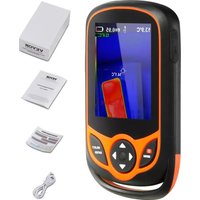


| Product type | Infrared thermal imaging camera |
| Brand and model | Vevor HT-A2+ |
| Detector | Uncooled array 256 x 192 pixels |
| Pixel size | 12 µm |
| Response wave band | 8 to 14 µm |
| NETD (thermal sensitivity) | < 50 mK |
| Frame rate | 25 Hz |
| Focal length | 3.2 mm |
| Field of view | 56° (H) x 42° (V) |
| Focus | Fixed |
| Temperature measurement range | -20°C to 120°C (low) / 120°C to 550°C (high) |
| Temperature measurement accuracy | Industrial: ±2°C or ±2% of reading; Biological: ±0.5°C (typical) |
| Adjustable emissivity | 0.01 to 1.00 with presets (rough, semi-matte, semi-glossy, glossy) |
| Display | 3.2-inch LCD (240 x 320 pixels), capacitive touchscreen |
| Internal memory | 16GB eMMC (approx. 13.9GB available) |
| Built-in Wi-Fi | Yes (access point 'Thermal 0000') |
| Interface | USB Type-C (data output and charging) |
| Battery | 3000mAh lithium-ion, rechargeable via USB |
| Estimated battery life | Approximately 2 hours of continuous use |
| Protection rating | IP54 (splash and dust resistant) |
| Main functions | Center spot, max, min measurement; visible/infrared image fusion; color palettes (rainbow, iron, cold, white hot, black hot); photo capture and video recording; built-in LED light |
| Cleaning and maintenance | Clean the housing with a damp cloth and mild soap; lens with optics cleaner and compressed air blowing |
| Warranty and support | Electronic warranty via www.vevor.com/support |
| Country of manufacture | China |
Frequently Asked Questions - HT-A2+ Vevor
User questions about HT-A2+ Vevor
0 question about this device. Answer the ones you know or ask your own.
Ask a new question about this device
Download the instructions for your Measuring equipment in PDF format for free! Find your manual HT-A2+ - Vevor and take your electronic device back in hand. On this page are published all the documents necessary for the use of your device. HT-A2+ by Vevor.
USER MANUAL HT-A2+ Vevor
Technical Support and E-Warranty Certificate www.vevor.com/support
Thermal Imaging Camera
MODEL:HT-A2+
We continue to be committed to provide you tools with competitive price. "Save Half", "Half Price" or any other similar expressions used by us only represents an estimate of savings you might benefit from buying certain tools with us compared to the major top brands and does not necessarily mean to cover all categories of tools offered by us. You are kindly reminded to verify carefully when you are placing an order with us if you are actually saving half in comparison with the top major brands.
NEED HELP? CONTACT US!
Have product questions? Need technical support? Please feel free to contact us:
Technical Support and E-Warranty Certificate www.vevor.com/support
This is the original instruction, please read all manual instructions carefully before operating. VEVOR reserves a clear interpretation of our user manual. The appearance of the product shall be subject to the product you received. Please forgive us that we won't inform you again if there are any technology or software updates on our product.
Table of Contents
Safety Instruction 1
Preliminary Acquaintance with Infrared Thermal Imager ---- 4
Overview 5
Performance Indices 6
Product Structure 9
Operation Instruction 11
Preface
Respected users:
How are you! Thank you for purchasing our instrument. In order to use it in a better manner, we remind you to read the instruction for use carefully before use and keep it properly so as to look up in the future use.
Safety Instruction
Please ensure that you have read and understood the safety precautions described in the following text before using the product so that you can operate it correctly.
The safety precautions described in the following text guide you to operate the product and its accessories correctly and safely to avoid damage and loss to you, other people, and the device.

Considerations
Please observe the following guide in order not to damage the product:
Don't assemble or dismantle the product without permission.
The product is a type of super precise equipment. Don't try to dismantle, assemble, or remodel any part of the product. Repair of the product should be made by technical personnel designated by the company.
Avoid damage to probe of the product
Note: don't put the product close to strong heat source directly (such as electric iron). Otherwise, it may damage the probe of the product.
Product hum
When the product works, there is light sound of clicking every several seconds. This is normal phenomenon that the lens captures images.

Warning
The warning describes the acts that may cause harm to users. Please observe the following operations in order to avoid electric shock or personal injury.
- If the product case is damaged, do not use it continuously.
Please contact the local distributors or agents of the company under such conditions.
- During the process of use, if the product is found with smoke, spark, or a burnt smell, please stop using it at once.
In case of such conditions, the product power supply should be powered off first. After the smoke and peculiar smell disappear completely, please contact the local distributors or agents of the company.
- Do not remodel the adapter and the data line.
Otherwise, such remodeling may cause short circuit or fire.
- Do not weld the battery without permission.
Such operation may damage the battery and result in leakage and explosion of the battery.
- Avoid that the battery is impacted (such as collision and falling, etc.).
Such conditions may damage the battery case or result in the battery leaking or exploding.
- Please pull off the adapter from the power socket when charging is not being performed.
The adapter may get overheated if it is connected with power supply for a long time. This may cause overheating, deformation, and fire.
- Please ensure that the plug of the adapter is inserted into the specified power socket.
The adapter plug may be different due to the regions. Please make confirmation whether the specification of the adapter is consistent with the specification of electric appliances in your region. Otherwise, this may cause overheating of the equipment, electric shock, fire, chemical leakage inside the battery, explosion, and other serious consequences.
- When the plug of the adapter or wire is damaged, stop using it immediately.
Do not change the battery unless the plug of the charger is completely inserted into the socket.
- Do not touch the electric wire with wet hands.
Touching the electric wire with wet hands can cause electric shock. When pulling out the electric wire, hold the plug firmly and pull it out. Do not pull the wire directly, as this may break it, leading to electric shock and fire.
- Do not immerse the product in water or expose it to rain.
If the case comes into contact with any liquid, wipe it dry immediately. If water or other liquid enters the inside of the instrument, power off the device at once. Continuous use may result in product damage.
- Clean the dust on the adapter plug and the data cable.
When exposed to a dusty and damp environment for a long time, dirt around the electric equipment can accumulate moisture, which may cause short circuits and fire.
- Please use the original adapter from the company to charge the product.
Using non-original power supply accessories may cause equipment overheating, electric shock, fire, leakage of chemicals inside the battery, explosion, and other serious consequences.
- Do not use abrasives, isopropanol, or solvents to clean the device enclosure.
Such operations may damage the product case.
- The product temperature may increase after a long period of charging.
You may feel scorching heat when your hands touch the sensors.
- Problems caused by water condensation
Do not bring the instrument from a high-temperature environment to a low-temperature environment, or vice versa, in a short time. This may cause condensation to form inside the instrument and on its surface. In such conditions, place the instrument in a portable case or plastic bag. Before use, allow it to return to ambient temperature and then take it out. If condensation has formed inside the product, power it off immediately. Otherwise, the instrument may be damaged. Do not operate the instrument until the condensation disappears.
Avoid impacts to the product (such as collisions and drops).
Such impacts may damage the product. Please avoid them.
Long-term storage and regular charging.
If the product is not used for a long time, store it in a cool, dry place. If the product with a battery is stored for a long time, charge it regularly.
Otherwise, the battery will drain and its service life will be shortened.
Preliminary Acquaintance with Infrared Thermal Imager
For a long time, infrared thermal imaging detection technology has become an important means to ensure industrial safety in developed countries. Its application fields include electric power, metallurgy, petrochemical, machinery, coal, transportation, fire control, and national defense. It can perform real-time detection of production and equipment at high voltage, high current, and high speed, without the need to power off the supply, stop the machine, or halt
production, thus identifying potential problems and preventing malfunctions. This "non-contact" modern detection technology is safe, reliable, and quick. It represents a technical revolution compared to traditional contact detection methods. Infrared thermal imaging technology is widely used in the following fields:
● Inspection of power equipment, transmission lines, and transformers; - Hidden fire source search in fire protection; - Personnel search and rescue in fires, and fire command; - Analysis of leak points and heat loss in heat pipes and heating equipment; - Determining the location of heating faults in operating trains; • Night monitoring by security departments.
Overview
This product is a single handheld device that is light and portable, simple to operate, and suitable for a wide range of applications. It provides comfortable viewing and clear, detailed thermal imaging, making it an ideal tool for outdoor use. It supports a variety of pseudo-color patterns with one-click switching, allowing you to quickly distinguish the location of targets in the scene. You can capture thermal images and save them to the device, then transfer them to a computer via USB for report generation and printing.
Cleaning of the Products
Please use a damp cloth or weak soap to clean the enclosure of the device. Do not use abrasives, isopropanol, or solvents to clean. The lens and screen should be cleaned with cleaning agents for professional optical glasses.
Lens Maintenance
Prevent damage to the infrared lens:
- Clean the infrared lens carefully. The lens is provided with a refined anti-reflection coating.
- Do not clean with force to prevent damage to the anti-reflection coating. The selectable color palette.
- Use a cleaning solution for lens maintenance, such as alcohol-based commercial lens cleaners, alcohol, and a lint-free cloth or paper towel. Compressed air tanks can be used to remove loose particles.
Clean the lens:
- The compressed air tank or dry nitrogen ion gun (if applicable) may be used to blow the loose particles on the lens surface.
- Dip the lint-free cloth in alcohol.
- Squeeze the excessive alcohol from the cloth or apply the lint-free cloth on a dry cloth lightly.
- Wipe the lens surface by making circular motions. Then discard the cloth.
- If it is necessary to repeat the above step, please use a new cloth dipped in the cleaning solution to wipe.
Performance Indices
| Technical parameters | |
| Product model | HT-A2+ |
| Detector's resolution ratio | 256x192 |
| Pixel size | 12um |
| Response wave band | 8-14um |
| NETD | <50mk |
| Frame rate | 25Hz |
| Lens focal length | 3.2mm |
| Minimum imaging distance | 0.15m |
| Viewing angle | 56°x 42° |
| IFOV | 3.75mrad |
| Focus mode | Fixed focus |
| Temperature measurement function | Center spot/Maximum temperature/Minimum temperature |
| Temperature measurement range | -20°C -120°C, 120°C -550°C |
| Temperature measurement accuracy | Industrial temperature measurement: ±2°C or ±2% of reading (typical value)Biological temperature measurement: ±0.5°C (typical value) |
| Temperature measurement unit | Celsius and Fahrenheit |
| Emissivity setting | 0.01-1.0 adjustable |
| Language | Chinese, English, German, Italian |
| Operating temperature | -10°C--50°C |
| Protection level | IP54 |
| Fall | 2M |
| Hardware functions | |
| Lighting | LED flash |
| Detector | 256x192 |
| Visible light camera | 0.3Mp (652x480) |
| Display screen | 3.2”LCD 240x320 |
| Capacitive touch screen | CTP3.2” 240x320 |
| Buttons | 7 functional buttons(Power on/off, up, down, left, right,select, shooting/video recording) |
| Memory | eMMC 16GB (space available at13.9G) |
| WIFI | Supported |
| Hardware interface | Type-C |
| Sound | Not supported |
| Battery | 3000mAh |
Product Description
1. Instruction to Structure
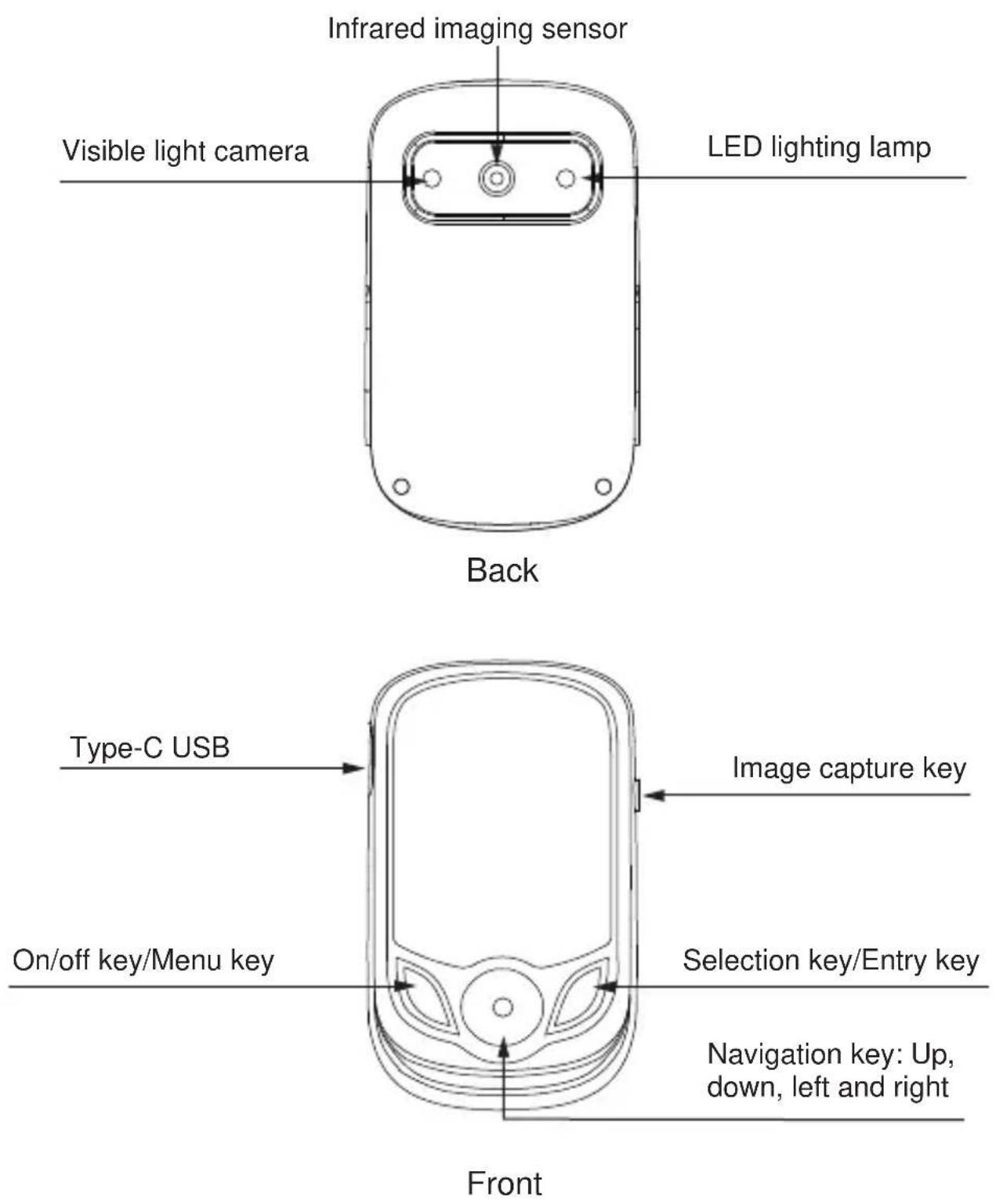
2. Display Description
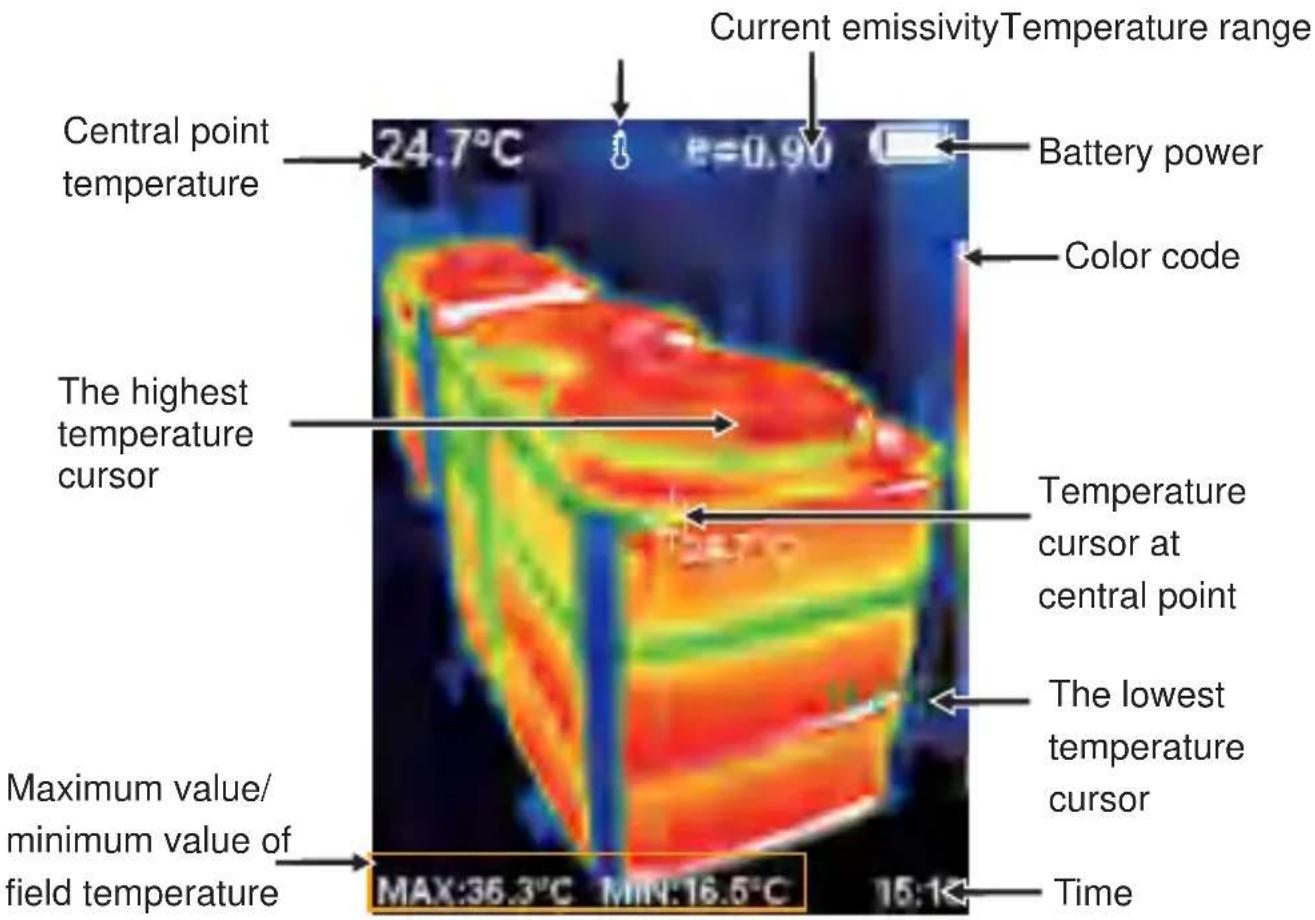
Color code: used to mark the color corresponding to the relative temperature from low to high in the field of view.
The central point temperature cursor: used to indicate the central position in the screen area. The cursor color displays white. The temperature value is displayed top left corner of the screen.
The highest temperature cursor: used to indicate the highest temperature position in the screen area. It will move with the movement of the highest temperature. The cursor displays red. The temperature value is displayed at bottom left corner of the screen.
The lowest temperature cursor: used to indicate the lowest temperature position in the screen area. It will move with the movement of the lowest temperature. The cursor displays green. The temperature value is displayed at the central position of the screen.
3. Key Description
On/off key/Menu key Selection key/Entry key
![graph TD A["MENU"] --> B["Select ENTER"] B --> C["Arrow pointing inward to central panel"] style A fill:#f9f,stroke:#333 style B fill:#ccf,stroke:#333 style C fill:#fff,stroke:#333](/content/2026/04/736091/images/439f22291eda3d7a75fe7293cd543e5c98fff4970eb526b9eb4c8a501fd72eda.jpg)
Navigation key: Up, down, left and right
Initial Operation
Product boot/shutdown
Press and hold the “ ⏻/MENU” button for more than 3 seconds to turn the Thermal Imaging on or off.
LCD screen display
After turning on the power, the screen shows the thermal imaging status. Note: Time adjustment may be required when you move the camera between environments with widely varying ambient temperatures.
Switching between infrared thermal image and visible image
Press “◀” or “▶” key to switch the degree of fusion between infrared thermal images and visible images (the degree of fusion is 0%, 25%, 50%, 75% and 100%).
Image capture
Press the image capture key. When the capture is successful, the screen will display the prompt “Store photo?”. If “Yes” is selected, please press the “/MENU” key to confirm saving the image. If “No” is selected, press
the “SELECT/ENTER” key to confirm not saving the image.
Video recording
In the normal startup and running interface, long press the capture button. The screen will display the prompt “Record video?”. If you want to select “Yes” at this time, please press the “/MENU” button or the capture button to start recording. If you want to select “No”, press the “SELECT/ENTER” key to cancel the recording. Long press the capture key again to end the recording.
The function to hide the highest/lowest temperature column at the screen bottom
Under the operation after normal start up, press the “▲” key and the screen bottom will display the highest/lowest temperature column. Press “▲” can also hide it.
LED lighting
Short press the capture button for about 2 seconds to turn on or off the LED light.
Image output
The saved images through capture may be checked and output by connecting with a computer through Micro USB.
Reading images
Open the USB protective cover, as shown in the front view of the product, connect the Type-C USB cable to the USB port and then connect to the computer to read the image or save it into the computer.
The supported operating system through verification includes: winxp, win7, win8, win10, win11, and Apple system.
It is recommended that the USB cable attached to the unit or a better quality USB cable be used.
Cautions:
When connecting to the computer, select 'Safe Eject Device' and then unplug the data cable to avoid problems such as file system damage. If there are issues such as inability to store, you can find the hard drive on your computer and repair it.
An introduction to the touch button menu
Press the “⏻/MENU” button to bring up a menu bar on the left, which includes “Image overlap”, “Image”, “Video”, “Palette”, “Emissivity”, and “Set” sub menu.
In which the red box areas on both sides of the menu interface are invalid touch areas, and the effective touch areas of the sub menu are as follows:
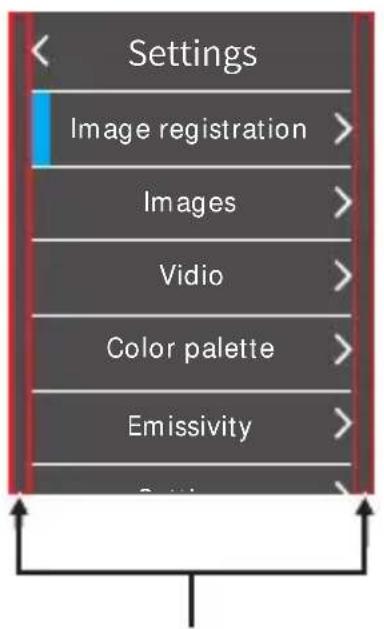
Design blanks No touch sensing
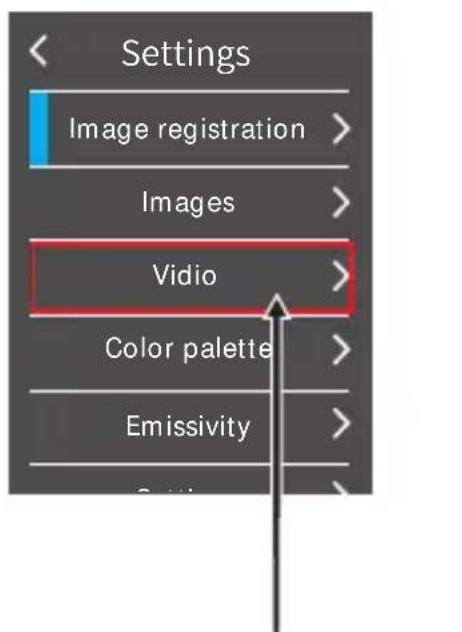
Sub menu Effective touch area
1. "Image overlap" sub menu
1.1. Description of image overlap
The image overlap makes it easier for users to understand infrared images by using aligned visual and infrared images. By overlapping images, a visual image of each infrared image can be captured to accurately display the temperature distribution of the target area and share it more effectively with others.
1.2. Application of image overlap
Press the “⏻/MENU” button to go to the main menu, from the main menu, by touch, click on the “Image overlap” to go to the sub menu or by the Navigation button, select the image overlap sub menu, and press the “SELECT/ENTER” button to go to the image overlap adjustment mode. Press the up, down, left or right button from the Navigation button to perform visible light image translation operation, and press the “SELECT/ENTER” button to exit the image overlap mode.
(Note: If there is no operation for 6 seconds continuously, the image overlap mode will be exited automatically).
2. "Image" sub menu
2.1. Viewing images
Press the “⏻/MENU” button to go to the main menu. From the main menu, by touch, click on “Image”, as shown in the figure below:
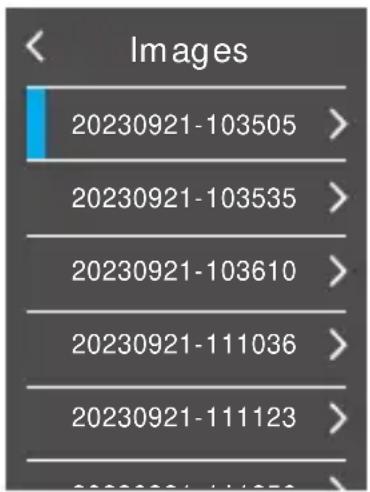
Touch to select the images to be previewed, or click on the up or down Navigation button to select the pictures to be previewed, and press the “SELECT/ENTER” button to view images, as shown in the figure below:
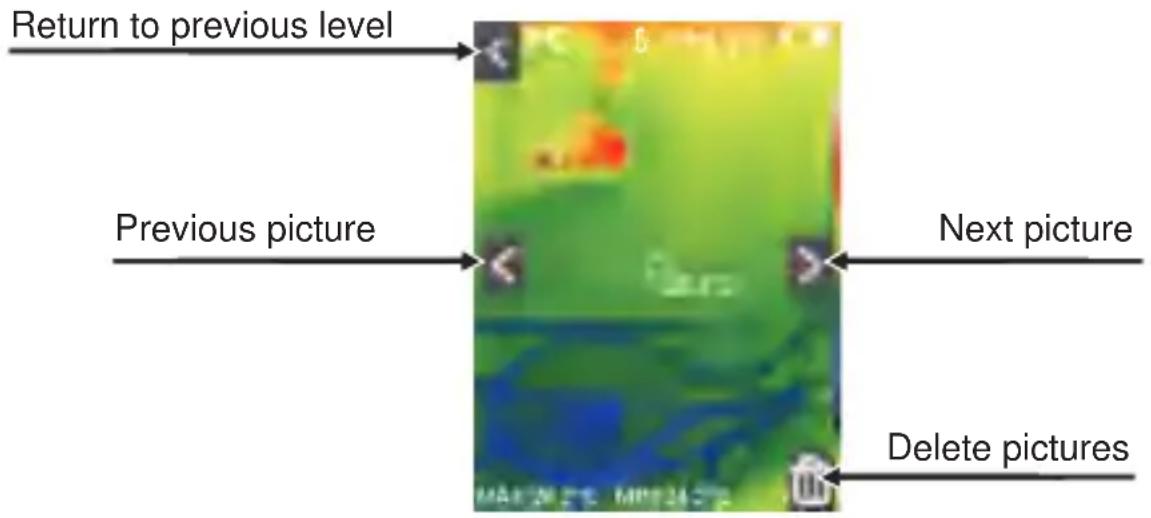
As shown in the figure above, click on the “<” or “>” button in the middle of the screen or press the “◀” or “▶” Navigation button to preview the previous and next pictures. Click on the “<” in the left upper corner of the screen or press the “◀/MENU” button to return to the menu.
2. Deleting images
When browsing images, click on the button in the right lower corner of the screen, and a dialog box will pop up asking whether to delete the current image. Click on "Yes" to delete the current image, or "No" not to delete the current image and deactivate the current dialog box.
3. "Video" sub menu
3.1. View videos
Press the “⏻/MENU” button to go to the main menu. From the main menu, by touch, click on “Video” to go to the sub menu, or by the Navigation button, select the “Video” sub menu, and press the “SELECT/ENTER” button to go to the sub menu, as shown in the figure below:
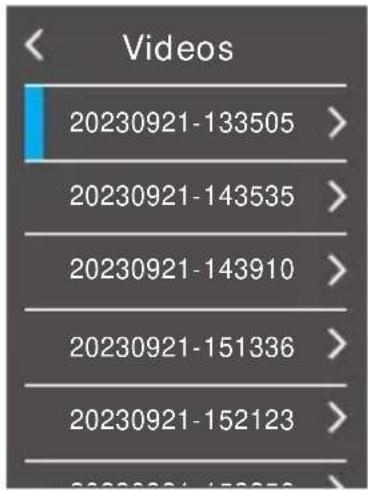
By touch, select the videos to be played, or click on the up or down Navigation button to select the videos to be played, and press the "SELECT/ENTER" button to play videos. During video playback, click on the "SELECT/ENTER" button to pause.
When viewing videos (when not playing), press the “◀” Navigation button to view the previous video, and press the “▶” Navigation button to view the next video.
Press the “⏻/MENU” button to return and quit the menu.
3.2. Deleting videos
When viewing videos (whether playing or not), press the “▲” button, and a “Delete videos?” dialog box will appear on the screen. Now, if you touch to select “Yes” or click on the “SELECT/ENTER” button to confirm the deletion of the videos. If you touch to select “No” to confirm not to delete the videos. Press the “/MENU” button to return and quit the menu.
4. Introduction to “Color Palette” Sub-menu
4.1. Color Palette Description
The palette can be used to change the pseudo-color display of the infrared image on the display. Some color palettes are better suited for specific applications and can be set up as needed.
The palette is divided into five palettes: rainbow, iron, cold color, white hot, and black hot.
These palettes work best with high thermal contrast and provide additional color contrast between high and low temperatures.
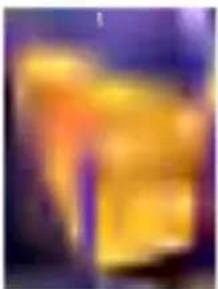
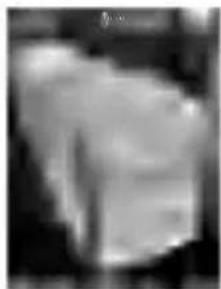
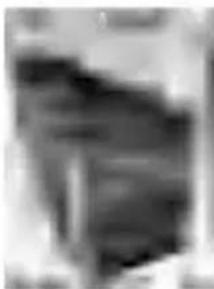
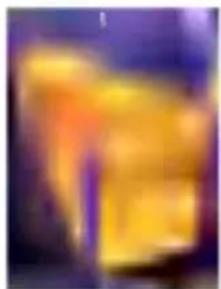
Suitable selection of color palette displays the details of the target objective better. Rainbow, iron, and cold color palettes focus on display of color. Such color palettes are very suitable for high heat contrast and are used to improve the color contrast between high temperature and low temperature. But the black hot and white hot color palettes provide even linear color.
The following is the image of the same object with selection of different color palettes.
Iron, Rainbow, Cold color, White hot, Black hot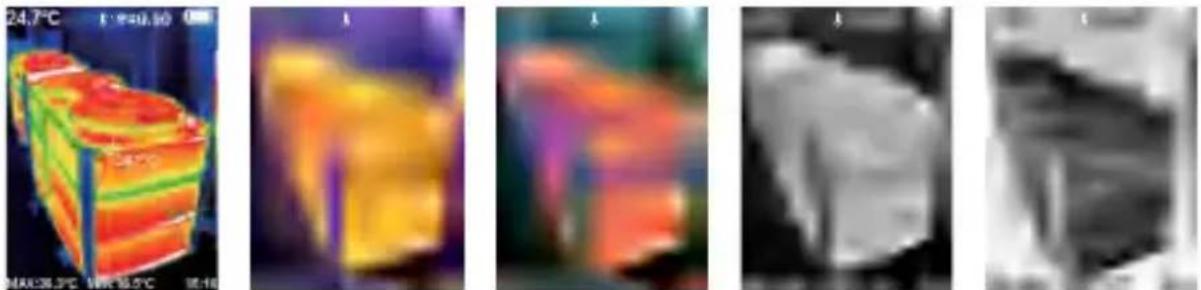
4.2. Palette application
Press the “⏻/MENU” button to go to the main menu. From the main menu, by touch, click on the “Palette” to go to the sub menu, or by the Navigation button, select the “Palette” sub menu, and press the
"SELECT/ENTER" button to go to the sub menu, as shown in the figure below:
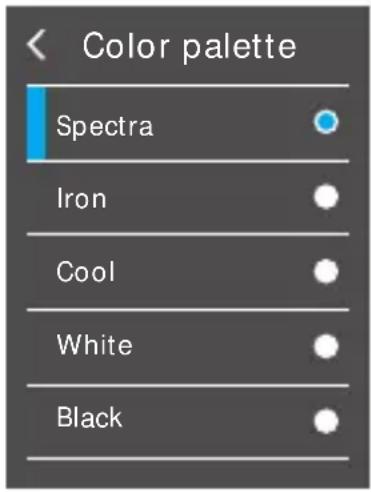
By touch, select Palette or press the “▲” or “▼” Navigation button to select the palette, and then by touch, click on the left upper corner or press the “⏻/MENU” button to be able to set the palette successfully.
5. Introduction to “Emissivity” Sub-menu
5.1. Emissivity Description
The emissivity of the product can be adjusted from 0.01 to 1.00 with the default value of 0.95. Many common objects and materials (such as timber, water, skin, and textile fabric) can reflect heat energy effectively. So it is easy to obtain relatively correct measurement value. The emissivity is usually set as 0.95 when the coarse objects that are easy to give out energy. For semi-matte objects that give out less energy, the emissivity is usually about 0.85 and the emissivity of semi-gloss objects is 0.6. The shiny objects are divided into materials with low radiation coefficient. The emissivity is usually set as 0.3 at the time of measurement. Correct setting of the value of emissivity is very important for you to carry out the most correct temperature measurement. The surface emissivity will produce giant impact on surface temperature measured by
the product. Understanding the surface emissivity will enable you to obtain correct temperature measurement result.
5.2. Emissivity Setting
The product is provided with four types of object measurement modes:
- Coarse object (0.95)
- Semi-matte object (0.85)
- Semi-shiny object (0.60)
- Shiny object (0.30)
According to the characteristics of the measured objects, users may set the emissivity value through the “self-define” option (please refer to the table of “emissivity of common materials”).
The operation steps are as follows:
Press the “ ⏻ /MENU” button to go to the main menu, from the main menu, by touch, click on the “Emissivity” to go to the sub menu or by the Navigation button, select the “ Emissivity ” sub menu, and press the “SELECT/ENTER” button to go to the sub menu, as shown in the figure below:
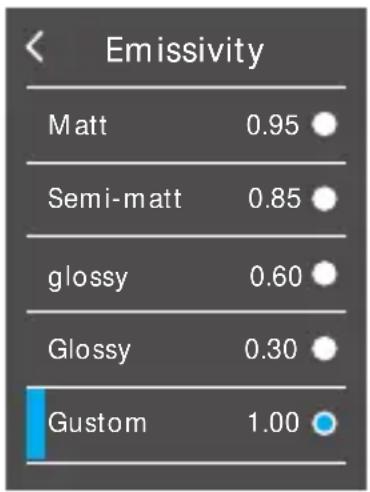
For the four kinds of emissivity above, touch and select the emissivity, or press the “▲” or “▼” Navigation button to select the emissivity, and then press the “SELECT/ENTER” button for the selection, and finally, touch
and click on the left upper corner to return or press the “ ⏻/MENU” button to return to be able to set the emissivity successfully. If you touch to select “User defined” emissivity to go to the editing state, or press the “▲” or “▼” Navigation button to select “User defined” emissivity, and then press the “SELECT/ENTER” button to go to the editing state, as shown in the following figure:
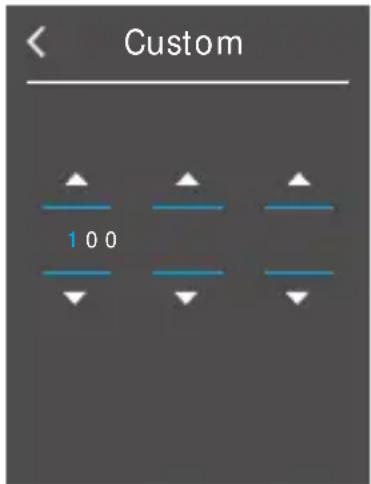
Touch and click on the corresponding columns on the screen, and then touch and click on the “▲” or “▼” button to set the corresponding values, or by the “▶” or “◀” Navigation button, select the corresponding columns, and then by “▲” or “▼” Navigation button, set the corresponding values. After modification, touch and click on the left upper corner to return or press the “○/MENU” button to return to be able to set the emissivity successfully.
5.3. The Emissivity Value of Common Materials
| Substance | Thermal radiation | Substance | Thermal radiation |
| Bitumen | 0.90~0.98 | Black cloth | 0.98 |
| Concrete | 0.94 | Human skin | 0.98 |
| Cement | 0.96 | Foam | 0.75~0.80 |
| Sand | 0.90 | Charcoal dust | 0.96 |
| Earth | 0.92~0.96 | Paint | 0.80~0.95 |
| Water | 0.92~0.96 | Matte paint | 0.97 |
| Ice | 0.96~0.98 | Black rubber | 0.94 |
| Snow | 0.83 | Plastic | 0.85~0.95 |
| Glass | 0.90~0.95 | Timber | 0.90 |
| Ceramics | 0.90~0.94 | Paper | 0.70~0.94 |
| Marble | 0.94 | Chromium hemitrioxide | 0.81 |
| Gypsum | 0.80~0.90 | Copper oxide | 0.78 |
| Mortar | 0.89~0.91 | Ferric oxide | 0.78~0.82 |
| Brick | 0.93~0.96 | Textile | 0.90 |
6. "Set" sub menu
Press the “ ⏻/MENU” button, from the main menu, select “Set”, and then press the “SELECT/ENTER” button to go to the “Set” sub menu.
| Settings | ||
| Auto on/off▶ | No5min20min | |
| Brightness▶ | LowMediumHigh | |
| Language▶ | EnglishChineseItalianGerman | |
| Temperature unit▶ | CelsiusFahrenheit | |
| Temperature range▶ | Low at -20°C-120°CHigh at 120°C-550°C | |
| Time format▶ | 24-hour system12-hour system | |
| Set time▶ | Set dates▶ | Set yearSet monthSet date |
| Set time ▶ | Set hourSet minuteSet second | |
| Cold and hot spots▶ | OffOn | |
| WIFI▶ | OffOn | |
6.1. Auto power off setting
Press the "/MENU" button to go to the main menu. From the main menu, by touch, click on "Set" to go to the submenu, or by the Navigation button, select the "Set" submenu and press the "SELECT/ENTER" button to go to the submenu.
Then, by touch, click on "Auto Off" to go to the setting interface, or by the Navigation button, select the "Auto Off" submenu and press the
"SELECT/ENTER" button to go to the Set interface, as shown in the figure below:
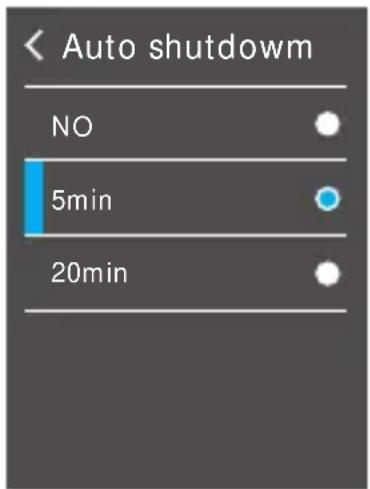
As shown in the figure above, by touch, select 3 options, or press the "▲" or "▼" Navigation button to select 3 options. Then press the "SELECT/ENTER" button for confirmation. After setting is okay, by touch, click on the left upper corner to return or press the "⏻/MENU" button to return to be able to set the auto power off option successfully.
6.2. Brightness setting
Press the "⏻/MENU" button to go to the main menu. From the main menu, by touch, click on "Set" to go to the submenu, or by the Navigation button, select the "Set" submenu and press the "SELECT/ENTER" button to go to the submenu.
Then, by touch, click on "Brightness" to go to the Set interface, or by the Navigation button, select the "Brightness" submenu and press the
"SELECT/ENTER" button to go to the Set interface, as shown in the figure below:
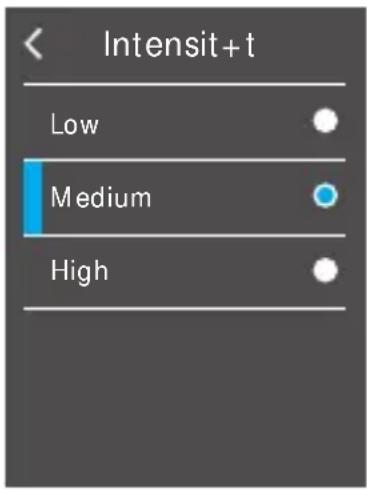
As shown in the figure above, by touch, select 3 options, or press the "▲" or "▼" Navigation button to select 3 options, and then press the
"SELECT/ENTER" button for confirmation. After setting is okay, by touch, click on the left upper corner to return or press the "⏻/MENU" button to return to be able to set the brightness option successfully.
6.3. Language setting
Press the "⏻/MENU" button to go to the main menu. From the main menu, by touch, click on "Set" to go to the submenu, or by the Navigation button, select the "Set" submenu and then press the "SELECT/ENTER" button to go to the submenu.
Then, by touch, click on "Language" to go to the Set interface, or by the Navigation button, select the "Language" submenu and press the
"SELECT/ENTER" button to go to the Set interface, as shown in the figure below:
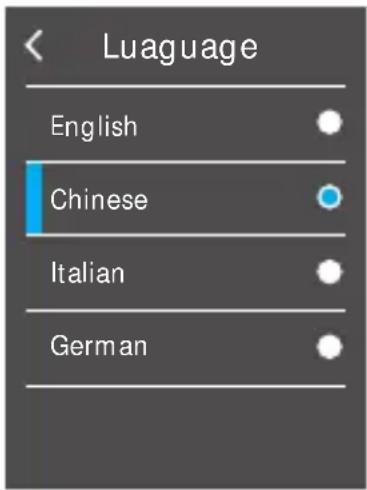
As shown in the figure above, by touch, select 4 options, or press the "▲" or "▼" Navigation button to select 4 options, and then press the
Press the "SELECT/ENTER" button for confirmation. After setting is okay, by touch, click on the left upper corner to return or press the "⏻/MENU" button to return to be able to set the language option successfully.
6.4. Temperature unit setting
Press the "⏻/MENU" button to go to the main menu. From the main menu, by touch, click on "Set" to go to the submenu, or by the Navigation button, select the "Set" submenu and press the "SELECT/ENTER" button to go to the submenu.
Then, by touch, click on "Temperature Unit" to go to the Set interface, or by the Navigation button, select the "Temperature Unit" submenu and press the "SELECT/ENTER" button to go to the Set interface, as shown in the figure below:
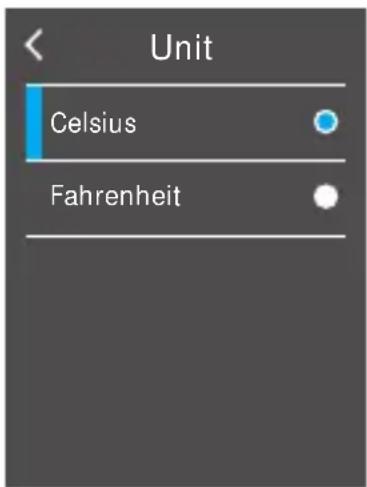
As shown in the figure above, by touch, select "Celsius" or "Fahrenheit" option, or press the "▲" or "▼" Navigation button to select these 2 options, and then press the "SELECT/ENTER" button for confirmation.
After setting is okay, by touch, click on the left upper corner to return or press the "⏻/MENU" button to return to be able to set the temperature unit option successfully.
6.5. Temperature Range setting
Press the "☐/MENU" button to go to the main menu. From the main menu, by touch, click on "Set" to go to the submenu, or by the Navigation button, select the "Set" submenu and press the "SELECT/ENTER" button to go to the submenu.
Then by touch, click on "Temperature Range" to go to the Set interface, or by the Navigation button, select the "Temperature Range" submenu and press the "SELECT/ENTER" button to go to the Set interface, as shown in the figure below:
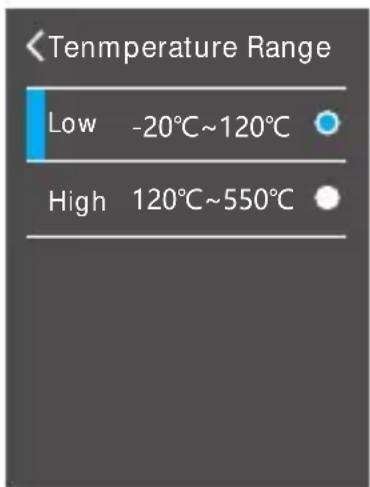
As shown in the figure above, by touch, select "Low" or "High" option, or press the "▲" or "▼" Navigation button to select these 2 options, and then press the "SELECT/ENTER" button for confirmation. After it is set, by touch, click on the left upper corner to return or press the "○/MENU" button to return to be able to set the temperature range successfully.
6.6. Time format setting
Press the "⏻/MENU" button to go to the main menu. From the main menu, by touch, click on "Set" to go to the submenu, or by the Navigation button, select the "Set" submenu and press the "SELECT/ENTER" button to go to the submenu.
Then, by touch, click on "Time Format" to go to the Set interface, or by the Navigation button, select the "Time Format" submenu and press the "SELECT/ENTER" button to go to the Set interface, as shown in the figure below:
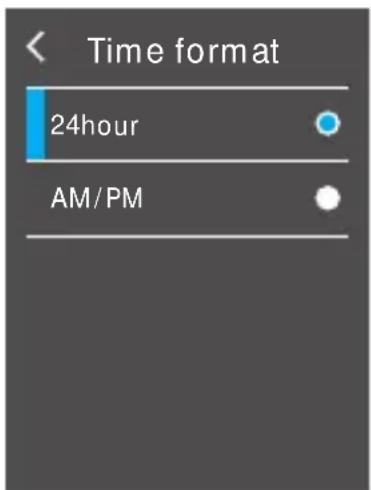
As shown in the figure above, by touch, select the "24-hour system" and "12-hour system" options, or press the "▲" or "▼" Navigation button to select these 2 options, and then press the "SELECT/ENTER" button for confirmation. After setting is okay, by touch, click on the left upper corner to return or press the "◀/MENU" button to return to be able to set the time format option successfully.
6.7. Setting time
Press the “⏻/MENU” button to go to the main menu. From the main menu, by touch, click on “Set” to go to the submenu, or by the Navigation button, select the “Set” submenu and press the “SELECT/ENTER” button to go to the submenu.
Then, by touch, click on “Set Time” to go to the Set interface, or by the Navigation button, select the “Set Time” submenu and press the “SELECT/ENTER” button to go to the Set interface, as shown in the figure below:
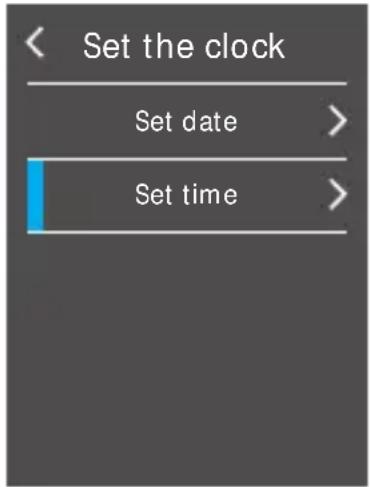
As shown in the figure above, setting the clock is divided into “Set Date” and “Set Time”.
6.7.1 Setting dates
By touch, click on “Set Date” to go to setting, or by the “▲” or “▼” Navigation button to select “Set Date”, and then press the “SELECT/ENTER” button to go to the setting, as shown in the figure below:
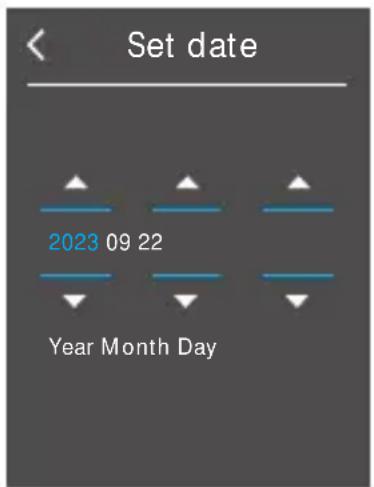
As shown in the figure above, there are three columns like “year”, “month” and “date”. By touch, click on the “▲” or “▼” button of the corresponding columns on the screen to set the corresponding values, or by the “▶” or “◀” Navigation button, select the corresponding columns, and then by the “▲” or “▼” Navigation button, set the corresponding values. After modification, by touch, click on the left upper corner to return or press the “○/MENU” button to return to be able to set dates successfully.
6.7.2 Setting time
By touch, click on the “Set time” to go to the setting, or by the “▲” or “▼” Navigation button, select “Set Time”, and then press the “SELECT/ENTER” button to go to the setting, as shown in the figure below:
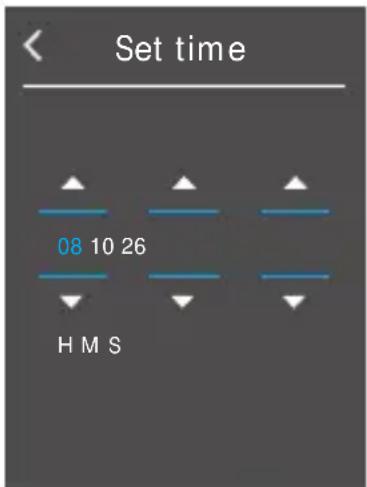
As shown in the figure above, there are three columns like “H”, “M” and “S”, which, respectively, correspond to hour, minute and second. By touching the “▲” or “▼” button corresponding to the columns on the screen, set the corresponding values, or by the “▶” or “◀” Navigation button, select the corresponding columns, and then by “▲” or “▼” Navigation button, set the corresponding values. After modification, by touch, click on the left upper corner to return or press the “◀/MENU” button to return to be able to set time successfully.
6.8 Cold and hot spots setting
Press the “⏻/MENU” button to go to the main menu. From the main menu, by touch, click on “Set” to go to the submenu, or by the Navigation button, select the “Set” submenu and press the “SELECT/ENTER” button to go to the submenu.
Then by touch, click on “Cold and Hot spots” to go to the Set interface, or by the Navigation button, select the “Cold and Hot spots” submenu and press the “SELECT/ENTER” button to go to the Set interface, as shown in the figure below:
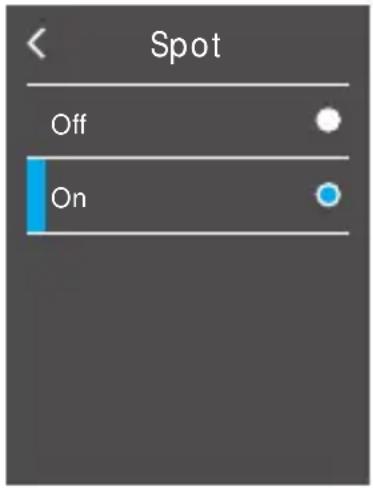
As shown in the figure above, by touch, select the “Off” or “On” option, or press the “▲” or “▼” Navigation button to select these 2 options, and then press the “SELECT/ENTER” button for confirmation. After setting is okay, by touch, click on the left upper corner to return or press the “◀/MENU” button to return to be able to set the cold and hot spots option successfully.
6.9 WIFI setting
First, connect the WiFi connection function requiring support by the A2+ device, and then press the “/MENU” button to go to the main menu. From the main menu, by touch, click on “Set” to go to the submenu, or by the Navigation button, select the “Set” submenu and press the
"SELECT/ENTER" button to go to the submenu.
Then, by touch, click on "WIFI" to go to the Set interface, or by the Navigation button, select the "WIFI" submenu and press the
"SELECT/ENTER" button to go to the Set interface, as shown in the figure below:
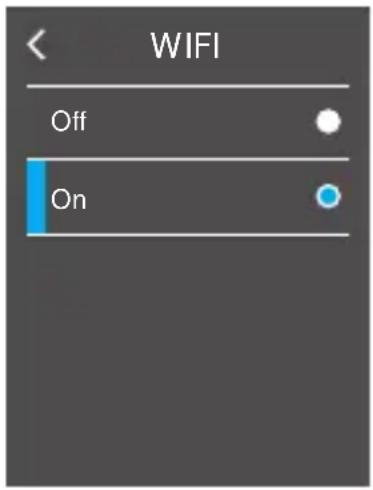
As shown in the figure above, by touch, select the “Off” or “On” option, or press the “▲” or “▼” Navigation button to select these 2 options, and then press the “SELECT/ENTER” button for confirmation. After setting is okay, by touch, click on the left upper corner to return or press the “◎ MENU” button to return to be able to set WIFI option successfully.
If ‘On’ is selected, search for WiFi hot spots on the connected device, connect to the “Thermal 0000” hot spot, enter 192.168.230.1 in the web browser, and you can see the displayed content on A2+ in the browser. Based on the displayed content, you can set various operations on A2+.
Thermal Imaging Image Analysis Software Operation Guide
Software Installation And Operation
- Connect the product with a USB cable, and then connect to the computer. Open the removable disk in the computer, find the "INSTALLATION PACKAGE" folder and open it, and click to install the software.
- After installation, open the picture analysis software interface, click "Open File", and select the picture to be analyzed, as shown in the figure:
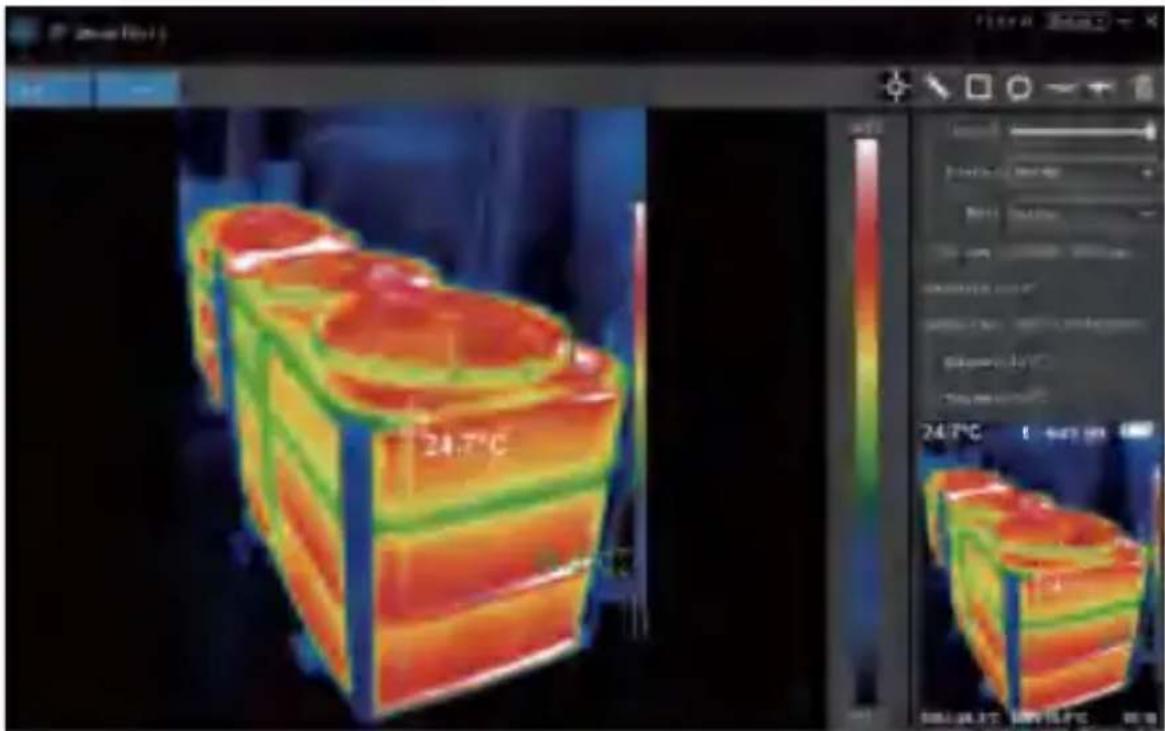
Interface Introduction
- Select the language in the upper right corner of the interface, you can choose Chinese, English, and switch between the two languages.
- On the right are shown: fusion rate, color palette, temperature unit, and picture information.
- Fusion rate: Moving the slider can realize the fusion of visible light image and infrared thermal image. The left end is a visible light image, and the right end is an infrared thermal image.
- Palette: In the palette, click the “▼” icon to choose from five color palettes: rainbow, iron red, cold, white hot, black hot.
- Temperature unit: In the temperature unit, click the “▼” icon to select three temperature units: Celsius, Fahrenheit, and Kelvin. ● Picture information: display file name, emissivity, capture time, maximum temperature, minimum temperature, center point temperature, original thermal image.
- "Open File" in the upper left corner of the interface, open the thermal image to be read. When you need to save the picture after the operation, click "Save"
(Note: the saved picture cannot be opened again with this software).
Icon Introduction
- " -" icon, take the temperature of the thermal image.
- "icon, select the maximum temperature and minimum temperature of the thermal image in a straight line.
- "☐" icon, select the thermal imaging map to select the maximum temperature and minimum temperature.
- " " icon, circle the thermal imaging map to get the maximum temperature and the minimum temperature.
- " \~" icon: arbitrarily circle the thermal imaging map to take the maximum temperature and the minimum temperature.
- "Return" icon: when an operation error occurs, you can click this icon to return to the previous operation.
- "Delete" icon: when you select multiple temperature values and need to cancel all of them, click Delete.
Troubleshooting
If you encounter any problem when using the thermal image device, please use the following table for repair. If the problems are not solved, please cut off the power supply and contact the manufacturer.
| Failure phenomenon | Failure cause | Solution |
| The thermal imaging device cannot start | The battery is not installed | Install the battery |
| The power of the battery is used up | Replace with new battery or charge it | |
| The thermal imaging device powers off automatically | The power of the battery is used up | Replace with new battery or charge it |
| The time set for automatic power off is due | Restart or change the time for automatic power off after restarting (refer to 6.1) |
CORRECT DISPOSAL
This product is subject to the provision of European Directive 2012/19/EU. The symbol showing a wheelie bin crossed through indicates that the product requires separate refuse collection in the European Union. This applies to the product and all accessories marked with this symbol. Products marked as such may not be discarded with normal domestic waste, but must be taken to a collection point for recycling electrical and electronic devices.
FCC Information
CAUTION: Changes or modifications not expressly approved by the party responsible for compliance could void the user's authority to operate the equipment!
This device complies with Part 15 of the FCC Rules. Operation is subject to the following two conditions:
1) This product may cause harmful interference. 2) This product must accept any interference received, including interference that may cause undesired operation.
WARNING: Changes or modifications to this product not expressly approved by the party responsible for compliance could void the user's authority to operate the product.
Note: This product has been tested and found to comply with the limits for a Class B digital device pursuant to Part 15 of the FCC Rules. These limits are designed to provide reasonable protection against harmful interference in a residential installation.
This product generates, uses and can radiate radio frequency energy, and if not installed and used in accordance with the instructions, may cause harmful interference to radio communications. However, there is no guarantee that interference will not occur in a particular installation. If this product does cause harmful interference to radio or television reception, which can be determined by turning the product off and on, the user is encouraged to try to correct the interference by one or more of the following measures.
- Reorient or relocate the receiving antenna.
- Increase the distance between the product and receiver.
- Connect the product to an outlet on a circuit different from that to which the receiver is connected.
- Consult the dealer or an experienced radio/TV technician for assistance.
Address: Baoshanqu Shuangchenglu 803long 11hao 1602A-1609shi Shanghai
Imported to AUS: SIHAO PTY LTD, 1 ROKEVA STREETEASTWOOD NSW 2122 Australia
Imported to USA: Sanven Technology Ltd., Suite 250, 9166 Anaheim Place, Rancho Cucamonga, CA 91730
| UK | REP | Pooledas Group Ltd Unit 5 Albert Edward House, The Pavilions Preston, United Kingdom |
| EC | REP | SHUNSHUN GmbH Römeräcker 9 Z2021, 76351 Linkenheim-Hochstetten, Germany |
Made In China
VEVOR®
TOUGH TOOLS, HALF PRICE
Technical Support and E-Warranty Certificate
www.vevor.com/support
Made In China
VEVOR®
TOUGH TOOLS, HALF PRICE
www.vevor.com/support
Performance indices 6
Performance indices

www.vevor.com/support
Made in China
VEVOR®
TOUGH TOOLS, HALF PRICE

www.vevor.com/support

Imported into AUS: SIHAO PTY LTD, 1 ROKEVA STREET EASTWOOD NSW 2122 Australia
www.vevor.com/support
Rainbow
Iron

cool color
warm white
Imported to AUS: SIHAO PTY LTD, 1 ROKEVA STREET EASTWOOD NSW 2122 Australia
Imported to USA: Sanven Technology Ltd., Suite 250, 9166 Anaheim Place, Rancho Cucamonga, CA 91730
| UK | REP | Pooledas Group Ltd Unit 5 Albert Edward House, The Pavilions Preston, United Kingdom |
| EC | REP | SHUNSHUN GmbH Römeräcker 9 Z2021, 76351 Linkenheim-Hochstetten, Germany |
Made in China
VEVOR®
TOUGH TOOLS, HALF PRICE
www.vevor.com/support

Imported to AUS: SIHAO PTY LTD, 1 ROKEVA STREET EASTWOOD NSW 2122 Australia
Imported to USA: Sanven Technology Ltd., Suite 250, 9166 Anaheim Place, Rancho Cucamonga, CA 91730
| UK | REP | Pooledas Group Ltd Unit 5 Albert Edward House, The Pavilions Preston, United Kingdom |
| EC | REP | SHUNSHUN GmbH Römeräcker 9 Z2021, 76351 Linkenheim-Hochstetten, Germany |
NEED HELP? CONTACT US AT
www.vevor.com/support

www.vevor.com/support

- THERMAL IMAGING CAMERA
- MODEL:HT-A
- TABLE OF CONTENTS
- PREFACE
- SAFETY INSTRUCTION
- CONSIDERATIONS
- DON'T ASSEMBLE OR DISMANTLE THE PRODUCT WITHOUT PERMISSION
- AVOID DAMAGE TO PROBE OF THE PRODUCT
- PRODUCT HUM
- WARNING
- PROBLEMS CAUSED BY WATER CONDENSATION
- AVOID IMPACTS TO THE PRODUCT (SUCH AS COLLISIONS AND DROPS)
- LONG-TERM STORAGE AND REGULAR CHARGING
- PRELIMINARY ACQUAINTANCE WITH INFRARED THERMAL IMAGER
- OVERVIEW
- CLEANING OF THE PRODUCTS
- LENS MAINTENANCE
- CLEAN THE LENS
- PRODUCT DESCRIPTION
- INSTRUCTION TO STRUCTURE
- DISPLAY DESCRIPTION
- KEY DESCRIPTION
- INITIAL OPERATION
- PRODUCT BOOT/SHUTDOWN
- LCD SCREEN DISPLAY
- SWITCHING BETWEEN INFRARED THERMAL IMAGE AND VISIBLE IMAGE
- IMAGE CAPTURE
- VIDEO RECORDING
- THE FUNCTION TO HIDE THE HIGHEST/LOWEST TEMPERATURE COLUMN AT THE SCREEN BOTTOM
- LED LIGHTING
- IMAGE OUTPUT
- READING IMAGES
- CAUTIONS
- AN INTRODUCTION TO THE TOUCH BUTTON MENU
- IMAGE OVERLAP" SUB MENU
- DESCRIPTION OF IMAGE OVERLAP
- APPLICATION OF IMAGE OVERLAP
- IMAGE" SUB MENU
- VIEWING IMAGES
- DELETING IMAGES
- VIDEO" SUB MENU
- VIEW VIDEOS
- DELETING VIDEOS
- INTRODUCTION TO “COLOR PALETTE” SUB-MENU
- COLOR PALETTE DESCRIPTION
- PALETTE APPLICATION
- INTRODUCTION TO “EMISSIVITY” SUB-MENU
- EMISSIVITY DESCRIPTION
- EMISSIVITY SETTING
- THE OPERATION STEPS ARE AS FOLLOWS
- SET" SUB MENU
- AUTO POWER OFF SETTING
- BRIGHTNESS SETTING
- LANGUAGE SETTING
- TEMPERATURE UNIT SETTING
- TEMPERATURE RANGE SETTING
- TIME FORMAT SETTING
- SETTING TIME
- SETTING DATES
- COLD AND HOT SPOTS SETTING
- WIFI SETTING
- THERMAL IMAGING IMAGE ANALYSIS SOFTWARE OPERATION GUIDE
- SOFTWARE INSTALLATION AND OPERATION
- INTERFACE INTRODUCTION
- ICON INTRODUCTION
- TROUBLESHOOTING
- CORRECT DISPOSAL
- FCC INFORMATION
- VEVOR®
- TOUGH TOOLS, HALF PRICE
Brand : Vevor
Model : HT-A2+
Category : Measuring equipment