
HT-C18 - Binoculars Vevor - Free user manual and instructions
Find the device manual for free HT-C18 Vevor in PDF.
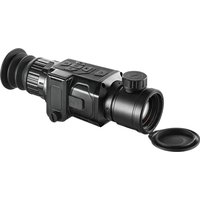


| Product Type | Outdoor Thermal Monocular |
| Brand | Vevor |
| Model | HT-C18 |
| Infrared Detector | Uncooled Vanadium Oxide Focal Plane, 384x288 pixels, 12 μm |
| Spectral Band | 8~14 μm |
| NETD | ≤40 mk at 25°C, F/1.0 |
| Frame Rate | ≤50 Hz |
| Lens | 35 mm focal length, manual focus |
| Field of View | 7.5°×5.7° |
| Detection Range (1.7 m person) | 2361 m |
| Recognition Range (1.7 m person) | 590 m |
| Display | 0.39" screen, 1440×1080 resolution |
| Electronic Zoom | 1×/2×/4×/8× |
| Diopter Adjustment | ±5 diopters |
| Color Palettes | White hot, black hot, fire hot, rainbow, iron red, cold color |
| Functions | Photo, video, hot spot tracking, picture-in-picture, IMU compass |
| Internal Storage | eMMC 16 GB (13.8 GB available) |
| Interface | USB Type-C for charging and data transfer |
| Power Supply | 2 removable 18350 lithium-ion batteries, 1400 mAh each |
| Battery Life | ≥5 hours |
| Dimensions | 198 × 57.5 × 64.3 mm |
| Weight | 580 g |
| Protection Rating | IP66 (splash resistant) |
| Operating Temperature | -20°C to +60°C |
| Storage Temperature | -30°C to +70°C |
| Maintenance | Clean the housing with a damp cloth; lens with professional optical products |
| Safety | FCC Class B compliant; do not disassemble, use original accessories |
Frequently Asked Questions - HT-C18 Vevor
User questions about HT-C18 Vevor
0 question about this device. Answer the ones you know or ask your own.
Ask a new question about this device
Download the instructions for your Binoculars in PDF format for free! Find your manual HT-C18 - Vevor and take your electronic device back in hand. On this page are published all the documents necessary for the use of your device. HT-C18 by Vevor.
USER MANUAL HT-C18 Vevor
Technical Support and E-Warranty Certificate www.vevor.com/support
Monocular outdoor thermal
image telescope User Manual
Model: HT-C18
We continue to be committed to provide you tools with competitive price. "Save Half", "Half Price" or any other similar expressions used by us only represent the estimate of savings you might benefit from buying certain tools with us compared to major top brands and does not necessarily mean to cover all categories of tools in us. You are kindly reminded to verify carefully when you are placing an order with us, as we are actually saving half in comparison with the top major brands.
VEVOR®
TOUGH TOOLS, HALF PRICE
Monocular outdoor thermal image telescope
Model: HT-C18
NEED HELP? CONTACT US!
Have product questions? Need technical support? Please feel free to contact us:
Technical Support and E-Warranty Certificate www.vevor.com/support
This is the original instruction, please read all manual instruction carefully before operating. VEVOR reserves a clear interpretation user manual. The appearance of the product shall be subject to product you received. Please forgive us that we won't inform you there are any technology or software updates on our product.
SAFETY

Note / Remark. Caution / Warning


Read this material before using this product. Failure to do so can result in serious injury. Save this manual.

Assembly precautions
Please observe the following guidelines in order not to damage the product:
Do not assemble or dismantle the product without permission.
The product is a type of super precise equipment. Do not try to dismantle, disassemble, or remodel any part of the product. Repair of
the product should be made by technical personnel designated by VEVOR Company.
Avoid damage to the probe of the product
Note: do not put the product close to a strong heat source directly (such as an electric iron). Otherwise, it may damage the probe of the product.
Product hum
When the product works, there is a light sound of clicking every few seconds. This is a normal phenomenon that the lens captures images.

Use precautions
The warning describes the acts that may cause harm to users.
Please observe the following operations in order to avoid electric shock or personal injury.
- If the product case is damaged, do not use it continuously.
Please contact the local distributors or agents of the company under such conditions.
- During the process of use, if the product is found with
smoke, spark, and the burnt smell, please stop using at once.
In case of such condition, the product power supply should be powered off first. After the smoke and peculiar smell disappears completely, please contact local distributors or agents of Share Link.
- Don't remodel the adapter and the data line.
Otherwise such remodeling may cause short circuit or fire.
- Don't weld the battery without permission.
Such operation may damage the battery and result in leakage and explosion of the battery.
- Avoid that the battery is impacted (such as collision and falling, etc). Such condition may damage the battery case or result in that the battery leads explode.
- Please pull off the adapter from the power socket when charging is not made.
The adapter may get overheated if it is connected with power supply for a long time. This may cause overheating deformation and fire.
- Please ensure that the plug of the adapter is inserted into the specific power socket.
The adapter plug may be different due to the regions. Please make confirm whether the specification of the adapter is consistent with the specification of electrical appliances in your region. Otherwise, this may cause overheating of the equipment, electric shock, fire, chemical leakage inside the battery, explosion and other serious consequences.
- When the plug of the adapter or wire is damaged, stop using immediately. Don't change the battery unless the plug of the charger is inserted into the socket completely.
- Do not touch the electric wire with wet hands.
It is possible to cause electric shock when touching the electric wire with wet hands. When pulling out the electric wire, hold the electric wire head rightly out the wire. Don't pull off the electric wire directly. Otherwise the electric wire will be broken, causing electric shock and fire.
- Forbid dipping the product into water or catching it in rain.
If the case contacts with any liquid, please wipe it dry immediately. If water or liquid enters the inside of the instrument, please power off the power supply once. Continuous use may result in product damage.
- Clean the dust on the adapter plug and the data line.
When it is exposed to dusty and damp environment for a long time, the dirt surrounding the electric equipment will accumulate moisture. This may cause short circuit and fire.
- Please use the original adapter of the company to charge the product.
The use of non-original power supply accessories may cause equipment overheating, electric shock, fire, and leakage of chemicals inside the battery, explosion and other serious consequences.
- Don't use abrasive, isopropanol or solvent to clean the enclosure of the device.
Such operation may cause the product case to be damaged.
- The product temperature may increase after a long time of charging.
You may feel scorching heat when the hands touch the sensors.
- Problem caused by water condensation
Do not move the instrument from a high-temperature environment to a low-temperature environment, or vice versa, in a short time. This may cause condensation to form inside the instrument and on its surface. In such cases, place the instrument in a portable case or plastic bag. Before use, allow it to return to ambient temperature, then take it out. If condensation is present inside the product, power it off immediately. Otherwise, the instrument may be damaged. Do not operate the instrument until the condensation has disappeared.
Avoid impacts to the product (such as collisions, drops, etc.).
Such impacts may damage the product. Please avoid them.
Long-term storage and regular charging
If the product will not be used for an extended period, store it in a cool, dry place. If the product has a battery installed and is stored for a long time, charge it regularly. Otherwise, the battery will discharge completely and its service life will be shortened.
FCC Information
CAUTION: Changes or modifications not expressly approved by the party responsible for compliance could void the user's authority to operate the equipment!
This device complies with Part 15 of the FCC Rules. Operation is subject to the following two conditions:
1) This product may cause harmful interference.
2) This product must accept any interference received, including interference that may cause undesired operation.
WARNING: Changes or modifications to this product not expressly approved by the party responsible for compliance could void the user's authority to operate the product.
Note: This product has been tested and found to comply with the limits for a Class B digital device, pursuant to Part 15 of the FCC Rules. These limits are designed to provide reasonable protection against harmful interference in a residential installation.
This product generates, uses, and can radiate radio frequency energy, and if not installed and used in accordance with the instructions, may cause harmful interference to radio communications. However, there is no guarantee that interference will not occur in a particular installation. If this product does cause harmful interference to radio or television reception, which can be determined by turning the product off and on, the user is encouraged to try to correct the interference by one or more of the following measures:
- Reorient or relocate the receiving antenna.
- Increase the distance between the product and the receiver.
- Connect the product to an outlet on a circuit different from that to which receiver is connected.
- Consult the dealer or an experienced radio/TV technician for assistance.
Technical Specifications
| Product model | HT-C18 | |||
| Infrared | ||||
| Detector type | Vanadium oxide uncooled infrared focal plane | |||
| Resolution ratio | 384 x28 8 | |||
| Pixel size | 12μm | |||
| Focus length | 35mm | |||
| Field angle | 7.5°×5.7° | |||
| Work band | 8~14μm | |||
| NETD | ≤ 40mk@25℃,@F/1.0 | |||
| Frame rate | ≤50 Hz | |||
| Focusing mode | Manual | |||
| Detection range | ||||
| Character 1.7mx0.5mx0.3m | 2361m | 3306m | 5100m | 7083m |
| Vehicle 4.5mx2.0mx1.5m | 6250m | 8750m | 13500m | 18750m |
| Perception distance | ||||
| Character 1.7mx0.5mx0.3m | 590m | 826m | 1275m | 1771m |
| Vehicle 4.5mx2.0mx1.5m | 1563m | 2188m | 3375m | 4688m |
| Display | ||||
| Display screen type | OLED | |||
| Resolution ratio | 1440×1080 | |||
| Display size | 0.39inches | |||
| Electronic zoom | 1×/2×/4×/8× | |||
| Diopter regulation | ±5SD | |||
| Palette | White hot, Black hot, Fire hot, Rainbow, Iro red, Cold color | |||
| Hot point track | Supported | |||
| Picture in picture | Supported | |||
| Language | Simplified Chinese, Traditional Chinese, English, Russian and German | |||
| Storage | ||||
| Capacity | Built-in 16G EMMC( The system takes up some space and it is 13.8G actually) | |||
| Photographing | Supported | |||
| recording | Supported | |||
| Image/video format | JPG/MP4 | |||
| Interface | ||||
| USB interface | Charging/export image and video | |||
| Power | ||||
| Detachable recharge-able lithium battery | 1400mAh×2(battery model 18350) | |||
| General technical index | ||||
| Overall power consumption | ≤1.8W | |||
| Time of endurance | ≥5 hours | |||
| Work temperature | -20C ~ +60C | |||
| Storage temperature | -30C ~ +70C | |||
| Impact | ≤1000G | |||
| Protection grade | IP66 | |||
| Size/weight | ||||
| Product size | 198x57.5x64.3mm | |||
| Product weight | 580g | |||
Introduction to Product Structure
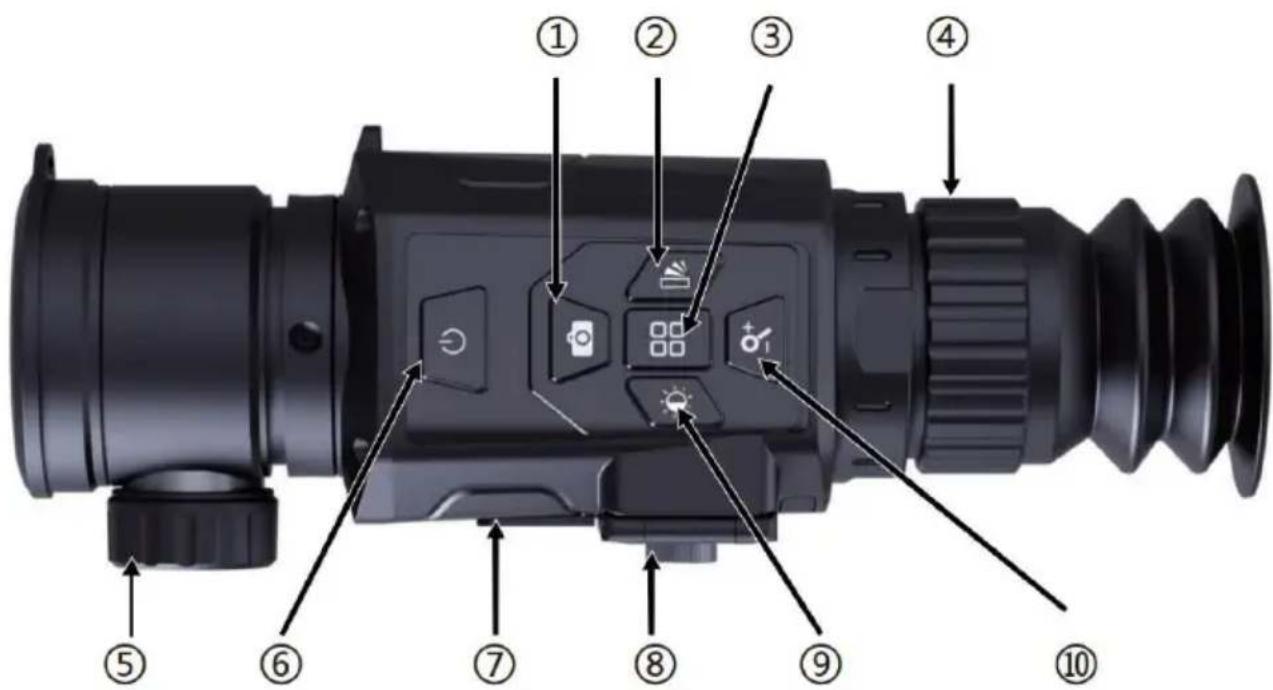
| ① | Photographing/ recording/up | ② | Pseudo color/picture in picture / right key |
| ③ | Menu/Close UI/enter | ④ | Diopter adjustment |
| ⑤ | Focal length adjustment | ⑥ | Power/return |
| ⑦ | Type-C interface | ⑧ | Battery compartment |
| ⑨ | Brightness/Hot point/ Track/Left key | ⑩ | Zoom In/Refresh/Shutter/Down key |
Focal length adjustment: Adjust the focus to make the image clearer. Type-C interface: used for battery charging and connecting the computer to view device photos and video files. Battery compartment: two detachable 18350 lithium batteries.
Diopter adjustment: Adjust your own vision.
Key Description
| Key/state | Press | Hold down | |
| Power key | Main interface | It can be configure as screen off or freeze frame of picture through the menu. | Pop out the shutdown prompt box to carry out shutdown. |
| Menu interface | Return | — | |
| Photo key | Main interface | Photographing | Start recording/ stop recording |
| Menu interface | Upward direction | — | |
| Brightness key | Main interface | Brightness adjustment | Hot point tracking |
| Menu interface | Leftward direction | — | |
| Zoom in key | Main interface | Zoom in(1x/2x/4x/8x) | Refresh shutter |
| Menu interface | Downward direction | — | |
| Pseudo color key | Main interface | Pseudo color switching | Open picture in picture /close picture in picture |
| Menu interface | Rightward direction | — | |
| Menu key | Main interface | Enter the menu | Open UI display/ close U display |
| Menu interface | Enter | Return | |
Introduction to Icon of Main Interface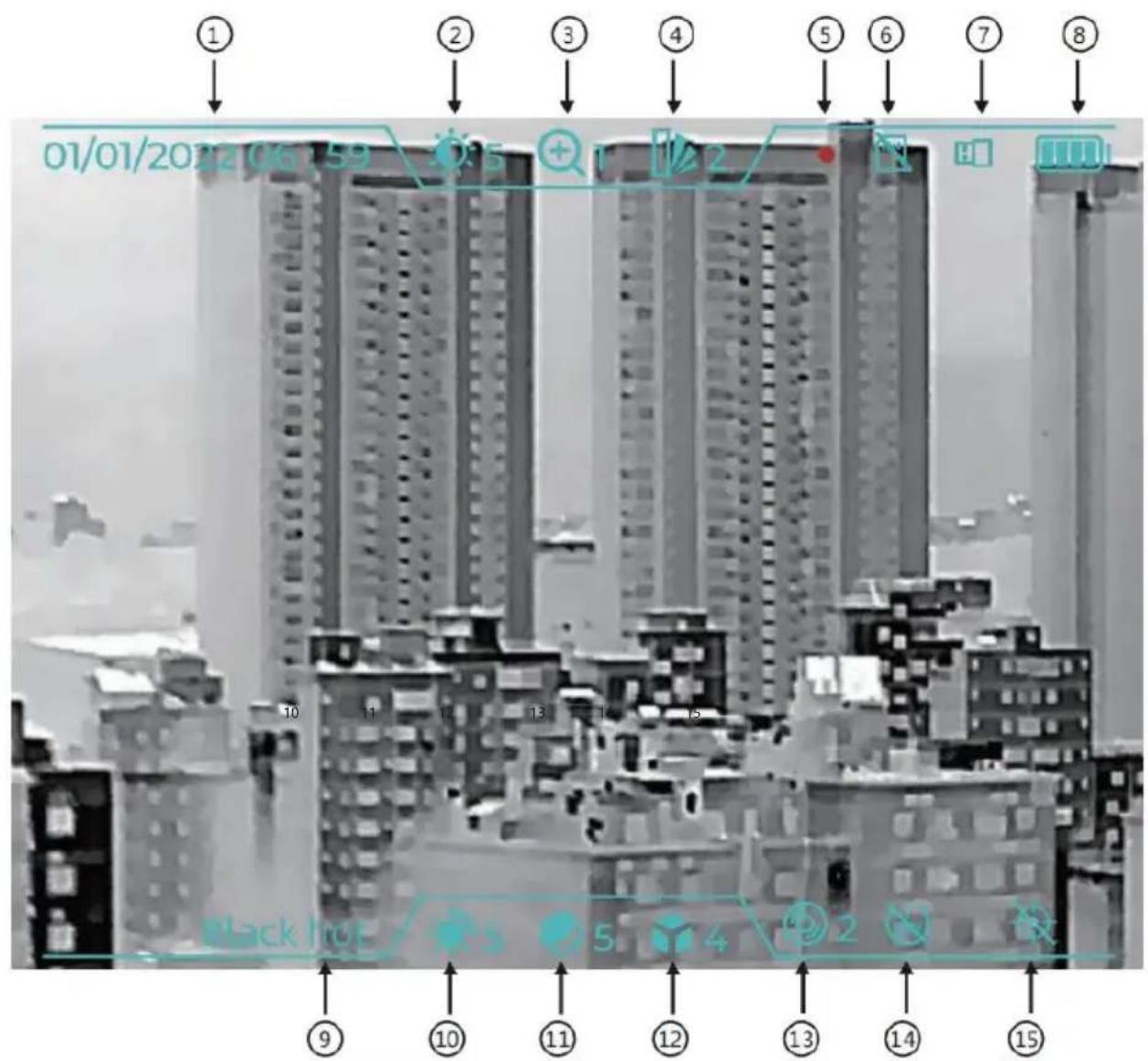
| ① | Date/Time | ② | Screen brightness |
| ③ | Zoom in | ④ | Pseudocolor |
| ⑤ | Record | ⑥ | SD card full |
| ⑦ | USB connection | ⑧ | Battery level |
| ⑨ | Pseudo color name | ⑩ | Image brightness |
| ⑪ | Image contrast | ⑫ | Scene mode |
| ⑬ | Correction method | ⑭ | Automatic shutdown |
| ⑭ | Hot point tracking |
The icons will be displayed in the interface at the following conditions: record icon: hold down the recording key to video; USB connection icon: when the cable is connected to the computer; SD card full icon: when the storage space is less than 100M.
Menu Description
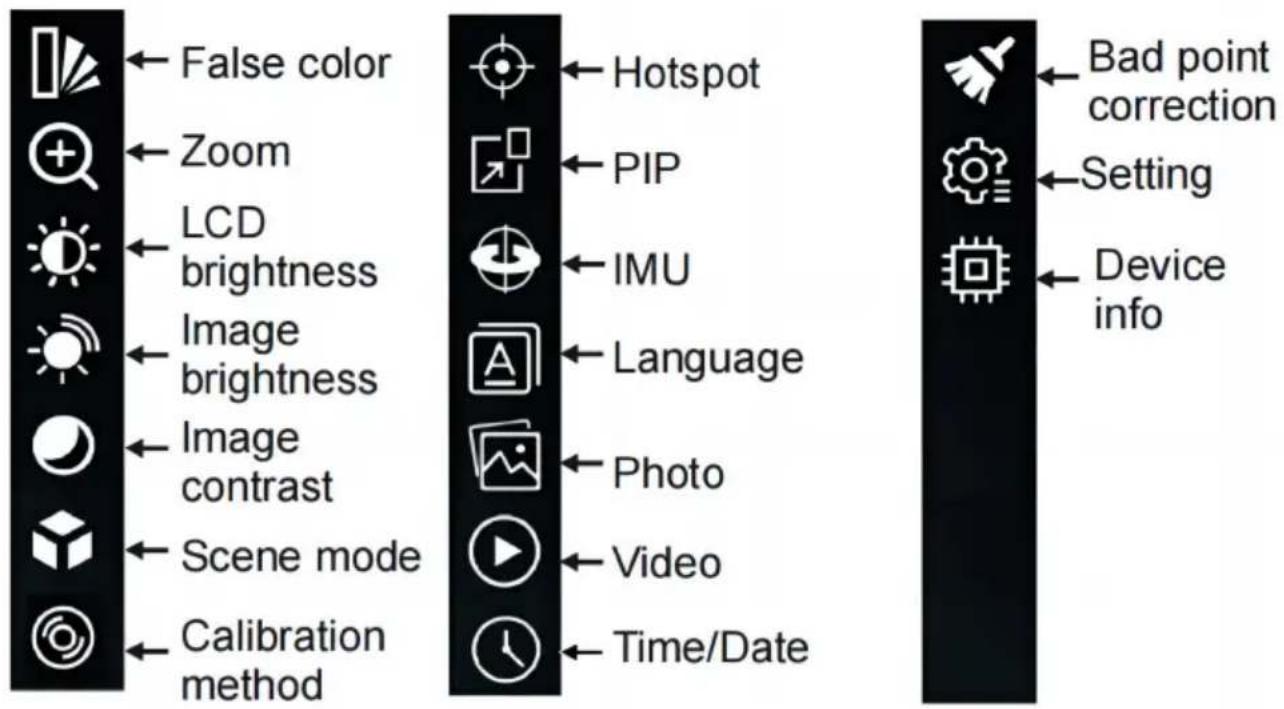
False color: White hot, black hot, fire hot, rainbow, iron red, cold color.
Zoom: Electronic amplification 1X, 2X, 4X, 8X. LCD brightness: The display brightness can be adjusted to 1~10 levels.
Image brightness: The brightness of the infrared image can be adjusted to levels
Image contrast: The contrast of the infrared image can be adjusted to 1~10 levels.
Scene mode: The application scene can be set as standard, city, or jungle.
Calibration method: The infrared image correction method can be set as many calibration, automatic calibration, and scene calibration.
Hot spot: The hot point tracking of infrared images can be set as on or off.
PIP: The picture-in-picture function is set as on or off in infrared image mode.
IMU: Pitch angle and roll angle display, set on or off.
Language: Set the language of the device, including simplified Chinese, traditional Chinese, English, Russian, and German.
Photo: Photo list, view photos.
Video: Video list, view video.
Time/Date: Set the date (year, month, day) and time (hour, minute), time format (12 hours, 24 hours), and date format (year/month/day, month/day/year).
Bad point correction: HT-C17 refers to automatic bad point correction (operate according to prompts), HT-C18 and HT-C19 refer to manual bad point correction (left, right, up, and down navigation keys adjust the cursor position. The
key determines to remove bad points and press the power key to return).
Settings: Short press the power button, video interface, automatic shutdown time, recording duration, and picture-in-picture position.
Short press the power button: can set the power. Press it for display off or frame of picture.
Video interface: set whether to bring UI display information when recording; Automatic shutdown time: may set no shutdown, 5 minutes, 10 minutes, 20 minutes, 30 minutes.
Recording duration: set the duration of each video file, including 5 minutes, 10 minutes, 20 minutes and 30 minutes;
Position of picture in picture: Set the position of picture in picture, which can be set as upper right, lower right, lower left and upper left.
Device info: View the model of the device, detector pixel, detector type, screen size, screen pixel, battery capacity, hardware version, firmware version, application version, storage space, etc., and also carry out application update, parameter resetting and formatting, etc. of the device.
Photos and videos
View photos: In the photos of the menu, open the photo list and press the key to view photos. When viewing a photo, press the brightness key to view previous photo, and press the pseudo color key to view the next photo.
Photo deletion: In the photo list, press the brightness key to pop up a prompt for deleting photos, and press the menu key to confirm deletion.
View video: In the menu video, open the video list and press the menu key to view the video.
Delete video: In the video list, press the brightness key to pop up a video prompt, and press the menu key to confirm the deletion.
Introduction to Palette
The color palette can be used to change the pseudo color display of infrared images on the display screen. Some palettes are more suitable for specific applications and can be set as needed.
The palette is divided into six colors: white hot, black hot, fire hot, rainbow, iron red and cold color.
These palettes work best under conditions with high thermal contrast, allowing additional color contrast between high and low temperatures.
Choose the right color palette to display the details of the target object. For colors of rainbow, iron red and cold colors, the coloration outweighs the display colors, which are very suitable for high thermal contrast, and are used to imitate the color contrast between high temperature and low temperature. However,
white heat and black heat provide uniform linear color. The following pictures are taken from the same object, but with different palettes selected:
White hot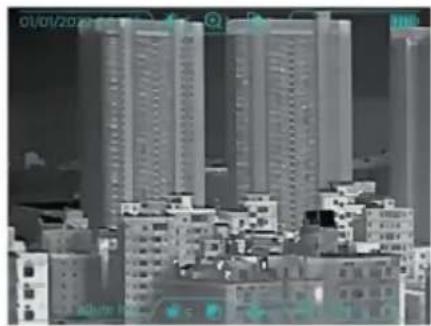
Black hot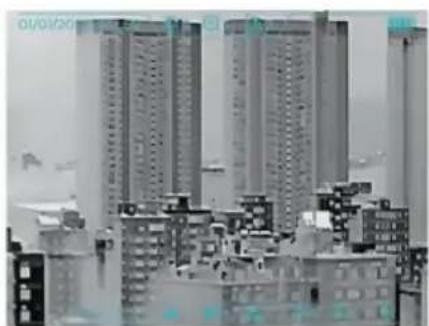
Fire hot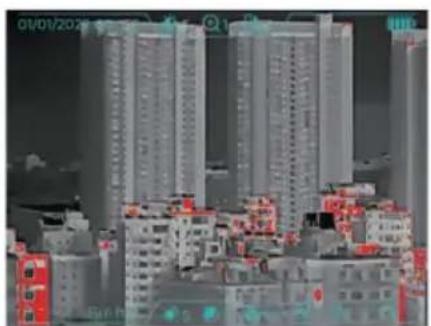
Rainbow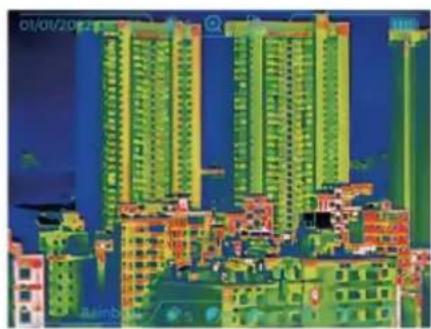
Iron red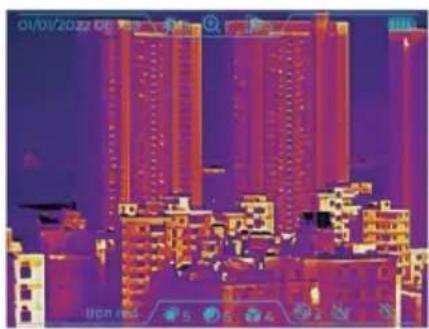
Cold color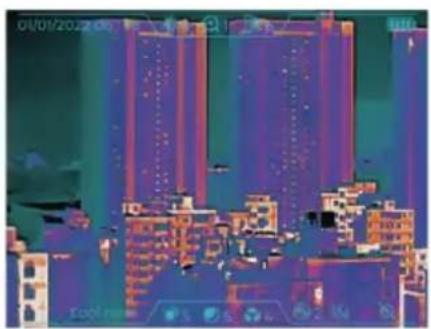
Charging of the Battery and Description
Use USB data line to charge:
- This product has a built-in rechargeable battery.
- When the battery level is low, the top right of the screen will display "Please charge in time through TEPY-C USB interface".
- Pull off the USB line after fully charging.
Use recharge stand to charge:
- Unscrew the battery cover and take out the batteries.
- Use the charger from the original manufacturer to charge the batteries. Insert the batteries properly according to the polarity as shown on the charger.
- After it is fully charged, disconnect power supply for the charger and remove the batteries.
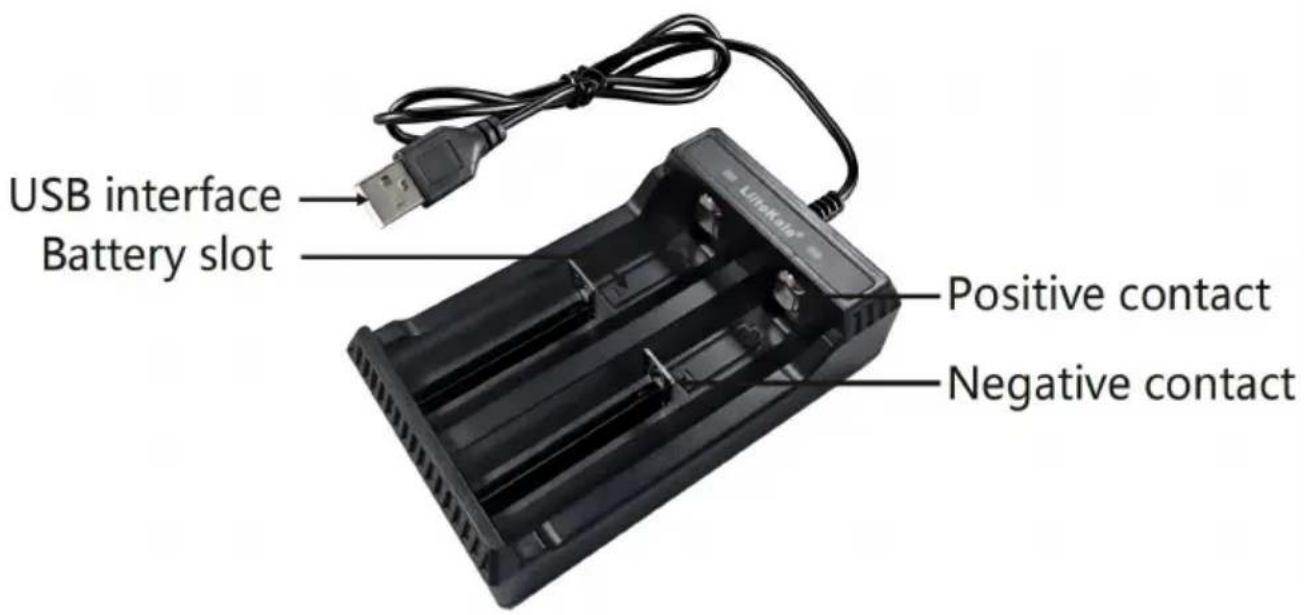
Prompt: When this product lies idle for long, it shall be charged at least every three months to prevent irreversible loss of capacity due to too low battery charging arising from its own discharge as it is kept too long.
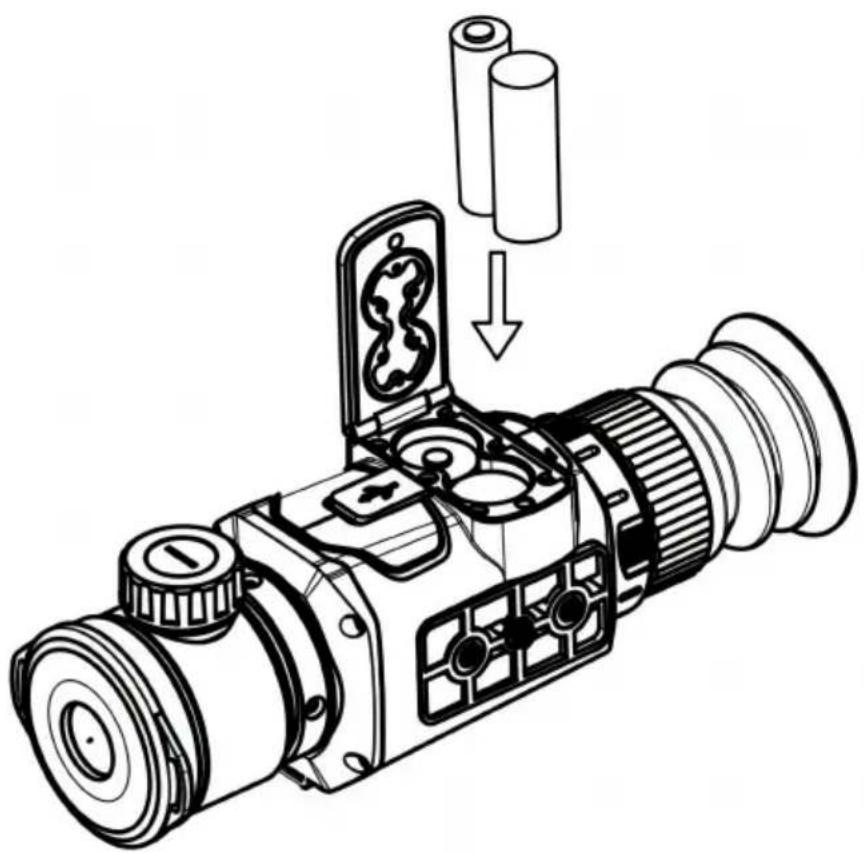
Installing the Battery
(1) Turn the battery compartment knob counterclockwise to open the battery compartment cover. (2) Install the battery in strict accordance with the positive and negative pole directions of the battery on the battery compartment cover. (3) Close the battery compartment cover, and turn the battery compartment clockwise until it is locked up.
Note: 1. Please do not use the battery whose insulating layer is damaged; 2. If the battery's positive and negative poles are wrongly connected, the device will be unable to work, and that will damage the battery.
MAINTENANCE/Service
Please use damp cloth or weak soap to clean the enclosure of the device. Use aberrant, isopropanol or solvent to clean. The lens and screen should be cleaned with use of cleaning agents for professional optical glasses. Please not that: Lack of maintenance may result in warranty cancellation. The guarantee this tool will be void if the machine has been modified, or you attempt to take apart the machine or open the factory-made sealing of the machine without the consent of an authorized representative of the manufacturer.
Lens Maintenance
Prevent damage of the infrared lens:
- Clean the infrared lens carefully. The lens is provided with refined anti-reflected coating.
- Don't clean with force to prevent damage of the anti-reflection coating. The select able color palette.
- Use a cleaning solution for lens maintenance, such as alcohol-based commercial lens cleaners, alcohol, and a lint-free cloth or paper towel. Compressed air tanks can be used to remove loose particles.
Clean the lens:
The compressed air tank or dry nitrogen ion gun (if applicable) may be used
blow the loose particles on the lens surface. Dip the lint free cloth in alcohol. Squeeze the excessive alcohol in the cloth or apply the lint free cloth on dr lightly.Wipe the lens surface by making circular motion. Then discard the cloth.If it is necessary to repeat above step, please use new cloth to dip with the cleaning solution to wipe.
Disposal
This product is subject to the provision of european Directive 2012/19/EU. The symbol showing a wheelie bin crossed through indicates that the product requires separate refuse collection in the European Union. This applies to the product and all accessories marked with this symbol. Products marked as such may not be
Discarded with normal domestic waste, but must be taken to a collection point for recycling electrical and electronic devices.
Only qualified technicians are authorized to undertake the repair of the Monocular outdoor thermal image telescope.
For your safety, please observe all safety notes, precautions, and details in the manual.
Warranty
- This warranty shall only cover claims for damage due to a fault in the manufacture.
- If a warranty claim is made, the party entitled to warranty cover must provide proof of purchase, including the purchase date.
- Customers’ satisfaction is always the motivation of our brand growth. We promise to help you solve any issues. Please just let us know if you need.
OUR SERVICE TEAM PROMISES TO REPLY TO YOUR MESSAGE WITHIN 24H.
Scope of Warranty
- We guarantee that VEVOR products are produced in accordance with ISO9001 Quality Management procedures and are free of manufacturing defects for the period of warranty.
- This warranty covers faults in the products due to manufacturing defects within 1 year from the date of purchase. After inspection by a sales representative,
defective products will be replaced or repaired with equivalent goods free of charge.
- Any warranty claim made during the warranty period shall not extend the overall period of warranty coverage.
- Warranty periods: Warranty claim date
Address: Baoshanqu Shuangchenglu 803long 11hao 1602A-1609shi Shanghai
Imported to AUS: SIHAO PTY LTD, 1 ROKEVA STREET, EASTWOOD NSW 2122 Australia
Imported to USA: Sanven Technology Ltd., Suite 250, 9166 Anaheim Place, Rancho Cucamonga, CA 91730
Pooledas Group Ltd
Unit 5 Albert Edward House, The Pavilion, Preston, United Kingdom
SHUNSHUN GmbH
Romeracker 9, Z2021, 76351
Technical Support and E-Warranty Certificate www.vevor.com/support
VEVOR®
TOUGH TOOLS, HALF PRICE
Technical Support and E-Warranty Certificate www.vevor.com/support
www.vevor.com/support
Technical Specifications
minutes, 30 minutes.
www.vevor.com/support
Imported to AUS: SIHAO PTY LTD, 1 ROKEVA STREET, EASTWOOD
New South Wales 2122 Australia
Imported into the USA: Sanven Technology Ltd., Suite 250, 9166 Anaheim Place, Rancho Cucamonga, CA 91730
Pooledas Group Ltd
www.vevor.com/support
Imported into AUS: SIHAO PTY LTD, 1 ROKEVA STREETEASTWOOD NSW 2122 Australia
Imported into the USA: Sanven Technology Ltd., Suite 250, 9166 Anaheim Place, Rancho Cucamonga, CA 91730
Pooledas Group Ltd.
Unit 5 Albert Edward House, The Pavilions
NEED HELP? CONTACT US!
Unit 5 Albert Edward House, The Pavilions
False color: White hot, black hot, fire hot, rainbow, iron red, cold color.
Zoom: Electronic magnification 1X, 2X, 4X, 8X. LCD brightness: Screen brightness can be adjusted to 1~10 levels.
Unit 5 Albert Edward House, The Pavilions
- MONOCULAR OUTDOOR THERMAL
- IMAGE TELESCOPE USER MANUAL
- MODEL: HT-C
- VEVOR®
- MONOCULAR OUTDOOR THERMAL IMAGE TELESCOPE
- NEED HELP? CONTACT US
- SAFETY
- ASSEMBLY PRECAUTIONS
- PRODUCT HUM
- USE PRECAUTIONS
- PROBLEM CAUSED BY WATER CONDENSATION
- AVOID IMPACTS TO THE PRODUCT (SUCH AS COLLISIONS, DROPS, ETC.)
- LONG-TERM STORAGE AND REGULAR CHARGING
- FCC INFORMATION
- INTRODUCTION TO PRODUCT STRUCTURE
- MENU DESCRIPTION
- PHOTOS AND VIDEOS
- INTRODUCTION TO PALETTE
- CHARGING OF THE BATTERY AND DESCRIPTION
- USE RECHARGE STAND TO CHARGE
- INSTALLING THE BATTERY
- MAINTENANCE/SERVICE
- LENS MAINTENANCE
- PREVENT DAMAGE OF THE INFRARED LENS
- CLEAN THE LENS
- DISPOSAL
- WARRANTY
- OUR SERVICE TEAM PROMISES TO REPLY TO YOUR MESSAGE WITHIN 24H
- SCOPE OF WARRANTY
- TOUGH TOOLS, HALF PRICE
Brand : Vevor
Model : HT-C18
Category : Binoculars