SBIT 82 B2 - Tablet accessories SILVERCREST - Free user manual and instructions
Find the device manual for free SBIT 82 B2 SILVERCREST in PDF.


User questions about SBIT 82 B2 SILVERCREST
0 question about this device. Answer the ones you know or ask your own.
Ask a new question about this device
Download the instructions for your Tablet accessories in PDF format for free! Find your manual SBIT 82 B2 - SILVERCREST and take your electronic device back in hand. On this page are published all the documents necessary for the use of your device. SBIT 82 B2 by SILVERCREST.
USER MANUAL SBIT 82 B2 SILVERCREST
natural_image
Black-and-white photo of a foldable tablet device with a keyboard and open screen (no visible text or symbols on the device itself)Last Information Update
10.2012-10841 No.: 581 82 82 162012
DE AT CH
User manual and service information
FR. QI
natural_image
Black electronic device with keyboard and stand, labeled with parts 10 and 11 (no text or symbols on the device itself)Deutsch 2
Français....13
Italiano 24
Nederlands 35
English....46
Inhaltsverzeichnis
Einleitung 3
text_image
Screenshot of a standard computer keyboard layout with standard keys and function keys labeled in the top row.Interface radio....17
Droits d'auteur 17
text_image
Screenshot of a standard computer keyboard layout with standard keys and function keys labeled in the top row.Icona
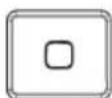
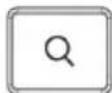
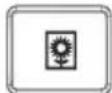
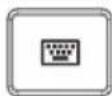
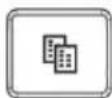
Funzione
Tasto Home
Cercare
text_image
~ ~ 1 @ # $ % ^ & 7 * 8 ( 9 ) * - + ← 1 2 € 3 4 5 6 7 8 9 0 = ← ← Q W E R T Y U 4 I 5 O 6 P - { } I → → caps lock A S D F G H J 1 K 2 L 3 : + * ← Z X C V B N M 0 < > ? / ▲ control in alt command command all option control <▼ ►Symbool Functie
Home-toets
Zoeken
Diashow / Fotoalbum
Schermtoetsenbord activeren/deactiveren.
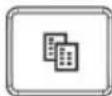
Kopiëren
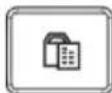
Plakken
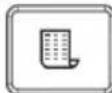
Begin tekst
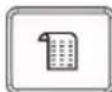
Einde tekst
Taal selecteren
Symbool Functie
Screenshot
Notes on battery run time 48
Safety instructions.... 49
Children and persons with disabilities....49
Operating environment 49
Cables 50
Radio interface....50
Copyright....50
Registered trademarks....50
Prior to use.... 51
Charging the battery 51
Inserting the iPad ^® 51
Setting up the protective case....51
First use....52
Keyboard layout and hotkeys 53
Troubleshooting 54
Servicing/cleaning 55
Environmental and disposal information....55
Conformity information.... 55
Warranty and servicing information 56
Introduction
Thank you for purchasing the iPad ^® protective case with integrated Bluetooth keyboard SBiT 82 B2. The keyboard can be connected to your iPad ^® via Bluetooth. The keyboard has several hotkeys that make it easier to operate your iPad ^® .
Intended use
This Bluetooth keyboard is an Information Technology device: It can be used in conjunction with an Apple iPad ^® , iPad ^® 2 or an iPad ^® 3rd Generation. The device should not be used outdoors or in tropical climates. This device is not designed for commercial use or installation and operation in a company. Use the device only for private use in living areas as any other use is not as intended. This device meets all relevant norms and standards in conjunction with CE conformity. In the event of any modification to the device that was not approved by the manufacturer, compliance with these standards is no longer guaranteed. The manufacturer does not accept any liability for any resulting damage or faults in such cases. Only use accessories specified by the manufacturer.
Please observe the regulations and laws in the country of use.
Supplied items
- Protective case for iPad® with integrated Bluetooth keyboard SBiT 82 B2
- Micro USB to USB cable
- This user manual
This user manual has a fold-out cover. On the inside cover, the protective case for iPad ^® with integrated Bluetooth keyboard SBiT 82 B2 is illustrated with numbers. The numbers indicate the following:
1 Loops which form the iPad® holder
2 Bluetooth connection LED
3 Charge status LED
4 Bluetooth activation / connection button (PAIRING)
5 On/off switch
6 Micro USB socket
7 Micro USB to USB cable
8 Keyboard with protective case
9 Slot for the iPad ^® headphone socket
10 Slot for the iPad ^® camera
11 Closure strap/stand with 2 press studs and a magnetic catch
Technical data
| Application Suitable for Apple iPad ^® , iPad ^® 2 or an iPad ^® 3rd Generation |
| Case Protective case made of synthetic leather |
| Case closure magnetic stud catch |
| Keypad Built-in Bluetooth keyboard |
| Keyboard layout 82-key design |
| Dimensions 22.5 x 2.9 x 25.4 cm (D x H x W) |
| Weight: 500g |
| Operating temperature 5°C to 40°C |
| Operating air humidity 90% rel. air humidity |
| Charging function The battery is charged via micro USB |

Notes on battery run time
| Standby time(when switched off): | Approx. 100 days |
| Battery operation time(based on normal use up to 3 hours per day): | Approx. 25 days |
The device works with an automatic standby function. If the device is not used for more than 10 minutes, it switches to standby mode. Then press any key to be able to use it again.
If you do not want to use the device for a longer period of time, you switch it off by sliding the on/off switch (5) to the "OFF" position.
Safety instructions
Before using the device for the first time, please read the following instructions carefully even if you are familiar with using electronic devices. Store these instructions in a safe place for future reference. If you pass on the device to someone else, be sure to always include these instructions.

This symbol indicates important information for safe operation of the device and the safety of the user.

This symbol indicates other important information on the topic.

Ensure that
■ no direct heat sources (e.g. heating) can affect the device;
■ no direct sunlight or bright artificial light reaches the device;
- any contact with splashed and dripping water and corrosive liquids is avoided and the device is not operated in the vicinity of water. In particular, the device may never be submerged;
■ never place any objects filled with liquids such as vases or drinks on or near the device;
■ the device is not in the immediate vicinity of magnetic fields (e.g. speakers);
■ no fire sources (e.g. burning candles) are placed on or near the device;
■ no foreign objects penetrate the device;
■ the device is not exposed to extreme temperature fluctuations;
■ the device is never subjected to excessive shocks and vibrations.

Children and persons with disabilities
Electrical devices do not belong in the hands of children. Persons with disabilities should also only use electrical devices appropriately. Never allow children or persons with disabilities to use electrical devices unsupervised. They may not recognise potential risks. Small parts can be fatal if swallowed. Seek immediate medical attention if a small part is swallowed. Also always keep plastic packaging out of reach as it poses a suffocation risk.

Operating environment
Place the device on a stable, even surface and do not place any objects on the device. The device is not designed for use in environments with a high temperature or humidity (e.g. bathrooms) or in extremely dusty conditions. Operating temperatures and operating air humidity: 5°C to 40°C, max. 90% rel. air humidity.

Cables
Always handle the cables by the connector and do not pull on the cables themselves. Never place furniture or other heavy objects on the cable and take care that the cable is not kinked, especially near the plug and connection sockets. Never make knots in any of the cables or tie them together with other cables. Ensure that all cables are placed so that no one can trip over them and they do not cause an obstruction.

Radio interface
Do not use the device on aircraft, in hospitals, operating rooms or in the vicinity of medical electronic systems. The transmitted radio waves can impair the functionality of sensitive devices. Keep the device at least 20cm away from any pacemakers, since the proper functioning of the pacemaker can be impaired by radio waves. The transmitted radio waves can cause interference in hearing aids. Do not place the device in the vicinity of flammable gases or in an explosion-hazard environment (e.g. paint shop) when the radio components are switched on since the transmitted radio waves can cause an explosion or a fire. The range of the radio waves is dependent on conditions in the surrounding environment. In case of data traffic via a wireless connection, it is also possible for unauthorised third parties to receive data. Targa GmbH is not responsible for radio or television interference caused by unauthorised changes to this device. In addition, Targa assumes no responsibility for the replacement or exchange of connecting lines and devices not indicated by Targa GmbH. Only the user himself is responsible for the elimination of interference caused by such unauthorised changes and for the replacement or exchange of the devices.
Copyright
All information contained in this user manual is subject to copyright and is provided for information purposes only. It is only permitted to copy or duplicate data and information with the express and written consent of the author. This also includes commercial use of the content and data. The text and illustrations are based on the state of the art at the time of printing. It is subject to change without notice.
Registered trademarks
USB is a registered trademark of USB Implementers Forum, Inc.
iPad ^® is a registered trademark of Apple Inc., Cupertino, Calif., U.S.
Prior to use
Charging the battery
Use the USB cable (7) supplied to charge the keyboard battery. To do so, connect the Bluetooth keyboard to the iPad® charger and plug it into the socket.
Charge status of the keyboard battery:
| Charge status LED (3) Status | |
| Flashes every 2-3 seconds Battery | is almost empty. |
| Yellow Battery is charging. | |
| Blue Battery is charged. |

You can also connect the keyboard to the USB port of a PC to charge the keyboard battery.
Inserting the iPad®
To use the slot for the iPad ^® camera (10) and the slot for the iPad ^® headphone socket (9), insert your iPad ^® so that the Home button of the iPad ^® is on the right (see diagram (A) on the inside cover of this user manual).
Setting up the protective case
Use the closure strap/stand (11) to ensure that the protective case with Bluetooth keyboard SBiT 82 B2 is positioned securely.
Use the centre stud (press stud) of the closure strap/holder (11) so that the closure strap is formed into a triangular stand as indicated in diagram (B) on the inside cover of this user manual.

Ensure that your iPad ^® is positioned correctly in the holder.
First use
The keyboard is connected to the iPad ^® via Bluetooth. Connect it as follows:
- Activate it on your iPad ^ under Settings | Bluetooth or Settings | General | Bluetooth.
- Then switch on the Bluetooth keyboard by sliding the on/off switch (5) to the "ON" position. The Bluetooth connection LED (2) lights up briefly.
- To connect the iPad ^ to the Bluetooth keyboard, briefly press the Bluetooth activation / connection button (4). The Bluetooth keyboard now searches 5-10 seconds (max. 150 seconds) for the iPad ^ . The Bluetooth connection LED (2) flashes until the connection is established. After the connection is established, the Bluetooth connection LED (2) lights up for a few seconds and then goes out.

The first time that the connection is established, you must enter a numerical code on the Bluetooth keyboard and confirm it with ENTER. The code is displayed on the iPad ^® .

You can disable the connection between the iPad ^® and the Bluetooth keyboard with the on/off switch (5) and you can also re-enable it with this switch.
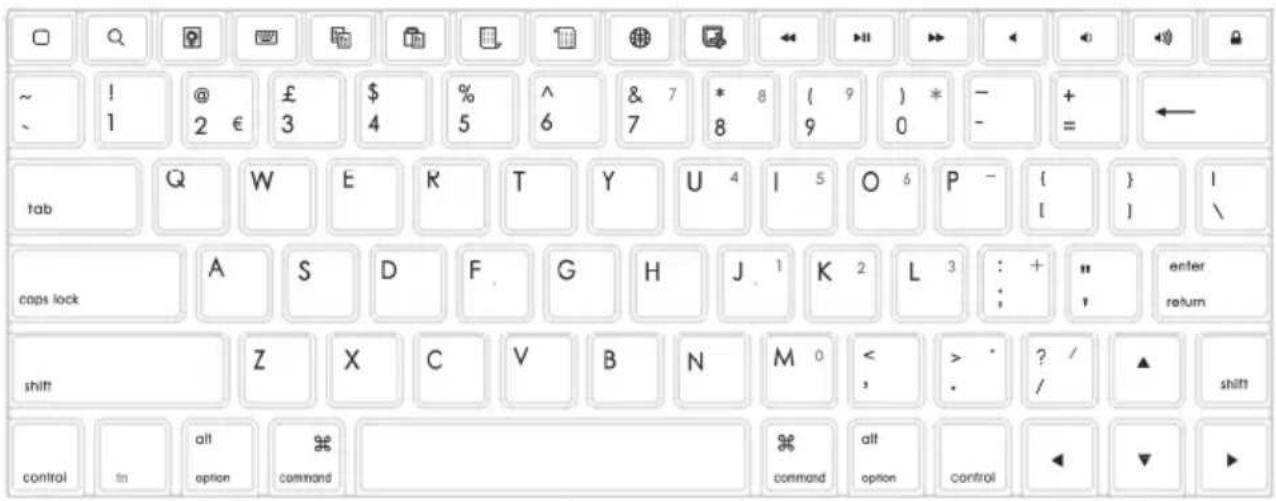
Keyboard layout and hotkeys
text_image
~ ~ 1 @ £ $ % ^ & 7 * 8 ( 9 ) * - + ← 1 2 € 3 4 5 6 7 8 9 0 - = ← tab Q W E K T Y U 4 I 5 O 6 P - { } I caps lock A S D F G H J 1 K 2 L 3 : + " enter return shift Z X C V B N M 0 < > ? / ▲ shift control fin alt command command alt option control ◀ ▼ ►| Icon | Function | Icon | Function |
 | Home button | Screenshot | |
 | Search Previous track / rewind* | ||
 | Slideshow / photo album | Play / pause | |
 | Enable / disable screen keyboard | Next track / fast forward *2 | |
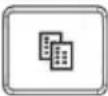 | Copy | Sound on or off | |
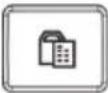 | Paste Volume down | ||
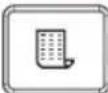 | Start of text | Volume up | |
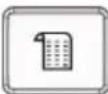 | End of text Lock / unlock * | ||
 | Select language |
*1 Previous track: press once; hold key down for rewind.
^*2 Next track: press once; hold key down for fast forward.
*3 If no code is entered, only the display is switched on / off. If the key is held down, the iPad® can be switched off. The usual process to shut down the iPad® is followed here.

To use the numbers on the number pad (blue numbers/icons), hold down the "fn" key and press the appropriate key. Example: For the number 1, press the "fn" key and the "J" key at the same time.

For @, press the "shift" key and "2" at the same time. For €, press the "alt" key and "2" at the same time.
Troubleshooting
Please check the following if the Bluetooth keyboard is not working:
☑ Check that the keyboard is switched on.
☑ Charge the battery.
☑ Check that Bluetooth is enabled on your iPad ®.
☑ Check on your iPad ^® under Settings | General | Bluetooth to see whether a connection has been established to the Bluetooth keyboard.
☑ If a connection has not been made, press the Bluetooth activation/connection button (4) so that you can establish a connection (the Bluetooth connection LED (2) flashes).
While the Bluetooth connection LED (2) is flashing on the iPad ^® , go to Settings | General | Bluetooth and select the Bluetooth keyboard from the list of devices in order to establish a connection.
Check the following to determine whether the keyboard is switched off:
☑ If you have switched off the Bluetooth keyboard and there is no longer a response to keystrokes, the keyboard is off.
The Apple ID password is not accepted.
☑ Please note that only characters accepted by Apple may be used.
Servicing/cleaning
It is necessary to service the device if it has been damaged in any way, for example, if the housing is damaged, if liquid or objects have penetrated the device or if the product has been exposed to rain or moisture. Servicing is also required if the device is not working properly or has been dropped. If smoke is produced, or there are any unusual sounds or smells, disconnect the device immediately from the mains. In these cases, the device should not be used until it has been inspected by authorised service personnel. Only have the device serviced by qualified personnel. Never open the housing of the device. There is the risk of a fatal electric shock when the housing is open. Only use a clean, dry cloth for cleaning and never use any corrosive liquids.
Environmental and disposal information
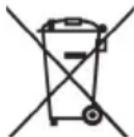
When the crossed out wheelie bin symbol appears on a product, this indicates that the product is subject to the European Directive 2002/96/EC.
All old electrical and electronic devices must be separated from normal household waste and disposed of at designated state facilities. The correct disposal of old devices in this manner will prevent environmental pollution and human health hazards.
For further information about proper disposal, contact your local authorities, waste disposal office or the shop where you bought the device.
Dispose of the packaging in an environmentally compatible manner. Cardboard can be put out for municipal paper collections or brought to public collection points for recycling. Films and plastic used for packaging the device are collected by your local disposal services and disposed of in an environmentally compatible manner.

The integrated battery cannot be removed for disposal.
Conformity information

This device meets the basic requirements and other relevant regulations of the EMC Directive 2004/108/EC as well as the RoHS II Directive 2011/65/EU. The Declaration of Conformity can be found at the end of this manual.
Warranty and servicing information
Warranty of Targa GmbH
This device is sold with three years warranty from the date of purchase. Please keep the original receipt in a safe place as proof of purchase. Before using your product for the first time, please read the enclosed documentation or online help. Should any problems arise which cannot be solved in this way, please call our hotline. Please have the article number and, if available, the serial number to hand for all enquiries. If it is not possible to solve the problem on the phone, our hotline support staff will initiate further servicing procedures depending on the fault. Within the warranty period the product will be repaired or replaced free of charge as we deem appropriate. No new warranty period commences if the product is repaired or replaced. Consumables such as batteries, rechargeable batteries and lamps are not covered by the warranty.
Your statutory rights towards the seller are not affected or restricted by this warranty.

Service

Phone: 0207 - 36 50 744
E-Mail: service.GB@targa-online.com

Phone: 01 - 242 15 83
E-Mail: service.IE@targa-online.com

Phone: 800 - 62 175
E-Mail: service.MT@targa-online.com

Phone: 800 - 92 496
E-Mail: service.CY@targa-online.com
IAN: 79012

Manufacturer
TARGA GmbH
Postfach 22 44
D-59482 Soest
www.targa.de
CE
EU - Declaration of Conformity
Address:
Targa GmbH
Lange Wende 41
59494 Soest, Germany
Brand:
SilverCrest
Product:
iPad Bluetooth Keyboard with protection bag
Model:
SBiT 82 B2
Identification number:
IAN 79012
The product complies with the requirements of the following European directives:
1999/5/EC
R&TTE
2011/65/EU
Restriction of the use of certain hazardous
substances in electrical and electronic equipment
Compliance was proved by the application of the following standards:
RF:
EN 300 328 V 1.7.1
EMC:
EN 301 489-1 V 1.8.1
EN 301 489-17 V 2.1.1
Safety:
EN 60950-1: 2006 + A11:2009 + A12:2011
EN 50371:2002
Rohs:
EN 62321:2009
Year of CE marking:
2012