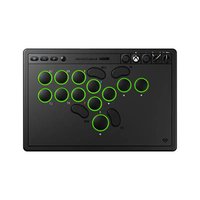
Arcade Controller - Controller 8BitDo - Free user manual and instructions
Find the device manual for free Arcade Controller 8BitDo in PDF.


| Brand | 8BitDo |
| Model | Arcade Controller |
| Product Type | Arcade Controller |
| Compatibility | Xbox (latest system version), Windows 10 (1903+) |
| Connectivity | Wireless (2.4 GHz USB receiver) and wired (USB cable) |
| Power Supply | Rechargeable lithium battery 3000 mAh |
| Battery Life | Approximately 10 hours (light on), 40 hours (light off) |
| Charging Time | Approximately 4 hours (5V/1A) |
| Volume Dial | Yes |
| Competition Lock Switch | Yes, to disable function keys during gameplay |
| Audio Jack | 3.5 mm headphone jack |
| Light Effects | Resonance, wave, breathing, continuous, flow, off |
| Light Button | Yes, to change effects |
| Programmable Buttons | Yes, via Ultimate Software X |
| Configuration Software | Ultimate Software X (available at app.8bitdo.com) |
| Technical Support | support.8bitdo.com |
| Cleaning | Use a soft, dry cloth. Do not use chemical products. |
| Safety | Do not disassemble, do not modify. Contains small parts. Flashing lights: risk for photosensitive individuals. |
| Auto Shutdown | After 1 minute without connection, or 15 minutes without operation (except when headset plugged in or wired) |
| Status Indicators | Power indicator: red flashing (low battery), green flashing (charging), solid green (charged). Status and configuration indicators. |
| Receiver | Included, stores in the compartment |
Frequently Asked Questions - Arcade Controller 8BitDo
User questions about Arcade Controller 8BitDo
0 question about this device. Answer the ones you know or ask your own.
Ask a new question about this device
Download the instructions for your Controller in PDF format for free! Find your manual Arcade Controller - 8BitDo and take your electronic device back in hand. On this page are published all the documents necessary for the use of your device. Arcade Controller by 8BitDo.
USER MANUAL Arcade Controller 8BitDo
Arcade Controller for Xbox
English
natural_image
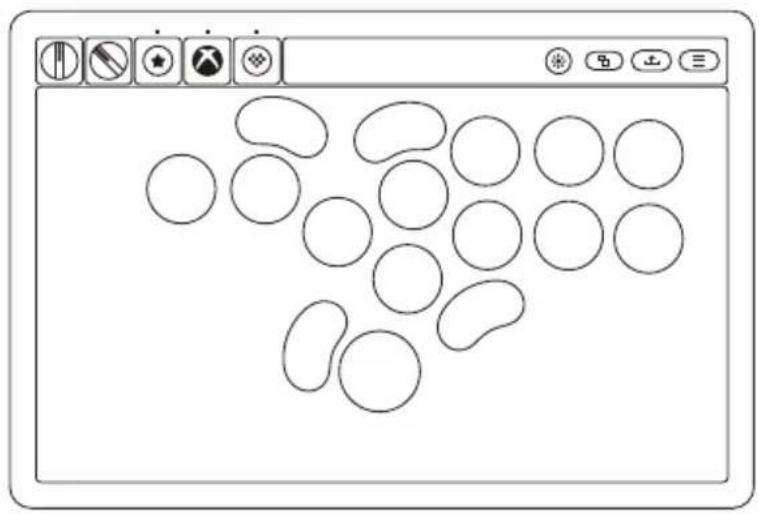
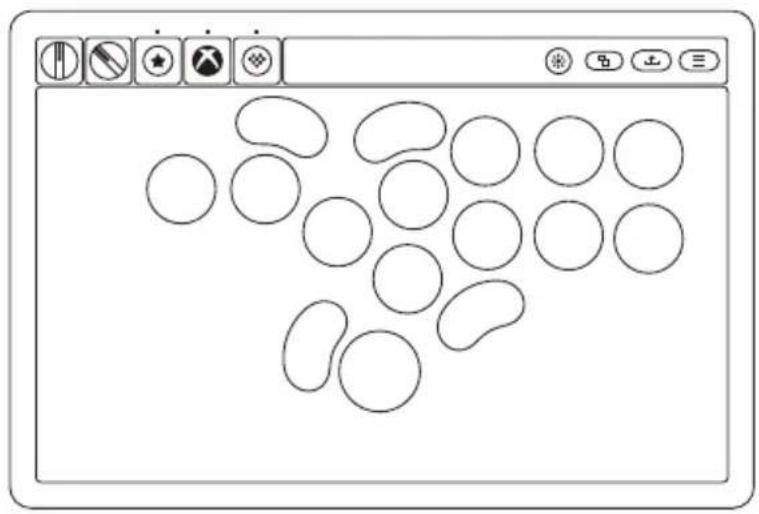
Computer window displaying a grid of simple circles with selection icons (no text or labels)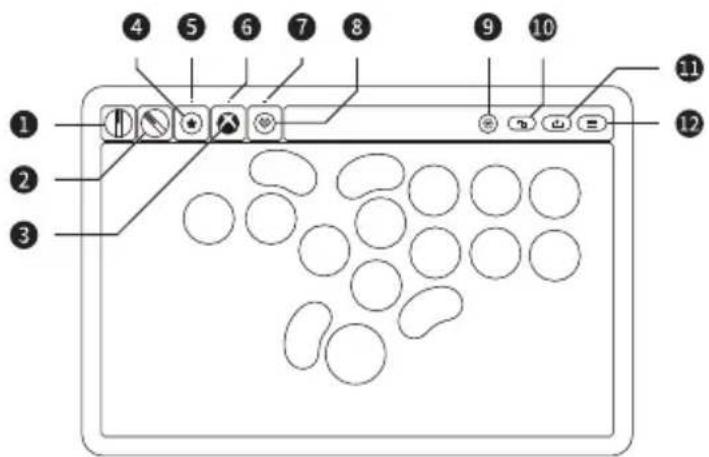
- Press the Xbox button to turn on the Arcade Controller.
- Hold the Xbox button for 6 seconds to turn off the Arcade Controller.
- Hold the Xbox button for 12 seconds to force the Arcade Controller.
1 — Volume knob
② — Tournament lock switch
③ — Xbox button
4 — Star button
5 — Mapping LED
6 — Status LED
7 — Profile LED
8 — Profile button
9 — RGB button
10 — View button
Share button
12 — Menu button
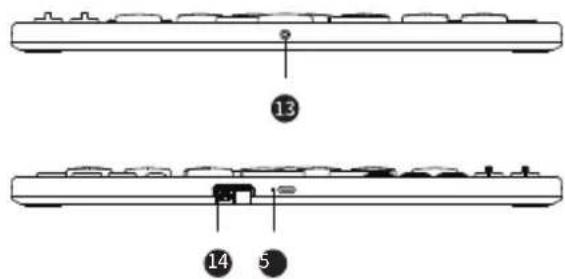
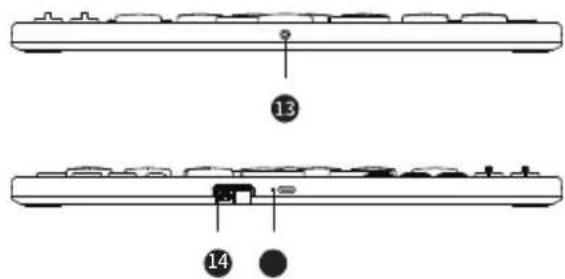
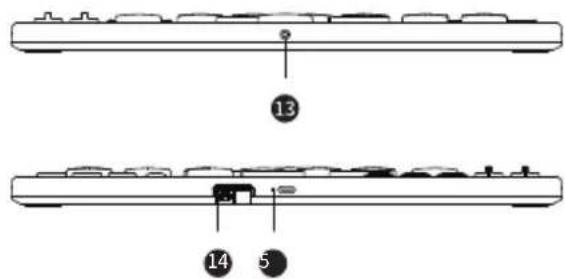
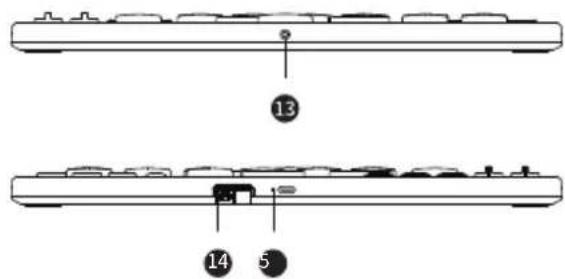
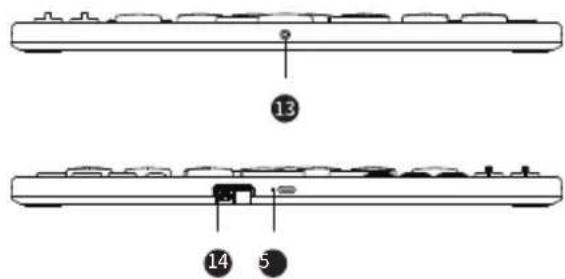
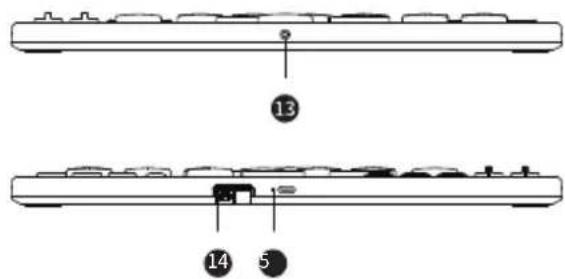
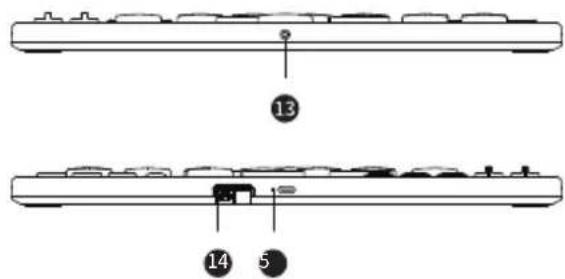
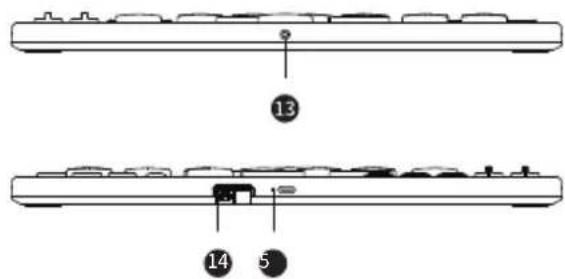
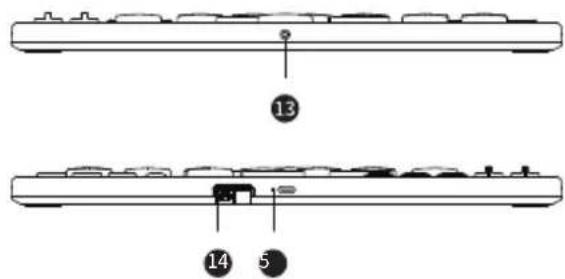
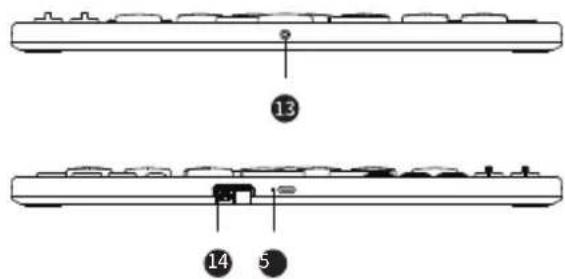
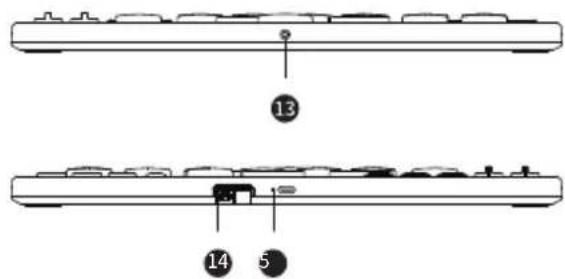
13 — 3.5mm audio jack
14 — 2.4G Adapter / Adapter compartment
15 — Power LED
Xbox
- System Requirement: Ensure your Xbox console is updated to the latest system version.
Wireless Connection
- Connect the adapter to the USB port of your Xbox device.
- Press the Xbox button to turn on the Arcade Controller.
- After the connection is complete, the Status LEDs on both the Arcade Controller and the adapter will remain solid.
Wired Connection
- Connect the Arcade Controller to your Xbox console via the USB cable.
- Press the Xbox button to turn on the Arcade Controller, wait until the Arcade Controller is successfully recognized by the Xbox console.
Windows
- System requirement: Windows 10 (1903) or above.
Wireless Connection
- Connect the adapter to the USB port of your Windows device.
- Press the Xbox button to turn on the Arcade Controller.
- After the connection is complete, the Status LEDs on both the Arcade Controller and the adapter will remain solid.
Wired Connection
- Connect the Arcade Controller to your Windows device via the USB cable.
- Press the Xbox button to turn on the Arcade Controller, wait until the Arcade Controller is successfully recognized by the Xbox console.
Tournament Lock Switch
- Turn the Tournament lock switch to Lock position, Star button, Profile button, RGB button, Xbox button, View button, Menu button, and Share button will be disabled, to prevent unintentional inputs from impacting game.

P1/P2 Buttons Configuration
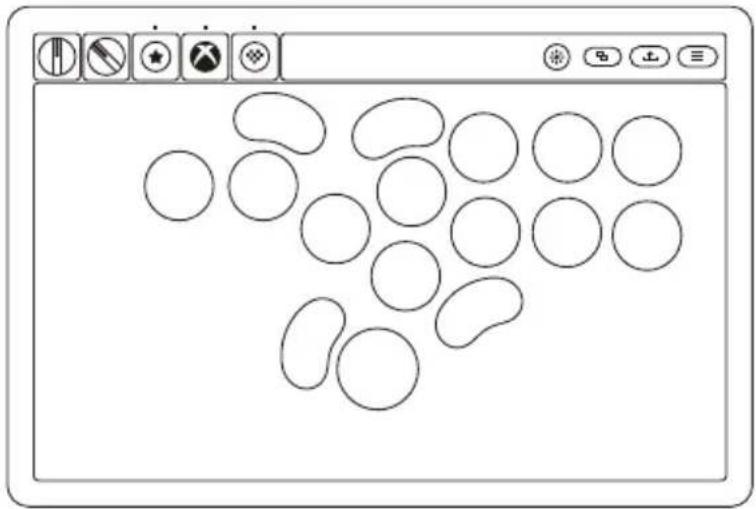
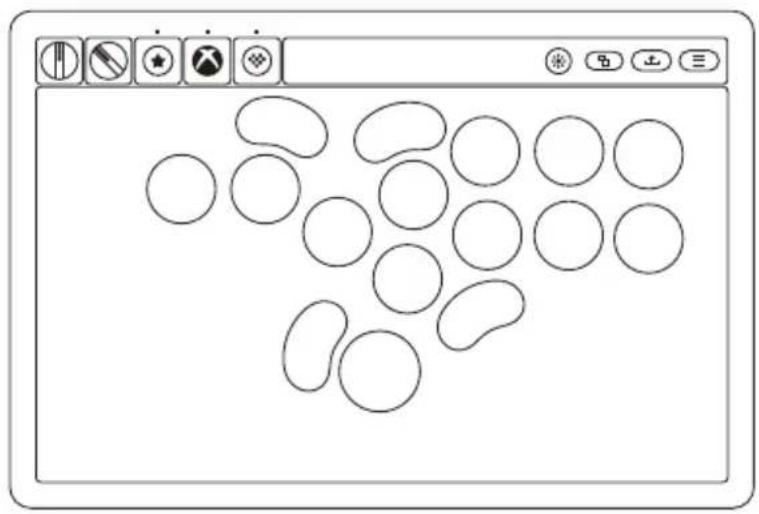
- Single button on the Arcade Controller can be mapped to the P1/P2 buttons, multiple button configurations are not supported.
- View button, Menu button, Share button, and Xbox button are not supported for the button configuration.

Light
- The light will automatically turn off when the battery is low.
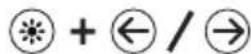
- Press the RGB button to cycle through the light effects: Echo Press > Ripple > Breathing > Fixed > Flow > Off.
Brightness Control: Color Options: / ↓
Battery
Status
Low battery
Battery charging
Fully charged



Power LED
Red LED blinks
Green LED blinks
Green LED remains solid
- Built-in 3000mAh battery pack, the Arcade Controller can be used for approximately 10 hours with the light on and up to 40 hours with the light off, rechargeable with 4 hours charging time (5V-1A).
- The Arcade Controller will automatically shut down if it fails to connect within 1 minute of startup, or if there are no operations within 15 minutes after establishing a connection.
- The device will not automatically power off when connected to 3.5mm headphones for audio playback.
- The Arcade Controller will not shut down during wired connection.
Re-pair the Adapter
If the Arcade Controller is disconnected from the adapter or the adapter is replaced, you can re-pair it by following these steps:
- When the Arcade Controller is powered off, press and hold the Star button+Profile button+Xbox button to turn on, and the Status LED will blink rapidly.
- Connect the adapter to the USB port of your Xbox console or Windows device, wait for the Arcade Controller to automatically pair and connect with the adapter.
- After the connection is complete, the Status LEDs on both the Arcade Controller and the adapter will remain solid.
Safety Warnings
- Please always use batteries, chargers, and accessories provided by the manufacturer.
- The manufacturer is not liable for any safety issues arising from the use of non-manufacturer-approved accessories.
- Do not attempt to disassemble, modify, or repair the device yourself. Unauthorized actions may result in serious injury.
- Avoid crushing, disassembling, puncturing, or attempting to modify the device or its battery, as these actions can be dangerous.
- Any unauthorized changes or modifications to the device will void the manufacturer's warranty.
- This product contains small parts that may cause choking. Not suitable for children under three years old.
- This product features flashing lights. Individuals with epilepsy or photosensitivity should disable the lighting effects before use.
- Cables may cause tripping or entanglement hazards. Keep them away from walkways, children, and pets.
- Stop using this product immediately and seek medical attention if you experience dizziness, visual disturbances, or muscle spasms.
Ultimate Software
Please visit app.8bitdo.com to download the Ultimate Software X to get the customize button mapping function & additional support.
Support
Please visit support.8bitdo.com for further information & additional support.
街机控制器 (Xbox)
中文
natural_image
Computer screen displaying a grid of simple circles with selection icons in the corner (no text or symbols on the circles)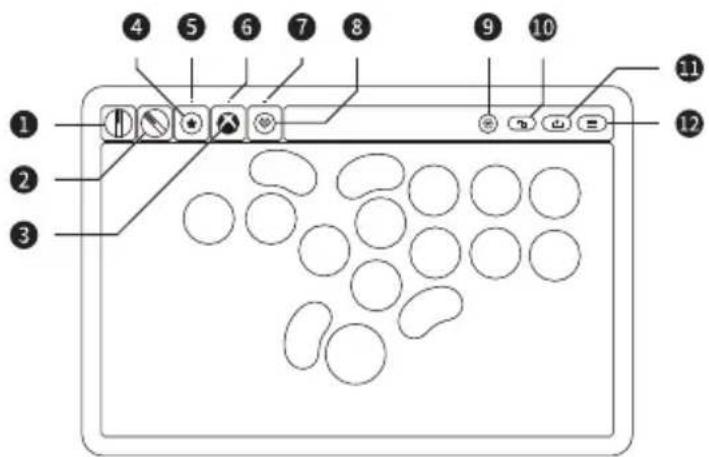
配置 P1 / P2 键
natural_image
Computer screen displaying a grid of simple geometric shapes (no text or symbols)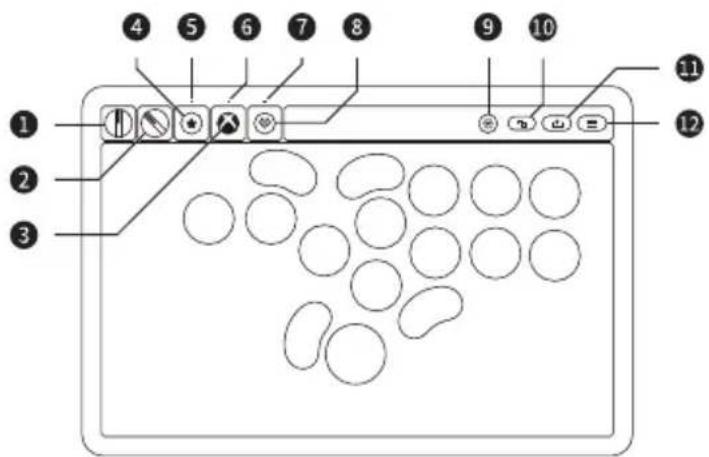
P1/P2 キーの設定
natural_image
Computer window displaying a grid of simple circles with selection icons (no text or labels)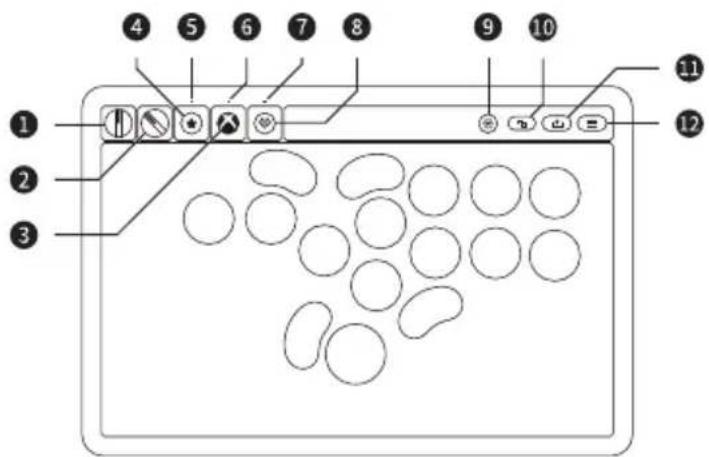
P1/P2 키 구성
natural_image
Computer screen displaying a grid of simple geometric shapes (no text or symbols)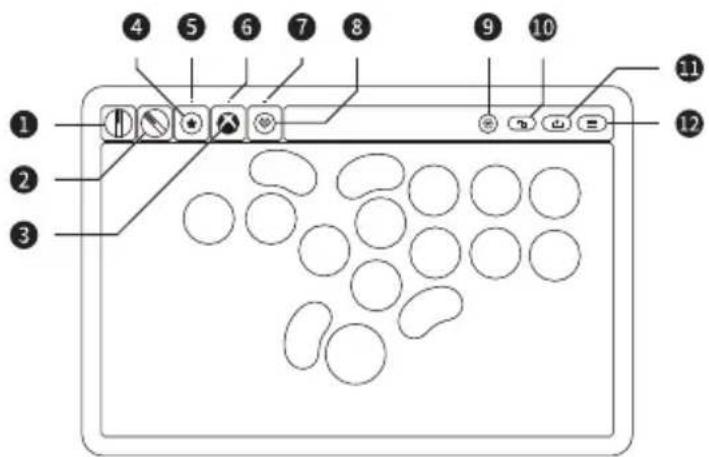
natural_image
Computer screen displaying a grid of simple geometric shapes (no text or symbols)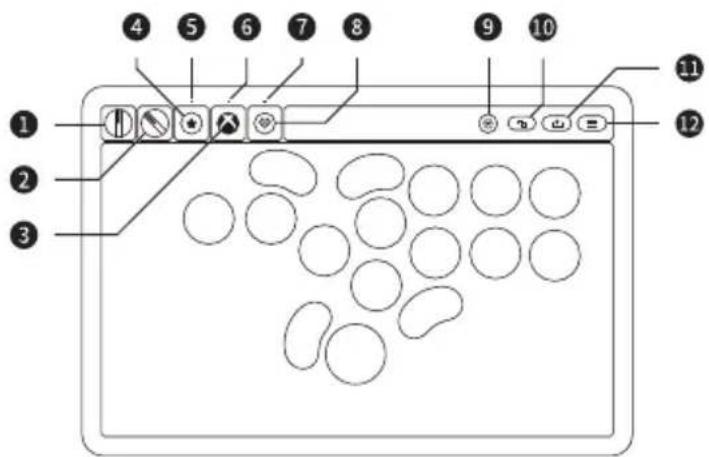
Configurer les touches P1 / P2
Controllore Arcade (Xbox)
Italiano
natural_image
Computer window displaying a grid of simple geometric shapes (circles and ellipses) without any text or symbols.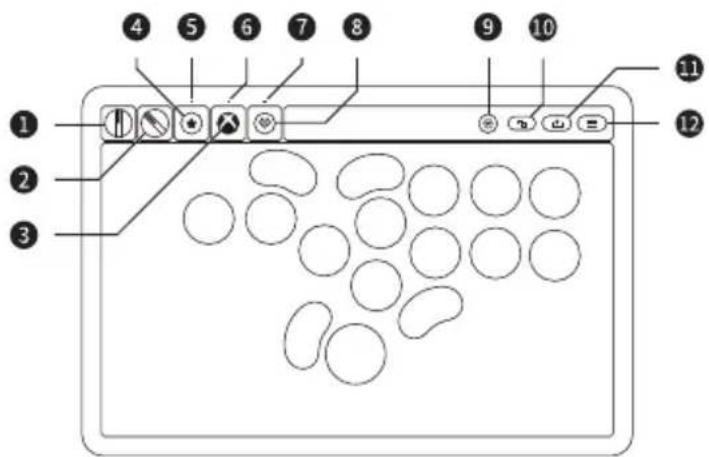
Luce
natural_image
Computer window displaying a grid of simple circles with some outlined, no text or symbols present.
Arcade-controller (Xbox)
Nederlands
natural_image
Computer window displaying a grid of simple circles with selection icons (no text or labels)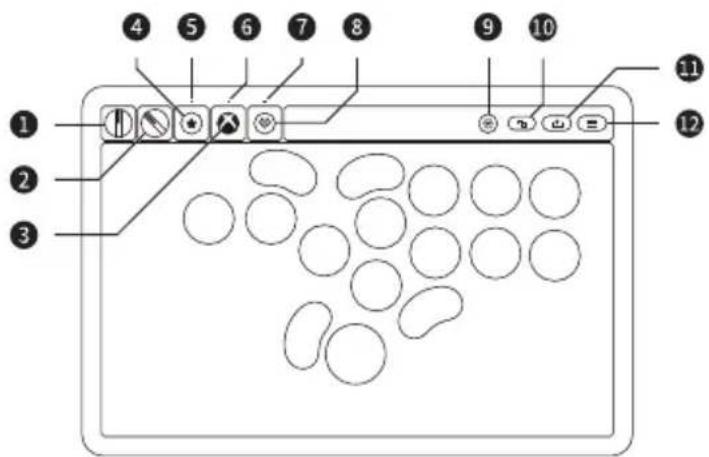
Toets P1/P2 configureren
natural_image
Computer screen displaying a grid of simple geometric shapes (no text or symbols)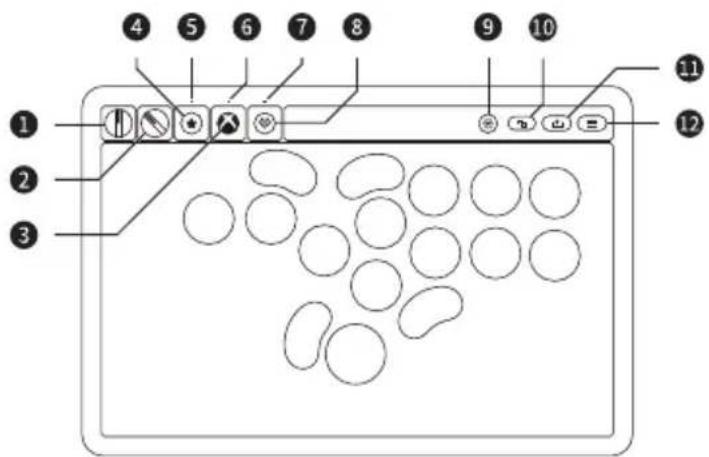
Konfigurera P1 / P2-knappar
Ljus
natural_image
Computer screen displaying a grid of simple geometric shapes (no text or symbols)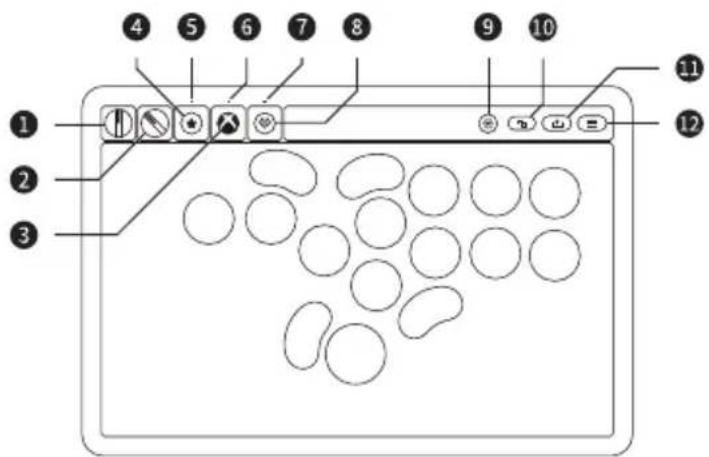

- Arcade Controller for Xbox
- Xbox
- Wireless Connection
- Wired Connection
- Windows
- Tournament Lock Switch
- P1/P2 Buttons Configuration
- Light
- Battery
- Status
- Power LED
- Re-pair the Adapter
- Safety Warnings
- Ultimate Software
- Support
- 街机控制器 (Xbox)
- 配置 P1 / P2 键
- P1/P2 キーの設定
- P1/P2 키 구성
- Configurer les touches P1 / P2
- Controllore Arcade (Xbox)
- Luce
- Arcade-controller (Xbox)
- Toets P1/P2 configureren
- Konfigurera P1 / P2-knappar
- Ljus
Brand : 8BitDo
Model : Arcade Controller
Category : Controller