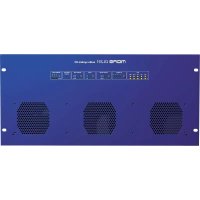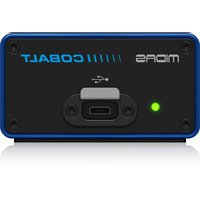
Cobalt - Hand blender Midas - Free user manual and instructions
Find the device manual for free Cobalt Midas in PDF.


User questions about Cobalt Midas
0 question about this device. Answer the ones you know or ask your own.
Ask a new question about this device
Download the instructions for your Hand blender in PDF format for free! Find your manual Cobalt - Midas and take your electronic device back in hand. On this page are published all the documents necessary for the use of your device. Cobalt by Midas.
USER MANUAL Cobalt Midas
HyperMAC to USB3 Converter supporting recording/playback of up to 192 Channels on Windows or MacOS with sample rate conversion
EN
ES
FR
DE
PT
IT
NL
SE
PL
JP
CN
2 Quick Start Guide COBALT
EN
EN Safety Instruction
- Please read and follow all instructions.
- Keep the apparatus away from water, except for outdoor products.
- Clean only with a dry cloth.
- Do not block any ventilation openings. Install in accordance with the manufacturer's instructions.
- Do not install near any heat sources such as radiators, heat registers, stoves or other apparatus (including amplifiers) that produce heat.
- Use only attachments/ accessories specified by the manufacturer.

- Use only specified carts, stands, tripods
brackets, or tables. Use caution to prevent tip-over when moving the cart/apparatus combination 8. Avoid installing in confined spaces like bookcases.
9. Do not place near naked flame sources, such as lighted candles.
10. Operating temperature range 5^ to 45^ (41° to 113°F).
HyperMAC Snake Connections.. 8
SNAKE 1/2 STATUS LED Information. 8
Update and Installation 9
Firmware Update 9
MacOS Driver 12
Windows Driver Installation 12
Configuration 15
Product Configuration - MacOS 15
Product Configuration - Windows.. 16
Introduction
The Midas COBALT is an audio interface with 192 bi-directional channels that is designed to work alongside the Heritage-Digital console series. COBALT converts the native HyperMAC Snake audio to class-compliant USB audio via a USB3 audio link. USB audio streams can be configured to work at either 48kHz (via Asynchronous Sample Rate Converter) or 96kHz , with no change in channel count. The COBALT interface also provides an auxiliary data link between the console and the computer that allows for future integrations between console and computer-based audio applications.
Package Contents
COBALT USB3 to HyperMAC Converter
COBALT Carry case
Locking USB-C to USB-C Cable
- Quick Start Guide (QSG)
Controls
USB Connection
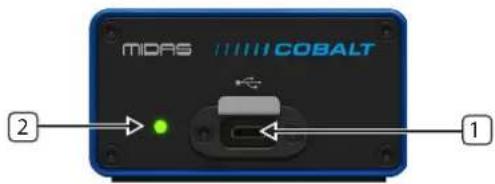
LOCKING USB-C CONNECTOR - COBALT connects to the host computer using either a USB-C to USB-C cable (provided) or a USB-C to USB-A cable. The included USB-C to USB-C cable features a housing that matches COBALT's industry standard locking USB port and provides a sturdy and stable connection.
NOTE: COBALT must be connected to a USB3 port on the host computer with a USB3-compliant cable to access COBALT's full channel-count capability. If COBALT is connected via a USB2 port or with a USB2 cable, the channel count will be limited to 32 bi-directional channels of audio.
USB STATUS LED - The multicolored USB status LED provides feedback on the operational mode and status of the COBALT unit.
| LED STATE Meaning | |
| Solid Blue | USB3 Mode - 192 x 192 channel capability |
| Blinking Blue | USB3 Mode - Device is connected to an audio application and is transmitting/receiving data |
| Solid Green | USB2 Mode - 32x32 channel capability |
| Blinking Green | USB2 Mode - Device is connected to an audio application and is transmitting/receiving data |
| White/Cyan | Shown during unit start up |
| Purple/Pink | Shown while unit is updating |
| Yellow | Internal Error - Contact your local distributor or Midas Customer Support |
| Solid Red | Unit Unprogrammed - Contact your local distributor or Midas Customer Support |
EN
89Quick Start GuideCOBALT
HyperMAC Snake Connections
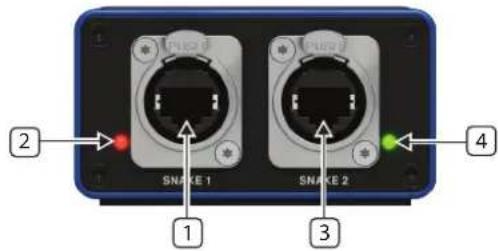
SNAKE1- The first HyperMAC snake port can carry 192x 192 channels of audio and auxiliary data for connection to Heritage-Digital consoles such as the HD96-24 or HD96-AIR. Connection should be made using industry standard RJ-45 connectors and a supported cable. For Midas cable information please refer to the knowledge base article below.
SNAKE1 STATUS LED Status LED indicates the state/health of the SNAKE 1 connection port. See the table below for LED status information.
SNAKE 2 - The second HyperMAC snake port can also carry 192× 192 channels of audio and auxiliary data for connection to Heritage-Digital consoles such as the HD96-24 or HD96-AIR. Connection should be made using industry standard RJ-45 connectors and a supported cable. For Midas cable information please refer to the knowledge base article below.
SNAKE 2 STATUS LED Status LED indicates the state/health of the SNAKE 2 connection port. See the table below for LED status information.
SNAKE 1/2 STATUS LED Information
| LED STATE Meaning | |
| SOLID RED | Snake link down/disconnected |
| Fast Flashing Green | Snake hunting for valid clock/link |
| Slow Pulsing Green | Link is synchronized and is the active link for data transmission |
| Solid Green | Link is synchronized and is the backup link for data transmission |
MIDAS Cable Recommendations
https://community.musictribe.com/kba/article/KA-09432/Midas
Update and Installation
Firmware Update
To ensure the best operation of your COBALT device, please make sure the firmware is kept up to date. The latest firmware can be downloaded from:
https://cloud.midasconsoles.com/drive/firmware
Firmware can be updated from both Windows and MacOS (shown below). The updater application will be bundled with the firmware update.
- Unzip the downloaded update package, which will contain the new firmware and updater applications for both MacOS and Windows.
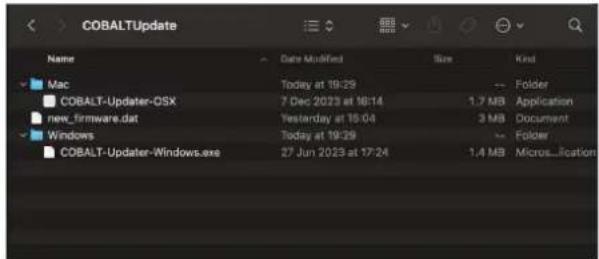
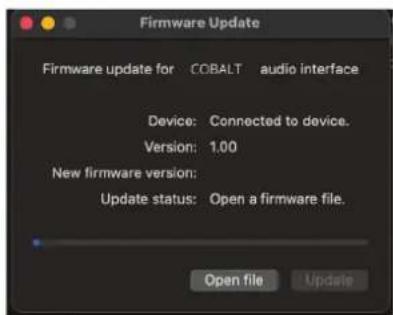
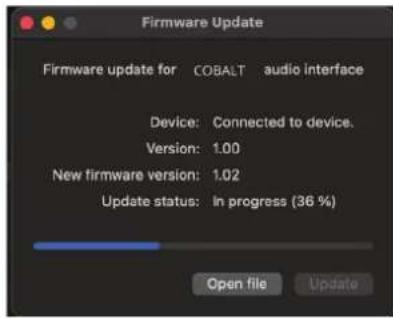
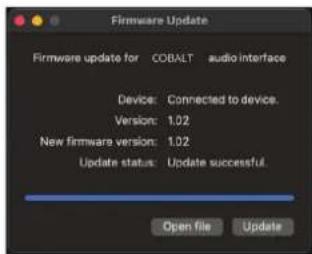
- Open the updater for your OS with the COBALT unit connected via USB. The Firmware Update window will show the COBALT device as "Connected to device", and its current firmware version will be displayed.
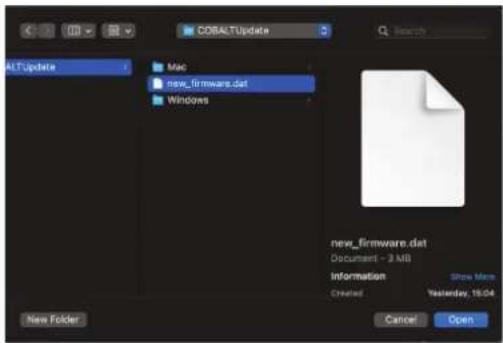
- Click on "Open file" and use the file browser to navigate to the location of the update file. Select the update file and press "Open".
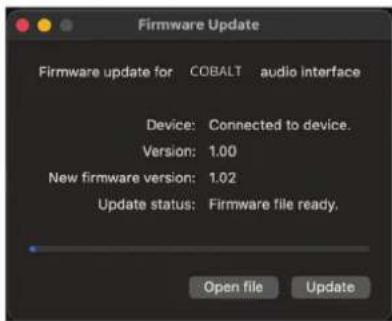
- The updater window will show the new version. Press "Update". Do NOT disconnect the COBALT device during the update process!
- Monitor the progress bar to see the update taking place. Once the update is complete, the unit will automatically restart.
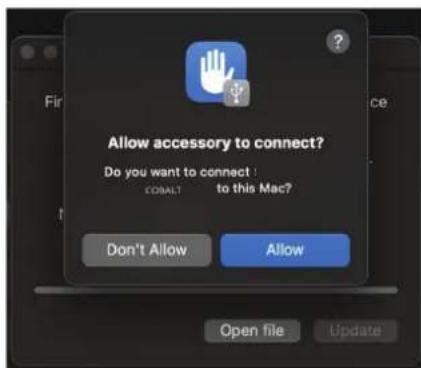
- If you see a dialog asking for permission for the device to connect, click "Allow".
12 13Quick Start Guide COBALT
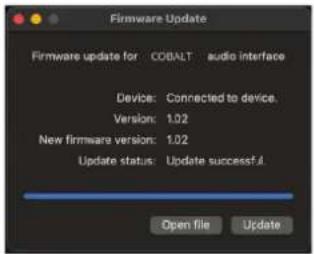
- Once the update is complete, The Firmware Update window will show the COBALT device as "Connected to device", and the "Version" and "New firmware version" fields will match.
MacOS Driver
COBALT is supported on MacOS as a core audio device, which means there is no specific driver to install. Later in the Quick Start Guide (QSG), you will find instructions on how to configure the device on MacOS.
Windows Driver Installation
COBALT is supported on Windows via an ASIO driver. The ASIO driver will be included within the firmware zip file which can be downloaded from:
https://cloud.midasconsoles.com/drive/firmware
To install the driver:
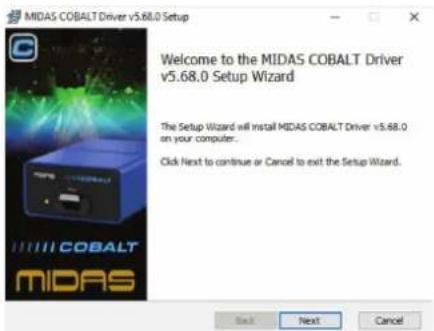
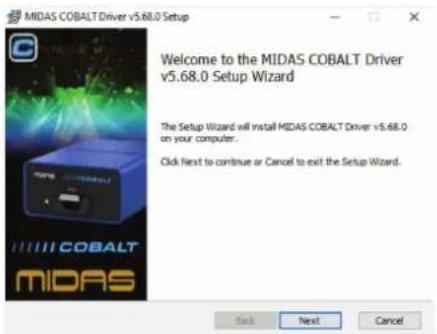
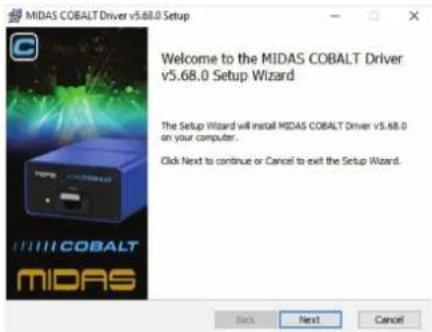
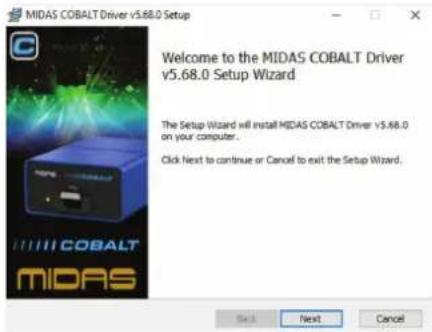
- Double-click "MIDAS_COBALT_xxxxxxxxxxx_setup.exe" and press "Next".
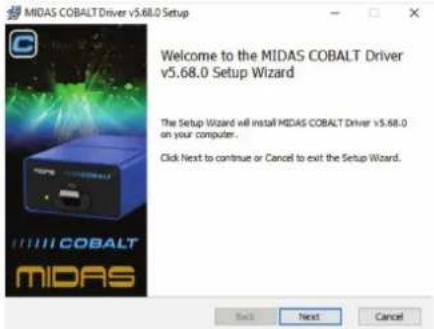
- Select your desired installation destination, if required, or use the default program files location and press "Next".
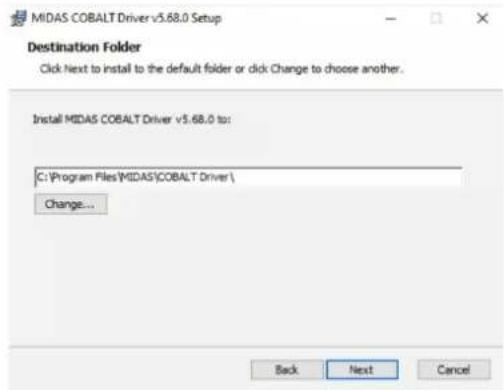
- Click "Install".
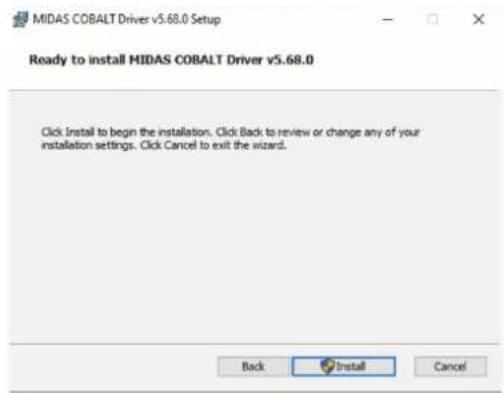
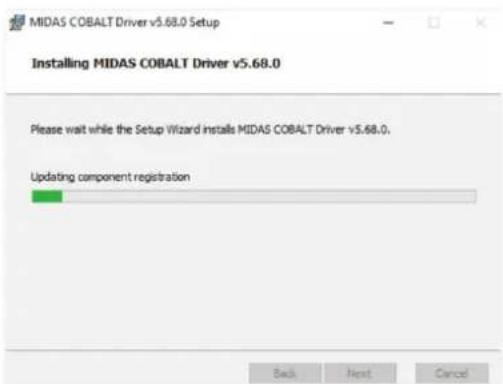
- Wait for installation to complete. Confirm any system level administration requests.
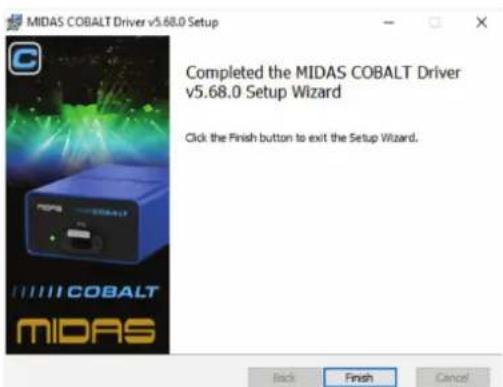
- Click "Finish".
Quick Start Guide
Configuration

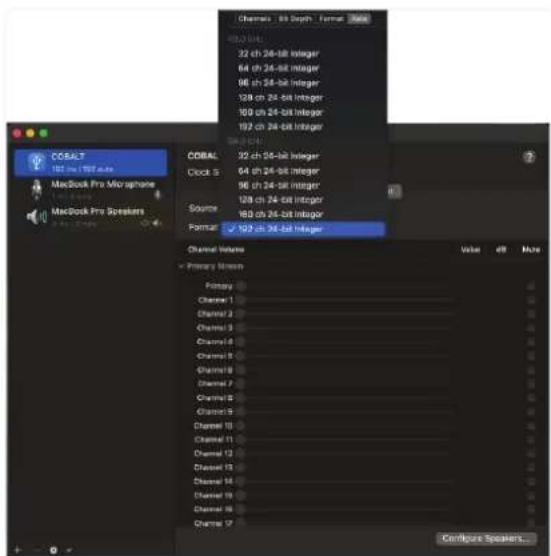
Product Configuration - MacOS
To configure COBALT settings:
- Open Audio MIDI Setup from the Utilities folder.
- Select the COBALT device.
- From here you can select the Sample Rate and Channel Count options.
- Input and output Channel Count can be selected independently, but Sample Rate must be the same for input and output streams.
Product Configuration - Windows
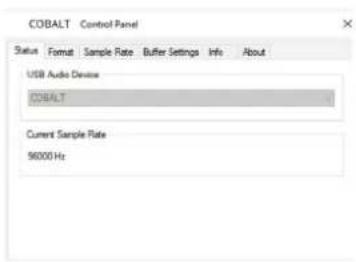
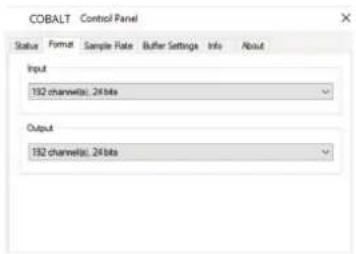
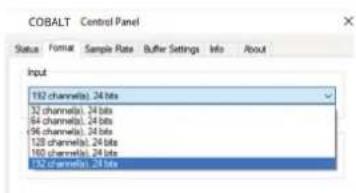
To configure COBALT settings:
- Open the COBALT Control Panel within your applications.
- From here you can see information and alter available settings such as Sample Rate, Format (channel count) and Buffer Settings.
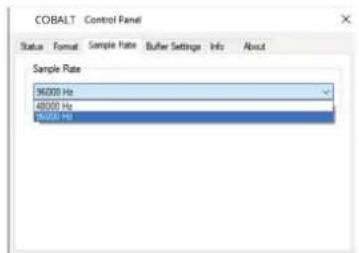
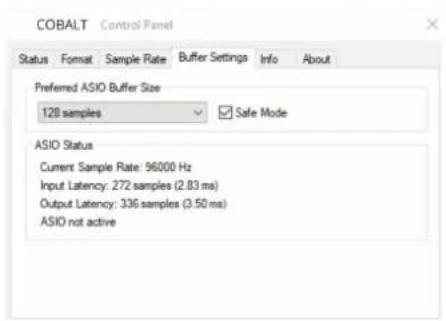
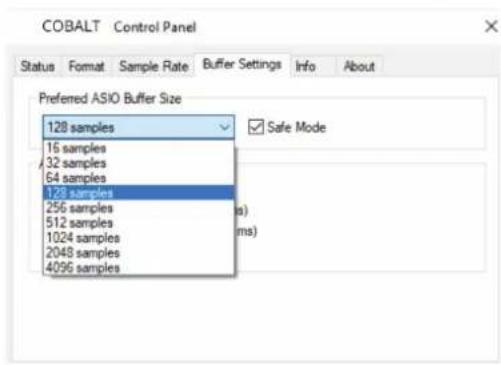
Configuring an Audio Application to Use COBALT (REAPER)
Most audio DAW and audio applications will work with COBALT.
You will need to refer to your software instructions on how to configure your chosen software to work with COBALT. Below is an example of configuration with REAPER, a popular DAW.
MacOS
- Open the "Options" drop down and open "Settings Menu".
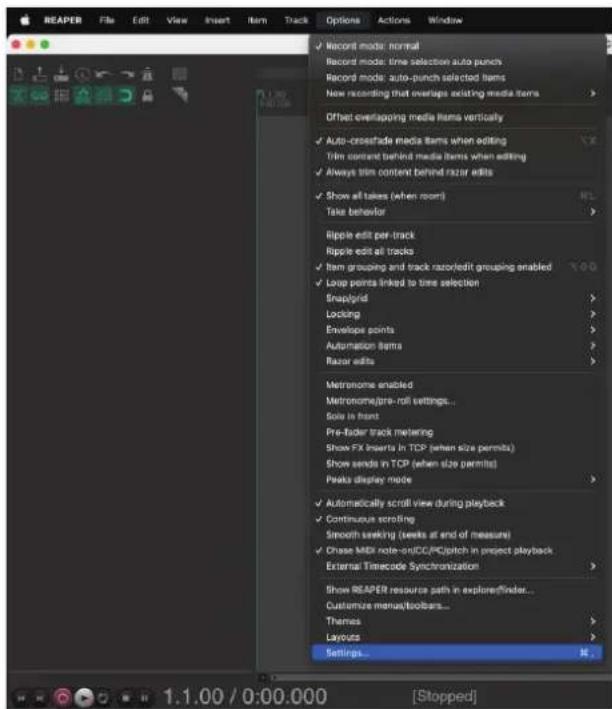
Quick Start Guide

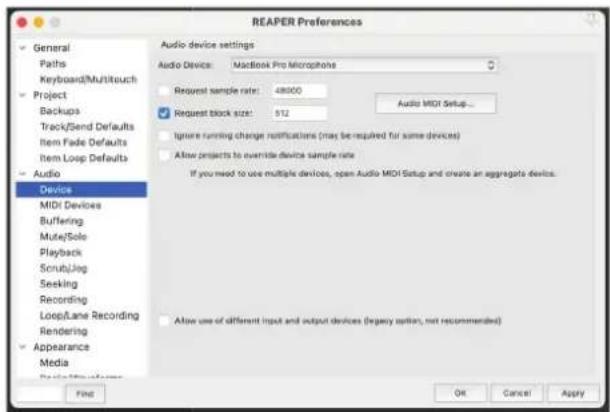
- Select "Audio > Device".
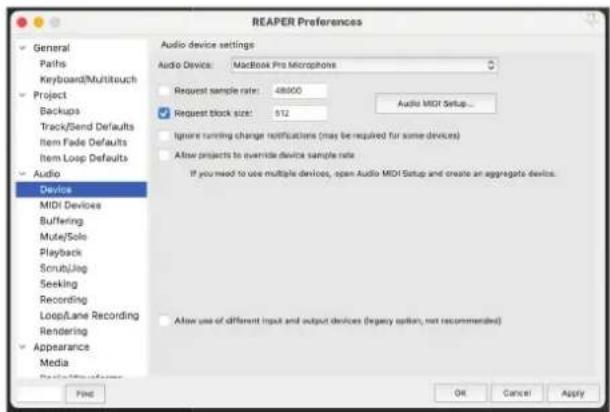
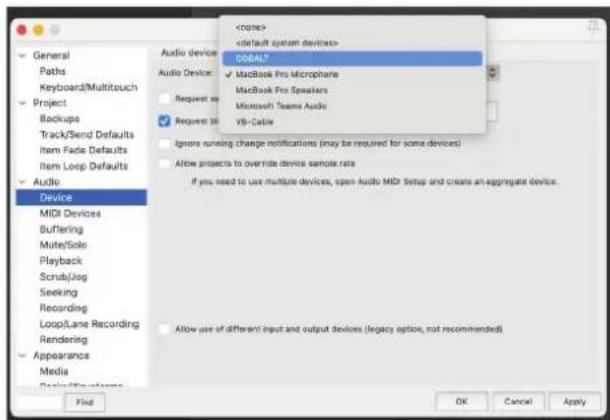
- Open the "Audio Device" drop down, and then select COBALT.
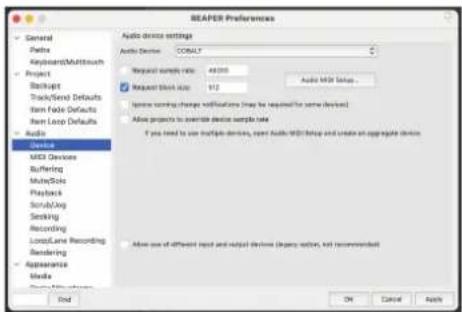
- Click "Apply" and close the menu.
Windows
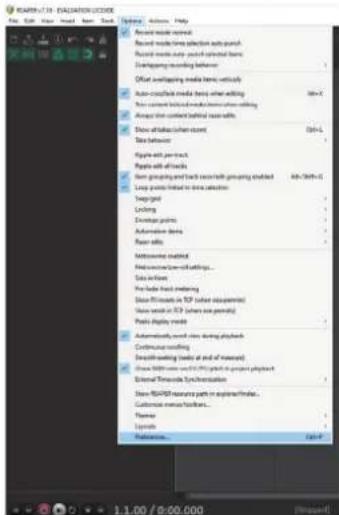
- Open the "Options" drop down and select "Preferences Menu".
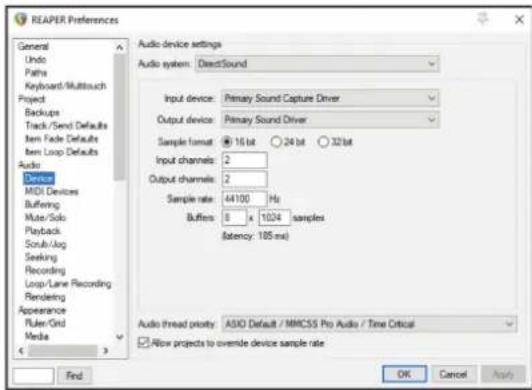
- Select "Audio > Device".
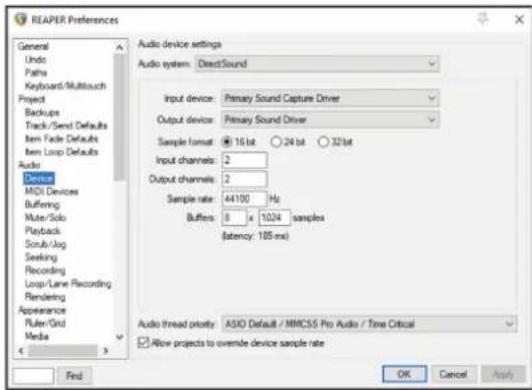
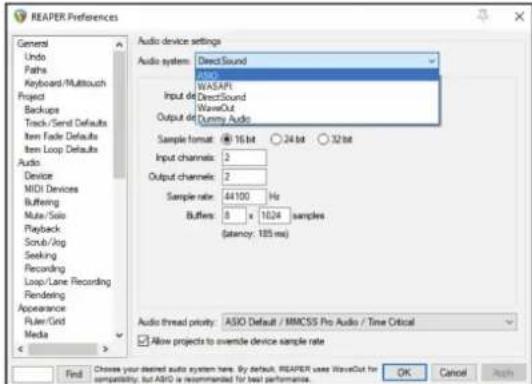
- Select "ASIO" as the Audio System.
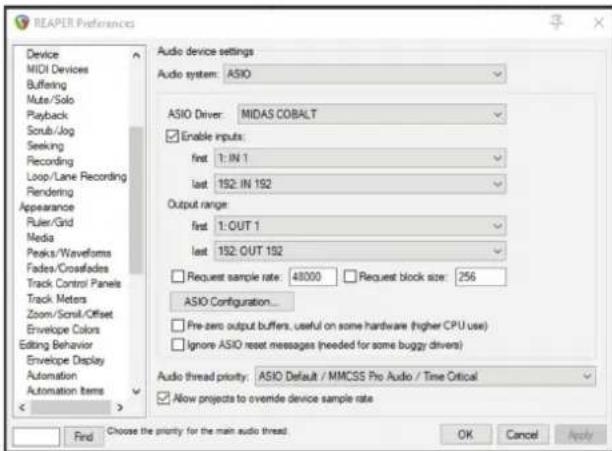
- Select "MIDAS COBALT" as your ASIO Driver and configure any other settings required for your setup.
Quick Start Guide
Connecting COBALT to a Console
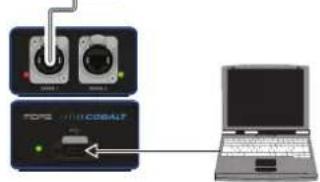
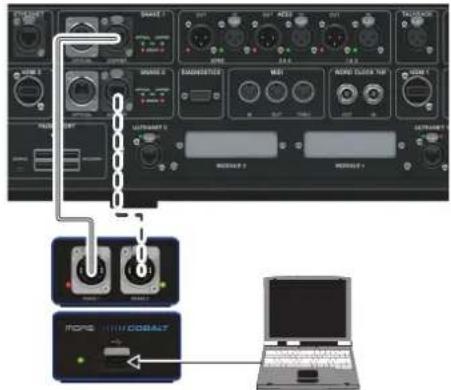
You can connect COBALT to a Heritage-Digital console using either redundant or non-redundant connections. The two most basic configurations are shown below.
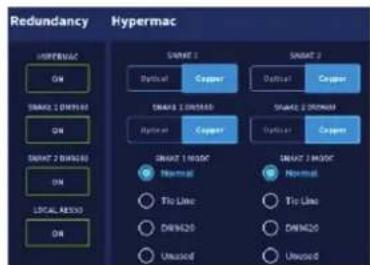
Non-Redundant Connection
To connect in a non-redundant configuration:
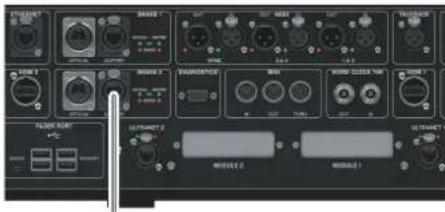
HyperMAC REDUNDANCY-OFF
- SNAKE Format - Copper
- SNAKE Mode - Normal
24 25Quick Start GuideCOGALT
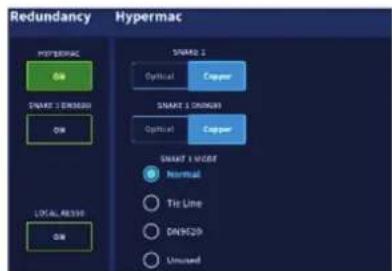
Redundant Connection
To connect in a redundant configuration:
HyperMAC REDUNDANCY-ON
- SNAKE Format - Copper
- SNAKE Mode - Normal
Console Configuration
The COBALT interface will show up on the HD console series at an external device much like an I/O box. To add a COBALT you will need to:
- Navigate to the patching page
- Press ADD NEW DEVICE
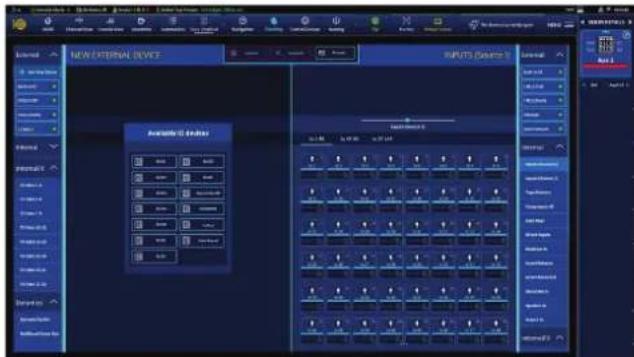
- Press Auto Detect or COBALT
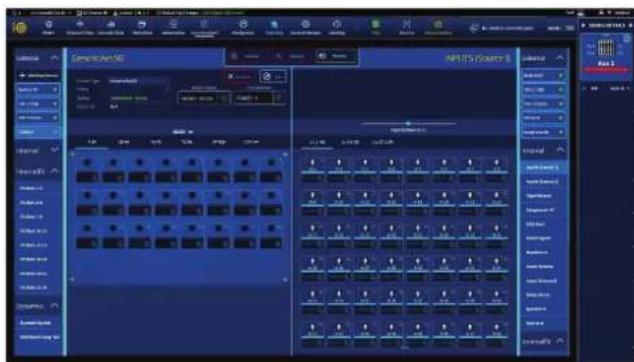
EN
The COBALT will then act like any other I/O device and can be patched to/from the console in the standard way (please refer to the HD console documentation for information on patching).
Extended Usage - Network Interface
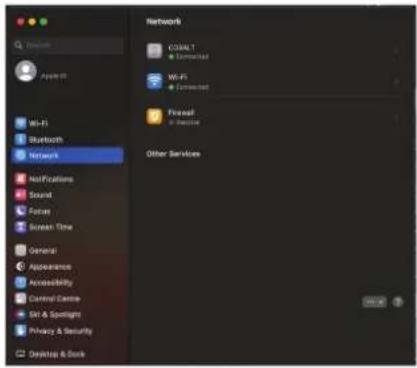
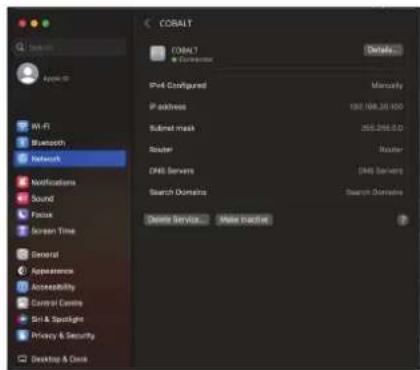
In addition to providing a 192 x 192 channel audio stream over USB3, the COBALT interface also provides an auxiliary data link to allow communication between console and computer. More information on this auxiliary data link will be provided in the future, but you may see a network adaptor appear on the computer, and this connection should be configurable like any other network adaptor.
Quick Start Guide
Table of Contents
Introduccion 27
https://community.musictribe.com/kba/article/KA-09432/Midas
https://cloud.midasconsoles.com/drive/firmware
https://cloud.midasconsoles.com/drive/firmware
https://community.musictribe.com/kba/article/KA-09432/Midas
https://cloud.midasconsoles.com/drive/firmware
https://cloud.midasconsoles.com/drive/firmware
https://community.musictribe.com/kba/article/KA-09432/Midas
https://cloud.midasconsoles.com/drive/firmware
https://cloud.midasconsoles.com/drive/firmware
https://community.musictribe.com/kba/article/KA-09432/Midas
https://cloud.midasconsoles.com/drive/firmware
https://cloud.midasconsoles.com/drive/firmware
Para instalar o driver:
- Cliquesdas vezem MIDAS COBALTxxxxxxsetup.exee pressione "Next".
https://community.musictribe.com/kba/article/KA-09432/Midas
114 115 Quick Start Guide COBALT
https://cloud.midasconsoles.com/drive/firmware
https://cloud.midasconsoles.com/drive/firmware
https://community.musictribe.com/kba/article/KA-09432/Midas
https://cloud.midasconsoles.com/drive/firmware
https://cloud.midasconsoles.com/drive/firmware
Omdrivertinstalleren:
- Dubbleklik op "MIDAS_COBALT_xxxxxxxxx_setup.exe" en druk op "Next".
- Selecteer "Audio > Device".
- Selecteer "Audio > Device".
https://community.musictribe.com/kba/article/KA-09432/Midas
156 157Quick Start GuideCOGALT
Firmware-upppatering
For att sakerstalla但这a mofiga Funktion for din COBALT-enhet, vanligen sakerstall att firmware ar upppaterad. Den senaste firmware kan laddas ner fran:
https://cloud.midasconsoles.com/drive/firmware
https://cloud.midasconsoles.com/drive/firmware
Forattinstalleradrivrutinen:
- Dumbellicka pa "MIDAS_COBALT_xxxxxxxxxxx_setup.exe" och tryck pa "Next".
160 COBALT
Quick Start Guide 161
https://community.musictribe.com/kba/article/KA-09432/Midas
https://cloud.midasconsoles.com/drive/firmware
https://cloud.midasconsoles.com/drive/firmware
https://community.musictribe.com/kba/article/KA-09432/Midas
198 199Quick Start GuideCOBALT
アフデートとインズル
F-△W-OFAPF
https://cloud.midasconsoles.com/drive/firmware
FAPUMUAPMADWOSOASMAOSN 一APPLAUNH=FAUPUAPDNT-上共口卡下
-
- A P T A T O B F A N C E D A F A F A F A F A F A F A F A F A F A F A F A F A F A F A F A F A F A F A F A F A F A F A F A F A F A F A F A F A F A F A F A F A F A F A F A F A F A F A F A F A F A F A F A F A F A F A F A F A F A F A
MacOS ニーロロー
https://cloud.midasconsoles.com/drive/firmware
D拉伊一のINTSUT一L手顺:
- MIDAS COBALTxxxxxxxxxxsetup.exe'为多FILKOLCKL、Next'为押让书。
202 COBALT
COBALT 105-105-105-105-105-105-105-105-105-105-105-105-105-105-105-105-105-105-105-105-105-105-105-105-105-105
1.八个子一移动之
https://community.musictribe.com/kba/article/KA-09432/Midas
Quick Start Guide 219
更新与安装
固件更新
https://cloud.midasconsoles.com/drive/firmware
https://cloud.midasconsoles.com/drive/firmware
要安装驱动程序:
| Connections | |
| USB | 1 x USB3, type C |
| Snake 1/2 | 2 x Industry standard RJ-45 |
| Digital Processing | |
| Supported sample rates | 48 / 96 kHz, switchable |
| Bit depth | 24-bit |
| Power | |
| Power supply | Bus-power via USB connection |
| Physical | |
| Dimensions (H x W x D) | 45.78 x 141.24 x 83.82 mm (1.8 x 5.56 x 3.3") |
| Weight | 343.5 g (12.12 oz) |
Quick Start Guide 239
技术参数
Other important information

Important information

portantes
1. Register online.
Please register your new Music Tribe equipment right after you purchase it by visiting musicro tribe.com. Registering your purchase using our simple online form helps us to process your repair claims more quickly and efficiently. Also, read the terms and conditions of our warranty, if applicable.
- Malfunction. Should your Music Tribe Authorized Reseller not be located in your vicinity, you may contact the Music Tribe Authorized Fulfiller for your country listed under "Support" at musictribe.com. Should your country not be listed, please check if your problem can be dealt with by our "Online Support" which may also be found under "Support" at musictribe.com. Alternatively, please submit an online warranty claim at musictribe.com BEFORE returning the product.
3. Power Connections.
Before plugging the unit into a power socket, please make sure you are using the correct mains voltage for your particular model. Faulty fuses must be replaced with fuses of the same type and rating without exception.
1. Registrar online.
Other important information
1. Registreer online.
Responsible Party Name: Music Tribe Commercial NV Inc.
Address: 122 E. 42nd St.1, 8th Floor NY, NY 10168, United States
Email Address:
legal@musictribe.com
COBALT
This equipment has been tested and found to comply with the limits for a Class A digital device, pursuant to part 15 of the FCC Rules. These limits are designed to provide reasonable protection against harmful interference when the equipment is operated in a commercial environment. This equipment generates, uses, and can radiate radio frequency energy and, if not installed and used in accordance with the instruction manual, may cause harmful interference to radio communications. Operation of this equipment in a residential area is likely to cause harmful interference in which case the user will be required to correct the interference at his own expense.
This equipment complies with Part 15 of the FCC rules. Operation is subject to the following two conditions:
(1) this device may not cause harmful interference, and (2) this device must accept any interference received, including interference that may cause undesired operation.
Warning: Operation of this equipment in a residential environment could cause radio interference.
Important information:
Changes or modifications to the equipment not expressly approved by Music Tribe can void the user's authority to use the equipment.
C
Hereby, Music Tribe declares that this product is in compliance with General Product Safety Regulation (EU) 2023/988, Directive 2014/30/EU, Directive 2011/65/EU and Amendment 2015/863/EU, Directive 2012/19/EU, Regulation S19/2012 REACH SVHC and Directive 1907/2006/EC.
Full text of EU DoC is available at https://community. musictribe.com/
EU Representative: Empower Tribe Innovations DE GmbH
Address: Otto-Brenner-Strasse 4a, 47877 Willich, Germany
UK Representative: Empower Tribe Innovations UK Ltd.
Address: S Brindley Road Old Trafford, Manchester, United Kingdom, M16 9UI
Correct disposal of this product: This symbol indicates that this product must not be disposed of with household waste, according to the WEEE Directive (2012/19/EU) and your national law. This product should be taken to a
collection center licensed for the recycling of waste electrical and electronic equipment (EEE). The mishandling of this type of waste could have a possible negative impact on the environment and human health due to potentially hazardous substances that are generally associated with EEE. At the same time, your cooperation in the correct disposal of this product will contribute to the efficient use of natural resources. For more information about where you can take your waste equipment for recycling, please contact your local city office, or your household waste collection service.