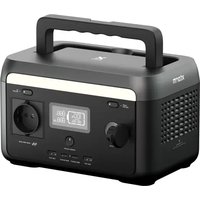
XP2W300 - Power bank Xtorm - Free user manual and instructions
Find the device manual for free XP2W300 Xtorm in PDF.


User questions about XP2W300 Xtorm
0 question about this device. Answer the ones you know or ask your own.
Ask a new question about this device
Download the instructions for your Power bank in PDF format for free! Find your manual XP2W300 - Xtorm and take your electronic device back in hand. On this page are published all the documents necessary for the use of your device. XP2W300 by Xtorm.
USER MANUAL XP2W300 Xtorm
natural_image
Line drawing of a kitchen toaster with front panel and control buttons (no text or symbols)Gebruiksaanwijzing
Gebrauchsanweisung
Mode d'emploi
Bruksanvisning
Brugsvejledning
Käyttöopas
| Cell Type | Lithium iron phosphate battery (LiFePO4) |
| Life Cycle | 3000+ cycles (until 80% battery health capacity) |
| Protection Type | Over-temperature protection, low-temperature protection, over-discharge protection, overcharge protection, overload protection, short circuit protection, over-current protection |
- Do not expose the power station heat sources such as fire or heaters.
- Avoid exposure to water or high humidity.
- Do not use power station in a strong electrostatic or strong magnetic field environment.
- Do not disassemble the power station in any way, nor pierce it with a sharp object.
- Do not short-circuit the power station by wire or other metal objects.
- Do not step on, sit or climb on the power station.
- When using the power station, please strictly adhere to the operating temperature defined in this user manual. If the temperature is too high, the battery may catch fire or even explode. If the temperature is too low, power station performance and capacity might permanently be severely limited.
- Do not stack heavy objects on the power station.
- Do not stop the fan by force.
- When in use, do not expose the power station to an unventilated or dusty environment.
- Please avoid collisions, dropping the power station, or violently shaking the power station. If a severe impact occurs, immediately shut down the power supply. Please secure the power station firmly during transportation to avoid shaking and impacts.
- If the power station accidentally gets wet, place it in a safe and open area and keep distance until it is dry. Once dried, do not attempt to use the power station again. Dispose / recycle the power station properly.
- If the power station is on fire, please use a suitable fire extinguisher.
- If there is dirt on the power station, use a dry cloth to clean it.
- Keep the power station out of the reach of children and pets.
- Keep the power station in a dry and ventilated place.
- In humid environments, it is recommended to store the power station in a moisture-proof bag. If water is found inside product, do not use/start it again.
- It is not recommended to use the power station with safety-related emergency medical equipment, including but not limited to medical grade breathing machines (hospital version CPAP: Continuous Positive Airway Pressure) and artificial lungs (ECMO, Extracorporeal Membrane Oxygenation). The power station can be used to supply power to home version CPAPs that do not require continuous professional monitoring. Always follow your doctor's advice and consult the manufacturer for any restrictions on the use of the device. For general medical equipment, please pay attention to the power condition to ensure that power does not run out.
- When the power station is connected to a refrigerator, the power fluctuations of the refrigerator may cause the power supply to shut down automatically. It is recommended that for refrigerators storing medicine, vaccines or other high-value items, when connecting to the power supply product to use the "Always On" mode to ensure continuous power supply (see chapter 3, AC output).
Conditions permitting, be sure to discharge the battery completely and bring the powerstation to a designated battery and collection point. Please check online to find one near you.
Please note:
Do not dispose of the power station in regular waste or garbage bins! The high power batteries form a serious risk if not disposed of correctly.
3 INSTRUCTIONS
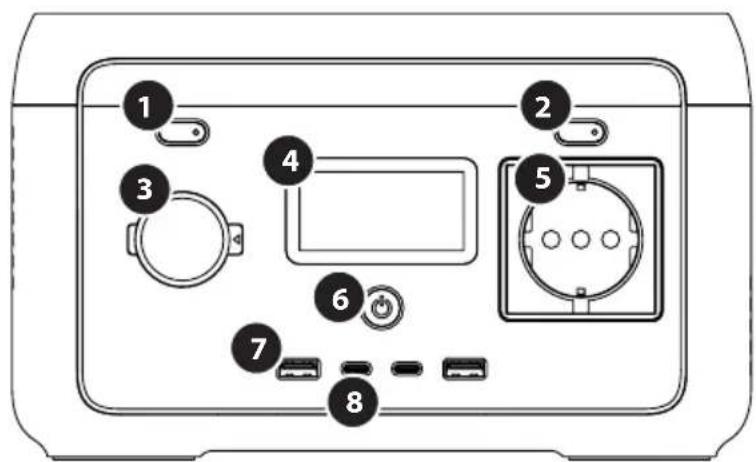
PRODUCT OVERVIEW
1 LED light
2 AC output button
3 Car charge output 12V
4 LCD
5 AC output socket
6 ON/OFF button
7 USB-A output port x2
8 USB-C output port x2
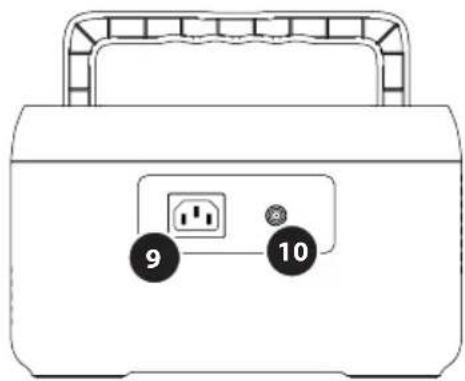
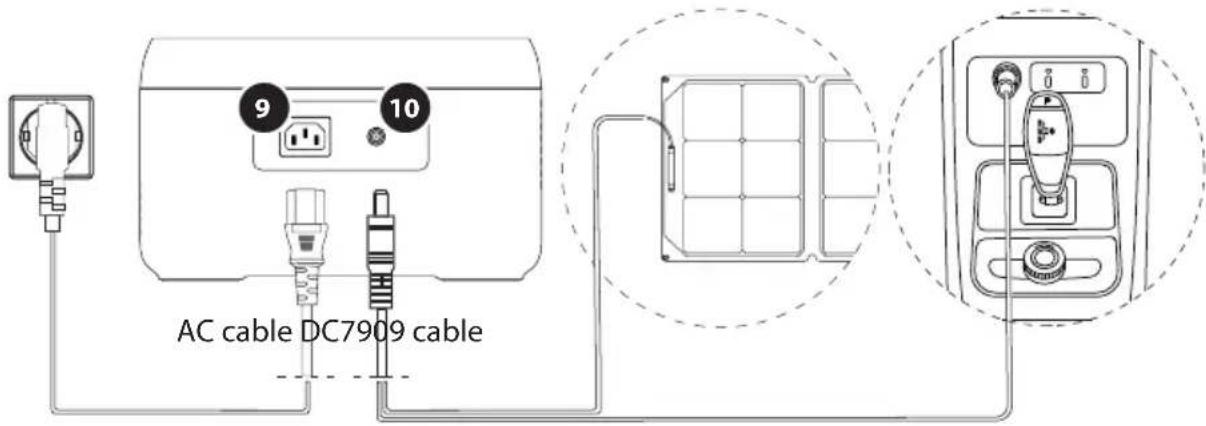
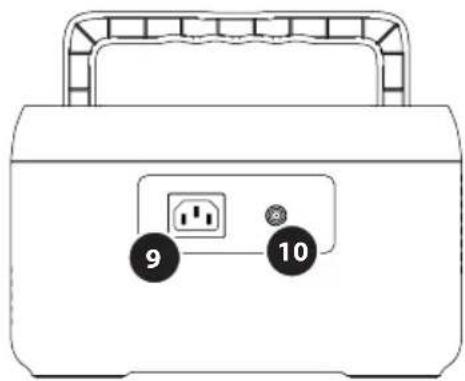
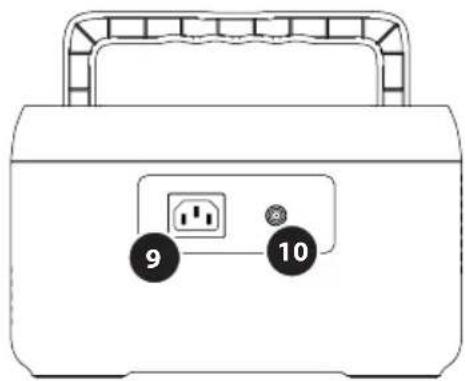
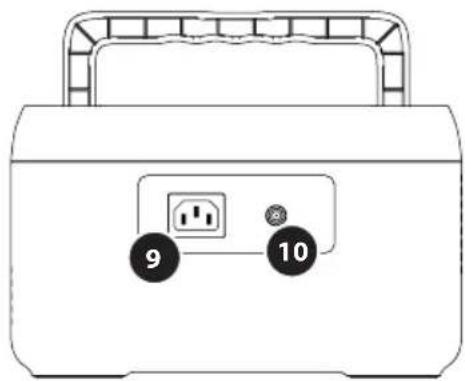
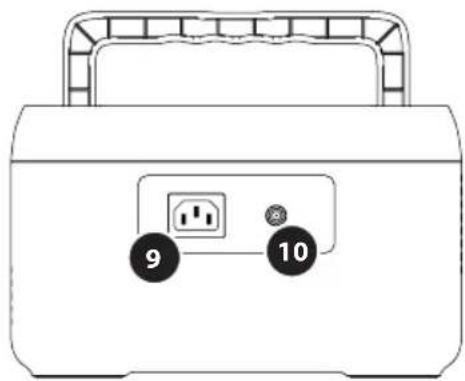
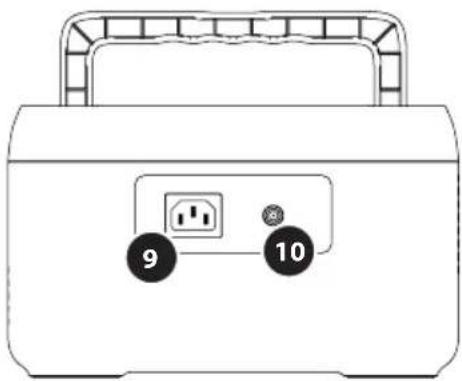
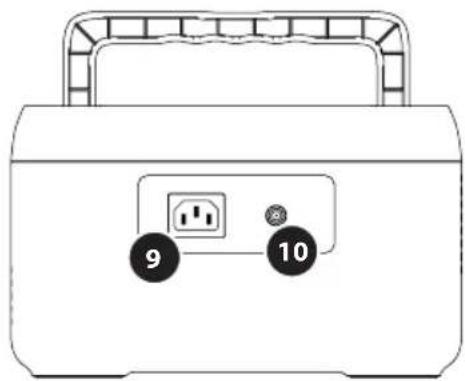
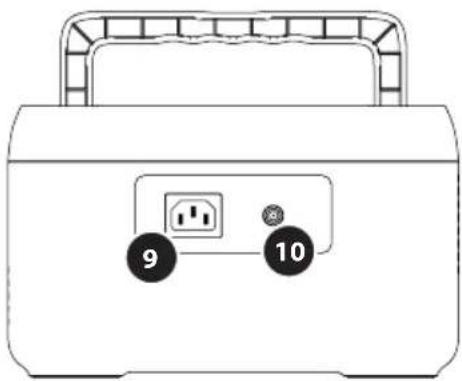
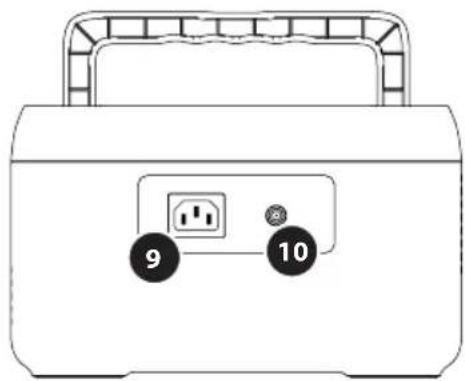
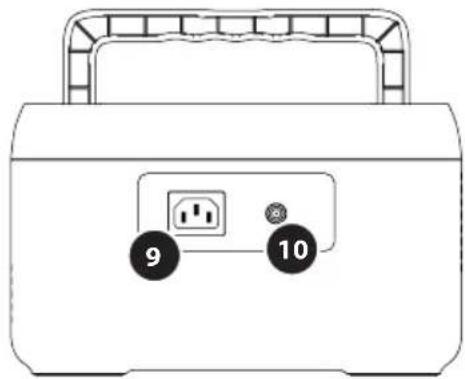
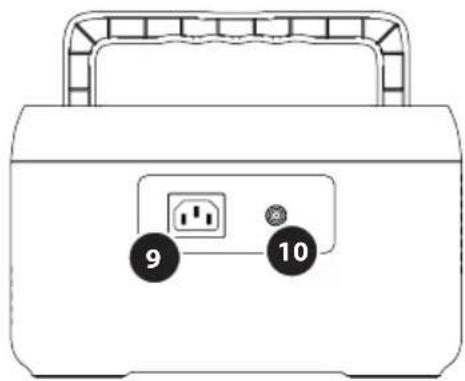
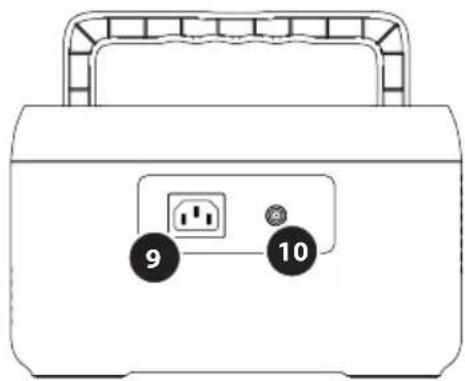
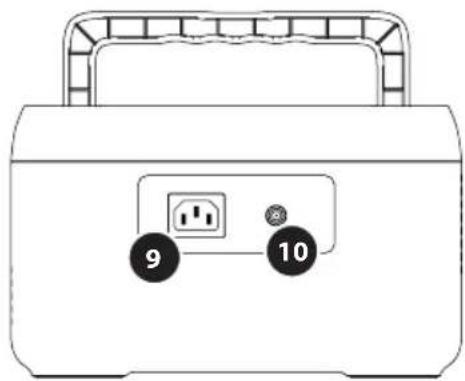
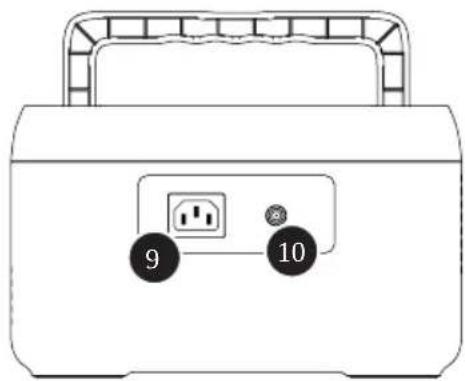
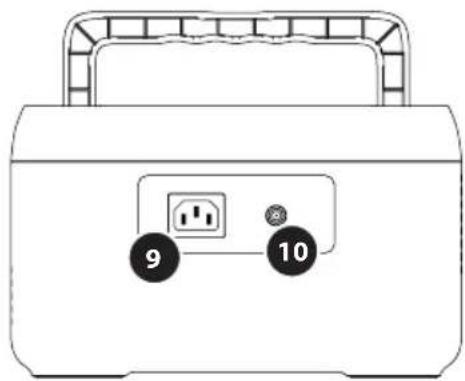
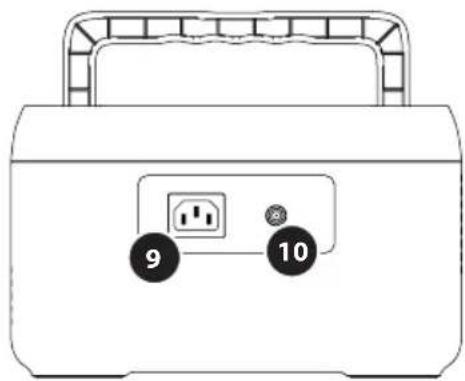
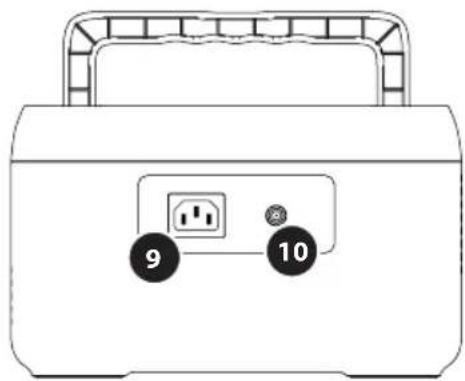
9 AC input socket
10 Solar/car charge input
natural_image
Line drawing of a portable electronic device with labeled buttons (9 and 10), no text or symbols present.LCD SCREEN
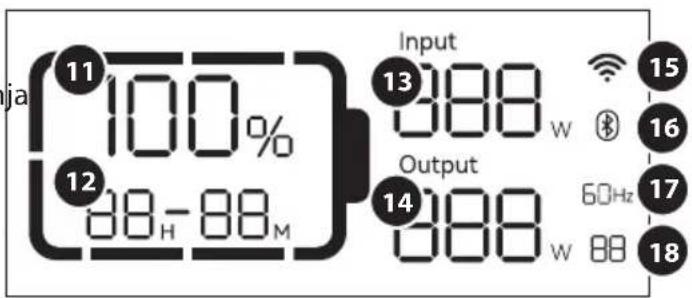
11 Remaining battery percentage
12 Remaining charge/discharge time
13 Input power
14 Output power
15 Wifi connection indicator
16 Bluetooth connection indicator
17 AC output frequency
18 Error code: please refer to chapter 5 for more details regarding error message.
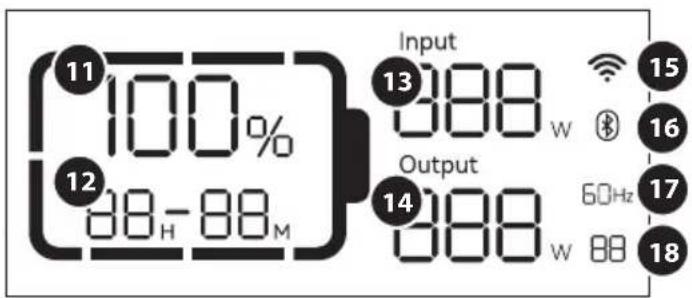
Battery capacity: When the power station is being charged, the remaining battery percentage will start blinking.
USE
Turning the device on or off
- Press the main power switch 6 to turn on the device. The screen turn on and the main power indicator light will be lit.
- When the power station is on for 5 minutes without any operation, the LCD display will be automatically turn off.
- To turn the LCD display on or off, short-press the main power button.
- Press and hold the main power switch to completely turn off the power station.
- During normal use (when battery charge is above 5%), the default standby time of this product is 2 hours.
- If the AC output is turned off and there is no charge or discharge for 2 hours, the product will automatically shut down. When the battery charge level is 5% or below the power station will enter low power mode, after which the power station will intelligently adjust the standby time accordingly.
- During normal use, long press the LED light button 1 to activate "Always On" mode (the battery icon will start blinking).
- Long press again to turn off the "Always On" mode.
- Please Note: Only activate "Always On" mode when needed. (The automatic shutdown setting is designed to protect the battery from low power.)
LED lights
- Short press the LED light button 1 to switch between four brightness levels: low, medium, high, SOS and off.
Note: If you need to adjust the AC Hz/Frequency, first make sure there is no AC input. Then, long-press the AC output button for 2 seconds. If the change has been successful, the AC output icon on the display will blink 3 times.
12V DC output (car charge output)
- The 12V DC output is enabled by default when the power station is turned on.
USB output
- USB output is enabled by default after the power station is turned on.
AC output
• After turning on the power station, short-press the AC output power button ② to turn on the AC output ⑤. Short-press the AC output power button again to turn it off.
- The default standby time of the AC output port is 1 hour. Alter 1 hour without any load on the AC output port, the AC output power will be automatically turned off.
- During normal use, long press the LED light button 1 to activate "Always On" mode (the battery icon will start blinking).
- Long press again to turn off the "Always On" mode.
Please Note: Only activate "Always On" mode when needed. The automatic shutdown setting is designed to protect the battery from low power. When the AC output is not in use, turn it off to save power consumption.
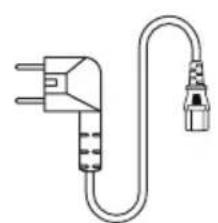
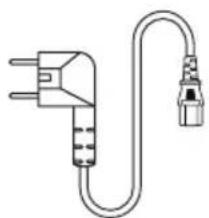
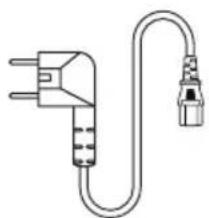
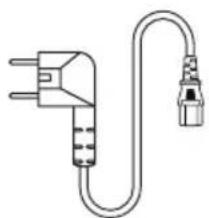
- Use the provided AC cable with the AC input socket
• In fast charging mode, it takes about 75 minutes to fully charge the power station.

Note: Please only use the provided AC cable for charging. The AC charging cable should directly plug into a wall-mounted socket. Using other AC charging cables is not covered by our warranty.
PV charging
• PV charging uses the solar/car charge input
- Please follow the solar panel user manual to connect the solar panel.
- If using a Solar Panel from a different brand – before connecting the solar panel, check whether its output voltage is within power station specifications (max 24V), to avoid damage.
- The input connector is DC7909. If you need an adapter cable from MC4 to DC7909, please purchase it yourself.

Car charging
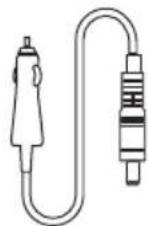
- The power station can be charged through the solar/car charge input 10 with the charging cable DC7909 and the 12V outlet inside your car. It should be charged after the car starts to avoid the possibility of the car battery draining too much.
EPS FUNCTION
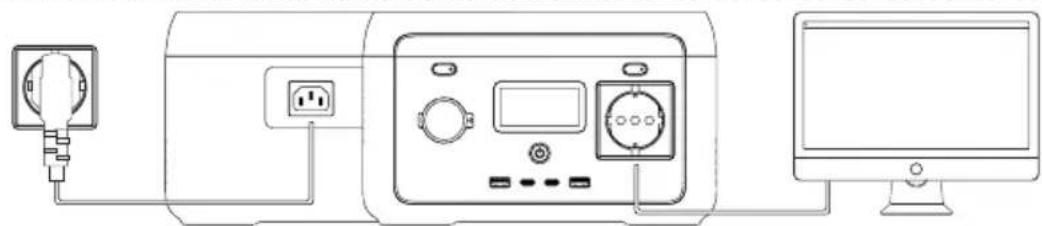
This product supports EPS (emergency power supply) function. When using the product in Pass-Through mode (the power station is charging, as well as delivering output at the same time), if the grid suddenly loses power, the power station will automatically switch to battery power supply mode within 10 milliseconds.
Note:
This function does not support 0 millisecond switching. Please do not connect it to devices that require a true UPS (uninterrupted power supply), such as data servers and workstations. If unsure, please run multiple tests to confirm whether it is compatible with your set-up.
natural_image
Line drawing of a device connected to a computer monitor via power and power outlet (no text or symbols)POWERBOOST TECHNOLOGY
PowerBoost features dynamic voltage control that intelligently reduces voltage while still providing the required current. Effectively this means most of your appliances are still able to operate, while staying within the safe output limitations of the powerstation.
Example:
You want to connect a 500W water boiling kettle to the 300W Power Station.
When plugging in your appliance, PowerBoost automatically activates and marginally lowers the output voltage until the kettle effectively operates at 300W. The resulting effect is that it might boil water slower than normal, but still fast enough to otherwise function as normal.
- PowerBoost allows you to safely connect a wide variety of appliances you otherwise wouldn't be able to connect at all.
- PowerBoost is most effective for products with heaters and motors. It is not suitable for some electrical appliances that feature voltage protection (such as precision instruments).
4 APP INSTRUCTIONS
DOWNLOAD THE APP
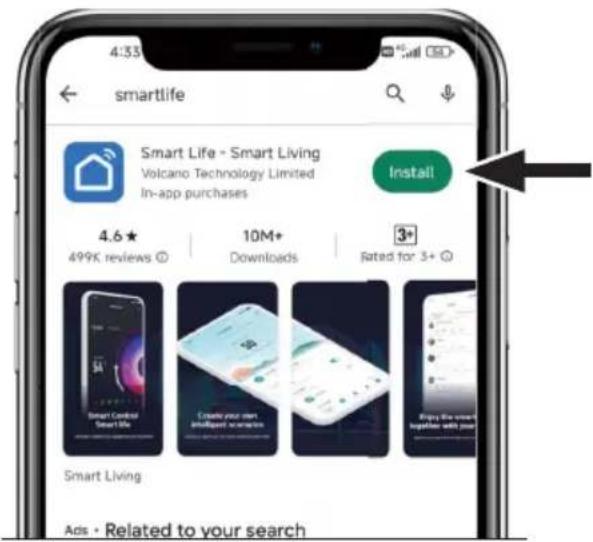
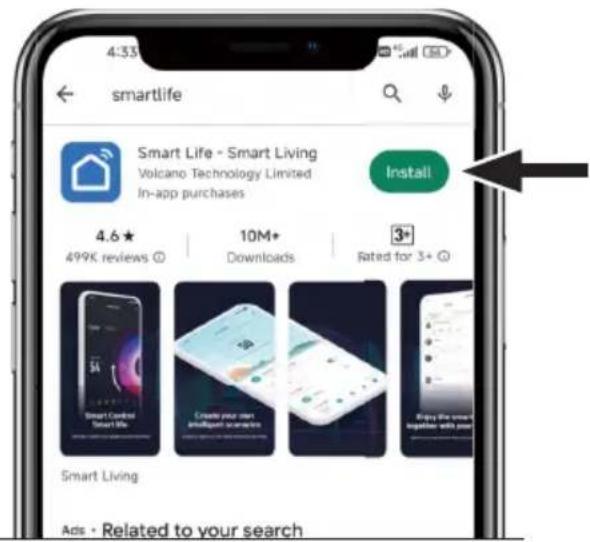
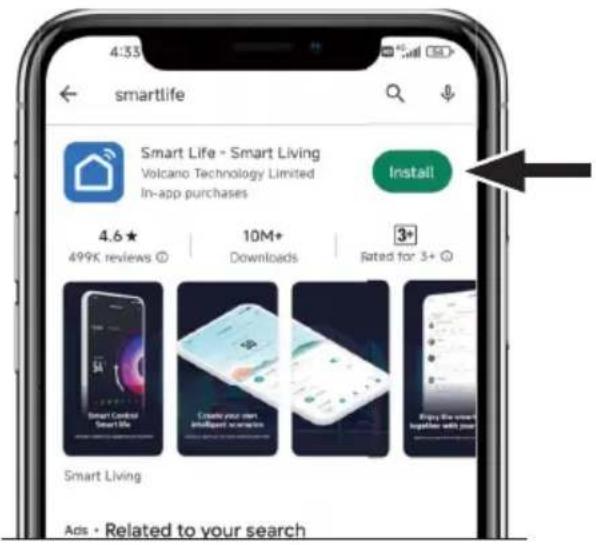
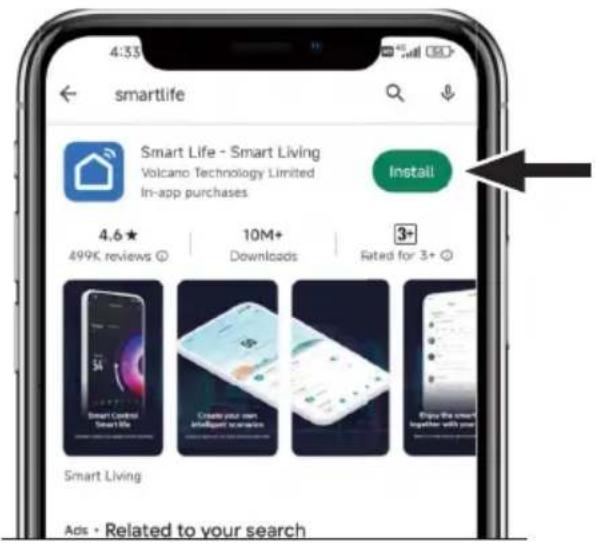
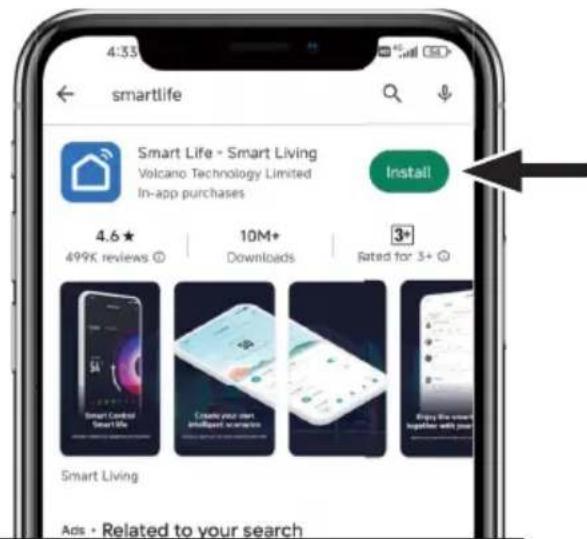
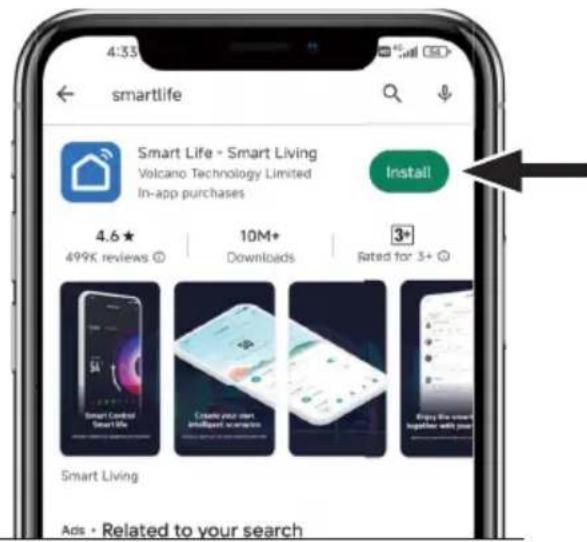
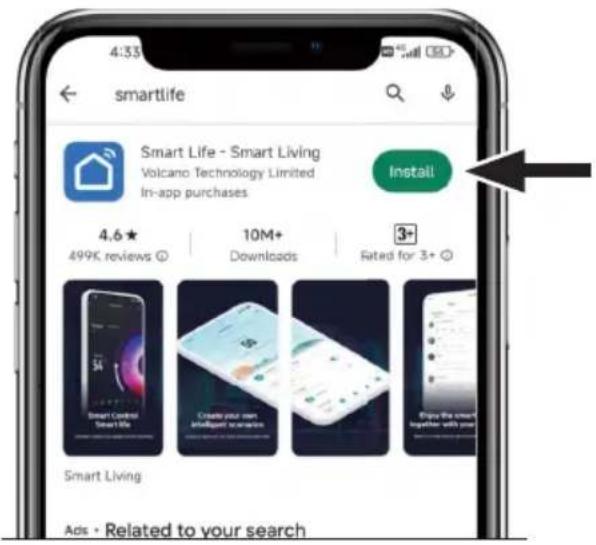
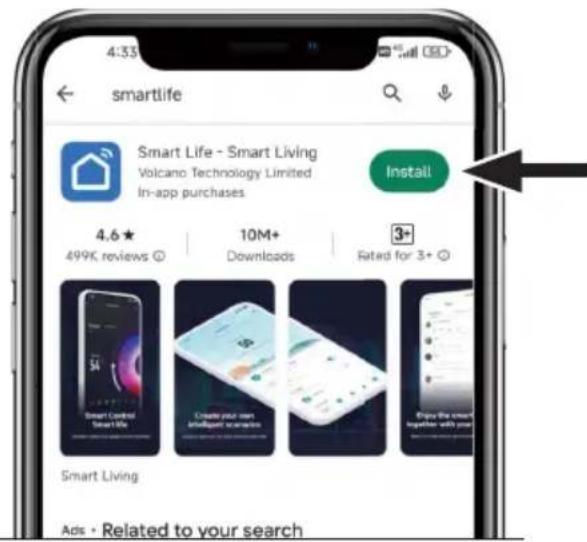
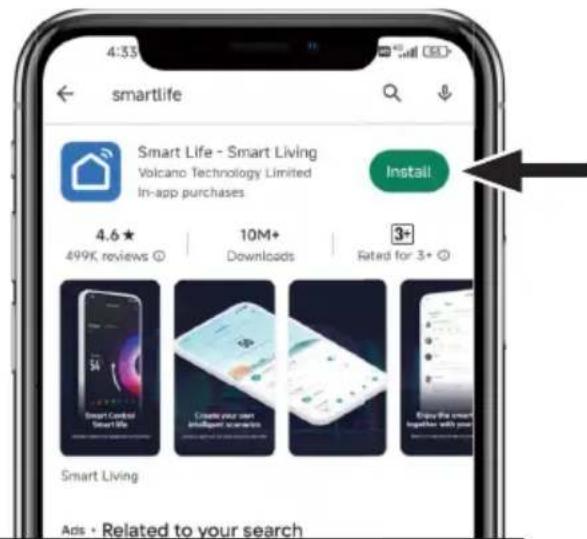
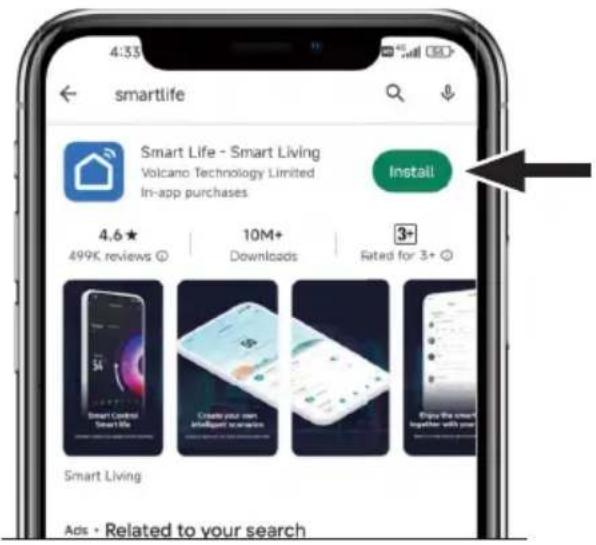
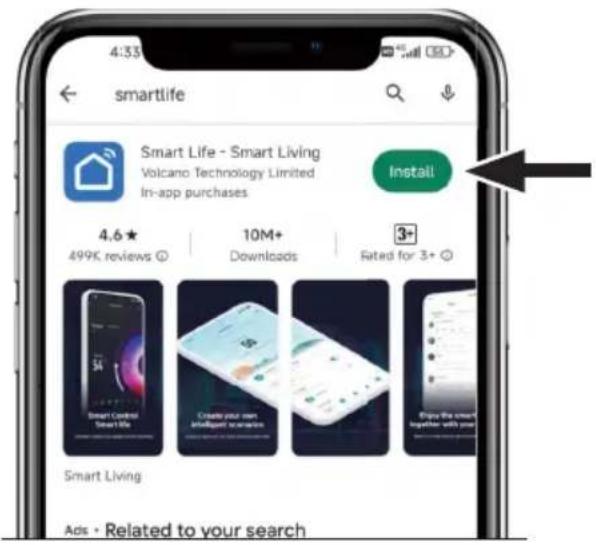
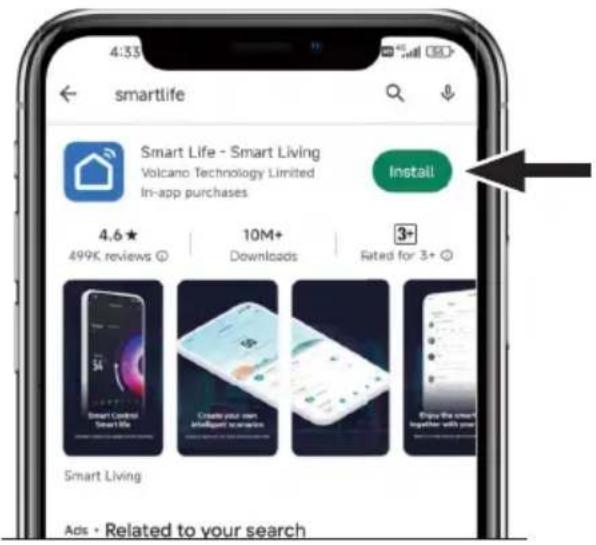
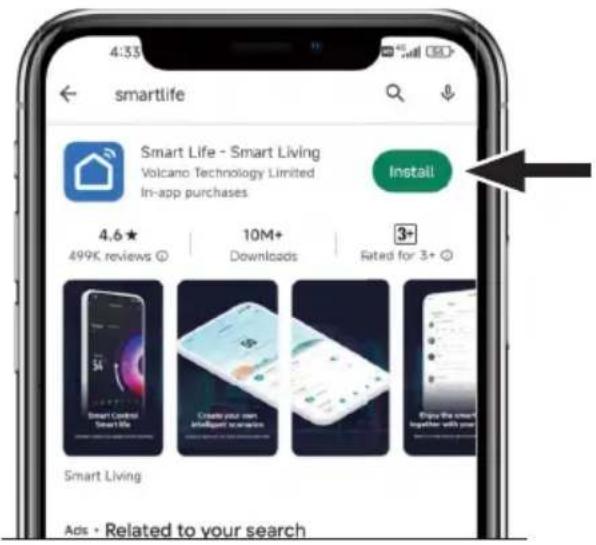
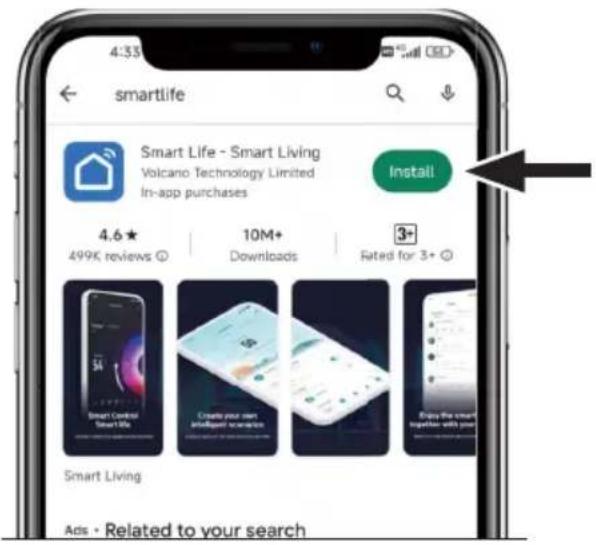
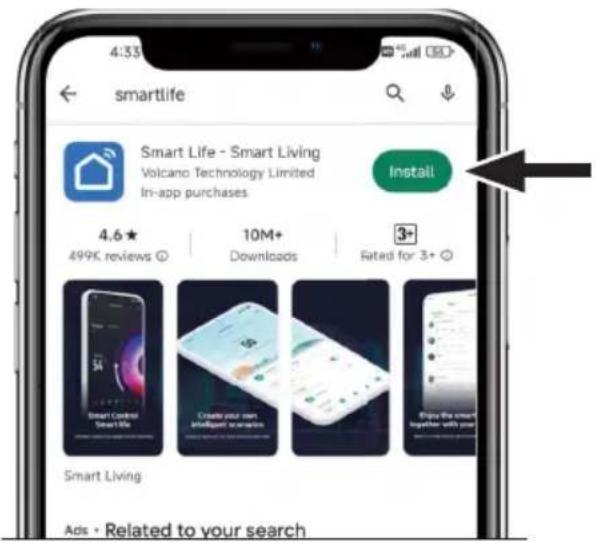
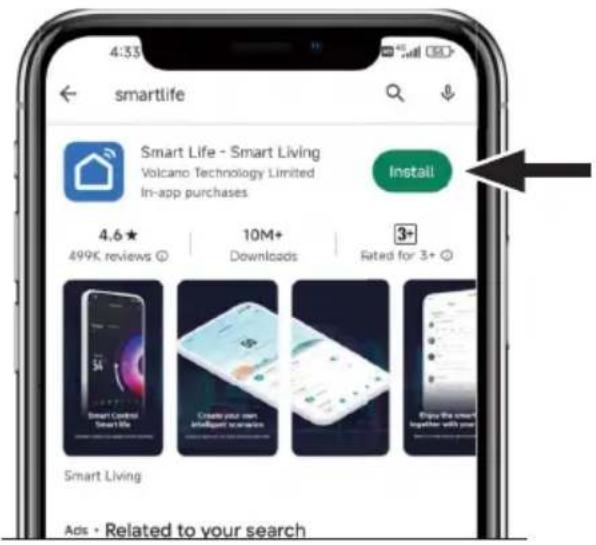
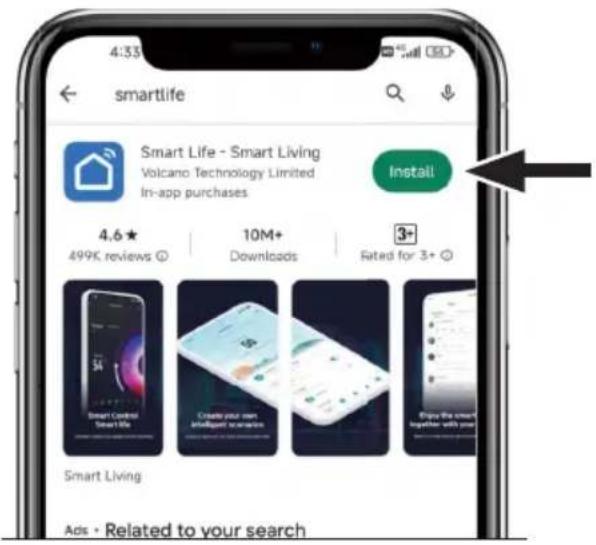
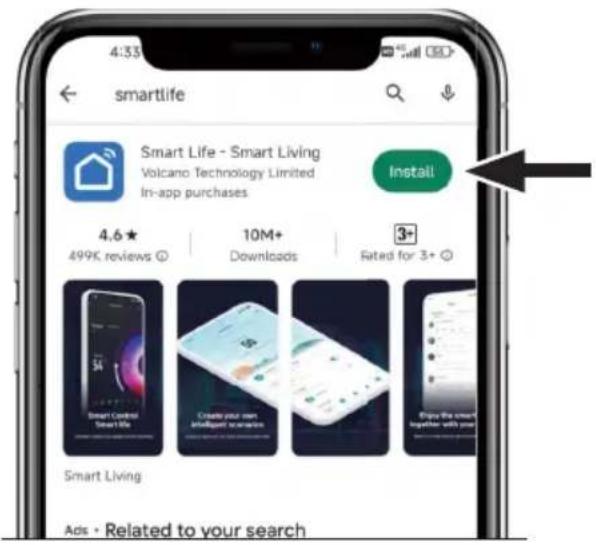
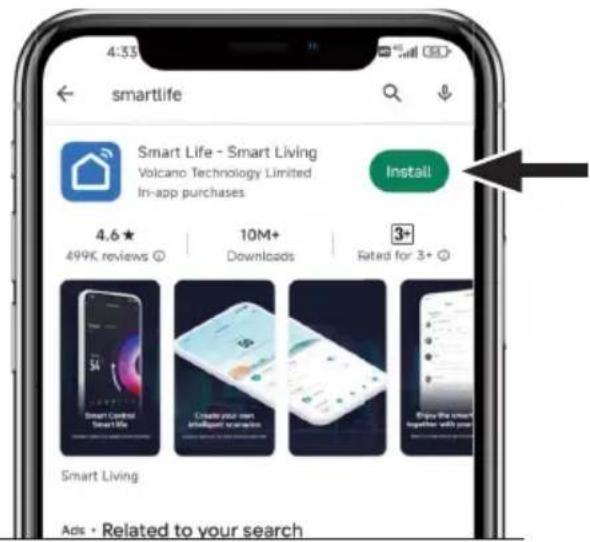
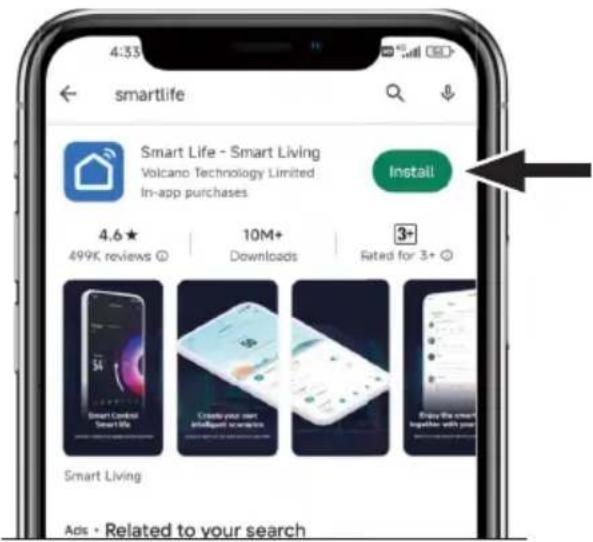
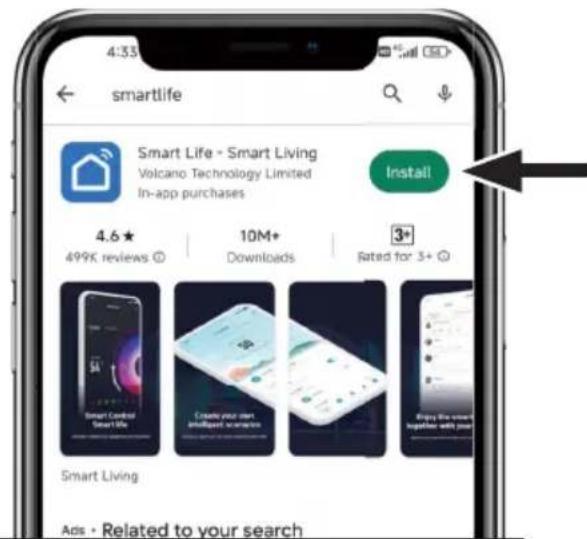
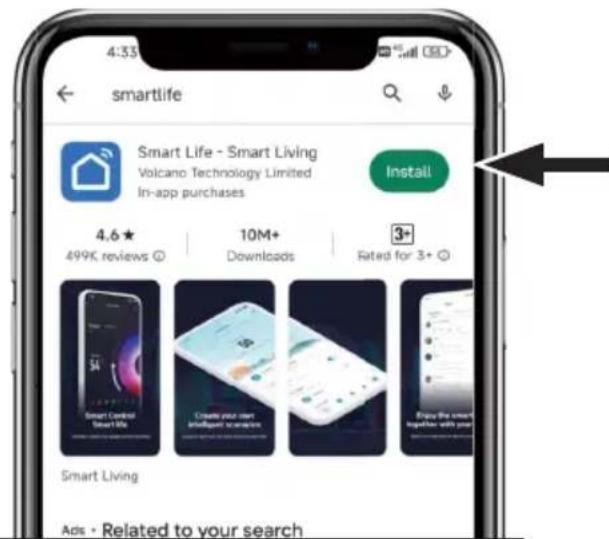
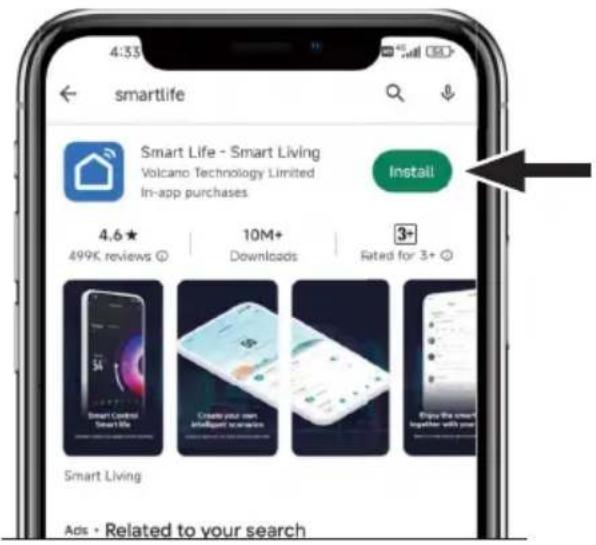
Search for "Smart Life" in the app store to download and install, or scan the QR code to download and install.
Create an account or continue as guest.

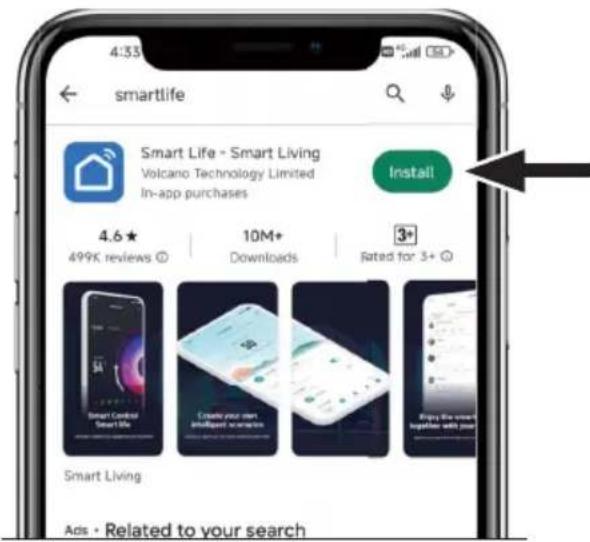
Note: for first time setup an internet connection is required, either through Wi-Fi or a mobile hotspot.
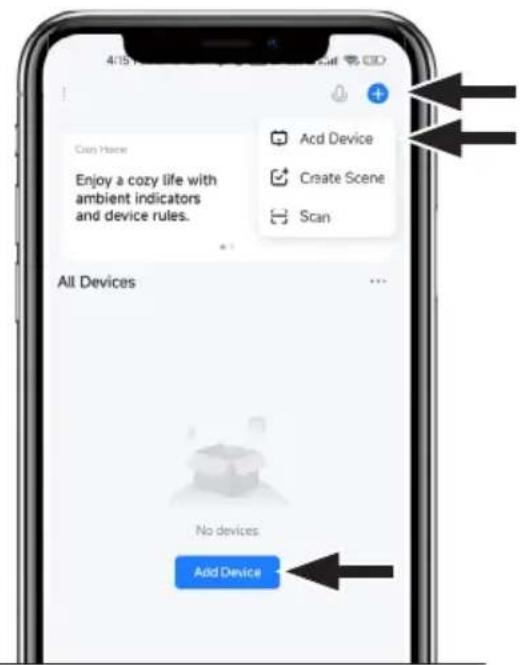
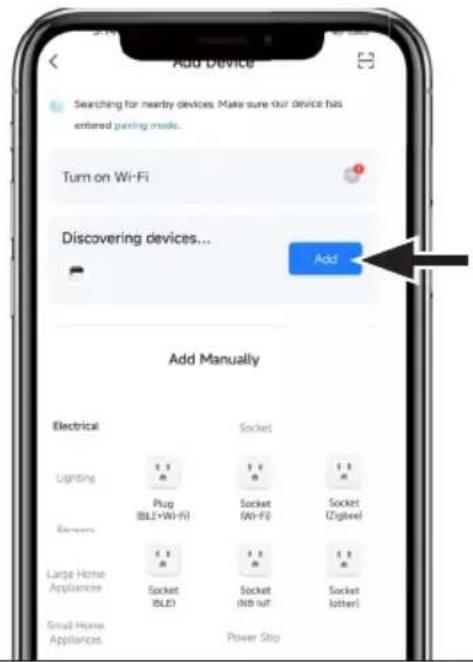
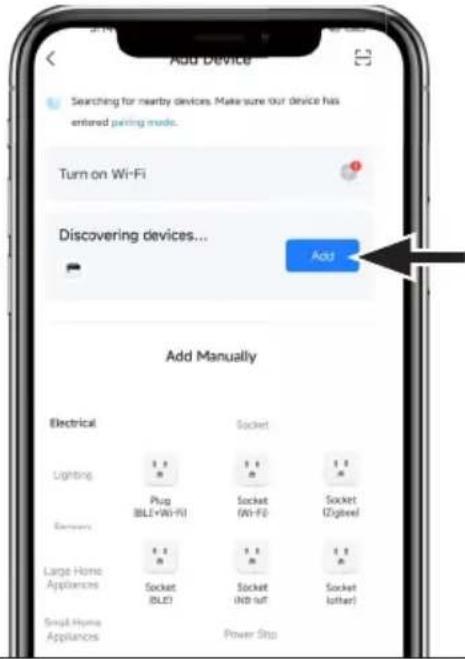
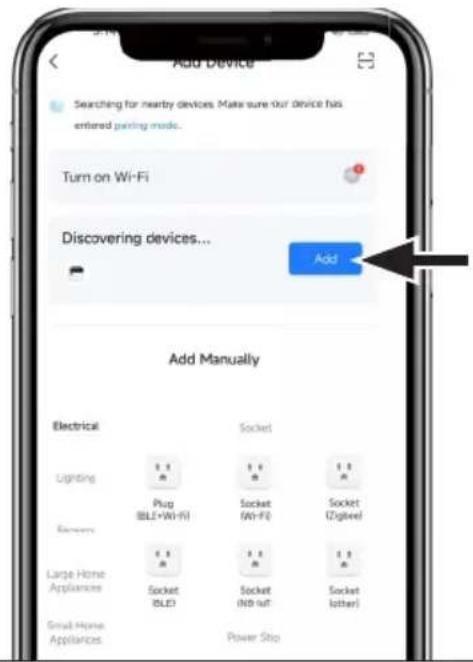
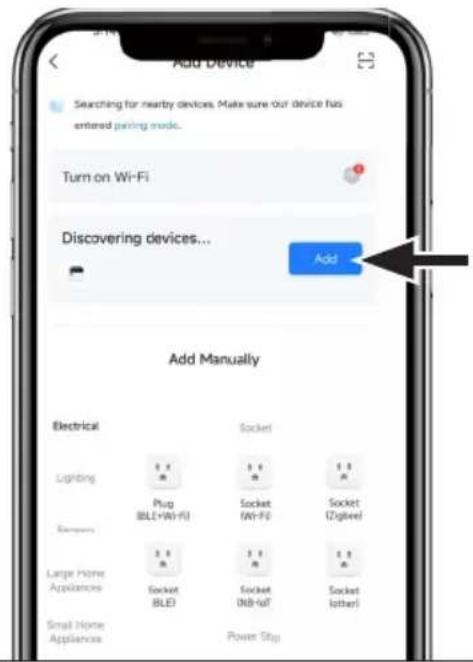
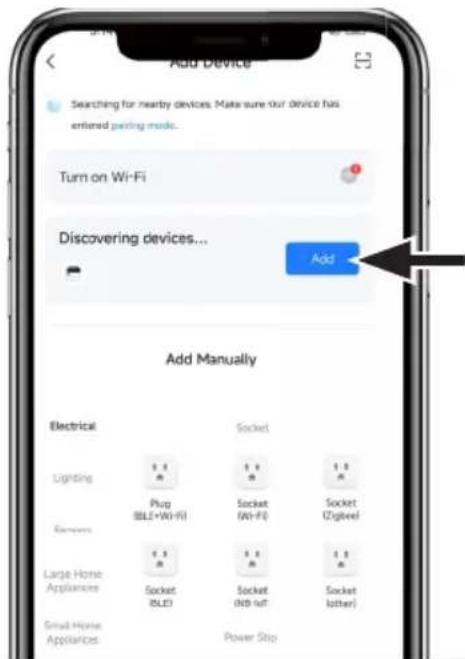
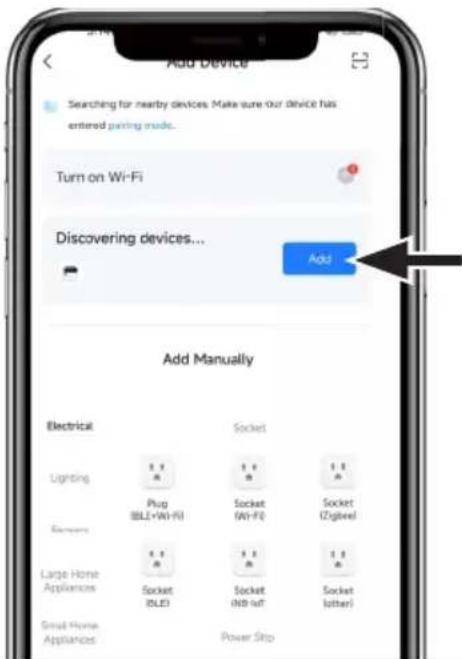
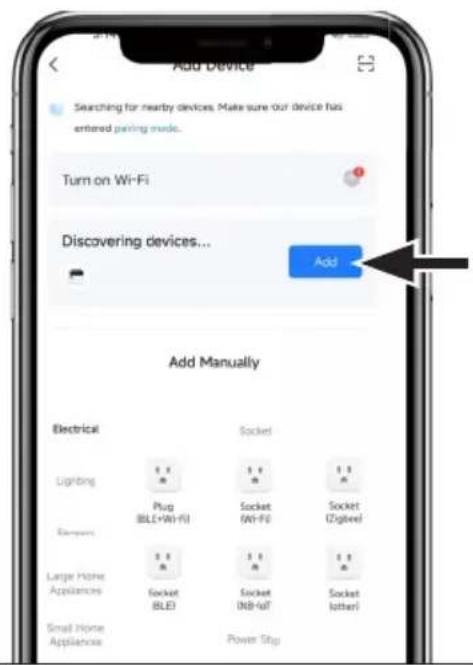
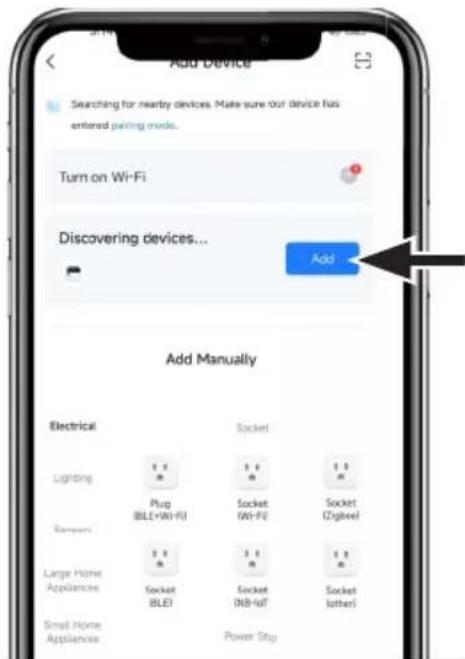
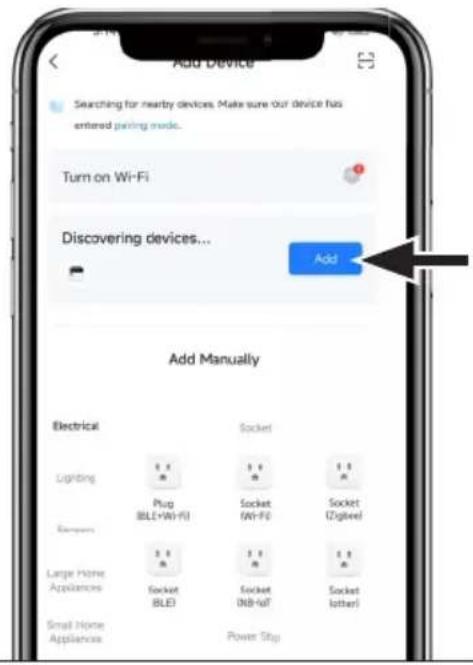
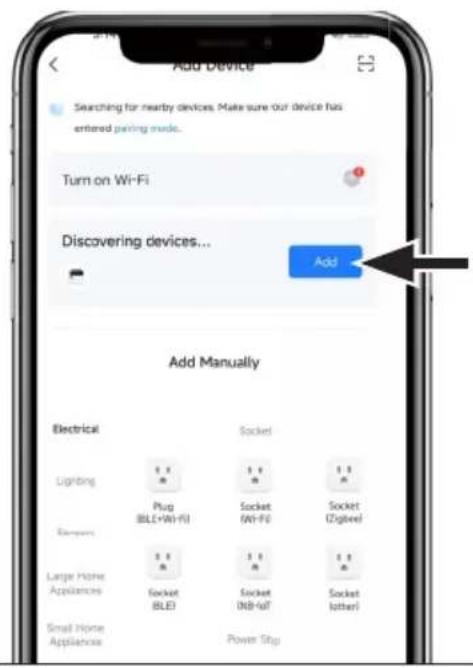
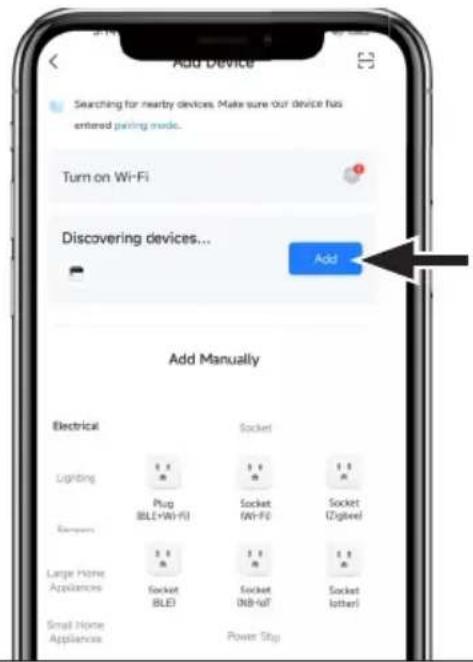
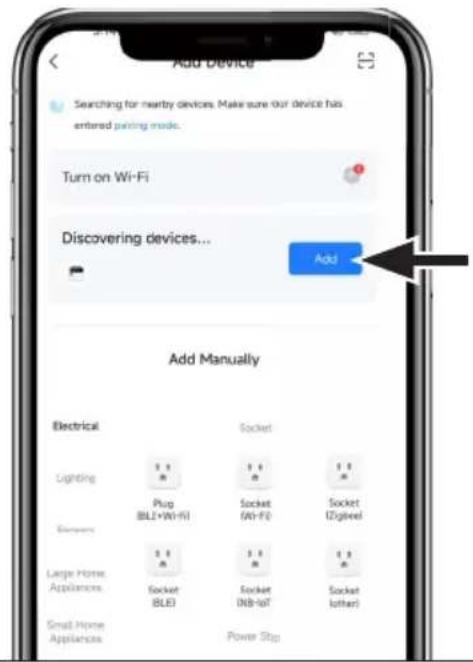
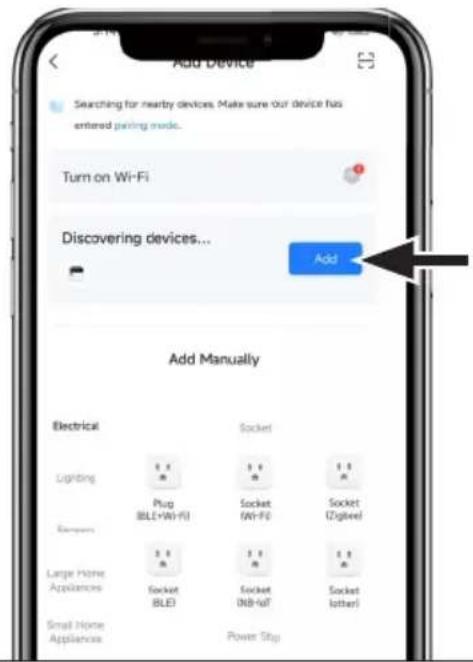
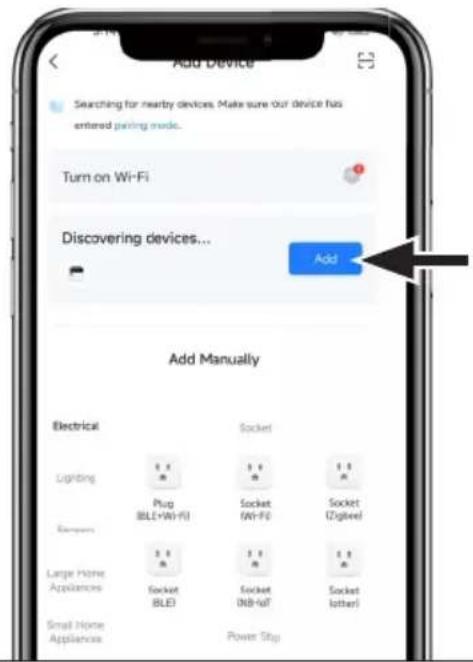
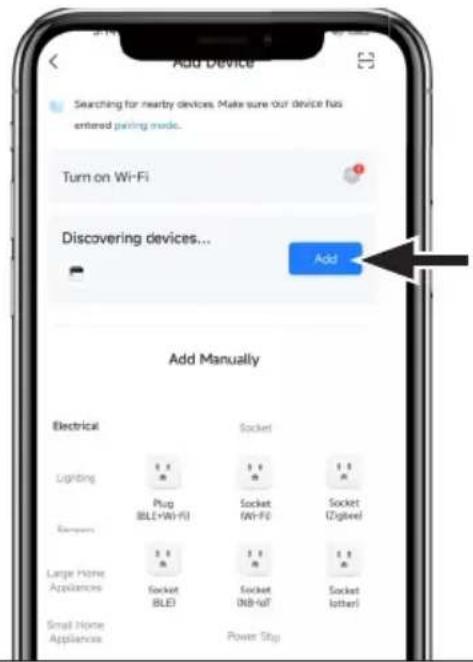
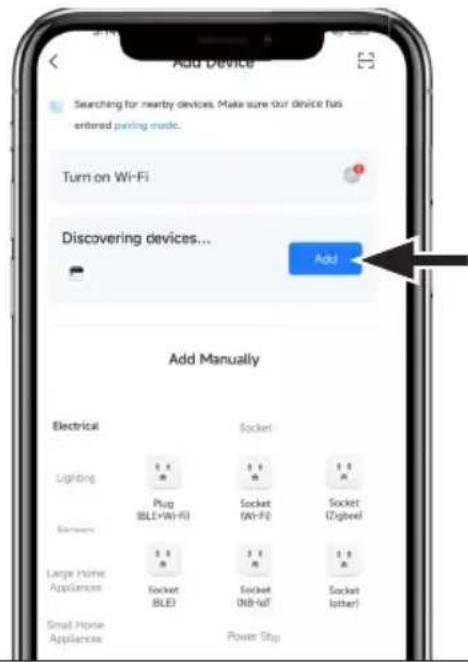
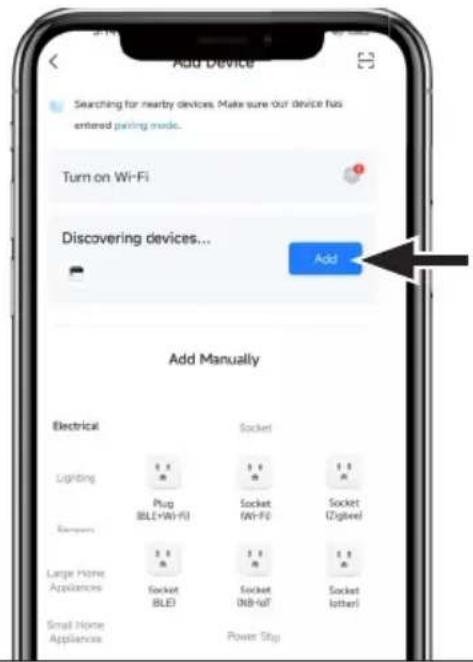
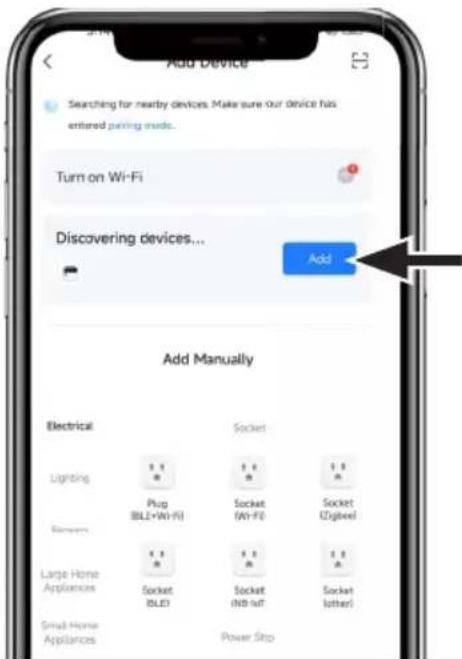
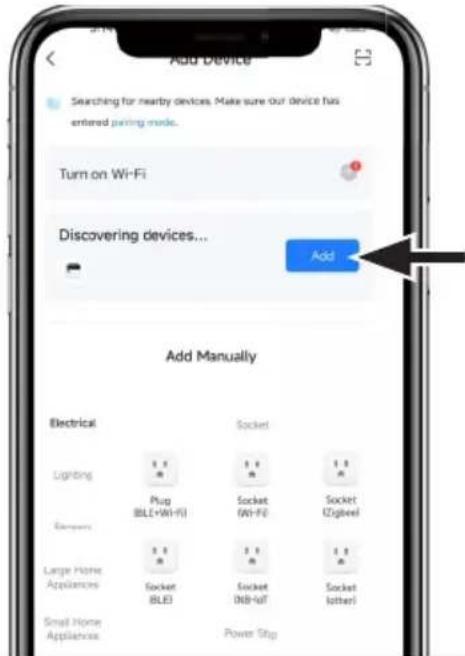
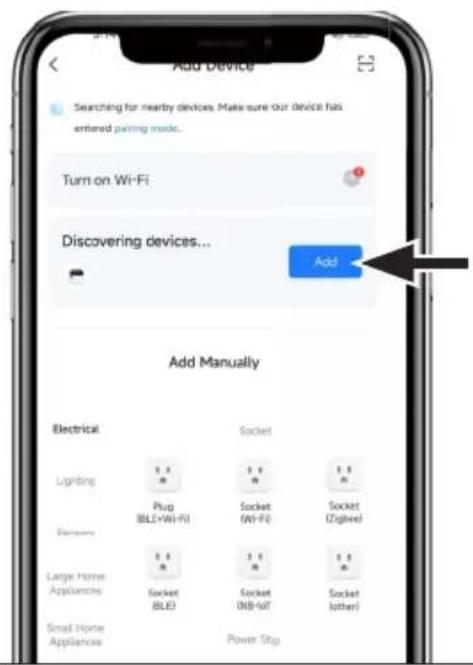
- Turn on the power station. It automatically sends out a pairing signal.
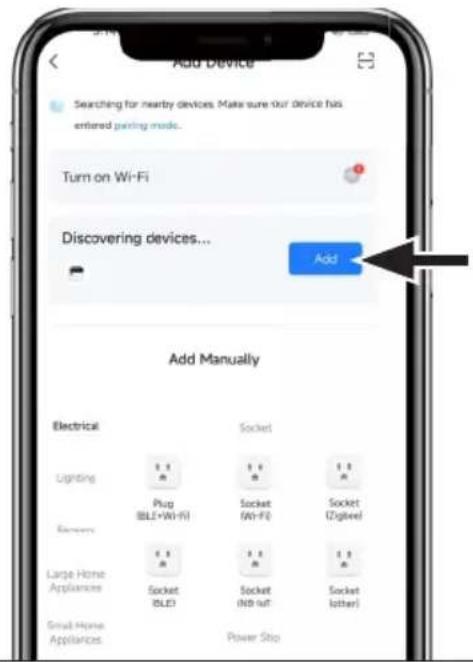
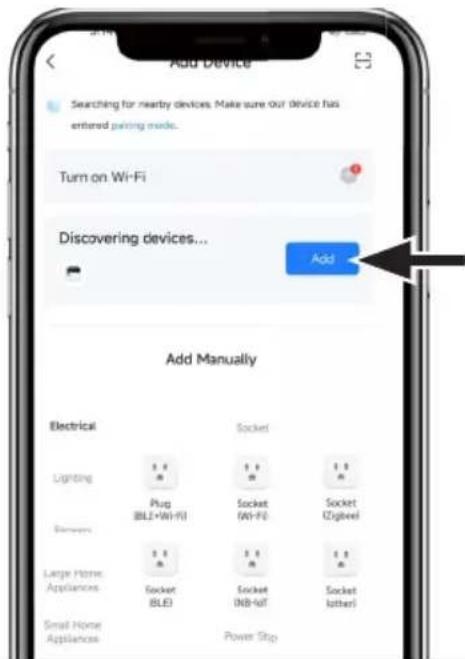
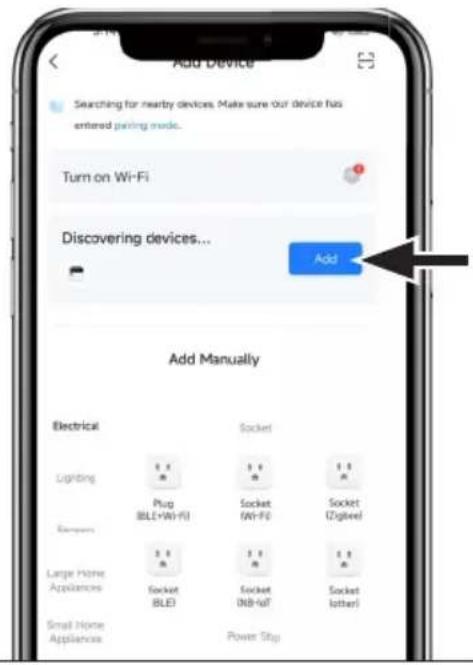
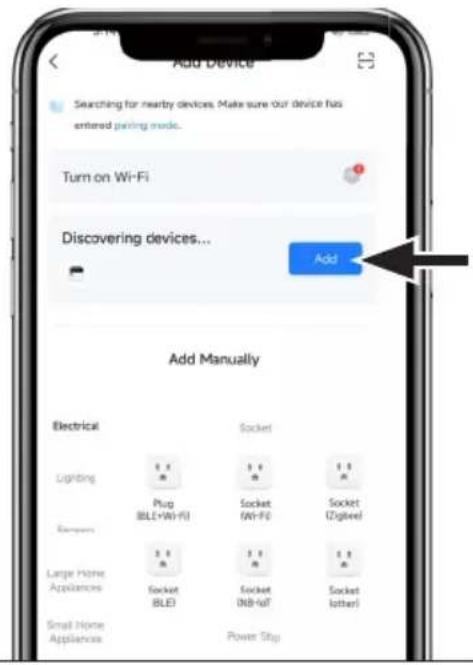
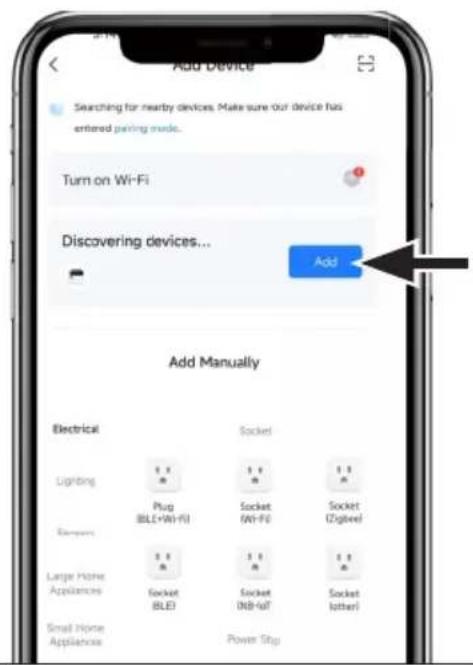
- Select Add Device in the app's main interface.
- Allow Bluetooth access permission and location access permission and turn on Bluetooth as instructed in the app.
- Select the XP2W300 as it appears in the list.
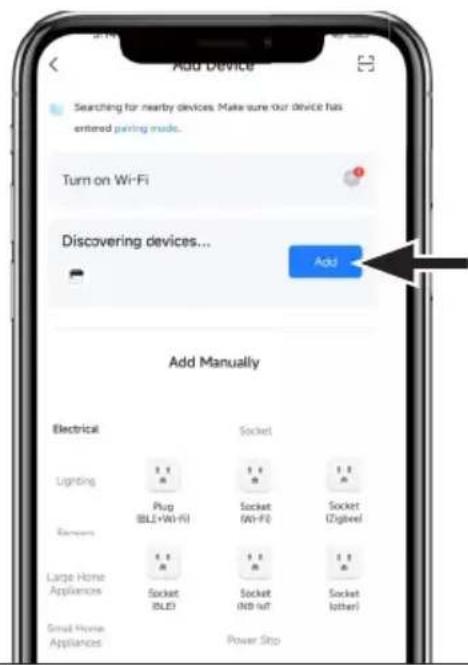
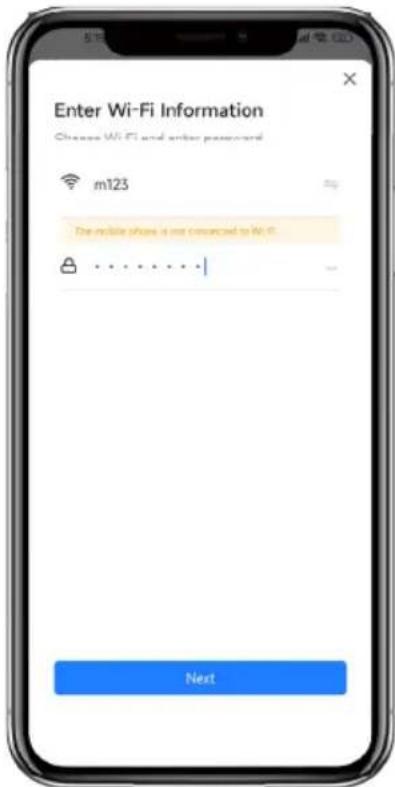
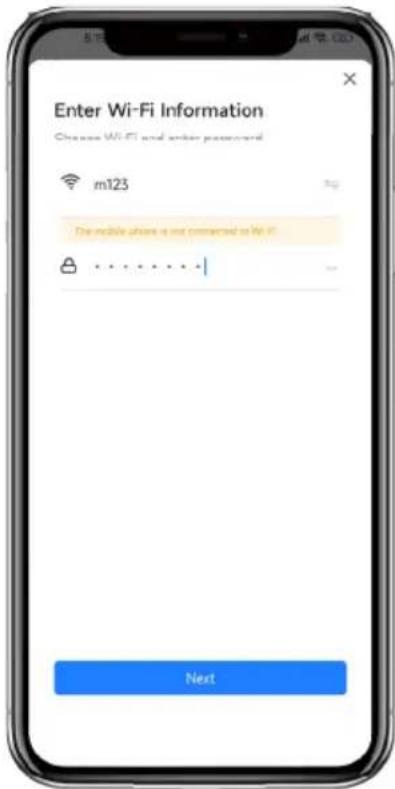
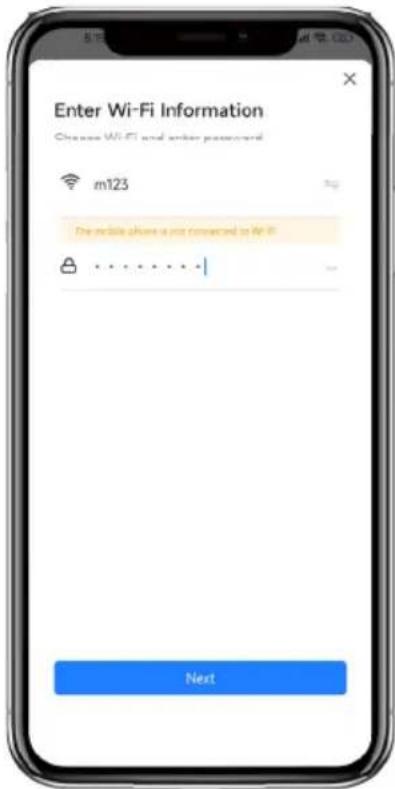
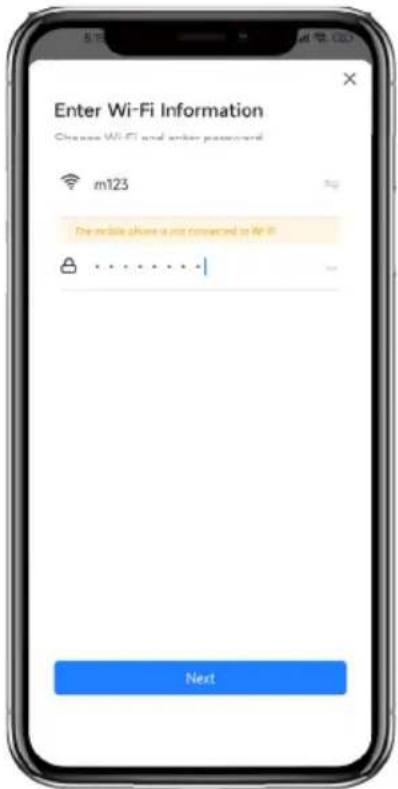
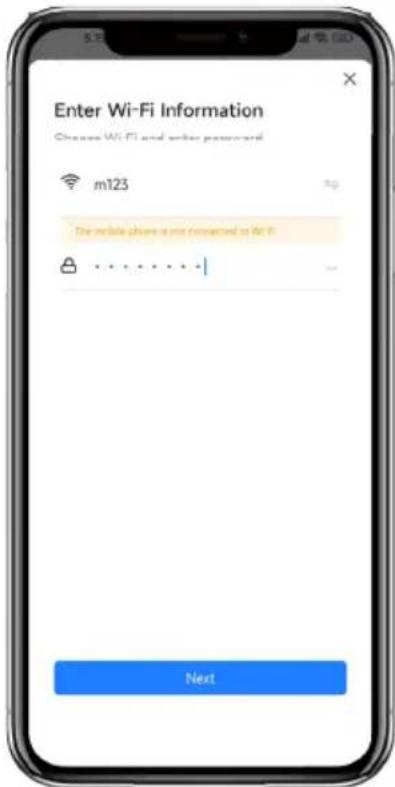
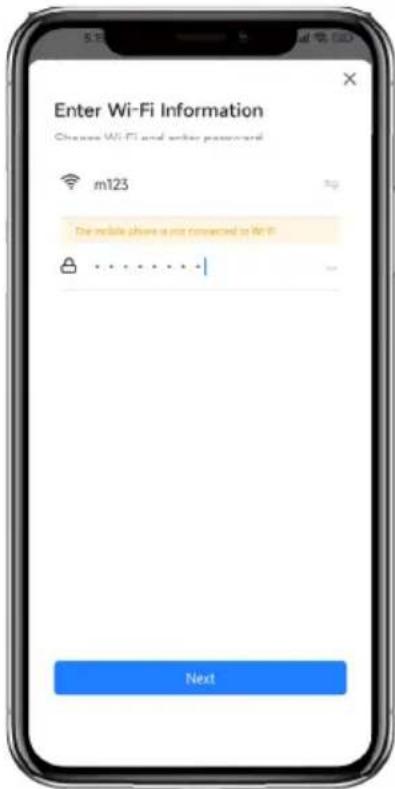
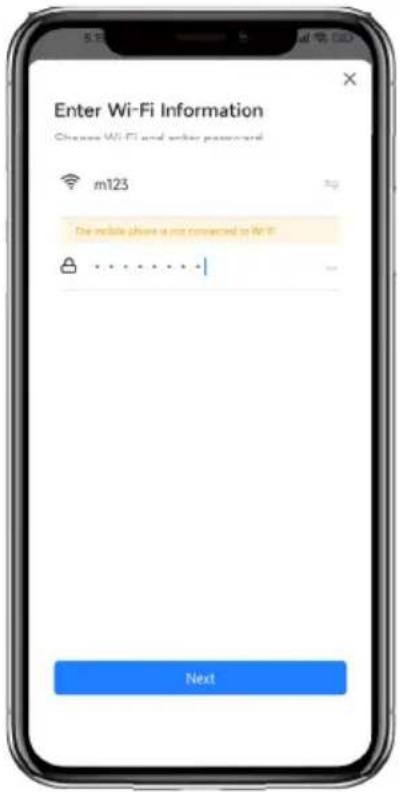
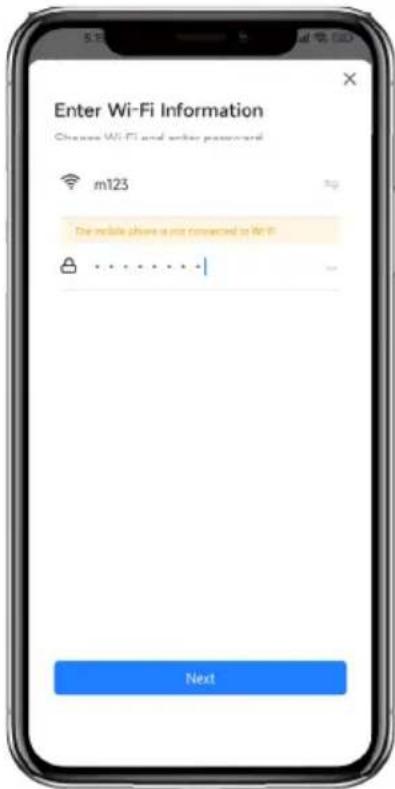
- Enter the Wi-Fi password of your current Wi-Fi connection.
If no Wi-Fi network is available in your area, you can create a mobile hotspot in the settings of your smartphone. A mobile internet connection is required for this. After setting up the mobile hotspot, enter the name and password of the hotspot manually.
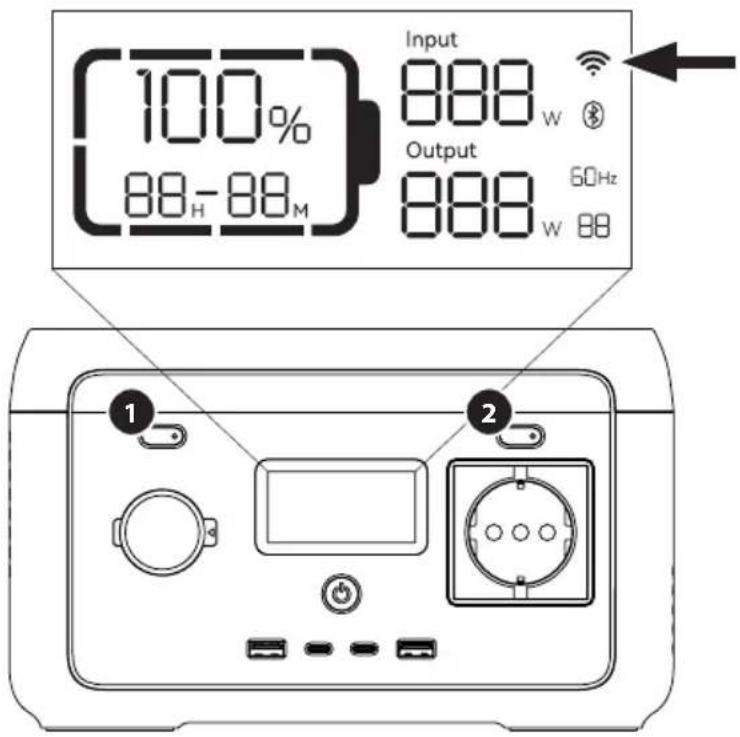
If the power station display shows a Wi-Fi icon, the connection is successful.
After the initial Wi-Fi pairing, the app can be used by just using a Bluetooth connection without needing to connect to a Wi-Fi network.
It is possible to reset the power station's app connection by pressing both the LED light button 1 and the AC output button 2. The Wi-Fi icon will start blinking to indicate a successful reset.
VIEW AND CONTROL THE POWER STATION VIA THE APP
For a detailed guide on all the features in the app, please check our website xtorm.eu/manuals/xp2w300
5 PRODUCT INFORMATION
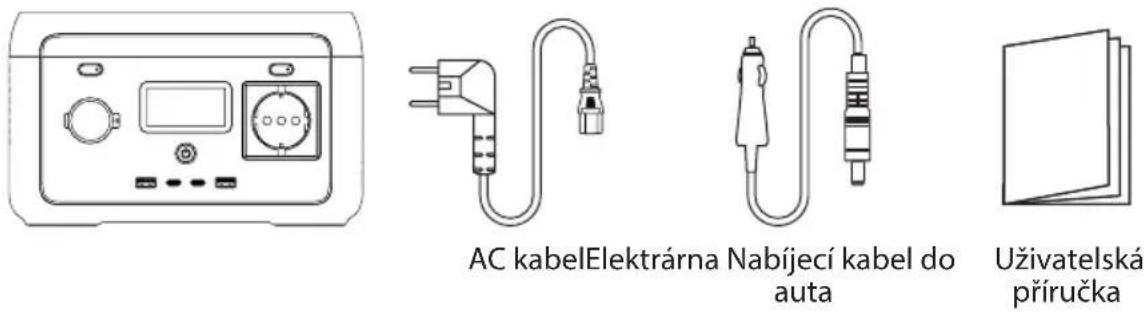
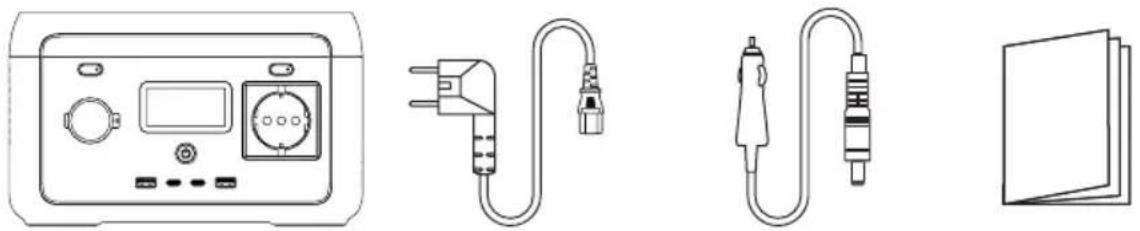
IN THE BOX
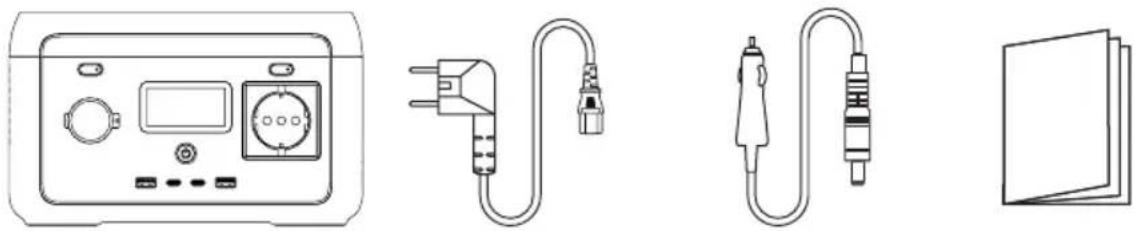
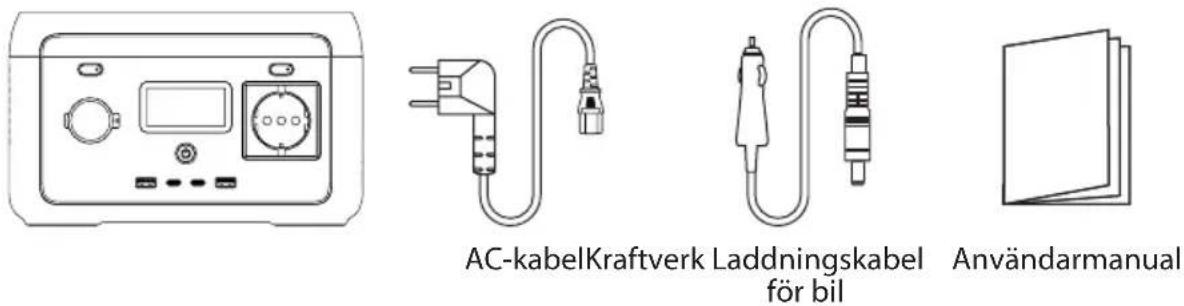
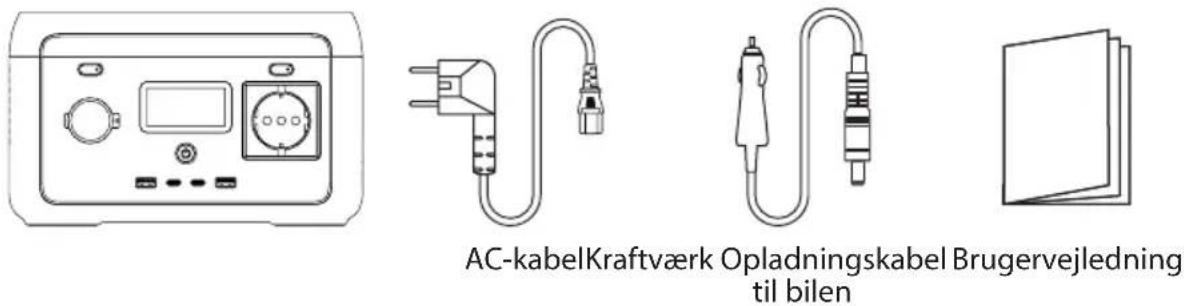
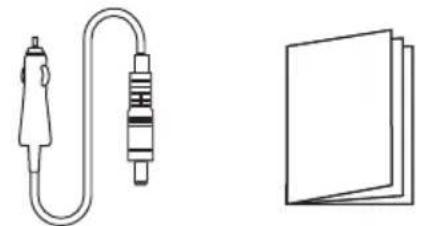
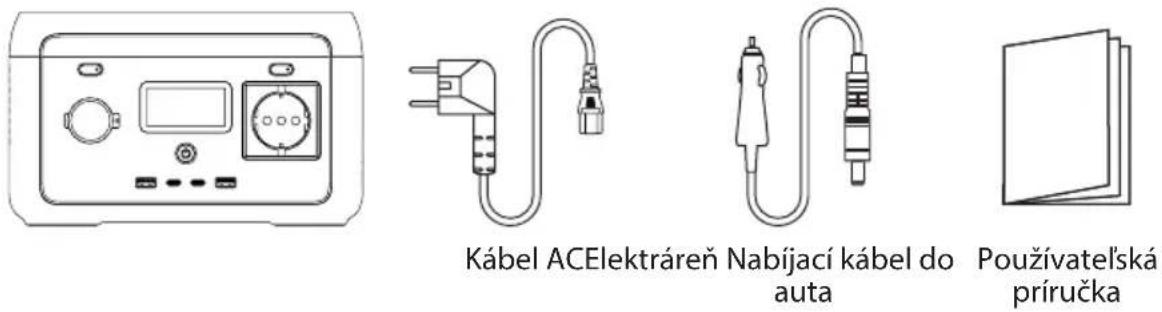
AC cablePower station Car charge cable User manual
FREQUENTLY ASKED QUESTIONS
What type of battery is used?
Lithium iron phosphate battery (LiFePO4).
What equipment can be connected to the AC output ports?
The AC output can supply power to small power household equipment. We suggest confirming the power of the equipment before use, to ensure that the sum of the power requirement is within the rated specification of the power station.
How long can the power station supply power to my appliance?
The LCD shows time remaining until the battery is empty, which is based on the visible actual power output (assuming stable output levels)
How long does it take to fully charge the powerstation?
The LCD shows remaining charging time, and shows the current actual power input.
How do I clean the power station?
Clean the unit with a dry, soft and clean cloth or tissue.
How do I safely store the power station?
Turn the power station off, and keep it in a dry and ventilated place. Do not expose to water or high humidity. For long-term storage, we suggest using the product every 3 months. Drain the battery to 0%, and then fully recharge it to 100% before storage.
Can the power station be taken on board airplanes?
No, the battery exceeds the 100Wh capacity limit.
MAINTENANCE
- It is recommended to use and store the power station under 20\~30°C of ambient temperature. Keep the power station away from water, heat and metal parts.
- For long-term storage, we suggest using the product every 3 months. Drain the battery to 0% , and then fully recharge the power station to 100% before storage.
- For safety, do not store power station with temperature above 45^ or below -10^ .
- If the charge level is lower than 1% , please charge to 60% . Long-term storage at very low power can cause irreversible damage to the battery cells and shorten the service life of the product.
- If the battery level is too low before storing the powerstation for a very long time, the product will enter deep sleep mode, and the product can only be used after being (trickle) charged.
DISCLAIMER
The product has a built-in battery management system (BMS), which features protection such as overcharge, over discharge, overcurrent, short circuit, high and low temperature, and abnormal communication. During the use of this product, protection may occur and cause output interruption. Damage caused to special equipment, such as medical equipment, servers, due to the indirect power loss caused by accidental power failure are not liable to Xtorm or Telco Accessories B.V. Xtorm or Telco Accessories B.V are not legally liable for any or all accidents caused by illegal use, self-dismantling, or man-made damage.
Before using the power station power station, please read this user manual to ensure a thorough understanding and proper use. After reading the user manual, please keep it stored for future reference. Improper operation may cause serious injury to yourself or others, or result in product damage and property loss. Once using power station, you are deemed to have understood and accepted all terms and contents thereof. Users promise to be responsible for their actions and all consequences arising there from. We shall not be liable for any loss arising from users not following this user manual.
FCC Statement
This device complies with Part 15 of the FCC Rules. Operation is subject to the following two conditions:
(1) This device may not cause harmful interference.
(2)This device must accept any interference received, including interference that may cause undesired operation.
- Changes or modifications not expressly approved by the party responsible for compliance could void the user's authority to operate the equipment.
Note: This equipment has been tested and found to comply with the limits fora class B digital device, pursuant to Part 15 of the FCC Rules. These limits are designed to provide reasonable protection against harmful interference in a residential installation.
This equipment generates uses and can radiate radio frequency energy and, if not installed and used in accordance with the instructions, may cause harmful interference to radio communications. However, there is no guarantee that interference will not occur in a particular installation. If this equipment does cause harmful interference to radio or television reception, which can be determined by turning the equipment off and on, the user is encouraged to try to correct the interference by one or more of the following measures:
- Reorient or relocate the receiving antenna.
- Increase the separation between the equipment and receiver.
- Connect the equipment into an outlet on a circuit different from that to which the receiver is connected.
- Consult the dealer or an experienced radio/TV technician for help.
The device has been evaluated to meet general RF exposure requirement, This equipment should be installed and operated with a minimum distance of 20cm between the radiator and your body.
ISEO Statement
This device contains licence-exempt transmitter(s)/receiver(s) that comply with Innovation, Science and Economy Development Canada's licence-exempt RSS(s). Operation is subject to the following two conditions:
This device may not cause interference.
This device must accept any interference, including interference that may cause undesired operation of the device.
This equipment should be installed and operated with a minimum distance of 20 cm between the radiator and your body.
| Icon Error description Solution | ||
| 02 Error | Pressure difference is too great | The power station will automatically recover. If the error is triggered 3 times within 1 minute, the power station will be locked, and the recovery time will be extended. The power station can ten be recovered by powering on and off again. |
| 04 Error | Battery OTP (over temperature protection) error | Shut down power station. After temperature has reached normal levels, resume charging. |
| 05 Error | Battery UTP (under temperature protection) error | |
| 06 Error | OCP (over current protection) error | Remove the device causing over-current. The power station will automatically recover. If the error is triggered 3 times within 1 minute, the power station will be locked, and the recovery time will be extended. The power station can then be recovered by powering on and off again. |
| 08 Error | Abnormal precharge Power on and off again to clear the error. | |
| 09 Error | Battery under voltage error | Charging process, repeated charging failures or failure to charge, please contact customer service. |
| 11 Error | Abnormal INV battery voltage | The power station will automatically recover. If the error is triggered 3 times within 1 minute, the power station will be locked, and the recovery time will be extended. The power station can then be recovered by powering on and off again. |
| 12 Error | Grid voltage or frequency error | The error is cleared when the grid returns to normal. |
| 13 Error | Abnormal INV BUS voltage | The power station will automatically recover. If the error is triggered 3 times within 1 minute, the power station will be locked, and the recovery time will be extended. The power station can be recovered by powering on and off again. |
| 14 Error | Abnormal INV output | |
| 15 Error | INV discharge overload | Remove the device causing discharge overload. The power station will automatically recover. If the error is triggered 3 times within 1 minute, the power station will be locked, and the recovery time will be extended. The power station can then be recovered by powering on and off again. |
| 16 Error | Charge overload | If an overload occurs, the device causing the overload must be disconnected. The system will then reset automatically. However, if this happens three times within one minute, automatic recovery will be delayed. In this case, the power station must be manually turned off and then on again to resume normal operation. |
| 17 Error | INV Tz | The power station will automatically recover after the error is cleared. |
| 19 Error | INV output short | Error will be cleared after turning the power station off and on. |
| 20 Error | MOSFET OTP (over temperature protection) error | After removing the device and restarting, the error is cleared. |
| 21 Error | Fan stop | Check fan for obstructions, turn on and off, contact customer service if still not fixed. |
| 22 Error | Discharge soft start error | The power station will automatically recover after the error is cleared. |
| 23 Error | Charge soft start error | The power station will automatically recover. If the error is triggered 3 times within 1 minute, the power station will be locked, and the recovery time will be extended. The power station can then be recovered by powering on and off again. |
| 24 Error | MOSFET UTP (under temperature protection) error | Automatic recovery after the power station heats up. |
| 27 Error | DC input hardware over charge protection error | Remove DC charge, auto recover after connecting DC and turning on. |
| 28 Error | DC input software over charge protection error | Stop DC charging, auto recover after connecting DC and turning on. |
| 30 Error | Car charge output OCP (over charge protection) error | Turn off output, manual recover after error is cleared. |
| 31 Error | PV output OVP (over voltage protection) error | Removing the PV charging interface will automatically restore it after a certain period of time. |
| 32 Error | DC input voltage over-voltage protection | Remove the DC charging interface for a certain period of time to automatically recover or check whether the DC output fuse is disconnected. |
| 35 Error | DC input over temperature protection error | Stop DC. Auto recover after error is cleared. |
| 38 Error | Abnormal communication | Turn on and off, or change operation environment. Contact customer service if still not fixed. |
| 43 Error | The battery voltage is too low. The battery is broken. | Contact customer service. |
If none of the above information can solve problem you encounter, please contact the customer service for consultation.
If there is a warning occurs during the use of this product, and the warning icon still does not disappear after restarting the device, please stop using it immediately (do not try to charge or discharge).
ALGEMEEN
| Gewicht | 3650 gr |
| Afmetingen | 248 x 164 x 150 mm |
| Batterijcapaciteit | 204,8Wh 25,6V= 8Ah |
UITGANG
| Stopcontact | Zuivere sinusgolf, 300W (piek 500W), 220-240V~, 50Hz/60Hz, 1,5A |
| USB-A1/A2 | 5V==2.4A, 12W Max. |
| USB-C1/C2 | 5/9/12/15== 3A, 20V==3.25A, 65W Max. |
| USB-C1+C2 | 5/9V==3A, 12V==2.5A, 15V==2A, 20V==1.5A, 60W Max. |
| Autolader | 12.6V==8A, 100W Max. |
INVOER
| AC-ingang (batterij opladen) | 250W max., 1,5A, 220-240V~, 50Hz/60Hz |
| AC-ingang (doorvoer) | 550W max., 3A, 220-240V~, 50Hz/60Hz |
| PV Zonne-input | 120W max., 12~24V ==8A |
| Ingang voor opladen auto | 96W max., 12V==8A |
BATTERIJ
natural_image
Line drawing of a portable electronic device with labeled buttons (9 and 10), no text or symbols present.LCD-SCHERM
natural_image
Line drawing of a power connection setup with a plug, socket, and monitor (no text or symbols)POWERBOOST-TECHNOLOGIE
JE ENERGIECENTRALE AANSLUITEN
natural_image
Line drawing of a portable electronic device with labeled buttons (9 and 10), no text or symbols present.LCD-BILDSCHIRM
natural_image
Line drawing of a device connected to a computer monitor via cable (no text or symbols)POWERBOOST-TECHNOLOGIE
ANSCHLUSS IHRES KRAFTWERKS
5 PRODUKTINFORMATION
IN DER KISTE
natural_image
Line drawing of a portable electronic device with labeled buttons (9 and 10), no text or symbols present.ÉCRAN LCD
natural_image
Line drawing of a power supply connection setup with a plug, socket, and monitor (no text or symbols)TECHNOLOGIE POWERBOOST

BRANCHEMENT DE VOTRE CENTRALE ÉLECTRIQUE
natural_image
Front view of a device control panel with buttons and display (no text or symbols visible)que
natural_image
Line drawing of a U-shaped electrical plug with two terminal connectors (no text or symbols)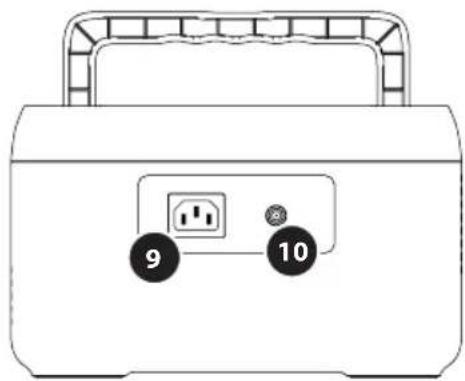
natural_image
Line drawing of a portable electronic device with labeled buttons (9 and 10), no text or symbols present.PANTALLA LCD
natural_image
Line drawing of a power supply connection setup with a plug, socket, and monitor (no text or symbols)TECNOLOGÍA POWERBOOST
natural_image
Line drawing of a portable printer with two buttons labeled 9 and 10, no text or symbols present.ECRÃ LCD
natural_image
Line drawing of a power supply connection setup with a power outlet, switch, and computer monitor (no text or symbols)TECNOLOGIA POWERBOOST
LIGAR A SUA CENTRAL ELÉCTRICA
natural_image
Line drawing of a portable electronic device with labeled buttons (9 and 10) on the front panel (no text or symbols beyond labels)SCHERMO LCD
natural_image
Line drawing of a power connection setup with a plug, socket, and monitor (no text or symbols)TECNOLOGIA POWERBOOST
natural_image
Line drawing of a portable electronic device with labeled buttons (9 and 10) and an electrical outlet (no text or symbols beyond labels)LCD-SKÄRM
natural_image
Line drawing of a power connection setup with a plug, socket, and monitor (no text or symbols)POWERBOOST-TEKNIK
ANSLUTA DIN KRAFTSTATION
5 PRODUKTINFORMATION
I LÅDAN
natural_image
Line drawing of a portable electronic device with labeled buttons (9 and 10) on the front panel (no text or symbols beyond labels)LCD-SKJERM
natural_image
Line drawing of a power cord connection to a device and computer (no text or symbols)POWERBOOST-TEKNOLOGI
KOBLE TIL KRAFTSTASJONEN DIN
OFTE STILTE SP∅RSMÅL
AFSKAFFELSE AF KRAFTVÆRKET

natural_image
Line drawing of a portable electronic device with labeled buttons (9 and 10) on the front panel (no text or symbols beyond labels)LCD-SKÆRM
OPLADNING AF KRAFTVÆRKET
AC-opladning
natural_image
Line drawing of a device connected to a computer monitor via power and power outlet (no text or symbols)POWERBOOST-TEKNOLOGI
TILSLUTNING AF DIT KRAFTVÆRK
5 PRODUKTINFORMATION
IKASSEN
OFTE STILLEDE SP∅RGSMÅL
natural_image
Line drawing of a portable electronic device with labeled buttons (9 and 10), no text or symbols present.LCD-SKÆRM
natural_image
Line drawing of a power cord connection to a device and computer (no text or symbols)POWERBOOST-TEKNOLOGI
TÄMÄN VOIMALAITOKSEN PURKAMINEN
Bemærk: Internetforbindelse, joko Wi-Fi- tai mobiilihotspotin kautta.
OFTE STILLEDE SP∅RGSMÅL
natural_image
Line drawing of a portable electronic device with labeled buttons (9 and 10) and a power outlet (no text or symbols beyond labels)LCD EKRÄNS
natural_image
Line drawing of a device connected to a power outlet and computer monitor (no text or symbols)POWERBOOST TEHNOLOGIJA
SPĚKSTACIJAS PIESLĚGŠANA
natural_image
Line drawing of a portable electronic device with control panel and plug, alongside a separate electrical outlet (no text or symbols)Elektrostacija Automašinas Mainstrāvas kabelis
natural_image
Line drawings of a medical device and a closed book (no text or symbols)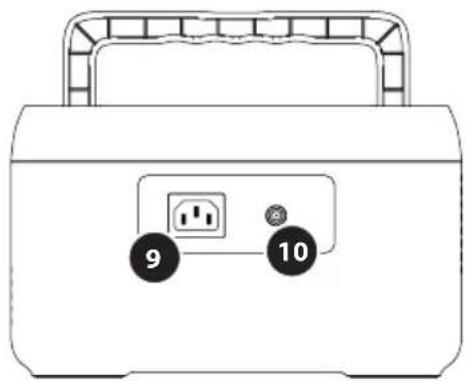
natural_image
Line drawing of a portable electronic device with labeled buttons (9 and 10), no text or symbols present.LCD EKRAAN
natural_image
Line drawing of a power cord connection to a device and computer (no text or symbols)POWERBOOST TEHNOLOOGIA
ELEKTRIJAAMA ÜHENDAMINE
- Sisestage oma praeguse Wi-Fi-ühenduse Wi-Fi parool.
natural_image
Line drawing of a portable electronic device with labeled buttons (9 and 10), no text or symbols present.LCD EKRANAS
natural_image
Line drawing of a power cord connection to a device and computer (no text or symbols)"POWERBOOST" TECHNOLOGIJA
ELEKTRINĖS PRIJUNGIMAS
- Iveskite dabartinio "Wi-Fi" ryšio slaptažodj.
natural_image
Line drawing of a portable electronic device with labeled buttons (9 and 10) on the front panel (no text or symbols beyond labels)EKRAN LCD
natural_image
Line drawing of a device connected to a power outlet and computer monitor (no text or symbols)TECHNOLOGIA POWERBOOST
PODŁĄCZANIE STACJI ZASILANIA
natural_image
Line drawing of a portable electronic device with labeled buttons (9 and 10), no text or symbols present.LCD KÉPERNYŐ
natural_image
Line drawing of a device connected to a computer monitor via cable (no text or symbols)POWERBOOST TECHNOLÓGIA
AZ ERÖMÜ CSATLAKOZTATÁSA
natural_image
Line drawing of a portable electronic device with labeled buttons (9 and 10) and a power outlet (no text or symbols beyond labels)LCD DISPLEJ
natural_image
Line drawing of a power cord connection to a device and computer (no text or symbols)TECHNOLOGIE POWERBOOST
PŘIPOJENÍ VAŠÍ ELEKTRÁRNY
5 INFORMACE O PRODUKTU
V KRABICI
natural_image
Line drawing of a portable electronic device with labeled buttons (9 and 10) and a power outlet (no text or symbols beyond labels)LCD DISPLEJ
natural_image
Line drawing of a power cord connection to a device and computer (no text or symbols)TECHNOLÓGIA POWERBOOST
PRIPOJENIE VAŠEJ ELEKTRÁRNE
5 INFORMÁCIE O PRODUKTE
V KRABICI
ZRIEKNUTIE SA ZODPOVEDNOSTI
natural_image
Line drawing of a portable electronic device with labeled buttons (9 and 10) and a power outlet (no text or symbols beyond labels)ECRAN LCD
natural_image
Line drawing of a power supply connection setup with a plug, socket, and computer monitor (no text or symbols)TEHNOLOGIE POWERBOOST
CONECTAREA CENTRALEI DVS. ELECTRICE
natural_image
Line drawing of a portable electronic device with labeled buttons (9 and 10), no text or symbols present.LCD EKPAH
natural_image
Line drawing of a device connected to a computer monitor via cable (no text or symbols)ТЕХНОЛОГИЯ POWERBOOST
СВЪРЗВАНЕ НА ВАШАТА ЕЛЕКТРОЦЕНТРАЛА
natural_image
Front view of a device control panel with buttons and display (no text or symbols visible)Електроцентрала
natural_image
Line drawing of a U-shaped electrical plug with two terminal connectors (no text or symbols)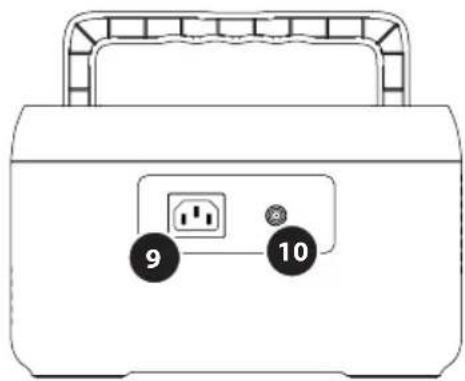
natural_image
Line drawing of a portable electronic device with labeled buttons (9 and 10), no text or symbols present.ЛЦД ЕКРАН
natural_image
Pure electrical circuit lines without any symbolsПОВЕРБООСТ ТЕХНОЛОГИЈА
AC cablePower station Car charge cable User manual
natural_image
Line drawing of a portable electrical box with two buttons labeled 9 and 10 (no text or symbols beyond labels)OONH LCD
natural_image
Line drawing of a device connected to a computer monitor via cable (no text or symbols)TEXNOLOGIA POWERBOOST
natural_image
Front view of a device control panel with buttons and display (no text or symbols visible)ηλεκτροπαραγωγής
natural_image
Line drawing of a U-shaped electrical plug with two terminal connectors (no text or symbols)Καλώδιο ΑΣΣταθμός
natural_image
Line drawing of a portable electronic device with labeled buttons (9 and 10), no text or symbols present.PK-EKPAH
natural_image
Line drawing of a device connected to a computer monitor via cable (no text or symbols)
natural_image
Line drawing of a portable printer with two buttons labeled 9 and 10, no text or symbols present.LCD EKRAN
11 Postotak preostale baterije
12 Preostalo vrijeme punjenja/pražnjenja
13 Ulazna snaga
14 Izlazna snaga
15 Indikator WiFi veze
16 Indikator Bluetooth veze
17 AC izlazna frekvencija
18 Šifra pogreške: pogledajte poglavlje 5 za više pojedinosti o poruci pogreške.
Kapacitet baterije: Kada se elektrana puni, preostali postotak baterije 11 počet će treptati.
KORISTITI
natural_image
Line drawing of a power cord connection to a device and computer (no text or symbols)POWERBOOST TEHNOLOGIJA
POVEZIVANJE VAŠE ELEKTRANE
Napomena: za prvo postavljanje potrebna je internetska veza, bilo putem Wi-Fi ili mobilne pristupne točke.
Unesite Wi-Fi lozinku vaše trenutne Wi-Fi veze.
Ako Wi-Fi mreža nije dostupna u vašem području, možete stvoriti mobilnu pristupnu točku u postavkama svog pametnog telefona. Za to je potrebna mobilna internetska veza. Nakon postavljanja mobilne pristupne točke, ručno unesite naziv i lozinku pristupne točke.
Nakon početnog Wi-Fi uparivanja, aplikacija se može koristiti samo pomoću Bluetooth veze bez potrebe za povezivanjem na Wi-Fi mrežu.

AC cablePower station Car charge cable User manual
ČESTO POSTAVLJANA PITANJA
natural_image
Line drawing of a portable electronic device with labeled buttons (9 and 10), no text or symbols present.ЖК-ЭКРАН
natural_image
Line drawing of a device connected to a computer monitor via cable (no text or symbols)ТЕХНОЛОГИЯ POWERBOOST
USB-A1/A2 5V=2,4A, 12W Maks.
USB-C1/C2 5/9/12/15==3A, 20V==3,25A, 65W Maks.
USB-C1+C2 5/9V=3A, 12V=2.5A, 15V=2A, 20V=1.5A, 60W Maks.
natural_image
Line drawing of a portable electronic device with labeled buttons (9 and 10) and a power outlet (no text or symbols beyond labels)LCD EKRAN
natural_image
Line drawing of a power cord connection to a device and computer (no text or symbols)POWERBOOST TEKNOLOJİSİ
GÜÇ İSTASYONUNUZU BAĞLAMA
natural_image
Front view of a portable electronic device with control panel, buttons, and indicator lights (no text or symbols visible)Güç istasyonu
natural_image
Line drawing of a U-shaped electrical plug with two terminal connectors (no text or symbols)AC kablosu
Araç şarj kablosu

Kullanıcı kılavuzu
SIKÇA SORULAN SORULAR
natural_image
Line drawing of a portable electronic device with two labeled buttons (9 and 10) on the front panel (no text or symbols beyond labels)natural_image
Line drawing of a device connection setup with power outlet, switch, and monitor (no text or symbols)natural_image
Front view of a device control panel with buttons and display (no text or symbols visible)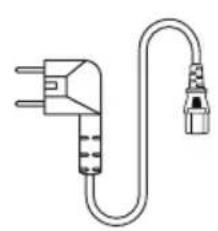
natural_image
Line drawing of a U-shaped electrical plug with two terminal connectors (no text or symbols)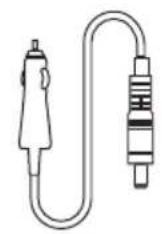

EU DECLARATION OF CONFORMITY
(In accordance with EN ISO/IEC 17050-1)
| Declaration number: | DOCIP 2293549 |
| Name and address of manufacturer / EU-AR: | Telco Accessories BVHoofdveste 193992 DH HoutenNetherlands |
| THIS DECLARATION OF CONFORMITY IS ISSUED UNDER THE SOLE RESPONSIBILITY OF: | |
| Name and address of manufacturer: | Telco Accessories BVHoofdveste 193992 DH HoutenNetherlands |
| Product identification: | XP2W300XP2W600 |
| THE PRODUCTS MENTIONED IN THIS DECLARATION ARE IN CONFORMITY WITH: | |
| EU Community Legislation | Restriction of Hazardous Substances (RoHS) Directive 2011/65/EUElectromagnetic Compatibility (EMC) Directive 2014/30/EULow Voltage Directive (LVD) 2014/35/EUBattery Regulation (EU) 2023/1542 |
| Harmonised standards | Safety of electrical equipmentEN 62368-1:2014 + AC:2015-02 + AC:2015-05 + AC:2015-11 + AC:2017-03 + A11:2017 + EN IEC62368-1:2020 + A11:2020 + AC:2020-05Electromagnetic Compatibility (EMC)EN 61000-3-2:2014 + EN IEC 61000-3-2:2019 + A1:2021EN 61000-3-3:2013 + A1:2019 + A2:2021 + A2:2021/AC:2022-01EN IEC 61000-6-2:2019 + EN 61000-6-2:2005 + AC:2005EN 61000-6-3:2007 + A1:2011 + A1:2011/AC:2012 + EN IEC 61000-6-3:2021 |
| SIGNED FOR AND ON BEHALF OF: | |
| Place and date of issue: | Houten, 10 June 2024 |
| Signature: | |
| Name, function: | Ralph BothCEO |
| Company name: | Telco Accessories BV |

HIGHER QUALITY
= LOWER IMPACT