imageRUNNER 2422 - Printer CANON - Free user manual and instructions
Find the device manual for free imageRUNNER 2422 CANON in PDF.


User questions about imageRUNNER 2422 CANON
0 question about this device. Answer the ones you know or ask your own.
Ask a new question about this device
Download the instructions for your Printer in PDF format for free! Find your manual imageRUNNER 2422 - CANON and take your electronic device back in hand. On this page are published all the documents necessary for the use of your device. imageRUNNER 2422 by CANON.
USER MANUAL imageRUNNER 2422 CANON
Read this guide first.
Please read this guide before operating this product.
After you finish reading this guide, store it in a safe place for future reference.
The manuals for this machine are divided as follows. Please refer to them for detailed information. Depending on the system configuration and product purchased, some manuals may not be needed.

Guides with this symbol are printed manuals.
• Quick Reference for Basic Operations
- Setup Instructions
- Basic Operations
- Basic Operations
- Troubleshooting
- Copying Instructions
- Remote User Interface Instructions
• Network Connectivity and Setup Instructions
• Color Network ScanGear Instructions (for Windows only)
• UFRII LT Printer Instructions
• UFRII LT Printer Driver Instructions for Windows
• UFRII LT Printer Driver Instructions for Macintosh

Guides with this symbol are PDF manuals included on the accompanying CD-ROM. (See footnote.)
Easy Operation Guide
User's Guide (This Document)
Reference Guide
Copying Guide
Remote UI Guide*
Network Guide*
Network ScanGear Guide*
UFR II Printer Guide
Windows Printer Driver Guide
Mac Printer Driver Guide


The User Manual CD-ROM is software that enables you to select and view PDF Manuals included on the CD-ROM via your computer screen. Follow the instructions below to use the User Manual CD-ROM.

NOTE
Depending on the system configuration and product purchased, some manuals may not be needed.
System Requirements
The User Manual CD-ROM can be used in the following system environments.
| Windows Macintosh | ||
| OS | Windows 2000 (Service Pack 4 or later)Windows XP (Service Pack 1a or later)Windows Vista (Service Pack 2 or later)Windows 7Windows Server 2003Windows Server 2008 | Mac OS X 10.4.x or later |
| Memory The memory required to run the above operating systems | ||
| Computer A computer that can run the above operating systems | ||
| Display A resolution of 1024 pixels × 768 pixels or higher | ||

IMPORTANT
Depending on the configuration of your computer, some functions may not operate correctly. If the PDF manual does not open from the CD-ROM Menu, open the PDF file directly from the [ENGLISH] folder on the User Manual CD-ROM.
Using the CD-ROM Menu
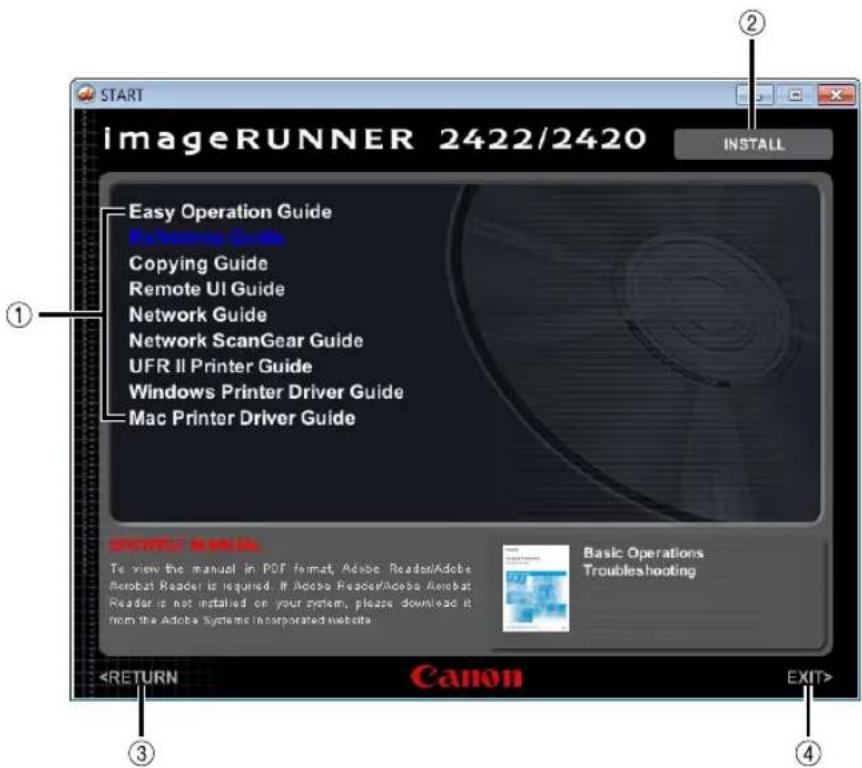
This section describes how to use the CD-ROM Menu. When you insert the User Manual CD-ROM provided into the CD-ROM drive, the Language Selection window appears. Selecting a language on this window displays the following menu. (The sample screen shot shown here is for Windows users.)

NOTE
For Macintosh users, double-click the [START] icon to start the CD-ROM Menu. The Language Selection window is displayed.
text_image
START ImageRUNNER 2422/2420 INSTALL Easy Operation Guide My Service Guide Copying Guide Remote UI Guide Network Guide Network ScanGear Guide UFR II Printer Guide Windows Printer Driver Guide Mac Printer Driver Guide BASIC NAME To view the manual in PDF format, Adobe Reader/Adobe Acrobat Reader is required. If Adobe Reader/Adobe Acrobat Reader is not installed on your system, please download it from the Adobe Systems Incorporated website. Basic Operations Troubleshooting①BROWSE MANUAL
You can read any of the listed guides by clicking on the desired guide. After clicking on the desired guide, Adobe Reader/Adobe Acrobat Reader starts, and the PDF manual is displayed.
②INSTALL
You can install the listed PDF manuals on your computer. After clicking [INSTALL], select the location where you want to save the files.
③RETURN
Click to return to the Language Selection menu.
④EXIT
Click to exit the CD-ROM menu.
The screen shot shown above may differ from the actual display, depending on the operating system used.

How This Manual Is Organized
Chapter 1 Before You Start Using This Machine
Chapter 2 Basic Operations
Chapter 3 Routine Maintenance
Chapter 4 Troubleshooting
Chapter 5 Appendix
Includes the descriptions of multi-functional operations, available paper stock, and Index.
Contents
User Manual CD-ROM ....iii
System Requirements ....iii
Using the CD-ROM Menu iv
Preface ix
How to Use This Manual ix
Symbols Used in This Manual ix
Keys and Buttons Used in This Manual . . . . . . . . . . . . . . . . . . . . . . . . . . . . . . . . . . . . . . . . . . . x
Illustrations Used in This Manual . . . . . . . . . . . . . . . . . . . . . . . . . . . . . . . . . . . . . . . . . . . . . . . x
Abbreviations Used in This Manual xi
Trademarks xi
Operations and Terms Used in the Manuals....xii
Legal Notices....xiv
Product Name xiv
EMC requirements of EC Directive ..... xiv
Laser Safety xiv
Additional Information ...... xv
International ENERGY STAR Program ..... xvi
IPv6 Ready Logo ..... xvi
WEEE Directive .....xvii
Copyright....xvii
Third Party Software.... xviii
Disclaimers....xix
Legal Limitations on the Usage of Your Product and the Use of Images ..... xx
Important Safety Instructions....xxi
Installation ..... xxi
Power Supply . . . . . . . . . . . . . . . . . . . . . . . . . . . . . . . . . . . . . . . . . . . . . . . . . . . . . . . . . . . . . . . . . . xxii
Handling xxiii
Maintenance and Inspections .... xxvi
Consumables xxviii
Other Warnings xxviii
Installation Location and Handling ....1-2
Installation Precautions....1-2
Avoid Installing the Machine in the Following Locations .....1-2
Select a Safe Power Supply....1-4
Provide Adequate Installation Space....1-5
Moving the Machine....1-6
Handling Precautions....1-7
Parts and Their Functions 1-9
External View....1-9
Internal View 1-11
Control Panel 1-12
Optional Equipment 1-14
Main Power and Control Panel Power 1-15
How to Turn ON the Main Power 1-15
Control Panel Power Switch....1-17
Setting Up the Connection ....1-18
Settings Flowchart 1-18
Connecting to a USB Interface 1-19
Connecting to a Network 1-20
Using Ethernet 1-20
Before Using the machine as a printer .....1-22
Installing the Printer Driver 1-22
System Requirements 1-22
UFRII LT User Software CD-ROM 1-23
Installation....1-23
Setting Up the Printer Configuration .....1-25
For Windows 1-25
For Macintosh 1-26
Before Using the Remote Scan Function .....1-27
Installing the Scanner Driver....1-27
System Requirements 1-28
Installation....1-29
Required Settings for Remote Scanning 1-29
Chapter 2 Basic Operations
What This Machine Can Do....2-2
Placing Originals .....2-6
Orientation 2-6
Platen Glass....2-8
Feeder (DADF-P2) (Optional). 2-10
Basic Copying .....2-12
Basic Printing....2-17
Basic Remote Scanning .....2-18
Canceling a Job 2-21
Using the Stop Key. 2-21
Using the System Monitor Screen 2-22
Chapter 3 Routine Maintenance
Paper Drawers ....3-2
Loading Paper 3-2
Adjusting a Paper Drawer to Hold a Different Paper Size . . . . . . . . . . . . . . . . . . . . 3-6
Replacing the Toner....3-10
Chapter 4 Troubleshooting
Clearing Paper Jams 4-2
Clearing Paper Jams with On-Screen Instructions....4-2
When Paper Jams Occur Frequently .....4-3
List of Error Messages ....4-4
Self-Diagnostic Display 4-4
Service Call Message 4-11
Contacting Your Local Authorized Canon Dealer ....4-11
Chapter 5 Appendix
Multifunctional Operations .....5-2
Available Paper Stock....5-3
Index 5-5
Preface
Thank you for purchasing the Canon imageRUNNER 2422/2420. Please read this manual thoroughly before operating the machine to familiarize yourself with its capabilities, and to make the most of its many functions. After reading this manual, store it in a safe place for future reference.
How to Use This Manual
Symbols Used in This Manual
The following symbols are used in this manual to explain procedures, restrictions, handling precautions, and instructions that should be observed for safety.

WARNING
Indicates a warning concerning operations that may lead to death or injury to persons if not performed correctly. To use the machine safely, always pay attention to these warnings.

CAUTION
Indicates a caution concerning operations that may lead to injury to persons if not performed correctly. To use the machine safely, always pay attention to these cautions.

IMPORTANT
Indicates operational requirements and restrictions. Be sure to read these items carefully to operate the machine correctly, and avoid damage to the machine or property.

NOTE
Indicates a clarification of an operation, or contains additional explanations for a procedure. Reading these notes is highly recommended.

Indicates an operation that must not be performed. Read these items carefully, and make sure not to perform the described operations.
Keys and Buttons Used in This Manual
The following symbols and key/button names are a few examples of how keys and buttons to be clicked or pressed are expressed in this manual:
- Control Panel keys
| Control Panel Keys Example | |
| [Key icon] [ ] | ▼ |
| Key icon + (Key Name) (Additional Functions) | |
| [Key Name] [OK] |
- Buttons on Computer Operation Screens
| UI Type Example | |
| [Button Name] [OK] | |
| [UI Name] + menu, icon, etc. [Start] menu, [CD-ROM] icon, etc. | |
Illustrations Used in This Manual
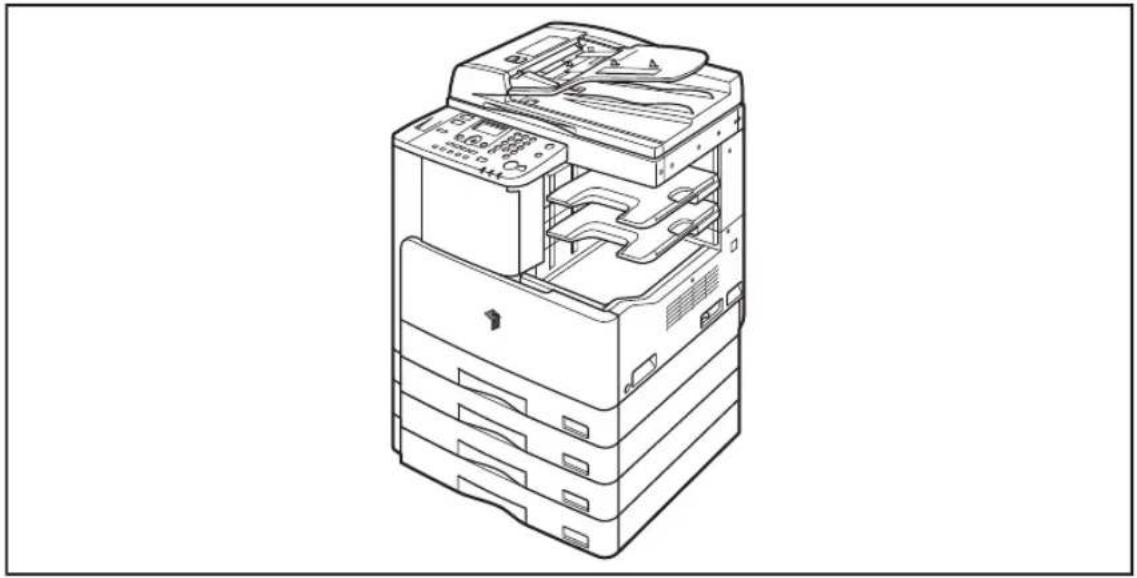
The machine illustrations used in this manual are those of the imageRUNNER 2420 with the following optional equipment attached: the Feeder (DADF-P2), Finisher-U2, Additional Finisher Tray-C1, Cassette Feeding Module-J1, and Cassette Feeding Module-K1.
natural_image
Line drawing of a multi-tiered electronic device with internal components (no text or symbols)Abbreviations Used in This Manual
In this manual, product names are abbreviated as follows:
Microsoft Windows 2000 operating system: Windows 2000
Microsoft Windows XP operating system: Windows XP
Microsoft Windows Vista operating system: Windows Vista
Microsoft Windows 7 operating system: Windows 7
Microsoft Windows Server 2003 operating system: Windows Server 2003
Microsoft Windows Server 2008 operating system: Windows Server 2008
Microsoft Windows operating system: Windows
Trademarks
Macintosh and Mac OS are trademarks of Apple Inc., registered in the U.S. and other countries.
Microsoft, Windows, Windows Vista, Windows Server, Excel and PowerPoint are either registered trademarks or trademarks of Microsoft Corporation in the United States and/or other countries.
Other product and company names herein may be the trademarks of their respective owners.
Operations and Terms Used in the Manuals
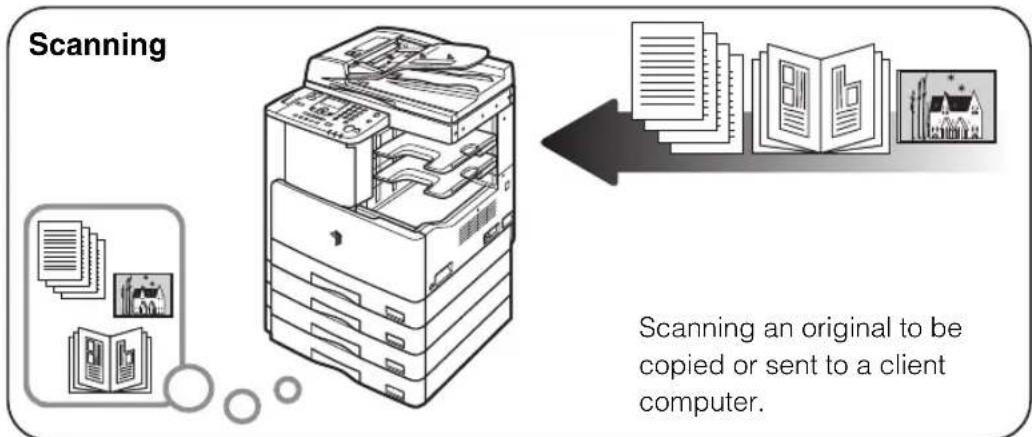
This machine makes effective use of memory to perform print operations efficiently. For example, as soon as the machine has scanned the original that you want to copy, it can immediately scan the next person's original. You can also print from this machine, using a function other than the Copy function. In this machine, these operations take place in a complex way, so that not only copies, but also various kinds of prints may sometimes have to wait their turn before they can be printed.
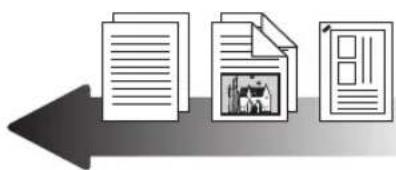
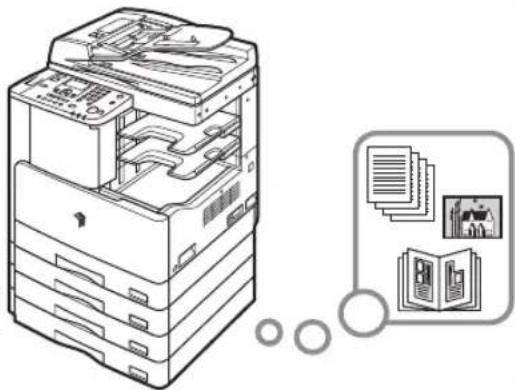
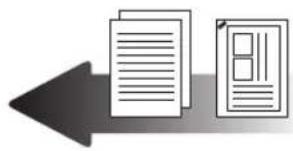
To avoid confusion when reading the manuals, the terms “scanning,” “printing,” and “copying,” used throughout the manuals are defined below. When making a copy, the process of scanning originals and printing copies may be described as separate functions.
flowchart
graph TD
    A["Scanning"] --> B["File Scan"]
    B --> C{Scan to Client Computer}
    C --> D["Document Transmission"]
    D --> E["Final Transaction"]
    style A fill:#f9f,stroke:#333
    style B fill:#ccf,stroke:#333
    style C fill:#cfc,stroke:#333
    style D fill:#fcc,stroke:#333
    style E fill:#ffc,stroke:#333
Printing
text_image
Icon showing three document pages with a central icon depicting a photo, suggesting a link between documents and a media file.Outputting documents such as a copy or data sent from a client computer to the machine.
natural_image
Illustration of a server rack with internal components and an icon showing documents and a book (no text or symbols present)Copying
natural_image
Simple graphic of two document icons with a left-pointing arrow, no text or symbols present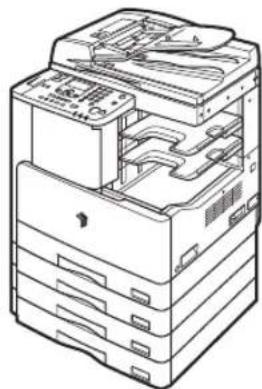
natural_image
Line drawing of a multi-tiered electronic device with internal components (no text or symbols)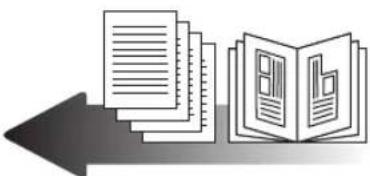
natural_image
Illustration of stacked documents and an open book with a document, pointing left (no text or symbols)Printing data scanned from an original, followed by finishing options, such as stapling.
Product Name
Safety regulations require the product's name to be registered. In some regions where this product is sold, the following name(s) in ( ) may be registered instead.
imageRUNNER 2422/2420 (F191200)
EMC requirements of EC Directive
This equipment conforms with the essential EMC requirements of EC Directive. We declare that this product conforms with the EMC requirements of EC Directive at nominal mains input 230 V, 50 Hz although the rated input of the product is 220 to 240 V, 50/60 Hz. Use of shielded cable is necessary to comply with the technical EMC requirements of EC Directive.
Laser Safety
This product is certificated as a Class 1 laser product under IEC60825-1: 2007 and EN60825-1: 2007. This means that the product does not produce hazardous laser radiation.
Since radiation emitted inside the product is completely confined within protective housings and external covers, the laser beam cannot escape from the machine during any phase of user operation. Do not remove protective housings or external covers, except as directed by the equipment's manual.
Additional Information
When servicing or adjusting the optical system of the product, be careful not to place screwdrivers or other shiny objects in the path of the laser beam. Also, accessories such as watches and rings should be removed before working on the product. The reflected beam, whether visible or invisible, can permanently damage your eyes.
The labels shown below are attached to the laser scanner unit inside the machine and next to the toner cartridge behind the front cover.

DANGER - Invisible laser radiation when open, AVOID DIRECT EXPOSURE TO BEAM.
CAUTION - CLASS 18 INVISIBLE LASER RADIATION WHEN OPEN, AVOID EXPOSURE TO THE BEAM.
ATTENTION - RAYONNEMENT LASER INVISIBLE DE CLASSE 38 EN CAS D'OUVERTURE, ÉVITEZ L'EXPOSITION AU FAISCEAU.
This product has been classified under IEC60825-1: 2007 and EN60825-1: 2007, which conform to the following classes:
CLASS 1 LASER PRODUCT
LASER KLASSE 1
APPAREIL Á LASER DE CLASSE 1
APPARECCHIO LASER DI CLASSE 1
PRODUCTO LÁSER DE CLASE 1
APARELHO A LASER DE CLASSE 1
LUOKAN 1 LASER-TUOTE
LASERPRODUKT KLASS 1

CAUTION
Use of controls, adjustments, or performance of procedures other than those specified in the manuals may result in hazardous radiation exposure.
International ENERGY STAR Program

As an ENERGY STAR® Partner, Canon Inc. has determined that this machine meets the ENERGY STAR Program guidelines for energy efficiency.
The International ENERGY STAR Office Equipment Program is an international program that promotes energy saving through the use of computers and other office equipment. The program backs the development and dissemination of products with functions that effectively reduce energy consumption. It is an open system in which business proprietors can participate voluntarily. The targeted products are office equipment, such as computers, displays, printers, facsimiles, and copiers. The standards and logos are uniform among participating nations.
IPv6 Ready Logo

text_image
SILVER IR6 READYThe protocol stack included in this machine has obtained the IPv6 Ready Logo Phase-1 established by the IPv6 Forum.
WEEE Directive

European Union (and EEA) only.
This symbol indicates that this product is not to be disposed of with your household waste, according to the WEEE Directive (2002/96/EC) and your national law. This product should be handed over to a designated collection point, e.g., on an authorized one-for-one basis when you buy a new similar product or to an authorized collection site for recycling waste electrical and electronic equipment (EEE). Improper handling of this type of waste could have a possible negative impact on the environment and human health due to potentially hazardous substances that are generally associated with EEE. At the same time, your cooperation in the correct disposal of this product will contribute to the effective usage of natural resources. For more information about where you can drop off your waste equipment for recycling, please contact your local city office, waste authority, approved WEEE scheme or your household waste disposal service. For more information regarding return and recycling of WEEE products, please visit www.canon-europe.com/environment.
(EEA: Norway, Iceland and Liechtenstein)
Copyright
Copyright 2012 by Canon Inc. All rights reserved.
No part of this publication may be reproduced or transmitted in any form or by any means, electronic or mechanical, including photocopying and recording, or by any information storage or retrieval system without the prior written permission of Canon Inc.
Third Party Software
Third Party Software
A. This product includes third-party software modules. Use and distribution of this software modules (the "SOFTWARE") are subject to conditions (1) through (9) below.
(1) You agree that you will comply with any applicable export control laws, restrictions or regulations of the countries involved in the event that this product including the SOFTWARE is shipped, transferred or exported into any country.
(2) Rights holders of the SOFTWARE retain in all respects the title, ownership and intellectual property rights in and to the SOFTWARE. Except as expressly provided herein, no license or right, expressed or implied, is hereby conveyed or granted by rights holders of the SOFTWARE to you for any intellectual property of rights holders of the SOFTWARE.
(3) You may use the SOFTWARE solely for use with the Canon product you purchased (the "PRODUCT").
(4) You may not assign, sublicense, market, distribute, or transfer the SOFTWARE to any third party without prior written consent of rights holders of the SOFTWARE.
(5) Notwithstanding the foregoing, you may transfer the SOFTWARE only when (a) you assign all of your rights to the PRODUCT and all rights and obligations under the conditions to transferee and (b) such transferee agrees to be bound by all these conditions.
(6) You may not decompile, reverse engineer, disassemble or otherwise reduce the code of the SOFTWARE to human readable form.
(7) You may not modify, adapt, translate, rent, lease or loan the SOFTWARE or create derivative works based on the SOFTWARE.
(8) You are not entitled to remove or make separate copies of the SOFTWARE from the PRODUCT.
(9) The human-readable portion (the source code) of the SOFTWARE is not licensed to you.
B. Notwithstanding above, in case the other conditions accompany third-party software modules, these software modules are subject to the other conditions.
The Software Subjected to the Other Conditions
Please refer to
The Software Subjected to the Other Conditions
This product contains software licensed under the following terms and conditions.
Copyright (C) 1998-2004 WIDE Project. All rights reserved.
Redistribution and use in source and binary forms, with or without modification, are permitted provided that the following conditions are met:
- Redistributions of source code must retain the above copyright notice, this list of conditions and the following disclaimer.
- Redistributions in binary form must reproduce the above copyright notice, this list of conditions and the following disclaimer in the documentation and/or other materials provided with the distribution.
- Neither the name of the project nor the names of its contributors may be used to endorse or promote products derived from this software without specific prior written permission.
THIS SOFTWARE IS PROVIDED BY THE PROJECT AND CONTRIBUTORS ``AS IS'' AND ANY EXPRESS OR IMPLIED WARRANTIES, INCLUDING, BUT NOT LIMITED TO, THE IMPLIED WARRANTIES OF MERCHANTABILITY AND FITNESS FOR A PARTICULAR PURPOSE ARE DISCLAIMED. IN NO EVENT SHALL THE PROJECT OR CONTRIBUTORS BE LIABLE FOR ANY DIRECT, INDIRECT, INCIDENTAL, SPECIAL, EXEMPLARY, OR CONSEQUENTIAL DAMAGES (INCLUDING, BUT NOT LIMITED TO, PROCUREMENT OF SUBSTITUTE GOODS OR SERVICES; LOSS OF USE, DATA, OR PROFITS; OR BUSINESS INTERRUPTION) HOWEVER CAUSED AND ON ANY THEORY OF LIABILITY, WHETHER IN CONTRACT, STRICT LIABILITY, OR TORT (INCLUDING NEGLIGENCE OR OTHERWISE) ARISING IN ANY WAY OUT OF THE USE OF THIS SOFTWARE, EVEN IF ADVISED OF THE POSSIBILITY OF SUCH DAMAGE.
Disclaimers
The information in this document is subject to change without notice.
CANON INC. MAKES NO WARRANTY OF ANY KIND WITH REGARD TO THIS MATERIAL, EITHER EXPRESS OR IMPLIED, EXCEPT AS PROVIDED HEREIN, INCLUDING WITHOUT LIMITATION, THEREOF, WARRANTIES AS TO MARKETABILITY, MERCHANTABILITY, FITNESS FOR A PARTICULAR PURPOSE OR USE OR NON-INFRINGEMENT. CANON INC. SHALL NOT BE LIABLE FOR ANY DIRECT, INCIDENTAL, OR CONSEQUENTIAL DAMAGES OF ANY NATURE, OR LOSSES OR EXPENSES RESULTING FROM THE USE OF THIS MATERIAL.
Legal Limitations on the Usage of Your Product and the Use of Images
Using your product to scan, print or otherwise reproduce certain documents, and the use of such images as scanned, printed or otherwise reproduced by your product, may be prohibited by law and may result in criminal and/or civil liability. A non-exhaustive list of these documents is set forth below. This list is intended to be a guide only. If you are uncertain about the legality of using your product to scan, print or otherwise reproduce any particular document, and/or of the use of the images scanned, printed or otherwise reproduced, you should consult, in advance, with your legal advisor for guidance.
- Paper Money
- Money Orders
• Certificates of Deposit • Passports - Postage Stamps (canceled or uncanceled)
• Identifying Badges or Insignias - Selective Service or Draft Papers
- Checks or Drafts Issued by Governmental Agencies
- Motor Vehicle Licenses and Certificates of Title
- Travelers Checks
- Food Stamps
- Immigration Papers
- Internal Revenue Stamps (canceled or uncanceled)
- Bonds or Other Certificates of Indebtedness
• Stock Certificates
• Copyrighted Works/Works of Art without Permission of Copyright Owner

Important Safety Instructions
Please read these “Important Safety Instructions” thoroughly before operating the machine. As these instructions are intended to prevent injury to the user or other persons or destruction of property, always pay attention to these instructions. Also, since it may result in unexpected accidents or injuries, do not perform any operation unless otherwise specified in the manuals. Improper operation or use of this machine could result in personal injury and/or damage requiring extensive repair that may not be covered under your Limited Warranty.
Installation
WARNING
- Never block the ventilation slots and louvers on the machine. These openings are provided for proper ventilation of working parts inside the machine. Blocking these openings can cause the machine to overheat. Never place the machine on a soft surface, such as a sofa or rug.
-
Do not install the machine in the following locations:
-
A damp or dusty location
- A location near water faucets or water
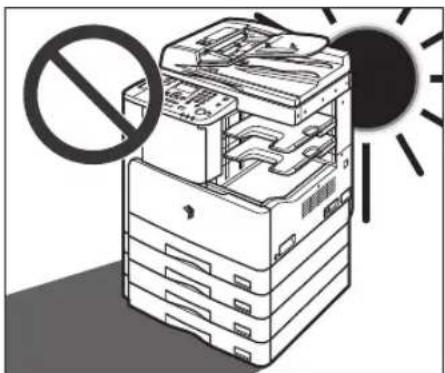
- A location exposed to direct sunlight
- A location subject to high temperatures
-
A location near open flames
-
Do not install the machine near alcohol, paint thinner, or other flammable substances. If flammable substances come into contact with electrical parts inside the machine, it may result in a fire or electrical shock.
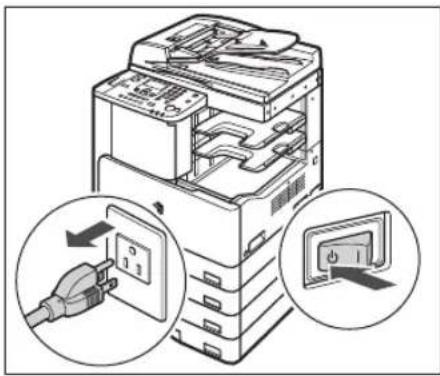
- Do not place the following items on the machine. If these items come into contact with a high-voltage area inside the machine, it may result in a fire or electrical shock. If these items are dropped or spilled inside the machine, immediately turn OFF the main power switch, and disconnect the power cord from the power outlet. Then, contact your local authorized Canon dealer.
- Necklaces and other metal objects
- Cups, vases, flowerpots, and other containers filled with water or liquids
text_image
Diagram showing a printer with internal components and two close-up insets illustrating the electrical plug connection.
CAUTION
Do not install the machine in unstable locations, such as unsteady platforms or inclined floors, or in locations subject to excessive vibrations, as this may cause the machine to fall or tip over, resulting in personal injury.
Power Supply

WARNING
- Do not damage or modify the power cord. Also, do not place heavy objects on the power cord, or pull on or excessively bend it, as this could cause electrical damage and result in a fire or electrical shock.
- Keep the power cord away from a heat source; failure to do this may cause the power cord coating to melt, resulting in a fire or electrical shock.
- Do not connect or disconnect the power cord with wet hands, as this may result in electrical shock.
- Do not connect the power cord to a multiplug power strip, as this may cause a fire or electrical shock.
- Do not bundle up or tie the power cord in a knot, as this may result in a fire or electrical shock.
- Insert the power plug completely into the power outlet, as failure to do so may result in a fire or electrical shock.
- Do not use power cords other than the power cord provided, as this may result in a fire or electrical shock.
- As a general rule, do not use extension cords. Using an extension cord may result in a fire or electrical shock. If an extension cord must be used, however, use one rated for voltages of 220 - 240 V AC and over, untie the cord binding, and insert the power plug completely into the extension cord outlet to ensure a firm connection between the power cord and the extension cord.
- Do not use power supplies with voltages other than those specified herein, as this may result in a fire or electrical shock.
- Always grasp the power plug when disconnecting the power cord. Pulling on the power cord may expose or snap the core wire, or otherwise damage the power cord. If the power cord is damaged, this could cause current to leak, resulting in a fire or electrical shock.
Handling
WARNING
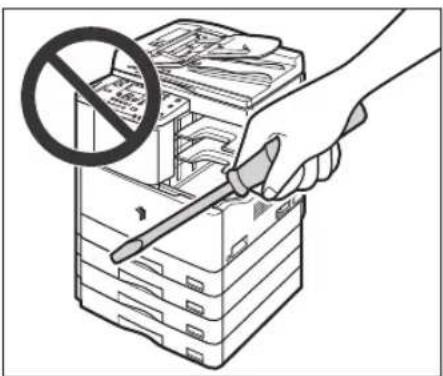
- Do not attempt to disassemble or modify the machine. There are high-temperature and high-voltage components inside the machine which may result in a fire or electrical shock.
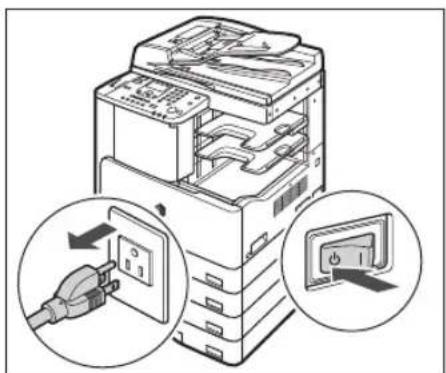
- If the machine makes strange noises, or gives off smoke, heat, or strange smells, immediately turn OFF the main power switch, and disconnect the power cord from the power outlet. Then, contact your local authorized Canon dealer. Continued use of the machine in this condition may result in a fire or electrical shock.
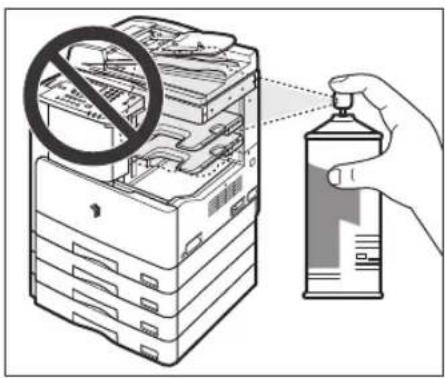
- Do not use highly flammable sprays near the machine. If gas from these sprays comes into contact with the electrical components inside the machine, it may result in a fire or electrical shock.
- To avoid damage to the power cord and creating a fire hazard, always turn OFF the main power switch, and unplug the interface cable when moving the machine. Otherwise, the power cord or interface cable may be damaged, resulting in a fire or electrical shock.
- Make sure that the power plug is firmly inserted into the power outlet if the machine was moved. Do not use the machine while the connection is loose, as doing so may cause a fire.
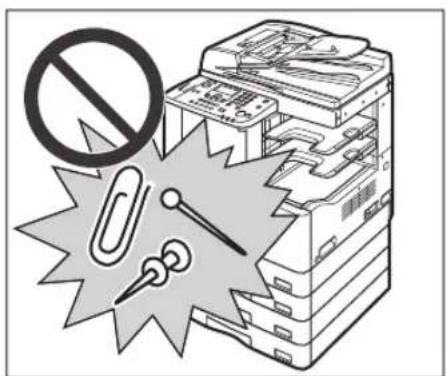
- Do not drop paper clips, staples, or other metal objects inside the machine. Also, do not spill water, liquids, or flammable substances (alcohol, benzene, paint thinner, etc.) inside the machine. If these items come into contact with a high-voltage area inside the machine, it may result in a fire or electrical shock. If these items are dropped or spilled inside the machine, immediately turn OFF the main power switch, and disconnect the power cord from the power outlet. Then, contact your local authorized Canon dealer.
CAUTION
- Do not place heavy objects on the machine, as they may tip over and fall resulting in personal injury.
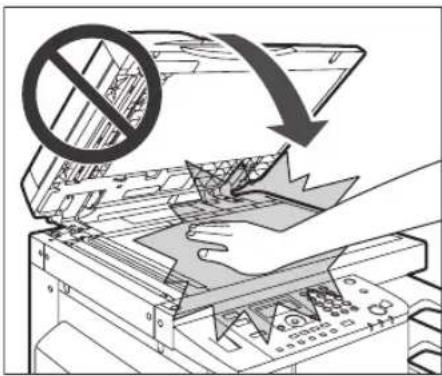
- Close the feeder/platen cover gently to avoid catching your hands, as this may result in personal injury.
text_image
Diagram illustrating a printer's open circuit with a prohibition symbol and warning arrow, showing circuit breakage and printout.- Do not press down hard on the feeder/platen cover when using the platen glass to make copies of thick books. Doing so may damage the platen glass and result in personal injury.
- Do not place your hands, hair, clothing, etc., near the exit and feed rollers. Even if the machine is not in operation, your hands, hair, or clothing may get caught in the rollers, which may result in personal injury or damage if the machine suddenly starts printing.
- Paper that has just been output from the machine may be hot. Be careful when removing or aligning paper from the output tray. Touching paper right after it is output may result in low-temperature burns.
- Do not touch the finisher while the machine is printing, as this may result in personal injury.
- Do not place your hand in the following parts of the finisher, as this may result in personal injury:
-Trays
- Stapler unit (where stapling is performed)
-Rollers
- Spaces between the trays and the main unit
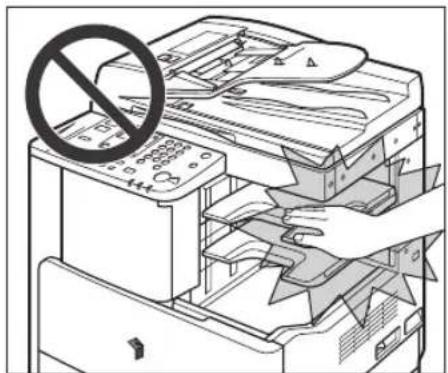
text_image
Diagram showing a printer with a prohibition symbol overlaid on its pages, indicating no printing or anti-printing.Finisher-U2
- The laser beam can be harmful to human bodies. Since radiation emitted inside the product is completely confined within protective housings and external covers, the laser beam cannot escape from the machine during any phase of user operation. Read the following remarks and instructions for safety.
- Never open covers other than those instructed in the manuals.
- Do not remove the following caution labels which are attached to the machine. If the labels have been removed, contact your local authorized Canon dealer.
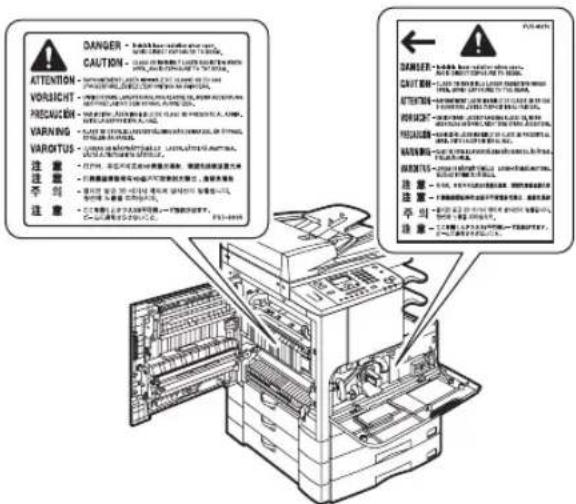
- If the laser beam escapes from the machine, exposure may cause serious damage to your eyes.
- Controlling, adjusting, or operating the machine in ways not mentioned in the manuals for this machine may cause dangerous radiation to escape from the machine.

IMPORTANT
Turn OFF the control panel power switch for safety when the machine will not be used for a long period of time, such as overnight. Also, turn OFF the main power switch, and disconnect the power cord for safety when the machine will not be used for an extended period of time, such as during consecutive holidays.
Maintenance and Inspections

WARNING
- When cleaning the machine, first turn OFF the main power switch, then disconnect the power cord. Failure to observe these steps may result in a fire or electrical shock.
- Disconnect the power cord from the power outlet regularly, and clean the area around the base of the power plug's metal pins and the power outlet with a dry cloth to ensure that all dust and grime is removed. If the power cord is connected for a long period of time in a damp, dusty, or smoky location, dust can build up around the power plug and become damp. This may cause a short circuit and result in a fire.
- Clean the machine using a slightly dampened cloth with a mild detergent mixed with water. Do not use alcohol, benzene, paint thinner, or other flammable substances. Check detergent for flammability prior to use. If flammable substances come into contact with a high-voltage area inside the machine, it may result in a fire or electrical shock.
- There are some areas inside the machine which are subject to high-voltages. When removing jammed paper or when inspecting the inside the machine, do not allow necklaces, bracelets, or other metal objects to touch the inside the machine, as this may result in burns or electrical shock.
- Do not burn or throw used toner cartridges into open flames, as this may cause the toner remaining inside the cartridges to ignite, resulting in burns or a fire.
- If you accidentally spill or scatter toner, carefully gather the toner particles together or wipe them up with a soft, damp cloth in a way that prevents inhalation. Never use a vacuum cleaner that does not have safeguards against dust explosions to clean up spilled toner. Doing so may cause a malfunction in the vacuum cleaner, or result in a dust explosion due to static discharge.
- Make sure that the power plug is firmly inserted into the power outlet after cleaning the machine. Do not use the machine while the connection is loose, as doing so may cause a fire.
-
Check the power cord and power plug regularly. If the following conditions occur, contact your local authorized Canon dealer, as the condition may cause a fire:
-
There are burn marks on the power plug.
- The blade on the power plug is deformed or broken.
- The power goes OFF and ON when the power cord is bent.
- There are cuts, cracks, or indentations on the power cord.
- A part of the power cord becomes hot.
- Check the power cord and power plug regularly to make sure that they are not handled in the following manner, as this may result in a fire or electrical shock:
- The connection part of the power plug is loose.
- Stress is being applied to the power cord by a heavy object or by affixing it with staples.
- The power plug is loose.
- The power cord is tied in a bundle.
- The power cord protrudes into a walkway.
- The power cord is in front of a heater.
CAUTION
- The fixing unit, the duplex unit, and their surroundings inside the machine may become hot during use. When removing jammed paper or when inspecting the inside of the machine, do not touch the fixing unit, the duplex unit, and their surroundings, as doing so may result in burns or electrical shock.
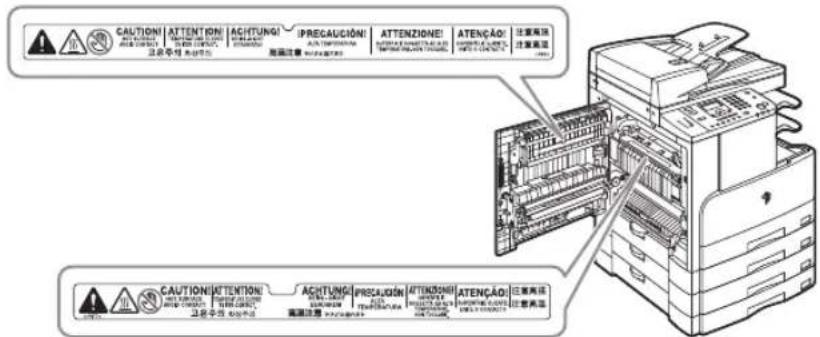
- When removing jammed paper or when inspecting the inside of the machine, do not expose yourself to the heat emitted from the fixing unit and its surroundings for a prolonged period of time. Doing so may result in low temperature burns, even if you do not touch the fixing unit and its surroundings directly.
- When removing jammed paper or replacing the toner cartridge, take care not to allow the toner to come into contact with your hands or clothing, as this will dirty your hands or clothing. If they become dirty, wash immediately with cold water. Washing with warm water will set the toner, and make it impossible to remove the toner stains.
- When removing paper which has become jammed inside the machine, remove the jammed paper gently to prevent the toner on the paper from scattering and getting into your eyes or mouth. If the toner gets into your eyes or mouth, wash immediately with cold water and immediately consult a physician.
- When loading paper or removing jammed originals or paper, take care not to cut your hands on the edges of the originals or paper.
- When removing paper which has become jammed inside the machine, take care not to cut your hands or injure yourself on the inside of the machine. If you cannot remove the paper, contact your local authorized Canon dealer.
- When removing a used toner cartridge, remove the cartridge carefully to prevent the toner from scattering and getting into your eyes or mouth. If the toner gets into your eyes or mouth, wash immediately with cold water and immediately consult a physician.
- Do not dismantle the toner cartridge, as doing so may cause the toner to fly out and enter your eyes or mouth. If the toner gets into your eyes or mouth, wash immediately with cold water and immediately consult a physician.
- If toner escapes from the toner cartridge, make sure not to ingest the toner or allow it to directly touch your skin. If toner touches your skin, wash it away with soap and water. If your skin still feels irritated after washing it, or you ingest toner, consult a doctor immediately.
Consumables
WARNING
- Do not burn or throw used toner cartridges into open flames, as this may cause the toner remaining inside the cartridges to ignite, resulting in burns or a fire.
- Do not store toner cartridges or paper in places exposed to open flames, as this may cause the toner or paper to ignite, resulting in burns or a fire.
- If you accidentally spill or scatter toner, carefully gather the toner particles together or wipe them up with a soft, damp cloth in a way that prevents inhalation.
Never use a vacuum cleaner that does not have safeguards against dust explosions to clean up spilled toner. Doing so may cause a malfunction in the vacuum cleaner, or result in a dust explosion due to static discharge.
CAUTION
- Keep toner and other consumables out of the reach of small children. If these items are ingested, consult a physician immediately.
- Do not dismantle the toner cartridge, as doing so may cause the toner to fly out and enter your eyes or mouth. If toner gets into your eyes or mouth, wash immediately with cold water and immediately consult a physician.
- If toner escapes from the toner cartridge, make sure not to ingest the toner or allow it to directly touch your skin. If toner touches your skin, wash it away with soap and cold water. If your skin still feels irritated after washing it, or you ingest toner, consult a doctor immediately.
- When discarding used toner cartridges, put the cartridges into a bag to prevent the toner remaining inside the cartridges from scattering, and dispose of them in a location away from open flames.
Other Warnings
WARNING
For cardiac pacemaker users: This product emits low level magnetic flux. If you use a cardiac pacemaker and feel abnormalities, please move away from the product and consult your doctor.
Before You Start Using This Machine
1
CHAPTER
This chapter describes what you should know before using this machine, such as parts and their functions, and how to turn ON the main power.
Installation Location and Handling 1-2
Installation Precautions 1-2
Handling Precautions....1-7
Parts and Their Functions....1-9
External View 1-9
Internal View....1-11
Control Panel 1-12
Optional Equipment 1-14
Main Power and Control Panel Power 1-15
How to Turn ON the Main Power 1-15
Control Panel Power Switch 1-17
Setting Up the Connection 1-18
Settings Flowchart 1-18
Connecting to a USB Interface 1-19
Connecting to a Network 1-20
Before Using the machine as a printer 1-22
Installing the Printer Driver....1-22
Setting Up the Printer Configuration....1-25
Before Using the Remote Scan Function 1-27
Installing the Scanner Driver 1-27
Required Settings for Remote Scanning 1-29
Installation Location and Handling
This section describes precautions for installation location and handling. Read this section prior to using the machine.
Installation Precautions
Avoid Installing the Machine in the Following Locations

text_image
Diagram illustrating a printer with no stop sign and three circular insets showing different components of the printer's water drop.■Avoid locations subject to temperature and humidity extremes, whether low or high.
For example, avoid installing the machine near water faucets, hot water heaters, humidifiers, air conditioners, heaters or stoves.
natural_image
Illustration of an open file organizer with a prohibition symbol overlay (no text or symbols present)■Avoid installing the machine in direct sunlight.
If this is unavoidable, use curtains to shade the machine. Be sure that curtains do not block the machine's ventilation slots or louvers, or interfere with the electrical cord or power supply.
natural_image
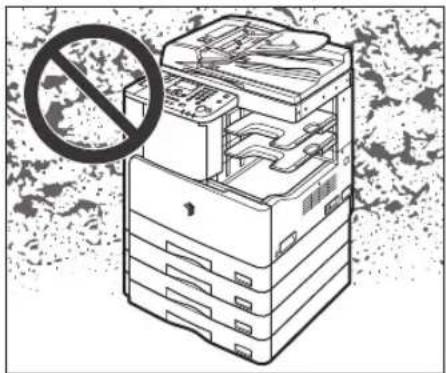
Illustration of a stack of server racks with a prohibition symbol overlay (no text or symbols on the diagram itself)■Avoid poorly ventilated locations.
This machine generates a slight amount of ozone or other odors during normal use. Although sensitivity to ozone or other odors may vary, this amount is not harmful. Ozone or other odors may be more noticeable during extended use or long production runs, especially in poorly ventilated rooms. It is recommended that the room be appropriately ventilated, sufficient to maintain a comfortable working environment, in areas of machine operation.
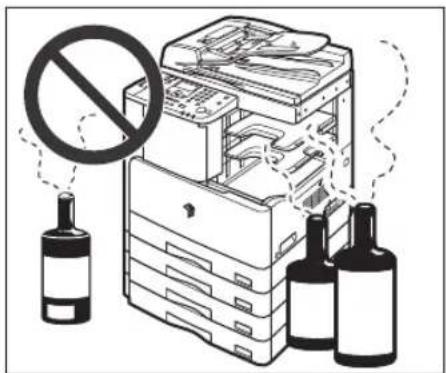
text_image
Illustration showing a prohibited device with a 'no' symbol and two bottles, likely indicating hazardous or hazardous use.■Avoid locations where ammonia gas is emitted.
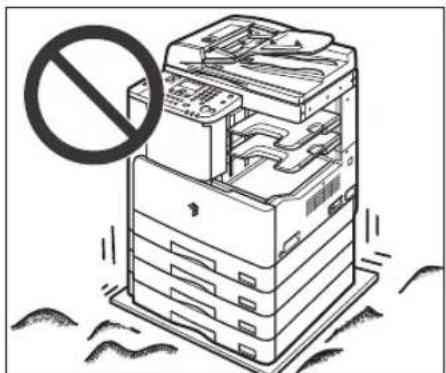
natural_image
Illustration of a server rack with a prohibition symbol (no text or labels present)■Avoid locations that are subject to vibration.
For example, avoid installing the machine on unstable floors or stands.
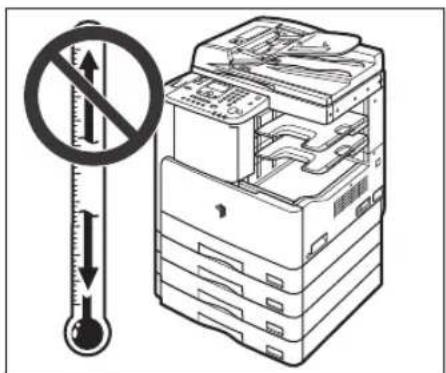
text_image
Diagram illustrating a thermal resistance symbol and its impact on an open stack of devices, with a thermometer indicating temperature.■Avoid exposing the machine to rapid changes in temperature.
If the room in which the machine is installed is cold but rapidly heated, water droplets (condensation) may form inside the machine. This may result in a noticeable degradation in the quality of the printed image, the inability to properly scan an original, or the outputs having no printed image at all.
■Avoid locations where a considerable amount of dust accumulates.
■Avoid locations near volatile or flammable materials, such as alcohol or paint thinner.
■Avoid installing the machine near computers or other precision electronic equipment.
Electrical interference and vibrations generated by the machine during printing can adversely affect the operation of such equipment.
■Avoid installing the machine near televisions, radios, or similar electronic equipment.
The machine may interfere with sound and picture signal reception. Insert the power plug into a dedicated power outlet, and maintain as much space as possible between the machine and other electronic equipment.
Select a Safe Power Supply
■Plug the machine into a standard 220 - 240 V AC, three-wire grounded outlet.
■Make sure that the power supply for the machine is safe, and has a steady voltage.
■Do not connect other electrical equipment to the same power outlet to which the machine is connected.
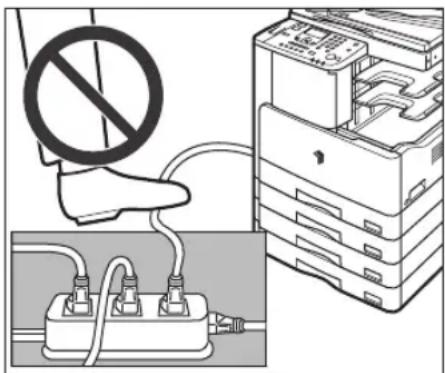
■Do not connect the power cord to a multiplug power strip, as this may cause a fire or electrical shock.
text_image
Diagram showing a hand holding a prohibition symbol next to an electrical socket connected to a rack-mounted device.■The power cord may become damaged if it is often stepped on or if heavy objects are placed on it. Continued use of a damaged power cord can lead to an accident, such as a fire or electrical shock.
■The power cord should not be taut, as this may lead to a loose connection and cause overheating, which could result in a fire.
If excessive stress is applied to the connection part of the power cord, it may damage the power cord or the wires inside the machine may disconnect. This could result in a fire. Avoid the following situations:
- Connecting and disconnecting the power cord frequently
- Tripping over the power cord
- Bending the power cord near the connection part, and applying continuous stress to the power outlet or the connection part
- Applying excessive force on the power plug
Provide Adequate Installation Space
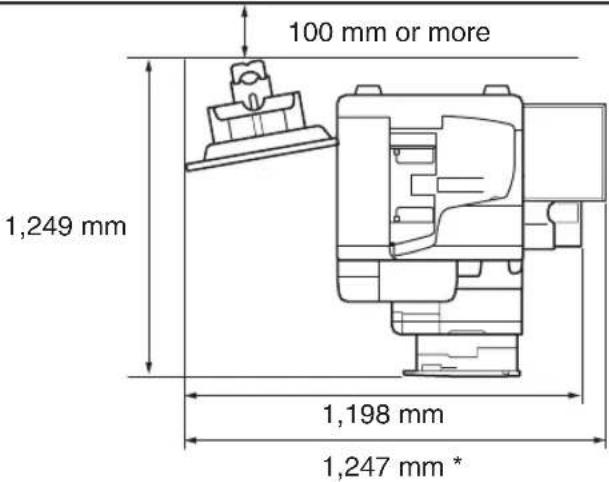
■Provide enough space on each side of the machine for unrestricted operation.
The optional Finisher-U2 and Document Tray-J1 are attached.
text_image
100 mm or more 1,249 mm 1,198 mm 1,247 mm ** The width is 1,018 mm when no options are attached, or 1,247 mm when the optional Document Tray-J1 is attached.
Moving the Machine
■If you intend to move the machine, even to a location on the same floor of your building, contact your local authorized Canon dealer beforehand.
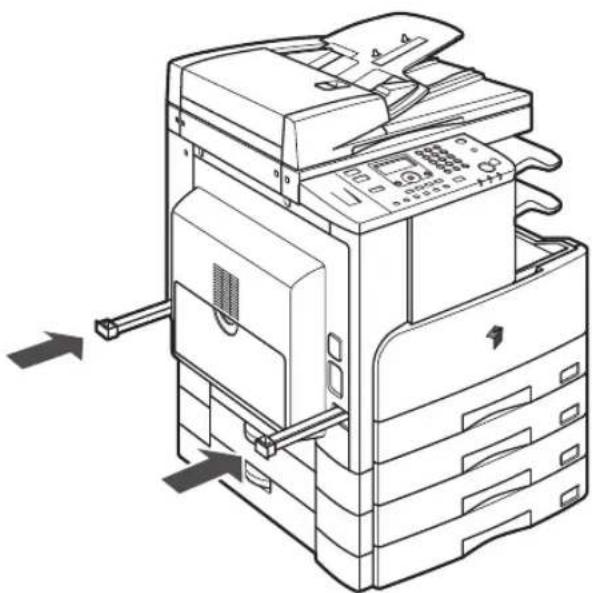
■The machine is heavy, and requires two or more people to lift it. Therefore, do not attempt to move it by yourself. Doing so, may result in personal injury.
■When carrying the machine, be sure to hold the handles, as indicated below. Failure to do so, may cause the machine to be dropped, and result in personal injury.
natural_image
Line drawing of a printer with multiple stacked units and control panel (no text or symbols)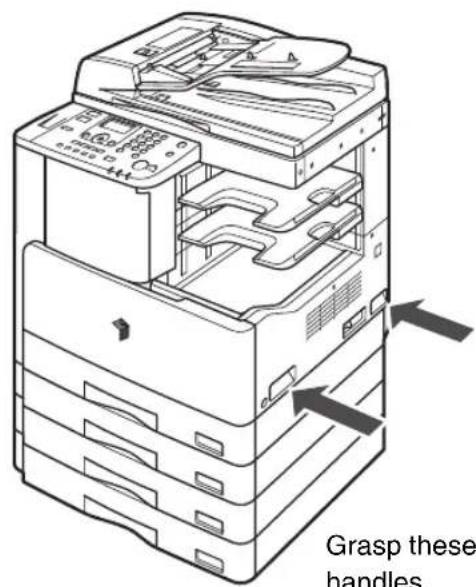
text_image
Grasp these handles.Pull out and grasp these handles.
Grasp these handles.
Handling Precautions
text_image
Illustration showing a hand using a screwdriver to switch a stack of files, with a no-smoking symbol overlaid.■Do not attempt to disassemble or modify the machine.
text_image
Illustration showing a prohibition symbol over a stack of documents with tools and a magnifying glass, likely related to file processing or security.■Be careful not to spill liquids or drop any foreign objects, such as paper clips or staples inside the machine. If a foreign object comes into contact with electrical parts inside the machine, it may cause a short circuit and result in a fire or electrical shock.
natural_image
Illustration of a computer tower with two zoomed-in insets showing internal components (no text or symbols)If there is smoke or unusual noise, immediately turn the main power switch OFF, disconnect the power cord from the power outlet, and then contact your local authorized Canon dealer. Using the machine in this state may cause a fire or electrical shock. Also, avoid placing objects around the power plug so that the machine can be disconnected whenever necessary.
■Do not turn the main power switch OFF or open the covers while the machine is in operation. This may result in paper jams.
■Some parts inside the machine are subject to high-voltages and temperatures. Take adequate precautions when inspecting the inside of the machine. Do not carry out any inspections not described in the manuals.
text_image
Diagram illustrating a device with a no-smoking symbol and a spray bottle spraying the contents of stacked file folders.■Do not use flammable sprays, such as spray glue near the machine. There is a danger of ignition.

natural_image
Illustration of a multi-tiered computer tower with an inset showing a hand pressing down on a curved surface, set against a starry night sky background (no text or symbols)■For safety reasons, turn OFF the control panel power switch of the machine when it will not be used for a long period of time, such as overnight. As an added safety measure, turn OFF the main power switch, and disconnect the power cord when the machine will not be used for an extended period of time, such as during consecutive holidays.
■This machine generates a slight amount of ozone or other odors during normal use. Although sensitivity to ozone or other odors may vary, this amount is not harmful. Ozone or other odors may be more noticeable during extended use or long production runs, especially in poorly ventilated rooms. It is recommended that the room be appropriately ventilated, sufficient to maintain a comfortable working environment, in areas of machine operation.
■Use a USB cable shorter than three meters.
Parts and Their Functions
This section provides you with the names and functions of all of the parts on the outside and inside of the main unit and control panel. Illustrations of the machine with some optional equipment attached to it are also provided. For more information on the optional equipment, parts and their functions, see Chapter 5, "Optional Equipment," in the Reference Guide.
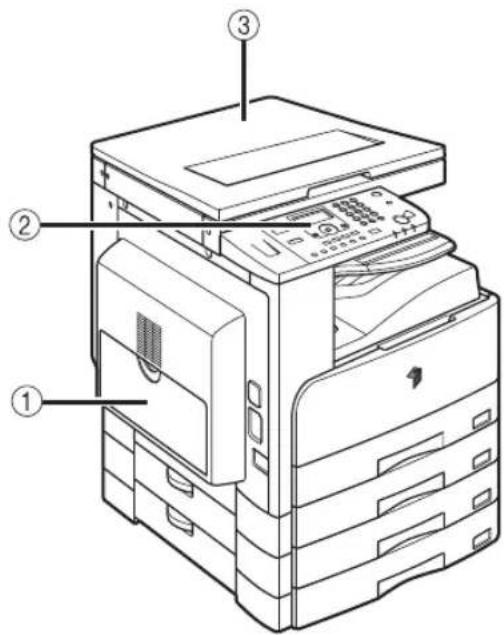
External View
The imageRUNNER 2422 with the optional Inner 2 Way Tray-E2, Cassette Feeding Module-J1, and Cassette Feeding Module-K1 attached.
The imageRUNNER 2420 with the optional feeder (DADF-P2), Finisher-U2, Additional Finisher Tray-C1, Cassette Feeding Module-J1, and Cassette Feeding Module-K1 attached.
text_image
Technical diagram of a printer with labeled parts including front panel, back panel, and internal components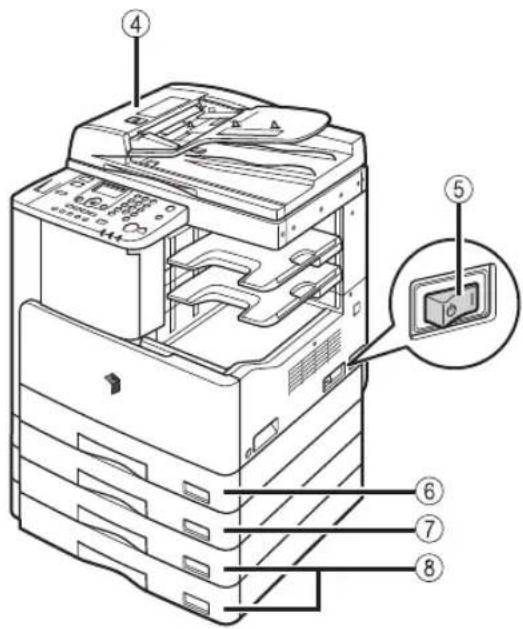
text_image
Technical diagram of an open file organizer with numbered parts and a magnified inset showing internal components.①Stack Bypass
Use the stack bypass to feed paper manually, and for loading nonstandard paper stock, such as envelopes. (See Chapter 2, "Basic Operations," in the Reference Guide.)
②Control Panel
Includes the keys, LCD display, and indicators required for operating the machine. (See "Control Panel," on p. 1-12.)
③Platen Cover Type J
The platen cover secures the originals placed on the platen glass.
④Feeder (DADF-P2) (Optional)
Originals placed in the feeder are automatically fed sheet by sheet to the scanning area. The feeder also automatically turns over two-sided originals to make one- or two-sided copies.
⑤Main Power Switch
Press to the "I" side to turn ON the machine. (See "Main Power and Control Panel Power," on p. 1-15.)
⑥Paper Drawer 1
Holds up to 250 sheets of paper (80 g/m ^4 ).
⑦Cassette Feeding Module-J1 (Optional)
Holds up to 250 sheets of paper (80 g/m ^4 ).
⑧Cassette Feeding Module-K1 (Optional)
The Cassette Feeding Module-K1 provides two additional sources of paper for printing jobs. Each paper drawer holds up to 250 sheets of paper (80 g/m ^2 ).

NOTE
For more information on the optional equipment that can be attached to the machine, see Chapter 5, "Optional Equipment," in the Reference Guide.
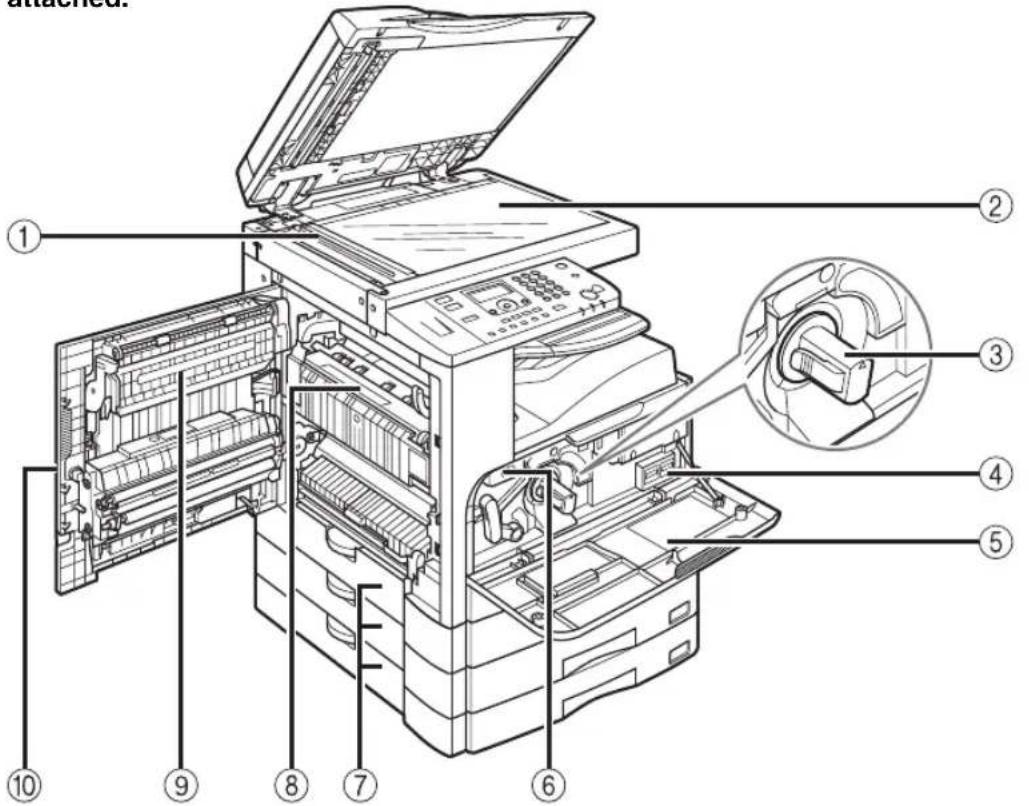
Internal View
The imageRUNNER 2420 with the optional feeder (DADF-P2), Inner 2 Way Tray-E2, Duplex Unit-A1, Cassette Feeding Module-J1, and Cassette Feeding Module-K1 attached.
text_image
Technical diagram of an open file organizer with numbered parts for identification and assembly reference.①Scanning Area
Originals placed in the feeder are scanned here.
② Platen Glass
Place originals here when scanning books, heavyweight originals, thin originals, transparencies, etc.
③Toner Cartridge
When toner runs out, pull out the toner cartridge, and replace it with a new one. (See Chapter 6, "Routine Maintenance," in the Reference Guide.)
④ Counters
You can check the machine's copy and print page counts.
⑤Front Cover
Open this cover to replace the toner cartridge or drum unit.
⑥Drum Unit
When the drum unit is full of waste toner, replace it with a new one.
⑦Paper Drawer's Left Cover
Open these covers when clearing a paper jam in Paper Drawers 2, 3 and 4.
⑧Fixing Unit
If a paper jam occurs in the fixing unit, remove the jammed paper carefully. (See Chapter 7, "Troubleshooting," in the Reference Guide.)
⑨Duplex Unit-A1 (Optional)
The duplex unit enables you to use the 2-sided mode for copying or printing. (See Chapter 2, "Advanced Operations," in the Copying Guide and Chapter 1, "Using the Machine as a Printer," in the UFR II Printer Guide.)
⑩Left Cover
Open this cover to clear a paper jam inside the main unit.
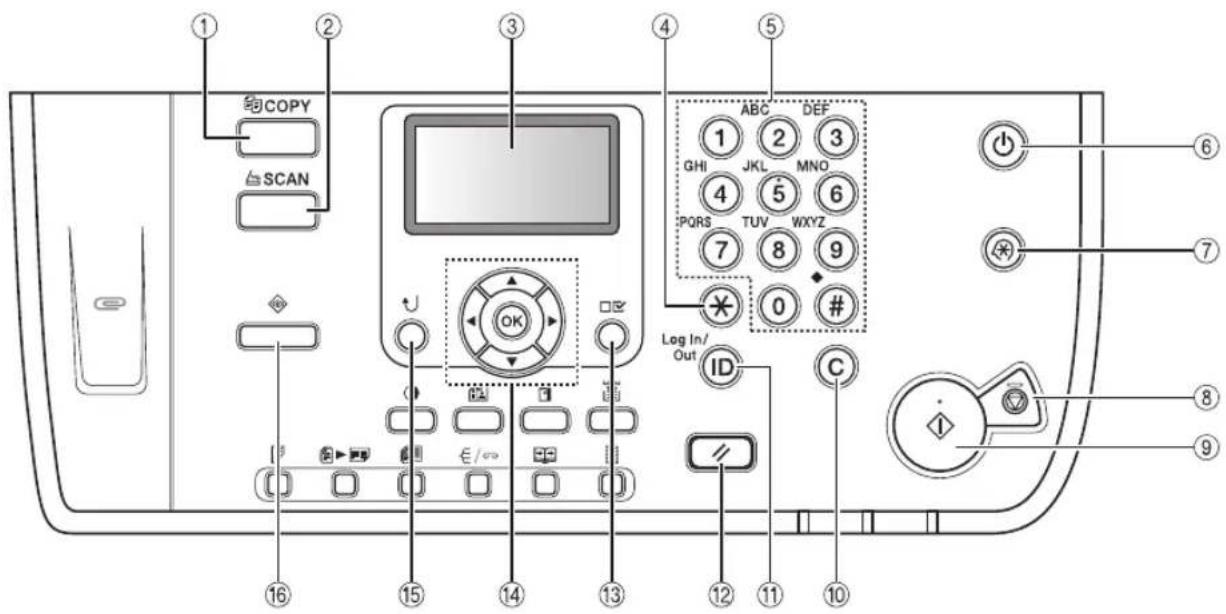
Control Panel
text_image
① ② ③ ④ ⑤ COPY SCAN ⑥ ⑦ ⑧ ⑨ ⑩ ⑪ ⑫ ⑬ ⑭ ⑮ ⑯ ⑰ ⑱ ⑲ ⑳ ⑴ ⑵ ⑶ LOG In/ Out ID C Log In/ Out OK E/∞ 16 15 14 13 12 11 10① KEYOPY
Press to switch the machine to the Copy mode.
② KEYCAN
Press to enable the Network Scan function. (See the Network ScanGear Guide.)
③LCD display
Displays messages, prompts, text, settings, numbers, and graphics when operating the machine.
④ (Tone) key
Press to change the entry mode when you want to enter characters and/or numbers on the LCD display.
⑤Numeric keys
Use to enter alphanumeric characters.
⑥ Control Panel Power Switch (Sub Power Supply)
Press to turn the control panel ON or OFF. When the control panel is turned OFF, the machine is in the Sleep mode.
⑦ (Additional Functions) key
Press to access the Additional Functions menu.
⑧ (Stop) key
Press to stop copying or scanning.
⑨ (Start) key
Press to start an operation.
⑩ (Clear) key
Press to clear entered values or characters.
⑪ (ID) key
Press to log in to/out of the machine when the machine is managed with Department IDs/User IDs.
⑫ (Reset) key
Press to cancel all settings and return to the Standby display.
⑬ (View Settings) key
Press to confirm your settings.
⑭,▼,▲ ◀ and ▶ keys
Use [ ], [ ], or [ ] to move the cursor position or decrease or increase values.
⑮ (Back) key
Press to go back to the previous items in the menu.
⑯ (System Monitor) key
Press to check the status of the machine, including copy and print jobs.
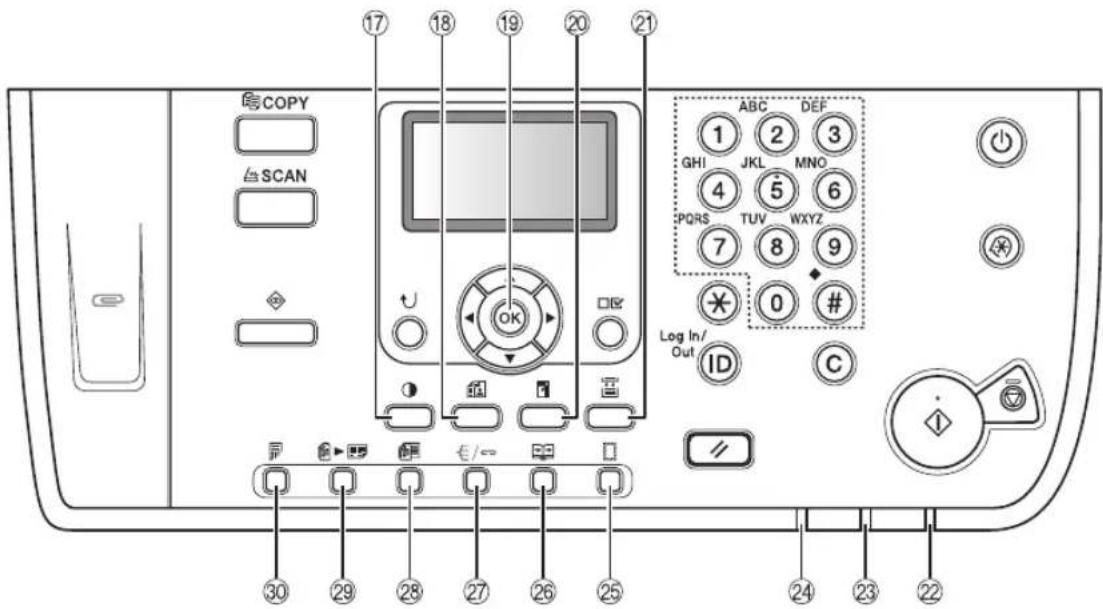
■Control Panel Continued
text_image
COPY SCAN 17 18 19 20 21 ABC DEF GHI JKL MNO 4 5 6 PQRS TUV WXYZ 7 8 9 Log In/ 0 # Out ID C 30 29 28 27 26 25 24 23 22⑰ (Density) key
Press to darken or lighten the density of the documents you want to copy.
⑱ (Image Quality) key
Press to select the image quality best suited to the quality of your originals.
⑲OK key
Press to confirm and accept your settings.
⑳ (Copy Ratio) key
Press to enlarge or reduce copies. For more information, see Chapter 1, "Basic Operations," in the Copying Guide.
②1 (Paper Select) key
Press to select the desired paper source.
②2Main Power Indicator
Lights when the main power is turned ON.
⑳Error Indicator
Flashes or lights red if an error occurs in the machine.
②4Processing/Data Indicator
Flashes or lights green when the machine is performing operations.
⑲ (Frame Erase) key
Press to set the Frame Erase mode. For more information, see Chapter 2, "Advanced Operations," in the Copying Guide.
⑳ (2-Page Separation) key
Press to set the 2-Page Separation mode. For more information, see Chapter 2, "Advanced Operations," in the Copying Guide.
⑳ (Finishing) key
Press to set the Finishing mode. For more information, see Chapter 2, "Advanced Operations," in the Copying Guide.
⑳ (Different Size Originals) key
Press to set the Different Size Originals mode. For more information, see Chapter 2, "Advanced Operations," in the Copying Guide.
⑲ (Image Combination) key
Press to set the Image Combination mode. For more information, see Chapter 2, "Advanced Operations," in the Copying Guide.
③0 (2-Sided) key
Press to set the 2-Sided mode. For more information, see Chapter 2, "Advanced Operations," in the Copying Guide.
Optional Equipment
1
Before You Start Using This Machine
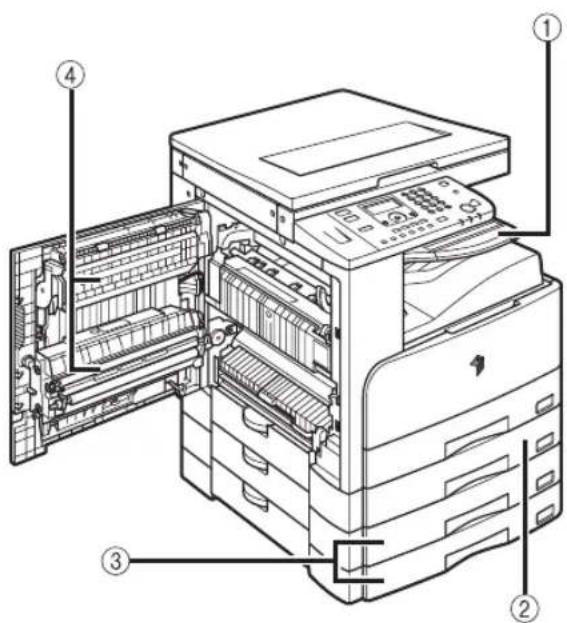
text_image
Technical diagram of an open printer with numbered parts labeled ① to ④①Inner 2 Way Tray-E2
②Cassette Feeding Module-J1
③Cassette Feeding Module-K1
④Duplex Unit-A1
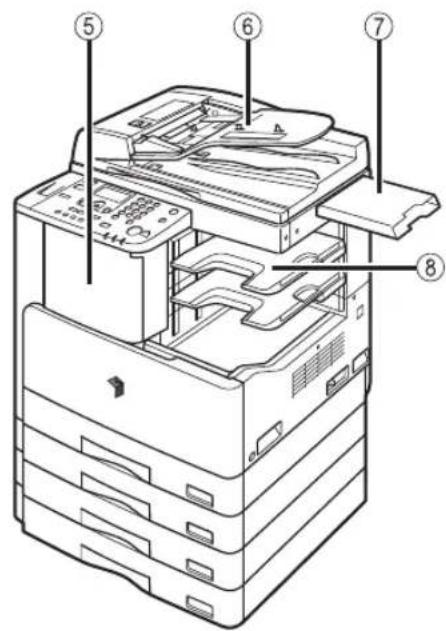
text_image
Technical diagram of an open office printer with numbered parts labeled 5, 6, 7, and 8⑤Finisher-U2
⑥Feeder (DADF-P2)
⑦Document Tray-J1
⑧Additional Finisher Tray-C1
Main Power and Control Panel Power
The machine is provided with two power switches, a main power switch and a control panel power switch.
How to Turn ON the Main Power
This section explains how to turn ON the main power.
1 Make sure that the power plug is firmly inserted into the power outlet.
WARNING
Do not connect or disconnect the power cord with wet hands, as this may result in electrical shock.
2
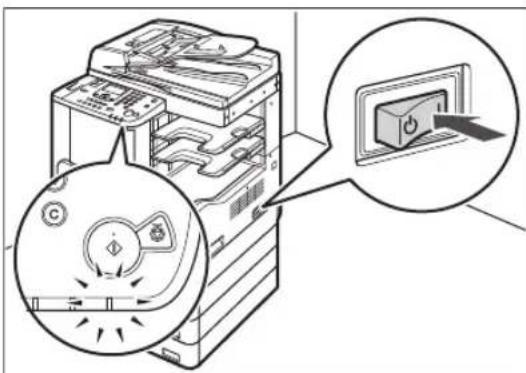
text_image
Diagram showing a device with a close-up view of its internal components and a magnified view highlighting a button labeled 'Power Switch'.Press the main power switch (located on the right side of the machine) to "I" side.
The main power indicator on the control panel lights up when the main power is turned ON.
IMPORTANT
- If the main power indicator does not light up, make sure that the power plug is properly inserted into the power outlet.
- If the Cassette Heater Unit-30 is attached, the machine will enter the Sleep mode when you press the control panel power switch to OFF while the machine is ON. For more information about the Sleep mode, see Chapter 3, "Useful Functions and Settings," in the Reference Guide. For more information on the Cassette Heater Unit-30, contact your local authorized Canon dealer.

NOTE
If you want to turn the main power OFF, turn the control panel power switch OFF, and then press the main power switch to the "side. You can also use the Auto Shutdown Time setting to shut down the machine. For more information, see Chapter 3, "Useful Functions and Settings," in the Reference Guide.
3

natural_image
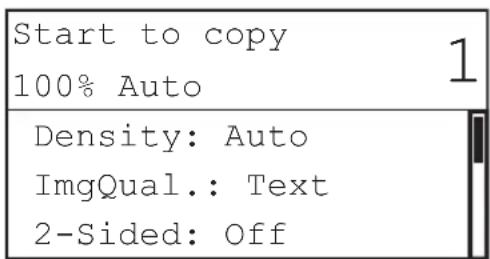
Simple horizontal line on black background (no text or symbols)The screen on the left is displayed until the machine is ready to scan.
text_image
Start to copy 100% Auto Density: Auto ImgQual.: Text 2-Sided: OffThe screen on the left is displayed when the machine is ready to scan.

IMPORTANT
If you turn OFF the main power, wait at least 10 seconds before turning the main power back ON.

NOTE
- If the message
appears, enter your Department ID (and password). (See Chapter 2, "Entering the Department ID and Password," in the Reference Guide.) - If the message
appears, enter your User ID (and password). (See Chapter 2, "Entering a User ID and Password," in the Reference Guide.) - The default copy settings are:
- Copy Ratio: Direct (100%)
- Paper Selection: Auto Paper Selection
- Copy Density: Auto Density Control
- Copy Quantity: 1
- Image Quality: Text
- The default settings for the Copy function of the machine are already set at the factory, but you can change them to suit your needs. (See Chapter 3, "Customizing Settings," in the Copying Guide.)
- You can select which functions to display on the Standby display when turning the main power ON, according to the Additional Functions menu. (See Chapter 3, "Useful Functions and Settings," in the Reference Guide.)
Control Panel Power Switch
text_image
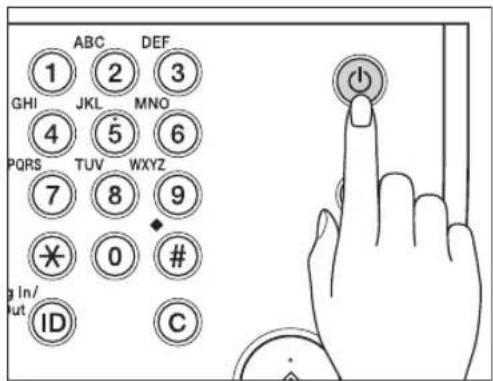
ABC DEF 1 2 3 GHI JKL MNO 4 5 6 PQRS TUV WXYZ 7 8 9 ¥ 0 # g In/ ut ID CTo turn the control panel ON or OFF, press the control panel power switch. When the control panel is turned OFF, the machine is in the Sleep mode.
| Control Panel Power Switch Machine Status | |
| ON | Standby mode(Ready for immediate copying or printing) |
| OFF Sleep mode | |

NOTE
- The machine will not enter the Sleep mode if it is scanning or printing. (See Chapter 3, "Useful Functions and Settings," in the Reference Guide.)
- The machine can receive and print documents from a computer when it is in the Sleep mode.
Setting Up the Connection
This section describes how to connect the machine to a computer or network, and the types of connection and cables available for use.
The machine can be connected to a computer with a USB cable, or to a network with a 10BASE-T/100BASE-TX LAN cable.

IMPORTANT
- External USB devices (i.e. memory, keyboard, mouse, etc.) are not supported.
- A USB cable or a network cable is not included in this package. Please obtain a suitable cable for your computer or network.
Settings Flowchart
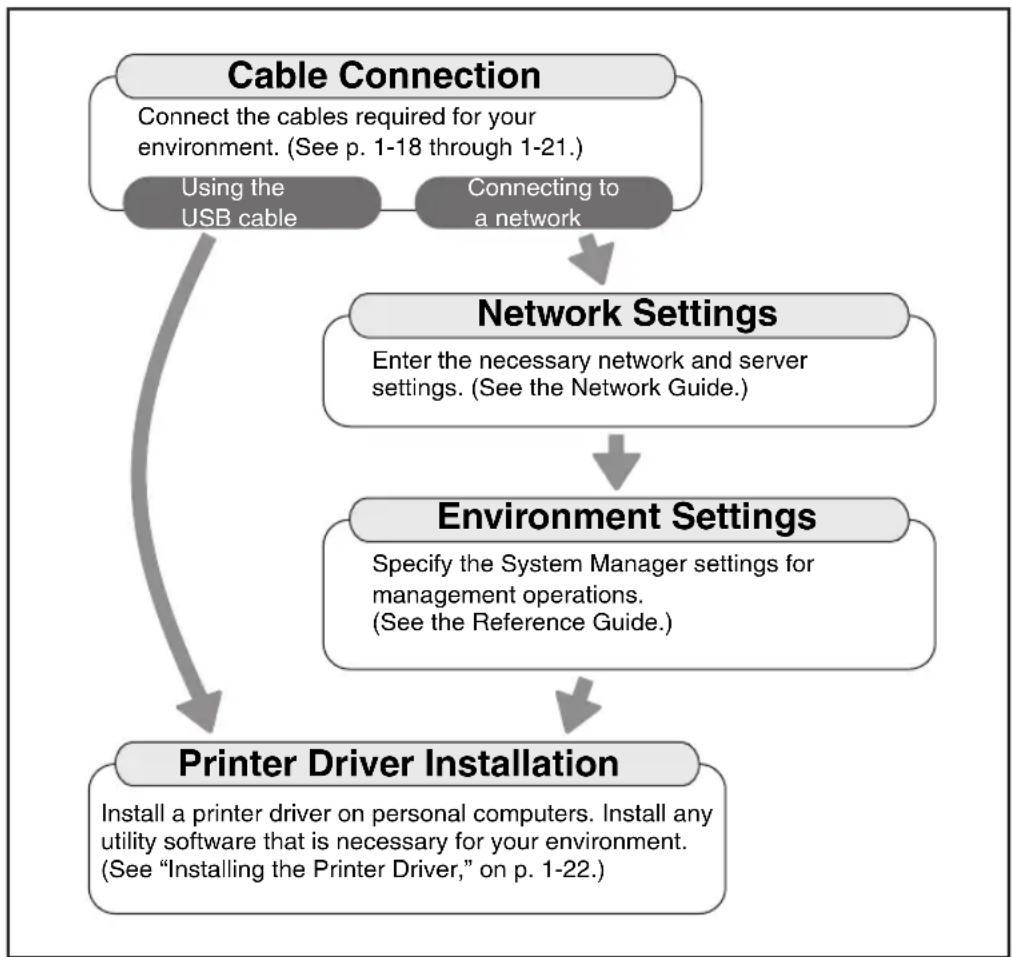
flowchart
graph TD
    A["Cable Connection\nConnect the cables required for your environment. (See p. 1-18 through 1-21.)"] --> B["Using the USB cable"]
    A --> C["Connecting to a network"]
    B --> D["Network Settings\nEnter the necessary network and server settings. (See the Network Guide.)"]
    C --> E["Environment Settings\nSpecify the System Manager settings for management operations. (See the Reference Guide.)"]
    D --> F["Printer Driver Installation\nInstall a printer driver on personal computers. Install any utility software that is necessary for your environment. (See "Installing the Printer Driver," on p. 1-22.)"]
    E --> F
Connecting to a USB Interface
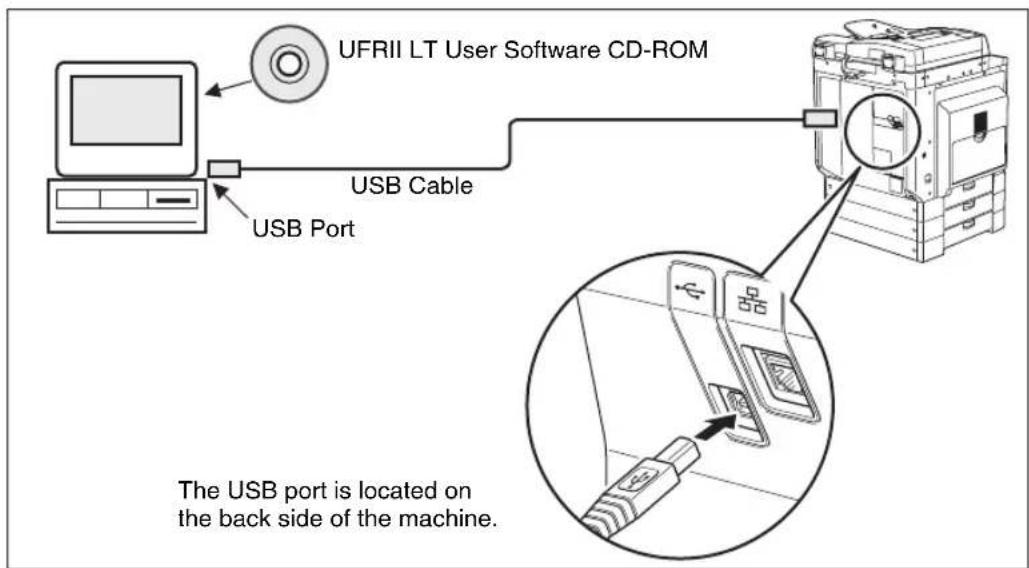
You can connect the machine to a computer with a USB port via a USB cable. The machine is USB 2.0 high-speed* compatible. The printer driver, USB class driver, and utilities that match the operating system on your computer must be installed. For more information on installing the driver through USB connection, see the Printer Driver Installation Guide or Mac UFR II Printer Driver Installation Guide. For more information on installing the utility software included on the CD-ROM, see "UFRII LT User Software CD-ROM," on p. 1-23.
* This depends on the specifications of the operating system of your computer.
text_image
UFRII LT User Software CD-ROM USB Cable USB Port The USB port is located on the back side of the machine.
CAUTION
- Before you connect the USB cable to the machine while the main power switch is ON, make sure the ground line is connected. If the ground line is not connected, connecting the USB cable to the machine while the main power switch is ON may result in electric shock.
- If you connect or disconnect the USB cable while the main power switch is ON, do not touch the metal parts around the connector, otherwise this may result in electric shock.

IMPORTANT
- Do not connect or disconnect the USB cable in the following situations (otherwise poor operation of your computer or machine may result):
- When installing the driver
- When the computer is booting up
- When printing
-
If you disconnect the USB cable with the computer or machine's main power switch ON, always wait at least 10 seconds before reconnecting the cable. Immediately reconnecting the cable may result in poor operation of your computer or machine.
-
If the machine is connected to a computer via the USB cable, you will not be able to use certain utilities.
- If you connect the machine to a computer via a USB cable, make sure that

NOTE
- If the machine is connected to a computer with a USB cable, you can print a document from your computer using the printer driver.
- With a USB connection, you cannot use the Remote UI and the Network Scan function.
- The appropriate USB interface for Windows 2000/XP/Vista/7/Server 2003/Server 2008 is USB 2.0 Hi-Speed/USB Full-Speed (USB 1.1 equivalent). For Mac OS X 10.3.2 or earlier is USB Full-Speed (USB 1.1 equivalent) and Mac OS X 10.3.3 or later is USB 2.0 Hi-Speed/USB Full-Speed (USB 1.1 equivalent). For more information, consult your local authorized Canon dealer.
Connecting to a Network
The machine can connect to a TCP/IP network. The machine supports both 10BASE-T and 100BASE-TX connections that can be used in most LANs.
Using Ethernet
Connect the machine's RJ-45 port to a hub port using the following types of cable depending on your network environment:
- When connecting to a computer with 100Base-TX connector: a Category 5 (or higher) twisted pair LAN cable
- When connecting to a computer with 10Base-T connector: a Category 3 (or higher) twisted pair LAN cable

CAUTION
When connecting the interface cable or network cable, be sure to observe the following precautions in order to avoid electric shock.
- Turn OFF the main power switch before disconnecting the power cord from the power outlet. (See Chapter 1, “Before You Start Using This Machine,” in the Reference Guide.)
- Turn OFF the computer and disconnect the power cord from the power outlet.
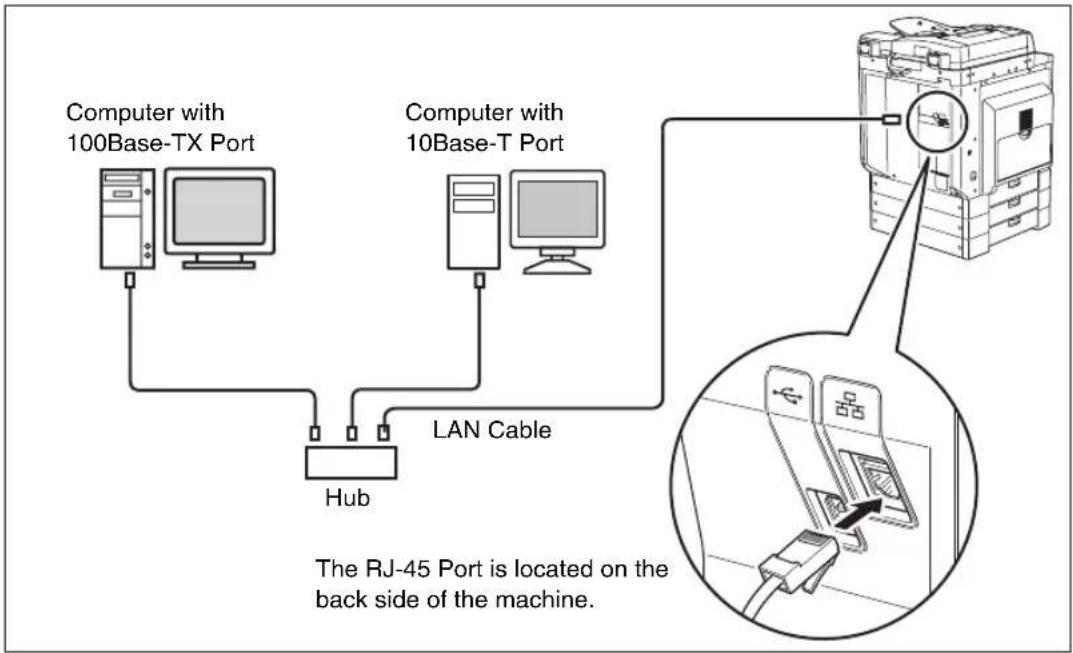
flowchart
graph TD
    A["Computer with 100Base-TX Port"] --> B["Hub"]
    C["Computer with 10Base-T Port"] --> D["LAN Cable"]
    B --> E["The RJ-45 Port is located on the back side of the machine."]
    D --> F["An inset image of the RJ-45 Port device"]

IMPORTANT
You cannot use the machine as a repeater, bridge, or gateway.

NOTE
- The machine can automatically detect the Ethernet speed (10Base-T or 100Base-TX).
- If you are using a mixed 10Base-T/100Base-TX environment, devices on the network (hubs, routers, etc.) must support the mixed environment. For more information, consult your local authorized Canon dealer.
- After connecting the network cable, perform the following operations. (For more information, see the relevant descriptions.)
- Set the System Management Settings. (See Chapter 4, "System Manager Settings," in the Reference Guide.)
- Set the network settings. (See the Network Guide.)
- Install the printer driver if necessary. (See "Before Using the machine as a printer," on p. 1-22.)
Installing the Printer Driver
The printer driver is software that is required to print from applications, such as Microsoft Word/Excel/PowerPoint, etc., on your computer. The printer driver also enables you to configure settings relating to printing.
System Requirements
The following system environments are necessary in order to use the printer driver.

NOTE
Supported operating systems may differ according to the printer driver version used.
■Software
- Operating Systems:
- Microsoft Windows 2000
- Microsoft Windows XP
- Microsoft Windows Vista
- Microsoft Windows 7
- Microsoft Windows Server 2003
- Microsoft Windows Server 2008
- Mac OS X 10.4.9 or later
Hardware
- Computer:
- Any computer that runs the above systems
- Memory:
- The amount of memory required to run the above systems correctly
UFRII LT User Software CD-ROM
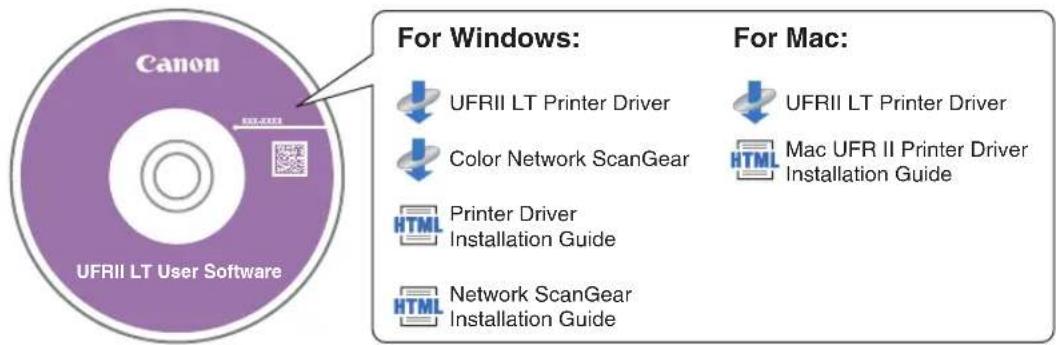
The printer driver is installed from the UFRII LT User Software CD-ROM.
■CD-ROM Contents:
text_image
Canon UFRII LT User Software For Windows: UFRII LT Printer Driver Color Network ScanGear Printer Driver Installation Guide Network ScanGear Installation Guide For Mac: UFRII LT Printer Driver Mac UFR II Printer Driver Installation Guide■UFRII LT Printer Driver
Using the UFRII LT printer driver, the various data processing tasks conventionally executed within the printer are appropriately divided between the host PC and the printer to greatly reduce the overall printing time. The workload can be delegated to match the output data, thus realizing a significant increase in speed through optimization.
Installation
For details about the installation procedure, see the Printer Driver Installation Guide or Mac UFR II Printer Driver Installation Guide.
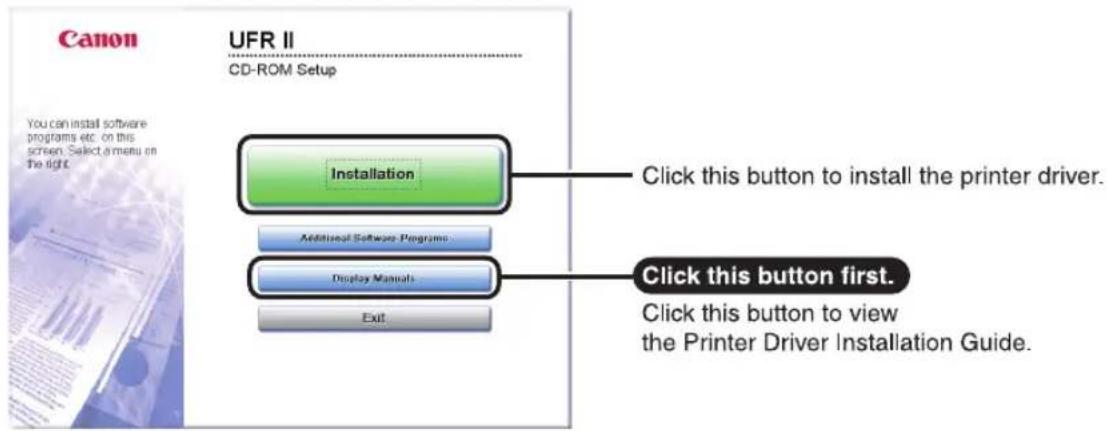
■CD-ROM Menu (Windows):
text_image
Canon UFR II CD-ROM Setup You can install software programs etc. on this screen. Select a menu on the right. Installation Click this button to install the printer driver. Additional Software Programs... Display Manuals Exit Click this button first. Click this button to view the Printer Driver Installation Guide.
NOTE
View the Printer Driver Installation Guide before you start the installation. You cannot view the Printer Driver Installation Guide while the installation is in progress.
■Starting Installation (Macintosh):
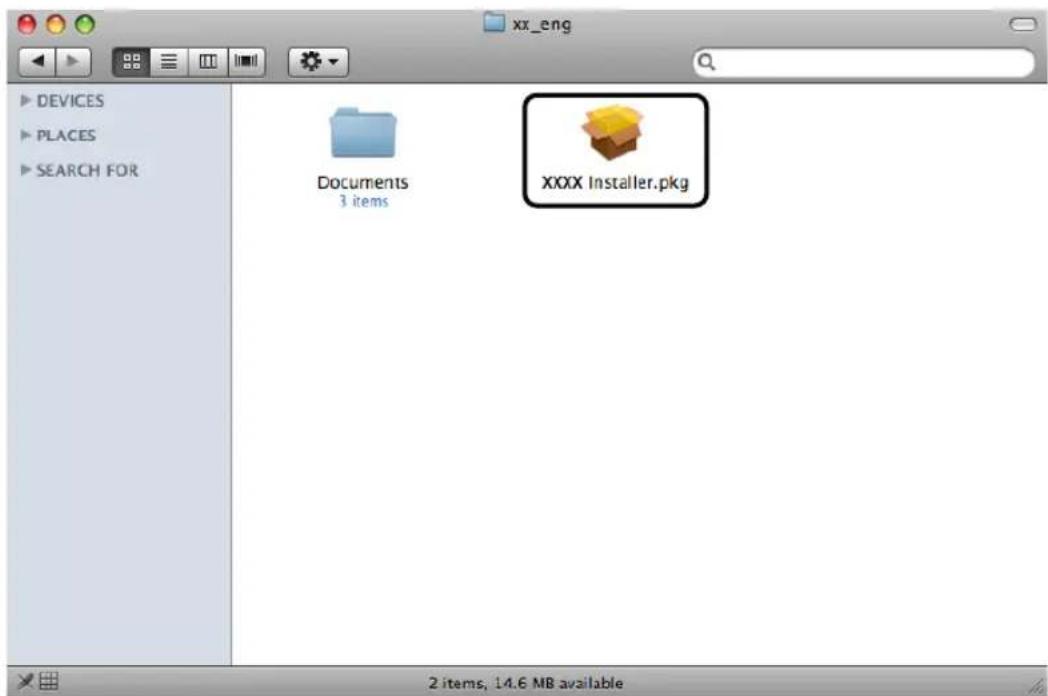
Insert the CD-ROM into your Mac CD-ROM drive and double-click the CD icon that appears on your desktop. You can find the installer and Mac UFR II Printer Driver Installation Guide in the folder with the printer driver name.
Double-click the installer icon in the installer set folder to start the installation.
text_image
xx_eng DEVICES PLACES SEARCH FOR Documents 3 items XXXX Installer.pkg 2 items, 14.6 MB available■ Displaying the Mac UFR II Printer Driver Installation Guide:
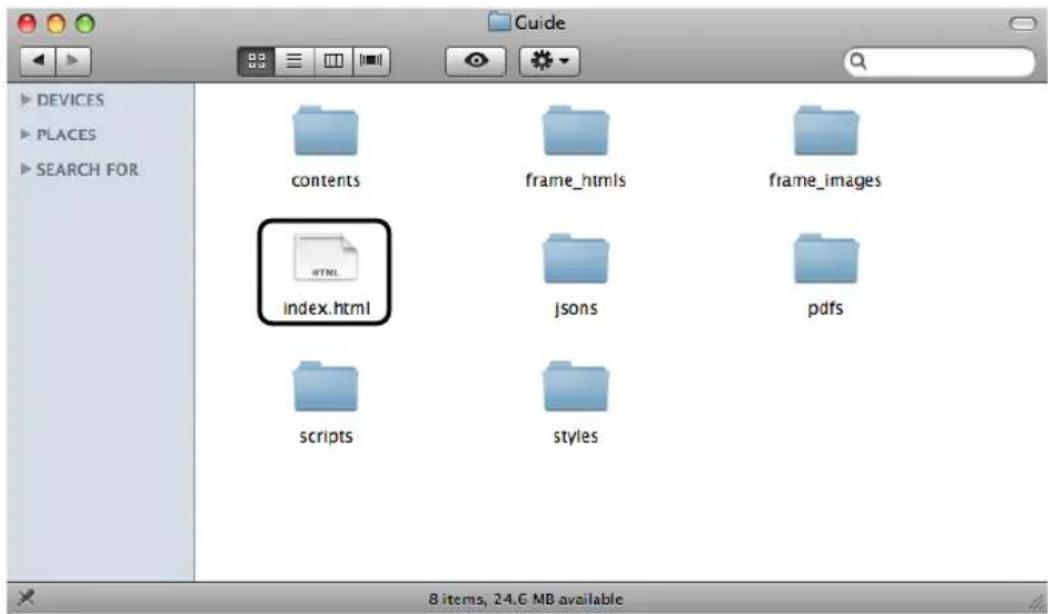
In the installation folder, double-click [Documents] → [Guide] → the [index.html] icon.
text_image
DEVICES PLACES SEARCH FOR contents frame_htmls frame_images index.html JSONS pdfs scripts styles 8 items, 24.6 MB availableDepending on the printer model you are using, the installation guide may be a PDF file. If so, double-click the PDF icon in the [Documents] folder.
Setting Up the Printer Configuration
To correctly use the functions of this product, you must set the printer options using the printer driver.
For Windows
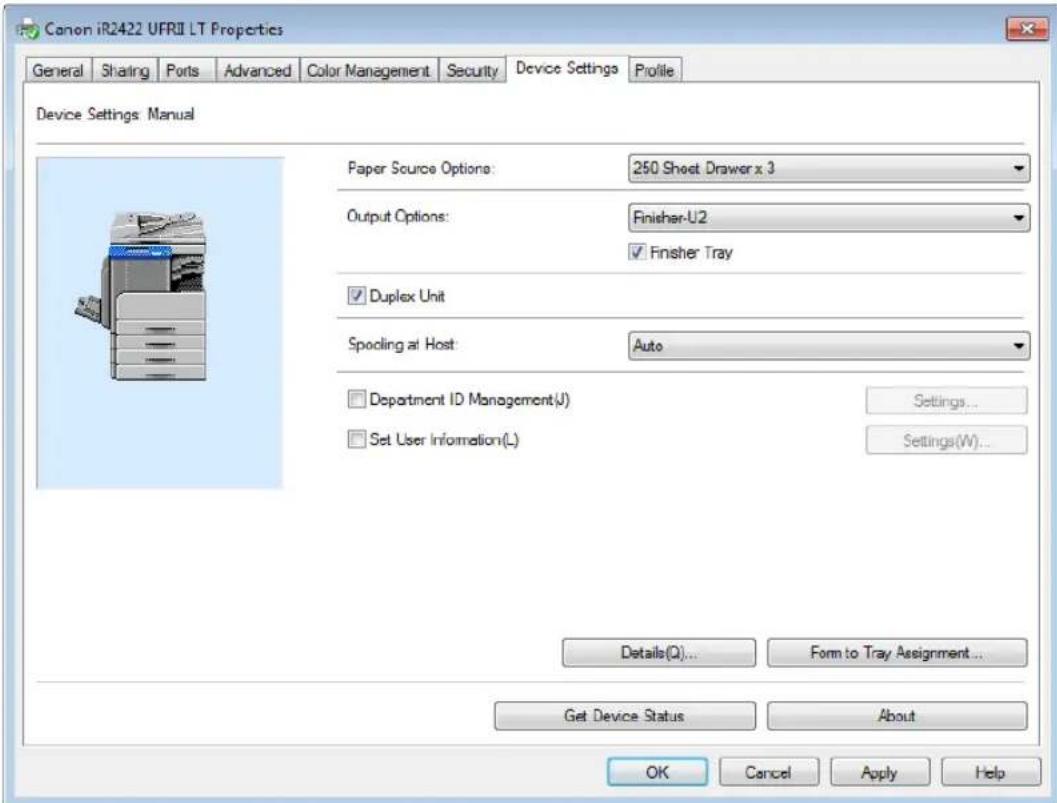
Printer options are set from the [Device Settings] sheet of the printer driver.
The [Device Settings] sheet is displayed by right-clicking the icon of the printer you are using in the [Printers], [Printers and Faxes], or [Devices and Printers] folder, and selecting [Properties] or [Printer Properties], and then the [Device Settings] tab.
See the Printer Driver Installation Guide or the help for details about the setup procedure.
text_image
Canon iR2422 UFRII LT Properties General Sharing Ports Advanced Color Management Security Device Settings Profile Device Settings Manual Paper Source Options: 250 Sheet Drawer x 3 Output Options: Finisher-U2 Finisher Tray Duplex Unit Spooling at Host: Auto Department ID Management(U) Set User Information(L) Settings... Settings(W)... Details(Q)... Form to Tray Assignment ... Get Device Status About OK Cancel Apply HelpOn the [Device Settings] sheet, click [Get Device Status] to obtain information about options installed and set in the device.
If you cannot obtain the device status, set up the configuration you want to use manually by clicking the appropriate check boxes or selecting the appropriate items from lists.
If you share the printer with other network users, and have installed "Canon Driver Information Assist Service" in the print server, you can use the [Get Device Status] function. For details about the "Canon Driver Information Assist Service" installation procedure, see the Printer Driver Installation Guide.
For Macintosh
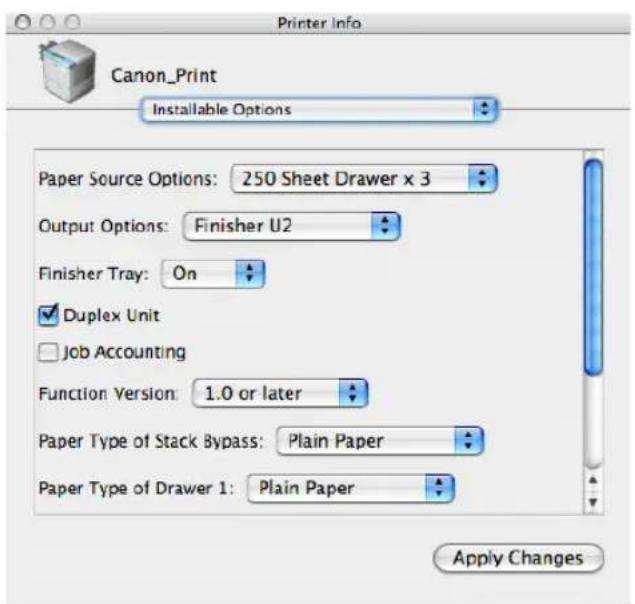
Printer options are set from the [Installable Options] sheet in the [Printer Info] dialog box (Mac OS X 10.4) or the [Driver] sheet in the [Print & Fax] dialog box (Mac OS X 10.5 or later) of the printer driver.
■Mac OS X 10.4.x:
The [Installable Options] sheet is displayed by the following procedure:
Click [Print & Fax] on [System Preferences] → [Printing] → select your printer → click [Printer Setup] → select [Installable Options].
■Mac OS X 10.5.x or later:
The [Driver] sheet is displayed by the following procedure:
Click [Print & Fax] on [System Preferences] → select your printer → click [Options & Supplies] → click [Driver] (Confirm that the printer driver corresponding to your printer is selected for [Print Using]).
For more information, see Chapter 1, "Using the Machine as a Printer," in the UFR II Printer Guide, or see the Mac UFR II Printer Driver Installation Guide.
text_image
Printer Info Canon_Print Installable Options Paper Source Options: 250 Sheet Drawer x 3 Output Options: Finisher U2 Finisher Tray: On Duplex Unit Job Accounting Function Version: 1.0 or later Paper Type of Stack Bypass: Plain Paper Paper Type of Drawer 1: Plain Paper Apply Changes
NOTE
The screen shot shown above is from Mac OS X 10.4.
Before Using the Remote Scan Function
In order to use this product as a network scanner, you must install the scanner driver.

IMPORTANT
The Color Network ScanGear is available only for the Windows operating systems.
Installing the Scanner Driver
The scanner driver is a driver for using digital multi-purpose printers on a network as scanners. Settings relating to scanning are made using the scanner driver.
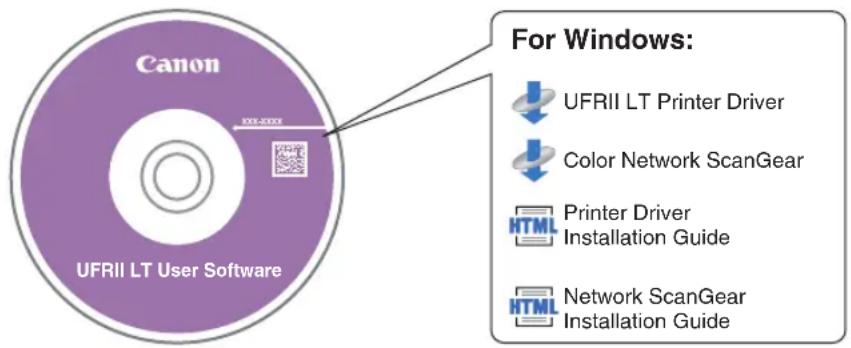
The scanner driver is installed from the same UFRII LT User Software CD-ROM as the printer driver. The contents of the CD-ROM are as follows.
text_image
Canon UFRII LT User Software For Windows: UFRII LT Printer Driver Color Network ScanGear Printer Driver Installation Guide Network ScanGear Installation Guide■Color Network ScanGear
The Color Network ScanGear driver is called from TWAIN-compliant applications. Originals are scanned using the driver.
Examples of applications that support TWAIN are as follows:
- Adobe Photoshop
- Adobe Acrobat
- Microsoft Word/Excel/PowerPoint etc. in Office 2000 or later
System Requirements
The following system environments are necessary in order to use the scanner driver.
■Software:
- Operating Systems:
- Microsoft Windows 2000
- Microsoft Windows XP
- Microsoft Windows Vista
- Microsoft Windows 7
- Microsoft Windows Server 2003
- Microsoft Windows Server 2008
• Application Software:
- TWAIN-compliant applications (such as Adobe Photoshop, Adobe Acrobat, Microsoft Word/Excel/PowerPoint etc. in Office 2000 or later)
Hardware:
- Computer
- Any computer that runs the above systems
- Hard disk space
- The amount of disk space required to run the above systems correctly
- Memory
- The amount of memory required to run the above systems correctly
- A display with a resolution of at least 640 × 480 ( 800 × 600 or more recommended) and capable of displaying at least 256 colors.
- A network host adapter capable of TCP/IP and UDP/IP communication on an Ethernet network.

IMPORTANT
If you want to use the machine as a network scanner, it must be connected to a computer over an IPv4 network.

NOTE
When scanning a large number of images or images containing large amounts of image data, an insufficient memory error or notable loss of scanning speed may occur. If this happens, the following procedures should prove useful:
- Increase the amount of hard disk space by deleting or otherwise appropriately processing unnecessary files on the hard disk etc. to ensure sufficient hard disk space.
- Rescan with reduced resolution.
- Increase the amount of RAM.
- Increase the amount of virtual memory to the highest possible.
- Divide originals into several sets and then scan them separately.
Installation
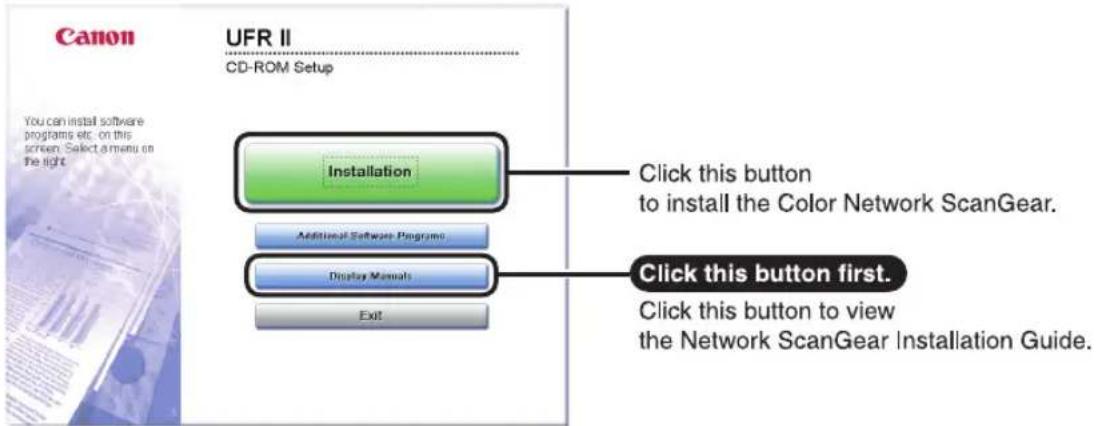
From the menu screen of the CD-ROM, you can begin installing the scanner driver, or display the Network ScanGear Installation Guide. For details about the installation procedure, see the Network ScanGear Installation Guide.
text_image
Canon UFR II CD-ROM Setup You can install software programs etc. on this screen. Select a menu on the light. Installation Click this button to install the Color Network ScanGear. Additional Software Programs Display Manuals Exit Click this button first. Click this button to view the Network ScanGear Installation Guide.
NOTE
View the Network ScanGear Installation Guide before you start the installation. You cannot view the Network ScanGear Installation Guide while the installation is in progress.
Required Settings for Remote Scanning
Once you have installed the scanner driver, you need to select Color Network ScanGear as a scanner to be used in order to perform remote scanning.
■Selecting the Network Scanner You Want to Use
In order to scan using Color Network ScanGear, select the device on the network that you want to use as a scanner using the ScanGear Tool. Because a scanner is not selected immediately after installation, this operation must be performed before use.

NOTE
- For details about the procedure, see the Network ScanGear Guide.
- The ScanGear Tool is software that is installed together with Color Network ScanGear.
Basic Operations
2
CHAPTER
This chapter describes the main features and basic operations of the machine.
What This Machine Can Do ....2-2
Placing Originals....2-6
Orientation 2-6
Platen Glass 2-8
Feeder (DADF-P2) (Optional). 2-10
Basic Copying....2-12
Basic Printing 2-17
Basic Remote Scanning....2-18
Canceling a Job 2-21
Using the Stop Key. 2-21
Using the System Monitor Screen 2-22
All the elements you will ever need in a digital multitasking machine.
The imageRUNNER 2422/2420 incorporates a rich array of input and output features that can greatly enhance your efficiency.
Equipped with features that meet the needs of document work in a digitized office, the imageRUNNER 2422/2420 represents the ultimate in digital multitasking machines.
Copying
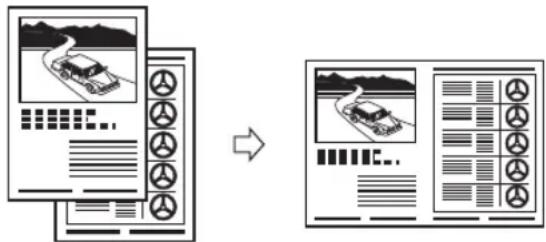
In addition to normal copying functions, convenient new functions, such as Image Combination, which enables you to automatically reduce two- or four-page originals to fit on the selected paper size, and Different Size Originals for copying originals of different sizes together in one copy operation, are provided to increase your productivity.
For more information, see the Copying Guide.
flowchart
graph LR
    A["Device 1: Traffic Map"] --> B["→"]
    B --> C["Dashboard with Traffic Meter Icon"]
    style A fill:#f9f,stroke:#333
    style C fill:#bbf,stroke:#333
2 on 1 Combination
Printing
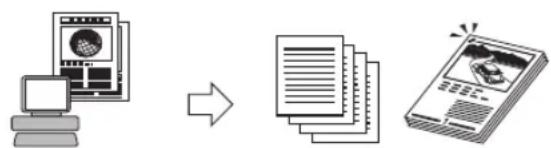
This machine uses UFRII LT (Ultra Fast Rendering II LT) Technology, which utilizes a newly invented printing algorithm to minimize file processing and achieve maximum performance.
For instructions on setting up the machine as a printer, see “Before Using the machine as a printer,” on p. 1-22.
For instructions on using the printer driver, see the Windows Printer Driver Guide, Mac Printer Driver Guide, or the help on the printer driver.
flowchart
graph LR
    A["Computer"] --> B["Document"]
    B --> C["Output"]
    style A fill:#f9f,stroke:#333
    style B fill:#ccf,stroke:#333
    style C fill:#cfc,stroke:#333
Sending data from a computer
Printing
Network Interface
With the optional Network Kit, the imageRUNNER 2422/2420 can be connected to a network using Ethernet. Connecting to a network enables you to use the Remote UI. For instructions on setting up the network connection, see the Network Guide.
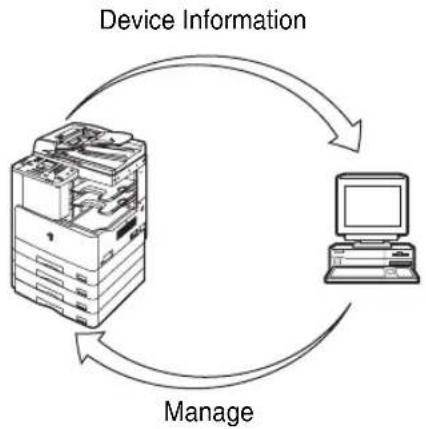
flowchart
graph TD
    A["Device Information"] --> B["Manage"]
    B --> C["Computer"]
    C --> A
Using the Remote User Interface
If the network connection is available, you can control functions, such as confirming the status of the machine and job operations, all from your computer's Web browser.
Once the Ethernet interface port is configured properly, the imageRUNNER 2422/2420 can be controlled and set up through the Remote UI and network. For instructions on configuring the Ethernet port, see the Network Guide.
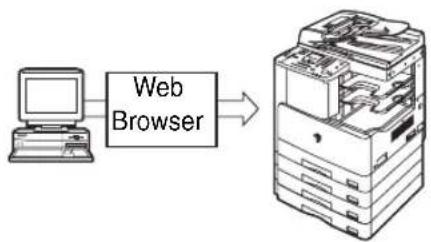
If the network connection is available, the Network Scan function enables you to use the imageRUNNER 2422/2420 as a conventional scanner. You can scan a document using the machine, and read the data in an application on your computer. To use this function, the machine must be connected to an IPv4 network, and the Color Network ScanGear software* must be installed on your computer.
*The Color Network ScanGear software is supplied on the accompanying CD-ROM. For more information on the Network Scan function, see the Network ScanGear Guide.
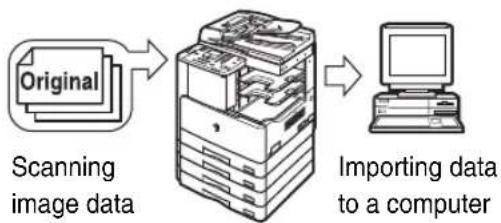
flowchart
graph LR
    A["Original"] --> B["Scanning image data"]
    B --> C["Storage"]
    C --> D["Importing data to a computer"]
Versatile Configurations
The Additional Functions menu enables you to make common settings related to many functions of the machine, as well as customize specific functions to suit your needs. (See the Reference Guide.) You can access the menu by pressing (Additional Functions).
For details on Copy, Printer, and Network Settings, see the following manuals:
-Copy Settings: The Copying Guide
-Printer Settings: The UFR II Printer Guide
-Network Settings: The Network Guide
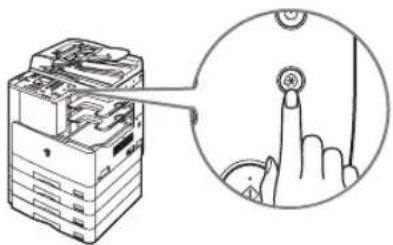
natural_image
Illustration of a printer with an inset showing a finger pressing a button (no text or symbols present)Energy Conservation
You can conserve power efficiently by setting the Sleep mode and the Auto Shutdown Time setting.
You can set the machine to enter the Sleep mode manually, by pressing the control panel power switch, or specify to have the machine enter the Sleep mode at a preset time.
You can set the machine to automatically shut down by enabling the Auto Shutdown Time setting. The machine turns OFF the main power switch after the specified period of idle time has elapsed since entering the Sleep mode.
For more information on the Sleep mode and the Auto Shutdown Time setting, see the Reference Guide.
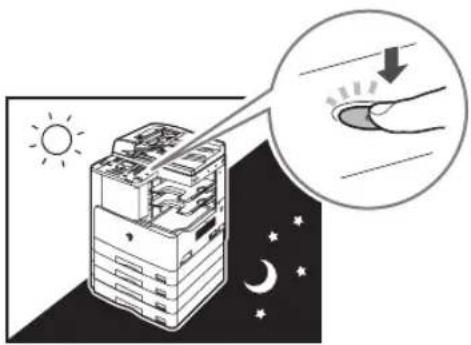
natural_image
Illustration of a computer tower with sun and moon symbols, showing internal components and a magnified view of a hand holding a curved object (no text or symbols present)Security
You can protect the machine from unauthorized access by setting Department ID Management. If Department ID Management is enabled, only the users who enter the correct Department ID and password can gain access to the machine. (See the Reference Guide.)
If the network connection is available, you can enhance the machine's security by setting User ID Management. User ID Management enables you to block unauthorized access to the machine by registering User IDs and passwords from the Remote UI. (See the Remote UI Guide.)
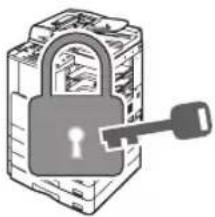
natural_image
Illustration of a padlock with a key inserted, symbolizing security or lock function (no text or symbols present)System Monitor
The System Monitor screen enables you to check the status of the machine, and cancel copy and print jobs.
For instructions on checking the status of copy, and print jobs, see the Reference Guide.
For instructions on canceling a job, see "Canceling a Job," on p. 2-21.
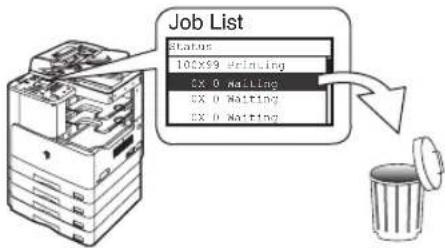
text_image
Job List Status 100X9 Printing CX 0 Waiting CX 0 Waiting CX 0 WaitingOther Useful Functions
This machine provides other useful functions as listed below.
-Auto Paper Selection (APS)/Auto Drawer Switching (ADS)
(See the Reference Guide.)
-Auto Clear (See the Reference Guide.)
-Auto Orientation (See the Copying Guide.)

flowchart
graph LR
    A["Rectangular Process Box"] --> B["Document Column"]
    style A fill:#f9f,stroke:#333
    style B fill:#bbf,stroke:#333
Auto Orientation
Place your originals on the platen glass or into the feeder, depending on the size and type of the original, and the copy modes you want to use.
■Platen Glass
Place your originals on the platen glass when copying bound originals (such as books and magazines), heavy or lightweight originals, and transparencies.
■Feeder (DADF-P2) (Optional)
Place your originals into the feeder when you want to copy several originals at a time, and then press (Start). The machine automatically feeds the originals to the scanning area and scans them. If you are copying in the 2-Sided mode, two-sided originals can also be automatically turned over and scanned as two-sided documents.
Orientation
You can place an original either vertically or horizontally. Always align the top edge of your original with the back edge of the platen glass (by the arrow in the top left corner), or with the back edge of the feeder.
Platen Glass (View from Above)
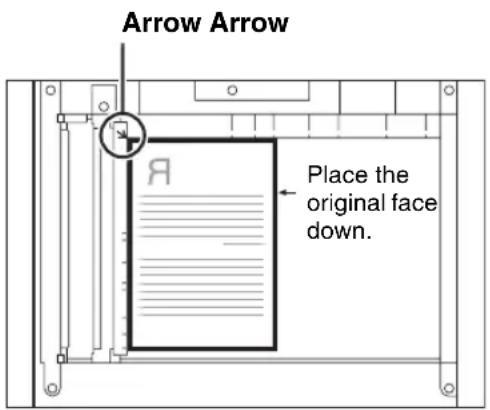
text_image
Arrow Arrow Place the original face down.Vertical Placement
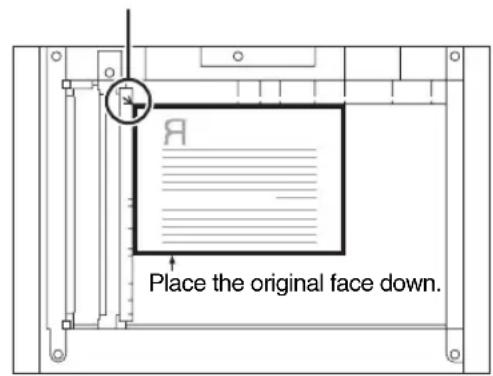
text_image
Place the original face down.Horizontal Placement
Feeder (View from Above)
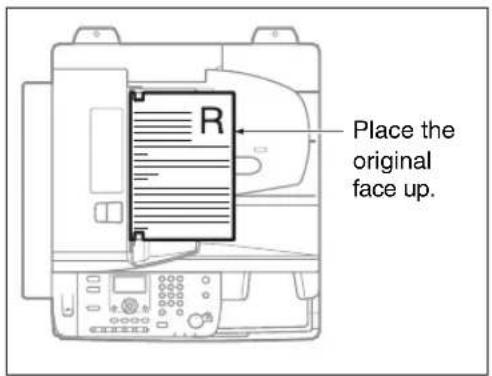
text_image
Place the original face up.Vertical Placement
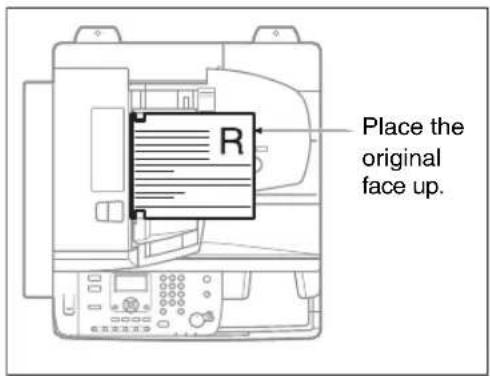
text_image
R Place the original face up.Horizontal Placement

NOTE
- If the top edge of the original is not aligned with the back edge of the platen glass (by the arrow in the top left corner), your original may not be scanned correctly, depending on the copy mode you have set.
- A4 and A5 originals can be placed either vertically or horizontally. However, the scanning speed for horizontally placed originals is somewhat slower than for vertically placed originals. Place originals horizontally when printing with a preset copy ratio, such as when enlarging an A4 or A5 original onto A3 paper. (See Chapter 1, “Basic Operations,” in the Copying Guide.)
• Horizontally placed A4 and A5 originals are referred to as A4R and A5R.
• A3 originals must be placed horizontally. - To achieve the same output orientation using the optional feeder as when the original is placed on the platen glass, place the original upside down and face up. However, if an appropriate size of paper is not loaded for the Staple mode, the output is rotated automatically.
Platen Glass
You should use the platen glass when copying bound originals (such as books and magazines), heavy or lightweight originals, and transparencies. (See Chapter 1, "Basic Operations," in the Copying Guide.) When copying ID cards using the ID Card Copy function, you must use the platen glass. (See Chapter 2, "Advanced Operations," in the Copying Guide.)
1
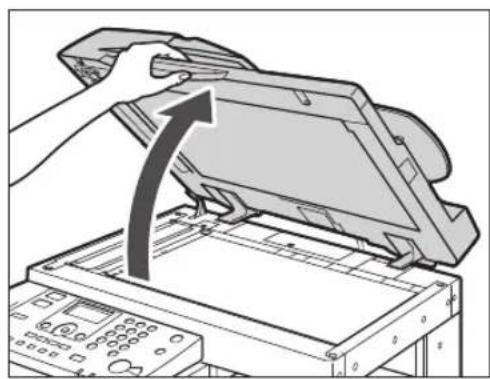
natural_image
Illustration of a hand pressing down on a computer monitor with an arrow indicating the process (no text or symbols present)Lift the feeder/platen cover.
2
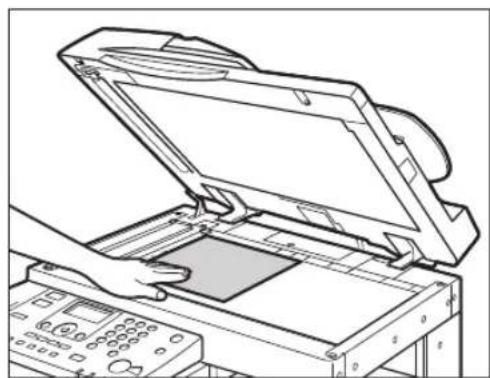
natural_image
Line drawing of a printer with an open lid and control panel, no text or symbols presentPlace your original face down.
The original that you want to copy must be placed face down. Align the top edge of your original with the back edge of the platen glass (by the arrow in the top left corner).
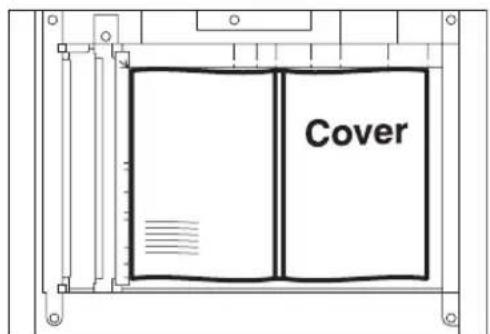
text_image
CoverPlace books and other bound originals on the platen glass in the same way as described above.

NOTE
When you are enlarging an A4 or A5 original onto A3 paper, place the original horizontally on the platen glass, and align it with the A4R or A5R marks.
3
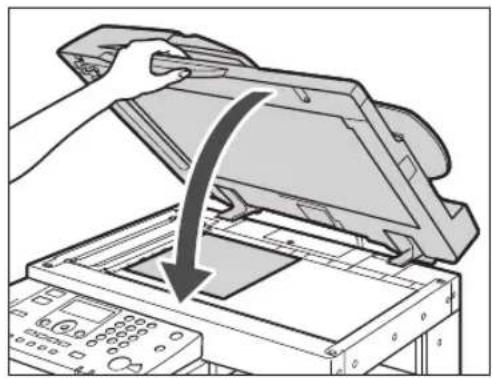
natural_image
Illustration of a printer being inserted into a paper airplane, showing the blade being cut with a downward arrow (no text or symbols present)Gently close the feeder/platen cover.

CAUTION
- Close the feeder/platen cover gently to avoid catching your hands, as this may result in personal injury.
- Do not press down hard on the feeder/platen cover when using the platen glass. Doing so may damage the platen glass and result in personal injury.
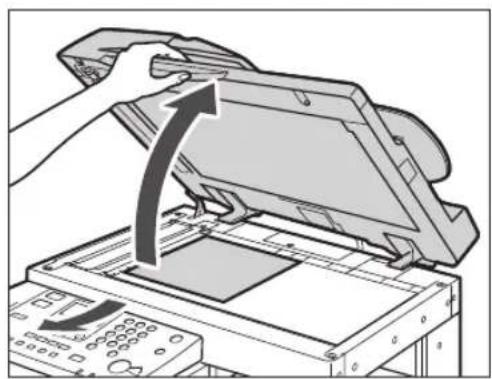
natural_image
Illustration of a hand pressing down on a computer monitor with an arrow indicating the process (no text or symbols present)
NOTE
When scanning is complete, lift the feeder/platen cover, and remove the original from the platen glass.
Feeder (DADF-P2) (Optional)
You should use the feeder when you want to copy several originals at a time. With the feeder, the machine automatically feeds the originals to the scanning area and scans them. If you are copying in the 2-Sided mode, two-sided originals can also be automatically turned over and scanned as two-sided documents.
You can place the following originals into the feeder's original supply tray:
- Weight:
- 52 g/m² to 105 g/m² (37 g/m² to 52 g/m² and 106 g/m² to 128 g/m² when scanning a single page document)
- Size:
- A4, A4R, A3, A5, and A5R
- Tray capacity:
- A4, A4R, A5, and A5R: 50 sheets (80 g/m²)
- A3: 25 sheets (80 g/m²)

IMPORTANT
- Do not place the following types of originals into the feeder:
- Originals with tears or large binding holes
- Severely curled originals or originals with sharp folds
- Clipped or stapled originals
- Carbon backed paper or other originals which may not feed smoothly
- Transparencies and other highly transparent originals
- If the same original is fed through the feeder repeatedly, the original may fold or become creased, and make feeding impossible. Limit repeated feeding to a maximum of 30 times. (This number may vary, depending on the type and quality of the original.)
- If the feeder rollers are dirty from scanning originals written in pencil, clean the feeder. (See Chapter 6, “Routine Maintenance,” in the Reference Guide.)
- Always smooth out any folds in your originals before placing them into the feeder.
- Set the originals one by one if they are very thin (37 g/m ^2 to 52 g/m ^2 ) or very thick (106 g/m ^2 to 128 g/m ^2 ).
1
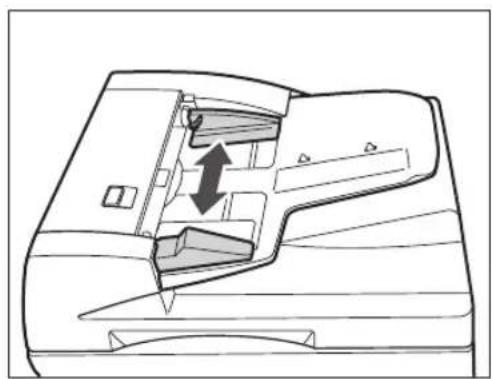
natural_image
Cross-sectional diagram of a mechanical component with internal structure and directional arrows (no text or labels)Adjust the slide guides to fit the size of your originals.
2
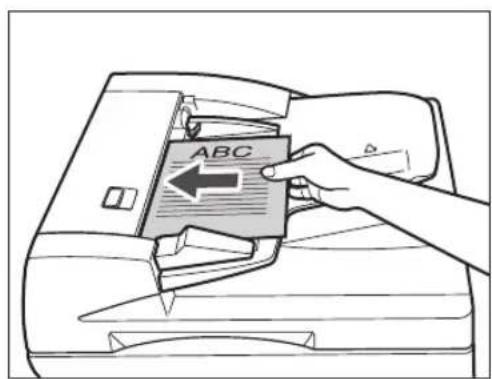
text_image
ABCNeatly place your originals with the side to be copied face up into the original supply tray.
Place your originals as far into the feeder as they will go.
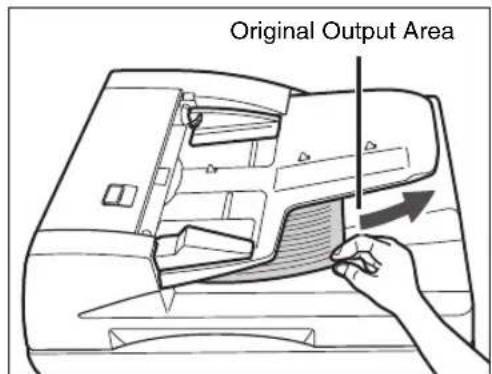
text_image
Original Output Area
IMPORTANT
- Do not add or remove originals while they are being scanned.
- When scanning is complete, remove the originals from the original output area to avoid paper jams.

NOTE
- When you are enlarging an A4 or A5 original onto A3 paper, place the original horizontally.
- The scanned originals are output to the original output area in the order that they are fed into the feeder.
- You can place different size originals together into the feeder if you set the Different Size Originals mode. (See Chapter 2, “Advanced Operations,” in the Copying Guide.)
This section describes the flow of basic copy operations.

NOTE
- For instructions on turning ON the machine, see "Main Power and Control Panel Power," on p. 1-15.
- For instructions on routine maintenance, see Chapter 6, "Routine Maintenance," in the Reference Guide.
- The output quality may deteriorate if the platen glass is dirty. Always keep the platen glass clean.
- Do not touch the optional feeder or platen cover while copying. Rocking the feeder or platen cover may distort the image being copied.
1 Press the appropriate keys in accordance with the messages displayed on the LCD display.
If there are no messages displayed, proceed to step 2.
- If the message
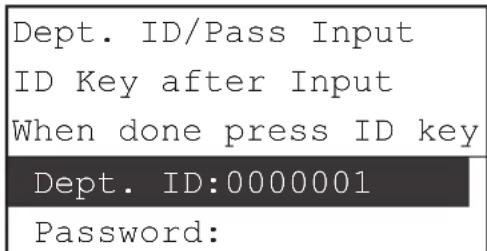
text_image
Dept. ID/Pass Input ID Key after Input When done press ID key Dept. ID:0000001 Password:☐Enter your Department ID (up to seven digits) using Ⓤ (numeric keys).
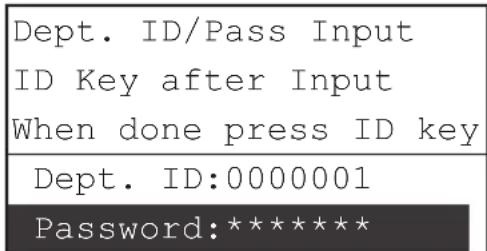
☐ Use [▼] or [▲] to select
□Press ID (ID).

NOTE
For instructions on using Department ID Management, see Chapter 4, "System Manager Settings," in the Reference Guide.
- If the message appears:
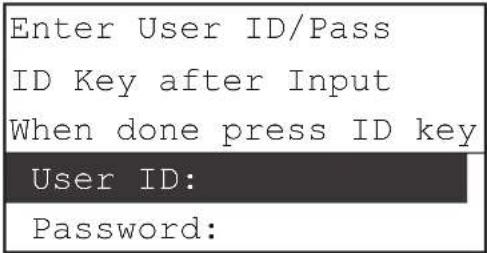
text_image
Enter User ID/Pass ID Key after Input When done press ID key User ID: Password:☐ Use [▼] or [ ] to select
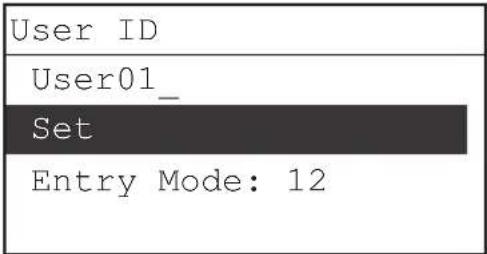
text_image
User ID User01_ Set Entry Mode: 12☐Enter your User ID using ① #
(numeric keys) → use [▼ or [ ] to select
NOTE For instructions on entering characters, see Chapter 2, "Basic Operations," in the Reference Guide.
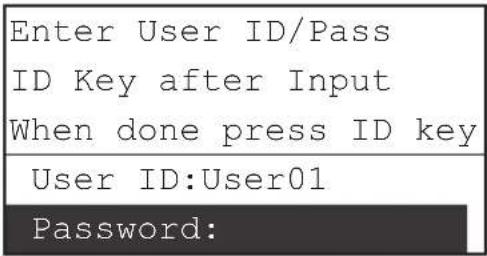
text_image
Enter User ID/Pass ID Key after Input When done press ID key User ID:User01 Password:☐ Use [▼] or [▲] to select
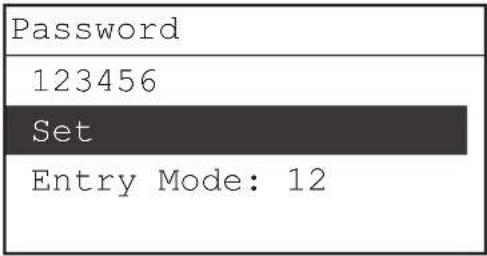
text_image
Password 123456 Set Entry Mode: 12Enter the user password using ① #
(numeric keys) → use [▼ or [ ] to select
NOTE For instructions on entering characters, see Chapter 2, "Basic Operations," in the Reference Guide.
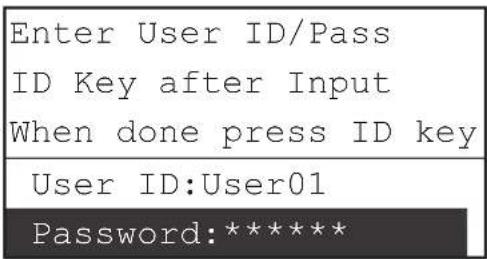
text_image
Enter User ID/Pass ID Key after Input When done press ID key User ID:User01 Password:*******□Press ID (ID).
NOTE For instructions on using User ID Management, see Chapter 3, "Customizing Settings," in the Remote UI Guide.
2
text_image
COPY SCANPress 的COPY.
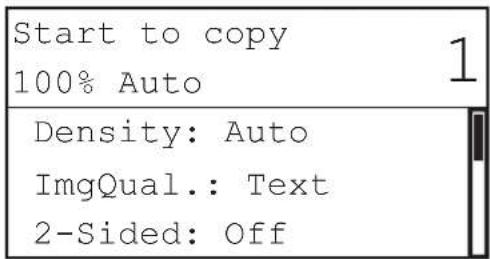
text_image
Start to copy 100% Auto Density: Auto ImgQual.: Text 2-Sided: OffThe Standby display appears for the Copy function.
3 Place your originals.

NOTE
For help, see "Placing Originals," on p. 2-6.
4
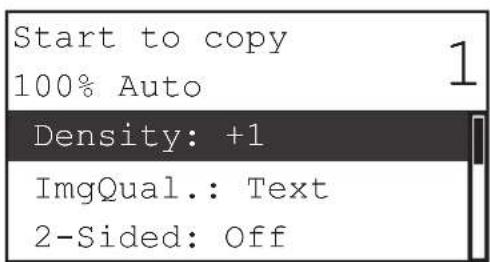
text_image
Start to copy 100% Auto 1 Density: +1 ImgQual.: Text 2-Sided: OffSpecify the desired copy settings.

NOTE
For more information on specifying copy settings, see Chapter 1, "Basic Operations," and Chapter 2, "Advanced Operations," in the Copying Guide.
5
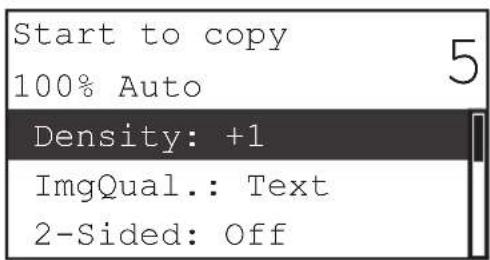
text_image
Start to copy 100% Auto 5 Density: +1 ImgQual.: Text 2-Sided: OffEnter the desired copy quantity (from 1 to 99) using Ⓞ ⑨ (numeric keys).
6
Press (Start).
- If the original is placed in the optional feeder:
Copying starts.
□Proceed to step 7.

IMPORTANT
You cannot change copy mode settings, such as the copy quantity, paper size, and copy ratio, while the machine is copying.

NOTE
- If there is a current job, the machine scans the original and waits to print it. Printing starts when the current job is complete.
- You can specify copy settings and scan originals while the machine is in the waiting state, such as when the machine has just been turned ON, after a paper jam is cleared, or after a cover on the main unit or an optional unit is closed. Copying automatically begins as soon as the machine is ready.
- If the message
appears on the LCD display, divide your originals into several sets and copy them separately.
- If the original is placed on the platen glass:
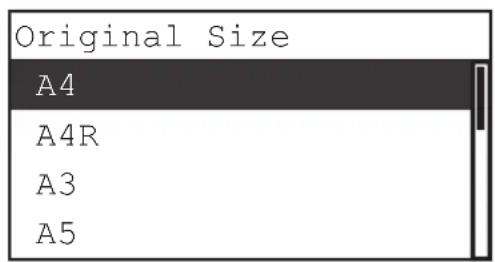
text_image
Original Size A4 A4R A3 A5□Use [ ]▼r [ ] to select the size of the placed original → press [OK].
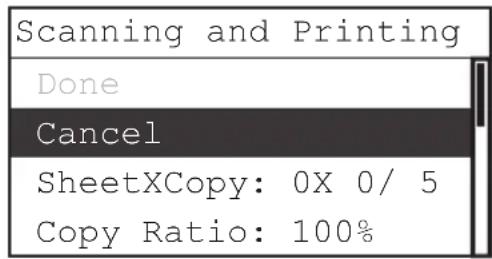
text_image
Scanning and Printing Done Cancel SheetXCopy: 0X 0/ 5 Copy Ratio: 100%Copying starts.
If you want to cancel the job, use [▼] or [ ] ▲ to select
There are several ways to cancel jobs. For more information, see “Canceling a Job,” on p. 2-21.

IMPORTANT
You cannot change copy mode settings, such as the copy quantity, paper size, and copy ratio, while the machine is copying.

NOTE
- You will not be asked for the size of the original in the following cases:
- The paper size set for a specific paper source has been selected manually. (See Chapter 1, "Basic Operations," in the Copying Guide.)
- The Image Combination function is set. (See Chapter 2, “Advanced Operations,” in the Copying Guide.)
- Either
or is set. (See Chapter 2, “Advanced Operations,” in the Copying Guide.) - If there is a current job, the machine scans the original and waits to print it. Printing starts when the current job is complete.
- You can specify copy settings and scan originals while the machine is in the waiting state, such as when the machine has just been turned ON, after a paper jam is cleared, or after a cover on the main unit or an optional unit is closed. Copying automatically begins as soon as the machine is ready.
- If the message
appears on the LCD display, divide your originals into several sets and copy them separately.
7 If you want to start copying the next original while printing for the current job is in progress, repeat steps 3 to 6.

IMPORTANT
You cannot reserve a copy job when paper is jammed or loaded in none of the paper drawers or stack bypass.

NOTE
- You can reserve up to five copy jobs, including the current job.
- You can set different copy modes and paper sources, including the stack bypass, for each reserved job. For instructions on using the stack bypass, see Chapter 2, "Basic Operations," in the Reference Guide.
8 When copying is complete, remove your originals.
9 If Department ID Management or User ID Management is set, press (ID).

NOTE
- For instructions on using Department ID Management, see Chapter 4, "System Manager Settings," in the Reference Guide.
- For instructions on using User ID Management, see Chapter 3, “Customizing Settings,” in the Remote UI Guide.
This section describes the flow of basic printing operations.

NOTE
- For instructions on turning ON the machine, see “Main Power and Control Panel Power,” on p. 1-15.
- To print from a computer, you must set the machine configurations, and install the printer driver in the computer. For instructions on setting the machine configurations, see "Setting Up the Connection," on p. 1-18, and "Before Using the machine as a printer," on p. 1-22. For instructions on installing the printer driver, see the Printer Driver Installation Guide or Mac UFR II Printer Driver Installation Guide.
- The 2-Sided Printing mode is available only when the optional Duplex Unit-A1 is attached.
- To perform 2-Sided Printing from a computer that is connected to the machine with a USB cable, you must enable the optional Duplex Unit-A1 from the printer driver. For help, see Chapter 1, "Using the Machine as a Printer," in the UFR II Printer Guide.
- You can select the default printer settings on the machine from the Additional Functions menu. For details, see Chapter 1, "Using the Machine as a Printer," in the UFR II Printer Guide.
1 On the computer desktop, open the document that you want to print from the application.
2 Click the [File] menu → select [Print].
The [Print] dialog box appears.

NOTE
The procedure for displaying the [Print] dialog box may vary, depending on the application used.
3 On the [Print] dialog box, select your printer from [Name] → specify the print settings that suit your preferences.
For help, see the Windows Printer Driver Guide, Mac Printer Driver Guide, or the help on the printer driver.
4 Click [OK] to start printing.
Printing starts.
Remote Scanning is a scanning method in which scans are loaded to a TWAIN-compliant application (such as Adobe Photoshop, Adobe Acrobat, and Microsoft Word/Excel/PowerPoint 2000 or later) on your computer desktop. This section describes the flow of basic remote scanning operations.

IMPORTANT
- If you want to use the machine as a network scanner, it must be connected to a computer over an IPv4 network.
- Color Network ScanGear, the application software for remote scanning, is compatible with the Windows operating systems only. For more information, see the Network ScanGear Guide.
- A TWAIN-compliant application is required to perform remote scanning.
- Before remotely scanning your originals, you must set the machine configurations, and install the scanner driver in the computer. For more information, see “Setting Up the Connection,” on p. 1-18, and “Before Using the Remote Scan Function,” on p. 1-27.

NOTE
- For instructions on turning ON the machine, see “Main Power and Control Panel Power,” on p. 1-15.
- The quality of scans may deteriorate if the platen glass is dirty. Always keep the platen glass clean.
- Do not touch the optional feeder or platen cover while scanning. Rocking the feeder or platen cover may distort the image being scanned.
- For more information on the Remote Scan function, see the Network ScanGear Guide.
1 Press the appropriate keys in accordance with the messages displayed on the LCD display.
If there are no messages displayed, proceed to step 2.
- If the message
☐ Enter the Department ID and password. For help, see step 1 of "Basic Copying," on p. 2-12.
- If the message
☐ Enter your User ID and password. For help, see step 1 of “Basic Copying,” on p. 2-12.
2
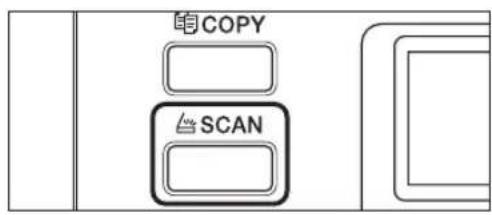
text_image
COPY SCANPress SCAN.
| Scan |
| Ready to scan. (Online) |
The Standby display appears for the Scan function.
3 Place your originals.

NOTE
For help, see "Placing Originals," on p. 2-6.
4 If you are scanning for the first time after the driver installation, select the Color Network ScanGear as the scanner to be used.
5 Open a TWAIN-compliant application on your computer desktop.
6 Select the command to start scanning operation (such as [Scan New] or [Acquire]).
The Color Network ScanGear Main Window appears.

NOTE
For help, see the documentation provided with your application.
7 Specify the scan settings that suit your preferences.

NOTE
For help, see the Network ScanGear Guide.
8 Click [Scan].
Scanning starts.
When scanning is complete, the Color Network ScanGear Main Window closes, and the scanned image is transferred to the application.
IMPORTANT
- After clicking [Scan], do not perform any operation in the Color Network ScanGear Main Window until the dialog box showing the scanning progress appears.
- If Color Network ScanGear does not automatically close after scanning, click [×] (Exit) to close it.
- Be sure to close the Color Network ScanGear Main Window before exiting the application.
9 When scanning is complete, remove your originals.
10 If Department ID Management or User ID Management is set, press (ID).
NOTE
- For instructions on using Department ID Management, see Chapter 4, “System Manager Settings,” in the Reference Guide.
- For instructions on using User ID Management, see Chapter 3, “Customizing Settings,” in the Remote UI Guide.
There are several ways to cancel a job. This section describes how to cancel a job using the Stop key and using the System Monitor screen.

NOTE
Several copies/prints may be output even after you canceled a job.
Using the Stop Key
You can cancel a copy, print, or remote scan job using the Stop key.
1
Press

(Stop).
- If the machine is handling only one job:
□Proceed to step 4.
- If the machine has multiple copy or print jobs:
☐ Proceed to step 2.
2
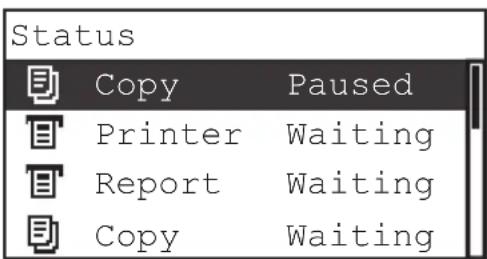
text_image
Status Copy Paused Printer Waiting Report Waiting Copy WaitingUse [▼or [ ] to select the job you want to cancel → press [OK].

NOTE
- The current job is listed first on the Status screen.
- The LCD display can display characters in ASCII code. Using other character codes may cause characters garbled on the LCD display.
-
The messages displayed on the Status screen are as follows:
-
= Current job = Current job that has been temporarily stopped by pressing (Stop). = Reserved jobs
3
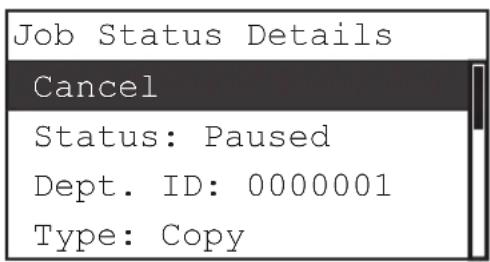
text_image
Job Status Details Cancel Status: Paused Dept. ID: 0000001 Type: CopyUse [ ] or [ ] to select
The Cancel screen appears.
4
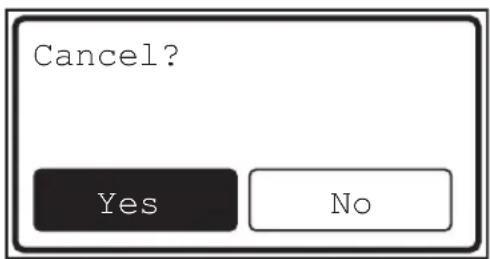
text_image
Cancel? Yes NoUse [◀] o▶ rto \$select
The job is canceled.

NOTE
- If you do not want to cancel the job, press [ ] or [ ] to select
→ press [OK]. - Pressing (Stop) while the machine is scanning an original placed in the optional feeder may cause a paper jam. For instructions on clearing paper jams in the optional feeder, see Chapter 7, "Troubleshooting," in the Reference Guide.
- You cannot select multiple jobs and cancel them all at once. Select and cancel one job at a time.
Using the System Monitor Screen
You can cancel a copy or print job from the System Monitor screen during printing or while it is waiting to be processed.
1 Press (System Monitor).
The System Monitor screen appears on the LCD display.
2
| Check System Status |
| Device |
| Copy |
| Network Information |
Use [▼ or [ ] to select
If you select
If you select
3
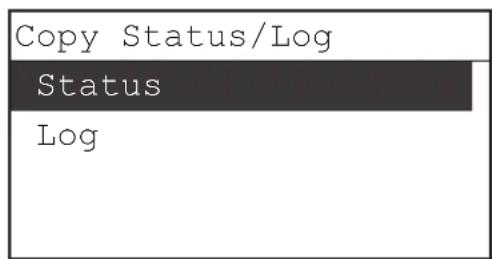
text_image
Copy Status/Log Status LogUse [▼or [ ] to select
The Status screen appears.
4
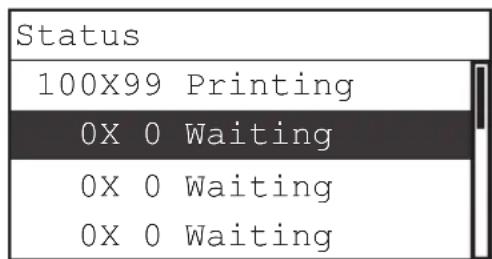
text_image
Status 100X99 Printing 0X 0 Waiting 0X 0 Waiting 0X 0 WaitingUse [▼or [ ] to select the job you want to cancel → press [OK].
If there is only one job, just press [OK].
The Job Status Details screen appears.

NOTE
- The current job is listed first on the Status screen.
- The LCD display can display characters in ASCII code. Using other character codes may cause characters garbled on the LCD display.
- The messages displayed on the Status screen are as follows:
= Current job = Current job that has been temporarily stopped by pressing (Stop). = Reserved jobs
5
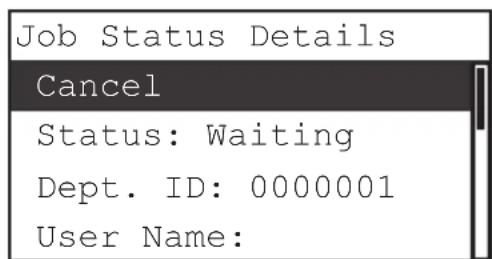
text_image
Job Status Details Cancel Status: Waiting Dept. ID: 0000001 User Name:Use [▼or [ ] to select
The Cancel screen appears.
6
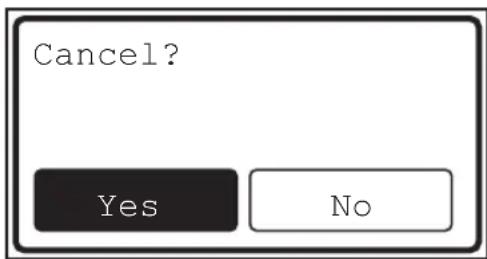
text_image
Cancel? Yes NoUse [ ] or [ ] to select → press [OK].
If you do not want to cancel the job, select
The selected job is canceled.
Repeat steps 4 and 6 to cancel another job.
![CANON imageRUNNER 2422 - Use [ ] or [ ] to select → press [OK]. - 1](/content/2026/04/700045/images/7d62388ef87a75ce355ce1ccf7a654057dbfe2a97699be641343ce71d1f9021e.jpg)
NOTE
- You cannot select multiple jobs and cancel them all at once. Select and cancel one job at a time.
- The LCD display can display characters in ASCII code. Using other character codes may cause characters garbled on the LCD display.
7
Press (Reset) to return to the Standby display.
Routine Maintenance
3
CHAPTER
This chapter describes how to load paper, perform routine cleaning operations, and replace consumables, such as toner and staple cartridges.
Paper Drawers 3-2
Loading Paper 3-2
Adjusting a Paper Drawer to Hold a Different Paper Size . . . . . . . . . . . . . . . . . . . . . . . . . . . . . . . . . . . . . . . . . . . . . . . . . . . . . . . . . . . 3-6
Replacing the Toner 3-10
This section describes how to load paper into the paper drawers.

NOTE
- The following paper sizes can be loaded in Paper Drawers 1, 2, 3, and 4:
- A4, A4R, A3, or A5
- Paper Drawer 2 can be added by attaching the optional Cassette Feeding ModuleJ1 or -K1.
- Paper Drawer 3 (and 4) can be added by attaching the optional Cassette Feeding Module-K1.
- For more information on available paper stock which can be loaded in the paper drawers, see “Available Paper Stock,” on p. 5-3.
Loading Paper
A message prompting you to load paper appears on the LCD display, and the error indicator flashes red when:
• paper runs out in any of the paper drawers.
- a paper drawer is opened even if the paper is loaded.
- a paper drawer is not fully inserted into the machine. Make sure that the paper drawer is properly set in place.
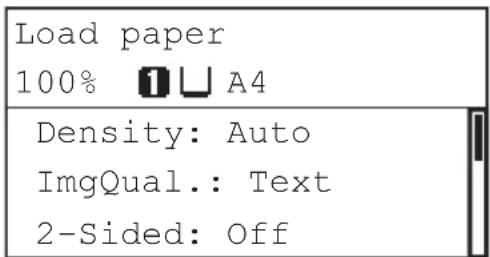
text_image
Load paper 100% A4 Density: Auto ImgQual.: Text 2-Sided: Off
CAUTION
Take care not to cut your hands on the edges of the paper when loading it into the machine.

IMPORTANT
- Do not load nonstandard paper sizes into the paper drawers.
- Do not load the following types of paper into the paper drawers, as this may cause paper jams:
- Severely curled or wrinkled paper
- Lightweight straw paper: less than approximately 64 g/m ^2
- Transparencies
- Envelopes
-
Labels
-
Paper on which color images have been copied (Do not copy on the reverse side of this paper either.)
- Paper which has been printed on using a thermal transfer printer (Do not print on the reverse side of this paper either.)
- Fan the stack of paper well before loading it, and align the edges of the paper stack on a flat surface.
- Never place paper or any other items in the empty part of the drawer next to the paper stack. Doing so may cause paper jams.

NOTE
- If a message prompting you to load paper appears during printing, the remaining prints are automatically made after you load the correct paper. If you select another paper drawer, the remaining prints are made after you press [OK].
• To cancel printing, press (Stop).
1
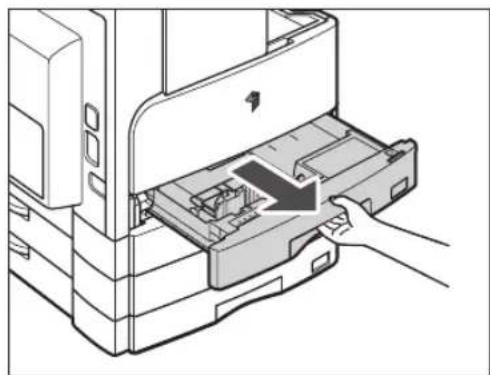
natural_image
Diagram of a printer's internal structure showing paper feeding into a tray with a hand inserting a component (no text or symbols present)Grip the handle of the paper drawer and pull out the paper drawer until it stops.
2
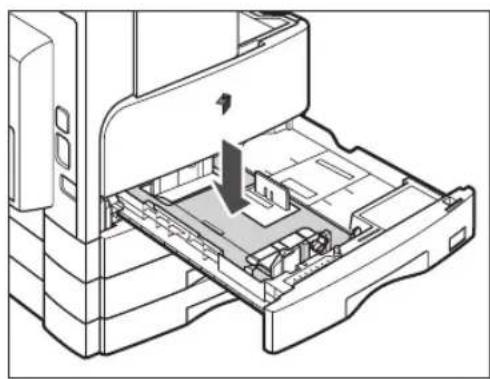
natural_image
Technical line drawing of a printer internal structure showing internal components and a downward arrow indicating motion (no text or symbols)Push down the metal plate to lock it.
3
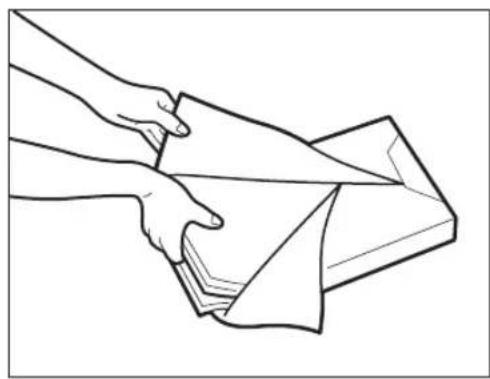
natural_image
Line drawing of hands folding a folded paper or sheet (no text or symbols)Open a package of paper, and take out the paper stack from the package.

CAUTION
Take care not to cut your hands on the edges of the paper when loading it into the machine.

IMPORTANT
Rewrap any remaining paper in its original package, and store it in a dry place, away from direct sunlight.
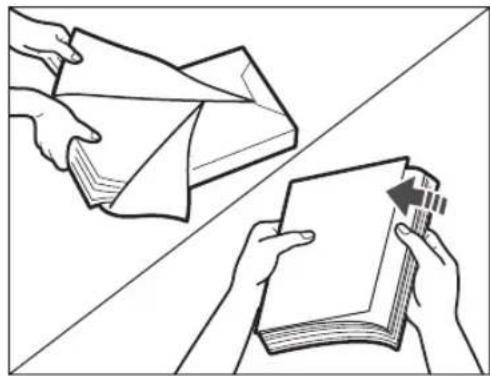
natural_image
Illustration of two hands folding a folded paper or document, one folded and the other placed on top (no text or symbols present)
NOTE
- For high-quality printouts, use paper recommended by Canon.
- Before loading paper, always fan the sheets several times, and align the edges to facilitate feeding.
4
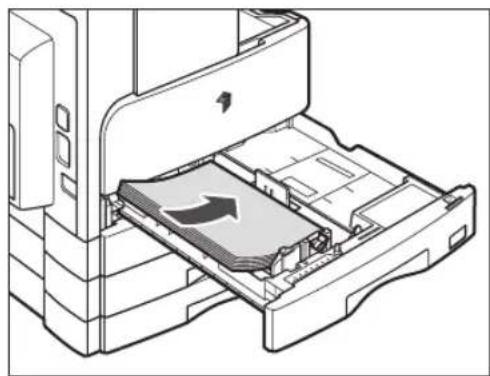
natural_image
Technical line drawing of an open printer drawer with a paper clip and directional arrow indicating motion (no text or symbols)Load the paper stack into the paper drawer.
Even out the edges of the paper stack. Load the paper stack against the end guide of the paper drawer.
When loading paper into the paper drawer for the first time, set the size plate and the paper-size detecting lever for the paper being loaded. (See "Adjusting a Paper Drawer to Hold a Different Paper Size," on p. 3-6.)
When loading paper into the paper drawer, make sure that the paper size setting of the paper drawer matches the size of the paper that is being loaded. (See "Adjusting a Paper Drawer to Hold a Different Paper Size," on p. 3-6.)
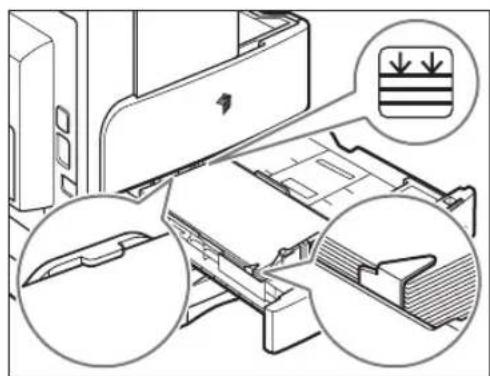
natural_image
Technical illustration of a printer's internal structure showing paper feeding and printmaking process (no text or symbols)
IMPORTANT
- Rolled or curled paper must be straightened out prior to use.
- Make sure that the height of the paper stack does not exceed the loading limit mark (✗) at the back of the paper drawer and the corners are below the paper size guide clips.
- Make sure that the paper-size detecting lever is set correctly. If the lever is set on a wrong position, paper jams or dirty prints may occur, or the inside of the machine may get dirty.

NOTE
• Each paper drawer holds about 250 sheets of paper (80 g/m²).
- If there are instructions on the package of paper about which side of the paper to load, follow those instructions.
- When the paper is loaded into the paper drawer, the side facing up is the one printed on.
- If problems occur, such as poor print quality or paper jams, try turning the paper stack over, and reload it.
- For more information on the print direction of preprinted paper (paper which has logos or patterns already printed on it), see Chapter 8, "Appendix," in the Reference Guide.

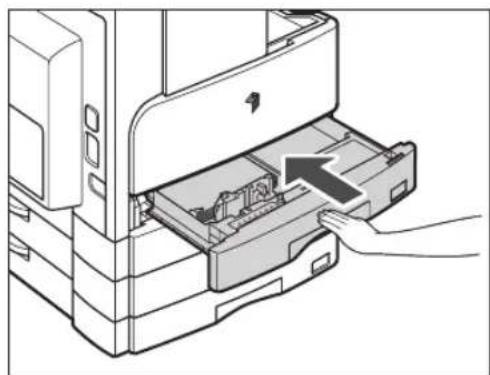
natural_image
Diagram of a printer's internal structure showing paper feeding into a slot (no text or symbols visible)Gently push the paper drawer back into the machine until it clicks into space in the closed position.

CAUTION
When returning the paper drawer to its original position, be careful not to get your fingers caught, as this may result in personal injury.

IMPORTANT
You will not be able to make copies or prints if you load paper that exceeds the loading limit, or if the paper drawer is not completely pushed into the machine. Always check that the paper drawers are in place, and that the paper does not exceed the loading limit.

NOTE
If paper runs out during copying or printing, load a new paper stack, and follow the instructions on the LCD display. The machine automatically restarts, and produces the remaining copies or prints.
Adjusting a Paper Drawer to Hold a Different Paper Size
If you want to change the size of paper in a paper drawer, follow the procedure described below to adjust the paper drawer guides.

NOTE
Please contact your Canon service representative about the settings for U1, U2, and U3 paper.
1
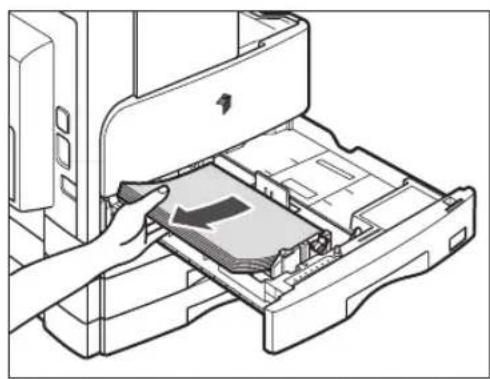
natural_image
Line drawing of a printer's internal structure showing a hand inserting a slot into the case (no text or symbols visible)Pull out the paper drawer, and remove all the loaded paper.
2

natural_image
Technical line drawing of an open printer internal structure with a paper airplane icon (no text or symbols)Push down the metal plate to lock it.
3
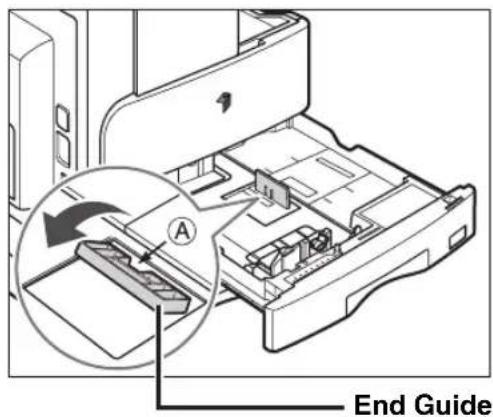
text_image
End GuideDetach the end guide and reattach it to the slots aligned with the mark indicating the desired paper size.
Detach the end guide by pressing down and forward. Align the end guide with the mark indicating the desired paper size. Reattach the end guide by tilting it forward and inserting the tabs at both ends into the slots. Then push the end guide up to return it to its original vertical, upright position.

NOTE
Attach the end guide while pressing down the point indicated with 'A'.
4 Lift up the lock lever on the front slide guide, and slide it backwards or forwards to align it with the groove marked with the desired paper size.

natural_image
Diagram of a printer's internal structure showing internal components and a magnified view of the printer's internal mechanism (no text or symbols present)Lock Lever
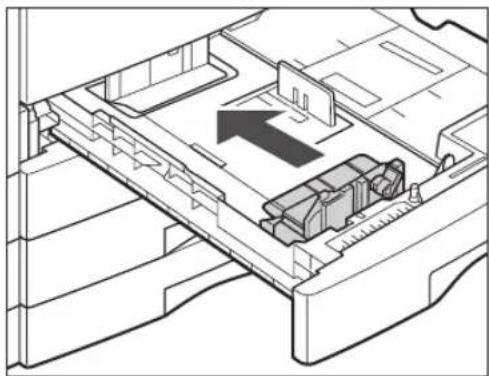
natural_image
Technical line drawing of a mechanical assembly with an arrow indicating direction (no text or symbols present)5
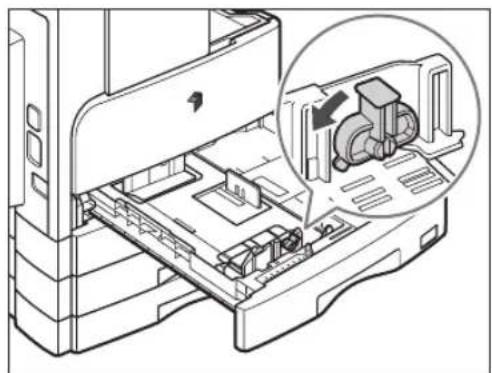
natural_image
Technical line drawing of an open industrial machine with internal components and a magnified inset showing internal structure (no text or symbols)Lower the lock lever to lock the front slide guide into place.

IMPORTANT
Be sure to set the lock lever correctly. If the lock lever is positioned incorrectly for the type of paper loaded in the paper drawer, the wrong paper type will be shown on the LCD display. This may also cause paper jams, dirty prints, or make the inside of the machine dirty.
6
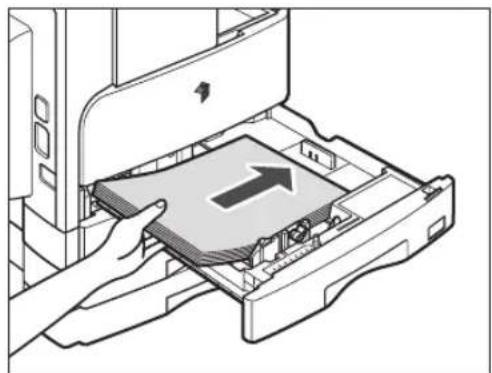
natural_image
Illustration of hands inserting a device into a folder with an arrow indicating direction (no text or symbols present)Load the appropriate size paper into the paper drawer.

CAUTION
Take care not to cut your hands on the edges of the paper when loading it into the machine.
7 Move the paper size detecting lever on the left side of the paper drawer, so that the arrow points to the paper size being loaded.
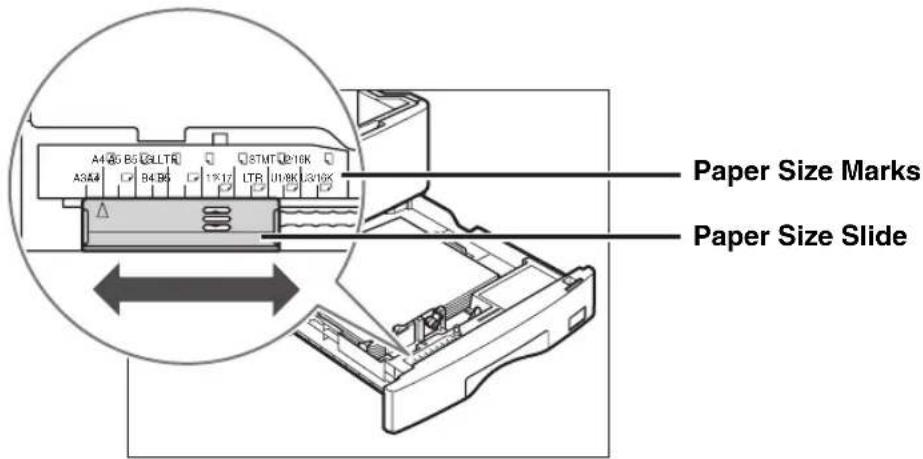
text_image
A4 B5 C LLTR A3 A4 B4 B6 1*17 LTR U18K U310K Paper Size Marks Paper Size SlideIMPORTANT
Make sure that the paper size detecting lever is set correctly. If the lever is positioned incorrectly to the size of paper loaded in the paper drawer, the wrong paper size will be shown on the LCD display. This may also cause paper jams, dirty prints, or make the inside of the machine dirty.
NOTE
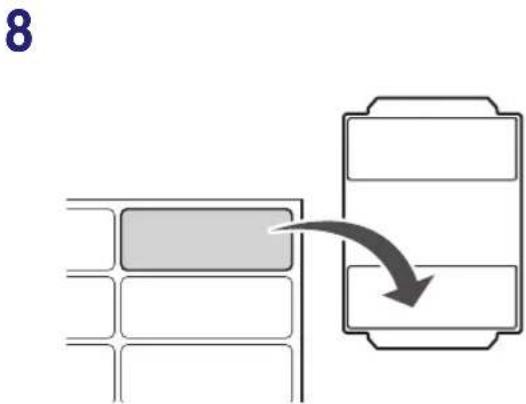
flowchart
graph TD
    A["Rectangular Block"] --> B["Output Box"]
    style A fill:#f9f,stroke:#333
    style B fill:#bbf,stroke:#333
Stick the appropriate paper size label on the paper size plate.
9

text_image
Size PlateChange the paper size plate to match the new paper size.
10
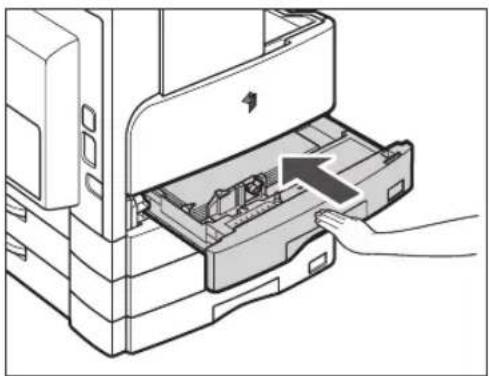
natural_image
Diagram of a printer's internal structure showing paper feeding into a slot (no text or symbols visible)Gently push the paper drawer back into the machine until it clicks into place in the closed position.

CAUTION
When returning the paper drawer to its original position, be careful not to get your fingers caught, as this may result in personal injury.
When there is only a small amount of toner remaining in the machine, the following message blinks on the LCD display. You may continue printing, however, it is highly recommended that you prepare a new toner cartridge before the toner has completely run out.
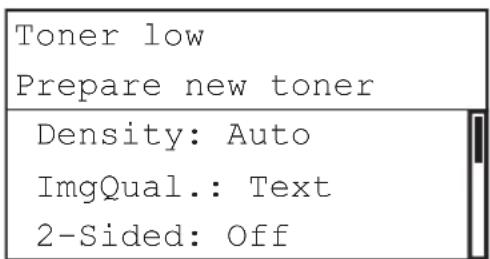
text_image
Toner low Prepare new toner Density: Auto ImgQual.: Text 2-Sided: OffWhen prints can no longer be made as toner runs out completely, the following display appears on the LCD display. Follow the procedure described below to help you replace the toner cartridge.

NOTE
For detailed information on the displays showing the instructions on replacing the toner or staples, clearing the paper or staple jams, see Chapter 7, "Troubleshooting," in the Reference Guide.
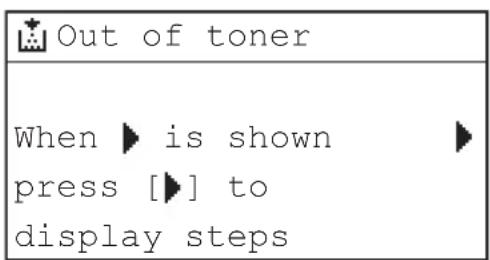
text_image
Out of toner When ▶ is shown ▶ press [▶] to display steps
WARNING
- Do not burn or throw used toner cartridges into open flames, as this may cause the toner remaining inside the cartridges to ignite, resulting in burns or a fire.
- Do not store toner cartridges or paper in places exposed to open flames, as this may cause the toner or paper to ignite, resulting in burns or a fire.
- If you accidentally spill or scatter toner, carefully gather the toner particles together or wipe them up with a soft, damp cloth in a way that prevents inhalation.
Never use a vacuum cleaner that does not have safeguards against dust explosions to clean up spilled toner. Doing so may cause a malfunction in the vacuum cleaner, or result in a dust explosion due to static discharge.

CAUTION
- Keep toner out of the reach of small children. If toner is ingested, consult a physician immediately.
• Take care not to allow toner to come into contact with your hands or clothing. If toner gets onto your hands or clothing, wash it off immediately with cold water. Washing it off with warm water may set the toner permanently, making the stains impossible to remove. - When discarding used toner cartridges, put the cartridges in a bag to prevent the toner remaining inside the cartridges from scattering, and dispose of them in a location away from open flames.

IMPORTANT
- Use only toner cartridges intended for use with this machine.
- Do not replace toner cartridges until the message prompting you to do so appears.
- Do not attempt to replace the toner cartridge while the machine is printing.

NOTE
- It is recommended that you replace the toner cartridge soon after the message
appears. - Printing stops if the toner runs out during a print job. The machine will resume printing the remaining pages automatically after you replace the toner cartridge.

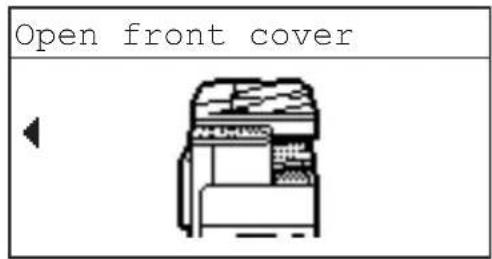
text_image
Open front coverOpen the front cover.

NOTE
The screen shown left is a capture from the On-Screen Instruction. For details, see Chapter 7, "Troubleshooting," in the Reference Guide.
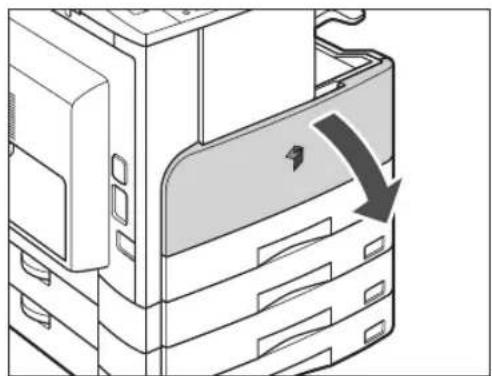
natural_image
Diagram of a computer tower with a highlighted drive or folder (no text or symbols present)2
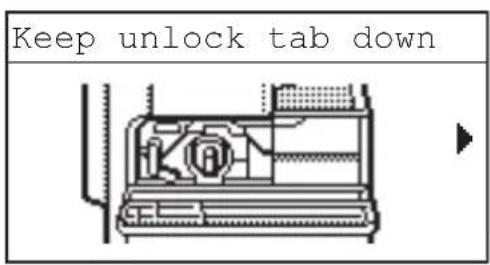
text_image
Keep unlock tab downWhile pressing the unlock tab on the grip, turn the toner cartridge in the direction of the arrow (clockwise).
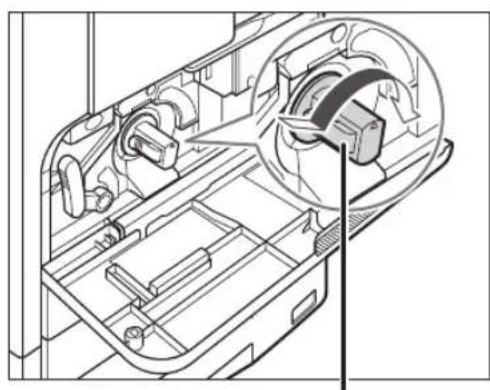
natural_image
Technical line drawing of a mechanical assembly with internal components (no text or symbols)Unlock Tab
3
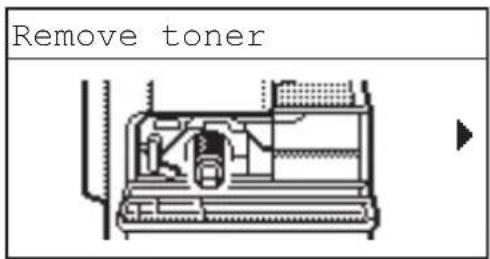
text_image
Remove tonerPressing the unlock tab, pull out the toner cartridge.
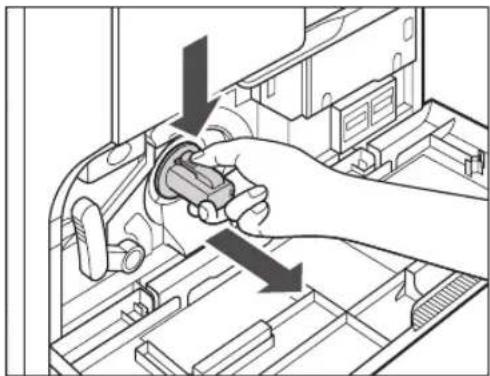
natural_image
Diagram of a hand inserting a component into a device casing, showing internal components and arrows indicating direction (no text or symbols)4
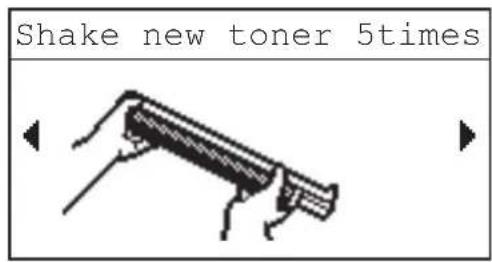
text_image
Shake new toner 5timesShake the new toner cartridge back and forth (five or six times) to distribute the toner evenly inside the cartridge.

natural_image
Technical line drawing of a mechanical component with a downward arrow indicating motion (no text or symbols)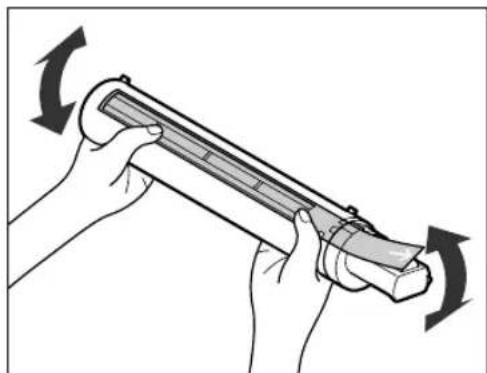
natural_image
Illustration of hands holding a cylindrical device with rotating arrows indicating motion (no text or symbols)
WARNING
Do not burn or throw used toner cartridges into open flames, as this may cause the toner remaining inside the cartridges to ignite, resulting in burns or a fire.

IMPORTANT
If the toner is not distributed evenly inside the cartridge, the outputs may be printed uneven.
5
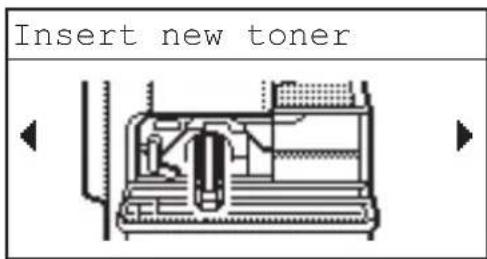
text_image
Insert new tonerMake sure that the side of the cartridge with the label is facing up, and push the new toner cartridge into the machine as far as it will go.
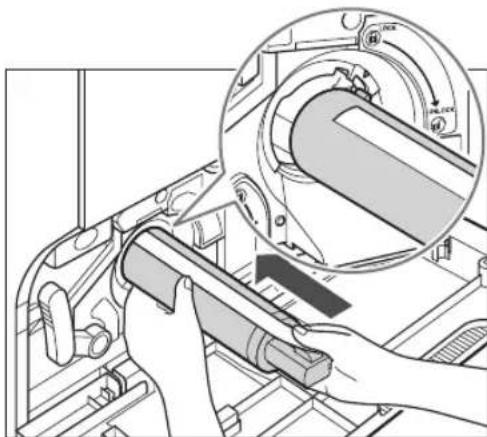
natural_image
Mechanical assembly diagram showing a hand holding a tool inside a vehicle chassis, with an inset close-up of the component (no text or symbols visible)Support the new toner cartridge with one hand from underneath, while pushing it into the machine with the other hand.
6
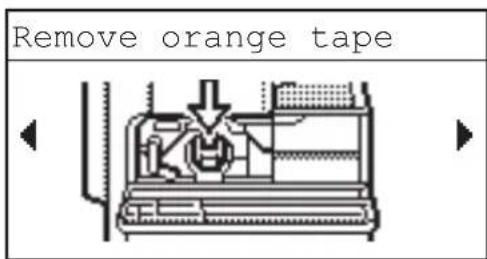
text_image
Remove orange tapeHold the toner cartridge in place with one hand, and then remove the protective seal by pulling it straight out with the other hand.
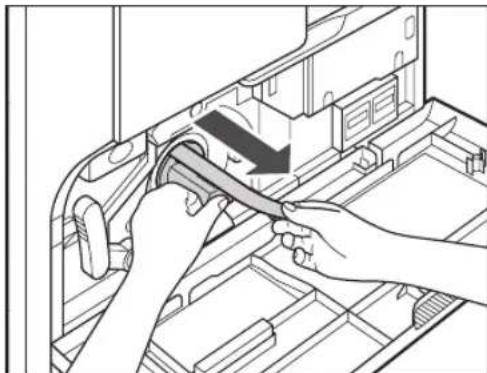
natural_image
Illustration of hands installing or adjusting a mechanical component inside a vehicle chassis (no text or symbols visible)
IMPORTANT
- Pull out the seal slowly, otherwise the toner may scatter and soil your clothes or skin.
- Make sure that you pull out the seal completely, otherwise print errors may occur.
- Make sure that you pull the seal straight out. Pulling the seal upwards or downwards may break the seal. If the seal breaks inside the toner cartridge and cannot be removed completely, the toner cartridge cannot be used.
- Throw away the seal after removing it from the toner cartridge.
7
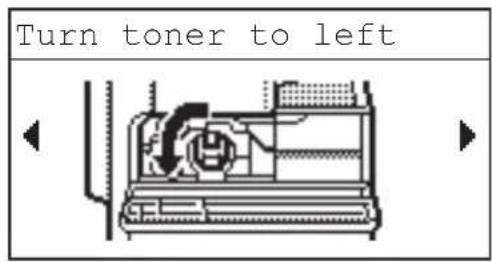
text_image
Turn toner to leftWhile pushing in the unlock tab, turn the toner cartridge in the direction of the arrow (counterclockwise).
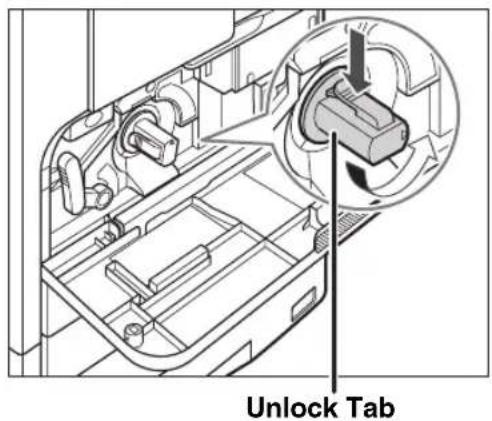
text_image
Unlock Tab
IMPORTANT
Turn the toner cartridge fully until it locks into place.
8
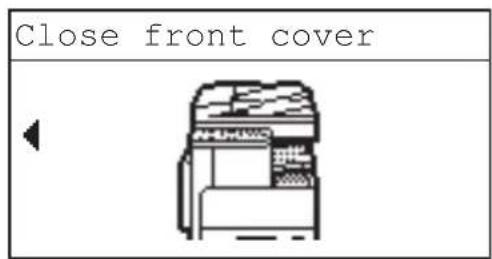
text_image
Close front coverClose the front cover.
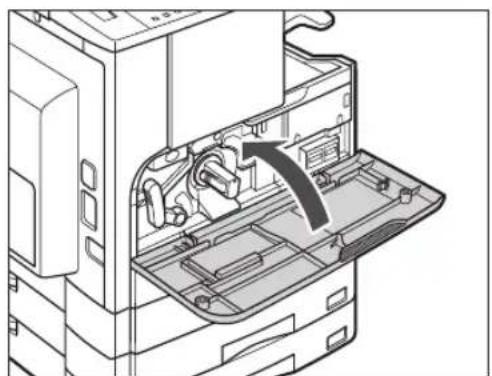
natural_image
Technical diagram of a mechanical device with internal components and an arrow indicating a process (no text or symbols present)
CAUTION
When closing the front cover, be careful not to get your fingers caught, as this may result in personal injury.

IMPORTANT
Make sure that you clean the fixing unit every time you replace the toner cartridge. (See Chapter 6, "Routine Maintenance," in the Reference Guide.)
Troubleshooting
4
CHAPTER
This chapter describes what to do in response to paper jams in the machine, and error messages.
Clearing Paper Jams 4-2
Clearing Paper Jams with On-Screen Instructions 4-2
When Paper Jams Occur Frequently....4-3
List of Error Messages 4-4
Self-Diagnostic Display 4-4
Service Call Message....4-11
Contacting Your Local Authorized Canon Dealer 4-11
Clearing Paper Jams with On-Screen Instructions
If a paper jam occurs, the display below appears. It is the first page of the On-Screen Instructions that help you clear the paper jam. The On-Screen Instructions show you how to clear the paper jam step by step. You can proceed to the next step by pressing [▶] or return to the previous step by pressing [◀].
For more information, see Chapter 7, "Troubleshooting," in the Reference Guide.
| Paper jam |
| When ▶ is shown ▶ press [▶] to display steps |
WARNING
There are some areas inside the machine which are subject to high-voltages. When removing jammed paper or when inspecting the inside of the machine, do not allow necklaces, bracelets, or other metal objects to touch the inside of the machine, as this may result in burns or electrical shock.
CAUTION
- When removing jammed originals or paper, take care not to cut your hands on the edges of the original or paper.
- When removing paper which has become jammed inside the machine, take care not to cut your hands or injure yourself on the parts on the inside of the machine. If you cannot remove the paper, please contact your local authorized Canon dealer.
- When removing paper which has become jammed inside the machine, take care not to allow the toner on the jammed paper to come into contact with your hands or clothing, as this will dirty your hands or clothing. If they become dirty, wash them immediately with cold water. Washing with warm water may set the toner and make it impossible to remove the toner stains.
-
When removing paper which has become jammed inside the machine, remove the jammed paper gently to prevent the toner on the paper from scattering and getting into your eyes or mouth. If the toner gets into your eyes or mouth, wash immediately with cold water and immediately consult a physician.
-
The fixing unit and its surroundings inside the machine may become hot during use. When removing jammed paper or when inspecting the inside of the machine, do not touch the fixing unit and its surroundings, as this may result in burns or electrical shock.
- After clearing all paper jams, remove your hands from the machine immediately. Even if the machine is not in operation, your hands, hair, or clothing may get caught in the feed rollers, which could result in personal injury or damage if the machine suddenly starts printing.
When Paper Jams Occur Frequently
If paper jams occur frequently, even though there is no apparent problem with the machine, either one of the following two reasons may be the cause. Follow the instructions described below to reduce the frequency of paper jams.
■There are torn pieces of paper left inside the machine.
Pulling jammed paper out of the machine by force may leave parts of the paper torn inside, leading to frequent paper jams. If paper tears while you are trying to remove jammed paper from the machine, make sure that you remove all of the torn pieces.
■The paper size detecting lever is set incorrectly.
Make sure that the paper size detecting lever located on the left side of a paper drawer matches the size of the paper loaded in the paper drawer. If the paper size detecting lever is set incorrectly, paper jams may occur more frequently. See Chapter 6, “Routine Maintenance,” in the Reference Guide.
List of Error Messages
This section explains the various messages that appear on the LCD display, along with possible causes and remedies.
Self-Diagnostic Display
If the machine displays a self-diagnostic error message, follow the instructions on the LCD display.
Self-diagnostic (error) messages appear on the LCD display in the following cases:
- Scanning or printing cannot be performed because of an operational error.
- You need to make a decision or take some action during scanning, copying, or printing.
- You need to make a decision or take some action while browsing the network.
Cannot staple/Reduce output pages
Cause The machine cannot staple the printouts because too many sheets of paper have been printed out.
Remedy The printouts are simply collated without stapling. If necessary, reduce the number of pages in the document and print again.
Cannot use 2-Sided/Change paper size
Cause When making two-sided copies, one of the following paper sizes has been selected: A5 or Free Size.
Remedy Load the paper vertically into the stack bypass to make two-sided copies.
Cannot use 2-Sided/Change paper type
Cause When making two-sided copies, one of the following paper types has been selected: Envelopes, Labels, Heavy Paper 2, Heavy Paper 3, Bond, or Transparency.
Remedy Select one of the following paper types to make two-sided copies: Plain, Color, Recycled, or Heavy Paper 1.
Check document
Cause A paper jam may have occurred in the feeder.
Remedy Remove the jammed document.
Data error/Repairing data
Cause The machine may have trouble.
Remedy Contact your local authorized Canon dealer if the problem persists.
Document too long
Cause The original that you are trying to copy is too long for the feeder.
Remedy Scan the original on the platen glass.
Drawer 2 cover open/Close cover
Cause The left cover of Paper Drawer 2 is open.
Remedy Close the paper drawer's left cover.
Drawer 3 cover open/Close cover
Cause The left cover of Paper Drawer 3 is open.
Remedy Close the paper drawer's left cover.
Drawer 4 cover open/Close cover
Cause The left cover of Paper Drawer 4 is open.
Remedy Close the paper drawer's left cover.
Drum is not set/Insert the drum
Cause The drum unit has not been installed.
Remedy Install the drum unit. (See Chapter 6, “Routine Maintenance,” in the Reference Guide.)
Exxx\*
Cause An error has occurred in the machine.
Remedy Turn OFF the main power, wait for more than 10 seconds, then turn it ON again. If this does not solve the problem, disconnect the machine and contact your local authorized Canon dealer. (See “Service Call Message,” on p. 4-11.) * xxx stands for a number.
Feeder cover open/Close cover
Cause The feeder cover is open.
Remedy Close the feeder cover.
Finisher cover open/Close cover
Cause The front cover of the finisher is open.
Remedy Close the front cover of the finisher.
Frnt/Left cover open/Close cover
Cause One or more covers are open.
Remedy Close all of the covers.
Load correct paper
Cause 1 The paper size detected automatically by the paper drawer does not match the actual paper size.
Remedy 1 Make sure that the paper size loaded in the paper drawer matches the paper size set for the drawer.
Remedy 2 Set the size for the paper drawer to match the paper you want to load into the drawer.
Cause 2 The paper size selected for the stack bypass in the Stand. Stack Bypass (Standard Stack Bypass) menu does not match the paper size loaded in the stack bypass.
Remedy 1 Load the correct paper size into the stack bypass.
Remedy 2 Set the paper size for the stack bypass to match the paper you want to load into the stack bypass.
Load paper
Cause The paper drawer is out of paper, or not inserted correctly.
Remedy 1 Load paper.
Remedy 2 Insert the paper drawer as far as it will go.
Memory full
Cause The machine's memory is full of scanned documents.
Remedy Divide the original into smaller batches and scan them one by one.
No appropriate size
Cause
Remedy 1 Select the desired paper size.
Remedy 2 Set the copy ratio to match the desired paper size. If you press (Start) while this message is displayed, the paper with the smallest margin is selected automatically, and printing starts.
Not connected/Check cable
Cause The network cable connection has some problem.
Remedy Make sure that the network cable is properly connected.
Out of staples/Replace staple cart.
Cause There are only a few staples remaining in the staple cartridge.
Remedy Replace the staple cartridge. (See Chapter 6, “Routine Maintenance,” in the Reference Guide.)
Out of toner
Cause The toner cartridge has run out of toner.
Remedy Replace the toner cartridge. (See Chapter 6, "Routine Maintenance," in the Reference Guide.)
Output tray full/Remove paper
Cause The output tray is full of paper.
Remedy Remove the prints from the output trays.
Over page limit/Press OK key
Cause The machine is set to restrict printing, and the set page limit for printing has been reached.
Remedy From the Dept. ID Management (Department ID Management) menu in the System Settings menu, open the Limit Settings menu and change the maximum number of pages that can be printed.
Paper jam
Cause 1 An original jam or paper jam has occurred.
Remedy Remove the jammed paper from the machine. (See “Clearing Paper Jams,” on p. 4-2.)
Cause 2 A cover has been opened during printing.
Remedy Open the cover again and check if there is any jammed paper. Clear the jammed paper, if any, and close the cover. The message disappears, and printing resumes.
Platen glass dirty/Clean platen glass
Cause The feeder's scanning area is dirty.
Remedy Clean the feeder's scanning area. (See Chapter 6, "Routine Maintenance," in the Reference Guide.)
Restart the machine./If problem persists,/call service rep.
Cause An error has occurred.
Remedy Contact your local authorized Canon dealer. (See “Contacting Your Local Authorized Canon Dealer,” on p. 4-11.)
Set doc. on glass
Cause The original has been placed in the feeder and a mode that cannot be used with the feeder, such as the 2-Page Separation mode, has been selected.
Remedy Place the original on the platen glass.
Staple jam
Cause A staple jam may have occurred in the Finisher-U2.
Remedy Check if a staple jam has occurred. (See Chapter 7, “Troubleshooting,” in the Reference Guide.)
This func. requires Optional equipment.
Cause The key has been pressed when the machine is not equipped with the optional network kit.
Remedy To make the scanning function available, the optional network kit is required.
This size cannot be stapled
Cause The machine cannot staple the printouts because the selected paper size is unavailable for stapling.
Remedy Use the suitable paper size for stapling. (See Chapter 2, “Advanced Operations,” in the Copying Guide.)
This size cannot be offset
Cause The machine cannot offset the printouts because the selected paper size is unavailable for offset copying.
Remedy Use the suitable paper size for offset copying. (See Chapter 2, “Advanced Operations,” in the Copying Guide.)
Toner low/Prepare new toner
Cause Toner is running out.
Remedy Rock the toner cartridge to redistribute the toner evenly inside the cartridge. If the message persists, install a new cartridge.
Tray A full/Remove paper
Cause Tray A is full of paper.
Remedy Remove the prints from Tray A. (See Chapter 5, “Optional Equipment,” in the Reference Guide.)
Tray B full/Remove paper
Cause Tray B is full of paper.
Remedy Remove the prints from Tray B. (See Chapter 5, "Optional Equipment," in the Reference Guide.)
Waste toner full/Prepare drum
Cause Waste toner is full in the drum.
Remedy Replace the drum unit. (See Chapter 6, "Routine Maintenance," in the Reference Guide.)
If the machine malfunctions, a service call message appears on the LCD display.
Examples: E000, E100
Contacting Your Local Authorized Canon Dealer
If a service call message appears on the LCD display, follow the procedure described below to solve the problem.

WARNING
Do not connect or disconnect the power cord with wet hands, as this may result in electrical shock.

CAUTION
Always grasp the power plug portion when disconnecting the power cord. Pulling on the cord may expose or snap the core wire or otherwise damage the power cord. If the power cord is damaged, this could cause current to leak, resulting in a fire or electrical shock.

IMPORTANT
If the main power switch is turned OFF, all jobs waiting in the memory will be erased.
1
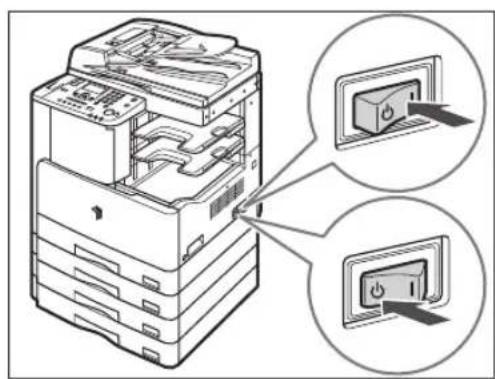
text_image
Diagram showing file transfer or processing steps with labeled components and zoomed-in insets for device placement.Turn the main power switch OFF. Wait at least 10 seconds before turning the main power switch back ON.
2
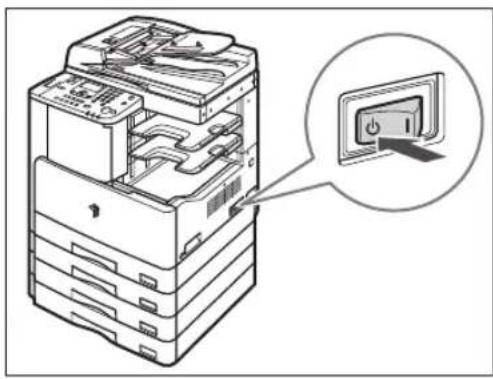
natural_image
Diagram of a computer tower with an open drive and a magnified inset showing the power button (no text or symbols present)If the machine still does not operate normally, follow the procedure below, and contact your local authorized Canon dealer.
☐Turn OFF the main power.
☐Disconnect the power cord from the wall outlet.

NOTE
When contacting your local authorized Canon dealer, have the following information available:
- Model name
- Problem and status of the machine
- Service call message on the LCD display
Appendix
5
CHAPTER
This chapter provides the specifications of the main unit and the optional equipment, and other useful information.
Multifunctional Operations 5-2
Available Paper Stock....5-3
Index 5-5
Multifunctional Operations
The imageRUNNER 2422/2420 offers the user multiple functions, such as printing, scanning, and copying, which can be used together. The following table provides you with the details of multifunctional operations.
■How to read the table
The table below indicates the availability of the operations listed in the horizontal rows when the operations listed in the vertical columns are already being performed.
Example:
When copying is in progress, you can scan originals for a copy job.

NOTE
The machine's performance may be affected if image processing, such as compression, enlargement/reduction, or rotation, are being carried out when the machine receives print data.
■Status Description
Print:
•Copy: A copy job is being printed.
- Print Data: A print or report job is being printed via a network or the USB port.
Scan:
•Copy: A copy job is being scanned.
√: Available N/A: Not Available
| Current Jobs\Next Jobs | Print Scan | |||
| Copy | Print Data | Copy | ||
| Copy N/A | N/A | √ | ||
| Print Data | N/A | N/A | √ | |
| Scan Copy | N/A N/A | N/A | ||
Available Paper Stock
The paper types that can be used with this machine are shown below. The paper type loaded in each paper drawer can be displayed if you register that information in the machine beforehand. (See Chapter 3, “Useful Functions and Settings,” in the Reference Guide.)
√: Available N/A: Not Available
| Paper Type | Paper Source | |
| Paper Drawer (64 g/m2 to 90 g/m2) | Stack Bypass (64 g/m2 to 128 g/m2) | |
| Plain*1 | √ | √ |
| Recycled*1 | √ | √ |
| Color*1 | √ | √ |
| Bond*2 | √ | √ |
| Heavy Paper 1*3 | √ | √ |
| Heavy Paper 2*4 | N/A | √ |
| Heavy Paper 3*5 | N/A | √ |
| Transparency*6 | N/A | √ |
| Envelopes N/A | √ | |
| Labels N/A | √ | |
*1 From 64 g/m² to 80 g/m².
*2 From 75 g/m² to 90 g/m².
*3 From 81 g/m² to 90 g/m².
*4 From 91 g/m² to 105 g/m².
*5 From 106 g/m² to 128 g/m².
*6 Use only A4 transparencies made especially for this machine.

IMPORTANT
When printing on the back side of printed paper, use Special Mode O to prevent paper jams. (See Chapter 3, "Useful Functions and Settings," in the Reference Guide.)
√: Available N/A: Not Available
| Paper Size Width | × Length | Paper Source | |||
| Paper Drawer 1 | Paper Drawers 2, 3, 4 | Stack Bypass | |||
| A4 297 mm × 210 mm | √ | √ | √ | ||
| A4R 210 mm × 297 mm | √ | √ | √ | ||
| A3 297 mm × 420 mm | √ | √ | √ | ||
| A5 210 mm × 148 mm | √ | √ | √ | ||
| A5R | 148 mm × 210 mm | N/A | N/A | √ | |
| Envelope | COM10 (#10) | 104.7 mm × 241.3 mm N/A N/A | √ | ||
| Monarch | 98.4 mm × 190.5 mm | N/A | N/A | √ | |
| DL | 110 mm × 220 mm | N/A | N/A | √ | |
| ISO-B5 | 176 mm × 250 mm | N/A | N/A | √ | |
| ISO-C5 | 162 mm × 229 mm | N/A | N/A | √ | |
| Free Size | 95 mm × 148 mm to 297 mm × 432 mm | N/A N/A | √ | ||

NOTE
- For instructions on loading paper, see the following sections:
- Paper Drawers: "Loading Paper," on p. 3-2
- Stack Bypass: Chapter 2, "Basic Operations," in the Reference Guide.
• Paper drawers 2, 3, and 4 are optional for the imageRUNNER 2422/2420.
- Chlorine-free paper can be used with this machine.
Numerics
2-Page Separation Key, 1-13
2-Sided Key, 1-13
2-Sided Printing, 2-17
A
Abbreviations Used in This Manual, xi
Additional Finisher Tray-C1, 1-14
Additional Functions Key, 1-12
B
Back Key, 1-12
Bond Paper, 5-3
C
Canceling a Job, 2-21
Cassette Feeding Module-J1, 1-10
Cassette Feeding Module-K1, 1-10
Clear Key, 1-12
Color Paper, 5-3
Connecting to a Network, 1-20
Connecting to a USB Interface, 1-19
Control Panel, 1-10, 1-12
Control Panel Power Switch, 1-12, 1-17
COPY Key, 1-12
Copy Ratio Key, 1-13
Copying, Definition of, xiii
Counters, 1-11
D
Density Key, 1-13
Different Paper Size, 3-6
Different Size Originals Key, 1-13
Document Tray-J1, 1-14
Drum Unit, 1-11
Duplex Unit-A1, 1-11, 1-14, 2-17
E
Envelope, 5-3
Error Indicator, 1-13
Error Messages, 4-4
External View, 1-9
F
Feeder (DADF-P2), 1-10, 1-14, 2-6
Finisher-U2, 1-14
Finishing Key, 1-13
Fixing Unit, 1-11
Frame Erase Key, 1-13
Front Cover
Main Unit, 1-11
H
Handling Precautions, 1-7
Heavy Paper, 5-3
I
ID Key, 1-12
Illustrations Used in This Manual, x
Image Combination Key, 1-13
Image Quality Key, 1-13
Installation
Installation Space, 1-5
Location and Handling, 1-2
Power Supply, 1-4
Precautions, 1-2
Safety Instructions, xxi
Internal View, 1-11
K
Keys and Buttons Used in This Manual, x
L
Labels, 5-3
LCD display, 1-12
Left Cover
Main Unit, 1-11
Loading Paper, 3-2
Paper Drawers, 3-2
M
Main Power, 1-15
Main Power Indicator, 1-13
Main Power Switch, 1-10
Moving the Machine, 1-6
Multifunctional Operations, 5-2
N
Numeric Keys, 1-12
0
OK Key, 1-13
On-Screen Instruction, 4-2
Optional Equipment
Cassette Feeding Module-J1, 1-14
Cassette Feeding Module-K1, 1-14
Inner 2 Way Tray-E2, 1-14
P
Paper Drawer's Left Cover, 1-11
Paper Drawers, 1-10
Adjusting a Paper Drawer to Hold a Different Paper Size, 3-6
Loading Paper, 3-2
Paper Jams
On-Screen Instruction, 4-2
Reducing the Frequency of Paper Jams, 4-3
Paper Select Key, 1-13
Paper Stock
Available Paper Stock, 5-3
Paper Size, 5-4
Paper Type, 5-3
Parts and Functions of the Main Unit
External View, 1-9
Internal View, 1-11
Plain Paper, 5-3
Platen Cover Type J, 1-10
Platen Glass, 1-11, 2-6, 2-8
Printing, 2-17
Printing, Definition of, xiii
Processing/Data Indicator, 1-13
R
Recycled Paper, 5-3
Remote Scan, 2-18
Reset Key, 1-12
S
Safety Instructions
Consumables, xxviii
Handling, xxiii
Installation, xxi
Maintenance and Inspections, xxvi
Other Warnings, xxviii
Power Supply, xxii
SCAN Key, 1-12
Scanning Area, 1-11
Scanning, Definition of, xii
Service Call Message, 4-11
Setting Up the Connection, 1-18
Settings Flowchart, 1-18
Sleep Mode, 1-17
Slide guides (feeder), 2-11
Stack Bypass, 1-10
Start Key, 1-12
Stop Key, 1-12
Symbols Used in This Manual, ix
System Monitor, 2-22
System Monitor Key, 1-12
T
Tone Key, 1-12
Toner Cartridge, 1-11, 3-10
Transparency, 5-3
Troubleshooting
Clearing Paper Jams, 4-2
Error Messages, 4-4
Service Call Message, 4-11
TWAIN, 2-18
V
View Settings Key, 1-12
Installation ....xxii
Installation....1-23
Installation....1-30
natural_image
Line drawing of a multi-tiered server rack unit with internal components (no text or symbols)flowchart
graph TD
    A["Lecture"] --> B["Document"]
    B --> C["Document with open files"]
    C --> D["Document with open files"]
    D --> E["Document with open files"]
    E --> F["Document with open files"]
    F --> G["Document with open files"]
    G --> H["Document with open files"]
    H --> I["Document with open files"]
    I --> J["Document with open files"]
    J --> K["Document with open files"]
    K --> L["Document with open files"]
    L --> M["Document with open files"]
    M --> N["Document with open files"]
    N --> O["Document with open files"]
    O --> P["Document with open files"]
    P --> Q["Document with open files"]
    Q --> R["Document with open files"]
    R --> S["Document with open files"]
    S --> T["Document with open files"]
    T --> U["Document with open files"]
    U --> V["Document with open files"]
    V --> W["Document with open files"]
    W --> X["Document with open files"]
    X --> Y["Document with open files"]
    Y --> Z["Document with open files"]
    Z --> AA["Document with open files"]
    AA --> AB["Document with open files"]
    AB --> AC["Document with open files"]
    AC --> AD["Document with open files"]
    AD --> AE["Document with open files"]
    AE --> AF["Document with open files"]
    AF --> AG["Document with open files"]
    AG --> AH["Document with open files"]
    AH --> AI["Document with open files"]
    AI --> AJ["Document with open files"]
    AJ --> AK["Document with open files"]
    AK --> AL["Document with open files"]
    AL --> AM["Document with open files"]
    AM --> AN["Document with open files"]
    AN --> AO["Document with open files"]
    AO --> AP["Document with open files"]
    AP --> AQ["Document with open files"]
    AQ --> AR["Document with open files"]
    AR --> AS["Document with open files"]
    AS --> AT["Document with open files"]
    AT --> AU["Document with open files"]
    AU --> AV["Document with open files"]
    AV --> AW["Document with open files"]
    AW --> AX["Document with open files"]
    AX --> AY["Document with open files"]
Impression
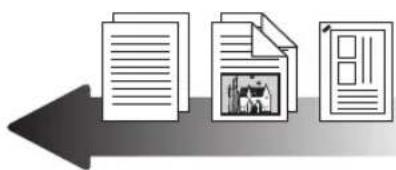
text_image
Icon showing three document pages with a central icon depicting a photo, suggesting a link between documents and a media or content.natural_image
Illustration of a server rack with internal components and an open book icon containing documents (no text or symbols present)Copie

natural_image
Simple graphic of two documents with a left-pointing arrow, no text or symbols present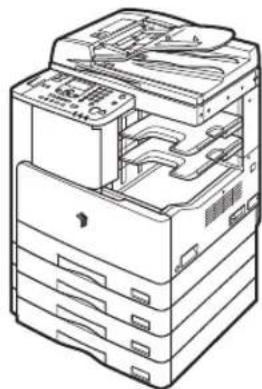
natural_image
Line drawing of a multi-tiered electronic device with internal components (no text or symbols)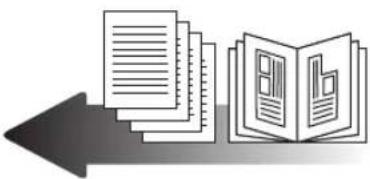
natural_image
Illustration of stacked documents and an open book with a document, pointing left (no text or symbols)CLASS 1 LASER PRODUCT
LASER KLASSE 1
APPAREIL Á LASER DE CLASSE 1
APPARECCHIO LASER DI CLASSE 1
PRODUCTO LÁSER DE CLASE 1
APARELHO A LASER DE CLASSE 1
LUOKAN 1 LASER-TUOTE
LASERPRODUKT KLASS 1

ATTENTION
Copyright (C) 1998-2004 WIDE Project. All rights reserved.
Redistribution and use in source and binary forms, with or without modification, are permitted provided that the following conditions are met:
- Redistributions of source code must retain the above copyright notice, this list of conditions and the following disclaimer.
- Redistributions in binary form must reproduce the above copyright notice, this list of conditions and the following disclaimer in the documentation and/or other materials provided with the distribution.
- Neither the name of the project nor the names of its contributors may be used to endorse or promote products derived from this software without specific prior written permission.
THIS SOFTWARE IS PROVIDED BY THE PROJECT AND CONTRIBUTORS ``AS IS'' AND ANY EXPRESS OR IMPLIED WARRANTIES, INCLUDING, BUT NOT LIMITED TO, THE IMPLIED WARRANTIES OF MERCHANTABILITY AND FITNESS FOR A PARTICULAR PURPOSE ARE DISCLAIMED. IN NO EVENT SHALL THE PROJECT OR CONTRIBUTORS BE LIABLE FOR ANY DIRECT, INDIRECT, INCIDENTAL, SPECIAL, EXEMPLARY, OR CONSEQUENTIAL DAMAGES (INCLUDING, BUT NOT LIMITED TO, PROCUREMENT OF SUBSTITUTE GOODS OR SERVICES; LOSS OF USE, DATA, OR PROFITS; OR BUSINESS INTERRUPTION) HOWEVER CAUSED AND ON ANY THEORY OF LIABILITY, WHETHER IN CONTRACT, STRICT LIABILITY, OR TORT (INCLUDING NEGLIGENCE OR OTHERWISE) ARISING IN ANY WAY OUT OF THE USE OF THIS SOFTWARE, EVEN IF ADVISED OF THE POSSIBILITY OF SUCH DAMAGE.
natural_image
Illustration of a printer with two zoomed-in insets showing internal components (no text or symbols)ATTENTION
text_image
Diagram illustrating a printer press with a prohibition symbol and a downward arrow indicating process flowtext_image
Diagram showing a printer with a prohibition symbol overlaid, indicating no printing or anti-printing of the printer.text_image
Diagram illustrating a printer with no stop sign and three circular insets showing different components of the printer's water drop.natural_image
Illustration of an open file organizer with a prohibition symbol overlay (no text or symbols present)natural_image
Illustration of a stack of server racks with a prohibition symbol overlay (no text or symbols on the diagram itself)text_image
Illustration showing a prohibited device with a 'no' symbol and two bottles, indicating no chemical hazard or hazardous content.natural_image
Illustration of a server rack with a prohibition symbol (no text or labels present)text_image
Diagram illustrating a thermal resistance symbol and its impact on an open stack of devices, with a thermometer indicating temperature.text_image
Diagram showing a hand holding a no-smoking symbol next to an electrical socket connected to a rack-mounted device.natural_image
Line drawing of a printer with multiple ports and control panel (no text or symbols)
text_image
Illustration showing a hand using a wrench to switch a file into a stack of disks, with a no-smoking symbol overlaid.text_image
Illustration showing a prohibition symbol over a stack of documents with tools and a magnifying glass, likely related to file processing or security.natural_image
Illustration of a server rack with two zoomed-in insets showing internal components (no text or symbols)text_image
Diagram illustrating a device with a no-smoking symbol and a spray bottle spraying the contents of stacked file folders.natural_image
Illustration of a multi-tiered computer tower with an inset showing a hand pressing down on a curved surface, set against a starry night sky background (no text or symbols)text_image
Technical diagram of a printer with labeled parts including front panel, back panel, and internal components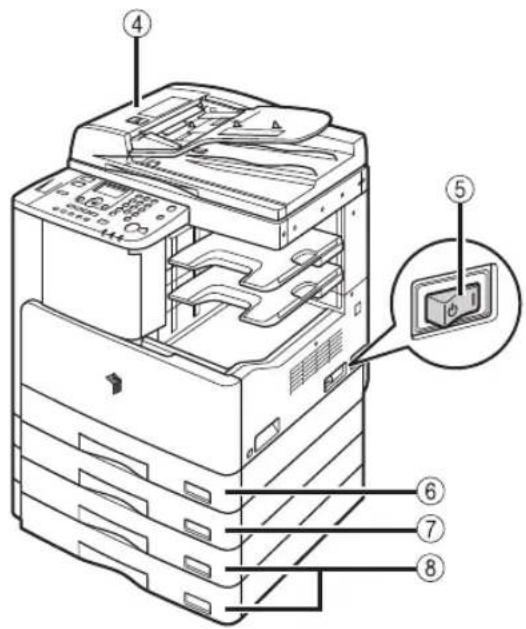
text_image
Technical diagram of an open file organizer with numbered parts and a magnified inset showing internal components.text_image
Technical diagram of an open printer with numbered parts labeled for identification①Zone de lecture
⑫Touche 📋 (Restauration)
text_image
Technical diagram of an open printer with numbered parts labeled ① to ④text_image
Technical diagram of an open office printer with numbered parts labeled 5, 6, 7, and 8text_image
Diagram showing a device with a close-up view of its internal components and a magnified view highlighting a button labeled 'Power Switch'.natural_image
Illustration of a file organizer with an inset showing a finger pointing to a button (no text or symbols present)Économie d'énergie
text_image
Diagram illustrating the decomposition of a solar panel into a microwave oven, with sunlight and moon icons indicating components.Sécurité
natural_image
Illustration of a padlock with a key inserted, symbolizing security or encryption (no text or symbols present)Moniteur système
natural_image
Illustration of a hand pressing down on a computer monitor with an arrow indicating the process (no text or symbols present)natural_image
Line drawing of a printer with an open lid and control panel, no text or symbols presentnatural_image
Illustration of a printer being inserted into a rack, showing the blade and tray (no text or symbols)natural_image
Illustration of a hand pressing down on a mechanical device with an arrow indicating motion (no text or symbols present)natural_image
Cross-sectional diagram of a mechanical component with internal structure and directional arrows (no text or labels)natural_image
Diagram of a printer's internal structure showing paper feeding into a tray, with a hand inserting a component (no text or symbols present)natural_image
Technical line drawing of a printer internal structure showing internal compartments and a paper feeding into a base (no text or symbols)natural_image
Line drawing of hands folding a folded paper or sheet (no text or symbols)natural_image
Illustration of two hands folding a folded paper or document, one folded and the other placed on top (no text or symbols present)
REMARQUE
natural_image
Technical line drawing of a printer's internal structure showing paper feeding into a tray (no text or symbols)natural_image
Technical illustration of a printer's internal structure showing paper feeding and clamping components (no text or symbols)
IMPORTANT
natural_image
Diagram of a printer's internal structure showing paper feeding into a slot (no text or symbols visible)natural_image
Line drawing of a printer's internal structure showing a hand inserting a slot into the case (no text or symbols visible)natural_image
Technical line drawing of an open printer internal structure with a paper airplane icon (no text or symbols)natural_image
Technical line drawing of a printer internal structure with an inset showing mechanical components (no text or symbols)
natural_image
Technical line drawing of a mechanical assembly with an arrow indicating direction (no text or symbols present)natural_image
Technical line drawing of an open industrial machine with a magnified inset showing internal components (no text or symbols)natural_image
Illustration of a hand inserting a CPU into an open storage unit (no text or symbols visible)flowchart
graph TD
    A["Start"] --> B["Process Step"]
    B --> C["Cell with Battery Cells"]
natural_image
Diagram of a printer's internal structure showing paper feeding into a slot (no text or symbols visible)natural_image
Diagram of a computer tower with an open drawer and directional arrow indicating compression or disassembly (no text or symbols present)2
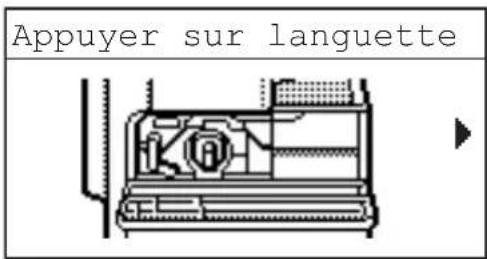
natural_image
Technical line drawing of a mechanical device interior showing internal components and a circular housing (no text or symbols)text_image
Retirer tonernatural_image
Hand inserting a component into a device casing (no text or symbols visible)4
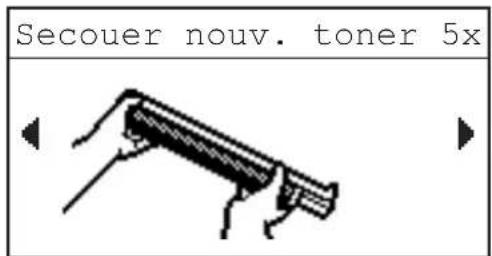
text_image
Secouer nouv. toner 5xnatural_image
Technical line drawing of a mechanical component with a downward arrow indicating motion (no text or symbols)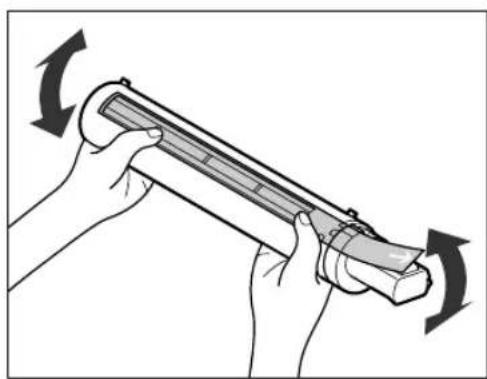
natural_image
Illustration of hands holding a cylindrical device with rotating arrows indicating motion (no text or symbols)
AVERTISSEMENT
natural_image
Mechanical assembly diagram showing a hand operating a component with a magnified inset of a cylindrical component (no text or symbols visible)natural_image
Illustration of hands installing or adjusting a mechanical component inside a storage unit (no text or symbols visible)
IMPORTANT
natural_image
Technical diagram of a mechanical assembly with a magnified inset showing internal components (no text or labels)natural_image
Technical diagram of a mechanical device with internal components and an arrow indicating a process (no text or symbols present)
ATTENTION
text_image
Diagram showing file transfer or assembly process with labeled components and zoomed-in viewsnatural_image
Diagram of a computer tower with an open panel and a magnified inset showing a button (no text or symbols present)Touche Effacer, 1-12
Touche Effacer cadre, 1-13
Touche Finition, 1-13
Touche Format papier, 1-13
Touche ID, 1-12
Touche LECTURE, 1-12
Touche Restauration, 1-12
Touche Retour, 1-12
Touche Séparation 2 pages, 1-13
Touche Taux de reproduction, 1-13
Installation....1-23
Installation....1-30
natural_image
Line drawing of a multi-tiered electronic device with internal components (no text or symbols)natural_image
Three document icons in a row: one with a left-pointing arrow, two with a small icon, and one with a right-pointing arrow (no text or symbols)natural_image
Illustration of a multi-level computer tower with internal components and an icon showing documents and a book (no text or symbols present)Kopieren
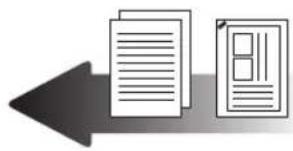
natural_image
Simple graphic of two document icons with a left-pointing arrow, no text or symbols present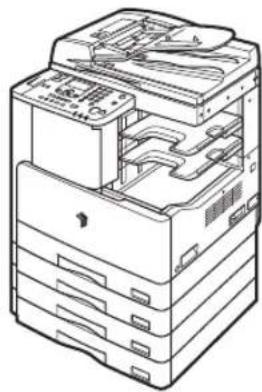
natural_image
Line drawing of a multi-tiered printer or server unit with internal compartments and ventilation slots (no text or symbols)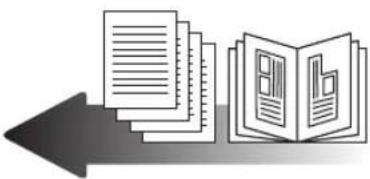
natural_image
Illustration of stacked documents and an open book with a grid, pointing left (no text or symbols)CLASS 1 LASER PRODUCT
LASER KLASSE 1
APPAREIL Á LASER DE CLASSE 1
APPARECCHIO LASER DI CLASSE 1
PRODUCTO LÁSER DE CLASE 1
APARELHO A LASER DE CLASSE 1
LUOKAN 1 LASER-TUOTE
LASERPRODUKT KLASS 1

VORSICHT
Copyright (C) 1998-2004 WIDE Project. All rights reserved.
Redistribution and use in source and binary forms, with or without modification, are permitted provided that the following conditions are met:
- Redistributions of source code must retain the above copyright notice, this list of conditions and the following disclaimer.
- Redistributions in binary form must reproduce the above copyright notice, this list of conditions and the following disclaimer in the documentation and/or other materials provided with the distribution.
- Neither the name of the project nor the names of its contributors may be used to endorse or promote products derived from this software without specific prior written permission.
THIS SOFTWARE IS PROVIDED BY THE PROJECT AND CONTRIBUTORS ``AS IS'' AND ANY EXPRESS OR IMPLIED WARRANTIES, INCLUDING, BUT NOT LIMITED TO, THE IMPLIED WARRANTIES OF MERCHANTABILITY AND FITNESS FOR A PARTICULAR PURPOSE ARE DISCLAIMED. IN NO EVENT SHALL THE PROJECT OR CONTRIBUTORS BE LIABLE FOR ANY DIRECT, INDIRECT, INCIDENTAL, SPECIAL, EXEMPLARY, OR CONSEQUENTIAL DAMAGES (INCLUDING, BUT NOT LIMITED TO, PROCUREMENT OF SUBSTITUTE GOODS OR SERVICES; LOSS OF USE, DATA, OR PROFITS; OR BUSINESS INTERRUPTION) HOWEVER CAUSED AND ON ANY THEORY OF LIABILITY, WHETHER IN CONTRACT, STRICT LIABILITY, OR TORT (INCLUDING NEGLIGENCE OR OTHERWISE) ARISING IN ANY WAY OUT OF THE USE OF THIS SOFTWARE, EVEN IF ADVISED OF THE POSSIBILITY OF SUCH DAMAGE.
natural_image
Illustration of a printer with two close-up insets showing internal components (no text or symbols)VORSICHT
text_image
Diagram illustrating a printer's open circuit with a prohibition symbol and warning arrow, showing process flow.text_image
Diagram showing a printer with a prohibition symbol, indicating no printing or discharging process.Finisher U2
text_image
Diagram illustrating a printer with no prohibition, showing its circuitry and three circular insets of the printer's water drop.natural_image
Illustration of a printer stack with a prohibition symbol overlay (no text or symbols present)natural_image
Illustration of an open computer tower with a prohibition symbol overlay (no text or symbols on the tower itself)text_image
Illustration showing a prohibited device with a 'no' symbol and two bottles, likely indicating hazardous or hazardous items.natural_image
Illustration of a stack of electronic devices with a prohibition symbol overlay (no text or symbols present)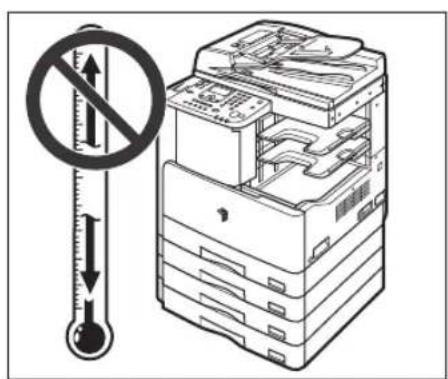
text_image
Diagram illustrating a thermal resistance symbol and its corresponding circuitry with a thermometer, showing no heat transfer.text_image
Diagram showing a hand holding a prohibition symbol next to an electrical device with three plug outlets, illustrating network connection or installation.natural_image
Line drawing of a printer with internal components and directional arrows indicating movement (no text or symbols)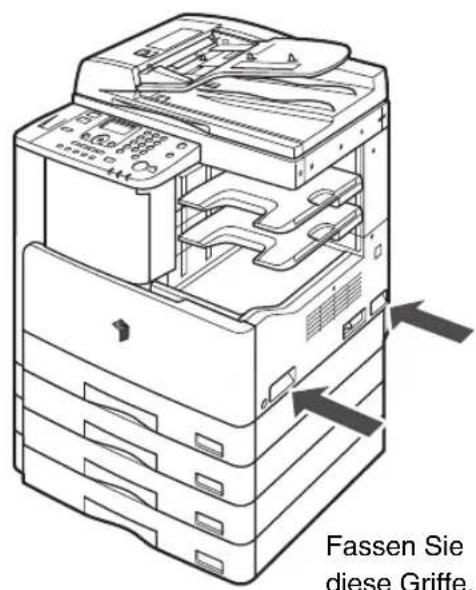
natural_image
Illustration of a hand using a tool to switch a stack of electronic devices into a rack, with a no-smoking symbol overlaid (no text or symbols present)text_image
Illustration showing a printer with a prohibition symbol, a paperclip, and tools around it, symbolizing software or documentation.natural_image
Illustration of a server rack with two zoomed-in insets showing internal components (no text or symbols)text_image
Diagram illustrating a device with a no-smoking symbol and a spray bottle spraying the contents of stacked file folders.natural_image
Illustration of a multi-tiered computer tower with an inset showing a hand pressing down on a curved surface, set against a starry night sky background (no text or symbols)text_image
Technical diagram of an open office machine with numbered parts labeled 1, 2, and 3.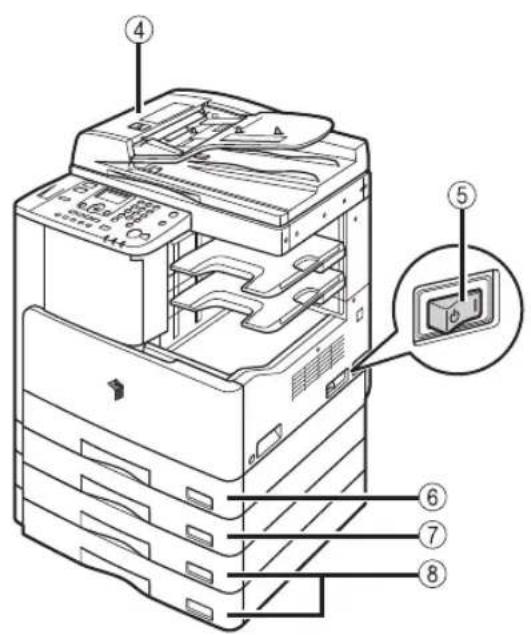
text_image
Technical diagram of an open file organizer with numbered parts and a magnified inset showing the internal structure.①Stapelanlage
text_image
Technical diagram of an open file organizer with numbered parts for identification①Scanbereich
⑯ (Systemmonitor)-Taste
text_image
Technical diagram of an open printer with numbered parts labeled ① to ④text_image
Diagram of an open office printer with numbered parts labeled 5, 6, 7, and 8text_image
Diagram showing a device with a close-up view of its internal components and a button labeled 'Power Switch' pointing to it.flowchart
graph TD
    A["Car Driving"] --> B["Route to Road"]
    B --> C["Grid Navigation"]
    C --> D["Vehicle Lane Navigation"]
    D --> E["→"]
2 auf 1
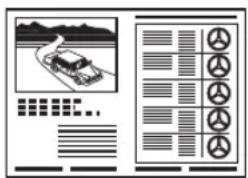
text_image
Diagram showing a car on a road with traffic flow and vehicle selection grid, alongside a toolbar with icons.natural_image
Diagram showing a file organizer with an inset close-up of a finger pointing to a button (no text or symbols present)Energie sparen
text_image
Diagram illustrating the use of a solar-powered computer system with a magnified view showing the screen and light path.Sicherheit
natural_image
Illustration of a padlock with a key inserted, symbolizing security or lock function (no text or symbols present)Systemmonitor
natural_image
Illustration of a hand pressing down on a computer monitor with an arrow indicating the process (no text or symbols present)natural_image
Line drawing of a hand operating a printer with an open lid (no text or symbols visible)natural_image
Illustration of a printer being inserted into a paper airplane, showing the blade being cut with a downward arrow (no text or symbols present)natural_image
Illustration of a hand inserting a device into a printer (no text or symbols visible)
HINWEIS
natural_image
Cross-sectional diagram of a mechanical component with internal structure and directional arrow (no text or labels)text_image
Kopieren Status/Log Status Lognatural_image
Diagram of a printer's internal structure showing paper feeding into a tray, with no visible text or symbolsnatural_image
Technical line drawing of an open industrial machine with internal components and a downward arrow indicating motion (no text or symbols)natural_image
Line drawing of hands folding a folded paper or sheet (no text or symbols)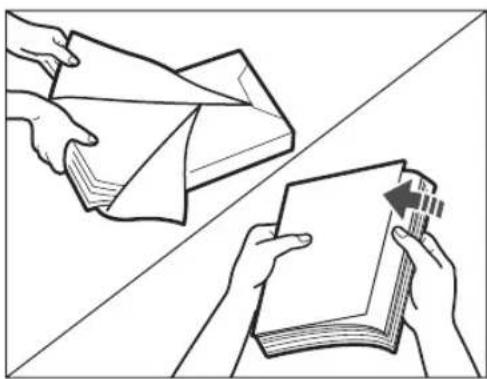
natural_image
Illustration of two hands folding and folding a stack of papers, with no text or symbols present.natural_image
Technical line drawing of a printer's internal structure showing paper feeding into a tray (no text or symbols)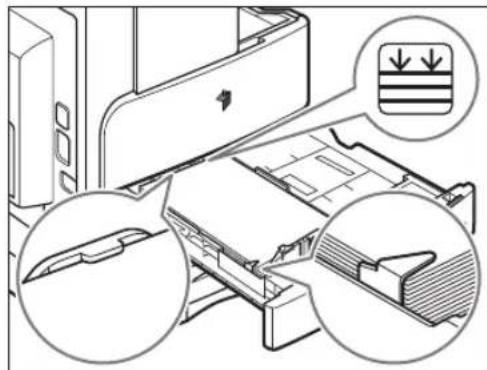
natural_image
Technical illustration of a computer motherboard with zoomed-in insets showing internal components (no text or symbols)natural_image
Diagram of a printer's internal structure showing paper feeding into a tray with an arrow indicating the process (no text or symbols present)natural_image
Illustration of a printer's internal structure showing a hand inserting a card into a tray (no text or symbols visible)natural_image
Technical line drawing of a printer internal structure showing internal components and a downward arrow (no text or symbols)natural_image
Diagram of an Apple printer internal structure showing internal components and a magnified view of the printer's internal mechanism (no text or symbols present)Verriegelung
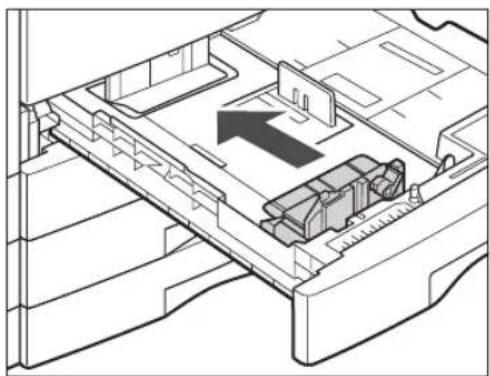
natural_image
Technical line drawing of a mechanical assembly with an arrow indicating direction (no text or symbols present)5
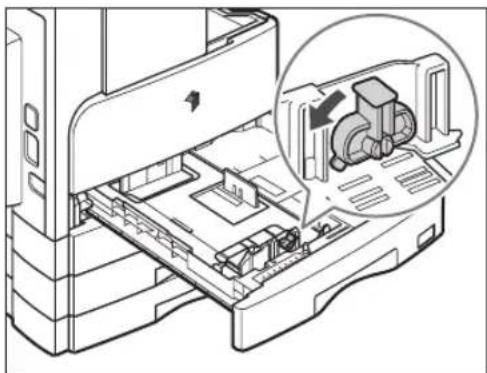
natural_image
Technical line drawing of a printer internal structure with an inset showing a mechanical component (no text or symbols present)natural_image
Illustration of a hand inserting a device into a computer case, showing internal components and an upward arrow (no text or symbols)natural_image
Diagram of a printer's internal structure showing paper feeding into a tray with an arrow indicating the process (no text or symbols present)natural_image
Diagram of a computer tower with an open storage area and directional arrow indicating compression (no text or symbols present)2
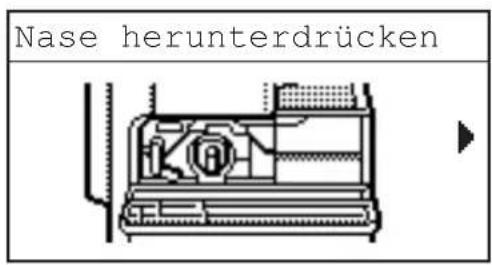
natural_image
Technical line drawing of a mechanical assembly with internal components and a highlighted section (no text or symbols)Entriegelungstaste
3
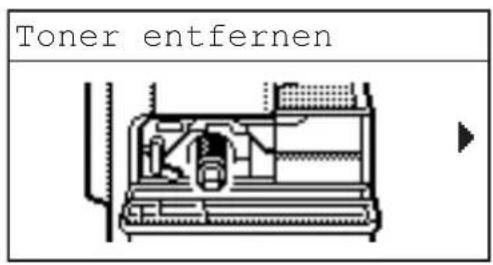
text_image
Toner entfernennatural_image
Illustration of a hand inserting a component into a device casing (no text or symbols visible)4
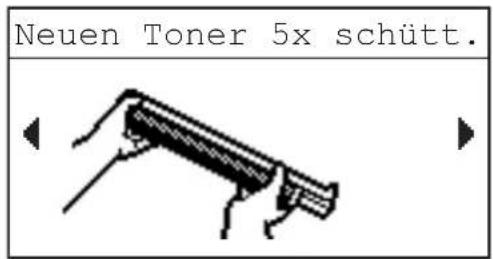
text_image
Neuen Toner 5x schütt.natural_image
Technical line drawing of a mechanical component with a downward arrow indicating motion (no text or symbols)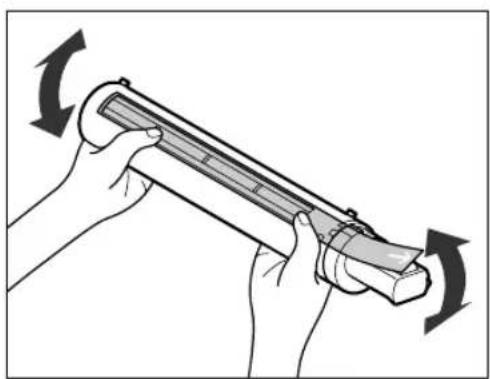
natural_image
Illustration of hands holding a cylindrical device with rotating arrows indicating motion (no text or symbols)
WARNUNG
natural_image
Mechanical assembly diagram showing a hand operating a component with a magnified inset highlighting a cylindrical component (no text or symbols present)natural_image
Line drawing of hands installing or adjusting a component inside a vehicle chassis (no text or symbols visible)
WICHTIG
natural_image
Technical line drawing of a mechanical assembly with a magnified inset showing internal components (no text or symbols)
WICHTIG
natural_image
Technical line drawing of a mechanical device with an open lid and internal components (no text or symbols)
VORSICHT
text_image
Diagram showing file transfer or assembly process with labeled components and zoomed-in viewsnatural_image
Diagram of a computer tower with an open panel and a magnified inset showing a button (no text or symbols present)natural_image
Line drawing of a multi-tiered printer or scanner with visible internal components (no text or symbols)text_image
Icon showing three document pages with a central icon depicting a photo, suggesting a link between documents and a media or content.natural_image
Illustration of a server rack with internal components and an icon showing documents and a book (no text or symbols present)Copia

natural_image
Simple graphic of two documents with a left-pointing arrow, no text or symbols present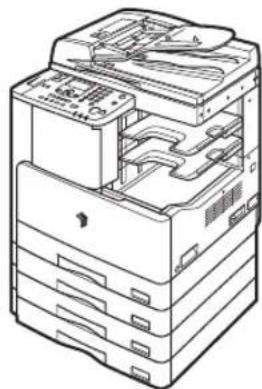
natural_image
Line drawing of a multi-tiered electronic device with internal components (no text or symbols)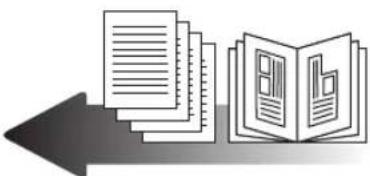
natural_image
Illustration of stacked documents and an open book with a document, pointing left (no text or symbols)CLASS 1 LASER PRODUCT
LASER KLASSE 1
APPAREIL Á LASER DE CLASSE 1
APPARECCHIO LASER DI CLASSE 1
PRODUCTO LÁSER DE CLASE 1
APARELHO A LASER DE CLASSE 1
LUOKAN 1 LASER-TUOTE
LASERPRODUKT KLASS 1

ATTENZIONE
Copyright (C) 1998-2004 WIDE Project. All rights reserved.
Redistribution and use in source and binary forms, with or without modification, are permitted provided that the following conditions are met:
- Redistributions of source code must retain the above copyright notice, this list of conditions and the following disclaimer.
- Redistributions in binary form must reproduce the above copyright notice, this list of conditions and the following disclaimer in the documentation and/or other materials provided with the distribution.
- Neither the name of the project nor the names of its contributors may be used to endorse or promote products derived from this software without specific prior written permission.
THIS SOFTWARE IS PROVIDED BY THE PROJECT AND CONTRIBUTORS ``AS IS'' AND ANY EXPRESS OR IMPLIED WARRANTIES, INCLUDING, BUT NOT LIMITED TO, THE IMPLIED WARRANTIES OF MERCHANTABILITY AND FITNESS FOR A PARTICULAR PURPOSE ARE DISCLAIMED. IN NO EVENT SHALL THE PROJECT OR CONTRIBUTORS BE LIABLE FOR ANY DIRECT, INDIRECT, INCIDENTAL, SPECIAL, EXEMPLARY, OR CONSEQUENTIAL DAMAGES (INCLUDING, BUT NOT LIMITED TO, PROCUREMENT OF SUBSTITUTE GOODS OR SERVICES; LOSS OF USE, DATA, OR PROFITS; OR BUSINESS INTERRUPTION) HOWEVER CAUSED AND ON ANY THEORY OF LIABILITY, WHETHER IN CONTRACT, STRICT LIABILITY, OR TORT (INCLUDING NEGLIGENCE OR OTHERWISE) ARISING IN ANY WAY OUT OF THE USE OF THIS SOFTWARE, EVEN IF ADVISED OF THE POSSIBILITY OF SUCH DAMAGE.
natural_image
Illustration of a printer with two close-up insets showing internal components (no text or symbols)
ATTENZIONE
text_image
Diagram illustrating a printer's printing process with a prohibition symbol and warning arrowtext_image
Diagram showing a printer with a prohibition symbol overlaid on its screen, indicating no printing or disassembly.Finisher-U2
text_image
Illustration showing a printer with a no-smoking symbol, water droplets, and a fire extinguisher icon.natural_image
Illustration of a stack of electronic devices with a prohibition symbol overlay (no text or symbols present)natural_image
Illustration of a stack of server racks with a prohibition symbol overlay (no text or symbols on the diagram itself)text_image
Illustration showing a device with a no-smoking symbol, alongside two bottles and a bottle labeled 'Bottle 1'.natural_image
Illustration of a computer tower with an open stack and a prohibition symbol (no text or labels)text_image
Diagram illustrating a thermal resistance symbol and its impact on an open stack of devices, with a thermometer indicating temperature.text_image
Diagram showing a hand holding a prohibition symbol next to an electrical socket connected to a rack-mounted device.natural_image
Line drawing of a printer with multiple ports and control panel (no text or symbols)text_image
Illustration showing a hand using a tool to remove a stack of electronic components, with a no-smoking symbol overlaid.text_image
Diagram illustrating a prohibited operation with a prohibition symbol and mechanical tools around a server rack.natural_image
Illustration of a server rack with two zoomed-in insets showing internal components (no text or symbols)text_image
Diagram illustrating a device with a no-smoking symbol and a spray bottle spraying the contents of stacked file folders.natural_image
Illustration of a multi-tiered computer tower with an inset showing a hand pressing down on a curved surface, set against a starry night sky background (no text or symbols)text_image
Technical diagram of an open office printer with labeled parts in Chinese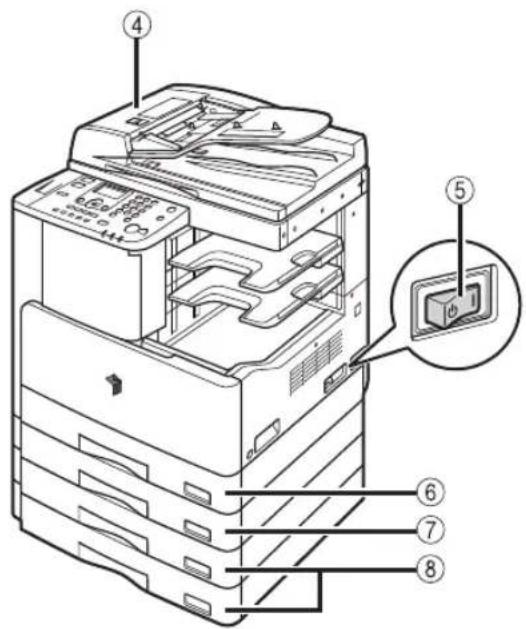
text_image
Technical diagram of a printer with numbered parts and an inset view highlighting internal components.①Bypass
③Platen Cover Type J
text_image
Technical diagram of an open printer with numbered parts for identification and assembly reference.①Area di scansione
text_image
Technical diagram of an open printer with numbered parts for identificationtext_image
Technical diagram of an open file printer with numbered parts labeled 5, 6, 7, and 8⑤Finisher-U2
⑥Alimentatore (DADF-P2)
⑦Vassoio Porta-originali J1
⑧Additional Finisher Tray-C1
text_image
Diagram showing a device with a close-up view of its internal components and a button labeled 'Power Switch' pointing to it.natural_image
Illustration of a printer with an inset showing a finger pointing at a circular button (no text or symbols present)text_image
Diagram illustrating the use of a sun on a computer tower with a magnified view showing airflow or heat transfer.Protezione
natural_image
Illustration of a padlock with a key inserted, symbolizing security or lock function (no text or symbols present)Controllo sistema
text_image
Elenco processi 8-bit 100X39 Stamps OK D In attesa OK D In attesa OK D In attesanatural_image
Illustration of a hand pressing down on a computer monitor with an arrow indicating the process (no text or symbols present)natural_image
Line drawing of a printer with an open lid and control panel, no text or symbols presenttext_image
Coperchionatural_image
Illustration of a printer being inserted into a paper airplane, showing the blade being cut with a downward arrow (no text or symbols present)natural_image
Illustration of a hand pressing down on a printer's cover panel (no text or symbols visible)
NOTA
natural_image
Cross-sectional diagram of a mechanical component with internal structure and directional arrow (no text or symbols)natural_image
Diagram of a printer's internal structure showing paper feeding into a slot (no text or symbols)natural_image
Technical line drawing of a printer internal structure showing internal compartments and a downward arrow indicating a component (no text or symbols present)natural_image
Line drawing of hands folding a folded paper or sheet (no text or symbols)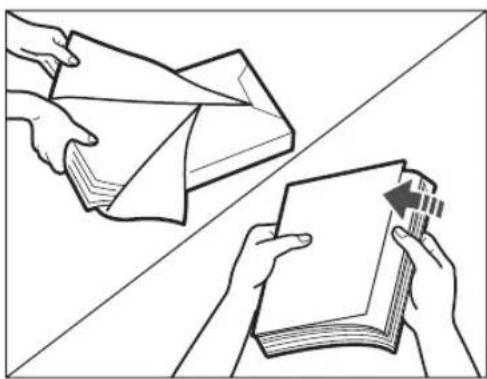
natural_image
Illustration of two hands folding a folded paper or document, one folded and the other placed on top (no text or symbols present)natural_image
Technical line drawing of a printer drawer with internal compartments and a paper feed into the cover (no text or symbols)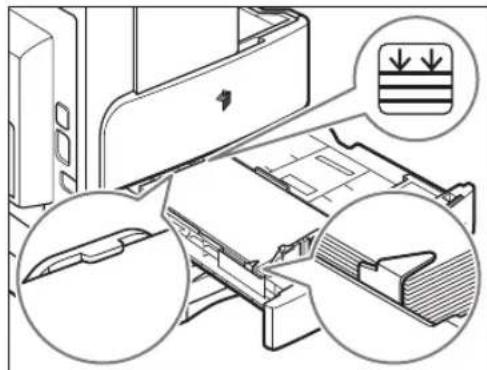
natural_image
Technical illustration of a computer printer internal structure with magnified views showing internal components (no text or symbols)natural_image
Diagram of a printer's internal structure showing paper feeding into a tray with an arrow indicating the process (no text or symbols present)natural_image
Illustration of a hand inserting a device into an open printer case (no text or symbols visible)natural_image
Technical line drawing of a printer internal structure showing tray, casing, and printer slot (no text or symbols)natural_image
Technical line drawing of an open printer with internal components and a magnified inset showing mechanical assembly (no text or symbols)Leva di blocco
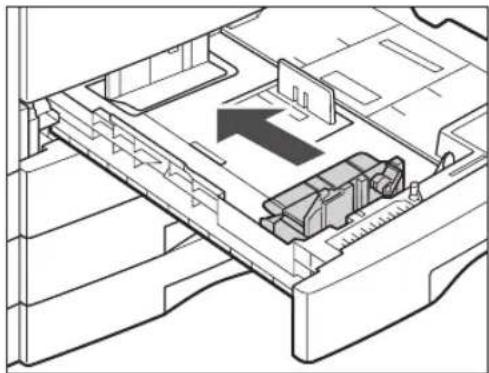
natural_image
Technical line drawing of a mechanical assembly with no visible text or symbols5
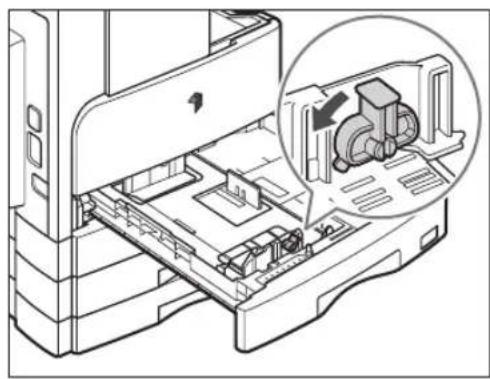
natural_image
Technical line drawing of an open industrial machine with a magnified inset showing internal components (no text or symbols)natural_image
Illustration of a hand inserting a device into a computer case with an arrow indicating the process (no text or symbols present)natural_image
Diagram of a printer's internal structure showing paper feeding into a slot (no text or symbols visible)text_image
Aprire pannello anter.natural_image
Diagram of a computer tower with an open drawer and directional arrow indicating compression or disassembly (no text or symbols present)2
text_image
Tenere linguetta prem.natural_image
Technical line drawing of a mechanical assembly with internal components (no text or symbols)natural_image
Hand inserting a component into a device casing (no text or symbols visible)4
text_image
Agitare toner 5 v.natural_image
Technical line drawing of a mechanical component with a downward arrow indicating motion (no text or symbols)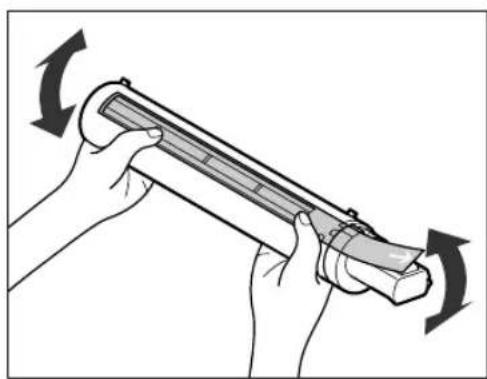
natural_image
Illustration of hands holding a cylindrical device with rotating arrows indicating motion (no text or symbols)
AVVERTENZA
natural_image
Mechanical assembly diagram showing a hand operating a component with a magnified inset view of a cylindrical component (no text or symbols visible)natural_image
Illustration of hands installing or adjusting a mechanical component inside a storage unit (no text or symbols visible)
IMPORTANTE
natural_image
Technical diagram of a mechanical device with internal components and an arrow indicating a process (no text or symbols present)
ATTENZIONE
text_image
Diagram showing file transfer or assembly process with labeled components and zoomed-in viewsnatural_image
Diagram of a computer tower with an open panel and a close-up view of the switch (no text or symbols present)Additional Finisher Tray-C1, 1-14
Alimentatore, 2-6
Alimentatore (DADF-P2), 1-10, 1-14
Driver dello scanner, 1-28
Duplex Unit-A1, 1-11, 1-14
E
Etichette, 5-3
F
Finisher-U2, 1-14
Scansione remota, 1-28, 2-18
natural_image
Line drawing of a multi-tiered printer or server unit with visible internal components and ventilation slots (no text or symbols)flowchart
graph TD
    A["Lectura"] --> B["Document with Paper Icon"]
    B --> C["Document with Book Icon"]
    C --> D["Document with Text Icon"]
    D --> E["Document with Document Icon"]
    E --> F["Document with Text Icon"]
    F --> G["Document with Document Icon"]
    G --> H["Document with Text Icon"]
    H --> I["Document with Document Icon"]
    I --> J["Document with Text Icon"]
    J --> K["Document with Document Icon"]
    K --> L["Document with Text Icon"]
    L --> M["Document with Document Icon"]
    M --> N["Document with Text Icon"]
    N --> O["Document with Document Icon"]
    O --> P["Document with Text Icon"]
    P --> Q["Document with Document Icon"]
    Q --> R["Document with Text Icon"]
    R --> S["Document with Document Icon"]
    S --> T["Document with Text Icon"]
    T --> U["Document with Document Icon"]
    U --> V["Document with Text Icon"]
    V --> W["Document with Document Icon"]
    W --> X["Document with Text Icon"]
    X --> Y["Document with Document Icon"]
Impresión
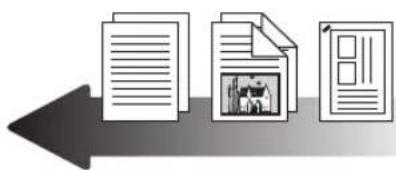
text_image
Icon showing three document pages with a central icon depicting a photo, suggesting a link between documents and a media or content.natural_image
Illustration of a server rack with internal components and an inset image showing documents and a book (no text or symbols present)Copia
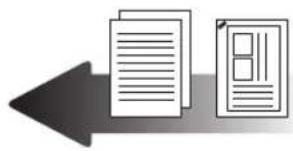
natural_image
Simple graphic of two document icons with a left-pointing arrow, no text or symbols present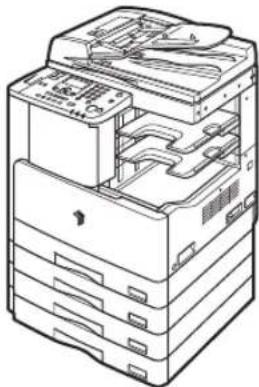
natural_image
Line drawing of a multi-tiered server rack with internal components (no text or symbols)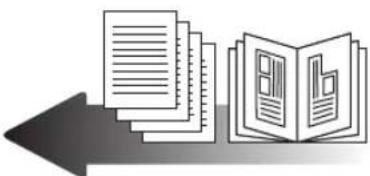
natural_image
Illustration of stacked documents and an open book with a document, pointing left (no text or symbols)CLASS 1 LASER PRODUCT
LASER KLASSE 1
APPAREIL Á LASER DE CLASSE 1
APPARECCHIO LASER DI CLASSE 1
PRODUCTO LÁSER DE CLASE 1
APARELHO A LASER DE CLASSE 1
LUOKAN 1 LASER-TUOTE
LASERPRODUKT KLASS 1

ATENCIÓN
Copyright (C) 1998-2004 WIDE Project. All rights reserved.
Redistribution and use in source and binary forms, with or without modification, are permitted provided that the following conditions are met:
- Redistributions of source code must retain the above copyright notice, this list of conditions and the following disclaimer.
- Redistributions in binary form must reproduce the above copyright notice, this list of conditions and the following disclaimer in the documentation and/or other materials provided with the distribution.
- Neither the name of the project nor the names of its contributors may be used to endorse or promote products derived from this software without specific prior written permission.
THIS SOFTWARE IS PROVIDED BY THE PROJECT AND CONTRIBUTORS ``AS IS'' AND ANY EXPRESS OR IMPLIED WARRANTIES, INCLUDING, BUT NOT LIMITED TO, THE IMPLIED WARRANTIES OF MERCHANTABILITY AND FITNESS FOR A PARTICULAR PURPOSE ARE DISCLAIMED. IN NO EVENT SHALL THE PROJECT OR CONTRIBUTORS BE LIABLE FOR ANY DIRECT, INDIRECT, INCIDENTAL, SPECIAL, EXEMPLARY, OR CONSEQUENTIAL DAMAGES (INCLUDING, BUT NOT LIMITED TO, PROCUREMENT OF SUBSTITUTE GOODS OR SERVICES; LOSS OF USE, DATA, OR PROFITS; OR BUSINESS INTERRUPTION) HOWEVER CAUSED AND ON ANY THEORY OF LIABILITY, WHETHER IN CONTRACT, STRICT LIABILITY, OR TORT (INCLUDING NEGLIGENCE OR OTHERWISE) ARISING IN ANY WAY OUT OF THE USE OF THIS SOFTWARE, EVEN IF ADVISED OF THE POSSIBILITY OF SUCH DAMAGE.
natural_image
Illustration of a printer with two close-up insets showing internal components (no text or symbols)
ATENCIÓN
text_image
Diagram illustrating a printer's open circuit with a prohibition symbol and warning arrow, showing process flow.text_image
Diagram showing a printer with a prohibition symbol, indicating no file or document being discarded.text_image
Diagram illustrating a printer setup with a no-smoking symbol, water drop, and a spray can icon.natural_image
Illustration of a stack of electronic devices with a prohibition symbol overlay (no text or symbols present)natural_image
Illustration of a stack of electronic devices with a prohibition symbol overlay (no text or symbols on the devices themselves)natural_image
Illustration of a device with a no-smoking symbol, accompanied by two bottles and a stack of documents (no text or symbols present)natural_image
Illustration of a server rack with a prohibition symbol (no text or labels present)text_image
Diagram illustrating a thermal resistance symbol and its impact on an open stack of devices, with a thermometer indicating temperature.text_image
Diagram showing a hand holding a prohibition symbol next to an electrical device with three plug outlets, illustrating network connection or installation.natural_image
Line drawing of a printer with internal components and directional arrows indicating movement (no text or symbols)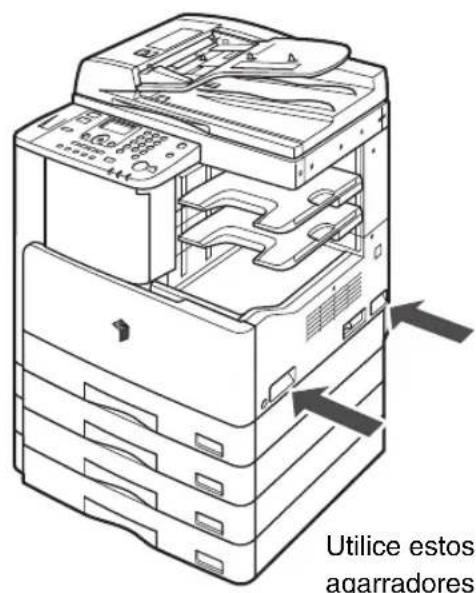
text_image
Illustration showing a hand using a screwdriver to switch a stack of hard drives, with a no-smoking symbol overlaid.text_image
Illustration showing a prohibition symbol over stacked documents and tools, likely related to software or file processing.natural_image
Illustration of a computer tower with two zoomed-in insets showing internal components (no text or symbols)text_image
Diagram illustrating a device with a no-smoking symbol and a spray bottle spraying the contents of stacked file folders.natural_image
Illustration of a multi-tiered computer tower with an inset showing a hand pressing down on a curved surface, set against a starry night sky background (no text or symbols)text_image
Technical diagram of an open office machine with numbered parts labeled 1, 2, and 3.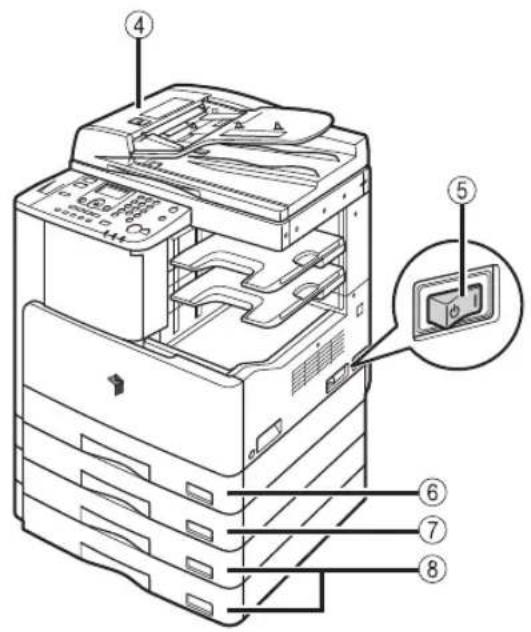
text_image
Technical diagram of an electronic device with numbered components and a magnified inset showing internal structure.①Bandeja alim.
text_image
Technical diagram of an open printer with numbered parts labeled for identification①Área de lectura
text_image
Technical diagram of an open printer with numbered parts for identificationtext_image
Technical diagram of an open file organizer with numbered parts labeled 5, 6, 7, and 8text_image
Diagram showing a device with a close-up view of its internal components and a magnified view highlighting a button labeled '按钮' (button).flowchart
graph LR
    A["Vehicle Display"] --> B["Navigation Panel"]
    B --> C["Control Panel with Bus, Train, Road, etc."]
Combinación 2 en 1
Impresión
natural_image
Diagram showing a file organizer with an inset close-up of a finger pointing to a button (no text or symbols present)Ahorro de energía
text_image
Diagram illustrating the use of a solar-powered refrigerator with a magnified view showing the sun, moon, and stars.Seguridad
natural_image
Illustration of a padlock with a key inserted, symbolizing security or lock function (no text or symbols present)Monitor del sistema
natural_image
Illustration of a hand pressing down on a computer monitor with an arrow indicating the process (no text or symbols present)natural_image
Line drawing of a printer with an open lid and control panel, no text or symbols presentnatural_image
Illustration of a hand inserting a device into a printer (no text or symbols visible)natural_image
Illustration of a hand pressing down on a printer's cover panel with an arrow indicating the process (no text or symbols present)natural_image
Cross-sectional diagram of a mechanical component with internal structure and directional arrow (no text or labels)flowchart
graph TD
    A["COPY"] --> B["SCAN"]
    B --> C["..."]
Pulse SCAN
(LEER).
natural_image
Diagram of a printer's internal structure showing paper feeding into a slot (no text or symbols visible)natural_image
Technical line drawing of a printer internal structure showing internal components and a downward arrow indicating a loading or assembly (no text or symbols present)natural_image
Line drawing of hands folding a folded paper or sheet (no text or symbols)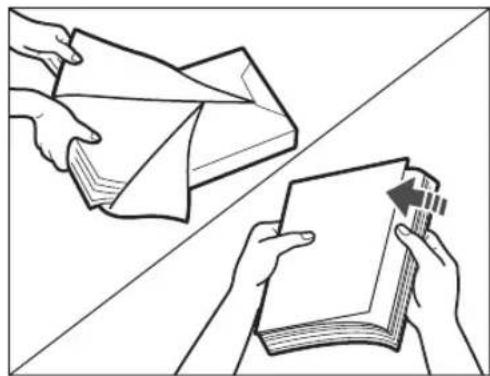
natural_image
Illustration of two hands folding a folded paper or document using a folding tool (no text or symbols present)4
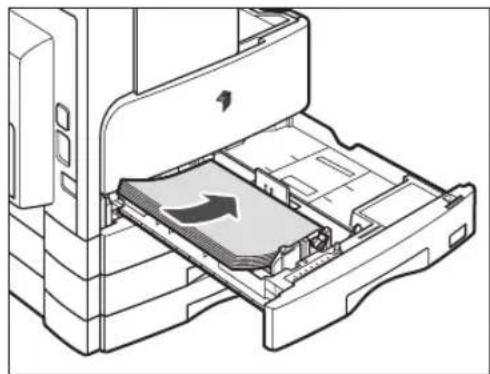
natural_image
Diagram of an open printer drawer with internal compartments and a paper feed into the cover (no text or symbols visible)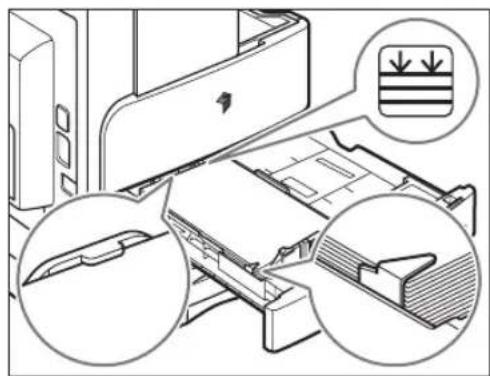
natural_image
Technical illustration of a printer's internal structure showing paper feeding and printmaking (no text or symbols)natural_image
Diagram of a printer's internal structure showing paper feeding into a tray with an arrow indicating the process (no text or symbols present)natural_image
Line drawing of a printer's internal structure showing a hand inserting a slot into the main frame (no text or symbols visible)natural_image
Technical line drawing of an open printer internal structure with a paper airplane icon (no text or symbols)natural_image
Technical line drawing of an open printer with internal components and a magnified inset showing mechanical assembly (no text or symbols)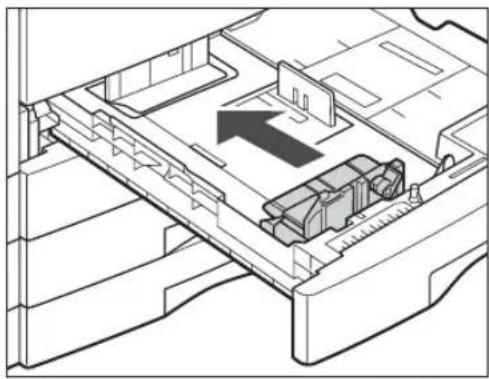
natural_image
Technical line drawing of a mechanical assembly with an arrow indicating direction (no text or symbols present)Palanca de bloqueo
5
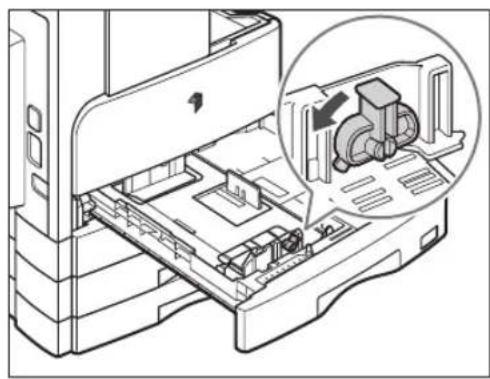
natural_image
Technical line drawing of an Apple printer internal structure with a magnified inset showing internal components (no text or symbols)natural_image
Illustration of a hand inserting a CD into a device into a rack (no text or symbols visible)natural_image
Diagram of a printer's internal structure showing paper feeding into a slot (no text or symbols visible)natural_image
Diagram of a printer's internal structure showing a paper feeding into a stack of folders with an arrow indicating the fold (no text or symbols present)2
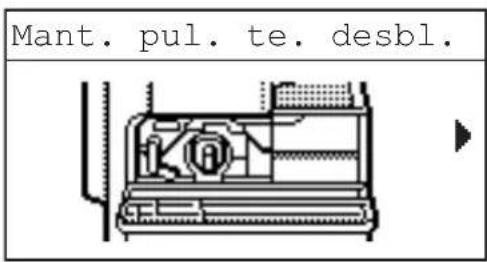
text_image
Mant. pul. te. desbl.natural_image
Technical line drawing of a mechanical assembly with internal components (no text or symbols)Pestaña de apertura
3
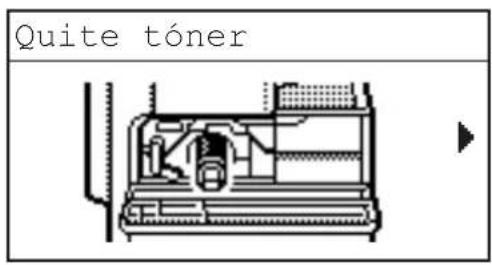
text_image
Quite tónernatural_image
Hand inserting a component into a device casing (no text or symbols visible)4
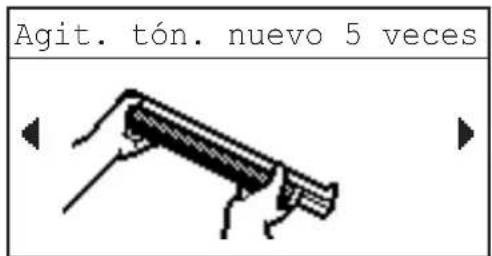
natural_image
Technical line drawing of a mechanical component with a downward arrow indicating motion (no text or symbols)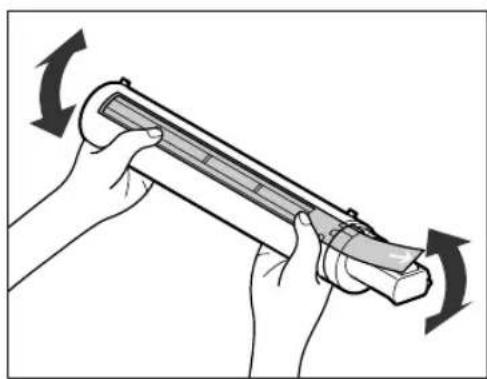
natural_image
Illustration of hands holding a cylindrical device with rotating arrows indicating motion (no text or symbols)
ADVERTENCIA
natural_image
Mechanical assembly diagram showing a hand operating a component with a magnified inset view of a cylindrical component (no text or symbols visible)text_image
Retire cinta naranja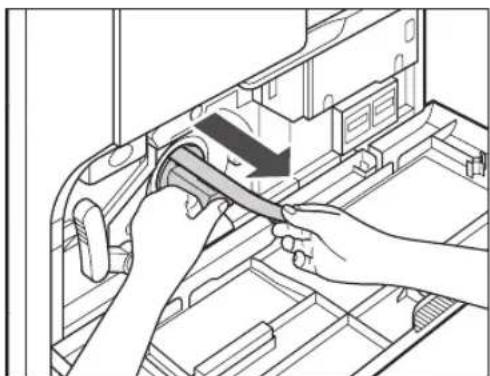
natural_image
Illustration of hands installing or adjusting a mechanical component inside a storage unit (no text or symbols visible)natural_image
Technical line drawing of a mechanical assembly with a circular inset showing a component (no text or symbols)Pestaña de apertura

IMPORTANTE
natural_image
Technical diagram of a mechanical device with internal components and an arrow indicating a process or operation (no text or symbols present)
ATENCIÓN
text_image
Diagram showing file transfer or assembly process with labeled components and zoomed-in viewsnatural_image
Diagram of a computer tower with an open panel and a magnified inset showing a button (no text or symbols present)30-2, Shimomaruko 3-chome, Ohta-ku, Tokyo 146-8501, Japan
CANON U.S.A., INC.
One Canon Plaza, Lake Success, NY 11042, U.S.A.
CANON CANADA INC.
6390 Dixie Road Mississauga, Ontario L5T 1P7, Canada
CANON EUROPA N.V.
Bovenkerkerweg 59-61 1185 XB Amstelveen, The Netherlands
(See http://www.canon-europe.com/ for details on your regional dealer)
CANON LATIN AMERICA, INC.
703 Waterford Way Suite 400 Miami, Florida 33126 U.S.A.
CANON AUSTRALIA PTY. LTD
1 Thomas Holt Drive, North Ryde, Sydney, N.S.W. 2113, Australia
CANON CHINA CO., LTD
15F Jinbao Building No.89 Jinbao Street, Dongcheng District, Beijing 100005, China
CANON SINGAPORE PTE. LTD.
1 HarbourFront Avenue #04-01 Keppel Bay Tower, Singapore 098632
CANON HONGKONG CO., LTD
19/F., The Metropolis Tower, 10 Metropolis Drive, Hunghom, Kowloon, Hong Kong

FT6-0012 (000) © CANVHRC 2012 xxxxxxxxxx
PRINTED IN CHINA