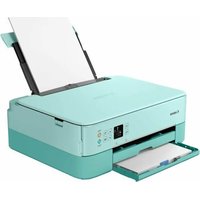
CANON WG7550Z - Printer

WG7550Z - Printer CANON - Free user manual and instructions

Find the device manual for free WG7550Z CANON in PDF.

📄 300 pages English EN Download 💬 AI Question
Notice CANON WG7550Z - page 3

User questions about WG7550Z CANON

0 question about this device. Answer the ones you know or ask your own.

Ask a new question about this device

The email remains private: it is only used to notify you if someone responds to your question.

No questions yet. Be the first to ask one.

Download the instructions for your Printer in PDF format for free! Find your manual WG7550Z - CANON and take your electronic device back in hand. On this page are published all the documents necessary for the use of your device. WG7550Z by CANON.

USER MANUAL WG7550Z CANON

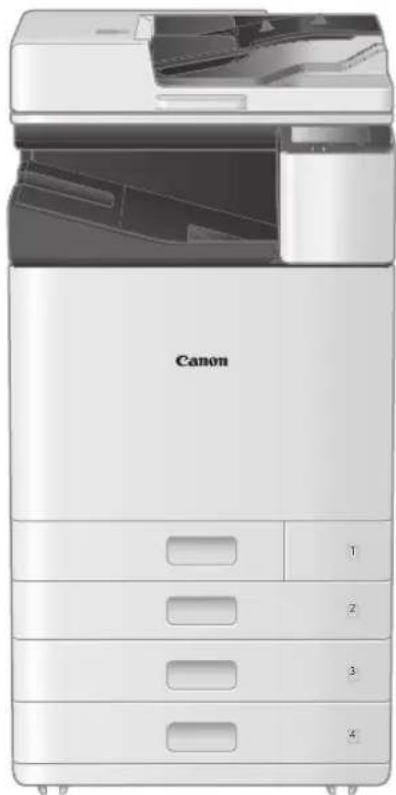
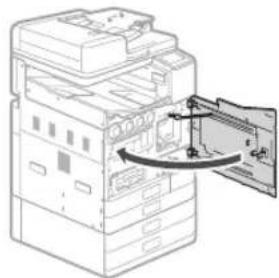
natural_image Front view of a Canon printer with open lid and internal compartments (no visible text or symbols on main body)

Business Inkjet WG7000 Series

Getting Started

EN

Installing the Machine P2

Basic Operation P.16

If a Problem Has Occurred P20

Network & Remote Monitoring Service Connection 26

CANON WG7550Z - Business Inkjet WG7000 Series - 1

natural_image Front view of a Canon printer with open lid and internal compartments (no visible text or symbols on main body)

Please read "Important Safety Instructions" before operating this product. \$45 After you finish reading this guide, store it in a safe place for future reference. The information in this document is subject to change without notice.

CANON WG7550Z - Business Inkjet WG7000 Series - 2

Access http://ij.start.canon for the Online Manual containing information on all the functions of this machine.

Installing the Machine

CANON WG7550Z - Installing the Machine - 1
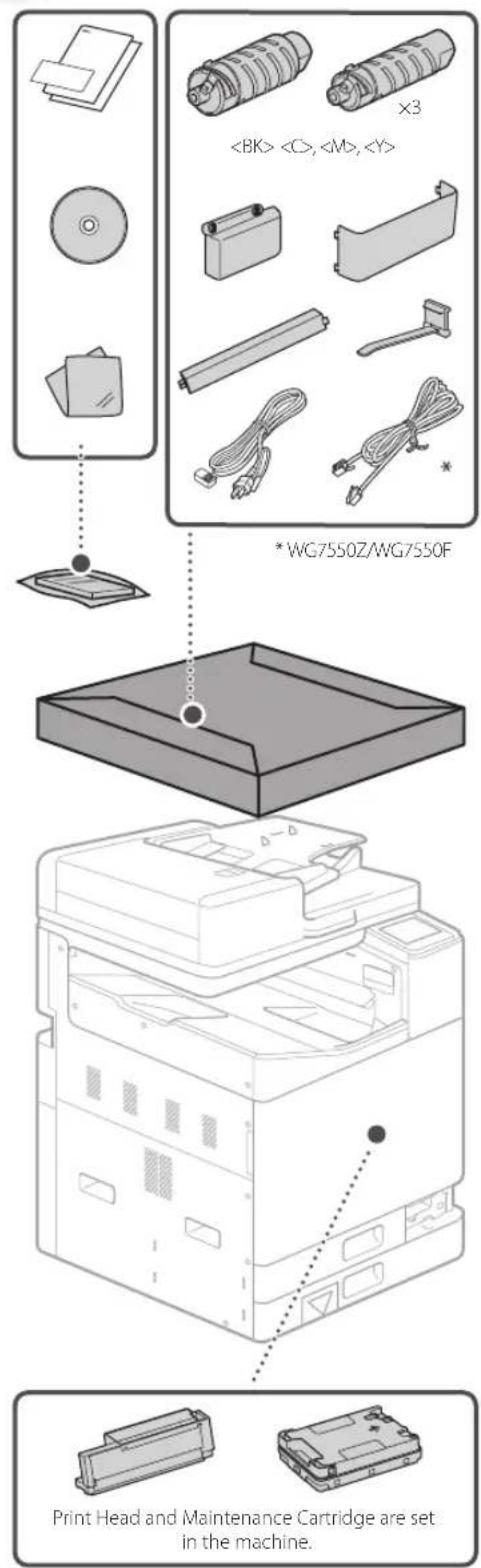
Items Included with the Machine

CANON WG7550Z - Installing the Machine - 2

text_image , , ×3 * WG75S0Z/WG75S0F Print Head and Maintenance Cartridge are set in the machine.

CANON WG7550Z - Installing the Machine - 3
Installation Requirements

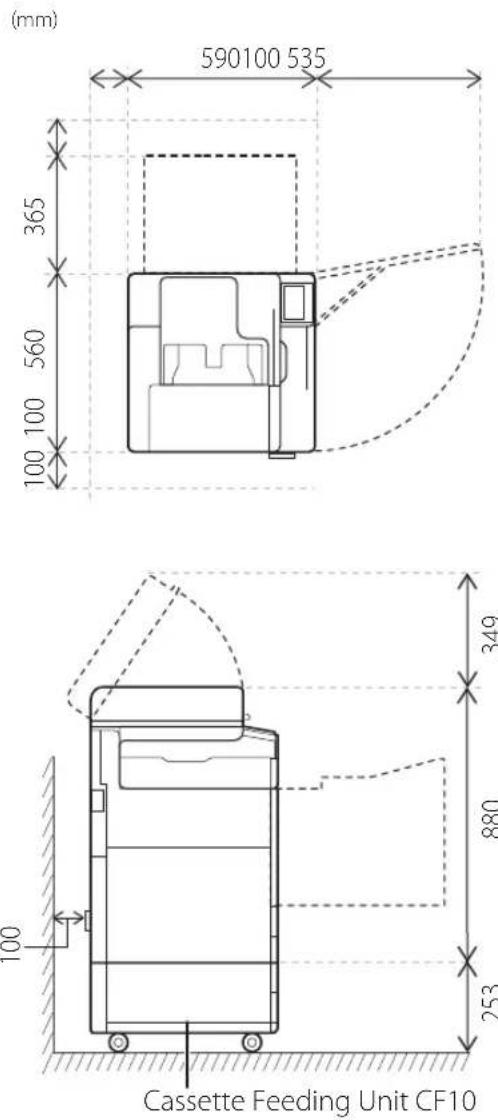
Install on a flat level surface, providing a space of 100 mm or more around the machine.

CANON WG7550Z - Installing the Machine - 4

text_image (mm) 590100 535 365 560 100 100 100 349 880 253 Cassette Feeding Unit CF10

CAUTION!

The front cover is locked. Do not force it open.

If You Purchased an Optional Cassette Feeding Unit

First install the cassette feeding unit (optional). Refer to the manual bundled with the cassette feeding unit for installation steps.

CAUTION

- Do not hold the machine by its base, as fingers may get caught when placing the machine.

▲Transporting the Machine

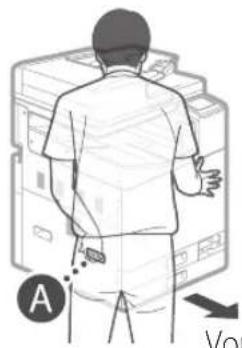
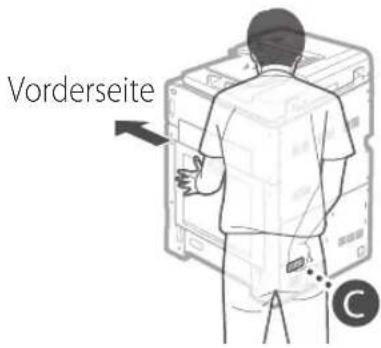
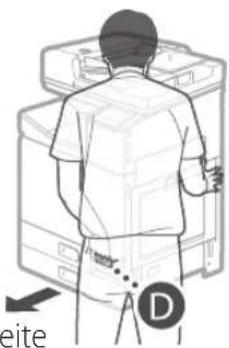
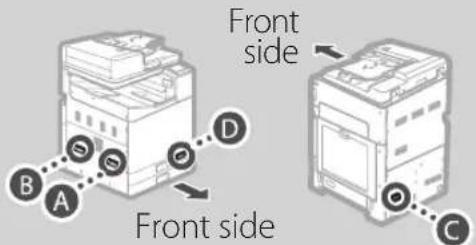
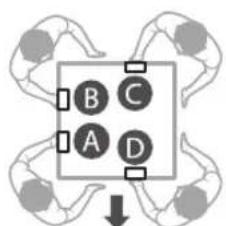
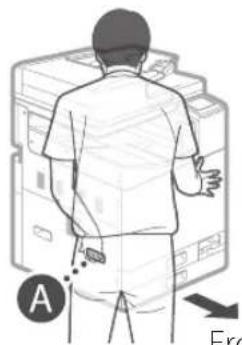
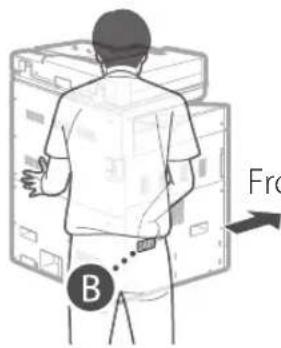
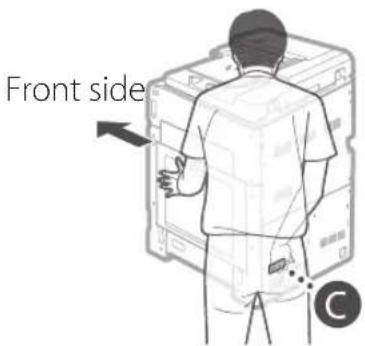
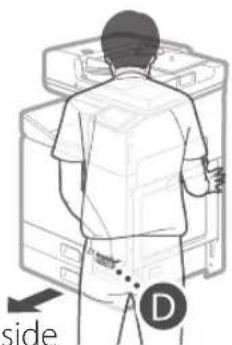
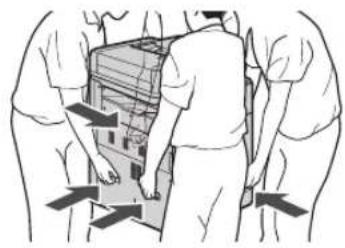
  • Four people are required to move the machine. There are four handhold locations around the machine. Each person should place one hand in a handhold and use the other hand to stabilize the machine while lifting. To avoid back injuries, do not bend over when lifting. See below for handhold locations.
  • Never hold the machine by the feeder (auto document feeder), a paper drawer, etc. The machine could be dropped and cause injury.

CANON WG7550Z - ▲Transporting the Machine - 1

text_image Front side Front side

1 With each person standing at a corner of the machine and a hand in one of the handholds as shown from A to Dift the machine by bending at the knees.

CANON WG7550Z - ▲Transporting the Machine - 2

flowchart
graph TD
    A["A"] --> B["B"]
    A --> C["C"]
    A --> D["D"]
    B --> E["Circle Node"]
    C --> F["Circle Node"]
    D --> G["Circle Node"]
    style A fill:#f9f,stroke:#333
    style B fill:#ccf,stroke:#333
    style C fill:#cfc,stroke:#333
    style D fill:#fcc,stroke:#333
    style E fill:#ffc,stroke:#333
    style F fill:#cfc,stroke:#333
    style G fill:#fcc,stroke:#333

Front side

CANON WG7550Z - ▲Transporting the Machine - 3

natural_image Illustration of a person standing beside a computer monitor (no text or symbols visible)

Front side

CANON WG7550Z - ▲Transporting the Machine - 4

text_image B Fro

Front side

CANON WG7550Z - ▲Transporting the Machine - 5

text_image Front side C

Front side
CANON WG7550Z - ▲Transporting the Machine - 6

natural_image Illustration of a person standing beside a computer with a 'side' label and a circular symbol (D) at the bottom right, no readable text or symbols on the diagram itself.

2 Place the machine.

CANON WG7550Z - ▲Transporting the Machine - 7

natural_image Illustration of a person opening a large electronic device with directional arrows indicating movement (no text or symbols)

3

CANON WG7550Z - ▲Transporting the Machine - 8

text_image Diagram showing a printer with labeled ports and a magnified view of the printer's internal structure, including Chinese text annotations.

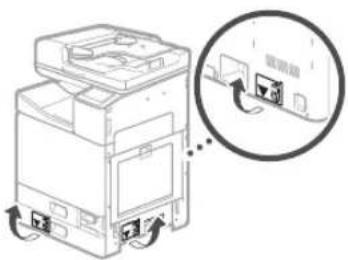
- Remove all 4 stickers.

After installing the optional cassette feeding unit, continue with the installation from step 4.

4

CANON WG7550Z - ▲Transporting the Machine - 9

natural_image Diagram of a mechanical component with an arrow indicating direction (no text or symbols present)

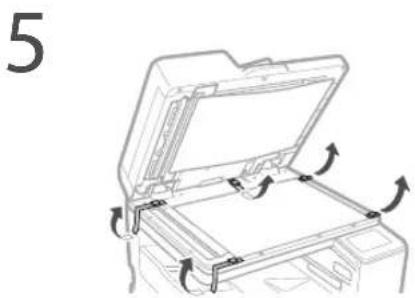
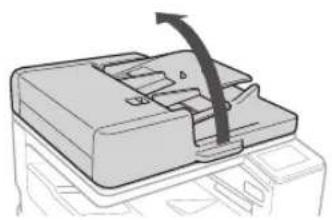
- Remove all of the tape.

CANON WG7550Z - ▲Transporting the Machine - 10

5

CANON WG7550Z - ▲Transporting the Machine - 11

natural_image Diagram of an open file organizer with directional arrows indicating movement (no text or symbols)

6

CANON WG7550Z - ▲Transporting the Machine - 12

natural_image Diagram of a printer's open lid with an arrow indicating compression or disassembly (no text or symbols present)

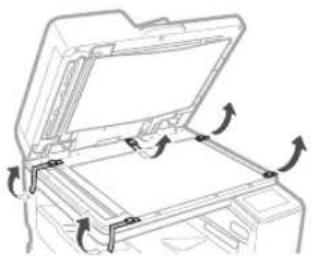
- Remove all of the tape.

CANON WG7550Z - ▲Transporting the Machine - 13

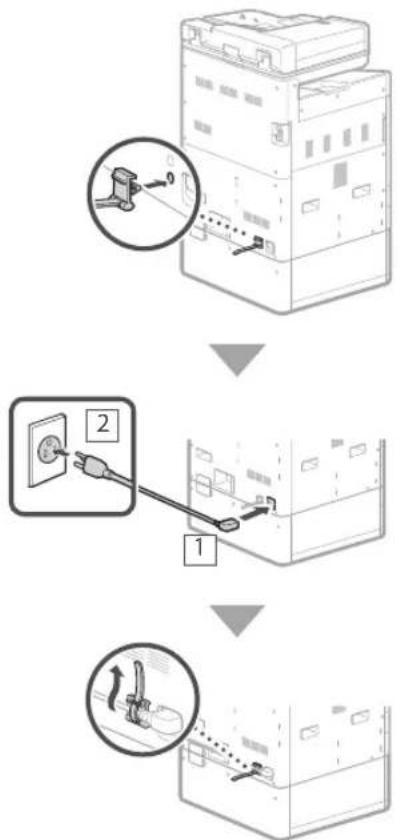
7 Attach the clamp and power cord, and then affix the power cord with the clamp.

- The shape of the power cord depends on your country or region. - Depending on the shape of the bundled power cord, you may not be able to attach a clamp. If you are unable, do not attach, and go to the next step.

CANON WG7550Z - ▲Transporting the Machine - 14

text_image Diagram illustrating three-step installation of a server rack, showing cable insertion and power connection steps.

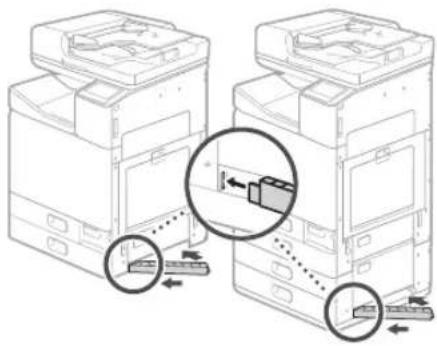
8 Attach the Protective Cover at the bottom of the right side of the machine.

Cassette Feeding Unit (optional) attached

CANON WG7550Z - ▲Transporting the Machine - 15

natural_image Diagram showing two identical printer units with arrows indicating movement, highlighting a mechanical component (no text or symbols present)

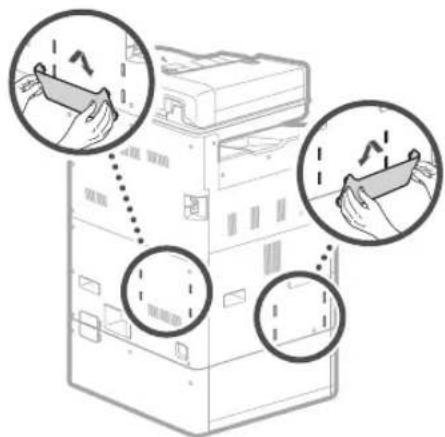
9 Attach the Book Pocket to either the left or rear side of the machine.

CANON WG7550Z - ▲Transporting the Machine - 16

text_image Diagram showing hand operating a device with three circular annotations indicating action directions and component placement.

- Store this guide here.

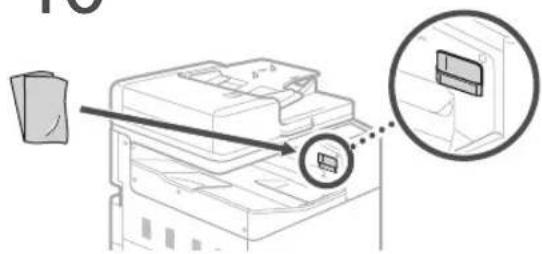
10 Store the glass cleaning sheet.

CANON WG7550Z - ▲Transporting the Machine - 17

text_image Diagram showing printer operation with magnified view of internal components and a paper clip labeled 'PC'

Attach the Handhold Cover after turning on the machine.

CANON WG7550Z - ▲Transporting the Machine - 18

Installing the Machine

For details

Setting Up Using the Setup Guide" in the Online Manual

Initial Settings

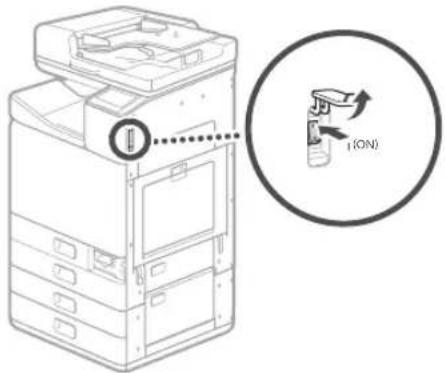
1 Turn on the machine.

CANON WG7550Z - Initial Settings - 1

text_image I(ON)

NOTE

When the machine is first powered on, a Setup Guide with a series of screens will appear to help you set up the machine. If the Setup Guide does not appear, refer to the Online Manual.

For details

"Setting Up Using the Setup Guide" in the Online Manual

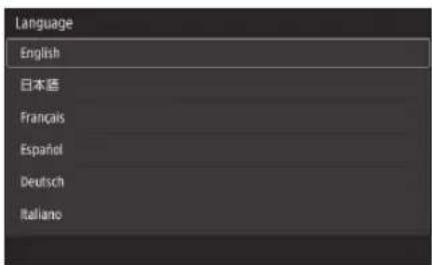
2 Set the language and country/region.

CANON WG7550Z - NOTE - 1

text_image Language English 日本語 Français Español Deutsch Italiano

- Follow the on-screen instructions.

3 Set the time zone and current date/time.

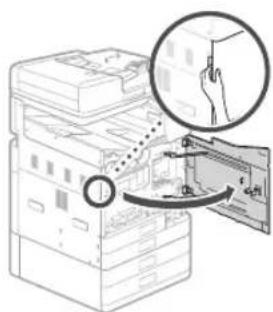
Remove Packing Materials from Inside the Machine

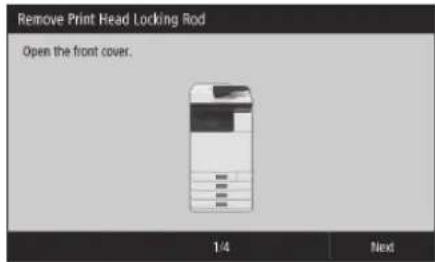
1 Press on the screen.

CANON WG7550Z - Remove Packing Materials from Inside the Machine - 1

text_image Remove Print Head Locking Rod Open the front cover. 1/4 Next

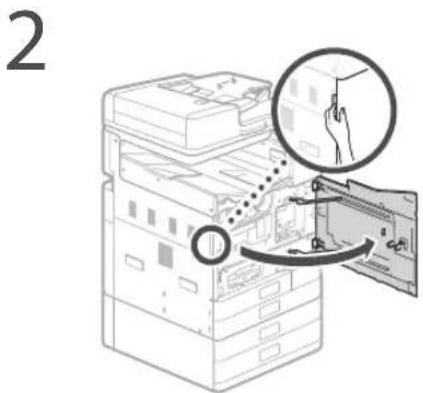
- Do not open the front cover until the screen appears.

2

CANON WG7550Z - Remove Packing Materials from Inside the Machine - 2

text_image Diagram showing a printer stack with a magnified view of the stack being inserted, highlighting the process with arrows and a hand pointing to it.

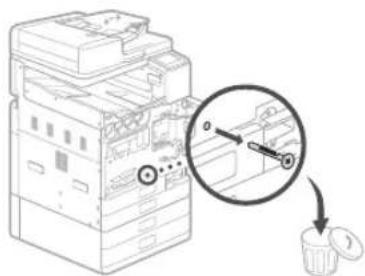
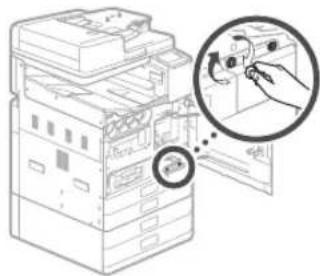
3 Remove the Shipping Lock Pin.

CANON WG7550Z - Remove Packing Materials from Inside the Machine - 3

text_image Diagram showing a device with a magnified view of internal components, including a circular annotation highlighting a specific section.

4 Pull out the Print Head Locking Rod.

CANON WG7550Z - Remove Packing Materials from Inside the Machine - 4

text_image Diagram showing a printer with labeled parts and a magnified inset highlighting a device component.

Raise the lever (blue) in □ and pull the rod out completely in the direction indicated at □. Do not bend the rod.

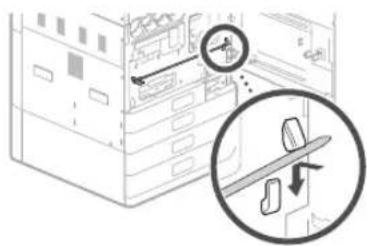
5 Store the Print Head Locking Rod.
CANON WG7550Z - Remove Packing Materials from Inside the Machine - 5

text_image Diagram illustrating a mechanical or electrical system with directional arrows and a magnified view of a device's motion.

- Face the blue lever portion toward you, and then press the rod to the left and hook it.

CANON WG7550Z - Remove Packing Materials from Inside the Machine - 6

text_image Diagram showing a device with a magnified view of its internal structure, including a hand pointer and directional arrows.

- Place the right end on the hook.

CANON WG7550Z - Remove Packing Materials from Inside the Machine - 7

text_image Diagram of an open printer with a magnified view showing internal components and a close-up of the device's handle.

• After placing both ends, turn the blue lever downward to lock it.

The Print Head Locking Rod is required during transport. Do not throw it away.

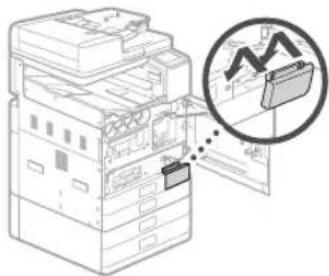
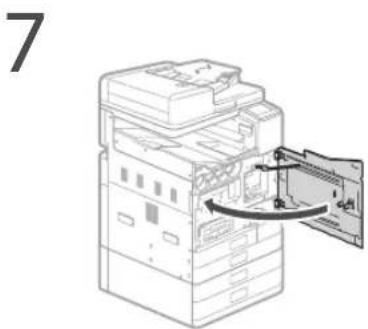
6 Attach the Handhold Cover.
CANON WG7550Z - Remove Packing Materials from Inside the Machine - 8

text_image Diagram showing a file transfer or storage operation with a magnified inset highlighting a data packet and graph icon.

Use a coin to turn the screws to fasten.

CANON WG7550Z - Remove Packing Materials from Inside the Machine - 9

text_image Diagram showing a printer stack with a magnified view of the stack being opened, highlighting the printer's internal structure.

CANON WG7550Z - Remove Packing Materials from Inside the Machine - 10

natural_image Line drawing of a server rack with an open door and a circular component inserted (no text or symbols)

Next, install the ink tanks.

Install the Ink tanks

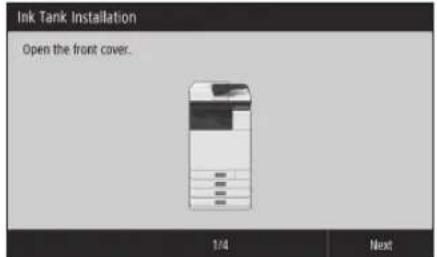
1 Press on the screen.

CANON WG7550Z - Install the Ink tanks - 1

text_image Ink Tank Installation Open the front cover. 1/4 Next

- Do not open the front cover until the screen appears.

CANON WG7550Z - Install the Ink tanks - 2

text_image 2

CANON WG7550Z - Install the Ink tanks - 3

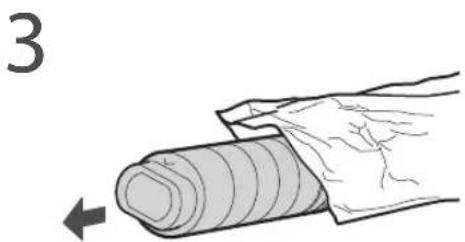
natural_image Illustration of a hand holding a rolled-up object with a directional arrow (no text or symbols)

CANON WG7550Z - Install the Ink tanks - 4

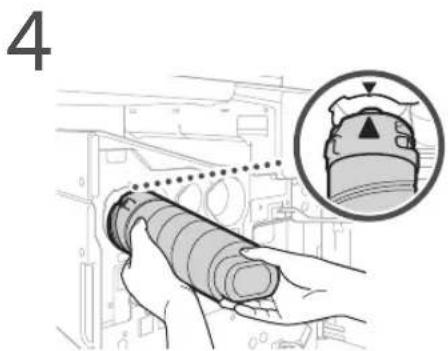
text_image 4

CANON WG7550Z - Install the Ink tanks - 5

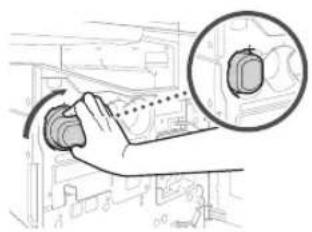
natural_image Hand operating a mechanical switch with a magnified inset showing the internal components (no text or symbols visible)

- Turn until tank clicks.

CANON WG7550Z - Install the Ink tanks - 6

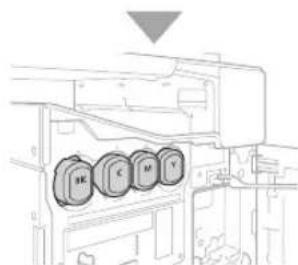
natural_image Technical line drawing of a mechanical assembly with four circular components labeled M, C, M, Y (no text or symbols beyond labels)

• Install all four ink tanks in the correct slots.

5

CANON WG7550Z - Install the Ink tanks - 7

natural_image Diagram of a printer's internal structure showing paper feeding into a stack of sheets (no text or labels)

NOTE

  • Filling begins, and takes about 40-70 minutes to complete.
  • Time required for filling depends on your environment.
  • Do not turn off the machine while ink is filling.
  • If filling is interrupted by turning off the machine, etc., additional ink tanks may be required.
  • While ink is filling, you can configure settings up to "Adjust the margins of the Cassette Feeding Unit (optional)" (P.12).

Next, configure the machine to send data and Remote UI Access PIN.

Configure the Machine to Send Data and Remote UI Access PIN

1 Read the messages and follow the on-screen instructions.

Sending Data to Canon

To develop and market products, and to provide special offers and services that better meet customer needs, Canon requests that information such as that below, related to your Canon product, be sent to Canon (if you are using your Canon product in China, to the legally approved research company) through the Internet.

Information related to printer/scanner/fax/information devices

  • Basic information such as the printer ID number, installation date and time, country settings, etc.
  • Usage history such as the type of ink installed, ink usage information, the number of sheets printed, scanning frequency, and maintenance information, etc.
    • Paper use information, printing environment/conditions, scan job setting, and questionnaire results
  • Basic device information such as the model name, OS version, language, and display setting information, etc.
    • Device driver and application software versions, usage history

(Some of the above information may not be sent depending on your model and/or application software.)

If your Canon product is shared for use, the above information recorded in the shared product will be sent. If you are to agree, please convey this fact to the users who share the product and obtain their agreement as well beforehand.

In this survey, we will not send your personal information. For this reason, from the information that is sent to us, we are unable to identify specific customers.

We are therefore unable to respond to requests to disclose any sent information.

After you agree to the requests, the above information will be sent to Canon (if you are using your Canon product in China, to the legally approved research company) through the Internet. The Internet connection fee shall be borne by you.

The sent information may be delivered to Canon's group companies.

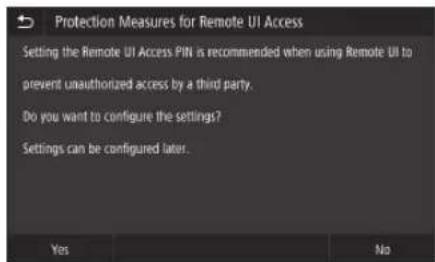
2 Set the Remote UI Access PIN.

CANON WG7550Z - Sending Data to Canon - 1

text_image Protection Measures for Remote UI Access Setting the Remote UI Access PIN is recommended when using Remote UI to prevent unauthorized access by a third party. Do you want to configure the settings? Settings can be configured later.

Remote UI

The Remote UI allows you to access the machine via a network from a Web browser to perform tasks such as checking the status of the machine, handling jobs, and configuring settings. Set a PIN for the Remote UI to protect your information.

Connecting to a Computer

Before starting the configuration

• There is risk of disclosing your personal information if the machine is connected to an unsecure network. Take precaution to secure your network from unknown parties.
• The machine does not come with a router or LAN cables. Please have one ready.
• The machine cannot be connected to a wired and wireless network at the same time.

If you are using the Setup Guide, connection is by DHCP where the IP address is automatically assigned.

To use set an IP address other than by DHCP, such as a fixed IP address, select in the wireless LAN connection screen and exit the Setup Guide without connecting to the network.

Once the Home screen is displayed, refer to the "Connecting to a Network with a Fixed IP

Address" P28 and configure settings.

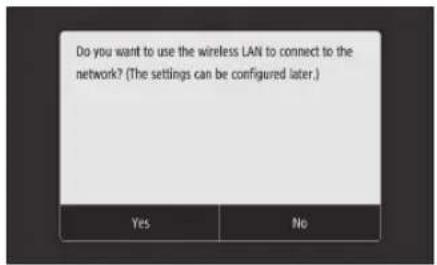
Choosing a connection method
CANON WG7550Z - Before starting the configuration - 1

text_image Do you want to use the wireless LAN to connect to the network? (The settings can be configured later.) Yes No

• To connect via wireless LAN: P.10
• To connect via wired LAN: P.11
• To connect via USB: P.12
The above screen does not appear on WG7540.
Connect via wired LAN or USB.

CANON WG7550Z - Before starting the configuration - 2

Even in an environment without a wireless LAN, you can use Access Point Mode to connect directly to the machine wirelessly from your mobile device (Direct Connection). Exit the Setup Guide before you initiate Direct Connection (WG7550Z/WG7550F/WG7550).

Online Manual

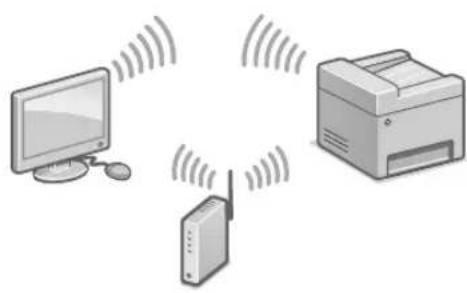
To connect via wireless LAN

  • With a fixed IP address: Select and adjust margins. P.12
  • By DHCP: Proceed with the following steps.

1 Press on the connection method screen.

CANON WG7550Z - To connect via wireless LAN - 1

natural_image Illustration of a printer, network device, and computer monitor with signal waves (no text or symbols)

2 Check that your computer and wireless router are properly connected.
3 Check the network settings on the computer.
4 Take note of the network name (SSID) and password (network key).

- Check the label on your router for this information. ➕ Online Manual

- Setup can also be performed via WPS on compatible routers. ➕ Online Manual

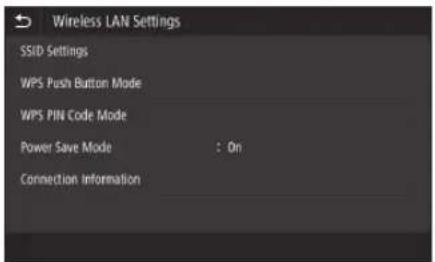
5 Press .

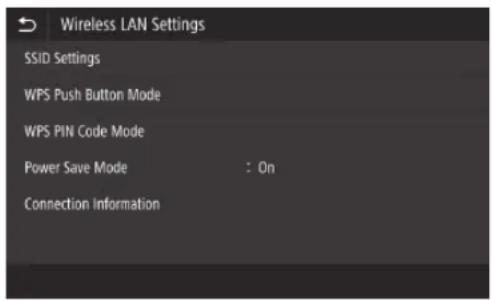
• From the screen below, follow these instructions to enter your network's name (SSID) and password (network key).

CANON WG7550Z - Press . - 1

text_image Wireless LAN Settings SSID Settings WPS Push Button Mode WPS PIN Code Mode Power Save Mode : On Connection Information

6 Press .

7 Press

8 Select the network name (SSID), and press .

  1. Enter a password (network key), and press .
  2. Press .

- An IP address will be automatically assigned.

- is displayed.

Next, adjust the margins of the Cassette Feeding Unit (optional). P.12

To connect via wired LAN

  • With a fixed IP address: Select and adjust margins. P.12
  • By DHCP: Proceed with the following steps.

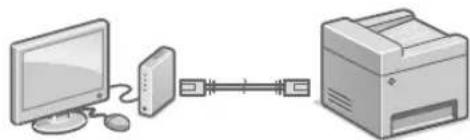
1 Press on the connection method screen.

CANON WG7550Z - To connect via wired LAN - 1

natural_image Illustration of a desktop computer connected to a printer via a serial link (no text or symbols)

The machine does not come with a LAN cable. Please have one ready.

2 Check that your computer and router are properly connected.
3 Check the network settings on the computer.
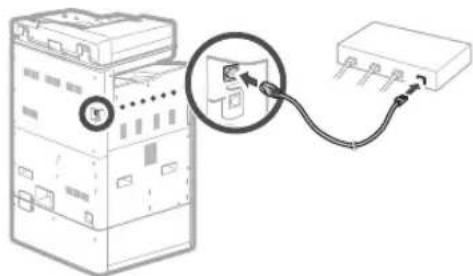
4 Connect the LAN cable.

CANON WG7550Z - To connect via wired LAN - 2

natural_image Diagram of an electrical switch connected to a terminal block via cable (no text or symbols present)

• After connecting the cable, wait a few minutes (until the IP address is set automatically).

Next, adjust the margins of the Cassette Feeding Unit (optional). P.12

To connect via USB

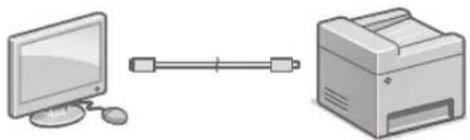
1 Press on the connection method screen.

CANON WG7550Z - To connect via USB - 1

natural_image Illustration of a desktop computer connected to a printer (no text or symbols present)

• The machine does not come with a USB cable. Please have one ready.
• Make sure that the USB cable you use is compatible with this designation.
- Do not connect the USB cable before installing the software. If you did, disconnect the USB cable from the computer, close the dialog box, and then perform the procedure from step 1 of "Installing the Software". P.14

Next, adjust the margins of the Cassette Feeding Unit (optional).

CANON WG7550Z - To connect via USB - 2

Adjust the margins of the Cassette Feeding Unit (optional)

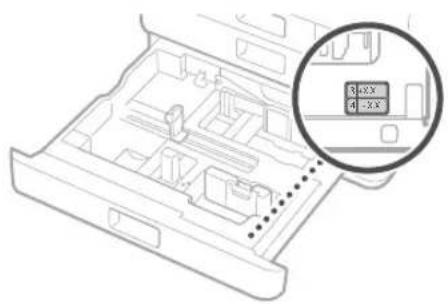
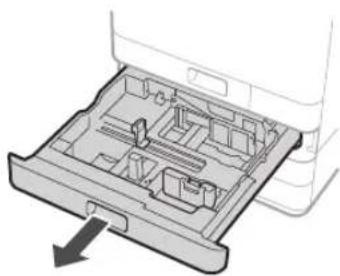
1 Pull out paper drawer 3 and check the margin adjustment values.

CANON WG7550Z - Adjust the margins of the Cassette Feeding Unit (optional) - 1

natural_image Technical line drawing of a computer chassis with an inset showing a 2x2X speed limit indicator (no text or symbols on the diagram itself)

Margin Adjustment
CANON WG7550Z - Adjust the margins of the Cassette Feeding Unit (optional) - 2

natural_image Open drawer with internal compartments and a small storage area (no text or symbols visible)

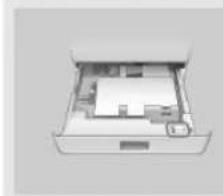
Start margin adjustment for Drawer 3 and Drawer 4. Check the adjustment values indicated on the label attached to Drawer 3 in the position shown on the left, then enter the values on the next screen.

Start

2 Enter the values for and you checked at step 1 from the screen.
3 Place the paper drawer back into the machine.

CAUTION

Be careful not to catch your fingers when pushing in the paper drawer.

Next, print out and check a nozzle check pattern.

Print out and check a nozzle check pattern to check the print head condition. If streaks or unevenness appear in the printed result, perform cleaning.

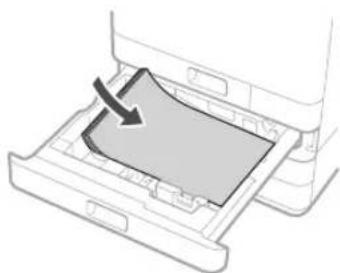
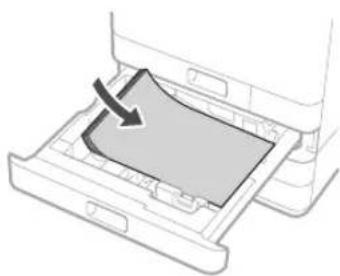
Load A3, 11x17, LTR or A4 plain paper in the paper drawer. Loading at least 10 sheets of A3 or 11x17 paper is recommended.

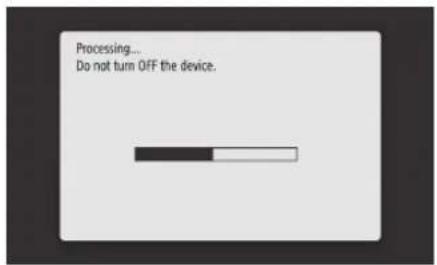
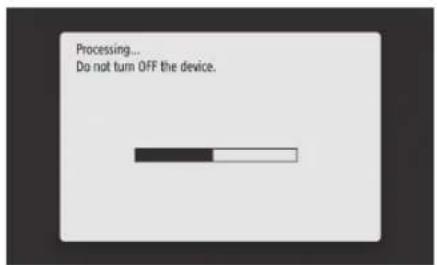
• Before you proceed further, ink must complete filling.
- A progress bar is displayed until ink completes filling.

CANON WG7550Z - Print Out and Check a Nozzle Check Pattern - 1

text_image Processing... Do not turn OFF the device.

1
CANON WG7550Z - Print Out and Check a Nozzle Check Pattern - 2

natural_image Diagram of an open file drawer with internal compartments and a downward arrow indicating motion (no text or symbols)

2
CANON WG7550Z - Print Out and Check a Nozzle Check Pattern - 3

natural_image Diagram of a printer drawer with a paper slot and an arrow indicating the direction (no text or symbols present)

Load paper sideways to match the paper guides.

3

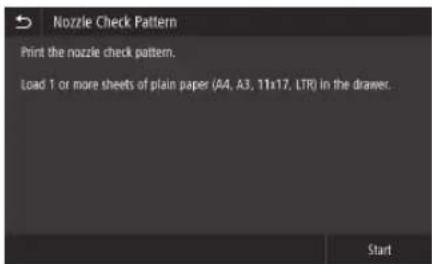
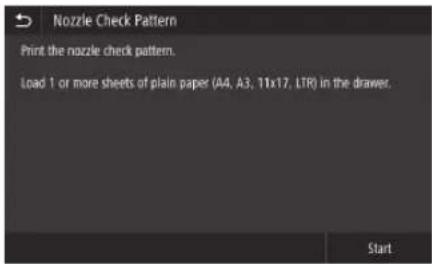
Press and print out a pattern.

CANON WG7550Z - Print Out and Check a Nozzle Check Pattern - 4

text_image Nozzle Check Pattern Print the nozzle check pattern. Load 1 or more sheets of plain paper (A4, A3, 11x17, LTR) in the drawer. Start

4
CANON WG7550Z - Print Out and Check a Nozzle Check Pattern - 5

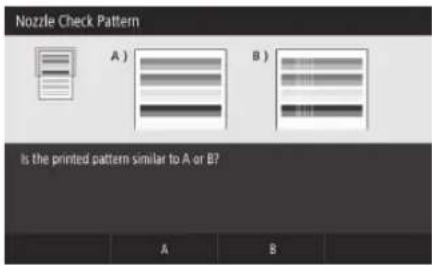
text_image Nozzle Check Pattern A) B) Is the printed pattern similar to A or B?

If the printed result appears okay, press to complete the nozzle check.

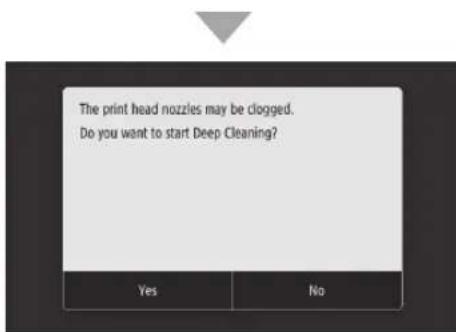
If streaks or unevenness appear in the printed result, press to perform cleaning.

CANON WG7550Z - Print Out and Check a Nozzle Check Pattern - 6

CANON WG7550Z - Print Out and Check a Nozzle Check Pattern - 7

text_image The print head nozzles may be clogged. Do you want to start Deep Cleaning?

• Depending on the condition of the nozzles, you may need to check and perform cleaning several times.
- Settings are complete once the Home screen is displayed.

Next, Network & Remote Monitoring Service connection settings.

Installing the Machine

Network & Remote Monitoring Service Connection Settings

After exiting the Setup Guide, continue by making settings to connect the network and a remote monitoring service. Items to set depend on the connection and service usage. Check settings that apply to the following conditions.

If Using a Fixed IP Address

Proceed to "Connecting to a Network with a Fixed IP Address ( P28)".

If Using a Remote Monitoring Service

What is a remote monitoring service

A service that monitors the condition of the machine and allows you to benefit from different services such as recovery support.

Proceed to "Connecting to a Remote Monitoring Service (P39)".

Other

You are not required to make settings in the following instances.

Proceed to "Installing the Software ( P.14)".

  • Obtain an IP address automatically with DHCP.
  • Since only a USB connection will be used, an IP address is not set.
    • A remote monitoring service will not be used.

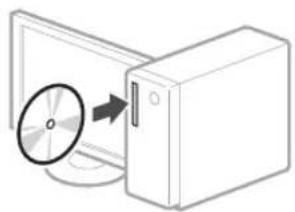
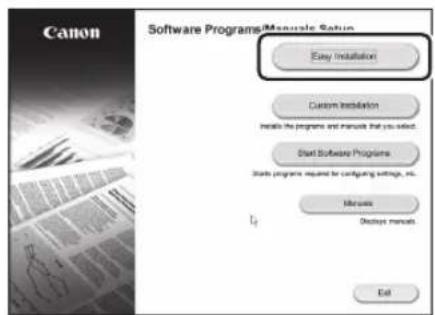
Installing the Software

• The procedures described here are for Windows. For more details on the software installation procedure, see the driver's manual.
- If connecting by USB, do not connect until instructions to do so appear on the installation screen. If you did, disconnect the USB cable from the computer, close the dialog box, and then perform the following procedure from step 1.
- Drivers for macOS are not bundled with your machine. The latest drivers can be downloaded from the Canon website.

1
CANON WG7550Z - Installing the Software - 1

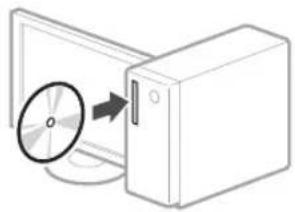
natural_image Diagram showing a CD or DVD disc being inserted into a computer tower (no text or symbols present)

2
CANON WG7550Z - Installing the Software - 2

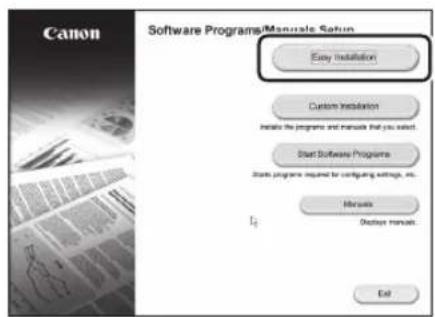
text_image Canon Software Programs/Manual Setup Easy Installation Custom Installation Installs the programs and manuals that you select. Start Software Programs Starts programs required for configuring settings, etc. Manuals Options manuals. Edit

If the screen is not displayed properly, re-insert the DVD-ROM or search for "D:\MInst.exe" on the Windows platform (This description assumes that "D:" is the DVD-ROM drive name).

Next, configuring Fax Settings

(WG7550Z/WG7550F)

CANON WG7550Z - Installing the Software - 3

P.15

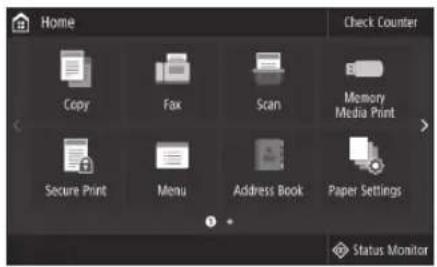
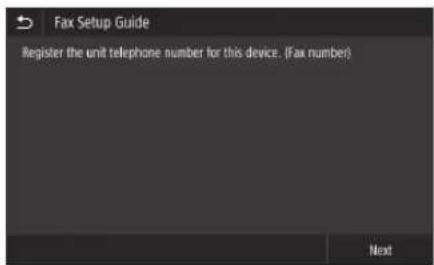
Configuring Fax Settings (WG7550Z/WG7550F)

If your machine does not come with a telephone cable, have one ready, as necessary.

Configure the fax settings, as shown below.

CANON WG7550Z - Configuring Fax Settings (WG7550Z/WG7550F) - 1

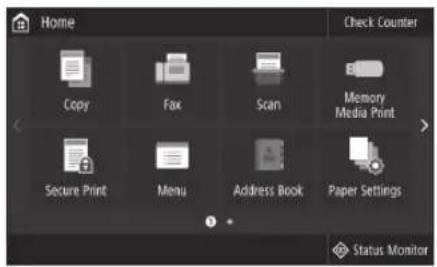
text_image Home Check Counter Copy Fax Scan Memory Media Print Secure Print Menu Address Book Paper Settings Status Monitor

1 Press .
2 Press .
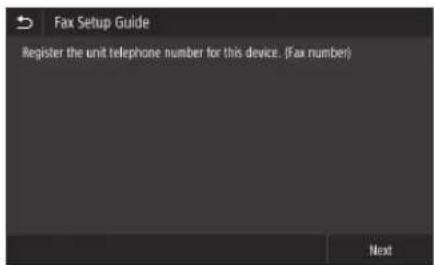
3 Register the machine's telephone number (fax number) and abbreviated user name (unit name).

CANON WG7550Z - Configuring Fax Settings (WG7550Z/WG7550F) - 2

text_image Fax Setup Guide Register the unit telephone number for this device. (Fax number) Next

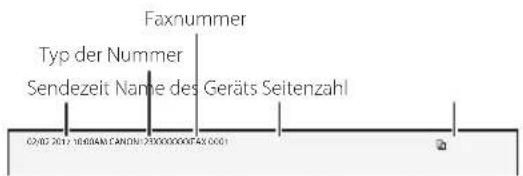
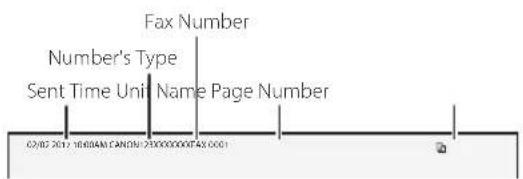
• The information below will be printed at the top part of the paper output from the destination machine as sender information.

CANON WG7550Z - Configuring Fax Settings (WG7550Z/WG7550F) - 3

text_image Fax Number Number's Type Sent Time Unit Name Page Number 02/02 2012 16:00AM CANADA 2300000000FAX 0001

4 Set the reception mode. Answer the questions on how you will use the fax function to select the best settings.
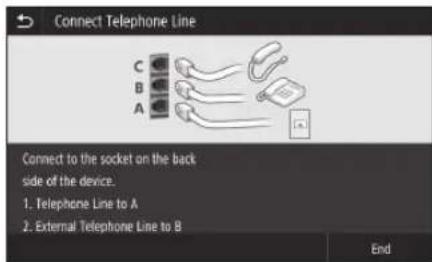
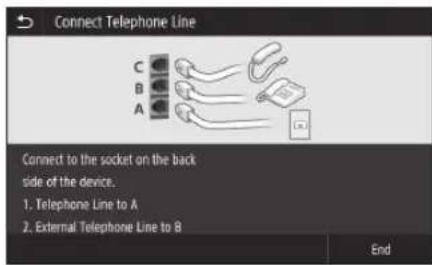
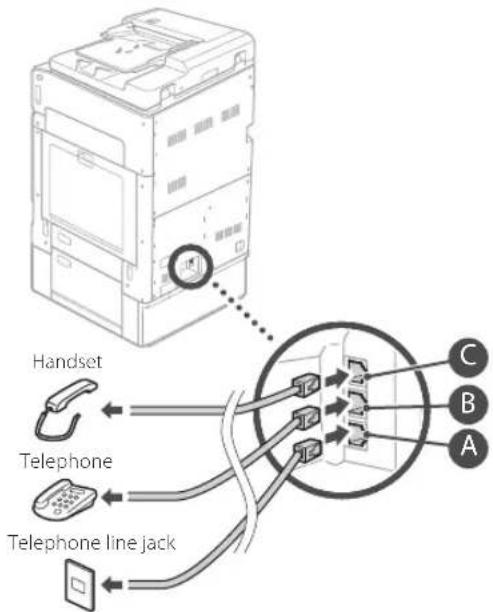
5 Connect to a telephone line.

CANON WG7550Z - Configuring Fax Settings (WG7550Z/WG7550F) - 4

text_image Connect Telephone Line C B A Connect to the socket on the back side of the device. 1. Telephone Line to A 2. External Telephone Line to B End

CANON WG7550Z - Configuring Fax Settings (WG7550Z/WG7550F) - 5

text_image Handset Telephone Telephone line jack C B A

6 Press .
7 Press .

Setup complete. Your machine is now ready to use.

Placing Originals

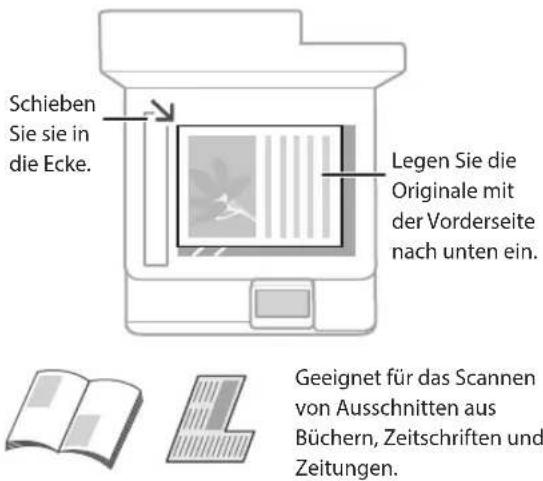
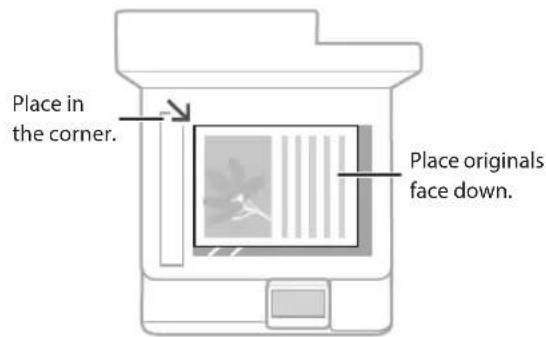
On the platen glass
CANON WG7550Z - Placing Originals - 1

text_image Place in the corner. Place originals face down.

CANON WG7550Z - Placing Originals - 2

CANON WG7550Z - Placing Originals - 3
Suitable for scanning books, magazines, and newspaper clippings.

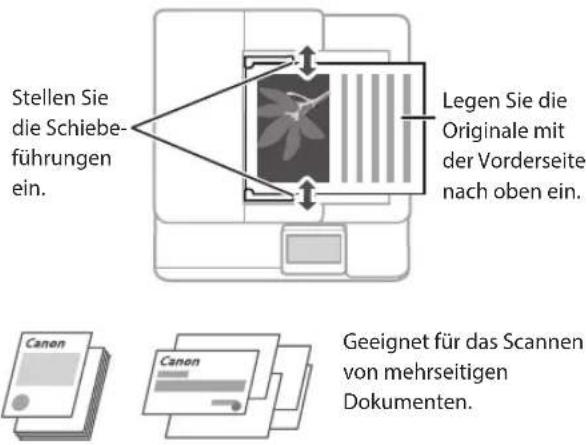
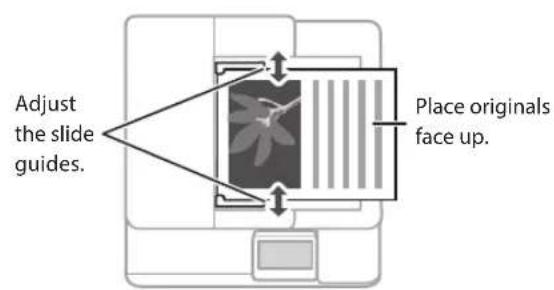
In the feeder
CANON WG7550Z - Placing Originals - 4

text_image Adjust the slide guides. Place originals face up.

CANON WG7550Z - Placing Originals - 5

CANON WG7550Z - Placing Originals - 6
Suitable for scanning multi page documents.

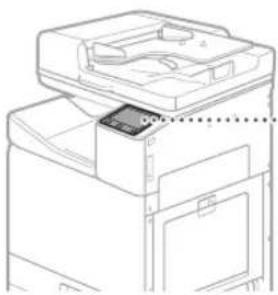
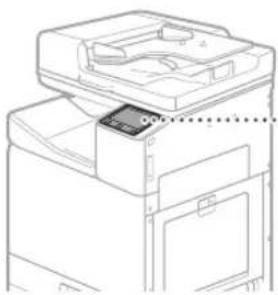
Start the Operation from the Operation Panel

Machine
CANON WG7550Z - Start the Operation from the Operation Panel - 1

natural_image Line drawing of a printer or scanner device with no visible text or symbols

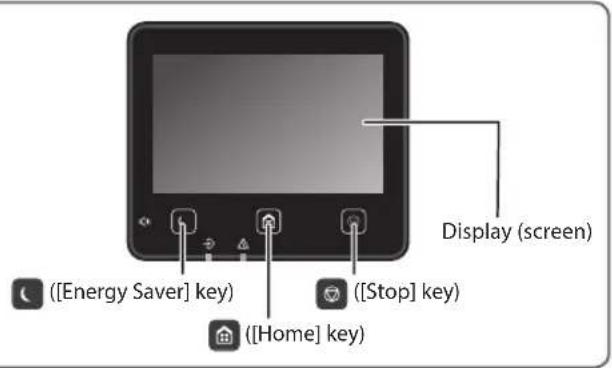
Operation Panel
CANON WG7550Z - Start the Operation from the Operation Panel - 2

text_image Display (screen) ([Energy Saver] key) ([Stop] key) ([Home] key)

CANON WG7550Z - Start the Operation from the Operation Panel - 3

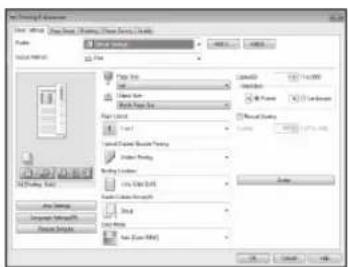
Printing

  1. Open the document to print, and select the print function of the application.
  2. Select the printer driver for the machine, and select [Preferences] or [Properties].
  3. Specify the paper size.
  4. Specify the paper source and paper type.
  5. Adjust print settings, if necessary.
  6. Select [OK].
  7. Select [Print] or [OK].

CANON WG7550Z - Printing - 1

text_image New Document Explorer File Edit View Insert Tools Help Tools Help Format: Name: Page Type: Edit Type: New Page Type: View Layout: Font: Layered Image Address Caption Layered Caption View Output View Output Content View Output Content View Output Content View Output Content View Output Content View Output Content View Output Content View Output Content View Output Content View Output Content View Output Content View Output Content View Output Content View Output Content View Output Content View Output Content View Output Content View Output Content View Output Content View Output Content View Output Content View Output Content View Output Content View Output Content View Output Content View Output Category View Output Category View Output Category View Output Category View Output Category View Output Category View Output Category View Output Category View Output Category View Output Category View Output Category View Output Category View Output Category View Output Category View Output Category View Output Category View Output Category View Output Category View Output Category View Output Category View Output Category View Output Category View Output Category View Output Category View Output Category View Output Categories: 100% 100% 100% 100% 100% 100% 100% 100% 100% 100% 100% 100% 100% 100% 100% 100% 100% 100% 100% 100% 100% 100% 100% 100% 100% 100%

For details
CANON WG7550Z - Printing - 2
"Printing" in the Online Manual

CANON WG7550Z - Printing - 3

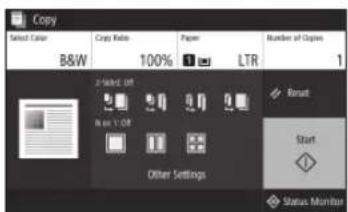
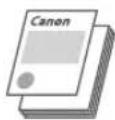
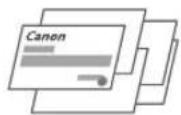
Copying

  1. Place the original.
  2. Press 📄, and then select .
  3. Adjust copy settings, if necessary.
  4. Enter the desired number of copies.
  5. Select .

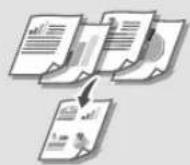
Useful copy settings

on 1
■-Sided or 1-Sided
Enlarging or reducing
Copying ID cards

CANON WG7550Z - Useful copy settings - 1

CANON WG7550Z - Useful copy settings - 2

text_image Copy Select Color B&W 100% Paper LTR Number of Copies 1 2 Select Off R = 1.1 Off Other Settings Reset Start Status Monitor

For details
"Copying" in the Online Manual

CANON WG7550Z - Useful copy settings - 3

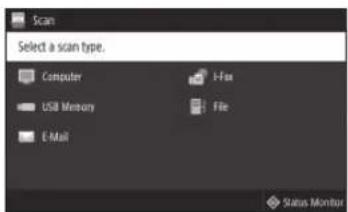
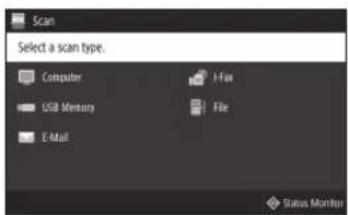
Scanning

  1. Place the original.
  2. Press 📄, and select .
  3. Select the type of scan, and enter any necessary information.
  4. Press or .

Types of scan

Store in USB memory device
end by email
Dend to file server

To scan from a computer

WG Scan Utility

CANON WG7550Z - To scan from a computer - 1

text_image Scan Select a scan type. Computer USB Memory E-Mail 1-Fix File Status Monitor

For details
→ "Scanning" in the Online Manual

CANON WG7550Z - To scan from a computer - 2

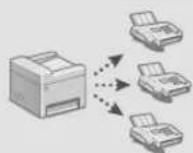
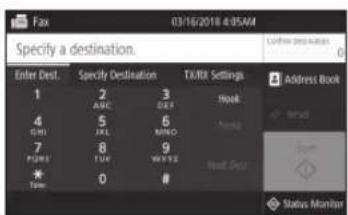
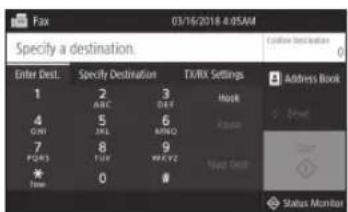
Faxing (WG7550Z/WG7550F)

  1. Place the original.
  2. Press 🔒, and select .
  3. Enter the destination information.
  4. Adjust fax settings, if necessary.
  5. Select .

Useful fax functions

Sequential Broadcast
Memory Reception
PC Fax

CANON WG7550Z - Useful fax functions - 1

CANON WG7550Z - Useful fax functions - 2

text_image Fax 03/16/2018 4:05AM Specify a destination Enter Dest. 1 ABC 2 DEF 3 Hook 4 JNJ 5 JNJ 6 MNO 7 FGRS 8 TUE 9 WAYZ 10 Nag Desk * Time Address Book Status Monitor

For details
→ "Faxing" in the Online Manual

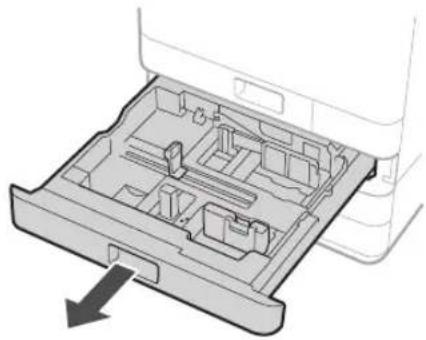
Loading Paper in the Paper Drawer

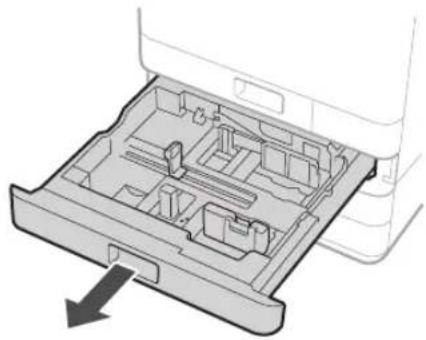
In the following, the operations that are common to paper drawers 1 and 2 are described using drawer 2 as an example.

1
CANON WG7550Z - Loading Paper in the Paper Drawer - 1

natural_image Diagram of an open file drawer with internal compartments and a downward arrow indicating flow or movement (no text or symbols present)

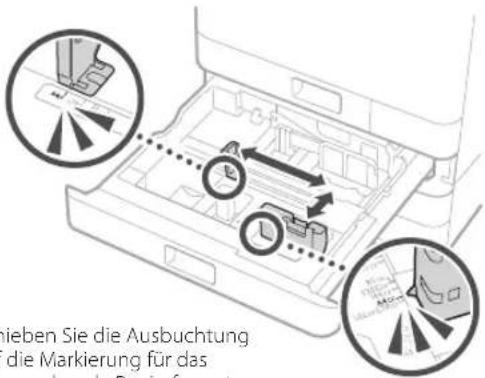
2 Slide the light blue knobs to adjust the positions of the paper guides.

CANON WG7550Z - Loading Paper in the Paper Drawer - 2

text_image ign the protrusion to the propriate paper size marking.

Align the protrusion to the appropriate paper size marking.

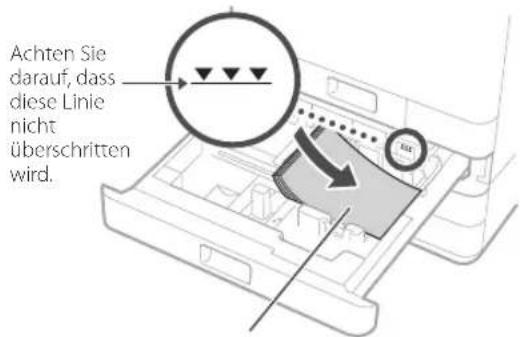
3 First fan the paper stack well and then load it.

CANON WG7550Z - Loading Paper in the Paper Drawer - 3

text_image Make sure that this line is not exceeded. The print side face up

Load the paper sideways to match the paper guides.

4 Place the paper drawer back into the machine.

CAUTION

Be careful not to catch your fingers when pushing in the paper drawer.

If you have changed the paper type, be sure to change the paper settings.

1 Press 📋 and then select .

2 Specify the size and type of paper, according to the screen.

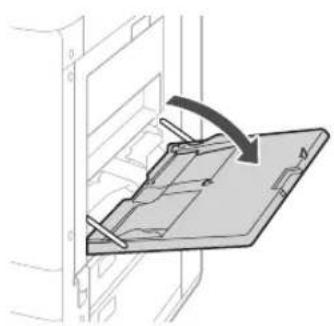
Loading Paper in the Multi Purpose Tray

1
CANON WG7550Z - Loading Paper in the Multi Purpose Tray - 1

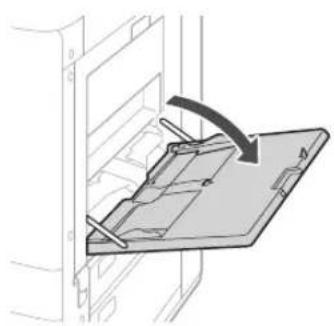
natural_image Diagram of a mechanical assembly with a clamping device and directional arrow (no text or symbols)

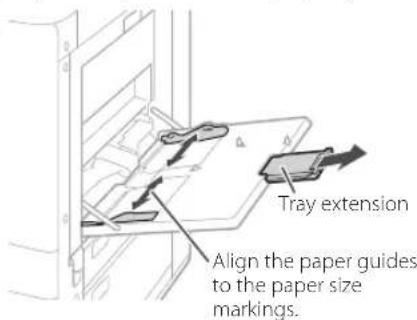
2
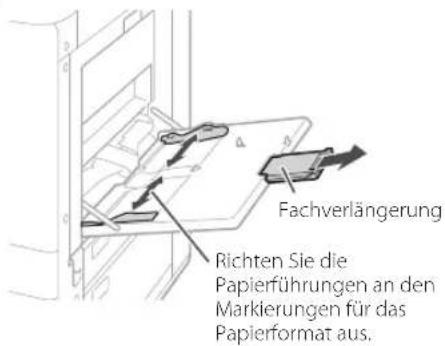
Adjust the position of the paper guides.
CANON WG7550Z - Loading Paper in the Multi Purpose Tray - 2

text_image Tray extension Align the paper guides to the paper size markings.

NOTE

Pull out the tray extension when loading large-sized paper.

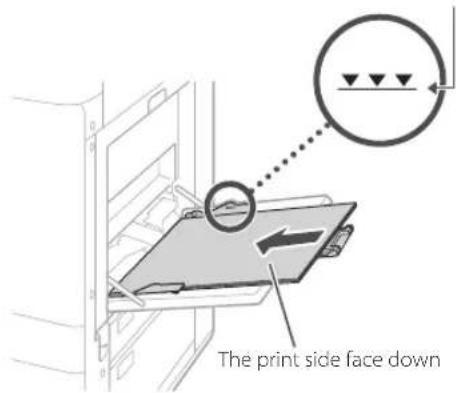
3

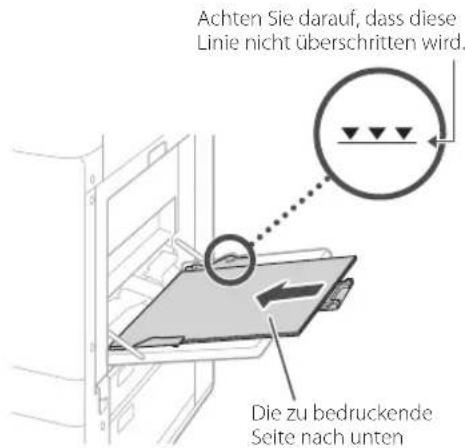
Fan the paper stack well, align the edges on a flat surface, and then load it.

Make sure that this line is not exceeded.

CANON WG7550Z - NOTE - 1

text_image The print side face down

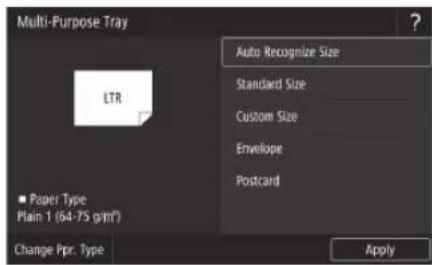
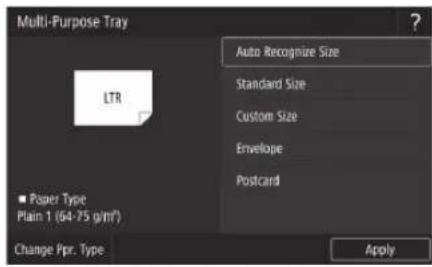
4 Check the paper size and type, and press on the screen.

CANON WG7550Z - NOTE - 2

text_image Multi-Purpose Tray Auto Recognize Size Standard Size Custom Size Envelope Postcard LTR Paper Type Plain 1 (64-75 g/m²) Change Ppr. Type Apply

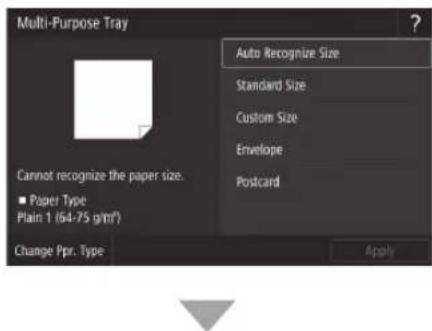
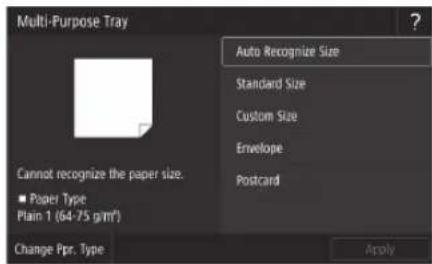
If the paper size/type setting does not match the paper you have loaded on the screen shown in step 4, change the setting manually.

1
Press .
CANON WG7550Z - NOTE - 3

text_image Multi-Purpose Tray Cannot recognize the paper size. ■ Paper Type Plain 1 (64-75 g/m²) Change Ppr. Type Auto Recognize Size Standard Size Custom Size Envelope Postcard Apply

CANON WG7550Z - NOTE - 4

Specify the paper size.

2
Press .
CANON WG7550Z - NOTE - 5

Specify the paper type.

3

Press .

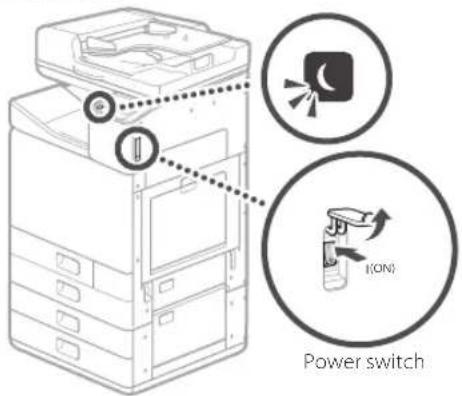
Check the following.

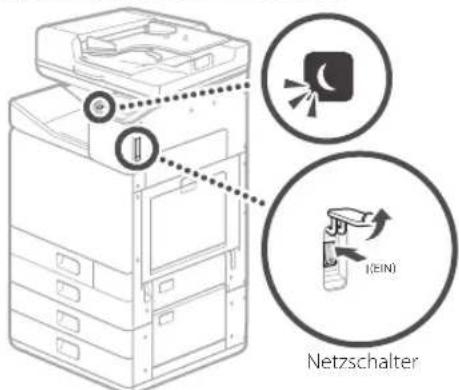
• Is the power turned on?
• Is the machine in sleep mode?

If both the display and 📁 are not lit, press the power switch.

CANON WG7550Z - NOTE - 6

text_image Power switch

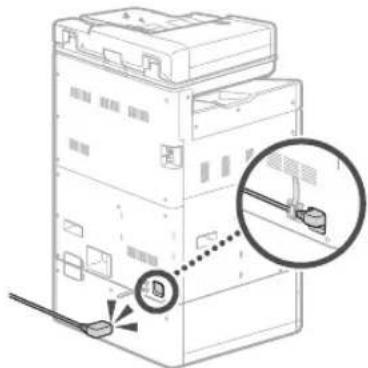
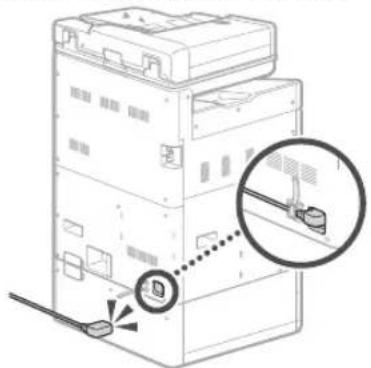
• Is the power cord connected correctly?

CANON WG7550Z - NOTE - 7

text_image Diagram showing a server rack with a close-up inset highlighting a device's connection point.

If the problem persists, see the Online Manual.

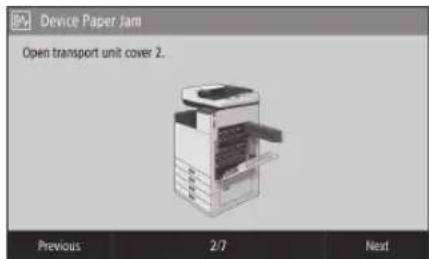
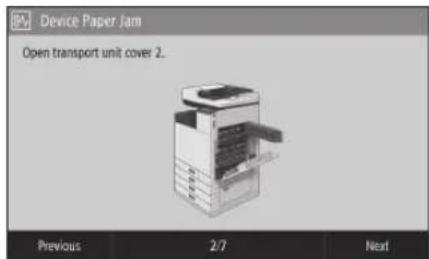
Paper Jams Have OccurredThe Machine

When paper is jammed, a screen, similar to the one below appears.

Clear paper jams, according to the on-screen instructions.

CANON WG7550Z - Paper Jams Have OccurredThe Machine - 1

text_image Device Paper Jam Open transport unit cover 2. Previous 2/7 Next

Replacing Consumables

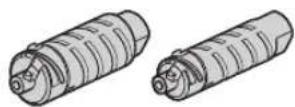
Ink Tank

CANON WG7550Z - Ink Tank - 1

Canon genuine ink tank

Standard

  • Black PGI-7500
    • Cyan PGI-7500
    • Magenta PGI-7500
    • Yellow PGI-7500

Large

  • Black PGI-7500XL
    • Cyan PGI-7500XL
    • Magenta PGI-7500XL
    • Yellow PGI-7500XL

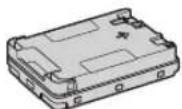
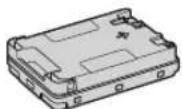
Maintenance Cartridge

CANON WG7550Z - Maintenance Cartridge - 1

• Maintenance Cartridge MC50

Printing Results Are Not Satisfactory

Check first

Did you check the paper and print quality?

Check that settings in the machine's operation panel or in the printer driver match the paper size, type, and print quality that you want to use.

P.18 "Loading Paper in the Paper Drawer"

P.16 "Printing"

If settings match, increase the "resolution" print quality settings and print again. Increasing the "resolution" print quality settings in the machine's operation panel or the printer driver might improve print results.

NOTE

Depending on the settings for <2-sided printing>, , and , colors may be light.

Printouts Are Faded/Colors Turn Out Differently/White Streaks (Lines) Appear

Check 1

Did you check for clogging in the print head?

Print out a nozzle check pattern, and then perform print head cleaning, etc. as necessary.

P.22 "Printing/Checking a Nozzle Check Pattern"

Check 2

Did you perform color correction (All Paper Types)?

Perform color correction (All Paper Types).

P.23 "Performing Color Correction (All Paper Types)"

Check 3

If the procedures above did not resolve the problem, perform color correction (Single Paper Type).

P.23 "Performing Color Correction (Single Paper Type)"

Color Unevenness or Colored Streaks

Check 1

Did you check the condition of the print head?

Perform a print head diagnosis.

P.24 "Performing a Print Head Diagnosis"

Check 2

If the procedures above did not resolve the problem, perform color correction (Single Paper Type).

P.23 "Performing Color Correction (Single Paper Type)"

Colors Are Misaligned

Check 1

Did you perform print head position adjustment?

Adjust the position of the print head to correct misaligned colors, etc.

P.24 "Aligning the Print Head"

Copy Results Are Not Satisfactory

Check 1

Is the original placed on the platen glass correctly?

Place the original with the side to be scanned down.

P.16 "Placing Originals"

Check 2

Are you copying an original that was printed out on the machine?

If copying an original that was printed out on the machine, printing may not turn out well depending on the original photo or document.

Print directly from the machine, or directly from a PC where printing from a PC is possible.

Printing/Checking a Nozzle Check Pattern

Check 3

Is the document feed scanning area dirty?

Clean the document feed scanning area.

P.25 "Cleaning the Document Feed

Scanning Areas"

You can print out a nozzle check pattern to check print head clogging and color misalignment.

Prepare the following paper.

For nozzle check pattern:

Paper you want to check streaks and unevenness for (any of thin paper, plain paper, thick paper (cardboard), recycled paper, matte photo paper)

Size: Any of A3, 11x17, LTR, or A4

Number of sheets: 5 or more

For print head position adjustment:

Plain paper (you can also use recycled paper)

Size: Any of A3, 11×17, LTR, or A4

Number of sheets: 1

• A3 or 11x17 is recommended.

  1. Place a sheet each "for nozzle check pattern" and "for print head position adjustment" in different paper drawers or the multi-purpose tray.

Referring to P.18, also make paper settings.

  1. Press 📄, and press

    .
  2. Press

Select a paper type ▶ .

  1. Check the nozzle check pattern.

- Follow on-screen instructions to clean the print head and align the print head as necessary.

Performing Color Correction (All Paper Types)

Perform color correction.

Prepare the following paper.

Plain paper (you can also use recycled paper)

Size: Any of A3, 11x17, LTR, or A4

Number of sheets: 2

• A3 or 11x17 is recommended.

  1. Load paper in a paper drawer or the multi-purpose tray.

Referring to P.18, also make paper settings.

Image Quality>▶ ▶<Auto

(Pattern Scan)>▶ .

  1. Perform color correction (All Paper Types).

- Follow on-screen instructions.

- If the document feed scanning area is dirty, correction might not be performed correctly

P.25 "Cleaning the Document Feed Scanning Areas"

Performing Color Correction (Single Paper Type)

Perform optimal color correction for each paper type.

Prepare the following paper.

Paper you want to correct colors for (any of thin paper, plain paper, thick paper (cardboard), recycled paper, matte photo paper)

Size: Any of A3, 11x17, LTR, or A4

Number of sheets: 2

• A3 or 11x17 is recommended.

  1. Load paper in a paper drawer or the multi-purpose tray.

Referring to P.18, also make paper settings.

  1. Press 🔒 and press

    .
  2. Press .

  3. Perform color correction (Single Paper Type).

  4. Select the paper type, and follow on-screen instructions.

- If the document feed scanning area is dirty, correction might not be performed correctly.

P.25 "Cleaning the Document Feed Scanning Areas"

Performing a Print Head Diagnosis

Perform print head diagnosis, color diagnosis, and color alignment diagnosis, and resolve any problems.

Prepare the following paper.

Plain paper (you can also use recycled paper)

Size: Any of A3, 11x17, LTR, or A4

Number of sheets: 5

• You may not use all 5 sheets.
• A3 or 11x17 is recommended.
• Prepare paper that is white and clean on the front and back.
• Image diagnosis and adjustment use ink and maintenance cartridge space.

  1. Load paper in a paper drawer or the multi-purpose tray.
    Referring to P.18, also make paper settings.
  2. Press 📄, and press .
  3. Press .
  4. Follow on-screen instructions.
  5. If the document feed scanning area is dirty, correction might not be performed correctly. P.25 "Cleaning the Document Feed Scanning Areas"

Aligning the Print Head

Adjust the position of the print head to correct misaligned colors, etc.

Prepare the following paper.

Plain paper (you can also use recycled paper)

Size: Any of A3, 11x17, LTR, or A4

Number of sheets: 1

  • A3 or 11x17 is recommended.
    • Prepare paper that is white and clean on the front and back.

  • Load paper in a paper drawer or the multi-purpose tray. Referring to P.18, also make paper settings.

  • Press 🔒 and press

    .
  • Press .

  • Follow on-screen instructions.

- If the document feed scanning area is dirty, correction might not be performed correctly.

P.25 "Cleaning the Document Feed Scanning Areas"

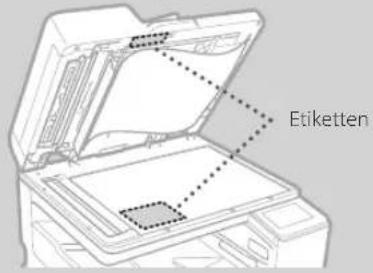
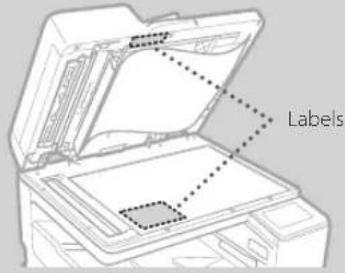
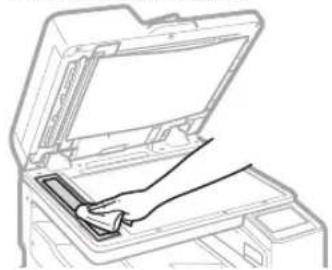
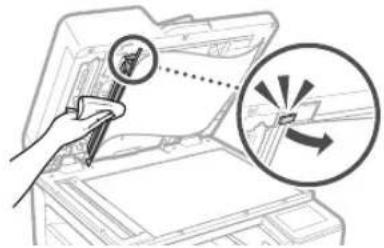
Cleaning the Document Feed Scanning Areas

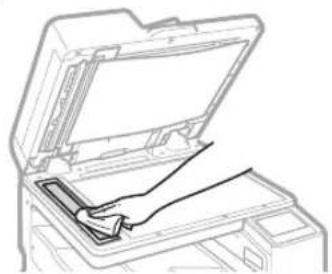
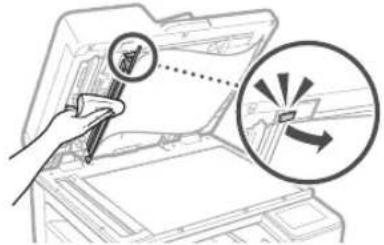
Clean according to the steps on the labels on the feeder and inside of the platen glass.

CANON WG7550Z - Cleaning the Document Feed Scanning Areas - 1

text_image Labels

Use the supplied glass cleaning sheet when cleaning the document feed scanning areas. Only use the glass cleaning sheet for cleaning the document feed scanning areas.

  1. Open the feeder, and wipe the document feed scanning area (long strip of glass) next to the platen glass with the included glass cleaning sheet.

CAUTION!

Do not use glass cleaner, alcohol solvent, etc.; may remove antistain coating.

CANON WG7550Z - CAUTION! - 1

natural_image Line drawing of an open toolbox with a hand inserting a tool (no text or symbols)
  1. Wipe the document feed scanning area (long strip of glass) on the feeder.
  2. Open the document scan cover and wipe the document feed scanning area (long strip of glass) and its opposite area.

CANON WG7550Z - CAUTION! - 2

text_image Diagram illustrating a hand holding a magnifying glass over an open device, with a magnified circular diagram showing directional arrows.
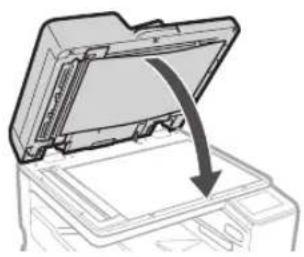
  1. Push the document scan cover until it clicks closed.
  2. Close the feeder gently.

If streaks still appear

Perform feeder cleaning.

  1. Press 🔒, and select .
  2. Press .

Network & Remote Monitoring Service Connection

Glossary

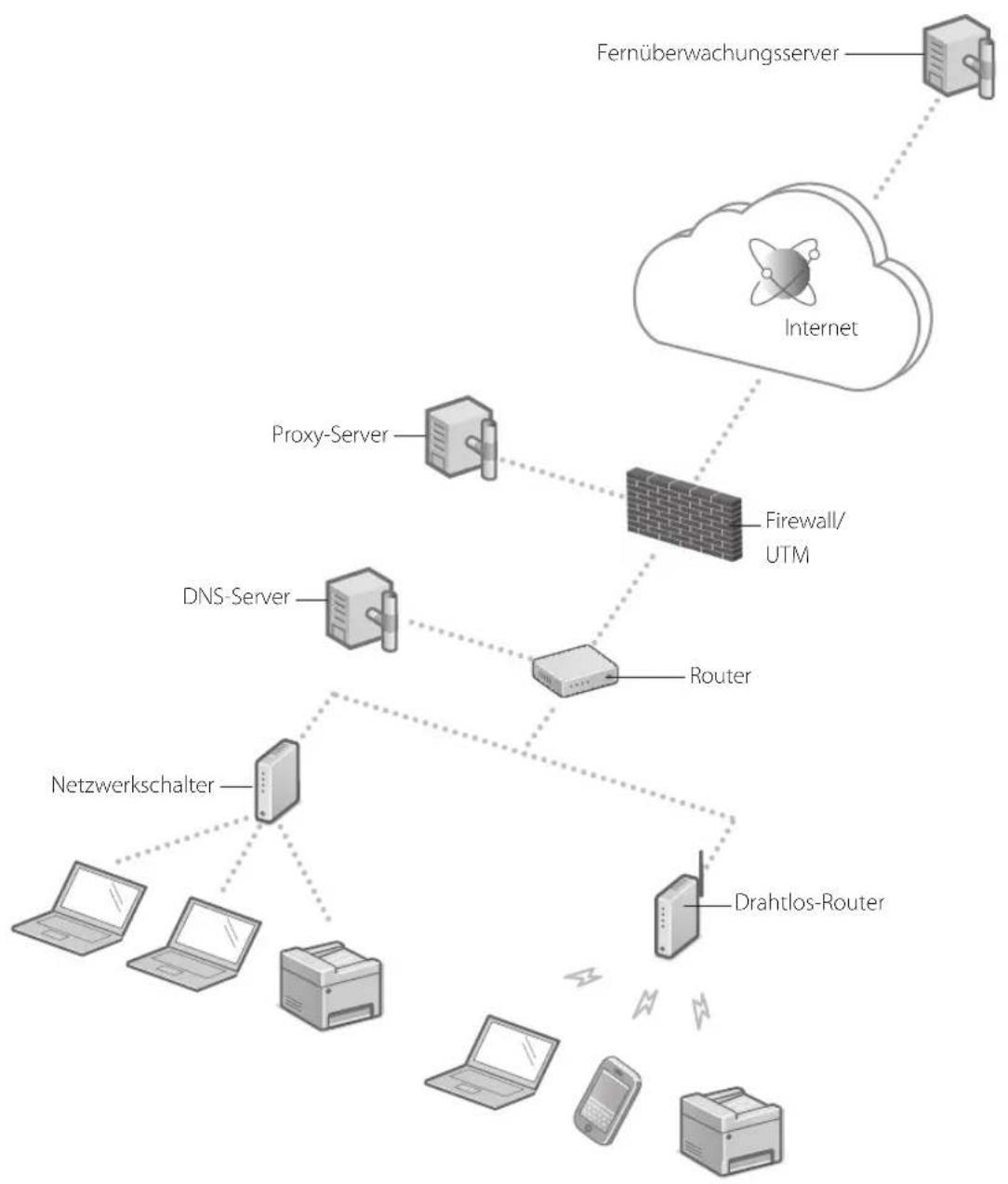
IP address With a TCP/IP connection, an assigned number for identifying devices on a network. IP addresses exist in IPv4 and IPv6 formats.
Subnet mask A number for subdividing a network when using an IPv4 IP address. The range of IP addresses assigned to devices can be limited by the user.
Gateway address The address of a device serving as a gateway for communication between different devices. In general, a router is a gateway by default.
DNS (Domain Name System)A service providing name resolution for matching host names (domain names) with IP addresses via a server.
Port Basically a doorway, where an IP address is like a street address. Assigning port numbers allows for increased security.
Proxy The PC, software, etc. that handle HTTP communication with devices outside the network as a proxy, mostly for browsing websites, etc. Instead of communicating directly outside the network, connection is relayed outside via a proxy server.
Router A communication device for connecting a network and devices. Wired and wireless types are available.
SSID (network name) An access point identifier when using a wireless LAN.
password (network key) An encryption key when connecting to a wireless LAN. Setting an encryption key that corresponds to an SSID allows connection to an access point.
Firewall A system that blocks unauthorized access from outside a network, and prevents attack and intrusion into a network within a local area.

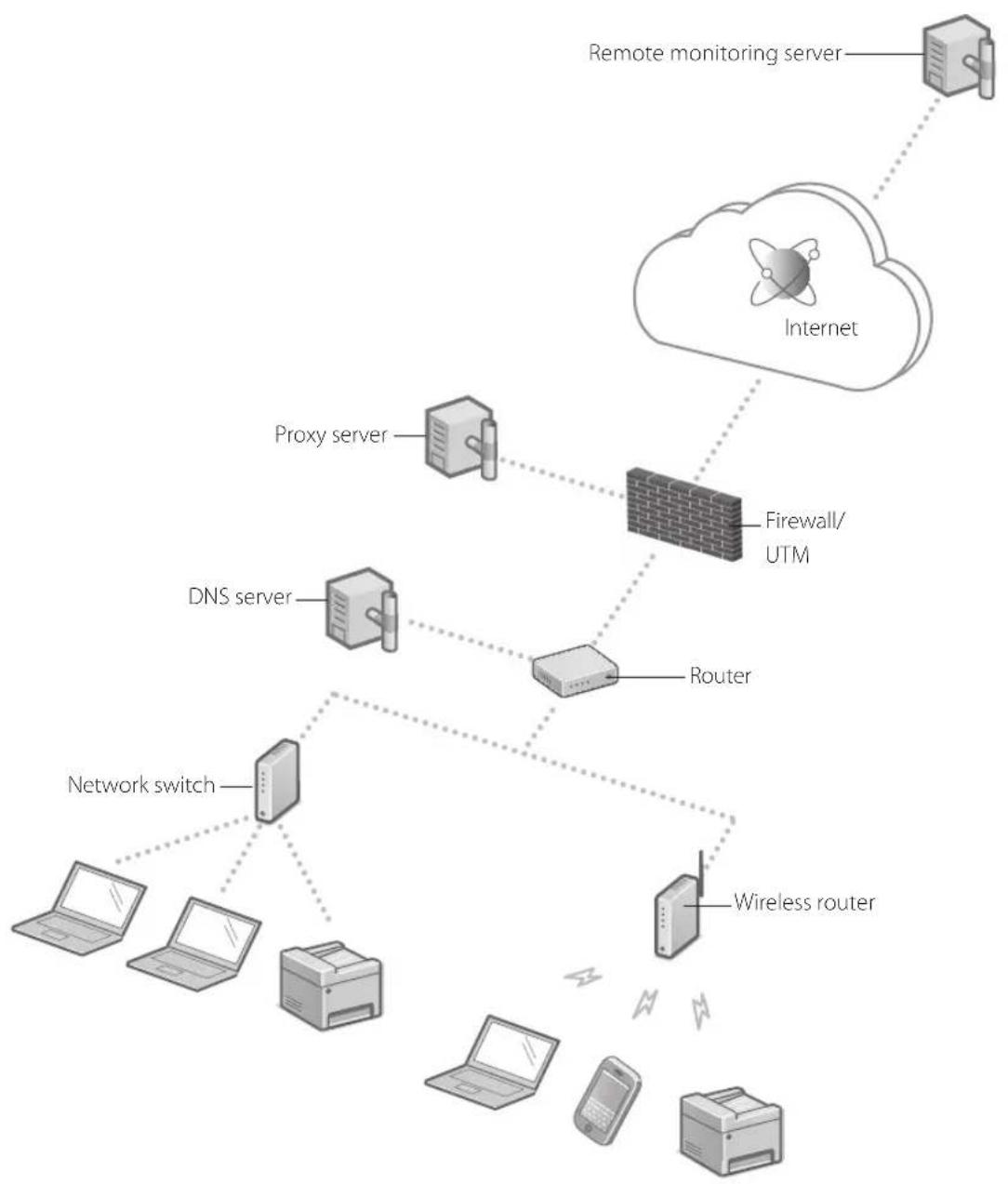
Network connection example

CANON WG7550Z - Network connection example - 1

flowchart
graph TD
    A["Remote monitoring server"] --> B["Internet"]
    B --> C["Proxy server"]
    C --> D["Firewall/UTM"]
    D --> E["Router"]
    E --> F["Network switch"]
    F --> G["Laptop"]
    F --> H["Laptop"]
    F --> I["Printer"]
    F --> J["Wireless router"]
    style A fill:#f9f,stroke:#333
    style B fill:#ccf,stroke:#333
    style C fill:#cfc,stroke:#333
    style D fill:#fcc,stroke:#333
    style E fill:#cff,stroke:#333
    style F fill:#ffc,stroke:#333
    style G fill:#cfc,stroke:#333
    style H fill:#cfc,stroke:#333
    style I fill:#cfc,stroke:#333
    style J fill:#cfc,stroke:#333

Network & Remote Monitoring Service Connection

Connecting to a Network with a Fixed IP Address

Step 1 Check the network environment

Before connecting to a network with a fixed IP address, you must check the network environment. Refer to the following list, and check necessary information beforehand.

Required items Notes
When connecting to a network with a fixed IP address (IPv4)
IP address (the machine's IP address)
Subnet mask
Gateway address
When connecting by wireless LAN
SSID for wireless router
Network key
DNS setting*
Primary DNS server address
Secondary DNS server address
Proxy setting*
HTTP proxy server address
HTTP proxy server port number
Proxy authentication username
Proxy authentication password

* Required when using DNS settings or proxy settings.

Step 2 Connect to a wired LAN/wireless LAN

Connecting by wired LAN

The machine does not come with a LAN cable. Please have one ready.

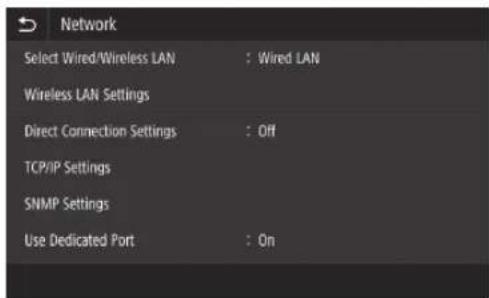
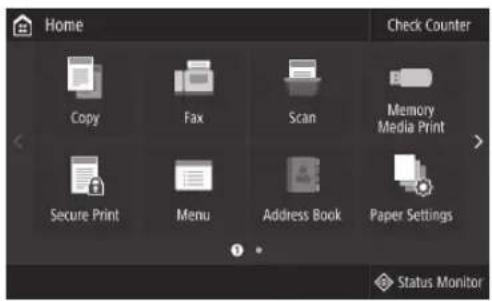
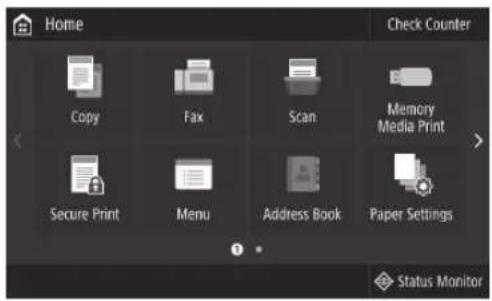
1 In the Home screen, press

.

CANON WG7550Z - Connecting by wired LAN - 1

text_image Home Check Counter Copy Fax Scan Memory Media Print Secure Print Menu Address Book Paper Settings Status Monitor

2 Select

Contact the network administrator for the system manager ID and security code (set to "7654321" by default).

CANON WG7550Z - Connecting by wired LAN - 2

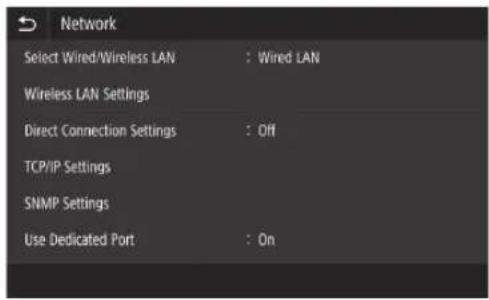
text_image Network Select Wired/Wireless LAN : Wired LAN Wireless LAN Settings Direct Connection Settings : Off TCP/IP Settings SNMP Settings Use Dedicated Port : On

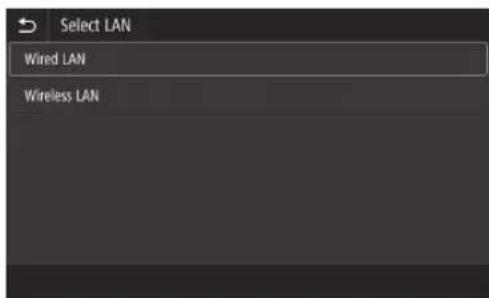
3 In the

CANON WG7550Z - Connecting by wired LAN - 3

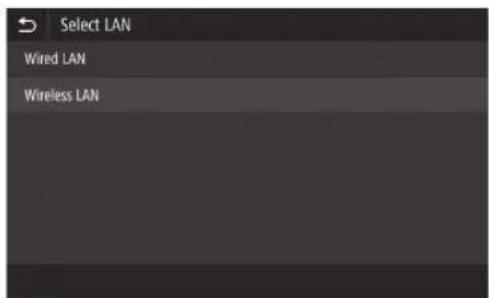
text_image Select LAN Wired LAN Wireless LAN

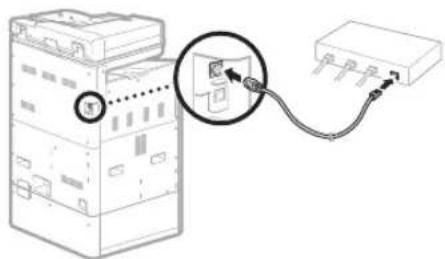
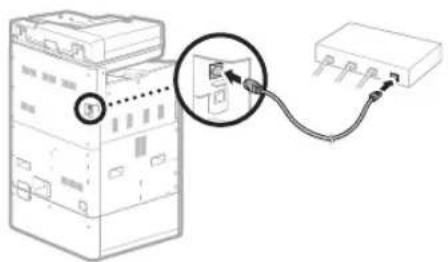
4 Connect the LAN cable. Use the LAN cable to save

  • Use the LAN cable to connect the machine to the router.
  • Press inward until the connector is all the way in the slot and clicks.

CANON WG7550Z - Connecting by wired LAN - 4

text_image Diagram showing connection between a device with labeled ports and a magnified inset highlighting a component.

Once connected, continue by setting a fixed IP address. P34 "Step 3 Set a fixed IP address"

Network & Remote Monitoring Service Connection

Connecting to a Network with a Fixed IP Address

Connecting by wireless LAN

Do not connect the LAN cable to the machine.

To connect to a wireless LAN manually by selecting an access point

The "SSID (network name)" and "network key (password)" are required. The required information can be checked beforehand with the list P.28 or by contacting the network administrator.

1 In the Home screen, press

.

CANON WG7550Z - Connecting by wireless LAN - 1

text_image Home Check Counter Copy Fax Scan Memory Media Print Secure Print Menu Address Book Paper Settings Status Monitor

2 Select , and then press

Contact the network administrator for the system manager ID and security code (set to "7654321" by default).

CANON WG7550Z - Connecting by wireless LAN - 2

text_image Network Select Wired/Wireless LAN : Wired LAN Wireless LAN Settings Direct Connection Settings : Off TCP/IP Settings SNMP Settings Use Dedicated Port : On

3 In the

CANON WG7550Z - Connecting by wireless LAN - 3

text_image Select LAN Wired LAN Wireless LAN

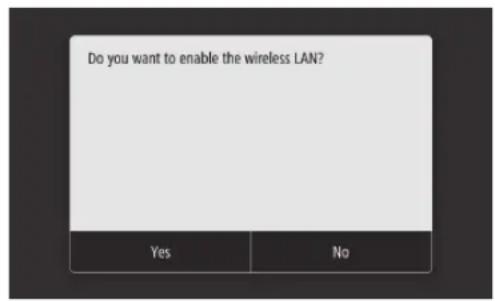
4 In the screen, press .

- When is displayed, press .

CANON WG7550Z - In the  screen, press . - 1

text_image Do you want to enable the wireless LAN? Yes No

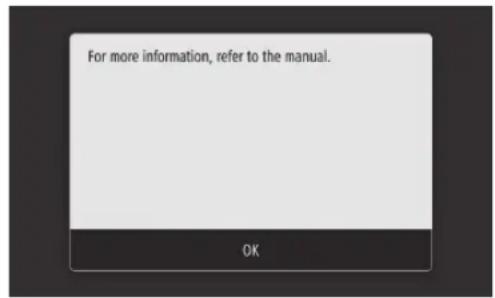
5 Check the message, and then press .

CANON WG7550Z - Check the message, and then press . - 1

text_image For more information, refer to the manual. OK

6 Press .

CANON WG7550Z - Press . - 1

text_image Wireless LAN Settings SSID Settings WPS Push Button Mode WPS PIN Code Mode Power Save Mode : On Connection Information

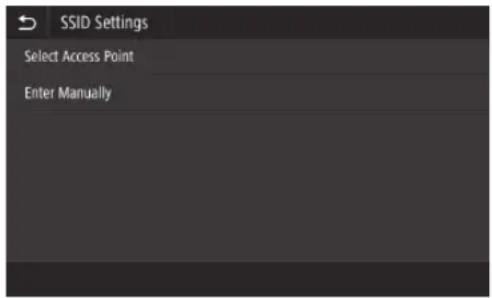
7 Press

- The machine searches for a wireless router that it can connect to.

CANON WG7550Z - Press . The machine search for us - 1

text_image SSID Settings Select Access Point Enter Manually

If a message is displayed indicating the access point is not found, refer to the online manual and try searching for the access point again.

Network & Remote Monitoring Service Connection

Connecting to a Network with a Fixed IP Address

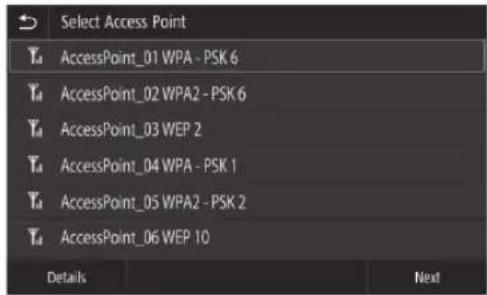
8 Press the wireless router you want to connect to. - Select the device that matches the SSID you noted down, and press .

CANON WG7550Z - Connecting to a Network with a Fixed IP Address - 1

text_image Select Access Point AccessPoint_01 WPA - PSK 6 AccessPoint_02 WPA2 - PSK 6 AccessPoint_03 WEP 2 AccessPoint_04 WPA - PSK 1 AccessPoint_05 WPA2 - PSK 2 AccessPoint_06 WEP 10 Details Next

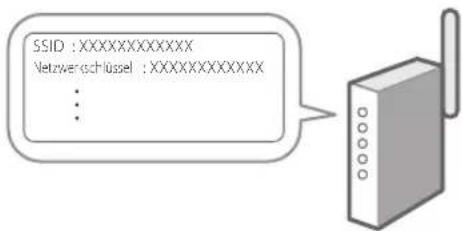
9 Enter the network key you noted down. • Enter the network key, and then press .

CANON WG7550Z - Connecting to a Network with a Fixed IP Address - 2

text_image SSID :XXXXXXXXXXXX Network key :XXXXXXXXXXXX ...

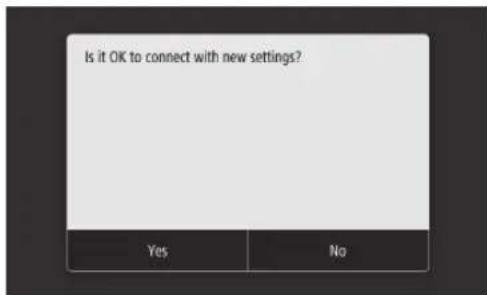
10 Press .

CANON WG7550Z - Connecting to a Network with a Fixed IP Address - 3

text_image Is it OK to connect with new settings? Yes No

If an error message is displayed while you are configuring settings, select , check that the network key is correct, and then start again from step 4.

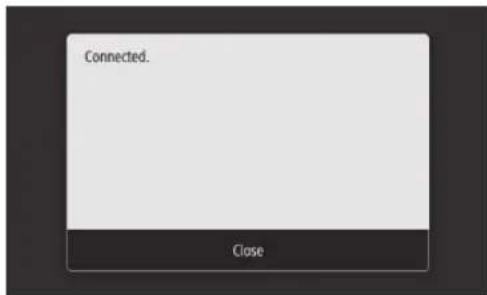
11 After is displayed, press .

CANON WG7550Z - Connecting to a Network with a Fixed IP Address - 4

text_image Connected. Close

Once connected, continue by setting a fixed IP address. IP 34 "Step 3 Set a fixed IP address"

Push-button method

Setting can be completed by push-button method if the following mark appears on the packaging box of the wireless router or if this button is available on the device itself.

CANON WG7550Z - Push-button method - 1

WPS PIN code method

Not all WPS-capable routers accommodate the push-button method, and instead require setting by entering a PIN code. Check the WPS PIN code either on the packaging box or in the instruction manual.

If the wireless router is configured to use WEP authentication, you may not be able to connect by WPS.

To enter information manually

If you want to specify security settings such as authentication and encryption in detail, enter and set the SSID and network key by yourself.

Network & Remote Monitoring Service Connection

Connecting to a Network with a Fixed IP Address

Step 3 Set a fixed IP address

Setting an IPv4 address

An IPv4 address can be set with "Auto Acquire" to assign an address automatically using DHCP, or with "Manually Acquire" allowing you to enter information yourself. To set a fixed IP address, use "Manually Acquire".

  • When setting a fixed IP address, an "IP address", "subnet mask", and "gateway address" are required. Depending on your network configuration, information other than an IP address, subnet mask, and gateway address may be required. Contact the network administrator for required information.
  • To set an IPv6 address, refer to the online manual.

1 In the Home screen, press

.

CANON WG7550Z - Setting an IPv4 address - 1

text_image Home Check Counter Copy Fax Scan Memory Media Print Secure Print Menu Address Book Paper Settings Status Monitor

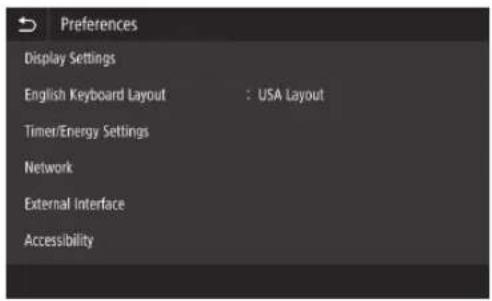
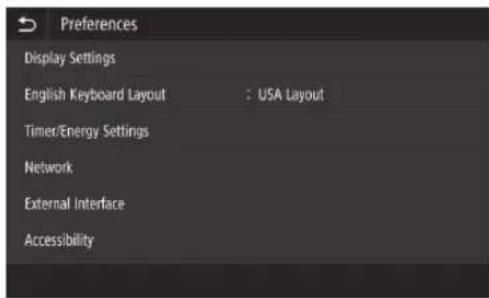
2 Select .

  • When the login screen is displayed, enter the system manager ID and security code.
  • Contact the network administrator for the system manager ID and security code (set to "7654321" by default).

CANON WG7550Z - Setting an IPv4 address - 2

text_image Preferences Display Settings English Keyboard Layout : USA Layout Timer/Energy Settings Network External Interface Accessibility

3 Select .

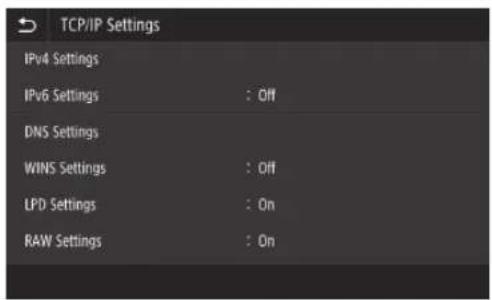
CANON WG7550Z - Setting an IPv4 address - 3

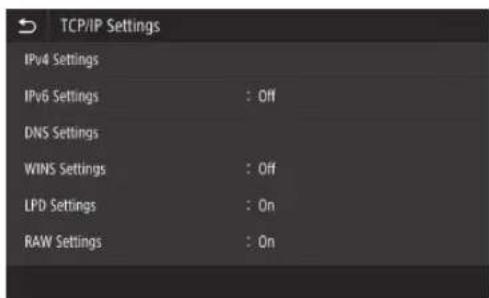
text_image TCP/IP Settings IPv4 Settings IPv6 Settings : Off DNS Settings WINS Settings : Off LPD Settings : On RAW Settings : On

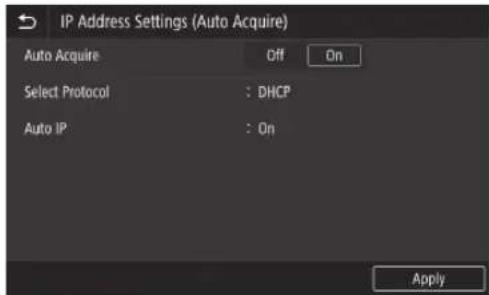
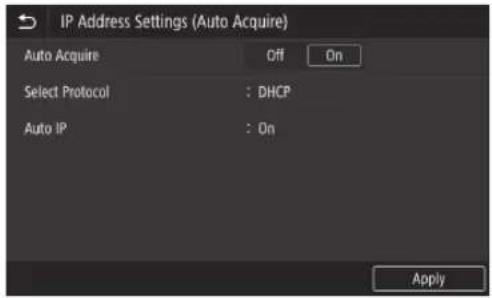
4 In the screen, press <IP Address Settings (Auto Acquire), and then in , press .

CANON WG7550Z - Setting an IPv4 address - 4

text_image IP Address Settings (Auto Acquire) Auto Acquire Off On Select Protocol : DHCP Auto IP : On Apply

To use a DHCP connection, set to , and

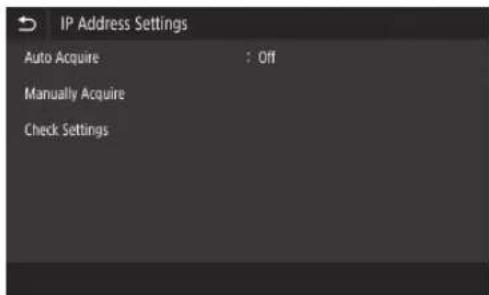
5 Press .

CANON WG7550Z - Setting an IPv4 address - 5

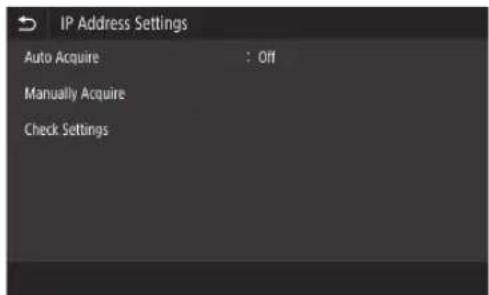
text_image IP Address Settings Auto Acquire : Off Manually Acquire Check Settings

You must first set to in step 4 before you can press .

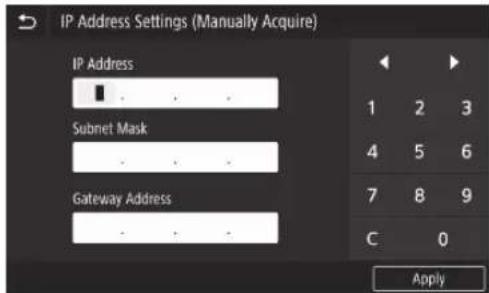
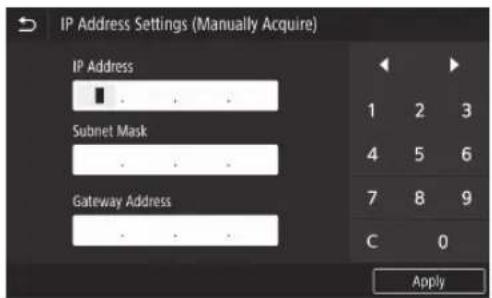
6 Enter , , , and then press .

CANON WG7550Z - Setting an IPv4 address - 6

text_image IP Address Settings (Manually Acquire) IP Address 1 2 3 Subnet Mask 4 5 6 Gateway Address 7 8 9 C 0 Apply

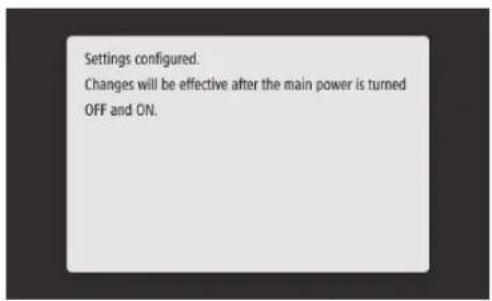
7 Restart the machine. - Turn off the machine, wait 10 seconds, and then turn the machine back on.

CANON WG7550Z - Setting an IPv4 address - 7

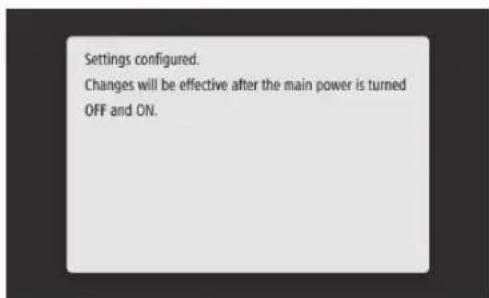
text_image Settings configured. Changes will be effective after the main power is turned OFF and ON.

Network & Remote Monitoring Service Connection

Connecting to a Network with a Fixed IP Address

Setting the DNS

The DNS (Domain Name System) is information for matching host names with IP addresses. If the IP address is being obtained automatically, the required DNS information is set automatically. If you are entering the IP address manually, you must also enter the DNS information manually.

Whether or not you must set the DNS depends on the network configuration. Contact the network administrator to check the necessity of setting the DNS in your environment and required setting information.

1 Select

, and then press .
  • When the login screen is displayed, enter the system manager ID and security code.
  • Contact the network administrator for the system manager ID and security code (set to "7654321" by default).

CANON WG7550Z - Setting the DNS - 1

text_image TCP/IP Settings IPv4 Settings IPv6 Settings : Off DNS Settings WINS Settings : Off LPD Settings : On RAW Settings : On

2 Press .

CANON WG7550Z - Setting the DNS - 2

text_image DNS Settings IPv4 DNS Server Address Settings DNS Host Name/Domain Name Settings DNS Dynamic Update Settings mDNS Settings

3 Press .

CANON WG7550Z - Setting the DNS - 3

text_image IPv4 DNS Server Address Settings Primary DNS Server : 192.168.159.2 Secondary DNS Server : 0.0.0.0

4 Enter the IP address for the primary DNS server, and then press .

- Press to return to the previous screen.

CANON WG7550Z - Enter the IP address for the primary DNS server, and then press . - 1

text_image Primary DNS Server 1 2 3 4 5 6 7 8 9 C 0 Apply

5 If required, select and enter the IP address for the secondary DNS server.

CANON WG7550Z - If required, select  and enter the IP address for the secondary DNS server. - 1

text_image Secondary DNS Server 0 0 0 1 2 3 4 5 6 7 8 9 C 0 Apply

6 Set remaining items as required. For details on setting information

  • For details on setting information, refer to the online manual.
  • The online manual describes how to complete settings with the remote UI. Complete settings either from the control panel or the remote UI.

CANON WG7550Z - Set remaining items as required. For details on setting information - 1

text_image DNS Settings IPv4 DNS Server Address Settings DNS Host Name/Domain Name Settings DNS Dynamic Update Settings mDNS Settings

7 Restart the machine.

- The screen shown at right is displayed any time that settings are entered. If you are making settings several times, restart the machine after completing all settings.

CANON WG7550Z - Restart the machine. - 1

text_image Settings configured. Changes will be effective after the main power is turned OFF and ON.

Network & Remote Monitoring Service Connection

Connecting to a Network with a Fixed IP Address

Step 4 Check the connection

Checking that the machine has connected correctly

Entering the IP address directly on a PC on the same network as the machine displays the remote UI screen. The machine has connected to the network correctly if the remote UI screen is displayed.

1 Start up the web browser.
2 In the address entry bar, enter "http:///", and then press [ENTER] on the keyboard.
3 The remote UI screen is displayed. If the screen shown at right is displayed

- If the screen shown at right is displayed, the machine has connected correctly.

- If the remote UI screen is not displayed, refer to the online manual and check the network connection.

CANON WG7550Z - Checking that the machine has connected correctly - 1

text_image http://192.168.1.20/

CANON WG7550Z - Checking that the machine has connected correctly - 2

text_image Chrome Link RANESH Texts - RANESH Texts System Manager Mode System Manager Path System Manager Path General User Mode User Path Command user path to which setting the new node Reported at www.1936 log 10 Log: 100%

To use a remote monitoring service

Proceed to connecting to a remote monitoring service and complete settings. →39

If not using a remote monitoring service

Continue with settings from "Installing the Software". → P.14

Connecting to a Remote Monitoring Service

Procedures before using a service

Before using a service, procedures for checking the network connection and communication test with the monitoring server are required.

- Check the network connection

Check that the machine is connected to the network. 1234 "Step 3 Set a fixed IP address" Before you can use a remote monitoring service, check that an Internet connection is available.

To use a proxy server

1 Start up the remote UI, and then use administrator mode when logging in.

CANON WG7550Z - To use a proxy server - 1

text_image Canon Logis System Manager - Logis System Manager Data System Manager Data Signature Name: Name: Description: Password: Password: Password: Password: Password: Password: Password: Password: Password: Password: Password: Password: Password: Password: Password: Password: Password: Password: Password: Password: Password: Password: Password: Password: Password: Password: Password: Password: Password: Password: Password: Password: Password: Password: Copyright © 2017-05-06 Copyright © 2017-05-06 Copyright © 2017-05-06 Copyright © 2017-05-06 Copyright © 2017-05-06 Copyright © 2017-05-06 Copyright © 2017-05-06 Copyright © 2017-05-06 Copyright© 2017-05-06 Copyright© 2017-05-06 Copyright© 2017-05-06 Copyright© 2017-05-06 Copyright© 2017-05-06 Copyright© 2017-05-06 Copyright© 2017-05-06 Copyright© 1999-1999 Copyright© 1999-1999 Copyright© 1999-1999 Copyright© 1999-1999 Copyright© 1999-1999 Copyright© 1999-1999 Copyright© 1999-1999 Copyright© 1999-1999 Copyright© 1999- Copyright© 1999- Copyright© 1999- Copyright© 1999- Copyright© 1999- Copyright© 1999- Copyright© 1999- Copyright© 1999- Copyright© 1999- Copyright© 1999- Copyright© 1999- Copyright© 1999- Copyright© 1999- Copyright© 2000- Copyright© 2000- Copyright© 2000- Copyright© 2000- Copyright© 2000- Copyright© 2000- Copyright© 2000- Copyright© 2000- Copyright© 2000- Copyright© 2000- Copyright© 2000- Copyright© 2000- Copyright© 2000- Copyright©2000- Copyright©2000- Copyright©2000- Copyright©2000- Copyright©2000- Copyright©2000- Copyright©2000- Copyright©2000- Copyright©2000- Copyright©2000- Copyright©2000- Copyright©2000- Copyright©2000- Copyright©2000- Copyright©2

2 In the portal page, click [Settings/Registration].

CANON WG7550Z - To use a proxy server - 2

text_image Rename UI Portal Language: Language Name: Language Status: Name: Name Type: File: Edit: Menu Information No options Description Details Paper Information Print History Print Date Print Time Print Time Print Date Print Time Print Time Print Date Print Time Print Time Print Date Print Time Print Time Print Date Print Time Print Time Print Date Print Time Print Time Print Date Print Time Print Time Print Date Print Time Print Time Print Date Print Time Print Time Print Date Print Time Print Time Print Date Print Time Print Time Print Date Print Time Print Time

3 Select [Network Settings] ▶ [Proxy Settings], and then click [Edit].

CANON WG7550Z - To use a proxy server - 3

text_image SNETTERNS: (NETTERNS) Home Settings/Registration Settings Configuration Preferences Settings / Proxy Settings Proxy Settings 100 Privacy OFF Z

Network & Remote Monitoring Service Connection

Connecting to a Remote Monitoring Service

4

Checkmark [Use Proxy], and then enter required information.

CANON WG7550Z - 4 - 1

text_image Settings/Registration Preferences Paper Settings Display Settings Timer Settings Network Settings External Interface Settings Accessibility Settings Sound Volume Control Function Settings Common Settings Copy Settings Printer Settings FX Settings Edit Proxy Settings Change the following settings. OK Cancel Proxy Settings Use Proxy HTTP Proxy Server Address: HTTP Proxy Server Port Number: 30 Use Proxy within Same Domain: Use Proxy Authentication User Name: Set/Change Password: Password:

[Use Proxy]

Checkmarking this option allows the specified proxy server to be used when the machine initiates HTTP communication.

[HTTP Proxy Server Address]

Enter the proxy server address to be used. Set an IP address, host name, etc. according to your environment.

[HTTP Proxy Server Port Number]

Enter the port number of the proxy server to be used.

[Use Proxy within Same Domain]

Checkmarking this option allows the specified proxy server to be used also when the machine initiates communication with a device in the same domain.

[Use Proxy Authentication]

To use authentication by a proxy server, checkmark this option, and then enter the username to be authenticated in [User Name].

[Set/Change Password]

To set or change the password when using proxy authentication, checkmark this option, and then enter the new password in [Password].

5

Click [OK].

- Communication test with the monitoring server

Carry out a communication test with the monitoring server. By carrying out the communication test, the remote monitoring service starts.

Communication test with the monitoring server

1

In the Home screen, press .

CANON WG7550Z - - Communication test with the monitoring server - 1

text_image Home Check Counter Copy Fax Scan Memory Media Print Secure Print Menu Address Book Paper Settings Status Monitor

2

Press .

CANON WG7550Z - - Communication test with the monitoring server - 2

text_image Check Counter 101: Total 1 : 3 108: Total (Black & White 1) : 2 125: Total (Full Color + Single Color 1) : 1 Monitoring Service Check Dev. Config. Close

3

Press .

CANON WG7550Z - - Communication test with the monitoring server - 3

text_image Monitoring Service Communication Test

Network & Remote Monitoring Service Connection

Connecting to a Remote Monitoring Service

4 When the screen shown at right is displayed, press .

CANON WG7550Z - Connecting to a Remote Monitoring Service - 1

text_image After the communication test is performed, information will be regularly sent to the server. Is it OK? Yes No

5 is displayed. Setting is complete.

CANON WG7550Z - Connecting to a Remote Monitoring Service - 2

text_image Communication was successful.
  • If an error message is displayed, refer to P.43 "Errors that can occur and troubleshooting" and check settings.
  • Once settings are complete, it is recommended that you print out an administrator data list and keep it together with this manual. Note that the printed out report will be about 10 pages.
    Select ▶System Manager Data List> Check that the displayed paper is loaded, and then press .

Once connected

Continue with settings from "Installing the Software".

Errors that can occur and troubleshooting

If an error message is displayed

The error screen displays an error code. Check details and remedies for error codes in the table below to troubleshoot issues.

CANON WG7550Z - If an error message is displayed - 1

text_image Communication failed. E810f-200b Close Error code

If an error occurs and its code is not listed, or the given solution does not resolve the issue, visit the location where you purchased the machine or inquire via the support page on the Canon website.

Proxy server settings

Error code Cause Solution
8000 200A Error connecting to remote monitoring service:• TCP/IP communication failure• IP address for this device not setTo use a proxy server, make proxy settings and check the status of the proxy server.
8000 200B Failed resolving address for remote monitoring serverCheck that the network the machine is connected to is an environment that can connect to the Internet.
8000 2014 The set address is not valid and the machine cannot connect to the proxy serverCheck and reset the IP address/port number for the proxy server.
8000 2015 The proxy server address is registered with the host name, but connection to the designated server is not possible with the name resolution• Check the host name of the proxy server and the DNS setting.• Set the proxy server with an IP address.
8000 201E Failed authenticating to proxy serverCheck and reset the username and password for logging in to the proxy server.

Network & Remote Monitoring Service Connection

Connecting to a Remote Monitoring Service

Setting The Date/Time & Firmware Update

Error code Cause Solution
8000 2028 Server certificate error:Date/time on the device are not correctRoot certificate to server is not registered in the deviceThe user is using a different certificate, and the official certificate file is not registeredSet the accurate date/time in the device.If the date/time in the device were correct,update to the latest firmware.
8000 2029 Server certificate URL check error
8000 2046 Server certificate expired:Date in device is past expiry on certificateRoot certificate registered in the device is expiredThe root certificate first registered by the user is being used, and the official certificate file is not registered

Carrying out a communication test

Error code Cause Solution
0000 0003 No schedule/communication test not completedRun and complete the communication test.
8000 0101 Remote monitoring server reply error
8000 0207 8000 0208Internal schedule invalid
8000 2000 Other communication error
8000 0304 Signal consumption error during communication testWait and run the communication test again.
8000 2004Succeeded in communicating with the remote monitoring server, but an error occurred
8000 2047 Reply from remote monitoring server timed out
8000 2003 Communication test was run while network connection was still not ready immediately after turning the device's main power off/onAfter turning the device on, wait about 60 seconds before running the communication test.

Appendix

Important Safety Instructions

This chapter describes important safety instructions for the prevention of injury to users of this machine and others, and damage to property. Read this chapter before using the machine, and follow the instructions to use the machine properly. Do not perform any operations not described in this manual. Canon will not be responsible for any damages resulting from operations not described in this manual, improper use, or repair or changes not performed by Canon or a third party authorized by Canon. Improper operation or use of this machine could result in personal injury and/or damage requiring extensive repair that may not be covered under your Limited Warranty.

WARNING

Indicates a warning concerning operations that may lead to death or injury to persons if not performed correctly. To use the machine safely, always pay attention to these warnings.

CAUTION

Indicates a caution concerning operations that may lead to injury to persons if not performed correctly. To use the machine safely, always pay attention to these cautions.

IMPORTANT

Indicates operational requirements and restrictions. Be sure to read these items carefully to operate the machine correctly and avoid damage to the machine or property.

Installation

To use this machine safely and in a trouble-free way, carefully read the following precautions and install the machine in an appropriate location.

WARNING

Do not install in a location that may result in a fire or electrical shock

  • A location where the ventilation slots are blocked (too close to walls, beds, sofas, rugs, or similar objects)
    • A damp or dusty location
  • A location exposed to direct sunlight or outdoors
    • A location subject to high temperatures
    • A location exposed to open flames
  • Near alcohol, paint thinners or other flammable substances

Other warnings

  • Do not connect unapproved cables to this machine. Doing so may result in a fire or electrical shock.
  • Do not place necklaces and other metal objects or containers filled with liquid on the machine. If foreign substances come in contact with electrical parts inside the machine, it may result in a fire or electrical shock.
  • When installing and removing the optional accessories, be sure to turn OFF the power, unplug the power plug, and then disconnect all the interface cables and power cord from the machine. Otherwise, the power cord or interface cables may be damaged, resulting in a fire or electrical shock.

- If any foreign substance falls into this machine, unplug the power plug from the AC power outlet and contact a dealer or service center.

Do not install in the following locations

The machine may drop or fall, resulting in injury. • An unstable location

• A location exposed to vibrations

CAUTION

Do not install in the following locations Doing so may result in damage to the machine.

• A location subject to temperature and humidity extremes, whether low or high
• A location subject to dramatic changes in temperature or humidity
• A location near equipment that generates magnetic or electromagnetic waves
• A laboratory or location where chemical reactions occur
• A location exposed to corrosive or toxic gases
- A location that may warp from the weight of the machine or where the machine is liable to sink (a carpet, etc.)

Supports (only for products with supports)

Do not remove the machine's supports after the machine has been installed, as this may cause the machine to fall or tip over, resulting in personal injury.

When using wireless LAN (only for products with a wireless LAN function)

• Install the machine at a distance of 50 meters or less from the wireless LAN router.
- As far as possible, install in a location where communication is not blocked by intervening objects. The signal may be degraded when passing through walls or floors.
- Keep the machine as far as possible from digital cordless phones, microwave ovens, or other equipment that emits radio waves.

CAUTION

When using a cassette feeding unit with the Canon WG7000 Series printer, follow the instructions in the manual to securely attach the printer to the cassette feeding unit. Always use the following combinations of printer and cassette feeding unit.

Canon WG7000 Series: Use Canon Cassette Feeding Unit CF10.

Using a different combination of printer and cassette feeding unit than shown above, using a cassette feeding unit not listed above, or not attaching the printer securely to the cassette feeding unit may be unstable and may result in injury.

Power Supply

WARNING

  • Use only a power supply that meets the specified voltage requirements. Failure to do so may result in a fire or electrical shock.
  • Do not use power cords other than the one provided, as this may result in a fire or electrical shock.
  • The provided power cord is intended for use with this machine. Do not connect the power cord to other devices.
  • Do not modify, pull, forcibly bend, or perform any other act that may damage the power cord. Do not place heavy objects on the power cord. Damaging the power cord may result in a fire or electrical shock.
  • Do not plug in or unplug the power plug with wet hands, as this may result in an electrical shock.

  • Do not use extension cords or multi-plug power strips with the machine. Doing so may result in a fire or electrical shock.

  • Do not wrap the power cord or tie it in a knot, as this may result in a fire or electrical shock.
  • Insert the power plug completely into the AC power outlet. Failure to do so may result in a fire or electrical shock.
  • Remove the power plug completely from the AC power outlet during a thunder storm. Failure to do so may result in a fire, electrical shock, or damage to the machine.
    • Make sure that the power supply for the machine is safe, and has a steady voltage.
  • Keep the power cord away from a heat source; failure to do this may cause the power cord coating to melt, resulting in a fire or electrical shock.
  • If excessive stress is applied to the connection part of the power cord, it may damage the power cord or the wires inside the machine may disconnect. This could result in a fire. Avoid the following situations:
  • Connecting and disconnecting the power cord frequently.
  • Tripping over the power cord.
  • The power cord is bent near the connection part, and continuous stress is being applied to the power outlet or the connection part.
  • Applying excessive force on the power plug.

CAUTION

• Install this machine near the power outlet and leave sufficient space around the power plug so that it can be unplugged easily in an emergency.

IMPORTANT

When connecting power

- Do not connect the power cord to an uninterruptible power source. Doing so may result in malfunction of or damage to the machine at power failure.

- If you plug this machine into an AC power outlet with multiple sockets, do not use the remaining sockets to connect other devices.

- Do not connect the power cord to the auxiliary AC power outlet on a computer.

Other precautions

Electrical noise may cause this machine to malfunction or lose data.

Handling

WARNING

  • Immediately unplug the power plug from the AC power outlet and contact a dealer or service center if the machine makes an unusual noise, emits an unusual smell, or emits smoke or excessive heat. Continued use
    may result in a fire or electrical shock.
  • Do not disassemble or modify this machine. There are high-voltage and high-temperature components inside the machine. Disassembly or modification may result in a fire or electrical shock.
  • Place the machine where children will not come in contact with the power cord and other cables or gears and electrical parts inside the machine. Failure to do so may result in unexpected accidents.
  • Do not use flammable sprays near this machine. If flammable substances come into contact with electrical parts inside this machine, it may result in a fire or electrical shock.

- When moving this machine, be sure to turn OFF the power of this machine, and then unplug the power plug and interface cables. Failure to do so may damage the power cord or interface cables, resulting in a fire or electrical shock. - When plugging or unplugging a USB cable when the power plug is plugged into an AC power outlet, do not touch the metal part of the connector, as this may result in an electrical shock.

If you are using a cardiac pacemaker

This machine generates a low level magnetic flux. If you use a cardiac pacemaker and feel abnormalities, please move away from this machine and consult your physician immediately.

CAUTION

  • Do not place heavy objects on this machine as they may fall, resulting in injury.
  • For safety, unplug the power plug if the machine will not be used for a long period of time.
  • Use caution when opening and closing covers to avoid injury to your hands.
  • Keep hands and clothing away from the rollers in the output area. If the rollers catch your hands or clothing, this may result in personal injury.
  • Be careful not to drop a heavy object, such as a dictionary, on the platen glass. Doing so may damage the platen glass and result in injury.
  • Do not carry the machine with the optional cassette feeding unit installed. Otherwise, the cassette feeding unit may fall and result in injury.

CANON WG7550Z - CAUTION - 1

CANON WG7550Z - CAUTION - 2

natural_image Line drawing of three people assembling or inspecting a stacked electronic device (no text or symbols visible)

Feeder

  • Do not press down hard on the feeder when using the platen glass to make copies of thick books. Doing so may damage the platen glass and result in personal injury.
  • Close the feeder gently to avoid catching your hands, as this may result in personal injury.
  • Close the feeder gently to avoid catching your hands in the back of the feeder, as this may result in personal injury.

Paper drawer

- Do not insert your hand into the machine while the paper drawer is pulled open, as this may result in personal injury.

Energy Saver key (only for products with an Energy Saver key)

- Press © (Energy Saver) for safety when the machine will not be used for a long period of time, such as overnight. Also, turn OFF the main power switch, and disconnect the power cord for safety when the machine will not be used for an extended period of time, such as during consecutive holidays.

Other precautions

  • Follow the instructions on the caution label attached to this machine.
  • Do not subject the machine to strong shocks or vibration.
  • Do not forcibly open and close doors, covers, and other parts. Doing so may result in damage to the machine.
  • Do not turn OFF the main power switch or open the covers while the machine is in operation. This may result in paper jams or print head trouble.
  • Use a modular cable that is shorter than 3 meters.
  • Use a USB cable that is shorter than 3 meters.

If the operating noise concerns you

Depending on the use environment and operating mode, if the operating noise is of concern, it is recommended that the machine be installed in a place other than the office.

Maintenance and Inspections

Clean this machine periodically. If dust accumulates, the machine may not operate properly. When cleaning, be sure to observe the following. If a problem occurs during operation, see Frequently Asked Questions in the online manual. If the problem cannot be resolved or you feel the machine requires an inspection, contact a dealer or service center.

WARNING

  • Before cleaning, turn OFF the power and unplug the power plug from the AC power outlet. Failure to do so may result in a fire or electrical shock.
  • Unplug the power plug periodically and clean with a dry cloth to remove dust and grime. Accumulated dust may absorb humidity in the air and may result in a fire if it comes into contact with electricity.
  • Use a damp, well wrung-out cloth to clean the machine. Dampen cleaning cloths with water only. Do not use alcohol, benzenes, paint thinners, or other flammable substances. Do not use tissue paper or paper towels. If these substances come into contact with electrical parts inside the machine, they may generate static electricity or result in a fire or electrical shock.
  • Check the power cord and plug periodically for rust, bent prongs, fraying, cracks, or excessive heat generation. Use of poorly-maintained power cord or plug may result in a fire or electrical shock.

CAUTION

• The inside of the machine has high-temperature and high-voltage components. Touching these components may result in injury or burns. Do not touch any part of the machine that is not indicated in the manual.
- When loading paper or removing jammed paper, be careful not to cut your hands with the edges of the paper.

Using your product to scan, print or otherwise reproduce certain documents, and the use of such images as scanned, printed or otherwise reproduced by your product, may be prohibited by law and may result in criminal and/or civil liability. A non-exhaustive list of these documents is set forth below. This list is intended to be a guide only. If you are uncertain about the legality of using your product to scan, print or otherwise reproduce any particular

document, and/or of the use of the images scanned, printed or otherwise reproduced, you should consult in advance with your legal advisor for guidance.

- Paper Money

- Travelers Checks

- Money Orders

- Food Stamps

• Certificates of Deposit

- Passports

- Postage Stamps (canceled or uncanceled)

- Immigration Papers

• Identifying Badges or Insignias

- Internal Revenue Stamps (canceled or uncanceled)

- Selective Service or Draft Papers

• Bonds or Other Certificates of Indebtedness

- Checks or Drafts Issued by Governmental Agencies

• Stock Certificates

• Motor Vehicle Licenses and Certificates of Title

• Copyrighted Works/Works of Art without Permission of Copyright Owner

Repairing, Lending, or Disposing of the machine

If you have entered personal data, passwords and/or other sensitive information on the machine, such information may be stored in the machine. When sending the machine for repair, lending or transferring the machine to another person, or disposing of the printer, reset the machine to factory defaults to delete this information and prevent third parties from accessing it. Refer to Online Manual for details.

WARNING

- Do not throw print heads, ink tanks and maintenance cartridges into fire. This may cause an ignition, and result in burns or fire.

CAUTION

  • Keep ink tanks out of the reach of children. In case ink is accidentally licked or swallowed, rinse out mouth or give one or two glasses of water to drink. If irritation or discomfort
    occurs, obtain medical advice immediately.
  • Do not attempt to disassemble or modify the print head, ink tanks, and maintenance cartridges.
    • In case ink gets in contact with eyes, rinse with water immediately. In case ink gets in contact with skin, wash with soap and water immediately. If irritation to eyes or skin
    persists, obtain medical advice immediately.
  • Never touch the electrical contacts on a print head after printing. The metal parts may be very hot and could cause burns.
  • Avoid dropping or shaking print head, ink tanks, and maintenance cartridges.

Ink

When you use the Canon printer for the first time after you install the bundled ink tanks, the printer consumes a small amount of ink to enable printing by filling the nozzles of the Print Head with ink. For this reason, the number of sheets that can be printed with the first ink tanks is fewer than the succeeding ink tanks. To prevent clogging of the ink nozzles and maintain good printing results, the machine performs

cleaning automatically. To do this, the machine occasionally draws ink from the nozzles, and thus may use a minute amount of ink.

- Even with black and white printing, ink colors other than black may be used depending on the type of paper being printed on or on settings in the printer driver.

Other Precautions

- Do not remove the print head unnecessarily.

- Not printing for a long period of time may cause the print head to dry out and clog. It is recommended that the machine be used for printing at least once a month.

Notice

Caution for each safety standard mark and declaration

Each safety standard mark and declaration is valid only for the voltage and frequency of the respective country or region where it applies.

CANON WG7550Z - Safety-Related Symbols - 1

Protective earthing terminal

CANON WG7550Z - Safety-Related Symbols - 2

CAUTION: Hot surface. Do not touch.

CANON WG7550Z - Safety-Related Symbols - 3

Moving parts: Keep body parts away from moving parts. Keep body parts out of the motion path.

* This mark may not appear on your model.

Product Name

Safety regulations require the product's name to be registered.

In some regions where this product is sold, the following name(s) in parentheses () may be registered instead.

RMC(Regulatory Model Code)

WG7550Z (K10479)

WG7550F (K10478)

WG7550 (K10477)

WG7540 (K10476)

Precaution for Using This Product in Countries or Regions other than where It was Purchased

This product, which is made for countries or regions where it was purchased, may not be used in other countries or regions due to their local laws and regulations. Please note that Canon should not be liable for penalties which will be caused by using this product in such countries or regions.

About Radio Waves

Do not use this product near medical equipment or electronic equipment. Radio wave interference can affect the operation or performance of the equipment.

For models containing lithium battery

- Dispose of used batteries according to the local regulations.

- Risk of explosion if battery is replaced by an incorrect type.

Disclaimers

• CANON INC. MAKES NO WARRANTY OF ANY KIND WITH REGARD TO THIS MATERIAL, EITHER EXPRESS OR IMPLIED, EXCEPT AS PROVIDED HEREIN, INCLUDING WITHOUT LIMITATION, THEREOF, WARRANTIES AS TO MARKETABILITY, MERCHANTABILITY, FITNESS FOR A PARTICULAR PURPOSE OF USE, OR NON-INFRINGEMENT, CANON INC. SHALL NOT BE LIABLE FOR ANY DIRECT, INCIDENTAL, OR CONSEQUENTIAL DAMAGES OF ANY NATURE, OR LOSSES OR EXPENSES RESULTING FROM THE USE OF THIS MATERIAL.

Environmental Information

Reducing your environmental impact

Environmental Duplex printing

The duplex printing automatically and therefore helps to reduce the use of valuable resource's by reducing your paper consumption. The duplex function has been auto enabled, during the set up and driver installation and Canon strongly recommend that you do not disable this function. You should continue to use the duplex function to reduce the environmental impact of your work with this product at all times.

Power Consumption and Operational Modes

The amount of electricity a device consumes depends on the way the device is used. This product is designed and set in a way to allow you to reduce the power consumption. After the last print it switches to Ready Mode. In this mode it can print again immediately if required. If the product is not used for a time, the device switches to its Sleep Mode. The devices consume less power (Watt) in these modes.

Energy Star®

The Energy Star® programme is a voluntary scheme to promote the development and purchase of energy efficient models, which help to minimise environmental impact.

Paper types

This product can be used to print on both recycled and virgin paper (certified to an environmental stewardship scheme), which complies with EN12281 or a similar quality standard. In addition it can support printing on media down to a weight of 64g/m2, lighter paper means less resources used and a lower environmental footprint for your printing needs.

About This Manual

Illustrations and Displays Used in This Manual

Illustrations and displays used in this manual are of WG7550F unless specified.

CANON WG7550Z - Illustrations and Displays Used in This Manual - 1

natural_image Line drawing of a multi-tiered office machine with multiple drawers and a top cover (no text or symbols)

Cassette Feeding Unit (optional) attached

Trademarks

• Windows is a trademark or registered trademark of Microsoft Corporation in the U.S. and/or other countries.
- Internet Explorer is a trademark or registered trademark of Microsoft Corporation in the U.S. and/or other countries.
• Apple, Bonjour, iPad, iPhone, iPod touch, Safari, Mac, macOS and OS X are trademarks of Apple Inc., registered in the U.S. and other countries.
- IOS is a trademark or registered trademark of Cisco in the U.S. and other countries and is used under license.
- Google Chrome, Android are either registered trademarks or trademarks of Google Inc.

Third Party Software

This Canon product (the "PRODUCT") includes third-party software modules. Use and distribution of these software modules, including any updates of such software modules (collectively, the "SOFTWARE") are subject to license conditions below.

(1) You agree that you will comply with any applicable export control laws, restrictions or regulations of the countries involved in the event that the PRODUCT including the SOFTWARE is shipped, transferred or exported into any country.
(2) Rights holders of the SOFTWARE retain in all respects the title, ownership and intellectual property rights in and to the SOFTWARE. Except as expressly provided herein, no license or right, expressed or implied, is hereby conveyed or granted by rights holders of the SOFTWARE to you for any intellectual property of rights holders of the SOFTWARE.
(3) You may use the SOFTWARE solely for use with the PRODUCT.
(4) You may not assign, sublicense, market, distribute, or transfer the SOFTWARE to any third party without prior written consent of rights holders of the SOFTWARE.

(5) Notwithstanding the foregoing, you may transfer the SOFTWARE only when (a) you assign to a transferee all of your rights to the PRODUCT and all rights and obligations under the conditions governing the SOFTWARE and PRODUCT and (b) such transferee agrees in writing to be bound by all these conditions.
(6) You may not decrypt, decompile, reverse engineer, disassemble or otherwise reduce the code of the SOFTWARE to human readable form.
(7) You may not modify, adapt, translate, rent, lease or loan the SOFTWARE or create derivative works based on the SOFTWARE.
(8) You are not entitled to remove or make separate copies of the SOFTWARE from the PRODUCT.
(9) The human-readable portion (the source code) of the SOFTWARE is not licensed to you.

Notwithstanding (1) through (9) above, the PRODUCT includes third-party software modules accompanying the other license conditions, and these software modules are subject to the other license conditions. Please refer to the other license conditions of third-party software modules described in Appendix of Manual for the corresponding the PRODUCT. This Manual is available at http://jj.start.canon.

By using the PRODUCT, you shall be deemed to have agreed to all applicable license conditions. If you do not agree to these license conditions, please contact your service representative.

ACCEPTANCE

THE TERMS OF THIS THIRD PARTY SOFTWARE STATED HERE OR IN RELATED WARRANTY PROVISIONS SHALL BE DEEMED ACCEPTED UPON YOUR USE OF THE PRODUCT FOR ONE OR MORE OF ITS NORMAL PURPOSES, IF THERE HAS BEEN NO OTHER PRIOR EXPRESS ACCEPTANCE.

THE TERMS OF THIS THIRD PARTY SOFTWARE GOVERN THE THIRD PARTY SOFTWARE AS DELIVERED WITH THE PRODUCT AND ALL UPDATED VERSIONS OF THE THIRD PARTY SOFTWARE PROVIDED UNDER MAINTENANCE AGREEMENTS OR OTHER SERVICE ARRANGEMENTS FOR THE PRODUCT WITH CANON USA OR CANON CANADA OR THEIR RESPECTIVE AUTHORIZED SERVICE ORGANIZATIONS.

Canon

Business Inkjet WG7000 Series

Démarrage

FR

Installation de l'appareil 📞.2

Utilisation de base P.16

En cas de problème Ⓧ.20

Connexion au réseau et au service de suivi distant P. 26

CANON WG7550Z - Démarrage - 1

natural_image Front view of a Canon printer with open lid and internal compartments (no visible text or symbols on main body)

Prenez connaissance des "Consignes de sécurité importantes" avant toute utilisation de ce produit. P.45 Une fois la lecture de ce guide terminée, rangez-le dans un endroit sûr afin de pouvoir le consulter ultérieurement. Les informations contenues dans ce document peuvent être modifiées sans avis préalable.

CANON WG7550Z - Démarrage - 2

Le Manuel en ligne contenant des informations sur toutes les fonctions de cet appareil se trouve à l'adresse suivante : http://ij.start.canon.

Installation de l'appareil

CANON WG7550Z - Installation de l'appareil - 1
Eléments fournis avec l'appareil

CANON WG7550Z - Installation de l'appareil - 2

text_image , , ×3 *WG7550Z/WG7550F La tête d'impression et la cartouche d'entretien sont installées dans l'appareil,

CANON WG7550Z - Installation de l'appareil - 3
Exigences d'installation

Installez l'appareil sur une surface plane en laissant au moins 100 mm d'espace autour lui.

CANON WG7550Z - Installation de l'appareil - 4

text_image (mm) 590100 535 365 560 100 100

CANON WG7550Z - Installation de l'appareil - 5

text_image Cassette Feeding Unit CF10 100 349 880 253

ATTENTION!

Le capot avant est verrouillé. Ne pas forcer pour l'ouvrir.

Si vous avez acheté un socle double cassette facultatif

Commencez par installer le socle double cassette (facultatif). Reportez-vous au manuel fourni avec le socle double cassette pour en savoir plus sur les étapes d'installation.

ATTENTION

- Ne tenez pas l'appareil par sa base, vous risqueriez de vous coincer les doigts lors de sa mise en place.

⚠ Transport de l'appareil

  • Quatre personnes sont nécessaires pour le déplacer. L'appareil présente quatre emplacements de poignée. Chaque personne doit placer une main dans une poignée et utiliser l'autre main pour stabiliser l'appareil pendant qu'il est soulevé. Pour éviter de vous blesser au dos, ne vous penchez pas lorsque vous le soulevez. Consultez le schéma ci-dessous pour connaître les emplacements des poignées.
  • Ne tenez jamais l'appareil par le chargeur (chargeur automatique de documents), les cassettes, etc. L'appareil risque de tomber et de causer des blessures.

CANON WG7550Z - ⚠ Transport de l'appareil - 1

text_image Avant Avant

1 Lorsque chaque personne se trouve à un coin de l'appareil avec une main dans l'une des poignées ainsi qu'il est illustré de A à D, soulevez l'appareil en pliant les genoux.

CANON WG7550Z - ⚠ Transport de l'appareil - 2

flowchart
graph TD
    A["Node A"] --> C["Node C"]
    B["Node B"] --> C["Node C"]
    D["Node D"] --> C["Node C"]
    E["Node E"] --> C["Node C"]
    F["Node F"] --> C["Node C"]
    G["Node G"] --> C["Node C"]
    H["Node H"] --> C["Node C"]
    I["Node I"] --> C["Node C"]
    J["Node J"] --> C["Node C"]
    K["Node K"] --> C["Node C"]
    L["Node L"] --> C["Node C"]
    M["Node M"] --> C["Node C"]
    N["Node N"] --> C["Node C"]
    O["Node O"] --> C["Node C"]
    P["Node P"] --> C["Node C"]
    Q["Node Q"] --> C["Node C"]
    R["Node R"] --> C["Node C"]
    S["Node S"] --> C["Node C"]
    T["Node T"] --> C["Node C"]
    U["Node U"] --> C["Node C"]
    V["Node V"] --> C["Node C"]
    W["Node W"] --> C["Node C"]
    X["Node X"] --> C["Node C"]
    Y["Node Y"] --> C["Node C"]
    Z["Node Z"] --> C["Node C"]

Avant

CANON WG7550Z - ⚠ Transport de l'appareil - 3

natural_image Illustration of a person standing beside a server rack, with an arrow labeled 'Avant' pointing to the side (no other text or symbols)

CANON WG7550Z - ⚠ Transport de l'appareil - 4

text_image Avant B

CANON WG7550Z - ⚠ Transport de l'appareil - 5

text_image Avant

CANON WG7550Z - ⚠ Transport de l'appareil - 6

text_image Avant D

2 Mettez l'appareil en place.

CANON WG7550Z - ⚠ Transport de l'appareil - 7

natural_image Illustration of a person carrying a large box with arrows indicating direction (no text or symbols)

3

CANON WG7550Z - ⚠ Transport de l'appareil - 8

natural_image Technical line drawing of a printer with a magnified inset showing internal components (no text or symbols)

• Retirez les 4 autocollants.

Après avoir installé le socle double cassette facultatif, poursuivez l'installation à partir de l'étape 4.

4

CANON WG7550Z - ⚠ Transport de l'appareil - 9

natural_image Diagram of a mechanical component with an arrow indicating direction (no text or symbols present)

- Enlevez l'ensemble du ruban.

CANON WG7550Z - ⚠ Transport de l'appareil - 10

5

CANON WG7550Z - ⚠ Transport de l'appareil - 11

natural_image Line drawing of an open printer with arrows indicating rotation or movement (no text or symbols)

6

CANON WG7550Z - ⚠ Transport de l'appareil - 12

natural_image Diagram of a printer's open lid with an arrow indicating rotation (no text or symbols)

• Enlevez l'ensemble du ruban.

CANON WG7550Z - ⚠ Transport de l'appareil - 13

7 Fixez la pince et le câble d'alimentation, puis fixez le câble d'alimentation avec la pince.

- La forme du câble d'alimentation dépend de votre pays ou de votre région. - Selon la forme du câble d'alimentation fourni, il est possible que vous ne puissiez pas fixer de pince. Si tel est le cas, ne la fixez pas et passez à l'étape suivante.

CANON WG7550Z - ⚠ Transport de l'appareil - 14

text_image Diagram illustrating three-step installation of an electrical outlet, showing cable insertion and wire connection steps.

8 Fixez le capot de protection en bas à droite de l'appareil.

Socle double cassette (facultatif) fixé

CANON WG7550Z - ⚠ Transport de l'appareil - 15

text_image Diagram illustrating a printer's internal structure and page loading mechanism, showing two printer units with labeled components and directional arrows.

9 Fixez le compartiment à livre sur le côté gauche ou à l'arrière de l'appareil.

CANON WG7550Z - ⚠ Transport de l'appareil - 16

text_image Diagram showing hand positioning of a server rack with three circular annotations highlighting specific positions and movement directions.

- Rangez-y ce guide.

10 Rangez la feuille de nettoyage de la vitre.

CANON WG7550Z - ⚠ Transport de l'appareil - 17

text_image Diagram showing printer operation with magnified view of device and paper holder

Fixez le capot de la poignée après avoir mis l'appareil sous tension.

CANON WG7550Z - ⚠ Transport de l'appareil - 18

Réglages initiaux

1 Mettez l'appareil sous tension.

CANON WG7550Z - Réglages initiaux - 1

text_image I (MARCHE)

REMARQUE

Lorsque l'appareil est mis sous tension pour la première fois, un guide de configuration comportant une série d'écrans apparaît pour vous aider à le configurer.

Si le guide de configuration n'apparaît pas, reportez-vous au Manuel en ligne.

Pour en savoir davantage

Section "Configuration à l'aide du guide de configuration" du manuel en ligne

2 Spécifiez la langue et le pays/la région.

CANON WG7550Z - REMARQUE - 1

text_image Language Français Español Deutsch Italiano Nederlands Suomi

- Suivez les instructions affichées à l'écran.

3 Définissez le fuseau horaire et réglez la date et l'heure.

Retrait du matériel d'emballage de l'intérieur de l'appareil

1 Appuyez sur sur l'écran.

CANON WG7550Z - Retrait du matériel d'emballage de l'intérieur de l'appareil - 1

text_image Retirer tige de verrouill, de la tête d'impr. Ouvir le capot avant. 1/4 Suivant

- N'ouvrez le capot avant avant que l'écran n'apparaisse.

2

CANON WG7550Z - Retrait du matériel d'emballage de l'intérieur de l'appareil - 2

natural_image Illustration of a printer with a magnified view showing the printer's screen and paper (no text or symbols present)

3 Retirez la goupille de verrouillage d'expédition.

CANON WG7550Z - Retrait du matériel d'emballage de l'intérieur de l'appareil - 3

text_image Diagram showing a device with labeled ports and an inset magnified view highlighting a specific component.

4 Retirez la tige de verrouillage de la tête d'impression.

CANON WG7550Z - Retrait du matériel d'emballage de l'intérieur de l'appareil - 4

text_image Technical diagram showing a printer or printer assembly with labeled parts and a magnified inset highlighting a component.

Soulevez le levier (bleu) représenté en ,10 puis sortez complètement la tige dans le sens indiqué en 2. Ne pliez pas la tige.

5 Rangez la tige de verrouillage de la tête d'impression.

CANON WG7550Z - Rangez la tige de verrouillage de la tête d'impression. - 1

text_image Diagram illustrating aircraft flight behavior with directional arrows and a magnified view of the aircraft's flight path.

- Placez la partie bleue du levier face à vous, puis appuyez sur la tige vers la gauche et attachez-la.

CANON WG7550Z - Rangez la tige de verrouillage de la tête d'impression. - 2

text_image Diagram showing a room interior with labeled equipment and a magnified inset highlighting a component detail.

- Placez l'extrémité droite sur le crochet.

CANON WG7550Z - Rangez la tige de verrouillage de la tête d'impression. - 3

text_image Diagram showing a printer's internal structure with an inset close-up of the device's handle and lock mechanism.

- Après avoir mis les deux extrémités en place, tournez le levier bleu vers le bas pour le verrouiller.

La tige de verrouillage de la tête d'impression est nécessaire durant le transport. Ne la jetez pas.

6 Fixez le capot de la poignée.

CANON WG7550Z - Fixez le capot de la poignée. - 1

natural_image Illustration of a server rack with a magnified inset showing a rising trend graph (no text or symbols)

Utilisez une pièce pour serrer les vis.

CANON WG7550Z - Fixez le capot de la poignée. - 2

natural_image Diagram of a printer's internal structure with an inset showing a hand interacting with the printer (no text or symbols present)

CANON WG7550Z - Fixez le capot de la poignée. - 3

natural_image Line drawing of a printer or printer with an open lid and a magnified view showing internal components (no text or symbols)

Ensuite, installez les cartouches d'encre.

Installation de l'appareil

Installation des cartouches d'encre

1 Appuyez sur sur l'écran.

CANON WG7550Z - Installation des cartouches d'encre - 1

text_image Installation de la cartouche d'encre Ouvrir le capot avant. 1/4 Suivant

• N'ouvrez le capot avant avant que l'écran n'apparaisse.

2

CANON WG7550Z - Installation des cartouches d'encre - 2

text_image Diagram illustrating a printer's internal structure with magnified view and labeled components, showing hand positioning and assembly steps.

3

CANON WG7550Z - Installation des cartouches d'encre - 3

natural_image Illustration of a hand holding a rolled cylindrical object with a directional arrow (no text or symbols)

4

CANON WG7550Z - Installation des cartouches d'encre - 4

natural_image Illustration of a hand holding a cylindrical mechanical component with a magnified inset showing a knob (no text or symbols)

CANON WG7550Z - Installation des cartouches d'encre - 5

natural_image Hand operating a mechanical switch with a magnified inset showing the internal components (no text or symbols visible)

- Tournez la cartouche d'encre jusqu'à entendre un "clic".

CANON WG7550Z - Installation des cartouches d'encre - 6

text_image OK C M Y

- Installez les quatre cartouches d'encre dans les fentes correspondantes.

5

CANON WG7550Z - Installation des cartouches d'encre - 7

natural_image Diagram of a printer stacker with an open door, showing internal components and a hand inserting a cable (no text or labels present)

REMARQUE

  • Le remplissage commence et prend environ 40 à 70 minutes.
  • La durée nécessaire au remplissage dépend de votre environnement.
  • Ne mettez pas l'appareil hors tension pendant le remplissage de l'encre.
  • Si le remplissage est interrompu par la mise hors tension de l'appareil, etc., des cartouches d'encre supplémentaires peuvent être nécessaires.
  • Pendant le remplissage de l'encre, vous pouvez configurer les réglages jusqu'à "Ajustement des marges du socle double cassette (facultatif)" (P.12).

Ensuite, configurez l'appareil pour envoyer des données et le PIN accès IU distante.

Configuration de l'appareil pour envoyer des données et le PIN accès IU distante

1 Lisez les messages et suivez les instructions affichées à l'écran.

Envoi de données à Canon

Pour développer et commercialiser des produits, mais aussi proposer des offres spéciales et des services qui répondent toujours mieux aux attentes de ses clients, Canon a besoin que des informations telles que celles ci-dessous, relatives à votre produit Canon, soient envoyées via Internet à Canon (ou, si vous utilisez votre produit Canon en Chine, à un organisme de recherche détenant une licence légale).

Informations relatives à votre imprimante/scanner/télécopieur/périphérique d'information

  • Informations de base telles que le numéro d'identification de l'imprimante, date et heure de l'installation, les paramètres de pays, etc.
  • Historique d'utilisation tel que le type d'encre installée, les informations sur la consommation d'encre, le nombre de feuilles imprimées, la fréquence de numérisation, les informations sur l'entretien, etc.
  • Informations sur l'utilisation du papier, environnement/conditions d'impression, configuration de travail de numérisation et résultats du questionnaire
  • Informations de base sur le périphérique telles que le nom du modèle, la version du SE, la langue et les paramètres d'affichage, etc.
  • Versions du driver de l'imprimante et du logiciel, historique d'utilisation

(Certaines des informations ci-dessus peuvent ne pas être envoyées selon le modèle de votre imprimante et/ou du logiciel d'application.)

Si l'utilisation de votre produit Canon est partagée, les informations ci-dessus enregistrées sur le produit partagé seront envoyées. Si vous acceptez, informez les utilisateurs qui partagent ce produit et obtenez leur consentement au préalable.

Au cours de cette enquête, aucune donnée personnelle ne sera envoyée. Ainsi, nous ne pouvons pas identifier un client donné à partir des informations que nous recevons.

Nous ne sommes donc pas en mesure de répondre à des demandes de divulgation d'informations recueillies.

Une fois les demandes acceptées, les informations ci-dessus seront envoyées à Canon (ou, si vous utilisez votre produit Canon en Chine, à un organisme de recherche détenant une licence légale) via Internet. Les frais de connexion Internet sont à votre charge.

Les informations envoyées peuvent être communiquées aux sociétés du groupe Canon.

2 Configurez le PIN accès IU distante.

CANON WG7550Z - Envoi de données à Canon - 1

text_image Mesures de protection pour l'accès à l'IU distante Le réglage du PIN d'accès à l'IU distante est recommandé lors de l'utilisation de l'IU distante pour empêcher tout accès non autorisé d'un tiers. Souhaitez-vous configurer les réglages ? Les réglages peuvent être configurés ultérieurement. Oui Non

IU distante

L'IU distante vous permet d'accéder à l'appareil via un réseau à partir d'un navigateur Internet pour effectuer des tâches comme la vérification de l'état de l'appareil, la gestion des tâches et la configuration des réglages. Définissez un PIN pour l'IU distante afin de protéger vos informations.

Connexion à un ordinateur

Avant de commencer la configuration

  • Des informations personnelles pourraient être divulguées si l'appareil est connecté à un réseau non sécurisé. Veillez à sécuriser votre réseau pour le protéger des tiers inconnus.
  • L'appareil n'est pas fourni avec un routeur ou des câbles de réseau. Vous devez vous en procurer.
  • Cet appareil ne peut pas être connecté simultanément à des réseaux sans fil et filaire.

Si vous utilisez le guide de configuration, la connexion s'effectue par DHCP où l'adresse IP est automatiquement affectée.

Pour utiliser une adresse IP autre que DHCP, comme une adresse IP fixe, sélectionnez dans l'écran de connexion au réseau sans fil et quittez le guide de configuration sans vous connecter au réseau.

Une fois l'écran Accueil affiché, reportez-vous à "Connexion à un réseau avec une adresse IP fixe"

CANON WG7550Z - Avant de commencer la configuration - 1

P.28 et configurez les réglages.

Choix d'une méthode de connexion
CANON WG7550Z - Avant de commencer la configuration - 2

text_image Souhaitez-vous utiliser le réseau sans fil pour la connexion au réseau ? (Les réglages peuvent être configurés ultérieurement) Oui Non
  • Connexion par réseau sans fil : P.10
    • Connexion par réseau filaire : P.11
    • Connexion par USB : P.12
    L'écran ci-dessus n'apparaît pas sur le modèle WG7540. Procédez à la connexion via un réseau filaire ou via USB.

CANON WG7550Z - Avant de commencer la configuration - 3

Même dans un environnement sans réseau sans fil, vous pouvez utiliser le mode de point d'accès pour établir directement une connexion sans fil entre l'appareil et votre périphérique mobile (connexion directe) Quittez le guide de configuration avant de lancer la connexion directe (WG7550Z/WG7550F/WG7550).

CANON WG7550Z - Avant de commencer la configuration - 4

Manuel en ligne

Connexion par réseau sans fil

  • Avec une adresse IP fixe : sélectionnez et ajustez les marges. P.12
  • Par DHCP : exécutez les étapes suivantes.

1 Appuyez sur sur l'écran de la méthode de connexion.

CANON WG7550Z - Connexion par réseau sans fil - 1

natural_image Illustration of three devices: a monitor, a printer with wireless signal lines, and a server with antenna (no text or symbols)

2 Vérifiez que votre ordinateur et votre routeur sans fil sont correctement connectés.
3 Vérifiez les réglages réseau sur l'ordinateur.
4 Notez le nom de réseau (SSID) et le mot de passe (clé réseau).

- Vérifiez ces informations sur l'étiquette se trouvant sur le routeur. ➞ Manuel en ligne

- La configuration peut également être effectuée via WPS sur les routeurs compatibles.

CANON WG7550Z - Connexion par réseau sans fil - 2

Manuel en ligne

5 Appuyez sur .

- A partir de l'écran ci-dessous, suivez ces instructions pour saisir votre nom de réseau (SSID) et mot de passe (clé réseau).

CANON WG7550Z - Appuyez sur . - 1

text_image Réglages réseau sans fil Réglages SSID Mode bouton poussoir WPS Mode code PIN WPS Mode économie d'énergie : Activé Infos de connexion

6 Appuyez sur .

7 Appuyez sur .

8 Sélectionnez le nom de réseau (SSID) et appuyez sur .

  1. Saisissez un mot de passe (clé réseau), puis appuyez sur .
  2. Appuyez sur .
    • L'adresse IP est automatiquement affectée.
  3. apparaît.

Ensuite, ajustez les marges de la cassette Socle double (facultatif). P.12

Connexion par réseau filaire

  • Avec une adresse IP fixe : sélectionnez et ajustez les marges. P.12
    • Par DHCP : exécutez les étapes suivantes.

1 Appuyez sur sur l'écran de la méthode de connexion.

CANON WG7550Z - Connexion par réseau filaire - 1

natural_image Illustration of a desktop computer connected to a printer via a serial link (no text or symbols)

L'appareil n'est pas fourni avec un câble de réseau. Vous devez vous en procurer un.

2 Vérifiez que votre ordinateur et votre routeur sont correctement connectés.
3 Vérifiez les réglages réseau sur l'ordinateur.
4 Connectez le câble réseau.

CANON WG7550Z - Connexion par réseau filaire - 2

natural_image Diagram of an electrical switch connected to a terminal block via cable (no text or symbols present)

- Après la connexion du câble, patientez quelques minutes (jusqu'à ce que l'adresse IP soit automatiquement configurée).

Ensuite, ajustez les marges de la cassette Socle double (facultatif). P.12

Connexion par USB

1 Appuyez sur sur l'écran de la méthode de connexion.

CANON WG7550Z - Connexion par USB - 1

natural_image Illustration of a computer monitor connected to a printer via a cable (no text or symbols)
  • L'appareil n'est pas fourni avec un câble USB. Vous devez vous en procurer un.
  • Assurez-vous que le câble USB que vous utilisez est compatible avec ces caractéristiques.
  • Ne branchez pas le câble USB avant d'installer le logiciel. Si le câble est déjà branché, débranchez-le de l'ordinateur, fermez la boîte de dialogue, puis exécutez la procédure suivante depuis l'étape 1 de la section "Installation du logiciel".

P.14

CANON WG7550Z - Connexion par USB - 2

Ensuite, ajustez les marges de la cassette Socle double (facultatif).

Ajustement des marges du socle double cassette (facultatif)

1 Retirez la cassette 3 et vérifiez les valeurs d'ajustement de la marge.

CANON WG7550Z - Ajustement des marges du socle double cassette (facultatif) - 1

natural_image Technical line drawing of a mechanical device with an inset magnified view showing internal components (no text or symbols)

Ajustement de la marge
CANON WG7550Z - Ajustement des marges du socle double cassette (facultatif) - 2

natural_image Interior view of a file drawer with visible page layout and storage areas (no text or symbols)

Démarrez l'ajustement de la marge pour la Cassette 3 et Cassette 4. Vérifiez les valeurs d'ajustement indiquées sur l'étiquette apposée sur la Cassette 3 à l'endroit indiqué à gauche, puis saisissez les valeurs sur l'écran suivant.

Démarrer

2 Saisissez les valeurs pour et que vous avez vérifiées à l'étape 1 sur l'écran.
3 Replacez la cassette dans l'appareil.
ATTENTION

Veillez à ne pas vous coincer les doigts lorsque vous insérez la cassette.

Ensuite, imprimez et vérifiez un motif de vérification des buses.

Impression et vérification d'un motif de vérification des buses

Imprimez et vérifiez un motif de vérification des buses pour vérifier l'état de la tête d'impression. Si des bandes ou des irrégularités apparaissent dans le résultat imprimé, procédez au nettoyage.

Chargez du papier ordinaire format A3, 11x17, LTR ou A4 dans la cassette. Le chargement d'au moins 10 feuilles de papier A3 ou 11x17 est recommandé.

  • Avant de poursuivre, le remplissage de l'encre doit être terminé.
  • Une barre de progression s'affiche jusqu'à la fin du remplissage de l'encre.

CANON WG7550Z - Impression et vérification d'un motif de vérification des buses - 1

text_image Traitement en cours... N'éteignez pas le périphérique.

1
CANON WG7550Z - Impression et vérification d'un motif de vérification des buses - 2

natural_image Diagram of a device's internal structure showing a tray with internal compartments and an arrow indicating direction (no text or symbols)

2
CANON WG7550Z - Impression et vérification d'un motif de vérification des buses - 3

natural_image Diagram of a printer drawer with a paper clip being inserted, showing no text or symbols

Chargez du papier par le côté dans le sens des guides papier.

3 Appuyez sur et imprimez un motif.

CANON WG7550Z - Appuyez sur  et imprimez un motif. - 1

text_image Motif de vérification des buses Imprimez le motif de vérification des buses. Chargez une ou plusieurs feuilles de papier ordinaire (A4, A3, 11x17, LTR) dans la cassette.

4
CANON WG7550Z - Appuyez sur  et imprimez un motif. - 2

text_image Motif de vérification des buses A) B) Le motif imprimé ressemble-t-il à A ou B ? A B

Si le résultat imprimé semble correct, appuyez sur pour terminer la vérification des buses. Si des bandes ou des irrégularités apparaissent dans le résultat imprimé, appuyez sur pour procéder au nettoyage.

CANON WG7550Z - Appuyez sur  et imprimez un motif. - 3

text_image Les buses de tête d'impression sont peut-être bouchées. Voulez vous lancer le nettoyage en profondeur ? Oui Non
  • Selon l'état des buses, il est possible qu'il soit nécessaire de les vérifier et de procéder au nettoyage plusieurs fois.
  • Les réglages sont terminés lorsque l'écran Accueil apparaît.

Ensuite, passez aux réglages de connexion au réseau et au service de suivi distant.

Réglages de connexion au réseau et au service de suivi distant

Après avoir quitté le guide de configuration, poursuivez en effectuant les réglages permettant la connexion au réseau et à un service de suivi distant. Les éléments à régler dépendent de la connexion et de l'utilisation du service. Vérifiez les réglages qui s'appliquent aux conditions suivantes.

Si vous utilisez une adresse IP fixe

Passez à la section "Connexion à un réseau avec une adresse IP fixe ( P.28)".

Si vous utilisez un service de suivi distant

Qu'est-ce qu'un service de suivi distant ?

C'est un service qui surveille l'état de l'appareil et vous permet de bénéficier de différents services comme une assistance de récupération.

Passez à la section "Connexion à un service de suivi distant ( P.39)".

Autres

Vous n'êtes pas obligé d'effectuer des réglages dans les cas suivants.

Passez à la section "Installation du logiciel

(→P.14)".

  • Obtenez une adresse IP automatiquement avec DHCP.
  • Etant donné que seule une connexion USB sera utilisée, aucune adresse IP n'est réglée.
  • Aucun service de suivi distant ne sera pas utilisé.

Installation du logiciel

  • Les procédures décrites ici concernent Windows. Pour en savoir davantage sur la procédure d'installation du logiciel, consultez le manuel du pilote.
  • En cas de connexion par USB, ne branchez pas le câble avant l'apparition des instructions vous invitant à le faire sur l'écran d'installation. Si le câble est déjà branché, débranchez-le de l'ordinateur, fermez la boîte de dialogue, puis exécutez la procédure suivante depuis l'étape1.
  • Les pilotes macOS ne sont pas fournis avec votre appareil. Les pilotes les plus récents peuvent être téléchargés à partir du site Web Canon.

1

CANON WG7550Z - Installation du logiciel - 1

natural_image Diagram showing a CD or DVD disc being inserted into a computer tower (no text or symbols present)

2

CANON WG7550Z - Installation du logiciel - 2

text_image Canon Installation des programmes/institués Installation facé Installir un personnalise Installir les programmes et les manuels que nous se mentionn Dévenir les programmes Dévenir les programmes après pour configérations, plus, Manual... Affect les manuels Goiter

Si l'écran ne s'affiche pas correctement, réinsérez le DVD-ROM ou recherchez "D:\MInst.exe" sur la plateforme Windows. (Cette description suppose que "D:" est le nom du lecteur de DVD-ROM.)

Ensuite, configurez les réglages du fax

(WG7550Z/WG7550F)

CANON WG7550Z - Installation du logiciel - 3

P.15

Configuration des réglages du fax (WG7550Z/WG7550F)

Si l'appareil n'est pas livré avec un câble téléphonique, procurez-en un.

Configurez les réglages du fax ainsi qu'il est indiqué ci-dessous.

CANON WG7550Z - Configuration des réglages du fax (WG7550Z/WG7550F) - 1

text_image Accueil Verifier compteur Copie Fax Lecture Impr. support mén. Impression sécurisée Menu Carnet d'adresses Réglages papier Suivi statut

1 Appuyez sur .
2 Appuyez sur .
3 Enregistrez le numéro de téléphone de l'appareil (numéro de fax) et le nom d'utilisateur abrégé (nom de l'unité).

CANON WG7550Z - Configuration des réglages du fax (WG7550Z/WG7550F) - 2

text_image Guide de configuration du fax Enregistrez le numéro de téléphone de l'unité pour ce périphérique. (Numéro de fax) Suivant

- Les informations ci-dessous figureront en tant que renseignements sur l'expéditeur sur la partie supérieure de la sortie papier de l'appareil de destination.

CANON WG7550Z - Configuration des réglages du fax (WG7550Z/WG7550F) - 3

text_image Numéro de fax Type de numéro Heure d'envoi Nom de l'unité Numéro de page ©2017 10.03AM CANOS:20000000FAX 0001

4 Réglez le mode de réception. Répondez aux questions concernant la façon dont vous utiliserez la fonction fax pour sélectionner les meilleurs réglages.
5 Branchez l'appareil à une prise pour ligne téléphonique.

CANON WG7550Z - Configuration des réglages du fax (WG7550Z/WG7550F) - 4

text_image Connecter la ligne téléphonique C B A Connectez à la prise située à l'arrière du périphérique. 1. Ligne téléphonique à prise A 2. Ligne téléphonique externe à Fin

CANON WG7550Z - Configuration des réglages du fax (WG7550Z/WG7550F) - 5

text_image Combiné Téléphone Prise pour ligne téléphonique C B A

6 Appuyez sur .
7 Appuyez sur .

La configuration est terminée. Votre appareil est désormais prêt à être utilisé.

Positionnement des originaux

Sur la vitre
CANON WG7550Z - Positionnement des originaux - 1

text_image Placez les originaux dans le coin. Placez les originaux face vers le bas.

CANON WG7550Z - Positionnement des originaux - 2

CANON WG7550Z - Positionnement des originaux - 3

Adapté à la lecture de livres, de magazines et de coupures de journaux.

Dans le chargeur
CANON WG7550Z - Positionnement des originaux - 4

text_image Ajustez les guides coulissants. Placez les originaux face vers le haut.

CANON WG7550Z - Positionnement des originaux - 5

CANON WG7550Z - Positionnement des originaux - 6

Adapté à la lecture de documents comportant plusieurs pages.

Démarrage à partir du panneau de commande

Panneau de commande
CANON WG7550Z - Démarrage à partir du panneau de commande - 1

text_image Appareil (Touche [Economie d'énergie]) (Touche [Arrêt]) (Touche [Accueil]) Affichage (écran)

CANON WG7550Z - Démarrage à partir du panneau de commande - 2

Impression

  1. Ouvrez le document à imprimer et sélectionnez la fonction d'impression de l'application.
  2. Sélectionnez le pilote d'imprimante de l'appareil, puis [Préférences] ou [Propriétés].
  3. Spécifiez le format du papier.
  4. Spécifiez la source et le type de papier.
  5. Si nécessaire, ajustez les paramètres d'impression.
  6. Sélectionnez [OK].
  7. Sélectionnez [Imprimer] ou [OK].

CANON WG7550Z - Impression - 1

text_image Settings Settings Form 10.1.1 (Form 1) Settings: [ ] [ ] [ ] [ ] [ ] File Edit View Insert Modify View Help <|vision_start|> Format settings Format settings Format settings Format settings Format settings Format settings Format settings Format settings Format settings Format settings Format settings Format settings Format settings Format settings Format settings Format settings Format settings Format settings Format settings Format settings Format settings Format settings Format settings Format settings Format settings Format settings Format settings Format settings Format settings Format settings Format settings Format settings Format settings Format settings

Pour en savoir davantage

CANON WG7550Z - Impression - 2

Section "Impression" du manuel en ligne

CANON WG7550Z - Impression - 3

Copie

  1. Placez l'original.
  2. Appuyez sur 📄, puis sélectionnez .
  3. Si nécessaire, ajustez les paramètres de copie.
  4. Saisissez le nombre souhaité de copies.
  5. Sélectionnez .

Paramètres de copie utiles

sur 1
Recto verso ou Recto
Agrandissement ou réduction
Copie de cartes d'identité

CANON WG7550Z - Paramètres de copie utiles - 1

CANON WG7550Z - Paramètres de copie utiles - 2

text_image Copie Sélectionnaire calineur N&B Taux de reproduktion Papier LTR Nombre de copies 100 % 1 Récite versus : Main M 4 or T - Main Autres réglages Rémin: Demanner Suie statut

Pour en savoir davantage

Section "Copie" du manuel en ligne

CANON WG7550Z - Paramètres de copie utiles - 3

Lecture

  1. Placez l'original.
  2. Appuyez sur 📄, puis sélectionnez .
  3. Sélectionnez le type de lecture et saisissez les informations nécessaires.
  4. Appuyez sur ou .

Types de lecture

stockage sur un
périphérique USB
Envoi par e-mail
Envoi vers un serveur de fichier

Lecture depuis un ordinateur

WG Scan Utility

CANON WG7550Z - Lecture depuis un ordinateur - 1

text_image Lecture Choisir le type de lecture. Ordinatour Mende USB E-mail 1-Box Fichier Suisse statut

Pour en savoir davantage

Section "Lecture" du manuel en ligne

CANON WG7550Z - Lecture depuis un ordinateur - 2

Envoi d'un fax (WG7550Z/WG7550F)

  1. Placez l'original.
  2. Appuyez sur 📄, puis sélectionnez .
  3. Saisissez les informations de destination.
  4. Si nécessaire, ajustez les réglages du fax.
  5. Sélectionnez .

Fonctions de fax utiles

Diffusion séquentielle
Réception en mémoire
Fax PC

CANON WG7550Z - Fonctions de fax utiles - 1

CANON WG7550Z - Fonctions de fax utiles - 2

text_image Fax 10/10 2018 3:05PM Spécifier destinataire. Safir desins 1 2 ABC 3 DEF 4 5 JUL 6 MINO 7 8 TUN 9 NVRZ * Desinats 0 # Réglages TAXR Prise de ligne Passer Passant font Camet adv. Trink Suisse Suisse statut

Pour en savoir davantage

Section "Envoi d'un fax" du manuel en ligne

Chargement du papier dans la cassette

Les opérations communes aux cassettes 1 et 2 sont décrites ci-dessous. La cassette 2 est utilisée comme exemple.

1
CANON WG7550Z - Chargement du papier dans la cassette - 1

natural_image Diagram of a device's internal structure showing a tray with internal compartments and an arrow indicating direction (no text or symbols)

2 Faites glisser la butée bleu clair pour régler la position des guides papier.

CANON WG7550Z - Chargement du papier dans la cassette - 2

text_image gnez la saillie sur le repère du mat de papier approprié.

Alignez la saillie sur le repère du format de papier approprié.

3 Séparez bien les feuilles, puis chargez-les.
CANON WG7550Z - Chargement du papier dans la cassette - 3

text_image Assurez-vous que rien ne dépasse de cette ligne.

La face d'impression est orientée vers le haut

Chargez le papier par le côté dans le sens des guides papier.

4 Replacez la cassette dans l'appareil.

ATTENTION

Veillez à ne pas vous coincer les doigts lorsque vous insérez la cassette.

Si vous avez changé le type de papier, assurez-vous que vous avez modifié les réglages papier.

1 Appuyez sur 📄 sélectionnez .

2 Spécifiez le format et le type de papier en fonction de l'écran.

Chargement du papier dans le bac multifonctions

1
CANON WG7550Z - Chargement du papier dans le bac multifonctions - 1

natural_image Diagram of a mechanical assembly with a slide and lever mechanism, no text or symbols present

2
Ajustez la position des guides papier.
CANON WG7550Z - Chargement du papier dans le bac multifonctions - 2

text_image Extension Alignez les guides papier sur les repères du format de papier.

REMARQUE

Lors du chargement de feuilles de grande taille, déployez l'extension.

3

Séparez bien les feuilles, alignez les bords sur une surface plane, puis chargez-les.

Assurez-vous que rien ne dépasse de cette ligne.

CANON WG7550Z - REMARQUE - 1

text_image La face d'impression est orientée vers le bas

4

Vérifiez le format et le type de papier, puis appuyez sur sur l'écran.

CANON WG7550Z - REMARQUE - 2

text_image Bac multifonctions Reconn. de format auto Format standard Format personnalisé Enveloppe Carte postale ■ Type de papier Ordinaire 1 (64-75 g/m²) Modif. type papier Appliquer

Si les réglages de taille/type de papier affichés à l'écran (étape 4) ne correspondent pas aux feuilles que vous avez chargées, modifiez-les manuellement.

1

Appuyez sur .

CANON WG7550Z - REMARQUE - 3

text_image Bac multifonctions Reconn. de format auto Format standard Format personnalise Enveloppe Carte postale Impossible reconn. format papier. ■ Type de papier Ordinaire 1 (64-75 g/m²) Modif. type papier Appliquant

CANON WG7550Z - REMARQUE - 4

Spécifiez le format du papier.

2

Appuyez sur .

CANON WG7550Z - REMARQUE - 5

Spécifiez le type de papier.

3

Appuyez sur .

L'appareil ne répond pas

Vérifiez les points suivants.

• L'appareil est-il sous-tension ?
• L'appareil est-il en mode veille ?

Si l'écran et le témoin ne s'allument pas, appuyez sur l'interrupteur d'alimentation.

CANON WG7550Z - L'appareil ne répond pas - 1

text_image Interrupteur d'alimentation

- Le câble d'alimentation est-il correctement branché ?

CANON WG7550Z - L'appareil ne répond pas - 2

natural_image Diagram of a server rack with a magnified inset showing a device attachment (no text or symbols present)

Si le problème persiste, consultez le manuel en ligne.

Des bourrages de papier se sont produits

Lors d'un bourrage de papier, un écran similaire à celui ci-dessous apparaît.

Eliminez les bourrages de papier conformément aux instructions affichées à l'écran.

CANON WG7550Z - Des bourrages de papier se sont produits - 1

text_image Bourrage papier dans périphétique Ouvrez le capot de l'unité de transport 2. Précédent 2:7 Suivant

Remplacement des consommables

Cartouches d'encre

CANON WG7550Z - Cartouches d'encre - 1

Véritables cartouches d'encre Canon

Standard

• Noir PGI-7500
• Cyan PGI-7500
• Magenta PGI-7500
• Jaune PGI-7500

Grand format

  • Noir PGI-7500XL
    • Cyan PGI-7500XL
    • Magenta PGI-7500XL
    • Jaune PGI-7500XL

Cartouche d'entretien

CANON WG7550Z - Cartouche d'entretien - 1

• Maintenance Cartridge MC50

Résultats d'impression insatisfaisants

Vérification préalable

Avez-vous vérifié le papier et la qualité d'impression ?

Vérifiez que les réglages du panneau de commande de l'appareil ou du pilote d'imprimante correspondent au format de papier et au type de papier ainsi qu'à la qualité d'impression souhaités.

P.18 "Chargement du papier dans la cassette"
P.16 "Impression"

Si c'est le cas, augmentez les réglages de la qualité d'impression "résolution" et imprimez de nouveau. L'augmentation des réglages de qualité d'impression "résolution" dans le panneau de commande de l'appareil ou le pilote de l'imprimante peut améliorer les résultats d'impression.

REMARQUE

Selon les réglages choisis pour les paramètres , et <Économies d'encre>, il est possible que les couleurs soient claires.

Couleurs d'impression pâles/Couleurs différentes/Présence de bandes (lignes) blanches

Vérification 1

Avez-vous vérifié si la tête d'impression n'est pas obstruée ?

Imprimez un motif de vérification des buses, puis effectuez le nettoyage des têtes d'impression, etc. le cas échéant.

P.22 "Impression/Examen d'un motif de vérification des buses"

Vérification 2

Avez-vous effectué une correction des couleurs (Tous les types de papier) ?

Effectuez une correction des couleurs (Tous les types de papier).

P.23 "Réalisation d'une correction des couleurs (Tous les types de papier)"

Vérification 3

Si les procédures ci-dessus ne résolvent pas le problème, effectuez une correction des couleurs (Type de papier unique).

P.23 "Réalisation d'une correction des couleurs (Type de papier unique)"

Irrégularité des couleurs ou présence de bandes de couleurs

Vérification 1

Avez-vous vérifié l'état de la tête d'impression ?

Exécutez un diagnostic de la tête d'impression.

P.24 "Exécution d'un diagnostic de la tête d'impression"

Vérification 2

Si les procédures ci-dessus ne résolvent pas le problème, effectuez une correction des couleurs (Type de papier unique).

P.23 "Réalisation d'une correction des couleurs (Type de papier unique)"

Couleurs mal alignées

Vérification 1

Avez-vous effectué l'alignement de la position de la tête d'impression ?

Vérifiez la position de la tête d'impression pour corriger les couleurs mal alignées, etc.

P.24 "Alignement de la tête d'impression"

Résultats de copie insatisfaisants

Vérification 1

L'original est-il placé correctement sur la vitre ?

Placez l'original de sorte à ce que la face à lire soit orientée vers le bas.

P.16 "Positionnement des originaux"

Vérification 2

Faites-vous une copie d'un original imprimé sur l'appareil ?

Si vous réalisez une copie d'un original imprimé sur l'appareil, l'impression peut ne pas avoir le rendu attendu selon la qualité de la photo ou du document d'origine.

Imprimez directement depuis l'appareil ou, si vous le pouvez, directement depuis un ordinateur.

Vérification 3

La zone de lecture des documents chargés est-elle sale ?

Nettoyez la zone de lecture des documents chargés.

P.25 "Nettoyage de la zone de lecture des documents chargés"

Impression/Examen d'un motif de vérification des buses

Vous pouvez imprimer un motif de vérification des buses afin de vérifier l'obstruction de la tête d'impression et le décalage des couleurs.

Préparez le papier suivant.

Pour le motif de vérification des buses : du papier pour lequel vous souhaitez vérifier les bandes et les irrégularités (du papier fin, du papier ordinaire, du papier épais (carton), du papier recyclé, du papier photo mat) Format : A3, 11x17, LTR ou A4 Nombre de feuilles : 5 ou plus

Pour l'alignement de la position de la tête d'impression :

du papier ordinaire (vous pouvez également utiliser du papier recyclé)

Format : A3, 11x17, LTR ou A4

Nombre de feuilles : 1

- Format A3 ou 11x17 recommandé.

  1. Placez une feuille "pour motif de vérification des buses" et une feuille "pour ajuster la position de la tête d'impression" dans les différentes cassettes ou le bac multifonctions. Reportez-vous à la P.18 et effectuez également les réglages papier.

  2. Appuyez sur 📄, puis sur

    .
  3. Appuyez sur ▶ sélectionnez un type de papier ▶ .

  4. Examinez le motif de vérification des buses.

  5. Suivez les instructions affichées à l'écran pour nettoyer la tête d'impression et l'aligner, le cas échéant.

Réalisation d'une correction des couleurs (Tous les types de papier)

Réalisez la correction des couleurs.

Préparez le papier suivant.

Papier ordinaire (vous pouvez également utiliser du papier recyclé)

Format : A3, 11x17, LTR ou A4

Nombre de feuilles : 2

- Format A3 ou 11x17 recommandé.

  1. Placez du papier dans une cassette ou le bac multifonctions.

Reportez-vous à la P.18 et effectuez également les réglages papier.

  1. Appuyez sur 📋, puis sur

    .
  2. Appuyez sur

.

  1. Effectuez une correction des couleurs (Tous les types de papier).

- Suivez les instructions affichées à l'écran.

- Si la zone de lecture des documents chargés est sale, la correction peut ne pas être effectuée correctement.

P.25 "Nettoyage de la zone de lecture des documents chargés"

Réalisation d'une correction des couleurs (Type de papier unique)

Effectuez une correction optimale des couleurs pour chaque type de papier.

Préparez le papier suivant.

Le papier pour lequel vous souhaitez corriger les couleurs (du papier fin, du papier ordinaire, du papier épais (carton), du papier recyclé, du papier photo mat)

Format: A3, 11x17, LTR ou A4

Nombre de feuilles : 2

- Format A3 ou 11x17 recommandé.

  1. Placez du papier dans une cassette ou le bac multifonctions.

Reportez-vous à la P.18 et effectuez également les réglages papier.

  1. Appuyez sur 📄, puis sur

    .
  2. Appuyez sur

.

  1. Réalisez une correction des couleurs (Type de papier unique).

- Sélectionnez le type de papier et suivez les instructions affichées à l'écran.

- Si la zone de lecture des documents chargés est sale, la correction peut ne pas être effectuée correctement.

P.25 "Nettoyage de la zone de lecture des documents chargés"

Exécution d'un diagnostic de la tête d'impression

Effectuez un diagnostic de la tête d'impression, un diagnostic des couleurs et un diagnostic de l'alignement des couleurs, puis résolvez les éventuels problèmes.

Préparez le papier suivant,

Papier ordinaire (vous pouvez également utiliser du papier recyclé)

Format : A3, 11x17, LTR ou A4

Nombre de feuilles : 5

  • Il se peut que vous n'utilisiez pas les 5 feuilles.
  • Format A3 ou 11x17 recommandé.
  • Préparez du papier blanc et propre au recto et au verso.
  • Le diagnostic et le réglage de l'image utilisent de l'encre et de l'espace sur la cartouche d'entretien.

  • Placez du papier dans une cassette ou le bac multifonctions.

Reportez-vous à la P.18 et effectuez également les réglages papier.

  1. Appuyez sur 📄, puis sur

    .
  2. Appuyez sur .

  3. Suivez les instructions affichées à l'écran.

- Si la zone de lecture des documents chargés est sale, la correction peut ne pas être effectuée correctement.

P.25 "Nettoyage de la zone de lecture des documents chargés"

Alignement de la tête d'impression

Vérifiez la position de la tête d'impression pour corriger les couleurs mal alignées, etc.

Préparez le papier suivant.

Papier ordinaire (vous pouvez également utiliser du papier recyclé)

Format : A3, 11x17, LTR ou A4

Nombre de feuilles : 1

  • Format A3 ou 11x17 recommandé.
  • Préparez du papier blanc et propre au recto et au verso.

  • Placez du papier dans une cassette ou le bac multifonctions.

Reportez-vous à la P.18 et effectuez également les réglages papier.

  1. Appuyez sur 📄, puis sur

    .
  2. Appuyez sur .

  3. Suivez les instructions affichées à l'écran.

- Si la zone de lecture des documents chargés est sale, la correction peut ne pas être effectuée correctement.

P.25 "Nettoyage de la zone de lecture des documents chargés"

Nettoyage de la zone de lecture des documents chargés

Effectuez le nettoyage conformément aux étapes indiquées sur les étiquettes situées sur le chargeur et dans la vitre.

CANON WG7550Z - Nettoyage de la zone de lecture des documents chargés - 1

text_image Etiquettes

Utilisez la feuille de nettoyage de la vitre fournie pour nettoyer les zones de lecture des documents chargés. Nettoyez-les uniquement avec celle-ci.

  1. Ouvrez le chargeur et essuyez la zone de lecture des documents chargés (longue bande de verre) à côté de la vitre à l'aide de la feuille de nettoyage de la vitre incluse.

ATTENTION

N'utilisez pas de nettoyant pour vitres, de solvant à base d'alcool, etc., car cela peut éliminer le revêtement antitache.

CANON WG7550Z - ATTENTION - 1

natural_image Line drawing of a printer's open lid with a hand inserting a clip (no text or symbols)
  1. Essuyez la zone de lecture des documents chargés (longue bande de verre) sur le chargeur.

  2. Ouvrez le capot de balayage de document et essuyez la zone de lecture des documents chargés (longue bande de verre) et la zone qui lui fait face.

CANON WG7550Z - ATTENTION - 2

text_image Diagram illustrating a hand holding a device with a magnified circular detail showing a warning symbol and directional arrow.
  1. Refermez le capot de balayage de document jusqu'à entendre un "clic".

  2. Fermez doucement le chargeur.

Si des bandes apparaissent encore

Procédez au nettoyage du chargeur.

  1. Appuyez sur 📄, puis sélectionnez .

Appuyez sur

▶ Nettoyage

automatique du chargeur>

.

Connexion au réseau et au service de suivi distant

Glossaire

Adresse IP Avec une connexion TCP/IP, numéro affecté aux périphériques d'un réseau permettant leur identification. Les adresses IP existent aux formats IPv4 et IPv6.
Masque de sous-réseau Nombre subdivisant un réseau lors de l'utilisation d'une adresse IP IPv4.La plage d'adresses IP affectée aux périphériques peut être limitée par l'utilisateur.
Adresse de passerelle Adresse d'un périphérique servant de passerelle pour la communication entre différents périphériques. En général, un routeur est une passerelle par défaut.
DNS(Système de noms de domaine)Service fournissant une résolution de noms pour les noms d'hôtes correspondants (noms de domaine) avec des adresses IP via un serveur.
Port Passerelle où une adresse IP est similaire à une adresse postale.L'affectation des numéros de port offre une sécurité accrue.
Proxy Ordinateur, logiciel, etc. qui traite la communication HTTP avec les périphériques situés en dehors du réseau en tant que proxy, la plupart du temps pour naviguer sur les sites Web, etc. Au lieu de communiquer directement avec l'extérieur du réseau, la connexion est relayée via un serveur proxy.
Routeur Périphérique de communication permettant de connecter un réseau et des périphériques. Il existe des routeurs filaires et sans fil.
SSID (nom de réseau) Identificateur des points d'accès lors de l'utilisation d'un réseau sans fil.
Mot de passe (clé réseau) Clé de chiffrement utilisée pour se connecter à un réseau sans fil. La configuration d'une clé de chiffrement correspondant à un SSID permet de se connecter à un point d'accès.
Pare-feu Système qui bloque tout accès non autorisé depuis l'extérieur d'un réseau et empêche toute attaque et intrusion dans un réseau dans une zone locale.

Exemple de connexion réseau

CANON WG7550Z - Exemple de connexion réseau - 1

flowchart
graph TD
    A["Internet"] --> B["Serveur du suivi distant"]
    B --> C["Serveur proxy"]
    C --> D["Pare-feu/UTM"]
    D --> E["Routeur"]
    E --> F["Commutateur réseau"]
    F --> G["Computer"]
    F --> H["Laptop"]
    F --> I["Printer"]
    F --> J["Laptop"]
    F --> K["Printer"]
    F --> L["Printer"]
    F --> M["Router sans fil"]

Connexion au réseau et au service de suivi distant

Connexion à un réseau avec une adresse IP fixe

Etape 1 Vérification de l'environnement réseau

Avant vous connecter à un réseau avec une adresse IP fixe, vous devez vérifier l'environnement réseau. Reportez-vous à la liste suivante et vérifiez préalablement les informations requises.

Éléments requis Notes
En cas de connexion à un réseau avec une adresse IP (IPv4) fixe
Adresse IP (adresse IP de l'appareil)
Masque de sous-réseau
Adresse de passerelle
En cas de connexion par un réseau sans fil
SSID pour routeur sans fil
Clé réseau
Réglage DNS*
Adresse du serveur DNS primaire
Adresse du serveur DNS secondaire
Réglage du proxy
Adresse du serveur proxy HTTP
Numéro de port du serveur proxy HTTP
Nom d'utilisateur d'authentification du proxy
Mot de passe d'authentification du proxy

* Information requise lors de l'utilisation de réglages DNS ou de réglages du proxy.

Etape 2 Connexion à un réseau filaire/sans fil Connexion par réseau filaire

L'appareil n'est pas fourni avec un câble de réseau. Vous devez vous en procurer un.

1 Dans l'écran Accueil, appuyez sur

.

CANON WG7550Z - Etape 2 Connexion à un réseau filaire/sans fil Connexion par réseau filaire - 1

text_image Accueil Verifier compteur Copie Fax Lecture Impr. support mém. Impression sécurisée Menu Carnet d'adresses Réglages papier Suivi statut

2 Sélectionnez ▶Sél. rés. câblé/sans fil>.

Contactez l'administrateur réseau pour connaître l'ID de l'administrateur système et le code de sécurité (défini sur "7654321" par défaut).
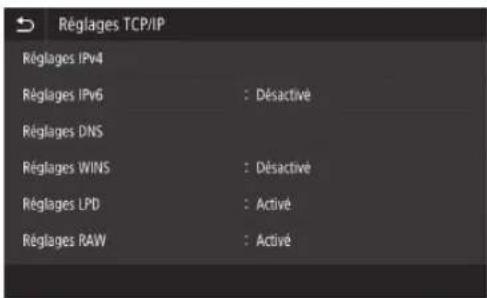
CANON WG7550Z - Etape 2 Connexion à un réseau filaire/sans fil Connexion par réseau filaire - 2

text_image Réseau Sél. rés. câblésans fil : Réseau câblé Réglages réseau sans fil Réglages connex. directe : Désactivé Réglages TCP/IP Réglages SNMP Utiliser port dédié : Activé

3 Dans l'écran , appuyez sur .

CANON WG7550Z - Etape 2 Connexion à un réseau filaire/sans fil Connexion par réseau filaire - 3

text_image Sélectionner réseau Réseau câblé Réseau sans fil

4 Connectez le câble réseau.

  • Utilisez le câble réseau pour connecter l'appareil au routeur.
  • Appuyez vers l'intérieur jusqu'à ce que le connecteur soit entièrement enfoncé dans la fente et jusqu'à entendre un "clic".

CANON WG7550Z - Etape 2 Connexion à un réseau filaire/sans fil Connexion par réseau filaire - 4

natural_image Diagram of an electrical switch connected to a terminal block via cable (no text or symbols present)

Une fois la connexion effectuée, poursuivez en définissant une adresse IP fixe. P.34 "Etape 3 Définition d'une adresse IP fixe"

Connexion au réseau et au service de suivi distant

Connexion à un réseau avec une adresse IP fixe

Connexion par réseau câblé

Ne connectez pas le câble réseau à l'appareil.

Connexion à un réseau sans fil manuellement en sélectionnant un point d'accès

Le "SSID (nom de réseau)" et la "clé réseau (mot de passe)" sont requis. Les informations requises peuvent être vérifiées préalablement avec la liste P.28 ou en contactant l'administrateur réseau.

1 Dans l'écran Accueil, appuyez sur

.

CANON WG7550Z - Connexion par réseau câblé - 1

text_image Accueil Verifier compteur Copie Fax Lecture Impr. support mèm. Impression sécurisée Menu Carnet d'adresses Réglages papier Suivi statut

2 Sélectionnez , puis appuyez sur . Contactez l'administrateur réseau pour connaître l'ID de l'administrateur système et le code de sécurité (défini sur "7654321" par défaut).

CANON WG7550Z - Connexion par réseau câblé - 2

text_image Réseau Sél. rés. câblésans fil : Réseau câblé Réglages réseau sans fil Réglages connex. directe : Désactivé Réglages TCP/IP Réglages SNMP Utiliser port dédié : Active

3 Dans l'écran , appuyez sur .

CANON WG7550Z - Connexion par réseau câblé - 3

text_image Sélectionner réseau Réseau câblé Réseau sans fil

4 Dans l'écran , appuyez sur .

- Lorsque apparaît, appuyez sur .

CANON WG7550Z - Dans l'écran , appuyez sur . - 1

text_image Souhaitez-vous activer le réseau sans fil ? Oui Non

5 Vérifiez le message, puis appuyez sur .

CANON WG7550Z - Vérifiez le message, puis appuyez sur . - 1

text_image Pour plus d'informations, se reporter au manuel. OK

6 Appuyez sur .

CANON WG7550Z - Appuyez sur . - 1

text_image Réglages réseau sans fil Réglages SSID Mode bouton poussoir WPS Mode code PIN WPS Mode économie d'énergie : Active Infos de connexion

7 Appuyez sur .

• L'appareil recherche un routeur sans fil auquel il puisse se connecter.

CANON WG7550Z - Appuyez sur - 1

text_image Réglages SSID Sélection du point d'accès Saisie manuelle

Si un message apparaît indiquant qu'aucun point d'accès n'est trouvé, reportez-vous au manuel en ligne et essayez à nouveau de rechercher le point d'accès.

Connexion au réseau et au service de suivi distant

Connexion à un réseau avec une adresse IP fixe

8 Appuyez sur le routeur sans fil auquel vous souhaitez vous connecter.

- Sélectionnez l'appareil qui correspond au SSID que vous avez noté et appuyez sur .

CANON WG7550Z - Appuyez sur le routeur sans fil auquel vous souhaitez vous connecter. - 1

text_image Sélection du point d'accès Ya AccessPoint_01 WPA - PSK 6 Ya AccessPoint_02 WPA2 - PSK 6 Ya AccessPoint_03 WEP 2 Ya AccessPoint_04 WPA - PSK 1 Ya AccessPoint_05 WPA2 - PSK 2 Ya AccessPoint_06 WEP 10 Détails Suivant

Saisissez la clé réseau que vous avez notée.

- Saisissez une clé réseau, puis appuyez sur .

CANON WG7550Z - Saisissez la clé réseau que vous avez notée. - 1

text_image SSID :XXXXXXXXXXXX Clé réseau :XXXXXXXXXXXX ...

10 Appuyez sur .

CANON WG7550Z - Appuyez sur . - 1

text_image Souhaitez-vous vous connecter avec de nouveaux réglages ? Oui Non

Si un message d'erreur s'affiche pendant la configuration des réglages, sélectionnez , vérifiez que la clé réseau est correcte, puis recommencez à partir de l'étape 4.

11 Une fois que apparaît, appuyez sur .

CANON WG7550Z - Une fois que  apparaît, appuyez sur . - 1

text_image Connecté. Fermer

Une fois la connexion effectuée, poursuivez en définissant une adresse IP fixe. P.34 "Etape 3 Définition d'une adresse IP fixe"

Méthode par bouton de commande

Le réglage peut être effectué en utilisant la méthode par bouton de commande si le symbole suivant apparaît sur l'emballage du routeur sans fil ou si ce bouton est disponible sur l'appareil lui-même.

CANON WG7550Z - Méthode par bouton de commande - 1

Méthode par code PIN WPS

Tous les routeurs compatibles WPS ne peuvent pas être utilisés avec la méthode par bouton de commande et nécessitent au lieu de cela un réglage en saisissant un code PIN. Vérifiez le code PIN WPS figurant sur l'emballage ou dans le manuel d'instruction.

Si le routeur sans fil est configuré pour utiliser l'authentication WEP, il est possible que vous ne puissiez pas vous connecter via WPS.

Saisie manuelle d'informations

Si vous souhaitez spécifier des réglages de sécurité comme l'authentication et le chiffrement de façon détaillée, saisissez et réglez le SSID et la clé réseau vous-même.

Connexion au réseau et au service de suivi distant

Connexion à un réseau avec une adresse IP fixe

Etape 3 Définition d'une adresse IP fixe

Définition d'une adresse IPv4

Une adresse IPv4 peut être définie avec "Obtention automatique" pour affecter une adresse automatiquement à l'aide de DHCP, ou avec "Obtention manuelle" ce qui vous permet de saisir des informations vous-même. Pour définir une adresse IP fixe, utilisez "Obtention manuelle".

  • Lors de la définition d'une adresse IP fixe, une "adresse IP", un "masque de sous-réseau" et une "adresse de passerelle" sont requis. Selon la configuration de votre réseau, des informations autres que l'adresse IP, le masque de sous-réseau et l'adresse de passerelle peuvent être requises. Contactez l'administrateur réseau pour connaître les informations requises.
  • Pour définir une adresse IPv6, reportez-vous au Manuel en ligne.

1 Dans l'écran Accueil, appuyez sur

.

CANON WG7550Z - Définition d'une adresse IPv4 - 1

text_image Accueil Verifier compteur Copie Fax Lecture Impr. support mém. Impression sécurisée Menu Carnet d'adresses Réglages papier Suivi statut

2 Sélectionnez .

  • Lorsque l'écran de connexion apparaît, saisissez l'ID de l'administrateur système et le code de sécurité.
  • Contactez l'administrateur réseau pour connaître l'ID de l'administrateur système et le code de sécurité (défini sur "7654321" par défaut).

CANON WG7550Z - Définition d'une adresse IPv4 - 2

text_image Préférences Réglages d'affichage Disposition clavier anglais : Clavier anglais Réglages de l'horloge/de l'énergie Réseau Interface externe Accessibility

3 Sélectionnez .

CANON WG7550Z - Définition d'une adresse IPv4 - 3

text_image Réglages TCP/IP Réglages IPv4 Réglages IPv6 : Désactive Réglages DNS Réglages WINS : Désactive Réglages LPD : Activé Réglages RAW : Activé

4 Dans l'écran , appuyez sur , puis dans , appuyez sur .

CANON WG7550Z - Définition d'une adresse IPv4 - 4

text_image Régl. adresse IP (Obtention automatique) Obtention automatique Désact. Activé Sélectionner protocole : DHCP IP auto : Activé Appliquer

Pour utiliser une connexion DHCP, réglez sur et sur .

5 Appuyez sur .

CANON WG7550Z - Définition d'une adresse IPv4 - 5

text_image Réglages adresse IP Obtention automatique : Désactivé Obtention manuelle Vérifier les réglages

Vous devez d'abord régler sur dans l'étape 4 avant d'appuyer sur .

6 Saisissez , , , puis appuyez sur .

CANON WG7550Z - Définition d'une adresse IPv4 - 6

text_image RÉGL. adresse IP (obtenue manuellement) Adresse IP Masque de sous-réseau Adresse de passerelle 1 2 3 4 5 6 7 8 9 0 Appliquer

7 Redémarrez l'appareil. • Mettez l'appareil hors tension, attendez 10 secondes, puis remettez l'appareil sous tension.

CANON WG7550Z - Définition d'une adresse IPv4 - 7

text_image Réglages configurés. Les modifications seront prises en compte lorsque la machine sera mise hors puis sous tension.

Connexion au réseau et au service de suivi distant

Connexion à un réseau avec une adresse IP fixe

Réglage du DNS

Le DNS (Système de noms de domaine) est l'information permettant de faire correspondre les noms d'hôtes et les adresses IP. Si l'adresse IP est obtenue automatiquement, l'information DNS requise est définie automatiquement. Si vous saisissez l'adresse IP manuellement, vous devez également saisir l'information du DNS manuellement.

Le réglage du DNS dépend de la configuration du réseau. Contactez l'administrateur réseau pour vérifier la nécessité du réglage DNS dans votre environnement et les informations de réglage requises.

1 Sélectionnez

▶Réseau> ▶, puis appuyez sur .
  • Lorsque l'écran de connexion apparaît, saisissez l'ID de l'administrateur système et le code de sécurité.
  • Contactez l'administrateur réseau pour connaître l'ID de l'administrateur système et le code de sécurité (défini sur "7654321" par défaut).

CANON WG7550Z - Réglage du DNS - 1

text_image Réglages TCP/IP Réglages IPv4 Réglages IPv6 : Désactivé Réglages DNS Réglages WINS : Désactivé Réglages LPD : Activé Réglages RAW : Activé

2 Appuyez sur .
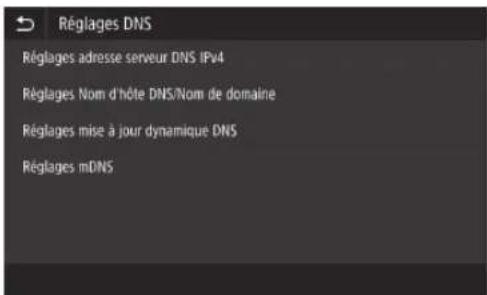
CANON WG7550Z - Réglage du DNS - 2

text_image Réglages DNS Réglages adresse serveur DNS IPv4 Réglages Nom d'hôte DNS/Nom de domaine Réglages mise à jour dynamique DNS Réglages mDNS

3 Appuyez sur .
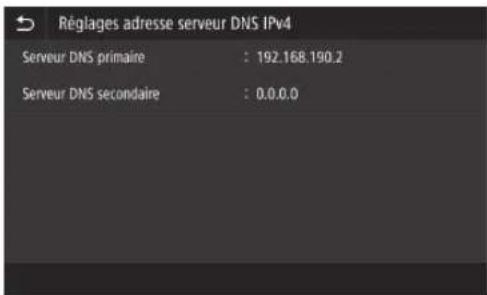
CANON WG7550Z - Réglage du DNS - 3

text_image Réglages adresse serveur DNS IPv4 Serveur DNS primaire : 192.168.190.2 Serveur DNS secondaire : 0.0.0.0

4 Saisissez l'adresse IP du serveur DNS primaire, puis appuyez sur .

- Appuyez sur pour revenir à l'écran précédent.
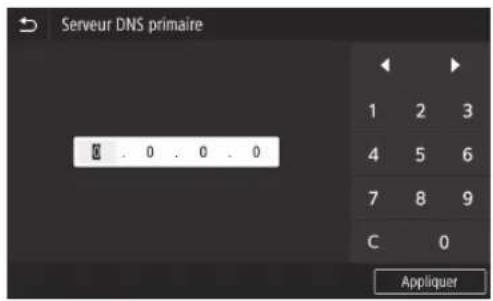
CANON WG7550Z - Saisissez l'adresse IP du serveur DNS primaire, puis appuyez sur . - 1

text_image Serveur DNS primaire 8 . 0 . 0 . 0 1 2 3 4 5 6 7 8 9 C 0 Appliquer

5 Si nécessaire, sélectionnez , puis saisissez l'adresse IP du serveur DNS secondaire.
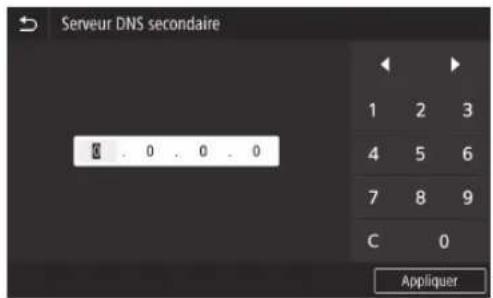
CANON WG7550Z - Si nécessaire, sélectionnez , puis saisissez l'adresse IP du serveur DNS secondaire. - 1

text_image Serveur DNS secondaire 1 2 3 4 5 6 7 8 9 C 0 Appliquer

6 Définissez les éléments restants le cas échéant. Pour en savoir davantage sur le réglage des infertes

  • Pour en savoir davantage sur le réglage des informations, reportez-vous au Manuel en ligne.
  • Le manuel en ligne décrit comment réaliser les réglages avec l'IU distante. Réalisez les réglages depuis le panneau de commande ou l'IU distante.
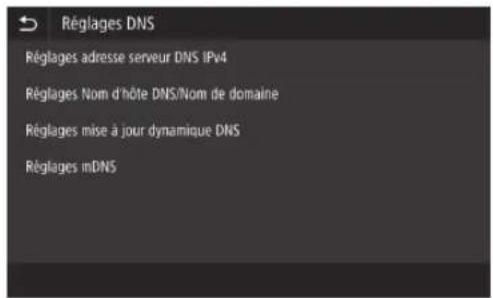
CANON WG7550Z - Définissez les éléments restants le cas échéant. Pour en savoir davantage sur le réglage des infertes - 1

text_image Réglages DNS Réglages adresse serveur DNS IPv4 Réglages Nom d'hôte DNS/Nom de domaine Réglages mise à jour dynamique DNS Réglages mDNS

7 Redémarrez l'appareil.

- L'écran affiché à droite apparaît dès que des réglages sont saisis. Si vous effectuez des réglages à plusieurs reprises, redémarrez l'appareil après avoir terminé tous les réglages.
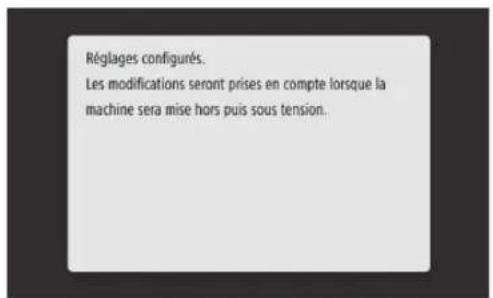
CANON WG7550Z - Redémarrez l'appareil. - 1

text_image Réglages configurés. Les modifications seront prises en compte lorsque la machine sera mise hors puis sous tension.

Connexion au réseau et au service de suivi distant

Connexion à un réseau avec une adresse IP fixe

Etape 4 Vérification de la connexion

Vérification que l'appareil est connecté correctement

La saisie de l'adresse IP directement sur un ordinateur se trouvant sur le même réseau que l'appareil affiche l'écran de l'IU distante. L'appareil s'est connecté correctement si l'écran de l'IU distante apparaît.

1

Démarrez le navigateur Internet.

2

Dans la barre de saisie de l'adresse, saisissez "http://"/", puis appuyez sur [ENTER] sur le clavier.
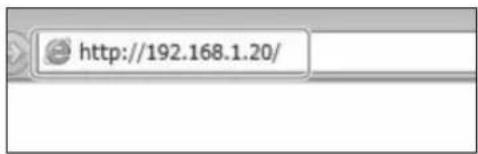
CANON WG7550Z - 2 - 1

text_image http://192.168.1.20/

3

L'écran de l'IU distante apparaît.

  • Si l'écran représenté à droite apparaît, l'appareil s'est connecté correctement.
  • Si un écran de l'IU distante n'apparaît pas, reportez-vous au manuel en ligne et vérifiez à nouveau la connexion réseau.
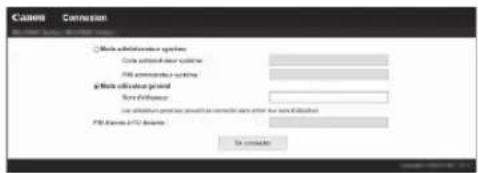
CANON WG7550Z - 3 - 1

text_image Canon Conversion □ Data collection options Data collection system Data processing system gData collection period Key performance Use all information to generate a complete result after the data collection PDF Features in PC Devens To continue

Utilisation d'un service de suivi distant

Procédez à la connexion à un service de suivi distant et effectuez les réglages. 139

Si vous n'utilisez pas de service de suivi distant

Continuez avec les réglages de la section "Installation du logiciel".→.14

Connexion à un service de suivi distant

Procédures préalables à l'utilisation d'un service

Avant d'utiliser un service, les procédures de vérification de la connexion réseau et un test de communication avec le serveur de suivi sont requis.

• Vérification de la connexion réseau

Vérifiez que l'appareil est connecté au réseau. P.34 "Etape 3 Définition d'une adresse IP fixe"

Avant de pouvoir utiliser un service de suivi distant, vérifiez qu'une connexion Internet est disponible.

Utilisation d'un serveur proxy

1 Démarrez l'IU distante, puis utilisez le mode administrateur lors de la connexion.
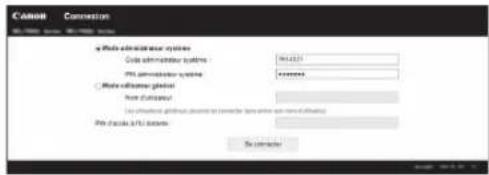
CANON WG7550Z - Utilisation d'un serveur proxy - 1

text_image C:\Program\Connection File Edit View Help Options File information system Code information system File promotion system Accession File information portal File selection path File selection path to create files from the file name or name of the file File format: HTML format To continue

2 Dans la page du portail, cliquez sur [Réglages/Enregistrement].
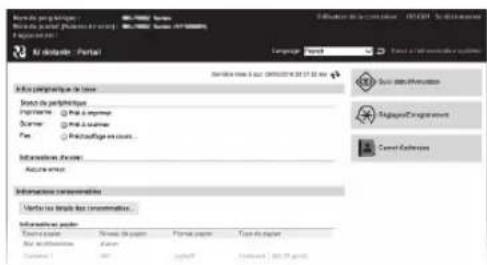
CANON WG7550Z - Utilisation d'un serveur proxy - 2

text_image File selection - Portal Language: New Search key: 3.02 (MISI) 35.17.18.04 Search key: 3.02 (MISI) 35.17.18.04 Search key: 3.02 (MISI) 35.17.18.04 Search key: 3.02 (MISI) 35.17.18.04 Search key: 3.02 (MISI) 35.17.04 Search key: 3.02 (MISI) 35.17.04 Search key: 3.02 (MISI) 35.17.04 Search key: 3.02 (MISI) 35.17.04 Search key: 3.02 (MISI) 35.17.04 Search key: MIR Search key: MIR Search key: MIR Search key: MIR Search key: MIR Search key: MIR Search key: MIR Search key: MIR Search key: MIR Search key: MIR Search key: MIR Search key: MIR Search key: MIR Search key: MIR Search key: MIR Search key: MIR Search key: MIR Search key: Search key: Search key: Search key: Search key: Search key: Search key: Search key: Search key: Search key: Search key: Search key: Search key: Search key: Search key: Search key: Search key: Search key: Search key: Search key: Search key: Search key: Search key: Search key: Search key: Search key: Search key: Search key: Search key: Search key: Search key: Search key: Search key: Search key: Treats to log files Treats to log files Treats to log files Treats to log files Treats to log files Treats to log files Treats to log files Treats to log files Treats to log files Treats to log files Treats to log files Treats to log files Treats to log files Treats to log files Treats to log files TREATS TO LOGES TREATS TO LOGES TREATS TO LOGES TREATS TO LOGES TREATS TO LOGES TREATS TO LOGES TREATS TO LOGES TREATS TO LOGES TREATS TO LOGES TREATS TO LOGES TREATS TO LOGES TREATS TO LOGES TREATS TO LOGES TREATS TO LOGES TREATS TO LOGES NATTS TO LOGES NATTS TO LOGES NATTS TO LOGES NATTS TO LOGES NATTS TO LOGES NATTS TO LOGES NATTS TO LOGES NATTS TO LOGES NATTS TO LOGES NATTS TO LOGES NATTS TO LOGES NATTS TO LOGES NATTS TO LOGES NATTS TO LOGES NATTS TOLOGES NATTS TOLOGES NATTS TOLOGES NATTS TOLOGES NATTS TOLOGES NATTS TOLOGES NATTS TOLOGES NATTS TOLOGES NATTS TOLOGES NATTS TOLOGES NATTS TOLOGES NATTS TOLOGES NATTS TOLOGES NATTS TOLOGES NATTS TOLOGES

3 Sélectionnez [Réglages réseau] ▶ [Réglages du proxy], puis cliquez sur [Modifier].
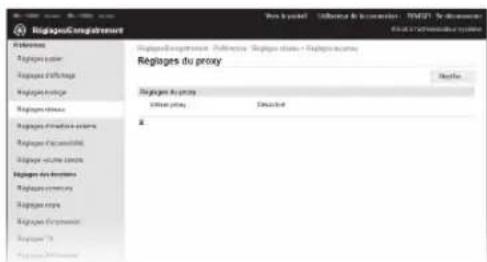
CANON WG7550Z - Utilisation d'un serveur proxy - 3

text_image Regiage.com registration Regiage.com registration - Reference: Regiage.com - Regiage.com Regiages du proxy Regiages du proxy Edit your proxy Edit your proxy Regiages d'interne Regiages d'interne Regiages d'interne Regiages d'interne Regiages d'interne Regiages d'interne Regiages d'interne Regiages d'interne Regiages d'interne Regiages d'interne Regiages d'interne Regiages d'interne Regiages d'interne Regiage d'interne Regiage d'interne Regiage d'interne Regiage d'interne Regiage d'interne Regiage d'interne Regiage d'interne Regiage d'interne Regiage d'interne Regiage d'interne Regiage d'interne Regiage d'interne Regiage d'intern Regiage d'intern Regiage d'intern Regiage d'intern Regiage d'intern Regiage d'intern Regiage d'intern Regiage d'intern Regiage d'intern Regiage d'intern Regiage d'intern Regiage d'intern Regiage d'intern Regiase d'intern Regiase d'intern Regiase d'intern Regiase d'intern Regiase d'intern Regiase d'intern Regiase d'intern Regiase d'intern Regiase d'intern Regiase d'intern Regiase d'intern Regiase d'intern Regiase d'interen Regiase d'interen Regiase d'interen Regiase d'interen Regiase d'interen Regiase d'interen Regiase d'interen Regiase d'interen Regiase d'interen Regiase d'interen Regiase d'interen Regiase d'interen Regiase d'interen Regiuse d'interen Regiuse d'interen Regiuse d'interen Regiuse d'interen Regiuse d'interen Regiuse d'interen Regiuse d'interen Regiuse d'interen Regiuse d'interen Regiuse d'interen Regiuse d'interen Regiuse d'interen Regiuse d'intere Regiuse d'intere Regiuse d'intere Regiuse d'intere Regiuse d'intere Regiuse d'intere Regiuse d'intere Regiuse d'intere Regiuse d'intere

Connexion au réseau et au service de suivi distant

Connexion à un service de suivi distant

4

Cochez [Utiliser proxy], puis saisissez les informations requises.
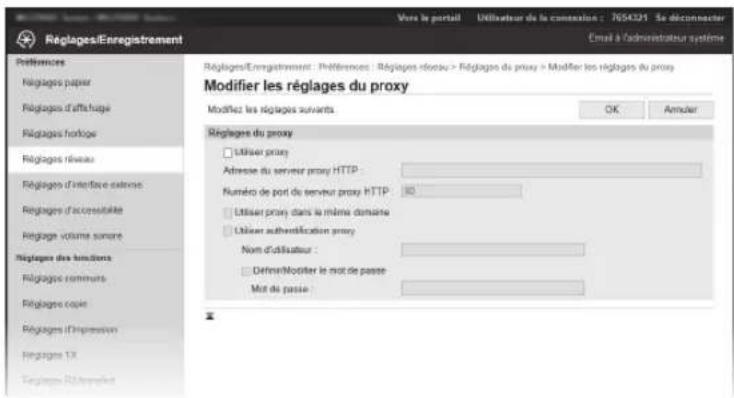
CANON WG7550Z - 4 - 1

text_image Réglages/Enregistrement Vivre le portal Utilisateur du la context : 7054321 Se déconnecter Email à l'administrateur système Réglages/Enregistrement : Préférences : Réglages d'eau > Réglages du proxy > Modifier les réglages du proxy Modifier les réglages du proxy Modify les réglages suivants OK Armier Réglages du proxy □ Utiliser proxy Adresse du serveur proxy HTTP Numéro de port du serveur proxy HTTP □ Utiliser proxy dans la même domaine □ Utiliser authentication proxy Nom d'utilisateur : □ Défense/Modifier le mot de passe Mot de passe:

[Utiliser proxy]

Cocher cette option permet d'utiliser le serveur proxy spécifié lorsque l'appareil initie la communication HTTP.

[Adresse du serveur proxy HTTP]

Saisissez l'adresse du serveur proxy à utiliser. Définissez une adresse IP, un nom d'hôte, etc. en fonction de votre environnement.

[Numéro de port du serveur proxy HTTP]

Saisissez le numéro de port du serveur proxy à utiliser.

[Utiliser proxy dans le même domaine]

Cocher cette option permet d'utiliser le serveur proxy spécifié même lorsque l'appareil initie la communication avec un périphérique du même domaine.

[Utiliser authentication proxy]

Pour utiliser l'authentication par un serveur proxy, cochez cette option, puis saisissez le nom d'utilisateur à authentifier dans [Nom d'utilisateur].

[Définir/Modifier le mot de passe]

Pour définir ou modifier le mot de passe lors de l'utilisation de l'authentication proxy, cochez cette option, puis saisissez le nouveau mot de passe dans [Mot de passe].

5

Cliquez sur [OK].

- Test de communication avec le serveur de suivi

Exécutez un test de communication avec le serveur de suivi. L'exécution du test de communication démarre le service de suivi distant.

Test de communication avec le serveur de suivi

1 Dans l'écran Accueil, appuyez sur .
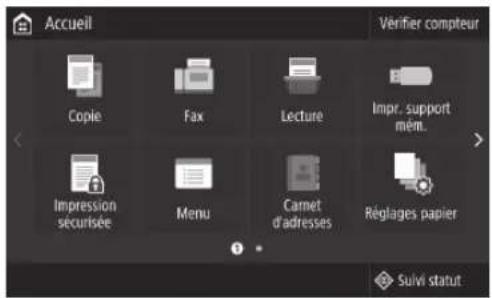
CANON WG7550Z - Test de communication avec le serveur de suivi - 1

text_image Accueil Verifier compteur Copie Fax Lecture Impr. support mèm. Impression sécurisée Menu Carnet d'adresses Réglages papier Suivi statut

2 Appuyez sur .
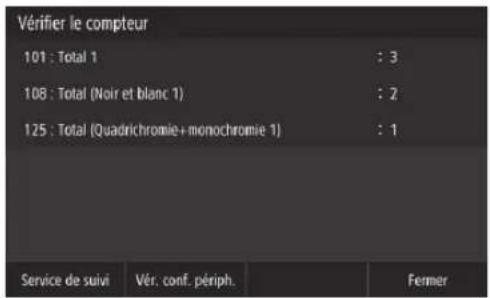
CANON WG7550Z - Test de communication avec le serveur de suivi - 2

text_image Vérifier le compteur 101 : Total 1 : 3 108 : Total (Noir et blanc 1) : 2 125 : Total (Quadrichromie+monochromie 1) : 1 Service de suivi Vér. conf. périph. Fenmer

3 Appuyez sur .
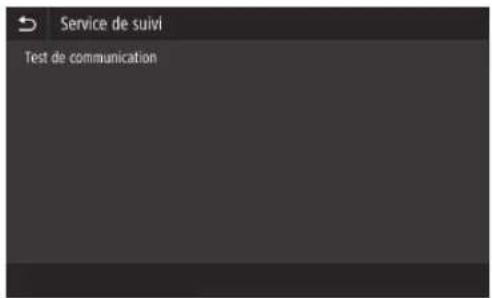
CANON WG7550Z - Test de communication avec le serveur de suivi - 3

text_image Service de suivi Test de communication

Connexion au réseau et au service de suivi distant

Connexion à un service de suivi distant

4 Si l'écran représenté à droite apparaît, appuyez sur .
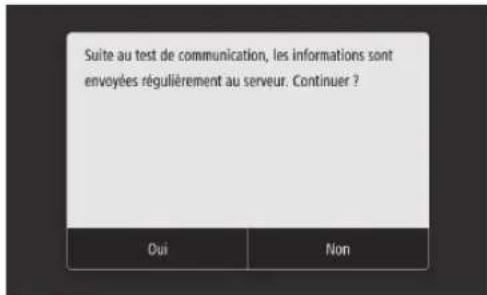
CANON WG7550Z - Connexion à un service de suivi distant - 1

text_image Suite au test de communication, les informations sont envoyées régulièrement au serveur. Continuer ? Oui Non

5 apparaît. →Le réglage est terminé.
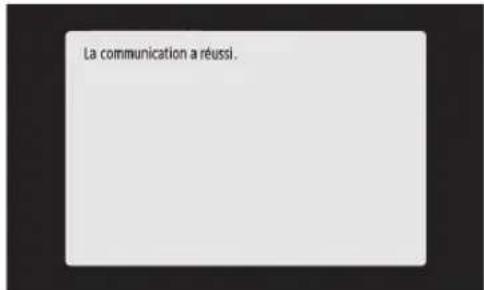
CANON WG7550Z - Connexion à un service de suivi distant - 2

text_image La communication a réussi.
  • Si un message d'erreur apparaît, reportez-vous à la section P.43 "Erreurs possibles et dépannage" et vérifiez les réglages.
  • Une fois les réglages terminés, il est recommandé d'imprimer une liste des données d'administrateur et de la conserver avec ce manuel. Notez que le rapport imprimé comporte environ 10 pages.
    Sélectionnez ▶ Vérifiez que le papier affiché est chargé, puis appuyez sur .

Une fois la connexion établie

Continuez avec les réglages de la section "Installation du logiciel". 14

Erreurs possibles et dépannage

Si un message d'erreur apparaît

L'écran d'erreur affiche un code d'erreur. Vérifiez les détails et les solutions pour les codes d'erreur dans le tableau ci-dessous afin de résoudre les problèmes.
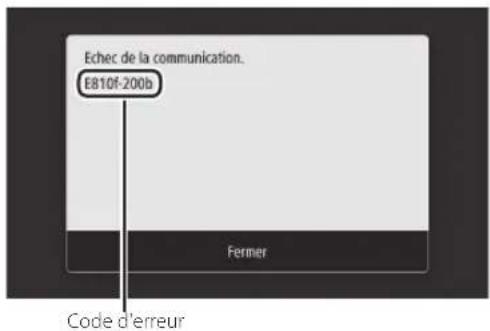
CANON WG7550Z - Si un message d'erreur apparaît - 1

text_image Echec de la communication. E810f-200b Fermer Code d'erreur

Si une erreur se produit et que son code ne figure pas dans la liste ou si la solution fournie ne résout pas le problème, rendez-vous dans l'endroit où vous avez acheté l'appareil ou demandez de l'aide via la page d'assistance du site Web Canon.

Réglages du serveur proxy

Code d'erreur Cause Solution
8000 200A Erreurde connexion au service de suivi distant :Echec de la communication TCP/IPAdresse IP de ce périphérique non définiePour utiliser un serveur proxy, effectuez les réglages du proxy et vérifiez l'état du serveur proxy.
8000 200B Echecde la résolution de l'adresse du serveur de suivi distantVérifiez que le réseau auquel l'appareil est connecté est un environnement en mesure de se connecter à Internet.
8000 2014 L'adresse définie n'est pas valable et l'appareil ne peut pas se connecter au serveur proxyVérifiez et réinitialisez l'adresse IP/le numéro de port du serveur proxy.
8000 2015 L'adresse du serveur proxy est enregistrée avec le nom d'hôte, mais la connexion au serveur désignée n'est pas possible avec la résolution de nomsSaisissez le nom d'hôte du serveur proxy et le réglage DNS.Définissez le serveur proxy avec une adresse IP.
8000 201EEchec de l'authentication au serveur proxyVérifiez et réinitialisez le nom d'utilisateur et le mot de passe de connexion au serveur proxy.

Connexion au réseau et au service de suivi distant

Connexion à un service de suivi distant

Réglage de la date/de l'heure et mise à jour du firmware

Code d'erreur Cause Solution
8000 2028 Erreur de certificat du serveur :La date/l'heure de l'appareil ne sont pas correctesLe certificat racine vers le serveur n'est pas enregistré dans l'appareilL'utilisateur utilise un certificat différent et le fichier du certificat officiel n'est pas enregistréDéfinissez la date/l'heure précise dans le périphérique.Si la date/l'heure dans le périphérique sont correctes, mettez-le à jour vers le dernier firmware.
8000 2029 Erreur de vérification de l'URL du certificat du serveur
8000 2046 Certificat du serveur expiré :La date dans le périphérique a dépassé la date d'expiration du certificatLe certificat racine enregistré dans le périphérique est expiréLe certificat racine enregistré en premier lieu par l'utilisateur est utilisé et le fichier du certificat officiel n'est pas enregistré

Exécution d'un test de communication

Code d'erreur Cause Solution
0000 0003 Aucuntest de programme/communication effectuéExécutez et terminez le test de communication.
8000 0101 Erreur de réponse du serveur du suivi distant
8000 02078000 0208Programme interne incorrect
8000 2000 Autre erreur de communication
8000 0304 Erreur de consommation des signaux pendant le test de communicationAttendez et exécutez à nouveau le test de communication.
8000 2004Communication réussie avec le serveur du suivi distant, mais une erreur s'est produite
8000 2047 La réponse du serveur de suivi distant a dépassé le délai imparti
8000 2003 Le testde communication a été exécuté alors que la connexion au réseau n'était pas encore prête immédiatement après la mise/sous hors tension du périphériqueAprès avoir mis le périphérique sous tension, attendez environ 60 secondes avant d'exécuter le test de communication.

Annexe

Consignes de sécurité importantes

Ce chapitre décrit des consignes de sécurité importantes pour la prévention des blessures des utilisateurs de cet appareil et autres ainsi que des dommages aux biens. Lisez ce chapitre avant d'utiliser l'appareil et suivez les instructions pour l'utiliser correctement. N'effectuez aucune opération non décrite dans ce manuel. Canon ne peut être tenu responsable des dommages résultant d'opérations non décrites dans ce manuel, d'une utilisation incorrecte ou de réparations ou modifications n'ayant pas été effectuées par Canon ou une tierce partie agréée par Canon. Une opération ou une utilisation incorrecte de cet appareil pourrait provoquer des blessures et/ou des dommages nécessitant d'importantes réparations qui pourraient ne pas être couvertes par votre garantie limitée.

CANON WG7550Z - Consignes de sécurité importantes - 1

AVERTISSEMENT

Indique un avertissement relatif à des opérations qui pourraient provoquer la mort ou des blessures si elles ne sont pas effectuées correctement. Pour utiliser l'appareil en toute sécurité, prétez toujours attention à ces avertissements.

CANON WG7550Z - AVERTISSEMENT - 1

ATTENTION

Indique une précaution relative à des opérations qui pourraient provoquer des blessures si elles ne sont pas effectuées correctement. Pour utiliser l'appareil en toute sécurité, prêtez toujours attention à ces précautions,

CANON WG7550Z - ATTENTION - 1

IMPORTANT

Indique des exigences et restrictions d'utilisation. Veillez à les lire soigneusement pour utiliser correctement l'appareil et éviter d'endommager l'appareil ou des biens.

Installation

Pour utiliser l'appareil en toute sécurité et sans difficulté, lisez soigneusement les précautions suivantes et installez-le dans un endroit approprié.

CANON WG7550Z - Installation - 1

AVERTISSEMENT

Ne l'installez pas dans un endroit où un incendie ou un choc électrique pourrait survenir

  • Un endroit où les fentes de ventilation sont bloquées (trop proche de murs, lits, canapés, tapis ou objets semblables)
  • Un endroit humide ou poussiéreux
  • Un endroit exposé à la lumière directe du soleil ou à l'extérieur
  • Un endroit soumis à des températures élevées
  • Un endroit exposé à des flammes découvertes
  • A proximité d'alcool, de diluants pour peinture ou d'autres substances inflammables

Autres avertissements

- Ne branchez pas de câbles non homologués sur cet appareil. Cela pourrait provoquer un incendie ou un choc électrique.

  • Ne posez pas de colliers ou autres objets métalliques, ou de récipients remplis de liquide sur l'appareil. Si des corps étrangers entrent en contact avec les parties électriques situées à l'intérieur de l'appareil, cela pourrait provoquer un incendie ou un choc électrique.
  • Lors de l'installation et du retrait des accessoires facultatifs, assurez-vous que vous avez coupé le courant et débranché la fiche d'alimentation avant de débrancher tous les câbles d'interface et le câble d'alimentation de l'appareil. Sinon, les câbles d'alimentation ou d'interface pourraient être endommagés et provoquer un incendie ou un choc électrique.
  • Si une substance étrangère tombe à l'intérieur de l'appareil, débranchez la fiche d'alimentation de la prise secteur et contactez un distributeur ou un centre de service.

Ne procédez pas à l'installation dans les endroits suivants

L'appareil pourrait tomber et provoquer des blessures.

  • Un endroit instable
  • Un endroit soumis à des vibrations

CANON WG7550Z - Ne procédez pas à l'installation dans les endroits suivants - 1

ATTENTION

Ne procédez pas à l'installation dans les endroits suivants

Cela pourrait endommager l'appareil.

  • Un endroit soumis à des températures et une humidité extrêmes, basses ou élevées
  • Un endroit soumis à d'importantes variations de température ou d'humidité
  • Un endroit à proximité d'un équipement générant des ondes magnétiques ou électromagnétiques
  • Un laboratoire ou un endroit où des réactions chimiques se produisent
  • Un endroit exposé à des gaz corrosifs ou toxiques
  • Un endroit qui pourrait se déformer sous le poids de l'appareil ou un endroit où l'appareil est susceptible de s'enfoncer (un tapis, etc.)

Supports (uniquement pour les produits disposant de supports)

Ne retirez pas les supports une fois l'appareil installé. Cela peut le faire tomber ou basculer, et provoquer des blessures.

Lors de l'utilisation d'un réseau sans fil (uniquement pour les produits disposant d'une fonction réseau local sans fil)

  • Installez l'appareil à une distance de 50 m au maximum du routeur de réseau sans fil.
  • Dans la mesure du possible, procédez à l'installation dans un endroit où la communication n'est pas bloquée par des objets perturbateurs. Le signal pourrait être dégradé lorsqu'il traverse des murs ou des sols.
  • Tenez l'appareil aussi éloigné que possible des téléphones numériques sans fil, des fours à micro-ondes et des autres équipements émettant des ondes radio.

CANON WG7550Z - Lors de l'utilisation d'un réseau sans fil (uniquement pour les produits disposant d'une fonction réseau local sans fil) - 1

ATTENTION

Lors de l'utilisateur d'un socle double cassette avec l'imprimante de la série WG7000, suivez les instructions dans le manuel pour fixer correctement l'imprimante au socle double cassette. Utilisez toujours les combinaisons de l'imprimante et du socle double cassette. Série Canon WG7000 : utilisez le Cassette Feeding Unit CF10 de Canon.

L'utilisation d'une combinaison différente d'imprimante et de socle double cassette que celle indiquée ci-dessus, l'utilisation d'un socle double cassette non mentionné ci-dessus ou la fixation incorrecte de l'imprimante au socle double cassette peut être instable et peut provoquer des blessures.

Alimentation

AVERTISSEMENT

  • Utilisez uniquement une alimentation conforme aux exigences de tension spécifiées. Sinon, cela pourrait provoquer un incendie ou un choc électrique.
  • N'utilisez pas un autre câble d'alimentation que celui fourni, car cela peut provoquer un incendie ou un choc électrique.
  • Le câble d'alimentation fourni est destiné à être utilisé avec cet appareil. Ne le branchez pas sur d'autres appareils.
  • Vous ne devez pas modifier, tirer, courber excessivement ou effectuer toute autre action susceptible d'endommager le câble d'alimentation. Ne posez pas d'objets lourds sur le câble d'alimentation. Le fait d'endommager le câble d'alimentation pourrait provoquer un incendie ou un choc électrique.

- Ne branchez et ne débranchez pas la fiche d'alimentation avec les mains humides, car cela pourrait provoquer un choc électrique.

- N'utilisez pas de rallonge ou de multiprises avec l'appareil. Cela pourrait provoquer un incendie ou un choc électrique.

- N'enroulez pas le câble d'alimentation et n'y faites pas de nœud, car cela peut provoquer un incendie ou un choc électrique.

- Insérez à fond la fiche d'alimentation dans la prise secteur. Sinon, cela pourrait provoquer un incendie ou un choc électrique.

- Retirez complètement la fiche d'alimentation de la prise secteur lors d'un orage. Sinon, cela pourrait provoquer un incendie, un choc électrique ou endommager l'appareil.

- Assurez-vous que l'alimentation de l'appareil est sûre et que sa tension est stable.

- Tenez le cordon d'alimentation à l'écart de toute source de chaleur. Sinon, le revêtement du câble d'alimentation peut fondre et provoquer un incendie ou un choc électrique.

- Si la partie permettant de brancher le câble d'alimentation est soumise à une pression excessive, cela peut endommager le câble d'alimentation ou les fils situés à l'intérieur de l'appareil peuvent se débrancher. Cela peut provoquer un incendie. Evitez les situations suivantes :

- Brancher et débrancher fréquemment le câble d'alimentation.

- Trébucher sur le câble d'alimentation.

- Le câble d'alimentation est courbé à proximité de la partie permettant de la brancher et une pression continue est appliquée sur la prise de courant ou la partie permettant le branchement.

- Application d'une force excessive sur la fiche d'alimentation.

CANON WG7550Z - AVERTISSEMENT - 1

ATTENTION

- Installez cet appareil à proximité de la prise d'alimentation et laissez suffisamment d'espace autour de la fiche d'alimentation afin de pouvoir la débrancher facilement cas d'urgence.

CANON WG7550Z - ATTENTION - 1

IMPORTANT

Raccordement de l'alimentation

  • Ne branchez pas le câble d'alimentation à un système d'alimentation sans coupure. Cela pourrait provoquer un dysfonctionnement ou endommager l'appareil en cas de panne de courant.
  • Si vous branchez cet appareil sur une prise secteur à plusieurs entrées, n'utilisez pas les prises restantes pour raccordez d'autres appareils.
  • Ne branchez pas le câble d'alimentation sur la prise de courant CA auxiliaire d'un ordinateur.

Autres précautions

Des perturbations électriques pourraient provoquer un dysfonctionnement ou une perte de données au niveau de cet appareil.

Manipulation

AVERTISSEMENT

  • Débranchez immédiatement la fiche d'alimentation de la prise secteur et contactez un distributeur ou un centre de service si l'appareil émet des bruits ou une odeur inhabituels, ou s'il génère de la fumée ou une chaleur excessive. Continuer à l'utiliser dans ces conditions pourrait provoquer un incendie ou un choc électrique.
  • Ne démontez et ne modifiez pas cet appareil. Il existe des composants sous haute tension et température élevée à l'intérieur de l'appareil. Leur démontage ou modification pourrait provoquer un incendie ou un choc électrique.
  • Placer l'appareil à un endroit où les enfants ne pourront pas entrer en contact avec le câble d'alimentation, avec d'autres câbles ou avec des équipements et des pièces électriques à l'intérieur de l'appareil. Sinon, cela pourrait être à l'origine d'accidents imprévus.
  • N'utilisez pas d'aérosols inflammables à proximité de cet appareil. Si des substances inflammables entrent en contact avec les pièces électriques situées à l'intérieur, cela pourrait provoquer un incendie ou un choc électrique.
  • Lorsque vous déplacez l'appareil, veillez à couper son alimentation, puis à débrancher la fiche d'alimentation et les câbles d'interface. Sinon, vous pourriez les endommager et provoquer un incendie ou un choc électrique.
  • Lors du branchement ou du débranchement d'un câble USB alors que la fiche d'alimentation est branchée sur une prise secteur, ne touchez pas la partie métallique du connecteur car vous pourriez subir un choc électrique.

Si vous utilisez un stimulateur cardiaque

Cet appareil génère un flux magnétique de faible niveau. Si vous utilisez un stimulateur cardiaque et ressentez des anomalies, éloignez-vous de cet appareil et consultez immédiatement votre médecin.

ATTENTION

  • Ne posez pas d'objets lourds sur cet appareil, car ils pourraient tomber et provoquer des blessures.
  • Pour votre sécurité, débranchez le câble d'alimentation si l'appareil ne doit pas être utilisé pendant une période prolongée.
  • Soyez prudent lorsque vous ouvrez et fermez les capots afin d'éviter de vous blesser les mains.
  • Tenez les mains et les vêtements à l'écart des rouleaux de la zone de sortie. Si les rouleaux happent vos vêtements ou vos mains, cela pourrait provoquer des blessures corporelles.

  • Veillez à ne pas laisser tomber d'objets lourds, tels qu'un dictionnaire, sur la vitre. Cela pourrait l'endommager et provoquer des blessures.

  • Ne transportez pas l'appareil lorsque le socle double cassette facultatif est en place. Celui-ci peut tomber et causer des blessures.

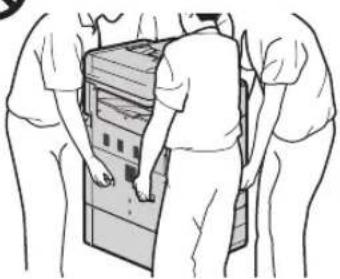
CANON WG7550Z - ATTENTION - 1

CANON WG7550Z - ATTENTION - 2

natural_image Line drawing of three people assembling or inspecting a server rack (no text or symbols visible)

Chargeur

  • N'appuyez pas fortement sur le chargeur lorsque vous utilisez la vitre pour effectuer des copies de livres épais. Cela peut endommager la vitre et provoquer des blessures.
  • Fermez doucement le chargeur afin d'éviter de vous coincer les mains, car cela peut provoquer des blessures.
  • Fermez doucement le chargeur pour éviter que vos mains ne se retrouvent bloquées à l'arrière de celui-ci. Cela peut provoquer des blessures.

Cassette

- N'introduisez pas vos mains dans l'appareil lorsque la cassette est ouverte. Cela peut provoquer des blessures.

Touche Economie d'énergie (uniquement pour les produits disposant d'une touche Economie d'énergie)

- Par mesure de sécurité, appuyez sur Ⓔ (Economie d'énergie) lorsque l'appareil ne sera pas utilisé pendant une longue période (par exemple, la nuit). Placez également l'interrupteur d'alimentation principal sur la position ARRÊT et débranchez le câble d'alimentation par mesure de sécurité lorsque l'appareil ne sera pas utilisé pendant une période prolongée (par exemple, plusieurs jours de vacances consécutifs).

Autres précautions

  • Suivez les instructions indiquées sur l'étiquette de précaution apposée sur cet appareil.
  • Ne soumettez pas l'appareil à des chocs ou des vibrations violents.
  • Ne forcez pas pour ouvrir ou fermer les portes, les couvercles et d'autres parties. Cela peut endommager l'appareil.
  • Ne coupez pas l'interrupteur d'alimentation principal et n'ouvrez pas les capots lorsque l'appareil est en cours de fonctionnement. Cela pourrait provoquer des bourrages de papier ou des problèmes de la tête d'impression.
  • Utilisez un câble modulaire d'une longueur inférieure à 3 mètres.
  • Utilisez un câble USB d'une longueur inférieure à 3 mètres.

Si le bruit du fonctionnement vous inquiète

Selon l'environnement d'utilisation et le mode de fonctionnement, si un bruit lors du fonctionnement est inquiétant, il est recommandé d'installer l'appareil dans un autre endroit que le bureau.

Maintenance et inspections

Nettoyez régulièrement l'appareil. Si de la poussière s'accumule, l'appareil peut ne pas fonctionner correctement. Lors du nettoyage, veillez à respecter les points suivants. En cas de problème pendant le fonctionnement, consultez la section Questions fréquemment posées du manuel en ligne. Si vous ne parvenez pas à résoudre le problème ou si vous estimez qu'une inspection de l'appareil est nécessaire, contactez un distributeur ou un centre de service.

AVERTISSEMENT

  • Avant le nettoyage, coupez l'alimentation et débranchez la fiche d'alimentation de la prise secteur. Sinon, cela pourrait provoquer un incendie ou un choc électrique.
  • Débranchez périodiquement la fiche d'alimentation et nettoyez-la à l'aide d'un chiffon sec afin d'éliminer la poussière et la saleté. La poussière accumulée peut absorber l'humidité de l'air et provoquer un incendie si elle entre en contact avec l'électricité.
  • Utilisez un chiffon humide bien essoré pour nettoyer l'appareil. Trempez les chiffons de nettoyage uniquement dans de l'eau. N'utilisez pas d'alcool, de benzène, de diluant pour peinture ni aucune autre substance inflammable. N'utilisez pas de mouchoirs ou de serviettes en papier. Si ces substances entrent en contact avec les parties électriques à l'intérieur de l'appareil, elles peuvent générer de l'électricité statique ou provoquer un incendie ou un choc électrique.
  • Vérifiez régulièrement le câble et la fiche d'alimentation pour rechercher la présence de rouille, de broches tordues, de déchirures ou de cassures, ou une génération de chaleur excessive. L'utilisation d'une fiche ou d'un câble d'alimentation mal entretenu peut provoquer un incendie ou un choc électrique.

ATTENTION

  • L'appareil se compose de composants sous haute tension et ayant une température élevée. Le fait d'entrer en contact avec ces composants peut provoquer des brûlures. Ne touchez aucune pièce de l'appareil qui n'est pas indiquée dans le manuel.
  • Lors du chargement du papier ou de l'élimination d'un bourrage de papier, veillez à ne pas vous couper avec les bords du papier.

Limitations légales quant à l'utilisation de votre produit et à l'utilisation des images

L'utilisation de votre produit pour lire, imprimer ou reproduire certains documents, ainsi que l'utilisation de ces images lues, imprimées ou autrement reproduites par votre produit, peuvent être interdites par la loi et peut entraîner une responsabilité criminelle et/ou civile. Cette liste est uniquement fournie à titre de guide. Si vous n'êtes pas certain de la légalité de l'utilisation de votre produit pour lire, imprimer ou reproduire un document particulier, et/ou de l'utilisation des images lues, imprimées ou reproduites, vous pouvez consulter à l'avance votre conseiller législatif pour information.

• Papier-monnaie
• Chèques de voyage
• Mandats postaux
• Bons alimentaires
• Certificats de dépôt
- Passeports
• Timbres postaux (annulés ou non)
- Documents d'immigration
• Badges ou insignes d'identification
• Timbres fiscaux internes (annulés ou non)

  • Documents de traite ou de l'organisme américain Selective Service
  • Obligations ou autres titres de créance
  • Chèques ou traites émis par les organismes gouvernementaux
    • Certificats d'actions
  • Permis de véhicule motorisé et certificats de titres
  • Œuvres sous droits d'auteur/œuvre d'art sans autorisation du propriétaire des droits d'auteur

Réparation, prêt ou mise au rebut de l'appareil

Si vous avez saisi des données personnelles, des mots de passe et/ou d'autres informations sensibles dans l'appareil, de telles informations peuvent être stockées dans l'appareil. Lors de l'envoi de l'appareil en réparation, de son prêt ou de sa cession à une autre personne, réinitialisez l'appareil aux réglages par défaut pour supprimer ces informations et éviter à tout tiers d'y accéder. Reportez-vous au Manuel en ligne pour obtenir des informations détaillées à ce sujet.

Têtes d'impression / Cartouches d'encre / Cartouches d'entretien

AVERTISSEMENT

Ne jetez pas les têtes d'impression, les cartouches d'encre et les cartouches d'entretien au feu. Cela peut entraîner une ignition pouvant engendrer des brûlures ou un incendie.

ATTENTION

  • Conservez les cartouches d'encre hors de portée des enfants. Si l'encre est accidentellement léchée ou ingérée, rincez la bouche de l'enfant à l'eau claire ou faites-lui boire un ou deux verres d'eau. Si une irritation ou une gène apparaît, rendez-vous immédiatement chez votre médecin.
  • N'essayez pas de désassembler ou de modifier la tête d'impression, les cartouches d'encre et les cartouches d'entretien.
  • Si l'encre entre en contact avec les yeux, rincez immédiatement à l'eau. Si l'encre entre en contact avec la peau, lavez-vous immédiatement au savon et à l'eau. Si l'irritation des yeux ou de la peau persiste, rendez-vous immédiatement chez votre médecin.
  • Après l'impression, ne touchez jamais les contacts électriques d'une tête d'impression. Les parties métalliques peuvent être très chaudes et entraîner des brûlures.
  • Evitez de lâcher ou de secouer la tête d'impression, les cartouches d'encre et les cartouches d'entretien.

Encre

Lors de votre première utilisation de l'imprimante Canon après l'installation des cartouches d'encre fournies, l'imprimante remplit les buses de la tête d'impression avec une petite quantité d'encre pour permettre l'impression. C'est pour cette raison que le nombre d'impressions possibles avec les premières cartouches d'encre est inférieur à celui réalisable avec les cartouches d'encre suivantes. Pour éviter l'obstruction des buses à encre et garantir de bons résultats d'impression, l'appareil effectue le nettoyage automatiquement. Pour ce faire, l'appareil tire parfois de l'encre des buses et utilise ainsi une quantité minime d'encre.

- Même avec l'impression en noir et blanc, les encres d'une couleur autre que le noir peuvent être utilisées selon le type de papier utilisé pour l'impression ou selon les réglages du pilote de l'imprimante.

Autres précautions

  • Ne retirez pas la tête d'impression inutilement.
  • Ne pas imprimer pendant une période prolongée peut provoquer le dessèchement de la tête d'impression et une obstruction. Il est recommandé que l'appareil soit utilisé au moins une fois par mois pour imprimer,

Avis

Attention à chaque symbole et déclaration standard de sécurité

Chaque symbole et déclaration standard de sécurité est valable uniquement pour la tension et la fréquence de chaque pays ou région où ils s'appliquent.

Symboles relatifs à la sécurité

CANON WG7550Z - Symboles relatifs à la sécurité - 1

Prise de protection de mise à la terre

CANON WG7550Z - Symboles relatifs à la sécurité - 2

ATTENTION : surface chaude. Ne pas toucher.

Pièces mobiles : tenir les parties du corps à distance des pièces mobiles. Tenir les parties du corps à distance de la trajectoire du mouvement.

* Ce symbole peut ne pas apparaître sur votre modèle.

Nom du produit

Les réglementations de sécurité imposent l'enregistrement du nom du produit. Dans certaines régions où ce produit est vendu, il est possible que le ou les noms de produits suivants entre parenthèses () soient déposées plutôt qu'enregistrés.

RMC (Code de modèle réglementaire) WG7550Z (K10479)

WG7550F (K10478)

WG7550 (K10477)

WG7540 (K10476)

Précautions d'utilisation de ce produit dans les pays ou régions autres que ceux où il a été acheté

Ce produit est destiné à être utilisé dans les pays ou régions où il a été acheté et il ne peut pas être utilisé dans d'autre pays ou régions en raison de leurs législations ou réglementations locales. Notez que Canon décline toute responsabilité en cas de pénalités résultant de l'utilisation de ce produit dans de tels pays ou régions.

A propos des ondes radio

N'utilisez pas de produit près d'un équipement médical. Les ondes radio qu'il émet peuvent perturber le fonctionnement ou les performances de cet équipement médical.

Pour les modèles contenant une batterie au lithium

  • Mettez les batteries usagées au rebut
    conformément aux réglementations locales.
  • Le remplacement de la batterie par un type de batterie incorrect peut entraîner un risque d'explosion.

Renonciation

• A L'EXCEPTION DE LA GARANTIE CHINCLUSE, CANON INC. NE FOURNIT AUCUNE AUTRE GARANTIE QUELCONQUE CONCERNANT CE MATERIEL, EXPLICITE OU IMPLICITE, Y COMPRIS MAIS NON LIMITEE A TOUTE GARANTIE DE COMMERCIALISATION, DE VALEUR COMMERCIALE, D'ADEQUATION A UN USAGE PARTICULIER OU DE CONTREFAÇON. CANON INC. NE POURRA PAS ETRE TENU POUR RESPONSABLE DES DOMMAGES DIRECTS, SECONDAIRES OU INDIRECTS DE QUELQUE NATURE QUE CE SOIT, NI MEME DES PERTES OU DES FRAIS RESULTANT DE L'EMPLOI DE CE MATERIEL.

A propos du présent manuel

Illustrations et écrans utilisés dans le présent manuel

Sauf mention contraire, les illustrations et écrans utilisés dans le présent manuel correspondent au modèle WG7550F.
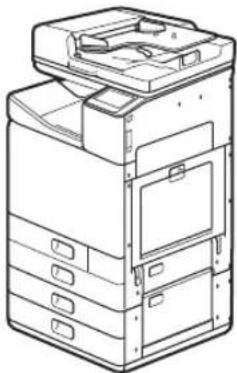
CANON WG7550Z - Illustrations et écrans utilisés dans le présent manuel - 1

natural_image Line drawing of a multi-tiered printer or scanner device with multiple compartments and control panels (no text or symbols)

Socle double cassette (facultatif) fixé

Marques commerciales

  • Windows est une marque commerciale ou déposée de Microsoft Corporation aux Etats-Unis et/ou dans d'autres pays.
  • Internet Explorer est une marque commerciale ou déposée de Microsoft Corporation aux Etats-Unis et/ou dans d'autres pays.
  • Apple, Bonjour, iPad, iPhone, iPod touch, Safari, Mac, macOS et OS X sont des marques commerciales d'Apple Inc., enregistrées aux Etats-Unis et dans d'autres pays.
  • iOS est une marque commerciale ou déposée de Cisco aux Etats-Unis et dans d'autres pays. Elle est également utilisée sous licence.
  • Google Chrome et Android sont des marques commerciales ou déposées de Google Inc.

Logiciels tiers

Le présent produit Canon ("PRODUIT") comprend des modules logiciels tiers.

L'utilisation et la distribution de ces modules logiciels, notamment les mises à jour de ces modules logiciels (collectivement appelés

"LOGICIELS") sont soumises aux conditions de licence indiquées ci-dessous.

(1) Vous acceptez de vous conformer à toutes les lois, restrictions ou réglementations relatives au contrôle des exportations des pays impliqués, dans le cas où le PRODUIT comprenant les LOGICIELS est expédié, transféré ou exporté dans un pays.

(2) Les détenteurs des droits des LOGICIELS conservent à tous égards, le titre, la propriété et les droits de propriété intellectuelle sur et vis-à-vis des LOGICIELS. Sauf mention contraire expressément spécifiée ici, aucune licence ni aucun droit, explicite ou implicite, ne vous est par la présente transmis ou octroyé par les détenteurs des droits des LOGICIELS, pour n'importe quelle propriété intellectuelle des détenteurs des droits des LOGICIELS.
(3) Vous pouvez utiliser les LOGICIELS uniquement afin d'utiliser le PRODUIT.
(4) Vous ne pouvez pas affecter, octroyer de sous-licence, commercialiser, distribuer ou transférer les LOGICIELS à une tierce partie sans l'accord écrit préalable des détenteurs des droits des LOGICIELS.
(5) Néanmoins, vous pouvez transférer les LOGICIELS uniquement si (a) vous attribuez à un cessionnaire tous vos droits vis-à-vis du PRODUIT et tous les droits et obligations prévus dans les conditions régissant les LOGICIELS et le PRODUIT et si (b) le cessionnaire accepte par écrit de se conformer à ces conditions.
(6) Vous n'êtes pas autorisé à décrypter, décompiler, faire de l'ingénierie inverse sur, désassembler ou réduire le code des LOGICIELS sous une forme lisible par une personne.
(7) Vous n'êtes pas autorisé à modifier, adapter, traduire, louer, louer à bail ou prêter les LOGICIELS ni à créer des travaux dérivés basés sur les LOGICIELS.
(8) Vous n'êtes pas autorisé à supprimer des LOGICIELS du PRODUIT, ni à en faire des copies.
(9) La licence de la partie lisible par un être humain (le code source) des LOGICIELS ne vous est pas octroyée.

Nonobstant les clauses (1) à (9) ci-dessus, le PRODUIT comprend les modules logiciels tiers qui accompagnent les autres conditions de licence. Ces modules logiciels sont soumis à d'autres conditions de licence. Veuillez vous reporter aux autres conditions de licence des modules logiciels tiers décrites dans l'annexe du manuel du PRODUIT correspondant. Ce manuel est disponible sur le site Web http://ij.start.canon.

En utilisant le PRODUIT, il est considéré que vous acceptez toutes les conditions de licence applicables. Si vous n'acceptez pas les conditions de licence, veuillez contacter votre représentant de service.

ACCEPTATION

S'IL N'Y A PAS EU D'ACCEPTATION EXPRESSE PREALABLE, LES CONDITIONS DU PRESENT LOGICIEL TIERS INDIQUEES DANS LES PRESENTES OU DANS LES DISPOSITIONS DE GARANTIE CONNEXES SONT REPUTEES ACCEPTES LORSQUE VOUS UTILISEZ LE PRODUIT DANS LE CADRE D'AU MOINS UN DE CES USAGES PREVUS.

LES CONDITIONS DU PRESENT LOGICIEL TIERS REGISSENT L'UTILISATION DE CELUI LIVRE AVEC LE PRODUIT ET TOUTES LES VERSIONS MISES A JOUR DU LOGICIEL TIERS FOURNIES AU TITRE DES CONTRATS DE MAINTENANCE OU D'AUTRES ACCORDS DE SERVICE RELATIFS AU PRODUIT CONCLUS AVEC CANON USA OU CANON CANADA OU LEURS ORGANISMES DE SERVICE AUTORISES RESPECTIFS.

Business Inkjet WG7000 Series

Inbetriebnahme

DE

Installation des Geräts S. 2

Grundanleitung S. 16

Wenn ein Problem aufgetreten ist S. 20

Verbindung mit Netzwerk und Fernüberwachungsdienst S. 26
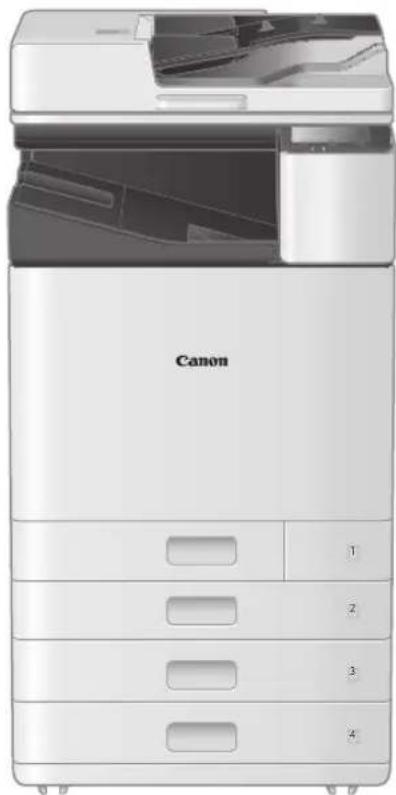
CANON WG7550Z - Inbetriebnahme - 1

natural_image Front view of a Canon printer with open lid and internal compartments (no visible text or symbols on main body)

Lesen Sie vor der Verwendung dieses Produkts den Abschnitt "Wichtige Sicherheitsvorschriften". S. 45 Bewahren Sie diese Anleitung zur späteren Verwendung an einem sicheren Ort auf. Die Informationen in diesem Dokument können ohne vorherige Ankündigung geändert werden.

Installation des Geräts

CANON WG7550Z - Installation des Geräts - 1
Im Lieferumfang des Geräts enthaltene Teile
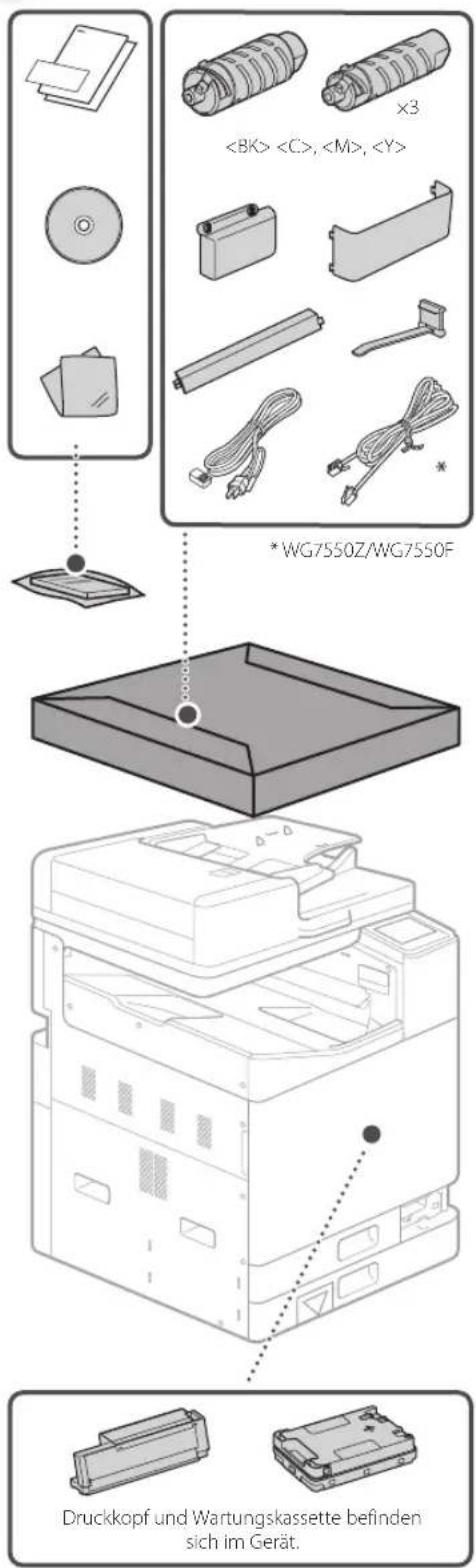
CANON WG7550Z - Installation des Geräts - 2

text_image , , ×3 *WG7550Z/WG7550F Druckkopf und Wartungskassette befinden sich im Gerät.
CANON WG7550Z - Installation des Geräts - 3
Anforderungen für die Installation

Stellen Sie das Gerät auf einer ebenen Fläche mit einem Abstand von mindestens 100 mm um das Gerät herum auf.
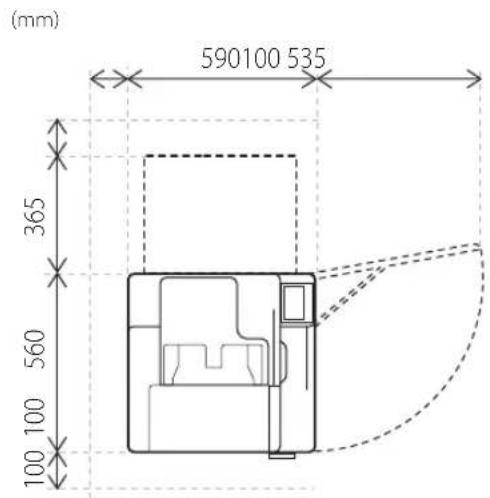
CANON WG7550Z - Installation des Geräts - 4

text_image (mm) 590100 535 365 560 100 100
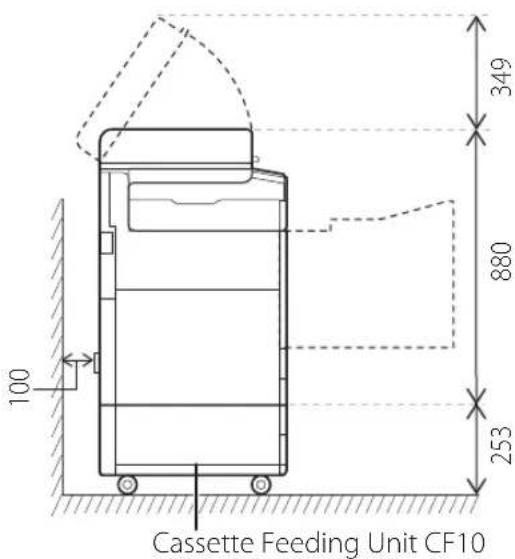
CANON WG7550Z - Installation des Geräts - 5

text_image Cassette Feeding Unit CF10 100 349 880 253

VORSICHT!

Die vordere Abdeckung ist verriegelt. Öffnen Sie sie nicht mit Gewalt.

Wenn Sie eine optionale Kassetteneinheit erworben haben

Setzen Sie zunächst die Kassetteneinheit (optional) ein. Die Installationsschritte sind im Handbuch beschrieben, das mit der Kassetteneinheit mitgeliefert wird.

VORSICHT

- Halten Sie das Gerät niemals an der Unterseite fest, da beim Absetzen des Geräts die Gefahr besteht, dass Ihre Finger eingeklemmt werden.

Transportieren des Geräts

- Vier Personen werden benötigt, um das Gerät zu bewegen. Es befinden sich vier Haltegriffe am Gerät verteilt. Jede Person sollte eine Hand in einen Haltegriff legen und mit der anderen Hand das Gerät beim Anheben stabilisieren. Um Rückenverletzungen zu vermeiden, beugen Sie sich beim Heben nicht vor. Die Positionen der Haltegriffe sind unten dargestellt. - Halten Sie das Gerät niemals an der Zufuhr (automatische Dokumentenzufuhr), einer Papierkassette usw. fest. Andernfalls kann das Gerät fallen gelassen werden und Verletzungen verursachen.
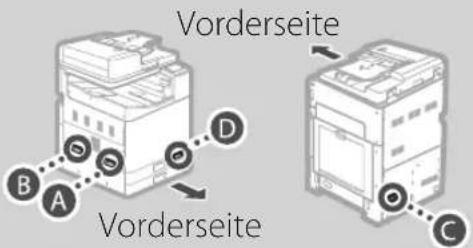
CANON WG7550Z - Transportieren des Geräts - 1

text_image Vorderseite A B C D Vorderseite

1 Sobald jede Person an einer Ecke des Geräts steht und eine Hand in einem der Handgriffe hat (siehe A bis D)heben Sie das Gerät an, indem Sie sich in die Knie beugen.
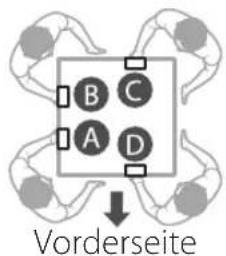
CANON WG7550Z - Transportieren des Geräts - 2

text_image B C A D Vorderseite

CANON WG7550Z - Transportieren des Geräts - 3

natural_image Illustration of a person standing beside stacked documents or files, viewed from behind (no text or symbols visible)

Vorderseite
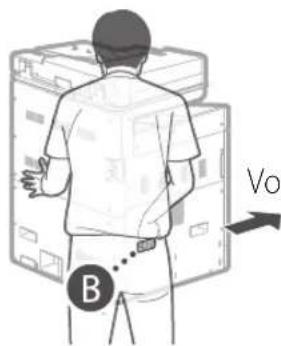
CANON WG7550Z - Transportieren des Geräts - 4

text_image B Vo1

Vorderseite

CANON WG7550Z - Transportieren des Geräts - 5

text_image Vorderseite

Vorderseite
CANON WG7550Z - Transportieren des Geräts - 6

natural_image Illustration of a person standing in front of large electronic devices (no text or symbols visible)

2 Setzen Sie das Gerät ab.
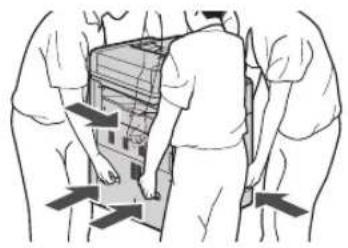
CANON WG7550Z - Transportieren des Geräts - 7

natural_image Illustration of three people standing in a row, with arrows pointing to a device or structure (no text or symbols present)
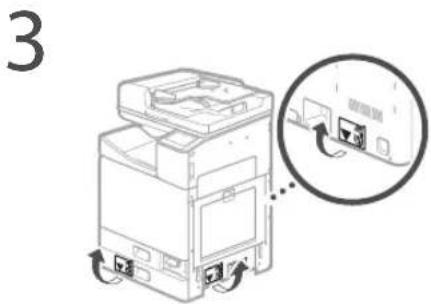
CANON WG7550Z - Transportieren des Geräts - 8

natural_image Diagram of a printer with a magnified inset showing internal components (no text or symbols)
  • Entfernen Sie alle 4 Aufkleber.

Sobald Sie die optionale Kassetteneinheit installiert haben, fahren Sie ab Schritt 4 mit der Installation fort.
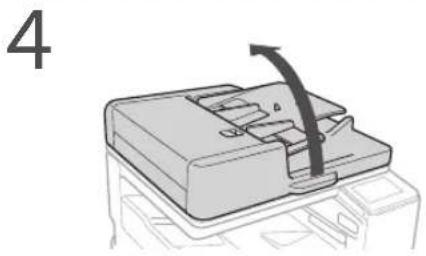
CANON WG7550Z - Transportieren des Geräts - 9

natural_image Diagram of a mechanical component with an arrow indicating direction (no text or symbols)
  • Entfernen Sie das gesamte Klebeband.

CANON WG7550Z - Transportieren des Geräts - 10

CANON WG7550Z - Transportieren des Geräts - 11

natural_image Line drawing of an open printer with arrows indicating rotation or movement (no text or symbols)
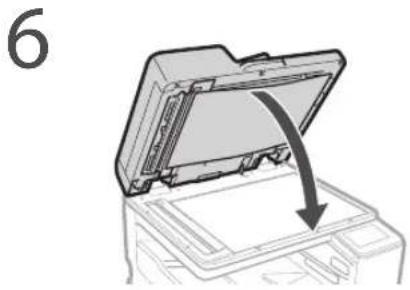
CANON WG7550Z - Transportieren des Geräts - 12

natural_image Diagram of a printer with an open lid and arrow indicating compression or disassembly (no text or symbols)
  • Entfernen Sie das gesamte Klebeband.

CANON WG7550Z - Transportieren des Geräts - 13

7 Bringen Sie die Klemme und das Stromkabel an und befestigen Sie dann das Stromkabel mit der Klemme.

• Die Form des Stromkabels ist je nach Land oder Region unterschiedlich.
- Je nach Form des mitgelieferten Stromkabels können Sie möglicherweise keine Klemme anbringen. Wenn dies nicht möglich ist, bringen Sie die Klemme nicht an und fahren Sie mit dem nächsten Schritt fort.
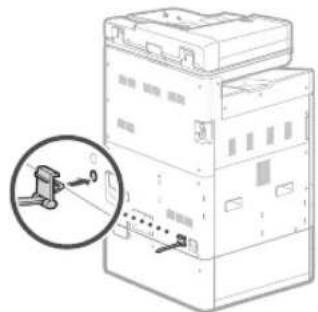
CANON WG7550Z - Transportieren des Geräts - 14

natural_image Diagram of an electrical enclosure with a magnified inset showing a close-up of the component (no text or symbols present)
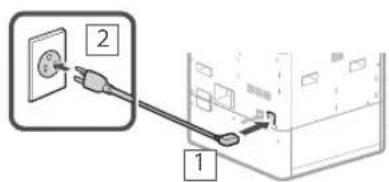
CANON WG7550Z - Transportieren des Geräts - 15

text_image Diagram showing two connected electrical outlets with labeled components, likely illustrating a power or installation procedure.
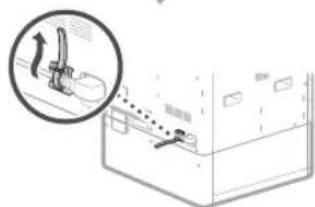
CANON WG7550Z - Transportieren des Geräts - 16

text_image Diagram showing a mechanical device with an inset magnified view of the lever mechanism.

8 Bringen Sie die Schutzabdeckung unten an der rechten Seite des Geräts an.

Kassetteneinheit (optional) eingebaut
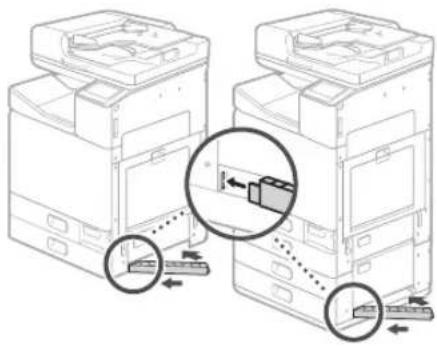
CANON WG7550Z - Transportieren des Geräts - 17

natural_image Diagram showing two printer machines with arrows indicating movement, highlighting a mechanical component (no text or symbols present)

9 Befestigen Sie das Buchablagefach entweder an der linken oder an der Rückseite des Geräts.
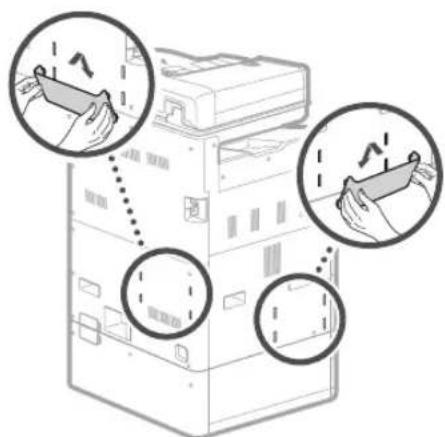
CANON WG7550Z - Transportieren des Geräts - 18

text_image Diagram showing hand positioning of a server rack with three circular annotations highlighting specific positions.

• Bewahren Sie diese Anleitung hier auf.

10 Bewahren Sie das Glasreinigungsblatt auf.
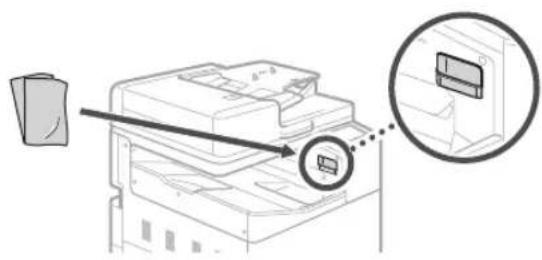
CANON WG7550Z - Transportieren des Geräts - 19

text_image Diagram showing printer application process with magnified view of device and paper holder

Bringen Sie nach Einschalten des Geräts die Haltegriffabdeckung an.

CANON WG7550Z - Transportieren des Geräts - 20

CANON WG7550Z - Transportieren des Geräts - 21

Anfangseinstellungen

1 Schalten Sie das Gerät ein.
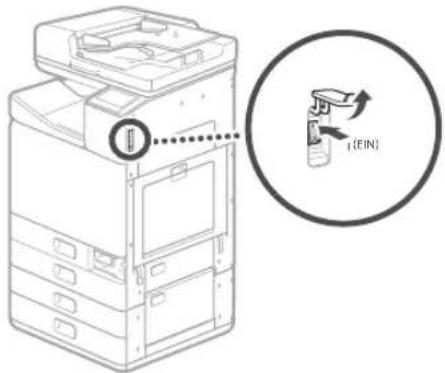
CANON WG7550Z - Anfangseinstellungen - 1

text_image 1(FIN)

HINWEIS

Wenn das Gerät zum ersten Mal eingeschaltet wird, wird eine Installationsanleitung mit einer Reihe von Bildschirmen angezeigt, die Ihnen bei der Installation des Geräts hilft. Wird die Installationsanleitung nicht angezeigt, ziehen Sie das Online-Handbuch heran.

Näheres finden Sie unter

CANON WG7550Z - HINWEIS - 1

"Einrichten mithilfe der

Installationsanleitung" im Online-Handbuch

2 Legen Sie die Sprache und das Land/die Region fest.
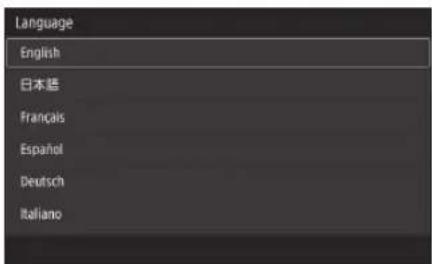
CANON WG7550Z - HINWEIS - 2

text_image Language English 日本語 Français Español Deutsch Italiano

• Folgen Sie den Bildschirmanweisungen.

3 Legen Sie die Zeitzone, das aktuelle Datum und die Uhrzeit fest.

Entfernen des Packmaterials aus dem Inneren des Geräts

1 Drücken Sie auf dem Bildschirm.
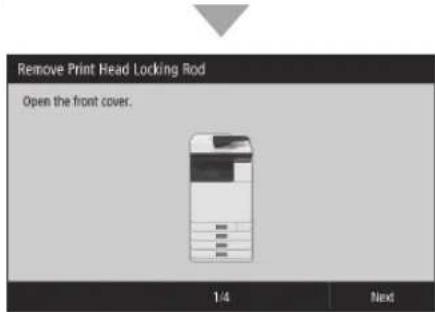
CANON WG7550Z - Entfernen des Packmaterials aus dem Inneren des Geräts - 1

text_image Remove Print Head Locking Rod Open the front cover. 1/4 Next

- Öffnen Sie die vordere Abdeckung, bis der Bildschirm angezeigt wird.

2
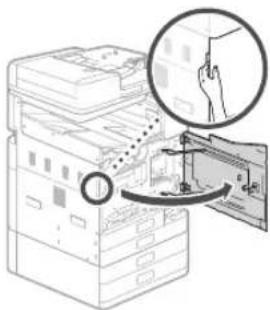
CANON WG7550Z - Entfernen des Packmaterials aus dem Inneren des Geräts - 2

natural_image Illustration of a printer stack with a magnified inset showing the printer's tip and base panel (no text or symbols)

3 Entfernen Sie den Versandsicherungsstift.
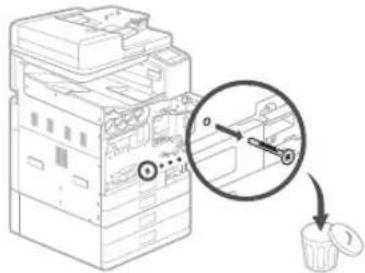
CANON WG7550Z - Entfernen des Packmaterials aus dem Inneren des Geräts - 3

text_image Diagram showing a device with labeled components and a magnified inset highlighting a specific component with arrows and a circular annotation.

4 Ziehen Sie die Druckkopfverriegelungsstange heraus.
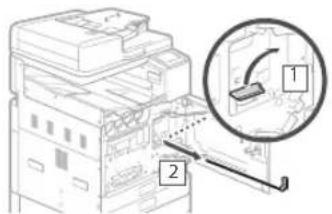
CANON WG7550Z - Entfernen des Packmaterials aus dem Inneren des Geräts - 4

text_image Diagram showing a printer with labeled parts and a magnified inset highlighting a device component.

Heben Sie den Hebel (blau) in an und ziehen

Sie die Stange vollständig in der unter 2

angegebenen Richtung heraus.

Verbiegen Sie nicht die Stange.

5 Bewahren Sie die Druckkopfverriegelungsstange auf.
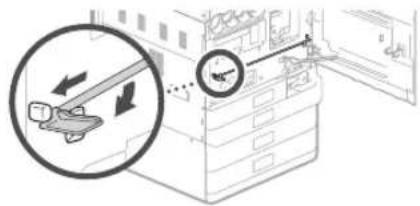
CANON WG7550Z - Bewahren Sie die Druckkopfverriegelungsstange auf. - 1

text_image Diagram showing a device with directional arrows and a magnified view of its measurement on a cabinet or rack.

- Richten Sie das blaue Hebelteil auf sich, drücken Sie dann die Stange nach links und haken Sie sie ein.
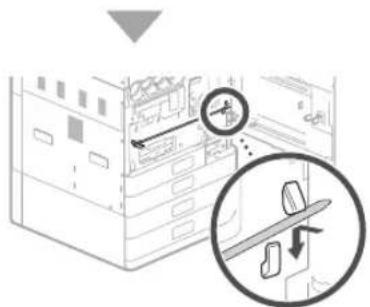
CANON WG7550Z - Bewahren Sie die Druckkopfverriegelungsstange auf. - 2

text_image Diagram showing a mechanical assembly with an inset magnified view of a tool interacting with a component, labeled in Chinese.

- Setzen Sie das rechte Ende auf den Haken.
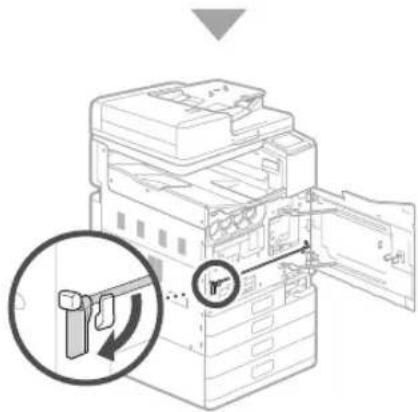
CANON WG7550Z - Bewahren Sie die Druckkopfverriegelungsstange auf. - 3

text_image Diagram of an electronic device with labeled components and a magnified inset showing internal structure and component alignment.

- Nachdem Sie beide Enden auf den Haken gesetzt haben, drehen Sie den blauen Hebel nach unten, um den Haken zu verriegeln.

Die Druckkopfverriegelungsstange wird für den Transport benötigt. Entsorgen Sie sie daher nicht.

6 Bringen Sie die Haltegriffabdeckung an.
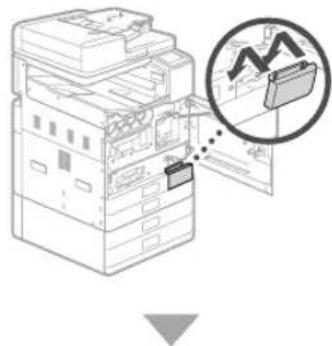
CANON WG7550Z - Bringen Sie die Haltegriffabdeckung an. - 1

natural_image Illustration of a server rack with a magnified inset showing a rising trend graph (no text or symbols)

Verwenden Sie zum Befestigen der Schraube eine Münze.
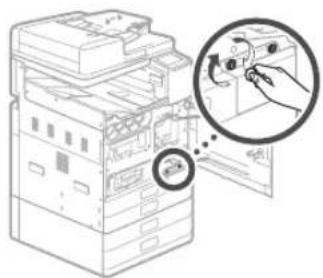
CANON WG7550Z - Bringen Sie die Haltegriffabdeckung an. - 2

natural_image Illustration of a printer's front panel with a magnified inset showing the printer's handle (no text or symbols present)

7
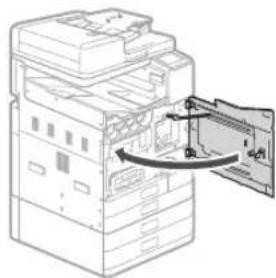
CANON WG7550Z - 7 - 1

natural_image Diagram of a printer or printer stack with an open door and arrow indicating a folding or disassembly process (no text or symbols present)

Setzen Sie als Nächstes die Tintenbehälter ein.

Einsetzen der Tintenbehälter

1 Drücken Sie auf dem Bildschirm.
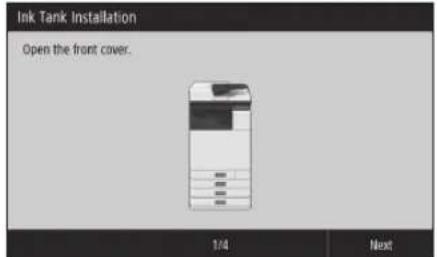
CANON WG7550Z - Einsetzen der Tintenbehälter - 1

text_image Ink Tank Installation Open the front cover. 1/4 Next

- Öffnen Sie die vordere Abdeckung, bis der Bildschirm angezeigt wird.

2
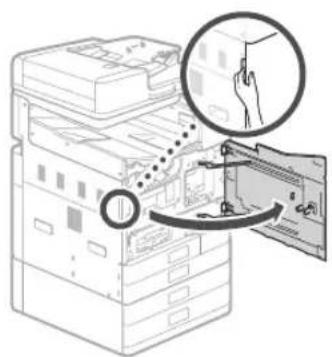
CANON WG7550Z - Einsetzen der Tintenbehälter - 2

text_image Diagram illustrating a hand holding a device next to an open storage unit, with magnified detail showing the process.

3
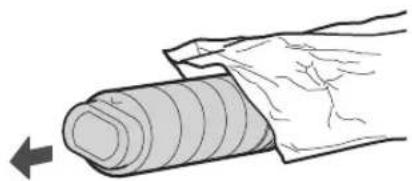
CANON WG7550Z - Einsetzen der Tintenbehälter - 3

natural_image Illustration of a hand holding a rolled-up sheet of material, with a black arrow pointing to the left side (no text or symbols)

4
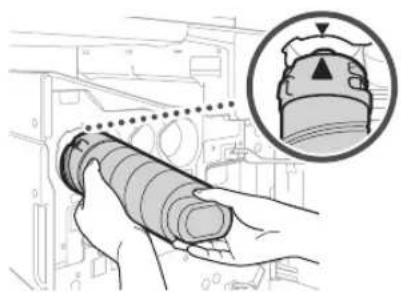
CANON WG7550Z - Einsetzen der Tintenbehälter - 4

natural_image Illustration of hands operating a cylindrical device with a magnified inset showing the top view (no text or symbols)
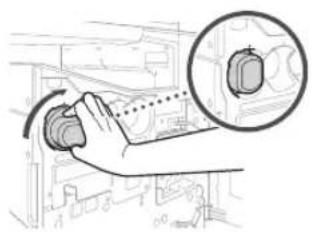
CANON WG7550Z - Einsetzen der Tintenbehälter - 5

natural_image Hand operating a mechanical switch with a magnified inset showing the internal components (no text or symbols visible)

- Drehen Sie den Behälter, bis ein Klicken zu hören ist.
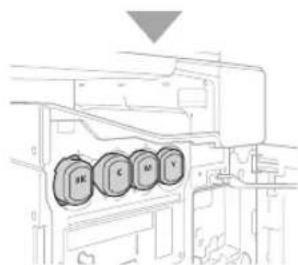
CANON WG7550Z - Einsetzen der Tintenbehälter - 6

text_image Technical diagram showing labeled components (A, B, C, D, E, Y) inside a mechanical assembly with an arrow indicating direction.

- Setzen Sie alle vier Tintenbehälter in die richtigen Einschübe.

5
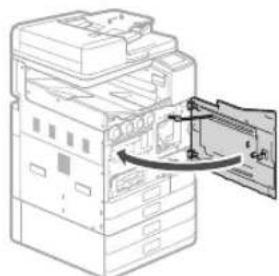
CANON WG7550Z - Einsetzen der Tintenbehälter - 7

natural_image Diagram of a printer's internal structure showing paper feeding into a stack of folders (no text or labels visible)

HINWEIS

  • Der Füllvorgang beginnt und nimmt etwa 40-70 Minuten in Anspruch.
    • Die für die Befüllung benötigte Zeit hängt von Ihrer Umgebung ab.
  • Schalten Sie das Gerät nicht aus, während Tinte eingefüllt wird.
  • Wenn die Befüllung durch Ausschalten des Geräts usw. unterbrochen wird, können zusätzliche Tintenbehälter erforderlich sein.
  • Während Tinte eingefüllt wird, können Sie Einstellungen bis "Justieren der Ränder der Kassetteneinheit (optional)" (S. 12) vornehmen.

Als Nächstes konfigurieren Sie das Gerät so, dass es Daten und den PIN für Remote UI sendet.

Konfigurieren Sie das Gerät so, dass es Daten und den PIN für Remote UI sendet

1 Lesen Sie die Meldungen und folgen Sie den Anweisungen auf dem Bildschirm.

Versenden von Daten an Canon

Zur Entwicklung und Vermarktung von Produkten und zur Bereitstellung von Sonderangeboten und -leistungen, die den Anforderungen der Kunden besser entsprechen, bittet Canon darum, auf Ihr Canon-Produkt bezogene Informationen, wie die unten genannten, über das Internet an Canon (oder, wenn Sie Ihr Canon-Produkt in China nutzen, an das rechtlich anerkannte Forschungsunternehmen) zu senden.

Informationen zu Drucker/Scanner/Fax/Informationsgeräten

  • Grundlegende Informationen, wie die ID-Nummer des Druckers, Installationsdatum und -uhrzeit, Ländereinstellungen usw.
  • Nutzungsverlauf, wie der Typ der installierten Tinte, Tintenverbrauchsinformationen, die Anzahl der Druckseiten, Scanhäufigkeit und Wartungsinformationen usw.
  • Papierverbrauchsinformationen, Druckumgebung/-bedingungen, Scanauftragseinstellung und Umfrageergebnisse
  • Grundlegende Geräteinformationen, wie der Modellname, BS-Versions-, Sprach- und Anzeigeinformationen usw.
  • Gerätetreiber- und Anwendungs-Softwareversionen, Nutzungsverlauf

(einige der Informationen werden je nach Ihrem Modell und/oder der Anwendungs-Software möglicherweise nicht gesendet.)

Wenn Ihr Canon-Produkt gemeinsam verwendet wird, werden die obigen Informationen gesendet, die im gemeinsam verwendeten Produkt erfasst wurden. Wenn Sie zustimmen, senden Sie diese Information an die Benutzer weiter, die das Produkt gemeinsam verwenden, und holen Sie zuvor auch deren Zustimmung ein.

Im Rahmen dieser Erfassung werden keine persönlichen Daten gesendet. Daher sind wir anhand der an uns gesendeten Informationen nicht in der Lage, bestimmte Kunden zu identifizieren.

Aus diesem Grunde können wir keine Anfragen zur Offenlegung von gesendeten Daten beantworten.

Nachdem Sie den Anfragen zugestimmt haben, werden die oben genannten Informationen über das Internet an Canon (oder, wenn Sie Ihr Canon-Produkt in China nutzen, an das rechtlich anerkannte Forschungsunternehmen) gesendet. Die Gebühren für die Internetverbindung gehen zu Ihren Lasten.

Die gesendeten Informationen werden möglicherweise den Konzernunternehmen von Canon bereitgestellt.

2 Stellen Sie den PIN für Remote UI ein.
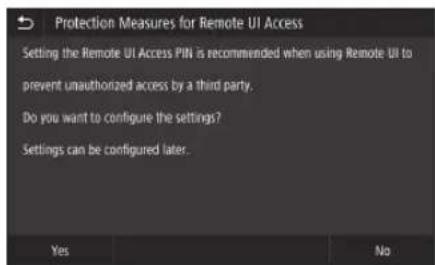
CANON WG7550Z - Versenden von Daten an Canon - 1

text_image Protection Measures for Remote UI Access Setting the Remote UI Access PIN is recommended when using Remote UI to prevent unauthorized access by a third party. Do you want to configure the settings? Settings can be configured later.

Remote UI

Mit der Remote UI können Sie über ein Netzwerk von einem Webbrowser aus auf das Gerät zuzugreifen, um beispielsweise den Status des Geräts zu überprüfen, Aufträge zu bearbeiten und Einstellungen vorzunehmen. Legen Sie eine PIN für die Remote UI fest, um Ihre Informationen zu schützen.

Verbinden mit einem Computer

Bevor Sie die Konfiguration starten

  • Wenn das Gerät mit einem unsicheren Netzwerk verbunden ist, besteht das Risiko, dass Ihre persönlichen Daten offengelegt werden. Treffen Sie Vorkehrungen, um Ihr Netzwerk vor Unbekannten zu schützen.
  • Im Lieferumfang des Geräts befindet sich kein Router oder LAN-Kabel. Das müssen Sie selbst bereitstellen.
  • Das Gerät kann nicht gleichzeitig mit einem Wired- und einem Wireless-Netzwerk verbunden werden.

Wenn Sie die Installationsanleitung verwenden, erfolgt die Verbindung über DHCP, wobei die IP-Adresse automatisch zugewiesen wird.

Um eine andere IP-Adresse als DHCP zu verwenden, z. B. eine feste IP-Adresse, wählen Sie im Bildschirm "Wireless LAN-Verbindung" und verlassen Sie die Installationsanleitung, ohne eine Verbindung zum Netzwerk herzustellen.

Sobald die Startseite angezeigt wird, gehen Sie zu "Verbinden mit einem Netzwerk mit fester IP-Adresse" 28 und konfigurieren Sie die Einstellungen.

Wählen einer Verbindungsmethode
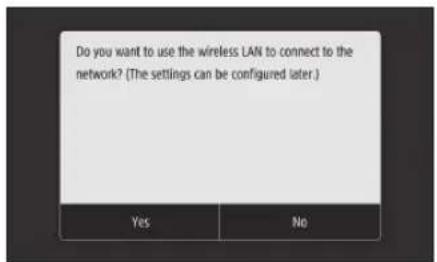
CANON WG7550Z - Bevor Sie die Konfiguration starten - 1

text_image Do you want to use the wireless LAN to connect to the network? (The settings can be configured later.) Yes No

• So stellen Sie eine Verbindung über Wireless LAN her: S. 10
- So stellen Sie eine Verbindung über Wired LAN her: S. 11
- So stellen Sie eine Verbindung über USB her: S. 12

Der oben dargestellte Bildschirm wird beim WG7540 nicht angezeigt. Stellen Sie eine Verbindung über Wired LAN oder USB her.

CANON WG7550Z - Bevor Sie die Konfiguration starten - 2

Auch in einer Umgebung ohne Wireless LAN können Sie den Access Point-Modus verwenden, um von Ihrem Mobilgerät aus eine drahtlose Verbindung zum Gerät herzustellen (Direktverbindung). Verlassen Sie die Installationsanleitung, bevor Sie die direkte Verbindung herstellen (WG7550Z/WG7550F/WG7550). Online-Handbuch

So stellen Sie eine Verbindung über Wireless LAN her

  • Bei einer festen IP-Adresse: Wählen Sie und justieren Sie die Ränder. S. 12

- Über DHCP: Fahren Sie mit den folgenden Schritten fort.

1 Drücken Sie auf dem Bildschirm für die Verbindungsmethode.
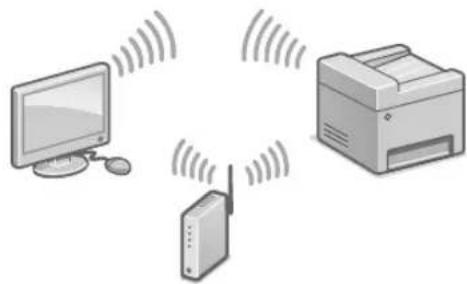
CANON WG7550Z - So stellen Sie eine Verbindung über Wireless LAN her - 1

natural_image Illustration of a printer, network device, and computer with signal waves (no text or symbols)

2 Prüfen Sie, ob Ihr Computer und der Wireless LAN-Router richtig verbunden sind.
3 Überprüfen Sie die Netzwerkeinstellungen im Computer.
4 Notieren Sie den Netzwerknamen (SSID) und das Passwort (Netzwerkschlüssel).

- Prüfen Sie, ob diese Information auf dem Etikett des Routers vorhanden ist. ➕ Online-Handbuch

• Die Installation kann auch über WPS auf kompatiblen Routern erfolgen. ➕ Online-Handbuch

5 Drücken Sie .

- Folgen Sie diesen Anweisungen auf dem unten dargestellten Bildschirm, um den Namen Ihres Netzwerks (SSID) und das Passwort (Netzwerkschlüssel) einzugeben.
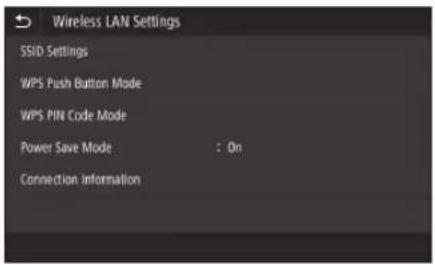
CANON WG7550Z - Drücken Sie . - 1

text_image Wireless LAN Settings SSID Settings WPS Push Button Mode WPS PIN Code Mode Power Save Mode : On Connection Information

6 Drücken Sie .
7 Drücken Sie
8 Wählen Sie den Netzwerknamen (SSID), und drücken Sie dann .

  1. Geben Sie ein Passwort (Netzwerkschlüssel) ein, und drücken Sie dann
  2. Drücken Sie

  3. Eine IP-Adresse wird automatisch zugewiesen.

  4. wird angezeigt.

Justieren Sie als Nächstes den Rand der Kassette Kassetteneinheit (optional).

S.12

So stellen Sie eine Verbindung über Wired LAN her

  • Bei einer festen IP-Adresse: Wählen Sie und justieren Sie die Ränder. S. 12
  • Über DHCP: Fahren Sie mit den folgenden Schritten fort.

1 Drücken Sie auf dem Bildschirm für die Verbindungsmethode.
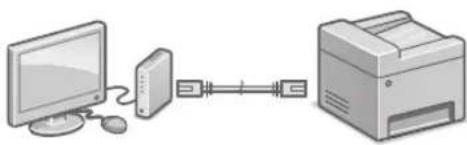
CANON WG7550Z - So stellen Sie eine Verbindung über Wired LAN her - 1

natural_image Illustration of a computer connected via a serial line to a printer (no text or symbols present)

Im Lieferumfang des Geräts ist kein LAN-Kabel enthalten. Das müssen Sie selbst bereitstellen.

2 Prüfen Sie, ob Ihr Computer und der Router richtig verbunden sind.
3 Überprüfen Sie die Netzwerkeinstellungen im Computer.
4 Schließen Sie das LAN-Kabel an.
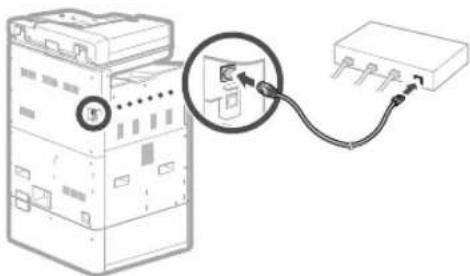
CANON WG7550Z - So stellen Sie eine Verbindung über Wired LAN her - 2

natural_image Diagram showing connection between a device with an attached cable and connector (no text or symbols present)

- Nachdem Sie das Kabel angeschlossen haben, warten Sie einige Minuten (bis die IP-Adresse automatisch eingestellt wurde).

Justieren Sie als Nächstes den Rand der Kassette Kassetteneinheit (optional).

S.12

So stellen Sie eine Verbindung über USB her

1 Drücken Sie auf dem Bildschirm für die Verbindungsmethode.
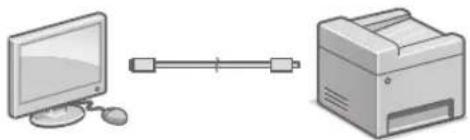
CANON WG7550Z - So stellen Sie eine Verbindung über USB her - 1

natural_image Illustration of a desktop computer connected to a printer (no text or symbols present)
  • Im Lieferumfang des Geräts befindet sich kein USB-Kabel. Sie müssen dieses selbst bereitstellen.
  • Stellen Sie sicher, dass das verwendete USB-Kabel mit der hier dargestellten Kennzeichnung kompatibel ist.
  • Schließen Sie das USB-Kabel nicht vor der Installation der Software an. Wenn dies bereits geschehen ist, trennen Sie das USB-Kabel vom Computer, schließen Sie das Dialogfeld, und führen Sie anschließend das Verfahren ab Schritt 1 unter "Installieren der Software" durch "Installieren der Software". S. 14

Justieren Sie als Nächstes den Rand der Kassette Kassetteneinheit (optional).

Justieren der Ränder der Kassetteneinheit (optional)

1 Ziehen Sie Papierkassette 3 heraus, und überprüfen Sie die Werte für Justage Rand.
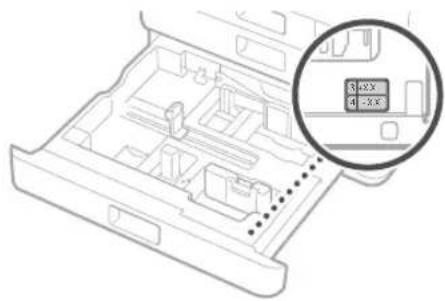
CANON WG7550Z - Justieren der Ränder der Kassetteneinheit (optional) - 1

natural_image Technical line drawing of an electronic device casing with internal compartments and a magnified inset showing a 3x2X offset (no text or symbols)

CANON WG7550Z - Justieren der Ränder der Kassetteneinheit (optional) - 2

Margin Adjustment
CANON WG7550Z - Justieren der Ränder der Kassetteneinheit (optional) - 3

natural_image Interior view of a file drawer with visible compartments and page layout (no text or symbols)

Start margin adjustment for Drawer 3 and Drawer 4. Check the adjustment values indicated on the label attached to Drawer 3 in the position shown on the left, then enter the values on the next screen.

Start

2 Geben Sie die Werte für und ein, die Sie in Schritt 1 auf dem Bildschirm überprüft haben.
3 Schieben Sie die Papierkassette wieder in das Gerät.

AVORSICHT

Achten Sie darauf, dass Ihre Finger nicht eingeklemmt werden, wenn Sie die Papierkassette schließen.

Drucken und überprüfen Sie als Nächstes ein Düsen-Prüfmuster.

Drucken und Überprüfen eines Düsen-Prüfmusters

Drucken und überprüfen Sie ein Düsen-Prüfmuster, um den Zustand des Druckkopfes zu kontrollieren. Wenn der Ausdruck Streifen oder Unebenheiten aufweist, führen Sie eine Reinigung durch.

Legen Sie normales Papier (A3, 11x17, LTR oder A4) in die Papierkassette. Es wird empfohlen, mindestens 10 Blätter A3- oder 11x17-Papier einzulegen.

  • Bevor Sie fortfahren, muss die Tinte vollständig eingefüllt sein.
  • Ein Fortschrittsbalken wird so lange angezeigt, bis die Tinte vollständig gefüllt ist.

CANON WG7550Z - Drucken und Überprüfen eines Düsen-Prüfmusters - 1

text_image Processing... Do not turn OFF the device.

1

CANON WG7550Z - Drucken und Überprüfen eines Düsen-Prüfmusters - 2

natural_image Diagram of an open device drawer with internal compartments and a downward arrow indicating motion (no text or symbols)

2
CANON WG7550Z - Drucken und Überprüfen eines Düsen-Prüfmusters - 3

natural_image Diagram of a printer drawer with a cover area and an arrow indicating the location (no text or symbols present)

Legen Sie das Papier so ein, dass die Seitenränder in die Papierführungen passen.

3
Drücken Sie und drucken Sie ein Muster aus.
CANON WG7550Z - Drucken und Überprüfen eines Düsen-Prüfmusters - 4

text_image Nozzle Check Pattern Print the nozzle check pattern. Load 1 or more sheets of plain paper (A4, A3, 11x17, LTR) in the drawer. Start

4
CANON WG7550Z - Drucken und Überprüfen eines Düsen-Prüfmusters - 5

text_image Nozzle Check Pattern A) B) Is the printed pattern similar to A or B? A 8

Wenn der Ausdruck in Ordnung aussieht, drücken Sie , um die Düsenprüfung abzuschließen. Wenn der Ausdruck Streifen oder Unebenheiten aufweist, drücken Sie , um eine Reinigung durchzuführen.

CANON WG7550Z - Drucken und Überprüfen eines Düsen-Prüfmusters - 6

text_image The print head nozzles may be clogged. Do you want to start Deep Cleaning?
  • Je nach Zustand der Düsen müssen Sie die Überprüfung und Reinigung ggf. mehrmals durchführen.
    • Die Einstellungen sind abgeschlossen, sobald die Startseite angezeigt wird.

Weiter mit: Einstellungen der Verbindung zwischen Netzwerk und Fernüberwachungsdienst.

Einstellungen der Verbindung zwischen Netzwerk und Fernüberwachungsdienst

Nachdem Sie die Installationsanleitung verlassen haben, nehmen Sie die Einstellungen zum Herstellen einer Verbindung zwischen einem Netzwerk und einem Fernüberwachungsdienst vor. Die einzustellenden Elemente hängen von der Verbindung und der Servicenutzung ab. Überprüfen Sie die Einstellungen, die für die folgenden Bedingungen gelten.

Bei Verwendung einer festen IP-Adresse

Fahren Sie mit "Verbinden mit einem Netzwerk mit fester IP-Adresse (→ S. 28)" fort.

Bei Verwendung eines Fernüberwachungsdienstes

Definition des Fernüberwachungsdienstes

Es handelt sich um einen Dienst, der den Zustand des Geräts überwacht und mit dem Sie verschiedene Dienste wie den Recovery-Support nutzen können.

Fahren Sie mit "Verbinden mit einem Fernüberwachungsdienst (S. 39)" fort.

Andere

In den Fällen müssen Sie keine Einstellungen vornehmen.

Fahren Sie mit "Installieren der Software (→ S. 14)" fort.

  • Beziehen Sie über DHCP automatisch eine IP-Adresse.
  • Da nur eine USB-Verbindung verwendet wird, wird keine IP-Adresse festgelegt.
  • Ein Fernüberwachungsdienst wird nicht genutzt.

Installieren der Software

• Die hier beschriebenen Verfahren gelten für Windows. Weitere Einzelheiten zum Software-Installationsverfahren finden Sie im Treiber-Handbuch.
- Wenn Sie die Verbindung über USB herstellen möchten, tun Sie dies erst, wenn entsprechende Anweisungen auf dem Installationsbildschirm angezeigt werden. Wenn dies bereits geschehen ist, trennen Sie das USB-Kabel vom Computer, schließen Sie das Dialogfeld, und führen Sie anschließend das folgende Verfahren ab Schritt 1 durch.
- Treiber für macOS sind nicht im Lieferumfang enthalten. Aktuelle Treiber können von der Canon-Website heruntergeladen werden.

1
CANON WG7550Z - Installieren der Software - 1

natural_image Diagram showing a CD or DVD disc being inserted into a computer tower (no text or symbols present)

2
CANON WG7550Z - Installieren der Software - 2

text_image Canon Software Programs/Manual Solution Easy Installation Custom Installation Installs the programs and manuals that you select. Start Software Programs Start programs required for configuring settings, inc. Remove Delete manuals. Edit

Wenn der Bildschirm nicht ordnungsgemäß angezeigt wird, setzen Sie die DVD-ROM erneut ein, oder suchen Sie nach "D:\MInst.exe" auf der Windows-Plattform (in dieser Beschreibung wird davon ausgegangen, dass "D:" die Bezeichnung des DVD-ROM-Laufwerks ist).

Konfigurieren Sie als Nächstes die Faxeinstellungen (WG7550Z/WG7550F)

S.15

CANON WG7550Z - Installieren der Software - 3

Konfigurieren der Faxeinstellungen (WG7550Z/WG7550F)

Wenn sich im Lieferumfang Ihres Geräts kein Telefonkabel befindet, müssen Sie dieses selbst bereitstellen.

Legen Sie die Faxeinstellungen fest (siehe unten).

CANON WG7550Z - Konfigurieren der Faxeinstellungen (WG7550Z/WG7550F) - 1

text_image Home Check Counter Copy Fax Scan Memory Media Print Secure Print Menu Address Book Paper Settings Status Monitor

1 Drücken Sie .
2 Drücken Sie .
3 Registrieren Sie die Telefonnummer für das Gerät (Faxnummer) sowie den abgekürzten Benutzernamen (Benutzername).

CANON WG7550Z - Konfigurieren der Faxeinstellungen (WG7550Z/WG7550F) - 2

text_image Fax Setup Guide Register the unit telephone number for this device. (Fax number) Next

• Die unten dargestellten Angaben werden als Absenderinformationen auf den oberen Rand des Ausdrucks des Zielgeräts gedruckt.

CANON WG7550Z - Konfigurieren der Faxeinstellungen (WG7550Z/WG7550F) - 3

text_image Faxnummer Typ der Nummer Sendzeit Name des Geräts Seitenzahl 02/02 2013 16:00AM CANADA 270000000FAX 0001

4 Stellen Sie den Empfangsmodus ein. Beantworten Sie die Fragen darüber, wie Sie mit der Faxfunktion die besten Einstellungen auswählen.
5 Schließen Sie das Gerät an eine Telefonleitung an.

CANON WG7550Z - Konfigurieren der Faxeinstellungen (WG7550Z/WG7550F) - 4

text_image Connect Telephone Line C B A Connect to the socket on the back side of the device. 1. Telephone Line to A 2. External Telephone Line to B End

CANON WG7550Z - Konfigurieren der Faxeinstellungen (WG7550Z/WG7550F) - 5

text_image Hörer Telefon Telefonleitungsbuchse C B A

6 Drücken Sie .
7 Drücken Sie .

Installation abgeschlossen. Ihr Gerät ist nun betriebsbereit.

Einlegen von Originalen

Auf die Glasplatte
CANON WG7550Z - Einlegen von Originalen - 1

text_image Schieben Sie sie in die Ecke. Legen Sie die Originale mit der Vorderseite nach unten ein. Geeignet für das Scannen von Ausschnitten aus Büchern, Zeitschriften und Zeitungen.

In die Zufuhr
CANON WG7550Z - Einlegen von Originalen - 2

text_image Stellen Sie die Schiebeführungen ein. Legen Sie die Originale mit der Vorderseite nach oben ein. Geeignet für das Scannen von mehrseitigen Dokumenten.

Starten Sie den Vorgang über das Bedienfeld

Gerät
CANON WG7550Z - Starten Sie den Vorgang über das Bedienfeld - 1

natural_image Line drawing of a printer or scanner device with no visible text or symbols

Bedienfeld
CANON WG7550Z - Starten Sie den Vorgang über das Bedienfeld - 2

text_image (Taste [Stromsparmodus]) (Taste [Startseite]) Display (Bildschirm)

CANON WG7550Z - Starten Sie den Vorgang über das Bedienfeld - 3

Drucken

  1. Öffnen Sie das zu druckende Dokument, und wählen Sie die Druckfunktion der Anwendung aus.
  2. Wählen Sie den Druckertreiber für das Gerät, und wählen Sie dann [Einstellungen (Preferences)] oder [Eigenschaften (Properties)].
  3. Legen Sie das Papierformat fest.
  4. Legen Sie die Papierzufuhr und den Papiertyp fest.
  5. Passen Sie bei Bedarf die Druckeinstellungen an.
  6. Wählen Sie [OK].
  7. Wählen Sie [Drucken (Print)] oder [OK].

CANON WG7550Z - Drucken - 1

text_image New Document Explorer File Edit View Insert Options Help (Edit) Format: Normal Format: Normal Format: Normal Format: Normal Format: Normal Format: Normal Format: Normal Format: Normal Format: Normal Format: Normal Format: Normal Format: Normal Format: Normal Format: Normal Format: Normal Format: Normal Format: Normal Format: Normal Format: Normal Format: Normal Format: Normal Format: Normal Format: Normal Format: Normal Format: Normal Format: Normal

Näheres finden Sie unter
CANON WG7550Z - Drucken - 2
"Drucken" im Online-Handbuch

CANON WG7550Z - Drucken - 3

Kopieren

  1. Legen Sie das Original auf.
  2. Drücken Sie 📁, und wählen Sie dann .
  3. Passen Sie bei Bedarf die Kopiereinstellungen an.
  4. Geben Sie die gewünschte Anzahl an Kopien ein.
  5. Wählen Sie .

Nützliche

Kopiereinstellungen

auf 1
■weiseitig oder Einseitig
Vergrößern oder Verkleinern
Kopieren von ID-Karten

CANON WG7550Z - Kopiereinstellungen - 1

CANON WG7550Z - Kopiereinstellungen - 2

text_image Copy Select Color B&W 100% Paper LTR Number of Copies 2 Select Off R or 1 Off Reset Start Other Settings Status Monitor

Näheres finden Sie unter
→ "Kopieren" im Online-Handbuch

CANON WG7550Z - Kopiereinstellungen - 3

Scannen

  1. Legen Sie das Original auf.
  2. Drücken Sie 📄, und wählen Sie
  3. Wählen Sie den Scantyp aus, und geben Sie die notwendigen Informationen ein.
  4. Drücken Sie oder .

Scantypen

Speichern auf dem USB-
Speichergerät
fenden per E-Mail
fenden an Dateiserver

Scannen über einen

Computer

WG Scan Utility

CANON WG7550Z - Computer - 1

text_image Scan Select a scan type. Computer USB Memory E-Mail I-File File Status Monitor

Näheres finden Sie unter
→ "Scannen" im Online-Handbuch

CANON WG7550Z - Computer - 2

Faxen (WG7550Z/WG7550F)

  1. Legen Sie das Original auf.
  2. Drücken Sie 📋, und wählen Sie .
  3. Geben Sie die Zielinformationen ein.
  4. Passen Sie bei Bedarf die Faxeinstellungen an.
  5. Wählen Sie .

Nützliche Faxfunktionen

Hundsendung
Speicherempfang
PC-Fax

CANON WG7550Z - Nützliche Faxfunktionen - 1

CANON WG7550Z - Nützliche Faxfunktionen - 2

text_image Fax 03/16/2018 4:05:04 Specify a destination. Enter Dest. Specify Destination TAXX Settings 1 ABC 3 DLF Hook 4 JXL 6 MNO A##s 7 FLY 8 9 WNTS Next Dest * T### 0 # Status Monitor

Näheres finden Sie unter
"Fax senden" im Online-Handbuch

Einlegen von Papier in die Papierkassette

Im Folgenden werden Vorgänge, die für die Papierkassetten 1 und 2 identisch sind, anhand des Beispiels von Kassette 2 beschrieben.

1
CANON WG7550Z - Einlegen von Papier in die Papierkassette - 1

natural_image Diagram of an open file drawer with internal compartments and a downward arrow indicating compression (no text or symbols present)

2 Verschieben Sie die hellblauen Knöpfe, um die Position der Papierführungen zu verstellen.

CANON WG7550Z - Einlegen von Papier in die Papierkassette - 2

text_image Hieben Sie die Ausbuchtung die Markierung für das nungsbande Betriefermet

Schieben Sie die Ausbuchtung auf die Markierung für das entsprechende Papierformat.

3 Fächern Sie den Papierstapel auf, und legen Sie ihn dann ein.

CANON WG7550Z - Einlegen von Papier in die Papierkassette - 3

text_image Achten Sie darauf, dass diese Linie nicht überschritten wird.

Die zu bedruckende Seite nach oben

Legen Sie das Papier so ein, dass die Seitenränder in die Papierführungen passen.

4 Schieben Sie die Papierkassette wieder in das Gerät.

AVORSICHT

Achten Sie darauf, dass Ihre Finger nicht eingeklemmt werden, wenn Sie die Papierkassette schließen.

Falls Sie den Papiertyp geändert haben, ändern Sie die Papiereinstellungen.

1 Drücken Sie und wählen Sie dann .

2 Geben Sie das Format und den Typ des Papiers gemäß der Bildschirmanzeige an.

Einlegen von Papier in die Mehrzweckfach

1
CANON WG7550Z - Einlegen von Papier in die Mehrzweckfach - 1

natural_image Diagram of a mechanical assembly with a clamping device and directional arrow (no text or symbols)

2
Stellen Sie die Position der Papierführungen ein.
CANON WG7550Z - Einlegen von Papier in die Mehrzweckfach - 2

text_image Fachverlängerung Richten Sie die Papierführungen an den Markierungen für das Papierformat aus.

HINWEIS

Ziehen Sie beim Einlegen von großformatigem Papier die Fachverlängerung heraus.

3
Fächern Sie den Papierstapel auf, glätten Sie die Kanten auf einer ebenen Oberfläche und legen Sie ihn dann ein.
CANON WG7550Z - HINWEIS - 1

text_image Achten Sie darauf, dass diese Linie nicht überschritten wird. Die zu bedruckende Seite nach unten

4
Überprüfen Sie das Papierformat und den Papiertyp, und drücken Sie dann auf dem Bildschirm .
CANON WG7550Z - HINWEIS - 2

text_image Multi-Purpose Tray Auto Recognize Size Standard Size Custom Size Envelope Postcard ■ Paper Type Plain 1 (64-75 g/m²) Change Ppr. Type Apply

Falls das Papierformat oder der Papiertyp in dem unter Schritt 4 erwähnten Bildschirm nicht dem eingelegten Papier entspricht, ändern Sie die Einstellung manuell.

1
Drücken Sie .
CANON WG7550Z - HINWEIS - 3

text_image Multi-Purpose Tray Cannot recognize the paper size. ■ Paper Type Plain 1 (64-75 g/m²) Change Ppr. Type Auto Recognize Size Standard Size Custom Size Envelope Postcard Apply

Legen Sie das Papierformat fest.
2

Drücken Sie .
CANON WG7550Z - HINWEIS - 4
Legen Sie den Papiertyp fest.
3
Drücken Sie

Prüfen Sie folgende Punkte.

  • Ist die Stromversorgung eingeschaltet?
    • Befindet sich das Gerät im Schlafmodus?

Wenn weder das Display noch 📁 beleuchtet sind, betätigen Sie den Netzschalter.

CANON WG7550Z - HINWEIS - 5

text_image Netzschalter

- Ist das Stromkabel ordnungsgemäß angeschlossen?

CANON WG7550Z - HINWEIS - 6

text_image Diagram showing a server rack with a magnified inset highlighting a device's cable connection.

Bleibt das Problem bestehen, ziehen Sie das Online-Handbuch zu Rate.

Papierstau ist aufgetretenDas Gerät rea

Bei einem Papierstau wird ein Bildschirm angezeigt, der dem unten dargestellten ähnelt. Beseitigen Sie den Papierstau gemäß den Anweisungen auf dem Bildschirm.

CANON WG7550Z - Papierstau ist aufgetretenDas Gerät rea - 1

text_image Device Paper Jam Open transport unit cover 2. Previous 2/7 Next

Auswechseln des Verbrauchsmaterials

Tintenbehälter

CANON WG7550Z - Tintenbehälter - 1

Original Canon Tintenbehälter

Standard

• Schwarz PGI-7500
• Cyan PGI-7500
• Magenta PGI-7500
• Gelb PGI-7500

Groß

• Schwarz PGI-7500XL
• Cyan PGI-7500XL
• Magenta PGI-7500XL
• Gelb PGI-7500XL

Wartungskassette

CANON WG7550Z - Wartungskassette - 1

• Maintenance Cartridge MC50

Druckergebnis ist nicht zufriedenstellend

Zunächst prüfen

Haben Sie die Papier- und Druckqualität überprüft?

Prüfen Sie, ob die Einstellungen im Bedienfeld des Geräts oder im Druckertreiber mit dem von Ihnen gewünschten Papierformat, dem Papiertyp und der Druckqualität übereinstimmen.

S. 18 "Einlegen von Papier in die Papierkassette"

S. 16 "Drucken"

Wenn die Einstellungen übereinstimmen, erhöhen Sie die Druckqualität "Auflösung", und wiederholen Sie den Druckvorgang. Das Erhöhen der Druckqualität "Auflösung" über das Bedienfeld des Geräts oder den Druckertreiber kann zu besseren Druckergebnissen führen.

HINWEIS

Je nach Einstellungen für , und können Farben heller wiedergegeben werden.

Ausdrucke sind blass/Farben sind anders wiedergegeben/Weiße Schlieren (Linien) erscheinen auf dem Ausdruck

Prüfschritt 1

Haben Sie den Druckkopf auf Verstopfung untersucht?

Drucken Sie ein Düsen-Prüfmuster aus, und führen Sie dann eine Druckkopfreinigung nach Bedarf durch.

S. 22 "Drucken und Überprüfen eines Düsen-Prüfmusters"

Prüfschritt 2

Haben Sie eine Farbkorrektur (alle Papiertypen) durchgeführt?

Führen Sie eine Farbkorrektur (alle Papiertypen) durch.

S. 23 "Durchführen einer Farbkorrektur (alle Papiertypen)"

Prüfschritt 3

Wenn die obigen Verfahren das Problem nicht behoben haben, führen Sie eine Farbkorrektur (Einzelner Papiertyp) durch.

S. 23 "Durchführen einer Farbkorrektur (einzelner Papiertyp)"

Ungleichmäßige Farben oder Farbschlieren

Prüfschritt 1

Haben Sie den Zustand des Druckkopfes überprüft?

Führen Sie eine Druckkopfdiagnose durch.

S. 24 "Durchführen einer Druckkopfdiagnose"

Prüfschritt 2

Wenn die obigen Verfahren das Problem nicht behoben haben, führen Sie eine Farbkorrektur (Einzelner Papiertyp) durch.

S. 23 "Durchführen einer Farbkorrektur (einzelner Papiertyp)"

Falsche Ausrichtung von Farben

Prüfschritt 1

Haben Sie die Position des Druckkopfes angepasst?

Passen Sie die Position des Druckkopfes an, um falsch ausgerichtete Farben zu korrigieren usw.

  1. 24 "Ausrichten des Druckkopfes"

Drucken und Überprüfen eines Düsen-Prüfmusters

Kopierergebnis ist nicht zufriedenstellend

Prüfschritt 1

Ist das Original korrekt auf die Glasplatte aufgelegt?

Legen Sie das Original mit der zu scannenden Seite nach unten auf.

S. 16 "Einlegen von Originalen"

Prüfschritt 2

Kopieren Sie ein Original, das am Gerät ausgedruckt wurde?

Wenn Sie ein Original kopieren, das am Gerät ausgedruckt wurde, erzielt der Druckvorgang je nach Originalfoto oder -dokument möglicherweise nicht das gewünschte Ergebnis. Drucken Sie direkt am Gerät oder wenn möglich an einem PC aus.

Prüfschritt 3

Ist der Scanbereich des Dokumenteneinzugs verschmutzt?

Reinigen Sie den Scanbereich des Dokumenteneinzugs.

S. 25 "Reinigen der Scanbereiche des Dokumenteneinzugs"

Indem Sie ein Düsen-Prüfmuster ausdrucken, können Sie das Gerät auf eine Verstopfung des Druckkopfes und Farbabweichungen überprüfen.

Bereiten Sie das folgende Papier vor.

Für Düsen-Prüfmuster:

Papier, das Sie auf Schlieren und Ungleichmäßigkeit prüfen möchten (dünnes Papier, normales Papier, dickes Papier (Karton), recyceltes Papier, mattes Fotopapier) Größe: A3, 11x17, LTR oder A4 Anzahl von Blättern: 5 oder mehr

Für Anpassung der Druckkopfposition:

Normales Papier (oder recyceltes Papier) Größe: A3, 11x17, LTR oder A4 Anzahl von Blättern: 1

• Die Verwendung von A3 oder 11x17 wird empfohlen.

  1. Legen Sie je ein Blatt für "Düsen-Prüfmuster" und "Anpassung der Druckkopfposition" in unterschiedliche Papierkassetten oder das Mehrzweckfach ein. Siehe auch S. 18, nehmen Sie auch Papiereinstellungen vor.

  2. Drücken Sie 📄, und drücken Sie

  3. Drücken Sie ▶ Wählen Sie den Papiertyp aus▶ .

  4. Überprüfen Sie das Düsen-Prüfmuster.

  5. Befolgen Sie die Anweisungen auf dem Bildschirm zur Reinigung und Ausrichtung des Druckkopfes.

Durchführen einer Farbkorrektur (alle Papiertypen)

Führen Sie eine Farbkorrektur durch.

Bereiten Sie das folgende Papier vor.

Normales Papier (oder recyceltes Papier)

Größe: A3, 11x17, LTR oder A4

Anzahl von Blättern: 2

• Die Verwendung von A3 oder 11x17 wird empfohlen.

  1. Legen Sie Papier in eine Papierkassette oder das Mehrzweckfach ein.

Siehe S. 18, nehmen Sie auch

Papiereinstellungen vor.

  1. Drücken Sie 📄, und drücken Sie

  2. Drücken Sie ▶<Bildqualität justieren

(Adjust Image Quality)▶ <Farbkorrektur

(Color Correction)▶ <Auto (Musterscan)

(Auto (Pattern Scan))>▶.

  1. Führen Sie eine Farbkorrektur (alle Papiertypen) durch.

- Befolgen Sie die Anweisungen auf dem Bildschirm.

- Wenn der Scanbereich des Dokumenteneinzugs schmutzig ist, wird die Korrektur möglicherweise nicht einwandfrei durchgeführt.

S. 25 "Reinigen der Scanbereiche des

Dokumenteneinzugs"

Durchführen einer Farbkorrektur (einzelner Papiertyp)

Führen Sie die optimale Farbkorrektur für die einzelnen Papiertypen durch.

Bereiten Sie das folgende Papier vor.

Papier, für das Sie eine Farbkorrektur durchführen möchten (dünnes Papier, normales Papier, dickes Papier (Karton), recyceltes Papier, mattes Fotopapier)

Größe: A3, 11x17, LTR oder A4

Anzahl von Blättern: 2

• Die Verwendung von A3 oder 11x17 wird empfohlen.

  1. Legen Sie Papier in eine Papierkassette oder das Mehrzweckfach ein.

Siehe S. 18, nehmen Sie auch Papiereinstellungen vor.

  1. Drücken Sie 📄, und drücken Sie .

  2. Drücken Sie ▶ <Bildqualität justieren

(Adjust Image Quality)▶ <Farbkorrektur

(Color Correction)▶ <Auto (Musterscan)

(Auto (Pattern Scan))>▶ .

  1. Führen Sie eine Farbkorrektur (einzelner Papiertyp) durch.

- Wählen Sie den Papiertyp und befolgen Sie die Anweisungen auf dem Bildschirm.

- Wenn der Scanbereich des Dokumenteneinzugs schmutzig ist, wird die Korrektur möglicherweise nicht einwandfrei durchgeführt.

S. 25 "Reinigen der Scanbereiche des

Dokumenteneinzugs"

Durchführen einer Druckkopfdiagnose

Führen Sie eine Druckkopfdiagnose, Farbdiagnose und Farbausrichtungsdiagnose und beheben Sie etwaige Probleme.

Bereiten Sie das folgende Papier vor. Normales Papier (oder recyceltes Papier) Größe: A3, 11x17, LTR oder A4 Anzahl von Blättern: 5

  • Möglicherweise benötigen Sie nicht alle 5 Blätter.
    • Die Verwendung von A3 oder 11x17 wird empfohlen.
  • Bereiten Sie Papier vor, das auf der Vorder- und Rückseite weiß und sauber ist.
  • Bei der Bilddiagnose und -justage wird Tinte verbraucht und Platz in der Wartungskassette benötigt.

  • Legen Sie Papier in eine Papierkassette d das Mehrzweckfach ein. Siehe S. 18, nehmen Sie auch Papiereinstellungen vor.

  • Drücken Sie 📄, und drücken Sie .

  • Drücken Sie .

  • Befolgen Sie die Anweisungen auf dem Bildschirm.

- Wenn der Scanbereich des Dokumenteneinzugs schmutzig ist, wird die Korrektur möglicherweise nicht einwandfrei durchgeführt. S. 25 "Reinigen der Scanbereiche des Dokumenteneinzugs"

Ausrichten des Druckkopfes

Passen Sie die Position des Druckkopfes an, um falsch ausgerichtete Farben zu korrigieren usw.

Bereiten Sie das folgende Papier vor. Normales Papier (oder recyceltes Papier) Größe: A3, 11x17, LTR oder A4 Anzahl von Blättern: 1

• Die Verwendung von A3 oder 11x17 wird empfohlen.
- Bereiten Sie Papier vor, das auf der Vorder- und Rückseite weiß und sauber ist.

  1. Legen Sie Papier in eine Papierkassette oder das Mehrzweckfach ein. Siehe S. 18, nehmen Sie auch Papiereinstellungen vor.

  2. Drücken Sie 📄, und drücken Sie .

  3. Drücken Sie .

  4. Befolgen Sie die Anweisungen auf dem Bildschirm.

- Wenn der Scanbereich des Dokumenteneinzugs schmutzig ist, wird die Korrektur möglicherweise nicht einwandfrei durchgeführt.

S. 25 "Reinigen der Scanbereiche des Dokumenteneinzugs"

Reinigen der Scanbereiche des Dokumenteneinzugs

Befolgen Sie bei der Reinigung die Schritte auf den Etiketten auf der Zufuhr und an der Innenseite der Glasplatte.

CANON WG7550Z - Reinigen der Scanbereiche des Dokumenteneinzugs - 1

text_image Etiketten

Verwenden Sie das bereitgestellte Glasreinigungsblatt zum Reinigen der Scanbereiche des Dokumenteneinzugs. Diese Bereiche dürfen nur mit dem bereitgestellten Blatt gereinigt werden.

  1. Öffnen Sie die Zufuhr und wischen Sie den Scanbereich des Dokumenteneinzugs (langer Glasstreifen) neben der Glasplatte mit dem mitgelieferten Glasreinigungsblatt ab.

VORSICHT!

Verwenden Sie keine Glasreiniger, alkoholhaltige Lösemittel oder ähnliches, da durch diese Produkte die Verfärbungsschutzschicht geschädigt werden kann.

CANON WG7550Z - VORSICHT! - 1

natural_image Line drawing of an open file organizer with a hand inserting a clip (no text or symbols)
  1. Wischen Sie den Scanbereich des Dokumenteneinzugs (langer Glasstreifen) an der Zufuhr ab.

  2. Öffnen Sie die Dokumentenscannerabdeckung und wischen Sie den Scanbereich des Dokumenteneinzugs (langer Glasstreifen) und den gegenüberliegenden Bereich ab.

CANON WG7550Z - VORSICHT! - 2

text_image Diagram illustrating a hand holding a magnifying glass over an open printer, with a magnified circular diagram showing a warning or alert mechanism.
  1. Schließen Sie die Dokumentenscannerabdeckung, bis sie einrastet.

  2. Schließen Sie die Zufuhr vorsichtig.

Falls immer noch Schlieren auftreten

Führen Sie eine Reinigung der Zufuhr durch.

  1. Drücken Sie 📄, und wählen Sie .

  2. Drücken Sie .

Verbindung mit Netzwerk und Fernüberwachungsdienst

Glossar

IP-Adresse Bei einer TCP/IP-Verbindung eine für die Identifizierung von Geräten auf einem Netzwerk zugewiesene Nummer. IP-Adressen haben entweder das IPv4- oder das IPv6-Format.
Subnetzmaske Eine Nummer für die Unterteilung eines Netzwerks bei der Verwendung einer IPv4-Adresse. Der Benutzer kann den Bereich der IP-Adressen, die Geräten zugewiesen werden, begrenzen.
Gateway-Adresse Die Adresse eines Geräts, das als Gateway für die Kommunikation zwischen verschiedenen Geräten fungiert. Im Allgemeinen ist ein Router standardmäßig ein Gateway.
DNS(Domain Name System)Ein Dienst, der die Umsetzung von Namen für die Zuordnung von Hostnamen (Domänennamen) zu IP-Adressen über einen Server übernimmt.
Port Eine Art Eingang, zu dem, ähnlich wie eine Hausanschrift, eine IP-Adresse führt. Durch die Zuweisung von Portnummer wird die Sicherheit erhöht.
Proxy PC, Software etc., die in der Funktion eines Vermittlers die HTTP-Kommunikation mit Geräten außerhalb des Netzwerks übernehmen, überwiegend für das Durchsuchen von Websites etc. Statt direkt mit Einrichtungen außerhalb des Netzwerks zu kommunizieren, wird die Verbindung nach außen über einen Proxy-Server geführt.
Router Ein Kommunikationsgerät für die Herstellung von Verbindungen zwischen einem Netzwerk und Geräten. Unterstützt werden Wired- und Wireless-Typen.
SSID (Netzwerkname) Kennung eines Access Points bei Verwendung eines Wireless LAN.
Passwort (Netzwerkschlüssel) Ein Schlüssel für die Verschlüsselung von Verbindungen zu einem Wireless LAN. Die Definition eines Schlüssels, der einer SSID entspricht, ermöglicht die Herstellung einer Verbindung zu einem Access Point.
Firewall Ein System, das unbefugte externe Zugriffe auf ein Netzwerk blockiert und innerhalb eines lokalen Bereichs Angreifer und Eindringlinge in ein Netzwerk abwehrt.

Beispiel für Netzwerkverbindung

CANON WG7550Z - Beispiel für Netzwerkverbindung - 1

flowchart
graph TD
    A["Fernüberwachungsserver"] --> B["Internet"]
    B --> C["Firewall/UTM"]
    C --> D["Proxy-Server"]
    C --> E["DNS-Server"]
    C --> F["Router"]
    D --> G["Netzwerkschalter"]
    E --> H["Drahtlos-Router"]
    G --> I["Laptop"]
    G --> J["Laptop"]
    G --> K["Printer"]
    H --> L["Laptop"]
    H --> M["Phone"]
    H --> N["Printer"]

Verbindung mit Netzwerk und Fernüberwachungsdienst

Verbinden mit einem Netzwerk mit fester IP-Adresse

Schritt 1 Netzwerkumgebung prüfen

Bevor Sie mit einer festen IP-Adresse eine Verbindung zu einem Netzwerk herstellen, müssen Sie die Netzwerkumgebung überprüfen. Gehen Sie die folgende Liste durch, und prüfen Sie vorab, welche Informationen benötigt werden.

Erforderliche Angaben Anmerkungen
Herstellung einer Verbindung zu einem Netzwerk (IPv4) mit einer festen IP-Adresse
IP-Adresse (die IP-Adresse des Geräts)
Subnetzmaske
Gateway-Adresse
Herstellung einer Verbindung über ein Wireless LAN
SSID für Wireless Router
Netzwerkschlüssel
DNS-Einstellung*
Primäre DNS-Serveradresse
Sekundäre DNS-Serveradresse
Proxy-Einstellung*
HTTP-Adresse Proxy-Server
HTTP-Portnummer Proxy-Server
Benutzername für Proxy-Authentifizierung
Passwort für Proxy-Authentifizierung

* Erforderlich bei der Verwendung von DNS-Einstellungen oder Proxy-Einstellungen.

Schritt 2 Verbindung zu einem Wired LAN/Wireless LAN herstellen Verbinden über Wired LAN

Im Lieferumfang des Geräts ist kein LAN-Kabel enthalten. Das müssen Sie selbst bereitstellen.

1 Drücken Sie auf der Startseite .

CANON WG7550Z - Schritt 2 Verbindung zu einem Wired LAN/Wireless LAN herstellen Verbinden über Wired LAN - 1

text_image Home Check Counter Copy Fax Scan Memory Media Print Secure Print Menu Address Book Paper Settings Status Monitor

2 Wählen Sie .

Erfragen Sie beim Netzwerkadministrator die Systemmanager-ID und den Sicherheitscode (standardmäßig eingestellt auf "7654321").

CANON WG7550Z - Schritt 2 Verbindung zu einem Wired LAN/Wireless LAN herstellen Verbinden über Wired LAN - 2

text_image Network Select Wired/Wireless LAN : Wired LAN Wireless LAN Settings Direct Connection Settings : Off TCP/IP Settings SNMP Settings Use Dedicated Port : On

3 Drücken Sie im Bildschirm auf .

CANON WG7550Z - Schritt 2 Verbindung zu einem Wired LAN/Wireless LAN herstellen Verbinden über Wired LAN - 3

text_image Select LAN Wired LAN Wireless LAN

4 Schließen Sie das LAN-Kabel an.

  • Verbinden Sie Gerät und Router mit dem LAN-Kabel.
  • Drücken Sie den Stecker fest in den Anschluss, bis ein Klicken zu hören ist.

CANON WG7550Z - Schritt 2 Verbindung zu einem Wired LAN/Wireless LAN herstellen Verbinden über Wired LAN - 4

natural_image Diagram of a server rack connected to an electronic device via cable (no text or symbols present)

Wenn die Verbindung hergestellt ist, fahren Sie mit der Einstellung einer festen IP-Adresse fort. ➕ S. 34 "Schritt 3 Feste IP-Adresse einstellen"

Verbindung mit Netzwerk und Fernüberwachungsdienst

Verbinden mit einem Netzwerk mit fester IP-Adresse

Verbinden über Wireless LAN

Schließen Sie das LAN-Kabel nicht am Gerät an.

Manuelle Herstellung einer Verbindung über ein Wireless LAN durch Auswahl eines Access Points

Benötigt werden "SSID (Netzwerkname)" und "Netzwerkschlüssel (Passwort)". Diese Informationen können vorab anhand der Liste S. 28 ermittelt oder beim Netzwerkadministrator erfragt werden.

1 Drücken Sie auf der Startseite

CANON WG7550Z - Verbinden über Wireless LAN - 1

text_image Home Check Counter Copy Fax Scan Memory Media Print Secure Print Menu Address Book Paper Settings Status Monitor

2 Wählen Sie ▶ <Netzwerk (Network), und drücken Sie dann <Wired/Wireless LAN wählen (Select Wired/Wireless LAN).

Erfragen Sie beim Netzwerkadministrator die Systemmanager-ID und den Sicherheitscode (standardmäßig eingestellt auf "7654321").

CANON WG7550Z - Verbinden über Wireless LAN - 2

text_image

Network Select Wired/Wireless LAN : Wired LAN Wireless LAN Settings Direct Connection Settings : Off TCP/IP Settings SNMP Settings Use Dedicated Port : On

3 Drücken Sie im Bildschirm auf .

CANON WG7550Z - Verbinden über Wireless LAN - 3

text_image Select LAN Wired LAN Wireless LAN

4 Drücken Sie im Bildschirm auf .

- Wenn angezeigt wird, drücken Sie .

CANON WG7550Z - Drücken Sie im Bildschirm  auf . - 1

text_image Do you want to enable the wireless LAN? Yes No

5 Prüfen Sie die Meldung, und drücken Sie dann .

CANON WG7550Z - Prüfen Sie die Meldung, und drücken Sie dann . - 1

text_image For more information, refer to the manual. OK

6 Drücken Sie .

CANON WG7550Z - Drücken Sie . - 1

text_image Wireless LAN Settings SSID Settings WPS Push Button Mode WPS PIN Code Mode Power Save Mode : On Connection Information

7 Drücken Sie .

- Das Gerät sucht nach einem Wireless Router, zu dem es eine Verbindung herstellen kann.

CANON WG7550Z - Drücken Sie . - 1

text_image SSID Settings Select Access Point Enter Manually

Wenn eine Meldung erscheint, dass der Access Point nicht gefunden werden kann, schlagen Sie weitere Informationen im Online-Handbuch nach und versuchen nochmals, den Access Point zu finden.

Verbindung mit Netzwerk und Fernüberwachungsdienst

Verbinden mit einem Netzwerk mit fester IP-Adresse

8 Markieren Sie den Wireless Router, zu dem Sie eine Verbindung herstellen wollen.

- Wählen Sie das Gerät aus, dem die zuvor notierte SSID entspricht, und drücken Sie .

CANON WG7550Z - Markieren Sie den Wireless Router, zu dem Sie eine Verbindung herstellen wollen. - 1

text_image Select Access Point AccessPoint_01 WPA - PSK 6 AccessPoint_02 WPA2 - PSK 6 AccessPoint_03 WEP 2 AccessPoint_04 WPA - PSK 1 AccessPoint_05 WPA2 - PSK 2 AccessPoint_06 WEP 10 Details Next

9 Geben Sie den zuvor notierten Netzwerkschlüssel ein.

- Geben Sie den Netzwerkschlüssel ein, und drücken Sie dann .

CANON WG7550Z - Geben Sie den zuvor notierten Netzwerkschlüssel ein. - 1

text_image SSID :XXXXXXXXXXXX Netzweichlüssel :XXXXXXXXXXXX ...

10 Drücken Sie .

CANON WG7550Z - Drücken Sie . - 1

text_image Is it OK to connect with new settings? Yes No

Wenn eine Fehlermeldung angezeigt wird, während Sie Einstellungen konfigurieren, wählen Sie , prüfen, ob Sie den richtigen Netzwerkschlüssel verwenden, und beginnen dann wieder bei Schritt 4.

11 Wenn angezeigt wird, drücken Sie .

CANON WG7550Z - Wenn  angezeigt wird, drücken Sie . - 1

text_image Connected. Close

Wenn die Verbindung hergestellt ist, fahren Sie mit der Einstellung einer festen IP-Adresse fort. ➕ S. 34 "Schritt 3 Feste IP-Adresse einstellen"

Tastendrückmethode

Die Einstellungen können mit der Tastendrückmethode vorgenommen werden, wenn unten dargestellte Markierung auf der Verpackung des Wireless Routers erscheint oder wenn die Taste auf dem Gerät vorhanden ist.

CANON WG7550Z - Tastendrückmethode - 1

Modus WPS PIN-Code

Nicht alle WPS-fähigen Router unterstützen die Tastendrückmethode, sondern verlangen einen PIN-Code, bevor Einstellungen eingegeben werden können. Den WPS PIN-Code finden entweder auf dem Verpackungskarton oder im Bedienungshandbuch.

Wenn der Router für die WEP-Authentifizierung konfiguriert ist, ist eine Verbindung über WPS unter Umständen nicht möglich.

Manuelle Eingabe von Informationen

Wenn Sie bestimmte Sicherheitseinstellungen wie beispielsweise Authentifizierung und Verschlüsselung gesondert eingeben wollen, können Sie SSID und Netzwerkschlüssel manuell einstellen.

Verbindung mit Netzwerk und Fernüberwachungsdienst

Verbinden mit einem Netzwerk mit fester IP-Adresse

Schritt 3 Feste IP-Adresse einstellen Einstellen einer IPv4-Adresse

Eine IPv4-Adresse kann automatisch über das DHCP-Protokoll mit "Auto erfassen" oder manuell mit "Manuell erfassen" eingestellt werden. Für die Eingabe einer festen IP-Adresse wählen Sie "Manuell erfassen".

  • Für die Einstellung einer festen IP-Adresse benötigen Sie sowohl eine "IP-Adresse" als auch eine "Subnetzmaske" und eine "Gateway-Adresse". Je nach Konfiguration Ihres Netzwerks sind darüber hinaus möglicherweise noch weitere Angaben notwendig. Erkundigen Sie sich beim Netzwerkadministrator, was genau Sie brauchen.
  • Erläuterungen zur Einstellung einer IPv6-Adresse finden Sie im Online-Handbuch.

1 Drücken Sie auf der Startseite

CANON WG7550Z - Schritt 3 Feste IP-Adresse einstellen Einstellen einer IPv4-Adresse - 1

text_image Home Check Counter Copy Fax Scan Memory Media Print Secure Print Menu Address Book Paper Settings Status Monitor

2 Wählen Sie

  • Wenn der Anmeldebildschirm erscheint, geben Sie die Systemmanager-ID und den Sicherheitscode ein.
  • Erfragen Sie beim Netzwerkadministrator die Systemmanager-ID und den Sicherheitscode (standardmäßig eingestellt auf "7654321").

CANON WG7550Z - Schritt 3 Feste IP-Adresse einstellen Einstellen einer IPv4-Adresse - 2

text_image Preferences Display Settings English Keyboard Layout : USA Layout Timer/Energy Settings Network External Interface Accessibility

3 Wählen Sie .

CANON WG7550Z - Schritt 3 Feste IP-Adresse einstellen Einstellen einer IPv4-Adresse - 3

text_image TCP/IP Settings IPv4 Settings IPv6 Settings : Off DNS Settings WINS Settings : Off LPD Settings : On RAW Settings : On

4 Drücken Sie im Bildschirm auf und dann in auf .

CANON WG7550Z - Schritt 3 Feste IP-Adresse einstellen Einstellen einer IPv4-Adresse - 4

text_image IP Address Settings (Auto Acquire) Auto Acquire Off On Select Protocol : DHCP Auto IP : On Apply

Wenn Sie eine DHCP-Verbindung benutzen wollen, setzen Sie auf und auf .

5 Drücken Sie .

CANON WG7550Z - Schritt 3 Feste IP-Adresse einstellen Einstellen einer IPv4-Adresse - 5

text_image IP Address Settings Auto Acquire : Off Manually Acquire Check Settings

Bevor Sie drücken können, müssen Sie in Schritt 4 auf setzen.

6 Geben Sie die , die und die ein, und drücken Sie dann .

CANON WG7550Z - Schritt 3 Feste IP-Adresse einstellen Einstellen einer IPv4-Adresse - 6

text_image IP Address Settings (Manually Acquire) IP Address 1 2 3 Subnet Mask 4 5 6 Gateway Address 7 8 9 C 0 Apply

7 Führen Sie einen Neustart des Geräts durch. • Schalten Sie das Gerät aus, warten Sie 10 Sekunden, und schalten Sie es wieder ein.

CANON WG7550Z - Schritt 3 Feste IP-Adresse einstellen Einstellen einer IPv4-Adresse - 7

text_image Settings configured. Changes will be effective after the main power is turned OFF and ON.

Verbindung mit Netzwerk und Fernüberwachungsdienst

Verbinden mit einem Netzwerk mit fester IP-Adresse

Einstellen des DNS

Das DNS (Domain Name System) enthält Informationen für die Zuordnung von Hostnamen zu IP-Adressen. Wenn die IP-Adresse automatisch beschafft wird, werden auch die benötigten DNS-Informationen automatisch eingestellt. Wenn Sie dagegen die IP-Adresse manuell eingeben, müssen auch die DNS-Informationen manuell eingegeben werden.

Ob Sie das DNS einstellen müssen oder nicht, hängt von der Konfiguration des Netzwerks ab. Erkundigen Sie sich beim Netzwerkadministrator, ob in Ihrer Umgebung das DNS eingestellt werden muss, und wenn ja, welche Informationen Sie hierzu benötigen.

1 Wählen Sie

, und drücken Sie dann .
  • Wenn der Anmeldebildschirm erscheint, geben Sie die Systemmanager-ID und den Sicherheitscode ein.
  • Erfragen Sie beim Netzwerkadministrator die Systemmanager-ID und den Sicherheitscode (standardmäßig eingestellt auf "7654321").

CANON WG7550Z - Einstellen des DNS - 1

text_image TCP/IP Settings IPv4 Settings IPv6 Settings : Off DNS Settings WINS Settings : Off LPD Settings : On RAW Settings : On

2 Drücken Sie

CANON WG7550Z - Einstellen des DNS - 2

text_image DNS Settings IPv4 DNS Server Address Settings DNS Host Name/Domain Name Settings DNS Dynamic Update Settings mDNS Settings

3 Drücken Sie .

CANON WG7550Z - Einstellen des DNS - 3

text_image IPv4 DNS Server Address Settings Primary DNS Server : 192.168.159.2 Secondary DNS Server : 0.0.0.0

4 Geben Sie die IP-Adresse für den primären DNS-Server ein, und drücken Sie dann

- Drücken Sie , um zum vorherigen Bildschirm zurückzukehren.

CANON WG7550Z - Geben Sie die IP-Adresse für den primären DNS-Server ein, und drücken Sie dann - 1

text_image Primary DNS Server X . 0 . 0 . 0 1 2 3 4 5 6 7 8 9 C 0 Apply

5 Wählen Sie gegebenenfalls , und geben Sie die IP-Adresse für den sekundären DNS-Server ein.

CANON WG7550Z - Wählen Sie gegebenenfalls , und geben Sie die IP-Adresse für den sekundären DNS-Server ein. - 1

text_image Secondary DNS Server 0 0 0 0 1 2 3 4 5 6 7 8 9 C 0 Apply

6 Stellen Sie die verbleibenden Positionen wie erforderlich ein.

  • Weitere Informationen zu Konfigurationseinstellungen finden Sie im Online-Handbuch.
  • Im Online-Handbuch ist die Eingabe von Einstellungen über Remote UI beschrieben. Sie können Einstellungen wahlweise über das Bedienfeld oder Remote UI vornehmen.

CANON WG7550Z - Stellen Sie die verbleibenden Positionen wie erforderlich ein. - 1

text_image DNS Settings IPv4 DNS Server Address Settings DNS Host Name/Domain Name Settings DNS Dynamic Update Settings mDNS Settings

7 Führen Sie einen Neustart des Geräts durch.

- Der auf der rechten Seite dargestellte Bildschirm wird immer dann angezeigt, wenn Einstellungen eingegeben werden. Wenn Sie wiederholt Einstellungen vornehmen, müssen Sie im Anschluss daran immer das Gerät neu starten.

CANON WG7550Z - Führen Sie einen Neustart des Geräts durch. - 1

text_image Settings configured. Changes will be effective after the main power is turned OFF and ON.

Verbindung mit Netzwerk und Fernüberwachungsdienst

Verbinden mit einem Netzwerk mit fester IP-Adresse

Schritt 4 Verbindung prüfen

Überprüfen des ordnungsgemäßen Geräteanschlusses

Wenn die IP-Adresse direkt auf einem PC eingegeben wird, der an dasselbe Netzwerk angeschlossen ist wie das Gerät, wird der Remote UI-Bildschirm angezeigt. Das ist dann die Bestätigung, dass der Netzwerkanschluss ordnungsgemäß erfolgt ist.

1 Starten Sie den Webbrowser.
2 Geben Sie in die Adressleiste "http:///" ein, und drücken Sie dann auf der Tastatur die Taste [ENTER].
3 Der Remote UI-Bildschirm wird angezeigt.

  • Wenn der auf der rechten Seite dargestellte Bildschirm angezeigt wird, ist das Gerät ordnungsgemäß angeschlossen worden.
  • Wenn der Remote UI-Bildschirm nicht angezeigt wird, schlagen Sie weitere Informationen im Online-Handbuch nach und überprüfen die Netzwerkverbindung.

CANON WG7550Z - Überprüfen des ordnungsgemäßen Geräteanschlusses - 1

text_image http://192.168.1.20/

CANON WG7550Z - Überprüfen des ordnungsgemäßen Geräteanschlusses - 2

text_image Canon Login METHODOI - 001-0010000000000000000000000000000000000000000000000000000000000000000000000000000000000000000000000000000 System Manager System Manager: 85 System Manager: 95 Transaction Manager User Name: Begined order to log in https://www.methad.com/1234768888888888888888888888888888888888888888888888888888888888888888888888888888888888888888888888888888 Networks of any user: PPS Login No Copyright: 1234768888 95 95

Fernüberwachungsdienst nutzen

Stellen Sie eine Verbindung zu einem Fernüberwachungsdienst her, und geben Sie Einstellungen ein. → 39

Fernüberwachungsdienst nicht nutzen

Fahren Sie mit der Eingabe der Einstellungen ab "Installieren der Software" fort. 14

Verbinden mit einem Fernüberwachungsdienst

Vorbereitungen vor Nutzung eines Dienstes

Vor der Nutzung eines Dienstes muss sowohl die Netzwerkverbindung geprüft als auch die Kommunikation mit dem Überwachungsserver getestet werden.

- Netzwerkverbindung prüfen

Prüfen Sie, ob das Gerät mit dem Netzwerk verbunden ist. S. 34 "Schritt 3 Feste IP-Adresse einstellen" Prüfen Sie vor der Nutzung eines Fernüberwachungsdienstes, ob eine Internetverbindung verfügbar ist.

Verwenden eines Proxy-Servers

1 Starten Sie Remote UI, und melden Sie sich im Administratormodus an.

CANON WG7550Z - Verwenden eines Proxy-Servers - 1

text_image Canon System Manager Tool - System Manager System Manager Data Server Start Date Terminal Service Log is required to match their user notes. Begin 12 or 24 years OK

2 Klicken Sie in der Portalseite auf [Einstellungen/Registrierung (Settings/Registration)].

CANON WG7550Z - Verwenden eines Proxy-Servers - 2

text_image Remote UI Portal Device Name: 900000000 Product Name (Special Number) System Name: 900000000 Language: Language Status: Device Name Information Device Name: Version: Email: File: Access Information No options. Description Information Short Description Details. Paper Information Device Name: Image code: Image type: Image type Language Name: Language Name: 900000000 Language Name: 900000000 Language Name: 900000000 Language Name: 900000000 Language Name: 900000000 Language Name: 900000000 Language Name: 900000000 Language Name: 900000000 Language NAME: 900000000 Language Name: 900000000 Language Name: 900000000 Language Name: 900000000 Language Name: 900000000 Language Name: 900000001 Language Name: 900000012 Language Name: 900153478 Language Name: 901633666 Language Name: 911633666 Language Name: 911633666 Language Name: 911633666 Language Name: 911633666 Language Name: 911633666 Language Name: 911633666 Language Name: 911633666 Language Name: 91153478 Language Name: 91153478 Language Name: 91153478 Language Name: 91153478 Language Name: 91153478 Language Name: 91153478 Language Name: 91153478 Language Name: 91153478 Language Name: 911633666 Language Name: 911633666 Language Name: 911633666 Language Name: 911633666 Language Name: 911633666 Language Name: 91153478 Language Name: 91153478 Language Name : 91153478 Language Name : 91153478 Language Name : 91153478 Language Name : 91153478 Language Name : 91153478 Language Name : 91153478 Language Name : 91153478 Language Name : 91153476 Language Name : 91153476 Language Name : 91153476 Language Name : 91153476 Language Name : 91153476 Language Name : 91153476 Language Name : 91153476 Language Name : 91153476 Language Name : 911433666 Language Name : 911433666 Language Name : 911433666 Language Name : 911433666 Language Name : 911433666 Language Name : 911433666 Language Name : 911433666 Language Name : 911433666

3 Wählen Sie [Netzwerkeinstellungen (Network Settings)]▶ [Proxy-Einstellungen (Proxy Settings)], und klicken Sie dann auf [Bearbeiten (Edit)].

CANON WG7550Z - Verwenden eines Proxy-Servers - 3

text_image Settings Registration Settings Configuration Preferences Network Settings - Proxy Settings Proxy Settings Proxy Settings Use Proxy OK Cancel

Verbindung mit Netzwerk und Fernüberwachungsdienst

Verbinden mit einem Fernüberwachungsdienst

4 Aktivieren Sie das Kontrollkästchen [Proxy verwenden (Use Proxy)], und geben Sie dann die angeforderten Informationen ein.

CANON WG7550Z - Verbinden mit einem Fernüberwachungsdienst - 1

text_image W170002 Series / W170002 Series / Settings/Registration To Portal Login User: 7684322 Log Out Mail to System Manager Preferences Paper Settings Display Settings Timer Settings Network Settings External Interface Settings Accessibility Settings Sound Volume Control Function Settings Common Settings Copy Settings Printer Settings TX Settings Test Reporting Settings Settings/Registration: Preferences Network Settings > Proxy Settings > Edit Proxy Settings Edit Proxy Settings Change the following settings: OK Cancel Proxy Settings Use Proxy HTTP Proxy Server Address: HTTP Proxy Server Port Number: 59 Use Proxy within Same Domain Use Proxy Authentication User Name: Set/Change Password: Password:

[Proxy verwenden (Use Proxy)]

Wenn diese Option aktiviert ist, kann das Gerät die HTTP-Kommunikation über den angegebenen Proxy-Server einleiten.

[HTTP-Adresse Proxy-Server (HTTP Proxy Server Address)]

Geben Sie die zu verwendende Proxy-Server-Adresse ein. Geben Sie eine IP-Adresse, einen Hostnamen etc. wie für Ihre Umgebung erforderlich an.

[HTTP-Portnummer Proxy-Server (HTTP Proxy Server Port Number)]

Geben Sie die Portnummer des zu verwendenden Proxy-Servers ein.

[Proxy in gleicher Domäne verw. (Use Proxy within Same Domain)]

Wenn diese Option aktiviert ist, kann das Gerät auch die Kommunikation mit einem Gerät in derselben Domäne über den angegebenen Proxy-Server einleiten.

[Proxy-Authentisierung verwenden (Use Proxy Authentication)]

Wenn die Authentifizierung über einen Proxy-Server erfolgen soll, aktivieren Sie diese Option und geben den zu authentifizierenden Benutzernamen in [Anwendername (User Name)] ein.

[Passwort einstellen/ändern (Set/Change Password)]

Wenn Sie bei der Verwendung der Proxy-Authentifizierung ein Passwort festlegen oder ändern wollen, aktivieren Sie diese Option und geben dann das neue Passwort in [Passwort (Password)] ein.

5 Klicken Sie auf [OK].

- Kommunikationstest mit dem Überwachungsserver

Führen Sie einen Kommunikationstest mit dem Überwachungsserver durch. Dadurch wird der Fernüberwachungsdienst gestartet.

Kommunikationstest mit dem Überwachungsserver

1 Drücken Sie auf der Startseite

CANON WG7550Z - Kommunikationstest mit dem Überwachungsserver - 1

text_image Home Check Counter Copy Fax Scan Memory Media Print Secure Print Menu Address Book Paper Settings Status Monitor

2 Drücken Sie <Überwach.dienst (Monitoring Service)>.

CANON WG7550Z - Kommunikationstest mit dem Überwachungsserver - 2

text_image Check Counter 101: Total 1 : 3 108: Total (Black & White 1) : 2 125: Total (Full Color + Single Color 1) : 1 Monitoring Service Check Dev. Config. Close

3 Drücken Sie

CANON WG7550Z - Kommunikationstest mit dem Überwachungsserver - 3

text_image Monitoring Service Communication Test

Verbindung mit Netzwerk und Fernüberwachungsdienst

Verbinden mit einem Fernüberwachungsdienst

4 Wenn der auf der rechten Seite dargestellte Bildschirm angezeigt wird, drücken Sie .

CANON WG7550Z - Verbinden mit einem Fernüberwachungsdienst - 1

text_image After the communication test is performed, information will be regularly sent to the server. Is it OK? Yes No

5 wird angezeigt.

→ Damit sind die Einstellungen beendet.

CANON WG7550Z - Verbinden mit einem Fernüberwachungsdienst - 2

text_image Communication was successful.
  • Wenn eine Fehlermeldung angezeigt wird, gehen Sie zu S. 43 "Möglicherweise auftretende Fehler und Fehlerbehebung" und überprüfen die Einstellungen.
  • Wenn alle Einstellungen eingegeben worden sind, empfiehlt es sich, eine Administratordatenliste auszudrucken und zusammen mit diesem Handbuch aufzubewahren. Der ausgedruckte Bericht wird etwa zehn Seiten umfassen.
    Wählen Sie . ▶ Prüfen Sie, ob das angezeigte Papier eingelegt ist, und drücken Sie dann .

Wenn die Verbindung hergestellt ist

Fahren Sie mit der Eingabe der Einstellungen ab "Installieren der Software" fort. 14

Möglicherweise auftretende Fehler und Fehlerbehebung

Wenn eine Fehlermeldung angezeigt wird

Im Fehlerbildschirm erscheint ein Fehlercode. Versuchen Sie, Probleme anhand der Erläuterung der Fehlerursache und der Maßnahmen zur Fehlerbehebung in der Tabelle unten zu lösen.

CANON WG7550Z - Wenn eine Fehlermeldung angezeigt wird - 1

text_image Communication failed. E810f-200b Close Fehlercode

Wenn ein Fehler auftritt und der angezeigte Fehlercode nicht aufgelistet ist oder der Lösungsvorschlag nicht zur Behebung des Problems führt, wenden Sie sich dorthin, wo Sie das Gerät gekauft haben, oder stellen Sie eine Anfrage über die Supportseite der Canon-Website.

Proxy-Server-Einstellungen

Fehlercode Ursache Lösung
8000 200A Fehlerbei Verbinden mit einem Fernüberwachungsdienst:• Störung bei TCP/IP-Kommunikation• Für dieses Gerät ist keine IP-Adresse eingestelltDamit die Verbindung über einen Proxy-Server hergestellt werden kann, geben Sie die Proxy-Einstellungen ein, und prüfen Sie den Status des Proxy-Servers.
8000 200B Adressedes Fernüberwachungsservers konnte nicht aufgelöst werdenVergewissern Sie sich, dass das Netzwerk, an das das Gerät angeschlossen ist, sich in einer Umgebung befindet, in der eine Internetverbindung hergestellt werden kann.
8000 2014 Die eingegebene Adresse ist ungültig, und das Gerät kann keine Verbindung zum Proxy-Server herstellenPrüfen Sie die IP-Adresse/Portnummer des Proxy-Servers, und setzen Sie sie zurück.
8000 2015 Die Adresse des Proxy-Servers ist über den Hostnamen registriert, aber die Verbindung zum angegebenen Server ist mit der Umsetzung der Namen nicht möglich• Überprüfen Sie den Hostnamen des Proxy-Servers und die DNS-Einstellung.• Stellen Sie den Proxy-Server mit einer IP-Adresse ein.
8000 201E Authentifizierung für Proxy-Server fehlgeschlagenÜberprüfen Sie Benutzername und Passwort zur Anmeldung am Proxy-Server und setzen Sie beide zurück.

Verbindung mit Netzwerk und Fernüberwachungsdienst

Verbinden mit einem Fernüberwachungsdienst

Einstellung von Datum/Uhrzeit & Firmware-Update

Fehlercode Ursache Lösung
8000 2028 Serverzertifikatfehler:Datum/Uhrzeit am Gerät sind nicht korrektQuellzertifikat für Server ist nicht im Gerät registriertDer Benutzer verwendet ein anderes Zertifikat und die offizielle Zertifikatdatei ist nicht registriertStellen Sie das richtige Datum/die richtige Uhrzeit im Gerät ein.Wenn Datum und Uhrzeit korrekt im Gerät eingestellt sind, aktualisieren Sie auf die neueste Firmware-Version.
8000 2029 Fehler bei URL-Überprüfung des Serverzertifikats
8000 2046 Serverzertifikat abgelaufen:Datum im Gerät überschreitet das Ablaufdatum im ZertifikatIm Gerät registriertes Quellzertifikat ist abgelaufenDas ursprünglich vom Benutzer registrierte Zertifikat wird verwendet und die offizielle Zertifikatdatei ist nicht registriert

Durchführen eines Kommunikationstests

Fehlercode Ursache Lösung
0000 0003 Kein Zeitplan/Kommunikationstest nicht abgeschlossenFühren Sie den Kommunikationstest durch und schließen Sie ihn ab.
8000 0101 Fehler bei Rückmeldung des Fernüberwachungsservers
8000 02078000 0208Interner Zeitplan ungültig
8000 2000 Sonstiger Kommunikationsfehler
8000 0304 Signalverbrauchsfehler während KommunikationstestWarten Sie und führen Sie den Kommunikationstest erneut durch.
8000 2004Erfolgreiche Kommunikation mit dem Fernüberwachungsserver, aber ein Fehler ist aufgetreten
8000 2047 Zeitüberschreitung bei Rückmeldung von Fernüberwachungsserver
8000 2003 Kommunikationstest wurde durchgeführt, während die Netzwerkverbindung noch nicht bereit war, weil die Hauptstromversorgung des Geräts kurz zuvor ein-/ausgeschaltet wurdeWarten Sie nach dem Einschalten des Geräts ungefähr 60 Sekunden, bevor Sie den Kommunikationstest durchführen.

Anhang

Wichtige Sicherheitsvorschriften

In diesem Kapitel werden wichtige Sicherheitsvorschriften zur Vermeidung von Verletzungen bei den Benutzern dieses Geräts und anderen Personen und von Sachschäden beschrieben. Lesen Sie dieses Kapitel vor der Inbetriebnahme des Geräts durch, und befolgen Sie die Anweisungen für die ordnungsgemäße Verwendung des Geräts. Bedienen und verwenden Sie das Gerät ausschließlich wie in diesem Handbuch beschrieben. Canon übernimmt keine Haftung für Schäden, die durch eine nicht in diesem Handbuch beschriebene Bedienung, durch unsachgemäßen Gebrauch oder durch nicht von Canon oder von Canon autorisierten Dritten durchgeführte Reparaturen oder Veränderungen entstehen. Eine unsachgemäße Bedienung oder ein unsachgemäßer Gebrauch könnte zu Personenschäden und/oder Sachschäden führen, die erhebliche Reparaturmaßnahmen erforderlich machen, die möglicherweise nicht im Rahmen Ihrer eingeschränkten Garantie abgedeckt sind.

CANON WG7550Z - Wichtige Sicherheitsvorschriften - 1

WARNUNG

Wenn Sie eine so gekennzeichnete Warnung nicht beachten, können ernsthafte Verletzungen oder Tod die Folge sein. Bitte beachten Sie diese Warnungen unbedingt, um den sicheren Betrieb zu gewährleisten.

CANON WG7550Z - WARNUNG - 1

VORSICHT

So wird eine Vorsichtsmaßnahme in Bezug auf Vorgänge gekennzeichnet, die zu Personenschäden führen können, wenn sie nicht korrekt ausgeführt werden. Bitte beachten Sie diese Maßnahmen unbedingt, um den sicheren Betrieb zu gewährleisten.

CANON WG7550Z - VORSICHT - 1

WICHTIG

So werden Anforderungen und Einschränkungen in Bezug auf die Bedienung gekennzeichnet. Lesen Sie diese Punkte unbedingt sorgfältig durch, um das Gerät ordnungsgemäß zu bedienen und Geräte- oder Sachschäden zu vermeiden.

Installation

Lesen Sie die folgenden Sicherheitshinweise sorgfältig durch, und stellen Sie das Gerät an einem geeigneten Ort auf, sodass Sie es sicher und störungsfrei verwenden können.

CANON WG7550Z - Installation - 1

WARNUNG

Zur Vermeidung von Feuer oder einem Stromschlag nicht an folgenden Orten aufstellen

  • Orte, an denen die Lüftungsschlitze blockiert sind (zu nahe an Wänden, Betten, Sofas, Teppichen oder ähnlichen Gegenständen)
  • Orte, die Feuchtigkeit oder Staub ausgesetzt sind
  • Orte, die direktem Sonnenlicht ausgesetzt sind, oder im Freien
  • Orte, die hohen Temperaturen ausgesetzt sind
  • Orte in der Nähe offener Flammen
  • In der Nähe von Alkohol, Farbverdünnern oder anderen entzündlichen Substanzen

Sonstige Warnungen

- Schließen Sie keine nicht zugelassenen Kabel an das Gerät an. Andernfalls besteht Feuergefahr oder die Gefahr eines Stromschlags.

  • Legen Sie weder Halsketten noch andere Metallgegenstände auf das Gerät, und stellen Sie keine mit Flüssigkeiten gefüllten Gefäße darauf. Wenn Fremdkörper in Kontakt mit elektrischen Teilen im Gerät kommen, besteht Feuergefahr oder die Gefahr eines Stromschlags.
  • Schalten Sie zum Einbauen und Entfernen des optionalen Zubehörs unbedingt das Gerät AUS, ziehen Sie den Netzstecker, und lösen Sie dann alle Schnittstellenkabel sowie das Stromkabel vom Gerät. Andernfalls können das Stromkabel oder die Schnittstellenkabel beschädigt werden. In diesem Fall besteht Feuergefahr oder die Gefahr eines Stromschlags.
  • Trennen Sie den Netzstecker von der Netzsteckdose, und wenden Sie sich an einen Händler oder das Servicecenter, wenn Fremdkörper in das Gerät gelangt sind.

Nicht an folgenden Orten aufstellen

Das Gerät könnte herunterfallen und Verletzungen verursachen.

  • Instabile Flächen
  • Orte, die Vibrationen ausgesetzt sind

VORSICHT

Nicht an folgenden Orten aufstellen Andernfalls besteht die Gefahr von Schäden am Gerät.

  • Orte, die extremen Temperaturen und extremer Luftfeuchtigkeit, ob niedrig oder hoch, ausgesetzt sind
  • Orte mit stark schwankender Temperatur oder Luftfeuchtigkeit
  • Orte in der Nähe von Geräten, die magnetische oder elektromagnetische Wellen erzeugen
  • Labore oder andere Orte, an denen chemische Reaktionen stattfinden
  • Orte, die korrosiven oder toxischen Gasen ausgesetzt sind
  • Orte, die sich unter dem Gewicht des Geräts verformen könnten oder an denen das Gerät einsinken könnte (z. B. auf einem Teppich o. Ä.)

Stützen (nur bei Produkten mit Stützen)

Entfernen Sie nach dem Aufstellen des Geräts nicht die Stützen, da andernfalls eine Verletzungsgefahr durch ein Umkippen des Geräts besteht.

Bei Verwendung einer Wireless LAN-Verbindung (nur bei Produkten mit Wireless LAN-Funktion)

  • Stellen Sie das Gerät maximal 50 Meter vom Wireless LAN-Router entfernt auf.
  • Stellen Sie das Gerät nach Möglichkeit an einem Ort auf, an dem die Kommunikation nicht durch Hindernisse blockiert ist. Wände oder Böden können das Signal abschwächen.
  • Halten Sie das Gerät möglichst weit von digitalen schnurlosen Telefonen, Mikrowellenherden oder anderen Geräten fern, die Radiowellen abstrahlen.

Das Gerät ist nicht für die Benutzung im unmittelbaren Gesichtsfeld am Bildschirmarbeitsplatz vorgesehen. Um störende Reflexionen am Bildschirmarbeitsplatz zu vermeiden, darf dieses Produkt nicht im unmittelbaren Gesichtsfeld platziert werden.

▲ VORSICHT

Wenn Sie eine Kassetteneinheit mit dem Drucker der WG7000-Serie von Canon verwenden, befolgen Sie die Anweisungen im Handbuch, um den Drucker fest an die Kassetteneinheit anzuschließen. Verwenden Sie stets die folgenden Kombinationen aus Drucker und Kassetteneinheit.

Serie WG/000 von Canon: Verwenden Sie die Cassette Feeding Unit CF10 von Canon. Falls Sie eine andere Kombination aus Drucker und Kassetteneinheit als die oben angegebene verwenden, indem Sie eine nicht oben aufgeführt Kassetteneinheit verwenden oder den Drucker nicht fest an die Kassetteneinheit anschließen, kann dies zu instabilen Bedingungen und Verletzungen führen.

Stromversorgung

A WARNUNG

  • Schließen Sie das Gerät ausschließlich an einen Netzanschluss mit der angegebenen Netzspannung an. Andernfalls besteht Feuergefahr oder die Gefahr eines Stromschlags.

- Verwenden Sie ausschließlich das mitgelieferte Stromkabel. Andernfalls besteht Feuergefahr oder die Gefahr eines Stromschlags.

- Das mitgelieferte Stromkabel ist zur Verwendung mit diesem System vorgesehen. Schließen Sie das Stromkabel nicht an andere Geräte an.

- Modifizieren Sie das Stromkabel nicht, ziehen Sie nicht daran, biegen Sie es nicht übermäßig, und achten Sie darauf, es nicht anderweitig zu beschädigen. Stellen Sie keine schweren Gegenstände auf das Stromkabel. Bei einem beschädigten Stromkabel besteht Feuergefahr oder die Gefahr eines Stromschlags.

- Berühren Sie den Netzstecker beim Anschließen und Trennen nicht mit feuchten Händen. Andernfalls besteht die Gefahr eines Stromschlags.

- Verwenden Sie für das Gerät keine Verlängerungskabel oder Mehrfachsteckdosen. Andernfalls besteht Feuergefahr oder die Gefahr eines Stromschlags.

- Wickeln Sie das Stromkabel nicht auf, und verknoten Sie es nicht. Andernfalls besteht Feuergefahr oder die Gefahr eines Stromschlags.

- Stecken Sie den Netzstecker vollständig in die Netzsteckdose. Andernfalls besteht Feuergefahr oder die Gefahr eines Stromschlags.

- Trennen Sie den Netzstecker während eines Gewitters vollständig von der Netzsteckdose. Andernfalls besteht Feuergefahr, die Gefahr eines Stromschlags oder von Schäden am Gerät.

- Vergewissern Sie sich, dass die Stromversorgung für das Gerät sicher ist und die Spannung konstant ist.

- Halten Sie das Stromkabel von Wärmequellen fern; andernfalls kann die Beschichtung des Stromkabels schmelzen. In diesem Fall besteht Feuergefahr oder die Gefahr eines Stromschlags.

- Durch übermäßiges Belasten des Stromkabelanschlusses kann das Stromkabel beschädigt werden, oder die Drähte im Geräteinneren werden möglicherweise unterbrochen. In diesem Fall besteht Feuergefahr. Vermeiden Sie Folgendes:

– Häufiges Anschließen und Abtrennen des Stromkabels.

– Stolpern über das Stromkabel.
– Das Stromkabel wird am Anschluss gebogen, und die Netzsteckdose oder der Anschluss werden dauerhaft belastet.
– Übermäßige Gewaltanwendung im Umgang mit dem Netzstecker.

VORSICHT

- Stellen Sie dieses System in der Nähe einer Steckdose auf, und lassen Sie ausreichend freien Platz um den Netzstecker, damit er im Notfall leicht abgezogen werden kann.

WICHTIG

Bei Anschluss an den Netzstrom

  • Schließen Sie das Stromkabel nicht an eine unterbrechungsfreie Stromversorgung an. Andernfalls kann bei einem Stromausfall eine Fehlfunktion oder ein Schaden am Gerät entstehen.
  • Wenn Sie das Gerät an eine Netzsteckdose mit mehreren Steckdosen anschließen, schließen Sie an die übrigen Steckdosen keine weiteren Geräte an.
  • Verbinden Sie das Stromkabel nicht mit dem Hilfsstromausgang eines Computers.

Sonstige Sicherheitshinweise

Elektrische Störstrahlung kann bei diesem Gerät zu Fehlfunktionen oder Datenverlust führen.

Handhabung

A WARNUNG

  • Trennen Sie umgehend den Netzstecker von der Netzsteckdose, und wenden Sie sich an einen Händler oder das Servicecenter, wenn von dem Gerät ungewöhnliche Geräusche oder Gerüche ausgehen oder es zu Rauch- oder übermäßiger Wärmeentwicklung kommt. Bei fortgesetztem Betrieb besteht Feuergefahr oder die Gefahr eines Stromschlags.
  • Zerlegen und modifizieren Sie das Gerät nicht. Im Gerät befinden sich Teile, die Hochspannung führen und sehr heiß sind. Bei Zerlegung oder Modifizierung besteht Feuergefahr oder die Gefahr eines Stromschlags.
  • Stellen Sie das Gerät so auf, dass Kinder das Stromkabel, andere Kabel, Getriebe oder elektrische Bauteile im Gerät nicht berühren können. Andernfalls besteht Unfallgefahr.
  • Verwenden Sie keine entzündlichen Sprays in der Nähe des Geräts. Wenn entzündliche Substanzen in Kontakt mit elektrischen Teilen im Gerät kommen, besteht Feuergefahr oder die Gefahr eines Stromschlags.
  • Schalten Sie zum Umstellen des Geräts unbedingt das Gerät AUS, und lösen Sie den Netzstecker und die Schnittstellenkabel. Andernfalls können das Stromkabel oder die Schnittstellenkabel beschädigt werden. In diesem Fall besteht Feuergefahr oder die Gefahr eines Stromschlags.
  • Berühren Sie beim Anschließen oder Trennen eines USB-Kabels nicht den Metallteil des Steckers, wenn der Netzstecker in eine Netzsteckdose eingesteckt ist. Andernfalls besteht die Gefahr eines Stromschlags.

Für Personen mit Herzschrittmacher

Dieses Gerät erzeugt ein geringes magnetisches Feld. Wenn Sie einen Herzschrittmacher haben und Abnormalitäten feststellen, entfernen Sie sich von dem Gerät, und konsultieren Sie unverzüglich Ihren Arzt.

VORSICHT

  • Stellen Sie keine schweren Gegenstände auf das Gerät. Diese könnten herunterfallen und Verletzungen verursachen.
  • Ziehen Sie aus Sicherheitsgründen den Netzstecker, wenn Sie das Gerät längere Zeit nicht verwenden wollen.
  • Gehen Sie beim Öffnen und Schließen von Abdeckungen vorsichtig vor, damit Sie sich nicht an den Händen verletzen.

  • Halten Sie Hände und Kleidungsstücke von den Rollen im Ausgabereich fern. Wenn Sie mit den Händen oder Kleidungsstücken in die Rollen geraten, besteht Verletzungsgefahr.

  • Lassen Sie keine schweren Gegenstände wie dicke Bücher auf die Glasplatte fallen. Andernfalls besteht die Gefahr von Schäden an der Glasplatte und von Verletzungen.
  • Tragen Sie das Gerät nicht, während sich die optionale Kassetteneinheit im Gerät befindet. Andernfalls besteht Verletzungsgefahr durch ein Herausfallen der Kassetteneinheit.

CANON WG7550Z - VORSICHT - 1

CANON WG7550Z - VORSICHT - 2

natural_image Line drawing of three people assembling or inspecting a stacked electronic device (no text or symbols visible)

Zufuhr

  • Üben Sie keinen hohen Druck auf die Zufuhr aus, wenn Sie Kopien von dicken Büchern über die Glasplatte durchführen. Andernfalls besteht die Gefahr von Schäden an der Glasplatte und von Verletzungen.
  • Schließen Sie die Zufuhr vorsichtig, damit Sie nicht Ihre Hände einklemmen, da dies zu Verletzungen führen kann.
  • Schließen Sie die Zufuhr vorsichtig, damit Sie nicht Ihre Hände hinten an der Zufuhr einklemmen, da dies zu Verletzungen führen kann.

Papierkassette

- Halten Sie Ihre Hand vom Inneren des Geräts fern, während die Papierkassette herausgezogen ist, da andernfalls Verletzungsgefahr besteht.

Stromsparmodus-Taste (nur bei Produkten mit Stromsparmodus-Taste)

Wenn Sie längere Zeit nicht am System arbeiten, z. B. über Nacht, drücken Sie aus Sicherheitsgründen die Taste (Stromsparmodus). Schalten Sie außerdem den Netzschalter AUS, und trennen Sie das Stromkabel, wenn das Gerät über einen längeren Zeitraum nicht verwendet wird, etwa bei mehreren aufeinanderfolgenden Felertagen.

Sonstige Sicherheitshinweise

  • Befolgen Sie die Anweisungen auf dem Warnaufkleber am Gerät.
  • Setzen Sie das Gerät keinen starken Erschütterungen oder Vibrationen aus.
  • Öffnen und schließen Sie Türen, Abdeckungen und andere Teile nicht gewaltsam. Andernfalls besteht die Gefahr von Schäden am Gerät.
  • Schalten Sie den Hauptnetzschalter nicht AUS und öffnen Sie keine Abdeckungen während das Gerät in Betrieb ist. Andernfalls besteht die Gefahr von Papierstaus oder Problemen mit dem Druckkopf.
  • Verwenden Sie ein Modularkabel mit einer Länge von maximal 3 Metern.
  • Verwenden Sie ein USB-Kabel mit einer Länge von maximal 3 Metern.

Wenn das Betriebsgeräusch Probleme bereitet

Wenn das Betriebsgeräusch je nach Nutzungsumgebung und Betriebsmodus ein

Problem darstellt, empfiehlt es sich, das Gerät nicht am Arbeitsplatz, sondern an einem anderen Ort aufzustellen.

Wartung und Überprüfung

Reinigen Sie das Gerät regelmäßig. Wenn sich Staub ansammelt, funktioniert das Gerät möglicherweise nicht ordnungsgemäß. Beachten Sie beim Reinigen die folgenden Anweisungen. Wenn während des Betriebs ein Problem auftritt, lesen Sie im Online-Handbuch unter "Häufig gestellte Fragen" nach. Wenn Sie das Problem nicht lösen können oder der Meinung sind, dass eine Überprüfung erforderlich ist, wenden Sie sich an einen Händler oder das Servicecenter.

A WARNUNG

  • Schalten Sie das Gerät vor dem Reinigen AUS, und trennen Sie den Netzstecker von der Netzsteckdose. Andernfalls besteht Feuergefahr oder die Gefahr eines Stromschlags.
  • Ziehen Sie den Netzstecker regelmäßig ab, und reinigen Sie ihn mit einem trockenen Tuch von Staub und Schmutz. Staubablagerungen können die Feuchtigkeit aus der Luft aufnehmen, und wenn Strom fließt, besteht Feuergefahr.
  • Reinigen Sie das Gerät mit einem feuchten, gut ausgewrungenen Tuch. Verwenden Sie zum Reinigen ausschließlich Wasser. Verwenden Sie keinen Alkohol, kein Waschbenzin, keinen Farbverdünner und keine anderen entzündlichen Substanzen. Verwenden Sie keine Papiertaschentücher oder Papiertücher. Wenn solche Substanzen mit den elektrischen Teilen im Gerät in Kontakt kommen, kann sich statische Elektrizität bilden, und es besteht Feuergefahr oder die Gefahr eines Stromschlags.
  • Überprüfen Sie das Stromkabel und den Netzstecker regelmäßig auf Rost, verbogene Stifte, Ausfransen, Sprünge und übermäßige Wärmeentwicklung. Bei Verwendung schlecht gepflegter oder beschädigter Stromkabel und Stecker besteht Feuergefahr oder die Gefahr eines Stromschlags.

VORSICHT

  • Das Geräteinnere enthält Teile, die eine hohe Temperatur oder hohe Spannungen aufweisen. Beim Berühren dieser Komponenten besteht Verletzungs- und Verbrennungsgefahr. Berühren Sie nur Teile des Geräts, auf die in diesem Handbuch verwiesen wird.
  • Achten Sie beim Einlegen von Papier oder beim Beseitigen von Papierstau darauf, sich nicht an den Papierkanten zu schneiden.

Rechtliche Beschränkungen für die Verwendung dieses Produkts und der Verwendung der Bilder

Scannen, Drucken oder anderweitiges Reproduzieren bestimmter Dokumente mit diesem Gerät und die Verwendung von Bildern, die Sie mit diesem Gerät gescannt, gedruckt oder anderweitig reproduziert haben, ist unter Umständen gesetzlich verboten und kann zivilrechtlich und/oder strafrechtlich verfolgt werden. Eine nicht vollständige Liste dieser Dokumente ist nachstehend aufgeführt. Diese Liste soll nur als Anhaltspunkt dienen. Wenn Sie nicht sicher sind, ob Sie ein bestimmtes Dokument mit dem Gerät scannen, drucken oder anderweitig reproduzieren und Bilder, die Sie mit diesem Gerät gescannt, gedruckt oder anderweitig reproduziert haben, verwenden dürfen, holen Sie vorab rechtlichen Rat ein.

• Papiergeld
- Reiseschecks
• Zahlungsanweisungen
• Lebensmittelmarken
• Einlagenzertifikate
- Reisepässe
- Briefmarken (gestempelt oder ungestempelt)
• Einwanderungspapiere
- Erkennungsmarken oder Ehrenabzeichen
- Steuermarken (gestempelt oder ungestempelt)
- Bestimmte Dienst- oder Entwurfspapiere
• Anleihen oder andere
Schuldverschreibungen
- Ausgestellte Schecks oder Wechsel von Regierungsbehörden
- Aktienzertifikate
• Fahrzeugscheine und Fahrzeugbriefe
- Urheberrechtlich geschützte Werke/Kunstwerke ohne Genehmigung der Urheberrechtinhaber

Reparieren, Verleihen oder Entsorgen des Geräts

Wenn Sie persönliche Daten, Passwörter und/oder andere sensible Informationen auf dem Gerät eingegeben haben, können diese Informationen im Gerät gespeichert werden. Wenn Sie das Gerät zur Reparatur, zum Verleih oder zur Weitergabe an eine andere Person verschicken oder den Drucker entsorgen, setzen Sie das Gerät auf die Werkseinstellungen zurück, um diese Informationen zu löschen und zu verhindern, dass Dritte darauf zugreifen können. Einzelheiten dazu finden Sie im Online-Handbuch.

Druckköpfe/ Tintenbehälter/ Wartungskassetten

A WARNUNG

- Entsorgen Sie Druckköpfe, Tintenbehälter und Wartungskassetten nicht durch Verbrennen, da diese sich entzünden können und somit Verbrennungs- und Feuergefahr besteht.

VORSICHT

  • Bewahren Sie Tintenbehälter außerhalb der Reichweite von Kindern auf. Bei Verschlucken oder Kontakt mit der Zunge, spülen Sie den Mund aus oder geben Sie dem Kind ein bis zwei Gläser Wasser zu trinken. Wenn Reizungen oder Unwohlsein auftreten, wenden Sie sich unverzüglich an einen Arzt.
  • Versuchen Sie nicht, den Druckkopf, die Tintenbehälter und die Wartungskassetten zu zerlegen oder abzuändern.
  • Wenn Tinte in die Augen gerät, spülen Sie sie sofort mit Wasser aus. Waschen Sie bei Hautkontakt die Tinte sofort mit Seife und Wasser ab. Wenn die Reizung von Augen oder Haut anhält, wenden Sie sich unverzüglich an einen Arzt.
  • Berühren Sie nach dem Drucken niemals die elektrischen Kontakte am Druckkopf. Die Metallteile können sehr heiß werden und Verbrennungen verursachen.
  • Vermeiden Sie es, den Druckkopf, die Tintenbehälter und die Wartungskassetten zu schütteln oder fallen zu lassen.

Tinte

Wenn Sie den Canon Drucker nach dem Einsetzen der Tintenbehälter zum ersten Mal verwenden, verbraucht der Drucker eine geringe Menge an Tinte zum Befüllen der Düsen des Druckkopfes und ermöglicht so das Drucken. Daher kann mit dem ersten Tintenbehälter eine geringere Anzahl an Seiten gedruckt werden als mit den folgenden. Um ein Verstopfen der Tintendüsen zu vermeiden und ein gutes Druckergebnis zu erzielen, führt das Gerät eine automatische Reinigung durch. Dazu saugt das Gerät gelegentlich Tinte aus den Düsen an und verbraucht so eine winzige Menge Tinte.

- Auch beim Schwarzweißdruck können andere Tintenfarben als Schwarz verwendet werden. Dies ist abhängig vom Typ des zu bedruckenden Papiers oder von den Einstellungen im Druckertreiber.

Sonstige Sicherheitshinweise

  • Entfernen Sie den Druckkopf nicht unnötig.
  • Wenn Sie für einen längeren Zeitraum nicht drucken, kann der Druckkopf austrocknen und verstopfen. Es wird empfohlen, das Gerät mindestens einmal im Monat zum Drucken zu verwenden.

Anmerkung

Vorsicht bei jeder Sicherheitskennzeichnung und -erklärung

Jede Sicherheitskennzeichnung und -erklärung gilt nur für die Spannung und Frequenz des jeweiligen Landes oder der Region.

Sicherheitssymbole

Schutzleiterklemme

VORSICHT: Heiße Oberfläche. Nicht berühren.

Bewegliche Teile: Körperteile von beweglichen Teilen fernhalten. Körperteile aus der Bewegungsbahn fernhalten.

* Dieses Kennzeichen ist möglicherweise nicht an Ihrem Modell angebracht.

Produktname

Nach den Sicherheitsbestimmungen muss der Produkname registriert werden. In einigen Regionen, in denen dieses Produkt verkauft wird, kann/können stattdessen der/die folgende(n) Name(n) in Klammern () eingetragen werden.

RMC (Regulatory Model Code)

WG7550Z (K10479)

WG7550F (K10478)

WG7550 (K10477)

WG7540 (K10476)

Vorsichtsmaßnahmen für die Verwendung dieses Produkts in anderen Ländern oder Regionen als dem, in dem es erworben wurde

Dieses Produkt, das für die Länder oder Regionen hergestellt wurde, in denen es erworben wurde, darf aufgrund der örtlichen Gesetze und Vorschriften nicht in anderen Ländern oder Regionen verwendet werden. Bitte beachten Sie, dass Canon nicht für Strafen haftet, die durch die Verwendung dieses Produkts in anderen Ländern oder Regionen verursacht werden.

Informationen zu Radiowellen

Verwenden Sie dieses Produkt nicht in der Nähe von Medizin- oder Elektrogeräten. Störungen durch Radiowellen können den Betrieb oder die Leistung des Geräts beeinträchtigen.

Für Modelle mit Lithiumbatterie

- Entsorgen Sie verbrauchte Batterien gemäß den örtlichen Vorschriften.

- Es besteht Explosionsgefahr, wenn die Batterie durch einen falschen Typ ersetzt wird.

Umweltzeichen Blauer Engel - Information nur für Deutschland

Wenn Sie mehr über Canon Produkte und den Blauen Engel erfahren wollen, gehen Sie bitte auf unsere Canon Home Page. Hier finden Sie mit dem Blauen Engel ausgezeichnete Canon Produkte und deren Nutzerinformationen.

Haftungsausschlüsse

• CANON INC. ÜBERNIMMT KEINERLEI HAFTUNG IN BEZUG AUF DIESES MATERIAL, WEDER AUSDRÜCKLICH NOCH STILLSCHWEIGEND, MIT AUSNAHME DER HIERIN ENTHALTENEN GARANTIEN, EINSCHLIESSLICH, ABER NICHT BESCHRÄNKT AUF DIE MARKTGÄNGIGKEIT, DIE EIGNUNG FÜR EINEN BESTIMMTEN VERWENDUNGSZWECK ODER DIE NICHTVERLETZUNG VON RECHTEN DRITTER. CANON INC. IST NICHT HAFTBAR FÜR DIREKTE, ZUFÄLLIGE ODER FOLGESCHÄDEN JEGLICHER ART SOWIE VERLUSTE ODER KÖSTEN, DIE SICH AUS DER VERWENDUNG DIESES MATERIALS ERGEBEN.

Informationen zu diesem Handbuch

Abbildungen und Displays in diesem Handbuch

Sofern nicht anders angegeben, zeigen die Abbildungen und Displays in diesem Handbuch die des Modells WG7550F.

CANON WG7550Z - Abbildungen und Displays in diesem Handbuch - 1

natural_image Line drawing of a multi-tiered printer or scanner device with no visible text or symbols

Kassetteneinheit (optional) eingebaut

Warenzeichen

  • Windows ist ein Warenzeichen oder eingetragenes Warenzeichen der Microsoft Corporation in den USA und/oder anderen Ländern.
  • Internet Explorer ist ein Warenzeichen oder eingetragenes Warenzeichen der Microsoft Corporation in den USA und/oder anderen Ländern.
  • Apple, Bonjour, iPad, iPhone, iPod touch, Safari, Mac, macOS und OS X sind Warenzeichen von Apple Inc., die in den USA und in anderen Ländern eingetragen sind.
  • IOS ist ein Warenzeichen oder eingetragenes Warenzeichen von Cisco in den USA und in anderen Ländern und werden in Lizenz verwendet.
  • Google Chrome und Android sind entweder eingetragene Warenzeichen oder Warenzeichen von Google Inc.

Software von Drittanbietern

Dieses Canon Produkt (das "PRODUKT") enthält Softwaremodule von Drittanbietern. Die Nutzung und Verteilung dieser Softwaremodule, einschließlich etwaiger Aktualisierungen dieser Softwaremodule (zusammen die "SOFTWARE") unterliegen den nachfolgenden Lizenzbedingungen.

(1) Sie erklären sich damit einverstanden, dass Sie alle geltenden Exportkontrollgesetze, Einschränkungen oder Vorschriften der beteiligten Länder in dem Fall einhalten, dass das PRODUKT einschließlich der SOFTWARE in ein anderes Land versandt, überführt oder exportiert wird.
(2) Rechteinhaber der SOFTWARE behalten in jeder Hinsicht Titel, Eigentum und Rechte am geistigen Eigentum in und an der SOFTWARE. Sofern nicht ausdrücklich vorgesehen, wird keine Lizenz oder das Recht, ausdrücklich oder implizit, seitens der Rechteinhaber der SOFTWARE für etwaige Eigentumsrechte der Rechteinhaber der SOFTWARE an Sie übertragen oder gewährt.
(3) Sie dürfen die SOFTWARE ausschließlich mit dem PRODUKT verwenden.
(4) Sie dürfen die SOFTWARE nicht an Dritte ohne vorherige schriftliche Einverständniserklärung der Rechteinhaber der SOFTWARE zuweisen, unterlizenzieren, vermarkten, verteilen oder übertragen.
(5) Ungeachtet des Vorstehenden, dürfen Sie die SOFTWARE nur übertragen, wenn Sie (a) dem Übertragungsempfänger alle Ihre Rechte an dem PRODUKT und alle Rechte und Verpflichtungen unter den Bedingungen, die für die SOFTWARE und das PRODUKT gelten, übertragen und (b) dieser Übertragungsempfänger schriftlich zustimmt, an alle diese Bedingungen gebunden zu sein.
(6) Sie dürfen den Code der SOFTWARE nicht entschlüsseln, dekompilieren, auflösen, disassemblieren oder anderweitig in eine für den Menschen lesbare Form zurückentwickeln.
(7) Es ist Ihnen nicht gestattet, die SOFTWARE zu ändern, anzupassen, zu übersetzen, zu vermieten oder zu verleihen oder andere Werke auf der Grundlage der SOFTWARE abzuleiten.
(8) Sie sind nicht berechtigt die SOFTWARE von dem PRODUKT zu entfernen oder separate Kopien zu erstellen.
(9) Der für den Menschen lesbare Teil (der Quellcode) der SOFTWARE wird nicht an Sie lizenziert.

Ungeachtet der obigen Punkte (1) bis (9) gilt Folgendes: das PRODUKT beinhaltet Softwaremodule von Drittanbietern, denen andere Lizenzbedingungen beiliegen, und diese Softwaremodule unterliegen den anderen Lizenzbedingungen. Lesen Sie die anderen Lizenzbedingungen für Softwaremodule von Drittanbietern, die im Anhang der Anleitung für das entsprechende PRODUKT beschrieben sind. Das Handbuch ist unter http://ij.start.canon verfügbar.

Durch die Nutzung des PRODUKTS gelten für Sie alle geltenden Lizenzbedingungen als vereinbart. Wenden Sie sich an unseren Kundendienstvertreter, wenn Sie diesen Lizenzbedingungen nicht zustimmen.

EINVERSTÄNDNIS

IHR EINVERSTÄNDNIS MIT DEN NUTZUNGSBEDINGUNGEN DIESER DRITTANBIETER-SOFTWARE, DIE HIER ODER IN ZUGEHÖRIGEN GARANTIEBESTIMMUNGEN ANGEGEBEN SIND, GILT DANN ALS ERKLÄRT, WENN SIE DAS PRODUKT ZU EINEM ODER MEHREREN DER VORGESEHENEN ZWECKE VERWENDEN, SOFERN NICHT BEREITS VORHER EINE AUSDRÜCKLICHE EINVERSTÄNDNISERKLÄRUNG ERFOLGT IST. DIE NUTZUNGSBEDINGUNGEN DIESER DRITTANBIETER-SOFTWARE GELTEN FÜR DIE DRITTANBIETER-SOFTWARE, WIE SIE MIT DEM PRODUKT BEREITGESTELLT WIRD, SOWIE FÜR SÄMTLICHE AKTUALISIERUNGEN DER DRITTANBIETER-SOFTWARE IM RAHMEN VON WARTUNGSVERTRÄGEN ODER ANDEREN SERVICE-VEREINBARUNGEN FÜR DAS PRODUKT MIT CANON USA, CANON CANADA ODER DEREN AUTORISIERTEN SERVICE-PARTNERN.

Business Inkjet WG7000 Series

Aan de slag-gids

NL

De machine installeren→Pagina 2

Basisbediening 3 Pagina 16

Als er zich een probleem heeft voorgedaan 20 Pagina 20

Netwerk & verbinding van externe bewakingsservice ①Pagina 26

CANON WG7550Z - Aan de slag-gids - 1

natural_image Front view of a Canon printer with open lid and internal compartments (no visible text or symbols on main body)

Lees "Belangrijke veiligheidsinstructies" voordat u dit product gaat gebruiken. ➞ Pagina 45

Bewaar deze handleiding na het lezen op een veilige plaats, zodat u de informatie later weer kunt raadplegen.

De informatie in dit document kan zonder voorafgaande kennisgeving worden gewijzigd.

De machine installeren

CANON WG7550Z - De machine installeren - 1
Met de machine meegeleverde items

CANON WG7550Z - De machine installeren - 2

text_image , , ×3 *WG7550Z/WG7550F Printkop en onderhoudscartridge zijn ingesteld in het apparaat.

CANON WG7550Z - De machine installeren - 3
Installatievereisten

Installeer op een vlak oppervlak en laat een ruimte van minimaal 100 mm vrij rondom de machine.

CANON WG7550Z - De machine installeren - 4

text_image (mm) 590100 535 365 560 100 100

CANON WG7550Z - De machine installeren - 5

text_image Cassette Feeding Unit CF10 100 349 880 253

VOORZICHTIG!

De voorklep is vergrendeld. Forceer deze niet om te openen.

Als u een optionele cassette-invoereenheid (optioneel) hebt aangeschaft

Installeer eerst de cassette-invoereenheid (optioneel). Raadpleeg de handleiding die is meegeleverd met de cassette-invoereenheid voor de installatiestappen.

CANON WG7550Z - VOORZICHTIG! - 1

VOORZICHTIG

- Houd de machine niet vast aan de basis, omdat uw vingers bekneld kunnen raken bij het plaatsen van de machine.

CANON WG7550Z - VOORZICHTIG - 1

De machine vervoeren

- Er zijn vier personen nodig om de machine te verplaatsen. Rond de machine zijn vier handgreeplocaties. Elke persoon moet één hand in een handgreep plaatsen en de andere hand gebruiken om de machine tijdens het optillen te stabiliseren. Buig tijdens het optillen niet voorover om rugletsel te voorkomen. Zie de afbeelding hieronder voor de handgreeplocaties. - Houd de machine nooit vast bij de invoer (automatische documentinvoer), een papierlade enz. U zou de machine kunnen laten vallen en letsel kunnen oplopen.

CANON WG7550Z - De machine vervoeren - 1

text_image Voorzijde A B C D Voorzijde

1

Als elke persoon bij een hoek van de machine staat en met één hand in een van de handgrepen zoals getoond van A tot D kan de machine worden opgetild door de knieën te buigen.

CANON WG7550Z - 1 - 1

flowchart
graph TD
    A["A"] --> B["B"]
    B --> C["C"]
    C --> D["D"]
    D --> A
    style A fill:#f9f,stroke:#333
    style B fill:#ccf,stroke:#333
    style C fill:#cfc,stroke:#333
    style D fill:#fcc,stroke:#333

Voorzijde

CANON WG7550Z - 1 - 2

natural_image Illustration of a person standing in front of a computer monitor (no text or symbols visible)

Voorzijde

CANON WG7550Z - 1 - 3

text_image B Vo

Voorzijde

CANON WG7550Z - 1 - 4

text_image Voorzijde ©

CANON WG7550Z - 1 - 5

text_image Voorzijde D

2

CANON WG7550Z - 1 - 6

natural_image Illustration of three people assembling or inspecting a mechanical component with directional arrows indicating motion (no text or symbols)

3
CANON WG7550Z - 1 - 7

natural_image Diagram of a printer or printer with a magnified inset showing internal components (no text or symbols present)
  • Verwijder alle 4 de stickers.

Nadat u het optionele cassette-invoereenheid geïnstalleerd, gaat u door met de installatie vanaf stap 4.

4
CANON WG7550Z - 1 - 8

natural_image Diagram of a mechanical component with an arrow indicating direction (no text or symbols present)
  • Verwijder alle plakband.

CANON WG7550Z - 1 - 9

5
CANON WG7550Z - 1 - 10

natural_image Line drawing of an open printer with arrows indicating rotation or movement (no text or symbols)

6
CANON WG7550Z - 1 - 11

natural_image Diagram of a printer's open lid with an arrow indicating rotation (no text or symbols)
  • Verwijder alle plakband.

CANON WG7550Z - 1 - 12
7

Bevestig de klem en de stroomkabel en bevestig vervolgens de stroomkabel met de klem.

  • De uitvoering van de voedingskabel is afhankelijk van uw land of regio.
  • Afhankelijk van de uitvoering van de meegeleverde voedingskabel kunt u mogelijk geen klem bevestigen. Als u dit niet kunt doen, laat de bevestiging dan achterwege en ga door met de volgende stap.

CANON WG7550Z - 1 - 13

text_image Diagram illustrating three-step installation of an electrical outlet, showing cable insertion and power connection steps.

8 Bevestig de beschermkap aan de onderkant rechts van de machine.
Cassette- invoereenheid (optioneel) is bevestigd

CANON WG7550Z - 1 - 14

natural_image Diagram showing two printer machines with arrows indicating movement, no text or symbols present

9 Bevestig het boekvak aan de linkerkant of aan de achterkant van de machine.
CANON WG7550Z - 1 - 15

text_image Diagram showing hand operating a device with three circular annotations indicating action points of the operation.

• Bewaar hierin deze handleiding.

10 Bewaar het reinigingsblad voor het glas.
CANON WG7550Z - 1 - 16

text_image Diagram showing printer setup with a paper feeding into a printer, highlighting a device with an arrow and magnified view.

Bevestig de handgreepkap na het aanzetten van de machine.

CANON WG7550Z - 1 - 17

Begininstellingen

1

Zet de machine aan.

CANON WG7550Z - 1 - 1

text_image I(AAN)

OPMERKING

Wanneer de machine voor het eerst wordt ingeschakeld, verschijnt een installatiehandleiding met een reeks schermen om u te helpen bij het instellen van de machine.

Als de installatiehandleiding niet wordt gestart, kunt u de online handleiding raadplegen.

Voor nadere gegevens

zie "Instellen met behulp van de installatiehandleiding" in de online handleiding

2

Stel de taal in en het land/de regio.

CANON WG7550Z - 2 - 1

text_image Language English 日本語 Français Español Deutsch Italiano

• Volg de instructies op het scherm.

3

Stel de tijdzone en de actuele datum/tijd in.

Het verpakkingsmateriaal aan de binnenkant van de machine verwijderen

1

Druk op op het scherm.

CANON WG7550Z - 1 - 1

text_image Remove Print Head Locking Rod Open the front cover. 1/4 Next

- Open de voorklep niet totdat het scherm verschijnt.

2

CANON WG7550Z - 2 - 1

natural_image Diagram of a server rack with an open door and a magnified inset showing hand positioning (no text or symbols)

3

Verwijder de pen vervoervergrendeling.

CANON WG7550Z - 3 - 1

text_image Diagram showing a device with a magnified view of its internal components, including a pointer and a close-up of the component.

4

Trek de printkop-vergrendelstang eruit.

CANON WG7550Z - 4 - 1

text_image Technical diagram showing a printer with labeled parts and a magnified inset showing a device with internal structure.

Breng de hendel (blauw) omhoog n trek de stang volledig uit in de richting aangegeven bij.

2

Buig de stang niet.

5 Bewaar de printkop-vergrendelstang.

CANON WG7550Z - Bewaar de printkop-vergrendelstang. - 1

text_image Diagram showing a device with directional arrows and a magnified view of its measurement, likely illustrating a mechanical or electrical system.

- Richt het blauwe hendeldeel naar u toe en druk de stang naar links en haak hem vast.

CANON WG7550Z - Bewaar de printkop-vergrendelstang. - 2

text_image Diagram showing a server rack with a magnified view of the rack and its directional arrow, likely illustrating a system or data flow.

- Plaats het rechter uiteinde op de haak.

CANON WG7550Z - Bewaar de printkop-vergrendelstang. - 3

text_image Diagram of an open printer with a magnified view showing internal components and a close-up of the device's internal structure.

- Nadat u beide uiteinden hebt geplaatst, draait u de blauwe hendel naar beneden om deze te vergrendelen.

De printkop-vergrendelstang is nodig voor het vervoer. Gooi hem niet weg.

6 Bevestig de handgreepkap.

CANON WG7550Z - Bevestig de handgreepkap. - 1

text_image Diagram showing a file transfer or storage operation with a magnified inset highlighting a data packet and graph icon.

Gebruik een munt om de schroeven te draaien voor het vastmaken.

CANON WG7550Z - Bevestig de handgreepkap. - 2

natural_image Illustration of a printer's internal structure with a magnified inset showing hand positioning (no text or symbols)

CANON WG7550Z - Bevestig de handgreepkap. - 3

natural_image Line drawing of a server rack with an open door and a circular component inserted (no text or symbols)

Installeer dan de inkttanks.

De inkttanks installeren

1 Druk op op het scherm.

CANON WG7550Z - De inkttanks installeren - 1

text_image Ink Tank Installation Open the front cover. 1/4 Next

- Open de voorklep niet totdat het scherm verschijnt.

2

CANON WG7550Z - De inkttanks installeren - 2

text_image Diagram illustrating a hand holding a device with magnified view of the device's screen and control panel, showing structural change.

3

CANON WG7550Z - De inkttanks installeren - 3

natural_image Illustration of a hand holding a rolled cylindrical object with a directional arrow indicating left motion (no text or symbols)

4

CANON WG7550Z - De inkttanks installeren - 4

natural_image Illustration of a hand holding a cylindrical component with a magnified inset showing the top view (no text or symbols)

CANON WG7550Z - De inkttanks installeren - 5

natural_image Hand operating a mechanical switch with a magnified inset showing the internal components (no text or symbols visible)

- Draai totdat de tank klikt.

CANON WG7550Z - De inkttanks installeren - 6

text_image BK C M Y

- Installeer alle vier de inkttanks in de juiste sleuven.

5

CANON WG7550Z - De inkttanks installeren - 7

natural_image Diagram of a printer's internal structure showing paper feeding into a paper holder (no text or labels)

OPMERKING

  • Het vullen begint en dit duurt ongeveer 40-70 minuten.
  • De benodigde tijd voor het vullen hangt af van uw omgeving.
  • Schakel de machine niet uit terwijl de inkt vult.
  • Als het vullen wordt onderbroken door de machine uit te schakelen, enz., zijn mogelijk extra inkttanks vereist.
  • Terwijl de inkt wordt gevuld, kunt u de instellingen configureren tot "De marges van de cassette-invoereenheid (optioneel) aanpassen" (→ Pagina 12).

Configureer vervolgens de machine om gegevens en de toegangspincode externe UI te verzenden.

Configureer de machine om gegevens en de toegangspincode externe UI te verzenden

1 Lees de berichten en volg de instructies op het scherm.

Gegevens verzenden naar Canon

Om producten te kunnen ontwikkelen en marketen en om speciale aanbiedingen te kunnen doen en services te kunnen leveren die beter overeenstemmen met de wensen van onze klanten, verzoekt Canon dat gegevens zoals de onderstaande, met betrekking tot uw Canon-product, via internet naar Canon (als u uw Canon-product in China gebruikt, naar een wettelijk erkend onderzoeksbedrijf) worden verzonden.

Informatie over printer/scanner/fax/informatie-apparaten

  • Basisgegevens, zoals het printer-ID-nummer, installatiedatum en -tijd, landinstellingen, etc.
  • Gebruiksgeschiedenis, zoals het type geïnstalleerde inkt, informatie over inktegebruik, het aantal afgedrukte vellen, scanfrequentie en onderhoudsgegevens, etc.
  • Informatie over papiergebruik, afdrukomgeving/-omstandigheden, instellingen voor scantaken en resultaten van vragenlijst
  • Basisgegevens over het apparaat, zoals de modelnaam, versie van het besturingssysteem, taal en beeldscherminstellingen, etc.
  • Versies van apparaatstuurprogramma en toepassingssoftware, gebruiksgeschiedenis

(Sommige van de bovenstaande gegevens worden mogelijk niet verzonden, afhankelijk van uw model en/of toepassingssoftware.)

Als uw Canon-product wordt gedeeld, worden de bovenstaande gegevens verzonden die zijn vastgelegd in het gedeelde product. Als u hiermee akkoord gaat, geeft dit dan door aan de gebruikers die dit product delen en vraag van tevoren om hun goedkeuring.

In dit onderzoek verzenden we uw persoonlijke gegevens niet. We kunnen klanten daarom niet identificeren met de gegevens die naar ons worden verzonden.

We kunnen daarom ook niet reageren op verzoeken om verzonden gegevens beschikbaar te stellen.

Nadat u akkoord bent gegaan met de verzoeken, worden de bovenstaande gegevens via internet verzonden naar Canon (als u uw Canon-product in China gebruikt, naar een wettelijk erkend onderzoeksbedrijf). De kosten van de internetverbinding zijn voor uw rekening.

De verzonden informatie kan terechtkomen bij bedrijven uit de Canon- groep.

2 Stel de toegangspincode externe UI in.

CANON WG7550Z - Gegevens verzenden naar Canon - 1

text_image Protection Measures for Remote UI Access Setting the Remote UI Access PIN is recommended when using Remote UI to prevent unauthorized access by a third party. Do you want to configure the settings? Settings can be configured later. Yes No

Externe UI

Met de externe UI hebt u toegang tot de machine via een netwerk vanuit een webbrowser om taken uit te voeren zoals het controleren van de status van de machine, het verwerken van taken en het configureren van instellingen. Stel een pincode in voor de externe UI om uw informatie te beschermen.

Een computer verbinden

Voor u met de configuratie start

  • Het risico bestaat dat uw persoonlijke gegevens bekend worden gemaakt als het apparaat is verbonden met een onbeveiligd netwerk. Neem voorzorgsmaatregelen om uw netwerk te beveiligen tegen onbekende partijen.
  • De machine wordt niet geleverd met een router of LAN-kabels. Zorg dat u over een LAN-kabel beschikt.
  • De machine kan niet tegelijkertijd met een bedraad en een draadloos netwerk verbonden zijn.

Als u de installatiehandleiding gebruikt, wordt verbinding gemaakt via DHCP, waarbij het IP-adres automatisch wordt toegewezen.

Om een IP-adres anders dan door DHCP in te stellen, zoals een vast IP-adres, selecteert u in het scherm voor draadloze LAN-verbinding en sluit u de installatiehandleiding zonder verbinding te maken met het netwerk.

Nadat het startscherm wordt weergegeven, raadpleegt u de "Verbinding maken met een netwerk met een vast IP-adres" ➞ Pagina 28 en configureert u deze.

Een verbindingsmethode kiezen
CANON WG7550Z - Voor u met de configuratie start - 1

text_image Do you want to use the wireless LAN to connect to the network? (The settings can be configured later.) Yes No

• Verbinding maken via een draadloos LAN: Pagina 10
• Verbinding maken via een bedraad LAN: Pagina 11
- Verbinding maken via USB: Pagina 12 Het bovenstaande scherm verschijnt niet op de WG7540. Verbind via bedrade LAN of USB.

CANON WG7550Z - Voor u met de configuratie start - 2

Zelfs in een omgeving zonder draadloos LAN kunt u de toegangspunt-modus gebruiken om rechtstreeks vanaf uw mobiele apparaat verbinding te maken met de machine (directe verbinding). Sluit de installatiehandleiding voordat u een directe verbinding tot stand brengt (WG7550Z/WG7550F/WG7550).

Online handleiding

Verbinding maken via een draadloos LAN

  • Met een vast IP-adres: selecteer en pas de marges aan. ➕ Pagina 12
  • Via DHCP: ga verder met de volgende stappen.

1 Druk op in het scherm verbindingsmethode.

CANON WG7550Z - Verbinding maken via een draadloos LAN - 1

natural_image Illustration of a printer, network device, and computer with signal waves (no text or symbols)

2 Controleer of uw computer en draadloze router correct zijn aangesloten.
3 Controleer de netwerkinstellingen op de computer.
4 Noteer de netwerknaam (SSID) en het wachtwoord (netwerksleutel).

- Controleer het etiket op uw router voor deze informatie. ➞ Online handleiding

- Het instellen kan ook worden uitgevoerd via WPS op compatibele routers. ➕ Online handleiding

5 Druk op .

- Volg vanuit het onderstaande scherm deze instructies om de naam (SSID) en het wachtwoord (netwerksleutel) van uw netwerk in te voeren.

CANON WG7550Z - Druk op . - 1

text_image Wireless LAN Settings SSID Settings WPS Push Button Mode WPS PIN Code Mode Power Save Mode : On Connection Information

6 Druk op .

7 Druk op .

8 Selecteer de netwerknaam (SSID) en druk op .

  1. Voer een wachtwoord in (netwerksleutel) in en druk op
  2. Druk op
  3. Een IP-adres wordt automatisch toegewezen.
  4. wordt weergegeven.

Pas vervolgens de marges van de cassette aan Invoereenheid (optioneel).

→ Pagina 12

Verbinding maken via een bedraad LAN

  • Met een vast IP-adres: selecteer en pas de marges aan. ➕ Pagina 12
  • Via DHCP: ga verder met de volgende stappen.

1 Druk op in het scherm verbindingsmethode.

CANON WG7550Z - Verbinding maken via een bedraad LAN - 1

natural_image Illustration of a desktop computer connected to a printer via a serial link (no text or symbols)

De machine wordt niet geleverd met een LAN-kabel. Zorg dat u over een LAN-kabel beschikt.

2 Controleer of uw computer en router correct zijn aangesloten.
3 Controleer de netwerkinstellingen op de computer.
4 Sluit de LAN-kabel aan.

CANON WG7550Z - Verbinding maken via een bedraad LAN - 2

natural_image Diagram of an electrical switch connected to a terminal block via cable (no text or symbols present)

- Wacht, na het aansluiten van de kabel, enkele minuten (tot het IP-adres automatisch is ingesteld).

Pas vervolgens de marges van de cassette aan Invoereenheid (optioneel).

→ Pagina 12

Verbinding maken via USB

1 Druk op in het scherm verbindingsmethode.

CANON WG7550Z - Verbinding maken via USB - 1

natural_image Illustration of a computer monitor connected to a printer via a cable (no text or symbols)
  • De machine wordt niet geleverd met een USB-kabel. Zorg dat u over een USB-kabel beschikt.
  • Controleer of de USB-kabel die u gebruikt, compatibel is met deze aanduiding.
  • Installeer eerst de software en sluit dan pas de USB-kabel aan. Als u de USB-kabel al wel hebt aangesloten, maak de kabel dan los van de computer, sluit het dialoogvenster en voer de procedure uit vanaf stap 1 van "De software installeren". ➤ Pagina 14

Pas vervolgens de marges van de cassette aan Invoereenheid (optioneel).

CANON WG7550Z - Verbinding maken via USB - 2

De marges van de cassette- invoereenheid (optioneel) aanpassen

1 Trek papierlade 3 eruit en controleer de waarden voor de margeaanpassing.

CANON WG7550Z - De marges van de cassette- invoereenheid (optioneel) aanpassen - 1

text_image 3 - 2X 4 - 3X

Margin Adjustment
CANON WG7550Z - De marges van de cassette- invoereenheid (optioneel) aanpassen - 2

text_image Start margin adjustment for Drawer 3 and Drawer 4. Check the adjustment values indicated on the label attached to Drawer 3 in the position shown on the left; then enter the values on the next screen.

2 Voer de waarden in voor en die u bij stap 1 van het scherm hebt gecontroleerd.
3 Plaats de papierlade terug in de machine.
VOORZICHTIG

Pas op dat uw vingers niet bekneld raken wanneer u de papierlade indrukt.

Maak vervolgens een afdruk en controleer het controlleraster spuitopening.

Maak een afdruk en controleer het controleraster spuitopening

Maak een afdruk en controleer het controlleraster spuitopening om de conditie van de printkop te controleren. Als er strepen of oneffenheden in het afdrukresultaat verschijnen, reinig het dan.

Laad A3, 11x17, LTR of A4 normaal papier in de papierlade. We adviseren minimaal 10 vellen A3- of 11x17 papier.

  • Voordat u verder gaat, moet u de inkt vullen.
  • Er wordt een voortgangsbalk weergegeven totdat de inkt volledig is gevuld.

CANON WG7550Z - Maak een afdruk en controleer het controleraster spuitopening - 1

text_image Processing... Do not turn OFF the device.

1
CANON WG7550Z - Maak een afdruk en controleer het controleraster spuitopening - 2

natural_image Diagram of an open device chassis with internal compartments and a directional arrow indicating movement (no text or symbols)

2
CANON WG7550Z - Maak een afdruk en controleer het controleraster spuitopening - 3

natural_image Diagram of a printer drawer with a paper clip being inserted, showing no text or symbols

Laad het papier zijwaarts zodat het overeenkomt met de papiergeleiders.

3 Druk op en druk een controlleraster af.

CANON WG7550Z - Maak een afdruk en controleer het controleraster spuitopening - 4

text_image Nozzle Check Pattern Print the nozzle check pattern. Load 1 or more sheets of plain paper (A4, A3, 11x17, LTR) in the drawer. Start

4
CANON WG7550Z - Maak een afdruk en controleer het controleraster spuitopening - 5

text_image Nozzle Check Pattern A) B) Is the printed pattern similar to A or B? A S

Als het afgedrukte resultaat in orde is, drukt u op om de controle van de spuitopening te voltooien.

Als er strepen of onregelmatigheden verschijnen in het afgedrukte resultaat, drukt u op om het reinigen uit te voeren.

CANON WG7550Z - Maak een afdruk en controleer het controleraster spuitopening - 6

text_image The print head nozzles may be clogged. Do you want to start Deep Cleaning?
  • Afhankelijk van de staat van de sproeiers, moet u mogelijk meerdere malen controleren en reinigen.
  • De instellingen zijn voltooid zodra het startscherm wordt weergegeven.

Dan netwerk & verbindinginstellingen van externe bewakingsservice.

Netwerk & verbindinginstellingen van externe bewakingsservice

Na het verlaten van de installatiehandleiding, gaat u door met het maken van instellingen om verbinding te maken met het netwerk en een externe bewakingsservice. Items die moeten worden ingesteld, zijn afhankelijk van de verbinding en het servicegebruik. Controleer de instellingen die van toepassing zijn op de volgende voorwaarden.

Bij gebruik van een vast IP-adres

Ga verder naar "Verbinding maken met een netwerk met een vast IP-adres ( ➞ Pagina 28)".

Bij gebruik van een externe bewakingsservice

Wat is een externe bewakingsservice

Een service die de toestand van de machine bewaakt en u in staat stelt te profiteren van verschillende services, zoals herstelondersteuning.

Ga verder naar "Verbinding maken met een externe bewakingsservice ( ➞ Pagina 39)".

Overig

In de volgende gevallen hoeft u geen instellingen te maken.

Ga verder naar "De software installeren (→ Pagina 14)".

  • Verkrijg automatisch een IP-adres met DHCP.
  • Omdat alleen een USB-verbinding wordt gebruikt, is er geen IP-adres ingesteld.
  • Er wordt geen externe bewakingsservice gebruikt.

De software installeren

  • De procedures die hier worden beschreven, zijn voor Windows. Raadpleeg de handleiding van het stuurprogramma voor meer informatie over de installatieprocedure voor de software.
  • Als u verbinding maakt via USB, maakt u geen verbinding totdat de instructies op het installatiescherm verschijnen. Als u de USB-kabel al wel hebt aangesloten, maak de kabel dan los van de computer, sluit het dialoogvenster en voer de volgende procedure uit vanaf stap 1.
  • Stuurprogramma's voor macOS worden niet bij uw machine geleverd. De nieuwste stuurprogramma's kunnen worden gedownload van de Canon-website.

1
CANON WG7550Z - De software installeren - 1

natural_image Diagram showing a CD or DVD disc being inserted into a computer tower (no text or symbols present)

2
CANON WG7550Z - De software installeren - 2

text_image Canon Software Programs/Manual Settings Easy Installation Custom Installation Installs the programs and manuals that you select. Start Software Programs Start programs required to configuring settings, etc. Manuals Design manuals. Edit

Als het scherm niet goed wordt weergegeven, plaats dan de DVD-ROM opnieuw of zoek "D:\MInst.exe" op het Windows-platform (Bij deze beschrijving wordt ervan uitgegaan dat "D:" de naam van het DVD-ROM-station is).

Configureer dan de faxinstellingen (WG7550Z/WG7550F) ➕ Pagina 15

Faxinstellingen configureren (WG7550Z/WG7550F)

Als er geen telefoonkabel bij het apparaat wordt geleverd, moet u (indien gewenst) zelf voor dit onderdeel zorgen.

Configureer de faxinstellingen zoals hieronder weergegeven.

CANON WG7550Z - Faxinstellingen configureren (WG7550Z/WG7550F) - 1

text_image Home Check Counter Copy Fax Scan Memory Media Print Secure Print Menu Address Book Paper Settings Status Monitor

1 Druk op .
2 Druk op
3 Registreer het telefoonnummer van de machine (faxnummer) en een verkorte gebruikersnaam (naam van het apparaat).

CANON WG7550Z - Faxinstellingen configureren (WG7550Z/WG7550F) - 2

text_image Fax Setup Guide Register the unit telephone number for this device. (Fax number) Next

- De onderstaande informatie wordt bovenaan de papieruitvoer op de bestemming afgedrukt als afzenderinformatie.

CANON WG7550Z - Faxinstellingen configureren (WG7550Z/WG7550F) - 3

text_image Faxnummer Type nummer Verzenddatum en-tijd Naam eenheid Pagannummer 02/02 2012 10:00AM CANON: 21XXXXXXXFAX 000:

4 Stel de ontvangstmodus in. Beantwoord de vragen over hoe u de faxfunctie zult gebruiken om de beste instellingen te selecteren..
5 Leg de verbinding met een telefoonaansluiting.

CANON WG7550Z - Faxinstellingen configureren (WG7550Z/WG7550F) - 4

text_image Connect Telephone Line C B A Connect to the socket on the back side of the device. 1. Telephone Line to A 2. External Telephone Line to B End

CANON WG7550Z - Faxinstellingen configureren (WG7550Z/WG7550F) - 5

text_image Handset Telefoon Telefoonaansluiting C B A

6 Druk op .
7 Druk op .

Instelling voltooid. Uw machine is nu klaar voor gebruik.

Originelen plaatsen

Op de glasplaat
CANON WG7550Z - Originelen plaatsen - 1

text_image In de hoek plaatsen. Plaats originelen met de beeldzijde naar beneden.

CANON WG7550Z - Originelen plaatsen - 2

CANON WG7550Z - Originelen plaatsen - 3
Geschikt voor het scannen van boeken, tijdschriften en krantenknipsels.

In de invoer
CANON WG7550Z - Originelen plaatsen - 4

text_image Pas de papiergeleiders aan. Plaats originelen met de beeldzijde omhoog.

CANON WG7550Z - Originelen plaatsen - 5

CANON WG7550Z - Originelen plaatsen - 6
Geschikt voor het scannen van documenten met meerdere pagina's.

Start de bediening vanaf het bedieningspaneel

Machine
CANON WG7550Z - Start de bediening vanaf het bedieningspaneel - 1

natural_image Line drawing of a printer or scanner device with no visible text or symbols

Bedieningspaneel
CANON WG7550Z - Start de bediening vanaf het bedieningspaneel - 2

text_image (toets [Energiebesparing]) (Toets [Stop]) (Toets [Start]) Display (scherm)

CANON WG7550Z - Start de bediening vanaf het bedieningspaneel - 3

Afdrukken

  1. Open het document dat u wilt afdrukken en selecteer de afdrukfunctie van de toepassing.
  2. Selecteer het printerstuurprogramma voor de machine en selecteer [Voorkeursintellingen (Preferences)] of [Eigenschappen (Properties)].
  3. Geef het papierformaat op.
  4. Geef de papierbron en de papiersoort op.
  5. Pas, indien nodig, de afdrukinstellingen aan.
  6. Selecteer [OK].
  7. Selecteer [Afdrukken (Print)] of [OK].

CANON WG7550Z - Afdrukken - 1

text_image New Document Explorer File Edit View Insert Options Help (Edit) Format: Normal Format: Normal Format: Normal Format: Normal Format: Normal Format: Normal Format: Normal Format: Normal Format: Normal Format: Normal Format: Normal Format: Normal Format: Normal Format: Normal Format: Normal Format: Normal Format: Normal Format: Normal Format: Normal Format: Normal Format: Normal Format: Normal Format: Normal Format: Normal Format: Normal Format: Normal

Voor nadere gegevens
zie "Afdrukken" in de online handleiding

CANON WG7550Z - Afdrukken - 2

Kopiëren

  1. Plaats het origineel.
  2. Druk op en selecteer vervolgens .
  3. Pas, indien nodig, de kopieerinstellingen aan.
  4. Geef het gewenste aantal exemplaren op.
  5. Selecteer .

Handige kopieerinstellingen

op 1
Dubbelzijdig of enkelzijdig
Vergroten of verkleinen
■dentiteitsbewijzen kopiëren

CANON WG7550Z - Handige kopieerinstellingen - 1

CANON WG7550Z - Handige kopieerinstellingen - 2

text_image Copy Select Color B&W 100% Paper LTR Number of Copies 1 2 Select Out R is 1 Off Other Settings Reset Start Status Monitor

Voor nadere gegevens

zie "Kopiëren" in de online handleiding

CANON WG7550Z - Handige kopieerinstellingen - 3

Scannen

  1. Plaats het origineel.
  2. Druk op en selecteer
  3. Selecteer het type scan en voer eventuele benodigde gegevens in.
  4. Druk op of

Typen scans

Opslaan op USB-
geheugenapparaat
Verzenden per e-mail
Verzenden naar bestandsserver

Scannen vanaf een

computer

WG Scan Utility

CANON WG7550Z - computer - 1

text_image Scan Select a scan type. Computer USB Memory E-Mail F-Fax File Status Monitor

Voor nadere gegevens

- zie "Scannen" in de online handleiding

CANON WG7550Z - computer - 2

Faxen (WG7550Z/WG7550F)

  1. Plaats het origineel.
  2. Druk op en selecteer .
  3. Voer de bestemmingsinformatie in.
  4. Pas, indien nodig, de faxinstellingen aan.
  5. Selecteer .

Nuttige faxfuncties

Dequentieel verzenden
Ontvangst in geheugen
PC-fax

CANON WG7550Z - Nuttige faxfuncties - 1

CANON WG7550Z - Nuttige faxfuncties - 2

text_image Fax 03/16/2018 4:05AM Specify a destination. Enter Dest. Specify Destination TAXX Settings 1 ABC 3 DEF Hang 4 5 6 NNO Pass 7 8 9 New Desk PQRS FUE WAVE * Time 0 # Address Book Status Monitor

Voor nadere gegevens

zie "Faxen" in de online handleiding

Papier in de papierlade laden

Onderstaand wordt de bediening beschreven die papierlade 1 en 2 gemeen hebben, waarbij lade 2 als voorbeeld wordt genomen.

1
CANON WG7550Z - Papier in de papierlade laden - 1

natural_image Diagram of a device's internal structure showing a tray with internal compartments and an external casing (no text or symbols)

2 Verschuif de lichtblauwe knoppen om de positie van de papiergeleiders aan te passen.

CANON WG7550Z - Papier in de papierlade laden - 2

text_image In het uitsteeksel met de treffende markering voor het d'uitsteeksel

Lijn het uitsteeksel met de betreffende markering voor het papierformaat.

3 Waaier eerst de papierstapel goed los en laad vervolgens het papier.

CANON WG7550Z - Papier in de papierlade laden - 3

text_image Zorg ervoor dat deze lijn niet wordt overschreden. De afdrukzijde omhoog

Laad het papier zijwaarts zodat het overeenkomt met de papiergeleiders.

4 Plaats de papierlade terug in de machine. AVOORZICHTIG

Pas op dat uw vingers niet bekneld raken wanneer u de papierlade indrukt.

Als u de papiersoort hebt gewijzigd, moet u ook de papierinstellingen wijzigen.

1 Druk op aan selecteer vervolgens .

2 Geef op het scherm het formaat en de soort papier op.

Papier in de multifunctionele lade laden

1
CANON WG7550Z - Papier in de multifunctionele lade laden - 1

natural_image Diagram of a mechanical assembly with a slide and lever mechanism, no text or symbols present

2
Pas de positie van de papiergeleiders aan.
CANON WG7550Z - Papier in de multifunctionele lade laden - 2

text_image Uitschuifblad Lijn de papiergeleiders met de markeringen voor het papierformaat.

OPMERKING

Trek het uitschuifblad uit wanneer u grootformaat papier laadt.

3

Waaier de papierstapel goed los, leg de randen op elkaar op een vlak oppervlak en laad vervolgens het papier.

Zorg ervoor dat deze lijn niet wordt overschreden.

CANON WG7550Z - OPMERKING - 1

text_image De afdrukzijde omlaag

4 Controleer het formaat en de soort papier en druk op op het scherm.

CANON WG7550Z - OPMERKING - 2

text_image Multi-Purpose Tray Auto Recognize Size Standard Size Custom Size Envelope Postcard LTR Paper Type Plain 1 (64-75 g/m²) Change Ppr. Type Apply

Als de instelling voor het formaat en de soort papier op het bij stap 4 weergegeven scherm niet overeenkomt met het papier dat u hebt geladen, wijzigt u de instelling handmatig.

1

Druk op .

CANON WG7550Z - OPMERKING - 3

text_image Multi-Purpose Tray Cannot recognize the paper size. ■ Paper Type Plain 1 (64-75 g/m²) Change Ppr. Type Auto Recognize Size Standard Size Custom Size Envelope Postcard Apply

Geef het papierformaat op.

2

Druk op .

CANON WG7550Z - OPMERKING - 4

Geef de papiersoort op.

3

Druk op

Als er zich een probleem heeft voorgedaan

De machine reageert niet

Controleer het volgende.

• Is de machine ingeschakeld?
• Staat de machine in de sluimerstand?

Druk, als display en niet branden, op de hoofdschakelaar.

CANON WG7550Z - De machine reageert niet - 1

text_image Hoofdschakelaar

- Is de stroomkabel goed aangesloten?

CANON WG7550Z - De machine reageert niet - 2

text_image Diagram showing a server rack with a close-up inset highlighting a device's cable connection, labeled in Chinese.

Zie de online handleiding, als het probleem aanhoudt.

Er zijn papierstoringen opgetreden

Wanneer het papier is vastgelopen, verschijnt een scherm zoals hieronder afgebeeld.

Verhelp de papierstoringen volgens de instructies op het scherm.

CANON WG7550Z - Er zijn papierstoringen opgetreden - 1

text_image Device Paper Jam Open transport unit cover 2. Previous 2/7 Next

Verbruiksartikelen vervangen

Inkttank

CANON WG7550Z - Inkttank - 1

Inkttank van Canon-makelij

Standaard

• Zwart PGI-7500
• Cyaan PGI-7500
• Magenta PGI-7500
• Geel PGI-7500

Groot

• Zwart PGI-7500XL
• Cyaan PGI-7500XL
• Magenta PGI-7500XL
• Geel PGI-7500XL

Onderhoudscartridge

CANON WG7550Z - Onderhoudscartridge - 1

• Maintenance Cartridge MC50

Afdrukresultaat is niet bevredigend

Controleer eerst

Hebt u het papier en de afdrukkwaliteit gecontroleerd?

Controleer of de instellingen op het bedieningspaneel of in het printerstuurprogramma van de machine overeenkomen met het papierformaat en de gewenste papiersoort en afdrukkwaliteit dat uw wilt gebruiken.

"Papier in de papierlade laden" pagina 18

"Afdrukken" pagina 16

Als de instellingen overeenkomen, verhoog dan de "resolutie" instellingen voor de afdrukkwaliteit en druk opnieuw af. Een verhoging van de instellingen voor de "resolutie" afdrukkwaliteit op het bedieningspaneel of in het printerstuurprogramma van de machine kan het afdrukresultaat verbeteren.

OPMERKING

Afhankelijk van de instellingen bij <2-zijdig afdrukken (2-sided printing)>, en kunnen de kleuren lichter uitvallen.

Afdrukken zijn vaag/kleuren worden anders weergegeven/witte strepen (lijnen) verschijnen

Controle 1

Hebt u gekeken of de printkop is verstopt?

Druk een controlleraster spuitopening af en voer een printkopreiniging etc. uit indien vereist.

"Een controlleraster spuitopening afdrukken/controleren" pagina 22

Controle 2

Hebt u kleurcorrectie uitgevoerd (alle papiersoorten)?

Voer een kleurcorrectie uit (alle papiersoorten).

"Voer een kleurcorrectie uit (alle papiersoorten)" pagina 23

Controle 3

Als de bovenstaande procedures het probleem niet hebben opgelost, voer dan de kleurcorrectie uit (enkel papiersoort).

"Een kleurcorrectie uitvoeren (enkelvoudig papiertype)" pagina 23

Kleur is ongelijkmatig of kleuren zijn streperig

Controle 1

Hebt u de conditie van de printkop gecontroleerd?

Voer een diagnose van de printkop uit.

"Een printkopdiagnose uitvoeren" pagina 24

Controle 2

Als de bovenstaande procedures het probleem niet hebben opgelost, voer dan de kleurcorrectie uit (enkel papiersoort).

"Een kleurcorrectie uitvoeren (enkelvoudig papiertype)" pagina 23

Kleuren zijn verkeerd uitgelijnd

Controle 1

Hebt u de positie van de printkop aangepast?

Pas de conditie van de printkop aan om verkeerd uitgelijnde kleuren enz. aan te passen.

"De printkop uitlijnen" pagina 24

Als er zich een probleem heeft voorgedaan

Kopieerresultaat is niet bevredigend

Controle 1

Is het origineel correct geplaatst op de glasplaat?

Plaats het origineel met de te scannen zijde omlaag.

"Originelen plaatsen" pagina 16

Controle 2

Kopieert u een origineel dat op het apparaat is afgedrukt?

Als u een origineel kopieert dat op de machine is afgedrukt, gaat het afdrukken mogelijk niet goed, afhankelijk van de originele foto of het origineel. Druk rechtstreeks af vanuit de machine of direct vanaf een computer, als afdrukken vanaf een computer mogelijk is.

Controle 3

Is het scanvlak voor aangevoerde documenten vuil?

Reinig het scanvlak voor aangevoerde documenten.

"De scanvlakken voor aangevoerde documenten reinigen" pagina 25

Een controlleraster spuitopening afdrukken/controleren

U kunt een controlleraster spuitopening afdrukken om de printkop te controleren op verstopping en te controleren op verkeerd uitlijnen.

Bereid het volgende papier voor.

Controleren van de controleraster spuitopening:

Papier waarvan u strepen en onregelmatigheden wilt controleren (willekeurig dun papier, normaal papier, dik papier (karton), gerecycled papier, mat fotopapier)

Formaat: elk van A3, 11x17, LTR of A4 Aantal vellen: 5 of meer

Voor aanpassen van de positie van de printkop: Normaal papier (u kunt ook gerecycled papier gebruiken)

Formaat: elk van A3, 11x17, LTR of A4 Aantal vellen: 1

• We adviseren A3 of 11x17.

  1. Plaats elk vel "voor controlleraster spuitopening" en "om aanpassen van de positie van de printkop" in verschillende papierladen of in de multifunctionele lade. Verwijzend naar ➞ Pagina 18, maak ook papierinstellingen.

  2. Druk op 📄 en druk op

    .
  3. Druk op ▶ Een papiersoort selecteren▶ .

  4. Controleer de controlleraster spuitopening.

  5. Volg de instructies op het scherm om de printkop te reinigen en, voor zover nodig, uit te lijnen.

Voer een kleurcorrectie uit (alle papiersoorten)

Kleurcorrectie uitvoeren.

Bereid het volgende papier voor.

Normaal papier (u kunt ook gerecycled papier gebruiken)

Formaat: elk van A3, 11x17, LTR of A4

Aantal vellen: 2

• We adviseren A3 of 11x17.

  1. Plaats papier in de multifunctionele papierlade. Raadpleeg ➞ Pagina 18, voer ook papierinstellingen uit.

  2. Druk op 📋 en druk op

    .
  3. Druk op

  4. Voer een kleurcorrectie uit (alle papiersoorten).

  5. Volg de instructies op het scherm.

- Als het scanvlak voor aangevoerde documenten vuil is, wordt de correctie mogelijk niet correct uitgevoerd.

"De scanvlakken voor aangevoerde documenten reinigen" pagina 25

Een kleurcorrectie uitvoeren (enkelvoudig papiertype)

Voer een optimale kleurcorrectie uit voor elke soort papier.

Bereid het volgende papier voor.

Papier waarvoor u kleuren wilt corrigeren (willekeurig dun papier, normaal papier, dik papier (karton), gerecycled papier, mat fotopapier)

Formaat: elk van A3, 11x17, LTR of A4

Aantal vellen: 2

• We adviseren A3 of 11x17.

  1. Plaats papier in de multifunctionele papierlade. Raadpleeg ➕ Pagina 18, voer ook papierinstellingen uit.
  2. Druk op 📁 en druk op .
  3. Druk op .
  4. Een kleurcorrectie uitvoeren (enkelvoudig papiertype).

- Selecteer de papiersoort en volg de instructies op het scherm.

- Als het scanvlak voor aangevoerde documenten vuil is, wordt de correctie mogelijk niet correct uitgevoerd.

"De scanvlakken voor aangevoerde documenten reinigen" pagina 25

Als er zich een probleem heeft voorgedaan

Een printkopdiagnose uitvoeren

Voer de diagnose van de printkop uit, de diagnose van de kleur en de diagnose van de kleuruitlijning en los eventuele problemen op.

Bereid het volgende papier voor.

Normaal papier (u kunt ook gerecycled papier gebruiken)

Formaat: elk van A3, 11x17, LTR of A4

Aantal vellen: 5

  • Misschien hoeft u niet alle 5 de vellen te gebruiken.
    • We adviseren A3 of 11x17.
  • Bereid papier voor dat wit en schoon is aan de voor- en achterkant.
  • Afbeeldingdiagnose en -instelling gebruiken ruimte voor inkt en onderhoudscartridge.

  • Plaats papier in de multifunctionele papierlade. Raadpleeg ➕ Pagina 18, voer ook papierinstellingen uit.

  • Druk op 📋 en druk op

    .
  • Druk op .

  • Volg de instructies op het scherm.

- Als het scanvlak voor aangevoerde documenten vuil is, wordt de correctie mogelijk niet correct uitgevoerd.

"De scanvlakken voor aangevoerde documenten reinigen" pagina 25

De printkop uitlijnen

Pas de conditie van de printkop aan om verkeerd uitgelijnde kleuren enz. aan te passen.

Bereid het volgende papier voor.

Normaal papier (u kunt ook gerecycled papier gebruiken)

Formaat: elk van A3, 11x17, LTR of A4

Aantal vellen: 1

• We adviseren A3 of 11x17.
- Bereid papier voor dat wit en schoon is aan de voor- en achterkant.

  1. Plaats papier in de multifunctionele papierlade. Raadpleeg ➕ Pagina 18, voer ook papierinstellingen uit.

  2. Druk op 📄 en druk op

    .
  3. Druk op .

  4. Volg de instructies op het scherm.

- Als het scanvlak voor aangevoerde documenten vuil is, wordt de correctie mogelijk niet correct uitgevoerd.

"De scanvlakken voor aangevoerde documenten reinigen" pagina 25

De scanvlakken voor aangevoerde documenten reinigen

Voer de reiniging uit volgens de stappen op de labels aan de invoer en de binnenkant van de glasplaat.

CANON WG7550Z - De scanvlakken voor aangevoerde documenten reinigen - 1

text_image Etiketten

Gebruik het meegeleverde reinigingsblad voor het glas bij de reiniging van de scanvlakken voor aangevoerde documenten. Gebruik uitsluitend het reinigingsblad voor het glas voor reiniging van de scanvlakken voor aangevoerde documenten.

  1. Open de invoer en veeg het scanvlak voor aangevoerde documenten (lange strook glas) naast de glasplaat schoon met het meegeleverde reinigingsblad voor het glas.

VOORZICHTIG!

Gebruik geen glasreiniger, alcoholhoudend oplosmiddel en dergelijke; deze middelen kunnen de vlekwerende laag aantasten.

CANON WG7550Z - VOORZICHTIG! - 1

natural_image Line drawing of a hand inserting a tool into an open cylindrical device (no text or symbols)
  1. Veeg het scanvlak voor aangevoerde documenten (lange strook glas) op de invoer af.

  2. Open de klep van de documentscankap en veeg het scanvlak voor aangevoerde documenten (lange strook glas) en het tegenoverliggende vlak schoon.

CANON WG7550Z - VOORZICHTIG! - 2

text_image Diagram illustrating a hand holding a magnifying glass over an open device, with a magnified circular diagram showing a warning or alert mechanism.
  1. Duw op de klep van de documentscankap totdat deze dicht klikt.

  2. Sluit de invoer voorzichtig.

Als er nog steeds strepen verschijnen

Voer een reiniging van de invoer uit.

  1. Druk op 📄 en selecteer

    .
  2. Druk op <Aanpassing/onderhoud

(Adjustment/Maintenance)

<Automatische reiniging invoer (Feeder

Auto Cleaning)▶◀.

Netwerk & verbinding van externe bewakingsservice

Woordenlijst

IP-adres Met een TCP/IP-verbinding, een toegewezen nummer voor het identificeren van apparaten in een netwerk. IP-adressen bestaan in de IPv4- en IPv6-indelingen.
Subnetmasker Een nummer voor het onderverdelen van een netwerk bij gebruik van een IPv4 IP-adres. Het bereik van IP-adressen dan aan apparaten is toegewezen, kan door de gebruiker worden beperkt.
Gateway-adres Het adres van een apparaat dat dient als gateway voor communicatie tussen verschillende apparaten. Over het algemeen is een router standaard een gateway.
DNS (domeinnaam systeem, Domain Name System)Een service die naamomzetting levert voor het matchen van hostnamen (domeinnamen) met IP-adressen via een server.
Poort In feite een deuropening, waar een IP-adres als een straatadres is. Het toewijzen van poortnummers zorgt voor meer veiligheid.
Proxy De pc, software enz. die HTTP-communicatie met apparaten buiten het netwerk als een proxy verwerken, meestal voor het browsen van websites, enz. In plaats van rechtstreeks buiten het netwerk te communiceren, wordt de verbinding via een proxyserver naar buiten doorgeleid.
Router Een communicatie-apparaat voor het verbinden van een netwerk en apparaten. Bedrade en draadloze typen zijn beschikbaar.
SSID (netwerknaam) Een toegangspunt-ID bij gebruik van een draadloos LAN.
wachtwoord (netwerksleutel) Een coderingssleutel bij het verbinden met een draadloos LAN. Als u een coderingssleutel instelt die overeenkomt met een SSID, kunt u verbinding maken met een toegangspunt.
Firewall Een systeem dat ongeoorloofde toegang van buiten een netwerk blokkeert en aanvallen en inbraak in een netwerk binnen een lokaal gebied voorkomt.

Voorbeeld van netwerkverbinding

CANON WG7550Z - Voorbeeld van netwerkverbinding - 1

flowchart
graph TD
    A["External bewakingsserver"] --> B["Internet"]
    B --> C["Firewall/UTM"]
    C --> D["Proxyserver"]
    C --> E["DNS-server"]
    C --> F["Router"]
    D --> G["Netwerkschakelaar"]
    E --> H["Netwerkschakelaar"]
    F --> I["Draadloze router"]
    G --> J["Laptop"]
    G --> K["Laptop"]
    G --> L["Printer"]
    H --> M["Laptop"]
    H --> N["Laptop"]
    H --> O["Printer"]

Netwerk & verbinding van externe bewakingsservice

Verbinding maken met een netwerk met een vast IP-adres

Stap 1 Controleer de netwerkomgeving

Voordat u verbinding maakt met een netwerk met een vast IP-adres, moet u de netwerkomgeving controleren. Raadpleeg de volgende lijst en controleer vooraf de nodige informatie.

Vereiste items Opmerkingen
Bij aansluiting op een netwerk met een vast IP-adres (IPv4)
IP-adres (het IP-adres van de machine)
Subnetmasker
Gateway-adres
Bij het verbinding maken via een draadloos LAN
SSID voor draadloze router
Netwerksleutel
DNS-instelling*
Primair DNS-serveradres
Secundair DNS-serveradres
Proxy-instelling*
HTTP-proxy serveradres
HTTP-proxy server poortnummer
Proxy-authenticatie gebruikersnaam
Proxy-authenticatie wachtwoord

* Vereist bij gebruik van DNS-instellingen of proxy-instellingen.

Stap 2 Verbinding maken met een bedraad/draadloos LAN Verbinden met een bedraad LAN

De machine wordt niet geleverd met een LAN-kabel. Zorg dat u over een LAN-kabel beschikt.

1 Druk in het startscherm op

.

CANON WG7550Z - Stap 2 Verbinding maken met een bedraad/draadloos LAN Verbinden met een bedraad LAN - 1

text_image Home Check Counter Copy Fax Scan Memory Media Print Secure Print Menu Address Book Paper Settings Status Monitor

2 Selecteer .

Neem contact op met de netwerkbeheerder voor de systeembeheerder-ID en beveiligingscode (standaard ingesteld op "7654321").

CANON WG7550Z - Stap 2 Verbinding maken met een bedraad/draadloos LAN Verbinden met een bedraad LAN - 2

text_image Network Select Wired/Wireless LAN : Wired LAN Wireless LAN Settings Direct Connection Settings : Off TCP/IP Settings SNMP Settings Use Dedicated Port : On

3 Druk in het scherm op .

CANON WG7550Z - Stap 2 Verbinding maken met een bedraad/draadloos LAN Verbinden met een bedraad LAN - 3

text_image Select LAN Wired LAN Wireless LAN

4 Sluit de LAN-kabel aan.

  • Gebruik de LAN-kabel om de machine op de router aan te sluiten.
  • Druk naar binnen totdat de connector helemaal in de sleuf zit en klikt.

CANON WG7550Z - Stap 2 Verbinding maken met een bedraad/draadloos LAN Verbinden met een bedraad LAN - 4

natural_image Diagram of an electronic device with a cable and connector, showing connection point (no text or symbols)

Eenmaal verbonden, gaat u door met het instellen van een vast IP-adres. ➞ "Stap 3 Een vast IP-adres instellen" pagina 34

Netwerk & verbinding van externe bewakingsservice

Verbinding maken met een netwerk met een vast IP-adres

Verbinding maken via een draadloos LAN

Sluit de LAN-kabel niet aan op de machine.

Om handmatig verbinding te maken met een draadloos LAN door een toegangspunt te selecteren

De "SSID (netwerknaam)" en "netwerksleutel (wachtwoord)" zijn vereist. De vereiste informatie kan vooraf worden gecontroleerd met de lijst Pagina 28 of door contact op te nemen met de netwerkbeheerder.

1 Druk in het startscherm op

.

CANON WG7550Z - Verbinding maken via een draadloos LAN - 1

text_image Home Check Counter Copy Fax Scan Memory Media Print Secure Print Menu Address Book Paper Settings Status Monitor

2 Selecteer en druk dan op .

Neem contact op met de netwerkbeheerder voor de systeembeheerder-ID en beveiligingscode (standaard ingesteld op "7654321").

CANON WG7550Z - Verbinding maken via een draadloos LAN - 2

text_image Network Select Wired/Wireless LAN : Wired LAN Wireless LAN Settings Direct Connection Settings : Off TCP/IP Settings SNMP Settings Use Dedicated Port : On

3 Druk in het scherm op .

CANON WG7550Z - Verbinding maken via een draadloos LAN - 3

text_image Select LAN Wired LAN Wireless LAN

4 Druk in het scherm op .

- Wanneer wordt weergegeven, drukt u op .

CANON WG7550Z - Verbinding maken via een draadloos LAN - 4

text_image Do you want to enable the wireless LAN? Yes No

5 Controleer het bericht en druk vervolgens op .

CANON WG7550Z - Verbinding maken via een draadloos LAN - 5

text_image For more information, refer to the manual. OK

6 Druk op .

CANON WG7550Z - Verbinding maken via een draadloos LAN - 6

text_image Wireless LAN Settings SSID Settings WPS Push Button Mode WPS PIN Code Mode Power Save Mode : On Connection Information

7 Druk op .

CANON WG7550Z - Verbinding maken via een draadloos LAN - 7

text_image SSID Settings Select Access Point Enter Manually

- De machine zoekt naar een draadloze router waarmee verbinding kan worden gemaakt.

Als er een bericht wordt weergegeven dat aangeeft dat het toegangspunt niet is gevonden, raadpleegt u de online handleiding en probeert u opnieuw naar het toegangspunt te zoeken.

Netwerk & verbinding van externe bewakingsservice

Verbinding maken met een netwerk met een vast IP-adres

8 Druk op de draadloze router waarmee u verbinding wilt maken.

- Selecteer het apparaat dat overeenkomt met de SSID die u hebt genoteerd en druk op .

CANON WG7550Z - Druk op de draadloze router waarmee u verbinding wilt maken. - 1

text_image Select Access Point AccessPoint_01 WPA - PSK 6 AccessPoint_02 WPA2 - PSK 6 AccessPoint_03 WEP 2 AccessPoint_04 WPA - PSK 1 AccessPoint_05 WPA2 - PSK 2 AccessPoint_06 WEP 10 Details Next

Voer de netwerksleutel in die u hebt genoteerd.

- Voer de netwerksleutel in en druk dan op .

CANON WG7550Z - Voer de netwerksleutel in die u hebt genoteerd. - 1

text_image SSID :XXXXXXXXXXXX Networksleutel :XXXXXXXXXXXX ...

10 Druk op

CANON WG7550Z - Druk op - 1

text_image Is it OK to connect with new settings? Yes No

Als er een foutmelding wordt weergegeven terwijl u instellingen configureert, selecteert u , controleert u of de netwerksleutel correct is en begint u opnieuw vanaf stap 4.

11 Nadat is weergegeven, drukt u op .

CANON WG7550Z - Nadat  is weergegeven, drukt u op . - 1

text_image Connected. Close

Eenmaal verbonden, gaat u door met het instellen van een vast IP-adres. ➞ "Stap 3 Een vast IP-adres instellen" pagina 34

Drukknopmethode

De instelling kan worden voltooid met de drukknopmethode als het volgende teken wordt weergegeven op de verpakking van de draadloze router of als deze knop op het apparaat zelf beschikbaar is.

CANON WG7550Z - Drukknopmethode - 1

WPS pincodemethode

Niet alle WPS-compatibele routers zijn geschikt voor de drukknopmethode en moeten in plaats daarvan worden ingesteld door een pincode in te voeren. Controleer de WPS-pincode op de verpakking of in de handleiding.

Als de draadloze router is geconfigureerd om WEP-verificatie te gebruiken, kunt u mogelijk geen verbinding maken via WPS.

Handmatig invoeren van informatie

Als u beveiligingsinstellingen zoals authenticatie en codering in detail wilt specificeren, voert u de SSID en netwerksleutel zelf in en stelt u deze in.

Netwerk & verbinding van externe bewakingsservice

Verbinding maken met een netwerk met een vast IP-adres

Stap 3 Een vast IP-adres instellen

Een IPv4-adres instellen

Een IPv4-adres kan worden ingesteld met "Automatisch verkrijgen" om een adres automatisch toe te wijzen met behulp van DHCP, of met "Handmatig verkrijgen", waardoor u zelf informatie kunt invoeren. Gebruik "Handmatig verkrijgen" om een vast IP-adres in te stellen.

  • Bij het instellen van een vast IP-adres zijn een "IP-adres", "subnetmasker" en "gateway-adres" vereist. Afhankelijk van uw netwerkconfiguratie is het mogelijk dat andere informatie dan een IP-adres, subnetmasker en gateway-adres vereist is. Neem contact op met de netwerkbeheerder voor vereiste informatie.
  • Raadpleeg de online handleiding om een IPv6-adres in te stellen.

1 Druk in het startscherm op

.

CANON WG7550Z - Een IPv4-adres instellen - 1

text_image Home Check Counter Copy Fax Scan Memory Media Print Secure Print Menu Address Book Paper Settings Status Monitor

2 Selecteer

  • Wanneer het inlogscherm wordt weergegeven, voert u de systeembeheerder-ID en de beveiligingscode in.
  • Neem contact op met de netwerkbeheerder voor de systeembeheerder-ID en beveiligingscode (standaard ingesteld op "7654321").

CANON WG7550Z - Een IPv4-adres instellen - 2

text_image Preferences Display Settings English Keyboard Layout : USA Layout Timer/Energy Settings Network External Interface Accessibility

3 Selecteer .

CANON WG7550Z - Een IPv4-adres instellen - 3

text_image TCP/IP Settings IPv4 Settings IPv6 Settings : Off DNS Settings WINS Settings : Off LPD Settings : On RAW Settings : On

4 Druk in het scherm op en druk dan in , op .

CANON WG7550Z - Een IPv4-adres instellen - 4

text_image IP Address Settings (Auto Acquire) Auto Acquire Off On Select Protocol : DHCP Auto IP : On Apply

Als u een DHCP-verbinding wilt gebruiken, stelt u in op en in op .

5 Druk op .

CANON WG7550Z - Een IPv4-adres instellen - 5

text_image IP Address Settings Auto Acquire : Off Manually Acquire Check Settings

U moet eerst in stap 4 instellen op voordat u op kunt drukken..

6 Voer , , in en druk vervolgens op

CANON WG7550Z - Een IPv4-adres instellen - 6

text_image IP Address Settings (Manually Acquire) IP Address 1 2 3 Subnet Mask 4 5 6 Gateway Address 7 8 9 C 0 Apply

7 Start de machine opnieuw op.

- Schakel het apparaat uit, wacht 10 seconden en schakel de machine weer in.

CANON WG7550Z - Een IPv4-adres instellen - 7

text_image Settings configured. Changes will be effective after the main power is turned OFF and ON.

Netwerk & verbinding van externe bewakingsservice

Verbinding maken met een netwerk met een vast IP-adres

DNS instellen

Het DNS (domeinnaam systeem, Domain Name System) is informatie voor het matchen van hostnamen met IP-adressen. Als het IP-adres automatisch wordt verkregen, wordt de vereiste DNS-informatie automatisch ingesteld. Als u het IP-adres handmatig invoert, moet u ook de DNS-informatie handmatig invoeren.

Of u de DNS moet instellen of niet, hangt af van de netwerkconfiguratie. Neem contact op met de netwerkbeheerder om na te gaan of het noodzakelijk is om de DNS in uw omgeving in te stellen en voor de vereiste instellingsinformatie.

1 Selecteer

en druk dan op .
  • Wanneer het inlogscherm wordt weergegeven, voert u de systeembeheerder-ID en de beveiligingscode in.
  • Neem contact op met de netwerkbeheerder voor de systeembeheerder-ID en beveiligingscode (standaard ingesteld op "7654321").

CANON WG7550Z - DNS instellen - 1

text_image TCP/IP Settings IPv4 Settings IPv6 Settings : Off DNS Settings WINS Settings : Off LPD Settings : On RAW Settings : On

2 Druk op .

CANON WG7550Z - DNS instellen - 2

text_image DNS Settings IPv4 DNS Server Address Settings DNS Host Name/Domain Name Settings DNS Dynamic Update Settings mDNS Settings

3 Druk op

CANON WG7550Z - DNS instellen - 3

text_image IPv4 DNS Server Address Settings Primary DNS Server : 192.168.159.2 Secondary DNS Server : 0.0.0.0

4 Voer het IP-adres in voor de primaire DNS-server en druk dan op

- Druk op om terug te keren naar het vorige scherm.

CANON WG7550Z - Voer het IP-adres in voor de primaire DNS-server en druk dan op - 1

text_image Primary DNS Server 1 2 3 4 5 6 7 8 9 C 0 Apply

5 Selecteer zo nodig en voer het IP-adres voor de tweede DNS-server in.

CANON WG7550Z - Selecteer zo nodig  en voer het IP-adres voor de tweede DNS-server in. - 1

text_image Secondary DNS Server 0 0 0 1 2 3 4 5 6 7 8 9 C 0 Apply

6 Stel de resterende items zoals vereist in.

  • Raadpleeg de online handleiding voor meer informatie over instellingsinformatie.
  • In de online handleiding wordt beschreven hoe u instellingen kunt voltooien met de externe UI. Voltooi de instellingen via het bedieningspaneel of de externe UI.

CANON WG7550Z - Stel de resterende items zoals vereist in. - 1

text_image DNS Settings IPv4 DNS Server Address Settings DNS Host Name/Domain Name Settings DNS Dynamic Update Settings mDNS Settings

7 Start de machine opnieuw op.

- Het rechts getoonde scherm wordt weergegeven wanneer instellingen worden ingevoerd. Als u meerdere keren instellingen maakt, start u de machine opnieuw op nadat u alle instellingen hebt voltooid.

CANON WG7550Z - Start de machine opnieuw op. - 1

text_image Settings configured. Changes will be effective after the main power is turned OFF and ON.

Netwerk & verbinding van externe bewakingsservice

Verbinding maken met een netwerk met een vast IP-adres

Stap 4 Controleer de verbinding

Controleren of de machine goed is aangesloten

Voer het IP-adres rechtstreeks in op een pc op hetzelfde netwerk als waarop de machine het scherm van de externe UI toont. De machine is correct met het netwerk verbonden als het scherm van de externe UI wordt weergegeven.

1

Opstarten van de webbrowser.

2

Voer in de adresinvoerbalk "http:///" in en druk vervolgens op [ENTER] op het toetsenbord.

CANON WG7550Z - 2 - 1

text_image http://192.168.1.20/

3

Het scherm van de externe UI wordt weergegeven.

  • Als het rechts getoonde scherm wordt weergegeven, is de machine correct aangesloten.
  • Als het scherm van de externe UI niet wordt weergegeven, raadpleegt u de online handleiding en controleert u de netwerkverbinding.

CANON WG7550Z - 3 - 1

text_image Case Login System Manager - and General Manager ? System Manager M System Manager M General Manager User Name: Current user and log to account the following key sites: Name of this site: PIR log 9 Copyright © 2018-05-03

Het gebruiken van een externe bewakingsservice

Ga verder met het verbinden met een externe bewakingsservice en voltooi de instellingen. -agina 39

Als er geen externe bewakingsservice wordt gebruikt

Ga verder met de instellingen van "De software installeren". -pagina 14

Verbinding maken met een externe bewakingsservice

Procedures voor het gebruiken van een service

Voordat u een service gebruikt, zijn procedures voor het controleren van de netwerkverbinding en communicatietest met de bewakingsserver vereist.

• Controleren van de netwerkverbinding

Controleren of de machine is verbonden met het netwerk. ➞ "Stap 3 Een vast IP-adres instellen" pagina 34 Voordat u een externe bewakingsservice kunt gebruiken, moet u controleren of er een internetverbinding beschikbaar is.

Het gebruiken van een proxyserver

1 Start de externe UI op en gebruik vervolgens de beheerdersmodus wanneer u zich aanmeldt.

CANON WG7550Z - Het gebruiken van een proxyserver - 1

text_image Canon - Logis System Manager Tools System Manager ID: 100000 System Manager FMA: 000000 SendTo Manager Start Order: Send user call log a wildcard nothing then user copy Amount (€) per unit: ₽ Log No. Copyright ©2008-03-21

2 Klik in de portalpagina op [Instellingen/registratie (Settings/Registration)].

CANON WG7550Z - Het gebruiken van een proxyserver - 2

text_image Remote UI Portal Language User to System Master Service Basic Information Device Status Access: 100% Access: 100% Access: 100% Error Information No access Connect Offline Information Check Compaution Details... Paper Information Check Service Import Data Import Data Import Type Add User Add User Control Remove Print Add User Print

3 Selecteer [Netwerkinstellingen (Network Settings)]▶ [Proxy-instellingen (Proxy Settings)] en klik dan op [Bewerken (Edit)].

CANON WG7550Z - Het gebruiken van een proxyserver - 3

text_image SUPPORTS Settings - SUPPORTS Settings Settings/Registration Settings/Registration: Properties & Settings - Proxy Settings Proxy Settings Proxy Settings Low Proxy LPT Z

Netwerk & verbinding van externe bewakingsservice

Verbinding maken met een externe bewakingsservice

4

Vink [Gebruik proxy (Use Proxy)] aan en voer dan de vereiste informatie in.

CANON WG7550Z - 4 - 1

text_image Settings/Registration Preferences Paper Settings Display Settings Timer Settings Network Settings External Interface Settings Accessibility Settings Sound Volume Control Function Settings Common Settings Copy Settings Printer Settings TA Settings To Portal Login User: 7654311 Log Out Mail to System Manager Settings/Registration: References: Network Settings > Proxy Settings > Edit Proxy Settings Edit Proxy Settings Change the following settings. OK Cancel Proxy Settings Use Proxy HTTP Proxy Server Address: HTTP Proxy Server Port Number: 30 Use Proxy within Same Domain: Use Proxy Authentication User Name: Set/Change Password: Password:

[Gebruik proxy (Use Proxy)]

Als u deze optie aanvinkt, kan de opgegeven proxyserver worden gebruikt wanneer het apparaat HTTP-communicatie start.

[Adres HTTP-proxyserver (HTTP Proxy Server Address)]

Voer het proxyserveradres in dat moet worden gebruikt. Stel een IP-adres, hostnaam, enz. in volgens uw omgeving.

[Poortnummer HTTP-proxyserver (HTTP Proxy Server Port Number)]

Voer het poortnummer in van de proxyserver die moet worden gebruikt.

[Gebruik proxy binnen zelfde domein (Use Proxy within Same Domain)]

Als u deze optie aanvinkt, kan de opgegeven proxyserver ook worden gebruikt wanneer de machine de communicatie met een apparaat in hetzelfde domein start.

[Gebruik proxy-authenticatie (Use Proxy Authentication)]

Als u verificatie door een proxyserver wilt gebruiken, vink dan deze optie aan en voer vervolgens de gebruikersnaam in die moet worden geverifieerd in [Gebruikersnaam (User Name)].

[Wachtwoord instellen/wijzigen (Set/Change Password)]

Als u het wachtwoord wilt instellen of wijzigen bij gebruik van proxy-authenticatie, vinkt u deze optie aan en geeft u het nieuwe wachtwoord op in [Wachtwoord (Password)].

5

Klik op [OK].

- Communicatietest met de bewakingsserver

Voer een communicatietest uit met de bewakingsserver. Door de communicatietest uit te voeren, wordt de externe bewakingsservice gestart.

Communicatietest met de bewakingsserver

1 Druk in het startschem op .

CANON WG7550Z - Communicatietest met de bewakingsserver - 1

text_image Home Check Counter Copy Fax Scan Memory Media Print Secure Print Menu Address Book Paper Settings Status Monitor

2 Druk op .

CANON WG7550Z - Communicatietest met de bewakingsserver - 2

text_image Check Counter 101: Total 1 : 3 108: Total (Black & White 1) : 2 125: Total (Full Color + Single Color 1) : 1 Monitoring Service Check Dev. Config. Close

3 Druk op .

CANON WG7550Z - Communicatietest met de bewakingsserver - 3

text_image Monitoring Service Communication Test

Netwerk & verbinding van externe bewakingsservice

Verbinding maken met een externe bewakingsservice

4 Als het rechts getoonde scherm wordt weergegeven, drukt u op .

CANON WG7550Z - Verbinding maken met een externe bewakingsservice - 1

text_image After the communication test is performed, information will be regularly sent to the server. Is it OK? Yes No

5 wordt weergegeven.

Instelling is voltooid.

CANON WG7550Z - Verbinding maken met een externe bewakingsservice - 2

text_image Communication was successful.
  • Als er een foutmelding wordt weergegeven, raadpleegt u de instellingen "Fouten die kunnen optreden en problemen oplossen" pagina 43 en controleert u deze.
  • Nadat de instellingen zijn voltooid, wordt u aangeraden een beheerdersgegevenslijst af te drukken en die samen bij deze handleiding te bewaren. Houd er rekening mee dat het afgedrukte rapport ongeveer 10 pagina's zal zijn.
    Selecteer ▶ Lijst afdrukken (Print List) > ▶ Gegevenslijst systeembeheerder (System Manager Data List) > ▶ Controleer of het weergegeven papier is geladen en druk vervolgens op .

Eenmaal verbonden

Ga verder met de instellingen van "De software installeren". -Pagina 14

Fouten die kunnen optreden en problemen oplossen

Als een foutmelding wordt weergegeven

Het foutscherm toont een foutcode. Controleer de details en oplossingen voor foutcodes in de onderstaande tabel om problemen op te lossen.

CANON WG7550Z - Als een foutmelding wordt weergegeven - 1

text_image Communication failed. E810f-200b Close Footcode

Als er een fout optreedt en de code wordt niet vermeld, of de gegeven oplossing lost het probleem niet op, bezoek dan de locatie waar u de machine hebt gekocht of vraag ernaar via de ondersteuningspagina op de Canon-website.

Instellingen proxyserver

Foutcode Oorzaak Oplossing
8000 200A Fout bij het verbinden met externe bewakingsservice:• TCP/IP-communicatiefout• IP-adres voor dit apparaat niet ingesteldAls u een proxyserver wilt gebruiken, maakt u proxy-instellingen en controleert u de status van de proxyserver.
8000 200B Mislukt oplossingsadres voor externe bewakingsserverControleer of het netwerk waarop de machine is aangesloten, een omgeving is die verbinding met internet kan maken.
8000 2014 Het ingestelde adres is niet geldig en de machine kan geen verbinding maken met de proxyserverControleer en reset het IP-adres/poortnummer voor de proxyserver.
8000 2015 Het proxyserveradres is geregistreerd bij de hostnaam, maar verbinding met de aangewezen server is niet mogelijk met de naamomzetting• Controleer de hostnaam van de proxyserver en de DNS-instelling.• Stel de proxyserver in met een IP-adres.
8000 201EMislukte authenticatie naar proxyserverControleer en reset de gebruikersnaam en het wachtwoord om in te loggen bij de proxyserver.

Netwerk & verbinding van externe bewakingsservice

Verbinding maken met een externe bewakingsservice

De datum/tijd & firmware-update instellen

Foutcode Oorzaak Oplossing
8000 2028 Fout met servercertificaat:• Datum/tijd op het apparaat zijn niet correct• Rootcertificaat naar server is niet geregistreerd op het apparaat• De gebruiker gebruikt een ander certificaat en het officiële certificaatbestand is niet geregistreerdStel de juiste datum/tijd in het apparaat in.Als de datum/tijd in het apparaat correct was,update dan naar de nieuwste firmware.
8000 2029 Servercertificaat URL-controlefout
8000 2046 Servercertificaat verlopen:• Datum in apparaat is verlopen op certificaat• Het basiscertificaat geregistreerd in het apparaat is verlopen• Het rootcertificaat dat voor het eerst door de gebruiker werd geregistreerd, wordt gebruikt en het officiële certificaatbestand is niet geregistreerd

Een communicatietest uitvoeren

Foutcode Oorzaak Oplossing
0000 0003Geen schema/communicatietest voltooidVoer de communicatietest uit en voltooi deze.
8000 0101 Fout in antwoord externe bewakingsserver
8000 02078000 0208Intern schema ongeldig
8000 2000 Andere communicatiefout
8000 0304Signaalverbruiksfout tijdens communicatietestWacht en voer de communicatietest opnieuw uit.
8000 2004Geslaagd in communicatie met de server voor bewaking op afstand, maar er is een fout opgetreden
8000 2047 Antwoord van externe bewakingsserver duurde te lang
8000 2003 De communicatietest is uitgevoerd terwijl de netwerkverbinding nog niet gereed was direct nadat het apparaat werd uit- en ingeschakeldWacht na het inschakelen van het apparaat ongeveer 60 seconden voordat u de communicatietest uitvoert.

Bijlage

Belangrijke veiligheidsinstructies

In dit hoofdstuk vindt u belangrijke veiligheidsinstructies om lichamelijk letsel van gebruikers van de machine en van omstanders te voorkomen, evenals beschadiging van eigendommen. Lees dit hoofdstuk voordat u de machine gaat gebruiken en volg de gebruiksinstructies voor de machine zorgvuldig. Voer geen bewerkingen uit die niet in deze handleiding worden beschreven. Canon is niet verantwoordelijk voor enige schade die het gevolg is van bewerkingen die niet in deze handleiding worden beschreven, onjuist gebruik, of reparaties of aanpassingen die niet zijn uitgevoerd door Canon of een externe partij die is aangewezen door Canon. Een onjuiste bediening of onjuist gebruik van deze machine kan lichamelijk letsel en/of beschadiging tot gevolg hebben die uitgebreide reparatiewerkzaamheden vereist die niet worden gedekt door uw Beperkte garantie.

CANON WG7550Z - Belangrijke veiligheidsinstructies - 1

WAARSCHUWING

Duidt een waarschuwing aan betreffende handelingen die kunnen leiden tot letsel of een orgeval met dodelijke afloop, als zij niet goed worden uitgevoerd. Om de machine veilig te kunnen gebruiken moet u altijd aandacht aan deze waarschuwingen besteden.

CANON WG7550Z - WAARSCHUWING - 1

VOORZICHTIG

Duidt een waarschuwing aan betreffende handelingen die kunnen leiden tot letsel, als zij niet goed worden uitgevoerd. Om de machine veilig te kunnen gebruiken moet u altijd aandacht aan deze waarschuwingen besteden.

CANON WG7550Z - VOORZICHTIG - 1

BELANGRIJK

Duidt vereisten en beperkingen bij de bediening aan. Lees deze items vooral aandachtig door zodat u de machine op juiste wijze kunt bedienen en beschadiging van de machine of materiële schade kunt voorkomen.

Installatie

Om de machine veilig te kunnen gebruiken moet u de volgende voorzorgsmaatregelen aandachtig doorlezen en de machine op een geschikte plaats installeren.

WAARSCHUWING

Installeer de machine niet op een plaats waar brand of een elektrische schok kan ontstaan

  • Een plaats waar de ventilatieopeningen worden geblokkeerd (te dicht bij wanden, bedden, sofa's, kleden of dergelijke objecten)
  • Een vochtige of stoffige plaats
  • Een plaats die is blootgesteld aan direct zonlicht of een plaats buitenshuis
  • Een plaats die is blootgesteld aan hogere temperaturen
  • Een plaats die is blootgesteld aan open vuur
  • Bij alcohol, verfverdunners of andere brandbare stoffen

Overige waarschuwingen

- Sluit geen kabels op deze machine aan die niet zijn goedgekeurd. Hierdoor kan brand of een elektrische schok ontstaan.

  • Plaats geen halskettingen of andere metalen voorwerpen of bakken gevuld met een vloeistof op de machine. Als vreemde voorwerpen in contact komen met elektrische onderdelen binnen in de machine, kan brand of een elektrische schok ontstaan.
  • Wanneer u de optionele accessoires gaat installeren en verwijderen, moet u de machine uitschakelen, de stekker uit het stopcontact halen en de verbindingskabels en stroomkabel losmaken van de machine. Als u dat niet doet, kunnen de stroomkabel of de verbindingskabels beschadigd raken, wat kan leiden tot brand of een elektrische schok.
  • Als een vreemde stof in de machine terechtkomt, trek dan de stekker uit het stopcontact en neem contact op met de dealer of het servicecentrum.

Plaats de machine niet op één van de volgende plaatsen

De machine zou kunnen vallen, wat verwondingen tot gevolg zou kunnen hebben. - Een instabiele plaats - Een plaats die is blootgesteld aan trillingen

▲ VOORZICHTIG

Plaats de machine niet op één van de volgende plaatsen Als dat gebeurt, zou de machine beschadigd kunnen raken.

  • Een plaats die onderhevig is aan extreme temperaturen of vochtigheidsgraden, ongeacht of deze laag of hoog zijn
  • Een plaats die is blootgesteld aan zeer sterke wijzigingen van temperatuur of luchtvochtigheid
  • Een plaats in de buurt van apparatuur die magnetische of elektromagnetische golven genereert
  • Een laboratorium of plaats waar chemische reacties optreden
  • Een plaats die is blootgesteld aan corrosieve of giftige gassen
  • Een plaats die vervormt door het gewicht van de machine of waar de kans bestaat dat de machine wegzakt (een tapijt, etc.)

Steunen (alleen voor producten met steunen)

Verwijder de steunen van de machine niet nadat de machine is geïnstalleerd; als u dat doet, kan de machine (om)vallen met mogelijk lichamelijk letsel tot gevolg.

Bij gebruik van draadloos LAN (alleen voor producten met draadloos-LAN-functionaliteit)

  • Plaats de machine niet verder dan 50 meter van de draadloze LAN-router.
  • Plaats de machine indien mogelijk op een locatie waar de communicatie niet wordt geblokkeerd door tussenliggende voorwerpen. Het signaal kan zwakker worden als dit door muren of vloeren moet gaan.
  • Houd de machine zo ver mogelijk uit de buurt van draadloze telefoons, magnetrons of andere apparatuur die radiogolven uitstraalt.

VOORZICHTIG

Wanneer u een cassette-invoereenheid gebruikt met de Canon WG7000 serie-printer, volgt u de instructies in de handleiding om de printer veilig aan de cassette-invoereenheid te bevestigen. Gebruik altijd de volgende combinaties van de printer- en cassette-invoereenheid. Canon WG7000-serie: gebruik Canon Cassette Feeding Unit CF10.

Het gebruik van een andere combinatie van printer- en cassette-invoereenheid dan hierboven getoond, het gebruik van een

cassette-invoereenheid die hierboven niet wordt genoemd, of het niet veilig bevestigen van de printer aan de cassette-invoereenheid kan instabiel zijn en letsel veroorzaken.

Stroomvoorziening

WAARSCHUWING

  • Gebruik alleen een stroomvoorziening die voldoet aan de opgegeven eisen voor de spanning. Als u dat niet doet, kan er brand of een elektrische schok ontstaan.
  • Gebruik geen andere stroomkabels dan het meegeleverde exemplaar, omdat dit zou kunnen leiden tot brand of een elektrische schok.
  • De meegeleverde stroomkabel is bedoeld voor gebruik met deze machine. Sluit de stroomkabel niet aan op andere apparaten.
  • Breng geen wijzigingen in de stroomkabel aan, trek niet aan het snoer, buig het niet met geweld, en voer er geen andere handelingen mee uit die de stroomkabel kunnen beschadigen. Plaats geen zware voorwerpen op de stroomkabel. Wanneer de stroomkabel beschadigd raakt, kan dat leiden tot brand of een elektrische schok.
  • Steek de stekker niet in het stopcontact en trek de stekker niet uit het stopcontact met natte handen, omdat u dan een elektrische schok zou kunnen krijgen.
  • Gebruik geen verlengsnoeren of meervoudige stekkerdozen met de machine. Hierdoor kan brand of een elektrische schok ontstaan.
  • Pak de stroomkabel niet in en leg er niet een knoop in, omdat dit zou kunnen leiden tot brand of een elektrische schok.
  • Steek de stekker geheel in het stopcontact. Als u dat niet doet, kan er brand of een elektrische schok ontstaan.
  • Trek de stekker geheel uit het stopcontact bij onweer. Als u dat niet doet, kan er brand of een elektrische schok ontstaan.
  • Controleer dat de stroomvoorziening voor de machine veilig is, en een constante spanning heeft.
  • Houd de stroomkabel weg bij een warmtebron; als u dit niet doet, kan de mantel van de stroomkabel smelten, en dat kan leiden tot brand of een elektrische schok.
  • Als er uitzonderlijk hard aan het verbindende deel van de stroomkabel wordt getrokken, kan dat de stroomkabel beschadigen of kunnen de draden binnen in de machine losraken. Hierdoor kan brand ontstaan. Vermijd de volgende situaties:

- De stroomkabel vaak aansluiten en losnemen.

- Struikelen over de stroomkabel.

- De stroomkabel wordt gebogen dichtbij het verbindende deel en er wordt voortdurend kracht uitgeoefend op het stopcontact of het verbindende deel.

- Uitzonderlijk veel kracht uitoefenen op de stekker.

VOORZICHTIG

- Installeer deze machine bij het stopcontact en houd voldoende ruimte rond de stekker aan, zodat deze in een noodgeval gemakkelijk uit het stopcontact kan worden getrokken.

BELANGRIJK

Aansluiten van stroomkabel

- Sluit de stroomkabel niet aan op een noodstroomvoorziening. Dit kan een storing of beschadiging van de machine tot gevolg hebben in het geval van een stroomstoring.

  • Als u deze machine aansluit op een meervoudig stopcontact, moet u de andere stopcontacten niet gebruiken.
  • Sluit de stroomkabel niet aan op de stroomkabeluitgang op een computer.

Andere voorzorgsmaatregelen

Elektrische ruis kan storing van de machine of gegevensverlies veroorzaken.

Behandeling

WAARSCHUWING

  • Haal de stekker meteen uit het stopcontact en neem contact op met een dealer of servicecentrum als de machine een vreemd geluid maakt, een vreemde geur afgeeft, of rook of uitzonderlijke hitte produceert. Als u de machine blijft gebruiken, kan dit brand of een elektrische schok tot gevolg hebben.
  • Het is niet toegestaan om deze machine uit elkaar te halen of aan te passen. Er bevinden zich onderdelen in de machine die onder hoge spanning staan en die zeer warm worden. Demontage of aanpassing kan brand of een elektrische schok tot gevolg hebben.
  • Zet de machine op een plaats waar kinderen niet in aanraking kunnen komen met de stroomkabel en andere kabels of met tandwielen en elektrische onderdelen binnen in de machine. Alleen zo kunt u onverwacht lichamelijk letsel voorkomen.
  • Gebruik geen ontvlambare spuitbussen in de buurt van deze machine. Als ontvlambare stoffen in contact komen met elektrische onderdelen binnen in de machine, kan brand of een elektrische schok ontstaan.
  • Als u deze machine gaat verplaatsen, moet u de machine uitschakelen, en de stroomkabel en alle andere kabels losmaken. Als u dat niet doet, kunnen de stroomkabel of de andere kabels beschadigd raken, wat kan leiden tot brand of een elektrische schok.
  • Als u een USB-kabel aansluit of loskoppelt terwijl de stroomkabel van de machine in een stopcontact zit, moet u het metalen deel van de connector niet aanraken, omdat u dan een elektrische schok kunt krijgen.

Als u een pacemaker hebt

Deze machine genereert een zwakke magnetische flux. Als u een pacemaker hebt en u zich niet lekker voelt, blijf dan uit de buurt van deze machine en neem direct contact op met uw huisarts.

VOORZICHTIG

  • Plaats geen zware voorwerpen op de machine. Als deze vallen, kan dit lichamelijk letsel tot gevolg hebben.
  • Als de machine langere tijd niet zal worden gebruikt, is het uit veiligheidsoogpunt beter om de stekker uit het stopcontact te halen.
  • Ga voorzichtig te werk bij het openen en sluiten van kappen om letsel aan uw handen te voorkomen.
  • Houd uw handen en kleding uit de buurt van de rollen in het uitvoergebied. Als u met uw handen of kleding bekneld raakt tussen de rollen, kan dit lichamelijk letsel tot gevolg hebben.
  • Zorg ervoor dat er geen zwaar voorwerp, zoals een woordenboek, op de glasplaat valt. Hierdoor kan de glasplaat beschadigd raken en kan er lichamelijk letsel optreden.

- Draag de machine niet wanneer de optionele cassette-invoereenheid is geïnstalleerd. Als u dat wel doet, kan de cassette-invoereenheid vallen en letsel veroorzaken.

CANON WG7550Z - VOORZICHTIG - 1

natural_image Illustration of three people assembling or inspecting a server rack with a 'no' symbol above (no text or labels)

Invoer

  • Druk niet hard op de invoer bij gebruik van de glasplaat voor kopieën van dikke boeken. Hierdoor kan de glasplaat beschadigd raken en kan er lichamelijk letsel optreden.
  • Sluit de invoer altijd heel rustig, zodat uw hand niet bekneld raakt en er geen lichamelijk letsel optreedt.
  • Sluit de invoer altijd heel rustig, zodat uw hand niet bekneld raakt in de achterkant van de invoer en er geen lichamelijk letsel optreedt.

Papierlade

  • Steek uw hand niet in de machine wanneer de papierlade is opengetrokken; dit kan lichamelijk letsel tot gevolg hebben.

Toets Energiebesparing (alleen voor producten met een toets Energiebesparing)

- Druk uit veiligheidsoogpunt op Ⓔ (Energiebesparing) wanneer de machine langere tijd niet zal worden gebruikt, zoals 's nachts. Zet ook de hoofdschakelaar UIT en maak de stroomkabel om veiligheidsredenen los wanneer de machine nog langere tijd niet zal worden gebruikt, zoals ingeval van feestdagen.

Andere voorzorgsmaatregelen

  • Volg de instructies op het waarschuwingslabel dat aan de machine is bevestigd.
  • Stel de machine niet bloot aan harde schokken of trillingen.
  • Gebruik geen buitensporige kracht om deuren, kappen en andere onderdelen te openen of te sluiten. Dit kan beschadiging van de machine tot gevolg hebben.
  • Zet de hoofdschakelaar niet UIT en open geen kappen terwijl de machine in gebruik is. Hierdoor ontstaan papierstoringen of problemen met de printkop.
  • Gebruik een modulaire kabel die niet langer is dan 3 meter.
  • Gebruik een USB-kabel die niet langer is dan 3 meter.

Als de geluidsproductie van de machine een probleem is

Als de geluidsproductie van de machine een probleem is, wat verschilt afhankelijk van de gebruiksomgeving en de bedieningsmodus, is het raadzaam om de machine niet in een kantoorruimte op te stellen.

Onderhoud en inspecties

Reinig deze machine regelmatig. Als er zich stof ophoopt, werkt de machine mogelijk niet goed. Houd rekening met het volgende als u de machine gaat reinigen. Als er een probleem optreedt tijdens het reinigen, raadpleegt u Veelgestelde vragen in de online handleiding. Als het probleem niet kan worden opgelost of als u denkt dat de machine moet worden geïnspecteerd, kunt u contact opnemen met een dealer of servicecentrum.

WAARSCHUWING

  • Zet de hoofdschakelaar op UIT en haal de stekker uit het stopcontact voordat u de machine gaat reinigen. Als u dat niet doet, kan er brand of een elektrische schok ontstaan.
  • Haal de stroomkabel regelmatig uit het stopcontact en maak de stekker schoon met een droge doek om stof en vuil te verwijderen. Een opeenhoping van stof kan vocht in de lucht opnemen, met brand als mogelijk gevolg wanneer dit vocht in contact komt met elektriciteit.
  • Gebruik een licht bevochtigde doek om de machine te reinigen. Gebruik alleen water om de doek iets te bevochtigen. Gebruik geen alcohol, benzeen, thinner of andere ontvlambare stoffen. Gebruik geen tissues of keukenpapier. Als deze materialen in contact komen met elektrische onderdelen in de machine, kunnen ze statische elektriciteit genereren met mogelijk brand of een elektrische schok tot gevolg.
  • Controleer de stroomkabel en de stekker regelmatig op roest, verbogen pennen, rafels of overmatige warmteproductie. Gebruik van een slecht onderhouden stroomkabel of stekker kan brand of een elektrische schok tot gevolg hebben.

VOORZICHTIG

  • Er bevinden zich onderdelen in de machine die onder hoge spanning staan en die zeer warm worden. Het aanraken van deze onderdelen kan letsel of brandwonden tot gevolg hebben. Raak alleen onderdelen van de machine aan die worden beschreven in de handleiding.
  • Wanneer u papier laadt of vastgelopen papier verwijdert, let er dan goed op dat u uw handen niet snijdt aan de scherpe randen van het papier.

Wettelijke beperkingen voor het gebruik van het product en het gebruik van afbeeldingen

Het gebruiken van uw product voor het scannen, afdrukken of anderszins reproduceren van bepaalde documenten, en het gebruik van dergelijke afbeeldingen die met uw product zijn gescand, afgedrukt of anderszins gereproduceerd, is mogelijk bij wet verboden en kan vervolging onder het strafrecht en/of burgerlijk recht tot gevolg hebben. Hieronder ziet u een lijst met voorbeelden van dergelijke documenten. Deze lijst is niet volledig en is slechts bedoeld als indicatie. Als u twijfelt over de wettigheid van het gebruiken van uw product voor het scannen, afdrukken of anderszins reproduceren van een bepaald document, en/of het gebruik van de afbeeldingen die zijn gescand, afgedrukt of anderszins zijn gereproduceerd met uw product, moet u vooraf contact opnemen met een juridisch adviseur.

• Papiergeld
- Travellercheques
- Postwissels
• Voedselbonnen
- Stortingsbewijzen
- Paspoorten
• Postzegels (gestempeld of ongestempeld)
- Immigratiepapieren
• Identificatie-badges of insignes

  • Belastingzegels (gestempeld of ongestempeld)
    • Bepaalde service- of wisseldocumenten
  • Obligaties of andere schuldbekentenissen
  • Cheques of wissels die door overheidsinstanties zijn uitgegeven
    • Aandelencertificaten
  • Kentekenbewijzen en certificaten van eigendomstitel
  • Werken/kunstwerken die vallen onder het auteursrecht, zonder toestemming van de rechthebbende

Repareren, uitlenen of afdanken van de machine

Als u persoonlijke gegevens, wachtwoorden en/ of andere gevoelige informatie op het apparaat hebt ingevoerd, kan dergelijke informatie in het apparaat worden opgeslagen. Wanneer u de machine verzendt voor reparatie, uitleent of de machine overdraagt aan een andere persoon of de printer afdankt, reset u de machine naar de fabrieksinstellingen om deze informatie te verwijderen en voorkomt u dat derden toegang krijgen tot deze machine. Raadpleeg de online handleiding voor meer informatie.

Printkoppen/ inkttanks/ onderhoudscartridges

WAARSCHUWING

- Gooi printkoppen, inkttanks en onderhoudscartridges niet in het vuur. Dit zou kunnen leiden tot ontvlamming, met mogelijk brandwonden of brand tot gevolg.

VOORZICHTIG

  • Houd inkttanks buiten het bereik van kinderen. Wanneer er per ongeluk inkt wordt opgelikt of doorgeslikt, spoelt u de mond of laat u een of twee glazen water drinken. Bij irritatie of ongemak raadpleegt u onmiddellijk een arts.
  • Probeer de printkop, inkttanks en onderhoudscartridges niet uit elkaar te halen of aan te passen.
  • Als ink in contact komt met de ogen, spoelt u de ogen onmiddellijk met water. Als ink in contact komt met de huid, wast u de huid onmiddellijk met water en zeep. Als de irritatie van ogen of huid aanhoudt, raadpleegt u onmiddellijk een arts.
  • Raak nooit de elektrische contactpunten op een printkop aan na een afdruk. De metalen delen kunnen heel heet zijn en brandwonden veroorzaken.
  • Vermijd vallen of schudden van een printkop, inkttanks en onderhoudscartridges.

Inkt

Wanneer u de printer van Canon voor het eerst gebruikt nadat u de gebundelde inkttanks hebt geinstalleerd, verbruikt de printer een kleine hoeveelheid inkt om het afdrukken te activeren door de spuitopeningen van de printkop te vullen met inkt. Daarom is het aantal vellen dat kan worden afgedrukt met de eerste inkttanks, kleiner dan het aantal vellen bij de volgende inkttanks. Om verstopping van de inktsproeiers te voorkomen en goede afdrukresultaten te behouden, reinigt de machine automatisch. Om dit te doen, trekt de machine af en toe inkt uit de spuitopeningen en kan daarom een kleine hoeveelheid inkt gebruiken.

- Zelfs bij zwart-witafdrukken kunnen andere inktkleuren dan zwart worden gebruikt, afhankelijk van het type papier dat wordt afgedrukt of van instellingen in het printerstuurprogramma.

Andere voorzorgsmaatregelen

- Verwijder de printkop niet onnodig. - Als u gedurende langere tijd niet afdrukt, kan de printkop uitdrogen en verstoppen. Het wordt aanbevolen dat het apparaat ten minste eenmaal per maand wordt gebruikt voor afdrukken.

Opmerking

Let op elke veiligheidsnormmarkering en -verklaring

Elk veiligheidsnormmarkering en -verklaring is alleen geldig voor de spanning en frequentie van het land of de regio waar het van toepassing is.

Veiligheidgerelateerde symbolen

Beschermende aardingsterminal

VOORZICHTIG: Heet oppervlak. Niet aanraken.

Bewegende delen: Houd lichaamsdelen uit de buurt van bewegende delen. Houd lichaamsdelen uit het bewegingspad.

* Deze markering verschijnt mogelijk niet op uw model.

Productnaam

Veiligheidsvoorschriften vereisen dat de naam van het product wordt geregistreerd. In sommige regio's waar dit product wordt verkocht, kunnen in plaats daarvan een van de volgende /namen tussen haakjes () worden geregistreerd.

RMC (wettelijke modelcode, Regulatory Model Code)

WG7550Z (K10479)

WG7550F (K10478)

WG7550 (K10477)

WG7540 (K10476)

Voorzorg voor het gebruik van dit product in andere landen of regio's dan waar het is gekocht

Dit product, dat is gemaakt voor landen of regio's waar het is aangeschaft, mag vanwege de lokale wet- en regelgeving niet in andere landen of regio's worden gebruikt. Canon is niet aansprakelijk voor boetes die worden veroorzaakt door het gebruik van dit product in dergelijke landen of regio's.

Over radiogolven

Gebruik dit product niet in de buurt van medische apparatuur of elektronische apparatuur. Radiogolven kunnen de werking of de prestaties van de apparatuur beïnvloeden.

Voor modellen met lithiumbatterij

  • Dank oude batterijen af volgens de plaatselijke voorschriften.
  • Er bestaat explosiegevaar als de batterij wordt vervangen door een onjuist type.

Disclaimers

• CANON INC. GEEFT GEEN ENKELE GARANTIE MET BETREKKING TOT DIT MATERIAAL, EXPLICIET OF IMPLICIET, BEHALVE ZOALS HIERIN IS VERSTREKT, INCLUSIEF ZONDER BEPERKINGEN DAARVAN, GARANTIES OP VERKOOPBAARHEID, GESCHIKTHEID VOOR EEN BEPAALD DOEL OF GEBRUIK OF NIET-INBREUK. CANON INC. IS NIET AANSPRAKELIJK VOOR ENIGE DIRECTE, INCIDENTELE OF GEVOLGSCHADE VAN WELKE AARD DAN OOK, OF VERLIEZEN OF KOSTEN ALS GEVOLG VAN HET GEBRUIK VAN DIT MATERIAAL.

Over deze handleiding

Afbeeldingen en schermen in deze handleiding

De gebruikte afbeeldingen en schermen in deze handleiding zijn van de WG7550F, tenzij anders vermeld.

CANON WG7550Z - Afbeeldingen en schermen in deze handleiding - 1

natural_image Line drawing of a multi-tiered printer or scanner device with multiple compartments and ventilation slots (no text or symbols)

Cassette-invoereenheid (optioneel) is bevestigd

Handelsmerken

  • Windows is een handelsmerk of gedeponeerd handelsmerk van Microsoft Corporation in de VS en/of andere landen.
  • Internet Explorer is een handelsmerk of gedeponeerd handelsmerk van Microsoft Corporation in de VS en/of andere landen.
  • Apple, Bonjour, iPad, iPhone, iPod touch, Safari, Mac, macOS en OS X zijn handelsmerken van Apple Inc., gedeponeerd in de VS en/of andere landen.
  • IOS is een handelsmerk of gedeponeerd handelsmerk van Cisco in de VS en andere landen en wordt onder licentie gebruikt.
  • Google Chrome, Android zijn gedeponeerde handelsmerken of handelsmerken van Google Inc.

Software van derden

Dit product van Canon (het "PRODUCT") omvat software-modules van derden. Voor gebruik en distributie van deze software-modules, inclusief eventuele updates van dergelijke software-modules (gezamenlijk te noemen de "SOFTWARE") gelden onderstaande licentievoorwaarden.

(1) U stemt ermee in dat u zult voldoen aan eventuele van toepassing zijnde exportbeheersingswetgeving, beperkingen en voorschriften van de betrokken landen, in het geval dat het PRODUCT inclusief de SOFTWARE wordt verzonden, overgedragen of geëxporteerd naar een ander land.

(2) Rechthebbenden van de SOFTWARE behouden in alle opzichten de titel, eigendom en intellectuele eigendomsrechten in en op de SOFTWARE. Behalve wanneer expliciet bepaald in dezes, wordt hierbij geen licentie of recht, expliciet of impliciet, overgedragen of verleend door rechthebbenden van de SOFTWARE aan u voor enige intellectuele eigendom van rechthebbenden van de SOFTWARE.
(3) U mag de SOFTWARE uitsluitend gebruiken voor toepassing met het PRODUCT.
(4) U mag de SOFTWARE niet toewijzen, op de markt brengen, distribueren of overdragen of een sub-licentie erop verlenen aan een derde, zonder voorafgaande schriftelijke toestemming van de rechthebbenden van de SOFTWARE.
(5) Behoudens het voorgaande mag u de SOFTWARE alleen overdragen wanneer (a) u alle rechten op het PRODUCT en alle rechten en verplichtingen onder de voorwaarden die van toepassing zijn op de SOFTWARE en het PRODUCT, toewijst aan een verkrijger en (b) deze verkrijger er schriftelijk mee instemt te zijn gebonden aan al deze voorwaarden.
(6) U mag de code van de SOFTWARE niet ontsleutelen, decompileren, deassembleren of op andere wijze terugbrengen tot een voor mensen leesbare vorm.
(7) U mag de SOFTWARE niet wijzigen, aanpassen, vertalen, huren, verhuren of uitlenen of werken afgeleid van de SOFTWARE creëren.
(8) U hebt niet het recht apart kopieën van de SOFTWARE verwijderen of afscheiden van het PRODUCT.
(9) U hebt niet een licentie voor het voor mensen leesbare gedeelte (de broncode) van de SOFTWARE.

Behoudens (1) tot en met (9) hierboven omvat het PRODUCT software-modules van derden die vergezeld gaan van andere licentievoorwaarden, en voor deze software-modules gelden de andere licentievoorwaarden. Raadpleeg de andere licentievoorwaarden van de software-modules van derden die worden beschreven in de bijlage of in de handleiding voor het bijbehorende PRODUCT. Deze handleiding is verkrijgbaar op http://ij.start.canon.

U wordt geacht, door het PRODUCT te gebruiken, te hebben ingestemd met alle van toepassing zijnde licentievoorwaarden. Stemt u niet in met deze licentievoorwaarden, neem dan contact op met uw service-vertegenwoordiger.

AANVAARDING

DE VOORWAARDEN VAN DEZE SOFTWARE VAN DERDEN, HIER VERMELD OF IN GERELATEERDE GARANTIEBEPALINGEN, WORDEN GEACHT TE ZIJN AANVAARD OP HET MOMENT VAN INGEBRUIKNAME VAN HET PRODUCT VOOR EEN OF MEER REGULIERE DOELEINDEN ERVAN, INDIEN ER GEEN ANDERE, EERDERE UITDRUKKELLIJKE AANVAARDING HEEFT PLAATSGEVONDEN.

DE VOORWAARDEN VAN DEZE SOFTWARE VAN DERDEN ZIJN VAN TOEPASSING OP DE SOFTWARE VAN DERDEN ZOALS DEZE IS MEEGELEVERD MET HET PRODUCT EN OP ALLE BIJGEWERKTE VERSIES VAN DE SOFTWARE VAN DERDEN DIE WORDEN VERSTREKT IN HET KADER VAN ONDERHOUDSOVEREENKOMSTEN OF ANDERE DIENSTVERLENINGSOVEREENKOMSTEN VOOR HET PRODUCT MET CANON USA OF CANON CANADA OF HUN RESPECTIEVE ERKENDE SERVICE-ORGANISATIES.

Canon

Business Inkjet WG7000 Series

Guida Rapida

Installazione della macchina Pag. 2

Funzionamento di base Pag. 16

Se si è verificato un problema pag. 20

Connessione rete e servizio di monitoraggio remoto Pag. 26

CANON WG7550Z - Guida Rapida - 1

natural_image Front view of a Canon printer with open lid and internal compartments (no visible text or symbols on main body)

Leggere le "Importanti istruzioni per la sicurezza" prima di utilizzare questo prodotto. ☑ Pag. 45 Dopo aver letto la presente guida, conservarla in un luogo sicuro per poterla consultare in futuro. Le informazioni contenute in questo documento sono soggette a modifica senza preavviso.

Installazione della macchina

CANON WG7550Z - Installazione della macchina - 1
Elementi forniti a corredo della macchina

CANON WG7550Z - Installazione della macchina - 2

text_image , , ×3 *WG7550Z/WG7550F La testina di stampa e la cartuccia di manutenzione si trovano all'interno della macchina.

CANON WG7550Z - Installazione della macchina - 3
Requisiti per l'installazione

Eseguire l'installazione si una superficie liscia e livellata, lasciando uno spazio libero di almeno 100 mm attorno alla macchina.

CANON WG7550Z - Installazione della macchina - 4

text_image (mm) 590100 535 365 560 100 100

CANON WG7550Z - Installazione della macchina - 5

text_image Cassette Feeding Unit CF10 100 349 880 253

ATTENZIONE!

Il pannello anteriore è bloccato. Non forzarlo per aprirlo.

Se si è acquistata l'unità di alimentazione a cassetti opzionale

Installare prima l'unità di alimentazione a cassetti (opzionale). Fare riferimento al manuale fornito a corredo con l'unità di alimentazione a cassetti per i passaggi di installazione.

CANON WG7550Z - Se si è acquistata l'unità di alimentazione a cassetti opzionale - 1

ATTENZIONE

• Non tenere la macchina dalla sua base, poiché le dita potrebbero restare intrappolate quando si appoggia la macchina.

CANON WG7550Z - ATTENZIONE - 1

Trasporto della macchina

  • Per spostarla sono necessarie quattro persone. Sono presenti quattro maniglie posizionate attorno alla macchina. Ogni persona afferra una maniglia con una mano e utilizza l'altra mano per stabilizzare la macchina ed evitarne l'inclinazione. Per evitare infortuni alla schiena, non piegarsi e non inclinare la macchina. Vedere sotto per sapere dove si trovano le maniglie.
  • Non tenere mai la macchina dall'alimentatore (alimentatore documenti automatico), un cassetto della carta e così via. La macchina potrebbe cadere e causare infortuni alle persone.

Facciata anteriore
CANON WG7550Z - Trasporto della macchina - 1

text_image B A D

Facciata anteriore

CANON WG7550Z - Trasporto della macchina - 2

1 Con una persona posta a ogni angolo della macchina e con una mano alla maniglia, come illustrato da A a D'ollevare la macchina agendo solo sulle gambe.

CANON WG7550Z - Trasporto della macchina - 3

flowchart
graph TD
    A["A"] --> B["B"]
    B --> C["C"]
    C --> D["D"]
    D --> A
    style A fill:#f9f,stroke:#333
    style B fill:#ccf,stroke:#333
    style C fill:#cfc,stroke:#333
    style D fill:#fcc,stroke:#333

Facciata anteriore

CANON WG7550Z - Trasporto della macchina - 4

natural_image Illustration of a person standing beside a computer monitor with a device, viewed from behind (no text or symbols)

Facciata anteriore

CANON WG7550Z - Trasporto della macchina - 5

text_image Face an B

Facciata anteriore

Facciata anteriore
CANON WG7550Z - Trasporto della macchina - 6

text_image ta ore ©

CANON WG7550Z - Trasporto della macchina - 7

natural_image Illustration of a person standing beside a computer with a magnifying glass (no text or symbols visible)

Facciata anteriore

2
Posizionare la macchina.
CANON WG7550Z - Trasporto della macchina - 8

natural_image Illustration of a person carrying a device with arrows indicating motion or force direction (no text or symbols)

3
CANON WG7550Z - Trasporto della macchina - 9

natural_image Diagram of a printer with attached circuit board and close-up view showing internal components (no text or symbols)

• Rimuovere tutti e 4 gli adesivi.

Dopo aver installato l'unità di alimentazione a cassetti opzionale, continuare con l'installazione dal passo 4.

4
CANON WG7550Z - Trasporto della macchina - 10

natural_image Diagram of a mechanical device with a curved arrow indicating rotation or force application (no text or symbols present)

• Rimuovere tutto il nastro.
CANON WG7550Z - Trasporto della macchina - 11

5
CANON WG7550Z - Trasporto della macchina - 12

natural_image Diagram of an open printer with arrows indicating rotation or movement (no text or symbols)

6
CANON WG7550Z - Trasporto della macchina - 13

natural_image Diagram of a printer's open lid with an arrow indicating compression or disassembly (no text or symbols present)

• Rimuovere tutto il nastro.
CANON WG7550Z - Trasporto della macchina - 14
7

Collegare il morsetto al cavo di alimentazione e fissare cavo e morsetto.

  • La forma del cavo di alimentazione dipende dal paese.
  • In base alla forma del cavo di alimentazione fornito a corredo, potrebbe non essere possibile collegare un morsetto. Se non è possibile, non collegarlo e saltare al passaggio successivo.

CANON WG7550Z - Trasporto della macchina - 15

natural_image Diagram of an electrical enclosure with a magnified inset showing a mechanical component (no text or symbols present)

CANON WG7550Z - Trasporto della macchina - 16

text_image Diagram illustrating electrical installation steps with labeled components and directional arrows

8 Installare la copertura protettiva nella parte inferiore del lato destro della macchina.
Unità di alimentazione a cassetti (opzionale) installata

CANON WG7550Z - Trasporto della macchina - 17

natural_image Diagram showing two printer machines with arrows indicating movement, highlighting a mechanical component (no text or symbols present)

9 Apporre la tasca per libro sul lato sinistro o sul retro della macchina.
CANON WG7550Z - Trasporto della macchina - 18

text_image Diagram showing hand operating a device with three circular annotations indicating action directions and movement.
  • Conservare questa guida nella suddetta tasca.

10 Riporre il panno per la pulizia del vetro.
CANON WG7550Z - Trasporto della macchina - 19

text_image Diagram showing printer operation with a magnified view of the printer's screen and paper clip, labeled in English.

Installazione del coprimaniglia dopo aver acceso la macchina.

CANON WG7550Z - Trasporto della macchina - 20

Installazione della macchina

Per i dettagli

"Installare usando la Guida all'installazione" nel Manuale online

Impostazioni iniziali

1 Accendere la macchina.

CANON WG7550Z - Impostazioni iniziali - 1

text_image 1 (Accensione)

NOTA

Alla prima accensione della macchina viene visualizzata una Guida di installazione con una serie di schermate, che aiuta l'utente a installare la macchina.

Se la Guida all'installazione non viene avviata, è possibile consultare il manuale online.

Per i dettagli

"Installare usando la Guida all'installazione" nel Manuale online

2 Impostare la lingua e la nazione/regione.

CANON WG7550Z - NOTA - 1

text_image Language English 日本語 Français Español Deutsch Italiano

- Seguire le istruzioni visualizzate a schermo.

3 Impostare il fuso orario e la data/ora corrente.

Rimozione del materiale di imballaggio dall'interno della macchina

1 Premere sullo schermo.

CANON WG7550Z - Rimozione del materiale di imballaggio dall'interno della macchina - 1

text_image Remove Print Head Locking Rod Open the front cover. 1/4 Next

- Non aprire il pannello anteriore finché non viene visualizzata la schermata.

2

CANON WG7550Z - Rimozione del materiale di imballaggio dall'interno della macchina - 2

natural_image Illustration of a printer's front panel with a magnified inset showing the printer's tip and handle (no text or symbols present)

3 Rimuovere il perno di blocco per il trasporto.

CANON WG7550Z - Rimozione del materiale di imballaggio dall'interno della macchina - 3

text_image Diagram showing a device with labeled ports and an inset magnified view of a mechanical component, likely illustrating a process or assembly.

4 Estrarre la bacchetta di blocco testina di stampa.

CANON WG7550Z - Rimozione del materiale di imballaggio dall'interno della macchina - 4

text_image Technical diagram showing a printer with labeled parts and an inset magnified view of the device's internal structure.

Sollevare la leva (blu) in E ed estrarre completamente la bacchetta nella direzione indicata in 2. Non piegare la bacchetta.

5 Conservazione della bacchetta di blocco testina di stampa.

CANON WG7550Z - Conservazione della bacchetta di blocco testina di stampa. - 1

text_image Diagram illustrating a mechanical or electrical system with directional arrows and a magnified view of a device inside a cabinet.

- Guardando la parte della leva blu, premere la bacchetta a sinistra e agganciarla.

CANON WG7550Z - Conservazione della bacchetta di blocco testina di stampa. - 2

text_image Diagram showing a device with labeled components and an inset magnified view highlighting a mechanical or electrical component.

- Posizionare l'estremità destra sul gancio.

CANON WG7550Z - Conservazione della bacchetta di blocco testina di stampa. - 3

text_image Diagram showing a printer's internal structure with a magnified view of the device's internal components and a close-up of its lock mechanism.

- Dopo aver collocato entrambe le estremità girare la leva blu verso il basso per bloccarla.

L'uso della bacchetta di blocco testina di stampa è necessario durante il trasporto. Non gettarla.

6 Installare il coprimaniglia.

CANON WG7550Z - Installare il coprimaniglia. - 1

text_image Diagram showing a printer stack with a magnified inset highlighting a file folder and a rising graph symbol.

Utilizzare una moneta per serrare le viti.

CANON WG7550Z - Installare il coprimaniglia. - 2

text_image Diagram showing a printer's internal structure with a magnified view of the printer's handle and adjustment mechanism.

7

CANON WG7550Z - 7 - 1

natural_image Diagram of a printer stack with an open door and arrow indicating rotation (no text or symbols)

Quindi installare i serbatoi d'inchiostro.

Installazione della macchina

Installazione dei serbatoi d'inchiostro

1 Premere sullo schermo.

CANON WG7550Z - Installazione dei serbatoi d'inchiostro - 1

text_image Ink Tank Installation Open the front cover. 1/4 Next

• Non aprire il pannello anteriore finché non viene visualizzata la schermata.

2

CANON WG7550Z - Installazione dei serbatoi d'inchiostro - 2

text_image Diagram illustrating a hand holding a device next to an open storage unit, with magnified detail showing the process.

3

CANON WG7550Z - Installazione dei serbatoi d'inchiostro - 3

natural_image Illustration of a hand holding a rolled cylindrical object with a crack, no text or symbols present

4

CANON WG7550Z - Installazione dei serbatoi d'inchiostro - 4

natural_image Illustration of hands operating a cylindrical device with a magnified inset showing the top view (no text or symbols)

CANON WG7550Z - Installazione dei serbatoi d'inchiostro - 5

natural_image Hand operating a mechanical switch with a magnified inset showing the internal components (no text or symbols visible)

- Ruotare il serbatoio finché un clic non ne segnala la corretta installazione.

CANON WG7550Z - Installazione dei serbatoi d'inchiostro - 6

text_image Technical diagram showing a mechanical assembly with labeled components (A, B, C, D, E, F) and directional arrow indicating flow or movement.

- Installare tutti e quattro i serbatoi d'inchiostro negli slot corrispondenti.

5

CANON WG7550Z - Installazione dei serbatoi d'inchiostro - 7

natural_image Diagram of a printer stack with an open door and paper feed, showing internal components (no text or symbols)

NOTA

  • Inizia l'operazione di riempimento, che impiega circa 40-70 minuti per essere completata.
  • Il tempo di riempimento richiesto dipende dall'ambiente.
  • Non spegnere la macchina mentre è in corso il riempimento dell'inchiostro.
  • Se il riempimento viene interrotto dallo spegnimento della macchina o da un evento simile, potrebbero essere richiesti serbatoi d'inchiostro aggiuntivi.
  • Mentre l'inchiostro viene riempito, è possibile configurare le impostazioni fino a "Regolare i margini dell'Unità di alimentazione a cassetti (opzionale)" (→ Pag. 12).

A questo punto, configurare la macchina per inviare dati e il PIN accesso IU remota.

Configurare la macchina per inviare dati e il PIN accesso IU remota

1 Leggere i messaggi e seguire le istruzioni visualizzate a schermo.

Invio di dati a Canon

Per sviluppare e commercializzare prodotti e per fornire servizi e offerte speciali maggiormente adatti alle esigenze dei clienti, Canon richiede che informazioni, come quelle riportate di seguito, correlate al prodotto Canon, vengano inviate a Canon (se si utilizza il prodotto Canon in Cina, alla società di ricerca legalmente riconosciuta) via Internet.

Informazioni sull'utilizzo di stampanti/scanner/fax/dispositivi di informazioni

  • Informazioni di base come il numero identificativo della stampante, data e ora di installazione, le impostazioni del paese e così via
  • Cronologia di utilizzo come tipo di inchiostro installato, informazioni sull'utilizzo dell'inchiostro, numero di fogli stampati, frequenza di scansione, informazioni sulla manutenzione e così via
  • Informazioni sull'uso della carta, ambiente/condizioni di stampa, impostazione del lavoro di scansione e risultati del questionario
  • Informazione di base sul dispositivo come nome del modello, versione SO, lingua, informazioni sulle impostazioni di visualizzazione e così via
  • Cronologia di utilizzo del driver della periferica e delle versioni del software dell'applicazione

(Alcune delle suddette informazioni potrebbero non essere inviate a seconda del modello e/o del software dell'applicazione.)

Se l'uso del prodotto Canon è condiviso, verranno inviate le suddette informazioni registrate nel prodotto in condivisione. Se si accetta, comunicarlo agli utenti che condividono il prodotto e ottenere anticipatamente anche il loro consenso.

In questa indagine, non invieremo le informazioni personali dell'utente. Per questo motivo, non siamo in grado di individuare clienti specifici a partire dalle informazioni inviate.

Inoltre, non siamo in grado di rispondere a richieste di divulgazione delle informazioni inviate.

Dopo aver accettato le richieste, le informazioni verranno inviate a Canon (se si utilizza il prodotto Canon in Cina, alla società di ricerca legalmente riconosciuta) via Internet. Il costo della connessione è a carico dell'utente.

Le informazioni inviate possono essere trasmesse alle società del gruppo Canon.

2 Impostare il PIN accesso IU remota.

CANON WG7550Z - Impostare il PIN accesso IU remota. - 1

text_image Protection Measures for Remote UI Access Setting the Remote UI Access PIN is recommended when using Remote UI to prevent unauthorized access by a third party, Do you want to configure the settings? Settings can be configured later. Yes No

IU remota

L'IU remota consente di accedere alla macchina tramite la rete da un browser per eseguire attività quali il controllo dello stato della macchina, la gestione dei lavori e la configurazione delle impostazioni. Impostare un PIN per l'IU remota al fine di proteggere le proprie informazioni.

Connessione a un computer

Prima di iniziare la configurazione

  • Se la macchina è connessa a una rete non sicura, c'è il rischio di divulgare informazioni personali. Adottare tutte le precauzioni necessarie per proteggere la rete da accessi non autorizzati.
  • La macchina non è dotata di un router né di cavi LAN. Provvedere a procurarseli.
  • Non è possibile collegare la macchina contemporaneamente a una rete cablata e a una LAN wireless.

Se si sta utilizzando la Guida di configurazione, la connessione avviene tramite DHCP, in cui l'indirizzo IP viene assegnato automaticamente.

Per utilizzare un indirizzo IP diverso da quello fornito dal protocollo DHCP, ad esempio un indirizzo IP fisso, selezionare nella schermata della connessione LAN wireless e chiudere la Guida di configurazione senza completare la connessione alla rete.

Quando viene visualizzata la schermata principale, fare riferimento a "Connessione a una rete con indirizzo IP fisso" ➤ Pag. 28 e configurare le impostazioni.

Scegliere un metodo di connessione

CANON WG7550Z - Scegliere un metodo di connessione - 1

text_image Do you want to use the wireless LAN to connect to the network? (The settings can be configured later.) Yes No

• Per connettere tramite LAN wireless: Pag. 10
• Per connettere tramite LAN cablata: Pag. 11
• Per connettere tramite USB: Pag. 12
La schermata precedente non compare sul modello WG7540. Collegare tramite LAN cablata o USB.

CANON WG7550Z - Scegliere un metodo di connessione - 2

Anche in un ambiente senza LAN wireless è possibile utilizzare il Modo Punto di accesso per connettersi direttamente alla macchina in modalità wireless dal dispositivo mobile (Connessione diretta). Chiudere la Guida di configurazione prima di iniziare la Connessione diretta (WG7550Z/WG7550F/WG7550).

Manuale online

Per connettere tramite LAN wireless

  • Con un indirizzo IP fisso: selezionare e regolare i margini. ➕ Pag. 12
  • Tramite DHCP: continuare con i passaggi seguenti.

CANON WG7550Z - Per connettere tramite LAN wireless - 1

Premere nella schermata del metodo di connessione.

CANON WG7550Z - Per connettere tramite LAN wireless - 2

natural_image Illustration of three electronic devices: a monitor, a printer, and a wireless router with signal waves (no text or symbols)

2 Verificare che computer e router wireless siano correttamente connessi.
3 Verificare le impostazioni di rete del computer.
4 Prendere nota del nome della rete (SSID) e della password (chiave di rete).

- Controllare l'etichetta sul router per conoscere queste informazioni. ➕ Manuale online

- La configurazione può essere eseguita anche tramite WPS sui router compatibili. ➕ Manuale online

5 Premere .

- Dalla schermata seguente, seguire le istruzioni riportate sotto per inserire il nome della rete (SSID) e la password (chiave di rete).

CANON WG7550Z - Premere . - 1

text_image Wireless LAN Settings SSID Settings WPS Push Button Mode WPS PIN Code Mode Power Save Mode : On Connection Information

6 Premere .
7 Premere .
8 Selezionare il nome della rete (SSID) e premere

  1. Inserire la password (chiave di rete) e premere
  2. Premere

  3. Viene assegnato automaticamente un indirizzo IP.

  4. Viene visualizzato il messaggio .

A questo punto regolare i margini del Cassetto Unità di alimentazione (opzionale). Pag. 12

Per connettere tramite LAN cablata

  • Con un indirizzo IP fisso: selezionare e regolare i margini. ➤ Pag. 12
  • Tramite DHCP: continuare con i passaggi seguenti.

1 Premere nella schermata del metodo di connessione.

CANON WG7550Z - Per connettere tramite LAN cablata - 1

natural_image Illustration of a desktop computer connected to a printer via a serial link (no text or symbols)

La macchina non è dotata di un cavo LAN, procurarsene uno.

2 Verificare che computer e router siano correttamente connessi.
3 Verificare le impostazioni di rete del computer.
4 Collegare il cavo LAN.

CANON WG7550Z - Per connettere tramite LAN cablata - 2

natural_image Diagram of an electrical switch connected to a terminal block via cable (no text or symbols present)

- Dopo aver collegato il cavo, attendere qualche minuto (finché non viene impostato automaticamente l'indirizzo IP).

A questo punto regolare i margini del Cassetto Unità di alimentazione (opzionale). ➞ Pag. 12

Per connettere tramite USB

1 Premere nella schermata del metodo di connessione.

CANON WG7550Z - Per connettere tramite USB - 1

natural_image Illustration of a computer monitor connected to a printer via a cable (no text or symbols)
  • La macchina non è dotata di cavo USB. Procurarsene uno.
  • Assicurarsi che il cavo USB utilizzato sia compatibile con questa applicazione.
  • Non collegare il cavo USB prima di installare il software. In questo caso, scollegare il cavo USB dal computer, chiudere la finestra di dialogo, quindi eseguire la procedura dal punto 1 di "Installazione del software". ➕ Pag. 14

A questo punto regolare i margini del Cassetto Unità di alimentazione (opzionale).

CANON WG7550Z - Per connettere tramite USB - 2

Regolare i margini dell'Unità di alimentazione a cassetti (opzionale)

1 Estrarre il cassetto 3 e controllare i valori di regolazione margini.

CANON WG7550Z - Regolare i margini dell'Unità di alimentazione a cassetti (opzionale) - 1

natural_image Technical line drawing of a mechanical device with an inset magnified view showing internal components (no text or symbols)

CANON WG7550Z - Regolare i margini dell'Unità di alimentazione a cassetti (opzionale) - 2

Margin Adjustment
CANON WG7550Z - Regolare i margini dell'Unità di alimentazione a cassetti (opzionale) - 3

natural_image Interior view of a file drawer with visible compartments and folders (no text or symbols)

Start margin adjustment for Drawer 3 and Drawer 4. Check the adjustment values indicated on the label attached to Drawer 3 in the position shown on the left, then enter the values on the next screen.

Start

2 Inserire i valori relativi a e evidenziati al punto 1 dalla schermata.
3 Reinserire il cassetto della carta nella macchina.

ATTENZIONE

Fare attenzione alle dita perché potrebbero ferirsi inavvertitamente quando si spinge il cassetto.

A questo punto, stampare e controllare il motivo di controllo ugelli.

Stampare e controllare il motivo di controllo ugelli

Stampare ed esaminare un motivo di controllo ugelli per verificare la condizione della testina di stampa. Se nel risultato stampato compaiono strisce o irregolarità, eseguire la pulizia.

Caricare carta comune formato A3, 11x17, LTR o A4 nel cassetto. Si consiglia di caricare almeno 10 fogli A3 o 11x17.

- Prima di procedere, il riempimento dell'inchiostro dev'essere stato completato. - Finché il riempimento dell'inchiostro non è completato, è visualizzata una barra di avanzamento.

CANON WG7550Z - Stampare e controllare il motivo di controllo ugelli - 1

text_image Processing... Do not turn OFF the device.

1
CANON WG7550Z - Stampare e controllare il motivo di controllo ugelli - 2

natural_image Diagram of an open file drawer with internal compartments and a downward arrow indicating compression (no text or symbols)

2
CANON WG7550Z - Stampare e controllare il motivo di controllo ugelli - 3

natural_image Diagram of a printer drawer with a paper clip being inserted, showing no text or symbols

Caricare la carta obliquamente in corrispondenza delle guide della carta.

3 Premere e stampare un motivo.

CANON WG7550Z - Stampare e controllare il motivo di controllo ugelli - 4

text_image Nozzle Check Pattern Print the nozzle check pattern. Load 1 or more sheets of plain paper (A4, A3, 11x17, LTR) in the drawer. Start

4
CANON WG7550Z - Stampare e controllare il motivo di controllo ugelli - 5

text_image Nozzle Check Pattern A) B) Is the printed pattern similar to A or B? A 8

Se il risultato di stampa appare corretto, premere per completare il controllo degli ugelli. Se sul risultato stampato compaiono strisce o irregolarità, premere per confermare la pulizia.

CANON WG7550Z - Stampare e controllare il motivo di controllo ugelli - 6

CANON WG7550Z - Stampare e controllare il motivo di controllo ugelli - 7

text_image The print head nozzles may be clogged. Do you want to start Deep Cleaning?
  • In base alla condizione degli ugelli, potrebbe essere necessario controllare ed eseguire la pulizia più volte.
  • Alla visualizzazione della schermata principale, le impostazioni sono completate.

Impostazione della connessione di rete e servizio di monitoraggio remoto.

Impostazioni di connessione di rete e servizio di monitoraggio remoto

Dopo aver chiuso la Guida di installazione, continuare selezionando le impostazioni per connettere la rete e un servizio di monitoraggio remoto. Le voci da impostare dipendono dalla connessione e dall'uso del servizio. Controllare le impostazioni che soddisfano le seguenti condizioni.

Se si utilizza un indirizzo IP fisso

Continuare da "Connessione a una rete con indirizzo IP fisso (→ Pag. 28)".

Se si utilizza un servizio di monitoraggio remoto

Cos'è un servizio di monitoraggio remoto

È un servizio che monitora la condizione della macchina e consente di sfruttare diversi servizi, come ad esempio l'assistenza nel ripristino.

Continuare da "Connessione a un servizio di monitoraggio remoto (→ Pag. 39)".

Altro

Nelle situazioni seguenti non è necessario selezionare impostazioni. Continuare da "Installazione del software (→ Pag. 14)".

  • Ottenere un indirizzo IP automaticamente tramite DHCP.
  • Poiché è possibile utilizzare solo una connessione USB, non viene impostato un indirizzo IP.
  • Non verrà utilizzato un servizio di monitoraggio remoto.

Installazione del software

  • Le procedure qui descritte sono relative al sistema operativo Windows. Per maggiori informazioni sulla procedura di installazione del software, consultare il manuale del driver.
  • Se il collegamento avviene tramite USB, non collegare finché nella schermata di installazione non compare l'istruzione che richiede esplicitamente di farlo. In questo caso, scollegare il cavo USB dal computer, chiudere la finestra di dialogo, quindi eseguire la seguente procedura dal passo 1.
  • Insieme alla macchina non vengono forniti i driver per macOS. I driver più recenti possono essere scaricato dal sito Web di Canon.

1
CANON WG7550Z - Installazione del software - 1

natural_image Diagram showing a CD or DVD disc being inserted into a rectangular box, with an arrow indicating the disc's direction (no text or symbols present)

2
CANON WG7550Z - Installazione del software - 2

text_image Canon Software Programs/Manual Satin Easy Installation Custom Installation Installs the programs and manuals that you select. Start Software Programs Start programs replaced for configuring settings, set... Manuals Display manuals... Edit

Se la schermata non viene visualizzata correttamente, reinserire il DVD-ROM o cercare "D:\MInst.exe" nella piattaforma Windows (in questa descrizione "D:" designa l'unità DVD-ROM).

A questo punto, procedere con la configurazione delle Impostazioni del fax (WG7550Z/WG7550F) ☑ Pag. 15

Configurazione delle Impostazioni del fax (WG7550Z/WG7550F)

Se la macchina non è dotata di un cavo telefonico, procurarsene uno, se necessario.

Configurare le impostazioni del fax, come mostrato di seguito.

CANON WG7550Z - Configurazione delle Impostazioni del fax (WG7550Z/WG7550F) - 1

text_image Home Check Counter Copy Fax Scan Memory Media Print Secure Print Menu Address Book Paper Settings Status Monitor

1 Premere .
2 Premere
3 Registrare il numero di telefono della macchina (numero del fax) e il nome utente abbreviato (nome unità).

CANON WG7550Z - Configurazione delle Impostazioni del fax (WG7550Z/WG7550F) - 2

text_image Fax Setup Guide Register the unit telephone number for this device. (Fax number) Next

• Le informazioni sul mittente seguenti vengono stampate nella parte superiore dei fogli stampati presso la macchina di destinazione.

CANON WG7550Z - Configurazione delle Impostazioni del fax (WG7550Z/WG7550F) - 3

text_image Numero di fax Tipo numero Data e ora impostati Nome unità Numero di pagina 02/02.2017 10:08AMT (ARID) 2300000000FAX 0001

4 Impostare la modalità di ricezione. Rispondere alle domande su come verrà utilizzata la funzione fax al fine di selezionare le impostazioni ottimali.
5 Effettuare il collegamento alla linea telefonica.

CANON WG7550Z - Configurazione delle Impostazioni del fax (WG7550Z/WG7550F) - 4

text_image Connect Telephone Line C B A Connect to the socket on the back side of the device. 1. Telephone Line to A 2. External Telephone Line to B End

CANON WG7550Z - Configurazione delle Impostazioni del fax (WG7550Z/WG7550F) - 5

text_image Cornetta Telefono Presa per linea telefonica C B A

6 Premere
7 Premere .

Installazione completata. La macchina ora è pronta per l'uso.

Collocazione degli originali

Sul vetro di lettura
CANON WG7550Z - Collocazione degli originali - 1

text_image Posizionare nell'angolo. Posizionare gli originali rivolti verso il basso.

CANON WG7550Z - Collocazione degli originali - 2
Ideale per scansionare libri, riviste e ritagli di giornale.

Nell'alimentatore
CANON WG7550Z - Collocazione degli originali - 3

text_image Regolare le guide scorrevoli. Posizionare gli originali rivolti verso l'alto.

CANON WG7550Z - Collocazione degli originali - 4
Ideale per scansionare documenti di più pagine.

Avviare il funzionamento dal pannello operativo

Macchina
CANON WG7550Z - Avviare il funzionamento dal pannello operativo - 1

natural_image Line drawing of a printer with lid and paper clip (no text or symbols)

Pannello operativo
CANON WG7550Z - Avviare il funzionamento dal pannello operativo - 2

text_image (tasto [Risparmio energetico]) (tasto [Stop]) (tasto [Schermata principale]) Display (schermo)

CANON WG7550Z - Avviare il funzionamento dal pannello operativo - 3

Stampa

  1. Aprire il documento da stampare e selezionare la funzione di stampa dall'applicazione.
  2. Selezionare il driver della stampante relativo alla macchina e scegliere [Preferenze (Preferences)] o [Proprietà (Properties)].
  3. Specificare il formato della carta.
  4. Specificare il punto di origine carta e il tipo di carta.
  5. Specificare le impostazioni di stampa secondo necessità.
  6. Scegliere [OK].
  7. Scegliere [Stampa (Print)] o [OK].

CANON WG7550Z - Stampa - 1

text_image New Document Response File Edit View Insert New Document Options Format Properties View: View List View Type View Page Type View List View Date: March 2017 View Date: March 2017 View Date: March 2017 View Date: March 2017 View Date: March 2017 View Date: March 2017 View Date: March 2017 View Date: March 2017 View Date: March 2017 View Date: March 2017 View Date: March 2018 View Date: March 2018 View Date: March 2018 View Date: March 2018 View Date: March 2018 View Date: March 2018 View Date: March 2018 View Date: March 2018 View Date: March 2018 View Date: March 2018 View Date: March 2019 View Date: March 2019 View Date: March 2019 View Date: March 2019 View Date: March 2019 View Date: March 2019 View Date: March 2019 View Date: March 2019 View Date: March 2019 View Date: March 2019 View Date: March 2018 View Date: March 2018 View Date: March 2018 View Date: March 2018 View Date: March 2018 View Date: March 2018 View Date: March 2018 View Date: March 2018 View Date: March 2018 View Date: March 2017 View Date: March 2017 View Date: March 2017 View Date: March 2017 View Date: March 2017 View Date: March 2017 View Date: March 2017 View Date: March 2017 View Date: March 2017 View Date: March 2016 View Date: March 2016 View Date: March 2016 View Date: March 2016 View Date: March 2016 View Date: March 2016 View Date: March 2016 View Date: March 2016 View Date: March 2015 View Date: March 2015 View Date: March 2015 View Date: March 2015 View Date: March 2015 View Date: March 2015 View Date: March 2015 View Date: March 2014 View Date: March 2014 View Date: March 2014 View Date: March 2014 View Date: March 2014 View Date: March 2014 View Date: March 2013 View Date: March 2013 View Date: March 2013 View Date: March 2013 View Date: March 2013 View Date: March 2013 View Date: March 2013 View Date: March 2013 View Date: March 2013 View Date: March 2013 View Date: March 2012 View Date: March 2012 View Date: March 2012 View Date: March 2012 View Date: March 2012 View Date: March 2012 View Date: March 2012 View Date: March 2012 View Date: March 2012 View Date: March 2012 View Date: March 2011 View Date: March 2011 View Date: March 2011 View Date: March 2011 View Date: March 2011 View Date: March 2011 View Date: March 2011 View Date: March 2011 View Date: March 2010 View Date: March 2010 View Date: March 2010 View Date: March 2010 View Date: March 2010 View Date: March 2010 View Date: March 2010 View Date: March 2010 View Date: March 2010 View Date: March 2010

Per i dettagli
CANON WG7550Z - Stampa - 2
"Stampa" nel Manuale online

CANON WG7550Z - Stampa - 3

Copia

  1. Posizionare l'originale.
  2. Premere e selezionare .
  3. Specificare le impostazioni di copia secondo necessità.
  4. Inserire il numero di copie da effettuare.
  5. Selezionare

Impostazioni di copia utili

in 1
Du 2 lati o su 1 lato
Ingrandimento o riduzione
Lopia dei documenti d'identità

CANON WG7550Z - Impostazioni di copia utili - 1

CANON WG7550Z - Impostazioni di copia utili - 2

text_image Copy Select Color B&W 100% Paper LTR Number of Copies 1 2 Select Off R = 1.1 Off Other Settings Reset Start Status Monitor

Per i dettagli

CANON WG7550Z - Impostazioni di copia utili - 3

"Copia" nel Manuale online

CANON WG7550Z - Impostazioni di copia utili - 4

Scansione

  1. Posizionare l'originale.
  2. Premere e selezionare
  3. Selezionare il tipo di scansione e inserire le informazioni necessarie.
  4. Premere o

Tipi di scansione

Conservare in un dispositivo di archiviazione USB
■viare tramite e-mail
Inviare al file server

Per scansionare da un computer

WG Scan Utility

CANON WG7550Z - Per scansionare da un computer - 1

text_image Scan Select a scan type. Computer USB Memory E-Mail 1-Fax File Status Monitor

Per i dettagli

CANON WG7550Z - Per scansionare da un computer - 2

"Scansione" nel Manuale online

CANON WG7550Z - Per scansionare da un computer - 3

Fax (WG7550Z/WG7550F)

  1. Posizionare l'originale.
  2. Premere e selezionare .
  3. Inserire le informazioni sulla destinazione.
  4. Specificare le impostazioni di fax secondo necessità.
  5. Selezionare

Funzioni fax utili

■rasmissione sequenziale
Ricezione in memoria
Fax PC

CANON WG7550Z - Funzioni fax utili - 1

CANON WG7550Z - Funzioni fax utili - 2

text_image Fax 03/16/2018 4:05:04 Specify a destination. Enter Dest. 1 2 ABC 3 DEF Hook 4 ON 5 JBL 6 MINO Focus 7 *POEN 8 FUE 9 MINTY Head Quest * from 0 # Address Book Status Monitor

Per i dettagli

CANON WG7550Z - Funzioni fax utili - 3

"Fax" nel Manuale online

Caricamento della carta nell'apposito cassetto

Nelle istruzioni che seguono, le operazioni comuni ai cassetti 1 e 2 sono descritte raffigurando il cassetto 2 come esempio.

1
CANON WG7550Z - Caricamento della carta nell'apposito cassetto - 1

natural_image Diagram of a mechanical device with internal compartments and an arrow indicating direction (no text or symbols)

2 Far scorrere il regolatore azzurro per regolare le posizioni delle guide della carta.
CANON WG7550Z - Caricamento della carta nell'apposito cassetto - 2

text_image neare la tacchetta con dicazione del formato carta

Allineare la tacchetta con l'indicazione del formato carta appropriato.

3 Smazzare per bene la risma di carta e quindi caricarla.
CANON WG7550Z - Caricamento della carta nell'apposito cassetto - 3

text_image Assicurarsi di non superare questa linea. Lato da stampare rivolto verso l'alto

Caricare la carta obliquamente in corrispondenza delle guide della carta.

4 Reinserire il cassetto della carta nella macchina.

ATTENZIONE

Fare attenzione alle dita perché potrebbero ferirsi inavvertitamente quando si spinge il cassetto.

Se è stato cambiato il tipo di carta, ricordarsi di cambiare le impostazioni della carta.

1 Premere 📊scegliere .

2 Specificare il formato e il tipo di carta seguendo le istruzioni visualizzate a schermo.

Caricamento carta nel vassoio multiuso

1
CANON WG7550Z - Caricamento carta nel vassoio multiuso - 1

natural_image Diagram of a mechanical assembly with a clamping device and directional arrow (no text or symbols)

2
Regolare la posizione delle guide della carta.
CANON WG7550Z - Caricamento carta nel vassoio multiuso - 2

text_image Estensione vassolo Allineare le guide della carta alle indicazioni del formato carta.

NOTA

Estrarre l'estensione vassoio quando si carica carta di grande formato.

3

Smazzare bene la risma di carta, allinearne i bordi su una superficie piana e quindi caricarla.

Assicurarsi di non superare questa linea.

CANON WG7550Z - NOTA - 1

text_image Lato da stampare rivolto verso il basso

4 Controllare il formato e il tipo di carta, quindi premere sullo schermo.

CANON WG7550Z - Controllare il formato e il tipo di carta, quindi premere  sullo schermo. - 1

text_image Multi-Purpose Tray Auto Recognize Size Standard Size Custom Size Envelope Postcard LTR Paper Type Plain 1 (64-75 g/m²) Change Ppr. Type Apply

Se l'impostazione del formato/tipo di carta non corrisponde alla carta caricata nella schermata mostrata al passaggio 4, cambiare l'impostazione manualmente.

1
Premere .
CANON WG7550Z - Controllare il formato e il tipo di carta, quindi premere  sullo schermo. - 2

text_image Multi-Purpose Tray Cannot recognize the paper size. ■ Paper Type Plain 1 (64-75 g/m²) Change Ppr. Type Auto Recognize Size Standard Size Custom Size Envelope Postcard Apply

CANON WG7550Z - Controllare il formato e il tipo di carta, quindi premere  sullo schermo. - 3

Specificare il formato della carta.

2
Premere .
CANON WG7550Z - Controllare il formato e il tipo di carta, quindi premere  sullo schermo. - 4

Specificare il tipo di carta.

3

Premere

La macchina non risponde

Controllare gli aspetti seguenti.

• La macchina è accesa?
• La macchina è in modalità sospensione?

Se sia lo schermo che non sono accesi, premere l'interruttore di alimentazione.

CANON WG7550Z - La macchina non risponde - 1

text_image Interruttore di alimentazione

- Il cavo di alimentazione è correttamente collegato?

CANON WG7550Z - La macchina non risponde - 2

text_image Diagram showing a server rack with a magnified inset highlighting a device's cable attachment point.

Se il problema persiste, vedere il Manuale online.

Si sono verificati inceppamenti della carta

Quando la carta si inceppa, appare una schermata come quella mostrata di seguito.

Eliminare la carta inceppata seguendo le istruzioni visualizzate a schermo.

CANON WG7550Z - Si sono verificati inceppamenti della carta - 1

text_image Device Paper Jam Open transport unit cover 2. Previous 2/7 Next

Sostituzione dei materiali di consumo

Serbatoio d'inchiostro

CANON WG7550Z - Serbatoio d'inchiostro - 1

Serbatoio d'inchiostro originale Canon

Standard

• Nero PGI-7500
• Ciano PGI-7500
• Magenta PGI-7500
• Giallo PGI-7500

Grande

• Nero PGI-7500XL
• Ciano PGI-7500XL
• Magenta PGI-7500XL
• Giallo PGI-7500XL

Cartuccia di manutenzione

CANON WG7550Z - Cartuccia di manutenzione - 1

• Maintenance Cartridge MC50

I risultati di stampa non sono soddisfacenti

Controllo preventivo

Qual è la qualità della carta e della stampa?

Verificare che le impostazioni nel pannello operativo della macchina o nel driver della stampante corrispondano al formato carta, al tipo e alla qualità di stampa desiderati.

Pag. 18 "Caricamento della carta nell'apposito cassetto"

Pag. 16 "Stampa"

Se le impostazioni corrispondono, aumentare la qualità di stampa della "risoluzione" e stampare di nuovo. Aumentando l'impostazione di "risoluzione" della qualità di stampa operando dal pannello operativo della macchina o dal driver della stampante è possibile migliorare i risultati di stampa.

NOTA

In base alle impostazioni relative a , e , i colori possono risultare più chiari.

Le stampe sono sbiadite, i colori sono diversi, compaiono strisce bianche (linee)

Controllo 1

È stato verificata un'eventuale otturazione della testina di stampa?

Stampare un motivo di controllo ugelli ed effettuare la pulizia testina di stampa secondo necessità.

Pag. 22 "Stampa/controllo di un motivo di controllo ugelli"

Controllo 2

È stata eseguita la correzione del colore (tutti i tipi di carta)?

Eseguire la correzione del colore (tutti i tipi di carta).

Pag. 23 "Correzione del colore (tutti i tipi di carta)"

Controllo 3

Se la procedura sopra non ha risolto il problema, eseguire la correzione del colore (singolo tipo di carta).

Pag. 23 "Correzione del colore (singolo tipo di carta)"

Colori non uniformi o strisce colorate

Controllo 1

Qual è la condizione della testina di stampa?

Eseguire la diagnostica della testina di stampa.

Pag. 24 "Diagnostica della testina di stampa"

Controllo 2

Se la procedura sopra non ha risolto il problema, eseguire la correzione del colore (singolo tipo di carta).

→ Pag. 23 "Correzione del colore (singolo tipo di carta)"

I colori sono disallineati

Controllo 1

È stata eseguita la regolazione della posizione della testina di stampa?

Regolare la posizione della testina di stampa per correggere colori disallineati e problemi simili.

Pag. 24 "Allineamento della testina di stampa"

I risultati della copia non sono soddisfacenti

Controllo 1

L'originale è stato collocato correttamente sul vetro di lettura?

Posizionare l'originale rivolgendo il lato da acquisire verso il basso.

→ Pag. 16 "Collocazione degli originali"

Controllo 2

Si sta copiando un originale che è stato stampato con la macchina?

Se si sta copiando un originale stampato con la macchina, il risultato della stampa potrebbe non essere soddisfacente in base alle caratteristiche della fotografia o del documento originale.

Stampare direttamente dalla macchina oppure, se possibile, direttamente da un PC quando possibile.

Controllo 3

L'area di scansione dell'alimentazione dei documenti è sporca?

Pulire l'area di scansione dell'alimentazione dei documenti.

Pag. 25 "Pulizia delle aree di scansione dell'alimentazione dei documenti"

Stampa/controllo di un motivo di controllo ugelli

Per controllare eventuali ostruzioni e disallineamenti dei colori della testina di stampa è possibile stampare un motivo di controllo ugelli.

Preparare la carta seguente.

Per il motivo di controllo ugelli:

La carta per la quale si desidera controllare strisce e irregolarità (qualsiasi carta sottile, carta comune, carta spessa (cartoncino), carta riciclata, carta fotografica opaca)

Formato: qualsiasi tra A3, 11x17, LTR o A4 Numero di fogli: almeno 5

Per la regolazione della posizione della testina di stampa:

Carta comune (è possibile utilizzare anche la carta riciclata)

Formato: qualsiasi tra A3, 11x17, LTR o A4 Numero di fogli: 1

- È consigliabile un formato A3 o 11x17.

  1. Posizionare un foglio per ogni operazione "motivo di controllo ugelli" e "regolazione della testina di stampa" in cassetti diversi o nel vassoio multiuso.

Fare riferimento a ➕ Pag. 18 e selezionare le impostazioni della carta.

  1. Premere e selezionare

    .
  2. Premere ▶ Selezionare un tipo di carta▶ .

  3. Controllare il motivo di controllo ugelli.

  4. Seguire le istruzioni visualizzate a schermo per pulire e allineare la testina di stampa come necessario.

Correzione del colore (tutti i tipi di carta)

Eseguire la correzione del colore.

Preparare la carta seguente.

Carta comune (è possibile utilizzare anche la carta riciclata)

Formato: qualsiasi tra A3, 11x17, LTR o A4

Numero di fogli: 2

- È consigliabile un formato A3 o 11x17.

  1. Caricare la carta nel cassetto o nel vassoio multiuso.

Facendo riferimento a ➕ Pag. 18 definire anche le impostazioni della carta.

  1. Premere e selezionare

    .
  2. Premere <Regolazione/Manutenzione

(Adjustment/Maintenance)▶ <Regola qualità immagine (Adjust Image Quality)▶

.

  1. Eseguire la correzione del colore (tutti i tipi di carta).

- Seguire le istruzioni visualizzate a schermo.

- Se l'area di scansione dell'alimentazione dei documenti è sporca, la correzione potrebbe non avvenire correttamente.

Pag. 25 "Pulizia delle aree di scansione dell'alimentazione dei documenti"

Correzione del colore (singolo tipo di carta)

Eseguire la correzione del colore ottimale per ogni tipo di carta.

Preparare la carta seguente.

La carta per la quale si desidera controllare i colori (qualsiasi carta sottile, carta comune, carta spessa (cartoncino), carta riciclata, carta fotografica opaca)

Formato: qualsiasi tra A3, 11x17, LTR o A4

Numero di fogli: 2

- È consigliabile un formato A3 o 11x17.

  1. Caricare la carta nel cassetto o nel vassoio multiuso.

Facendo riferimento a ➕ Pag. 18 definire anche le impostazioni della carta.

  1. Premere e selezionare

    .
  2. Premere

.

  1. Eseguire la correzione del colore (singolo tipo di carta).

- Selezionare il tipo di carta e seguire le istruzioni visualizzate.

- Se l'area di scansione dell'alimentazione dei documenti è sporca, la correzione potrebbe non avvenire correttamente.

Pag. 25 "Pulizia delle aree di scansione dell'alimentazione dei documenti"

Diagnostica della testina di stampa

Eseguire la diagnostica di testina di stampa, colore e allineamento dei color, quindi risolvere il problema.

Preparare la carta seguente.

Carta comune (è possibile utilizzare anche la carta riciclata)

Formato: qualsiasi tra A3, 11x17, LTR o A4

Numero di fogli: 5

• L'utente potrebbe non voler utilizzare tutti e 5 i fogli.
- È consigliabile un formato A3 o 11x17.
• Preparare la carta bianca e pulire le parti anteriore e posteriore.
- La diagnostica delle immagini e la regolazione richiede l'uso di inchiostro e di spazio della cartuccia di manutenzione.

  1. Caricare la carta nel cassetto o nel vassoio multiuso. Facendo riferimento a ➤ Pag. 18 definire anche le impostazioni della carta.

  2. Premere e selezionare

    .
  3. Premere .

  4. Seguire le istruzioni visualizzate a schermo.

- Se l'area di scansione dell'alimentazione dei documenti è sporca, la correzione potrebbe non avvenire correttamente.

Pag. 25 "Pulizia delle aree di scansione dell'alimentazione dei documenti"

Allineamento della testina di stampa

Regolare la posizione della testina di stampa per correggere colori disallineati e problemi simili.

Preparare la carta seguente.

Carta comune (è possibile utilizzare anche la carta riciclata)

Formato: qualsiasi tra A3, 11x17, LTR o A4

Numero di fogli: 1

  • È consigliabile un formato A3 o 11x17.
  • Preparare la carta bianca e pulire le parti anteriore e posteriore.

  • Caricare la carta nel cassetto o nel vassoio multiuso.

Facendo riferimento a ➕ Pag. 18 definire anche le impostazioni della carta.

  1. Premere e selezionare

    .
  2. Premere

  1. Seguire le istruzioni visualizzate a schermo.

- Se l'area di scansione dell'alimentazione dei documenti è sporca, la correzione potrebbe non avvenire correttamente.

Pag. 25 "Pulizia delle aree di scansione dell'alimentazione dei documenti"

Pulizia delle aree di scansione dell'alimentazione dei documenti

Effettuare la pulizia attenendosi ai passaggi di istruzioni riportati sull'etichetta all'interno del vetro di lettura e sull'alimentatore.

CANON WG7550Z - Pulizia delle aree di scansione dell'alimentazione dei documenti - 1

text_image Etichette

Utilizzare il panno per la pulizia del vetro per pulire le aree di scansione dell'alimentazione dei documenti. Per la pulizia delle aree di scansione dell'alimentazione dei documenti è possibile utilizzare unicamente l'apposito panno per la pulizia del vetro.

  1. Aprire l'alimentatore e utilizzare il panno per la pulizia del vetro per pulire l'area di scansione dell'alimentazione dei documenti (la lunga striscia di vetro) accanto al vetro di lettura con il panno per la pulizia del vetro.

ATTENZIONE!

Non utilizzare detergenti per il vetro, solventi con alcol e prodotti simili perché possono rovinare il rivestimento antistatico.

CANON WG7550Z - ATTENZIONE! - 1

natural_image Line drawing of a printer's open lid with a hand inserting a clip (no text or symbols)
  1. Utilizzare il panno per la pulizia del vetro per pulire l'area di scansione dell'alimentazione dei documenti (la lunga striscia di vetro) sull'alimentatore.

  2. Aprire il coperchio di scansione documenti e utilizzare il panno per la pulizia del vetro per pulire l'area di scansione dell'alimentazione dei documenti (la lunga striscia di vetro) e l'area rispettivamente opposta.

CANON WG7550Z - ATTENZIONE! - 2

text_image Diagram illustrating a hand holding a magnifying glass over an open storage cabinet, with a magnified inset showing a warning symbol.
  1. Spingere il coperchio di scansione documenti interno finché un clic non ne segnala l'esatto posizionamento in chiusura.

  2. Chiudere delicatamente l'alimentatore.

Se compaiono strisce

Eseguire la pulizia dell'alimentatore.

  1. Premere e selezionare .
  2. Premere

.

Connessione rete e servizio di monitoraggio remoto

Glossario

Indirizzo IP In presenza di una connessione TCP/IP, è un numero assegnato che consente di identificare i singoli dispositivi su una rete. Gli indirizzi IP possono essere nei formati IPv4 e IPv6.
Subnet mask Numero che consente di suddividere una rete quando si utilizza l'indirizzamento IP IPv4. L'intervallo di indirizzi IP assegnati ai dispositivi può essere limitato dall'utente.
Indirizzo del gateway Indirizzo di un dispositivo che opera come gateway di comunicazione tra i diversi dispositivi. In linea generale, un router è un gateway per impostazione predefinita.
DNS(Domain Name System)Servizio che utilizza un apposito server per tradurre i nomi host corrispondenti (nomi di dominio) in indirizzi IP.
Porta Se paragoniamo un indirizzo IPall'indirizzo di un'abitazione, la porta è essenzialmente la porta di ingresso dell'appartamento. L'assegnazione dei numeri di porta consente di aumentare la sicurezza.
Proxy PC, software o altro che gestiscela comunicazione HTTPcon i dispositivi esterni alla rete, specialmente navigazione di siti Web e così via, rappresentando un punto di passaggio obbligato. Invece di comunicare direttamente con l'esterno della rete, la connessione viene ritrasmessa all'esterno tramite un server proxy.
Router Dispositivo di comunicazioneper la connessione a rete e dispositivi. Ne esistono tipologie cablate e wireless.
SSID (nome della rete) Identificatoredel punto di accesso quando si utilizza una LAN wireless.
Password (chiave della rete) Chiave di crittografia per la connessione a una LAN wireless.L'impostazione di una chiave di crittografia corrispondente a un SSID consente di stabilire connessioni a un punto di accesso.
FirewallSistema che blocca l'accesso non autorizzato proveniente dall'esterno di una rete e impedisce attacchi e intrusioni all'interno di un'area locale.

Esempio di connessione di rete

CANON WG7550Z - Esempio di connessione di rete - 1

flowchart
graph TD
    A["Server di monitoraggio remoto"] --> B["Internet"]
    B --> C["Server proxy"]
    C --> D["Firewall/UTM"]
    D --> E["Server DNS"]
    E --> F["Router"]
    F --> G["Switch di rete"]
    G --> H["Laptop"]
    G --> I["Laptop"]
    G --> J["Laptop"]
    G --> K["Laptop"]
    G --> L["Laptop"]
    G --> M["Laptop"]
    G --> N["Laptop"]
    G --> O["Laptop"]
    G --> P["Laptop"]
    G --> Q["Laptop"]
    G --> R["Laptop"]
    G --> S["Laptop"]
    G --> T["Laptop"]
    G --> U["Laptop"]
    G --> V["Laptop"]
    G --> W["Laptop"]
    G --> X["Laptop"]
    G --> Y["Laptop"]
    G --> Z["Laptop"]

Connessione rete e servizio di monitoraggio remoto

Connessione a una rete con indirizzo IP fisso

Passo 1 Controllare l'ambiente di rete

Prima di connettersi a una rete con un indirizzo IP fisso, è necessario controllare l'ambiente di rete. Fare riferimento all'elenco seguente e controllare dapprima le informazioni necessarie.

Elementi richiesti Note
Connessione a una rete con indirizzo IP fisso (IPv4)
Indirizzo IP (indiritto IP della macchina)
Subnet mask
Indirizzo del gateway
Connessione tramite LAN wireless
SSID per router wireless
Chiave della rete
Configurazione DNS*
Indirizzo server DNS primario
Indirizzo server DNS secondario
Configurazione proxy*
Indirizzo server proxy HTTP
Numero porta server proxy HTTP
Nome utente per l'autenticazione nel proxy
Password per l'autenticazione nel proxy

* Richiesto quando si utilizzano impostazioni DNS o proxy.

Passo 2 Connessione a una LAN cablata/wireless Connessione tramite LAN cablata

La macchina non è dotata di un cavo LAN, procurarsene uno.

1 Nella schermata principale, premere

.

CANON WG7550Z - Passo 2 Connessione a una LAN cablata/wireless Connessione tramite LAN cablata - 1

text_image Home Check Counter Copy Fax Scan Memory Media Print Secure Print Menu Address Book Paper Settings Status Monitor

2 Selezionare .

Rivolgersi all'amministratore di rete per conoscere l'ID del gestore sistema e il codice di sicurezza (la cui impostazione predefinita è "7654321").

CANON WG7550Z - Passo 2 Connessione a una LAN cablata/wireless Connessione tramite LAN cablata - 2

text_image Network Select Wired/Wireless LAN : Wired LAN Wireless LAN Settings Direct Connection Settings : Off TCP/IP Settings SNMP Settings Use Dedicated Port : On

3 Nella schermata , premere <LAN cablata (Wired LAN).

CANON WG7550Z - Passo 2 Connessione a una LAN cablata/wireless Connessione tramite LAN cablata - 3

text_image

Select LAN Wired LAN Wireless LAN

4 Collegare il cavo LAN.

  • Utilizzare il cavo di rete LAN per collegare la macchina al router.
  • Inserire il connettore completamente nello slot, finché un clic non ne comunica l'arrivo a fine corsa.

CANON WG7550Z - Passo 2 Connessione a una LAN cablata/wireless Connessione tramite LAN cablata - 4

text_image Diagram showing connection between a device with labeled ports and a magnified inset highlighting a component.

Una volta effettuato il collegamento, procedere con l'impostazione di un indirizzo IP fisso. ➕ Pag. 34 "Passo 3 Impostare un indirizzo IP fisso"

Connessione rete e servizio di monitoraggio remoto

Connessione a una rete con indirizzo IP fisso

Connessione tramite LAN wireless

Non collegare il cavo LAN alla macchina.

Per stabilire una connessione a una LAN wireless manualmente selezionando un punto di accesso

Sono richiesto il "SSID (nome della rete)" e la "chiave della rete (password)". Le informazioni richieste possono essere verificate anticipatamente con l'elenco a Pag. 28 oppure rivolgendosi all'amministratore di rete.

1 Nella schermata principale, premere

.

CANON WG7550Z - Connessione tramite LAN wireless - 1

text_image Home Check Counter Copy Fax Scan Memory Media Print Secure Print Menu Address Book Paper Settings Status Monitor

2 Selezionare e quindi premere .

Rivolgersi all'amministratore di rete per conoscere l'ID del gestore sistema e il codice di sicurezza (la cui impostazione predefinita è "7654321").

CANON WG7550Z - Connessione tramite LAN wireless - 2

text_image Network Select Wired/Wireless LAN : Wired LAN Wireless LAN Settings Direct Connection Settings : Off TCP/IP Settings SNMP Settings Use Dedicated Port : On

3 Nella schermata , premere

CANON WG7550Z - Connessione tramite LAN wireless - 3

text_image Select LAN Wired LAN Wireless LAN

4 Nella schermata , premere .

- Alla visualizzazione del messaggio , premere .

CANON WG7550Z - Nella schermata , premere . - 1

text_image Do you want to enable the wireless LAN? Yes No

5 Leggere il messaggio e premere .

CANON WG7550Z - Leggere il messaggio e premere . - 1

text_image For more information, refer to the manual.

6 Premere

CANON WG7550Z - Premere - 1

text_image Wireless LAN Settings SSID Settings WPS Push Button Mode WPS PIN Code Mode Power Save Mode : On Connection information

7 Premere .

CANON WG7550Z - Premere . - 1

text_image SSID Settings Select Access Point Enter Manually

- La macchina cerca un router wireless a cui sia possibile connettersi.

Se viene visualizzato un messaggio in cui si indica che non è stato trovato il punto di accesso, consultare il manuale online e provare a cercare di nuovo il punto di accesso.

Connessione rete e servizio di monitoraggio remoto

Connessione a una rete con indirizzo IP fisso

8 Selezionare il router wireless a cui connettersi. - Selezionare il dispositivo corrispondente al SSID annotato e premere .

CANON WG7550Z - Connessione a una rete con indirizzo IP fisso - 1

text_image Select Access Point AccessPoint_01 WPA - PSK 6 AccessPoint_02 WPA2 - PSK 6 AccessPoint_03 WEP 2 AccessPoint_04 WPA - PSK 1 AccessPoint_05 WPA2 - PSK 2 AccessPoint_06 WEP 10 Details Next

9 Inserire la chiave di rete annotata. • Inserire la chiave di rete e premere .

CANON WG7550Z - Connessione a una rete con indirizzo IP fisso - 2

text_image SSID :XXXXXXXXXXXX Chiave della rete :XXXXXXXXXXXX ...

10 Premere .

CANON WG7550Z - Connessione a una rete con indirizzo IP fisso - 3

text_image Is it OK to connect with new settings? Yes No

Se viene visualizzato un messaggio di errore mentre si configurano le impostazioni, scegliere , verificare la correttezza della chiave di rete e ricominciare dal passo 4.

11 Quando viene visualizzato il messaggio , premere <Chiudi (Close).

CANON WG7550Z - Connessione a una rete con indirizzo IP fisso - 4

text_image

Connected. Close

Una volta effettuato il collegamento, procedere con l'impostazione di un indirizzo IP fisso. ➕ Pag. 34 "Passo 3 Impostare un indirizzo IP fisso"

Metodo con pulsante da premere

La configurazione può essere completata con il metodo del pulsante se sulla confezione del router wireless è indicato il seguente logo o se sul dispositivo stesso è presente questo pulsante.

CANON WG7550Z - Metodo con pulsante da premere - 1

Metodo del codice PIN WPS

Non tutti i router compatibili con la tecnologia WPS impiegano il metodo del pulsante, utilizzando in alternativa la configurazione ottenuta inserendo un codice PIN. Reperire il codice PIN WPS sulla confezione dell'unità o nel manuale delle istruzioni.

Se il router wireless è configurato per utilizzare l'autenticazione WEP, potrebbe non essere possibile connettersi mediante WPS.

Per inserire le informazioni manualmente

Se si desidera specificare nel dettaglio le impostazioni di sicurezza quali l'autenticazione e la crittografia, specificare e impostare manualmente il SSID e la chiave di rete.

Connessione rete e servizio di monitoraggio remoto

Connessione a una rete con indirizzo IP fisso

Passo 3 Impostare un indirizzo IP fisso Impostazione di un indirizzo IPv4

È possibile impostare un indirizzo IPv4 con la funzione "Acquisizione automatica" per assegnare l'indirizzo automaticamente utilizzando il protocollo DHCP oppure con "Acquisizione manuale" per specificare le informazioni manualmente. Per impostare un indirizzo IP fisso, utilizzare "Acquisizione manuale".

  • Quando si imposta un indirizzo IP fisso, è richiesta l'immissione di "indirizzo IP", "subnet mask" e "indirizzo del gateway". In base alla configurazione della rete possono essere richieste anche altre informazioni oltre a indirizzo IP, subnet mask e indirizzo del gateway. Rivolgersi all'amministratore di rete per le informazioni richieste.
  • Per impostare un indirizzo IPv6, consultare il manuale online.

1 Nella schermata principale, premere

.

CANON WG7550Z - Passo 3 Impostare un indirizzo IP fisso Impostazione di un indirizzo IPv4 - 1

text_image Home Check Counter Copy Fax Scan Memory Media Print Secure Print Menu Address Book Paper Settings Status Monitor

2 Selezionare ▶Rete (Network).

  • Alla visualizzazione della schermata di accesso, inserire l'ID del gestore sistema e il codice di sicurezza.
  • Rivolgersi all'amministratore di rete per conoscere l'ID del gestore sistema e il codice di sicurezza (la cui impostazione predefinita è "7654321").

CANON WG7550Z - Passo 3 Impostare un indirizzo IP fisso Impostazione di un indirizzo IPv4 - 2

text_image Preferences Display Settings English Keyboard Layout : USA Layout Timer/Energy Settings Network External Interface Accessibility

3 Selezionare .

CANON WG7550Z - Passo 3 Impostare un indirizzo IP fisso Impostazione di un indirizzo IPv4 - 3

text_image TCP/IP Settings IPv4 Settings IPv6 Settings : Off DNS Settings WINS Settings : Off LPD Settings : On RAW Settings : On

4 Nella schermata , premere , quindi in premere .

CANON WG7550Z - Passo 3 Impostare un indirizzo IP fisso Impostazione di un indirizzo IPv4 - 4

text_image IP Address Settings (Auto Acquire) Auto Acquire Off On Select Protocol : DHCP Auto IP : On Apply

Per utilizzare una connessione DHCP, impostare su e su .

5 Premere .

CANON WG7550Z - Passo 3 Impostare un indirizzo IP fisso Impostazione di un indirizzo IPv4 - 5

text_image IP Address Settings Auto Acquire : Off Manually Acquire Check Settings

È dapprima necessario impostare su nel passo 4 prima di poter premere .

6 Inserire l' , , e quindi premere .

CANON WG7550Z - Passo 3 Impostare un indirizzo IP fisso Impostazione di un indirizzo IPv4 - 6

text_image IP Address Settings (Manually Acquire) IP Address 1 2 3 4 5 6 7 8 9 C 0 Apply

7 Riavvio della macchina. - Spegnere la macchina, attendere 10 secondi e riaccendere la macchina.

CANON WG7550Z - Passo 3 Impostare un indirizzo IP fisso Impostazione di un indirizzo IPv4 - 7

text_image Settings configured. Changes will be effective after the main power is turned OFF and ON.

Connessione rete e servizio di monitoraggio remoto

Connessione a una rete con indirizzo IP fisso

Impostazione del DNS

DNS (Domain Name System) è un sistema che associa i nomi host ai rispettivi indirizzi IP. Se l'indirizzo IP viene ottenuto automaticamente, le informazioni DNS necessarie vengono impostate automaticamente. Se l'indirizzo IP è inserito manualmente, è necessario inserire le informazioni DNS manualmente.

La necessità o meno di impostare il DNS dipende dalla configurazione della rete. Rivolgersi all'amministratore di rete per verificare la necessità di impostare il DNS nel proprio ambiente e le informazioni di impostazioni necessarie.

1 Selezionare

e premere .
  • Alla visualizzazione della schermata di accesso, inserire l'ID del gestore sistema e il codice di sicurezza.
  • Rivolgersi all'amministratore di rete per conoscere l'ID del gestore sistema e il codice di sicurezza (la cui impostazione predefinita è "7654321").

CANON WG7550Z - Impostazione del DNS - 1

text_image TCP/IP Settings IPv4 Settings IPv6 Settings : Off DNS Settings WINS Settings : Off LPD Settings : On RAW Settings : On

2 Premere .

CANON WG7550Z - Impostazione del DNS - 2

text_image DNS Settings IPv4 DNS Server Address Settings DNS Host Name/Domain Name Settings DNS Dynamic Update Settings mDNS Settings

3 Premere

CANON WG7550Z - Impostazione del DNS - 3

text_image IPv4 DNS Server Address Settings Primary DNS Server : 192.168.159.2 Secondary DNS Server : 0.0.0.0

4 Inserire l'indirizzo IP per il server DNS primario e premere .

- Premere per tornare alla schermata precedente.

CANON WG7550Z - Inserire l'indirizzo IP per il server DNS primario e premere . - 1

text_image Primary DNS Server 0 0 0 1 2 3 4 5 6 7 8 9 C 0 Apply

5 Se richiesto, selezionare e inserire l'indirizzo IP del server DNS secondario.

CANON WG7550Z - Se richiesto, selezionare  e inserire l'indirizzo IP del server DNS secondario. - 1

text_image Secondary DNS Server 1 2 3 4 5 6 7 8 9 C 0 Apply

6 Impostare le voci rimanenti secondo necessità.

  • Per i dettagli sulle informazioni di impostazione, consultare il manuale online.
  • Il manuale online descrive come completare le impostazioni tramite l'IU remota. Le impostazioni possono essere completate da pannello di controllo o dall'IU remota.

CANON WG7550Z - Impostare le voci rimanenti secondo necessità. - 1

text_image DNS Settings IPv4 DNS Server Address Settings DNS Host Name/Domain Name Settings DNS Dynamic Update Settings mDNS Settings

7 Riavvio della macchina.

- La schermata di destra compare ogni volta che si inseriscono impostazioni. Se si stanno specificando diverse impostazioni, riavviare la macchina dopo aver completato tutte le impostazioni.

CANON WG7550Z - Riavvio della macchina. - 1

text_image Settings configured. Changes will be effective after the main power is turned OFF and ON.

Connessione rete e servizio di monitoraggio remoto

Connessione a una rete con indirizzo IP fisso

Passo 4 Controllare la connessione

Verifica della corretta connessione della macchina

L'immissione dell'indirizzo IP direttamente su un PC posto nella stessa rete della macchina prevede la visualizzazione della schermata dell'IU remota. La visualizzazione della schermata dell'IU remota attesta la corretta connessione della macchina alla rete.

1 Avviare il browser.
2 Nella barra degli indirizzi inserire "http:///", quindi premere [ENTER] sulla tastiera.
3 Viene visualizzata la schermata dell'IU remota.

- Se compare la schermata di destra significa che la macchina è connessa correttamente.

- Se la schermata dell'IU remota non compare, consultare il manuale online e controllare la connessione alla rete.

CANON WG7550Z - Verifica della corretta connessione della macchina - 1

text_image http://192.168.1.20/

CANON WG7550Z - Verifica della corretta connessione della macchina - 2

text_image C:\PARS Login System Manager ID: 10.0000000000000000000000000000000000000000000000000000000000000000000000000000000000000000000000000 System Manager ID: System Manager ID: General Manager ID: User Name: General User and User Name: Reported List Account: PRR Log No Copyright © 2018-12-26

Per utilizzare un servizio di monitoraggio remoto

Procedere con la connessione a un servizio di monitoraggio remoto e completare le impostazioni.

CANON WG7550Z - Per utilizzare un servizio di monitoraggio remoto - 1

Pag. 39

Se non si utilizza un servizio di monitoraggio remoto

Continuare con le impostazioni da "Installazione del software".→ag.14

Connessione a un servizio di monitoraggio remoto

Procedure prima dell'utilizzo di un servizio

Prima di utilizzare un servizio, è necessario eseguire le procedure per la verifica della connessione di rete e il test di comunicazione con il server di monitoraggio.

- Controllare la connessione di rete

Verificare che la macchina sia connessa alla rete. ➕ Pag. 34 "Passo 3 Impostare un indirizzo IP fisso"

Prima di poter utilizzare un servizio di monitoraggio remoto, assicurarsi che sia disponibile una connessione a Internet funzionante.

Per utilizzare un server proxy

1 Avviare l'IU remota e accedere con la modalità amministratore.

CANON WG7550Z - Per utilizzare un server proxy - 1

text_image Canon Logis System Manager Tools System Manager ID: 100000 System Manager FNI: 0.00000 Description Tools Total Tools Tensed Tools and Log is without setting the tool name. Balance: 1.5 percent, 95% OK OK Copyright ©2008/06/23

2 Nella pagina del portale, fare clic su [Impostazioni/Registrazione (Settings/Registration)].

CANON WG7550Z - Per utilizzare un server proxy - 2

text_image Remote UI Portal Language Language Language Device Name Information Device Status Access Device Type Access Accessing Data Data Name Information Direct Compressor Status... Paper Information Print History Print Date Print Time Auto Tools Auto Tools Auto Tools Auto Tools Auto Tools Auto Tools Auto Tools Auto Tools Auto Tools Auto Tools Auto Tools Auto Tools Auto Tools Auto Tools Auto Tools Auto Tools Auto Tools Auto Tools Auto Tools Auto Tools Auto Tools Auto Tools Auto Tools Auto Tools Auto Tools Auto Tools Auto Tools Auto Tools Auto Tools Auto Tools Auto Tools Auto Tools Auto Tools Auto Tools

3 Selezionare [Impostazioni rete (Network Settings)] ▶ [Impostazioni Proxy (Proxy Settings)] e fare clic su [Modifica (Edit)].

CANON WG7550Z - Per utilizzare un server proxy - 3

text_image SNETTERNS Settings - NETTERNS Settings Settings/Registration Settings/Registration Preferences Network Settings - Proxy Settings Proxy Settings Proxy Settings Use Proxy OK Cancel

Connessione rete e servizio di monitoraggio remoto

Connessione a un servizio di monitoraggio remoto

4

Selezionare l'opzione [Utilizzo Proxy (Use Proxy)], quindi inserire le informazioni richieste.

CANON WG7550Z - 4 - 1

text_image Settings/Registration Preferences Paper Settings Display Settings Tower Settings Network Settings External Interface Settings Accessibility Settings Sound Volume Control Function Settings Common Settings Copy Settings Printer Settings TA Settings To Portal Login User: 7654311 Log Out Mail to System Manager Settings/Registration: References: Network Settings > Proxy Settings > Edit Proxy Settings Edit Proxy Settings Change the following settings. OK Cancel Proxy Settings Use Proxy HTTP Proxy Server Address: HTTP Proxy Server Port Number: 30 Use Proxy within Same Domain: Use Proxy Authentication User Name: Set/Change Password: Password:

[Utilizzo Proxy (Use Proxy)]

La selezione di questa opzione consente di utilizzare il server proxy specificato quando la macchina inizia la comunicazione HTTP.

[Indirizzo server Proxy HTTP (HTTP Proxy Server Address)]

Inserire l'indirizzo del server proxy da utilizzare. Impostare indirizzo IP, nome host, ecc. in base al proprio ambiente operativo.

[Numero porta server Proxy HTTP (HTTP Proxy Server Port Number)]

Inserire il numero di porta del server proxy da utilizzare.

[Utilizzo Proxy nello stesso dominio (Use Proxy within Same Domain)]

La selezione di questa opzione consente di utilizzare il server proxy specificato anche quando la macchina inizia la comunicazione con un dispositivo nello stesso dominio.

[Utilizzo autenticazione Proxy (Use Proxy Authentication)]

Per utilizzare l'autenticazione tramite server proxy, selezionare questa opzione e inserire il nome utente da autenticare in [Nome utente (User Name)].

[Impostare/Variare password (Set/Change Password)]

Per impostare o cambiare la password quando si utilizza l'autenticazine proxy, selezionare questa opzione e quindi inserire la nuova password in [Password].

5

Fare clic su [OK].

- Test di comunicazione con il server di monitoraggio

Eseguire un test di comunicazione con il server di monitoraggio. L'esecuzione del test di comunicazione comporta l'avvio del servizio di monitoraggio remoto.

Test di comunicazione con il server di monitoraggio

1 Nella schermata principale, premere

CANON WG7550Z - Test di comunicazione con il server di monitoraggio - 1

text_image Home Check Counter Copy Fax Scan Memory Media Print Secure Print Menu Address Book Paper Settings Status Monitor

2 Premere

CANON WG7550Z - Test di comunicazione con il server di monitoraggio - 2

text_image Check Counter 101: Total 1 : 3 108: Total (Black & White 1) : 2 125: Total (Full Color + Single Color 1) : 1 Monitoring Service Check Dev. Config. Close

3 Premere

CANON WG7550Z - Test di comunicazione con il server di monitoraggio - 3

text_image Monitoring Service Communication Test

Connessione rete e servizio di monitoraggio remoto

Connessione a un servizio di monitoraggio remoto

4 Alla comparsa della schermata di destra, premere .

CANON WG7550Z - Connessione a un servizio di monitoraggio remoto - 1

text_image After the communication test is performed, information will be regularly sent to the server. Is it OK? Yes No

5 Viene visualizzato il messaggio .

La configurazione è completata.

CANON WG7550Z - Connessione a un servizio di monitoraggio remoto - 2

text_image Communication was successful.
  • Se viene visualizzato un messaggio di errore, consultare Pag. 43 "Errori che possono verificarsi e risoluzione dei problemi" e controllare le impostazioni.
  • Una volta completate le impostazioni, è consigliabile stampare un elenco dei dati per l'amministratore e conservarlo insieme a questo manuale. Si noti che il rapporto stampato conterrà circa 10 pagine.
    Selezionare ▶Stampa elenco (Print List)> ▶Elenco dati gestore sistema (System Manager Data List)> ▶Verificare che sia caricata la carta visualizzata e premere .

Una volta stabilita la connessione

Continuare con le impostazioni da "Installazione del software". Fig. 14

Errori che possono verificarsi e risoluzione dei problemi

Se viene visualizzato un messaggio di errore

La schermata di errore mostra un codice di errore. Verificare i dettagli e i rimedi dei codici di errore nella tabella sotto per risolvere i problemi.

CANON WG7550Z - Se viene visualizzato un messaggio di errore - 1

text_image Communication failed. E810f-200b Close

Codice di errore

Se si verifica un errore e il relativo codice non è elencato o se la soluzione data non risolve il problema, tornare al punto vendita in cui è stata acquistata la macchina o inviare una richiesta dalla pagina dell'assistenza sul sito Web di Canon.

Impostazioni Proxy

Codice di errore Causa Soluzione
8000 200A Erroredurante la connessione al servizio di monitoraggio remoto:• Errore nella comunicazione TCP/IP• L'indirizzo IP della periferica non è impostatoPer utilizzare un server proxy, specificare le impostazioni del proxy e controllare lo stato del server proxy.
8000 200B La risoluzione dell'indirizzo non è riuscita per il server di monitoraggio remotoVerificare che la rete a cui è connessa la macchina possa connettersi a Internet.
8000 2014 L'indirizzo impostato non è valido e la macchina non può connettersi al server proxyControllare e reimpostare l'indirizzo IP e il numero di porta del server proxy.
8000 2015 L'indirizzo del server proxy è registrato con il nome host, ma la connessione al server designato non è possibile con la risoluzione del nome• Controllare il nome host del server proxy e l'impostazione del DNS.• Impostare il server proxy utilizzando un indirizzo IP.
8000 201EAutenticazione al server proxy non riuscitaControllare e reimpostare il nome utente e la password per l'accesso al server proxy.

Connessione rete e servizio di monitoraggio remoto

Connessione a un servizio di monitoraggio remoto

Impostazione di data/ora e aggiornamento firmware

Codice di errore Causa Soluzione
8000 2028 Errore certificato del server:Data e/o ora della periferica non sono corretteIl certificato radice per il server non è registrato nella perifericaL'utente sta utilizzando un certificato diverso e il file del certificato ufficiale non è registratoImpostare la data/ora esatta nella periferica.Se la data e l'ora nella periferica sono corrette, aggiornare al firmware più recente.
8000 2029 Errore controllo URL certificato del server
8000 2046 Il certificato del server è scaduto:La data nella periferica è scaduta sul certificatoIl certificato radice registrato nella periferica è scadutoÈ utilizzato dall'utente il primo certificato radice registrato e il file del certificato ufficiale non è registrato

Esecuzione di un test di comunicazione

Codice di errore Causa Soluzione
0000 0003 Nessun testo di pianificazione/comunicazione completatoEseguire e completare il test di comunicazione.
8000 0101 Errore risposta server di monitoraggio remoto
8000 02078000 0208Pianificazione interna non valida
8000 2000 Altro errore di comunicazione
8000 0304 Errore consumo segnale durante il test di comunicazioneAttendere e rieseguire il test di comunicazione.
8000 2004La comunicazione con il server di monitoraggio remoto è avvenuta, ma si è verificato un errore
8000 2047 Timeout risposta dal server di monitoraggio remoto
8000 2003 Test di comunicazione eseguito mentre la connessione di rete era ancora non pronta immediatamente dopo aver acceso/spento la perifericaDopo aver acceso la periferica, attendere circa 60 secondi prima di eseguire il test di comunicazione.

Appendice

Importanti istruzioni per la sicurezza

In questo capitolo sono riportate importanti istruzioni per la sicurezza da rispettare per prevenire infortuni agli utenti di questa macchina e ad altri e per evitare danni alle proprietà. Leggere attentamente questo capitolo prima di utilizzare la macchina e attenersi alle istruzioni per adoperarla correttamente. Non utilizzare l'unità in modi non descritti in questo manuale. Canon non potrà essere ritenuta responsabile per danni conseguenti da un uso diverso da quello descritto in questo manuale, eseguendo operazioni non contemplate o effettuando riparazioni e/o modifiche non effettuate direttamente da Canon o da una terza parte autorizzata da Canon. L'uso improprio della macchina o operazioni errate possono causare danni alle persone e/o danni alle proprietà che possono richiedere riparazioni costose, non coperte dalla Garanzia limitata.

CANON WG7550Z - Importanti istruzioni per la sicurezza - 1

AVVERTIMENTO

Indica un'avvertenza che riguarda operazioni che se non seguite correttamente sono potenzialmente pericolose o addirittura letali per le persone. Per utilizzare la macchina in sicurezza, prestare sempre attenzione a queste avvertenze.

CANON WG7550Z - AVVERTIMENTO - 1

ATTENZIONE

Indica un avviso che riguarda operazioni che se non seguite correttamente sono potenzialmente pericolose per le persone. Per utilizzare la macchina in sicurezza, prestare sempre attenzione a questi avvisi.

CANON WG7550Z - ATTENZIONE - 1

IMPORTANTE

Indica requisiti e limitazioni operative. Leggere queste indicazioni con attenzione per utilizzare correttamente la macchina ed evitare danni a macchina e proprietà.

Installazione

Per utilizzare la macchina in modo sicuro e senza problemi, leggere attentamente le precauzioni seguenti e installare la macchina in una posizione appropriata.

CANON WG7550Z - Installazione - 1

AVVERTIMENTO

Non installare in luoghi in cui potrebbe verificarsi un incendio o una scossa elettrica

  • In una posizione dove le prese d'aria siano ostruite (troppo vicino a una parete, su un letto, divano, tappeti o oggetti simili)
    • In un luogo umido o polveroso
  • In un luogo esposto direttamente alla luce del sole o all'esterno
    • In un luogo soggetto a temperature elevate
    • In un luogo esposto a fiamme aperte
  • Nelle vicinanze di alcol, solventi per vernici o altre sostanze infiammabili

Altre avvertenze

  • Non collegare cavi inappropriati per questa macchina. Ciò potrebbe dar luogo a un incendio o una scossa elettrica.
  • Non appoggiare sulla macchina collane o altri oggetti metallici o contenitori pieni di liquidi. Se sostante estranee vengono a contatto con le parti elettriche interne alla macchina, può verificarsi un incendio o una scossa elettrica.

  • Quando si installano o si rimuovono accessori opzionali, assicurarsi di spegnere la macchina, scollegare il cavo di alimentazione, sia dalla presa che dalla macchina e disconnettere tutti i cavi di interfaccia. Altrimenti il cavo di alimentazione o i cavi di interfaccia possono subire danni e causare un incendio o una scossa elettrica.

  • In caso di ingresso di sostanze estranee nella macchina, scollegare la spina di alimentazione dalla presa di corrente e rivolgersi a un rivenditore o al centro assistenza.

Non installare nei luoghi seguenti

La macchina può cadere, ferire le persone e causare danni.

  • Una posizione instabile
  • Un luogo esposto a vibrazioni

ATTENZIONE

Non installare nei luoghi seguenti

che possono danneggiare la macchina.

  • Luoghi soggetti a valori estremi, sia alti che bassi, di temperatura e umidità
  • Luoghi soggetti a cambiamenti repentini e significativi di temperatura e umidità
  • Luoghi situati in prossimità di apparecchiature che generano onde magnetiche o elettromagnetiche
    • Laboratori o strutture in cui si verificano reazioni chimiche
    • Luoghi esposti a gas tossici o corrosivi
  • Luoghi che possono deformarsi con il peso della macchina o in cui la macchina può affondare (tappeti, cuscini e così via)

Supporti (solo per i prodotti con supporti)

Non rimuovere i supporti della macchina dopo aver installato la macchina, poiché causerebbero la caduta o il rovesciamento della macchina, con la possibilità di infortuni alle persone.

Quando si utilizza la LAN wireless (solo per i prodotti con funzione LAN wireless)

• Installare la macchina a una distanza di massimo 50 metri dal router LAN wireless.
- Per quanto possibile, preferire l'installazione in luoghi in cui la comunicazione non sarà ostacolata dagli oggetti che si interpongono. Il segnale potrebbe degradarsi passando attraverso pareti o pavimenti.
- Allontanare il più possibile la macchina da telefoni cordless digitali, forni a microonde o altre apparecchiature che emettono onde radio.

ATTENZIONE

Quando si utilizza un'unità di alimentazione a cassetti con la stampante Canon WG7000 Series, attenersi alle istruzioni nel manuale per collegare in modo sicuro la stampante all'unità di alimentazione a cassetti. Utilizzare sempre le seguenti combinazioni di stampante e unità di alimentazione a cassetti.

Canon WG7000 Series: utilizzare la Cassette Feeding Unit CF10.

Utilizzando una combinazione differente di stampante e unità di alimentazione a cassetti rispetto a quella mostrata sopra, l'uso di unità di alimentazione a cassetti non elencata sopra o un collegamento non sicuro della stampante all'unità di alimentazione a cassetti potrebbe risultare in una instabilità e causare infortuni.

Alimentazione

AVVERTIMENTO

- Utilizzare solo un alimentatore conforme ai requisiti di tensione specificati. In caso contrario potrebbero verificarsi incendi o scosse elettriche.

  • Non utilizzare cavi di alimentazione diversi da quello fornito a corredo, in quanto potrebbe verificarsi un incendio o una scossa elettrica.
  • Il cavo di alimentazione fornito è pensato per essere utilizzato con questa specifica macchina. Non collegare il cavo di alimentazione ad altri dispositivi.
  • Non modificare, tirare, piegare forzatamente o eseguire altre azioni che potrebbero danneggiare il cavo di alimentazione. Non posizionare oggetti pesanti sul cavo di alimentazione. In caso contrario, potrebbero verificarsi incendi o scosse elettriche.
  • Non inserire o staccare la spina con le mani bagnate, in quanto potrebbero verificarsi scosse elettriche.
  • Non utilizzare prolunghe o prese multiple con la macchina. Ciò potrebbe dar luogo a un incendio o una scossa elettrica.
  • Non avvolgere il cavo di alimentazione né annodarlo, in quanto potrebbero verificarsi incendi o scosse elettriche.
  • Inserire la spina di alimentazione completamente nella presa CA. In caso contrario potrebbero verificarsi incendi o scosse elettriche.
  • Estrarre la spina di alimentazione completamente dalla presa CA durante i temporali. In caso contrario potrebbero verificarsi incendi, scosse elettriche o danni alla macchina.
  • Assicurarsi che l'alimentazione della macchina sia sicura e che la tensione sia stabile.
  • Tenere il cavo di alimentazione lontano dalle fonti di calore; in caso contrario il rivestimento del cavo di alimentazione potrebbe fondere e causare incendi e scosse elettriche.
  • Se viene applicata una forza eccessiva al punto di collegamento del cavo di alimentazione, questo potrebbe danneggiare il cavo e i fili conduttori all'interno della macchina potrebbero scollegarsi. C'è il rischio di un incendio. Evitare le seguenti situazioni:
  • Collegare e scollegare il cavo di alimentazione con troppa frequenza.
  • Inciampare sul cavo di alimentazione.
  • Il cavo di alimentazione è piegato nel punto di collegamento ed è applicata una forza continua alla presa di corrente o al punto di collegamento.
  • Applicare una forza eccessiva alla spina.

ATTENZIONE

- Installare la macchina vicino a una presa di corrente e lasciare uno spazio sufficiente attorno alla spina in modo da poterla scollegare facilmente in caso di emergenza.

IMPORTANTE

Quando si collega l'alimentazione

  • Non collegare il cavo di alimentazione a un gruppo di continuità. Ciò potrebbe provocare danni alla macchina in caso di mancanza di corrente.
  • Se si collega la macchina a una presa di corrente CA multipla, non utilizzare le prese rimanenti per collegare altri dispositivi.
  • Non collegare il cavo di alimentazione al connettore di alimentazione CA ausiliario di un computer.

Altre precauzioni

Il rumore elettrico può causare il malfunzionamento della macchina o la perdita di dati.

Gestione

AVVERTIMENTO

  • Scollegare immediatamente la spina dalla presa di corrente CA e contattare un rivenditore o un centro assistenza se la macchina fa un rumore insolito, se emette un odore inusuale o se emette fumo o calore eccessivo. Se si continua a usare la macchina potrebbero verificarsi scosse elettriche o un incendio.
  • Non smontare o modificare la macchina. Al suo interno sono presenti componenti ad alta tensione e ad alta temperatura. Smontando o modificando la macchina si può incorrere in una scossa elettrica o un incendio.
  • Posizionare la macchina dove il suo cavo di alimentazione, gli altri cavi, gli ingranaggi e le parti elettriche interne non possano venire a contatto con i bambini. C'è il pericolo di incidenti imprevisti di grave entità.
  • Non utilizzare spray infiammabili vicino alla macchina. Se sostante infiammabili vengono a contatto con le parti elettriche interne alla macchina, può verificarsi un incendio o una scossa elettrica.
  • Quando si sposta la macchina, assicurarsi di averla spenta e di aver scollegare il cavo di alimentazione e i cavi di interfaccia. In caso contrario il cavo di alimentazione e i cavi di interfaccia possono danneggiarsi e causare scosse elettriche o incendio.
  • Quando si collega/scollega un cavo USB mentre il cavo di alimentazione è collegato a una presa elettrica CA, non toccare la parte metallica del connettore poiché c'è il rischio di una scossa elettrica.

Se si usa un pacemaker cardiaco

La macchina genera un flusso magnetico di basso livello. Se si utilizza un pacemaker cardiaco e si avvertono delle anomalie, allontanarsi dalla macchina e consultare immediatamente un medico.

ATTENZIONE

• Non appoggiare oggetti pesanti sulla macchina perché potrebbero cadere, causando infortuni.
- Per sicurezza, scollegare il cavo di alimentazione se la macchina non verrà utilizzata per un periodo di tempo prolungato.
- Fare attenzione quando si aprono/chiudono i pannelli per evitare infortuni alle mani.
- Tenere le mani e i vestiti lontani dai rulli nell'area di uscita. I rulli potrebbero intrappolare le mani o i vestiti e causare un infortunio.
- Fare attenzione a non far cadere oggetti pesanti, come ad esempio un vocabolario, sul vetro di lettura. Il vetro di lettura si danneggerebbe e si potrebbe incorrere in un infortunio.
- Non trasportare la macchina con l'unità di alimentazione a cassetti installata, altrimenti questa potrebbe cadere e causare infortuni.

CANON WG7550Z - ATTENZIONE - 1

natural_image Illustration of three people assembling or inspecting a device with a 'no' symbol above (no text or labels)

Alimentatore

  • Non esercitare una pressione eccessiva sull'alimentatore quando si utilizza il vetro di lettura per fare copie di libri spessi. Il vetro di lettura si danneggerebbe e si potrebbe incorrere in un infortunio.
  • Chiudere l'alimentatore delicatamente per evitare di farsi male alle mani.
  • Chiudere l'alimentatore delicatamente per evitare di farsi male alle mani nella parte posteriore dell'alimentatore.

Cassetto

- Non inserire le mani nella macchina mentre il cassetto è aperto perché si potrebbe incorrere in un infortunio.

Tasto Risparmio energetico (solo per i prodotti che ne sono dotati)

- Premere (Risparmio energetico) per sicurezza quando la macchina non sarà utilizzata per un periodo di tempo più lungo, come ad esempio durante la notte. Inoltre, spegnere la macchina dall'interruttore di alimentazione e scollegare il cavo di alimentazione per una maggiore sicurezza quando la macchina non sarà utilizzata per un periodo di tempo prolungato, ad esempio durante le vacanze.

Altre precauzioni

  • Seguire le istruzioni sull'etichetta di avviso riportata sulla macchina.
  • Non sottoporre la macchina a urti o vibrazioni di elevata entità.
  • Non aprire o chiudere in modo forzato sportelli, coperchi, pannelli e altre parti. La macchina potrebbe danneggiarsi.
  • Non spegnere la macchina dall'interruttore di alimentazione e non aprire i coperchi quando la macchina è in funzione. La carta potrebbe incepparsi e la testina di stampa potrebbe avere problemi.
  • Utilizzare un cavo modulare di massimo 3 metri.
  • Utilizzare un cavo USB di massimo 3 metri.

Se il rumore di funzionamento è fastidioso. In base all'ambiente d'uso e alla modalità operativa, se il rumore di funzionamento è un problema si consiglia di installare la macchina in un luogo diverso dall'ufficio.

Manutenzione e ispezioni

Pulire regolarmente la macchina. Se si accumula della polvere, la macchina potrebbe non funzionare correttamente. Durante la pulizia, osservare i seguenti aspetti. Se si verifica un problema durante il funzionamento, vedere le domande frequenti nel manuale online. Se il problema non può essere risolto o se si pensa che la macchina richieda un'ispezione, contattare un rivenditore o il servizio di assistenza.

AVVERTIMENTO

- Prima di pulirla, spegnere la macchina e scollegare il cavo di alimentazione dalla presa di corrente. In caso contrario potrebbero verificarsi incendi o scosse elettriche. - Scollegare la spina di alimentazione periodicamente e pulirla con un panno asciutto per rimuovere polvere e sporco. La polvere accumulata potrebbe assorbire umidità dall'aria e causare un incendio venendo a contatto con l'elettricità.

  • Utilizzare un panno umido e ben strizzato per pulire la macchina. Inumidire il panno con sola acqua. Non utilizzare alcol, benzene, solventi o altre sostanze infiammabili. Non utilizzare carta velina o tovagliolini di carta. Se queste sostanze entrano a contatto con le parti elettriche all'interno della macchina possono generare elettricità statica o causare un incendio o una scossa elettrica.
  • Verificare periodicamente che il cavo e la spina di alimentazione non presentino punti usurati o piegati, sfilacciature, crepe e che non producano eccessivo calore. Controllare la macchina per escludere la presenza di ruggine, ammaccature, graffi, crepe o eccessivo riscaldamento. L'uso di apparecchiatura con manutenzione scarsa può comportare la nascita di un incendio o scosse elettriche.

ATTENZIONE

  • L'interno della macchina presenta componenti ad alta temperatura e alta tensione. Toccando questi componenti si può incorrere in infortuni o bruciature. Non toccare alcuna parte del manuale che non sia indicata nel manuale.
  • Quando si carica carta o si rimuove carta inceppata, fare attenzione a non tagliarsi le mani con i bordi dei fogli.

Limitazioni legali nell'uso del prodotto e nell'uso delle immagini

L'uso del prodotto per scansionare, stampare o riprodurre in altro modo determinati documenti e l'impiego di dette immagini scansionate, stampate o riprodotte in altro modo dal prodotto possono essere vietati dalla legge e possono violare il codice civile e/o panale del proprio paese. Di seguito è riportato un elenco di questi documenti. L'elenco non intende essere esaustivo ma costituire solo una guida. Se non si è certi della legalità nell'uso del prodotto per scansionare, stampare o riprodurre in altro modo un particolare documento e/o nell'uso delle immagini scansionate, stampate o riprodotte in altro modo, consultare prima un legale.

  • Banconote
  • Travel-check
    • Vaglia postal
  • Buoni pasto
  • Certificati di deposito
    • Passaporti
    • Francobolli (annullati o non annullati)
  • Permessi di soggiorno
  • Badge di identificazione o onorificenze
  • Valori bollati interni (annullati o non annullati)
    • Coscrizioni o cartoline di precetto
  • Obbligazioni o altri certificati di debito
  • Assegni o cambiali emessi da pubblica amministrazione
    • Certificazioni di azioni
    • Patenti e certificazioni di titolo
  • Opere protette da copyright/opere d'arte senza il permesso del proprietario del copyright

Riparazione, prestito o smaltimento della macchina

Se nella macchina sono state immessi dati personali, passwords e/o altre informazioni sensibili, queste informazioni potrebbero essere memorizzate nella macchina. Quando si invia la macchina per riparazione, prestito o trasferimento a un'altra persona o lo smaltimento della macchina, reimpostare le impostazioni predefinite di fabbrica per cancellare queste informazioni ed evitare che terzi vi accedano. Consultare il manuale online per i dettagli.

Testine di stampa/ Serbatoi d'inchiostro/ Cartucce di manutenzione

AVVERTIMENTO

- Non gettare le testine di stampa, i serbatoi d'inchiostro o le cartucce di manutenzione nel fuoco, poiché potrebbero incendiarsi e causare bruciature o incendi.

ATTENZIONE

- Tenere i serbatoi d'inchiostro lontani dalla portata dei bambini. In caso di contatto accidentale tra l'inchiostro e la bocca o addirittura se l'inchiostro viene ingoiato, sciacquare la bocca con abbondante acqua e bere uno o due bicchieri d'acqua. Se compaiono irritazioni o disturbi, consultare immediatamente il medico.

  • Non tentare di smontare o modificare la testina di stampa, i serbatoi d'inchiostro e le cartucce di manutenzione.
  • Se l'inchiostro viene a contatto con gli occhi, sciacquare immediatamente con acqua. Se l'inchiostro viene a contatto con la pelle, lavare immediatamente con acqua e sapone. Se l'irritazione agli occhi o alla pelle persiste, consultare immediatamente il medico.
  • Non toccare i contatti elettrici di una testina di stampa dopo una stampa. Le parti metalliche potrebbero essere molto calde e causare bruciature.
  • Non scuotere né far cadere la testina di stampa, i serbatoi d'inchiostro e le cartucce di manutenzione.

Inchiostro

Quando si utilizza la stampante Canon per la prima volta dopo aver installato i serbatoi d'inchiostro forniti a corredo, la stampante consuma una piccola quantità d'inchiostro per riempire gli ugelli della testina di stampa e prepararsi alla stampa. Per questo motivo, il numero di fogli che possono essere stampati con i primi serbatoi d'inchiostro è inferiore rispetto ai serbatoi d'inchiostro successivi. Per evitare che gli ugelli dell'inchiostro si sporchino e per mantenere buoni risultati di stampa, la macchina esegue la pulizia automaticamente. Per fare questo, la macchina occasionalmente tira inchiostro dagli ugelli e pertanto potrebbe utilizzare una quantità di inchiostro minima.

- Anche con la stampa in bianco e nero, possono essere utilizzati anche i colori dell'inchiostro diversi dal nero, in base al tipo di carta stampata o alle impostazioni presenti nel driver della stampante.

Altre precauzioni

  • Non rimuovere la testina di stampa se non necessario.
  • Se non si stampa per molto tempo la testina di stampa potrebbe sporcarsi e otturarsi. Si consiglia di utilizzare la macchina per la stampa almeno una volta al mese.

Avviso

Fare attenzione a tutti i simboli e le dichiarazioni standard per la sicurezza

Ogni simbolo e dichiarazione standard per la sicurezza è valido solo utilizzando la tensione e la frequenza del rispettivo paese in cui si applica.

Simboli correlati alla sicurezza

Terminal di messa a terra protettivo

ATTENZIONE: superficie molto calda, non toccare.

Parti in movimento: tenere il corpo lontano dalle parti in movimento. Tenere le parti del corpo lontano dal percorso delle parti in movimento.

* Questo simbolo non compare sul modello dell'utente.

Nome del prodotto

Le regole per la sicurezza richiedono la registrazione del nome del prodotto. In alcuni paesi in cui il prodotto è venduto, è possibile che invece siano stati registrati i seguenti nomi in parentesi ().

RMC (Regulatory Model Code)

WG7550Z (K10479)

WG7550F (K10478)

WG7550 (K10477)

WG7540 (K10476)

Precauzioni per l'uso di questo prodotto in paesi o regioni diversi da quello in cui è stato acquistato

Questo prodotto, creato per i paesi in cui viene venduto, non può essere utilizzato in altri paesi per via delle leggi locali vigenti. Si noti che Canon non sarà da ritenersi responsabile per penali causate dall'uso del prodotto in tali paesi.

Informazioni sulle onde radio

Non utilizzare il prodotto in prossimità di apparecchiature mediche o elettroniche. Le interferenze da onde radio possono influenzare il funzionamento o le prestazioni dell'apparecchiatura.

Per i modelli contenenti batteria al litio

  • Smaltire le batterie usate nel rispetto delle leggi locali.
  • Se le batterie vengono sostituite con altre di tipo errato c'è il rischio di esplosione.

Esonero di responsabilità

• CANON INC. NON RILASCIA ALCUN TIPO DI GARANZIA IN RELAZIONE A QUESTO MATERIALE, ESPLICITA NÈ IMPLICITA, ECCETTO QUANTO RIPORTATO IN QUESTO DOCUMENTO, INCLUSI A TITOLO ESEMPLICATIVO, GARANZIE DI PUBBLICITÀ, COMMERCIABILITÀ, IDONEITÀ PER UNO SCOPO D'USO PARTICOLARE, O DI NON VIOLAZIONE. CANON INC. NON SARÀ RESPONSABILE PER QUALSIASI DANNO DIRETTO, INCIDENTALE O CONSEQUENZIALE DI QUALSIASI NATURA, O PERDIITE O SPESE RISULTATI DALL'USO DI QUESTO MATERIALE.

Informazioni su questo manuale

Illustrazioni e schermate utilizzate nel manuale

Ilustrazioni e schermate utilizzate in questo manuale sono relative al modello WG7550F, se non diversamente specificato.

CANON WG7550Z - Illustrazioni e schermate utilizzate nel manuale - 1

natural_image Line drawing of a multi-tiered printer or scanner device with multiple compartments and control panels (no text or symbols visible)

Unità di alimentazione a cassetti (optional) installata

Marchi

  • Windows è un marchio di fabbrica o marchio registrato di Microsoft Corporation negli Stati Uniti e/o in altri paesi.
  • Internet Explorer è un marchio di fabbrica o marchio registrato di Microsoft Corporation negli Stati Uniti e/o in altri paesi.
  • Apple, Bonjour, iPad, iPhone, iPod touch, Safari, Mac, macOS e OS X sono marchi di fabbrica di Apple Inc., registrati negli Stati Uniti e in altri paesi.
  • IOS è un marchio di fabbrica o marchio registrato di Cisco negli Stati Uniti e/o in altri paesi ed è utilizzato in concessione di licenza.
  • Google Chrome, Android sono marchi di fabbrica o marchi registrati di Google Inc.

Software di terzi

Questo prodotto Canon (il "PRODOTTO") contiene moduli software terze parti. L'uso e la distribuzione di questi moduli software, compresi eventuali aggiornamenti (complessivamente, il "SOFTWARE") sono soggetti alle condizioni di licenza fornite di seguito.

(1) Si accetta di conformarsi a qualunque legge vigente sul controllo dell'esportazione, restrizioni o normative dei paesi interessati nel caso in cui il PRODOTTO, incluso il SOFTWARE, sia spedito, trasferito o esportato in un altro paese.
(2) I titolari dei diritti del SOFTWARE mantengono a tutti gli effetti il titolo, il possesso e i diritti di proprietà intellettuale correlati al SOFTWARE. Se non diversamente indicato in questo documento, nessuna licenza o diritto, espresso o implicito, viene quindi fornito o assegnato dai titolari dei diritti del SOFTWARE all'utente in merito alla proprietà intellettuale dei titolari di diritti del SOFTWARE.
(3) Il SOFTWARE può essere utilizzato esclusivamente con il PRODOTTO.
(4) Non è consentito assegnare, concedere in sublicenza, commercializzare, distribuire o trasferire il SOFTWARE a terze parti senza previo consenso scritto dei titolari dei diritti del SOFTWARE.

(5) Ciò nonostante, il SOFTWARE può essere trasferito solo nel caso in cui (a) si assegnano a un cessionario tutti i propri diritti sul PRODOTTO e tutti i diritti e gli obblighi previsti dalle condizioni che governano il SOFTWARE e il PRODOTTO e (b) il cessionario accetta per iscritto di essere vincolato a tutte queste condizioni.
(6) Non è consentito decrittare, decompilare, decodificare, disassemblare o in altro modo semplificare il codice del SOFTWARE in un formato umanamente leggibile.
(7) Non è possibile modificare, adattare, tradurre, affittare, noleggiare o prestare il SOFTWARE o creare lavori derivati sulla base del SOFTWARE.
(8) Non è consentito rimuovere o creare copie separate del SOFTWARE dal PRODOTTO.
(9) La parte umanamente leggibile (codice sorgente) del SOFTWARE non è concessa in licenza all'utente.

Nonostante quanto indicato a punti da (1) a (9), il PRODOTTO include moduli software di terze parti che seguono le altre condizioni di licenza, pertanto tali moduli software sono soggetti alle altre condizioni di licenza. Fare riferimento alle altre condizioni di licenza di moduli software di terze parti descritte nell'Appendice del Manuale relativo al PRODOTTO corrispondente. Questo manuale è disponibile sul sito http://ij.start.canon.

L'utilizzo del PRODOTTO comporta l'accettazione di tutte le condizioni di licenza applicabili. In caso di disaccordo con tali condizioni di licenza, contattare il tecnico di assistenza.

ACCETTAZIONE

I TERMINI DEL PRESENTE SOFTWARE DI TERZE PARTI STABILITI QUI O NELLE RELATIVE DISPOSIZIONI DI GARANZIA SI CONSIDERANO ACCETTATE AL MOMENTO DELL'UTILIZZO DEL PRODOTTO PER UNO O PIÙ DEI SUOI SCOPI NORMALI, SE NON VI È STATA ALTRA PREVIA ACCETTAZIONE ESPRESSA.

I TERMINI DEL PRESENTE SOFTWARE DI TERZE PARTI REGOLANO IL SOFTWARE DI TERZE PARTI COSI COME FORNITO INSIEME AL PRODOTTO E TUTTE LE VERSIONI AGGIORNATE DEL SOFTWARE DI TERZE PARTI FORNITE IN BASE AD ACCORDI DI MANUTENZIONE O ALTRE DISPOSIZIONI DI ASSISTENZA PER IL PRODOTTO CON CANON USA O CANON CANADA O LE RISPETTIVE ORGANIZZAZIONI DI ASSISTENZA AUTORIZZATE.

Canon

Business Inkjet WG7000 Series

Para Começar

Instalação da máquina Página2

Operação básica Página16

Se ocorreu um problema Página20

Conexão do serviço de monitoramento remoto e de rede Página26

CANON WG7550Z - Para Começar - 1

natural_image Front view of a Canon printer with open lid and internal compartments (no visible text or symbols on main body)

Por favor, leia as "Instruções de segurança importantes" antes de operar este produto. Página45 Após terminar a leitura deste guia, armazene-o em um local seguro pare consulta futura. As informações contidas neste documento estão sujeitas a mudanças sem aviso prévio.

Instalação da máquina

CANON WG7550Z - Instalação da máquina - 1
Itens inclusos com a máquina

CANON WG7550Z - Instalação da máquina - 2

text_image , , ×3 *WG7550Z/WG7550F A cabeça de impressão e o cartucho de manutenção estão configurados na máquina.

CANON WG7550Z - Instalação da máquina - 3
Requisitos de instalação

Instale-a em uma superfície plana e deixe um espaço de 100 mm ou mais ao redor da máquina.

CANON WG7550Z - Instalação da máquina - 4

text_image (mm) 590100 535 365 560 100 100

CANON WG7550Z - Instalação da máquina - 5

text_image Cassette Feeding Unit CF10 100 349 880 253

CUIDADO!

A tampa frontal está travada. Não force a abertura.

Se você adquiriu uma unidade de alimentação de cassete opcional

Primeiro instale a unidade de alimentação de cassete (opcional).

Consulte o manual que acompanha a unidade de alimentação de cassete para verificar as etapas de instalação.

CUIDADO

- Não segure a máquina pela base, pois pode prender os dedos quando posicionar a máquina.

Mover a máquina

  • São necessárias quatro pessoas para mover a máquina. Há quatro alças ao redor da máquina. Cada pessoa deve colocar uma das mãos em uma alça e usar a outra para estabilizar a máquina quando a levantar. Para evitar lesões nas costas, não se curve ao levantar a máquina. Consulte a localização das alças abaixo.
  • Nunca segure a máquina pelo alimentador (alimentador automático de documentos), gaveta para papel, etc. A máquina pode cair e causar lesões.

CANON WG7550Z - Mover a máquina - 1

text_image Frente B A S D Frente C

1 Com cada pessoa em pé em um canto da máquina e uma mão em uma das alças, conforme exibido de A a Devante a máquina dobrando os joelhos.

CANON WG7550Z - Mover a máquina - 2

flowchart
graph TD
    A["Node A"] --> B["Node B"]
    A --> C["Node C"]
    A --> D["Node D"]
    B --> E["Frente"]
    C --> E
    D --> E

CANON WG7550Z - Mover a máquina - 3

natural_image Illustration of a person standing beside a computer monitor (no text or symbols visible)

Frente

CANON WG7550Z - Mover a máquina - 4

text_image Frente B

CANON WG7550Z - Mover a máquina - 5

text_image Frente C

Frente
CANON WG7550Z - Mover a máquina - 6

natural_image Line drawing of a person standing in front of a computer with monitor and keyboard (no text or symbols)

2 Posicione a máquina.
CANON WG7550Z - Mover a máquina - 7

natural_image Illustration of medical staff attending to a patient inside a box (no text or symbols visible)

3
CANON WG7550Z - Mover a máquina - 8

text_image Diagram showing a printer with labeled components and a magnified view of the printer's internal structure.
  • Remova os 4 adesivos.

Após instalar a unidade de alimentação de cassete, continue a instalação a partir da etapa 4.

4
CANON WG7550Z - Mover a máquina - 9

natural_image Diagram of a mechanical component with an arrow indicating direction (no text or symbols present)
  • Remova toda a fita.

CANON WG7550Z - Mover a máquina - 10

5
CANON WG7550Z - Mover a máquina - 11

natural_image Line drawing of an open printer with arrows indicating rotation or movement (no text or symbols)

6
CANON WG7550Z - Mover a máquina - 12

natural_image Diagram of a printer's open lid with an arrow indicating rotation (no text or symbols)
  • Remova toda a fita.

CANON WG7550Z - Mover a máquina - 13

7 Conecte o grampo e o cabo de alimentação e prenda o cabo de alimentação com o grampo.

  • O formato do cabo de alimentação depende do seu país ou região.
  • Dependendo do formato do cabo de alimentação incluído, pode não ser possível fixar o grampo. Se não for possível, não o fixe e passe para a etapa seguinte.

CANON WG7550Z - Mover a máquina - 14

natural_image Diagram of a server rack with a magnified inset showing a cable being inserted (no text or symbols present)

CANON WG7550Z - Mover a máquina - 15

CANON WG7550Z - Mover a máquina - 16

text_image Diagram showing two connected electrical components labeled 1 and 2, with a magnified inset showing connection details.

CANON WG7550Z - Mover a máquina - 17

CANON WG7550Z - Mover a máquina - 18

text_image Diagram showing a mechanical device with an arrow indicating motion, alongside a 3D box with labeled components and a magnified inset.

8 Anexe a tampa de proteção na parte inferior da lateral direita da máquina.

Unidade de alimentação de cassete (opcional) anexada

CANON WG7550Z - Mover a máquina - 19

text_image Diagram illustrating a printer's internal structure and assembly process, with magnified insets showing component placement.

9 Anexe o espaço para livros na lateral esquerda ou na parte traseira da máquina.

CANON WG7550Z - Mover a máquina - 20

text_image Diagram showing hand positioning of a server rack with arrows indicating movement, including zoomed-in detail and dashed lines for zoom.

- Armazenar este guia aqui.

10 Guarde a folha de limpeza do vidro.

CANON WG7550Z - Mover a máquina - 21

text_image Diagram showing printer application process with magnified view of device and printer detail

Fixe a tampa da alça após ligar a máquina.

CANON WG7550Z - Mover a máquina - 22

Instalação da máquina

Para mais detalhes

"Configurar usando o guia de configuração" no Manual On-line

Configurações iniciais

1 Ligue a máquina.
CANON WG7550Z - Configurações iniciais - 1

text_image 1 (Ligado)

OBSERVAÇÃO

Quando a máquina é ligada pela primeira vez, um Guia de Configuração com uma série de telas aparecerá para ajudá-lo a configurar a máquina.

Se o Guia de Configuração não aparecer, consulte o Manual On-line.

Para mais detalhes

"Configurar usando o guia de configuração" no Manual On-line

2 Defina o idioma e o país/região.
CANON WG7550Z - OBSERVAÇÃO - 1

text_image Language English 日本語 Français Español Deutsch Italiano

- Siga as instruções na tela.

3 Defina o fuso horário e a data/horário atuais.

Remova os materiais de embalagem de dentro da máquina

1 Pressione na tela.
CANON WG7550Z - Remova os materiais de embalagem de dentro da máquina - 1

text_image Remove Print Head Locking Rod Open the front cover. 1/4 Next

- Não abra a tampa frontal até que apareça a tela.

2
CANON WG7550Z - Remova os materiais de embalagem de dentro da máquina - 2

natural_image Diagram of a server rack with an open door and a magnified inset showing hand positioning (no text or symbols)

3 Remova o pino de trava de envio.
CANON WG7550Z - Remova os materiais de embalagem de dentro da máquina - 3

text_image Diagram showing a printer stack with a magnified view of the internal structure and a close-up of the printer's tip.

4 Puxe a alavanca de travamento da cabeça de impressão para fora.
CANON WG7550Z - Remova os materiais de embalagem de dentro da máquina - 4

text_image Diagram of a printer with labeled parts and magnified detail view showing internal structure

Levante a alavanca (azul) ☐ puxe a haste completamente na direção indicada em 2. Não empene a haste.

5 Guarde a alavanca de travamento da cabeça de impressão.

CANON WG7550Z - Guarde a alavanca de travamento da cabeça de impressão. - 1

text_image Diagram illustrating a mechanical or electrical system with directional arrows and a magnified view of a device inside a cabinet.

- Posicione a parte azul da alavanca em direção a você e pressione a haste para a esquerda e prenda-a.

CANON WG7550Z - Guarde a alavanca de travamento da cabeça de impressão. - 2

text_image Diagram showing a cabinet with labeled parts and an inset magnified view highlighting a specific section with arrows and labels.

• Coloque a extremidade direita no gancho.

CANON WG7550Z - Guarde a alavanca de travamento da cabeça de impressão. - 3

text_image Diagram of an electronic device with labeled components and a magnified inset showing internal structure and component alignment.

- Após prender as duas extremidades, gire a alavanca azul para baixo para travá-la.

Exige-se a alavanca de travamento da cabeça de impressão durante o transporte. Não a descarte.

6 Prenda a tampa da alça.

CANON WG7550Z - Prenda a tampa da alça. - 1

natural_image Diagram of a server rack with an inset image showing a file folder and a rising graph (no text or symbols present)

Use uma moeda para apertar os parafusos.

CANON WG7550Z - Prenda a tampa da alça. - 2

natural_image Illustration of a printer stack with a magnified inset showing the printer's cable being inserted (no text or symbols present)

CANON WG7550Z - Prenda a tampa da alça. - 3

natural_image Line drawing of a printer stack with an open lid and a circular arrow indicating the paper's edge (no text or symbols present)

A seguir, instale os cartuchos de tinta.

Instale os cartuchos de tinta

1 Pressione na tela.

CANON WG7550Z - Instale os cartuchos de tinta - 1

text_image Ink Tank Installation Open the front cover. 1/4 Next

- Não abra a tampa frontal até que apareça a tela.

2

CANON WG7550Z - Instale os cartuchos de tinta - 2

text_image Diagram illustrating a hand operating a device with magnified view and labeled components

3

CANON WG7550Z - Instale os cartuchos de tinta - 3

natural_image Illustration of a hand holding a rolled-up sheet of material, with a black arrow pointing left (no text or symbols)

4

CANON WG7550Z - Instale os cartuchos de tinta - 4

natural_image Illustration of a hand holding a cylindrical mechanical component, with an inset showing a dial indicator (no text or symbols present)

CANON WG7550Z - Instale os cartuchos de tinta - 5

natural_image Hand operating a mechanical switch with a magnified inset showing the internal components (no text or symbols visible)

• Gire até que o cartucho clique.

CANON WG7550Z - Instale os cartuchos de tinta - 6

text_image BK C M Y

- Instale os quatro cartuchos de tinta em seus respectivos compartimentos.

5

CANON WG7550Z - Instale os cartuchos de tinta - 7

natural_image Diagram of a printer's internal structure showing paper feeding into a stack of sheets (no text or labels visible)

OBSERVAÇÃO

  • O abastecimento inicia e leva cerca de 40 a 70 minutos para ser concluído.
  • O tempo de abastecimento depende do seu ambiente.
  • Não desligue a máquina enquanto a tinta estiver sendo abastecida.
  • Se o abastecimento for interrompido ao desligar a máquina, etc. cartuchos de tinta adicionais podem ser necessários.
  • Enquanto a tinta estiver sendo abastecida, você pode definir as configurações até "Ajuste as margens da unidade de alimentação de cassete (opcional)" (Página12).

A seguir, configure a máquina para enviar dados e o PIN de Acesso à Interface Remota.

Configure a máquina para enviar dados e o PIN de Acesso à Interface Remota

1 Leia as mensagens e siga as instruções na tela.

Enviar dados à Canon

Para desenvolver e comercializar produtos e para fornecer ofertas e serviços especiais que melhor atendam às necessidades de seus clientes, a Canon solicita que informações de seu produto Canon como as relacionadas abaixo, sejam enviadas à Canon (se você estiver usando o seu produto Canon na China, à empresa de pesquisa aprovada legalmente) via Internet.

Informações relacionadas à impressora/scanner/fax/dispositivos de informações

  • Informações básicas tais como número de ID da impressora, data e hora de instalação, configurações do país, etc.
  • Histórico do uso tais como o tipo de tinta instalada, informações de uso da tinta, o número de folhas impressas, frequência de digitalização e informações de manutenção, etc.
  • Informações sobre o uso do papel, ambiente/condições de impressão, configuração do trabalho de digitalização e resultados de questionário
  • Informações básicas tais como o nome do modelo, versão do SO, idiomas e informações de configuração do visor, etc.
  • Versões do driver do dispositivo e do software do aplicativo, histórico de uso

(Algumas das informações acima podem não ser enviadas, dependendo do seu modelo e/ou software do aplicativo.)

Caso o seu produto Canon tenha uso compartilhado, as informações acima registradas no produto compartilhado serão enviadas. Se você concordar, transmita esse fato aos usuários que compartilhem o produto e verifique se eles estão de acordo com antecedência.

Nesta pesquisa, não enviaremos nenhuma outra informação pessoal. Por isso, não será possível usar as informações enviadas para identificar clientes específicos.

Portanto, não poderemos responder a solicitações para divulgar quaisquer informações coletadas.

Após você concordar com as solicitações, as informações acima serão enviadas à Canon (se você estiver usando o seu produto Canon na China, à empresa de pesquisa aprovada legalmente) via Internet. Os custos de conexão com a Internet são de sua responsabilidade.

As informações coletadas podem ser fornecidas às empresas do grupo Canon.

2 Defina o PIN de Acesso à Interface Remota.

CANON WG7550Z - Enviar dados à Canon - 1

text_image Protection Measures for Remote UI Access Setting the Remote UI Access PIN is recommended when using Remote UI to prevent unauthorized access by a third party. Do you want to configure the settings? Settings can be configured later. Yes No

Interface Remota

A Interface Remota permite que você acesse a máquina através de uma rede a partir de um navegador para executar tarefas como verificar o status da máquina, realizar tarefas e definir configurações. Configure um PIN para a Interface Remota a fim de proteger suas informações.

Conexão a um computador

Antes de iniciar a configuração

  • Há um risco de divulgar suas informações pessoais se a máquina estiver conectada a uma rede não segura. Tome precauções para proteger sua rede de pessoas desconhecidas.
  • A máquina não acompanha um roteador ou cabos LAN. Tenha estes itens em mãos.
  • A máquina não pode ser conectada às redes sem fio e com fio ao mesmo tempo.

Se estiver usando o Guia de Configuração, a conexão será por DHCP e o endereço IP será atribuído automaticamente.

Para usar um endereço IP diferente do DHCP, como um endereço IP fixo, selecione na tela de conexão de LAN sem fio e saia do Guia de Configuração sem conectar-se à rede.

Assim que a tela Início for exibida, consulte "Conexão a uma rede com um endereço IP fixo"

Página28 e defina as configurações.

Seleção do método de conexão

CANON WG7550Z - Seleção do método de conexão - 1

text_image Do you want to use the wireless LAN to connect to the network? (The settings can be configured later.) Yes No
  • Para conexão através de LAN sem fio: Página10
  • Para conexão através de LAN com fio: Página11
  • Para conexão através de USB: Página12
    A tela acima não aparece no WG7540. Conecte via LAN com fio ou USB.

CANON WG7550Z - Seleção do método de conexão - 2

Mesmo em um ambiente sem uma LAN sem fio, é possível usar o modo ponto de acesso para conectar-se sem fio diretamente com a máquina a partir do seu dispositivo móvel (conexão direta). Saia do Guia de Configuração antes de iniciar a conexão direta (WG7550Z/WG7550F/WG7550).

Manual On-line

Para conexão através de LAN sem fio

  • Com um endereço IP fixo: selecione e ajuste as margens.
    → Página12
  • Por DHCP. Prossiga com as etapas a seguir.

1 Pressione na tela do método de conexão.

CANON WG7550Z - Para conexão através de LAN sem fio - 1

natural_image Illustration of a printer, network device, and computer with signal waves (no text or symbols)

2 Verifique se o seu computador e o roteador sem fio estão conectados corretamente.
3 Verifique as configurações de rede no computador.
4 Anote o nome da rede (SSID) e a senha (chave de rede).

- Verifique essa informação na etiqueta do seu roteador. ➞ Manual On-line

- A configuração também pode ser realizada via WPS em roteadores compatíveis. ➕ Manual On-line

5 Pressione .

- A partir da tela abaixo, siga as instruções para inserir seu nome de rede (SSID) e senha (chave de rede).

CANON WG7550Z - Pressione . - 1

text_image Wireless LAN Settings SSID Settings WPS Push Button Mode WPS PIN Code Mode Power Save Mode : On Connection Information

6 Pressione .
7 Pressione .
8 Seleccione o nome da rede (SSID) e pressione

  1. Insira uma senha (chave de rede) e pressione
  2. Pressione

  3. Um endereço IP será atribuído automaticamente.

  4. é exibido.

Ajuste as margens da unidade de alimentação de cassete (opcional).

Página12

Para conexão através de LAN com fio

  • Com um endereço IP fixo: selecione e ajuste as margens.
    Página12
  • Por DHCP. Prossiga com as etapas a seguir.

1 Pressione na tela do método de conexão.

CANON WG7550Z - Para conexão através de LAN com fio - 1

natural_image Illustration of a desktop computer connected to a printer via a serial link (no text or symbols)

A máquina não acompanha um cabo LAN. Tenha um em mãos.

2 Verifique se o seu computador e o roteador estão conectados corretamente.
3 Verifique as configurações de rede no computador.
4 Conecte o cabo de LAN.

CANON WG7550Z - Para conexão através de LAN com fio - 2

natural_image Diagram of an electrical switch connected to a terminal block via cable (no text or symbols present)

- Após conectar o cabo, espere alguns minutos (até que o endereço IP seja definido automaticamente).

Ajuste as margens da unidade de alimentação de cassete (opcional).

Página12

Para conexão através de USB

1 Pressione na tela do método de conexão.

CANON WG7550Z - Para conexão através de USB - 1

natural_image Illustration of a computer monitor connected to a printer via a cable (no text or symbols)
  • A máquina não acompanha um cabo USB. Tenha um em mãos.
  • Certifique-se de que o cabo USB seja compatível com esta designação.
  • Não conecte o cabo USB antes de instalar o software. Caso o tenha feito, desconecte o cabo USB do computador, feche a caixa de diálogo e realize o procedimento a seguir, iniciando pela etapa 1 de "Instalação do software".

Página14

CANON WG7550Z - Para conexão através de USB - 2

Ajuste as margens da unidade de alimentação de cassete (opcional).

Ajuste as margens da unidade de alimentação de cassete (opcional)

1 Puxe a gaveta para papel 3 e verifique os valores de ajuste de margem.

CANON WG7550Z - Ajuste as margens da unidade de alimentação de cassete (opcional) - 1

natural_image Technical line drawing of a mechanical device with an inset magnified view showing internal components (no text or symbols)

Margin Adjustment
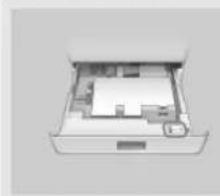
CANON WG7550Z - Ajuste as margens da unidade de alimentação de cassete (opcional) - 2

natural_image Open office drawer with internal compartments and doorways (no text or symbols visible)

Start margin adjustment for Drawer 3 and Drawer 4.

Check the adjustment values indicated on the label attached to Drawer 3 in the position shown on the left, then enter the values on the next screen.

Start

2 Insira os valores para e que você marcou na tela na etapa 1.
3 Coloque a gaveta para papel na máquina novamente.

A CUIDADO

Tome cuidado para não prender seus dedos ao empurrar a gaveta para papel.

A seguir, imprima e verifique o padrão de verificação de ejetor.

Imprima e verifique o padrão de verificação de ejetor

Imprima e cheque o padrão de verificação de ejetor para verificar a condição da cabeça de impressão. Se aparecerem listras ou irregularidade no resultado de impressão, faça uma limpeza.

Carregue papel comum A3, 11x17, LTR ou A4 na gaveta para papel. Recomenda-se carregar no mínimo 10 folhas de papel A3 ou 11x17.

  • Antes de prosseguir, espere a conclusão do abastecimento de tinta.
  • Uma barra de progresso é exibida até que o abastecimento da tinta seja concluído.

CANON WG7550Z - Imprima e verifique o padrão de verificação de ejetor - 1

text_image Processing... Do not turn OFF the device.

1
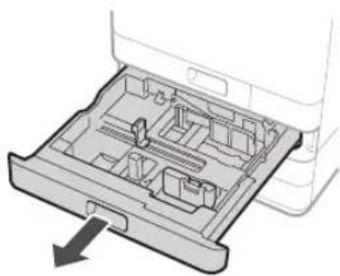
CANON WG7550Z - Imprima e verifique o padrão de verificação de ejetor - 2

natural_image Diagram of a device's internal structure showing a tray with internal compartments and an arrow indicating direction (no text or symbols)

2
CANON WG7550Z - Imprima e verifique o padrão de verificação de ejetor - 3

natural_image Diagram of a printer drawer with a paper clip being inserted, showing no text or symbols

Carregue papel de lado para coincidir com as guias do papel.

3 Pressione e imprima um padrão.

CANON WG7550Z - Imprima e verifique o padrão de verificação de ejetor - 4

text_image Nozzle Check Pattern Print the nozzle check pattern. Load 1 or more sheets of plain paper (A4, A3, 11x17, LTR) in the drawer. Start

4
CANON WG7550Z - Imprima e verifique o padrão de verificação de ejetor - 5

text_image Nozzle Check Pattern A) B) Is the printed pattern similar to A or B? A 8

Se o resultado impresso estiver bom, pressione para concluir a verificação dos jatos.

Se aparecerem listras ou irregularidade no resultado de impressão, pressione para realizar a limpeza.

CANON WG7550Z - Imprima e verifique o padrão de verificação de ejetor - 6

text_image The print head nozzles may be clogged. Do you want to start Deep Cleaning?
  • Dependendo da condição dos bicos, pode ser necessário verificar e executar a limpeza várias vezes.
  • As configurações estarão concluídas quando a tela Início for exibida.

A seguir, as configurações de conexão do serviço de monitoramento remoto e de rede.

Instalação da máquina

Configurações de conexão do serviço de monitoramento remoto e de rede

Após sair do Guia de Configuração, continue definindo as configurações para conectar a rede e um serviço de monitoramento remoto. Os itens a serem definidos dependem da conexão e do uso do serviço. Verifique as configurações que se aplicam às seguintes condições.

Se estiver usando um endereço IP fixo

Prossiga para "Conexão a uma rede com um endereço IP fixo ( ➞ Página28)".

Se estiver usando um serviço de monitoramento remoto

O que é um serviço de monitoramento remoto

Um serviço que monitora a condição da máquina e oferece diferentes serviços, como suporte de recuperação.

Prossiga para "Conexão a um serviço de monitoramento remoto (→ Página39)".

Outro

Não é obrigado a fazer configurações nas seguintes situações.

Prossiga para "Instalação do software

(→ Página14)".

  • Obter um endereço IP automaticamente com o DHCP.
  • Como apenas uma conexão USB será usada, um endereço IP não será definido.
  • Um serviço de monitoramento remoto não será usado.

Instalação do software

  • Os procedimentos descritos neste documento aplicam-se apenas ao Windows. Para obter mais detalhes sobre o procedimento de instalação do software, consulte o manual do driver.
  • Se a conexão for com USB, não conecte até que a instrução para conectar apareça na tela de instalação. Caso o tenha feito, desconecte o cabo USB do computador, feche a caixa de diálogo e realize o procedimento a seguir, iniciando pela etapa 1.
  • Drivers para macOS não são fornecidos com a sua máquina. O download dos drivers mais recentes pode ser feito no site da Canon.

1

CANON WG7550Z - 1 - 1

natural_image Diagram showing a computer monitor connected to a server unit with a circular dial (no text or symbols)

2

CANON WG7550Z - 2 - 1

text_image Canon Software Programs/Manual Coupon Easy Installation Customs Installation Inside the programs and manuals that you select. Start Software Programs Starts programs required for configuring settings, etc. Manuals Display manuals Exit

Se a tela não for exibida adequadamente, reinsira o DVD-ROM ou busque "D:\MInst. exe" na plataforma Windows (Esta descrição presume que "D:" seja o nome do drive do DVD-ROM).

A seguir, ajuste das configurações de fax

(WG7550Z/WG7550F) Página15

Ajuste das configurações de fax (WG7550Z/WG7550F)

Se sua máquina não vem com um cabo de telefone, providencie um conforme necessário.

Ajuste as configurações de fax de acordo com as instruções abaixo.

CANON WG7550Z - Ajuste das configurações de fax (WG7550Z/WG7550F) - 1

text_image Home Check Counter Copy Fax Scan Memory Media Print Secure Print Menu Address Book Paper Settings Status Monitor

1 Pressione .
2 Pressione
3 Registe o número de telefone da máquina (número de fax) e o nome de usuário abreviado (nome da unidade).

CANON WG7550Z - Ajuste das configurações de fax (WG7550Z/WG7550F) - 2

text_image Fax Setup Guide Register the unit telephone number for this device. (Fax number) Next

- As informações abaixo serão impressas na parte superior do papel na máquina de destino como informações do remetente.

CANON WG7550Z - Ajuste das configurações de fax (WG7550Z/WG7550F) - 3

text_image Número de fax Tipo do número Horário de envio Nome da unidade Número da página 07/02/2017 10:00AM CANON 2300000006TAX 0001

4 Defina o modo de recepção. Responda às perguntas sobre como você usará a função de fax para selecionar as melhores configurações.
5 Conecte a uma linha telefônica.

CANON WG7550Z - Ajuste das configurações de fax (WG7550Z/WG7550F) - 4

text_image Connect Telephone Line C B A Connect to the socket on the back side of the device. 1. Telephone Line to A 2. External Telephone Line to B End
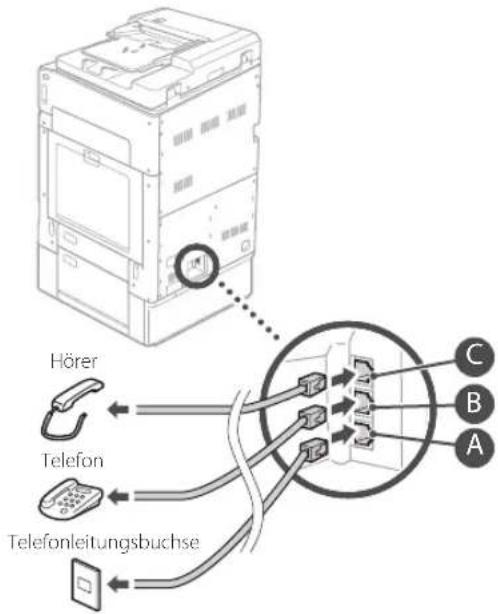
CANON WG7550Z - Ajuste das configurações de fax (WG7550Z/WG7550F) - 5

text_image Receptor telefônico Telefone Tomada de linha telefônica C B A

6 Pressione .
7 Pressione .

Configuração concluída. Sua máquina está pronta para uso.

Posicionamento dos originais

No vidro
CANON WG7550Z - Posicionamento dos originais - 1

text_image Coloque-os no canto. Coloque os originais voltados para baixo.

CANON WG7550Z - Posicionamento dos originais - 2

CANON WG7550Z - Posicionamento dos originais - 3

Ideal para digitalizar livros, revistas e recortes de jornais.

No alimentador
CANON WG7550Z - Posicionamento dos originais - 4

text_image Ajuste as guias deslizantes. Coloque os originais voltados para cima.

CANON WG7550Z - Posicionamento dos originais - 5

CANON WG7550Z - Posicionamento dos originais - 6

Ideal para digitalizar documentos com várias páginas.

Início da operação a partir do painel de operação

Painel de operação
CANON WG7550Z - Início da operação a partir do painel de operação - 1

text_image Máquina (Tecla [Poupança de energia]) (Tecla [Parar (Stop)]) (Tecla [Início]) Tela (visor)

CANON WG7550Z - Início da operação a partir do painel de operação - 2

Impressão

  1. Abra o documento que deseja imprimir e selecione a função de impressão do aplicativo.
  2. Seleção o driver da impressora para a máquina e seleção [Preferências (Preferences)] ou [Propriedades (Properties)].
  3. Especifique o tamanho do papel.
  4. Especifique a fonte do papel e o tipo de papel.
  5. Ajuste as configurações de impressão conforme necessário.
  6. Selezione [OK].
  7. Selezione [Imprimir (Print)] ou [OK].

CANON WG7550Z - Impressão - 1

text_image New Document Explorer File Edit View Insert Options Help Format: Normal Format: Normal Format Type: Normal Format Color: Normal Format Style: Normal Format Color: Normal Format Color: Normal Format Color: Normal Format Color: Normal Format Color: Normal Format Color: Normal Format Color: Normal Format Color: Normal Format Color: Normal Format Color: Normal Format Color: Normal Format Color: Normal Format Color: Normal Format Color: Normal Format Color: Normal Format Color: Normal Format Color: Normal Format Color: Normal Format Color: Normal Format Color: Normal Format Colors: Format Colors: Format Colors: Format Colors: Format Colors: Format Colors: Format Colors: Format Colors: Format Colors: Format Colors: Format Colors: Format Colors: Format Colors: Format Colors: Format Colors: Format Colors: Format Colors: Format Colors: Format Colors: Format Colors: Format Colors: Format Colors: Format Colors: Format Colors: Format Colors: Format Colors: Format Colors: Format Colors: Format Colors: Format Colors: Format Colors: Format Colors: Format Colors: Format Colors: F1 (RGB) F2 (RGB) F3 (RGB) F4 (RGB) F5 (RGB) F6 (RGB) F7 (RGB) F8 (RGB) F9 (RGB) F10 (RGB) F11 (RGB) F12 (RGB) F13 (RGB) F14 (RGB) F15 (RGB) F16 (RGB) F17 (RGB) F18 (RGB) F19 (RGB) F20 (RGB) F21 (RGB) F22 (RGB) F23 (RGB) F24 (RGB) F25 (RGB) F26 (RGB) F27 (RGB) F28 (RGB) F29 (RGB) F30 (RGB) F31 (RGB) F32 (RGB) F33 (RGB) F34 (RGB) F35 (RGB) F36 (RGB) F37 (RGB) F38 (RGB) F39 (RGB) F40 (RGB) F41 (RGB) F42 (RGB) F43 (RGB) F44 (RGB) F45 (RGB) F46 (RGB) F47 (RGB) F48 (RGB) F49 (RGB) F50 (RGB) F51 (RGB) F52 (RGB) F53 (RGB) F54 (RGB) F55 (RGB) F56 (RGB) F57 (RGB) F58 (RGB) F59 (RGB) F60 (RGB) F61 (RGB) F62 (RGB) F63 (RGB) F64 (RGB) F65 (RGB) F66 (RGB) F67 (RGB) F68 (RGB) F69 (RGB) F70 (RGB) F71 (RGB) F72 (RGB) F73 (RGB) F74 (RGB) F75 (RGB) F76 (RGB) F77 (RGB) F78 (RGB) F79 (RGB) F80 (RGB)

Para mais detalhes
CANON WG7550Z - Impressão - 2
"Imprimindo" no Manual On-line

CANON WG7550Z - Impressão - 3

Copiar

  1. Posicione o original.
  2. Pressione e selezione
  3. Ajuste as configurações de cópia conforme necessário.
  4. Insira a quantidade desejada de cópias.
  5. Selezione

Configurações úteis de cópia

no 1
Frente e verso ou 1 lado
Aumentar ou diminuir
■opiar cartões de identificação

CANON WG7550Z - Configurações úteis de cópia - 1

CANON WG7550Z - Configurações úteis de cópia - 2

text_image Copy Select Color B&W 100% Paper LTR Number of Copies 1 2 Select Out R is 1 Off Other Settings Reset Start Status Monitor

Para mais detalhes
→ "Cópia" no Manual On-line

CANON WG7550Z - Configurações úteis de cópia - 3

Digitalização

  1. Posicione o original.
  2. Pressione e selecione
  3. Seleccione o tipo de digitalização e insira as informações necessárias.
  4. Pressione ou .

CANON WG7550Z - Digitalização - 1

text_image Scan Select a scan type. Computer USB Memory E-Mail T-File File Status Monitor

Para mais detalhes
"Digitalização" no Manual On-line

Tipos de digitalização

■rmazenar no dispositivo de memória USB
Enviar por e-mail
Enviar para servidor de arquivos

Para digitalizar a partir de um computador

WG Scan Utility

CANON WG7550Z - Para digitalizar a partir de um computador - 1

Envio de fax (WG7550Z/WG7550F)

  1. Posicione o original.
  2. Pressione e selezione .
  3. Insira as informações do destinatário.
  4. Ajuste as configurações de fax conforme necessário.
  5. Selezione

Funções úteis de fax

Transmissão sequencial
Recepção de memória
C Fax

CANON WG7550Z - Funções úteis de fax - 1

CANON WG7550Z - Funções úteis de fax - 2

text_image Fax 03/16/2018 4:05AM Specify a destination Enter Dest. 1 2 ABC 3 DEF Hack 4 GSM 5 DEL 6 MINO 7 PQRS 8 TEN 9 MAYA 10 EON 11 FIRE 12 HUNT 13 MUSH 14 KON 15 LUX 16 METH 17 NATI 18 SWEY 19 BUTY 20 LPGY 21 MFGY 22 NFEY 23 SWEY 24 BUTY 25 METHY 26 NFEY 27 SWEY 28 BUTY 29 METHY 30 NFEY 31 SWEY 32 BUTY 33 METHY 34 NFEY 35 SWEY 36 BUTY 37 METHY 38 NFEY 39 SWEY 40 BUTY 41 METHY 42 NFEY 43 SWEY 44 BUTY 45 METHY 46 NFEY 47 SWEY 48 BUTY 49 METHY 50 NFEY

Para mais detalhes
"Envio de fax" no Manual On-line

Carregando papel na gaveta para papel

A seguir, as operações comuns às gavetas para papel 1 e 2 são descritas usando a gaveta 2 como exemplo.

1
CANON WG7550Z - Carregando papel na gaveta para papel - 1

natural_image Diagram of a device's internal structure showing a tray with internal compartments and an external casing (no text or symbols)

2

Deslize os puxadores para ajustar as posições das guias do papel.

CANON WG7550Z - Carregando papel na gaveta para papel - 2

text_image Alinhe a protrusão com a marcação correspondente ao tamanho de papel apropriado.

3

Primeiro, abane bem a pilha de papel e carregue-a.

CANON WG7550Z - Carregando papel na gaveta para papel - 3

text_image Certifique-se de não exceder essa linha. Face de impressão para cima

Carregue o papel de lado para coincidir com as guias do papel.

4

Coloque a gaveta para papel na máquina novamente.

CUIDADO

Tome cuidado para não prender seus dedos ao empurrar a gaveta para papel.

Se você modificou o tipo de papel, certifique-se de alterar as configurações do papel.

1 Pressione a selezione

2 Especifique o tamanho e tipo de papel de acordo com a tela.

Carregando papel na bandeja multiuso

1
CANON WG7550Z - Carregando papel na bandeja multiuso - 1

natural_image Diagram of a mechanical assembly with a clamping device and directional arrow (no text or symbols)

2
Ajuste a posição das guias do papel.
CANON WG7550Z - Carregando papel na bandeja multiuso - 2

text_image Extensão do tabuleiro Alinhe as guias do papel com as marcações correspondentes ao tamanho de papel.

OBSERVAÇÃO

Puxe a extensão do tabuleiro ao carregar papel de tamanho grande.

3

Abane bem a pilha de papel, alinhe as extremidades em uma superfície reta e carregue-a.
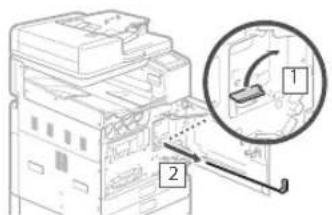
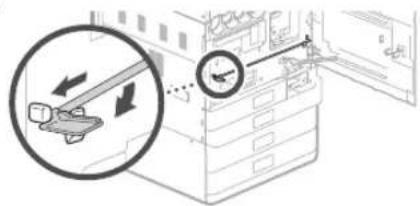
Certifique-se de não exceder essa linha.

CANON WG7550Z - OBSERVAÇÃO - 1

text_image Face de impressão para baixo

4 Verifique o tamanho e o tipo de papel e pressione na tela.

CANON WG7550Z - Verifique o tamanho e o tipo de papel e pressione  na tela. - 1

text_image Multi-Purpose Tray Auto Recognize Size Standard Size Custom Size Envelope Postcard LTR Paper Type Plain 1 (64-75 g/m²) Change Ppr. Type Apply

Se a configuração para o tamanho/tipo de papel não corresponder ao papel carregado na tela exibida na etapa 4, altere a configuração manualmente.

1

Pressione .

CANON WG7550Z - Verifique o tamanho e o tipo de papel e pressione  na tela. - 2

text_image Multi-Purpose Tray Cannot recognize the paper size. ■ Paper Type Plain 1 (64-75 g/m²) Change Ppr. Type Auto Recognize Size Standard Size Custom Size Envelope Postcard Apply

Especifique o tamanho do papel.

2

Pressione .

CANON WG7550Z - Verifique o tamanho e o tipo de papel e pressione  na tela. - 3

Especifique o tipo de papel.

3

Pressione

A máquina não está respondendo

Verifique o seguinte.

• A alimentação está ligada?
- A máquina está no modo de descanso?

Se a tela e o não estiverem acesos, pressione o interruptor de alimentação.

CANON WG7550Z - A máquina não está respondendo - 1

text_image Interruptor de alimentação

- O cabo de alimentação está conectado corretamente?

CANON WG7550Z - A máquina não está respondendo - 2

text_image Diagram showing a server rack with a magnified inset highlighting a device's cable attachment point.

Se o problema persistir, consulte o Manual On-line.

Ocorreu um atolamento de papel

Quando o papel estiver atolado, aparece uma tela similar à exibida abaixo.

Resolva os atolamentos de papel de acordo com as instruções na tela.

CANON WG7550Z - Ocorreu um atolamento de papel - 1

text_image Device Paper Jam Open transport unit cover 2. Previous 2/7 Next

Substituição dos consumíveis

Cartucho de tinta

CANON WG7550Z - Cartucho de tinta - 1

Cartucho de tinta genuíno Canon

Padrão

• Preto PGI-7500
• Ciano PGI-7500
• Magenta PGI-7500
• Amarelo PGI-7500

Grande

• Preto PGI-7500XL
• Ciano PGI-7500XL
• Magenta PGI-7500XL
• Amarelo PGI-7500XL

Cartucho de manutenção

CANON WG7550Z - Cartucho de manutenção - 1

• Maintenance Cartridge MC50

Os resultados de impressão não estão satisfatórios

Primeira solução

Você verificou o papel e a qualidade de impressão?

Verifique se as configurações no painel de operação ou no driver da impressora correspondem ao tamanho de papel, o tipo de papel e a qualidade de impressão desejados.

P.18 "Carregando papel na gaveta para papel"

P.16 "Impressão"

Se as configurações forem correspondentes, aumente as configurações de qualidade de impressão "resolução" e imprima novamente. Aumentar as configurações de qualidade de impressão "resolução" no painel de operação da máquina ou no driver da impressora pode melhorar os resultados.

OBSERVAÇÃO

Dependendo das configurações para , e , as cores podem ficar claras.

As impressões estão desbotadas/as cores aparecem diferente/aparecem linhas brancas

Solução 1

Você verificou se há entupimento da cabeça de impressão?

Imprima um padrão de verificação de ejetor e faça a limpeza da cabeça de impressão, etc. conforme requerido.

P.22 "Imprimindo/verificando um padrão de verificação de ejetor"

Solução 2

Você realizou a correção de cores (todos os tipos de papel)?

Faça a correção de cores (todos os tipos de papel).

P.23 "Realização da correção de cores (todos os tipos de papel)"

Solução 3

Se os procedimentos descritos acima não resolverem o problema, faça a correção de cores (tipo único de papel).

P.23 "Realizar correção de cores (tipo único de papel)"

Irregularidade de cor ou linhas coloridas

Solução 1

Você verificou a condição da cabeça de impressão?

Faça o diagnóstico da cabeça de impressão.

P.24 "Realização do diagnóstico da cabeça de impressão"

Solução 2

Se os procedimentos descritos acima não resolverem o problema, faça a correção de cores (tipo único de papel).

P.23 "Realizar correção de cores (tipo único de papel)"

As cores estão desalinhadas

Solução 1

Você fez o ajuste da posição da cabeça de impressão?

Ajuste a posição da cabeça de impressão para corrigir cores desalinhadas, etc.

P.24 "Alinhar a cabeça de impressão"

Os resultados de cópia não estão satisfatórios

Solução 1

O original está posicionado de forma correta sobre o vidro?

Posicione o original com o lado a ser digitalizado para baixo.

P.16 "Posicionamento dos originais"

Solução 2

Você está fazendo uma cópia de um original impresso na máquina?

Se você estiver copiando um original que foi impresso na máquina, a impressão poderá não sair bem, dependendo da foto ou documento original.

Imprima diretamente da máquina ou diretamente do computador quando possível.

Solução 3

A área de leitura da alimentação de documentos está suja?

Limpe a área de leitura da alimentação de documentos.

P.25 "Limpeza das áreas de leitura da alimentação de documentos"

Imprimindo/verificando um padrão de verificação de ejetor

Você pode imprimir um padrão de verificação de ejetor para verificar entupimento da cabeça de impressão e desalinhamento de cores.

Prepare o seguinte papel.

Para o padrão de verificação de ejetor;

Papel em que você deseja verificar listras e irregularidades (qualquer papel fino, papel comum, papel grosso (papelão), papel reciclado, papel fotográfico fosco)

Tamanho: A3, 11x17, LTR ou A4

Número de folhas: 5 ou mais

Para o ajuste da posição da cabeça de impressão: Papel comum (permitido usar papel reciclado) Tamanho: A3, 11x17, LTR ou A4 Número de folhas: 1

- Recomenda-se o uso de A3 ou 11x17.

  1. Coloque uma folha cada "para o padrão de verificação de ejetor" e "para o ajuste da posição da cabeça de impressão" em gavetas para papel diferentes ou na bandeja multiuso. Consultando o Página 18, faça também as configurações de papel.

  2. Pressione e pressione

    .
  3. Pressione ▶ Seleccione um tipo de papel▶ .

  4. Verifique o padrão de verificação de ejetor.

  5. Siga as instruções na tela para limpar a cabeça de impressão e alinhar a cabeça de impressão, conforme necessário.

Realização da correção de cores (todos os tipos de papel)

Realize a correção de cores.

Prepare o seguinte papel.

Papel comum (permitido usar papel reciclado)

Tamanho: A3, 11x17, LTR ou A4

Número de folhas: 2

- Recomenda-se o uso de A3 ou 11x17.

  1. Carregue papel em uma gaveta para papel ou na bandeja multiuso.

Consulte ➕ Página18 e defina as configurações do papel.

  1. Pressione e pressione

    .
  2. Pressione

  3. Faça a correção de cores (todos os tipos de papel).

  4. Siga as instruções na tela.

- Se a área de leitura da alimentação de documentos estiver suja, a correção pode não ser realizada corretamente.

P.25 "Limpeza das áreas de leitura da alimentação de documentos"

Realizar correção de cores (tipo único de papel)

Realize a correção de cores otimizada para cada tipo de papel.

Prepare o seguinte papel.

Papel em que você deseja corrigir as cores (qualquer papel fino, papel comum, papel grosso (papelão), papel reciclado, papel fotográfico fosco)

Tamanho: A3, 11x17, LTR ou A4

Número de folhas: 2

- Recomenda-se o uso de A3 ou 11x17.

  1. Carregue papel em uma gaveta para papel ou na bandeja multiuso.

Consulte ➕ Página18 e defina as configurações do papel.

  1. Pressione e pressione

    .
  2. Pressione .

  3. Realize a correção de cores (tipo único de papel).

- Seleccione o tipo de papel e siga as instruções na tela.

- Se a área de leitura da alimentação de documentos estiver suja, a correção pode não ser realizada corretamente.

P.25 "Limpeza das áreas de leitura da alimentação de documentos"

Realização do diagnóstico da cabeça de impressão

Faça o diagnóstico da cabeça de impressão, diagnóstico de cor e diagnóstico de alinhamento de cores e resolva os problemas.

Prepare o seguinte papel.

Papel comum (permitido usar papel reciclado)

Tamanho: A3, 11x17, LTR ou A4

Número de folhas: 5

  • Você não pode usar todas as 5 folhas.
  • Recomenda-se o uso de A3 ou 11x17.
  • Prepare papel limpo e branco em ambos os lados.
  • O diagnóstico e ajuste de imagem usam espaço no cartucho de manutenção e de tinta.

  • Carregue papel em uma gaveta para papel ou na bandeja multiuso. Consulte ➞ Página18 e defina as configurações do papel.

  • Pressione e pressione

    .
  • Pressione

  • Siga as instruções na tela.

- Se a área de leitura da alimentação de documentos estiver suja, a correção pode não ser realizada corretamente.

P.25 "Limpeza das áreas de leitura da alimentação de documentos"

Alinhar a cabeça de impressão

Ajuste a posição da cabeça de impressão para corrigir cores desalinhadas, etc.

Prepare o seguinte papel.

Papel comum (permitido usar papel reciclado)

Tamanho: A3, 11x17, LTR ou A4

Número de folhas: 1

  • Recomenda-se o uso de A3 ou 11x17.
    • Prepare papel limpo e branco em ambos os lados.

  • Carregue papel em uma gaveta para papel ou na bandeja multiuso.

Consulte ➕ Página18 e defina as configurações do papel.

  1. Pressione e pressione

    .
  2. Pressione .

  3. Siga as instruções na tela.

- Se a área de leitura da alimentação de documentos estiver suja, a correção pode não ser realizada corretamente.

P.25 "Limpeza das áreas de leitura da alimentação de documentos"

Limpeza das áreas de leitura da alimentação de documentos

Limpe de acordo com as etapas nas etiquetas encontradas no alimentador e na parte interna do vidro.

CANON WG7550Z - Limpeza das áreas de leitura da alimentação de documentos - 1

text_image Etiquetas

Use a folha de limpeza do vidro fornecida para limpar as áreas de leitura da alimentação de documentos. Use apenas a folha de limpeza do vidro para limpar as áreas de leitura da alimentação de documentos.

  1. Abra o alimentador e limpe a área de leitura da alimentação de documentos (longa faixa de vidro) ao lado do vidro com a folha de limpeza do vidro fornecida.

CUIDADO!

Não use limpa-vidros, solvente com álcool, etc. pois estes produtos podem remover o revestimento antimanchas.

CANON WG7550Z - CUIDADO! - 1

natural_image Line drawing of an open file organizer with a hand inserting a clip (no text or symbols)
  1. Limpe a área de leitura da alimentação de documentos (longa faixa de vidro) do alimentador.

  2. Abra a tampa de digitalização do documento e limpe a área de leitura da alimentação de documentos (longa faixa de vidro) e sua área oposta.

CANON WG7550Z - CUIDADO! - 2

text_image Diagram illustrating a hand holding a magnifying glass over an open device, with a magnified circular diagram showing a warning or alert mechanism.
  1. Empurre a tampa de digitalização do documento até escutar um clique, indicando seu fechamento.

  2. Feche o alimentador gentilmente.

Se ainda aparecerem riscos

Faça a limpeza do alimentador.

  1. Pressione e selezione

    .
  2. Pressione .

Conexão do serviço de monitoramento remoto e de rede

Glossário

Endereço IP Com uma conexão TCP/P, um número atribuído para identificar dispositivos em uma rede. Endereços IP existem nos formatos IPv4 e IPv6.
Máscara de sub-rede Um número para subdividir uma rede ao usar um endereço IP IPv4. A extensão de endereços IP atribuídos aos dispositivos pode ser limitada pelo usuário.
Endereço de gateway O endereço de um dispositivo que serve como gateway para comunicação entre diferentes dispositivos. Geralmente, o roteador é um gateway padrão.
DNS(Domain Name System - Sistema de nomes de domínio)Um serviço que fornece resolução de nomes para correspondência de nomes de host (nomes de domínio) com endereços IP por meio de um servidor.
Porta Basicamente, uma entrada, em que o endereço IP serve como o endereço da rua. Atribuir números de porta permite maior segurança.
Proxy O PC, software, etc. que faz a comunicação HTTP com dispositivos fora rede, atuando como um substituto, principalmente para navegação em sites, etc. Ao invés de comunicar-se diretamente fora da rede, a conexão é retransmitida para fora por meio de um servidor proxy.
Roteador Um dispositivo de comunicação para conectar uma rede e dispositivos.Estão disponíveis os tipos com e sem fio.
SSID (nome da rede) Um identificador de ponto de acesso ao usar uma LAN sem fio.
Senha (chave de rede) Uma chave de criptografia gerada ao se conectar a uma LAN sem fio.Definir uma chave de criptografia que corresponde a um SSID permite a conexão a um ponto de acesso.
Firewall Um sistema que bloqueia o acesso não autorizado de fora de uma rede e evita ataques e intrusões em uma rede a partir de uma área local.

Exemplo de conexão de rede

CANON WG7550Z - Exemplo de conexão de rede - 1

flowchart
graph TD
    A["Servidor de monitoramento remoto"] --> B["Internet"]
    B --> C["Servidor proxy"]
    C --> D["Firewall/UTM"]
    D --> E["Roteador"]
    E --> F["Switch de rede"]
    F --> G["Laptop"]
    F --> H["Laptop"]
    F --> I["Printer"]
    E --> J["Roteador sem fio"]
    J --> K["Laptop"]
    J --> L["Printer"]

Conexão do serviço de monitoramento remoto e de rede

Conexão a uma rede com um endereço IP fixo

Etapa 1 Verifique o ambiente de rede

Antes de conectar-se a uma rede com um endereço IP fixo, verifique o ambiente de rede. Consulte a lista a seguir e verifique as informações com antecedência.

Itens requeridos Observações
Ao conectar-se a uma rede com um endereço IP fixo (IPv4)
Endereço IP (o endereço IP da máquina)
Máscara de sub-rede
Endereço de gateway
Ao conectar-se por LAN sem fio
SSID para roteador sem fio
Chave de rede
Configuração de DNS*
Endereço do servidor DNS principal
Endereço do servidor DNS secundário
Configuração de Proxy*
Endereço do servidor proxy HTTP
Número de porta do servidor proxy HTTP
Nome de usuário da autenticação de proxy
Senha da autenticação de proxy

* Necessário quando usar configurações de DNS ou configurações proxy.

Etapa 2 Conecte-se a uma LAN com fio/LAN sem fio Conexão através de LAN com fio

A máquina não acompanha um cabo LAN. Tenha um em mãos.

1 Na tela Início, pressione

.

CANON WG7550Z - Etapa 2 Conecte-se a uma LAN com fio/LAN sem fio Conexão através de LAN com fio - 1

text_image Home Check Counter Copy Fax Scan Memory Media Print Secure Print Menu Address Book Paper Settings Status Monitor

2 Seleccione .

Entre em contato com o administrador da rede para obter o ID do gerenciador do sistema e o código de segurança (por padrão, definido como "7654321").

CANON WG7550Z - Etapa 2 Conecte-se a uma LAN com fio/LAN sem fio Conexão através de LAN com fio - 2

text_image Network Select Wired/Wireless LAN : Wired LAN Wireless LAN Settings Direct Connection Settings : Off TCP/IP Settings SNMP Settings Use Dedicated Port : On

3 Na tela , pressione .

CANON WG7550Z - Etapa 2 Conecte-se a uma LAN com fio/LAN sem fio Conexão através de LAN com fio - 3

text_image Select LAN Wired LAN Wireless LAN

4 Conecte o cabo de LAN.

  • Use o cabo LAN para conectar a máquina ao roteador.
  • Pressione para dentro até que o conector esteja inserido totalmente na abertura e ouvir um clique.

CANON WG7550Z - Etapa 2 Conecte-se a uma LAN com fio/LAN sem fio Conexão através de LAN com fio - 4

text_image Diagram showing connection between an electronic device and a terminal block, with a magnified inset highlighting a component detail.

Após conectado, prossiga definindo um endereço IP fixo. P.34 "Etapa 3 Configurar um endereço IP fixo"

Conexão do serviço de monitoramento remoto e de rede

Conexão a uma rede com um endereço IP fixo

Conexão através de LAN sem fio

Não conecte o cabo de LAN à máquina.

Para conectar-se a uma LAN sem fio manualmente selecionando um ponto de acesso

O "SSID (nome da rede)" e a "chave de rede (senha)" são obrigatórios. As informações necessárias podem ser verificadas antecipadamente com a lista Página28 ou entrando em contato com o administrador da rede.

1 Na tela Início, pressione

.

CANON WG7550Z - Conexão através de LAN sem fio - 1

text_image Home Check Counter Copy Fax Scan Memory Media Print Secure Print Menu Address Book Paper Settings Status Monitor

2 Seleccione e pressione .

Entre em contato com o administrador da rede para obter o ID do gerenciador do sistema e o código de segurança (por padrão, definido como "7654321").

CANON WG7550Z - Conexão através de LAN sem fio - 2

text_image Network Select Wired/Wireless LAN : Wired LAN Wireless LAN Settings Direct Connection Settings : Off TCP/IP Settings SNMP Settings Use Dedicated Port : On

3 Na tela , pressione .

CANON WG7550Z - Conexão através de LAN sem fio - 3

text_image Select LAN Wired LAN Wireless LAN

4 Na tela , pressione .

- Quando for exibido, pressione .

CANON WG7550Z - Conexão através de LAN sem fio - 4

text_image Do you want to enable the wireless LAN? Yes No

5 Verifique a mensagem e pressione .

CANON WG7550Z - Conexão através de LAN sem fio - 5

text_image For more information, refer to the manual.

6 Pressione .

CANON WG7550Z - Conexão através de LAN sem fio - 6

text_image Wireless LAN Settings SSID Settings WPS Push Button Mode WPS PIN Code Mode Power Save Mode : On Connection information

7 Pressione .

- A máquina procura por um roteador sem fio ao qual conectar.

CANON WG7550Z - Conexão através de LAN sem fio - 7

text_image SSID Settings Select Access Point Enter Manually

Se uma mensagem for exibida indicando que o ponto não foi encontrado, consulte o Manual On-line e tente procurar o ponto de acesso novamente.

Conexão do serviço de monitoramento remoto e de rede

Conexão a uma rede com um endereço IP fixo

8 Pressione o roteador sem fio ao qual você deseja conectar-se.

- Seleção o dispositivo correspondente ao SSID que você anotou e pressione .

CANON WG7550Z - Pressione o roteador sem fio ao qual você deseja conectar-se. - 1

text_image Select Access Point AccessPoint_01 WPA - PSK 6 AccessPoint_02 WPA2 - PSK 6 AccessPoint_03 WEP 2 AccessPoint_04 WPA - PSK 1 AccessPoint_05 WPA2 - PSK 2 AccessPoint_06 WEP 10 Details Next

Insira a chave de rede que você anotou.

- Insira a chave de rede e pressione

CANON WG7550Z - Insira a chave de rede que você anotou. - 1

text_image SSID :XXXXXXXXXXXX Chave de rede :XXXXXXXXXXXX ...

10 Pressione .

CANON WG7550Z - Pressione . - 1

text_image Is it OK to connect with new settings? Yes No

Se uma mensagem de erro for exibida enquanto você estiver definindo as configurações, selecione , verifique se a chave de rede está correta e reinicie a partir da etapa 4.
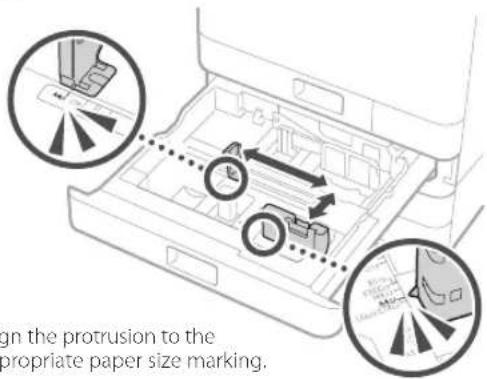
11 Após ser exibido, pressione .
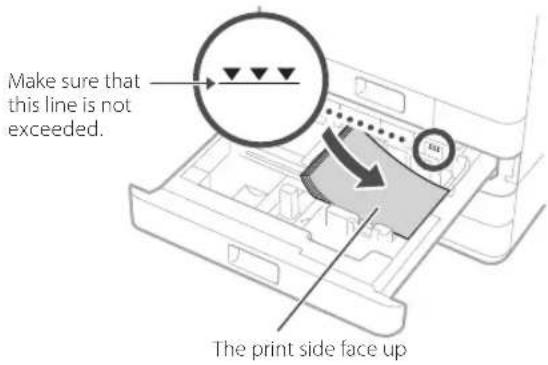
CANON WG7550Z - Após  ser exibido, pressione . - 1

text_image Connected. Close

Após conectado, prossiga definindo um endereço IP fixo. P.34 "Etapa 3 Configurar um endereço IP fixo"

Método do botão

A configuração pode ser concluída pelo método do botão se a marca a seguir aparecer na caixa de embalagem do roteador sem fio ou se esse botão estiver disponível no dispositivo.

CANON WG7550Z - Método do botão - 1

Método do código PIN WPS

Nem todos os roteadores compatíveis com WPS acomodam o método do botão e, ao invés, exigem configuração inserindo um código PIN. Verifique o código PIN WPS na caixa de embalagem ou no manual de instruções.

Se o roteador sem fio estiver configurado para usar autenticação WEP, pode não ser possível conectar-se por WPS.

Para inserir informações manualmente

Se desejar especificar em detalhes as configurações de segurança, como autenticação e criptografia, insira e defina o SSID e a chave de rede você mesmo(a).

Conexão do serviço de monitoramento remoto e de rede

Conexão a uma rede com um endereço IP fixo

Etapa 3 Configurar um endereço IP fixo

Configurar um endereço IPv4

Um endereço IPv4 pode ser definido com "Aquisição Automática" para atribuir um endereço automaticamente usando DHCP ou com "Adquirir Manualmente", permitindo que você mesmo(a) insira informações. Para definir um endereço IP fixo, use "Adquirir Manualmente".

  • Ao definir um endereço IP fixo, são necessários um "endereço IP", uma "máscara de sub-rede" e um "endereço de gateway". Dependendo da sua configuração de rede, outras informações além de um endereço IP, máscara de sub-rede e endereço de gateway podem ser necessárias. Entre em contato com o administrador da rede para obter as informações necessárias.
  • Para definir um endereço IPv6, consulte o Manual On-line.

1 Na tela Início, pressione

.

CANON WG7550Z - Configurar um endereço IPv4 - 1

text_image Home Check Counter Copy Fax Scan Memory Media Print Secure Print Menu Address Book Paper Settings Status Monitor

2 Seleção ▶<Rede (Network).

  • Quando a tela de login for exibida, insira o ID do gerente do sistema e o código de segurança.
  • Entre em contato com o administrador da rede para obter o ID do gerenciador do sistema e o código de segurança (por padrão, definido como "7654321").

CANON WG7550Z - Configurar um endereço IPv4 - 2

text_image

Preferences Display Settings English Keyboard Layout : USA Layout Timer/Energy Settings Network External Interface Accessibility

3 Seleccione .

CANON WG7550Z - Configurar um endereço IPv4 - 3

text_image TCP/IP Settings IPv4 Settings IPv6 Settings : Off DNS Settings WINS Settings : Off LPD Settings : On RAW Settings : On

4 Na tela , pressione e, em , pressione .

CANON WG7550Z - Configurar um endereço IPv4 - 4

text_image IP Address Settings (Auto Acquire) Auto Acquire Off On Select Protocol : DHCP Auto IP : On Apply

Para usar uma conexão DHCP, defina a como e como .

5 Pressione .

CANON WG7550Z - Configurar um endereço IPv4 - 5

text_image IP Address Settings Auto Acquire : Off Manually Acquire Check Settings

É necessário primeiro definir como na etapa 4 antes de poder pressionar .

6 Insira o , a , o e pressione .

CANON WG7550Z - Configurar um endereço IPv4 - 6

text_image IP Address Settings (Manually Acquire) IP Address 1 2 3 4 5 6 7 8 9 C 0 Apply

7 Reinicie a máquina. • Desligue a máquina, espere 10 segundos e ligue a máquina novamente.

CANON WG7550Z - Configurar um endereço IPv4 - 7

text_image Settings configured. Changes will be effective after the main power is turned OFF and ON.

Conexão do serviço de monitoramento remoto e de rede

Conexão a uma rede com um endereço IP fixo

Configuração do DNS

O DNS (Domain Name System - Sistema de nomes de domínio) é uma informação para correspondência de nomes de host com endereços IP. Se o endereço IP estiver sendo obtido automaticamente, as informações de DNS necessárias serão definidas automaticamente. Se você está digitando o endereço IP manualmente, você também deve inserir as informações de DNS manualmente.

Se você deve ou não definir o DNS depende da configuração da rede. Entre em contato com o administrador da rede para verificar a necessidade de configurar o DNS em seu ambiente e obter as informações de configuração necessárias.

1 Seleção

e pressione .
  • Quando a tela de login for exibida, insira o ID do gerente do sistema e o código de segurança.
  • Entre em contato com o administrador da rede para obter o ID do gerenciador do sistema e o código de segurança (por padrão, definido como "7654321").

CANON WG7550Z - Configuração do DNS - 1

text_image TCP/IP Settings IPv4 Settings IPv6 Settings : Off DNS Settings WINS Settings : Off LPD Settings : On RAW Settings : On

2 Pressione .

CANON WG7550Z - Configuração do DNS - 2

text_image DNS Settings IPv4 DNS Server Address Settings DNS Host Name/Domain Name Settings DNS Dynamic Update Settings mDNS Settings

3 Pressione .

CANON WG7550Z - Configuração do DNS - 3

text_image IPv4 DNS Server Address Settings Primary DNS Server : 192.168.159.2 Secondary DNS Server : 0.0.0.0

4 Insira o endereço IP do servidor DNS primário e pressione .

- Pressione para retornar à tela anterior.

CANON WG7550Z - Insira o endereço IP do servidor DNS primário e pressione . - 1

text_image Primary DNS Server 0 0 0 1 2 3 4 5 6 7 8 9 C 0 Apply

5 Se necessário, selecione e insira o endereço IP do servidor DNS secundário.

CANON WG7550Z - Se necessário, selecione  e insira o endereço IP do servidor DNS secundário. - 1

text_image Secondary DNS Server 1 2 3 4 5 6 7 8 9 C 0 Apply

6 Defina os itens restantes conforme necessário.

  • Para obter detalhes sobre as informações de definição, consulte o Manual On-line.
  • O Manual On-line descreve como concluir as configurações com a Interface Remota. Faça as configurações no painel de controle ou na Interface Remota.

CANON WG7550Z - Defina os itens restantes conforme necessário. - 1

text_image DNS Settings IPv4 DNS Server Address Settings DNS Host Name/Domain Name Settings DNS Dynamic Update Settings mDNS Settings

7 Reinicie a máquina.

- A tela exibida à direita é exibida sempre que as configurações são inseridas. Se você estiver fazendo configurações várias vezes, reinicie a máquina após finalizar todas as configurações.

CANON WG7550Z - Reinicie a máquina. - 1

text_image Settings configured. Changes will be effective after the main power is turned OFF and ON.

Para mais detalhes

"Inicialização da Interface Remota", "Problemas de instalação/configuração" no Manual On-line

Conexão do serviço de monitoramento remoto e de rede

Conexão a uma rede com um endereço IP fixo

Etapa 4 Verifique a conexão

Verificar se a máquina foi conectada corretamente

Digitar o endereço IP diretamente em um PC na mesma rede da máquina exibe a tela da Interface Remota. A máquina se conectou à rede corretamente se a tela da Interface Remota for exibida.

1 Inicie o navegador.

2 Na barra de endereço, digite "http:///" e pressione [ENTER] no teclado no teclado.

3 A tela da Interface Remota é exibida.

- Se a tela mostrada à direita for exibida, a máquina está conectada corretamente.

- Se a tela da Interface Remota não for exibida, consulte o Manual On-line e verifique a conexão de rede.

CANON WG7550Z - Verificar se a máquina foi conectada corretamente - 1

text_image http://192.168.1.20/

CANON WG7550Z - Verificar se a máquina foi conectada corretamente - 2

text_image CaspS Login System Manager Model System Manager ID System Manager MIR General User Model Login format: Begined user can log a password using the user name. Properties of any user: Log 10 Login you, please check your account.

Para usar um serviço de monitoramento remoto

Prossiga e conecte-se a um serviço de monitoramento remoto e conclua as configurações. -ágina39

Se não estiver usando um serviço de monitoramento remoto

Continue as configurações de "Instalação do software". → Página14

Conexão a um serviço de monitoramento remoto

Procedimentos antes de usar um serviço

Antes de usar um serviço, são necessários procedimentos para verificar a conexão de rede e o teste de comunicação com o servidor de monitoramento.

- Verifique a conexão de rede

Verifique se a máquina está conectada ao servidor. P.34 "Etapa 3 Configurar um endereço IP fixo"

Antes de poder usar um serviço de monitoramento remoto, verifique se há uma conexão com a Internet disponível.

Para usar um servidor proxy

1 Inicie a Interface Remota e use o modo de administrador ao efetuar o login.

CANON WG7550Z - Para usar um servidor proxy - 1

text_image Canon Logis WNTM000000 - WNTM0000000 System Manager Bus System Manager No System Manager PFS Connection Bus Start Number Terminal point can log it allowed nothing that user name. Begining 12 years PFS OK OK Copyright © Copyright © 2017

2 Na página do portal, clique em [Configurações/Registro (Settings/Registration)].

CANON WG7550Z - Para usar um servidor proxy - 2

text_image Remote UI Portal Device Status Product Name: Smart Number Location: Language: Search Engine: Search Engine: Device Base Information Device Status Access to your Name: Access for your File: Accounting up Easy Information No access Documental Information Direct Compensation Details... Paper Information Device Count New user New User New User System Tools System Tools System Tools System Tools System Tools System Tools System Tools System Tools System Tools System Tools System Tools System Tools System Tools System Tools System Tools System Tools System Tools System Tools System Tools System Tools System Tools System Tools System Tools System Tools System Tools System Tools System Tools System Tools System Tools System Tools System Tools System Tools System Tools System Tools

3 Seleccione [Configurações de Rede (Network Settings)] ▶ [Configurações de Proxy (Proxy Settings)] e clique em [Editar (Edit)].

CANON WG7550Z - Para usar um servidor proxy - 3

text_image Settings/Registration Preferences Page Settings Display Settings New Settings Database Settings Desired Database Settings Accessibility Settings Local Inclusion Control Accession Settings Common Settings Copy Settings Make Settings Other Settings Settings/Registration Preferences/Database Settings / Proxy Settings. Proxy Settings No Proxy Off X

Conexão do serviço de monitoramento remoto e de rede

Conexão a um serviço de monitoramento remoto

4

Selecione [Usar Proxy (Use Proxy)] e insira as informações necessárias.

CANON WG7550Z - 4 - 1

text_image Settings/Registration Preferences Paper Settings Display Settings Timer Settings Network Settings External Interface Settings Accessibility Settings Sound Volume Control Function Settings Common Settings Copy Settings Printer Settings FX Settings Edit Proxy Settings Change the following settings. OK Cancel Proxy Settings Use Proxy HTTP Proxy Server Address: HTTP Proxy Server Port Number: 30 Use Proxy within Same Domain Use Proxy Authentication User Name: Set/Change Password: Password:

[Usar Proxy (Use Proxy)]

Seleccionar esta opção permite que o servidor proxy especificado seja usado quando a máquina iniciar a comunicação HTTP.

[Endereço do Servidor Proxy HTTP (HTTP Proxy Server Address)]

Digite o endereço do servidor proxy a ser usado. Defina um endereço IP, nome do host, etc. de acordo com o seu ambiente.

[Número de Porta do Servidor Proxy HTTP (HTTP Proxy Server Port Number)]

Digite o número da porta do servidor proxy a ser usado.

[Usar Proxy no Mesmo Domínio (Use Proxy within Same Domain)]

Seleccionar esta opção permite que o servidor proxy especificado também seja usado quando a máquina iniciar a comunicação com um dispositivo no mesmo domínio.

[Usar Autenticação Proxy (Use Proxy Authentication)]

Para usar a autenticação por um servidor proxy, selecione esta opção e insira o nome de usuário a ser autenticado em [Nome de Usuário (User Name)].

[Definir/Alterar Senha (Set/Change Password)]

Para definir ou alterar a senha quando a autenticação proxy estiver sendo usada, selecione esta opção e insira a nova senha em [Senha (Password)].

5

Clique em [OK].

- Teste de comunicação com o servidor de monitoramento

Realize um teste de comunicação com o servidor de monitoramento. O serviço de monitoramento remoto inicia-se com a realização do teste de comunicação.

Teste de comunicação com o servidor de monitoramento

1 Na tela Início, pressione

CANON WG7550Z - - Teste de comunicação com o servidor de monitoramento - 1

text_image Home Check Counter Copy Fax Scan Memory Media Print Secure Print Menu Address Book Paper Settings Status Monitor

2 Pressione .

CANON WG7550Z - - Teste de comunicação com o servidor de monitoramento - 2

text_image Check Counter 101: Total 1 : 3 108: Total (Black & White 1) : 2 125: Total (Full Color + Single Color 1) : 1 Monitoring Service Check Dev. Config. Close

3 Pressione

CANON WG7550Z - - Teste de comunicação com o servidor de monitoramento - 3

text_image Monitoring Service Communication Test

Conexão do serviço de monitoramento remoto e de rede

Conexão a um serviço de monitoramento remoto

4 Quando a tela mostrada à direita for exibida, pressione .

CANON WG7550Z - Conexão a um serviço de monitoramento remoto - 1

text_image After the communication test is performed, information will be regularly sent to the server. Is it OK? Yes No

5 é exibido.

A configuração foi concluída.

CANON WG7550Z - Conexão a um serviço de monitoramento remoto - 2

text_image Communication was successful.
  • Se for exibida uma mensagem de erro, consulte P.43 "Possíveis erros e resolução de problemas" e verifique as configurações.
  • Quando as configurações estiverem concluídas, recomenda-se imprimir uma lista de dados do administrador e mantê-la junto a este manual. Note que o relatório impresso será de cerca de 10 páginas. Seleccione ▶Lista de Dados de Gerente do Sistema (System Manager Data List)> ▶ Verifique se o papel exibido está carregado e pressione .

Após conectado

Continue as configurações de "Instalação do software".→Página14

Possíveis erros e resolução de problemas

Se for exibida uma mensagem de erro

A tela de erro exibe um código de erro. Verifique detalhes e soluções para códigos de erro na tabela abaixo para solucionar problemas.

CANON WG7550Z - Se for exibida uma mensagem de erro - 1

text_image Communication failed. E810f-200b Close Código de erro

Se ocorrer um erro e o código não estiver indicado, ou se a solução oferecida não resolver o problema, visite o local onde adquiriu o equipamento ou faça uma consulte a página de suporte no site da Canon.

Configurações de Proxy

Código de erro Causa Solução
8000 200A Erro ao conecte-se a um serviço de monitoramento remoto:• Falha de comunicação TCP/IP• Endereço IP não definido para este dispositivoPara usar um servidor proxy, defina as configurações de proxy e verifique o status do servidor proxy.
8000 200B Falha na resolução do endereço para o servidor de monitoramento remotoVerifique se a rede à qual a máquina está conectada é um ambiente com habilidade de conectar-se à internet.
8000 2014 O endereço definido não é válido e a máquina não pode se conectar ao servidor proxyVerifique e redefina o endereço IP/número da porta para o servidor proxy.
8000 2015 O endereço do servidor proxy está registrado com o nome do host, mas a conexão com o servidor designado não é possível com a resolução de nomes• Verifique o nome do host do servidor proxy e a configuração de DNS.• Configure o servidor proxy com um endereço IP.
8000 201EFalha ao autenticar o servidor proxyVerifique e redefina o nome de usuário e senha para fazer o login no servidor proxy.

Conexão do serviço de monitoramento remoto e de rede

Conexão a um serviço de monitoramento remoto

Configurar Data/Hora e Atualização de Firmware

Código de erro Causa Solução
8000 2028 Erro de certificado do servidor:O horário e data do dispositivo estão incorretosO certificado raiz para o servidor não está registrado no dispositivoO usuário está usando um certificado diferente e o arquivo de certificado oficial não está registradoDefina o horário e data corretos no dispositivo.Se o horário e data do dispositivo estiverem corretos, atualize para o firmware mais recente.
8000 2029 Erro ao verificar a URL de certificado do servidor
8000 2046 Certificado do servidor vencido:A data do dispositivo é posterior à data de vencimento do certificadoO certificado raiz registrado no dispositivo expirouO primeiro certificado raiz registrado pelo usuário está sendo usado e o arquivo de certificado oficial não está registrado

Realização de um teste de comunicação

Código de erro Causa Solução
0000 0003 Não háprogramação/teste de comunicação não foi concluídoExecute e conclua o teste de comunicação.
8000 0101 Erro deresposta do servidor de monitoramento remoto
8000 02078000 0208Programação interna inválida
8000 2000 Outroerro de comunicação
8000 0304 Erro deconsumo de sinal durante o teste de comunicaçãoEspere e execute o teste de comunicação novamente.
8000 2004Conseguiu comunicar-se com o servidor de monitoramento remoto, mas ocorreu um erro
8000 2047 O tempode resposta do servidor de monitoramento remoto terminou
8000 2003 O testede comunicação foi executado enquanto a conexão de rede ainda não estava pronta, imediatamente após a ativação ou desativação do dispositivo principalApós ligar o dispositivo, espere cerca de 60 segundos antes de executar o teste de comunicação.

Apêndice

Instruções de segurança importantes

Este capítulo descreve instruções de segurança importantes para prevenir lesões nos usuários da máquina e em outras pessoas, além de danos à propriedade. Leia este capítulo antes de usar a máquina e siga as instruções de uso da máquina de forma correta. Não realize operações não descritas neste manual. A Canon não se responsabilizará por danos resultantes de operações não descritas neste manual, uso inadequado, consertos ou modificações não realizadas pela Canon ou por um parceiro autorizado da Canon. A operação ou o uso inadequados desta máquina podem resultar em lesões corporais e/danos que exigem reparos extensivos e que podem não ser cobertos pela garantia limitada.

ATENÇÃO

Indica um aviso a respeito de operações que podem levar à morte ou ao ferimento de pessoas que não estiverem corretamente informadas. Para usar a máquina com segurança, sempre preste atenção a esses avisos.

CUIDADO

Indica uma precaução a respeito de operações que podem levar ao ferimento de pessoas que não estiverem corretamente informadas. Para usar a máquina com segurança, sempre preste atenção a essas precauções.

IMPORTANTE

Indica requerimentos e restrições operacionais. Você deve ler esses itens com cuidado para operar a máquina corretamente e evitar danos à máquina ou à propriedade.

Instalação

Para usar esta máquina com segurança e sem problemas, leia atentamente as seguintes precauções e instale a máquina em um local adequado.

ATENÇÃO

Não a instale em um local que possa resultar em incêndio ou choque elétrico

  • Um local em que as aberturas de ventilação estejam bloqueadas (muito próximas a paredes, camas, sofás, tapetes ou objetos similares)
  • Um local úmido ou empoeirado
  • Um local exposto à luz solar direta ou em ambientes externos
  • Um local sujeito a altas temperaturas
  • Um local exposto a chamas abertas
  • Próximo a álcool, diluidores de tinta ou outras substâncias inflamáveis

Outros avisos

  • Não conecte cabos não aprovados a esta máquina. Isso pode resultar em incêndio ou choque elétrico.
  • Não coloque colares ou outros objetos metálicos, ou ainda recipientes com líquidos sobre a máquina. Se substâncias externas entrarem em contato com as partes elétricas dentro da máquina, poderá acontecer um incêndio ou choque elétrico.

  • Ao instalar e remover os acessórios opcionais, desligue a alimentação, desconecte o plugue elétrico e desconecte todos os cabos de interface e o cabo de alimentação da máquina. Caso contrário, isso pode acarretar em danos ao cabo de alimentação ou aos cabos de interface, resultando em incêndio ou choque elétrico.

  • Se alguma substância externa cair dentro da máquina, desconecte o plugue de alimentação da tomada AC e entre em contato com um distribuidor ou central de serviço.

Não instale nos seguintes locais

A máquina pode cair, resultando em lesões.

- Um local instável

- Um local exposto a vibrações

CUIDADO

Não instale nos seguintes locais

Fazê-lo pode resultar em danos à máquina.

  • Um local sujeito a temperaturas e umidade extremas, sejam elas baixas ou altas
  • Um local sujeito a mudanças drásticas de temperatura ou umidade
  • Um local próximo a equipamento que gere ondas magnéticas ou eletromagnéticas
  • Um laboratório ou local onde ocorram reações químicas
  • Um local exposto a gases corrosivos ou tóxicos
  • Um local que possa deformar com o peso da máquina ou em que a máquina possa afundar (um tapete, etc.)

Suportes (apenas para produtos com suportes)

Não remova os suportes da máquina após a máquina haver sido instalada, pois isso por fazer com que a máquina caia ou tombe, resultando em lesões.

Quando usar a LAN sem fio (apenas para produtos com função de LAN sem fio)

  • Instale a máquina a uma distância de 50 metros ou menos do roteador de LAN sem fio.
  • Conforme possível, instale em um local em que a comunicação não seja bloqueada por objetos intermediários. O sinal pode se
    deteriorar ao passar por paredes ou pisos.
  • Mantenha a máquina o mais distante possível de telefones digitais sem fio, fornos microondas ou outros equipamentos que emitam ondas de rádio.

CUIDADO

Quando utilizar uma unidade de alimentação de cassete com a impressora Canon WG7000 Series, siga as instruções no manual para fixar firmemente a impressora à unidade de alimentação de cassete. Sempre use as seguintes combinações de impressora e unidade de alimentação de cassete. Canon WG7000 Series: Use a Canon Cassette Feeding Unit CF10.

Usar uma combinação de impressora e unidade de alimentação de cassete diferente da mostrada acima, usar uma unidade de alimentação de cassete não indicada acima ou não fixar a impressora à unidade de alimentação de cassete pode causar instabilidade e resultar em ferimentos.

Fonte de alimentação

ATENÇÃO

- Use uma fonte de alimentação que satisfaça os requisitos especificados de voltagem. A não observância desta regra pode resultar em incêndio ou choque elétrico.

- Não use cabos de alimentação diferentes dos cabos fornecidos, pois isso pode resultar em incêndio ou choque elétrico.

- O cabo de alimentação fornecido foi desenvolvido para uso com esta máquina. Não conecte o cabo de alimentação a outros aparelhos.

- Não modifique, puxe, dobre à força ou realize outras ações que possam danificar o cabo de alimentação. Não posicione objetos pesados sobre o cabo de alimentação. Danificar o cabo de alimentação pode resultar em incêndio ou choque elétrico.

- Não conecte ou desconecte o plugue de alimentação com as mãos molhadas, pois isso pode resultar em choque elétrico.

- Não use extensões elétricas ou conecte adaptadores para tomadas múltiplas à máquina. Isso pode resultar em incêndio ou choque elétrico.

- Não enrole ou faça um nó no cabo de alimentação, pois isso pode resultar em incêndio ou choque elétrico.

- Insira o plugue de alimentação inteiramente na tomada AC. A não observância desta regra pode resultar em incêndio ou choque elétrico.

- Remova o plugue de alimentação inteiramente da tomada AC durante uma tempestade (trovoada). A não observância desta regra pode resultar em incêndio, choque elétrico ou danos à máquina.

- Certifique-se de que a fonte de alimentação da máquina é segura e possui voltagem estável.

- Mantenha o cabo de alimentação distante de fontes de calor; a não observância desta regra pode causar o derretimento da camada protetora do cabo de alimentação, resultando em incêndio ou choque elétrico.

- Se a parte de conexão do cabo de alimentação for submetida a pressão excessiva, o cabo de alimentação pode ser danificado ou a fiação dentro da máquina pode desconectar. Isso pode resultar em incêndio. Evite as seguintes situações:

- Conectar e desconectar o cabo de alimentação com frequência.

- Tropeçar no cabo de alimentação.

- O cabo de alimentação apresenta uma dobra próxima à parte de conexão e uma pressão contínua é exercida sobre a tomada ou a parte de conexão.

- Aplicar força excessiva sobre o plugue de alimentação.

CUIDADO

- Instale esta máquina próximo a uma tomada e deixe espaço suficiente ao redor da tomara para que a máquina possa ser desconectada facilmente em caso de emergência.

IMPORTANTE

Ao conectar a alimentação

  • Não conecte o cabo de alimentação a uma fonte de energia ininterrupta. Essa ação pode resultar em mal funcionamento ou dano à máquina caso ocorra uma queda de energia.
  • Se você conectar a máquina a uma fonte de energia CA com vários soquetes de alimentação, não use os outros soquetes para conectar outros dispositivos.
  • Não conecte o cabo de alimentação à fonte de energia auxiliar CA de um computador.

Outras precauções

Ruído elétrico pode causar o mal funcionamento da máquina ou ocasionar a perda de dados.

Manuseio

ATENÇÃO

  • Desconecte o plugue de alimentação imediatamente da tomada de alimentação CA e entre em contato com um revendedor ou central de serviço se a máquina fizer um ruído fora do comum, emitir odor fora do comum ou emitir fumaça ou calor excessivo. O uso contínuo pode resultar em incêndio ou choque elétrico.
  • Não desmonte ou modifique a máquina. Há componentes de alta voltagem e alta temperatura dentro da máquina. A desmontagem ou modificação pode resultar em încêndio ou choque elétrico.
  • Coloque a máquina em um local em que crianças não possam entrar em contato com o cabo de alimentação e outros cabos ou equipamentos e partes elétricas dentro da máquina. A não observância desta instrução pode resultar em acidentes inesperados.
  • Não use sprays inflamáveis próximo à máquina. Se substâncias inflamáveis entrarem em contato com partes elétricas dentro da máquina, é possível que ocorra um incêndio ou choque elétrico.
  • Ao mover esta máquina, desligue a alimentação da máquina e desconecte o plugue elétrico e os cabos de interface. A não observância desta instrução pode danificar o cabo de alimentação ou os cabos de interface, resultando em incêndio ou choque elétrico.
  • Ao conectar ou desconectar um cabo USB quando o plugue de alimentação estiver conectado a uma tomada de alimentação CA, não toque a parte metálica do conector, pois pode resultar em choque elétrico.

Se estiver usando um marcapasso

Esta máquina gera um fluxo magnético de baixo nível. Se você usar um marcapasso cardíaco e sentir anormalidades, distancie-se da máquina e entre em contato com seu médico imediatamente.

CUIDADO

  • Não coloque objetos pesados sobre a máquina porque eles correm risco de cair, resultando em lesões.
  • Para sua segurança, desconecte o plugue de alimentação caso a máquina não for utilizada por um período extenso de tempo.
  • Tome cuidado ao abrir e fechar as tampas para evitar lesões nas mãos.
  • Mantenha as mãos e roupas distantes de rolos na área de saída. Se suas mãos ou roupas ficarem presas nos rolos, há o risco de lesões.
  • Tome cuidado para não deixar cair um objeto pesado, como um dicionário, na placa de vidro. Isso por danificar a placa de vidro e causar lesões.
  • Não carregue a máquina com a unidade de alimentação de cassete opcional instalada. Se o fizer, a unidade de alimentação de cassete pode cair e causar lesões.

CANON WG7550Z - CUIDADO - 1

natural_image Illustration of three people assembling or inspecting a device with a 'no' symbol above (no text or labels)

Alimentador

  • Não pressione a o alimentador com força quando usar a placa de vidro para fazer cópias de livros grossos. Fazê-lo pode danificar a placa de vidro e resultar em lesões.
  • Feche o alimentador gentilmente para evitar prender as mãos, pois isso pode resultar em lesões.
  • Feche o alimentador gentilmente para evitar prender as mãos na parte traseira do alimentador, pois isso pode resultar em lesões.

Gaveta para papel

- Não insira a mão na máquina enquanto a gaveta para papel estiver aberta, pois isso pode resultar em lesões.

Tecla Poupança de energia (apenas para produtos com a tecla Poupança de energia)

- Pressione © (Poupança de energia) por segurança quando a máquina não for usada por um período extenso de tempo, como durante a noite. Além disso, desligue o interruptor de alimentação principal e desconecte o cabo de alimentação por segurança quando a máquina não for usada por um período extenso de tempo, como durante feriados prolongados.

Outras precauções

  • Siga as instruções da etiqueta de segurança afixada a esta máquina.
  • Não submeta a máquina vibrações ou choques fortes.
  • Não force a abertura ou fechamento das portas, tampas e outras partes. Fazê-lo pode resultar em danos à máquina.
  • Não desligue o interruptor de alimentação ou abra as tampas enquanto a máquina estiver em operação. Isso pode resultar em atolamentos de papel ou problemas na cabeça de impressão.
  • Use um cabo modular com comprimento inferior a 3 metros.
  • Use um cabo USB com comprimento inferior a 3 metros.

Se você estiver preocupado com o ruído operacional

Dependendo do ambiente de uso e do modo de operação, se o ruído operacional causar preocupação, recomenda-se que a máquina seja instalada em um local fora do escritório.

Manutenção e inspeções

Limpe a máquina periodicamente. Se poeira acumular, a máquina pode não operar apropriadamente. Durante a limpeza, certifique-se de observar o seguinte. Se ocorrer um problema durante a operação, consulte Perguntas Frequentes no Manual On-line. Se o problema não puder ser resolvido ou se você achar necessário realizar a inspeção da máquina, entre em contato com um revendedor ou central de serviço.

ATENÇÃO

  • Antes da limpeza, desligue a alimentação e desconecte o plugue de alimentação da tomada CA. A não observância desta instrução pode resultar em incêndio ou choque elétrico.
  • Desconecte o plugue de alimentação periodicamente e limpe-o com um pano seco para remover a poeira e sujeira. Poeira acumulada pode absorver umidade no ar e resultar em incêndio caso entrar em contato com a eletricidade,

  • Use um pano úmido e bem torcido para limpar a máquina. Umedeça os panos de limpeza com água apenas. Não use alcoóis, benzenos, solventes de tinta ou outras substâncias inflamáveis. Não use lenços de papel ou toalhas de papel. Se estas substâncias entrarem em contato com partes elétricas dentro da máquina, elas podem criar eletricidade estática ou resultar em incêndio ou choque elétrico.

  • Verifique periodicamente a existência de ferrugem, dentes tortos, desgaste, rachaduras ou geração excessiva de calor no cabo e no plugue de alimentação. O uso de plugue ou cabo de alimentação com manutenção ineficiente pode resultar em incêndio ou choque elétrico.

CUIDADO

  • A parte interior da máquina tem componentes de alta temperatura e alta voltagem. Tocar estes componentes pode resultar em lesões ou queimaduras. Não toque nenhuma parte da máquina que não estiver indicada no manual.
  • Ao carregar papel ou remover atolamento de papel, tome cuidado para não cortar suas mãos com as bordas do papel.

Limitações legais de uso do produto e uso das imagens

Usar o produto para digitalizar, imprimir ou reproduzir certos documentos e o uso de tais imagens digitalizadas, impressas ou reproduzidas pelo seu produto pode ser proibido por lei e pode resultar em responsabilidade penal e/ou civil. Uma lista não exaustiva desses documentos é apresentada abaixo. Esta lista é apenas um guia. Se você não tem certeza sobre a legalidade do uso produto para digitalizar, imprimir ou reproduzir qualquer documento em particular e/ou do uso das imagens digitalizadas, impressas ou reproduzidas, você deve consultar antecipadamente o seu consultor jurídico para obter orientação.

  • Notas de dinheiro
  • Cheques de viagem
  • Ordens de pagamento
    • Vale-refeição
    • Comprovantes de depósito
  • Passaportes
  • Selos (cancelados ou não cancelados)
  • Documentos de imigração
    • Crachás ou insignias de identificação
  • Selos da Receita Federal (cancelados ou não cancelados)
  • Documentos de serviço militar seletivo
  • Obrigações ou outros certificados de endividamento
  • Cheques ou versões provisórias emitidas por agências governamentais
  • Certificados de estoque
  • Licenças de veículos motorizados e certificados de título
  • Obras com direitos autorais/obras de arte sem a permissão do detentor dos direitos autorais

Reparo, empréstimo ou descarte da máquina

Se você inseriu dados pessoais, senhas e/ou outras informações confidenciais na máquina, essas informações podem ficar armazenadas na máquina. Ao enviar a máquina para reparo, empréstimo ou transferir a máquina para outra pessoa, ou ainda descartar a impressora, resete a máquina para os padrões de fábrica para excluir essas informações e impedir que terceiros as acessem. Para mais detalhes, consulte o Manual On-line.

Cabeças de impressão/ Cartuchos de tinta/ Cartuchos de manutenção

ATENÇÃO

- Não jogue cabeças de impressão, cartuchos de tinta e cartuchos de manutenção no fogo. Isso pode causar uma ignição e resultar em queimaduras ou incêndio.

CUIDADO

  • Mantenha os cartuchos de tinta fora do alcance de crianças. Se, por acidente, a tinta entrar em contato com a boca ou for ingerida, enxágue a boca e beba um ou dois copos de água. Se ocorrer irritação ou desconforto, procure assistência médica imediatamente.
  • Não tente desmontar ou modificar a cabeça de impressão, os cartuchos de tinta e os cartuchos de manutenção.
  • Se a tinta entrar em contato com os olhos, enxágue com água imediatamente. Caso a tinta entre em contato com a pele, lave-a com sabão e água imediatamente. Se a irritação nos olhos ou pele persistir, obtenha assistência médica imediatamente.
  • Jamais toque nos contatos elétricos ou na cabeça de impressão após imprimir. As partes metálicas podem estar quentes e causar queimaduras.
  • Evite derrubar ou sacudir a cabeça de impressão, os cartuchos de tinta e os cartuchos de manutenção.

Tinta

Quando você usar uma impressora Canon pela primeira vez após instalar os cartuchos de tinta inclusos, a impressora consome uma pequena porção de tinta para abastecer os bicos da cabeça de impressão com tinta e possibilitar a impressão. Por este motivo, a quantidade folhas que podem ser impressas com os primeiros cartuchos de tinta é menor que os cartuchos de tinta subsequentes. Para evitar o entupimento dos bicos de tinta e manter bons resultados de impressão, a máquina realizar a limpeza automática. Para isso, a máquina extrai ocasionalmente tinta dos bicos, utilizando quantidades mínimas de tinta.

- Mesmo com a impressão em preto e branco, cores de tinta diferentes de preto podem ser usadas dependendo do tipo de papel em que a impressão está sendo realizada ou das configurações no driver da impressora.

Outras precauções

  • Não remova a cabeça de impressão desnecessariamente.
  • Não imprimir por um longo período de tempo pode fazer com que a cabeça de impressão seque e fique obstruída. Recomenda-se que a máquina seja utilizada para impressão pelo menos uma vez por mês.

Aviso

Cuidado para cada marca e declaração padrão de segurança

As marcas e declarações padrão de segurança são válidas apenas para a voltagem e a frequência do respectivo país ou região a que se aplicam.

Símbolos relacionados à segurança

Terminal de aterramento de proteção
CUIDADO: Superfície quente. Não toque.

Peças móveis: Mantenha-se distante de

peças móveis. Mantenha as partes do corpo fora do caminho de movimento.

* Esta marca pode não aparecer no seu modelo.

Nome do produto

Os regulamentos de segurança exigem que o nome do produto seja registrado. Em algumas regiões onde este produto é vendido, o(s) seguinte(s) nome(s) em parênteses () pode(m) estar registrado(s).

RMC (Código de Modelo Regulatório)

WG7550Z (K10479)

WG7550F (K10478)

WG7550 (K10477)

WG7540 (K10476)

Precaução para usar este produto em países ou regiões diferentes do local onde foi adquirido

Este produto, produzido para os países ou regiões onde foi adquirido, não deve usado em outros países ou regiões devido às leis e regulamentos locals. A Canon não se responsabiliza por penalidades que possam ocorrer pelo uso deste produto em tais países ou regiões.

Sobre as ondas de rádio

Não use este produto próximo a equipamentos médicos ou equipamentos eletrônicos. A interferência de ondas de rádio pode afetar a operação ou o desempenho do equipamento.

Para modelos bom bateria de lítio

  • Descarte as baterias usadas de acordo com os regulamentos.
  • Risco de explosão se a bateria for substituída por um tipo incorreto.

Isenção de responsabilidade

- A CANON INC. NÃO OFERECE QUALQUER TIPO DE GARANTIA COM RELAÇÃO A ESTE MATERIAL, EXPRESSA OU IMPLÍCITA, SALVO SE ESTABELECIDO NESTE DOCUMENTO, INCLUINDO, SEM CARÁTER LIMITATIVO, GARANTIA DE COMERCIALIZAÇÃO, ADEQUAÇÃO A UM DETERMINADO FIM OU NÃO VIOLAÇÃO. A CANON INC. NÃO SE RESPONSABILIZARÁ POR DANOS DIRETOS, ACIDENTAIS OU CONSEQUENCIAIS DE QUALQUER NATUREZA, BEM COMO PERDAS OU DESPESAS RESULTANTES DO USO DESTE MATERIAL.

Sobre este manual

Ilustrações e telas usadas neste manual

As ilustrações e telas usadas neste manual são do WG7550F, a não ser que especificado o contrário.

CANON WG7550Z - Ilustrações e telas usadas neste manual - 1

natural_image Line drawing of a multi-tiered printer or scanner device with multiple compartments and ventilation slots (no text or symbols)

Unidade de alimentação de cassete (opcional) anexada

Marcas comerciais

  • Windows é uma marca comercial ou uma marca comercial registrada da Microsoft Corporation nos Estados Unidos e/ou em outros países.
  • Internet Explorer é uma marca comercial ou uma marca comercial registrada da Microsoft Corporation nos Estados Unidos e/ou em outros países.
  • Apple, Bonjour, iPad, iPhone, iPod touch, Safari, Mac, macOS e OS X são marcas comerciais da Apple Inc. registradas nos Estados Unidos e em outros países.
  • IOS é uma marca comercial ou uma marca comercial registrada da Cisco nos Estados Unidos e/ou em outros países e é usada sob licença.
  • Google Chrome e Android são marcas comerciais ou marcas comerciais registradas da Google Inc.

Software de terceiros

Este produto da Canon (o "PRODUTO") inclui módulos de software de terceiros. O uso e a distribuição destes módulos de software, incluindo atualizações de tais módulos de software, (em conjunto, os "SOFTWARE") estão sujeitos às condições de licença abaixo.

(1) Você concorda em obedecer às leis de controle de exportação, restrições ou regulamentações aplicáveis dos países envolvidos no caso do PRODUTO, incluindo os SOFTWARE, ser enviado, transferido ou exportado a qualquer país.
(2) Os detentores de direitos dos SOFTWARE retêm, em todos os aspectos, o título, o domínio e os direitos de propriedade intelectual relacionados aos SOFTWARE. Exceto conforme expressamente disposto neste documento, nenhuma licença ou direito, expresso ou implicito, é aqui transmitido ou concedido pelos detentores de direitos dos SOFTWARE a você por qualquer propriedade intelectual dos detentores de direitos dos SOFTWARE.
(3) Você pode usar os SOFTWARE exclusivamente para uso com o PRODUTO.
(4) Você não pode ceder, sublicenciar, comercializar, distribuir ou transferir os SOFTWARE para terceiros sem o consentimento prévio por escrito dos detentores de direitos dos SOFTWARE.
(5) Não obstante o acima exposto, você pode transferir os SOFTWARE somente quando (a) você atribuir a um cessionário todos os seus direitos sobre o PRODUTO e todos os direitos e obrigações sob as condições que regem os SOFTWARE e o PRODUTO e (b) o cessionário concorda a se submeter a essas condições.
(6) Você não pode decompilar, fazer engenharia reversa, desmontar ou, de outra forma, reduzir o código dos SOFTWARE a uma forma legível.
(7) Você não pode modificar, adaptar, traduzir, alugar, arrendar ou emprestar os SOFTWARE ou criar trabalhos derivados com base nos SOFTWARE.
(8) Você não tem o direito de remover ou fazer cópias separadas do SOFTWARE a partir do PRODUTO.
(9) A parte legível (o código fonte) do SOFTWARE não é licenciada para você.

Não obstante (1) a (9) acima, o PRODUTO inclui módulos de software de terceiros que acompanham as outras condições da licença e esses módulos de software estão sujeitos às demais condições da licença. Consulte as demais condições de licença dos módulos de software de terceiros descritas no Apêndice do Manual para o PRODUTO correspondente. Este manual está disponível em http://ij.start.canon.

Ao usar o PRODUTO, considera-se que você esteja de acordo com todas as condições de licença aplicáveis. Se você não concordar com estas condições de licença, entre em contato com o representante de serviço.

CONSENTIMENTO

OS TERMOS DESTE SOFTWARE DE TERCEIROS DESCRITO AQUI OU EM DISPOSIÇÕES DE GARANTIA RELACIONADAS SERÃO CONSIDERADOS ACEITOS PERANTE O USO DO PRODUTO PARA UMA OU MAIS DE SUAS FINALIDADES NORMAIS, CASO NÃO HOUVER NENHUMA OUTRA ACEITAÇÃO EXPRESSA PRÉVIA.

OS TERMOS DESTE SOFTWARE DE TERCEIROS REGEM O SOFTWARE DE TERCEIROS CONFORME DISPONIBILIZADO COM O PRODUTO E TODAS AS VERSÕES ATUALIZADAS DO SOFTWARE DE TERCEIROS OFERECIDAS COM ACORDOS DE MANUTENÇÃO OU OUTRAS DISPOSIÇÕES DE SERVIÇO PARA O PRODUTO COM A CANON USA OU CANON CANADÁ OU SUAS RESPECTIVAS ORGANIZAÇÕES DE SERVIÇO AUTORIZADAS.

Memo

CANON WG7550Z - Memo - 1

Memo

CANON WG7550Z - Memo - 1

Memo

CANON WG7550Z - Memo - 1

Conformity declaration for RE Directive (WG7550Z/WG7550F/WG7550)

Česky [Czech]Integrovaný bezdrátový modul LANCanon Inc. tímto potvrzuje, že toto zařízení je ve shodě se Směrnici 2014/53/EU.Úplné znění EU prohlášení o shodě je k dispozici na této internetové adrese: http://www.canon-europe.com/ce-documentationTechnické údaje bezdrátové LANPásmo(a) frekvence: 2412-2472 MHzMaximální výkon rádiové frekvence: 15,98 dBmTechnické údaje NFC (WG7550Z)Pásmo frekvence: 13,56MHzMaximální výkon rádiové frekvence: "neuplatňuje se"
Dansk [Danish]Indbygget trádlós LAN-modulCanon Inc. erklærer hermed, at dette udstyr er I overensstemmelse med 2014/53/EU direktivet.EU-overensstemmelseserklæringens fulde tekst kan findes på følgende internetadresse: http://www.canon-europe.com/ce-documentationTrádlós LAN specofikationerFrekvensbänd: 2412-2472 MHzMaks. radio-frekvenseffekt: 15,98 dBmNFC specofikationer (WG7550Z)Frekvensbänd: 13,56 MHzMaks. radio-frekvenseffekt: : "ikke anvendelig"
Deutsch [German]Integriertes WLAN-ModulHiermit erklärt Canon Inc., dass dieses Gerät die Anforderungen der Direktive 2014/53/EU erfüllt.Der vollständige Text der EU-Konformitätserklärung ist unter der folgenden Internetadresse verfügbar: http://www.canon-europe.com/ce-documentationWLAN-SpezifikationenFrequenzbereich(e): 2412-2472 MHzMaximale Funkfrequenzleistung: 15,98 dBmNFC-Spezifikationen (WG7550Z)Frequenzbereich: 13,56 MHzMaximale Funkfrequenzleistung: "nicht anwendbar"
Eesti [Estonian]Sisseehitatud juhtmeta LAN-moodulCanon Inc teatab, et seade on vastavuses 2014/53/EU direktiivigaELi vastavusdeklaratsiooni täielik tekst on kättesaadav järgmisel internetiaadressil:http://www.canon-europe.com/ce-documentationJuhtmevaba LAN-i spetsifikatsioonidSagedusriba(d): 2412-2472 MHzMaksimaalne raadiosageduslik võimsus: 15,98 dBmNFC spetsifikatsioonid (WG7550Z)Sagedusriba: 13,56 MHzMaksimaalne raadiosageduslik võimsus: "ei kohaldata"
EnglishBuilt-in Wireless LAN ModuleHereby, Canon Inc. declares that this equipment is in compliance with Directive 2014/53/EU.The full text of the EU declaration of conformity is available at the following internet address: http://www.canon-europe.com/ce-documentationWireless LAN SpecificationsFrequency band(s):2412-2472MHzMaximum radio-frequency power:15.98dBmNFC Specifications (WG7550Z)Frequency Band(s): 13.56MHzMaximum radio-frequency power transmitted: "not applicable"
Español [Spanish]Módulo de LAN inalámbrica incorporadoPor la presente, Canon declara que este equipo cumple con los requisitos de la Directiva 2014/53/UE.El texto completo de la declaración UE de conformidad está disponible en la dirección Internet siguiente: http://www.canon-europe.com/ce-documentationEspecificaciones LAN inalámbricaBanda(s) de frecuencia: 2412-2472 MHzPotencia máxima de radiofrecuencia: 15,98 dBmEspecificaciones NFC (WG7550Z)Banda de frecuencia: 13,56 MHzPotencia máxima de radiofrecuencia: "no aplicable"
Ελληνική [Greek]Ενωματωμένη μονάδα ασύρματου τοπικού δικτύουΔια του παρόντος, η Canon Inc. δηλώνει ότι αυτός ο εξοπλισμός συμμορφώνεται με την Οδηγία 2014/53/EEΤο πλήρες κείμενο της δηλωσης συμμόρφωσης ΕΕ διατίθεται στην ακόλουθη ιστοσελίδα στο διαδίκτυο: http://www.canon-europe.com/ce-documentationΠροδιαγραφές ασύρματου LAN (WLAN)Ζώνες συχνότητας: 2412-2472 MHzΜέγιστη ισχύς, ραδιοσυχνότητας: 15,98 dBmΠροδιαγραφές NFC (WG7550Z)Ζώνες συχνότητας: 13,56 MHzΜέγιστη ισχύς, ραδιοσυχνότητας: "δεν ισχύει"
Français [French]Module Réseau local sans fil intégréPar la présente, Canon Inc. déclare que cet équipement est conforme à la directive européenne 2014/53/UE.Le texte complet de la déclaration UE de conformité est disponible à l'adresse internet suivante: http://www.canon-europe.com/ce-documentationSpécifications LAN sans filBande(s) de fréquence: 2412-2472 MHzPuissance maximale de radiofréquence: 15,98 dBmSpecifications NFC (WG7550Z)Bande de fréquence: 13,56 MHzPuissance maximale de radiofréquence: "non applicable"
Italiano [Italian]Modulo LAN wireless incorporatoCon la presente, Canon Inc. dichiara che questa apparecchiatura è conforme alla Direttiva 2014/53/UE.Il testo completo della dichiarazione di conformità UE è disponibile al seguente indirizzo Internet: http://www.canon-europe.com/ce-documentationCaratteristiche LAN wirelessBanda/e di frequenza: 2412-2472 MHzPotenza massima a radiofrequenza: 15,98 dBmCaratteristiche NFC (WG7550Z)Banda di frequenza: 13,56 MHzPotenza massima a radiofrequenza: "non applicabile"
Latviski [Latvian]Iebūvētais bezvadu LAN modulisAr šo Canon Inc. apliecina, ka šis aprikojums atbilst Direktīvai 2014/53/ES.Pilns ES atbilstības deklarācijas teksts ir pieejams šādā interneta vietnē: http://www.canon-europe.com/ce-documentationBezvadu LAN specifikācijasFrekvences josla(s): 2412-2472 MHzMaksimālā radiofrekvences jauda: 15,98 dBmNFC specifikācijas (WG7550Z)Frekvences josla: 13,56 MHzMaksimālā radiofrekvences jauda: "nav piemērojams"
Lietuvių [Lithuanian] [talsytasis bevielis LAN modulisŠiuo dokumentu „Canon Inc.” pareiškia, kad ši jranga atitinka direktyvą 2014/53/ESVisas ES atitikties deklaracijos tekstas prieinamas šiuo interneto adresu: http://www.canon-europe.com/ce-documentationBelaidžio LAN specifikacijosDažnio diapazonas (-ai): 2412-2472 MHzMaksimali radijo ryšio dažnio galia: 15,98 dBmNFC specifikacijos (WG7550Z)Dažnio diapazonas: 13,56 MHzMaksimali radijo ryšio dažnio galia: "netaikoma"
Nederlands [Dutch]Geïntegreerde, draadloze LAN-moduleHierbij verklaart Canon Inc. dat deze apparatuur in overeenstemming is met de richtlijn 2014/53/EU.De volledige tekst van de EU-conformiteitsverklaring kan worden geraadpleegd op het volgende internetadres: http://www.canon-europe.com/ce-documentationDraadloos LAN specificatiesFrequentieband(en): 2412-2472 MHzMaximaal radiofrequentievermogen: 15,98 dBmNFC specificaties (WG7550Z)Frequentieband: 13,56 MHzMaximaal radiofrequentievermogen: "niet van toepassing"
Malti [Maltese]Modulu Built-in Wireless LANHawnhekk, Canon Inc. tiddikjara illi l-apparat imsemmi huwa konformi mad-Direttiva 2014/53/UE.It-test kollu tad-dikjarazzjoni ta’ konformità tal-UE huwa disponibbli f’dan l-indirizz tal-Internet li ğej: http://www.canon-europe.com/ce-documentationSpečifikazzjonijiet tal-Wireless LANBand(i) tal-Frekwenza: 2412-2472 MHzQawwa ta’ frekwenza tar-radju massima: 15.98 dBmSpečifikazzjonijiet tal-NFC (WG7550Z)Band tal-Frekwenza: 13.56 MHzQawwa ta’ frekwenza tar-radju massima: "mhux applikabbli"
Magyar [Hungarian]Beépített vezeték nélküli LAN-modulA Canon Inc. kijelenti, hogy a berendezés megfelel a 2014/53/EU irányelvnek.Az EU-megfelelőségi nyilatkozat teljes szövege elérhető a következő internetes címen:http://www.canon-europe.com/ce-documentationVezeték nélküli LAN műszaki adataíFrekvenciasáv(ok): 2412-2472 MHzMaximális rádiofrekvenciás teljesítmény: 15,98 dBmNFC műszaki adataí (WG7550Z)Frekvenciasáv: 13,56 MHzMaximális rádiofrekvenciás teljesítmény: "nem alkalmazható"
Polski [Polish]Wbudowany moduł bezprzewodowej sieci LANNiniejszym Canon Inc. oświadcza, że urządzenie jest zgodne z Dyrektywą 2014/53/UE.Pełny tekst deklaracji zgodności UE jest dostępny pod następującym adresem internetowym: http://www.canon-europe.com/ce-documentationSpecyfikacja bezprzewodowej sieci LANPasmo(-a) częstotliwości: 2412-2472 MHzMaksymalna moc na częstotliwościach radiowych: 15,98 dBmSpecyfikacja NFC (WG7550Z)Pasmo częstotliwości: 13,56 MHzMaksymalna moc na częstotliwościach radiowych: "nie dotyczy"
Português [Portuguese]Módulo LAN sem fio embutidoPor este meio, a Canon Inc. declara que este equipamento cumpre com a normativa da Directiva 2014/53/UEO texto integral da declaração de conformidade está disponível no seguinte endereço de Internet: http://www.canon-europe.com/ce-documentationEspecificações de LAN Sem FiosBanda(s) de frequências: 2412-2472 MHzPotência máxima de radiofrequência: 15,98 dBmEspecificacoes de NFC (WG7550Z)Banda de frequencias: 13,56 MHzPotência máxima de radiofrequência: "não aplicável"
Slovensčina [Slovenian]Vgrajen brezžični modul LANCanon Inc. s tem izjavlja, da je ta oprema v skladu z Direktivo 2014/53/EU.Celotno besedilo izjave EU o skladnosti je na voljo na naslednjem spletnem naslovu:http://www.canon-europe.com/ce-documentationSpecifikacije za brezžični LANFrekvenčna območja: 2412-2472 MHzNajvečja radiofrekvenčna moč: 15,98 dBmSpecifikacije za NFC (WG7550Z)Frekvenčna območja: 13,56 MHzNajvečja radiofrekvenčna moč: "se ne uporablja"
Slovensky [Slovak]Vstavaný modul bezdrôtovej siete LANCanon Inc. týmto potvrdzuje, že toto zariadenie je v súlade so Smernicou 2014/53/EU.Úplné EÚ vyhlásenie o zhode je k dispozícii na tejto internetovej adrese: http://www.canon-europe.com/ce-documentationTechnické údaje bezdrôtovej LANPásmo (a) frekvencia: 2412-2472 MHzMaximálny výkon rádiovej frekvencie: 15,98 dBmTechnicke údaje NFC (WG7550Z)Pasmo frekvencia: 13,56 MHzMaximálny výkon rádiovej frekvencie: "neuplatňuje sa"
Suomi [Finnish]Sisäänrakennettu langatonlähiverkkomoduuliCanon Inc. vakuuttaa, että tämä laite täyttää direktiivin 2014/53/EU mukaiset vaatimukset.EU-vaatimustenmukaisuusvakuutuksen täysimittainen teksti on saatavilla seuraavassa internetosoitteessa: http://www.canon-europe.com/ce-documentationLangattoman LAN:in tekniset ominaisuudetTaajuuskaista(t): 2412-2472 MHzSuurin radiotaajuusteho: 15,98 dBmNFC:in tekniset ominaisuudet (WG7550Z)Taajuuskaista: 13,56 MHzSuurin radiotaajuusteho: "ei sovelleta"
Svenska [Swedish]Inbyggd trådlös LAN-modulHärigenom intygar Canon Inc. att denna utrustning efterlever direktiv 2014/53/EU.Den fullständiga texten till EU-försäkran om överensstämmelse finns på följande webbadress: http://www.canon-europe.com/ce-documentationSpecifikationer för trådlöst LANFrekvensband: 2412-2472 MHzMaximal radiofrekvenseffekt: 15,98 dBmSpecifikationer för NFC (WG7550Z)Frekvensband: 13,56 MHzMaximal radiofrekvenseffekt: "Ej tillämplig"
Română [Romanian]Modul incorporat de LAN fără firPrin prezenta, Canon Inc. declară concordanța acestui aparat cu cerințele Directivei 2014/53/UETextul integral al declarației UE de conformitate este disponibil la următoarea adresă internet: http://www.canon-europe.com/ce-documentationSpecificații wireless LANBenzi de frecvență: 2412-2472 MHzPutere maximă a frecvenței radio: 15,98 dBmSpecificații NFC (WG7550Z)Benzi de frecvență: 13,56 MHzPutere maximă a frecvenței radio: "nu se aplică"
Български език [Bulgarian]Вграден модул за безжична LANС настоящото Canon Inc. декларира, че това оборудване отговаря на изискванията на Директива 2014/53/ECЦялостният текст на ЕС декларацията за съответствие може да се намери на следния интернет адрес: http://www.canon-europe.com/ce-documentationСпецификация на безжичната LANЧестотна лента(и): 2412-2472 MHzМаксимална радиочестотна мощност: 15,98 dBmСпецификация на NFC (WG7550Z)Честотна лента(и): 13,56 MHzМаксимална радиочестотна мощност: "не е приложимо"
Íslenska [Icelandic]Innbyggð eining fyrir práðlaust staðarnetCanon Inc. lýsir pví yfir að pessi búnaður sé í samræmi við tilskipun 2014/53/EU.Yfirlýsingu ESB er hægt að sjá með pví að smella á meðfylgjandi vefslóð: http://www.canon-europe.com/ce-documentationTæknilýsingar fyrir práðlausa nettenginguTiðnisvið: 2412–2472 MHzHámarksstyrkur útvarpstíðnibylgja: 15,98 dBmTæknilýsingar fyrir NFC (WG7550Z)Tidnisvid: 13,56 MHzHámarksstyrkur útvarpstíðnibylgja: "ekki við"
Norsk [Norwegian]Innebygd trådløs LAN-modulCanon Inc. erklærer herved at dette utstyret er i samsvar med direktiv 2014/53/EU.Den fullstendige teksten i EU-samsvarserklæringen er tilgjengelig på følgende internettadresse: http://www.canon-europe.com/ce-documentationTrådløs LAN-spesifikasjonerBølgelengde: 2412-2472 MHzMaks radiofrekvensstyrke: 15,98 dBmNFC-spesifikasjoner (WG7550Z)Bølgelengde: 13,56 MHzMaks radiofrekvensstyrke: "ikke aktuelt"
Gaeilge [Irish]Modúl LAN gan sreang ionsuiteLeis seo , Dearbhałonn Canónach Inc go bhfuil an trealamh i gcomhréir le Treoir 2014/53/AE.Tá téacs iomlán den dearbhú comhréireachta an AE ar fáil ag an seoladh idirlín seo a leanas: http://www.canon-europe.com/ce-documentationSonraíochtaí LAN Gan SreangBanda(i) miniciochta: 2412-2472 MHzUaschumhacht radaimhinicíochta: 15.98 dBmSonraíochtaí NFC (WG7550Z)Banda miniciochta: 13.56 MHzUaschumhacht radaimhinicíochta: "ní infheidhme"
Hrvatski [Croatian]Ugrađeni bežični LAN modulCanon Inc. ovime izjavljuje da je ova oprema u skladu s Direktivom 2014/53/EU.Cjeloviti tekst EU izjave o sukladnosti dostupan je na sljedećoj internetskoj adresi:http://www.canon-europe.com/ce-documentationSpecifikacije bežičnog LAN-aFrekvencijski pojas(evi): 2412 – 2472 MHzMaksimalna snaga radijske frekvencije: 15,98 dBmSpecifikacije NFC (WG7550Z)Frekvencijski pojas: 13,56 MHzMaksimalna snaga radijske frekvencije: "nije primjenjivo"
TÜRKÇE [Turkish]Yerleşik Kablosuz LAN Modülüİşbu belge ile Canon Inc. bu ekipmanın 2014/53/AB Yönergesine uygun olduğunu beyan eder.AB uygunluk beyanının tam metni aşağıdaki internet adresinde mevcuttur:http://www.canon-europe.com/ce-documentationKablosuz LAN ÖzellikleriFrekans bantları: 2412-2472 MHzMaksimum radyo frekansı gücü: 15,98 dBmNFC Özellikleri (WG7550Z)Frekans bantları: 13,56 MHzMaksimum radyo frekansı gücü: "uygulanamaz"

Canon

CANON INC.

30-2, Shimomaruko 3-chome, Ohta-ku, Tokyo 146-8501, Japan

CANON EUROPA N.V.

Bovenkerkerweg 59, 1185 XB Amstelveen, The Netherlands

www.canon-europe.com

+31-20-545-8545

Table of contents Click a title to access it
Manual assistant
Powered by Anthropic
Waiting for your message
Product information

Brand : CANON

Model : WG7550Z

Category : Printer