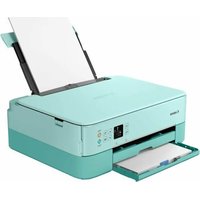
CANON Pixma TS5353a - Printer

Pixma TS5353a - Printer CANON - Free user manual and instructions

Find the device manual for free Pixma TS5353a CANON in PDF.

📄 76 pages English EN Download 💬 AI Question
Notice CANON Pixma TS5353a - page 3
Pick your language and provide your email: we'll send you a specifically translated version.

User questions about Pixma TS5353a CANON

0 question about this device. Answer the ones you know or ask your own.

Ask a new question about this device

The email remains private: it is only used to notify you if someone responds to your question.

No questions yet. Be the first to ask one.

Download the instructions for your Printer in PDF format for free! Find your manual Pixma TS5353a - CANON and take your electronic device back in hand. On this page are published all the documents necessary for the use of your device. Pixma TS5353a by CANON.

USER MANUAL Pixma TS5353a CANON

text_image https://ij.start.canon

Read Safety and Important Information (addendum) first.

natural_image Icon showing a printer with a paper airplane and a document, symbolizing file transfer or receipt (no text present)

Installing the Printer......page 1

natural_image Two white icons: a laptop and a smartphone, on a solid red background (no text or symbols)

Connecting to a Computer, Smartphone or Tablet...... page 4

text_image Diagram showing two devices with a prohibition symbol, one holding a device labeled '8□88' and the other showing a device with '8□88' and signal lines.

CANON Pixma TS5353a - 1

Instructional Videos

Instructions vidéo

Anleitungsvideos

Instructievideo's

Video informativi

text_image 3. XXXXXXXXXXXXXXXXX

Setting Up the Printer

1. Box Contents

• FINE cartridges
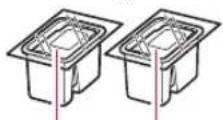
CANON Pixma TS5353a - Box Contents - 1
Color Black

Power cord
- Setup CD-ROM for Windows
• Safety and Important Information
• Getting Started (this manual)

2. Removing Packing Materials

CANON Pixma TS5353a - Removing Packing Materials - 1

1 Remove and dispose of any packing materials and orange tape.
2 Open the scanning unit / cover, remove and dispose of the orange tape and protective material inside.
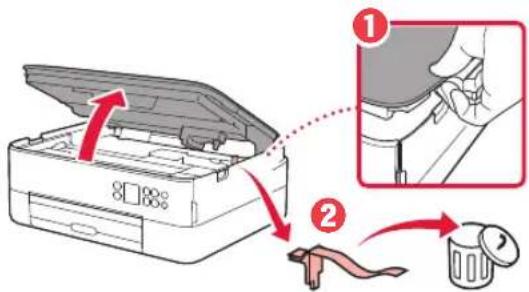
CANON Pixma TS5353a - Removing Packing Materials - 2

text_image Diagram showing a printer's open lid and its insertion into a device, with numbered instructions for each step.

3 Close the scanning unit / cover.

- Open the scanning unit / cover fully and then close it.
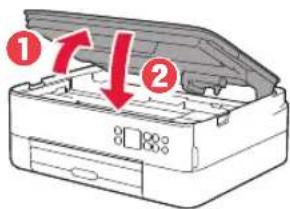
CANON Pixma TS5353a - Removing Packing Materials - 3

text_image Diagram of a printer with labeled parts and arrows indicating process flow

Caution
Watch your fingers.

3. Turning on the Printer
CANON Pixma TS5353a - Turning on the Printer - 1

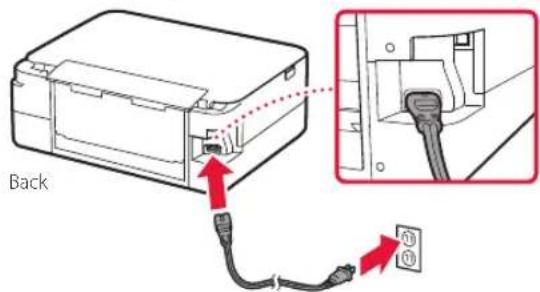
1 Connect the power cord.

CANON Pixma TS5353a - Turning on the Printer - 2

text_image Back

Important
At this time, do not connect any other cables.

2 Press the ON button.
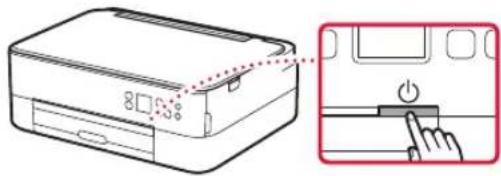
CANON Pixma TS5353a - Turning on the Printer - 3

text_image Diagram showing a printer with a power button and a magnified view of its screen control panel.

3 Use the ▲, ▼ and OK buttons to select a language.
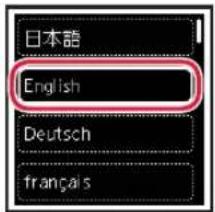
CANON Pixma TS5353a - Turning on the Printer - 4

text_image 日本語 English Deutsch français

CANON Pixma TS5353a - Turning on the Printer - 5

CANON Pixma TS5353a - Turning on the Printer - 6

text_image Set to English? Yes Cancel

4 Press the OK button.

CANON Pixma TS5353a - Turning on the Printer - 7

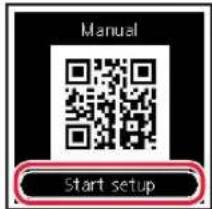
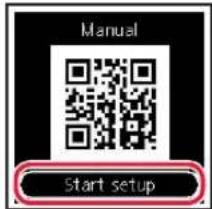
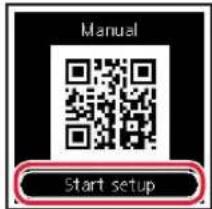
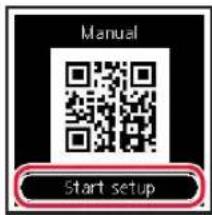
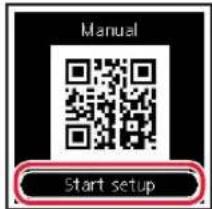
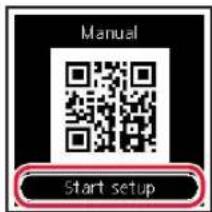
text_image Manual Start setup

Important
Scan the QR code for a video tutorial of the setup procedure.

5 Use the ▲ and ▼ buttons to check the on-screen content, and then press the OK button.

CANON Pixma TS5353a - Turning on the Printer - 8

text_image When QR is lit, press to display the QR Code for accessing the Online Manual.

Setting Up the Printer

4. Installing the FINE Cartridges

CANON Pixma TS5353a - Installing the FINE Cartridges - 1

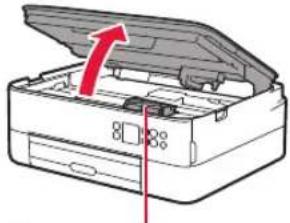
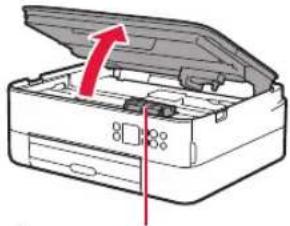
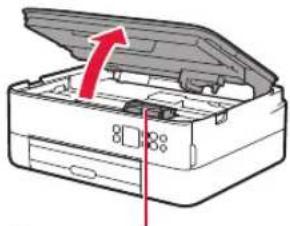
1 Open the scanning unit / cover.

CANON Pixma TS5353a - Open the scanning unit / cover. - 1

natural_image Illustration of a printer with an open lid and internal compartments, showing a red arrow indicating the open lid (no text or symbols present)

CANON Pixma TS5353a - Open the scanning unit / cover. - 2
Caution

Do not touch the FINE cartridge holder until it stops moving.

2 Pinch and open the ink cartridge locking cover on the left-hand side.
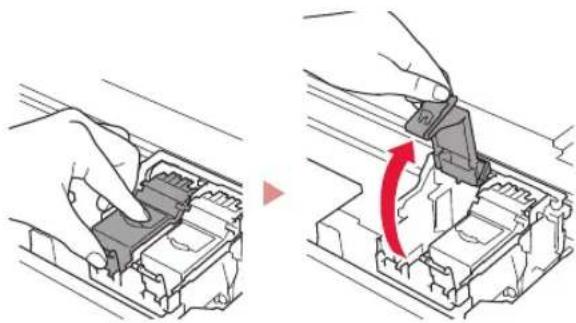
CANON Pixma TS5353a - Pinch and open the ink cartridge locking cover on the left-hand side. - 1

natural_image Illustration showing two steps of a device being inserted into a housing, with a red arrow indicating the process (no text or symbols present)

3 Remove the Color FINE cartridge from the container and remove the protective tape.
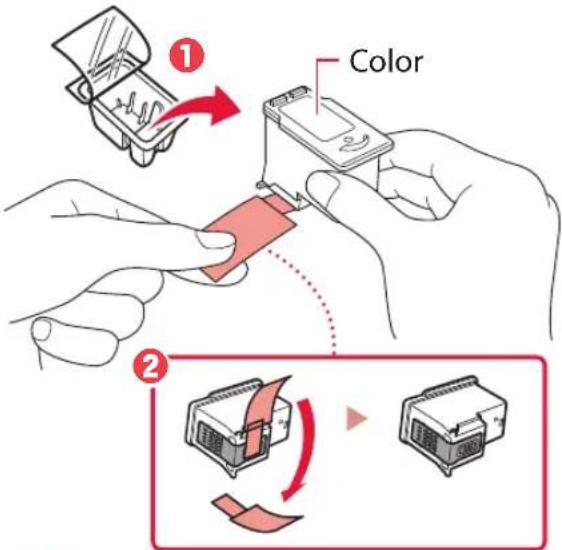
CANON Pixma TS5353a - Remove the Color FINE cartridge from the container and remove the protective tape. - 1

text_image ① Color ②

CANON Pixma TS5353a - Remove the Color FINE cartridge from the container and remove the protective tape. - 2

Important

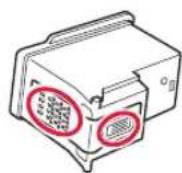
  • Do not touch the ink on the protective tape. It could stain your hands or surrounding objects.
  • Do not touch the areas shown in the figure. Otherwise, the printer may not print correctly.
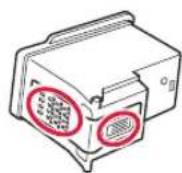
CANON Pixma TS5353a - Important - 1

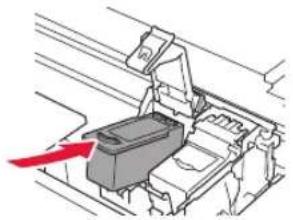
4 Set the Color FINE cartridge in the FINE cartridge holder.
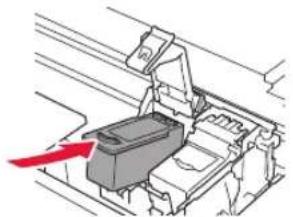
CANON Pixma TS5353a - Set the Color FINE cartridge in the FINE cartridge holder. - 1

natural_image Diagram of a car interior showing a seatbelt mechanism with a red arrow indicating direction (no text or symbols present)

CANON Pixma TS5353a - Set the Color FINE cartridge in the FINE cartridge holder. - 2
Important

Do not bump the FINE cartridge. Doing so may cause a malfunction.
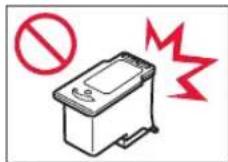
CANON Pixma TS5353a - Set the Color FINE cartridge in the FINE cartridge holder. - 3

5 Push down the ink cartridge locking cover firmly until it snaps into place to close it completely.
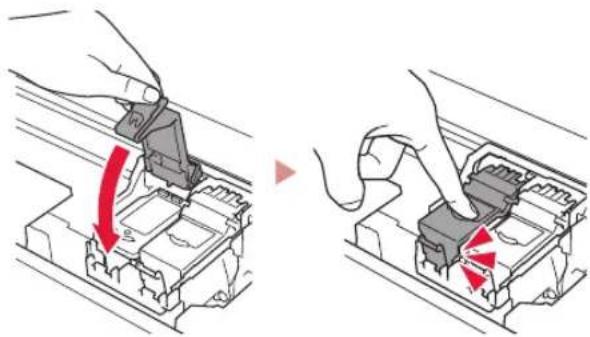
CANON Pixma TS5353a - Push down the ink cartridge locking cover firmly until it snaps into place to close it completely. - 1

natural_image Two-step diagram showing hand operating a device with red arrows indicating direction (no text or symbols)

6 Repeat steps 2 to 5 and install the Black FINE cartridge as well, on the right-hand side.
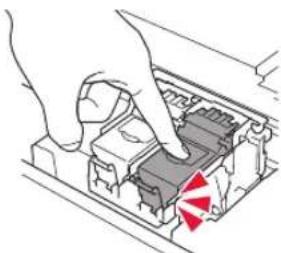
CANON Pixma TS5353a - Repeat steps 2 to 5 and install the Black FINE cartridge as well, on the right-hand side. - 1

natural_image Illustration of hands inserting a device into a container with a red warning triangle (no text or symbols)

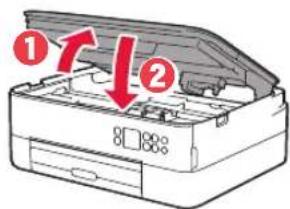
7 Close the scanning unit / cover.

• The printer will start initializing.
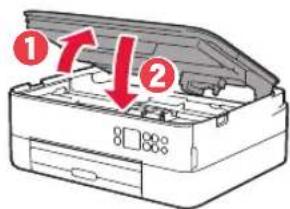
CANON Pixma TS5353a - Close the scanning unit / cover. - 1

text_image Diagram of an open printer with numbered parts and red arrows indicating process steps

CANON Pixma TS5353a - Close the scanning unit / cover. - 2
Caution

Watch your fingers.

5. Loading Paper

CANON Pixma TS5353a - Loading Paper - 1

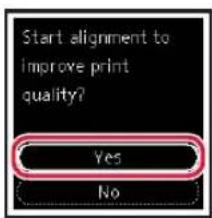
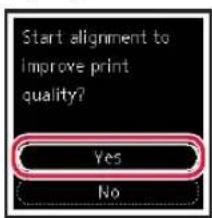
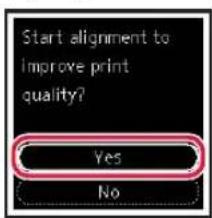
1 Press the OK button.

CANON Pixma TS5353a - Press the OK button. - 1

text_image Start alignment to improve print quality? Yes No

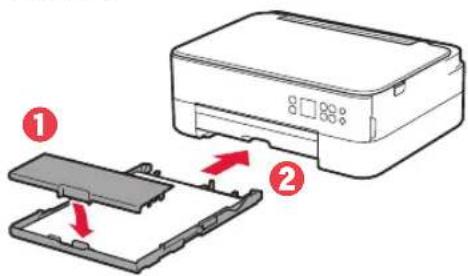
2 Remove the cassette from the printer and remove the cassette cover.
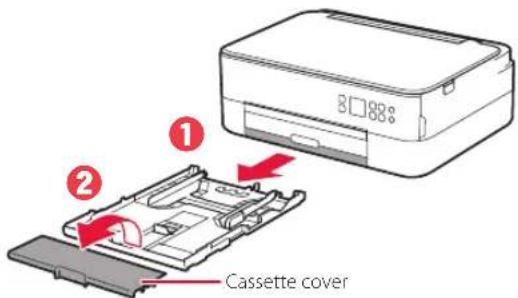
CANON Pixma TS5353a - Remove the cassette from the printer and remove the cassette cover. - 1

text_image ① ② Cassette cover

3 Slide apart the paper guides.

- Slide the right paper guide to the right edge. Align the front paper guide with the Letter or A4 mark.
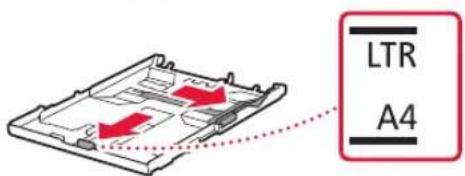
CANON Pixma TS5353a - Slide apart the paper guides. - 1

text_image LTR A4

4 Load paper.

  • Load 2 or more sheets of Letter or A4 sized plain paper with the print side facing down.
  • Place the paper against the front paper guide, and align the right paper guide to the width of the paper.
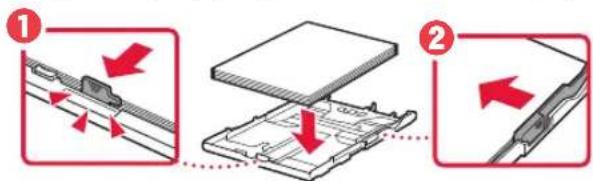
CANON Pixma TS5353a - Load paper. - 1

text_image Diagram illustrating two steps of a device or assembly process with red arrows indicating direction of movement.

5 Attach the cassette cover and replace the cassette.
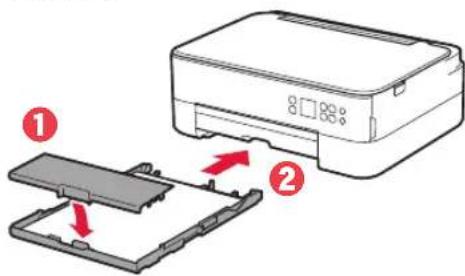
CANON Pixma TS5353a - Attach the cassette cover and replace the cassette. - 1

text_image Diagram showing printer printing process with labeled parts and directional arrows indicating movement

- Look at it from the side to confirm it looks like the diagram.
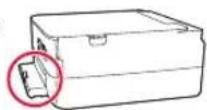
CANON Pixma TS5353a - Attach the cassette cover and replace the cassette. - 2

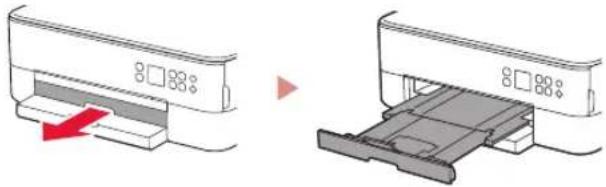
6 Pull out the paper output tray.

CANON Pixma TS5353a - Pull out the paper output tray. - 1

natural_image Diagram showing two printer printing process stages: one with a red arrow indicating compression, the other with a gray handle (no text or symbols)

7 Press the OK button.

CANON Pixma TS5353a - Press the OK button. - 1

text_image Load 2 or more sheets of A4 or Letter sized plain paper in cassette and press [OK]. OK Performing initial adjustments... Please wait momentarily About 1 minute

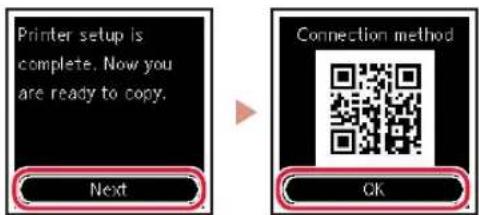
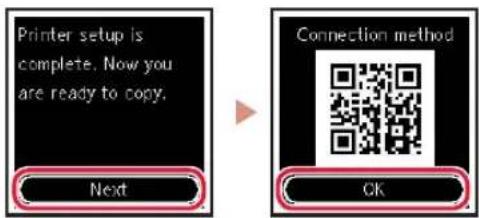
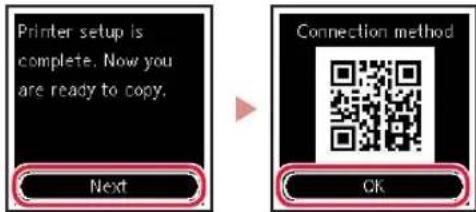
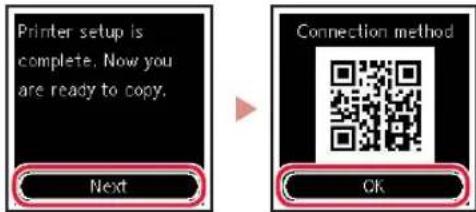
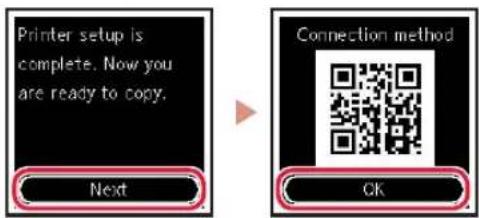
8 Press the OK button.

CANON Pixma TS5353a - Press the OK button. - 1

text_image Printer setup is complete. Now you are ready to copy. Next Connection method OK

Important

Scan the QR code for a video tutorial of the setup procedure.

9 Check that the following screen appears.
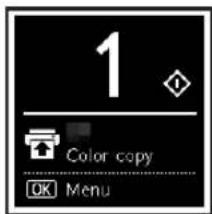
CANON Pixma TS5353a - Check that the following screen appears. - 1

text_image 1 Color copy OK Menu

If you will use the printer without connecting any other devices, setup is now complete.

What device are you connecting?

CANON Pixma TS5353a - Check that the following screen appears. - 2

text_image Computer Smartphone Computer and smartphone

CANON Pixma TS5353a - Check that the following screen appears. - 3

natural_image Simple line drawing of a smartphone with no text or symbols

6-a

Connecting to a Computer

If you are using multiple computers, perform these steps on each computer.

CANON Pixma TS5353a - Connecting to a Computer - 1

1 Access the Canon website from a computer.

https://ij.start.canon

CANON Pixma TS5353a - Connecting to a Computer - 2

2 Select Set Up.
3 Enter your printer's model name and click Go.
4 Click Start.
5 Click If you have already prepared your printer, go to Connect.

Note

The following steps are for Windows (except Windows 10 in S mode) and macOS users. For other operating systems, continue setup by following the on-screen instructions instead.

6 Click Download.
7 Run the downloaded file.
8 Click Start Setup.
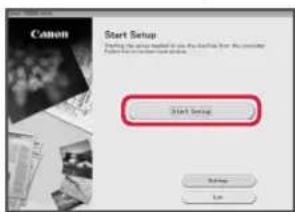
CANON Pixma TS5353a - Connecting to a Computer - 3

text_image Start Setup Starting to save a new file from the existing file, then the computer will be used to save a new file. Start Setup Setup Log

9 Follow the on-screen instructions.

• These operations may take some time.
- To connect to a smartphone as well, see "6-b. Connecting to a Smartphone" on page 5.

Using the Setup CD-ROM for Windows

Double click EasySetup.exe in the CD-ROM, and then continue from step 3. If you do not have an internet connection, open the win folder in the CD-ROM and double click SETUP.exe. This will install the printer driver.

6-b

Connecting to a Smartphone

If you are using multiple smartphones, perform these steps on each smartphone.
CANON Pixma TS5353a - Connecting to a Smartphone - 1

Prepare the following before starting.

1 Enable the Wi-Fi setting on your smartphone.
2 Connect your smartphone to the wireless router (if you have a wireless router). Refer to your smartphone and wireless router manuals for more details.

1 Install the "Canon PRINT Inkjet/SELPHY" app on your smartphone.

- Scan the QR code shown on the right to access the Canon website, and then download the app.

CANON Pixma TS5353a - Connecting to a Smartphone - 2

2 Open the installed app.

CANON Pixma TS5353a - Connecting to a Smartphone - 3

3 Follow the on-screen instructions in the app to add your printer.

Once you have added your printer, you can print from your smartphone.

To print photos, see "Loading Photo Paper" on page 6.

Loading Photo Paper

Photo paper can only be loaded in the rear tray.

1 Open the rear tray cover and extend the paper support.
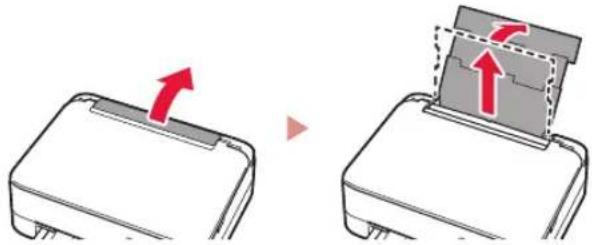
CANON Pixma TS5353a - Loading Photo Paper - 1

natural_image Diagram showing two steps of a device with red arrows indicating motion, no text or symbols present

2 Open the feed slot cover and slide the right-hand side paper guide to the far right.
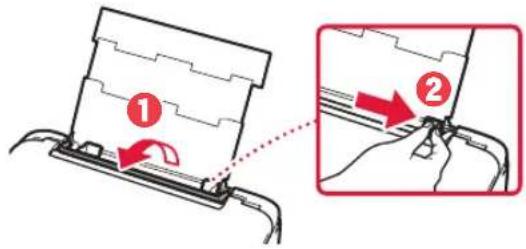
CANON Pixma TS5353a - Loading Photo Paper - 2

text_image Diagram showing two steps of a device attachment or repair process, labeled ① and ② with arrows indicating direction.

3 Load several sheets of photo paper with the print side facing up and slide the side paper guide against the edge of the paper stack.
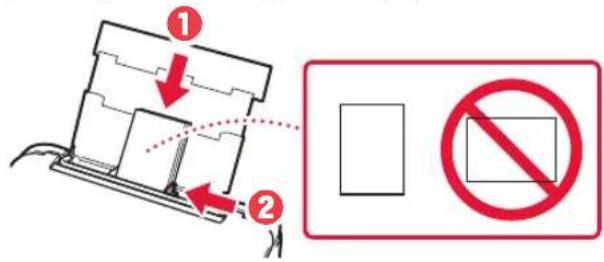
CANON Pixma TS5353a - Loading Photo Paper - 3

text_image Diagram illustrating a mechanical or electrical setup with labeled components and a prohibition symbol.

4 Close the feed slot cover.

- Follow the on-screen instructions to set information for the loaded paper.
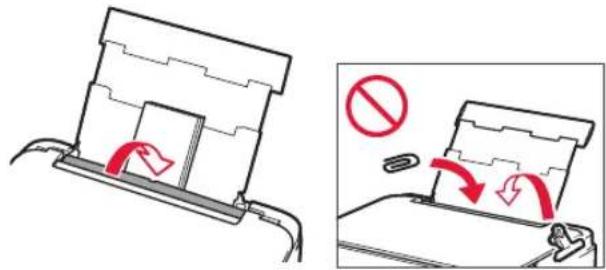
CANON Pixma TS5353a - Loading Photo Paper - 4

text_image Diagram illustrating a mechanical device with red directional arrows indicating motion or force, alongside a warning symbol.

Copying

1 Turn on the printer.
2 Load Letter or A4 sized plain paper.
3 Open the document cover and place the document face down on the platen. Align the document with the alignment mark (↘)
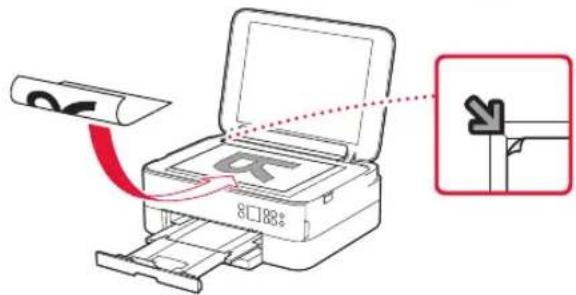
CANON Pixma TS5353a - Copying - 1

text_image Diagram showing printer operation with red arrow indicating direction and magnified view of the process

4 Close the document cover.
5 Press the OK button.
6 Select Copy settings, and then press the OK button.
7 Specify print settings using the ▲, ▼ and OK buttons.
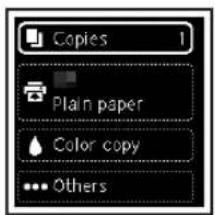
CANON Pixma TS5353a - Copying - 2

text_image Copies 1 Plain paper Color copy ... Others

8 Press the Start button.

Configuration de l'imprimante

text_image Diagram showing a printer's open lid and a close-up of the lid with a handle, labeled in Chinese.
text_image Diagram of a printer with labeled parts and directional arrows indicating process flow

Attention

text_image Diagram showing a printer with a digital display and a hand pressing a button, alongside a close-up of the device's control panel.
natural_image Illustration of a file organizer with an open lid and red arrow indicating compression (no text or symbols)

Attention

natural_image Two-step diagram showing hands installing or adjusting a component in a device casing, with a red arrow indicating rotation (no text or symbols present)
natural_image Diagram of a mechanical assembly with a red arrow pointing to a component (no text or symbols present)

Important

natural_image Two-step diagram showing hand inserting a component into a device, with red arrows indicating direction (no text or symbols)
natural_image Illustration of hands inserting a device into a container with a red warning triangle (no text or symbols)
text_image Diagram of a printer with labeled parts and red arrows indicating assembly or status

Attention

text_image Diagram illustrating two steps of a device or assembly process with red arrows indicating direction of movement.
text_image Diagram showing printer printing process with labeled parts and directional arrows indicating movement
natural_image Diagram showing two printer printing process steps: one with a red arrow indicating compression, the other with a gray sheet (no text or symbols)
natural_image Diagram showing two steps of a device with red arrows indicating motion, no text or symbols present
text_image Diagram showing two steps of a mechanical assembly or cleaning process, labeled ① and ②, with arrows indicating direction of movement.
text_image Diagram showing two steps of installing a door panel, with arrows indicating direction and a prohibition symbol.
text_image Diagram illustrating a mechanical or electrical component with red directional arrows indicating motion, accompanied by a prohibition symbol.

Copie

text_image Diagram showing printer operation with red arrow indicating direction and magnified view of the next page corner
text_image Diagram showing a printer's open lid and its internal components, with numbered instructions for adding parts to the lid.
text_image Diagram showing a printer with labeled parts and arrows indicating process flow or movement

Vorsicht

text_image Diagram showing a printer with a power button and a magnified view of the device's screen control panel.
text_image Set to English? Yes Cancel
text_image When QR is lit, press to display the QR Code for accessing the Online Manual.
natural_image Illustration of a closed printer with an open lid and red arrow indicating compression (no text or symbols)

CANON Pixma TS5353a - Copie - 1
Vorsicht

natural_image Illustration showing two steps of a mechanical assembly: one being inserted into a component, the other adjusting a component with a red arrow indicating rotation (no text or symbols present)
natural_image Diagram of a vehicle seatbelt mechanism with a red arrow indicating direction (no text or symbols present)

CANON Pixma TS5353a - Copie - 2
Wichtig

natural_image Two-step diagram showing hand operating a device with red arrows indicating rotation or change (no text or symbols present)
natural_image Illustration of hands inserting a device into a container with a red warning symbol (no text or labels)
text_image Diagram of a printer with labeled parts and arrows indicating process flow

CANON Pixma TS5353a - Copie - 3
Vorsicht

text_image Start alignment to improve print quality? Yes No
text_image Diagram illustrating two-step assembly process of a mechanical component, labeled with arrows and numbered steps ① and ②.
text_image Diagram showing printer printing process with labeled parts and directional arrows indicating movement
natural_image Diagram showing two printer printing process stages: one with a red arrow indicating compression, the other with a gray handle and a black tray (no text or symbols)
text_image Load 2 or more sheets of A4 or Letter sized plain paper in cassette and press [OK]. OK Performing initial adjustments... Please wait momentarily About 1 minute
text_image Printer setup is complete. Now you are ready to copy. Next Connection method OK

Wichtig

natural_image Simple line drawing of a smartphone inside a rounded rectangle (no text or symbols)

6-a

natural_image Diagram showing two steps of a device with red arrows indicating motion, no text or symbols present
text_image Diagram showing two steps of a device or component assembly, labeled ① and ②, with arrows indicating movement.
text_image Diagram illustrating a mechanical or electrical setup with labeled components and a prohibition symbol.
text_image Diagram illustrating a mechanical device with red directional arrows indicating motion, accompanied by a prohibition symbol.

Kopieren

text_image Diagram showing printer operation with red arrow indicating direction and magnified view of the next page
text_image Copies 1 Plain paper Color copy ... Others
text_image Diagram showing a printer's open lid and its internal structure, with numbered annotations indicating steps of opening and disassembly.

3 Sluit de scaneenheid / klep.

text_image Diagram of a printer case with labeled parts and directional arrows indicating process flow

Let op

text_image Diagram showing a printer with a zoomed-in view highlighting the control panel and click button.
text_image Set to English? Yes Cancel
text_image When QR is lit, press to display the QR Code for accessing the Online Manual.

De printer instellen

4. De FINE-cartridges installeren

CANON Pixma TS5353a - De FINE-cartridges installeren - 1

1 Open de scaneenheid / klep.

CANON Pixma TS5353a - Open de scaneenheid / klep. - 1

natural_image Illustration of a file organizer with an open lid and red arrow indicating compression (no text or symbols)

CANON Pixma TS5353a - Open de scaneenheid / klep. - 2
Let op

natural_image Illustration showing two steps of a mechanical assembly: one being inserted into a component, the other adjusting a component with a red arrow indicating rotation (no text or symbols present)
natural_image Diagram of a car interior showing a hand holding a battery and a red arrow pointing to the battery (no text or symbols present)

CANON Pixma TS5353a - Open de scaneenheid / klep. - 3
Belangrijk

natural_image Two-step diagram showing hand operating a device with red arrows indicating direction (no text or symbols)
natural_image Illustration of hands inserting a device into a container with a red warning symbol (no text or labels)

7 Sluit de scaneenheid / klep.

text_image Diagram of an open printer with numbered parts and red arrows indicating process steps

CANON Pixma TS5353a - Sluit de scaneenheid / klep. - 1
Let op

text_image Start alignment to improve print quality? Yes No
text_image Diagram illustrating two steps of installing a component, labeled ① and ② with red arrows indicating direction.
text_image Diagram showing printer printing process with labeled parts and directional arrows indicating movement
natural_image Diagram showing two printer printing process stages: one with a red arrow indicating compression, the other with a gray handle (no text or symbols)
text_image Load 2 or more sheets of A4 or Letter sized plain paper in cassette and press [OK]. OK Performing initial adjustments... Please wait momentarily About 1 minute
text_image Printer setup is complete. Now you are ready to copy. Next Connection method OK

Belangrijk

natural_image Simple line drawing of a smartphone inside a rounded rectangle (no text or symbols)

6-a

natural_image Diagram showing two mechanical components with red arrows indicating motion, one with a flat base and the other with a folded paper or sheet (no text or symbols)
text_image Diagram showing two steps of a mechanical assembly or cleaning process, labeled ① and ②, with arrows indicating direction of movement.
text_image Diagram showing two steps of installing a door panel, with arrows indicating direction and a prohibition symbol.
text_image Diagram illustrating a mechanical or electrical component with red directional arrows indicating motion, accompanied by a prohibition symbol.

Kopiëren

text_image Diagram showing printer operation with red arrow indicating direction and magnified view of the process
text_image Copies 1 Plain paper Color copy Others
text_image Diagram illustrating the step-by-step procedure of a printer's opening and disassembly, with labeled steps ① and ②.
text_image Diagram of an open printer with labeled parts and red arrows indicating process steps
text_image Diagram showing a printer with a power button and a magnified view of the device's screen control panel.
text_image Set to English? Yes Cancel
text_image When QR is lit, press to display the QR Code for accessing the Online Manual.
natural_image Illustration of a file organizer with an open lid and red arrow indicating compression (no text or symbols)

Attenzione

natural_image Illustration showing two steps of a mechanical assembly: adding a component to a housing, then adjusting a red arrow (no text or symbols present)
text_image ① Colore ②

Importante

natural_image Diagram of a vehicle door handle assembly with a red arrow indicating direction (no text or symbols present)

Importante

natural_image Illustration of two hands installing or adjusting a device component, showing a red directional arrow indicating rotation (no text or symbols present)
natural_image Illustration of hands inserting a device into a container with a red warning symbol (no text or labels)
text_image Diagram of an open printer with labeled parts and red arrows indicating process steps

Attenzione

text_image Start alignment to improve print quality? Yes No
text_image Diagram illustrating two steps of installing a component, labeled ① and ② with red arrows indicating direction.
text_image Diagram showing printer printing process with labeled parts and directional arrows indicating movement
natural_image Diagram showing two printer printing process stages: one with a red arrow indicating compression, the other with a gray handle (no text or symbols)
text_image Load 2 or more sheets of A4 or Letter sized plain paper in cassette and press [OK]. OK Performing initial adjustments... Please wait momentarily About 1 minute
text_image Printer setup is complete. Now you are ready to copy. Next Connection method OK

Importante

text_image Computer Smartphone Computer e smartphone

CANON Pixma TS5353a - Importante - 1

natural_image Simple line drawing of a smartphone inside a rounded rectangle (no text or symbols)

6-a

natural_image Diagram showing two steps of a device with red arrows indicating motion, no text or symbols present
text_image Diagram showing two steps of a device or component assembly, labeled ① and ②, with arrows indicating movement.
text_image Diagram illustrating a device with labeled components and prohibition symbol, showing movement arrows and a blank rectangular area.
text_image Diagram illustrating a mechanical or electrical component with red directional arrows indicating motion, accompanied by a prohibition symbol.

Copia

text_image Diagram showing printer operation with red arrow indicating direction and magnified view of a directional arrow
text_image Copies 1 Plain paper Color copy ... Others
text_image Diagram illustrating the step-by-step installation of a printer into a device, with labeled parts and directional arrows.
text_image Diagram of a printer with labeled parts and directional arrows indicating process flow

Cuidado

text_image Diagram showing a printer with a zoomed-in view highlighting the control panel and hand cursor action
text_image Set to English? Yes Cancel

4 Pressione o botão OK.

CANON Pixma TS5353a - Copia - 1

text_image Manual Start setup

Importante

text_image When QR is lit, press to display the QR Code for accessing the Online Manual.

Configurando a impressora

4. Instalando os Cartuchos FINE

CANON Pixma TS5353a - Instalando os Cartuchos FINE - 1

natural_image Diagram of an open printer with a red arrow indicating the open lid (no text or symbols present)

Cuidado

natural_image Illustration showing two steps of a mechanical assembly: adding a component to a housing, then adjusting a red arrow (no text or symbols present)
text_image ① Colorado ②

Importante

natural_image Diagram of a vehicle seatbelt mechanism with a red arrow indicating direction (no text or symbols present)

CANON Pixma TS5353a - Instalando os Cartuchos FINE - 2
Importante

natural_image Two-step diagram showing hands installing or adjusting a component in a device, with red arrows indicating direction (no text or symbols present)
natural_image Illustration of hands inserting a device into a container with a red warning symbol (no text or labels)
text_image Diagram of an open printer with numbered callouts indicating process steps

CANON Pixma TS5353a - Instalando os Cartuchos FINE - 3
Cuidado

text_image Start alignment to improve print quality? Yes No

2 Remova o cassete da impressora e remova a tampa do cassete.
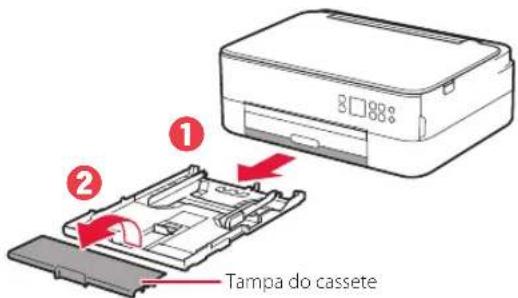
CANON Pixma TS5353a - Remova o cassete da impressora e remova a tampa do cassete. - 1

text_image Tampa do cassete

3 Deslize as guias do papel.

text_image Diagram illustrating two steps of a device or assembly process with red arrows indicating direction of movement.

5 Coloque a tampa do cassete e substitua o cassete.
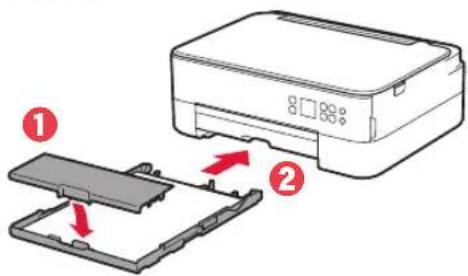
CANON Pixma TS5353a - Coloque a tampa do cassete e substitua o cassete. - 1

text_image Diagram showing printer printing process with labeled parts and directional arrows indicating movement
natural_image Diagram showing two printer printing process stages: one with a red arrow indicating compression, the other with a gray handle (no text or symbols)

7 Pressione o botão OK.

CANON Pixma TS5353a - Pressione o botão OK. - 1

text_image Load 2 or more sheets of A4 or Letter sized plain paper in cassette and press [OK]. OK Performing initial adjustments... Please wait momentarily About 1 minute

8 Pressione o botão OK.

CANON Pixma TS5353a - Pressione o botão OK. - 1

text_image Printer setup is complete. Now you are ready to copy. Next Connection method OK

Importante

natural_image Diagram showing two steps of a device with red arrows indicating motion, no text or symbols present
text_image Diagram showing two steps of a mechanical assembly or cleaning process, labeled ① and ②, with arrows indicating direction of movement.
text_image Diagram showing two steps of installing a door panel, with arrows indicating direction and a prohibition symbol.
text_image Diagram illustrating a mechanical or electrical component with red directional arrows indicating motion, accompanied by a prohibition symbol.

Copiando

text_image Diagram showing printer operation with red arrow indicating direction and magnified view of a directional switch
text_image Copies 1 Plain paper Color copy ... Others
text_image Diagram illustrating the step-by-step installation of a printer into a device, with numbered instructions and magnified view.
text_image Diagram of a printer with labeled parts and directional arrows indicating process flow

Precaución

text_image Diagram showing a printer with a zoomed-in view highlighting the control panel with a hand pressing a button.
text_image Set to English? Yes Cancel
text_image When QR is lit, press to display the QR Code for accessing the Online Manual.
natural_image Illustration of an open file organizer with a red arrow indicating compression or shift (no text or symbols)

Precaución

natural_image Illustration showing two steps of a mechanical assembly: one being inserted into a housing, the other adjusting a component with a red arrow indicating rotation (no text or symbols present)
text_image ① Color ②

Importante

natural_image Mechanical assembly diagram showing a bracket with a red arrow pointing to a component (no text or symbols present)

Importante

natural_image Two-step diagram showing hand inserting a component into a device, with red arrows indicating direction (no text or symbols)
natural_image Illustration of hands inserting a device into a container with a red warning symbol (no text or labels)
text_image Diagram of an open printer with labeled parts and red arrows indicating assembly steps

Precaución

text_image Start alignment to improve print quality? Yes No
text_image Diagram illustrating two steps of a device or assembly process with red arrows indicating direction of movement.

5 Coloque la cubierta del cassette e inserte el cassette.
CANON Pixma TS5353a - Coloque la cubierta del cassette e inserte el cassette. - 1

text_image Diagram showing printer printing process with labeled parts and directional arrows indicating movement
natural_image Diagram showing two printer printing process stages: one with a red arrow indicating compression, the other with a gray handle and a red arrow indicating print (no text or symbols present)
text_image Load 2 or more sheets of A4 or Letter sized plain paper in cassette and press [OK]. OK Performing initial adjustments... Please wait momentarily About 1 minute
text_image Printer setup is complete. Now you are ready to copy. Next Connection method OK

Importante

natural_image Simple line drawing of a smartphone inside a rounded rectangle (no text or symbols)

6-a

natural_image Diagram showing two steps of a device with red arrows indicating motion, no text or symbols present
text_image Diagram showing two steps of a device or component assembly, labeled ① and ②, with arrows indicating movement.
text_image Diagram illustrating a mechanical or electrical setup with labeled components and prohibition symbol
text_image Diagram illustrating a mechanical device with red directional arrows indicating motion, accompanied by a prohibition symbol.

Copia

text_image Diagram showing printer operation with red arrow indicating direction and magnified view of paper edge detail
text_image Copies 1 Plain paper Color copy ... Others
text_image Diagram showing a printer's open lid and its internal mechanism, with numbered steps for assembly or maintenance.
text_image Diagram showing a printer with labeled parts and directional arrows indicating process flow or movement

⚠️ Προσοχή

text_image Diagram showing a printer with a power button and a magnified view of its screen control panel.
text_image Set to English? Yes Cancel
text_image When QR is lit, press to display the QR Code for accessing the Online Manual.
natural_image Illustration of a file organizer with an open lid and red arrow indicating compression (no text or symbols)

⚠️ Προσοχή

natural_image Two-step diagram showing a hand using a tool to adjust or install a mechanical component, with no visible text or symbols.
natural_image Diagram of a vehicle seatbelt mechanism with a red arrow indicating direction (no text or symbols present)

Σημαντικό

natural_image Two-step diagram showing hand inserting a component into a device, with red arrows indicating direction (no text or symbols)
natural_image Illustration of hands inserting a device into a container with a red warning symbol (no text or labels)
text_image Diagram of a printer with labeled parts and arrows indicating process flow

⚠️ Προσοχή

text_image Start alignment to improve print quality? Yes No
text_image Diagram illustrating two steps of a device or assembly process with red arrows indicating direction of movement.
text_image Diagram showing printer printing process with labeled parts and directional arrows indicating movement
natural_image Diagram showing two printer printing process stages: one with a red arrow indicating compression, the other with a gray handle (no text or symbols)
text_image Load 2 or more sheets of A4 or Letter sized plain paper in cassette and press [OK]. OK Performing initial adjustments... Please wait momentarily About 1 minute
text_image Printer setup is complete. Now you are ready to copy. Next Connection method OK

Σημαντικό

natural_image Diagram showing two steps of a device with red arrows indicating motion, no text or symbols present
text_image Diagram showing two steps of a device or component assembly, labeled ① and ②, with arrows indicating movement.
text_image Diagram illustrating a mechanical or electrical setup with labeled components and a prohibition symbol.
text_image Diagram illustrating a mechanical device with red directional arrows indicating motion, accompanied by a prohibition symbol.

Αντιγραφή

text_image Diagram showing printer operation with red arrow indicating direction and magnified detail view
text_image Copies 1 Plain paper Color copy ... Others
text_image Diagram illustrating the step-by-step procedure of a printer's opening and disassembly, with numbered annotations.
text_image Diagram of a printer with labeled parts and arrows indicating process flow
text_image Diagram showing a printer with a zoomed-in view highlighting the control panel, including a hand pressing the button.
text_image Set to English? Yes Cancel

4 Tryck på OK.

CANON Pixma TS5353a - Αντιγραφή - 1

text_image Manual Start setup

CANON Pixma TS5353a - Αντιγραφή - 2
Viktigt!
Skanna QR-koden för videoinstruktioner för installationsproceduren.

text_image When QR is lit, press to display the QR Code for accessing the Online Manual.

Ställa in skrivaren

4. Installera FINE-kassetterna

CANON Pixma TS5353a - Installera FINE-kassetterna - 1

natural_image Illustration of an open file organizer with a red arrow indicating compression or shift (no text or symbols)

⚠ Försiktighet

natural_image Illustration showing two steps of a mechanical assembly: adding a component to a housing, then adjusting a component with a red arrow indicating rotation (no text or symbols present)
natural_image Diagram of a vehicle door handle assembly with a red arrow indicating direction (no text or symbols present)

Viktigt!

text_image Diagram showing two-step installation of a device into a housing, with red arrows indicating direction of movement.
natural_image Illustration of hands inserting a device into a container with a red warning symbol (no text or labels)
text_image Diagram of an open printer with labeled parts and red arrows indicating assembly steps

CANON Pixma TS5353a - Installera FINE-kassetterna - 2

Försiktighet

Akta fingrarna.

5. Fylla på papper

CANON Pixma TS5353a - Fylla på papper - 1

1 Tryck på OK.

CANON Pixma TS5353a - Tryck på OK. - 1

text_image Start alignment to improve print quality? Yes No
text_image 8088% ① ② Kassettlock
text_image Diagram illustrating two steps of a device or assembly process with red arrows indicating direction of movement.
text_image Diagram showing printer printing process with labeled parts and directional arrows indicating process flow
natural_image Diagram showing two printer units with a red arrow indicating a process or transformation (no text or symbols present)

7 Tryck på OK.

CANON Pixma TS5353a - Tryck på OK. - 1

text_image Load 2 or more sheets of A4 or Letter sized plain paper in cassette and press [OK]. OK Performing initial adjustments... Please wait momentarily About Ⅱ minutes

8 Tryck på OK.

CANON Pixma TS5353a - Tryck på OK. - 1

text_image Printer setup is complete. Now you are ready to copy. Next Connection method OK

Viktigt!

natural_image Diagram showing two mechanical components with red arrows indicating motion, one moving upward and the other moving downward (no text or symbols)
text_image Diagram showing two steps of a device or component assembly, labeled ① and ②, with arrows indicating direction of movement.
text_image Diagram illustrating a mechanical or electrical setup with labeled components and a prohibition symbol.
text_image Diagram illustrating a mechanical device with red directional arrows indicating motion, accompanied by a prohibition symbol.

Kopiera

text_image Diagram showing printer operation with red arrow indicating direction and magnified view of the process
text_image Copies 1 Plain paper Color copy ... Others
text_image Diagram illustrating the step-by-step installation of a printer's internal structure, showing open lid, close-up view, and disassembly with Chinese annotations.

3 Lukk skanneenheten/dekselet.

text_image Diagram of a printer with labeled parts and arrows indicating process flow or movement
text_image Diagram showing a printer device with a highlighted power button and a magnified view of its screen control panel.
text_image Set to English? Yes Cancel

4 Trykk på OK-knappen.

CANON Pixma TS5353a - Kopiera - 1

text_image Manual Start setup

Viktig!
Skann QR-koden for en videoveiledning om oppsettsprosedyren.

text_image When QR is lit, press to display the QR Code for accessing the Online Manual.

Konfigurere skriveren

4. Installere FINE-kassettene

CANON Pixma TS5353a - Installere FINE-kassettene - 1

1 Åpne skanneenheten/dekselet.

CANON Pixma TS5353a - Åpne skanneenheten/dekselet. - 1

natural_image Illustration of an open file organizer with a red arrow indicating compression or shift (no text or symbols)

CANON Pixma TS5353a - Åpne skanneenheten/dekselet. - 2
Forsiktig!

natural_image Illustration of a hand inserting a component into a device casing, showing the process with a red arrow indicating rotation (no text or symbols present)
text_image Farge ① ②

CANON Pixma TS5353a - Åpne skanneenheten/dekselet. - 3
Viktig!

  • Ikke berør blekket på tapen. Det kan sette flekker på hendene dine eller andre gjenstander.
  • Ikke berør områdene som er vist på figuren. Skriveren vil ellers ikke kunne skrive ut riktig.
CANON Pixma TS5353a - Åpne skanneenheten/dekselet. - 4

4 Sett FINE-kassetten med farger i FINE-kassettholderen.
CANON Pixma TS5353a - Sett FINE-kassetten med farger i FINE-kassettholderen. - 1

natural_image Diagram of a vehicle door handle assembly with a red arrow indicating direction (no text or symbols)

CANON Pixma TS5353a - Sett FINE-kassetten med farger i FINE-kassettholderen. - 2
Viktig!

natural_image Two-step diagram showing a hand inserting a component into a device, with red arrows indicating direction (no text or symbols present)
natural_image Illustration of hands inserting a device into a container with a red triangular warning symbol (no text or labels)

7 Lukk skanneenheten/dekselet.

- Skriveren starter initialisering.
CANON Pixma TS5353a - Lukk skanneenheten/dekselet. - 1

text_image Diagram of an open printer with numbered parts and red arrows indicating process steps

CANON Pixma TS5353a - Lukk skanneenheten/dekselet. - 2
Forsiktig!

Pass på fingrene.

5. Legge i papir

CANON Pixma TS5353a - Legge i papir - 1

1 Trykk på OK-knappen.

CANON Pixma TS5353a - Trykk på OK-knappen. - 1

text_image Start alignment to improve print quality? Yes No
text_image Diagram illustrating two steps of a device or assembly process with red arrows indicating direction of movement.

5 Fest kassettdekselet og skift ut kassetten.
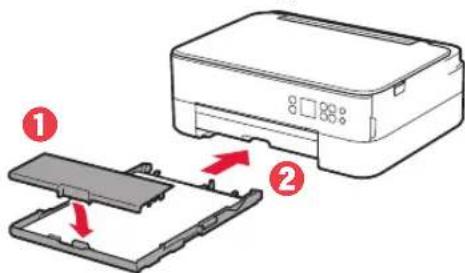
CANON Pixma TS5353a - Fest kassettdekselet og skift ut kassetten. - 1

text_image Diagram showing printer printing process with labeled parts and directional arrows indicating movement
natural_image Diagram showing two printer units with a red arrow indicating a process or transformation (no text or symbols present)

7 Trykk på OK-knappen.

CANON Pixma TS5353a - Trykk på OK-knappen. - 1

text_image Load 2 or more sheets of A4 or Letter sized plain paper in cassette and press [OK]. OK Performing initial adjustments... Please wait momentarily About Ⅱ minutes

8 Trykk på OK-knappen.

CANON Pixma TS5353a - Trykk på OK-knappen. - 1

text_image Printer setup is complete. Now you are ready to copy. Next Connection method OK

Viktig!

Skann QR-koden for en videoveiledning om oppsettsprosedyren.

natural_image Simple line drawing of a smartphone with no text or symbols

6-a

Koble til en datamaskin

text_image Canon Start Setup Starting the server installed to use the desktop from the computer Microsoft Internet Explorer Start Setup OK Cancel
natural_image Diagram showing two mechanical components with red arrows indicating motion, one being folded and the other being inserted (no text or symbols)
text_image Diagram showing two steps of a device or component assembly, labeled ① and ②, with arrows indicating rotation and connection.
text_image Diagram illustrating a mechanical or electrical setup with labeled components and a prohibition symbol.

4 Lukk spordekselet for mating.

text_image Diagram illustrating a mechanical or electrical component with red directional arrows indicating motion, accompanied by a prohibition symbol.

Kopiere

text_image Diagram showing printer operation with red arrow indicating direction and a magnified view of the right side of a directional arrow.

4 Lukk dokumentdekselet.
5 Trykk på OK-knappen.
6 Velg Kopiinnstillinger (Copy settings), og trykk deretter på OK-knappen.
7 Angi utskriftsinnstillinger med knappene ▲, ▼ og OK.
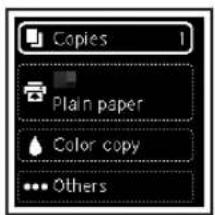
CANON Pixma TS5353a - Kopiere - 1

text_image Copies 1 Plain paper Color copy ... Others
text_image Diagram showing a printer's open lid and a close-up of the lid being inserted, with numbered annotations indicating steps.
text_image Diagram of a printer with labeled parts and arrows indicating open lid and closed lid features

CANON Pixma TS5353a - Kopiere - 2
Forsigtig

Pas på dine fingre.

3. Tænd printeren
CANON Pixma TS5353a - Tænd printeren - 1

text_image Diagram showing a printer with a power button and a magnified view of the device's screen control panel.
text_image Set to English? Yes Cancel

4 Tryk på knappen OK.

CANON Pixma TS5353a - Tænd printeren - 2

text_image Manual Start setup

CANON Pixma TS5353a - Tænd printeren - 3
Vigtigt

text_image When QR is lit, press to display the QR Code for accessing the Online Manual.

Konfigurere printeren

4. Installation af FINE-patroner

CANON Pixma TS5353a - Installation af FINE-patroner - 1

natural_image Illustration of a file organizer with an open lid and red arrow indicating compression (no text or symbols)

CANON Pixma TS5353a - Installation af FINE-patroner - 2

Forsigtig

natural_image Illustration showing two-step assembly process: adding a component into a device, then adjusting a red arrow (no text or symbols)
text_image ① Farve ②

CANON Pixma TS5353a - Installation af FINE-patroner - 3

Vigtigt

natural_image Diagram of a vehicle seatbelt mechanism with a red arrow indicating direction (no text or symbols present)

CANON Pixma TS5353a - Vigtigt - 1

Vigtigt

natural_image Two-step diagram showing a hand inserting a component into a device, with red arrows indicating direction (no text or symbols present)
natural_image Illustration of hands installing or adjusting a device into a container with a red warning triangle (no text or symbols)
text_image Diagram of a printer case with labeled parts and arrows indicating process flow

CANON Pixma TS5353a - Vigtigt - 1

Forsigtig

Pas på dine fingre.

text_image Start alignment to improve print quality? Yes No
text_image Diagram illustrating two steps of a device or assembly process with red arrows indicating direction of movement.
text_image Diagram showing printer printing process with labeled parts and directional arrows indicating process flow
natural_image Diagram showing two printer units with a red arrow indicating a process or transformation (no text or symbols present)

7 Tryk på knappen OK.

CANON Pixma TS5353a - Tryk på knappen OK. - 1

text_image Load 2 or more sheets of A4 or Letter sized plain paper in cassette and press [OK]. OK Performing initial adjustments... Please wait momentarily About 1 minutes

8 Tryk på knappen OK.

CANON Pixma TS5353a - Tryk på knappen OK. - 1

text_image Printer setup is complete. Now you are ready to copy. Next Connection method OK

Vigtigt

natural_image Simple line drawing of a smartphone inside a rounded rectangle (no text or symbols)

6-a

Tilslutning til en computer

text_image Start Setup Starting to save a new file from the start file that the computer Start Setup OK
natural_image Diagram showing two mechanical components with red arrows indicating motion, one moving and the other moving or interacting (no text or symbols)
text_image Diagram showing two steps of a device or assembly process with numbered annotations and directional arrows indicating movement.
text_image Diagram illustrating a mechanical or electrical setup with labeled components and a prohibition symbol.
text_image Diagram illustrating a mechanical or electrical component with red directional arrows indicating motion, accompanied by a prohibition symbol.

Kopiering

text_image Diagram showing printer operation with red arrow indicating direction and magnified view of the process
text_image Copies 1 Plain paper Color copy ... Others
text_image Diagram showing a printer's open lid and its internal structure with labeled parts, including a close-up of the component.
text_image Diagram of a printer with labeled parts and arrows indicating process steps

Huomio
Varo sormiasi.

text_image Diagram showing a printer with a power button and a magnified view of the device's screen control panel.
text_image Set to English? Yes Cancel

4 Paina OK-painiketta.

CANON Pixma TS5353a - Kopiering - 1

text_image Manual Start setup

Tärkeää

text_image When QR is lit, press to display the QR Code for accessing the Online Manual.

Tulostimen asennus

4. FINE-kasettien asentaminen

CANON Pixma TS5353a - FINE-kasettien asentaminen - 1

natural_image Illustration of an open printer with a red arrow indicating the open lid (no text or symbols present)

CANON Pixma TS5353a - FINE-kasettien asentaminen - 2
Huomio

natural_image Illustration of a hand inserting a component into a device housing, showing the process with a red arrow indicating rotation (no text or symbols present)
natural_image Diagram of a mechanical assembly with a red arrow pointing to a component (no text or symbols present)

CANON Pixma TS5353a - FINE-kasettien asentaminen - 3
Tärkeää

natural_image Two-step diagram showing a hand inserting a component into a device, with red arrows indicating direction (no text or symbols present)
natural_image Illustration of hands inserting a device into a container with a red triangular warning symbol (no text or labels)
text_image Diagram of an open printer with numbered parts and red arrows indicating assembly or status

CANON Pixma TS5353a - FINE-kasettien asentaminen - 4
Huomio

Varo sormiasi.

text_image Start alignment to improve print quality? Yes No
text_image Diagram illustrating two steps of a device or assembly process with red arrows indicating direction of movement.
text_image Diagram showing printer printing process with numbered steps and directional arrows indicating movement
natural_image Diagram showing two printer printing process stages: one with a red arrow indicating compression, the other with a gray handle and a black tray (no text or symbols)

7 Paina OK-painiketta.

CANON Pixma TS5353a - Paina OK-painiketta. - 1

text_image Load 2 or more sheets of A4 or Letter sized plain paper in cassette and press [OK]. OK Performing initial adjustments... Please wait momentarily About 1 minute

8 Paina OK-painiketta.

CANON Pixma TS5353a - Paina OK-painiketta. - 1

text_image Printer setup is complete. Now you are ready to copy. Next Connection method OK

Tärkeää

natural_image Simple line drawing of a smartphone inside a rounded rectangle (no text or symbols)

6-a

text_image Start Setup Starting to save a new file from the existing file, then the computer Save or adjust your path.
natural_image Diagram showing two mechanical components with red arrows indicating motion, one being folded and the other being inserted (no text or symbols)
text_image Diagram showing two steps of a device or component assembly, labeled ① and ②, with arrows indicating rotation and connection.
text_image Diagram illustrating a mechanical or electrical setup with labeled components and a prohibition symbol.
text_image Diagram illustrating a mechanical or electrical component with red directional arrows indicating motion, accompanied by a prohibition symbol.

Kopointi

text_image Diagram showing printer operation with red arrow indicating direction and magnified detail view
text_image Copies 1 Plain paper Color copy ... Others

8 Paina Aloita (Start) -painiketta.

CANON Pixma TS5353a - Kopointi - 1

natural_image Red icon showing a globe with a question mark on a laptop, symbolizing global inquiry or search (no text present)

Access Online Manual Zugriff auf das Online-Handbuch Accedere al Manuale online Acceso al Manual en línea Läs Onlinehandbok Åbn Online vejledning

text_image https://ij.start.canon
Table of contents Click a title to access it
Manual assistant
Powered by Anthropic
Waiting for your message
Product information

Brand : CANON

Model : Pixma TS5353a

Category : Printer