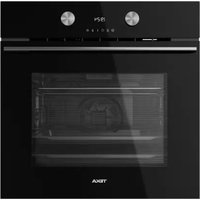
HLB 8700 P - Oven TEKA - Free user manual and instructions
Find the device manual for free HLB 8700 P TEKA in PDF.


| Product Type | Connected built-in oven |
| Brand | Teka |
| Model | HLB 8700 P |
| Connectivity | Wi-Fi 2.4 GHz (802.11 b/g/n), Teka Home app (iOS 13+, Android 8+) |
| Cooking functions | Traditional cooking, automatic programs, remote cooking via app |
| Display | Digital screen with central dial and touch keys |
| Controls | Touch buttons, rotary knob, OK key |
| Dimensions (H x W x D) | Approximately 595 x 595 x 550 mm (estimate) |
| Weight | Approximately 35 kg (estimate) |
| Power supply | 220-240 V ~ 50/60 Hz (estimate) |
| Total power | Approximately 3 kW (estimate) |
| Clock setting | Yes, via touch screen |
| Factory reset | Available via main menu (deletes all user data) |
| Error notification system | Error codes (Ex) for Wi-Fi connection issues |
| Manual languages | FR, DE, EL, EN, ES, NL, PT |
| Included accessories | Not specified, may vary by model |
| Maintenance | Clean with a damp cloth; avoid abrasive products |
| Maximum temperature | Approximately 250 °C (estimate) |
Frequently Asked Questions - HLB 8700 P TEKA
User questions about HLB 8700 P TEKA
0 question about this device. Answer the ones you know or ask your own.
Ask a new question about this device
Download the instructions for your Oven in PDF format for free! Find your manual HLB 8700 P - TEKA and take your electronic device back in hand. On this page are published all the documents necessary for the use of your device. HLB 8700 P by TEKA.
USER MANUAL HLB 8700 P TEKA
User Manual
Teka Home
ES PT EN
FR DE NL
EL
ESPAÑOL

Before using your oven for the first time, please carefully read the installation and maintenance instructions that come with it.
Depending on the model, the accessories included in your oven may vary from those shown in the pictures.
FRANÇAIS

Presentation of the Teka Home menu
The new Teka Home system allows you to connect different compatible domestic appliances via the Teka Home APP (available for iOS and Android). With the new system, you will be able to start cooking remotely or obtain a real-time display of the operating state of your oven.
Using a simple process which is described below, you can pair the oven and the APP in order to perform the actions described above.
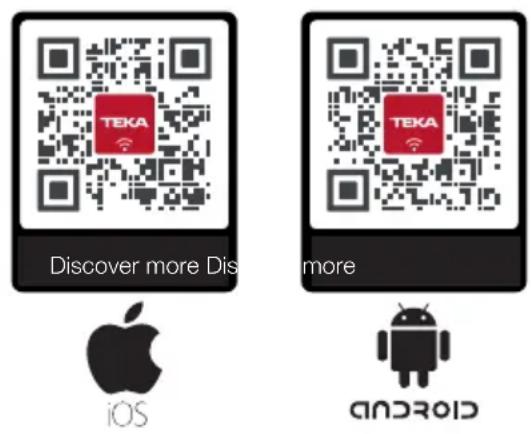
Download the Teka Home® App using the following QR codes:

WARNING
if you are unable to read the QR codes, go to one of the following URLs from the browser of your device to download the APP:
Android: android.teka.com
Apple: ios.teka.com

WARNING
The Teka Home® APP is only compatible with the following operating systems:
• Android 8, 9, 10, 11 and later
- iOS 13, 14 and later
The products connected to Teka Home operate on the 2.4 GHz Wi-Fi band under standard 802.11 b/g/n. Make sure that this is active in your router.
The following sections provide guidance on how to configure your oven and enjoy all the options offered by the new system.
Use of Teka Home
OVEN FUNCTIONS
In addition to the traditional cooking functions and automatic programmes (explained in earlier sections), you can now use the APP to programme your oven to start cooking remotely, and obtain a real-time display of the operating state of your oven.
This guide explains and offers useful tips on how to correctly confi gure your oven and pair it to the APP. It also shows you how to start cooking remotely.
OVEN-APP PAIRING AND ACCESS
Switch on the oven by pressing the ON/OFF button. Turn the left-hand control until the function (T) appears in the centre of the dial on the screen:
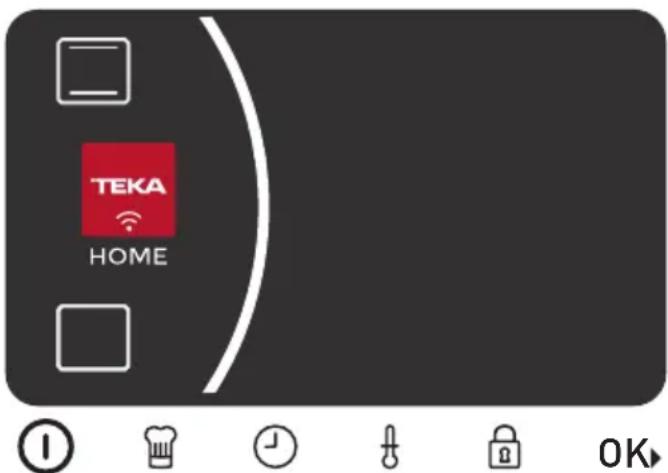
Confir rm the selection by pressing OK. The Wel- come to the function screen is displayed:
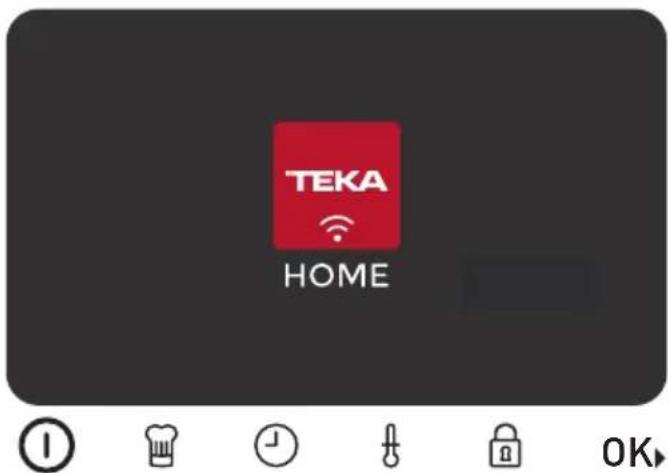
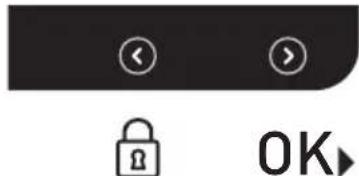
After the Welcome screen, use touch keys 🔒 and OK to scroll through the menu. The screen displays the back arrows Ⓞ to exit the Teka Home menu and return to the main oven menu, and forward arrows Ⓤ to continue to the screen which allows you to start the pairing with the APP.
PAIRING OVEN AND APP
After the welcome screen, the next screen displayed is where you can start the pairing of the oven and the APP:
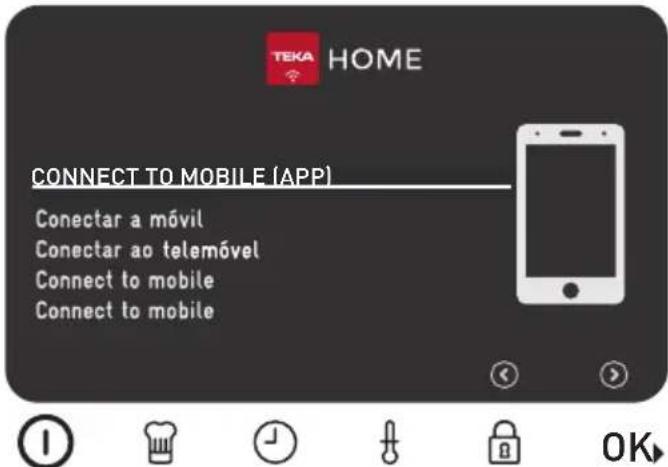
Press touch key OK to start the pairing process. Once the process has started, and while the pairing takes place, the following screen is displayed on the oven:

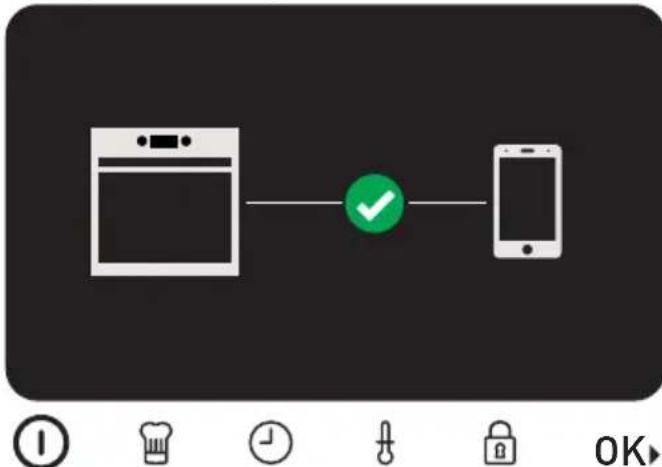
Next, follow the instructions in the APP. These will guide you step by step through the process. On completion of the process, a double confirmation is displayed. Both the APP and the oven display the following screen:
flowchart
graph LR
    A["Device"] -->|OK| B["Smartphone"]
    style A fill:#f9f,stroke:#333
    style B fill:#bbf,stroke:#333
From this screen, press touch key or wait a few seconds to return to the oven main screen automatically.
Once the oven has been connected to the selected wireless network, the Wi-Fi symbol is displayed, indicating that the connection is active:
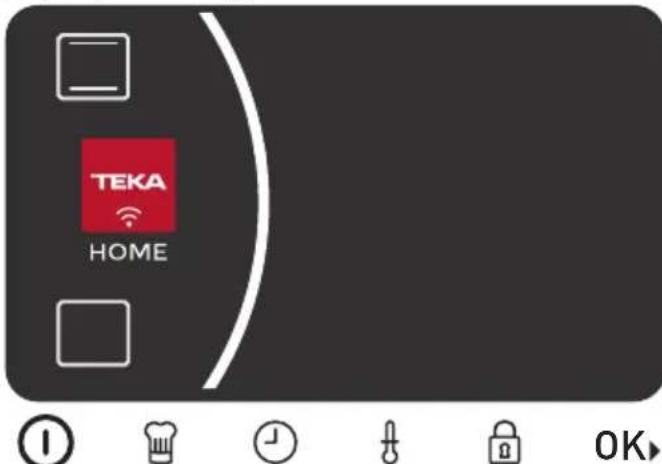
From now on, the oven is ready to start cooking processes launched from the APP.

INFORMATION
The connection process may take up to 60
seconds from the start of the process. If for any reason it is not concluded, a message is displayed on both the oven and the APP screen.
Connection problems and notification of errors
ERROR ON PAIRING OVEN AND APP
During the oven-APP pairing process, an error may occur which prevents the completion of the pairing. To help find the problem, a simple error notification system has been incorporated in the system. This will help you identify and repair the error.
If a problem occurs during the pairing process, this is indicated on the screen with an error code (Ex) for the error which has caused the fault:
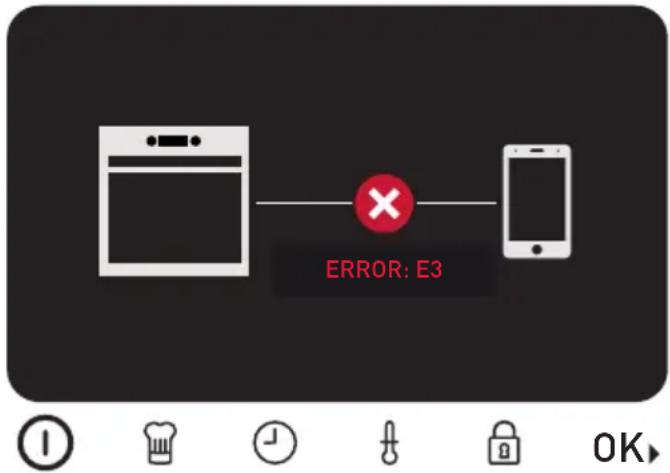
The full list of errors is given in the table on the following page to help you identify the problem. To exit the screen, press touch key OK to return to the main oven menu.
CONNECTION ERRORS AFTER PAIRING HAS BEEN ESTABLISHED
It is possible that after the oven has been correctly paired to the APP, the connection to the configured Wi-Fi network is lost. In this case, the Wi-Fi symbol is no longer displayed on the screen.

WARNING
If the connection to the configured Wi-Fi network is lost, the oven will automatically try to reconnect to the same network when it becomes available again.
If the system is not able to recover, try re-connecting manually using the Teka Home menu.
To restore the connection manually, go to Teka Home from the main menu. When accessing under these circumstances, the following screen is displayed:
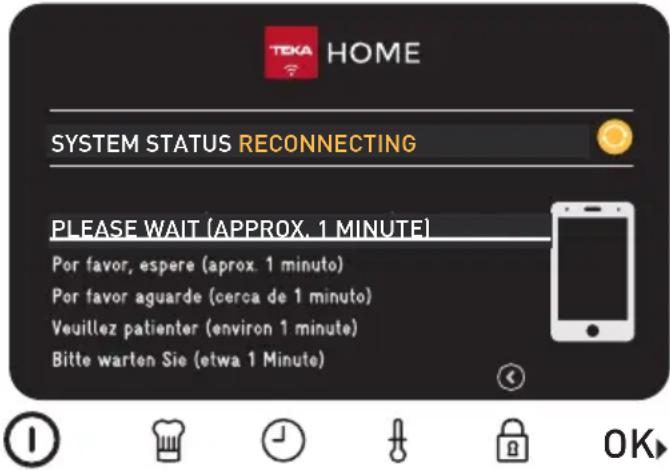
The oven will automatically try to reconnect to the previously configured Wi-Fi network. If the process is satisfactorily concluded, a connection correct message is displayed.
A table is shown on the following page with a full list of possible errors and a solution for these. If the oven is unable to reconnect automatically, the error causing the problem is displayed.
In these circumstances, the following options are available:
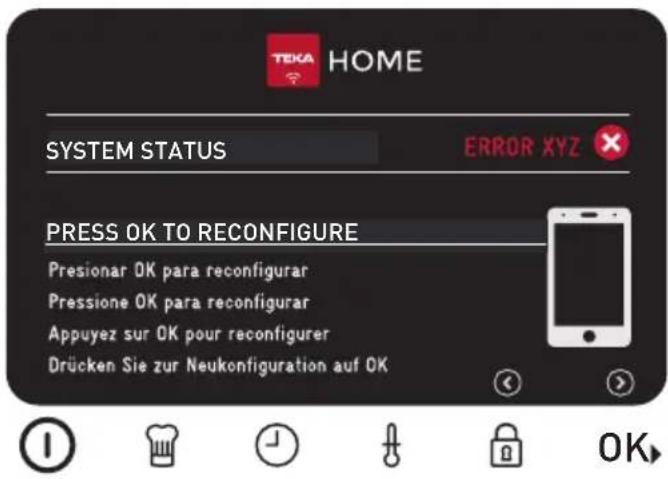
- Press touch key OK to delete the existing
Wi-Fi settings and to configure a new network.

INFORMATION
Use this option if any parameter of the current Wi-Fi network has changed (e.g. new password or SSID) or to change to a new Wi-Fi network.
- Press touch key OK▶ to exit the Teka Home menu with the existing settings. The existing settings will be stored and the system will try to reconnect to the Wi-Fi network saved in the system.
Restore factory settings
To restore the oven factory settings, and delete any user settings, place the "RESET" symbol on the main menu dial in the centre, and enter using touch key OK>
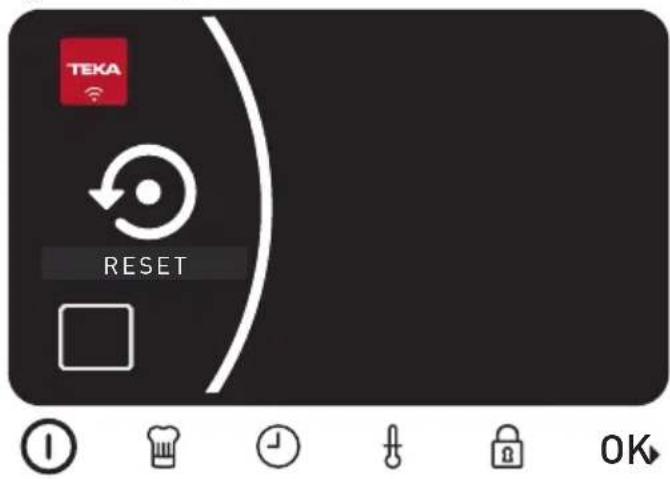
In this menu, press touch key OK to delete all the data and to restore the oven to the factory settings:
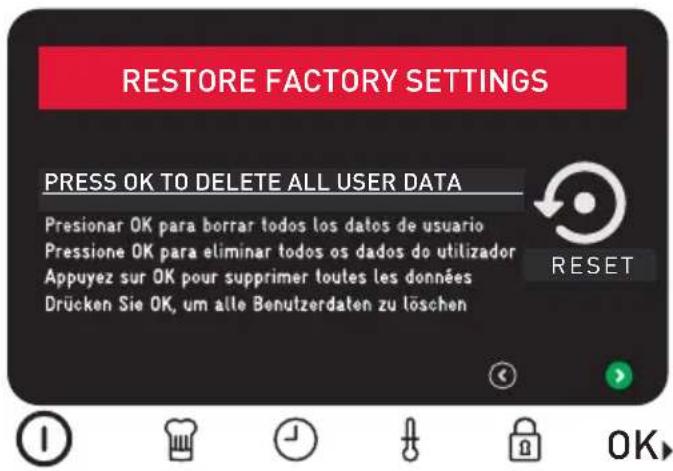
On completion of the process, the time settings screen is displayed.
Complete list of errors associated with Teka Home
| ERROR | ERROR TYPE POSSIBLE SOLUTION | |
| 1 | Error in communications management system | Try again in a few minutes. If the problem persists, restore the factory settings and repeat the configuration process. |
| 2 | Incorrect WiFi password entered | Reboot the configuration process for a new oven in the Teka Home APP. |
| 3 | Too many devices connected to your WiFi network | Disconnect some of the devices connected to your WiFi network. If the problem persists, reboot your router. If the problem persists, contact your Internet provider. |
| 4 | WiFi network not detected | Check that the oven is within the range of your router. Try using your mobile phone from the oven location to confirm that the WiFi network signal reaches the oven. |
| 5, 6, 7. | Error in the configuration process of your oven | Reboot the configuration process for a new oven in the Teka Home APP. |
| 8 | WiFi settings not found in oven Use the Teka Network | Home APP to confirm your oven. |
| 9 | Error on registering the device | Try again after 30 minutes. If the problem persists, contact the Technical Service |
| B | Error in hardware communications | Try again after 30 minutes. If the problem persists, contact the Technical Service |
| A, C | Communication error | “Check that other devices connected to the WiFi network are connected to Internet. If the other devices work correctly, repeat the operation. If the problem persists, restore the default settings and repeat the configuration process. If the other devices do not work correctly, reboot your router or contact your Internet provider.” |
| D | Sudden disconnection from your WiFi network | Reboot the router. If the problem persists, contact your Internet provider. |
APPAIRER LE FOUR AVEC L'APPLICATION ET ACCÈS
flowchart
graph LR
    A["Device"] --> B["Green Checkmark"]
    B --> C["Smartphone"]
flowchart
graph LR
    A[" Washing Machine"] --> B["手机"]
    style A fill:#f9f,stroke:#333
    style B fill:#ccf,stroke:#333
    note right of B "X" (Red X) is part of the diagram, not text-based data. Bottom-left icon: I, #, #, 🔔, lock on right.
natural_image
World map silhouette showing continents and countries with no text or labels
HOME
teka.com
- ESPAÑOL
- FRANÇAIS
- Presentation of the Teka Home menu
- WARNING
- Use of Teka Home
- OVEN FUNCTIONS
- OVEN-APP PAIRING AND ACCESS
- PAIRING OVEN AND APP
- INFORMATION
- Connection problems and notification of errors
- ERROR ON PAIRING OVEN AND APP
- CONNECTION ERRORS AFTER PAIRING HAS BEEN ESTABLISHED
- Restore factory settings
- Complete list of errors associated with Teka Home
- APPAIRER LE FOUR AVEC L'APPLICATION ET ACCÈS
Brand : TEKA
Model : HLB 8700 P
Category : Oven