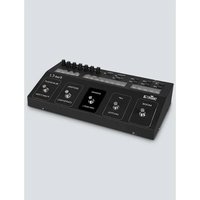
Foot-C 2 - Controller Chauvet - Free user manual and instructions
Find the device manual for free Foot-C 2 Chauvet in PDF.


| Product Type | DMX Foot Controller |
| Brand | Chauvet |
| Model | Foot-C 2 |
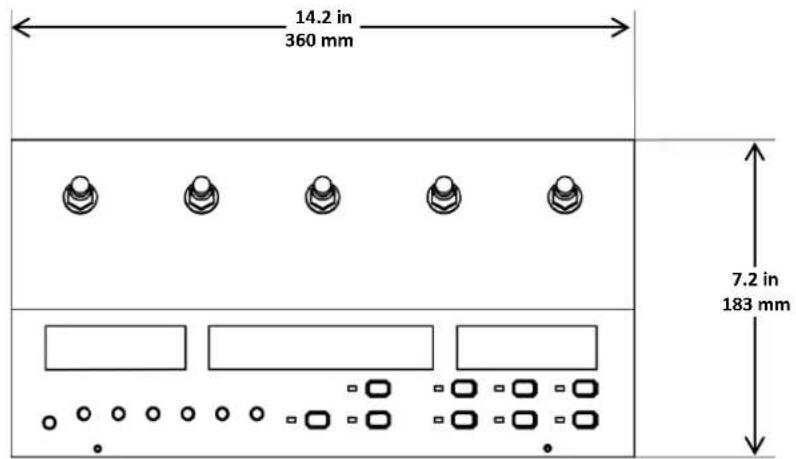
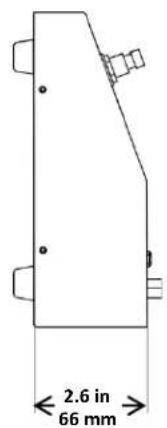
| Dimensions (L x W x H) | 360 x 183 x 66 mm |
| Weight | 1.9 kg |
| Power Supply | External, input 100-240 V AC, 50/60 Hz, output 12 V DC 1 A |
| Number of DMX Channels | 36 |
| Number of Controllable Fixtures | Up to 6 (max. 6 channels each) |
| Number of Programmable Scenes | 24 |
| Number of Programmable Chases | 12 (max. 24 steps per chase) |
| Playback Modes | Auto, Audio, Tap Sync, MIDI, Manual |
| Features | Scene and chase programming, fade, speed, blackout, manual override |
| Connectivity | 3-pin DMX output, 5-pin MIDI input, RCA audio line input, DC input |
| DMX Polarity Switch | Yes |
| Display | LED |
| Button Type | Guitar pedal style |
| Max. Ambient Temperature | 40 °C |
| Protection Rating | IP20 (indoor use only) |
| Mounting | Floor or table (rubber feet) |
| Maintenance | Regular dusting, surface cleaning with ammonia-free glass cleaner |
| Safety | Disconnect before cleaning, do not use with dimmer, grounding required |
| Repairability | Do not open or repair yourself, contact Chauvet technical support |
| Warranty | Per Chauvet conditions (see website) |
| Package Contents | Foot-C 2, external power supply, warranty card, reference manual |
Frequently Asked Questions - Foot-C 2 Chauvet
User questions about Foot-C 2 Chauvet
0 question about this device. Answer the ones you know or ask your own.
Ask a new question about this device
Download the instructions for your Controller in PDF format for free! Find your manual Foot-C 2 - Chauvet and take your electronic device back in hand. On this page are published all the documents necessary for the use of your device. Foot-C 2 by Chauvet.
USER MANUAL Foot-C 2 Chauvet
natural_image
Line drawing of a mechanical control panel with multiple adjustment knobs and buttons (no text or symbols)TABLE OF CONTENTS
Warranty/Garantía/Garantie 8
Limited Warranty 8
Garantía Limitada....8
Garantie Limitée 8
Unpacking Instructions....10
Claims....10
Text Conventions 10
Symbols 10
Disclaimer 10
Product at a Glance 11
Safety Notes......11
2. Introduction....12
Features 12
Product Description....12
Mounting 12
Programming Concepts 12
Front Panel Overview....13
Front Panel View 13
Front Panel Controls.... 13
Control Descriptions 14
Back Panel View.... 15
Back Panel Ports 15
DMX Polarity Switch Diagram....15
Product Dimensions....15
3. Setup....16
AC Power 16
Mounting 16
Setting Up the Board....16
DMX Cabling 16
DMX Cabling Diagram.... 16
Fixture Addressing 16
4. Programming....17
Program Mode 17
Entering Program Mode.... 17
Exiting Program Mode 17
Programming a Scene or Scenes 18
Editing a Scene or Scenes 18
Deleting a Scene or Scenes 18
Programming a Chase 19
Add Mode 19
Deleting a Step or Steps in a Chase.... 20
Edit Mode 20
5. Playback ....21
Playback Mode....21
Chase Playback 21
Speed 21
Fade 21
Auto Mode 22
Audio Triggering....22
Blackout 22
Tap Sync 22
Manual Override....22
MIDI Operation....23
MIDI Map 23
- Maintenance ....24
Product Maintenance 24
- Technical Specifications....24
Returns ......25
2. Introduction....44
Concept de Programmation....44
4. Programmation....49
Mode programmation....49
Passer en mode programmation....49
For Customers in the United States and Mexico: www.chauvetlighting.com/warranty-registration.
For Customers in the United Kingdom, Republic of Ireland, Belgium, the Netherlands, Luxembourg, France, and Germany: www.chauvetlighting.eu/warranty-registration.
Chauvet warrants that this product shall be free from defects in material and workmanship under normal use, for the period specified in, and subject to the exclusions and limitations set forth in the full limited warranty on our website. This warranty extends only to the original purchaser of the product and is not transferable. To exercise rights under this warranty, you must provide proof of purchase in the form of an original sales receipt from an authorized dealer that shows the product name and date of purchase. THERE ARE NO OTHER EXPRESS OR IMPLIED WARRANTIES. This warranty gives you specific legal rights. You may also have other rights that vary from state to state and country to country. This warranty is valid only in the United States, United Kingdom, Republic of Ireland, Belgium, the Netherlands, Luxembourg, France, Germany and Mexico. For warranty terms in other countries, please consult your local distributor.
Garantía Limitada
Unpacking Instructions
-
Foot-C 2
• External Power Supply -
Warranty Card
- Quick Reference Guide
Claims
Carefully unpack the product immediately and check the container to make sure all the parts are in the package and are in good condition.
If the box or the contents (the product and included accessories) appear damaged from shipping, or show signs of mishandling, notify the carrier immediately, not Chauvet. Failure to report damage to the carrier immediately may invalidate your claim. In addition, keep the box and contents for inspection.
For other issues, such as missing components or parts, damage not related to shipping, or concealed damage, file a claim with Chauvet within 7 days of delivery.
| Convention Meaning | |
| 1—512 | A range of values |
| 50/60 | A set of values of which only one can be chosen |
| Settings | A menu option not to be modified |
| Menu > Settings | A sequence of menu options to be followed |
| A key to be pressed on the product's control panel | |
| ON | A value to be entered or selected |
| Symbols Symbol Meaning | |
 | Critical installation, configuration, or operation information. Not following these instructions may make the product not work, cause damage to the product, or cause harm to the operator. |
 | Important installation or configuration information. The product may not function correctly if this information is not used. |
 | Useful information. |
Disclaimer
Chauvet believes that the information contained in this manual is accurate in all respects. However, Chauvet assumes no responsibility and specifically disclaims any and all liability to any party for any loss, damage or disruption caused by any errors or omissions in this document, whether such errors or omissions result from negligence, accident or any other cause. Chauvet reserves the right to revise the content of this document without any obligation to notify any person or company of such revision, however, Chauvet has no obligation to make, and does not commit to make, any such revisions. Download the latest version from www.chauvetlighting.com.
The works of authorship contained in this manual, including, but not limited to, all design, text and images are owned by Chauvet.
© Copyright 2018 Chauvet & Sons, LLC. All rights reserved.
Electronically published by Chauvet in the United States of America.
CHAUVET, the Chauvet logo, and Foot-C 2 are registered trademarks or trademarks of Chauvet & Sons LLC. (d/b/a Chauvet and Chauvet Lighting) in the United States and other countries. Other company and product names and logos referred to herein may be trademarks of their respective companies.
Product at a Glance
| Use on Dimmer | Auto Programs | ||
| Outdoor Use | Auto-ranging Power Supply | ||
| Sound-Active | Replaceable Fuse | ||
| DMX | User-Serviceable | ||
| Master/Slave |
Safety Notes
Please read the following Safety Notes carefully before working with the product. The Notes include important safety information about installation, usage, and maintenance.

• Always connect the product to a grounded circuit to avoid the risk of electrocution.
• Always disconnect the product from the power source before cleaning.
• Make sure the power cord is not crimped or damaged.
- Never disconnect the product from power by pulling or tugging on the cord.
• Make sure there are no flammable materials close to the product when operating.
- Do not touch the product's housing when operating because it may be very hot.

• The product is not intended for permanent installation.
- Always make sure that the voltage of the outlet to which you are connecting the product is within the range stated on the decal or rear panel of the product.
- The product is for indoor use only! (IP20) To prevent risk of fire or shock, do not expose the product to rain or moisture.
- Always install the product in a location with adequate ventilation, at least 20 in (50 cm) from adjacent surfaces.
• Never connect the product to a dimmer.
• Never carry the product from the power cord.
- The maximum ambient temperature (Ta) is 104 °F (40 °C). Do not operate the product at higher temperatures.
• In the event of a serious operating problem, stop using the product immediately.
- Never try to repair the product. Repairs carried out by unskilled people can lead to damage or malfunction. Please contact the nearest authorized technical assistance center.
- To eliminate unnecessary wear and improve its lifespan, during periods of non-use completely disconnect the product from power via breaker or by unplugging it.

Keep this User Manual for future use. If you sell the product, be sure that they also receive this document.
2. INTRODUCTION
Features
Product Description
Mounting Programming Concepts
• Controls up to 6 fixtures, up to 36 channels total
- Designed to work with fixtures that have up to 6 channels
• Guitar pedal-style buttons
• Create and control a full light show of chases, scenes, fades, and more
• Built-in Tap Sync, Auto, and Sound modes
- MIDI input
• Direct audio line input for triggering scenes
• Fits in the CHS-25 VIP Gear Bag
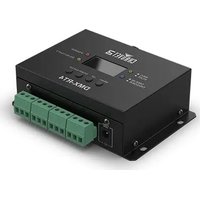
Foot-C 2 is a compact 36-channel DMX foot controller that can control up to 6 six-channel fixtures and store 12 sets of chases with up to 24 steps each. Ideal for 6-channel fixtures, it has rugged guitar pedal-style buttons that can trigger Automated and Sound-Active modes, as well as control chases and scenes. LED displays make it easy to navigate the controller in any environment. Improved software offers more versatility and makes it simpler than ever to shift between scenes or to blackout fixtures instantly.
The Foot-C 2 is designed with 4 rubber feet so it can be placed on a table top for programming, and then floor-mounted for playback. The product is not rack-mountable. The Foot-C 2 uses DMX addressing and values to control products. See Fixture Addressing for more information.
Looks are created by using the faders to send DMX values to the products. The looks are saved into scenes or as steps in chases. The scenes and chases are played back at different speeds and with different types of triggers.
- Looks are created in Program mode. The products are selected with the fixture buttons. The knobs are moved to control the products and create looks. Then the looks are saved to scenes or chases with the program button.
See Programming for more information.
- Scenes and chases are played back in Playback mode. Timing of playback is set with the speed and time functions, audio triggers, the Tap Sync function, or MIDI input. See Playback for more information.

Looks can be created in playback mode, but they cannot be saved.
Front Panel Overview
The Foot-C 2 is laid out with the Fixture buttons (<1>-<6>) on the top left, the color and sensitivity knobs on the top right, the LED displays along the middle, and the guitar pedal-style buttons along the bottom. The rear panel of the product has the ports and power connection. See Back Panel View for information about the back panel and its ports.
Front Panel View
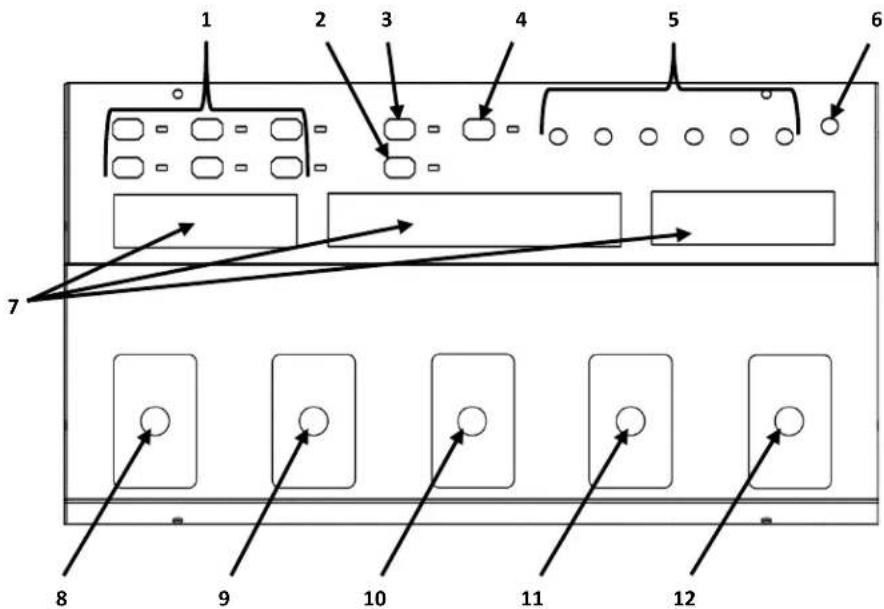
Front Panel Controls
| Item Button or Knob | |
| 1 | Fixture selection buttons 1–6 with indicator LEDs |
| 2 | Program button |
| 3 | Blackout button |
| 4 | Delete button/MIDI channel select. LED indicator will light orange when in MIDI selection mode. |
| 5 | Color/control knobs: red, green, blue, amber, white, and UV |
| 6 | Audio sensitivity knob |
| 7 | Displays |
| 8 | Mode pedal-style button - switches between chases and scenes |
| 9 | Up (Auto) pedal-style button - navigates upward through a list or increases numerical value when in a function or enables auto mode |
| 10 | Down (Music) pedal-style button - navigates downward through a list or decreases numerical value when in a function or enables music (sound active) mode |
| 11 | Enter (TAPSYNC) pedal-style button – sets/enables the currently selected value or enables Tap Sync mode |
| 12 | BLACKOUT / FUNCTION pedal-style button. Also toggles program modes. |
Control Descriptions
| Button or Fader Description | |
| FIXTURE<1>-<6> | Buttons that select lights to control and set the default DMX addresses of the channel faders. The corresponding LEDs indicate when a light is selected.Note: These buttons are inclusive. Pressing one, then another, selects both lights. To deselect a light, press it again and make sure the LED indicator is off. |
| BLACKOUT | Thebutton will darken all fixtures. To turn blackout off, press thebutton again. Thepedal will also activate and deactivate the blackout feature. |
| PROGRAM | Button used to enter the programming mode. Allows you to program a scene, chase, or sequence thereof. |
| DELETE | Button used to delete scenes individually. Delete a scene by pressing and holding thebutton until the LED display flashes.button also controls the MIDI channel select. |
| Color/Control Knobs | Knobs to control the manual adjustment of red, green, blue, amber, white and UV (000-255); or the DMX channel of the Fixtures 1-6. |
| Audio Sensitivity Knob | Knob that adjusts the board's sensitivity to sound and music. |
| LED Displays | Display that shows various types of information about current selections and whether it is in Program or Playback mode:Blackout - indicates that blackout is active and the board is not sending DMX signals.Program - indicates that the board is in Program mode.Music - indicates that the board is in Music Trigger mode.Auto - indicates that the board is in Auto Trigger mode.Chase - shows the current chase in Playback or Program mode.Scene - shows the current scene in Playback or Program mode. |
| Pedal Button | Button that switches between Chase mode and Scenes mode. |
| (AUTO) Pedal Button | Button that moves up through banks of scenes, or up through the steps in a chase.Also used to enable Auto mode, to automatically play back chases or scenes. |
| (MUSIC) Pedal Button | Button that moves down through banks of scenes, or down through the steps in a chase.Also used to enable Music mode, to sets scenes/steps in chases to respond to audio triggers from a source. |
| (Pedal Button | Button used while programming to switch between the Speed and Fade functions, or to confirm a selection. Hold to activate the Tap Sync feature.While in Tap Sync mode, press theorpedal buttons to the beat to set your chase timing. |
| Pedal Button | Button used in playback to quickly switch between Music mode, Auto mode, or to blackout all fixtures.To turn the blackout off, you must presspedal button again.Also used for toggling program modes. With program activated, press to switch between Add and EdIT. |
Back Panel View

flowchart
graph LR
    A["MIDI In"] --> B["Audio Line Input"]
    C["DMX Out"] --> D["DMX Polarity Switch"]
    E["DC Power In"] --> F["Power On/Off Switch"]
| Back Panel Ports | Port Function | |
| MIDI In | 5-pin MIDI port for connecting a MIDI signal. | |
| DMX Out | 3-pin DMX port for connecting to other products. | |
| DC Power In | Connects to the external power supply. | |
| Power On/Off Switch | Toggle switch that turns the Foot-C 2 on and off. | |
| Audio Line Input | RCA Input for external audio triggering. | |
| DMX Polarity Switch | Toggle switch for changing DMX polarity. |
DMX Polarity Switch Diagram
DMX Polarity Switch
1=ground 2=data+ 3=data-
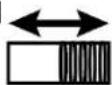
1=ground 2=data- 3=data+
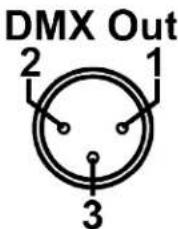
All Chauvet lights use a negative pin 2 and positive pin 3, so the polarity switch should be set as shown above—towards the DMX Control Out port. Other manufacture's lights might be different.

For more information about DMX, download the DMX Primer from www.chauvetlighting.com.
Product Dimensions
3. SETUP
AC Power
The Foot-C 2 has an external auto-ranging power supply and it can work with an input voltage range of 100 to 240 VAC, 50/60 Hz. To determine the product's power requirements (circuit breaker, power outlet, and wiring), use the current value listed on the label affixed to the power supply's back panel, or refer to the product's specifications chart. The listed current rating indicates the products average current draw under normal conditions.

- Always connect the product to a protected circuit (circuit breaker or fuse). Make sure the product has an appropriate electrical ground to avoid the risk of electrocution or fire.
- To eliminate unnecessary wear and improve its lifespan, during periods of non-use completely disconnect the product from power via breaker or by unplugging it.
- Never connect the product to a rheostat (variable resistor) or dimmer circuit, even if the rheostat or dimmer channel serves only as a 0 to 100% switch.

The Foot-C 2 is designed only for floor or table mounting. Make sure adequate ventilation is provided around the product.
In order to use the controller it must be connected to the products with DMX cables and the products must be addressed correctly. The sections below described DMX cabling and DMX addressing.
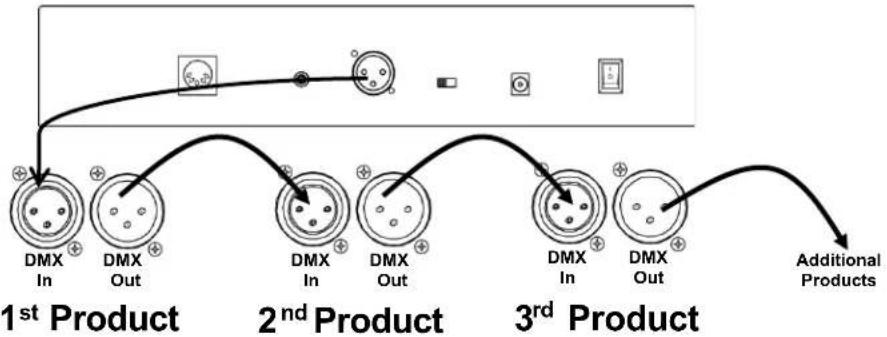
DMX cabling is required to get DMX values from the board to the products. Connect the DMX cable from the DMX Out of the board to the DMX In of the first product in the rig. Then connect another DMX cable from the DMX Out of the first product in the rig to the DMX In of the next product. Continue connecting until all the products are connected.
DMX Cabling Diagram
flowchart
graph LR
    A["DMX In"] --> B["DMX Out"]
    B --> C["DMX In"]
    C --> D["DMX Out"]
    D --> E["DMX In"]
    E --> F["DMX Out"]
    F --> G["Additional Products"]
Fixture Addressing
The Foot-C 2 uses DMX addressing. The Foot-C 2 controls lights with specific DMX addresses and the lights must be addressed correctly for the Foot-C 2 to control them. More than one light can have the same DMX address, but lights with the same DMX address should be the same type of light.
Below is a chart showing the Foot-C 2 DMX addresses and the corresponding fixture buttons:
| FIXTURE Button | Starting Address Range |
| <1> | 1 1-6 |
| <2> | 7 7-12 |
| <3> | 13 13-18 |
| <4> | 19 19-24 |
| <5> | 25 25-30 |
| <6> | 31 31-36 |

This product has program memory. All looks exist not only during the current session, but can also be saved or recalled after switching the power OFF.
4. PROGRAMMING
Program Mode
Program mode is used to program for playback. In Program mode, lighting looks are created and saved for playback. There are three parts to programming for playback.
- Programming lights: selecting and controlling them to create looks.
- Programming scenes: saving the looks into scenes.
or
- Programming chases: saving the looks into steps in a chase.
The next section describes how to program lights, scenes, and chases, and how to modify and delete scenes and chases.

Output can be adjusted in Playback mode, but the looks created in Playback mode cannot be saved to memory.
Entering Program Mode
To enter program mode, do the following:
- Turn the board on.
- Press and hold
for three seconds. - The program indicator light, next to the
button, will light up. - Release
.
Exiting Program Mode
To exit program mode, follow the instructions below:
- Press and hold
for three seconds. - The program indicator light, next to the
button, will turn off. - Release
.
Programming a Scene or Scenes
The Foot-C 2 has one bank of scenes, separate from the chase banks, for saving and playing back recorded scenes. To record a scene, follow the instructions below:
- Enter program mode.
- Press
until the left display reads SCENE. - Use
and to select the desired scene. - Use buttons <1>-<6> to select the fixture(s) to be programmed.
- Use the Color/Number knobs to set the desired output.
- Repeat steps 4 and 5 until all fixtures output as desired.
- Press
. The displays will flash, showing the scene was saved. - Repeat steps 3–7 for up to 24 scenes.
- Exit program mode.

Scenes are intended to be used for static looks, as opposed to chases which are intended for changing looks.
Editing a Scene or Scenes
After being recorded, any scene can be re-programmed. To edit a scene, do the following:
- Enter program mode.
- Press
until the left display reads SCENE. - Use
and to select the scene to be edited. - Use buttons <1>-<6> to select the fixture(s) to be programmed.
- Use the Color/Number knobs to set the desired output.
- Repeat steps 4 and 5 until all fixtures output as desired.
- Press
. The displays will flash, showing the scene was saved. - Repeat steps 3–7 for all scenes that require editing.
- Exit program mode.

Looks created or edited in program mode will not be stored in the system memory until
Deleting a Scene or Scenes
To delete a scene, do the following:
- Enter program mode.
- Press
until the left display reads SCENE. - Use
and to select the scene to be deleted. - Press and hold
for three seconds. The displays will flash, indicating the scene was deleted. - Release
. - Repeat steps 3–5 until all desired scenes have been deleted.
- Exit program mode.

Deleted scenes cannot be restored.
Programming a Chase
Chase mode gives the user access to a bank of 12 chases, each with up to 24 steps. The distinction between chases and scenes allows the user to switch between moving chases and static scenes at will.
Add Mode
Add mode allows the user to record new steps in a chase, either to a previously unrecorded chase, or to an already established chase. To program a chase:
- Enter program mode.
- Press
until the left display reads CHASE. - Press and hold
until the display on the right reads Add. -
Use
to scroll through the chase bank until the desired chase is selected.
A chase with no recorded steps will show __ 00/00 (chase 1–12 step 0 out of 0) on the middle display. -
Use buttons <1>-<6> to select the fixture(s) to be programmed.
-
Use the Color/Number knobs to set the desired output.
-
Repeat steps 5 and 6 until all fixtures output as desired.
-
Press
. The displays will flash, showing the step was saved. The product will automatically move on to the next step.
The last step that was saved to memory will show on the middle display. For example: 03 03/03 (chase 3, step 3 of 3) will change to 03 04/04 (chase 3, step 4 of 4) after pressing
-
Repeat steps 5–8 for up to 24 steps.
-
Exit program mode.
To add a step in the middle of a chase:
- Enter program mode.
- Press
until the left display reads CHASE. - Press and hold
until the display on the right reads Add. -
Use
to scroll through the chase bank until the desired chase is selected. -
Use
and to select the step before the step to be inserted. -
Use buttons <1>-<6> to select the fixture(s) to be programmed.
-
Use the Color/Number knobs to set the desired output.
-
Repeat steps 6 and 7 until all fixtures output as desired.
-
Press
. The displays will flash, showing the inserted step was saved. The middle display will indicate the inserted step. For example, if the display read 01 07/13 before pressing , it will read 01 08/14 after saving the new step.

Chases are intended to be used for changing looks, as opposed to scenes which are intended for static looks
Deleting a Step or Steps in a Chase
To delete a step or steps in a chase, do the following:
- Enter program mode.
- Press
until the left display reads CHASE. - Use
to select the chase to be shortened. - Use
and to select the step to be deleted. - Press and hold
for three seconds. The displays will flash, indicating the step was deleted. All steps after the deleted step will move down the queue to replace it. For example: If step 3 is deleted, step 4 will become step 3, step 5 will become step 4, etc. - Release
. - Repeat steps 4–6 until all desired steps have been deleted.
- Exit program mode or continue programming chases/scenes.

Edit Mode
Deleted steps cannot be restored without redesigning the look.
To edit a step or steps in a chase, follow the instructions below:
- Enter program mode.
- Press
until the left display reads CHASE. - Press
until the display on the right reads EdIT. - Use
to select the chase to be edited. - Use
and to select the step to be edited. - Use buttons <1>-<6> to select the fixture(s) to be programmed.
- Use the Color/Number knobs to set the desired output.
- Repeat steps 6 and 7 until all fixtures output as desired.
-
Press
to record the changes. The displays will flash, indicating the changes were saved. -
Repeat steps 5–9 until all desired changes to this chase are completed.
-
Edit another chase or exit program mode.
5. PLAYBACK
Playback Mode
Playback is used to play back saved scenes and chases. It is the mode to use when the show is happening. In playback mode, the saved scenes and chases are triggered to play back. There are four playback types:
• Scene Playback - Playing back saved scenes.
- Chase Playback - Playing back saved chases.
- MIDI Playback - Using a MIDI input signal to play back scenes and chases.
- Live Playback - Controlling the outputs without the use of scenes or chases. Not recommended.

To operate any of the modes that offer amber, white, or UV color options, the selected fixture must be capable of outputting that corresponding color light.
Chase Playback
Chase playback triggers a specific chase (1–12) for playback with auto, audio, MIDI, or Tap Sync triggering. The middle display shows the selected chase, the current step, and the total number of steps in that chase.
To enter Chase Playback mode, press

There is no way to manually trigger the steps in a chase in playback mode.
Speed
The speed setting determines how long each step in a chase will be active in Auto mode, before the next step is triggered.
To set speed, do the following:
- Play back a chase.
- Press and hold
until SPEEd 0–16 shows on the middle display. - Use
and to select the desired speed. 0 will halt auto triggering. 1–16 is in order from slowest to fastest speeds. - Press
until the display shows the current scene or chase to exit speed setting.
Fade
The fade setting determines how long it takes one scene or step to change, or fade, to the next scene or step.
To set fade, follow the instructions below:
- Play back a scene or chase.
- Press and hold
until SPEEd XX (XX designates a numerical value from 00 to 16) shows on the middle display. - Press
once. The middle display will show FAdE XX. - Use
and to select the desired fade. 00 will set the scenes or steps to snap immediately to the next when triggered. 01–16 is in order from fastest to slowest fade rate curves. - To exit the fade rate setting, press
once. The display should show the current scene or chase.
Auto Mode
Auto mode sets the steps in chases to trigger automatically, based on the set speed and fade times.
To enable Auto mode, do the following:
- Play back a chase.
- Press
until the display on the right shows AUTO.
Audio Triggering
Audio mode sets the steps in chases to respond to audio triggers, from either the internal microphone, or an external audio source through the Audio Line Input jack on the rear panel.
To enable Audio Triggering, follow the instructions below:
- Play back a chase.
- Press and hold
until the display on the right shows MUSIC. - Turn the AUDIO SENS knob up until the scenes or steps are triggered by sound as desired.
Blackout
Blackout mode sets all DMX outputs to zero while active. There are two ways to activate or deactivate Blackout mode:
- Press
or - Press and hold
for three seconds.
Either method can deactivate Blackout, regardless of how it was activated.
While Blackout mode is active, the indicator LED next towill light up.
Tap Sync
The Tap Sync feature allows the user to set the auto and fade speeds with their foot. To activate Tap Sync:
- Play back a chase in Auto mode.
- Press and hold
for three seconds. The display on the right will show TAPSY. - Release
. - Press
at the desired tempo. Do this several times to ensure the tempo is set. (The time between the first and second press is the speed, the time between the second and third press is the Fade)
To deactivate Tap Sync, press and hold.
Manual Override
During playback, the Color knobs can take priority over the scene or chase playing back. To manually override a recorded program, do the following:
- Play back a scene or chase in any mode.
- Use buttons <1>-<6> to select the fixture(s) to be overridden.
- Use the Color/Number knobs to alter the output of the selected fixture(s).
Once a Color knob has been moved, the knob will completely supersede the program for the selected fixture(s). For example: If all fixtures are set to output blue for a scene, fixture 1 is selected, and the BLUE knob is turned all the way down, then fixture 1 will not output blue.
To turn off Manual Override, use buttons <1>-<6> to deselect any selected fixtures.
MIDI Operation
The Foot-C 2 can be externally controlled by a MIDI signal through the MIDI in port on the rear panel. This will work at any time, as long as there is a MIDI input.
To select the MIDI receiving channel:
- Press and hold
for three seconds. The indicator next to will light up. -
Release
. The display will have changed to show the MIDI receiving channel. -
Use
and to select a MIDI receiving channel 1–16. -
Press and hold
for three seconds. The indicator next to will turn off. -
Release
. The display will have returned to normal.

- The controller will only respond to MIDI commands on the selected MIDI channel when SPEEd is set to 0.
- Perform all MIDI control using NOTE_ON or PROGRAM CHANGE commands. All other MIDI instructions are ignored.
• To stop a chase, send the BLACKOUT ON note.
MIDI Map
NOTE_ON
| MIDI Note | Function (Turns On/Off) |
| 00–23 | SCENE 1-24 ON |
| 24–35 | CHASE 1-12 ON |
| 36 | TAPSYNC |
| 127 | Blackout |
PROGRAM CHANGE
| MIDI Note | Function (Turns On/Off) |
| 10–21 | CHASE 1-12 ON |
| 30–53 | SCENE 1-24 ON |
| 60–76 | Set Speed 1-16 |
| 80–95 | Set Fade 1-16 |
| 100 | Blackout On |
| 101 | Blackout Off |

MIDI operation always runs in the background during use.
6. MAINTENANCE
Product Maintenance
Dust build-up reduces performance and can cause overheating. This can lead to reduction of the product's life and/or mechanical wear. To maintain optimum performance and minimize wear, clean your lighting products at least twice a month. However, be aware that usage and environmental conditions could be contributing factors to increase the cleaning frequency.
To clean the product, follow the instructions below:
- Unplug the product from power.
- Wait until the product is at room temperature.
- Use a vacuum (or dry compressed air) and a soft brush to remove dust collected on the external surface.
- Clean all transparent surfaces (display lenses) with a mild soap solution, ammonia-free glass cleaner, or isopropyl alcohol.
- Apply the solution directly to a soft, lint free cotton cloth or a lens cleaning tissue.
- Softly drag any dirt or grime to the outside of the transparent surface.
- Gently polish the transparent surfaces until they are free of haze and lint.

• Always dry the transparent surfaces carefully after cleaning them.
7. TECHNICAL SPECIFICATIONS
| Dimensions and Weight | Length | Width | Height | Weight |
| 7.2 in (183 mm) | 14.2 in (360 mm) | 2.6 in (66 mm) | 4 lb (1.9 kg) |
Note: Dimensions in inches rounded to the nearest decimal digit.
| Power | Value | Foot-C 2 | External Power Supply |
| Input Voltage | Fixed | Switching | |
| Range | 12 VDC, 1 A | 100 to 240 VAC, 50/60 Hz | |
| Voltage Selection | Fixed | Auto-ranging | |
| Thermal | Maximum External Temp. | Cooling System | |
| 104 °F (40 °C) | Convection | ||
| DMX | Output Connector | Channel Range | |
| 3-pin XLR | 36 | ||
| Ordering | Product Name | Item Code | UPC Number |
| Foot-C 2 | 09081235 | 781462215835 |

RETURNS
To get support or return a product:
• If you are located in the U.S., contact Chauvet World Headquarters.
• If you are located in the UK or Ireland, contact Chauvet Europe Ltd.
• If you are located in France, contact Chauvet France.
• If you are located in Germany, contact Chauvet Germany.
• If you are located in Mexico, contact Chauvet Mexico.
• If you are located in Benelux, contact Chauvet Europe BVBA.
- If you are located in any other country, DO NOT contact Chauvet. Instead, contact your local distributor. See www.chauvetlighting.com for distributors outside the U.S., UK, Ireland, France, Germany, Benelux, or Mexico.

If you are located outside the U.S., UK, Ireland, France, Germany, Mexico, or Benelux, contact your distributor of record and follow their instructions on how to return Chauvet products to them. Visit our website www.chauvetlighting.com for contact details.
Call the corresponding Chauvet Technical Support office and request a Return Merchandise Authorization (RMA) number before shipping the product. Be prepared to provide the model number, serial number, and a brief description of the cause for the return.
Send the merchandise prepaid, in its original box, and with its original packing and accessories. Chauvet will not issue call tags.
Clearly label the package with the RMA number. Chauvet will refuse any product returned without an RMA number.

Write the RMA number on a properly affixed label. DO NOT write the RMA number directly on the box.
Before sending the product, clearly write the following information on a piece of paper and place it inside the box:
- Your name
- Your address
- Your phone number
- RMA number
• A brief description of the problem
Be sure to pack the product properly. Any shipping damage resulting from inadequate packaging will be your responsibility. FedEx packing or double-boxing are recommended.

Chauvet reserves the right to use its own discretion to repair or replace returned product(s).
1. ANTES DE EMPEZAR
Qué va incluido
- Foot-C 2

- TABLE OF CONTENTS
- Warranty/Garantía/Garantie 8
- Introduction....12
- Setup....16
- Programming....17
- Playback ....21
- Introduction....44
- Programmation....49
- Garantía Limitada
- Unpacking Instructions
- Claims
- Disclaimer
- Product at a Glance
- Safety Notes
- INTRODUCTION
- Features
- Product Description
- Mounting Programming Concepts
- Front Panel Overview
- DMX Polarity Switch Diagram
- DMX Polarity Switch
- SETUP
- AC Power
- DMX Cabling Diagram
- Fixture Addressing
- PROGRAMMING
- Program Mode
- Entering Program Mode
- Exiting Program Mode
- Programming a Scene or Scenes
- Editing a Scene or Scenes
- Deleting a Scene or Scenes
- Programming a Chase
- Add Mode
- Deleting a Step or Steps in a Chase
- Edit Mode
- Deleted steps cannot be restored without redesigning the look.
- PLAYBACK
- Playback Mode
- Chase Playback
- Speed
- Fade
- Auto Mode
- Audio Triggering
- Blackout
- Tap Sync
- Manual Override
- MIDI Operation
- MIDI Map
- MAINTENANCE
- Product Maintenance
- TECHNICAL SPECIFICATIONS
- RETURNS
- ANTES DE EMPEZAR
- Qué va incluido
Brand : Chauvet
Model : Foot-C 2
Category : Controller