
imagePRESS C170 - Controller CANON - Free user manual and instructions
Find the device manual for free imagePRESS C170 CANON in PDF.


| Brand | Canon |
| Model | imagePRESS C170 |
| Category | Digital print controller |
| Product type | Color multifunction printer |
| Main functions | Print, copy, scan, fax (optional) |
| Power supply | 220–240 V, 50/60 Hz |
| Consumables | Canon imagePRESS T07 toner cartridges (black, cyan, magenta, yellow), staples |
| Paper sources | Trays 1 and 2, multipurpose tray, cassette |
| Supported paper sizes | Up to A4 (trays), custom sizes |
| Print resolution | High print quality with automatic halftone adjustment |
| Connectivity | USB, wired LAN, wireless LAN (2.4 GHz band), telephone line (fax) |
| Touch screen | Touchscreen display for settings and monitoring |
| Optimization functions | Automatic four-color correction, curl correction, image position adjustment |
| Maintenance and cleaning | Cleaning of exposure glass, charger, machine interior, touch screen; monthly circuit breaker inspection |
| Safety | Circuit breaker, Class 1 laser instructions, auto shut-off, sleep mode |
| Spare parts and repairability | Toner cartridges, staples, fixing transport unit; contact an authorized Canon dealer |
| User guide | 192-page manual available for download (PDF) |
Frequently Asked Questions - imagePRESS C170 CANON
User questions about imagePRESS C170 CANON
0 question about this device. Answer the ones you know or ask your own.
Ask a new question about this device
Download the instructions for your Controller in PDF format for free! Find your manual imagePRESS C170 - CANON and take your electronic device back in hand. On this page are published all the documents necessary for the use of your device. imagePRESS C170 by CANON.
USER MANUAL imagePRESS C170 CANON
imagePRESS C170/C165
Quick Guide
Read this guide first.
Please read "Important Safety Instructions" before operating this product. After you finish reading this guide, store it in a safe place for future reference. The information in this document is subject to change without notice.
Quick Guide
Auto Gradation Adjustment for Various Paper Types
The Auto Adjust Gradation function adjusts the gradation, density, and color tone of images, and only requires you to scan the test page. This function can be used for various weights of paper so that a high quality print result can be obtained in different paper types.

"Maintenance" > "Adjusting Print and Finish Quality" in the User's Guide

Achieve High Quality Color Reproduction with Auto Color Tone Correction
Compared to the Auto Adjust Gradation function, which adjusts CMYK, the Auto Correct Color Tone function adjusts mixed colors that are expressed with multiple toner. By using these functions together, you can perform more stable color adjustment.

"Maintenance" > "Adjusting Print and Finish Quality" in the User's Guide
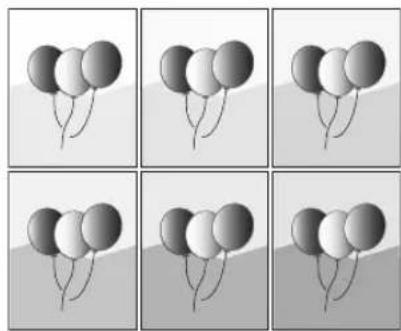
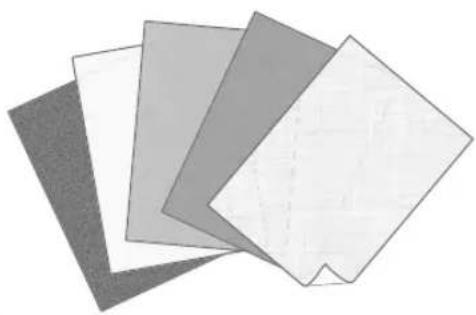
Optimum Print Result for Each Paper Type
Paper information, which includes the basis weight, finish, and curl correction level, can be registered as the paper characteristics. As the detailed information can be specified for each different paper type, you can obtain the fine print result with considering the paper characteristics. This function is also effective for improving paper conveyance and print quality.

"Maintenance" > "Paper Type Management Settings" in the User's Guide
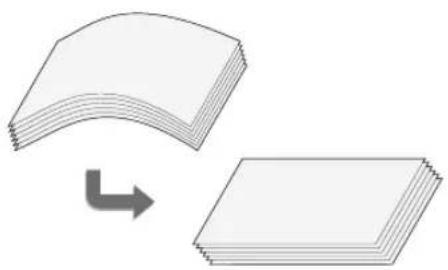
Curl Correction for Stable Paper Conveyance
The machine constantly corrects the paper curl that occurs due to the pressure applied when toner is fixed. Moreover, by correcting the paper curl during output, the machine reduces the risk of paper jams and achieves stable paper conveyance. Curl correction can be specified for each paper type you want to use.

"Maintenance" > "Adjusting Print and Finish Quality" in the User's Guide "Maintenance" > "Paper Type Management Settings" in the User's Guide
Easy Operation for Adjusting Image Position
You can use a guide sheet to quickly perform image position adjustment. This is convenient because it is not necessary to take measurements and enter values.

"Maintenance" > "Paper Type Management Settings" > "Adjusting the Image Position" in the User's Guide
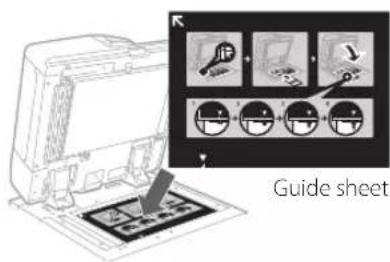
Quick Access to Frequently Used Settings
Different settings are required, depending on the printing purpose or paper types, but accessing setting items located in various menus every time is a quite complicated operation. In this case, register frequently used settings in the "Settings/Registration Shortcut" button. You can directly access the setting screen with this button and save the effort of searching for necessary setting items.
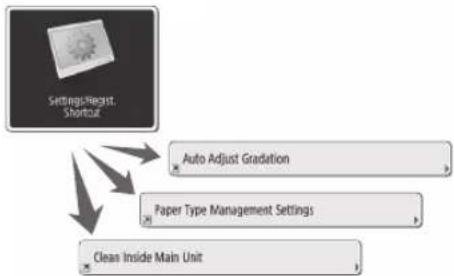

"Basic Operations" > "Customizing the Touch Panel Display" > "Registering Shortcuts for Frequently Used Settings/Registered Items" in the User's Guide
Contents
Thank you for purchasing this Canon product. Please read this manual thoroughly before operating the machine to familiarize yourself with its capabilities, and to make the most of its many functions. For more information on the detailed settings for the functions, see the User's Guide. After reading this manual, store it in a safe place for future reference.
Parts and Their Functions 6
External View (Front Side) 6
External View (Back Side) 8
Internal View 9
Control Panel. 10
Status Monitor Screen 12
How to Turn ON the Main Power 13
Turning ON the Main Power 13
Shutting Down the Machine 13
Loading Paper 14
Paper Source 14
Registering Paper Types to the Machine 16
Loading Paper into the Paper Deck/Paper Drawer 18
Registering Custom Paper Types 20
Cleaning and Maintenance 22
Cleaning the Platen Glass 22
Cleaning the Original Scanning Area 22
Cleaning the Feeder 23
Automatic Feeder Cleaning 25
Cleaning the Inside of the Main Unit 25
Cleaning the Touch Panel Display
Inspection of the Breaker
Consumables
Troubleshooting
Clearing Paper Jams and Staple Jams
Reducing the Frequency of Paper Jams
When an Error Message Is Displayed
Contacting Your Local Authorized Canon Dealer
If Memory Becomes Full
If the Main Power Does Not Turn ON
Appendix
Symbols Used in This Manual
IMPORTANT
NOTE


OPTION
Indicates operational requirements and restrictions. Be sure to read these items carefully to operate the machine correctly, and avoid damage to the machine or property.
Indicates a clarification of an operation, or contains additional explanations for a procedure. Reading these notes is highly recommended.
Indicates useful functions or tips for using the machine.
You can find further information from the online manual site (https://oip.meanal.canon/).
A detailed explanation is described on the specified page of this manual.
Indicates an optional product which can be used with this machine.
Keys and Buttons Used in This Manual
The following are examples of how keys and buttons are expressed in this manual.
- Buttons on the touch panel display:
→ <Copy>
Close
→
Control Panel Keys: Key Icon


- Buttons on Computer Operation Screens: [Button Name]
[OK], [Add], [Cancel]

You can access https://oipmanual.canon/ to read the User's Guide that describes all functions of this machine.
Parts and Their Functions
This section provides you with the names and functions of all the parts of the machine. The keys and display on the control panel are also described. Read this section to use the machine's various functions smoothly.

"Appendix" > "Options" in the User's Guide
External View (Front Side)
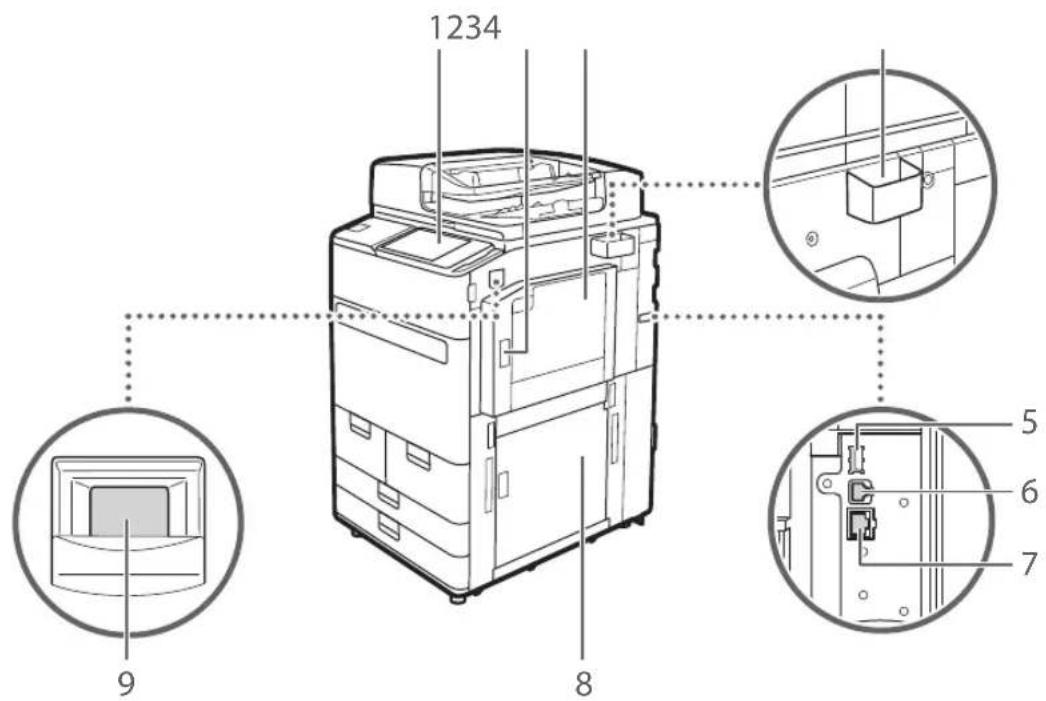
1 Control panel
The control panel consists of the numeric keys, indicators, touch panel display, etc. You can perform all the operations and specify settings from the control panel.
2 Upper-right cover of the main unit
Open this cover when clearing a paper jam inside the machine.
3 Multi-purpose tray
Load paper into the multi-purpose tray when you want to use a type of paper different from that which is loaded in the paper deck/drawer.
4 Glass cleaning cloth storage box
Use this box to store the cloth for cleaning the platen glass.
5 USB port (Rear-right side of the machine)
You can connect devices such as an external hard disk to the machine.
6 USB connector
Connect a USB cable when connecting the machine and a computer.
7 LAN port
Connect a LAN cable when connecting the machine to a wired LAN router, etc.
8 Lower-right cover of the main unit
Open this cover when clearing a paper jam inside the machine.
9 Power switch
Press the power switch when turning ON or OFF the machine.
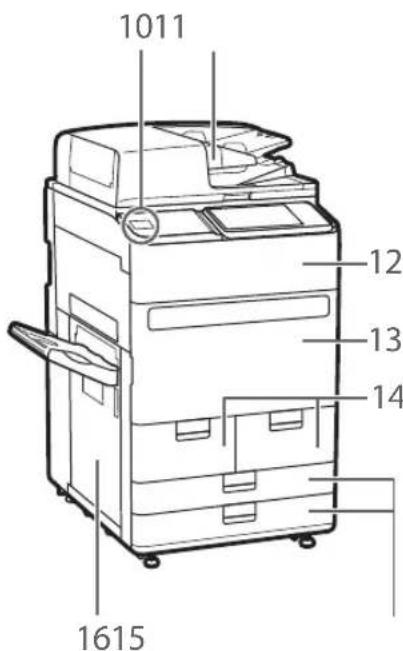
10 USB port (Front side of the machine)
You can connect devices such as a USB memory device to the machine.
11 Feeder
Automatically feeds originals into the machine for scanning. When two or more sheets are loaded in the feeder, originals can be scanned continuously.
12 Toner replacement cover
Open this cover when replacing the toner cartridge.
13 Front cover of the main unit
Open this cover when clearing a paper jam.
14 Paper deck 1/paper deck 2
Load the type of paper that you frequently use.
15 Paper drawer 1/paper drawer 2
Load the type of paper that you frequently use. You can load paper that cannot be loaded in the paper decks.
16 Left cover of the main unit
Open this cover when clearing a paper jam.
External View (Back Side)
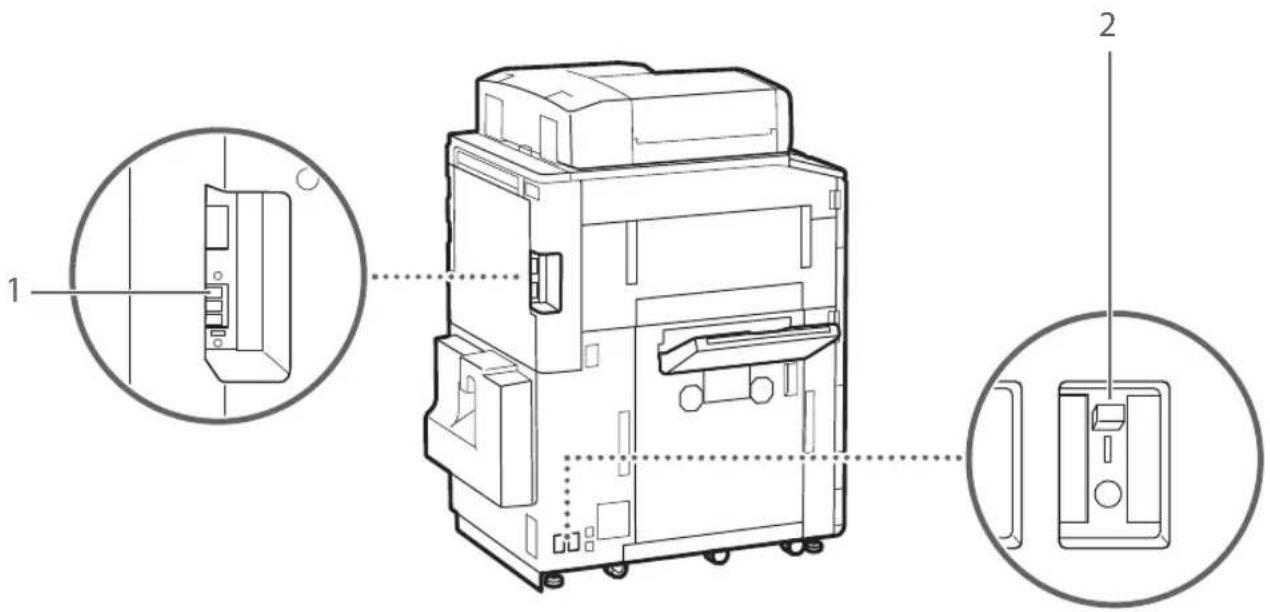
1 Telephone line jack (LINE 1)
Connect a telephone cable when connecting the machine to a telephone line.
2 Breaker
Detects excess current or leakage current.
Internal View
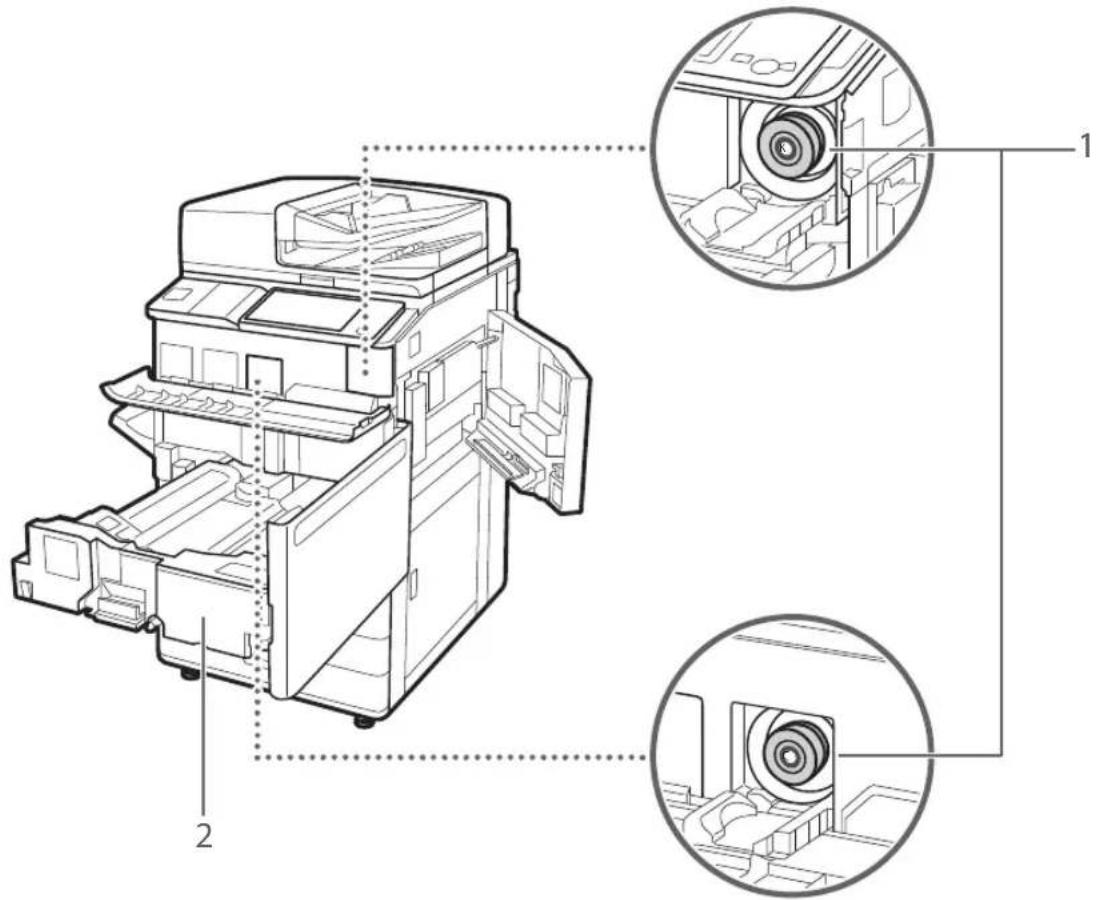
1 Toner cartridge
Replace the toner cartridge when the toner runs out.
2 Fixing transport unit
Pull the fixing transport unit out when clearing a paper jam inside the machine.
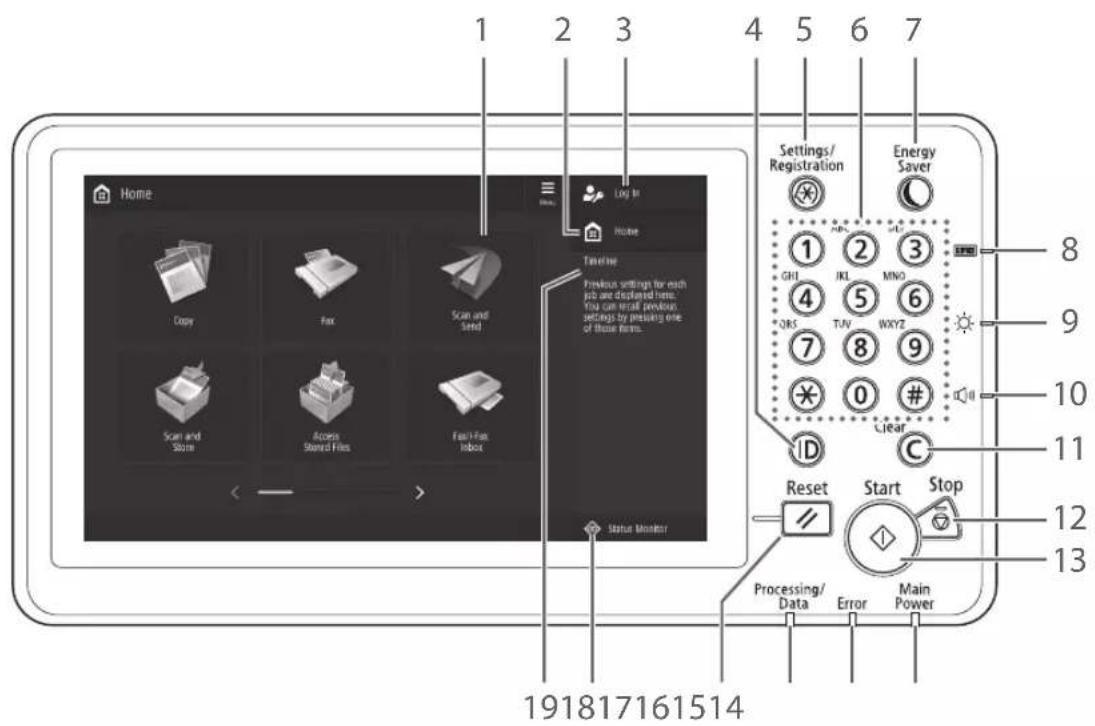
1 Touch panel display
Displays the settings screen and messages. Touch the panel to perform setting and other operations.
2
Press to display the Home screen.
3 Login user name
The user name that is currently logged in is displayed.
4 ID (Log In/Out) key
Press this to log in/out (when a login service has been set).
5 Settings/Registration key
Press to specify settings or make a registration.
6 Numeric keys
Press to enter numerical values.
7 Energy Saver key
Press to set or cancel the Sleep mode.
- Lights when the machine enters Sleep mode. Turns off when the machine exits Sleep mode.
8 Counter/Device Information key
Press to display the copy and print count totals on the touch panel display.
9 Brightness Adjustment key
Adjusts the brightness of the screen.
10 Volume Settings key
Press to adjust the sound volume.
11 Clear key
Press to clear the entered values or characters.
12 Stop key
Press to stop the current operation.
13 Start key
Press this to start an operation (or data reading).
14 Main Power indicator
Lights when the power is turned ON.
15 Error indicator
Flashes or lights if there is an error in the machine.
When the Error indicator maintains a steady red light, contact your local authorized Canon dealer.
17 Reset key
Press to cancel the settings and restore the previously specified settings.
18
Press to check the status of a job or cancel a job.
19
Displays a log for settings specified in Copy/Scan and Send.
16 Processing/Data indicator
- Flashes when the machine is operating.
- Lights when the machine is waiting for a command.

Setting the Energy Saver mode/Sleep mode to minimize energy consumption
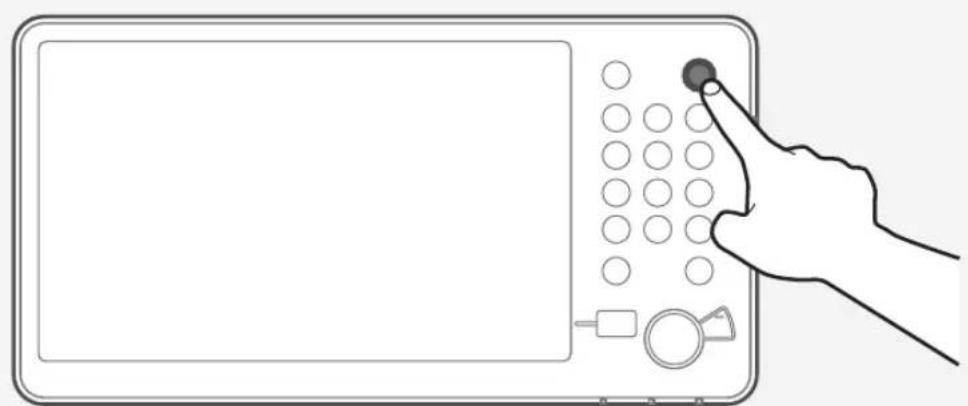
You can save energy consumption by using the Energy Saver mode/Sleep mode when the machine is not being used for a prolonged period of time, such as a lunch time. To use these modes, simply press \(\mathbb{O}\) on the control panel. If the machine is idle for a certain period of time, the machine will enter the Sleep mode (Auto Sleep mode). For more information on the mode which activates after \(\mathbb{O}\) is pressed, and detailed information on the Auto Sleep mode, see the User's Guide.

"Basic Operations" > "Entering Sleep Mode" in the User's Guide
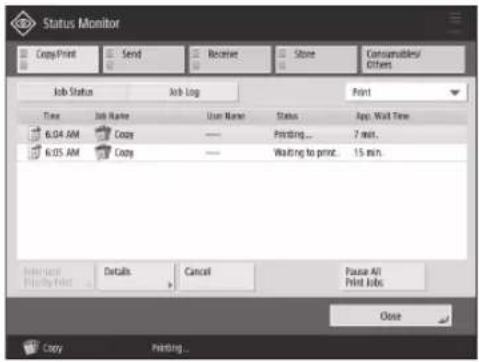
Status Monitor Screen
If you press Monitor, the screen appears, and you can confirm the status of jobs and consumables on this screen. By obtaining information, such as the completion time of the current job or the amount of paper remaining, you can perform smooth printing operation without interruption.

Useful situations
- When you want to know the completion time of jobs
- When you want to check the amount of paper remaining for efficient paper loading
- When you want to cancel a job which is registered by mistake
, , , screen
The screen enables you to check the status of jobs in the job list. On this screen, you can cancel a job in progress and change the order of waiting jobs to print your job prior to others.
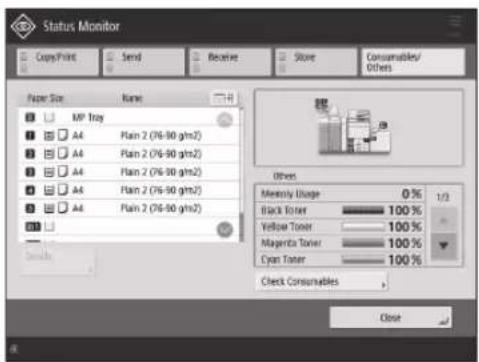
screen
You can check the paper information and the remaining amount of paper in all paper sources.
You can also check the memory usage, remaining toner, remaining staples, and amount of punch waste.
How to Turn ON the Main Power
This section explains how to turn ON the main power.
Turning ON the Main Power
Make sure that the power plug is firmly inserted into the power outlet, and the breaker is turned ON.
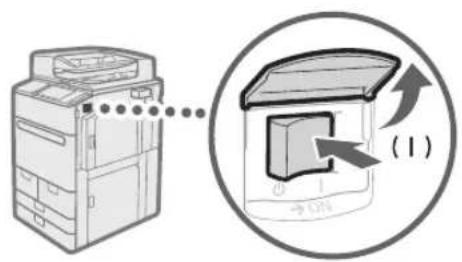
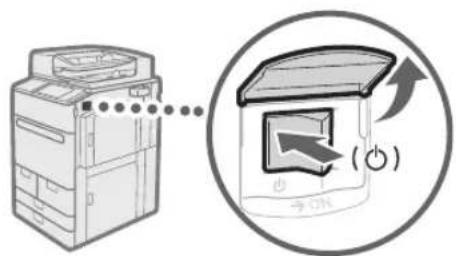
1 Open the main power switch cover. 2 Press the main power switch to the "|" side.
- The main power indicator on the control panel lights.
IMPORTANT
If you want to turn ON the main power again, wait for at least 10 seconds after the main power and the main power indicator are turned OFF. However, when is enabled, if you don't wait more than 20 seconds after the Main Power indicator is turned OFF, quick startup is not performed.
NOTE
The response of the keys and buttons may not be optimal immediately after turning ON the main power of the machine.
Shutting Down the Machine

Do not turn OFF the main power in the following situations
- When using the I-Fax function
- When the message is displayed
- When operating scan or print function
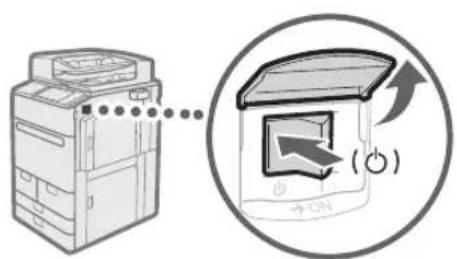
1 Open the main power switch cover. 2 Press the main power switch to the "side.
- The main power indicator on the control panel turns OFF.
Loading Paper
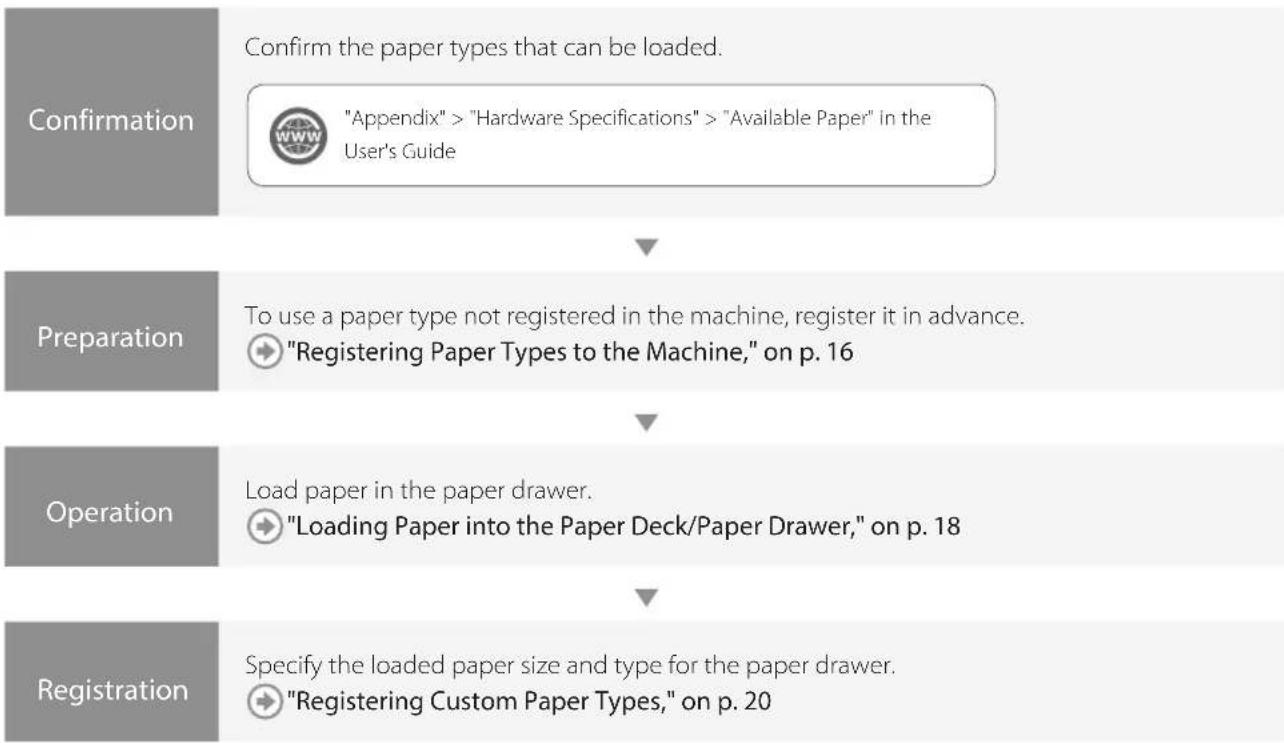
Load paper by following the procedure below. In this section, A4 custom size paper is used as an example.
Paper Source
This section describes available paper sources. Paper that can be loaded differs, depending on the paper sources. The following description includes the optional products as well as the standard paper deck/paper drawers. The optional products are indicated with OPTION
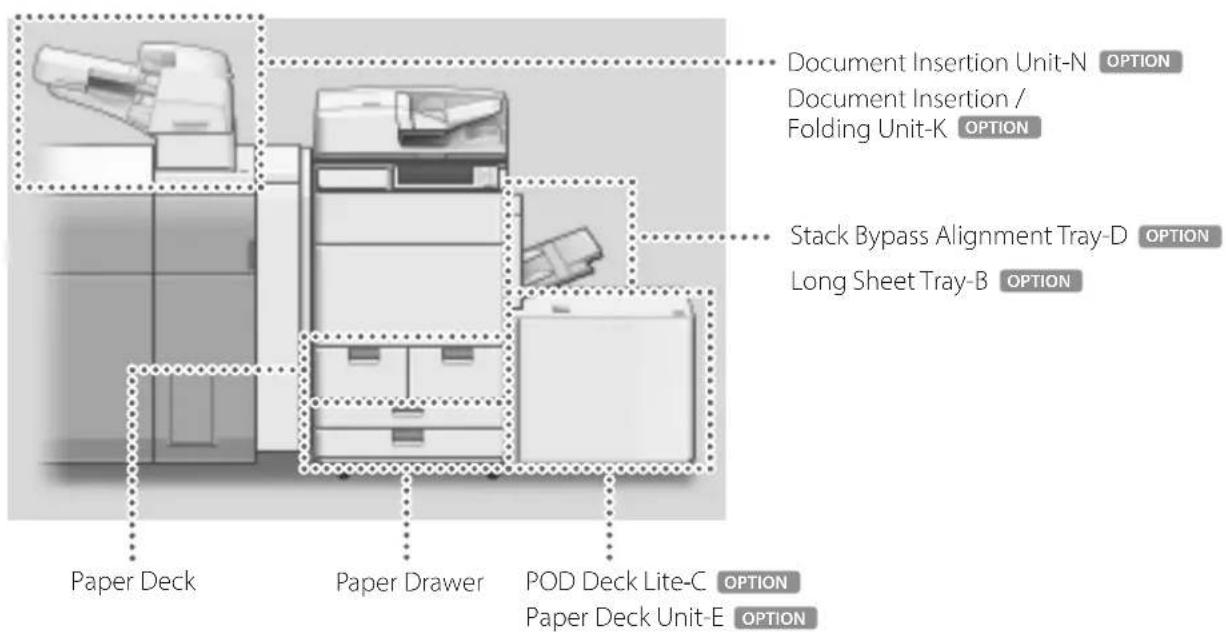
NOTE
For details on paper that can be loaded, see the User's Guide.

"Appendix" > "Hardware Specifications" > "Available Paper" in the User's Guide
Registering Paper Types to the Machine
Register all paper types you are going to use with this machine.
NOTE
- If you load paper which is already registered in the machine, such as plain or recycled paper, this step is not necessary. Proceed to the next step "Loading Paper into the Paper Deck/Paper Printer".
- You cannot change the settings of the default paper types registered in the machine. If you edit the settings, make sure to duplicate and register them as a new one beforehand.
1 Press 2 Press → → . 3 Select a paper type from the list that closely matches the characteristics of the paper type you want to register → press .
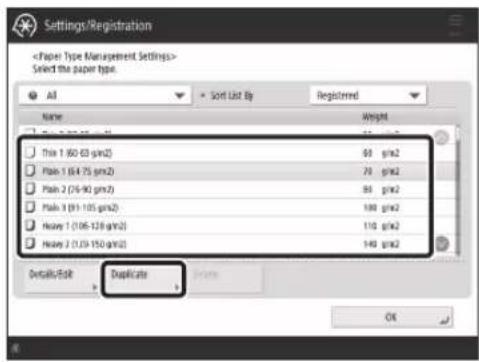
4 Enter a name → press OK>
NOTE
When you register the custom paper, make sure to change its name. You cannot change the settings of the paper types that are registered in the machine as default.
5 Select the paper type duplicated in steps 3 and 4 from the list, then press .
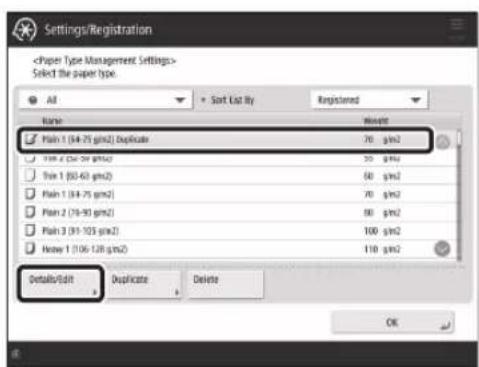
6 Press for the item you want to change.

"Maintenance" > "Paper Type Management Settings" in the User's Guide
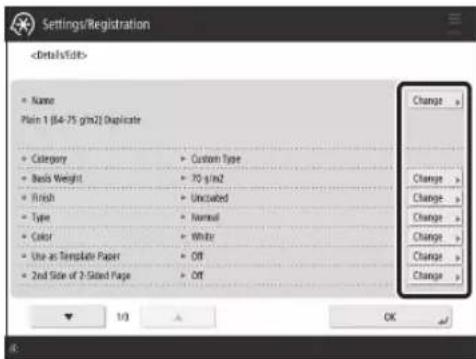
7 Change the settings, then press OK.
If there are other items you want to set, repeat steps 6 and 7.
8 Press OK.
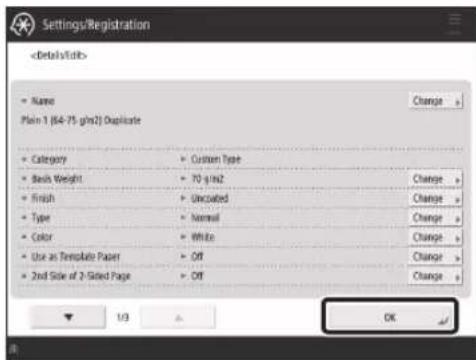
9 Press OK.

Loading Paper into the Paper Deck/Paper Printer
Loading Paper into the Paper Deck
NOTE
Of the A4 size, you can load the preset size of paper in the paper deck.
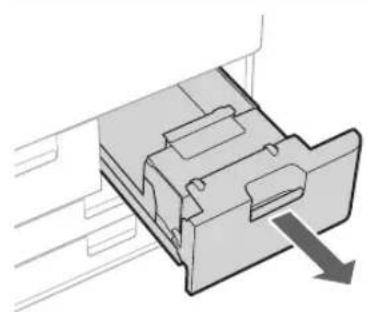
1 Open the paper deck.
Make sure that this line is not exceeded.
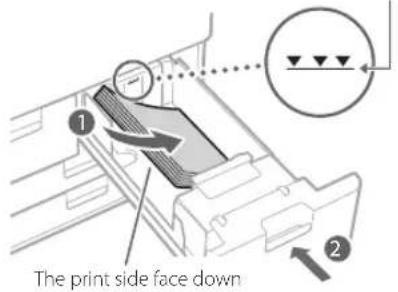
2 Load the paper stack into the paper deck.
1 Load the paper stack against the wall of the paper deck. Push the paper deck back into the machine until it clicks into place in the closed position.
Loading Paper into the Paper Drawer
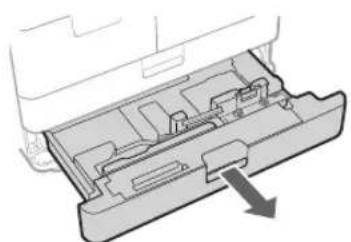
1 Open the paper drawer.
Gently pull out the paper drawer until it stops.
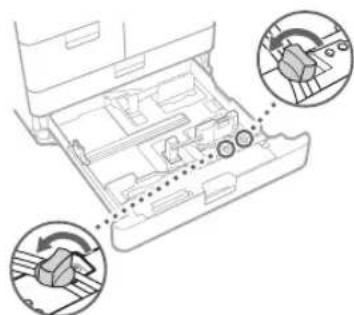
2 Loosen the fixing screws.
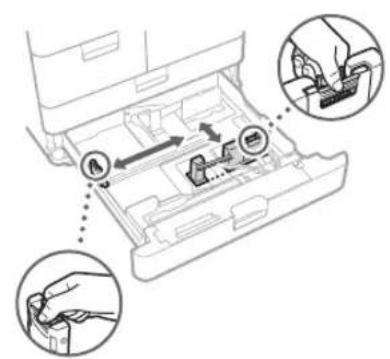
3 Adjust the position of the paper guides.
- Slide each guide while squeezing it on the top to align for the desired paper size.
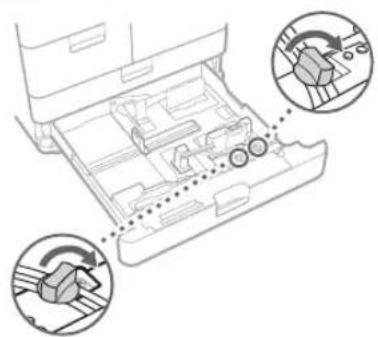
4 Tighten the fixing screws.
Make sure that this line is not exceeded.
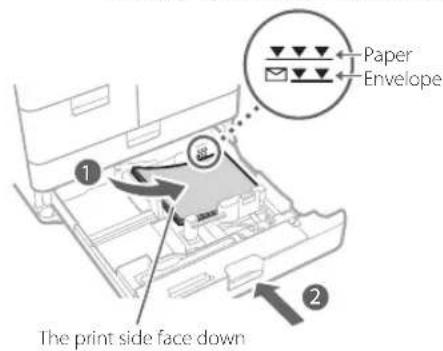
5 Load the paper stack into the paper drawer.
1 Load the paper stack against the right wall of the paper drawer. Push the paper drawer back into the machine until it clicks into place in the closed position.
NOTE
- Make sure to fan the paper stack, and align the edges before loading paper.
- Curled paper must be straightened out prior to use. Make sure that the height of the paper stack does not exceed the loading limit mark (
- When loading pre-punched paper, transparencies/clear film, tab paper, and envelopes, make sure to load paper in an appropriate orientation as the paper orientation differs, depending on the paper source.

"Basic Operations" > "Loading Paper" in the User's Guide
Registering Custom Paper Types
You can register the paper size and type for each paper source.
1 Press 2 Press → → . 3 Select the paper source in which you loaded paper → press < Set>
- If you load paper other than standard paper, select or .
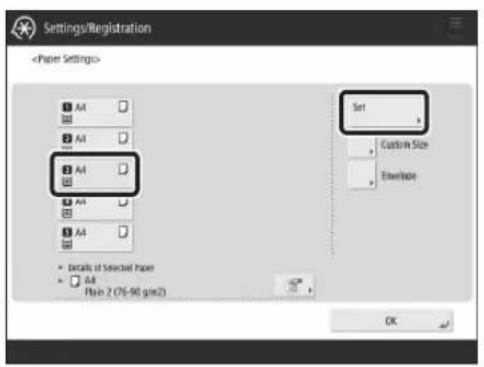
4 Select the loaded paper type from the list → press OK>.
- You can select the paper type from the simple or detailed setting screen. For paper types that are not displayed on the simple setting screen, press → select the paper type from the detailed setting screen.
Simple Settings Screen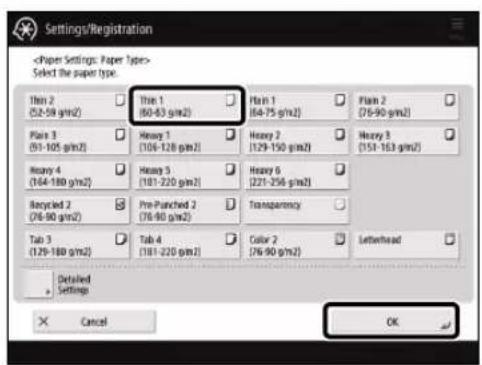
Detailed Settings Screen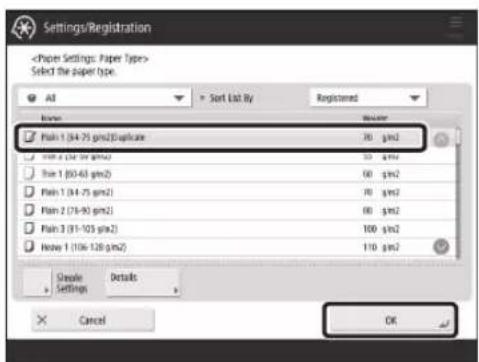
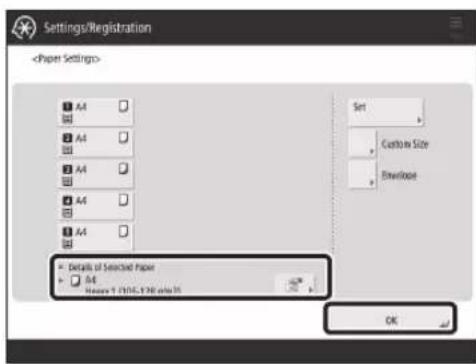
5 Confirm that the selected paper type is displayed in → press OK>.
Cleaning and Maintenance
For optimum operation of the machine, we recommend to clean and check the machine regularly.
Cleaning the Platen Glass
If originals cannot be scanned properly, follow the cleaning procedure below. Clean with a cloth which is wrung after being dampened in water, and then clean with a soft and dry cloth. Use the provided glass cleaning cloth for simple cleaning.
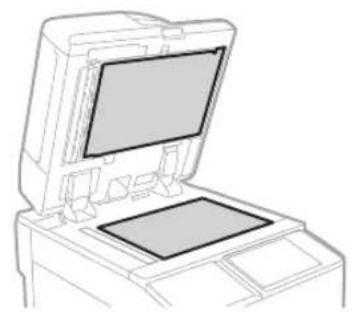
1 Shutting down the machine.
"Shutting Down the Machine," on p. 13
2 Clean the Platen Glass.
Clean the platen glass and the underside of the feeder.
3 Turning on the main power.
"Turning ON the Main Power," on p. 13
Cleaning the Original Scanning Area
If originals which are fed from the feeder cannot be scanned properly, follow the procedure below.
1 Press 2 Press → → . 3 Follow the cleaning instructions on the touch panel display.
Cleaning the Feeder
Clean the feeder when originals become dirty or jam frequently. Clean with a cloth which is wrung after being dampened in water, and then clean with a soft and dry cloth. Use the provided glass cleaning cloth for simple cleaning.
1 Shutting down the machine.
"Shutting Down the Machine," on p. 13
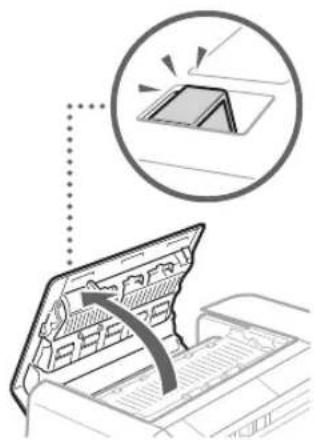
2 Pull the lever, and open the feeder cover.
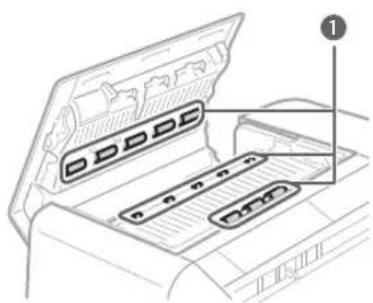
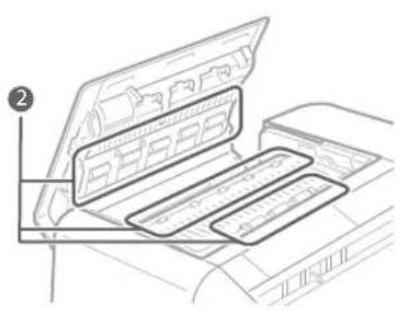
3 Clean the rollers and surrounding areas of them inside the feeder cover.
Clean the rollers. Clean the surrounding areas of the rollers (if they are very dirty).
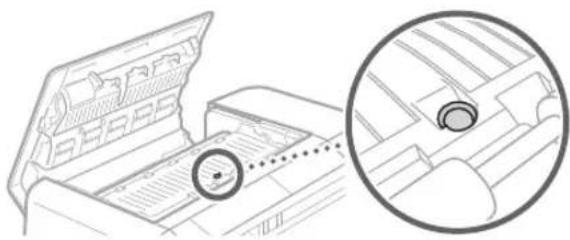
IMPORTANT
Make sure that no trash such as pieces of paper gets into the groove of the multiple sheet feed detection sensor. If trash does get in, remove it using a soft cloth.
4 Gently close the feeder cover.
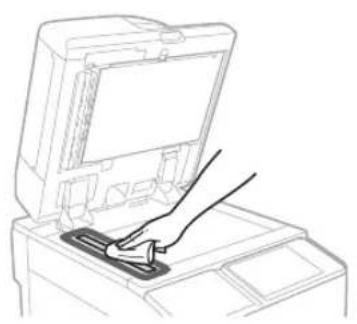
5 Clean the original scanning area.
- Open the feeder and clean the original scanning area (thin glass strip).
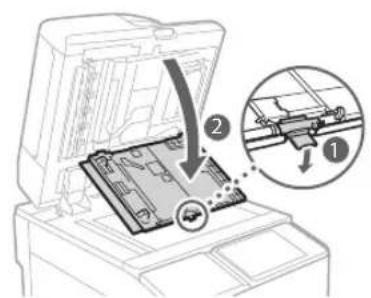
6 Open the document scan cover.
Pull the lever above the feeder.
2 Open the document scan cover.
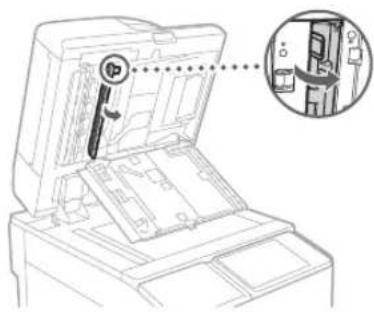
7 Open the inside cover.
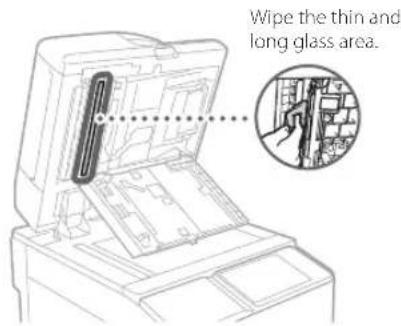
8 Clean the original scanning area of the feeder.
9 Close the inside cover and document scan cover in order, and then close the feeder.
10 Turn on the main power.
"Turning ON the Main Power," on p. 13
Automatic Feeder Cleaning
If originals which are fed from the feeder become dirty, follow the procedure below.
1 Place 10 sheets of blank paper into the feeder.
- Use A4 plain paper.
2 Press 3 Press → → . 4 Press .
Cleaning the Inside of the Main Unit
If output paper becomes dirty, follow the procedure below.
1 Press 2 Press → → . 3 Press .
NOTE
Similarly perform → → and → → .
Cleaning the Touch Panel Display
Wipe the touch panel display with a cloth dampened in water or a mild cleaning agent, and then wipe with a soft, dry cloth.
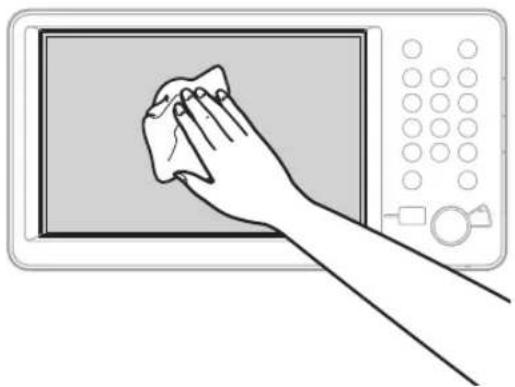
Inspection of the Breaker
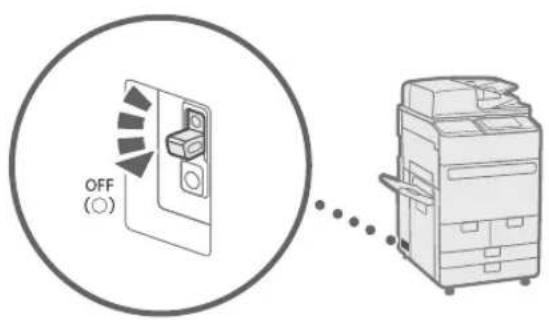
This machine has a breaker that detects excess current or leakage current. Make sure to test the breaker once a month by following the procedure below.
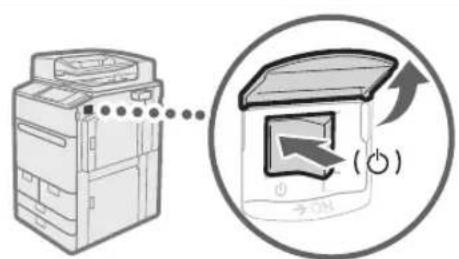
1 Turn OFF the main power.
- Make sure that the main power is turned OFF, before inspecting the breaker.
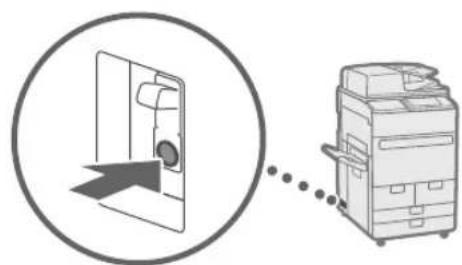
2 Push the test button located on the rear of the machine.
- Push the test button with the tip of a ball-point pen or a similar object. Briefly push the test button.
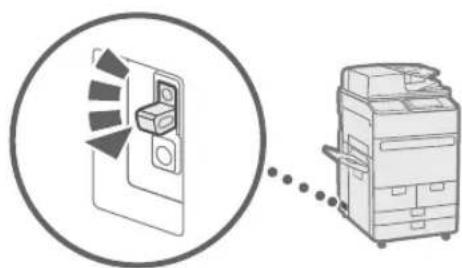
3 Confirm that the breaker lever is switched to the OFF position.
- If the breaker lever is not switched to the OFF position, repeat step 2. If the breaker lever is not switched to the OFF position, despite carrying out the above procedure two or three times, contact your local authorized Canon dealer.
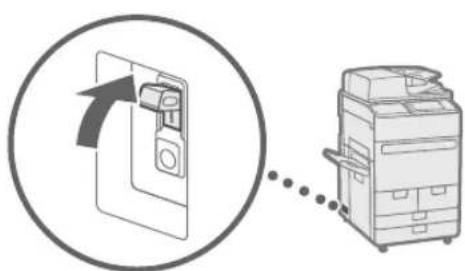
4 Switch the breaker lever to ON.
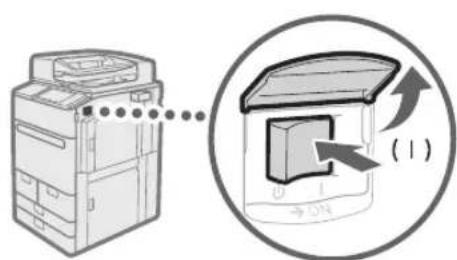
5 Turn ON the main power.
Consumables
The following consumables are available for this machine. For more information, contact your local authorized Canon dealer. For information on using and storing consumables, see "Consumables," on p. 36.
Paper
In addition to plain paper, other types of paper stock are available, such as recycled paper, color paper, transparencies/ clear film (recommended for this machine), vellums, and labels. For high-quality printouts, use paper recommended by Canon.
Toner
If a message prompting you to replace the toner cartridge appears on the touch panel display, replace the used toner cartridge with a new one. For information on how to replace the toner cartridge, see the User's Guide. For optimum print quality, using Canon genuine toner is recommended.

"Maintenance" > "Replacing the Toner Cartridge" in the User's Guide
Supported Canon Genuine Toner
Canon imagePRESS Toner T07 Black
Canon imagePRESS Toner T07 Cyan
Canon imagePRESS Toner T07 Magenta
Canon imagePRESS Toner T07 Yellow
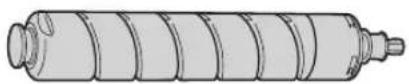

Black Toner Cartridge Cyan, Magenta, or Yellow Toner Cartridge

Be careful of counterfeit toners
Please be aware that there are counterfeit Canon toners in the marketplace. Use of counterfeit toner may result in poor print quality or machine performance. Canon is not responsible for any malfunction, accident or damage caused by the use of counterfeit toner. For more information, see global.canon/ctc.
Staple Cartridge for the Stapler Unit
The Staple-N1/Staple Cartridge-X1 can be attached to the Staple Finisher-W PRO/Booklet Finisher-W PRO/Staple Finisher-AC/Booklet Finisher-AC for stapling. For information on how to replace the staple cartridge, see the User's Guide.
Staple-N1 Staple Cartridge-X1

"Maintenance" > "Loading Staples (Optional)" > "Replacing the Staple Case in the Stapler Unit (Staple Finisher-W PRO/Booklet Finisher-W PRO)", "Replacing the Staple Case in the Stapler Unit (Staple Finisher-AC/Booklet Finisher-AC)" in the User's Guide.
Staple Cartridge for the Saddle Stitcher Unit
The Staple-P1/Staple Cartridge-Y1 can be attached to the Booklet Finisher-W PRO/Booklet Finisher-AC for saddle stitching. For information on how to replace the staple cartridge, see the User's Guide.
Staple-P1 Staple Cartridge-Y1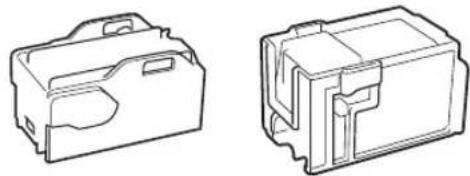

"Maintenance" > "Loading Staples (Optional)" > "Replacing the Staple Case in the Saddle Stitcher Unit (Booklet Finisher-W PRO)", "Replacing the Staple Case in the Saddle Stitcher Unit (Booklet Finisher-AC)" in the User's Guide.
Genuine Consumables
Canon continuously develops technology innovations in Canon manufactured Toner, Cartridge, and Parts, specifically designed for use in Canon Multi-Functional machines.
Experience the benefits of optimal print performance, print volume and high quality outputs, achieved through Canon's new advanced technologies. Therefore, the use of Canon genuine consumables is recommended for your Canon Multi-Functional machines.

CANON Genuine TONER, CARTRIDGE & PARTS
Troubleshooting
This section explains how to solve problems when paper jams occur frequently or error messages are displayed. For information on the detailed procedures and precautions, see the User's Guide.

"Troubleshooting" in the User's Guide
Clearing Paper Jams and Staple Jams
If a paper jam or staple jam occurs, follow the instructions displayed on the touch panel display to clear the jam. If you press , you can continue operations, such as scanning originals, even if the jammed paper is not removed.
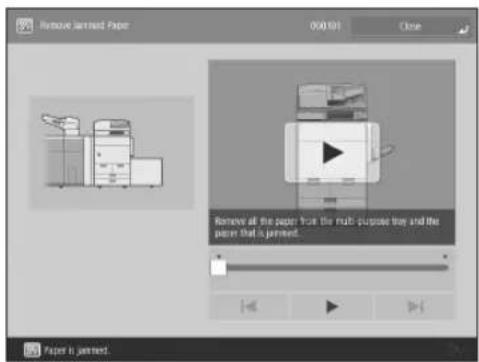
Paper Jam screen
The location of a paper jam and procedures for clearing the jam are displayed.
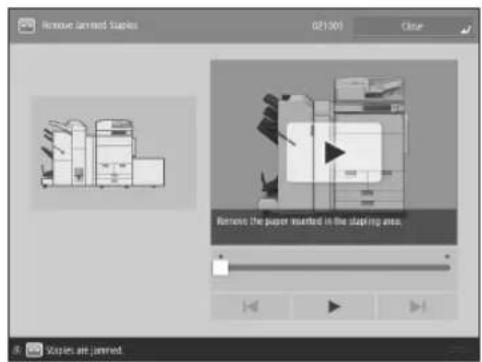
Staple Jam screen
The location of a staple jam and procedures for clearing the jam are displayed.
Reducing the Frequency of Paper Jams
If paper jams occur frequently, the following reasons may be the cause.
There are torn pieces of paper left inside the machine.
As a result of pulling jammed paper out by force, torn pieces of paper may be left inside the machine.
- Remove all of the torn pieces.
Paper which does not match with the setting is loaded.
Make sure that the paper loaded in the paper drawer matches the paper size and type registered in the machine.
"Registering Custom Paper Types," on p. 20
Paper jams occur frequently only when using the specific custom paper.
The paper information may be registered incorrectly.
- Confirm the paper information settings for the paper you are using.

"Maintenance" > "Paper Type Management Settings" in the User's Guide
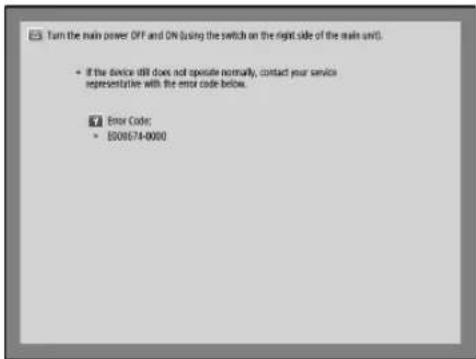
When an Error Message Is Displayed
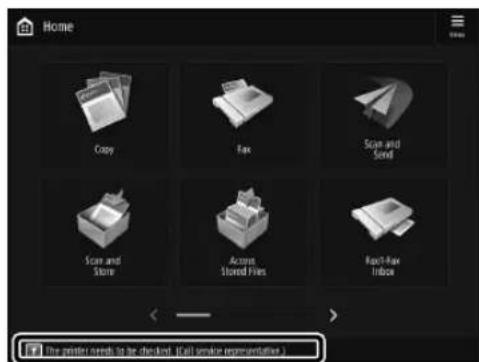
If a malfunction occurs and the machine cannot operate normally, a screen shown on the right appears. If the machine cannot operate normally after turning the main power OFF and then ON, contact your local authorized Canon dealer.
"Contacting Your Local Authorized Canon Dealer," on p. 32
If a key for the Limited Functions mode is displayed:
If <Limited Functions Mode> is displayed, you can temporarily set the Limited Functions mode to continue to use some functions.

"Troubleshooting" > "A Message or a Number Starting with "#" (an Error Code) Is Displayed" > "A Message Saying to Contact a Local Authorized Canon Dealer Is Displayed" in the User's Guide
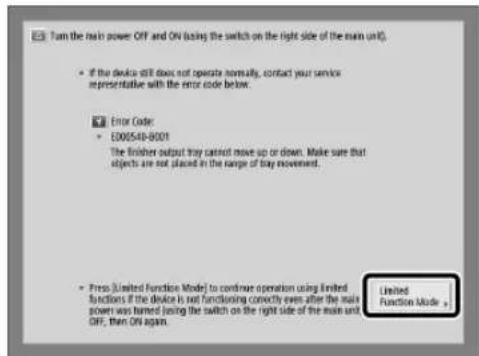
If a message is displayed on the bottom of the screen:
If an error message appears on the bottom of the screen, printing and scanning functions are restricted, but some functions may still be available.

"Troubleshooting" > "A Message or a Number Starting with "#" (an Error Code) Is Displayed" > "A Message Saying to Contact a Local Authorized Canon Dealer Is Displayed" in the User's Guide
Contacting Your Local Authorized Canon Dealer
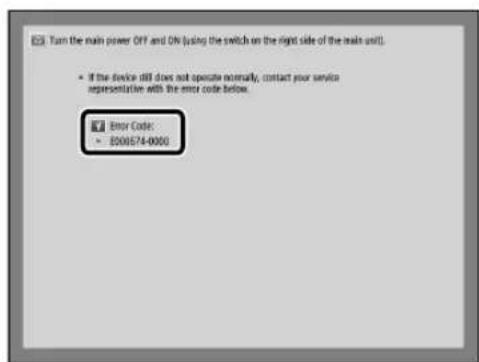
If you cannot operate the machine normally after turning the main power OFF and then ON, contact your local authorized Canon dealer by following the procedure below.
1. Note the error code.
- Write down the error code "XXXXXXXX-XXX".
2. Turn OFF the main power.
- Press the main power switch to the "B" side.
3. Remove the power plug from the power outlet.
4. Confirm the product name, and contact your local authorized Canon dealer.
Memory Becomes Full
If memory becomes full during scanning, the following messages appear on the touch panel display. Follow the procedures on the screen, and then delete unnecessary files stored in the Mail Box and Fax/Fax Inbox to make more memory available.
Scanning will be canceled because the memory is full. Do you want to print (send, store)* the scanned pages?
- A part of the message differs, depending on the function used.
: A job for the pages scanned into memory is processed. After processing the job, scan the remaining pages. : A job for the pages scanned into memory is canceled. Scan the whole pages again.
Scanning will be canceled because the memory is full. Wait a moment, then try again.
Scan the whole pages again after the current operation is complete.
Could not perform the operation because the memory is full.
Delete unnecessary data from memory, and then scan the whole pages again.
If the Main Power Does Not Turn ON
If the machine cannot operate when the main power is turned ON, check the breaker. If the breaker is switched to the OFF position, do not attempt to turn ON the breaker yourself, and be sure to contact your local authorized Canon dealer.
Appendix
Important Safety Instructions
This chapter describes important safety instructions for the prevention of injury to users of this machine and others, and damage to property. Read this chapter before using the machine, and follow the instructions to use the machine properly. Do not perform any operations not described in this manual. Canon will not be responsible for any damages resulting from operations not described in this manual, improper use, or repair or changes not performed by Canon or a third party authorized by Canon. Improper operation or use of this machine could result in personal injury and/or damage requiring extensive repair that may not be covered under your Limited Warranty.

WARNING
Indicates a warning concerning operations that may lead to death or injury to persons if not performed correctly. To use the machine safely, always pay attention to these warnings.
CAUTION
Indicates a caution concerning operations that may lead to injury to persons if not performed correctly. To use the machine safely, always pay attention to these cautions.

IMPORTANT
Indicates operational requirements and restrictions. Be sure to read these items carefully to operate the machine correctly, and avoid damage to the machine or property.
Installation
To use this machine safely and comfortably, carefully read the following precautions and install the machine in an appropriate location.

WARNING
Do not install in a location that may result in a fire or electrical shock
- A location where the ventilation slots are blocked (too close to walls, beds, sofas, rugs, or similar objects)
- A damp or dusty location
- A location exposed to direct sunlight or outdoors; a location subject to high temperatures; a location exposed to open flames; near alcohol, paint thinners, or other flammable substances
Other warnings
- Do not connect unapproved cables to this machine. Doing so may result in a fire or electrical shock.
- Do not place necklaces and other metal objects or containers filled with liquid on the machine. If foreign substances come in contact with electrical parts inside the machine, it may result in a fire or electrical shock. If any foreign substance falls into this machine, unplug the power plug from the AC power outlet and contact your local authorized Canon dealer.

CAUTION
Do not install in the following locations
The machine may drop or fall, resulting in injury.
An unstable location; a location exposed to vibrations
Other cautions
- Do not connect any unauthorized optional products to the outlet for connecting optional products, as this could result in a fire or smoke.
- When disconnecting the power cord, wait at least 5 seconds before connecting the power cord again.
- Excessive voltage drop may cause a malfunction or loss of data in the machine and computers.
Leveling feet (only for products with leveling feet)
Do not remove the machine's leveling feet after the machine has been installed, as this may cause the machine to fall or tip over, resulting in personal injury.

IMPORTANT
Do not install in the following locations
Doing so may result in damage to the machine.
A location subject to temperature and humidity extremes, whether low or high - A location subject to dramatic changes in temperature or humidity - A location near equipment that generates magnetic or electromagnetic waves - A laboratory or location where chemical reactions occur - A location exposed to corrosive or toxic gases - A location that may warp from the weight of the machine or where the machine is liable to sink (a carpet, etc.)
Avoid poorly ventilated locations
This machine generates a slight amount of ozone and other emissions during normal use. These emissions are not harmful to health. However, they may be noticeable during extended use or long production runs in poorly ventilated rooms. To maintain a comfortable working environment, it is recommended that the room where the machine operates be appropriately ventilated. Also avoid locations where people would be exposed to emissions from the machine.
Do not install in a location where condensation occurs
Water droplets (condensation) may form inside the machine when the room where the machine is installed is heated rapidly, and when the machine is moved from a cool or dry location to a hot or humid location. Using the machine under these conditions may result in paper jams, poor print quality, or damage to the machine. Let the machine adjust to the ambient temperature and humidity for at least 2 hours before use.
Avoid installing the machine near computers or other precision electronic equipment. Electrical interference and vibrations generated by the machine while printing can adversely affect the operation of such equipment.
Avoid installing the machine near televisions, radios, or similar electronic equipment.
The machine might interfere with sound and picture signal reception. Insert the power plug into a dedicated power
outlet, and maintain as much space as possible between the machine and other electronic equipment.
At altitudes of 3,000 m above sea level or higher
Machines with a hard disk may not operate properly when used at high altitudes of about 3,000 meters above sea level, or higher.
Connecting the Telephone Line
This machine conforms to an analog telephone line standard. The machine can be connected to the public switched telephone network (PSTN) only. If you connect the machine to a digital telephone line or a dedicated telephone line, it might impede proper operation of the machine and could be the cause of damage. Make sure to confirm the type of telephone line before connecting the machine. Contact your optical fiber line or IP telephone line service providers if you want to connect the machine to those telephone lines.
When using wireless LAN
Install the machine at a distance of 50 meters or less from the wireless LAN router. - As far as possible, install in a location where communication is not blocked by intervening objects. The signal may be degraded when passing through walls or floors. - Keep the machine as far as possible from digital cordless phones, microwave ovens, or other equipment that emits radio waves. - Do not use near medical equipment. Radio waves emitted from this machine may interfere with medical equipment, which may result in malfunctions and accidents.
If the operating noise concerns you
Depending on the use environment and operating mode, if the operating noise is of concern, it is recommended that the machine be installed in a place other than the office.
Moving the Machine
If you intend to move the machine, even to a location on the same floor of your building, contact your local authorized Canon dealer beforehand. Do not attempt to move the machine yourself.
Power Supply
WARNING
- Use only a power supply that meets the specified voltage requirements. Failure to do so may result in a fire or electrical shock. The machine must be connected to a socket-outlet with grounding connection by the provided power cord.
- Do not use power cords other than the one provided, as this may result in a fire or electrical shock.
- The provided power cord is intended for use with this machine. Do not connect the power cord to other devices.
- Do not modify, pull, forcibly bend, or perform any other act that may damage the power cord. Do not place heavy objects on the power cord. Damaging the power cord may result in a fire or electrical shock.
- Do not plug in or unplug the power plug with wet hands, as this may result in an electrical shock.
- Do not use extension cords or multi-plug power strips with the machine. Doing so may result in a fire or electrical shock.
- Do not wrap the power cord or tie it in a knot, as this may result in a fire or electrical shock.
- Insert the power plug completely into the AC power outlet. Failure to do so may result in a fire or electrical shock.
- Remove the power plug completely from the AC power outlet during a thunder storm. Failure to do so may result in a fire, electrical shock, or damage to the machine. Make sure that the power supply for the machine is safe, and has a steady voltage.
- Keep the power cord away from a heat source; failure to do this may cause the power cord coating to melt, resulting in a fire or electrical shock.
Avoid the following situations:
If excessive stress is applied to the connection part of the power cord, it may damage the power cord or the wires inside the machine may disconnect. This could result in a fire.
- Connecting and disconnecting the power cord frequently.
- Tripping over the power cord.
- The power cord is bent near the connection part, and continuous stress is being applied to the power outlet or the connection part. Applying excessive force on the power plug.
CAUTION
Install this machine near the power outlet and leave sufficient space around the power plug so that it can be unplugged easily in an emergency.
IMPORTANT
When connecting power
- Do not connect the power cord to an uninterrupted power source. Doing so may result in malfunction of or damage to the machine at power failure.
- If you plug this machine into an AC power outlet with multiple sockets, do not use the remaining sockets to connect other devices.
- Do not connect the power cord to the auxiliary AC power outlet on a computer.
Other precautions
Electrical noise may cause this machine to malfunction or lose data.
Handling
WARNING
- Immediately unplug the power plug from the AC power outlet and contact an authorized Canon dealer if the machine makes an unusual noise; emits an unusual smell, or emits smoke or excessive heat. Continued use may result in a fire or electrical shock.
- Do not disassemble or modify this machine. There are high-voltage and high-temperature components inside the machine. Disassembly or modification may result in a fire or electrical shock.
- Place the machine where children will not come in contact with the power cord and other cables or gears and electrical parts inside the machine. Failure to do so may result in unexpected accidents.
- Do not use flammable sprays near this machine. If flammable substances come into contact with electrical parts inside this machine, it may result in a fire or electrical shock.
- When moving this machine, be sure to turn OFF the power of this machine, and then
unplug the power plug and interface cables. Failure to do so may damage the power cord or interface cables, resulting in a fire or electrical shock. - When plugging or unplugging a USB cable when the power plug is plugged into an AC power outlet, do not touch the metal part of the connector, as this may result in an electrical shock.
If you are using a cardiac pacemaker
This machine generates a low level magnetic flux and ultrasonic waves. If you use a cardiac pacemaker and feel abnormalities, please move away from this machine and consult your physician immediately.
CAUTION
- Do not place heavy objects on this machine as they may fall, resulting in injury.
- For safety, unplug the power plug if the machine will not be used for a long period of time.
- Use caution when opening and closing covers to avoid injury to your hands.
- Keep hands and clothing away from the rollers in the output area. If the rollers catch your hands or clothing, this may result in personal injury.
- The inside of the machine and the output slot are very hot during and immediately after use. Avoid contact with these areas to prevent burns. Also, printed paper may be hot immediately after being output, so use caution when handling it. Failure to do so may result in burns.
Feeder
- Do not press down hard on the feeder when using the platen glass to make copies of thick books. Doing so may damage the platen glass and result in personal injury.
- Close the feeder gently to avoid catching your hands, as this may result in personal injury.
- Be careful not to put your hands or fingers into the feeder. Otherwise, you may be injured.

Finisher
- Do not place your hands in the part of the tray where stapling is performed (near the rollers), especially pay careful attention to the sharp staples, as this may result in personal injury.
Paper drawer
- Do not insert your hand into the machine while the paper drawer is removed, as this may result in personal injury.
Energy Saver key
- Press (Energy Saver) for safety when the machine will not be used for a long period of time, such as overnight. Also, turn OFF the main power switch, and disconnect the power cord for safety when the machine will not be used for an extended period of time, such as during consecutive holidays.
Laser Safety
This product is confirmed as a Class 1 laser product in IEC60825-1:2014 and EN60825-1:2014.
CLASS 1 LASER PRODUCT LASER KLASSE 1
APPAREL ALASER DE CLASSE 1
APPARECCHIO LASER DI CLASSE 1
PRODUCTO LASER DE CLASE 1 APARELHO LASER DE CLASSI
LUOKAN 1 LASER-TUOTE LASERPRODUKT KCLASS 1
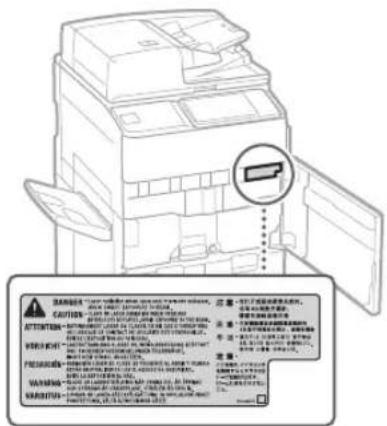
The laser beam can be harmful to human bodies. Since radiation emitted inside the product is completely confined within protective housings and external covers, the laser beam cannot escape from the machine during any phase of user operation. Read the following remarks and instructions for safety.
- Never open covers other than those instructed in the manuals for this machine. If the laser beam should escape and enter your eyes, exposure may cause damage to your eyes. Use of controls, adjustments, or performance of procedures other than those specified in this manual may result in hazardous radiation exposure.
Laser Safety Caution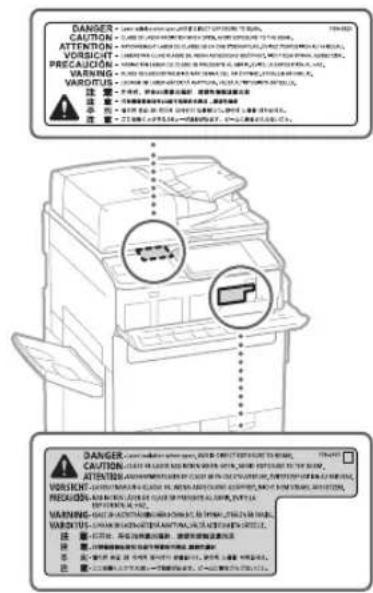
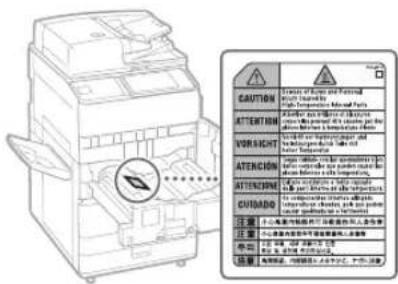
Fixing Unit
When removing jammed paper or when inspecting the inside of the machine, do not expose yourself to the heat emitted from the fixing unit and its surroundings for a prolonged period of time. Doing so may result in low temperature burns, even though you did not touch the fixing unit and its surroundings directly.
IMPORTANT
Follow the caution instructions on labels and the like found on this machine. - Do not subject the machine to strong shocks or vibration. - Do not forcibly open and close doors, covers, and other parts. Doing so may result in damage to the machine. - Do not turn the main power switch OFF or open the covers while the machine is in operation. This may result in paper jams. - Use a modular cable that is shorter than 3 meters. - Use a USB cable that is shorter than 3 meters.
Safety-Related Symbols
Power switch: "ON" position Power switch: "OFF" position Power switch:"STAND-BY" position Push-push switch "N" "OFF" Protective earthing terminal Dangerous voltage inside. Do not open covers other than instructed. CAUTION: Hot surface. Do not touch. Class II equipment Moving parts:Keep body parts away from moving parts CAUTION: An electrical shock may occur. Remove all the power plugs from the power outlet. There are sharp edges. Keep body parts away from sharp edges.
[NOTE]
Some of symbols shown above may not be affixed depending on the product.
Maintenance and Inspections
Clean this machine periodically. If dust accumulates, the machine may not operate properly. When cleaning, be sure to observe the following. If a problem occurs during operation, see "Troubleshooting" in the User's Guide.
WARNING
Before cleaning, turn OFF the power and unplug the power plug from the AC power outlet. Failure to do so may result in a fire or electrical shock. - Unplug the power plug periodically and clean with a dry cloth to remove dust and grime. Accumulated dust may absorb humidity in the air and may result in a fire if it comes into contact with electricity. - Use a damp, well wrung-out cloth to clean the machine. Dampen cleaning cloths with water only. Do not use alcohol, benzine, paint thinner, or other flammable substances. Do not use tissue paper or paper towels. If these substances come into contact with electrical parts inside the machine, they may generate static electricity or result in a fire or electrical shock. - Check the power cord and plug periodically for damage. Check the machine for rust, dents, scratches, cracks, or excessive heat generation. Use of poorly-maintained equipment may result in a fire or electrical shock.
CAUTION
The inside of the machine has high-temperature and high-voltage components. Touching these components may result in burns. Do not touch any part of the machine that is not indicated in the manual. - When loading paper or removing jammed paper, be careful not to cut your hands with the edges of the paper.
Consumables
WARNING
- Do not throw toner cartridges or waste toner containers into open flame, and do not store them or printing/copy paper in a place exposed to open flame. This may cause them to ignite, resulting in burns or fire. If you accidentally spill or scatter toner, carefully gather the toner particles together or wipe them up with a soft, damp cloth in a way that prevents inhalation. Never use a vacuum cleaner that does not have safeguards against dust explosions to clean up spilled toner. Doing so may cause a malfunction in the vacuum cleaner, or result in a dust explosion due to static discharge.
CAUTION
- Keep toner and other consumables out of the reach of small children. If these items are ingested, consult a physician immediately. If toner touches your clothes or skin, wash it away with water immediately. Do not use warm water, as this may cause toner to fix, resulting in a permanent stain.
- Do not dismantle the toner cartridge, as doing so may cause toner to fly out and enter your eyes or mouth. If toner gets into your eyes or mouth, wash them immediately with cold water and immediately consult a physician. If toner escapes from the toner cartridge, make sure not to ingest the toner or allow it to directly touch your skin. If toner touches your skin, wash it away with soap and water. If your skin still feels irritated after washing it
or you ingest toner, consult a physician immediately. - When pulling out the waste toner container, be careful not to let it fall. This may result in injury.
IMPORTANT
- Store toner cartridges in a cool location, away from direct sunlight.
Telephone Equipment
WARNING
When using your telephone equipment, basic safety precautions should always be followed to reduce the risk of fire, electric shock and injury to persons, including the following:
- Do not use this product near water, for example, near a bath tub, wash bowl, kitchen sink, or laundry tub, in a wet basement or near swimming pool.
- Avoid using a telephone during an electrical storm. There may be remote risk of electric shock from lightning.
- Do not use the telephone to report a gas leak in the vicinity of the leak.
Notice
Product Name
Safety regulations require the product's name to be registered. In some regions where this product is sold, the following name(s) in parentheses () may be registered instead.
imagePRESS C170 (F168600) imagePRESS C165 (F168603)
EMC requirements of EC Directive
This equipment conforms with the essential EMC requirements of EC Directive. We declare that this product conforms with the EMC requirements of EC Directive at nominal mains input 230 V, 50 Hz although the rated input of the product is 220 to 240 V, 50/60 Hz. Use of shielded cable is necessary to comply with the technical EMC requirements of EC Directive.
EU WEEE and Battery Directives
You can see the WEEE and Battery Directives information in the latest User's Guide (HTML manual) from the Canon website (https://op.meanual.canon/).
Wireless LAN Regulatory Information
Regulatory information for users in Jordan imagePRESS C170/C165 includes approved Wireless LAN Module (Model name: FM1M944). Contains Wireless LAN Module approved by TRC/LPD/2015/5
Regulatory information for users in UAE imagePRESS C170/C165 includes approved Wireless LAN Module (Model name: FM1M944).
TRA
REGISTERED No: ER38576/15
DEALER No: DA39360/15
Regulatory information for users in Argentina Includes Wireless LAN Module Marca Canon Inc., Modelo FM1M944, CNC C-20793

Regulatory information for users in Uruguay imagePRESS C170/C165 contains URSEC approved Wireless LAN Module (Model name: FM1M944 or FM1M948).
Regulatory information for users in Singapore
Complies with IMDA Standards DB00671
Regulatory information for users in Vietnam imagePRESS C170/C165 includes approved Wireless LAN Module (Model name: FM1M944).

RE Directive
(Only for European radio equipment)
RE Declaration of Conformity
English (EN) Hereby, Canon Inc. declares that this equipment is in compliance with Directive 2014/53/FL.
The full text of the EU declaration of conformity is available at the following internet address: http://www.canon-europe.com/ce-documentation/Wireless LAN Specifications
Frequency band(s): 2412-2472 MHz
Maximum radio-frequency power: 18.21 dBm
This product is not to be disposed of with your household waste, according to the E-Waste (Management) Rules, 2016. This product should be handed over to a designated collection point, e.g., to an authorized collection site for recycling waste electrical and electronic equipment (EEE). Improper handling of this type of waste could have a possible negative impact on the environment and human health due to potentially hazardous substances that are generally associated with EEE. At the same time, your cooperation in the correct disposal of this product will contribute to the effective usage of natural resources. For more information regarding return and recycling of WEEE products, please visit http://www.canon.co.in/environment or write to us at customer.delight@canon.co.in. Also, this product complies with the "E-Waste (Management) Rules, 2016" and prohibits use of lead, mercury, hexavalent chromium, polybrominated biphenyls or polybrominated diphenyl ethers in concentrations exceeding 0.1 % by weight and 0.01 % by weight for Cadmium, except for the exemptions set in Schedule II of the Rule.
Legal Limitations on the Usage of Your Product and the Use of Images
Using your product to scan, print or otherwise reproduce certain documents, and the use of such images as scanned, printed or otherwise reproduced by your product, may be prohibited by law and may result in criminal and/or civil
liability. A non-exhaustive list of these documents is set forth below. This list is intended to be a guide only. If you are uncertain about the legality of using your product to scan, print or otherwise reproduce any particular document, and/or of the use of the images scanned, printed or otherwise reproduced, you should consult in advance with your legal advisor for guidance.
Paper Money Travelers Checks Money Orders Food Stamps Certificates of Deposit Passports - Postage Stamps (canceled or uncanceled) - Immigration Papers Identifying Badges or Insignias - Internal Revenue Stamps (canceled or uncanceled) - Selective Service or Draft Papers Bonds or Other Certificates of Indebtedness - Checks or Drafts Issued by Governmental Agencies Stock Certificates Motor Vehicle Licenses and Certificates of Title Copyrighted Works/Works of Art without Permission of Copyright Owner
Disclaimers
The information in this document is subject to change without notice. CANON INC. MAKES NO WARRANTY OF ANY KIND WITH REGARD TO THIS MATERIAL, EITHER EXPRESS OR IMPLIED, EXCEPT AS PROVIDED HEREIN, INCLUDING WITHOUT LIMITATION, THEREOF, WARRANTY AS TO MARKETABILITY, MERCHANTABILITY, FITNESS FOR A PARTICULAR PURPOSE OF USE, OR NON-INFRINGEMENT. CANON INC. SHALL NOT BE LIABLE FOR ANY DIRECT, INCIDENTAL, OR CONSEQUENTIAL DAMAGES OF ANY NATURE, OR LOSSES OR EXPENSES RESULTING FROM THE USE OF THIS MATERIAL.
About This Manual
Screens
Screens of the touch panel display used in this manual are those taken when the imagePRESS C165 has the following optional equipment attached to it:
Booklet Trimmer-F Booklet Finisher-W PRO Puncher Unit-BT Paper Folding Unit-J Document Insertion Unit-N POD Deck Lite-C Super G3 FAX Board
Note that functions that cannot be used depending on the model or options do not appear on the touch panel display.
Illustrations
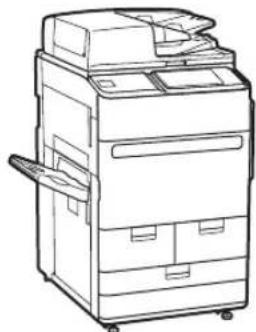
Illustrations used in this manual are those displayed when the imagePRESS C165 has the following optional equipment attached to it:
Copy Tray-R
Trademarks
Mac is a trademark of Apple Inc.
Microsoft, Windows, Windows Vista, Windows Server, Internet Explorer, Excel, and PowerPoint are either registered trademarks or trademarks of Microsoft Corporation in the United States and/or other countries.
Other product and company names herein may be the trademarks of their respective owners.
Third Party Software
This Canon product (the "PRODUCT") includes third-party software modules. Use and distribution of these software modules, including any updates of such software modules (collectively, the "SOFTWARE") are subject to license conditions (1) through (9) below.
(1) You agree that you will comply with any applicable export control laws, restrictions or regulations of the countries involved in the event that this PRODUCT including the SOFTWARE is shipped, transferred or exported into any country. (2) Rights holders of the SOFTWARE retain in all respects the title, ownership and intellectual property rights in and to the SOFTWARE. Except as expressly provided herein, no license or right, expressed or implied, is hereby conveyed or granted by rights holders of the SOFTWARE to you for any intellectual property of rights holders of the SOFTWARE. (3) You may use the SOFTWARE solely for use with the PRODUCT. (4) You may not assign, sublicense, market, distribute, or transfer the SOFTWARE to any third party without prior written consent of rights holders of the SOFTWARE. (5) Notwithstanding the foregoing, you may transfer the SOFTWARE only when (a) you assign all of your rights to the PRODUCT and all rights and obligations under the license conditions to transferee and (b) such transferee agrees to be bound by all these conditions. (6) You may not decompile, reverse engineer, disassemble or otherwise reduce the code of the SOFTWARE to human readable form. (7) You may not modify, adapt, translate, rent, lease or loan the SOFTWARE or create derivative works based on the SOFTWARE. (8) You are not entitled to remove or make separate copies of the SOFTWARE from the PRODUCT.
(9) The human-readable portion (the source code) of the SOFTWARE is not licensed to you.
Notwithstanding (1) through (9) above, the PRODUCT includes third-party software modules accompanying the other license conditions, and these software modules are subject to the other license conditions. Please check Platform Version of the PRODUCT and refer to the other license conditions of third-party software modules described in Appendix of Manual for the corresponding Platform Version. This Manual is available at https://oip_manual.canon/. By using the PRODUCT, you shall be deemed to have agreed to all applicable license conditions. If you do not agree to these license conditions, please contact your service representative.
Practical functions
15 Cassette 1/cassette 2
"Power on," p. 13
"Power on," p. 13.
TONER, CARTRIDGE & PARTS
Troubleshooting
CLASS 1 LASER PRODUCT LASER KLASSE 1
CLASS 1 LASER PRODUCT LASER KLASSE 1
CLASS 1 LASER PRODUCT LASER KLASSE 1
CLASS 1 LASER PRODUCT LASER KLASSE 1
CLASS 1 LASER PRODUCT
CLASS 1 LASER PRODUCT
CLASS 1 LASER PRODUCT
Regulatory information for users in Jordan: imagePRESS C170/C165 includes approved Wireless LAN Module (Model name: FM1M944). Contains Wireless LAN Module approved by TRC/LPD/2015/5.
Regulatory information for users in UAE: imagePRESS C170/C165 includes approved Wireless LAN Module (Model name: FM1M944).
TRA
REGISTERED No: ER38576/15 DEALER No: DA39360/15
Regulatory information for users in Argentina: Includes Wireless LAN Module, Brand Canon Inc., Model FM1M944, CNC C-20793.

Regulatory information for users in Uruguay: imagePRESS C170/C165 contains URSEC.
approved Wireless LAN Module (Model name: FM1M944 or FM1M948).
Regulatory information for users in Singapore
Complies with IMDA Standards DB00671
Regulatory information for users in Vietnam: imagePRESS C170/C165 includes approved Wireless LAN Module (Model name: FM1M944).

RE Directive
(Only for European radio equipment)
RE Declaration of Conformity
Open this cover when clearing a paper jam.
CANON Genuine TONER, CARTRIDGE & PARTS
Troubleshooting
CLASS 1 LASER PRODUCT
LASER KLASSE 1
APPAREL A LASER DE CLASSE 1
APPARECCHIO LASER DI CLASSE 1
PRODUCTO LASER DE CLASE 1
APARELHO A LASER DE CLASSE 1
LUOKAN 1 LASER-TUOTE
LASERPRODUKT KCLASS 1
Regulatory information for users in Jordan imagePRESS C170/C165 includes approved Wireless LAN Module (Model name:FM1M944). Contains Wireless LAN Module approved by TRC/ LPD/2015/5
Regulatory information for users in UAE imagePRESS C170/C165 includes approved Wireless LAN Module (Model name:FM1M944).
TRA
REGISTERED No: ER38576/15
DEALER No: DA39360/15
Regulatory information for users in Argentina. Includes Wireless LAN Module, Brand Canon Inc., Model FM1M944, CNC C-20793.

Regulatory information for users in Uruguay. imagePRESS C170/C165 contains URSEC approved Wireless LAN Module (Model name: FM1M944 or FM1M948).
Regulatory information for users in Singapore.
Complies with IMDA Standards DB00671.
Regulatory information for users in Vietnam. imagePRESS C170/C165 includes approved Wireless LAN Module (Model name: FM1M944).

RE Directive
(Only for European radio equipment)
RE Declaration of Conformity
14 Paper deck 1/paper deck 2
13 Start button
CANON Genuine TONER, CARTRIDGE & PARTS
CLASS 1 LASER PRODUCT
LASER KLASSE 1
APPAREL A LASER DE CLASSE 1
APPARECCHIO LASER DI CLASSE 1
PRODUCTO LASER DE CLASE 1
APARELHO A LASER DE CLASSE 1
LUOKAN 1 LASER-TUOTE
LASERPRODUKT KCLASS 1
Regulatory information for users in Jordan ImagePRESS C170/C165 includes approved Wireless LAN Module (Model name: FM1M944). Contains Wireless LAN Module approved by TRC/ LPD/2015/5
Regulatory information for users in UAE
imagePRESS C170/C165 includes approved Wireless LAN Module (Model name: FM1M944).
TRA
REGISTERED No: ER38576/15
DEALER No: DA39360/15
Regulatory information for users in Argentina Incluye modulo Wireless LAN Module Marca Canon Inc., Modelo FM1M944, CNC C-20793

Regulatory information for users in Uruguay imagePRESS C170/C165 contains URSEC approved Wireless LAN Module (Model name: FM1M944 or FM1M948).
Regulatory information for users in Singapore
Complies with IMDA Standards DB00671
Regulatory information for users in Vietnam imagePRESS C170/C165 includes approved Wireless LAN Module (Model name:FM1M944).

RE Directive
(Only for European radio equipment)
RE Declaration of Conformity
TONER, CARTRIDGE & PARTS
CLASS 1 LASER PRODUCT
LASER KLASSE 1
APPAREL A LASER DE CLASSE 1
APPARECCHIO LASER DI CLASSE 1
PRODUCTO LASER DE CLASE 1
APARELHO A LASER DE CLASSE 1
LUOKAN 1 LASER-TUOTE
LASER PRODUCT CLASS 1
Regulatory information for users in Jordan imagePRESS C170/C165 includes approved Wireless LAN Module (Model name: FM1M944). Contains Wireless LAN Module approved by TRC/LPD/2015/5
Regulatory information for users in UAE imagePRESS C170/C165 includes approved Wireless LAN Module (Model name: FM1M944).
TRA
REGISTERED No: ER38576/15
DEALER No: DA39360/15
Regulatory information for users in Argentina Includes Wireless LAN Module Marca Canon Inc., Modelo FM1M944, CNC C-20793
CNC
Regulatory information for users in Uruguay imagePRESS C170/C165 contains URSEC approved Wireless LAN Module (Model name: FM1M944 or FM1M948).
Regulatory information for users in Singapore
Complies with IMDA Standards DB00671
Regulatory information for users in Vietnam
imagePRESS C170/C165 includes approved Wireless LAN Module (Model name: FM1M944).

RE Directive
(Only for European radio equipment)
RE Declaration of Conformity
30-2, Shimomaruko 3-chome, Ohta-ku, Tokyo 146-8501, Japan
CANON U.S.A., INC.
One Canon Park, Melville, NY 11747, U.S.A.
CANON CANADA INC.
8000 Mississauga Road Brampton ON L6Y 5Z7, Canada
CANON EUROPA N.V.
Bovenkerkerweg 59, 1185 XB Amstelveen, The Netherlands
(See http://www.canon-europe.com/ for details on your regional dealer)
CANON AUSTRALIA PTY LTD
Building A, The Park Estate, 5 Talavera Road, Macquarie Park, NSW 2113, Australia
CANON SINGAPORE PTE LTD
1 Fusionopolis Place, #15-10, Galaxis, Singapore 138522
- IMAGEPRESS C170/C
- QUICK GUIDE
- READ THIS GUIDE FIRST
- AUTO GRADATION ADJUSTMENT FOR VARIOUS PAPER TYPES
- ACHIEVE HIGH QUALITY COLOR REPRODUCTION WITH AUTO COLOR TONE CORRECTION
- OPTIMUM PRINT RESULT FOR EACH PAPER TYPE
- CURL CORRECTION FOR STABLE PAPER CONVEYANCE
- EASY OPERATION FOR ADJUSTING IMAGE POSITION
- QUICK ACCESS TO FREQUENTLY USED SETTINGS
- CONTENTS
- PARTS AND THEIR FUNCTIONS
- STATUS MONITOR SCREEN
- HOW TO TURN ON THE MAIN POWER
- LOADING PAPER
- CLEANING AND MAINTENANCE
- CONSUMABLES
- TROUBLESHOOTING
- APPENDIX
- SYMBOLS USED IN THIS MANUAL
- IMPORTANT
- NOTE
- OPTION
- KEYS AND BUTTONS USED IN THIS MANUAL
- EXTERNAL VIEW (FRONT SIDE)
- CONTROL PANEL
- UPPER-RIGHT COVER OF THE MAIN UNIT
- MULTI-PURPOSE TRAY
- GLASS CLEANING CLOTH STORAGE BOX
- USB PORT (REAR-RIGHT SIDE OF THE MACHINE)
- USB CONNECTOR
- LAN PORT
- LOWER-RIGHT COVER OF THE MAIN UNIT
- POWER SWITCH
- USB PORT (FRONT SIDE OF THE MACHINE)
- FEEDER
- TONER REPLACEMENT COVER
- FRONT COVER OF THE MAIN UNIT
- PAPER DECK 1/PAPER DECK
- PAPER DRAWER 1/PAPER DRAWER
- LEFT COVER OF THE MAIN UNIT
- TELEPHONE LINE JACK (LINE 1)
- BREAKER
- INTERNAL VIEW
- TONER CARTRIDGE
- FIXING TRANSPORT UNIT
- TOUCH PANEL DISPLAY
- LOGIN USER NAME
- ID (LOG IN/OUT) KEY
- SETTINGS/REGISTRATION KEY
- NUMERIC KEYS
- ENERGY SAVER KEY
- COUNTER/DEVICE INFORMATION KEY
- BRIGHTNESS ADJUSTMENT KEY
- VOLUME SETTINGS KEY
- CLEAR KEY
- STOP KEY
- START KEY
- MAIN POWER INDICATOR
- ERROR INDICATOR
- RESET KEY
- PROCESSING/DATA INDICATOR
- SETTING THE ENERGY SAVER MODE/SLEEP MODE TO MINIMIZE ENERGY CONSUMPTION
- USEFUL SITUATIONS
- SCREEN
- TURNING ON THE MAIN POWER
- SHUTTING DOWN THE MACHINE
- DO NOT TURN OFF THE MAIN POWER IN THE FOLLOWING SITUATIONS
- PAPER SOURCE
- REGISTERING PAPER TYPES TO THE MACHINE
- PRESS FOR THE ITEM YOU WANT TO CHANGE
- CHANGE THE SETTINGS, THEN PRESS OK
- PRESS OK
- LOADING PAPER INTO THE PAPER DECK/PAPER PRINTER
- OPEN THE PAPER DECK
- LOAD THE PAPER STACK INTO THE PAPER DECK
- LOADING PAPER INTO THE PAPER DRAWER
- OPEN THE PAPER DRAWER
- LOOSEN THE FIXING SCREWS
- ADJUST THE POSITION OF THE PAPER GUIDES
- TIGHTEN THE FIXING SCREWS
- LOAD THE PAPER STACK INTO THE PAPER DRAWER
- REGISTERING CUSTOM PAPER TYPES
- CLEANING THE PLATEN GLASS
- CLEANING THE ORIGINAL SCANNING AREA
- CLEANING THE FEEDER
- CLEAN THE ORIGINAL SCANNING AREA
- OPEN THE DOCUMENT SCAN COVER
- OPEN THE INSIDE COVER
- CLEAN THE ORIGINAL SCANNING AREA OF THE FEEDER
- TURN ON THE MAIN POWER
- AUTOMATIC FEEDER CLEANING
- CLEANING THE INSIDE OF THE MAIN UNIT
- CLEANING THE TOUCH PANEL DISPLAY
- INSPECTION OF THE BREAKER
- PAPER
- TONER
- SUPPORTED CANON GENUINE TONER
- BE CAREFUL OF COUNTERFEIT TONERS
- STAPLE CARTRIDGE FOR THE STAPLER UNIT
- STAPLE CARTRIDGE FOR THE SADDLE STITCHER UNIT
- GENUINE CONSUMABLES
- CLEARING PAPER JAMS AND STAPLE JAMS
- PAPER JAM SCREEN
- STAPLE JAM SCREEN
- REDUCING THE FREQUENCY OF PAPER JAMS
- THERE ARE TORN PIECES OF PAPER LEFT INSIDE THE MACHINE
- PAPER WHICH DOES NOT MATCH WITH THE SETTING IS LOADED
- PAPER JAMS OCCUR FREQUENTLY ONLY WHEN USING THE SPECIFIC CUSTOM PAPER
- WHEN AN ERROR MESSAGE IS DISPLAYED
- IF A KEY FOR THE LIMITED FUNCTIONS MODE IS DISPLAYED
- IF A MESSAGE IS DISPLAYED ON THE BOTTOM OF THE SCREEN
- CONTACTING YOUR LOCAL AUTHORIZED CANON DEALER
- MEMORY BECOMES FULL
- SCANNING WILL BE CANCELED BECAUSE THE MEMORY IS FULL. DO YOU WANT TO PRINT (SEND, STORE)* THE SCANNED PAGES
- SCANNING WILL BE CANCELED BECAUSE THE MEMORY IS FULL. WAIT A MOMENT, THEN TRY AGAIN
- COULD NOT PERFORM THE OPERATION BECAUSE THE MEMORY IS FULL
- IF THE MAIN POWER DOES NOT TURN ON
- IMPORTANT SAFETY INSTRUCTIONS
- WARNING
- CAUTION
- INSTALLATION
- DO NOT INSTALL IN A LOCATION THAT MAY RESULT IN A FIRE OR ELECTRICAL SHOCK
- OTHER WARNINGS
- DO NOT INSTALL IN THE FOLLOWING LOCATIONS
- OTHER CAUTIONS
- LEVELING FEET (ONLY FOR PRODUCTS WITH LEVELING FEET)
- AVOID POORLY VENTILATED LOCATIONS
- DO NOT INSTALL IN A LOCATION WHERE CONDENSATION OCCURS
- AVOID INSTALLING THE MACHINE NEAR COMPUTERS OR OTHER PRECISION ELECTRONIC EQUIPMENT. ELECTRICAL INTERFERENCE AND VIBRATIONS GENERATED BY THE MACHINE WHILE PRINTING CAN ADVERSELY AFFECT THE OPERATION OF SUCH EQUIPMENT
- AVOID INSTALLING THE MACHINE NEAR TELEVISIONS, RADIOS, OR SIMILAR ELECTRONIC EQUIPMENT
- AT ALTITUDES OF 3,000 M ABOVE SEA LEVEL OR HIGHER
- CONNECTING THE TELEPHONE LINE
- WHEN USING WIRELESS LAN
- IF THE OPERATING NOISE CONCERNS YOU
- MOVING THE MACHINE
- POWER SUPPLY
- AVOID THE FOLLOWING SITUATIONS
- WHEN CONNECTING POWER
- OTHER PRECAUTIONS
- HANDLING
- IF YOU ARE USING A CARDIAC PACEMAKER
- FINISHER
- PAPER DRAWER
- LASER SAFETY
- FIXING UNIT
- SAFETY-RELATED SYMBOLS
- [NOTE]
- MAINTENANCE AND INSPECTIONS
- TELEPHONE EQUIPMENT
- NOTICE
- PRODUCT NAME
- EMC REQUIREMENTS OF EC DIRECTIVE
- EU WEEE AND BATTERY DIRECTIVES
- WIRELESS LAN REGULATORY INFORMATION
- TRA
- REGISTERED NO: ER
- DEALER NO: DA
- RE DIRECTIVE
- RE DECLARATION OF CONFORMITY
- LEGAL LIMITATIONS ON THE USAGE OF YOUR PRODUCT AND THE USE OF IMAGES
- DISCLAIMERS
- ABOUT THIS MANUAL
- SCREENS
- ILLUSTRATIONS
- TRADEMARKS
- THIRD PARTY SOFTWARE
- PRACTICAL FUNCTIONS
- CASSETTE 1/CASSETTE
- REGULATORY INFORMATION FOR USERS IN SINGAPORE
- START BUTTON
- CLASS 1 LASER PRODUCT
- REGULATORY INFORMATION FOR USERS IN UAE
- COMPLIES WITH IMDA STANDARDS DB
- CNC
- REGULATORY INFORMATION FOR USERS IN VIETNAM
- (ONLY FOR EUROPEAN RADIO EQUIPMENT)
Brand : CANON
Model : imagePRESS C170
Category : Controller