ManualGo.com
TVVR33601 - Surveillance Camera ABUS - Free user manual and instructions
Find the device manual for free TVVR33601 ABUS in PDF.



Download the instructions for your Surveillance Camera in PDF format for free! Find your manual TVVR33601 - ABUS and take your electronic device back in hand. On this page are published all the documents necessary for the use of your device. TVVR33601 by ABUS.
USER MANUAL TVVR33601 ABUS
HD RECORDER This quick-start guide describes the initial installation steps for your analogue HD recorder. Detailed information can be found in the user guide on the website www.abus.com21 English Dear Customer, Thank you for purchasing one of our products. This product complies with current domestic and European regulations. Conformity has been proven, and all related certications are available from the manufacturer on request: ABUS Security Center GmbH & Co. KG, Linker Kreuthweg 5, 86444 Ang, GERMANY. To ensure that this standard is maintained and that safe operation is guaranteed, you are obliged to observe the stipulations set out in this user guide. Read the entire user manual before putting the product into operation, and pay attention to all operating instructions and safety information. All company names and product descriptions are trademarks of the corresponding owner. All rights reserved. If you have any questions, please contact your specialist dealer.22 English
- 12V power supply unit
- Hard disk drive connection cable
- Screws for hard disk drive
- 12V power supply unit
- Hard disk drive connection cable
- Screws for hard disk drive
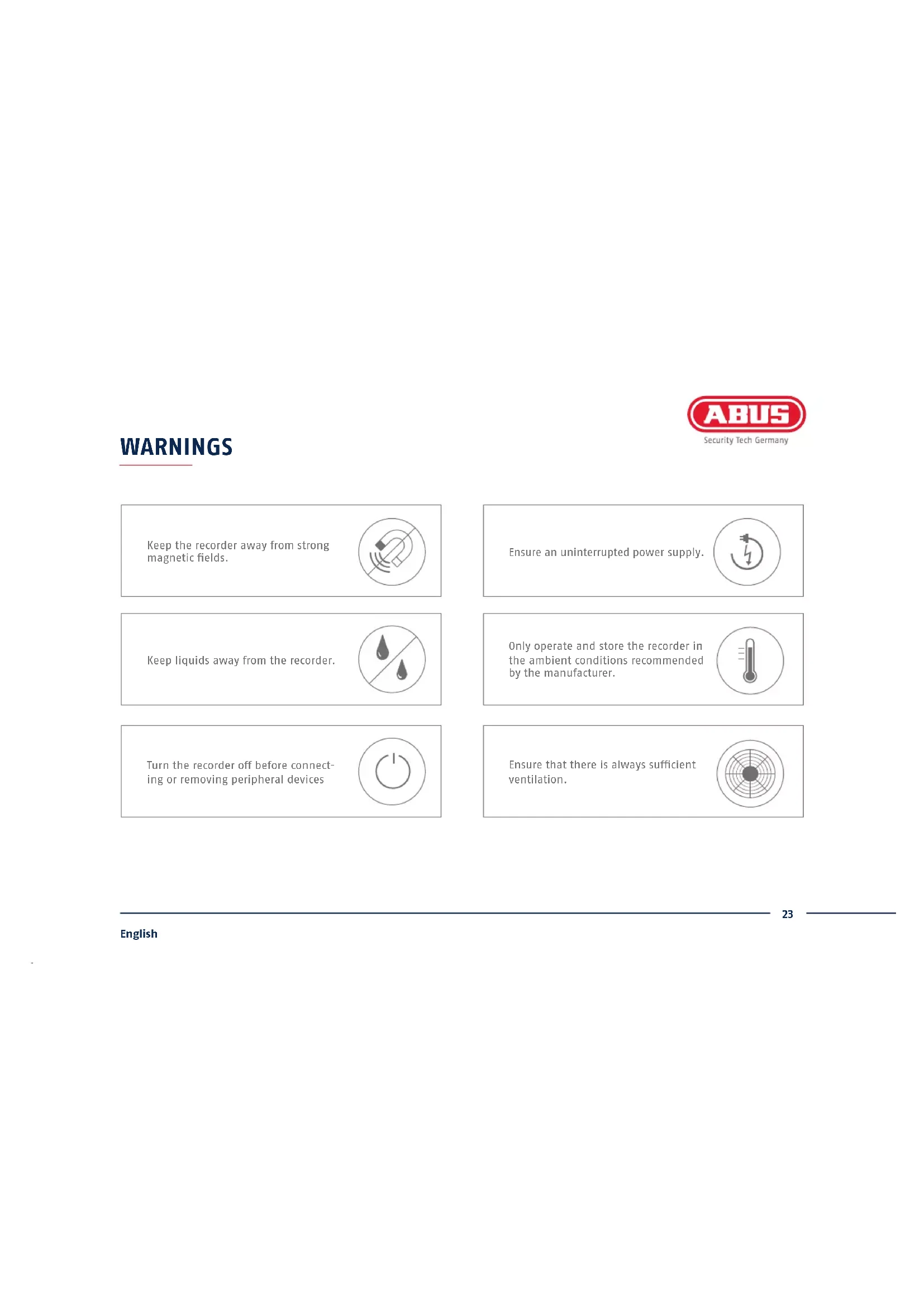
- Quick start guide Quick guide23 English WARNINGS Only operate and store the recorder in the ambient conditions recommended by the manufacturer. Ensure that there is always sucient ventilation. Ensure an uninterrupted power supply. Keep the recorder away from strong magnetic elds. Keep liquids away from the recorder. Turn the recorder o before connect- ing or removing peripheral devices24 English CONNECTIONS Data LED Display of the current hard disk drive (HDD) activity Power LED Display signalling readiness for operation Network LED Display of the current network activity25 English Video IN BNC input for analogue cameras Supports TVI, AHD, CVI and CVBS formats VGA VGA monitor connection HDMI HDMI monitor connection USB Connection for USB devices LAN RJ45 port for a network connection 12 V 12VDC connection for power supply26 English
TIPS FOR CAMERA INSTALLATION
Connect the recorder to the power supply and connect it to your home network via the network cable. To integrate analogue HD cameras, connect them to the BNC socket of the recorder and the recorder's power supply unit using the combined cable provided. When integrating IP cameras, connect them to the power supply and to your home network.27 English
In the eld “New password” enter a password for the admin user. The password must meet the specied minimum requirements. Recommendation: Use a password that is as complex as possible and is classied as “strong”.
Re-enter the password to conrm it. Note down the new password and keep it in a secure location. The admin password can only be reset by ABUS technical support.
You should also enter the activation password for the cameras here. If you activate a camera via the recorder, the recorder uses this password for it. Then click on “OK”. The device is now activated and all of its functions can be used. Admin password: SYSTEM ACTIVATION28 English
Select the desired language and click “Apply”.
If you untick the checkbox, the set-up wizard will not automatically pop up the next time the soware starts up. Click on “Next”. SOFTWARE SET-UP
In the rst step, select whether you wish to replace analogue HD channels (for analogue HD cameras) with IP channels (for IP cameras). This activates/deactivates the respective analogue HD BNC connection. Click on “Next” to conrm your selection.29 English
Set the time zone, date/date format and system time. Close the screen by clicking “Next”.
If you wish the address data to be automatically assigned, tick the “Enable DHCP” checkbox. The addresses will then be automatically assigned by your router (where supported).
Set the connection speed for “NIC Type” manually. Automatic detection is preset and recommended (self-adaptive).30 English
Following installation, the hard disk drive must be initialised before use. Select the hard disk drive to be initialised.
You can manage and, if necessary, edit your ports here. We recommend that the default values are maintained.
If your router does not automatically assign the address data, enter the data according to the following steps. The image gives an example of connected devices with the corresponding IP addresses.
Click on “Init” and conrm the successful initialisation by clicking on “OK”. Go to the next screen with “Next”.
If you wish to integrate IP cameras, click on “Search” to look for available IP cameras in the network. You can then select and add the cameras. Go to the next screen with “Next”.
Select the recording type. You can choose between “Continuous” and “Motion detection”. Close the set-up wizard by clicking “OK”.32 English APP SETUP Activating ABUS Link Station
- Navigate to the network settings in your local interface and open the ABUS Link Station settings.
- Activate the ABUS Link Station function and click on “Save settings”.
- The status should now show as “online”. If “oine” is still shown, check that the recorder is connected to a network with internet access.
- Now assign a verication code for the connection. You can write down the code you used here, then keep the quick guide in a safe place.
- Leave the web interface open. The QR code and verication code shown are required to set up the recorder in the app.
Please note: The ABUS Link Station connects your recorder to your smartphone via the cloud service. You do not need to recongure your router for this. If you do not want to use the cloud service, you can follow an alternative app setup procedure in the recorder's instruction manual.33 English
- Download the “ABUS Link Station” app from the iOS App Store or Google Playstore and open it.
- Create an account for remote access by clicking on “Log in” and then on “Register an account”.
- Activate the account using the veri cation code sent to you by email.
- Click on “Add device” and scan the QR code from the recorder’s local interface.
- A er the recorder has been found, enter the recorder's veri cation code. The recorder has now been added to your account.
- If you experience problems during setup, please go to our support website: https://support.abus-sc.com/34 English Instructions: Further instructions for operating the online and recorder interfaces can be found under the “Downloads” tab at the following link: https://www.abus.com/product/TVVR33600 https://www.abus.com/product/TVVR33800 So ware: TVSW11001 ABUS Central Monitor Station (CMS) allows you to monitor, control and manage the video data from your ABUS recorder on your PC: http://www.abus.com/ger/Objektsicherheit/Videoueberwachung/Analog/Aufzeichnungssysteme/Videomanagement- So ware/ABUS-CMS- So ware Use the ABUS IP Installer to nd your recorder in the network, to check for and install rmware updates and to download instruction manuals and quick start guides directly to your PC: http://www.abus.com/ger/Objektsicherheit/Videoueberwachung/IP/Aufzeichnungssysteme/NVR10030 HELP Use the ABUS IP Installer to nd your recorder in the network, to check for and install rmware updates and to http://www.abus.com/ger/Objektsicherheit/Videoueberwachung/IP/Aufzeichnungssysteme/NVR10030