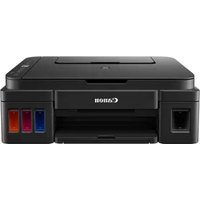
PIXMA G2510 - Printer CANON - Free user manual and instructions
Find the device manual for free PIXMA G2510 CANON in PDF.


User questions about PIXMA G2510 CANON
0 question about this device. Answer the ones you know or ask your own.
Ask a new question about this device
Download the instructions for your Printer in PDF format for free! Find your manual PIXMA G2510 - CANON and take your electronic device back in hand. On this page are published all the documents necessary for the use of your device. PIXMA G2510 by CANON.
USER MANUAL PIXMA G2510 CANON
Read Safety and Important Information (addendum) first.
natural_image
Red background with white icon of a laptop and the number 2 (no text or symbols on the laptop)Connecting with Computer ...... page 4
natural_image
Hand holding a play button icon on a keyboard (no text or symbols visible)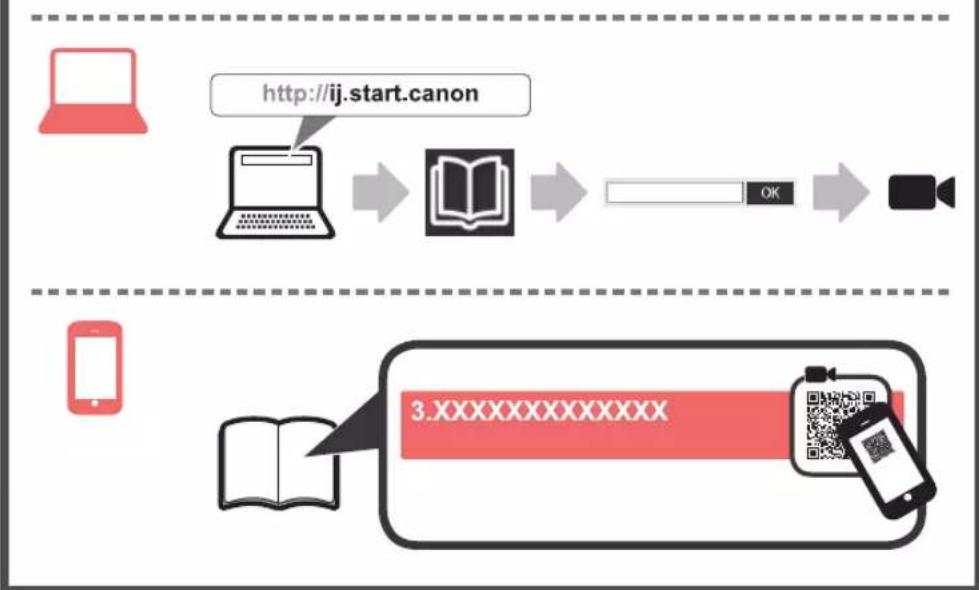
flowchart
graph TD
    A["Start"] --> B["http://ij.start.canon"]
    B --> C["Book"]
    C --> D["OK"]
    D --> E["Video Call"]
    F["Start"] --> G["3.XXXXXXXXXXX"]
    G --> H["Open Book"]
    H --> I["QR Code"]
1. Checking Included Items
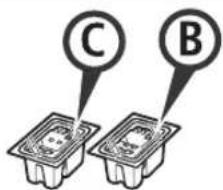
text_image
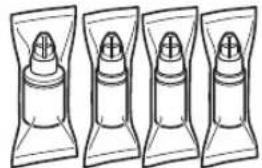
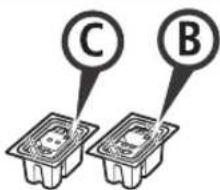
C B□ Cartridge □ Ink bottle
natural_image
Illustration of four identical bottles with different internal shapes and color variations (no text or symbols)□ Power cord
□ Setup CD-ROM for Windows PC
□ Safety and Important Information
□ Getting Started (this manual)
2. Removing Packing Materials

1 Remove the packing materials (such as orange tape) from outside the printer.
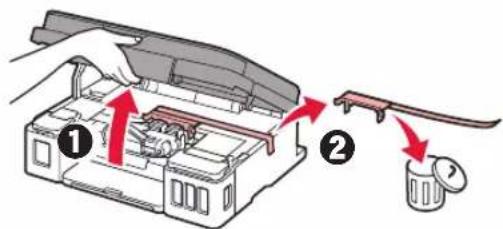
2 ① Open the scanning unit / cover.
② Remove the orange tape and the protective material and discard them.
text_image
Diagram showing a device interior with labeled parts and directional arrows indicating movement or assembly.3. Installing the Cartridge

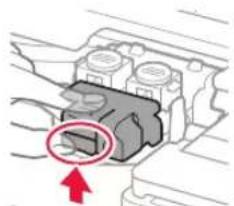
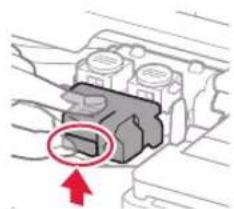
1 Open the cartridge locking cover.
natural_image
Diagram of a mechanical component with a red arrow pointing to a section (no text or symbols present)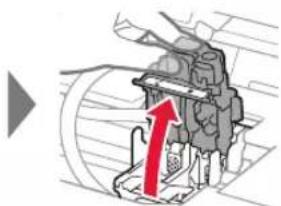
natural_image
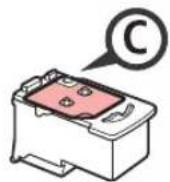
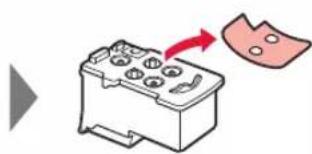
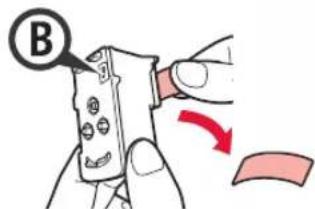
Mechanical component diagram with red arrow indicating upward motion (no text or symbols)2 Take out each cartridge from the package and remove the label.
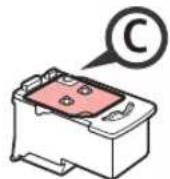
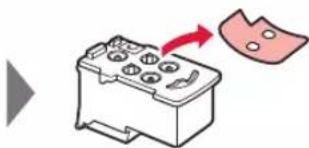
natural_image
Illustration of a battery with a red arrow pointing to its internal components (no text or symbols)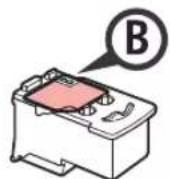
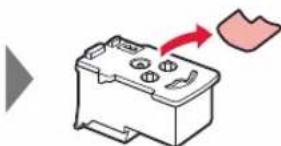
natural_image
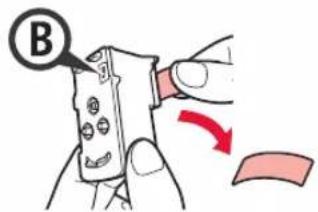
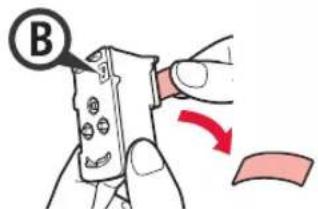
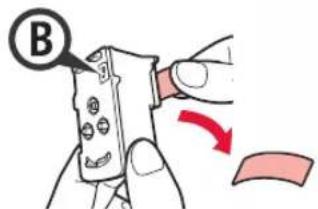
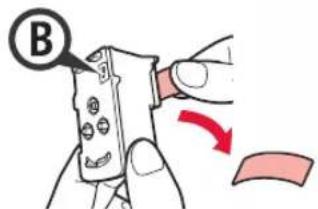
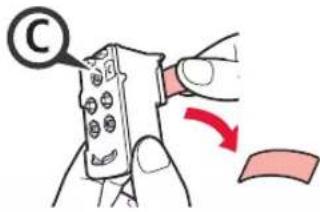
Illustration of a battery with a red arrow indicating direction (no text or symbols)3 Remove the protective tape.
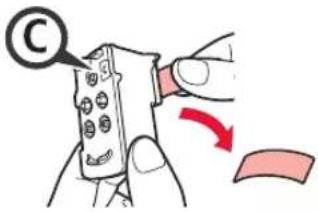
text_image
Illustration showing a hand holding a remote device with a copyright symbol and a red arrow indicating rotation or change.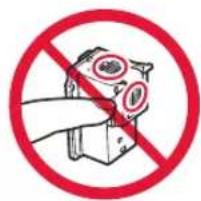
text_image
Prohibition sign with hand holding a device and crossed-out eye symbols, indicating no use or absence of any eye-related items.Do not touch.
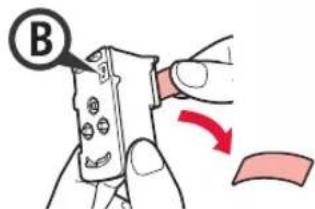
text_image
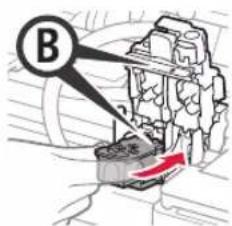
B4 Insert the C (color) cartridge on the left and the B (black) cartridge on the right.
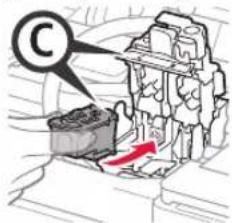
text_image
C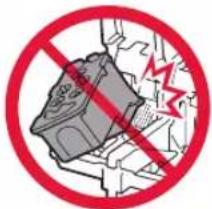
text_image
Prohibition sign with a red circle containing a mechanical device and a lightning bolt symbol, indicating no protection or hazard.Do not bump it against the surrounding parts.
text_image
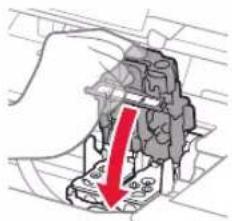
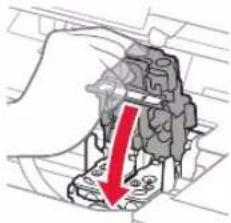
B5 Close the cartridge locking cover and push it down.
natural_image
Diagram of a hand holding a mechanical component with a red downward arrow indicating force or direction (no text or symbols present)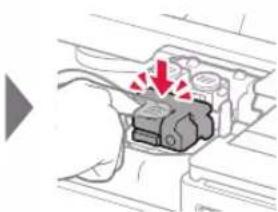
natural_image
Diagram of a mechanical component with red arrows indicating force or movement (no text or symbols)6 Press down both joint buttons completely.
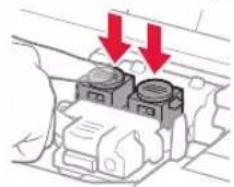
natural_image
Diagram of a vehicle engine compartment with two red arrows indicating downward motion (no text or symbols present)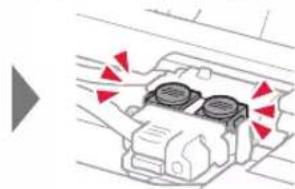
natural_image
Diagram of a car air conditioning unit with red directional arrows indicating airflow or movement (no text or symbols)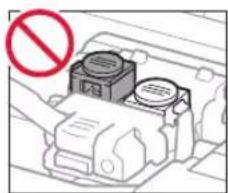
natural_image
Diagram of a mechanical device with a red prohibition symbol (no text or labels)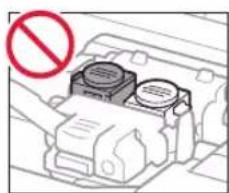
natural_image
Diagram of a vehicle engine compartment with no visible text or symbols, including a red prohibition symbol (no readable text or labels)4. Turning on Printer

1 LIFT UP the scanning unit / cover, and then close it.
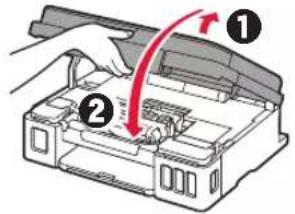
text_image
Diagram showing a hand pressing down on a device component with numbered callouts and red directional arrow indicating motion.2 Connect the power cord.

text_image
Diagram showing printer connection to a device with red arrows indicating cable and back assembly, labeled 'Back'Do not connect any cables except the power cord yet.
3 Press the ON button.
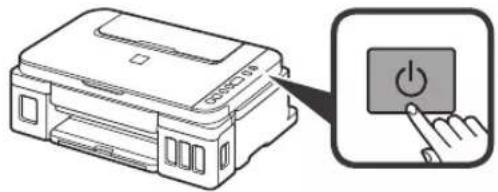
natural_image
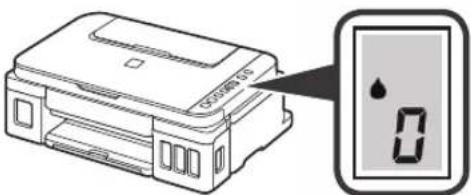
Illustration of a printer with a power button and a hand cursor pointing to it (no text or symbols present)4 Confirm that (unk icon) and are displayed on the screen.
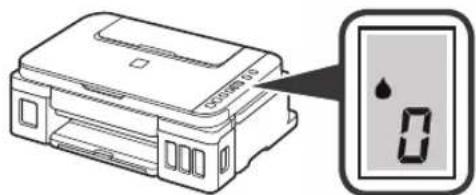
natural_image
Illustration of a printer with a digital display showing 0.1, no text or symbols presentIf a different screen appears, refer to "If any of the following screens appear" on page 3 to resolve the error.
5. Pouring Ink

This product requires careful handling of ink. Ink may splatter when the ink tanks are filled with ink. If ink gets on your clothes or belongings, it may not come off.
1 Open the scanning unit / cover.
2 Open the ink tank cover.
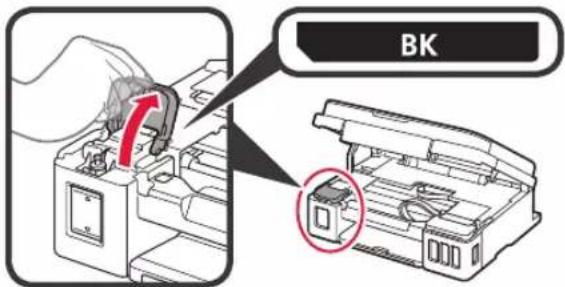
text_image
BK3 Grab and remove the tank cap of the ink tank.
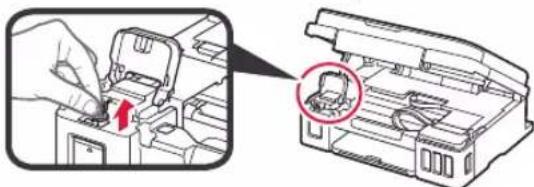
natural_image
Illustration of a hand inserting a component into a device, with a magnified inset showing a close-up of a small object (no text or symbols present)4 Hold the ink bottle upright and remove the bottle cap.
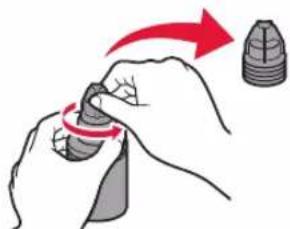
natural_image
Illustration of a hand holding a small object with a red arrow indicating rotation (no text or symbols)5 Insert the nozzle of the ink bottle into the inlet and stand the ink bottle upside down.
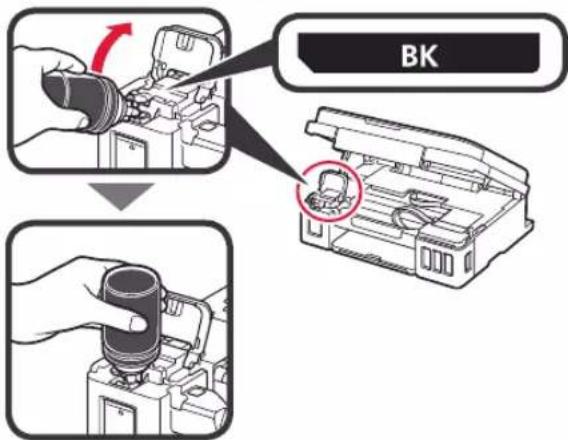
text_image
BK6 Pour all ink into the ink tank.
Confirm that the ink has been filled to the upper limit line (A).
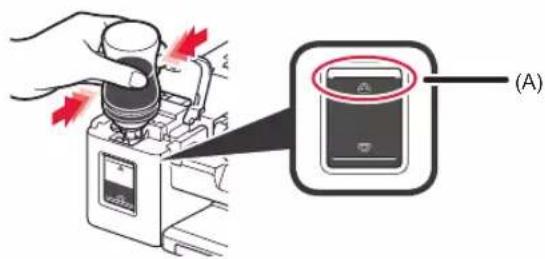
text_image
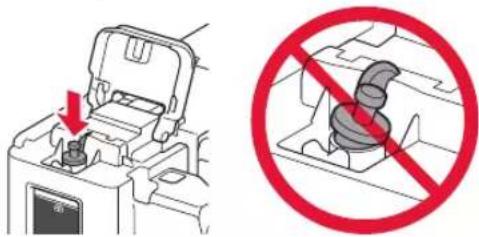
Diagram showing a hand using a device to press or install a device, with red arrows indicating action and a labeled button (A) pointing to the device.7 Replace the tank cap securely.
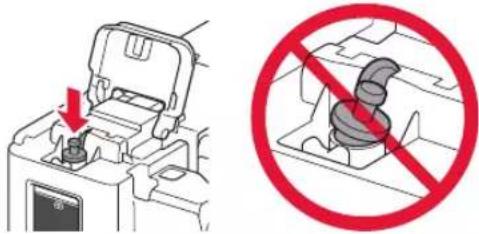
natural_image
Diagram showing a device with a switch and a prohibition symbol (no text or labels present)8 Close the ink tank cover.
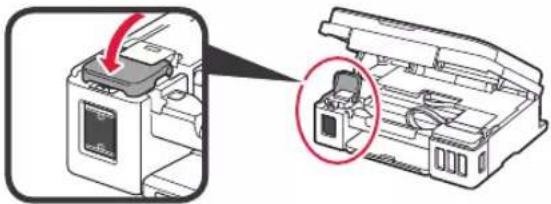
natural_image
Diagram showing a printer's internal structure with a magnified view of its internal components (no text or symbols present)9 Repeat steps 2 to 8 to pour all ink into the corresponding ink tanks on the right according to the label.
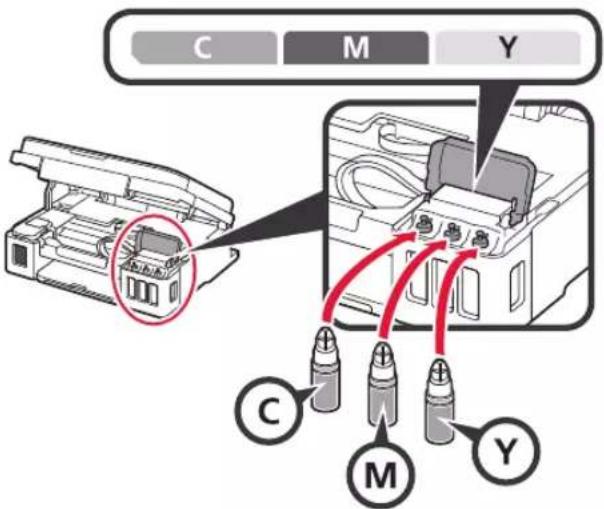
text_image
C M Y C M YConfirm that the ink has been filled to the upper limit line (A).
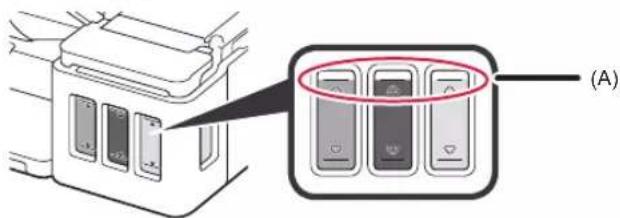
text_image
Diagram showing a device with labeled buttons and a magnified view of the main panel, marked as (A)10 LIFT UP the scanning unit / cover, and then close it.
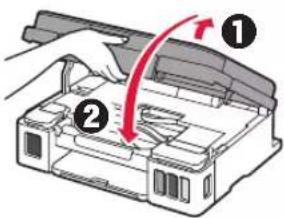
text_image
Diagram showing a hand pressing down on a device with numbered annotations and a red arrow indicating motion or force.6. Preparing the Ink System
1 Press the Black button and confirm that (pink icon) disappears.
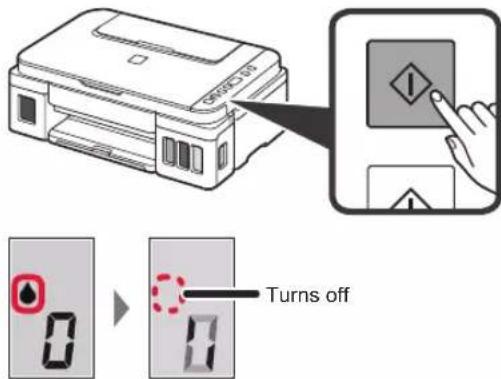
text_image
Turns offInk preparation takes about 5 to 6 minutes. Proceed to the next page.

If any of the following screens appear
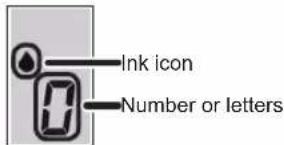
text_image
Ink icon Number or lettersE04
The cartridges are not installed correctly. "3. Installing the Cartridge" on page 1
E05
No cartridges are installed. → "3. Installing the Cartridge" on page 1
E09
The protective materials are not removed. → "2. Removing Packing Materials" on page 1
P08
Ink is not prepared normally. Press the ON button to restart the printer, and then see "5. Pouring Ink" on page 2.
8
Waiting to prepare ink. → "6. Preparing the Ink System" If you have not poured ink into the ink tank yet, see "5. Pouring Ink" on page 2.
For all other cases, refer to the Online Manual.
7. Connecting to Computer
You need a connection setup for each computer. Proceed with the setup from step 1 for each computer.
If you use the printer while it is not connected to a computer, confirm that is displayed on the printer's screen. The setup is now complete.
1 Start the setup file for either method A method . B

Downloading from the Internet
① Open a web browser (eetc.) on your computer.
② Input the following URL and access the Canon website.

text_image
http://ij.start.canon③ Select Set Up.

④ Input the model name of your printer and click OK.

You can select a model name from the list.
⑤ Click Setup.

The procedures for Windows are shown below. If you are using a computer with an OS other than Windows, do the setup according to the on-screen instructions.
⑥ Click Download and download the setup file.
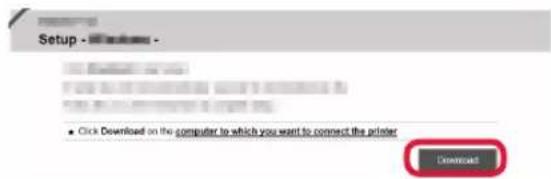
text_image
Setup - Windows - ■ Click Download on the computer to which you want to connect the printer Download⑦ Execute the downloaded file.
Proceed to step 2 on the next page to continue.

Using Setup CD-ROM (Windows Only)
■ When using Windows 10 or Windows 8.1:
① Load the Setup CD-ROM in your computer.

② When the following message appears on the right side of your computer screen, click it.
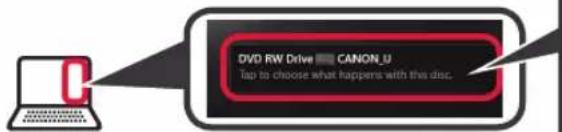
flowchart
graph TD
    A["Laptop"] --> B["DVD RW Drive CANON_U"]
    B --> C["Iap to choose what happens with this disc"]
When This Message Does Not Appear (or Has Disappeared)
- Click File Explorer on the taskbar.
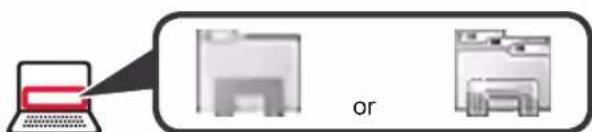
text_image
or- Click This PC on the left side of the opened window.
- Double-click the CD-ROM icon on the right side of the window. If the contents of the CD-ROM appear, double-click Msetup4.exe.
- Proceed to step ④.
③ If the following screen appears, click Run Msetup4.exe.
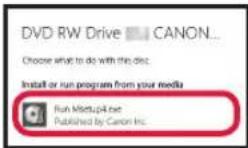
④ If the User Account Control dialog box appears, click Yes.
Proceed to step 2 to continue.
■ When using Windows 7:
① Load the Setup CD-ROM in your computer.

② When the AutoPlay screen appears, click Run Msetup4.exe.
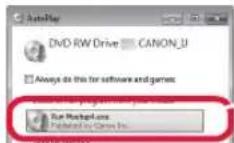
When AutoPlay Screen Does Not Appear
- Click Computer from the start menu.
- Double-click the CD-ROM icon on the right side of the opened window. If the contents of the CD-ROM appear, double-click Msetup4.exe.
③ If the User Account Control dialog box appears, click Continue.
Proceed to step 2 to continue.
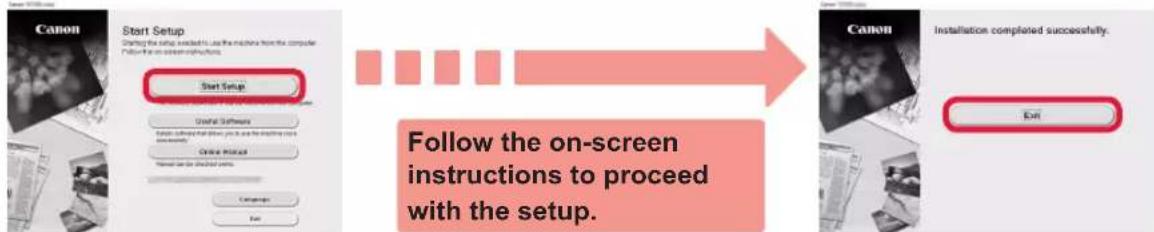
2 Click Start Setup.
If the following screen appears, click Exit.
flowchart
graph LR
    A["Start Setup"] --> B["Start Setup"]
    B --> C["On-Screen Instructions"]
    C --> D[" sustained Software"]
    D --> E[" On-screen Instructions"]
    E --> F[" On-Screen Settings"]
    F --> G[" Cancel Settings"]
    G --> H[" Cancel Settings"]
    H --> I[" Cancel Settings"]
    I --> J[" Cancel Settings"]
    J --> K[" Cancel Settings"]
    K --> L[" Cancel Settings"]
    L --> M[" Cancel Settings"]
    M --> N[" Cancel Settings"]
    N --> O[" Cancel Settings"]
    O --> P[" Cancel Settings"]
    P --> Q[" Cancel Settings"]
    Q --> R[" Cancel Settings"]
    R --> S[" Cancel Settings"]
    S --> T[" Cancel Settings"]
    T --> U[" Cancel Settings"]
    U --> V[" Cancel Settings"]
    V --> W[" Cancel Settings"]
    W --> X[" Cancel Settings"]
    X --> Y[" Cancel Settings"]
    Y --> Z[" Cancel Settings"]
    Z --> AA[" Cancel Settings"]
    AA --> AB[" Cancel Settings"]
    AB --> AC[" Cancel Settings"]
    AC --> AD[" Cancel Settings"]
    AD --> AE[" Cancel Settings"]
    AE --> AF[" Cancel Settings"]
    AF --> AG[" Cancel Settings"]
    AG --> AH[" Cancel Settings"]
    AH --> AI[" Cancel Settings"]
    AI --> AJ[" Cancel Settings"]
    AJ --> AK[" Cancel Settings"]
    AK --> AL[" Cancel Settings"]
    AL --> AM[" Cancel Settings"]
    AM --> AN[" Cancel Settings"]
    AN --> AO[" Cancel Settings"]
    AO --> AP[" Cancel Settings"]
    AP --> AQ[" Cancel Settings"]
    AQ --> AR[" Cancel Settings"]
    AR --> AS[" Cancel Settings"]
    AS --> AT[" Cancel Settings"]
    AT --> AU[" Cancel Settings"]
    AU --> AV[" Cancel Settings"]
    AV --> AW[" Cancel Settings"]
    AW --> AX[" Cancel Settings"]
    AX --> AY[" Cancel Settings"]
    AY --> AZ[" Cancel Settings"]
    AZ --> BA[" Cancel Settings"]
    BA --> BB[" Cancel Settings"]
    BB --> BC[" Cancel Settings"]
    BC --> BD[" Cancel Settings"]
    BD --> BE[" Cancel Settings"]
    BE --> BF[" Cancel Settings"]
    BF --> BG[" Cancel Settings"]
    BG --> BH[" Cancel Settings"]
    BH --> BI[" Cancel Settings"]
    BI --> BJ[" Cancel Settings"]
    BJ --> BK[" Cancel Settings"]
    BK --> BL[" Cancel Settings"]
    BL --> BM[" Cancel Settings"]
    BM --> BN[" Cancel Settings"]
    BN --> BO[" Cancel Settings"]
    BO --> BP[" Cancel Settings"]
    BP --> BQ[" Cancel Settings"]
    BQ --> BR[" Cancel Settings"]
    BR --> BS[" Cancel Settings"]
    BS --> BT[" Cancel Settings"]
    BT --> BU[" Cancel Settings"]
    BU --> BV[" Cancel Settings"]
    BV --> BW[" Cancel Settings"]
    BW --> BX[" Cancel Settings"]
    BX --> BY[" Cancel Settings"]
    BY --> BZ[" Cancel Settings"]
    BZ --> CA[" Cancel Settings"]
    CA --> CB[" Cancel Settings"]
    CB --> CC[" Cancel Settings"]
    CC --> CD[" Cancel Settings"]
    CD --> CE[" Cancel Settings"]
    CE --> CF[" Cancel Settings"]
    CF --> CG[" Cancel Settings"]
    CG --> CH[" Cancel Settings"]
    CH --> CI[" Cancel Settings"]
    CI --> CJ[" Cancel Settings"]
    CJ --> CK[" Cancel Settings"]
    CK --> CR[" Cancel Settings"]
    CR --> CS[" Cancel Settings"]
    CS --> CT[" Cancel Settings"]
    CT --> CU[" Cancel Settings"]
    CU --> CV[" Cancel Settings"]
    CV --> CW[" Cancel Settings"]
    CW --> CX[" Cancel Settings"]
    CX --> CY[" Cancel Settings"]
    CY --> CZ[" Cancel Settings"]
    CZ --> DA[" Cancel Settings"]
    DA --> DB[" Cancel Settings"]
    DB --> DC[" Cancel Settings"]
    DC --> DD[" Cancel Settings"]
    DD --> DE[" Cancel Settings"]
    DE --> DF[" Cancel Settings"]
    DF --> DG[" Cancel Settings"]
    DG --> DH[" Cancel Settings"]
    DH --> DI[" Cancel Settings"]
    DI --> DJ[" Cancel Settings"]
    DJ --> DK[" Cancel Settings"]
    DK --> DL[" Cancel Settings"]
The setup is complete when it appears on the printer's screen. You can print from your computer.
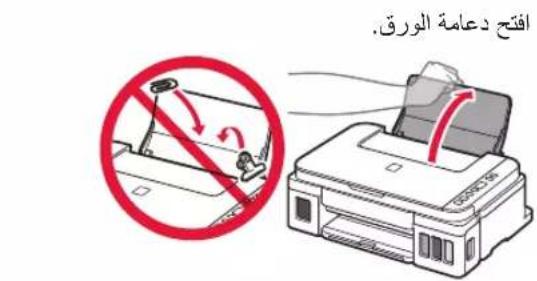
1 Open the paper support.
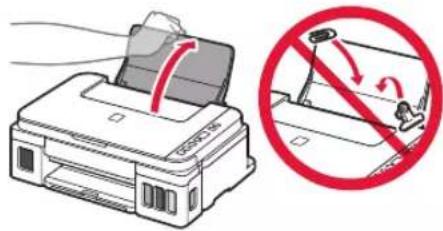
text_image
Diagram showing printer printing process with red prohibition symbol indicating no print or disassembly2 Slide the right paper guide to the end.
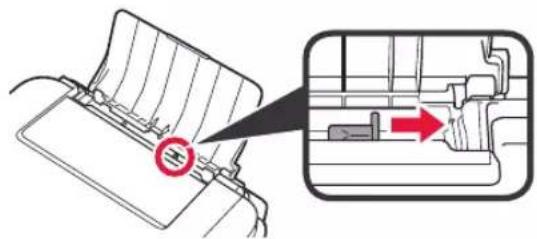
text_image
Diagram showing a mechanical component with a red arrow indicating direction, alongside a magnified inset highlighting a specific feature.3 ① Load paper with the print side facing up.
② Slide the right paper guide to align it with the side of the paper stack.
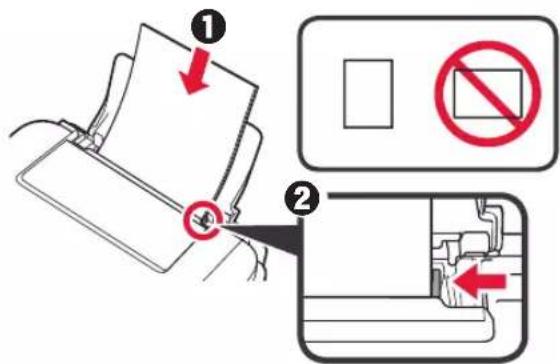
text_image
Diagram illustrating a door lock operation with numbered steps and no-smoking symbol4 ① Pull out the paper output tray.
② Open the output tray extension.
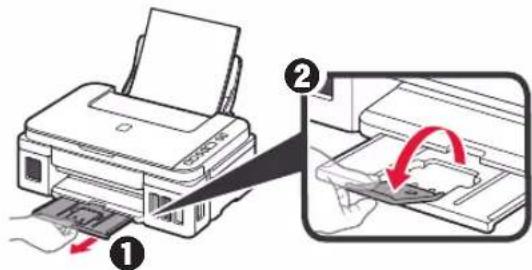
text_image
Diagram showing printer operation with labeled steps and directional arrows indicating process flowTransporting Your Printer
When relocating the printer, make sure of the following. Refer to the Online Manual for details.
Check that both joint buttons are pressed down completely to avoid ink leaks.
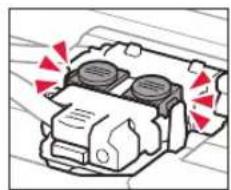
natural_image
Diagram of a car engine with two air vent vats and red warning symbols (no text or labels)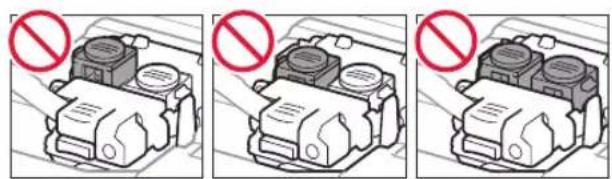
natural_image
Three-panel diagram showing a mechanical component with no visible text or symbols, marked by red prohibition signs (no readable text or symbols)Pack the printer in a plastic bag in case ink leaks.
- Pack the printer in a sturdy box so that it is placed with its bottom facing down, using sufficient protective material to ensure safe transport.
- Do not tilt the printer. Ink may leak.
- Please handle with care and ensure the box remains flat and NOT turned upside down or on its side, as the printer may be damaged and ink in the printer may leak.
- When a shipping agent is handling transport of the printer, have its box marked "THIS SIDE UP" to keep the printer with its bottom facing down. Mark also with "FRAGILE" or "HANDLE WITH CARE".
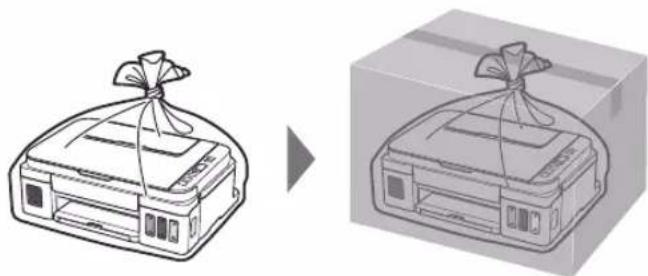
natural_image
Illustration of a gift box being placed on a cardboard box, showing the same shape and ribbon (no text or symbols)natural_image
Four identical line drawings of a bottle with a cap, shown in side-by-side packaging (no text or symbols)text_image
Diagram showing a hand holding a device with labeled parts and directional arrows indicating movement or assembly.natural_image
Diagram of a mechanical component with a red circle highlighting a specific part (no text or symbols present)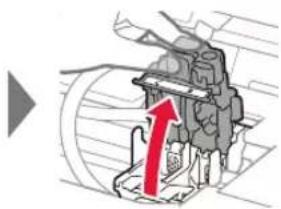
natural_image
Mechanical component diagram showing a red upward arrow indicating motion or force (no text or symbols present)text_image
Illustration showing a hand holding a device with a copyright symbol and a red arrow indicating rotation or change.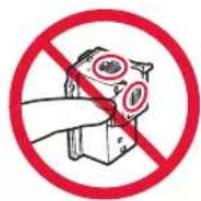
text_image
Prohibition sign with hand holding a device and crossed-out eye symbols, indicating no use or absence of any eye-related items.No tocar.
text_image
Btext_image
Prohibition sign with a crossed-out robot and lightning bolt symbol, indicating no protection or resistance.natural_image
Diagram of a mechanical component with a red downward arrow indicating force or direction (no text or symbols present)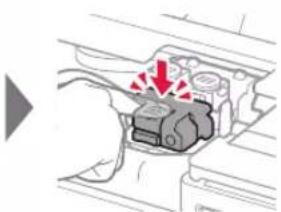
natural_image
Diagram of a mechanical component with red arrows indicating force or movement (no text or symbols)natural_image
Diagram of a vehicle engine compartment with two red arrows indicating downward motion (no text or symbols present)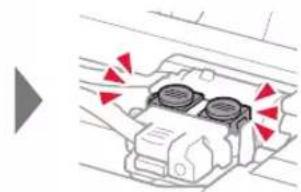
natural_image
Diagram of a car air conditioning unit with red directional arrows indicating airflow or heat transfer (no text or symbols)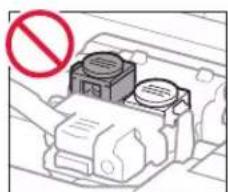
natural_image
Diagram of a mechanical device with a red prohibition symbol (no text or labels)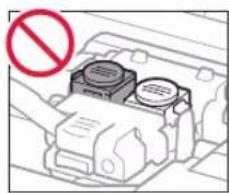
natural_image
Diagram of a vehicle battery pack with no visible text or symbols, featuring a red prohibition symbol (no readable text or labels)text_image
Diagram showing a hand pressing down on a device component with labeled parts ① and ②, indicating a process or operation.natural_image
Illustration of a printer with a button and pointer, no text or symbols presentnatural_image
Illustration of a printer with a digital display showing 0.12 (no text or symbols on the device itself)natural_image
Diagram showing a hand inserting a component into an open device, with a magnified inset highlighting a small object (no text or symbols present)natural_image
Illustration of a hand holding a small object with a red arrow indicating rotation (no text or symbols)text_image
Diagram showing a hand using a device to press or<|rotate_right|>, with a magnified view of a device labeled (A) and red arrows indicating direction.natural_image
Diagram showing a printer with a handle and a no-smoking symbol (no text or labels present)natural_image
Diagram showing a printer's internal structure with a magnified view of its internal components (no text or symbols present)text_image
C M Y C M Ytext_image
Diagram showing a device panel with labeled components and an inset view highlighting a highlighted section (A)text_image
Diagram showing a hand pressing down on a device with numbered annotations and a red arrow indicating motion or force.text_image
Setup - Windows - Click Download on the computer to which you want to connect the printer ■ Click Download on the computer to which you want to connect the printer Downloadflowchart
graph TD
    A["Laptop"] --> B["DVD RW Drive CANON.U"]
    B --> C["Tip to choose what happens with this disc"]
flowchart
graph LR
    A["Laptop"] --> B["Printer Icon"]
    B --> C["Printer Icon"]
text_image
Diagram showing printer printing process with red prohibition symbol indicating no printing or disassemblytext_image
Diagram showing a mechanical component with a red circular mark and an arrow indicating direction, likely illustrating a process or assembly.text_image
Diagram illustrating a document being inserted into a paper, with annotations indicating no restrictions and a numbered step.text_image
Diagram showing printer printing process with labeled steps and directional arrows indicating motionnatural_image
Diagram of a vehicle engine with red warning symbols indicating exhaust or ventilation (no text or labels)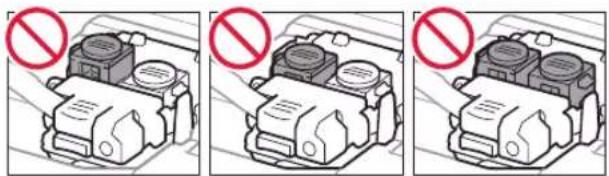
natural_image
Three identical diagrams showing a mechanical component with no visible text or symbols, marked by red prohibition signs (no text or symbols present)natural_image
Illustration of a gift box being placed on a cardboard box, showing the same shape and ribbon (no text or symbols)natural_image
Illustration of four identical plastic bottles with different internal shapes and packaging (no text or symbols)text_image
Diagram showing a device interior with labeled parts and directional arrows indicating movement or assembly.3. Instalando o cartucho
natural_image
Diagram of a mechanical component with a red arrow pointing to a specific part (no text or symbols present)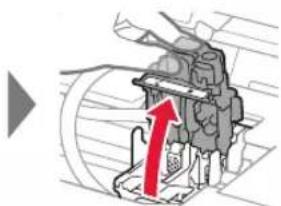
natural_image
Mechanical component diagram with red arrow indicating upward motion (no text or symbols)2 Retire cada cartucho do pacote e remova a etiqueta.
natural_image
Illustration of a battery with a red arrow pointing to its internal components (no text or symbols)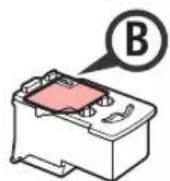
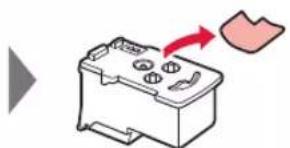
natural_image
Illustration of a battery with a red arrow indicating direction (no text or symbols)text_image
Illustration showing a hand holding a remote device with a copyright symbol and a red arrow indicating rotation or change.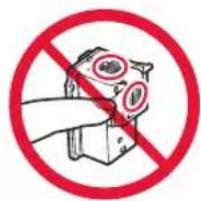
text_image
Prohibition sign with hand holding a device and crossed-out eye symbols, indicating no use or absence of any eye-related items.Não toque.
text_image
B4 Insira o cartucho C (colorido) à esquerda e o cartucho B (preto) à direita.

text_image
C
text_image
Prohibition sign with a crossed-out device and lightning bolt symbol, indicating no protection or hazard.natural_image
Diagram of a mechanical component with a red downward arrow indicating force or direction (no text or symbols present)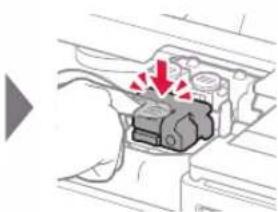
natural_image
Diagram of a mechanical component with red arrows indicating force or movement (no text or symbols)natural_image
Diagram of a car interior with two red arrows pointing to circular components (no text or symbols)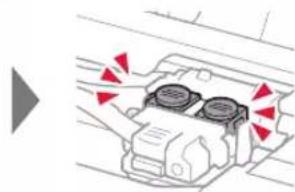
natural_image
Diagram of a car air conditioning unit with red directional arrows indicating airflow or heat transfer (no text or symbols)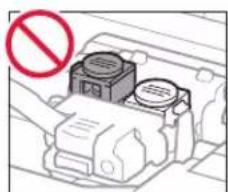
natural_image
Diagram of a mechanical device with a red prohibition symbol (no text or labels)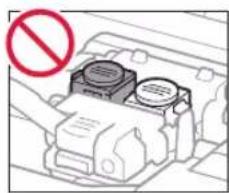
natural_image
Diagram of a vehicle battery pack with no visible text or symbols, featuring a red prohibition symbol (no text or labels)4. Ligando a impressora

text_image
Diagram showing a hand operating a device with labeled parts and directional arrow indicating rotation or movement.natural_image
Illustration of a printer with a button and hand cursor, no text or symbols present4 Confirme que o silicone Tinta (Ink)) e seram exibidos na tela.
natural_image
Illustration of a printer with a digital display showing 0.1, no text or symbols presentnatural_image
Diagram showing a hand inserting a component into an open device, with a magnified inset highlighting a small object (no text or symbols present)natural_image
Illustration of a hand holding a small object with a red arrow indicating rotation (no text or symbols)text_image
Diagram showing a hand inserting a device into a device with red arrows indicating direction, and a magnified view of the device's internal structure.7 Recoloque firmemente a tampa do cartucho.
natural_image
Diagram showing a printer with a handle and a no-smoking symbol (no text or labels present)natural_image
Diagram showing a printer's internal structure with a magnified view of its lid (no text or symbols present)9 Repita as etapas de 2 a 8 para colocar toda a tinta nos cartuchos de tinta correspondentes à direita, de acordo com a etiqueta.

text_image
C M Y C M Ytext_image
Diagram showing a device with labeled control panel (A) and internal display screen, likely illustrating a system or application interface.text_image
Diagram showing a hand pressing down on a device with numbered annotations and red arrows indicating motion or force.text_image
Setup - Windows - ■ Click Download on the computer to which you want to connect the printer Downloadflowchart
graph TD
    A["Laptop"] --> B["DIVD RW Drive CANON.U"]
    B --> C["Label: Tap to choose what happens with this disc"]
flowchart
graph LR
    A["Laptop with red icon"] --> B["Printer icon"]
    B --> C["Printer icon"]
text_image
Diagram showing printer printing process with red prohibition symbol indicating no printing or disassemblytext_image
Diagram showing a mechanical component with a red circular mark and an arrow indicating direction, likely illustrating a process or assembly.text_image
Diagram illustrating a document being inserted into a paper, with annotations indicating no restrictions and a numbered step.4 ① Puxe para fora a bandeja de saída do papel.
text_image
Diagram showing printer printing process with labeled steps and directional arrow indicating rotationnatural_image
Diagram of a vehicle engine with red warning symbols indicating exhaust or ventilation (no text or labels)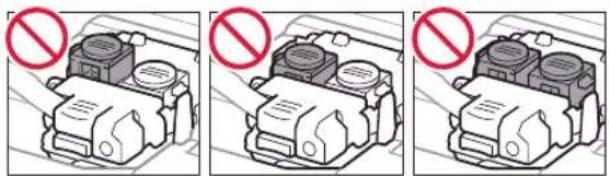
natural_image
Three identical diagrams showing a mechanical component with no visible text or symbols, marked by red prohibition signs (no text or symbols present)natural_image
Illustration of a gift box being placed on a cardboard box, showing the same shape and ribbon (no text or symbols)natural_image
Illustration of four identical plastic bottles with different internal shapes and color variations (no text or symbols)text_image
Diagram showing a hand installing or adjusting a device into a box, with numbered annotations and directional arrows indicating process flow.natural_image
Diagram of a mechanical component with a red circle highlighting a specific part (no text or symbols present)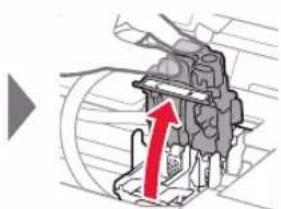
natural_image
Mechanical component diagram showing a red upward arrow indicating motion or force (no text or symbols present)text_image
Illustration showing a hand holding a remote device with a copyright symbol and a red arrow indicating rotation or change.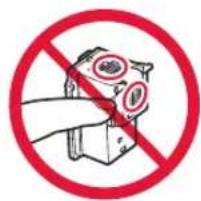
text_image
Prohibition sign with hand holding a device and crossed-out eye symbols, indicating no use or prohibition of eye-related content.Ne pas toucher.
text_image
Btext_image
Prohibition sign with a red circle and silhouette of a device, indicating no protection or resistance.natural_image
Mechanical component diagram showing a red downward arrow indicating force or motion (no text or symbols present)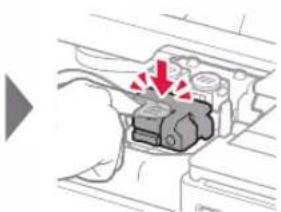
natural_image
Diagram of a mechanical component with red arrows indicating a downward force or stress, no text or symbols presentnatural_image
Diagram of a vehicle engine compartment with two red arrows indicating downward motion (no text or symbols present)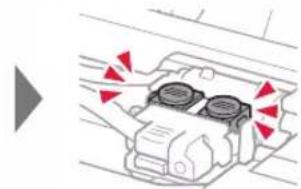
natural_image
Diagram of a car air conditioning unit with red directional arrows indicating airflow or movement (no text or symbols)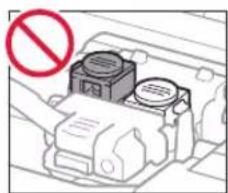
natural_image
Diagram of a mechanical device with no visible text or symbols, featuring a red prohibition symbol (no readable text or labels)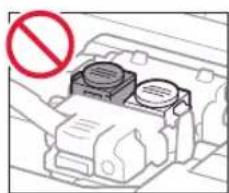
natural_image
Diagram of a vehicle engine compartment with no visible text or symbols, including a red prohibition symbol (no readable text or labels)text_image
Diagram showing a hand pressing down on a device component with labeled parts and directional arrowsnatural_image
Illustration of a printer with a button labeled 'Power' and a hand pointing at it (no text or symbols on the device itself)natural_image
Line drawing of a printer with a digital display showing 0.12 (no text or symbols on the device itself)natural_image
Diagram showing a hand inserting a component into an open device, with a magnified inset highlighting a small object (no text or symbols present)natural_image
Illustration of a hand holding a small object with a red arrow indicating rotation (no text or symbols)text_image
Diagram showing a hand inserting a device into a device with red arrows indicating direction, and a magnified view highlighting a device's internal structure.natural_image
Diagram showing a printer with a handle and a no-smoking symbol (no text or labels present)natural_image
Diagram showing a printer's internal structure with a magnified view of its internal components (no text or symbols present)text_image
C M Y C M Ytext_image
Diagram showing a device with labeled components and a zoomed-in view highlighting a highlighted section labeled (A)text_image
Diagram showing a hand pressing down on a device with numbered annotations and a red arrow indicating motion or force.The image contains a graphical icon (a droplet and a partial rectangular symbol) with no readable text or mathematical content. Therefore, no OCR output can be generated.
text_image
Diagram showing printer printing process with red prohibition symbol indicating no print or disassemblytext_image
Diagram showing a mechanical component with a red circular mark and an arrow indicating direction, likely illustrating a process or assembly.text_image
Diagram illustrating a document being inserted into a device, with numbered instructions and prohibition symbols.text_image
Diagram showing printer printing process with labeled steps and directional arrows indicating movementnatural_image
Diagram of a vehicle engine with two fans and red warning symbols (no text or labels)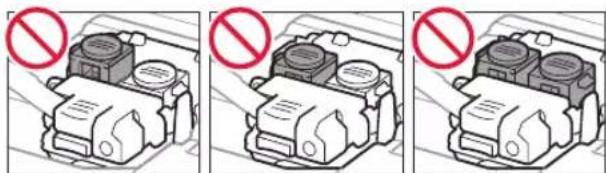
natural_image
Three identical diagrams showing a mechanical component with no visible text or symbols, marked by red prohibition signs (no text or symbols on the components themselves)natural_image
Illustration of a printer with a cloth wrapped around it, shown before and after the change (no text or symbols present)natural_image
Illustration of four identical plastic bottles with different internal shapes and color variations (no text or symbols)text_image
Diagram showing a hand holding a device with labeled parts and directional arrows indicating movement or assembly.natural_image
Diagram of a mechanical component with a red arrow pointing to a specific part (no text or symbols present)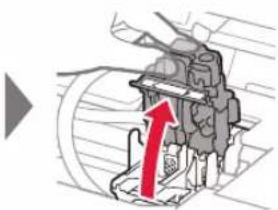
natural_image
Mechanical component diagram showing a red upward arrow indicating motion or force (no text or symbols present)text_image
Illustration showing a hand holding a remote device with a copyright symbol and a red arrow indicating rotation or change.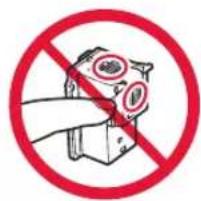
text_image
Prohibition sign with hand holding a device and crossed-out eye symbols, indicating no use or prohibition of eye-related content.Не прикасайтесь.
text_image
Btext_image
Prohibition sign with a red circle and silhouette of a device, featuring a lightning bolt symbolnatural_image
Diagram of a mechanical component with a red downward arrow indicating force or direction (no text or symbols present)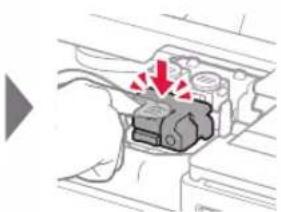
natural_image
Diagram of a mechanical component with red arrows indicating force or movement (no text or symbols)natural_image
Diagram of a vehicle engine compartment with two red arrows indicating downward motion (no text or symbols present)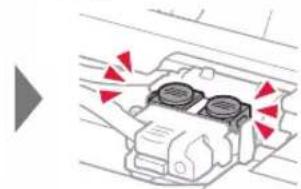
natural_image
Diagram of a car air conditioning unit with red directional arrows indicating airflow or movement (no text or symbols)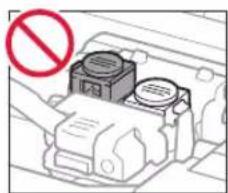
natural_image
Diagram of a mechanical device with no visible text or symbols, featuring a red prohibition symbol (no readable text or labels)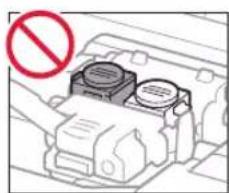
natural_image
Diagram of a vehicle engine compartment with a red prohibition symbol (no text or labels)text_image
Diagram showing a hand holding a device with labeled parts and directional arrows indicating movement or force.natural_image
Line drawing of a printer with a power button icon (no text or symbols)natural_image
Illustration of a printer with a digital display showing a drop symbol (no text or labels present)text_image
Diagram showing a hand inserting a device into a file folder, with a magnified inset highlighting a small object inside the folder.natural_image
Illustration of a hand holding a small object with a red arrow indicating rotation (no text or symbols)text_image
Diagram showing a hand inserting a device into a device with red arrows indicating direction, and a magnified view of the device labeled (A).text_image
Technical diagram showing a printer with a red arrow indicating a disassembled component and a red prohibition symbol.natural_image
Diagram showing a printer's internal structure with a magnified view of its internal components (no text or symbols present)text_image
C M Y C M Ytext_image
Diagram showing a hand pressing down on a device with labeled parts and directional arrowtext_image
Setup - Windows - • Click Download on the computer to which you want to connect the printer Downloadflowchart
graph TD
    A["Laptop"] --> B["DVD RW Drive CANON_U"]
    B --> C["Iap to choose what happens with this disc"]
text_image
Canon Start Setup Starting the setup needed to use the machines from the computer. Follow the main instructions. Start Setup Useful Software Include software that uses any other software or otherwise. Online Powered Apply carrier checkers. Language File Следуйте инструкциям на экране, чтобы продолжить настройку. Canon Installation completed successfully. Exittext_image
Diagram showing printer printing process with red prohibition symbol indicating no printing or disassemblytext_image
Diagram showing a mechanical component with a red circular mark and an arrow indicating direction, likely illustrating a process or assembly.text_image
Diagram illustrating a door lock operation with numbered instructions and no stop symbolstext_image
Diagram showing printer operation with labeled steps and directional arrows indicating process flownatural_image
Diagram of a vehicle engine compartment with red warning symbols indicating airflow or hazard (no text or labels present)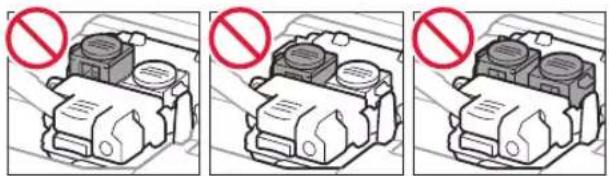
natural_image
Three identical diagrams showing a mechanical component with no visible text or symbols, marked by red prohibition signs (no text or symbols present)natural_image
Illustration of a gift box being placed on a package, showing the same base and top view (no text or symbols)natural_image
Illustration of four identical plastic bottles with different internal shapes and color variations (no text or symbols)text_image
Diagram showing a hand holding a device with labeled parts and directional arrows indicating movement or assembly.natural_image
Diagram of a mechanical component with a red arrow pointing to a specific part (no text or symbols present)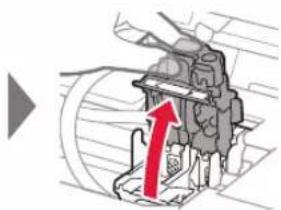
natural_image
Mechanical component diagram with red arrow indicating upward motion (no text or symbols)text_image
Illustration showing a hand holding a device with a red arrow indicating rotation or change, labeled with a copyright symbol.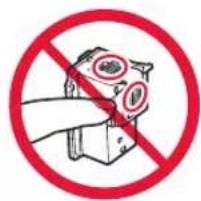
text_image
Prohibition sign with hand holding a device and crossed-out eye symbols, indicating no use or prohibition of eye-related content.Не торкайтеся.
text_image
Btext_image
Prohibition sign with a red circle containing a mechanical device and a lightning bolt symbol, indicating no protection or hazard.natural_image
Diagram of a mechanical component with a red downward arrow indicating a force or direction (no text or symbols present)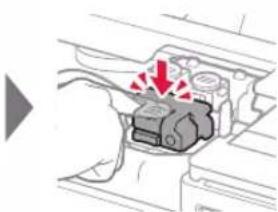
natural_image
Diagram of a mechanical component with red arrows indicating force or movement (no text or symbols)natural_image
Diagram of a vehicle engine compartment with two red arrows indicating downward motion (no text or symbols present)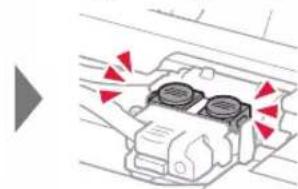
natural_image
Diagram of a car air conditioning unit with red directional arrows indicating airflow or movement (no text or symbols)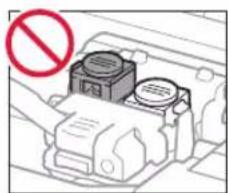
natural_image
Diagram of a mechanical device with no visible text or symbols, featuring a red prohibition symbol (no readable text or labels)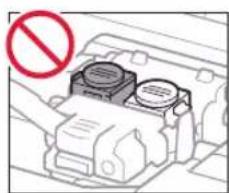
natural_image
Diagram of a vehicle engine compartment with no visible text or symbols, including a red prohibition symbol (no readable text or labels)text_image
Diagram showing a hand pressing down on a device with labeled parts and directional arrows indicating movement or force.natural_image
Line drawing of a printer with a power button icon (no text or symbols)natural_image
Illustration of a printer with a digital display showing 0.1 (no text or symbols on the device itself)natural_image
Diagram showing a hand inserting a component into an open device, with a magnified inset highlighting a small object (no text or symbols present)natural_image
Illustration of a hand holding a small object with a red arrow indicating rotation (no text or symbols)text_image
Diagram showing a hand using a device to press or<|rotate_right|>, with a magnified view of a device labeled (A) and red arrows indicating direction.text_image
Technical diagram showing a device with a switch and a prohibition symbol for a mechanical component.natural_image
Diagram showing a printer's internal structure with a magnified view of its internal components (no text or symbols present)text_image
C M Y C M Ytext_image
Diagram showing a device panel with labeled components and a magnified view highlighting a highlighted section (A)text_image
Diagram showing a hand pressing down on a device with numbered annotations and red arrows indicating motion or force.text_image
Diagram showing a printer with a warning symbol and a hand pointing to it, alongside a device labeled 'I'.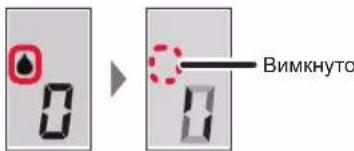
text_image
Вимкнутоtext_image
Setup - Windows - • Click Download on the computer to which you want to connect the printer Downloadflowchart
graph LR
    A["Laptop"] --> B["DVD RW Drive CANON_U"]
    B --> C["Lap to choose what happens with this disc"]
text_image
Diagram showing printer printing process with red prohibition symbol indicating no printing or disassemblytext_image
Diagram showing a mechanical component with a red circular mark and an arrow indicating direction, likely illustrating a process or assembly.text_image
Diagram illustrating a printer's stop-and-stop mechanism with labeled steps and prohibition symbolstext_image
Diagram showing printer printing process with labeled steps and directional arrows indicating motionnatural_image
Diagram of a car engine with two air venters and red warning symbols (no text or labels)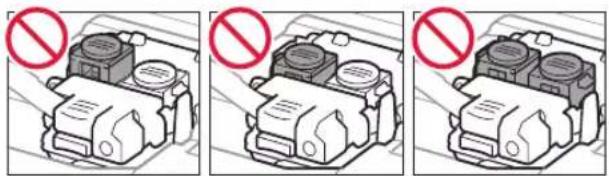
natural_image
Three-panel illustration showing a battery pack with no visible text or symbols, marked by red prohibition signs (no readable text or symbols)natural_image
Illustration of a printer with a cloth wrapped around it, transforming into a box (no text or symbols)text_image
Diagram illustrating a document being inserted into a printer, with numbered instructions and no text labels.text_image
Diagram showing printer operation with labeled steps and directional arrows indicating process flow3
text_image
Diagram showing a mechanical component with a red circular mark and an inset view highlighting a specific section with a red arrow.natural_image
Illustration of a printer with a cloth tied to its top, shown before and after the change (no text or symbols present)text_image
AutoPlay DVD RW Drive CANON_U Always clicks for softwares and games: Sun Marketplace Published by Canon Inc.flowchart
graph LR
    A["Canon Installation completed successfully."] --> B["User"]
    B --> C["User Interaction with Chinese text"]
    C --> D["User Interaction with Arabic text"]
    D --> E["User Interaction with French text"]
    E --> F["User Interaction with French text"]
    F --> G["User Interaction with French text"]
    G --> H["User Interaction with French text"]
    H --> I["User Interaction with French text"]
    I --> J["User Interaction with French text"]
    J --> K["User Interaction with French text"]
    K --> L["User Interaction with French text"]
    L --> M["User Interaction with French text"]
    M --> N["User Interaction with French text"]
    N --> O["User Interaction with French text"]
    O --> P["User Interaction with French text"]
    P --> Q["User Interaction with French text"]
    Q --> R["User Interaction with French text"]
    R --> S["User Interaction with French text"]
    S --> T["User Interaction with French text"]
    T --> U["User Interaction with French text"]
    U --> V["User Interaction with French text"]
    V --> W["User Interaction with French text"]
    W --> X["User Interaction with French text"]
    X --> Y["User Interaction with French text"]
    Y --> Z["User Interaction with French text"]
    Z --> AA["User Interaction with French text"]
    AA --> AB["User Interaction with French text"]
    AB --> AC["User Interaction with French text"]
    AC --> AD["User Interaction with French text"]
    AD --> AE["User Interaction with French text"]
    AE --> AF["User Interaction with French text"]
    AF --> AG["User Interaction with French text"]
    AG --> AH["User Interaction with French text"]
    AH --> AI["User Interaction with French text"]
    AI --> AJ["User Interaction with French text"]
    AJ --> AK["User Interaction with French text"]
    AK --> AL["User Interaction with French text"]
    AL --> AM["User Interaction with French text"]
    AM --> AN["User Interaction with French text"]
    AN --> AO["User Interaction with French text"]
    AO --> AP["User Interaction with French text"]
    AP --> AQ["User Interaction with French text"]
    AQ --> AR["User Interaction with French text"]
    AR --> AS["User Interaction with French text"]
    AS --> AT["User Interaction with French text"]
    AT --> AU["User Interaction with French text"]
    AU --> AV["User Interaction with French text"]
    AV --> AW["User Interaction with French text"]
    AW --> AX["User Interaction with French text"]
    AX --> AY["User Interaction with French text"]
text_image
Setup - iWindows - ■ Click Downloaded on the computer to which you want to connect the printer DOWNLOADtext_image
DVD RW Drive CANON_U up to choose what happens with the disc.6. manufacturers, customs officers

text_image
Diagram illustrating a printer application process with labeled buttons and digital display icons, showing step-by-step instructions.text_image
Prohibition sign with a red circle and diagonal line crossing over a mechanical component, indicating no protection or resistance.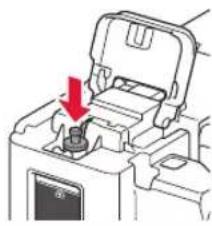
natural_image
Mechanical component diagram showing a switch or connector with a red arrow indicating direction (no text or symbols present)natural_image
Diagram showing a printer's internal structure with a magnified view of its internal components (no text or symbols present)text_image
C M Y C M Ytext_image
Diagram showing a device panel with labeled components and a zoomed-in view highlighting a specific component.text_image
Diagram showing a hand pressing down on a device with numbered annotations and a red arrow indicating motion or force.natural_image
Diagram showing a hand inserting a component into a device, with a magnified inset highlighting a small circular detail (no text or symbols present)natural_image
Illustration of a hand holding a small object with a red arrow indicating rotation (no text or symbols)text_image
Diagram showing a hand inserting a device into a device with red arrows indicating direction, labeled (A)2

- تشغيل الطابعة
text_image
Diagram showing a hand pressing down on a device component with labeled parts and directional arrows indicating movement.1
natural_image
Line drawing of a printer with a button labeled 'Power' pointing to it (no text or symbols on the device itself)3
natural_image
Line drawing of a printer with an LCD display showing the number 1 (no text or symbols on the device itself)4
text_image
Prohibition sign with hand holding a device and prohibition symbol, featuring Chinese text and eye iconsلا تلمسه.
text_image
Illustration showing a hand holding a remote device with a red arrow indicating rotation or change, labeled with a copyright symbol.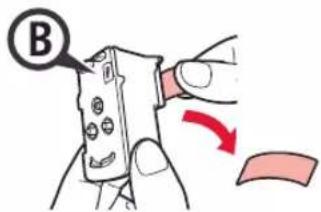
text_image
Btext_image
Prohibition sign with crossed-out robot and lightning bolt symbol, indicating no protection or resistancetext_image
Technical diagram showing a mechanical component with a labeled section 'C' and an arrow indicating direction or movement.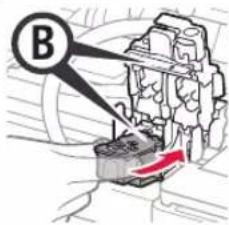
text_image
Bnatural_image
Diagram of a vehicle engine compartment with a red arrow indicating a warning or stress point (no text or symbols present)◀
natural_image
Diagram of a mechanical component with a red arrow indicating downward motion (no text or symbols present)natural_image
Diagram of a car air conditioner unit with red directional arrows indicating airflow or heat transfer (no text or symbols)◀

natural_image
Diagram of a car interior showing two compartments with red arrows indicating downward motion (no text or symbols)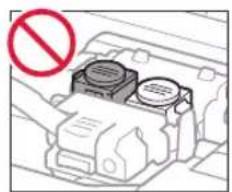
natural_image
Diagram of a vehicle engine compartment with no visible text or symbols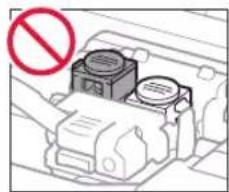
natural_image
Diagram of a mechanical component with a red prohibition symbol (no text or labels)3
4
6
natural_image
Illustration of four identical cylindrical objects with cross-shaped caps, arranged in a row (no text or symbols)□ زجاجة الحبر
text_image
C Btext_image
Diagram showing a hand holding a device with labeled parts and directional arrows indicating process steps.
3. ت rabbit الخروشة
natural_image
Mechanical component diagram showing a red upward arrow indicating motion or force direction (no text or symbols present)◀
natural_image
Mechanical component diagram showing a highlighted section with red arrow (no text or symbols)natural_image
Red icon showing a globe and a laptop with a question mark, symbolizing global inquiry or search (no text present)Access Online Manual Acesse o Manual On-line Доступ к документу Онлайн-руководство الوصول إلى الدليل على الإنترنت
flowchart
graph LR
    A["Input http://ij.start.canon"] --> B["Output file icon"]