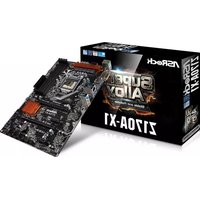
Z170A-X1 - Motherboard ASROCK - Free user manual and instructions
Find the device manual for free Z170A-X1 ASROCK in PDF.


User questions about Z170A-X1 ASROCK
0 question about this device. Answer the ones you know or ask your own.
Ask a new question about this device
Download the instructions for your Motherboard in PDF format for free! Find your manual Z170A-X1 - ASROCK and take your electronic device back in hand. On this page are published all the documents necessary for the use of your device. Z170A-X1 by ASROCK.
USER MANUAL Z170A-X1 ASROCK
Published October 2015
Copyright©2015 ASRock INC. All rights reserved.
Copyright Notice:
No part of this documentation may be reproduced, transcribed, transmitted, or translated in any language, in any form or by any means, except duplication of documentation by the purchaser for backup purpose, without written consent of ASRock Inc.
Products and corporate names appearing in this documentation may or may not be registered trademarks or copyrights of their respective companies, and are used only for identification or explanation and to the owners' benefit, without intent to infringe.
Disclaimer:
Specifications and information contained in this documentation are furnished for informational use only and subject to change without notice, and should not be constructed as a commitment by ASRock. ASRock assumes no responsibility for any errors or omissions that may appear in this documentation.
With respect to the contents of this documentation, ASRock does not provide warranty of any kind, either expressed or implied, including but not limited to the implied warranties or conditions of merchantability or fitness for a particular purpose.
In no event shall ASRock, its directors, officers, employees, or agents be liable for any indirect, special, incidental, or consequential damages (including damages for loss of profits, loss of business, loss of data, interruption of business and the like), even if ASRock has been advised of the possibility of such damages arising from any defect or error in the documentation or product.

This device complies with Part 15 of the FCC Rules. Operation is subject to the following two conditions:
(1) this device may not cause harmful interference, and
(2) this device must accept any interference received, including interference that may cause undesired operation.
CALIFORNIA, USA ONLY
The Lithium battery adopted on this motherboard contains Perchlorate, a toxic substance controlled in Perchlorate Best Management Practices (BMP) regulations passed by the California Legislature. When you discard the Lithium battery in California, USA, please follow the related regulations in advance.
"Perchlorate Material-special handling may apply, see www.dtsc.ca.gov/hazardouswaste/perchlorate"
ASRock Website: http://www.asrock.com

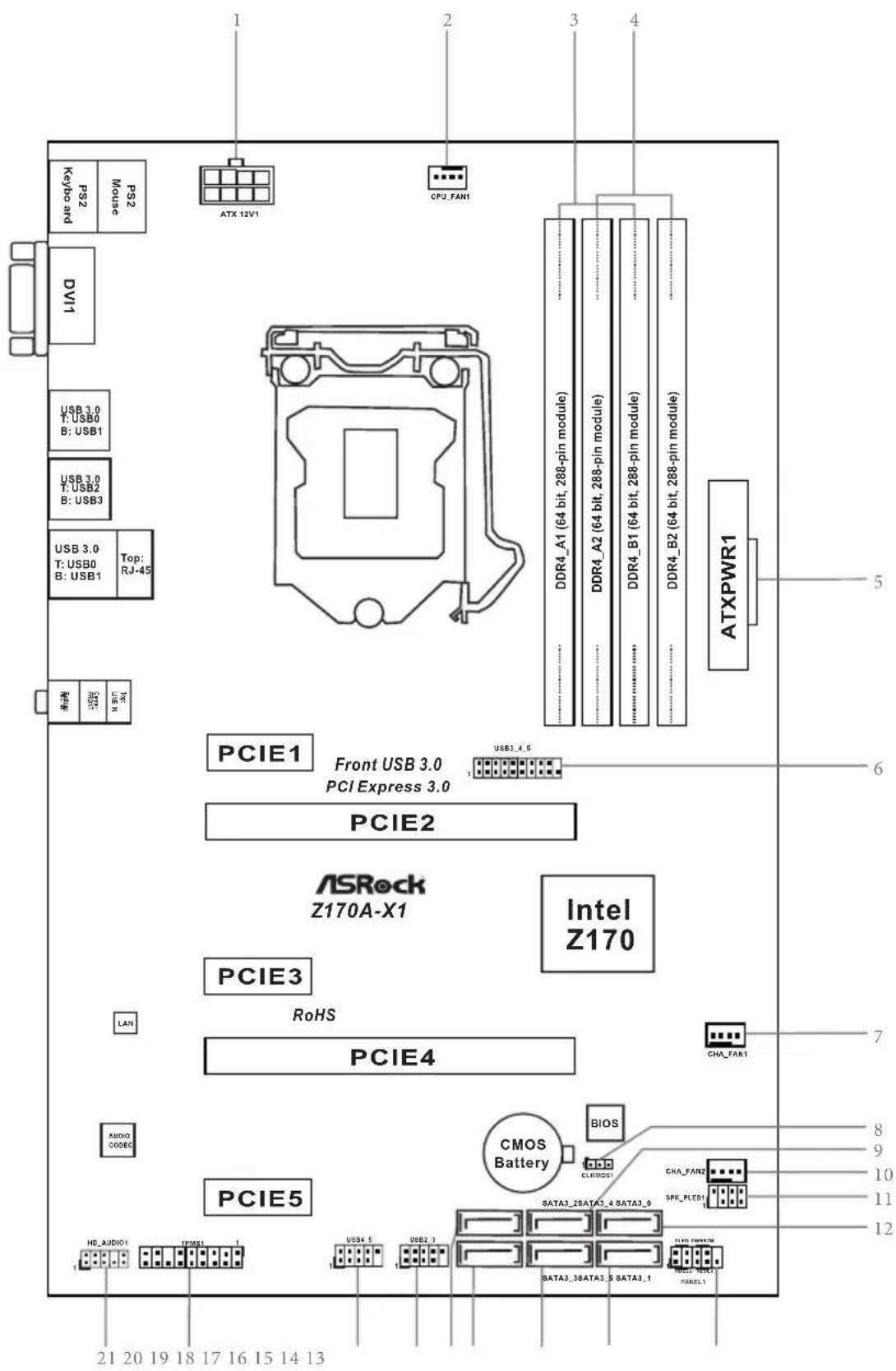
Motherboard Layout
text_image
PS2 Mouse Keyboard DV1 USB 3.0 T: USB0 B: USB1 USB 3.0 T: USB2 B: USB3 USB 3.0 T: USB0 B: USB1 Top: RJ-45 PCIE1 Front USB 3.0 PCI Express 3.0 PCIE2 ASRock Z170A-X1 Intel Z170 PCIE3 RoHS PCIE4 AUDIO OOOEG PCIE5 HD_AUDIO1 I/OSS1 1 USB4.5 USB2.3 BIOS CLRVDC1 DATA3_28ATA3_4 SATA3_9 DATA3_38ATA3_5 SATA3_1 DATA3_FAN1 CPU_FAN1 DDR4_A1 (64 bit, 288-pin module) DDR4_A2 (64 bit, 288-pin module) DDR4_B1 (64 bit, 288-pin module) DDR4_B2 (64 bit, 288-pin module) ATXPWR1 5 6 7 8 9 10 11 12 21 20 19 18 17 16 15 14 13No. Description
1 ATX 12V Power Connector (ATX12V1)
2 CPU Fan Connector (CPU_FAN1)
3 2 x 288-pin DDR4 DIMM Slots (DDR4_A1, DDR4_B1)
4 2 x 288-pin DDR4 DIMM Slots (DDR4_A2, DDR4_B2)
5 ATX Power Connector (ATXPWR1)
6 USB 3.0 Header (USB3_4_5)
7 Chassis Fan Connector (CHA_FAN1)
8 Clear CMOS Jumper (CLRMOS1)
9 SATA3 Connector (SATA3_2)
10 Chassis Fan Connector (CHA_FAN2)
11 Power LED and Speaker Header (SPK_PLED1)
12 SATA3 Connector (SATA3_0)
13 System Panel Header (PANEL1)
14 SATA3 Connector (SATA3_1)
15 SATA3 Connector (SATA3_3)
16 SATA3 Connector (SATA3_5)
17 SATA3 Connector (SATA3_4)
18 USB 2.0 Header (USB2_3)
19 USB 2.0 Header (USB4_5)
20 TPM Header (TPMS1)
21 Front Panel Audio Header (HD_AUDIO1)
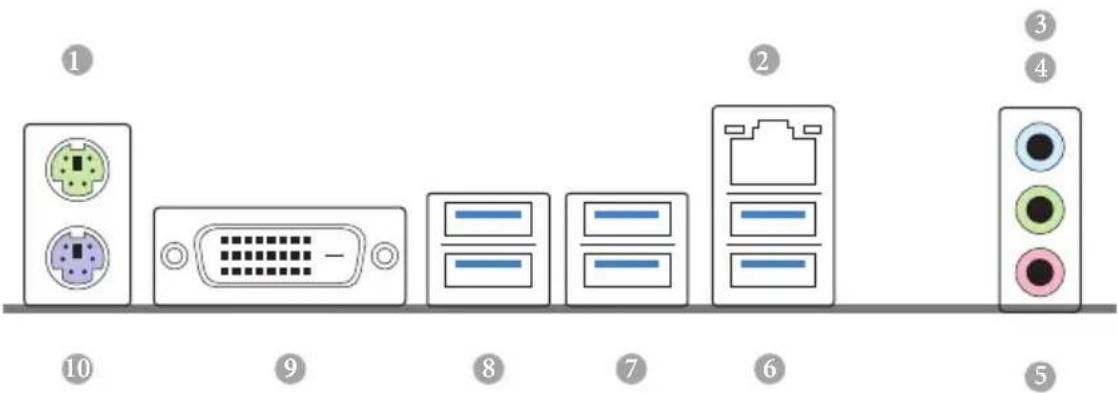
I/O Panel
text_image
Diagram showing labeled components of a computer interface with numbered parts and connection pointsNo. Description No. Description
1 PS/2 Mouse Port 6 USB 3.0 Ports (USB_01)
2 LAN RJ-45 Port* 7 USB 3.0 Ports (USB3_23)
3 Line In (Light Blue) 8 USB 3.0 Ports (USB3_01)
4 Front Speaker (Lime)** 9 DVI-D Port
5 Microphone (Pink) 10 PS/2 Keyboard Port
* There are two LEDs on the LAN port. Please refer to the table below for the LAN port LED indications.
ACT/LINK LED
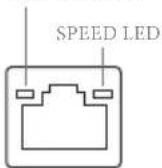
LAN Port
Activity / Link LED Speed LED
Status Description Status Description
| Off | No Link | Off | 10Mbps connection |
| Blinking | Data Activity | Orange | 100Mbps connection |
| On | Link | Green | 1Gbps connection |
Chapter 1 Introduction
Thank you for purchasing ASRock Z170A-X1 motherboard, a reliable motherboard produced under ASRock's consistently stringent quality control. It delivers excellent performance with robust design conforming to ASRock's commitment to quality and endurance.

Because the motherboard specifications and the BIOS software might be updated, the content of this documentation will be subject to change without notice. In case any modifications of this documentation occur, the updated version will be available on ASRock's website without further notice. If you require technical support related to this motherboard, please visit our website for specific information about the model you are using. You may find the latest VGA cards and CPU support list on ASRock's website as well. ASRock website http://www.asrock.com.
1.1 Package Contents
ASRock Z170A-X1 Motherboard (ATX Form Factor)
ASRock Z170A-X1 Quick Installation Guide
ASRock Z170A-X1 Support CD
2 x Serial ATA (SATA) Data Cables (Optional)
1 x I/O Panel Shield
1.2 Specifications
| Platform | ATX Form FactorSolid Capacitor design |
| CPU | Supports 6^th Generation Intel® CoreTM i7/i5/i3/Pentium®/Celeron® Processors (Socket 1151)5 Power Phase designSupports Intel® Turbo Boost 2.0 TechnologySupports Intel® K-Series unlocked CPUsSupports ASRock BCLK Full-range Overclocking |
| Chipset | Intel® Z170 |
| Memory | Dual Channel DDR4 Memory Technology4 x DDR4 DIMM SlotsSupports DDR4 3466+(OC)*/3200(OC)/2933(OC)/2800(OC)/2400(OC)/2133 non-ECC, un-buffered memorySupports ECC UDIMM memory modules (operate in non-ECC mode)* 3466+(OC) memory frequency can only be achieved when a single memory module is installed (Single channel memory).* Please refer to Memory Support List on ASRock's website for more information. (http://www.asrock.com/)Max. capacity of system memory: 64GBSupports Intel® Extreme Memory Profile (XMP) 2.015μ Gold Contact in DIMM Slots |
| Expansion Slot | 2 x PCI Express 3.0 x16 Slots (PCIE2: x16 mode; PCIE4: x4 mode)** Supports NVMe SSD as boot disks3 x PCI Express 3.0 x1 Slots (Flexible PCIe)Supports AMD Quad CrossFireXTM and CrossFireXTM |
| Graphics | Intel® HD Graphics Built-in Visuals and the VGA outputs can be supported only with processors which are GPU integrated.Supports Intel® HD Graphics Built-in Visuals : Intel® Quick Sync Video with AVC, MVC (S3D) and MPEG-2 Full HW Encode1, Intel® InTruTM 3D, Intel® Clear Video HD Technology, Intel® InsiderTM, Intel® HD Graphics 510/530 |
Pixel Shader 5.0, DirectX 12
Supports DVI-D with max. resolution up to 1920x1200 @ 60Hz
Supports Accelerated Media Codecs: HEVC, VP8, VP9
Supports HDCP with DVI-D Port
Supports Full HD 1080p Blu-ray (BD) playback with DVI-D Port
Audio
7.1 CH HD Audio with Content Protection (Realtek ALC892 Audio Codec)
* To configure 7.1 CH HD Audio, it is required to use an HD front panel audio module and enable the multi-channel audio feature through the audio driver.
Premium Blu-ray Audio support
Supports Surge Protection (ASRock Full Spike Protection) ELNA Audio Caps
LAN
Gigabit LAN 10/100/1000 Mb/s
Giga PHY Intel ^® I219V
Supports Wake-On-LAN
Supports Lightning/ESD Protection (ASRock Full Spike Protection)
Supports Energy Efficient Ethernet 802.3az Supports PXE
Rear Panel I/O
1 x PS/2 Mouse Port
1 x PS/2 Keyboard Port
1 x DVI-D Port
6 x USB 3.0 Ports (Supports ESD Protection (ASRock Full Spike Protection))
1 x RJ-45 LAN Port with LED (ACT/LINK LED and SPEED LED)
HD Audio Jacks: Line in / Front Speaker / Microphone
Storage
6 x SATA3 6.0 Gb/s Connectors, support RAID (RAID 0, RAID 1, RAID 5, RAID 10, Intel Rapid Storage Technology 14 and Intel Smart Response Technology), NCQ, AHCI and Hot Plug
| Connector | 1 x TPM Header1 x Power LED and Speaker Header1 x CPU Fan Connector (4-pin) (Smart Fan Speed Control)2 x Chassis Fan Connectors (4-pin) (Smart Fan Speed Control)1 x 24 pin ATX Power Connector1 x 8 pin 12V Power Connector1 x Front Panel Audio Connector2 x USB 2.0 Headers (Support 4 USB 2.0 ports) (Supports ESD Protection (ASRock Full Spike Protection))1 x USB 3.0 Header (Supports 2 USB 3.0 ports) (Supports ESD Protection (ASRock Full Spike Protection)) |
| BIOSFeature | AMI UEFI Legal BIOS with multilingual GUI supportACPI 5.0 Compliant wake up eventsSMBIOS 2.7 SupportCPU, GT_CPU, DRAM, VPPM, PCH 1.0V, VCCIO, VCCSA Voltage Multi-adjustment |
| HardwareMonitor | CPU/Chassis temperature sensingCPU/Chassis Fan TachometerCPU/Chassis Quiet Fan (Auto adjust chassis fan speed by CPU temperature)CPU/Chassis Fan multi-speed controlVoltage monitoring: +12V, +5V, +3.3V, CPU Vcore |
| OS | Microsoft® Windows® 10 64-bit / 8.1 64-bit / 7 32-bit / 7 64-bit* To install Windows® 7 OS, a modified installation disk with xHCI drivers packed into the ISO file is required. Please refer to page 135 for more detailed instructions.* For the updated Windows® 10 driver, please visit ASRock's website for details: http://www.asrock.com |
| Certifications | FCC, CE, WHQLErP/EuP Ready (ErP/EuP ready power supply is required) |

Please realize that there is a certain risk involved with overclocking, including adjusting the setting in the BIOS, applying Untied Overclocking Technology, or using third-party overclocking tools. Overclocking may affect your system's stability, or even cause damage to the components and devices of your system. It should be done at your own risk and expense. We are not responsible for possible damage caused by overclocking.
Chapter 2 Installation
This is an ATX form factor motherboard. Before you install the motherboard, study the configuration of your chassis to ensure that the motherboard fits into it.
Pre-installation Precautions
Take note of the following precautions before you install motherboard components or change any motherboard settings.
Make sure to unplug the power cord before installing or removing the motherboard components. Failure to do so may cause physical injuries and damages to motherboard components.
In order to avoid damage from static electricity to the motherboard's components, NEVER place your motherboard directly on a carpet. Also remember to use a grounded wrist strap or touch a safety grounded object before you handle the components.
Hold components by the edges and do not touch the ICs.
Whenever you uninstall any components, place them on a grounded anti-static pad or in the bag that comes with the components.
When placing screws to secure the motherboard to the chassis, please do not over-tighten the screws! Doing so may damage the motherboard.
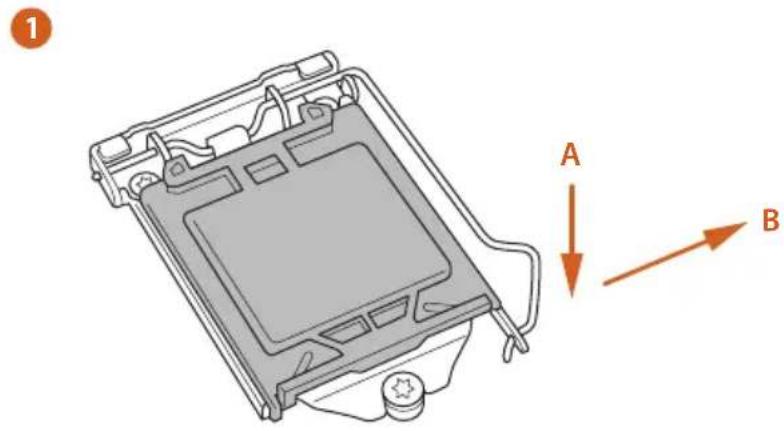
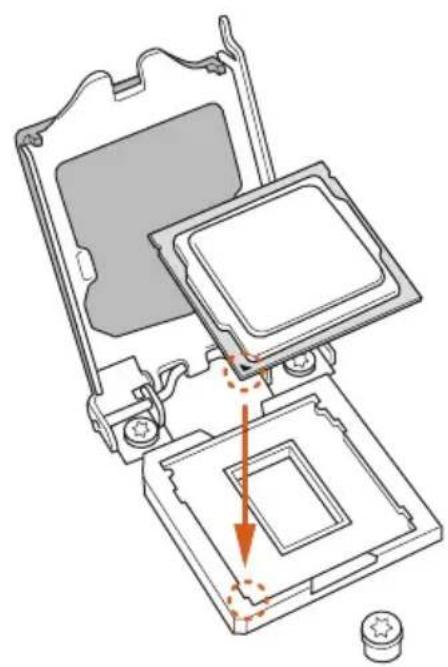
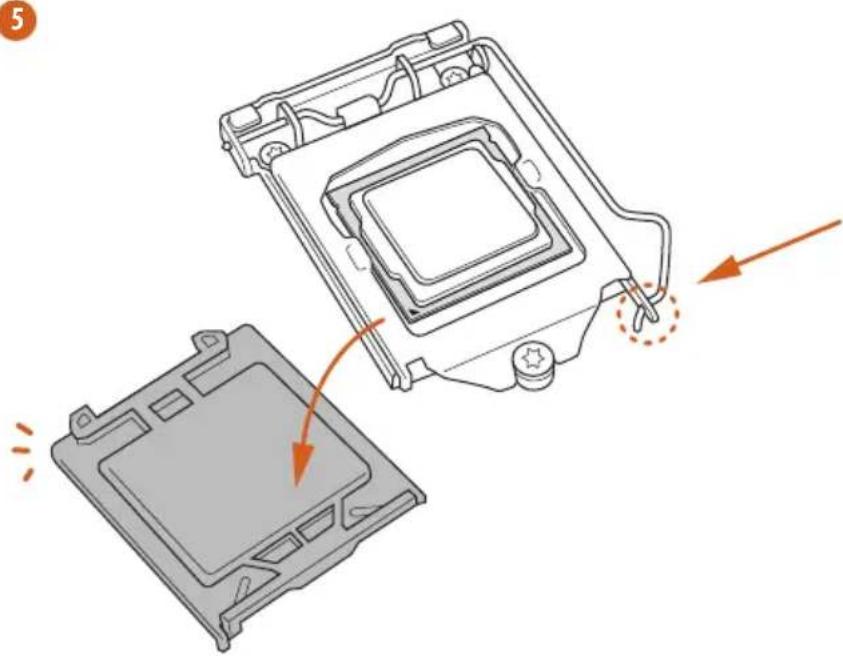
2.1 Installing the CPU

- Before you insert the 1151-Pin CPU into the socket, please check if the PnP cap is on the socket, if the CPU surface is unclean, or if there are any bent pins in the socket. Do not force to insert the CPU into the socket if above situation is found. Otherwise, the CPU will be seriously damaged.
- Unplug all power cables before installing the CPU.
text_image
1 A B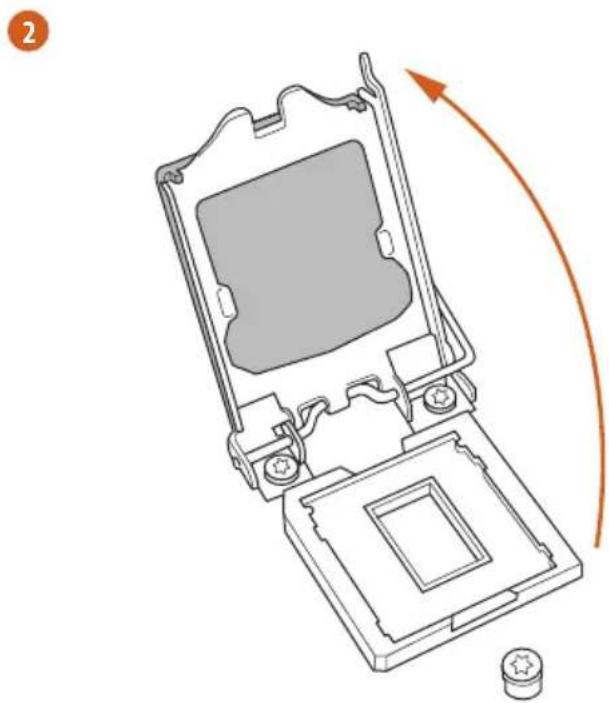
natural_image
Technical line drawing of a mechanical device with an arrow indicating rotation or assembly (no text or symbols present)3
natural_image
Exploded view diagram of a computer processor showing internal components and a highlighted section (no text or labels)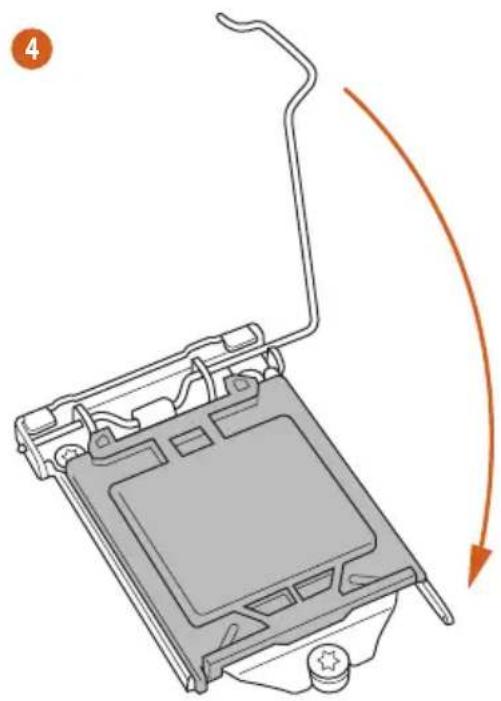
natural_image
Diagram of a computer monitor with an open lid and scroll, showing a curved orange arrow indicating motion (no text or symbols present)5
natural_image
Diagram showing a computer processor's internal structure and external casing, with arrows indicating motion (no text or symbols)
Please save and replace the cover if the processor is removed. The cover must be placed if you wish to return the motherboard for after service.
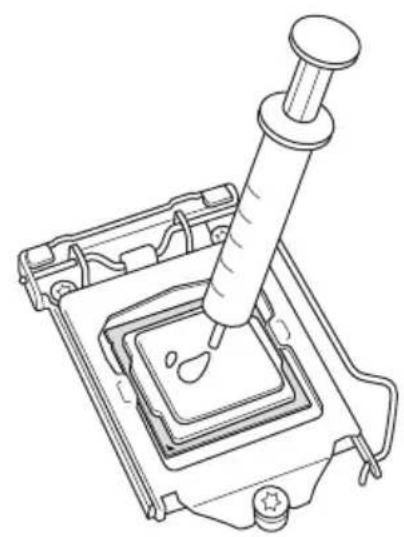
2.2 Installing the CPU Fan and Heatsink
natural_image
Line drawing of a pipette dispensing liquid into a container with a droplet inside (no text or symbols)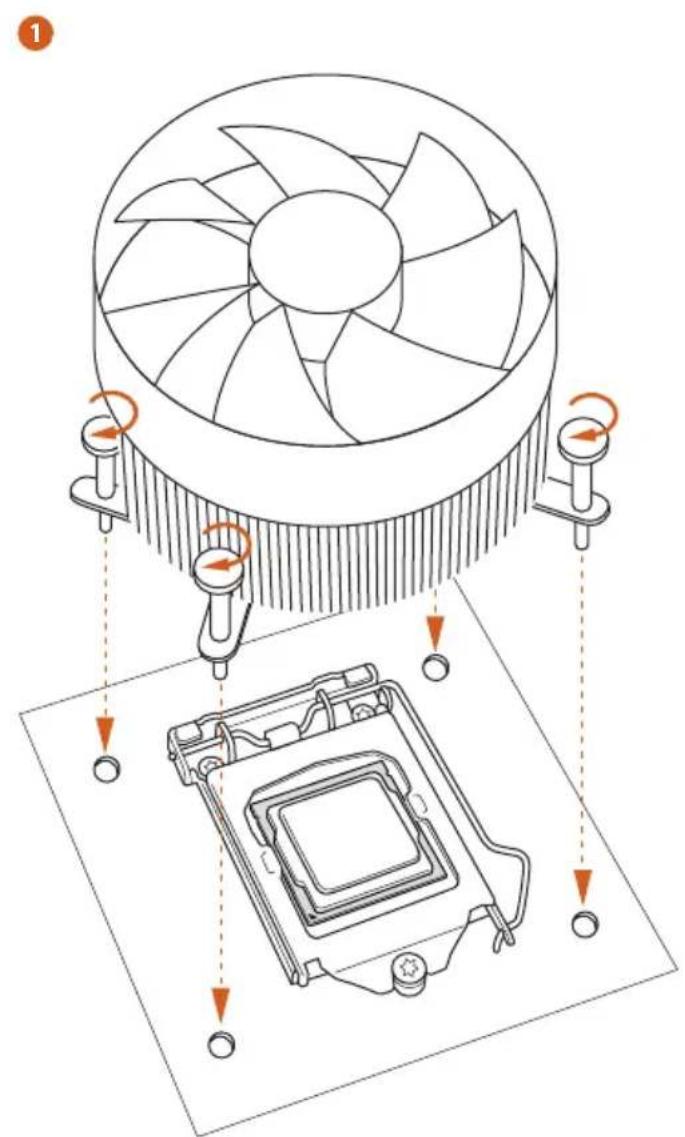
text_image
Diagram illustrating the cooling mechanism of a CPU, showing fan cooling and heatsink cooling steps with directional arrows.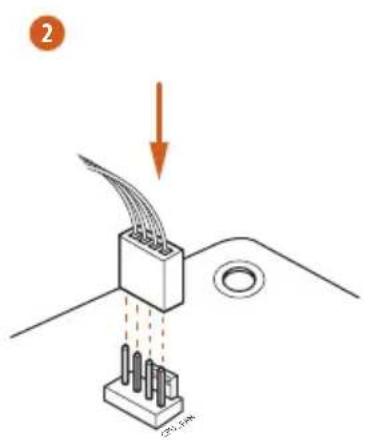
text_image
2 25.1mm
2.3 Installing Memory Modules (DIMM)
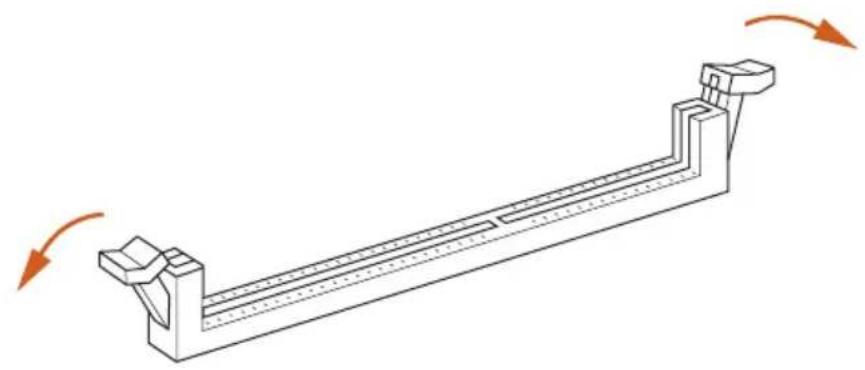
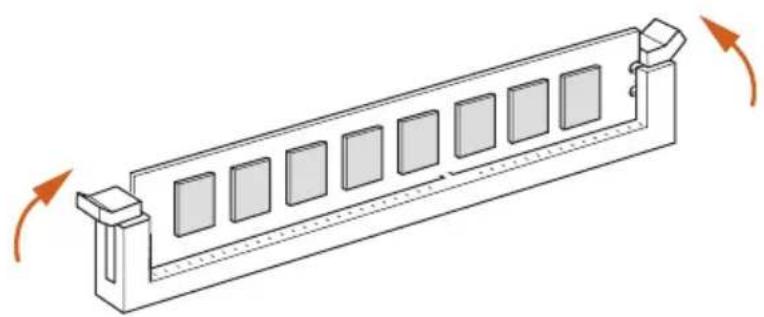
This motherboard provides four 288-pin DDR4 (Double Data Rate 4) DIMM slots, and supports Dual Channel Memory Technology.

- For dual channel configuration, you always need to install identical (the same brand, speed, size and chip-type) DDR4 DIMM pairs.
- It is unable to activate Dual Channel Memory Technology with only one or three memory module installed.
- It is not allowed to install a DDR, DDR2 or DDR3 memory module into a DDR4 slot; otherwise, this motherboard and DIMM may be damaged.
Dual Channel Memory Configuration
Priority DDR4_A1 DDR4_A2 DDR4_B1 DDR4_B2
| 1 Populated Populated | |||
| 2 Populated Populated | |||
| 3 Populated Populated Populated Populated |

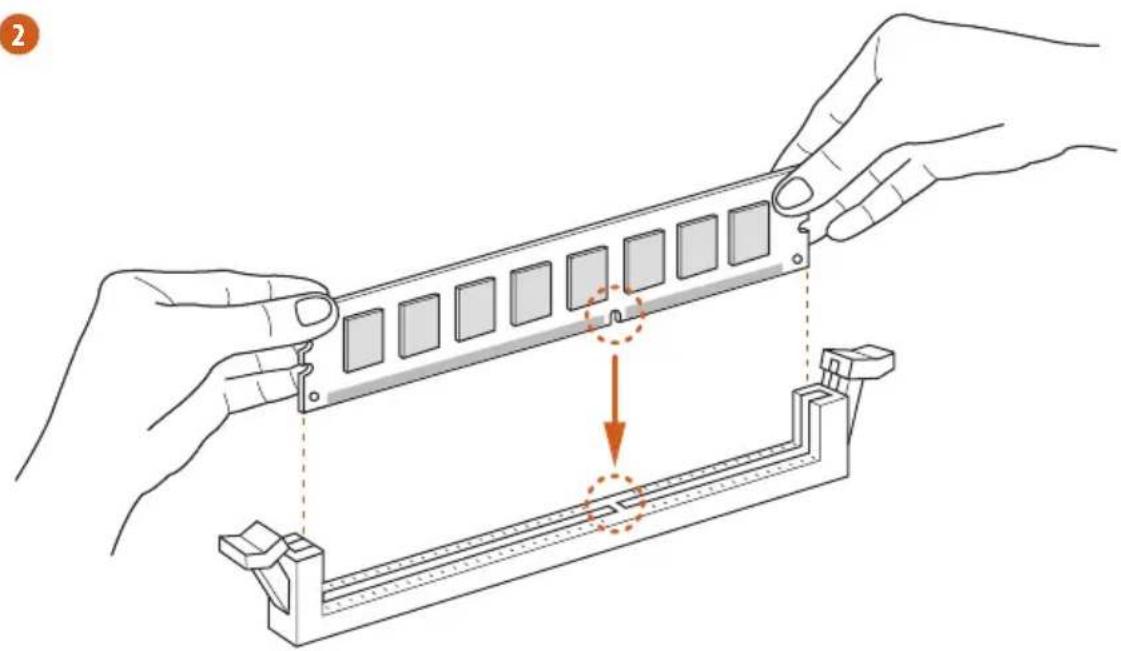
The DIMM only fits in one correct orientation. It will cause permanent damage to the motherboard and the DIMM if you force the DIMM into the slot at incorrect orientation.
1
natural_image
Technical line drawing of a mechanical support structure with rotational arrows indicating motion (no text or symbols)2
natural_image
Illustration of hands assembling a mechanical component with a highlighted section (no text or symbols)3
natural_image
Isometric line drawing of a rectangular mechanical component with multiple square slots and directional arrows indicating rotation (no text or symbols)2.4 Expansion Slots (PCI Express Slots)
There are 5 PCI Express slots on the motherboard.

Before installing an expansion card, please make sure that the power supply is switched off or the power cord is unplugged. Please read the documentation of the expansion card and make necessary hardware settings for the card before you start the installation.
PCIe slots:
PCIE1 (PCIe 3.0 x1 slot) is used for PCI Express x1 lane width cards.
PCIE2 (PCIe 3.0 x16 slot) is used for PCI Express x16 lane width graphics cards.
PCIE3 (PCIe 3.0 x1 slot) is used for PCI Express x1 lane width cards.
PCIE4 (PCIe 3.0 x16 slot) is used for PCI Express x4 lane width graphics cards.
PCIE5 (PCIe 3.0 x1 slot) is used for PCI Express x1 lane width cards.
PCIe Slot Configurations
PCIE2 PCIE4
Single Graphics Card x16 N/A
Two Graphics Cards in
CrossFireX ^TM Mode
x16 x4

For a better thermal environment, please connect a chassis fan to the motherboard's chassis fan connector (CHA_FAN1 or CHA_FAN2) when using multiple graphics cards.
2.5 Jumpers Setup
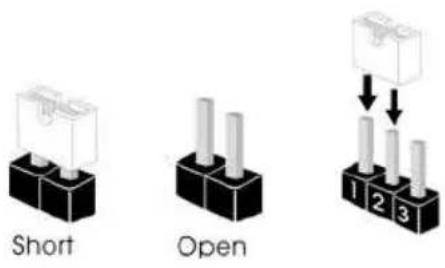
The illustration shows how jumpers are setup. When the jumper cap is placed on the pins, the jumper is "Short". If no jumper cap is placed on the pins, the jumper is "Open". The illustration shows a 3-pin jumper whose pin1 and pin2 are "Short" when a jumper cap is placed on these 2 pins.
text_image
Short Open 1 2 3Clear CMOS Jumper (CLRMOS1)
(see p.1, No. 8)
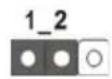
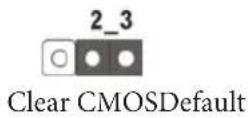
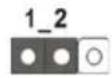
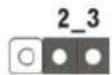
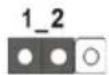
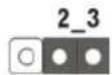
CLRMOS1 allows you to clear the data in CMOS. To clear and reset the system parameters to default setup, please turn off the computer and unplug the power cord from the power supply. After waiting for 15 seconds, use a jumper cap to short pin2 and pin3 on CLRMOS1 for 5 seconds. However, please do not clear the CMOS right after you update the BIOS. If you need to clear the CMOS when you just finish updating the BIOS, you must boot up the system first, and then shut it down before you do the clear-CMOS action. Please be noted that the password, date, time, and user default profile will be cleared only if the CMOS battery is removed.
2.6 Onboard Headers and Connectors

Onboard headers and connectors are NOT jumpers. Do NOT place jumper caps over these headers and connectors. Placing jumper caps over the headers and connectors will cause permanent damage to the motherboard.
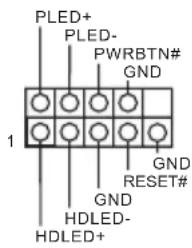
System Panel Header (9-pin PANEL1)
(see p.1, No. 13)
text_image
PLED+ PLED- PWRBTN# GND 1 GND RESET# GND HDLED- HDLED+Connect the power switch, reset switch and system status indicator on the chassis to this header according to the pin assignments below. Note the positive and negative pins before connecting the cables.

PWRBTN (Power Switch):
Connect to the power switch on the chassis front panel. You may configure the way to turn off your system using the power switch.
RESET (Reset Switch):
Connect to the reset switch on the chassis front panel. Press the reset switch to restart the computer if the computer freezes and fails to perform a normal restart.
PLED (System Power LED):
Connect to the power status indicator on the chassis front panel. The LED is on when the system is operating. The LED keeps blinking when the system is in S1/S3 sleep state. The LED is off when the system is in S4 sleep state or powered off (S5).
HDLED (Hard Drive Activity LED):
Connect to the hard drive activity LED on the chassis front panel. The LED is on when the hard drive is reading or writing data.
The front panel design may differ by chassis. A front panel module mainly consists of power switch, reset switch, power LED, hard drive activity LED, speaker and etc. When connecting your chassis front panel module to this header, make sure the wire assignments and the pin assignments are matched correctly.
Power LED and Speaker
Header
(7-pin SPK_PLED1)
(see p.1, No. 11)
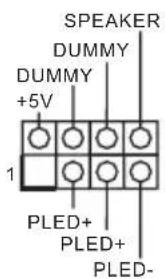
Please connect the chassis power LED and the chassis speaker to this header.
Serial ATA3 Connectors
(SATA3_0:
see p.1, No. 12)
(SATA3_1:
see p.1, No. 14)
(SATA3_2:
see p.1, No. 9)
(SATA3_3:
see p.1, No. 15)
(SATA3_4:
see p.1, No. 17)
(SATA3_5:
see p.1, No. 16)
SATA3_2SSATA3_4
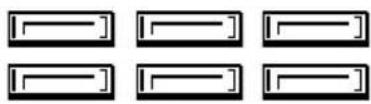
SATA3_3SSATA3_5
These six SATA3 connectors support SATA data cables for internal storage devices with up to 6.0 Gb/s data transfer rate. To minimize the boot time, use Intel® Z170 SATA ports (SATA3_0) for your bootable devices.
USB 2.0 Headers
(9-pin USB2_3)
(see p.1, No. 18)
(9-pin USB4_5)
(see p.1, No. 19)
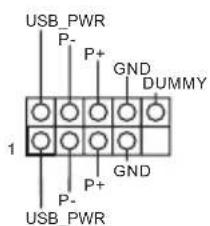
text_image
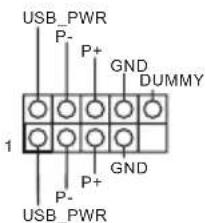
USB_PWR P- P+ GND DUMMY 1 P- P+ GND USB_PWRThere are two headers on this motherboard. Each USB 2.0 header can support two ports.
USB 3.0 Header
(19-pin USB3_4_5)
(see p.1, No. 6)
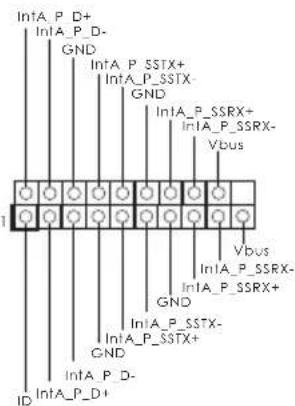
text_image
IntA_P_D+ IntA_P_D- GND IntA_P_SSTX+ IntA_P_SSTX- GND IntA_P_SSRX+ IntA_P_SSRX- Vbus Vbus IntA_P_SSRX- GND IntA_P_SSTX- GND IntA_P_SSTX+ IntA_P_D- ID IntA_P_D+Besides six USB 3.0 ports on the I/O panel, there is one header on this motherboard. Each USB 3.0 header can support two ports.
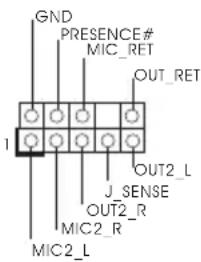
Front Panel Audio Header (9-pin HD_AUDIO1) (see p.1, No. 21)
text_image
GND PRESENCE# MIC_RET OUT_RET 1 J_SENSE OUT2_R MIC2_R MIC2_LThis header is for connecting audio devices to the front audio panel.

- High Definition Audio supports Jack Sensing, but the panel wire on the chassis must support HDA to function correctly. Please follow the instructions in our manual and chassis manual to install your system.
- If you use an AC'97 audio panel, please install it to the front panel audio header by the steps below:
A. Connect Mic_IN (MIC) to MIC2_L.
B. Connect Audio_R (RIN) to OUT2_R and Audio_L (LIN) to OUT2_L.
C. Connect Ground (GND) to Ground (GND).
D. MIC_RET and OUT_RET are for the HD audio panel only. You don't need to connect them for the AC'97 audio panel.
E. To activate the front mic, go to the "FrontMic" Tab in the Realtek Control panel and adjust "Recording Volume".
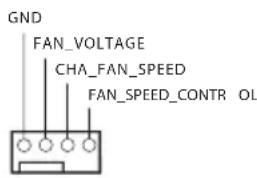
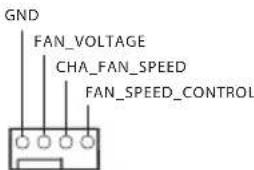
Chassis Fan Connectors
(4-pin CHA_FAN1)
(see p.1, No. 7)
(4-pin CHA_FAN2)
(see p.1, No. 10)
text_image
GND FAN_VOLTAGE CHA_FAN_SPEED FAN_SPEED_CONTR OLPlease connect fan cables to the fan connectors and match the black wire to the ground pin.
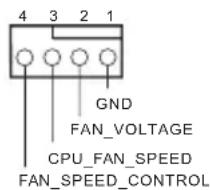
CPU Fan Connectors
(4-pin CPU_FAN1)
(see p.1, No. 2)
text_image
4 3 2 1 GND FAN_VOLTAGE CPU_FAN_SPEED FAN_SPEED_CONTROLThis motherboard provides a 4-Pin CPU fan (Quiet Fan) connector. If you plan to connect a 3-Pin CPU fan, please connect it to Pin 1-3.
ATX Power Connector
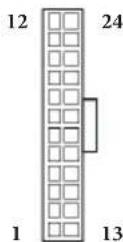
(24-pin ATXPWR1)
(see p.1, No. 8)
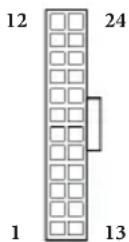
This motherboard provides a 24-pin ATX power connector. To use a 20-pin ATX power supply, please plug it along Pin 1 and Pin 13.
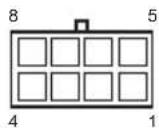
ATX 12V Power Connector (8-pin ATX12V1) (see p.1, No. 1)
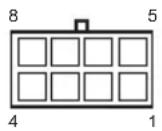
This motherboard provides an 8-pin ATX 12V power connector. To use a 4-pin ATX power supply, please plug it along Pin 1 and Pin 5.
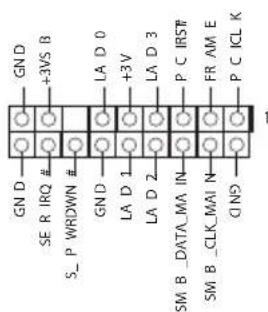
TPM Header (17-pin TPMS1) (see p.1, No. 20)
text_image
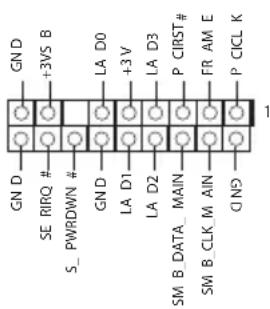
GN D +3VS B SE RIRQ # S_ PWRDWN # GND LA D0 +3V LA D3 P CIRST# LA D1 P CIRST# LA D2 FR AM E SM B_DATA MAIN SIM B CLK M AIN C N9 P CICL K 1This connector supports Trusted Platform Module (TPM) system, which can securely store keys, digital certificates, passwords, and data. A TPM system also helps enhance network security, protects digital identities, and ensures platform integrity.
1 Einleitung
Serial-ATA-III-Anschlüsse
Cavalier Clear CMOS (CLRMOS1)
(voir p.1, No. 8)
RAID 1, RAID 5, RAID 10, Intel Rapid Storage Technology 14 e Intel Smart Response Technology), NCQ, AHCI e Hot Plug
Connettore
Control)
Control)
(RAID 0, RAID 1, RAID 5, RAID 10, Intel Rapid Storage
Technology 14 e Intel Smart Response Technology), NCQ,
5, RAID 10, Intel Rapid Storage Technology 14 ve Intel Smart Response Technology), NCQ, AHCI ve Tak Çıkar destekler
Bağlayıcı
natural_image
Simple graphic with a magnifying glass icon and a horizontal line, no text or symbols present.1.1 パッケージの内容
1.2 仕様
CPU
TM
Intel ^® Z170
DDR4 3466+(OC)*/3200(OC)/2933(OC)/2800(OC)/2400(
AMD Quad CrossFireX ^TM
TM
TM
TM
510/530
Pixel Shader 5.0, DirectX 12
VP8, VP9
LAN
I/O
os
Microsoft® Windows® 10 64-bit / 8.1 64-bit / 7 32-bit / 7 64-bit

1.3 ジャンパー設定

text_image
Short Open 1 2 3(CLRMOS1)
SATA ports (SATA3_0)
text_image
USB_PWR P- P+ GND DUMMY 1 P- P+ GND USB_PWR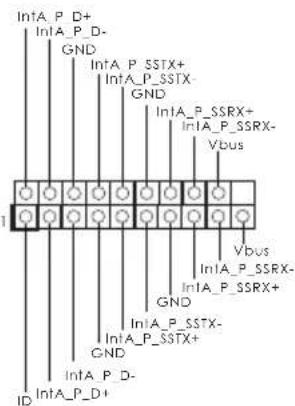
text_image
IntA_P_D+ IntA_P_D- GND IntA_P_SSTX+ IntA_P_SSTX- GND IntA_P_SSRX+ IntA_P_SSRX- Vbus Vbus IntA_P_SSRX- GND IntA_P_SSTX- GND IntA_P_SSTX+ CND IntA_P_D- ID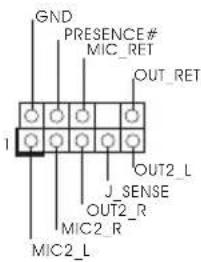
text_image
GND PRESENCE# MIC_RET OUT_RET J_SENSE OUT2_R MIC2_R MIC2_L1.

2.
text_image
GND FAN_VOLTAGE CHA_FAN_SPEED FAN_SPEED_CONTROL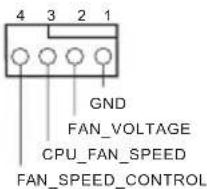
text_image
GN D +3VS B SE R IRQ # S_ P WRDWN # GND LA D 0 +3V LA D 1 LA D 2 LA D 3 P C IRS# P C CLK M SM B_DATA_MA_IN SM B_CLK_MA_IN CIN9 FR AM E P C ICLK 11 简介
Creating Windows® 7 Installation Disk with USB 3.0 Drivers Packed
The USB 3.0 ports on your motherboard require the USB 3.0 drivers to function properly. Due to the Windows ^® 7 installation disk does not include the USB 3.0 drivers, please create a Windows ^® 7 installation disk with the Intel ^® USB 3.0 eXtensible Host Controller (xHCI) drivers packed into the ISO file of your own.
Requirements
A program that can create and modify ISO files, such as UltraISO
Windows ^® 7 installation disk
USB 3.0 drivers (included in the ASRock Support CD)
Windows® PC
Instructions
Step 1
Create a new folder under C:\ on your computer. Here we name the folder "asrock" as an example.
Step 2
Create another two subfolders under the "asrock" folder. Name the subfolder "mount" and "usb3" as examples.
Step 3
Insert Windows ^® 7 installation disk in your CD drive.
Step 4
Copy "boot.wim" and "install.wim" files from the "Sources" folder in the Windows® 7 installation disk to the "asrock" folder created in Step 1.
| mount | 4/15/2015 6:56 PM | File folder | |
| usb3 | 4/15/2015 5:21 PM | File folder | |
| boot.wim | 4/15/2015 6:55 PM | WIM File | 170,666 KB |
| install.wim | 4/15/2015 6:51 PM | WIM File | 2,913,262 KB |
Step 5
Insert the ASRock Support CD in your CD drive.
Step 6
Go to folder "Drivers" and then find the "Intel USB3.0 Driver" folder.
Step 7
Make sure the Windows 7 you are going to install is the 32-bit version or the 64-bit version.
For 64-bit Windows 7:
Copy all 12 files under the folders "HCSwitch" (x64) and "Win7" (x64) in the "Drivers" to the subfolder "usb3" created in Step 2.
For 32-bit Windows 7:
Copy all 12 files under the folders "HCSwitch" (x86) and "Win7" (x86) in the "Drivers" to the subfolder "usb3" created in Step 2.
| iusb3hcs.cat | 1/28/2015 5:46 AM | Security Catalog | 12 KB |
| iusb3hcs.inf | 1/28/2015 5:46 AM | Setup Information | 28 KB |
| iusb3hcs.sys | 1/28/2015 5:46 AM | System file | 23 KB |
| iusb3hub.cat | 1/28/2015 5:46 AM | Security Catalog | 15 KB |
| iusb3hub.inf | 1/28/2015 5:46 AM | Setup Information | 28 KB |
| IUsb3Hub.man | 1/28/2015 5:46 AM | MAN File | 175 KB |
| iusb3hub.sys | 1/28/2015 5:46 AM | System file | 379 KB |
| iusb3xhc.cat | 1/28/2015 5:46 AM | Security Catalog | 15 KB |
| iusb3xhc.inf | 1/28/2015 5:46 AM | Setup Information | 22 KB |
| iusb3xhc.man | 1/28/2015 5:46 AM | MAN File | 458 KB |
| iusb3xhc.sys | 1/28/2015 5:46 AM | System file | 782 KB |
| WdfCoInstaller01009.dll | 1/28/2015 5:46 AM | Application extens... | 1,682 KB |
Step 8
Open the "Start" menu and type "command" or "cmd" to launch the command prompt as an administrator.
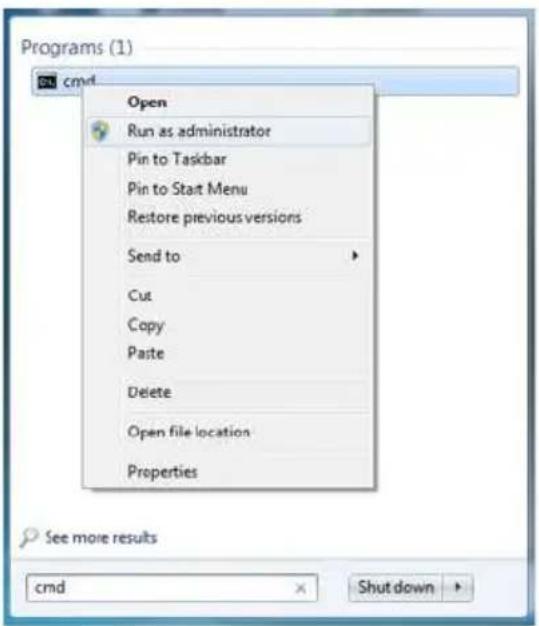
text_image
Programs (1) cmd Open Run as administrator Pin to Taskbar Pin to Start Menu Restore previous versions Send to Cut Copy Paste Delete Open file location Properties See more results cmd Shut downStep 9
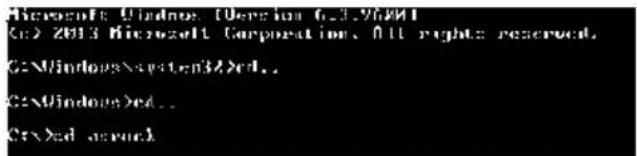
Enter the folder created in Step 1, by inputting "cd.." and "cd (folder name)" commands. Refer to the screenshot below.
"cd..": go to the upper level
"cd (folder name)": enter the assigned folder
text_image
Microsoft Windows (Version 6.3.2001) C:\> 2013 Microsoft Corporation, All rights reserved. G:\Windows\system32\ed.. C:\Windows\red.. C:\>ed aspec.Step 10
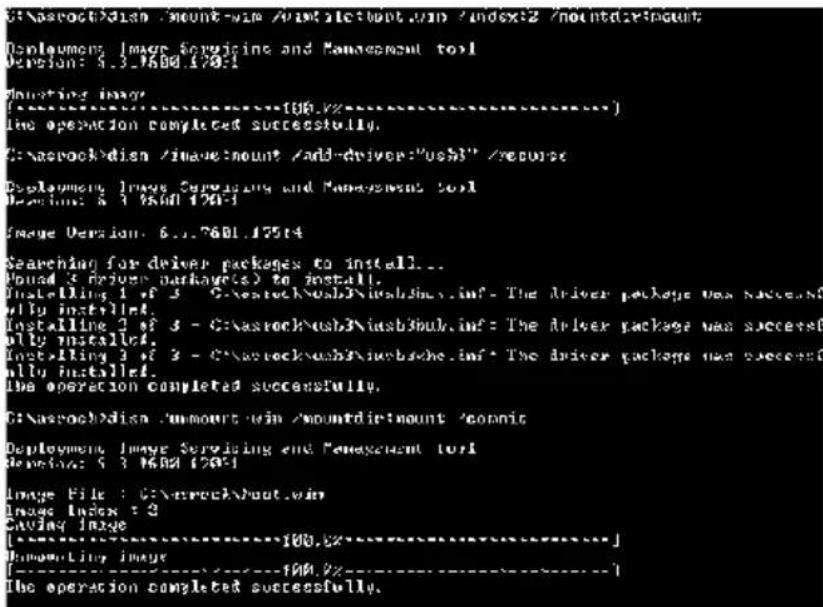
To add USB 3.0 drivers into "boot.wim" in order to install Windows® 7 by flash3.0, please input the following commands in order and wait until the each process completes.
dism /mount-wim /wimfile:boot.wim /index:2 /mountdir:mount dism /image:mount /add-driver:"usb3" /recurse dism /unmount-wim /mountdir:mount /commit
text_image
C:\naseock\disin /mount-win /mountdir:mount/.index=2 /mountdir:mount Displanungs, Image Servicing and Management tool Version: 5.3.7600.178-1 Nameing Image [----] The operation completed successfully. C:\aseock\disin /mount-mount /add-driver="usb3" /resource Deployment Image Servicing and Management tool Description: 5.3.7600.178-1 Image Version: 6.1.7601.175t4 Searching for driver packages to install... Named 3 driver packages(s) to install. Installing 1 of 3 - C:\aseock\usb3\usb3bulk.inf - The driver package was successful by installed. Installing 2 of 3 - C:\aseock\usb3\usb3bulk.inf - The driver package was successfully installed. Installing 3 of 3 - C:\aseock\usb3\usb3bulk.inf - The driver package was successfully installed. The operation completed successfully. C:\aseock\disin /mount-win /mountdir:mount 'connit Deployment Image Servicing and Management tool Description: 5.3.7600.178-1 Image File : C:\aseock\out.win Image Index : 3 Saving Image [----] The operation completed successfully. [----] The operation completed successfully.Step 11
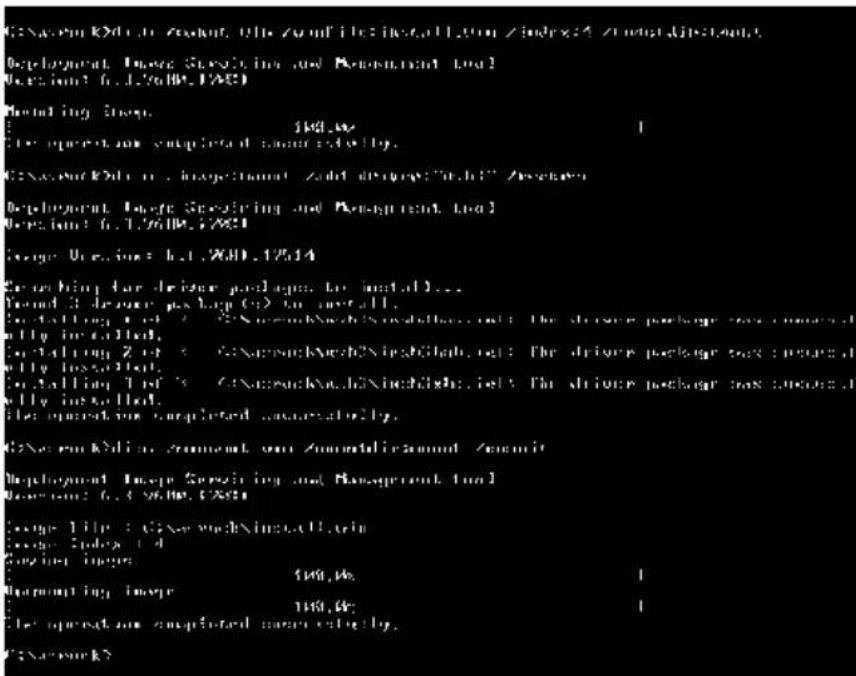
To add the drivers into the "install.wim" image file, please input the following commands in order and wait until the each process completes.
dism /mount-wim /wimfile:install.wim /index:4 /mountdir:mount
dism /image:mount /add-driver:"usb3" /recurse
dism /unmount-wim /mountdir:mount /commit
text_image
C:\NewarkXid\ - Zonalnt, the zonal file: install 1.0m / index: 4 / zone: dʒisənt Deployment, Image Screening and Assessment Tool Version: f.1.76108.FASI Founding Engine: 198.0k The operation completed manual entirely. C:\NewarkXid\ - Insgesition: Zonal dings: "chcl" / Assears Deployment, Image Screening and Assessment Tool Version: f.1.76108.FASI George Update: f.1.200.12514 Searching for driver packages for install... Named 3 driver package (s) on install. C:\NewarkXid\ - C:\NewarkXinch\Nixichlab\out: The driver package box completed only in called. C:\NewarkZid\ - C:\NewarkXinch\Nixichlab\out: The driver package box completed only installed. C:\NewarkTid\ - C:\NewarkXinch\Ninchlab\out: The driver package box completed only installed. C:\NewarkKid\ - Comment, own Zonaldircsionn# / Zemcit Deployment, Inspe Screening and Management Tool Version: f.1.200.12514 George File: C:\newarkXinch\allarin Engine Index: 4 Checking Engine: 198.0k Managing Engine: 198.0k The operation completed manual entirely. C:\NewarkXIn this step, please particularly pay attention to the Index number in the first command. Index represents the different versions of Windows ^® 7. Please check the followings for the versions you use:
Index: 1 Windows 7 HOMEBASIC
Index: 2 Windows 7 HOMEPREMIUM
Index: 3 Windows 7 PROFESSIONAL
Index: 4 Windows 7 ULTIMATE
Step 12
Use a program that can create and modify ISO files, such as UltraISO, to copy the modified "boot.wim" and "install.win" files to the same directory in the Windows® 7 installation disk and cover the original files. (We recommend backing up the original version just in case.) Save as a new ISO file, and then burn the CD or USB which can be used to install.
Contact Information
If you need to contact ASRock or want to know more about ASRock, you're welcome to visit ASRock's website at http://www.asrock.com; or you may contact your dealer for further information. For technical questions, please submit a support request form at http://www.asrock.com/support/tsd.asp
ASRock Incorporation
2F., No.37, Sec. 2, Jhongyang S. Rd., Beitou District,
Taipei City 112, Taiwan (R.O.C.)
ASRock EUROPE B.V.
Bijsterhuizen 11-11
6546 AR Nijmegen
The Netherlands
Phone: +31-24-345-44-33
Fax: +31-24-345-44-38
ASRock America, Inc.
13848 Magnolia Ave, Chino, CA91710
U.S.A.
Phone: +1-909-590-8308
Fax: +1-909-590-1026