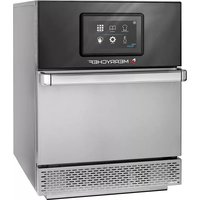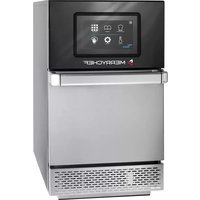
ConneX 12 - Oven Merrychef - Free user manual and instructions
Find the device manual for free ConneX 12 Merrychef in PDF.



| Product Type | High-speed combined microwave oven |
| Brand | Merrychef |
| Model | ConneX 12 |
| Category | Oven |
| Screen | easyTouch touch |
| Operating modes | Full service, Quick service, Press&Go, Manual |
| Preheating | Up to 6 programmable preheat temperatures |
| Connectivity | Wi-Fi and Ethernet |
| Recipe book | Saved cooking profiles, favorites, categories |
| Recipe creation | Via the chef's hat |
| Cleaning | Automatic cycle with on-screen instructions |
| Power supply | Electric |
| Safety | Safety controls, manager password |
| Brand | Welbilt |
| Support | At www.merrychef.com |
Frequently Asked Questions - ConneX 12 Merrychef
User questions about ConneX 12 Merrychef
0 question about this device. Answer the ones you know or ask your own.
Ask a new question about this device
Download the instructions for your Oven in PDF format for free! Find your manual ConneX 12 - Merrychef and take your electronic device back in hand. On this page are published all the documents necessary for the use of your device. ConneX 12 by Merrychef.
USER MANUAL ConneX 12 Merrychef
Welcome to your new Merrychef high speed oven. This guide has been created to get you up and running with your new Merrychef connex® high speed oven as quickly as possible.
Important: Before using your oven please ensure you fully read and follow the safety instructions provided with the appliance.

A comprehensive installation and user manual is available at www.merrychef.com
First time start up

Make all the relevant safety checks and ensure the appliance is clean and empty.
The first time the oven is connected to the electrical supply there will be a series of setup screens.

ss the power icon to turn the appliance on, you will be prompted to:
- select the language you would like the oven to operate in,
- set time and date,
- connect to Wi-Fi or Ethernet (this can be done at a later stage in 'Settings'),
- select a preheat temperature.
When the preheat cycle is complete the selected 'Operating Mode' screen will appear, and you can start using your oven.
Start up
1.

Ensure the appliance is plugged in. Make all the relevant safety checks and ensure the cavity is clean and empty.
Select the power icon on screen, to switch ON the oven.
2.
The 'easyTouch®' screen illuminates and scrolls through the Welbilt brands.
Once booted the Merrychef splash screen appears, giving shortcut options to 'Information' or 'Settings'.
If left idle the screen automatically progresses to Preheat/Preheat selection. If only one preheat temperature has been set, the oven will automatically start heating up to temperature.

3.

text_image
Preheat Selection Breakfast 225°C Lunch 250°C Dinner 260°CWhen the appliance is setup with two or more preheating temperatures a choice is displayed.
A scroll bar at the side of the screen indicates that there are more temperature choices not shown on the screen.
If necessary, swipe up or down to navigate the preheat selections available. Then select the temperature required to start preheating the cavity.
4.

During preheating the display shows the progress as the cavity heats up to the set temperature.
To stop the cavity heating up touch the back arrow in the bottom left of the screen (this will return you to the previous screen).
When the preheat cycle is complete the selected 'Operating Mode' screen will appear, and you can start using your oven.

pie
Preheating Dinner | Category | Value | |---|---| | Target 260°C | 1 | | Actual 260°C | 1 |Operating modes


In Full Serve Mode the 'Home' screen is displayed. Cooking profiles are accessed through the 'Cookbook' and recipes are created via the 'Chef's Hat'.
In Quick Serve Mode the 'Cookbook' is immediately displayed. This allows you to manage up to a 3-tier programme with category groupings.
Press & Go Mode is ideal for smaller businesses and allows you to quickly access recipe files with one touch.
In Manual Mode, cooking profiles are not available. Each cook is programmed individually.
Operating modes can be selected by going to the 'Modes' icon settings, here, you will also be able to:
Turn on Show Favourites, to feature a 'Favourites' icon in the Cookbook which ranks all your recipes in order of the most popular used. (Only available in Full Serve and Quick Serve Modes.)
Turn on Show All Recipes, to feature an 'All recipes' icon in the Cookbook which shows you all the recipes loaded onto the oven. (Only available in Full Serve and Quick Serve Modes.)
Select Unlock to allow you to add, edit or delete recipes in any mode. (Press and hold a cooking profile or category until the delete/edit overlap appears.)
How to cook
- Select a cooking profile.
- Follow the prompts displayed by the software.
- Open the appliance door.
- Place the prepared food in the microwave combination oven.
- Close the appliance door again.
- Start the cooking process.
- Wait for the cooking process to finish.
- An audible signal is given when the cooking process is finished.
- Follow the prompts displayed by the software.
- Open the appliance door.
- Take out the food.
Changing the cavity temperature

Recipes not created for the ovens current preheat temperature will be inactive and greyed out. To determine these recipes preheat temperature, select, press and hold the icon until the edit/delete option appears over the button, then select edit to investigate the recipes parameters. Then return to the 'Home' screen.
Note: this can only be done when the operating mode is unlocked in 'Modes'.

Select the 'Preheat' icon on the 'Home' screen, or the preheat button in the bottom left hand corner of the screen if the oven is in 'Quick Serve' or 'Press & Go Modes'. (If only one preheat has been set on the appliance the preheat icon does not appear in 'Quick Serve' or 'Press & Go Modes').

A green highlight of the temperature value indicates the present cavity temperature.
Select the required cavity temperature for the cooking profile, for example 250^ C / 482°F and wait for the cavity to reach the required temperature.
Home screen

text_image
Recipe Creation Cookbook Press & Go Preheat Settings Clean #easy TGUCHThis 'Home' screen is displayed when the oven is in Full Serve Mode.
Button Meaning Function
| Recipe Creation/ Development Mode | ‘Recipe Creation’ enables multistage cooking profiles to be developed, then stored under a name and icon for reuse. | |
| Press & Go ‘Press & Go’ allows quick access to use the cooking profiles that are already stored. | ||
| Cookbook | ‘Cookbook’ contains the cooking profiles stored in the memory of the appliance. It displays Favourites, Categories and a complete listing of all cooking profiles available ‘All recipes’. | |
| Cleaning | ‘Cleaning’ allows the appliance to be prepared for cleaning with pictorial displayed assistance during the cleaning process. | |
| Temperature Change | Preheats are used to control the appliance operating temperature, up to 6 preheats can be stored for the appliance. | |
| Settings ‘Settings’ are used to control the appliance settings and functions including time and language, loading cooking profiles and for service and maintenance purposes. | ||
Keyboard Screen
Appearance

text_image
Settings Password Q W E R T Y U I U F A S D F G H J K L ↑ E X C V R N M OK
text_image
Settings Password 0w123pL6M |
Keyboard buttons and their functions
| Button Meaning | Function | |
 | Keyboard screen | The keyboard screen is used to enter an authorised password to enter data for programmes and may restrict operator access to some functions. |
 | Clear screen | Select the 'clear screen' key to delete all text from the keyboard screen. |
 | Keyboard | Type in text using the keyboard. |
 | Keyboard scroll | Select the up/down arrows to scroll the keyboard screen, for lower case, numbers, etc. |
 | Enter / OK | Select the green tick mark to confirm settings and continue. |
 | Previous screen | Select the 'backspace' key to return to a previous screen. |
- For names of cooking profiles, names of categories, cooking profile groups and passwords use 1-20 characters.
- For stage instructions of individual cooking profiles use 1-54 characters in 5 lines maximum.
Settings

ct the 'Settings' symbol from the main menu screen.
Enter the default password 'MANAGER' and select the green tick to display the 'Settings' menu.
Within settings you can customise your appliance. Use the scroll bar to see the full list of settings available, then follow the on-screen instructions to apply any changes you would like to make.

toggle bar or button means the action is switched on.

oggle bar or button means the action is switched off.
For more detailed information for each of the settings please refer to the full installation and user manual.
Connectivity
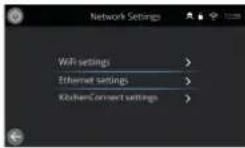
Choose the 'Connectivity' option from the 'Settings' menu. Here you can connect via WI-Fl or the Ethernet port at the rear of the oven.
Access KitchenConnect® via the QR code link from KitchenConnect® settings.
Cleaning procedures
It is important the oven is cleaned every day, this will avoid grease build up in the cavity.
In 'Full Serve Mode', select the 'Clean' symbol from the main menu and follow the on-screen pictorial instructions. These can be tailored for your operation by changing the cleaning settings.

In 'Quick Serve', 'Press & Go' or 'Manual Mode'; select the power button symbol to disable heating and to start the cooling down cycle.
Once the cleaning sequence is complete, the oven will power down and return to the power button screen.

MERRYCHEF®
A Welbilt Brand
For further details on where to buy, how to service and for our flagship culinary support please visit www.merrychef.com
Customer satisfaction
Your satisfaction with our products is of paramount importance to us. With over 70 years experience you can be assured of a high quality, precision built appliance.
text_image
MERRYCHEF CREDIT & CONSUEtext_image
Preheat Selection Breakfast 225°C Lunch 250°C Dinner 260°Ctext_image
Recipe Creation Cookbook Press & Go Preheat Settings Clean #easy TUCHtext_image
Settings Password I Q W E R F Y U J O F A S D F G H J K L ↑ E X C V T N M Q Q U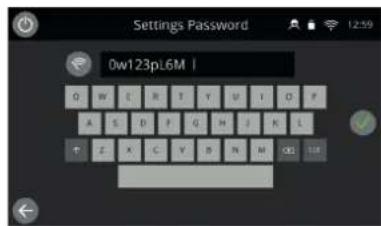
text_image
Settings Password 0w123pL6M |text_image
Preheat Selection Breakfast 225°C Lunch 250°C Dinner 260°Cpie
Preheating Dinner | Category | Value | |---|---| | Target 260°C | 1 | | Actual 260°C | 1 |text_image
Recipe Creation Cookbook Press & Go Preheat Settings Clean #easy YouCHtext_image
Settings Password I Q W E R F Y U J O F A S D F G H J K L ↑ E X C V P N M OK
text_image
Settings Password 0w123pL6M |text_image
Preheat Selection Breakfast 225°C Lunch 250°C Dinner 260°Cpie
Preheating Dinner | Category | Value | |---|---| | Target | 260°C | | Actual | 260°C |text_image
Recipe Creation Cookbook Press & Go Preheat Settings Clean #easy YtUCHtext_image
Settings Password I Q W E R F Y U J D F A S D F G H J K L ↑ E X C V T P M Q Q 12
text_image
Settings Password 0w123pL6M |
text_image
Preheat Selection Breakfast 225°C Lunch 250°C Dinner 260°Ctext_image
Preheating Dinner Target 260°C Actual 260°CModalità operative

text_image
Recipe Creation Cookbook Press & Go Preheat Settings Clean #easy YouCHtext_image
Settings Password I Q W E R F Y U J D F A S D F G H J K L ↑ E X C V P N M OK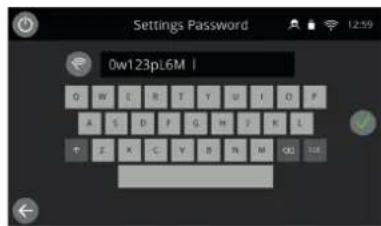
text_image
Settings Password 0w123pL6M |
text_image
Preheat Selection Breakfast 225°C Lunch 250°C Dinner 260°Ctext_image
Preheating Dinner Target 260°C Actual 260°Ctext_image
Press & Go Fries Salmon Crustard Add recipetext_image
Recipe Creation Cookbook Press & Go Preheat Settings Clean easy TUCHtext_image
Settings Password I Q W E R T Y U I Q F R S D F G H J K L ↑ E Y C Y P N M OK
text_image
Settings Password 0w123pL6M |
Кнопки и их функции
text_image
Recipe Creation Cookbook Press & Go Preheat Settings Clean easy TUCHالوظيفة المعنى الزر
text_image
Settings Password Dw123pL6M |