EasyManual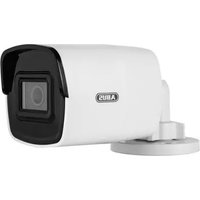
TVIP62510 - Surveillance Camera ABUS - Free user manual and instructions
Find the device manual for free TVIP62510 ABUS in PDF.



Questions des utilisateurs sur TVIP62510 ABUS
0 question sur cet appareil. Repondez a celles que vous connaissez ou posez la votre.
Poser une nouvelle question sur cet appareil
Download the instructions for your Surveillance Camera in PDF format for free! Find your manual TVIP62510 - ABUS and take your electronic device back in hand. On this page are published all the documents necessary for the use of your device. TVIP62510 by ABUS.
USER MANUAL TVIP62510 ABUS
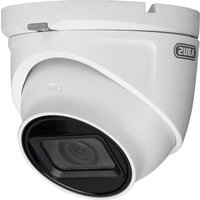
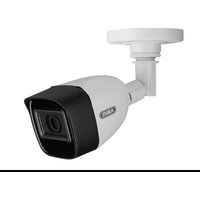
This quick start guide describes the initial installation steps for your network camera. Detailed information can be found in the user guide on the website abus.com16 English 2 Mpx Mini Dome Camera (TVIP42510) 2 Mpx Mini Tube Camera (TVIP62510)
TVIP42510 TVIP62510 EU, AU, UK17 English Only operate the network camera with a suitable power source. Only operate the network camera in the ambient conditions recommended by the manufacturer. Ensure there is an uninterrupted power supply when operating with a permanent power source. Keepstrongmagneticeldsaway from the network camera. Do not insert any objects into the camera (e.g. needles). Ensure that the network camera is mounted securely. WARNINGS18 English OVERVIEW 1 Base plate 2 Lens 3 IR LEDs 4 InternalmicroSDcardslot&resetbutton(holddownforapprox.30secondstoresetthecamera)
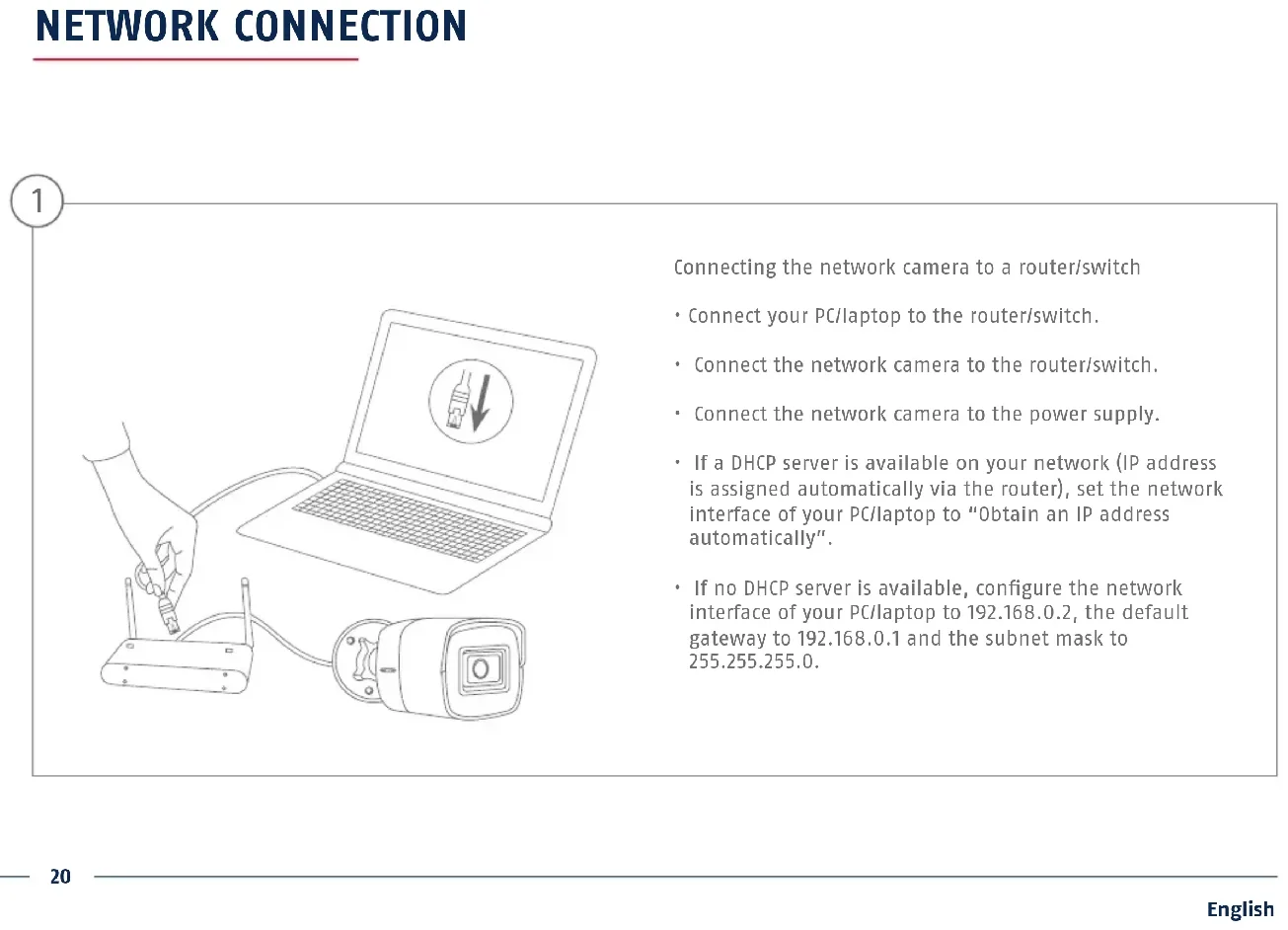
Connecting the network camera to a router/switch
- Connect your PC/laptop to the router/switch.
- Connect the network camera to the router/switch.
- Connect the network camera to the power supply.
- If a DHCP server is available on your network (IP address is assigned automatically via the router), set the network interface of your PC/laptop to “Obtain an IP address automatically”.
- IfnoDHCPserverisavailable,congurethenetwork interface of your PC/laptop to 192.168.0.2, the default gateway to 192.168.0.1 and the subnet mask to
- Youcanndtheprogrammeonourhomepageatabus.com. Install the program on your PC and then run it.
- Aertheinstallationwizardisstarted,theIPInstaller searches for all the network cameras and video servers connected in your network. Check whether the latest version of the IP installer is installed. To do so, check the highlighted icon in the image onthele.
- Double click to call up the web interface of the camera to be set up. admin
English Password assignment
- No administrator password is set prior to delivery. The administrator user name “installer” is set prior to delivery.
- The next time you call up the web interface, you will be asked to identify yourself with the user name and your password.
- You can then change the administrator name in the user settings
- You can write down the password you used here, then keep the quick guide in a safe place:
English APP SETUP Activating ABUS Link Station
- Navigate to the network settings on your web interface and open the ABUS Link Station settings.
- Activate the ABUS Link Station function and click on “Save settings”.
- Thestatusshouldnowshowas“online”.If“oine”isstill shown, check that the camera is connected to a network with internet access.
- Nowassignavericationcodefortheconnection.Youcan write down the code you used here, then keep the quick guide in a safe place.
- Leavethewebinterfaceopen.TheQRcodeandverication code shown are required for setting up the camera in the app.
Please note:TheABUSLinkStationconnectsyourcameratoyoursmartphoneviathecloudservice.Youdonotneedtorecongure your router for this. If you do not want to use the cloud service, you can follow an alternative app setup procedure in the camera instruction manual.24 English
- Download the “ABUS Link Station” app from the iOS App Store or Google Playstore and open it.
- Create an account for remote access by clicking on “Log in” and then on “Register an account”.
- Activatetheaccountusingthevericationcodesenttoyou by email.
- Click on “Add device” and scan the QR code from the camera’swebinterface.
- Aerthecamerahasbeenfound,enterthecamera vericationcode.Thecamerahasnowbeenaddedtoyour account.
- If you experience problems during setup, please go to our support website: https://support.abus-sc.com/25 English