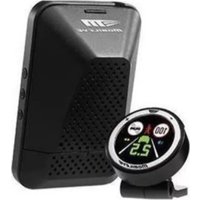
630 - Surveillance Camera Mobileye - Free user manual and instructions
Find the device manual for free 630 Mobileye in PDF.



| Product type | Driver assistance system (Mobileye 6 series) |
| Model | 630 |
| Brand | Mobileye |
| Power supply | 12–24 V DC |
| Main functions | Forward Collision Warning (FCW), Urban Forward Collision Warning (UFCW), Pedestrian Collision Warning (PCW), Lane Departure Warning (LDW), Headway Monitoring Warning (HMW), Intelligent High Beam Control (IHC), Speed Limit Indicator (SLI), Traffic Sign Recognition (TSR), Turn Signal Reminder |
| Alarm types | Audible (beeps), visual (icons on EyeWatch screen), haptic (steering wheel or seat, depending on installation) |
| Display | EyeWatch with status icons and controls |
| Connectivity | Bluetooth for pairing with Android smartphone (660 model only, not compatible with iPhone) |
| Sensor | Vision sensor mounted on windshield |
| Operating temperature | Operates within a standard range; may overheat (temperature alert) |
| Maintenance and cleaning | Do not obstruct the sensor; clean windshield if dirty; do not touch the sensor when hot |
| Safety | Do not adjust settings while driving; does not replace attentive driving; installation by authorized professional |
| Spare parts and repairability | Contact authorized Mobileye distributor or installer; limited 1-year warranty |
| General information | 174-page manual; instructions available in multiple languages; website: www.mobileye.com |
Frequently Asked Questions - 630 Mobileye
User questions about 630 Mobileye
0 question about this device. Answer the ones you know or ask your own.
Ask a new question about this device
Download the instructions for your Surveillance Camera in PDF format for free! Find your manual 630 - Mobileye and take your electronic device back in hand. On this page are published all the documents necessary for the use of your device. 630 by Mobileye.
USER MANUAL 630 Mobileye
Patents owned by Mobileye,
and are included in the system:
US6,704,621
US7,113,867
US7,151,996
US7,566,851
US8,082,101
US8,164,628
US8,254,635
US8,064,643
EP12361260
EP17410790
EP18065950
EP19308630
FCC ID: AECMOB005
This device complies with part 15 of the FCC Rules. Operation is subject to the following two conditions:
1) This device may not cause harmful interference; and, 2) This device must accept any interference received, including interference that may cause undesired operation.
Thank you for choosing Mobileye.
By choosing Mobileye, you have joined the millions of drivers worldwide who are using our advanced driver assistance technology to make our roads safer for drivers, passengers, pedestrians, cyclists and other vulnerable road users.
This user manual will provide information regarding each of the functions of the Mobileye 6-Series.
For additional information, please visit our website at
www.mobileye.com.
Thank you, and drive safely!

Contents
General Information....3
Activating the Mobileye 6-Series....4
Alert Types 4
Forward Collision Warning (FCW) 4
Urban Forward Collision Warning (UFCW) 5
Pedestrian Collision Warning (PCW)....5
Lane Departure Warning (LDW) 6
Headway Monitoring and Warning (HMW) 7
Additional Features 8
Intelligent High-Beam Control (IHC) (Optional) 8
Speed Limit Indicator (SLI) (Optional) 8
Traffic Sign Recognition (TSR) (Optional) 9
Turn Signal Reminder 9
Mobileye 6-Series EyeWatch Display 10
System Controls on Vision Sensor 14
EyeWatch Control Panel 14
Volume Control 17
Pairing Mobileye 660 with a Smartphone via Bluetooth....17
System Limitations....18
License and Warranties....19
General Information
Important Safety Information
BEFORE USING THE MOBILEYE 6-SERIES, PLEASE READ THE FOLLOWING SAFETY INSTRUCTIONS AND WARNINGS IN THIS USER MANUAL CAREFULLY.
WARNING! THE MOBILEYE 6-SERIES SYSTEMS ARE NOT SUBSTITUTES FOR SAFE AND ALERT DRIVING.
DO NOT ATTEMPT TO CHANGE SETTINGS ON THE MOBILEYE 6-SERIES WHILE DRIVING!
Do not press any Mobileye 6-Series system buttons before understanding their functionality. By installing the Mobileye 6-Series Advanced Driver Assistance System, you acknowledge and agree to operate the Mobileye 6-Series in accordance with the safety instructions and warnings set forth below. If you do not agree to these terms, please return the Mobileye 6-Series product in its original packaging to the dealer, within 30 days of purchase for a full refund.
- The Mobileye 6-Series systems are advanced driver assistance systems that alert drivers to certain potentially dangerous situations. They do not replace any actions drivers would normally perform when driving a motor vehicle, nor do they decrease the need for drivers to stay vigilant and alert in all driving conditions, to conform to all safe driving standards and practices, and to obey all traffic rules and regulations.
- The Mobileye 6-Series systems are not automated driving systems and do not act as a substitutes for any aspect of a driver's control of the vehicle or for safe driving practices. Drivers are warned against relying on the Mobileye 6-Series as a substitute for their own judgment and attentiveness when driving.
- While the Mobileye 6-Series represents a state-of-the-art innovation in machine vision software and other technologies, Mobileye cannot and does not guarantee 100% accuracy in the detection of vehicles, pedestrians, traffic signs, or driving lanes, and therefore does not guarantee the provision of any related audio or visual warnings. In addition, road, weather and other conditions can adversely affect the Mobileye 6-Series systems' recognition and response capabilities.
- Accordingly, drivers should not rely on the Mobileye 6-Series to ensure their safety while driving, but should continue to rely on safe driving practices instead.
- Drivers should exercise caution in using the Mobileye 6-Series' display unit (available on certain Mobileye 6 models). Driver attention should remain focused on the road at all times, including while looking at the Mobileye 6-Series display.
Every effort has been made to ensure the accuracy of all information in this user manual. However, Mobileye Vision Technologies Limited makes no expressed or implied warranty or representation based on the enclosed information. Mobileye Vision Technologies Limited reserves the right to alter the equipment specifications and descriptions in this publication without prior notice. Any errors or omissions may be reported to Technical Support, Mobileye Vision Technologies Limited.
Global Support Email: support@Mobileye.com
European Support Email: support.eu@mobileye.com
Installation and Safety Instructions
• The Mobileye 6-Series installation must be carried out by an authorized Mobileye dealer or installer.
- The Mobileye 6-Series should not be transferred between vehicles, other than by an authorized Mobileye dealer or installer.
• The Mobileye 6-Series should only be operated with 12VDC-24VDC power.
- Do not cover or obstruct the vision sensor or the Mobileye 6-Series' EyeWatch display and control unit.
- Do not use the Mobileye 6-Series for any purposes other than those described in this user manual.
- Features and functions noted as "Optional" are not available for all vehicle types. These features and functions may also require additional equipment and/or involve additional costs. Contact Mobileye or an authorized dealer for more information.
- The Mobileye 6-Series cannot be installed in all vehicles. Contact Mobileye or an authorized dealer to determine if a system can be installed in a particular make and model.
Activating the Mobileye 6-Series
The Mobileye 6-Series is automatically activated when the car is started.
Following system initialization, the Mobileye 6-series EyeWatch displays this main screen.
The system is now fully functioning.
IMPORTANT NOTE: To prevent possible deterioration of system accuracy, do not remove or tamper with the vision sensor unit or the windshield mount. CAUTION: The vision sensor unit can heat up during operation. Refrain from touching the vision sensor unit during or immediately after operation.
Alert Types
The Mobileye 6-Series is an Advanced Driver Assistance System that has the following alerts:
Forward Collision Warning (FCW)
HOW DOES THE FCW WORK?
The FCW provides an alert up to 2.7 seconds before a possible collision with the vehicle in front.
WHEN IS THE FCW OPERATIONAL?
The FCW is always operational when the system is active.
HOW DOES A FCW AUDIO ALERT SOUND?
It is a series of loud, high-pitched beeps.
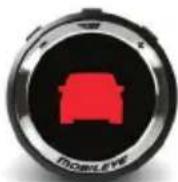
WHICH ICON REPRESENTS THE FCW VISUAL ALERT?
A red, flashing car icon on the EyeWatch display.
A haptic alert will be connected to the steering wheel or to the driver's seat, depending on installation.
NOTE: The FCW alert will also be displayed on Mobileye's 660 smartphone application (Not iPhone compatible).
Urban Forward Collision Warning (UFCW)
HOW DOES THE UFCW WORK?
The UFCW provides an alert before a possible low-speed collision with the vehicle in front.
WHEN IS THE UFCW OPERATIONAL?
The UFCW is operational under 30 km/h (19 mph).
HOW DOES THE UFCW AUDIO ALERT SOUND?
It is a series of loud, short, high-pitched beeps.
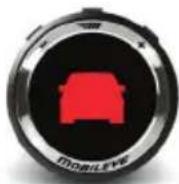
WHICH ICON REPRESENTS THE UFCW VISUAL ALERT?
A red, flashing car icon shown on the EyeWatch display.
A haptic alert will be connected to the steering wheel or to the driver's seat, depending on installation.
NOTES:
- Forward Collision Warning and Urban Forward Collision Warning cannot be disabled or muted. However, if the system is turned off, NO WARNINGS will be issued. Virtual Bumper sensitivity can be modified according to driver preference.
- The UFCW alert will also be displayed on Mobileye's 660 smartphone application (Not iPhone compatible).
Pedestrian Collision Warning (PCW)
HOW DOES THE PCW WORK?
The PCW provides an alert when a pedestrian crosses in front of the vehicle's path.
WHEN IS THE PCW OPERATIONAL?
The PCW is operational during daylight hours only, and at under 50 km/h (31 mph). PCW does not work in the dark, or at night.
HOW DOES THE PCW AUDIO ALERT SOUND?
It is a series of loud, high-pitched beeps.
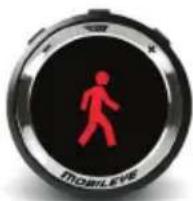
WHICH ICONS REPRESENT THE PCW VISUAL ALERT?
A red, flashing pedestrian icon on the EyeWatch display.
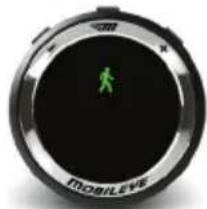
PEDESTRIAN DETECTION IN THE "DANGER ZONE"
A pedestrian has been detected in an area defined as the "Danger Zone," but time to collision is not critical; therefore a green pedestrian will be displayed on the EyeWatch, but no audio alert will sound.
PCW HAPTIC ALERT (OPTIONAL)
A haptic alert will be sent to the steering wheel or to the driver's seat (depending on installation).
natural_image
Close-up of a circular device with a green human figure on its surface, labeled 'mobileeye' (no additional text or symbols visible)NOTES:
- The PCW alert will also be displayed on Mobileye's 660 smartphone application (Not iPhone compatible).
Lane Departure Warning (LDW)
HOW DOES THE LDW WORK?
The LDW provides an alert when the vehicle unintentionally departs from the driving lane. An unintentional departure is defined by departing from the driving lane without using the turn signals. If the turn signal is used when changing lanes, an alert is not generated.
WHEN IS THE LDW FUNCTIONAL?
The LDW is active at speeds greater than 65 km/h (40 mph).
HOW DOES THE LDW AUDIO ALERT SOUND?
It is a series of short, sharp beeps.
natural_image
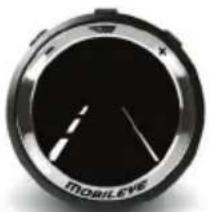
Close-up of a circular mechanical dial with 'MOBILE' branding and a white needle pointing downward (no readable text beyond label)WHICH ICON REPRESENTS LDW VISUAL ALERT?
The dashed, white line on the EyeWatch display represents a right or left lane deviation.
LDW HAPTIC ALERT (OPTIONAL)
A haptic alert will be connected to the steering wheel or to the driver's seat, depending on installation.
NOTE:
The LDW alert will also be displayed on Mobileye's 660 smartphone application (Not iPhone compatible).
THE LDW WILL NOT ISSUE ALERTS WHEN:
• Lanes are unmarked or are poorly marked.
• The speed of the vehicle is less than 65 km/h (40 mph).
• The turn signals are being used.
- The LDW has been disabled by setting the sensitivity level to "0" (LDW OFF).
• A sharp turn is made.
• The system has been muted.
LDW AVAILABILITY
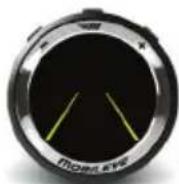
When the LDW is not available for any of the reasons mentioned above, the yellow lane icon will be displayed on the EyeWatch.
When the LDW is available, the white lane icon will be displayed..
LDW availability is separate for right and left lanes.
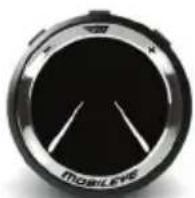
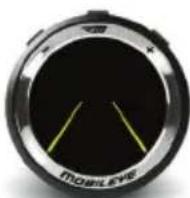
LDW available LDW unavailable
Headway Monitoring and Warning (HMW)
HOW DOES THE HMW WORK?
The HMW displays the time, in seconds, to the vehicle in front. The system provides an alert if the time becomes dangerously short.
HOW DOES THE HMW AUDIO ALERT SOUND?
It is a single chime when the headway is equal to or less than the time reflected on the headway setting.
WHICH ICON REPRESENTS THE HMW VISUAL ALERT?
NOTICE: The green car icon is displayed from the moment a vehicle is detected, and remains green as long as the headway is greater than the predefined headway time threshold.
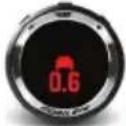
WARNING! The car icon changes to red when the headway is equal to or lower than the predefined headway time threshold, or below 0.6 seconds.
THE HMW HAPTIC ALERT (OPTIONAL)
The haptic alert will be connected to the steering wheel or to the driver's seat, depending on installation.
WHEN IS THE HMW OPERATIONAL?
A car icon is shown whenever a vehicle is detected traveling in front of the vehicle. The numerical headway display and the audio alert are operational only at speeds greater than 30 km/h (19 mph).
THE DISTANCE METER
The numerical display reflects the distance, in seconds, to the vehicle in front, in seconds.
VISUAL ALERTS
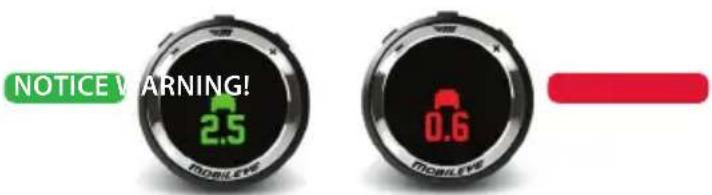
NOTES:
- The HMW alert will also be displayed on Mobileye's 660 smartphone application (Not iPhone compatible).
• The HMW will not issue audio warnings if the system has been muted.
WARNING!
- Setting the timing of the headway alert to a low value will activate the alert when vehicles are very close.
- The driver is solely responsible for maintaining a safe driving distance from other vehicles, regardless of whether or not the Mobileye 6-Series generates warnings.
Additional Features
Intelligent High-Beam Control (IHC) (Optional)
HOW DOES THE IHC WORK?
The intelligent high-beam control automatically activates and deactivates the high-beams on dark roads when no traffic is nearby.
WHEN IS THE IHC OPERATIONAL?
The IHC is active at night, on dark roads with no street lights, and without traffic nearby. The IHC is active at speeds greater than 35 km/h (21 mph). The IHC is active only if enabled.
IHC WILL NOT SWITCH TO HIGH-BEAMS WHEN:
- Another vehicle's tail lights are detected in front of your vehicle at a distance of less than 400 meters (437 yards).
• There is an oncoming vehicle at a distance of less than 800 meters (875 yards).
• The vehicle enters a well-lit area, or street lights are detected.
NOTES:
- IHC is available only on select vehicle models.
• IHC is available only if enabled during system installation.
• IHC is available only in certain geographical areas. - The IHC icon will also be displayed on Mobileye's 660 smartphone application (Not iPhone compatible).
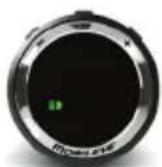
IHC enabled
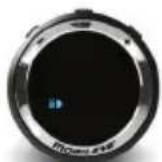
IHC active
Speed Limit Indicator (SLI) (Optional)
HOW DOES THE SLI WORK?
It detects and classifies various speed limit signs and provides a visual alert when the vehicle's speed exceeds the posted speed limit.
The alert is based on the most recent sign detected.
WHEN IS THE SLI FUNCTIONAL?
The SLI is functional when the vehicle's speed exceeds the posted speed limit sign.
WHICH ICON REPRESENTS THE SLI VISUAL ALERT?
It is indicated by a flashing speed limit sign icon.
The detected speed limit sign will be shown as a large icon for one second, then the icon will minimize and will be shown as a reminder of the last posted speed sign on the side of the display.
THE SLI HAPTIC ALERT (OPTIONAL)
A haptic alert will be connected to the steering wheel or to the driver's seat, depending on installation.
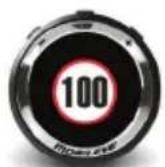
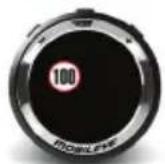
NOTES:
- The SLI alert will also be displayed on Mobileye's 660 smartphone application (Not iPhone compatible).
- Mobileye speed limit sign recognition technology detects signs that are valid according to the Vienna Convention on Road Signs and Signals.
Traffic Sign Recognition (TSR) (Optional)
Detects and classifies various traffic signs and notifies the driver of such signs.
NOTES:
- The TSR alert will also be displayed on Mobileye's 660 smartphone application (Not iPhone compatible).
- Mobileye speed limit sign recognition technology detects signs declared valid by the Vienna Convention on Road Signs and Signals.
Turn Signal Reminder
HOW DOES MOBILEYE TURN SIGNAL REMINDER WORK?
The Turn Signal Reminder provides an alert when one or both of the blinkers remain active for an extended period of time.
WHEN DOES THE TURN SIGNAL REMINDER WORK?
By default, the Turn Signal Reminder Alert will activate if the blinker is active for more the 30 seconds when the vehicle is traveling at a speed greater than 9 km/h (5.5 mph). The setting for this alert can be adjusted and ranges between 30 seconds to 5 min.
A repeated chime will sound for as long as the turn signal remain on and the vehicle speed is greater than 9 km/h (5.5 mph).
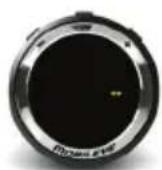
WHICH ICON REPRESENTS THE TURN SIGNAL REMINDER VISUAL ALERT?
A turn signal icon will flash as long as the turn signal remains on and the vehicle speed is greater than 9 km/h (5.5 mph).
NOTE:
The Turn Signal Reminder is available only on selected vehicle models.
Mobileye 6-Series EyeWatch Display
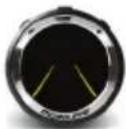 | Zero Speed IndicatorSystem is On. Vehicle is stationary or is not transmitting the vehicle speed to the Mobileye unit. |
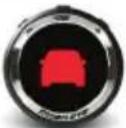 | Forward Collision Warning (FCW)Indicates possible collision with the vehicle in front. |
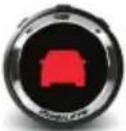 | Urban Forward Collision Warning (UFCW)Indicates possible collision with the vehicle in front (same as FCW). Active at speeds under 30 km/h (19 mph). |
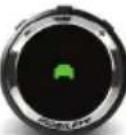 | Headway Visual AlertDisplayed when a vehicle in the same lane is detected ahead. |
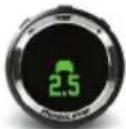 | Headway Distance MeterA two-digit number that reflects the headway, in seconds, from the vehicle ahead. Only values of 2.5 seconds or less are displayed.Green indicates safe headway.Red indicates unsafe headway. |
 | |
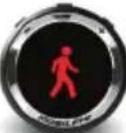 | Pedestrian Collision Warning (PCW)Indicates possible collision with a pedestrian. |
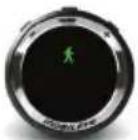 | Pedestrian in the Danger ZoneA pedestrian has been detected in the "Danger Zone"; time to collision is not critical. |
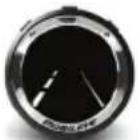 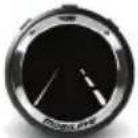 | Left/Right Deviation AlertThe left or right deviation indicator will flash for 0.7 seconds when the vehicle unintentionally departs from the driving lane. |
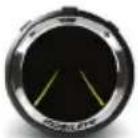 | LDW Unavailable (Yellow icon)Lane Departure Warning is not active. |
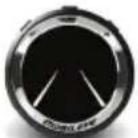 | LDW Available (White icon)Lane Departure Warning is enabled. |
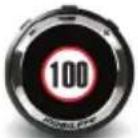 | Speed Limit Indicator (SLI)The detected speed limit sign will be shown as a large icon for one second. |
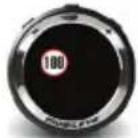 | SLI Minimized IconThe last detected speed limit sign will be shown as a minimized icon. |
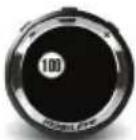 | SLI Faded IconThe last detected speed limit sign indication is about to be removed from the display. |
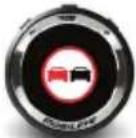 | Traffic Sign Recognition (TSR)The detected traffic sign will be shown as a large icon for one second. |
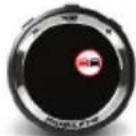 | TSR Minimized IconThe last detected traffic sign will be shown as a minimized icon. |
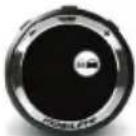 | TSR Faded IconThe last detected traffic sign indication is about to be removed from the display. |
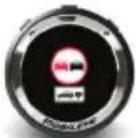 | TSR + Supplementary SignThe detected traffic sign + supplementary sign will be shown as a large icon for one second. |
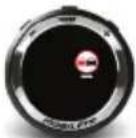 | TSR + Supplementary Sign Minimized IconThe last detected traffic sign + supplementary sign will be shown as a minimized icon. |
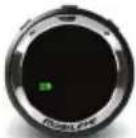 | IHC Enabled (Green icon)The IHC feature is enabled. |
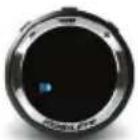 | IHC Active (Blue icon)The high beams are on. |
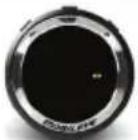 | Turn Signal ReminderDisplays when turn signal has been on for an extended period of time. |
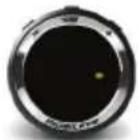 | Low Visibility IndicationDisplays during low visibility conditions (bad weather, direct sunlight, dirt on windshield, etc.). The Mobileye 6-Series will continue to work; however, its ability to detect may be limited. If low visibility persists, check for possible vision sensor obstructions such as dirt, humidity, etc. |
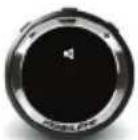 | MuteThe system volume has been muted. Only critical collision warnings will sound. Press the (+) button to exit mute. |
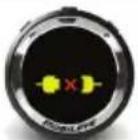 | No CommunicationContact your local Mobileye distributor/installer. |
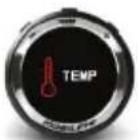 | TemperatureThe system has overheated. Wait a few minutes to allow the system to cool down.Turning on the air conditioner may help the system to cool down faster. |
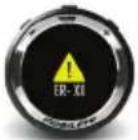 | ErrorContact your local Mobileye distributor/installer. |
System Controls on Vision Sensor
Turning the Mobileye 6-Series system OFF/ON
Press and hold the center button on the vision sensor (o).
Volume Control
Press the (−) button repeatedly to decrease the volume; press the (+) button repeatedly to increase the volume. There are six volume levels (0–5). Note: When the volume is set to zero (Mute), the audible alerts for LDW and HMW are disabled. However, the audible alert for FCW, UFCW and PCW will default to level "3."
EyeWatch Control Panel
Use the (SM, +,-) buttons on the EyeWatch to navigate through the system menu.
NOTE:
Please note that the EyeWatch menu button is disabled when the vehicle is moving. This is for safety reasons in order to prevent the driver from changing the system settings while driving. The volume settings, however, are enabled regardless of the vehicle's speed.
MODE SELECTION
Turning the Mobileye 6-Series system OFF/ON
Turning OFF: Press the ( ) button until the EyeWatch display turns off.
Turning ON: Press any button.
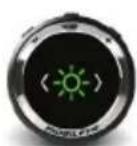
The EyeWatch display is equipped with a light sensor that will automatically adjust the brightness according to light conditions, including day or night.
Changing the Brightness Level:
a. Press (TM) once. The Brightness Icon will appear.
b. Press ( ) again. The Brightness Level Icon will appear.
c. Press the (-) (+) buttons to decrease or increase the brightness level.
d. Press the ( - ) again to exit and save new settings (or wait five seconds).
There are five available levels (1–5).
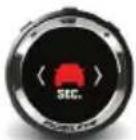 | HMW TIMING CONTROLChanging the Headway Warning Timing:a. Press ( [IMAGE]) once.b. Press the (+) button until the shown icon appears.c. Press ( [IMAGE]) once again.d. Press (−) to decrease the headway warning time; press (+) to increase it.e. Press the ( [IMAGE]) again to exit and save new settings (or wait 5 seconds).Available levels: 0.1-2.5 seconds |
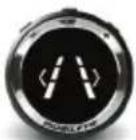 | LDW CONTROLa. Press ( [IMAGE]) once.b. Press the (+) button until the shown icon appears.c. Press ( [IMAGE]) once again.d. Press (+) to activate Mobileye LDW; press (−) to deactivate it.e. Press the ( [IMAGE]) again to exit and save the new settings (or wait five seconds).0 = OFF; 1 = ON. |
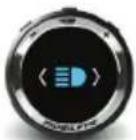 | IHC CONTROLEnabling and Disabling:a. Press ( [IMAGE]) once.b. Press the (+) button until the shown icon appears.c. Press ( [IMAGE]) once again.d. Press (+) to activate IHC; press (−) to deactivate it.e. Press the ( [IMAGE]) again to exit and save the new settings (or wait five seconds).0 = OFF; 1 = ON. |
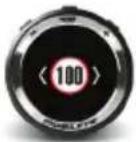 | SLI CONTROLSChanging the Threshold:a. Press ( [IMAGE]) once.b. Press the (+) button until the shown icon appears.c. Press ( [IMAGE]) once again.d. Press the (−) (+) buttons to decrease or increase the level.e. Press the ( [IMAGE]) again to exit and save the new settings (or wait five seconds).There are seven options available:OFF Mode: Indicates that the Speed Limit Indicator is disabled.Mode +5: The Speed Limit Alert will be issued when the speed exceeds the speed limit by 5 KPH (3 mph).Mode +10: The Speed Limit Alert will be issued when the speed exceeds the speed limit by 10 KPH (6 mph).Mode +15: The Speed Limit Alert will be issued when the speed exceeds the speed limit by 15 KPH (9 mph).Mode +20: The Speed Limit Alert will be issued when the speed exceeds the speed limit by 20 KPH (12 mph).Mode +25: The Speed Limit Alert will be issued when the speed exceeds the speed limit by 25 KPH (16 mph).Mode +30: The Speed Limit Alert will be issued when the speed exceeds the speed limit by 30 KPH (19 mph).Example:If the Speed Limit indicator is set to Mode +20, the system will issue an alert when the vehicle exceeds the recognized speed on the speed sign by more than 20 KPH (12 mph). For example: If the recognized speed on the sign is 50 KPH (31 mph) and the vehicle is traveling at a speed of 71 KPH (44 mph), the system will issue a Speed Limit Indication. The Speed Limit Sign will flash on the EyeWatch display. |
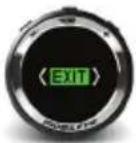 | EXIT (TO THE MAIN SCREEN)a. Press the (+) button until the shown icon appears.b. Press ( [IMAGE]) once to return to main screen. |
Volume Control
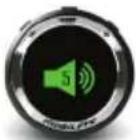 | VOLUME CONTROLWhen in the main screen, press the (−) button repeatedly to decrease the volume; press the (+) button repeatedly to increase the volume. There are six volume levels (0–5).Note: When the volume is set to zero, the LDW and HMW audible alerts are disabled; however, the FCW and PCW audible alert volume will default to level "3." |
 | MUTEOption 1:Set volume level to "0."Option 2:Press and hold the (−) button for 1.5 seconds.To exit Mute, press (+).Note:The Mute mode will be active until the system is turned off, including when turning the vehicle off, or until the volume is turned back on. The system will return to the preset volume when the vehicle is turned on once again. |
Pairing the Mobileye 660 with a Smartphone via Bluetooth (Bluetooth is not available on all 6-Series Systems) (Not iPhone compatible)
PLEASE NOTE: The pairing process may vary by smartphone. For additional instructions, refer to your smartphone's user manual.
The Mobileye 660 can be paired with any Android compatible smartphone. This pairing process is required only once. After the smartphone has been paired with the Mobileye 660, it will automatically connect to the system every time the Mobileye smartphone application is used. The Mobileye 660 can be paired with up to eight different smartphones (only one smartphone can be connected at a time).
Pairing Process
- Access the Bluetooth settings screen on the smartphone and search for "new device."
- Turn the vehicle on, which will then turn on/activate the Mobileye 660 System. In a few seconds, the smartphone should find a device called "Mobileye 6 BTM."
- Follow the smartphone instructions to pair with the Mobileye 660 System.
- When asked for the pass key, enter "1234." The smartphone should now be paired with the Mobileye 660 System.
NOTE:
Pairing with a smartphone is possible only during the first two minutes after the system has been powered up. If pairing does not take place within the first two minutes, turn the vehicle off and on to power up the system again.
After the smartphone has been paired with the Mobileye 660 System, download and install the Mobileye Smartphone Application.
The Mobileye Smartphone Application can be downloaded from the Google Play Store or found here:
www.mobileye.com/mobilapp

System Limitations
- The Mobileye 6-Series Systems are intended for paved roads with lanes that are clearly marked.
- The Mobileye 6-Series Systems cannot "see" better than the driver. It is the driver's responsibility to be alert and aware at all times, and to depend on his or her eyesight and hearing when driving.
- The Mobileye 6-Series Systems detect fully visible rear-ends of vehicles. Therefore, crossing, oncoming, and passing vehicles cannot be detected.
- The Mobileye 6-Series Systems do not guarantee 100% accuracy in detecting vehicles, pedestrians or driving lanes, or in providing warnings for all potential road hazards. In addition, road, weather and other conditions can adversely affect the Mobileye 6-Series Systems' recognition and response capabilities. Any conditions that create partial or full blockage of the vision sensor's view will result in no or reduced functionality of the Mobileye Systems. Always ensure that the vision sensor has a clear field of view.
License and Warranties
LIMITED USE LICENSE
The software embedded in this Mobileye product is the proprietary property of Mobileye. The purchaser is granted solely with a non-exclusive license to use the software as provided by Mobileye, and shall not (a) modify, adapt, alter, translate, or create derivative works from any software residing in or provided by Mobileye in conjunction with this Mobileye product; (b) reverse assemble, decompile, disassemble, or otherwise attempt to derive the source code for such software; (c) assign, sublicense, lease, rent, loan, transfer, disclose, or otherwise make available such software; or (d) remove proprietary notices on product or its accompanying documentation.
LIMITED WARRANTY
This Mobileye product's Limited Warranty (the "Limited Warranty") is non-assignable and covers the original purchaser of this Mobileye product installed on the vehicle for which the system was purchased against defects in material or workmanship for a period of one year from the date of purchase (or as required by applicable law). The sole obligation of Mobileye under this Limited Warranty is to repair or replace, at Mobileye's discretion, any Mobileye product that is determined by Mobileye to have been defective in materials or workmanship. Mobileye will not be responsible for conditions arising as a result of installation. The following are excluded from warranty coverage: (a) Damage from misuse, negligence, improper installation or accident, (b) Installation on a vehicle other than the vehicle for which this Mobileye product was designed, (c) Repair or alteration of this Mobileye product by any party other than Mobileye, or (d) Installation or removal of the products that is performed other than Mobileye's authorized installation professionals.
WARRANTY DISCLAIMER
This Limited Warranty is the sole and exclusive warranty applicable to this Mobileye product. Mobileye disclaims all other express warranties and all implied warranties of merchantability and fitness for a particular purpose, to the fullest extent permitted by applicable law. No representative, distributor, dealer or agent of Mobileye has the authority to make any representation, warranty, or agreement on behalf of Mobileye with respect to this Mobileye product. No representation or warranty of any kind or nature is made by Mobileye beyond those expressly stated herein. In no event shall Mobileye be liable for any special, collateral, indirect, punitive, incidental, consequential, or exemplary damages in connection with or arising out of the use of this Mobileye product.
IF WARRANTY SERVICE IS NEEDED
The following procedure is to be followed should a problem with this Mobileye product arise:
- Contact the distributor from which this Mobileye product was purchased.
- Contact Mobileye if this Mobileye product was purchased directly from Mobileye. All Mobileye products must be returned to Mobileye with prepaid freight. A return authorization number is required and may be obtained by contacting the Mobileye Customer Service Department.
© Mobileye Vision Technologies Ltd. All rights reserved. Reproduction in whole or in part without written permission is prohibited. M Mobileye®, M®, Mobileye®, SeeQ®, EyeQ® and the Mobileye logo are registered trademarks of Mobileye Vision Technologies Ltd. www.mobileye.com. Specifications are subject to change without notice.
natural_image
Circular black button with red pedestrian silhouette and 'MOBILE' text, no additional symbols or text visible.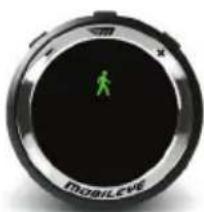
natural_image
Close-up of a black circular device with a green human figure icon on the center, labeled 'MOBILEVE' at bottom (no additional text or symbols visible)HINWEISE!
natural_image
Close-up of a circular mechanical dial with metallic rim and white needle, no visible text or symbolswww.mobileye.com/mobilapp

BESCHRÄNKTE GARANTIE
natural_image
Close-up of a circular device with a green pedestrian silhouette on its surface, labeled 'MOBILEVE' at the bottom (no additional text or symbols visible)REMARQUES :
natural_image
Close-up of a circular mechanical dial with 'MOBILE' branding and a white needle pointing downward (no readable text beyond label)ALERTE HAPTIQUE LDW (OPTION)
ALERTE HAPTIQUE HMW (OPTION)
www.mobileye.com/mobilapp
natural_image
Close-up of a black circular device with a green human silhouette on the center, labeled 'mobileve' at the bottom (no additional text or symbols visible)NOTE:
natural_image
Close-up of a black circular device with 'MOBILEVE' branding and a white needle pointing downward (no readable text beyond branding)www.mobileye.com/mobilapp

natural_image
Close-up of a black circular device with a green human figure and 'MOBILE' branding (no readable text beyond branding)Alerta de salida de carril (LDW) de Mobileye
natural_image
Close-up of a black circular device with metallic rim and white indicator lights, labeled 'MOBILE' (no readable text beyond branding)NOTA:
natural_image
Close-up of a black circular device with yellow internal lines and 'MOBILE' branding (no readable text or symbols beyond branding)LDW no disponible
Monitoreo de alcance y alerta (HMW) de Mobileye
www.mobileye.com/mobilapp

natural_image
Circular device with a green human figure on its black screen, labeled 'MOBILEVE' at the bottom (no additional text or symbols visible)ПРИМЕЧАНИЯ:
natural_image
Close-up of a black circular device with 'MOBILEVE' branding and white line markings (no readable text beyond branding)Ограничения системы
natural_image
Close-up of a circular device with a green human figure on its surface, labeled 'MOBILEVE' at the bottom (no additional text or symbols visible)注記:
natural_image
Close-up of a black circular device with a white needle and 'mobileve' label, no readable text or symbols beyond the label.LDW が機能する場合
www.mobileye.com/mobilapp
システムの制限
natural_image
Close-up of a black circular device with a green human figure icon and 'mobileve' branding (no readable text or symbols beyond branding)注意!
natural_image
Close-up of a black circular device with metallic rim and white markings, labeled 'MOBILEVE' (no readable text beyond branding)注意:
natural_image
Close-up of a black circular device with two green lines, labeled 'MOAHIVE' at the bottom (no other text or symbols visible)LDW 不可用
Mobileye 车距监测与警告 (HMW)
HMW 如何工作?
natural_image
Circular device with a red pedestrian silhouette on black background, labeled 'MOBILE'S' (no additional text or symbols)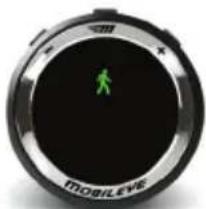
natural_image
Close-up of a circular device with a green human figure icon on its surface, labeled 'mobileve' (no additional text or symbols visible)UWAGI:
natural_image
Close-up of a circular mechanical dial with 'MOBILE' branding and a needle pointing to the center (no additional text or symbols visible)KTÓRA IKONA REPREZENTUJE ALARM WIZUALNY LDW?
FUNKCJA LDW NIE WYWOŁA ALARMU, GDY:
www.mobileye.com/mobilapp