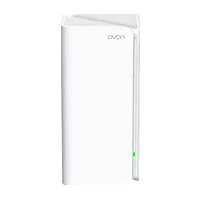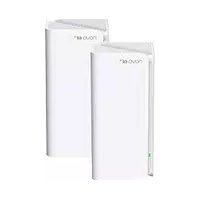
MX21 Pro - WiFi antenna Tenda - Free user manual and instructions
Find the device manual for free MX21 Pro Tenda in PDF.


| Product Type | WiFi Mesh System (kit of 2 or 3 nodes) |
| Brand | Tenda |
| Model | MX21 Pro |
| Dimensions (per node) | Approximately 10 × 10 × 3 cm |
| Weight (per node) | Approximately 100 g |
| Power Supply | AC adapter (provided, 5V/1A typical) |
| Interfaces | 3 Ethernet ports (10/100/1000 Mbps) per node |
| Wireless Connectivity | Dual-band WiFi (2.4 GHz and 5 GHz), 802.11ac standard |
| Main Functions | WiFi network extension, creation of a mesh network, Internet connection via modem or Ethernet port |
| Configuration | Via Tenda WiFi app (iOS/Android) or web interface (tendawifi.com) |
| LED Indicator | Solid green (good connection), solid yellow (fair), solid red (poor) |
| Maintenance and Cleaning | Clean with a soft, dry cloth. Do not use chemical products. |
| Safety | Do not disassemble, avoid water and fire, use the provided adapter, unplug during storms |
| Spare Parts and Repairability | AC adapters and Ethernet cable provided. Repair by authorized service only. |
| Operating Temperature | 0°C to 40°C |
| Operating Humidity | 10% to 90% RH (non-condensing) |
| Certifications | Compliant with European directive 2014/53/EU |
Frequently Asked Questions - MX21 Pro Tenda
User questions about MX21 Pro Tenda
0 question about this device. Answer the ones you know or ask your own.
Ask a new question about this device
Download the instructions for your WiFi antenna in PDF format for free! Find your manual MX21 Pro - Tenda and take your electronic device back in hand. On this page are published all the documents necessary for the use of your device. MX21 Pro by Tenda.
USER MANUAL MX21 Pro Tenda
MX15 Pro/EX15 Pro/MX21 Pro/EX21 Pro (2-pack, 3-pack)
Tenda
CONTENTS
01 / English
07 / Deutsch
10 / Español
13 / Čeština
16 / Français
19 / Italiano
22 / Magyar
25 / Nederlands
28 / Русский
31 / Português
34 / Polski
37 / Română
40 / Svenska
43 / Slovenščina
46 / Ελληνικά
49 / Български
Please read this guide before you start with the quick setup upon the first use. You can see the product name and model on the product label.
MX15 Pro is used for illustration here unless otherwise specified. The actual product prevails.
This guide instructs how to install and connect the device. For more information such as the description of symbols displayed on relevant materials, please visit www.tendacn.com or scan the Product Documents QR code in this guide.
Package contents
MX15 Pro (3-pack) & EX15 Pro (3-pack) MX21 Pro (3-pack) & EX21 Pro (3-pack)
- Mesh15XP/Mesh21XEP x 3
- Power adapters x 3
- Ethernet cable x 1
- Quick installation guide x 1
MX15 Pro (2-pack) & EX15 Pro (2-pack) MX21 Pro (2-pack) & EX21 Pro (2-pack)
- Mesh15XP/Mesh21XEP x 2
- Power adapters x 2
- Ethernet cable x 1
- Quick installation guide x 1
Appearance
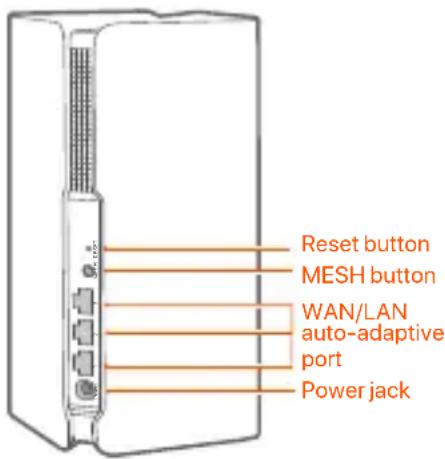
text_image
Reset button MESH button WAN/LAN auto-adaptive port Power jack| Button | Description |
| MESH | MESH button.- As a networking button: Press this button on this device for about 1 to 3 seconds. The LED indicator blinks green fast, which indicates the device is searching for another device to form a network. Within 2 minutes, press the MESH button of another device for 1 to 3 seconds to negotiate with this device.- As a de-networking button: Press this button for about 8 seconds and release it when the LED indicator blinks red fast. The node is restored to factory settings, and also removed from the network and no longer automatically joins in again.TipsDo not hold down the MESH button for 8 seconds if unnecessary. |
| RESET | Reset button.When the device completes startup, hold down this button using a needle-like item (such as a pin) for about 8 seconds, and then release it when the LED indicator blinks red fast. The device is reset successfully. |
Connect the primary node
* Choose one device from the kit to connect to the internet as the primary node in the network.

Tips
If you do not use a modem for internet access, please skip steps 1 and 3.
- Power off your modem.
- Use the included Ethernet cable to connect the 1, 2 or 3 port to your modem or the Ethernet jack.
- Power on your modem.
- Power on the primary node, and wait until the LED indicator blinks green.
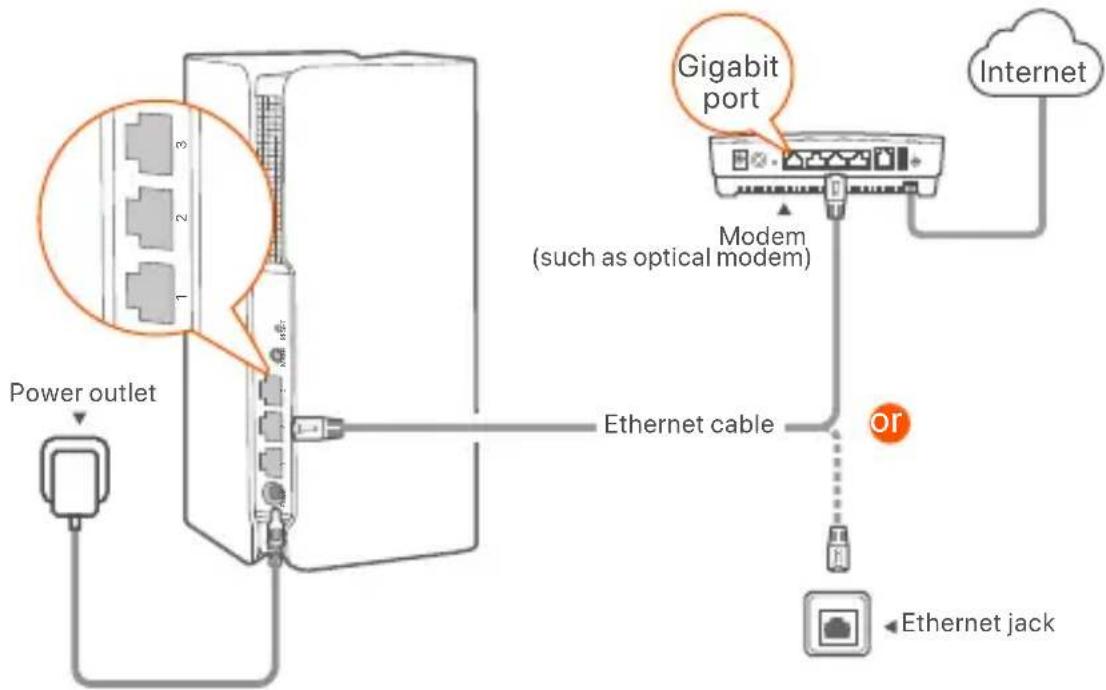
text_image
Power outlet 3 2 1 Gigabit port Modem (such as optical modem) Internet Ethernet cable Or Ethernet jackConnect the primary node to the internet
Method 1: Setup through Tenda WiFi App 1. Download the Tenda WiFi App onto your mobile device by scanning the QR code or by searching for Tenda WiFi in Google Play or App Store. Then install the Tenda WiFi App.

text_image
QR code with a central orange logo, likely linking to a digital resource or website.or
Tenda WiFi
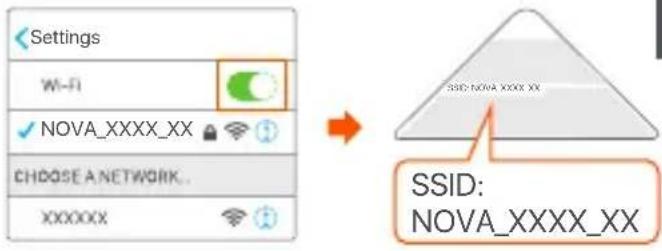
- Connect the mobile phone to the WiFi network of the primary node. The SSID and password can be found on the bottom label of the device.
text_image
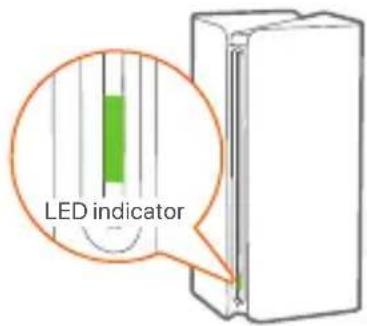
Settings Wi-Fi NOVA_XXXX_XX CHOOSE A NETWORK.. XXXXXX SSID: NOVA_XXXX_XX SSID: NOVA_XXXX_XX- Run the Tenda WiFi App and follow the onscreen instructions to connect the device to the internet. After the device is connected to the internet, its LED indicator lights solid green, and the device has become the primary node in the network.
text_image
LED indicatorMethod 2: Setup through web UI
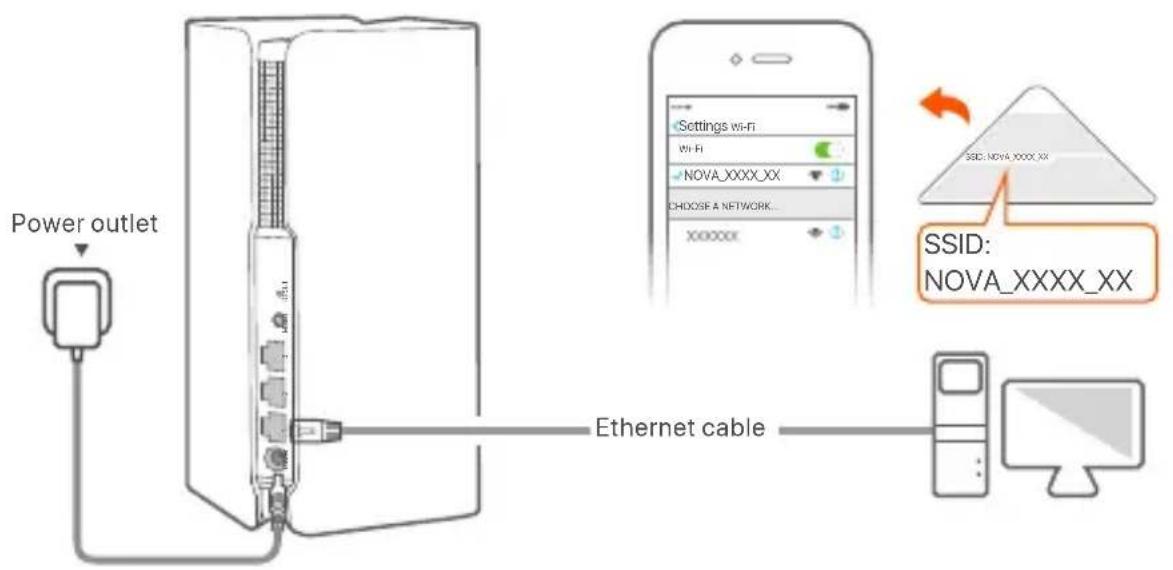
- Connect the client to the primary node.
Method 1: Connect the wireless client such as a mobile phone to the WiFi network of the primary node. The SSID and password can be found on the bottom label of the device.
Method 2: Use an Ethernet cable to connect the computer to the 1, 2 or 3 port of the primary node.
flowchart
graph TD
    A["Power outlet"] --> B["Switch"]
    B --> C["Ethernet cable"]
    C --> D["NOVA_xxxx_xx SSD"]
    D --> E["Settings wi-Fi"]
    D --> F["NOVA_xxxx_xx"]
    D --> G["CHOOSE A NETWORK..."]
    D --> H["Xxxxxxx"]
- Start a browser on the client and enter tendawifi.com in the address bar to access the web UI, and follow the onscreen instructions to connect the device to the internet.

Tips
If you cannot log in to the web UI, refer to Q3 in FAQ.
Extend network
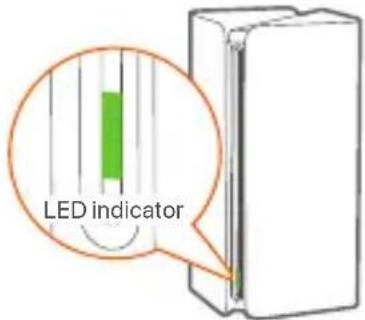
- Place the other devices in the kit within 3 meters from the primary node to power them on. Wait for about 3 minutes. When the LED indicators of these devices light solid green, the networking is successful and these devices become secondary nodes in the network.
text_image
LED indicator-
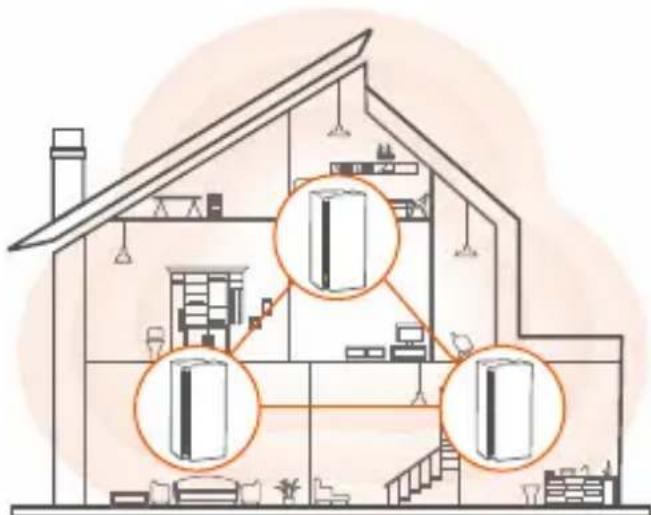
Please refer to the following relocation tips to locate the secondary nodes to a proper position:
-
Ensure that the distance between any two nodes is less than 10 meters.
- Keep your nodes away from electronics with strong interference, such as microwave ovens, induction cookers, and refrigerators.
-
Place the nodes in a high position with few obstacles.
-
Power on the secondary nodes again till these LED indicators blink green slowly.
The MX15 Pro(3-pack) is taken as an example here.

Tips
If the LED indicator of secondary node keeps blinking green slowly for more than 3 minutes, relocate the secondary node and move it closer to the primary node.
text_image
Diagram of a house interior with labeled refrigerator units and internal layout, showing room layouts and fixtures.- Observe the LED indicator of the secondary nodes until the LED indicator lights one of the following colors:
| Solid green Networking succeeds. Excellent connection quality. |
| Solid yellow Networking succeeds. Fair connection quality. |
| Solid red Networking succeeds. Poor connection quality. |
- If the secondary node's LED indicator lights solid red, relocate it according to step 2 in 🌐 Extend network to get an optimal connection quality.
Done.
• To access the internet with:
- Wired devices: Connect to the 1, 2 or 3 ports of your nodes.
- Wireless devices: Connect to your WiFi network using the SSID and password you set. (All nodes share the same SSID and password)
- If you configure the nodes using the Tenda WiFi App and you want to manage the network remotely, tap 🔒 on the App home page and use your account to log in.
Lieferumfang
MX15 Pro (3er-Pack)/EX15 Pro (3er-Pack) MX21 Pro (3er-Pack)/EX21 Pro (3er-Pack)
MX15 Pro (3-pack)/EX15 Pro (3-pack) MX21 Pro (3-pack)/EX21 Pro (3-pack)
MX15 Pro (2-pack)/EX15 Pro (2-pack) MX21 Pro (2-pack)/EX21 Pro (2-pack)
MX15 Pro (3-pack)/EX15 Pro (3-pack) MX21 Pro (3-pack)/EX21 Pro (3-pack)
- Mesh15XP/Mesh21XEP x 3
- Stroom adapters x 3
- Ethernet-kabel x 1
- Snelle installatie gids x 1
MX15 Pro (2-pack)/EX15 Pro (2-pack) MX21 Pro (2-pack)/EX21 Pro (2-pack)
- Mesh15XP/Mesh21XEP x 2
- Stroom adapters x 2
- Ethernet-kabel x 1
- Snelle installatie gids x 1
MX15 Pro (3-pack) & EX15 Pro (3-pack)
MX21 Pro (3-pack) & EX21 Pro (3-pack)
- Mesh15XP/Mesh21XEP x 3
- Strömadaptrar x 3
- Ethernet-kabel x 1
- Snabbin Installationsguide x 1
MX15 Pro (2-pack) & EX15 Pro (2-pack)
MX21 Pro (2-pack) & EX21 Pro (2-pack)
- Mesh15XP/Mesh21XEP x 2
- Strömadaptrar x 2
- Ethernet-kabel x 1
- Snabbin Installationsguide x 1
1 Anslut den primära noden
Q1: Can I add another new set of nodes to expand my network coverage?
A1: Yes. Try the following solutions:

Tips
Please ensure that the new node you want to add has never been used. If not, reset it first.
Method 1: Press the MESH button for about 1 to 3 seconds. The LED indicator blinks green fast, which indicates the device is searching for another device to form a network. Within 2 minutes, press the MESH button of another device for 1 to 3 seconds to negotiate with this device.
Method 2: Run the Tenda WiFi App and manage the network, tap + on the My WiFi page, and follow the on-screen instructions.
Method 3: Login to web UI of the node, tap + on the Network Status page, and follow the onscreen instructions.
Q2: How to restore my device to factory settings?
A2: When your device is working properly, hold down the RESET button of your device using a needle-like item (such as a pin) for about 8 seconds, and release it when the LED indicator blinks red fast. When the LED indicator lights solid green, your device is reset successfully.
Q3: I cannot log in to the web UI by visiting tendawifi.com. What should I do?
A3: Try the following solutions:
- If you are using a wireless device, such as a smart phone:
- Ensure that it is connected to the WiFi network of the node.
- Ensure that the cellular network (mobile data) of the client is disabled.
- If you are using a wired device, such as a computer:
- Ensure that tendawifi.com is entered correctly in the address bar, rather than the search bar of the web browser.
- Ensure that the computer is connected to the LAN port of the node properly using an Ethernet cable.
- Ensure that the computer is set to obtain an IP address automatically and obtain DNSserver address automatically.
If the problem persists, please reset the node by referring to Q2 and try again.
Q4: The device failed to be detected by the Tenda WiFi app upon my first time using the device. What should I do?
A4: Try the following solutions:
- Ensure that your mobile phone is connected to the default WiFi network of the device.
- Ensure that the network permissions of Tenda WiFi app is enabled. You can tap Settings > Tenda WiFi to enable it.
If the problem persists, please reset the node and try again.
LED indicator status
After the device is powered on for about 40 seconds, the system completes startup. The status of the LED indicator is shown in the following table.
| LED indicator status | Description |
| Solid green Connected to the internet. | |
| Solid yellow Networking succeeds. Fair connection quality. | |
| Solid red Networking succeeds. Poor connection quality. | |
| Blinking green slowly Connecting to other nodes or waiting to connect to other nodes. | |
| Blinking green fast Networking by MESH button. | |
| Blinking red slowly Failed to connect to the internet. | |
Get support and services
Scan the Product Documents QR code to get related documents, such as the datasheet and user guide.
* The product model can be found on the label of the device.

Product Documents
(such as datasheet and user guide)

CE Mark Warning
This is a Class B product. In a domestic environment, this product may cause radio interference, in which case the user may be required to take adequate measures.
Operations in the 5.15-5.25GHz band are restricted to indoor use only.
This equipment should be installed and operated with a minimum distance 20cm between the device and your body.
The mains plug is used as disconnect device, the disconnect device shall remain readily operable.
NOTE: (1) The manufacturer is not responsible for any radio or TV interference caused by unauthorized modifications to this equipment. (2) To avoid unnecessary radiation interference, it is recommended to use a shielded RJ45 cable.
Declaration of Conformity
Hereby, SHENZHEN TENDA TECHNOLOGY CO., LTD. declares that the device is in compliance with Directive 2014/53/EU.
The full text of the EU declaration of conformity is available at the following internet address:
https://www.tendacn.com/download/list-9.html
Operating Frequency:
EIRP Power (Max.):
2.4 GHz: EU/2412-2472 MHz (CH1-CH13)
2.4 GHz: <20 dBm
5 GHz: EU/5150-5350 MHz (CH36-CH64)
5 GHz: <23 dBm
6 GHz: EU/5945-6425 MHz (CH1-CH93) (Mesh21XEP, MX21 Pro, EX21 Pro)
6 GHz: <23 dBm (Mesh21XEP, MX21 Pro, EX21 Pro)
Software Version: V16.03.37X (Mesh15XP, MX15 Pro, EX15 Pro), V16.03.40. (Mesh21XEP, MX21 Pro, EX21 Pro)
Deutsch
This equipment has been tested and found to comply with the limits for a Class B digital device, pursuant to Part 15 of the FCC Rules. These limits are designed to provide reasonable protection against harmful interference in a residential installation. This equipment generates, uses and can radiate radio frequency energy and, if not installed and used in accordance with the instructions, may cause harmful interference to radio communications. However, there is no guarantee that interference will not occur in a particular installation. If this equipment does cause harmful interference to radio or television reception, which can be determined by turning the equipment off and on, the user is encouraged to try to correct the interference by one or more of the following measures:
– Reorient or relocate the receiving antenna.
– Increase the separation between the equipment and receiver.
- Connect the equipment into an outlet on a circuit different from that to which the receiver is connected.
- Consult the dealer or an experienced radio/TV technician for help.
The device is for indoor usage only.
Operation is subject to the following two conditions: (1) this device may not cause harmful interference, and (2) this device must accept any interference received, including interference that may cause undesired operation.
Radiation Exposure Statement
This device complies with FCC radiation exposure limits set forth for an uncontrolled environment and it also complies with Part 15 of the FCC RF Rules.
This equipment should be installed and operated with minimum distance 20cm between the device and your body.
FCC regulations restrict the operation of this device to indoor use only. (Mesh21XEP, MX21 Pro, EX21 Pro)
The operation of this device is prohibited on oil platforms, cars, trains, boats, and aircraft, except that operation of this device is permitted in large aircraft while flying above 10,000 feet. (Mesh21XEP, MX21 Pro, EX21 Pro)
Operation of transmitters in the 5.925-7.125 GHz band is prohibited for control of or communications with unmanned aircraft systems. (Mesh21XEP, MX21 Pro, EX21 Pro)
Caution:
Any changes or modifications not expressly approved by the party responsible for compliance could void the user's authority to operate this equipment.
This transmitter must not be co-located or operating in conjunction with any other antenna or transmitter.
Operating frequency: 2412–2462 MHz, 5150–5350 MHz, 5725–5850 MHz, 5925–7125 MHz (Mesh21XEP, MX21 Pro, EX21 Pro)
NOTE: (1) The manufacturer is not responsible for any radio or TV interference caused by unauthorized modifications to this equipment. (2) To avoid unnecessary radiation interference, it is recommended to use a shielded RJ45 cable.


Caution:
Adapter Model:
GQ24-120200-AB, GQ24-120200-AG, GQ24-120200-AU, GQ24-120200-AA (Mesh15XP, MX15 Pro, EX15 Pro)
GQ24-120250-AA, GQ24-120250-AB, GQ24-120250-AG, GQ24-120250-AU (Mesh21XEP, MX21 Pro, EX21 Pro)
Input: 100-240V AC, 50/60Hz 1.0A
Output: 12V DC, 2A (MX15 Pro, EX15 Pro, Mesh15XP); 12VDC, 2.5A (MX21 Pro, EX21 Pro, Mesh21XEP)
Manufacturer: DONGGUAN CITY GANGQI ELECTRONIC CO., LTD

DC Voltage
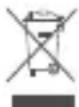
RECYCLING
This product bears the selective sorting symbol for Waste electrical and electronic equipment (WEEE). This means that this product must be handled pursuant to European directive 2012/19/EU in order to be recycled or dismantled to minimize its impact on the environment.
User has the choice to give his product to a competent recycling organization or to the retailer when he buys a new electrical or electronic equipment.
For EU/EFTA, this product can be used in the following countries:
| BE | BG | CZ | DK | DE | EE | IE | EL | ES | FR | HR | IT | CY | LV | |
| LT | LU | HU | MT | NL | AT | PL | PT | RO | SI | SK | FI | SE | UK(NI) |



Safety Precautions
Before performing an operation, read the operation instructions and precautions to be taken, and follow them to prevent accidents. The warning and danger items in other documents do not cover all the safety precautions that must be followed. They are only supplementary information, and the installation and maintenance personnel need to understand the basic safety precautions to be taken.
- The device must be horizontally mounted for safe use.
- Do not use the device in a place where wireless devices are not allowed.
- Please use the included power adapter.
- Mains plug is used as the disconnect device, and shall remain readily operable.
- The power socket shall be installed near the device and easily accessible.
- Operating environment: Temperature: 0°C - 40°C; Humidity: (10% - 90%) RH, non-condensing;
Storage environment: Temperature: -40°C - 70°C; Humidity: (5% - 90%) RH, non-condensing.
- Keep the device away from water, fire, high electric field, high magnetic field, and inflammable and explosive items.
- Unplug this device and disconnect all cables during lightning storms or when the device is unused for long periods.
- Do not use the power adapter if its plug or cord is damaged.
- If such phenomena as smoke, abnormal sound or smell appear when you use the device, immediately stop using it and disconnect its power supply, unplug all connected cables, and contact the after-sales service personnel.
- Disassembling or modifying the device or its accessories without authorization voids the warranty, and might cause safety hazards.
Floor 6-8, Tower E3, No.1001, Zhongshanyuan Road, Nanshan District, Shenzhen, China. 518052
Website: www.tendacn.com
E-mail: support.nova@tenda.com.cn
support.de@tenda.cn
support.fr@tenda.cn
support.es@tenda.cn
support.it@tenda.cn
support.uk@tenda.cn
Copyright
© 2022 Shenzhen Tenda Technology Co., Ltd. All rights reserved.
Tenda is a registered trademark legally held by Shenzhen Tenda Technology Co., Ltd. Other brand and product names mentioned herein are trademarks or registered trademarks of their respective holders. Specifications are subject to change without notice.
V1.0 Keep for future reference.